The EvTrack Connect agent is a small Windows service that sits next to your access control system. EvTrack cannot always reach that system directly, for example when it runs on a private network. The agent connects out to EvTrack, receives visitor and credential changes, and applies them to the access control system on EvTrack’s behalf.
This page covers installing the agent and connecting it to EvTrack. The access control chapters then cover the system-specific settings:
Before you start
- A Windows computer (64-bit) that can reach the access control server. This is often the access control server itself.
- Outbound TCP port 8883 from that computer to EvTrack. No inbound port needs to be opened.
- An EvTrack Connect app in EvTrack, so you can download its configuration file. See EvTrack Connect Agent.
The agent needs no other software: Java is included in the installer.
Get the installer
EvTrack support sends the installer, a single setup.exe, for your access control system. Each system has its own installer, for example evtrack-connect-gallagher-app-<version>-setup.exe.
Install the agent
Run setup.exe as an administrator on the agent computer. By default it installs the agent to C:\EvTrackConnect<System>App (for example C:\EvTrackConnectGallagherApp); this page uses that folder. Setup registers the Windows service “EvTrack Connect
Log in to the agent
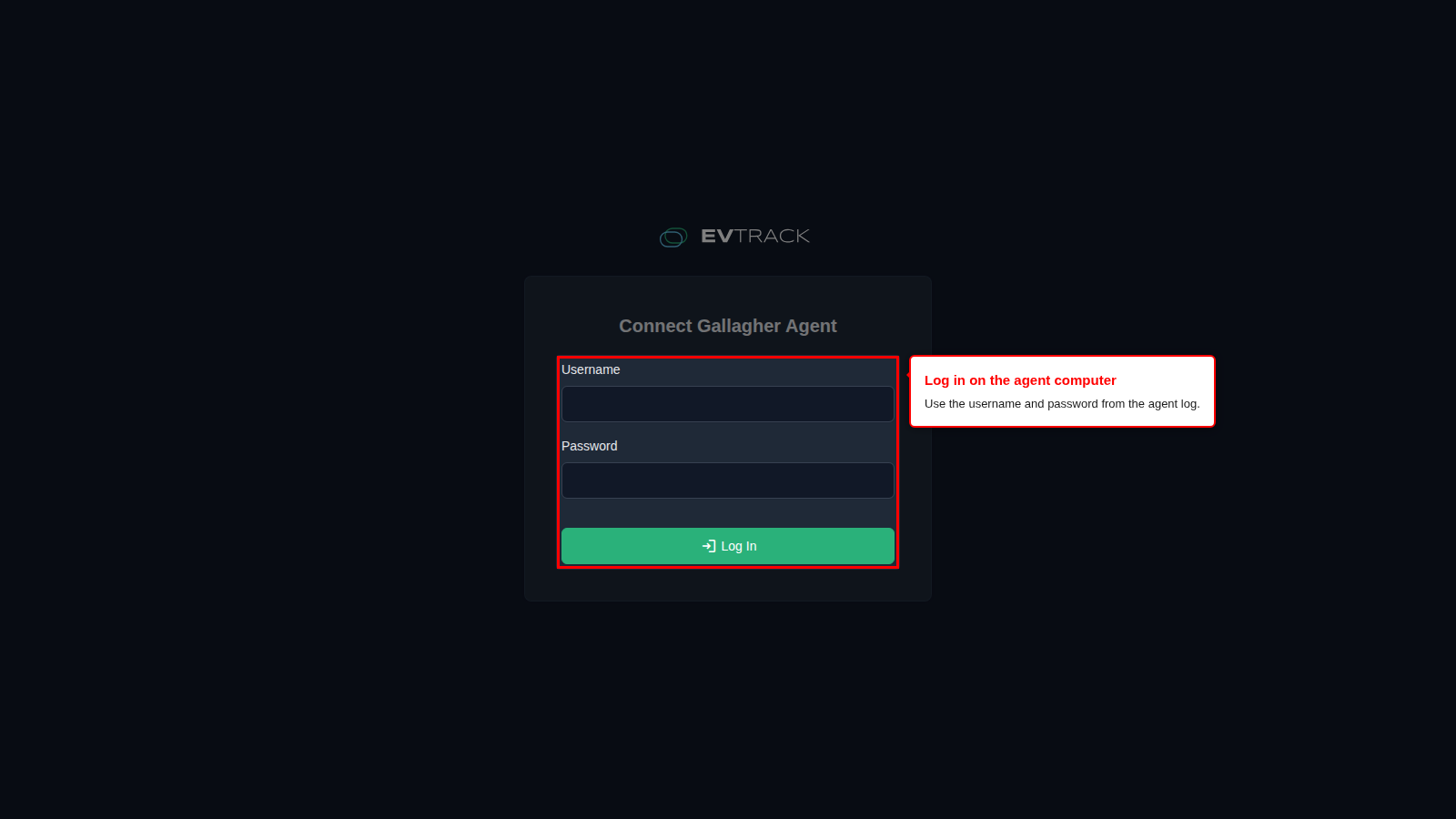
The agent has its own dashboard. It only answers on the agent computer itself, so open it there, in a browser, at http://127.0.0.1:<port>. The port depends on the system (see the port table below), for example http://127.0.0.1:18084 for Gallagher.
The username and the first password are written to the agent log when the agent starts. Open C:\EvTrackConnect<System>App\logs\evtrack-connect-<system>-app.out.log (for example C:\EvTrackConnectGallagherApp\logs\evtrack-connect-gallagher-app.out.log) and find the line “Dashboard is using the default password”. The line after it shows the username and password to use. The agent writes this line only while it still uses its first password. If the agent was installed on this computer before and its configuration was kept, it uses the password chosen then (see Uninstall).
Choose a new password
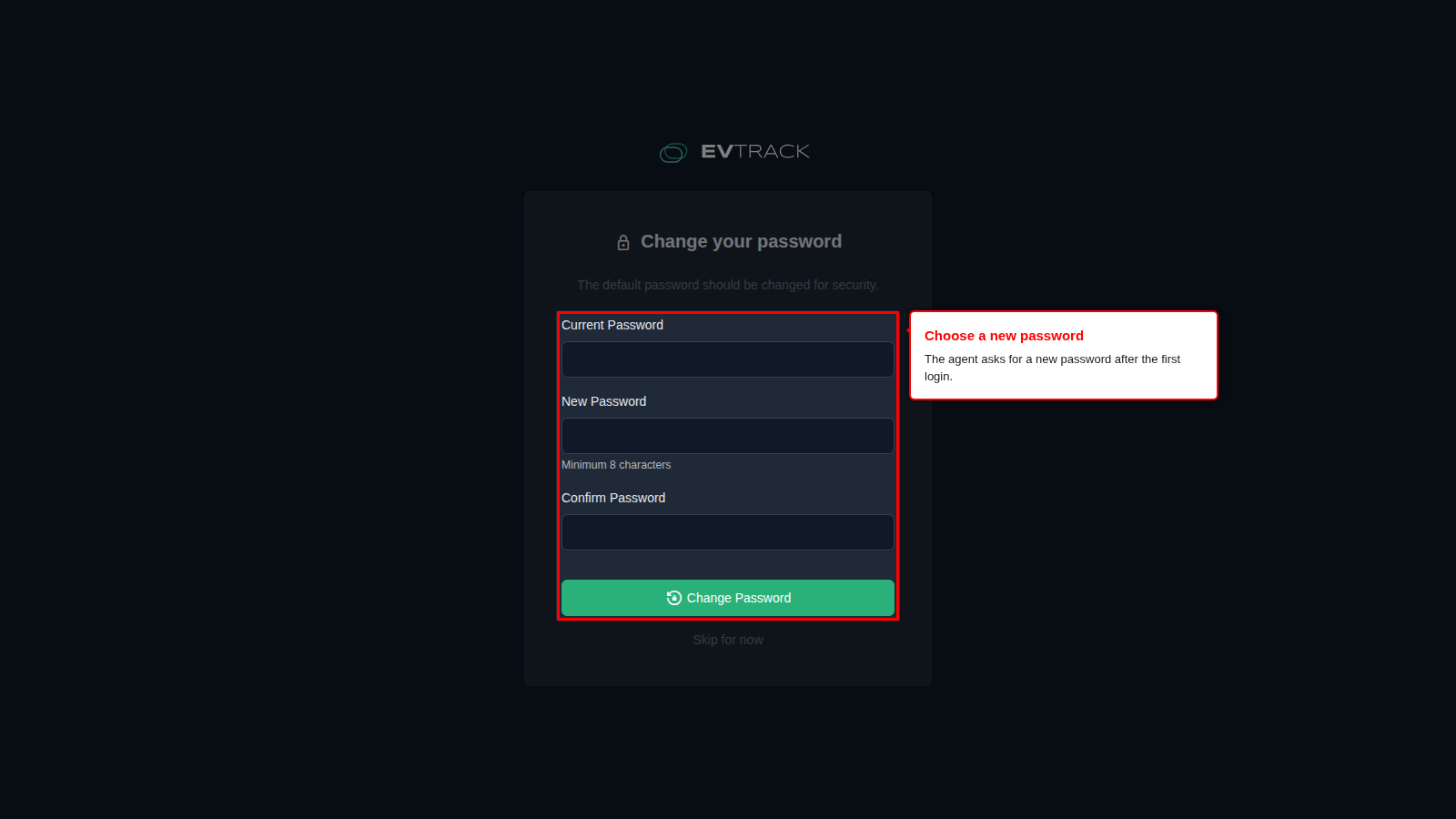
After the first login, the agent asks for a new password. Enter the password from the log as the current password, then choose a new one. Keep it safe: the log does not show the new password.
Upload the configuration
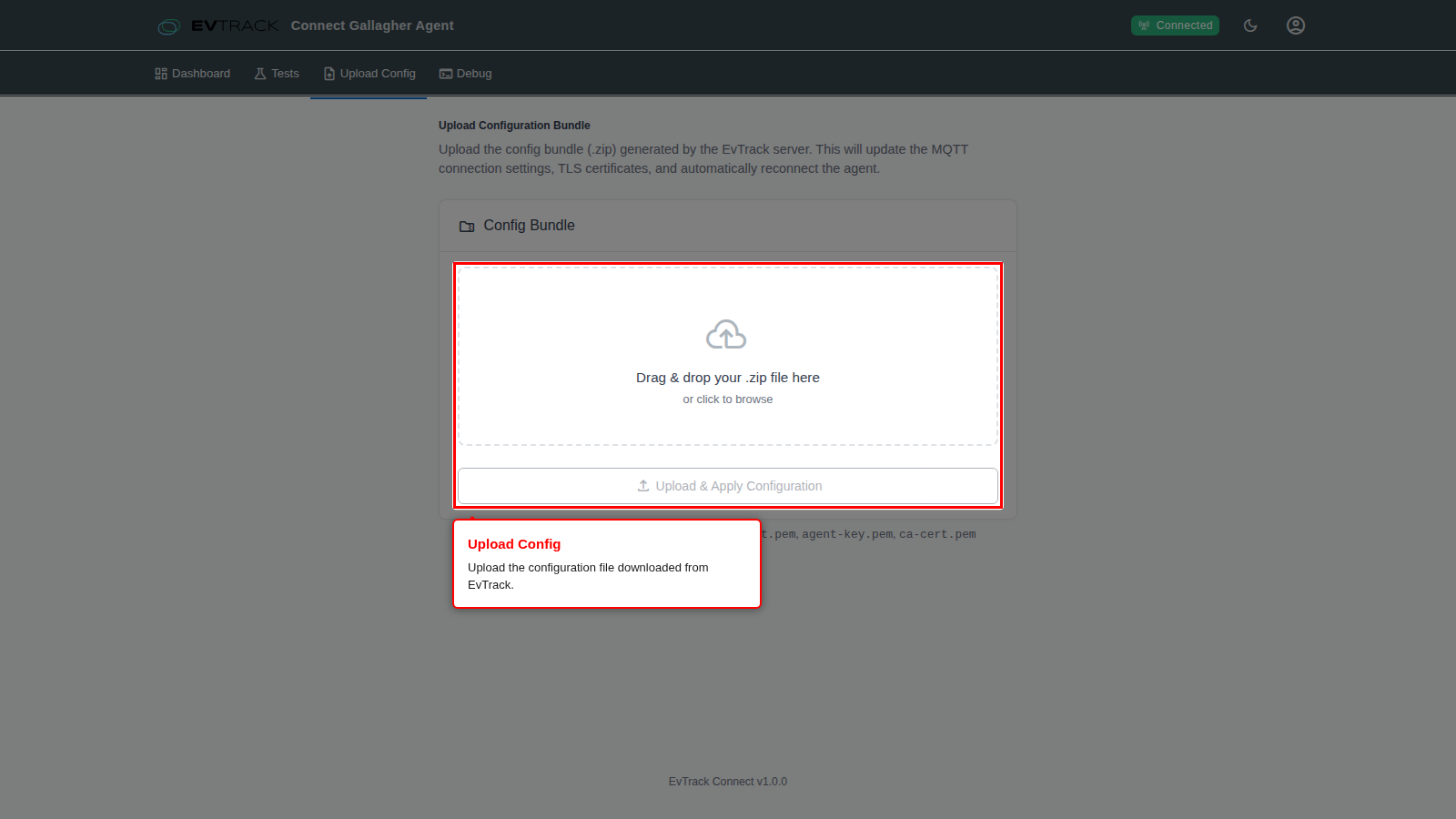
In EvTrack, download the configuration file of your EvTrack Connect app (see EvTrack Connect Agent, Step 2). It is a .zip file that identifies this agent to EvTrack and holds its certificates.
On the agent dashboard, open Upload Config, choose the file and upload it. The agent restarts its connection to EvTrack with the new configuration.
Check the status
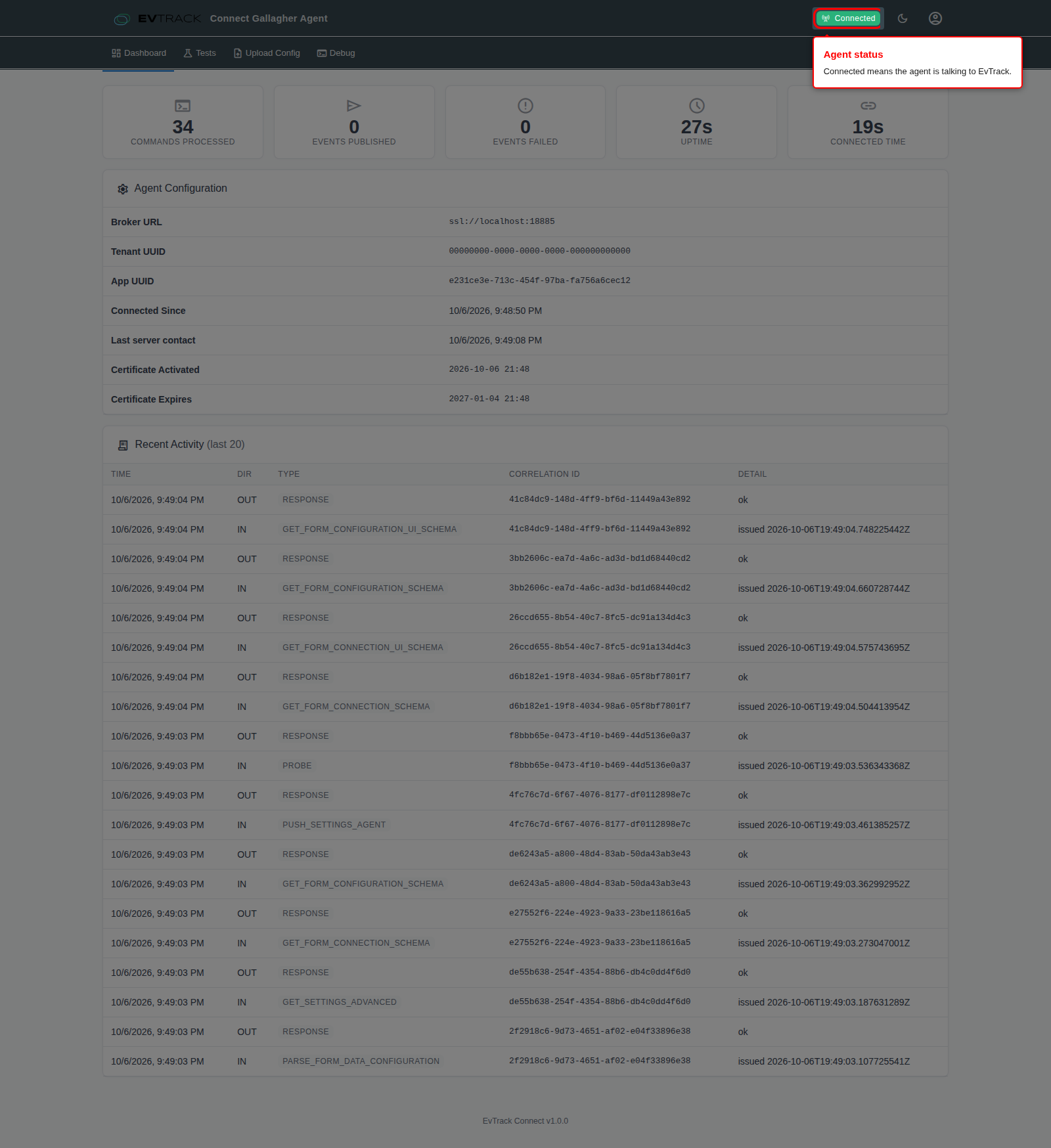
The Dashboard shows whether the agent is connected to EvTrack. Connected means the agent is talking to EvTrack. In EvTrack, the EvTrack Connect app’s Overview also shows the agent as Connected. You then enter the access control system’s connection settings in EvTrack, as described in its chapter.
If the agent remains disconnected, check that outbound TCP port 8883 is open from the agent computer, and that you uploaded the configuration file of the right app.
Logs
The agent writes its logs to C:\EvTrackConnect<System>App\logs:
| File | Contents |
|---|---|
evtrack-connect-<system>-app.out.log | The agent’s log |
evtrack-connect-<system>-app.err.log | Errors the agent could not handle |
evtrack-connect-<system>-app.wrapper.log | Service start and stop |
The .out.log and .err.log files roll over at 10 MB, and the agent keeps the last 50 of each. The .wrapper.log file is small and is not rolled over.
Uninstall
Open the Windows Start menu, choose **EvTrack Connect
- Yes keeps them. A new install on this computer then uses the password chosen earlier and reconnects to the same EvTrack app.
- No removes them. A new install then starts fresh: log in with the first password from the log, and upload the configuration file again.
Installers before version 1.0.4 keep the dashboard login and the EvTrack connection even when you answer No. To start fresh after one of those, delete the C:\EvTrackConnect<System>App folder after uninstalling.
Ports and firewall
| Port | Direction | Purpose |
|---|---|---|
| 18085 (Genetec), 18084 (Gallagher), 18083 (BioStar 2) | Local only (127.0.0.1) | The agent dashboard. No firewall rule is needed. |
| TCP 8883 | Outbound, agent to EvTrack | The encrypted connection to EvTrack (MQTT over TLS) |
| TCP 4590, and 4591 for events | Agent to Genetec Security Center | The Genetec WebSDK, see Genetec Security Center |
| The port in the server URL on the Connection tab | Agent to Gallagher Command Centre or BioStar 2 | The access control system’s API, set when you connect the system in EvTrack |
Each system’s agent has its own dashboard port, so several agents can run on one computer.