Every registration request that arrives - typed in by an operator, submitted by a visitor through a registration link, or loaded by an import - lands in one queue and waits for a person to decide. This chapter is the whole chain: where the queue is, who decides, what each decision produces, and what happens to the requests nobody touches.
Before you start:
- You need an operator account with the registration processing permission. Without it the Registration entry does not appear under Visitors at all.
- To act as a site manager you must additionally be assigned as a Manager (or an active Delegate) on the site in question, under Locations > the site > Managers.
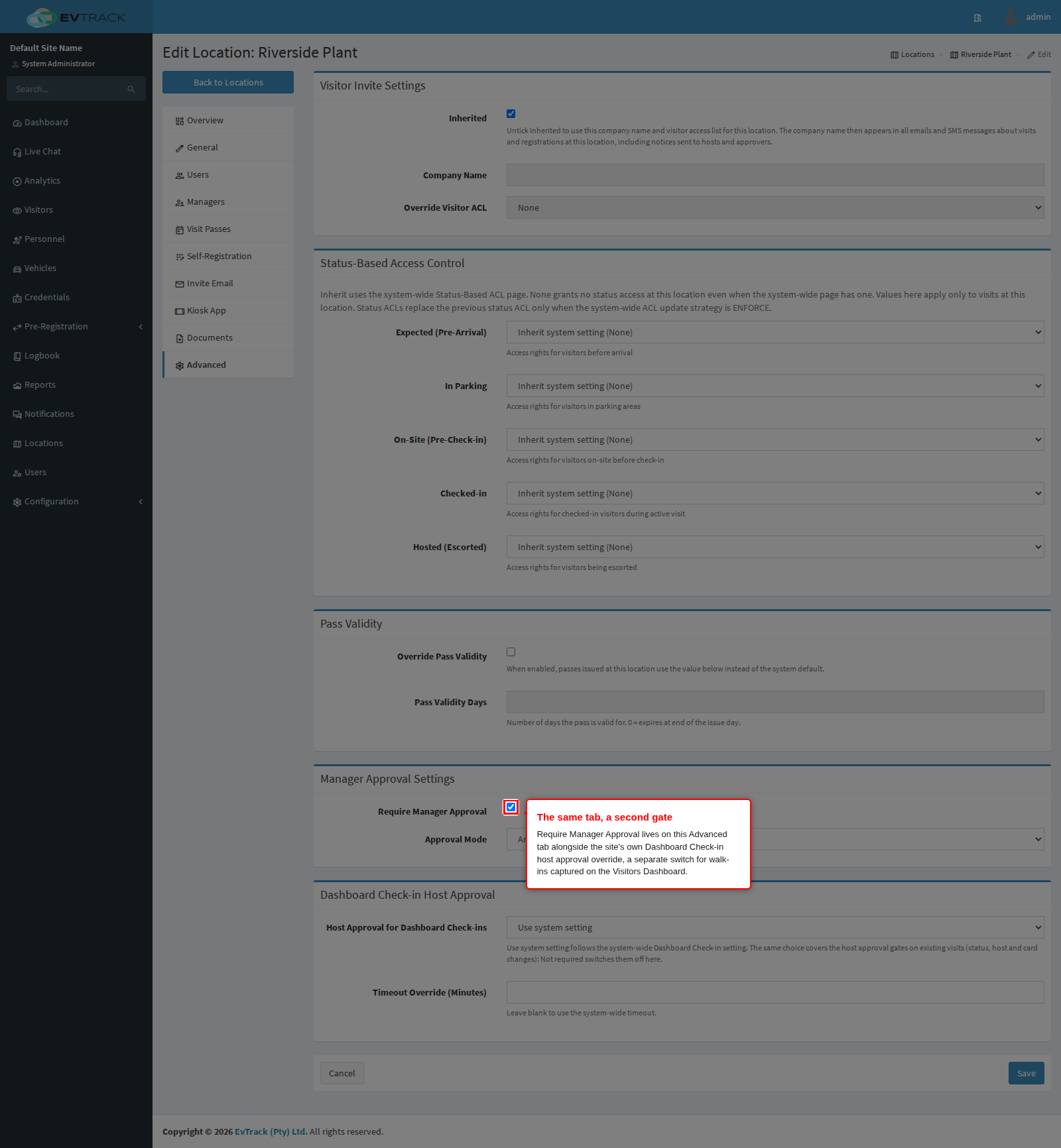
- If you want the two-step chain described below, the site needs Require Manager Approval switched on. It is off out of the box, so a new system approves in one step.
How many steps your chain has
The chain is not fixed. It is worked out at the moment you press the button, from the site you picked and the settings behind it, and it is worked out again after each step. The diagram is that decision.
flowchart TD
    start(["You set the visit details and choose a site"])
    qManager{"Does that site require manager review,<br>and does it have at least one active manager?"}
    MANAGER_REVIEW["Site manager review"]
    qManagerDecision{"A manager of that site decides"}
    qCompliance{"Is the compliance check switched on?"}
    COMPLIANCE_REVIEW["Compliance review"]
    qComplianceDecision{"The compliance officer decides"}
    DIRECT_APPROVE["Direct approval"]
    issued(["Visitor record, visit and pass"])
    declined(["Declined, and the request leaves the queue"])

    start --> qManager
    qManager -- yes --> MANAGER_REVIEW
    qManager -->|no, or no site was chosen| qCompliance
    MANAGER_REVIEW --> qManagerDecision
    qManagerDecision -- approve --> qCompliance
    qManagerDecision -- decline --> declined
    qCompliance -- yes --> COMPLIANCE_REVIEW
    qCompliance -- no --> DIRECT_APPROVE
    COMPLIANCE_REVIEW --> qComplianceDecision
    qComplianceDecision -- confirm --> issued
    qComplianceDecision -- decline --> declined
    DIRECT_APPROVE --> issued
Four rules govern the routing, and between them they explain nearly every “why did this request not go where I expected” question:
- The site is asked about first, compliance second. If the site you picked requires manager review, the request goes to that site’s managers and the compliance question is not even reached yet. Compliance is only consulted for a request that has no manager step left to take.
- The site that counts is the one on the screen, not the one the visitor asked for. The routing reads the site currently selected in the form when you press the button, so changing the site changes the chain, right up to the moment you commit.
- Compliance is asked again after the manager approves. A manager’s approval does not finish the request on a site that also runs the compliance check; it hands the request on to the compliance officer. That is why a two-step chain becomes a three-step chain on those sites.
- A gate that cannot be satisfied is skipped, not failed. A site with manager review switched on but nobody assigned, and a request with no site at all, both fall through to the next question rather than sticking. The request is never stranded by a half-configured gate.
The three switches behind those questions:
| Step | What turns it on | Where |
|---|---|---|
| Host or operator | always present | the request lands in the queue |
| Site manager | Require Manager Approval on the site, and at least one active manager assigned to it | Locations > the site > Advanced |
| Compliance officer | the compliance check | Configuration > Visitor Settings > Compliance |
Require Manager Approval shares its Advanced tab with a second, unrelated switch: the site’s override for Dashboard Check-in Host Approval, which holds a walk-in captured on the Visitors Dashboard for the host instead of a manager. The two do not interact - a site can require manager review for the queue this chapter covers while leaving the dashboard’s own gate alone, or the other way around.
See Reception Host Approval for that separate gate.
Two consequences that surprise people:
- The manager step needs both halves. Switching Require Manager Approval on but assigning nobody does not create a manager step - the request simply carries on to the next step as though the switch were off. The system also refuses to submit a request for review at a site with no active managers, and says so.
- A request with no site skips the manager step, by design. There is no site whose managers could be asked, so the request goes straight to the operator’s decision.
Sites with a manager step and sites without are grouped separately in the site list on the processing screen, under Direct Approval and Requires Manager Review, so you can see which chain a request will take before you commit to it.
Single-layer approval is the name customers give the first case: no manager step, no compliance step, so the person who opens the request approves it and the visitor is done. Two-layer adds the site manager after the operator. Both are described below, in that order.
Step 1: Open the queue
Open Visitors in the sidebar and click Registration. Every request that has not yet reached a final decision is listed, newest work first, with the visitor’s photo, name, visit reason, host, site and, in the first column, its Status.
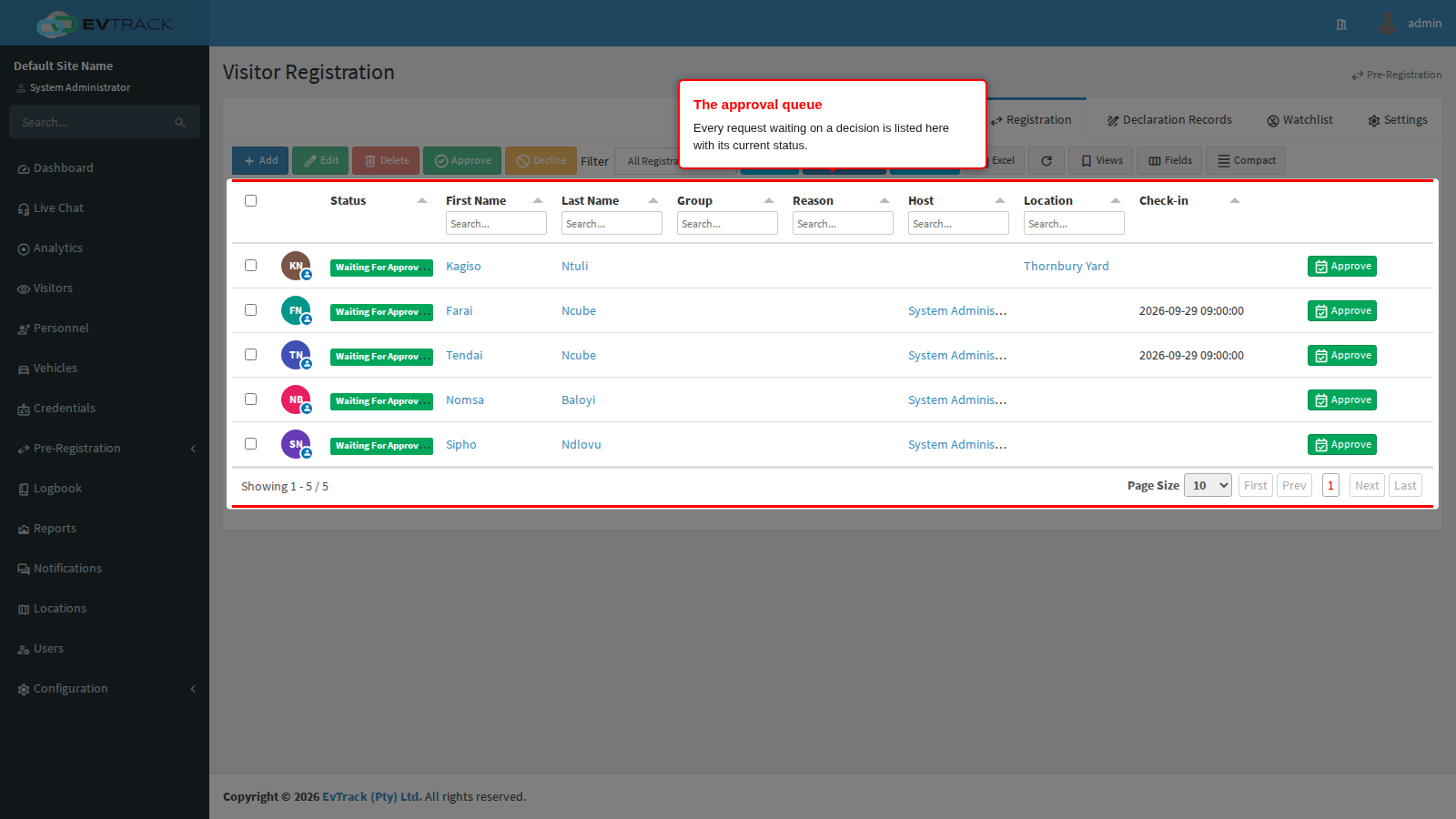
End state: you are looking at every request that needs a decision. Group requests appear as a single expandable row for the group leader; the members sit underneath it and are never actioned on their own.
Step 2: Narrow the list to your own work
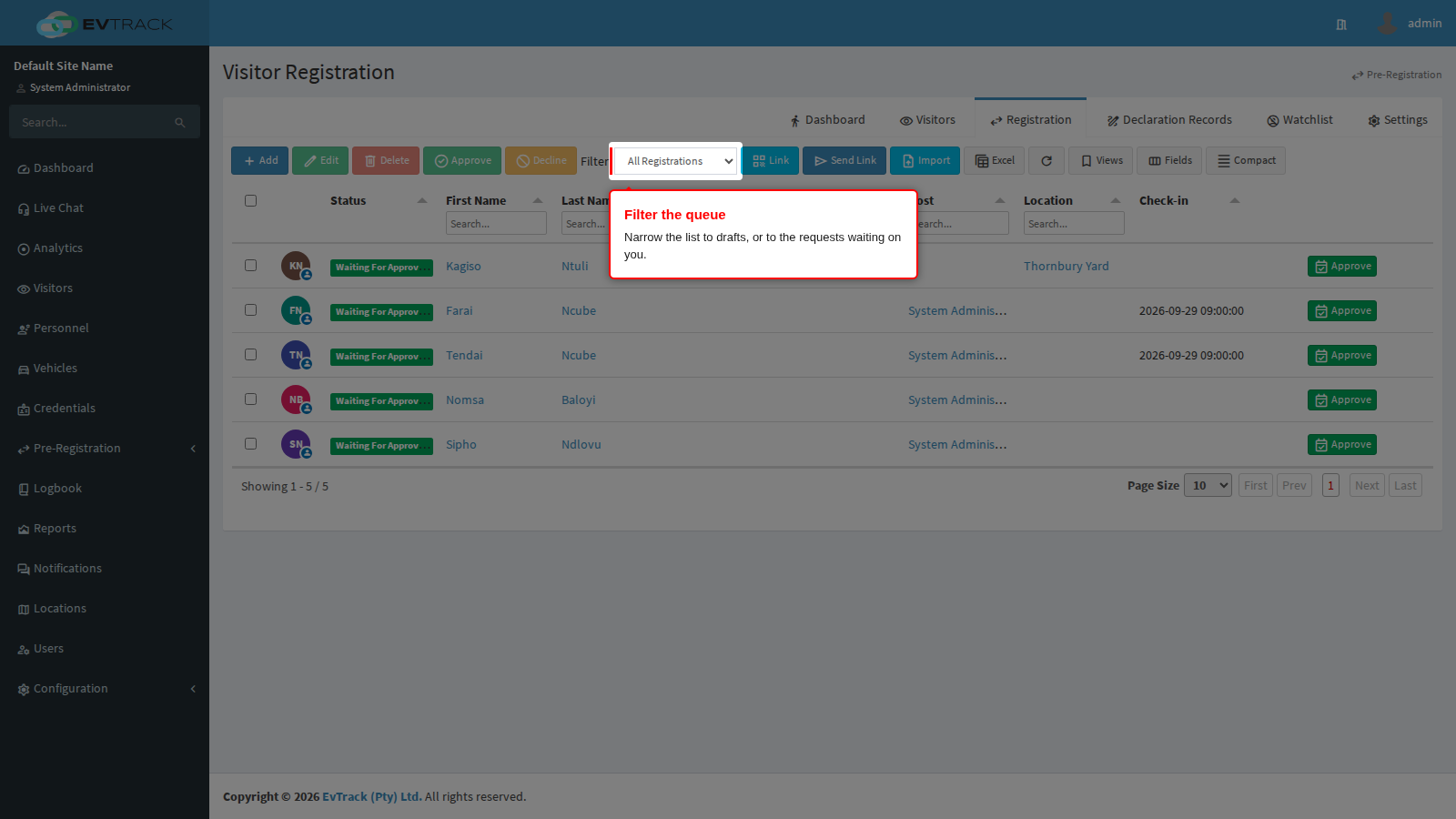
The Filter dropdown above the table starts on All Registrations. Draft shows the incomplete requests an import left behind. If you are a site manager the list also offers Manager Review, which is only the requests waiting on you; if you are a compliance officer it offers Compliance Requests. Whichever of those applies to you is selected for you when you arrive, and if it turns out to be empty the list falls back to everything and tells you it did.
Step 3: Open a request
Each row carries one button, and the button is named after the decision that request is waiting for: Approve for a new request, Manager Approve for one sitting with you as a site manager, Confirm Compliance for one with the compliance officer, Complete for a draft. Click it to open the request.
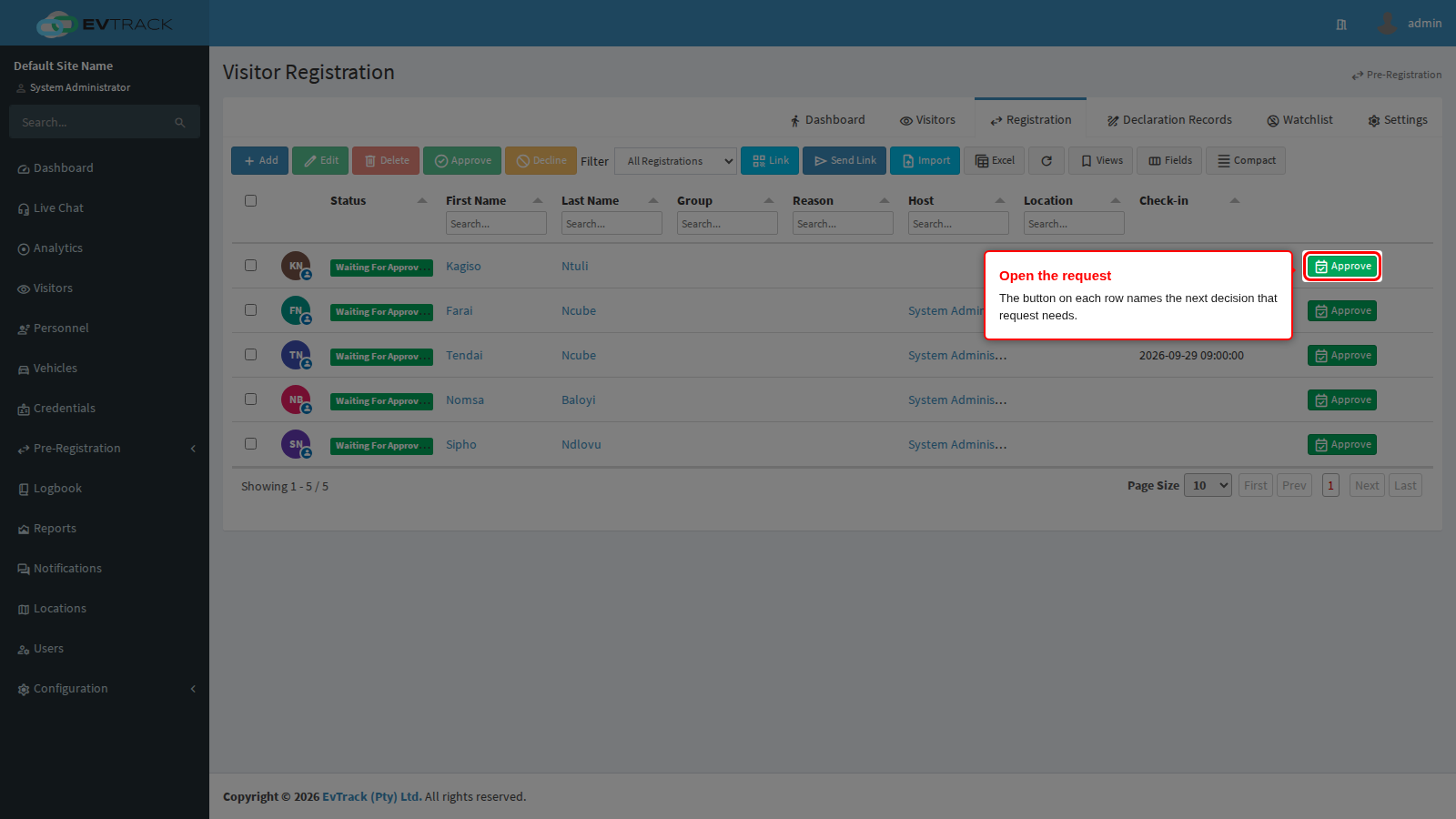
End state: the processing screen opens with everything the visitor supplied - their details, their photo, their identity document, their vehicle, their answers to your questions - and the visit details you are about to commit to.
Step 4: Set the visit details
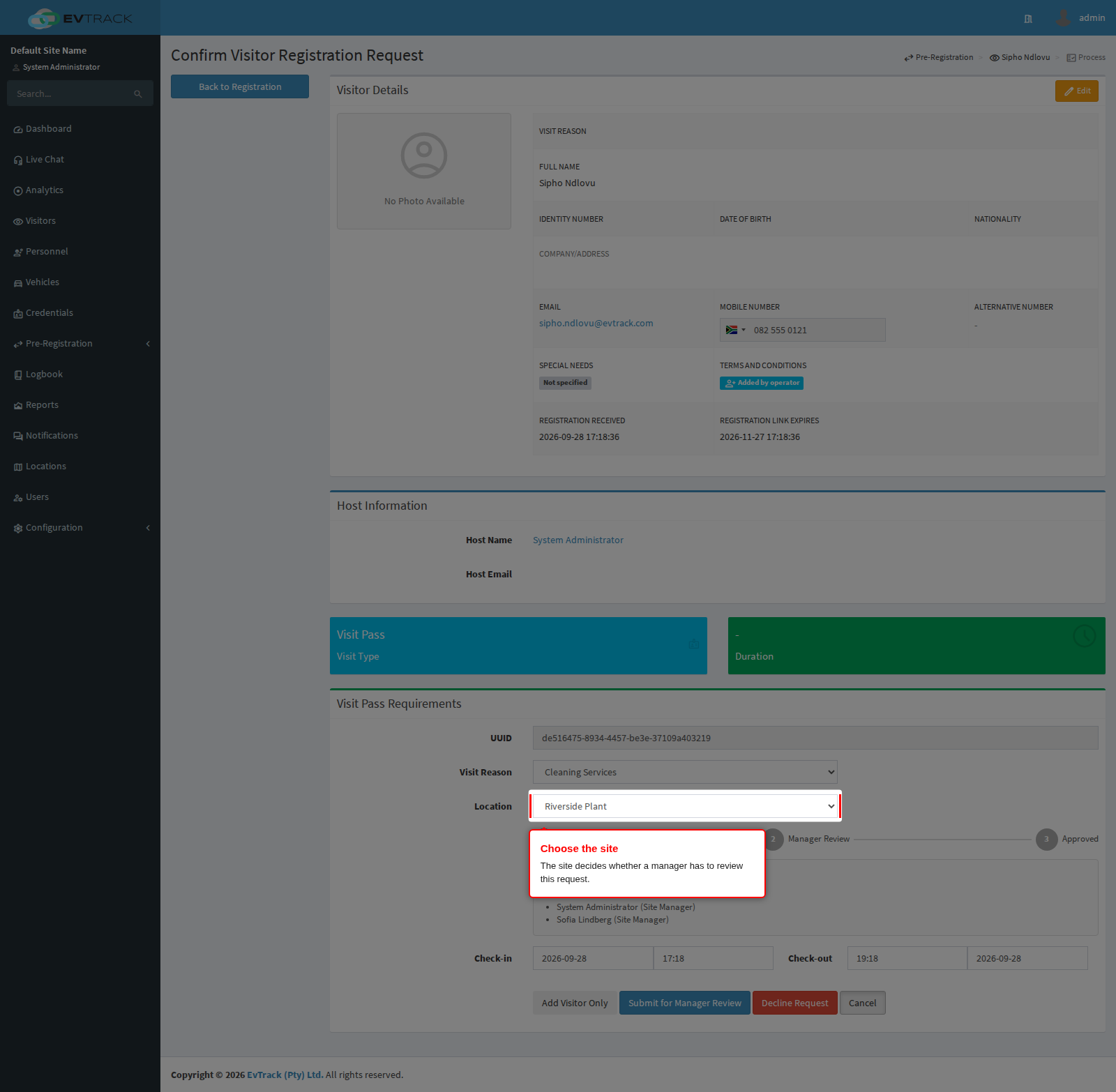
Before any decision button appears, four things must be filled in: Visit Reason, Location, Check-in and Check-out. The buttons remain hidden until all four carry a value, so if you cannot see them, that is why.
Location is the important one, because it decides the rest of the chain.
Two rules the system applies to the dates before it will accept them:
- Check-in must be before check-out, and it may not be more than 30 minutes in the past.
- The visit may not be longer than the maximum visit length configured for invitations.
Step 5 (two-layer): Send it to the site manager
Pick a site that requires manager review and the screen changes: a panel appears naming the managers the request will go to, above a small chain diagram showing the steps this request will pass through, and the Approve and Invite button is replaced by Submit for Manager Review.
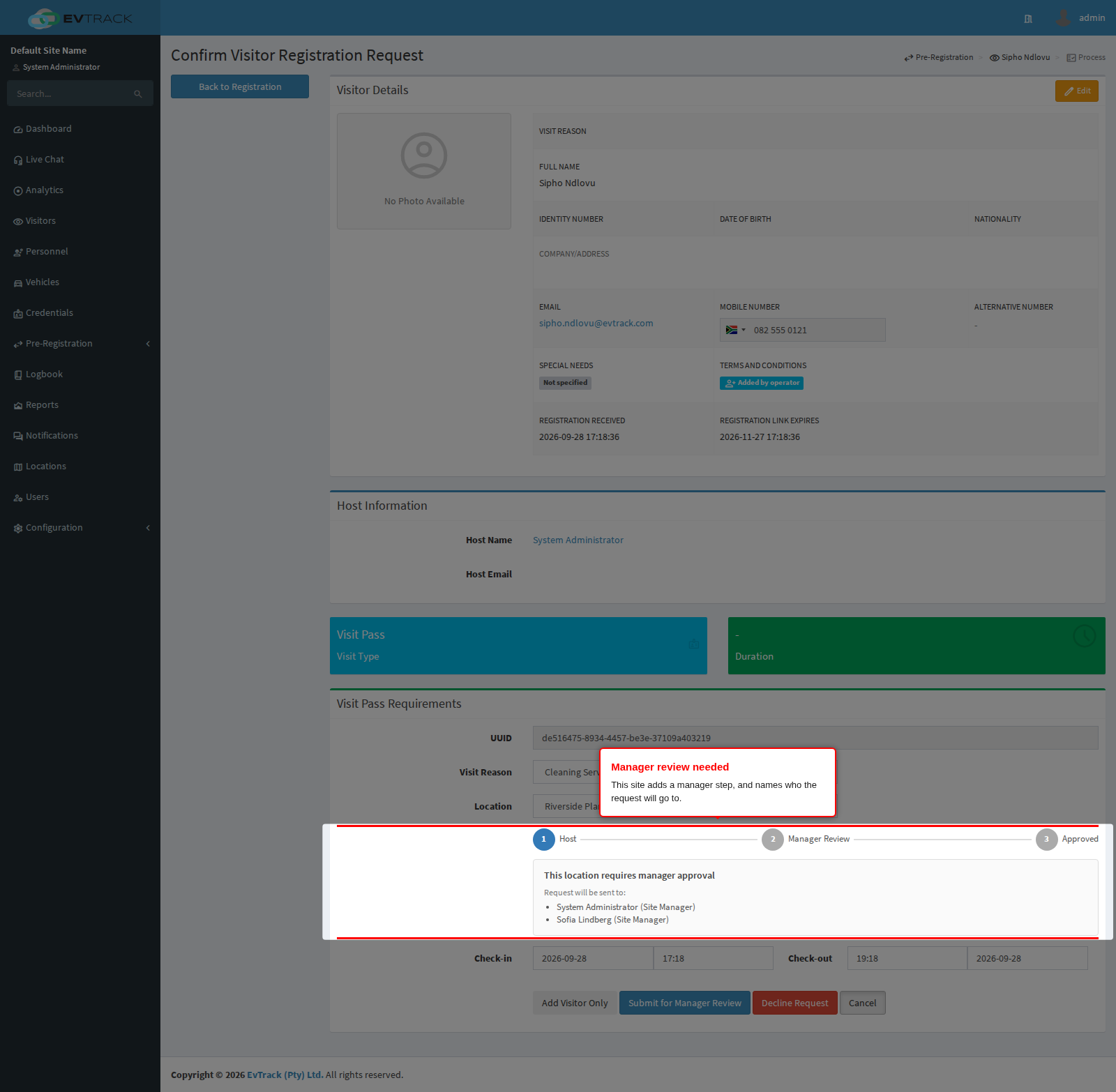
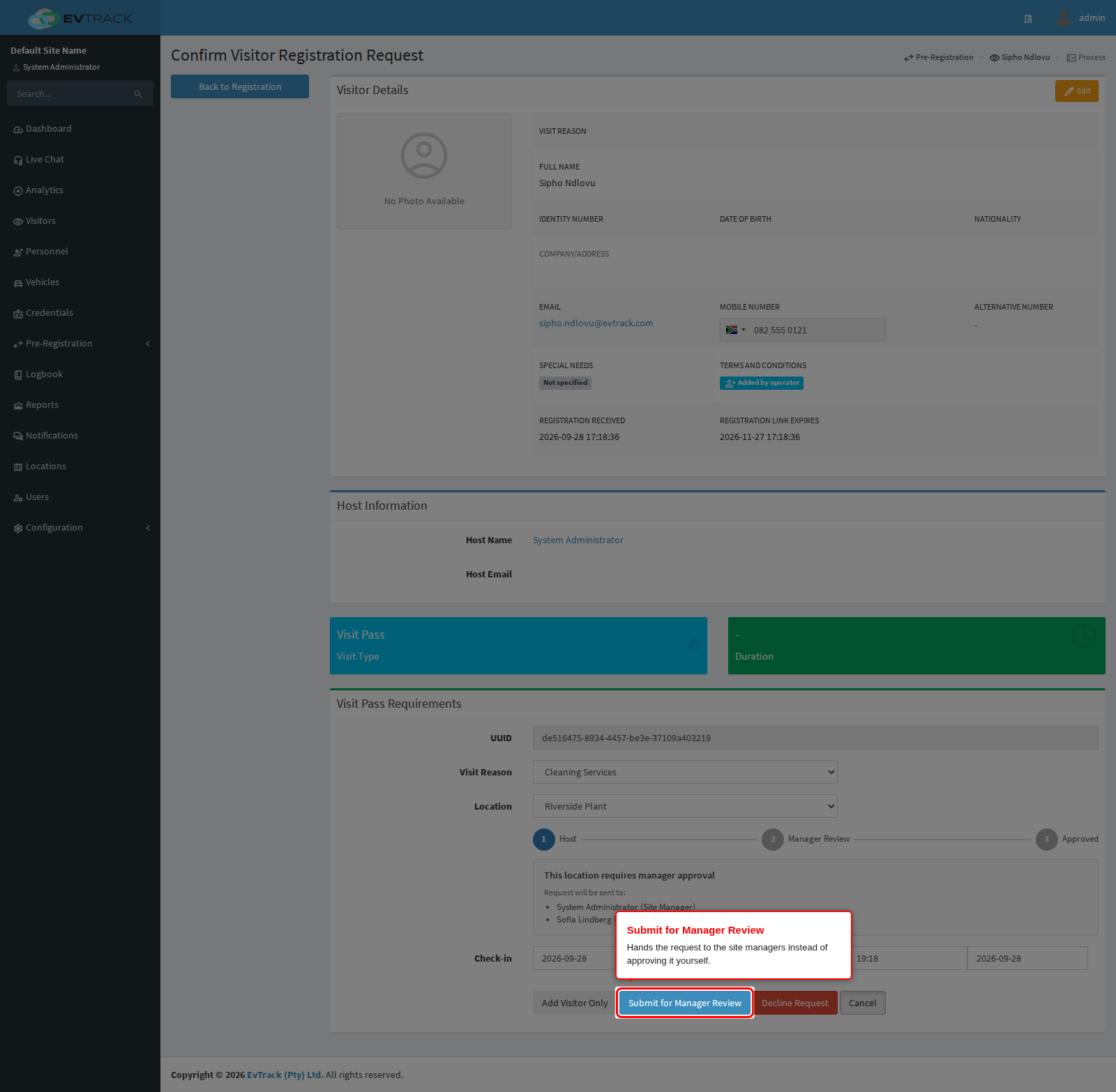
Click Submit for Manager Review. The managers of that site are emailed, and the request moves to Waiting Location Manager Approval.
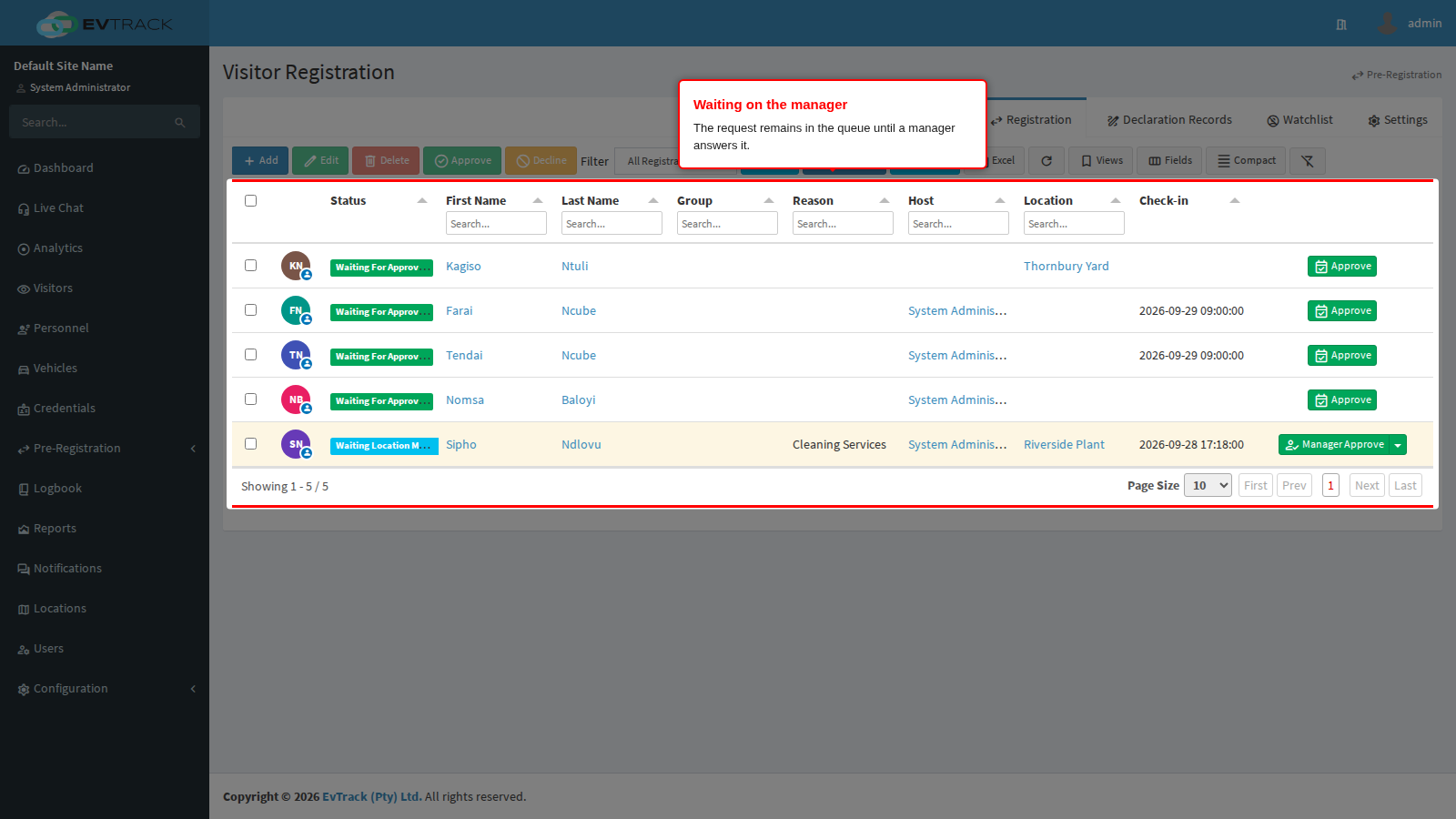
End state: the request is out of your hands. It shows in the queue under the Manager Review filter for the managers of that site, and nobody else sees a decision button on it. If you submitted it by mistake, Withdraw Request on the processing screen pulls it back.
If a submitted request does not appear in the manager queue, submit it again. Two submissions fired within moments of each other for the same site can leave the second one at its previous status without reporting an error. Re-submitting is safe.
Step 6 (two-layer): The manager decides
A manager of the site (or a delegate whose delegation window is currently open) opens the same request and sees Approve and Decline Request. Nobody else does, and the system rejects the decision on the server too, so the buttons are not the only thing stopping the wrong person.
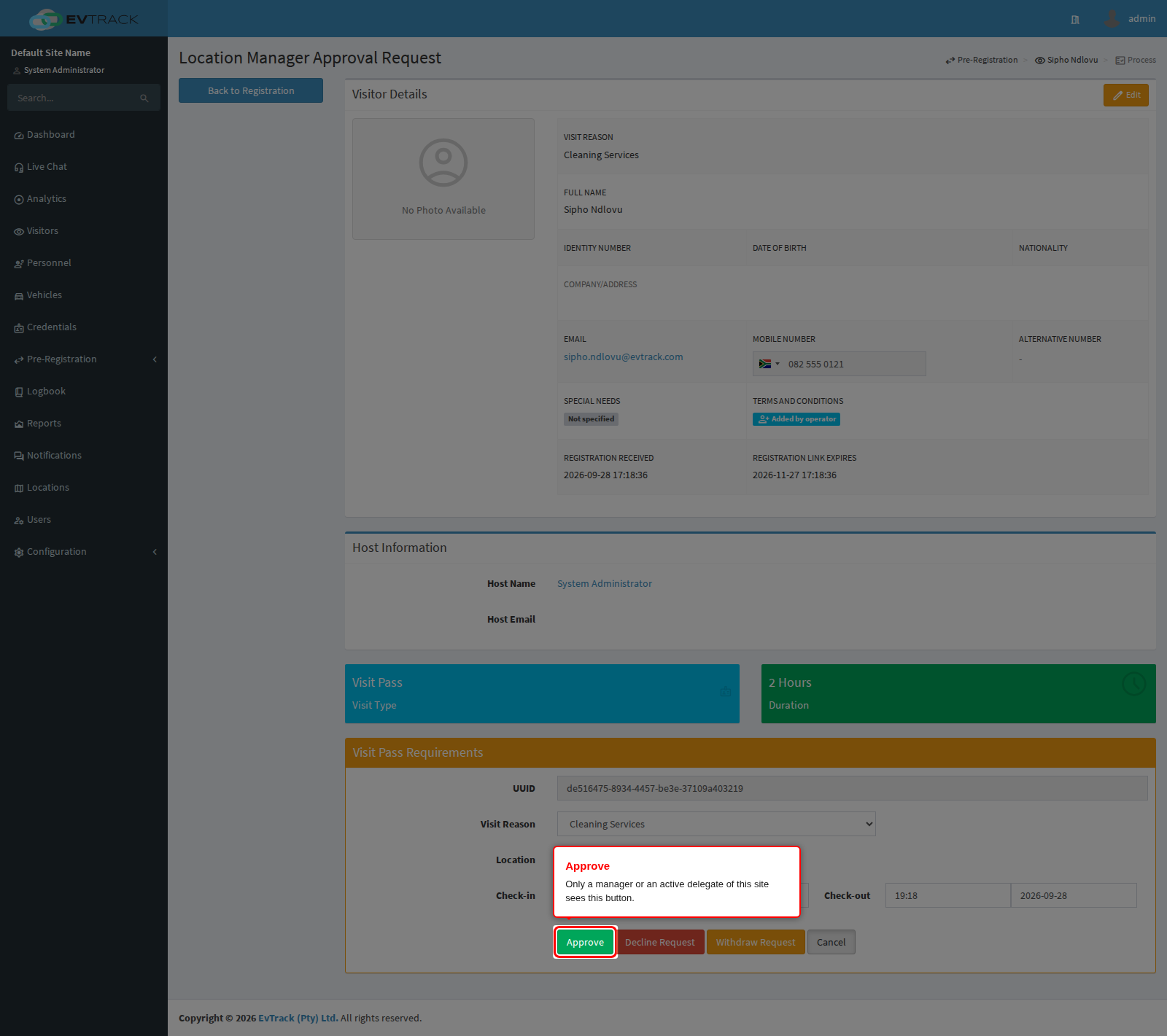
Clicking Approve asks you to confirm before anything happens: the dialog spells out that a visit pass will be issued and the invite sent to the visitor. For a group registration it also states how many group members will be processed with the leader. Cancel leaves the request exactly as it was.
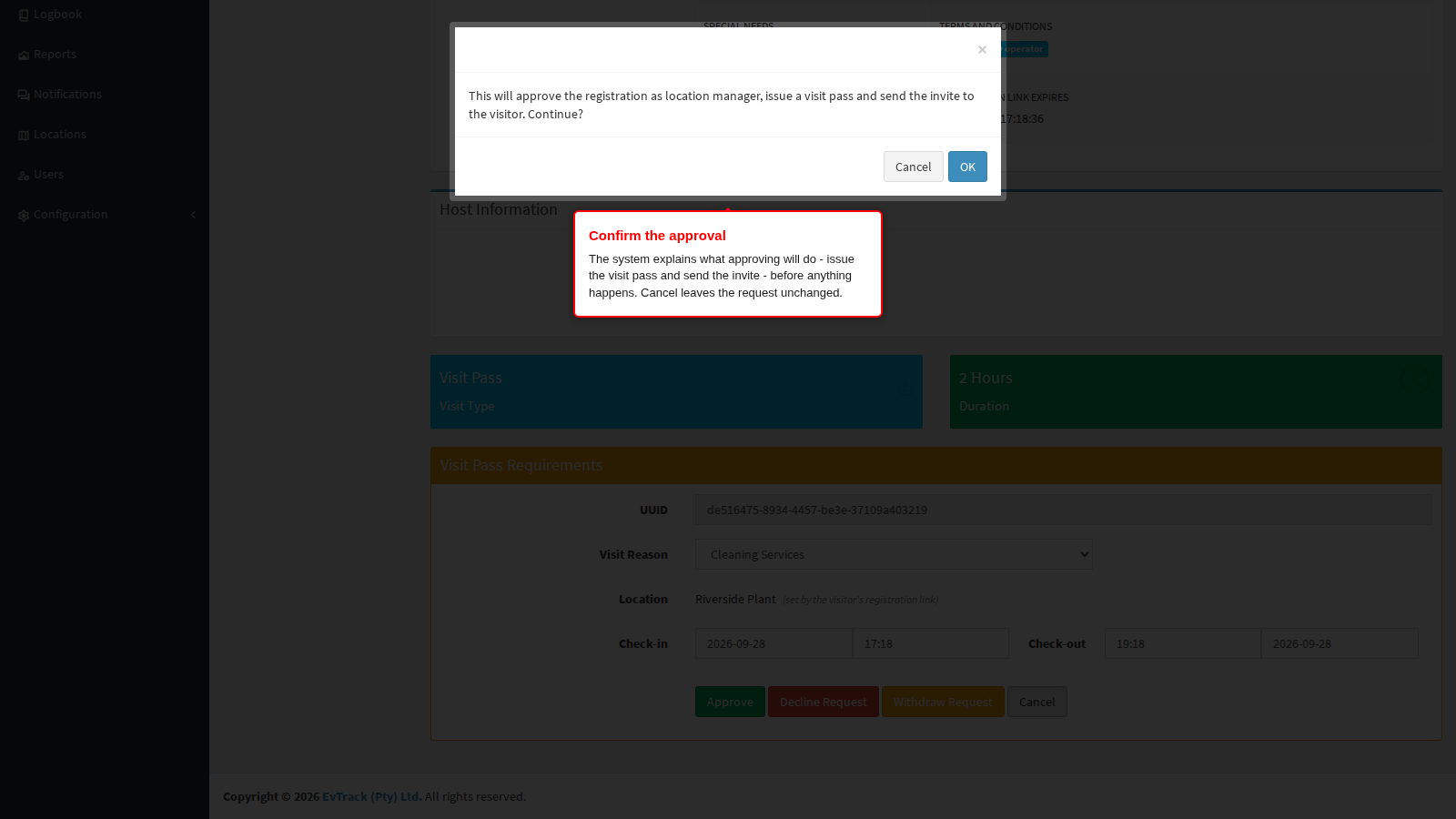
Only one manager has to answer. Assigning several managers to a site spreads the load and covers absences; it does not mean everyone must agree.
The three outcomes
State every request’s future in these terms, because the system does:
Approve ->
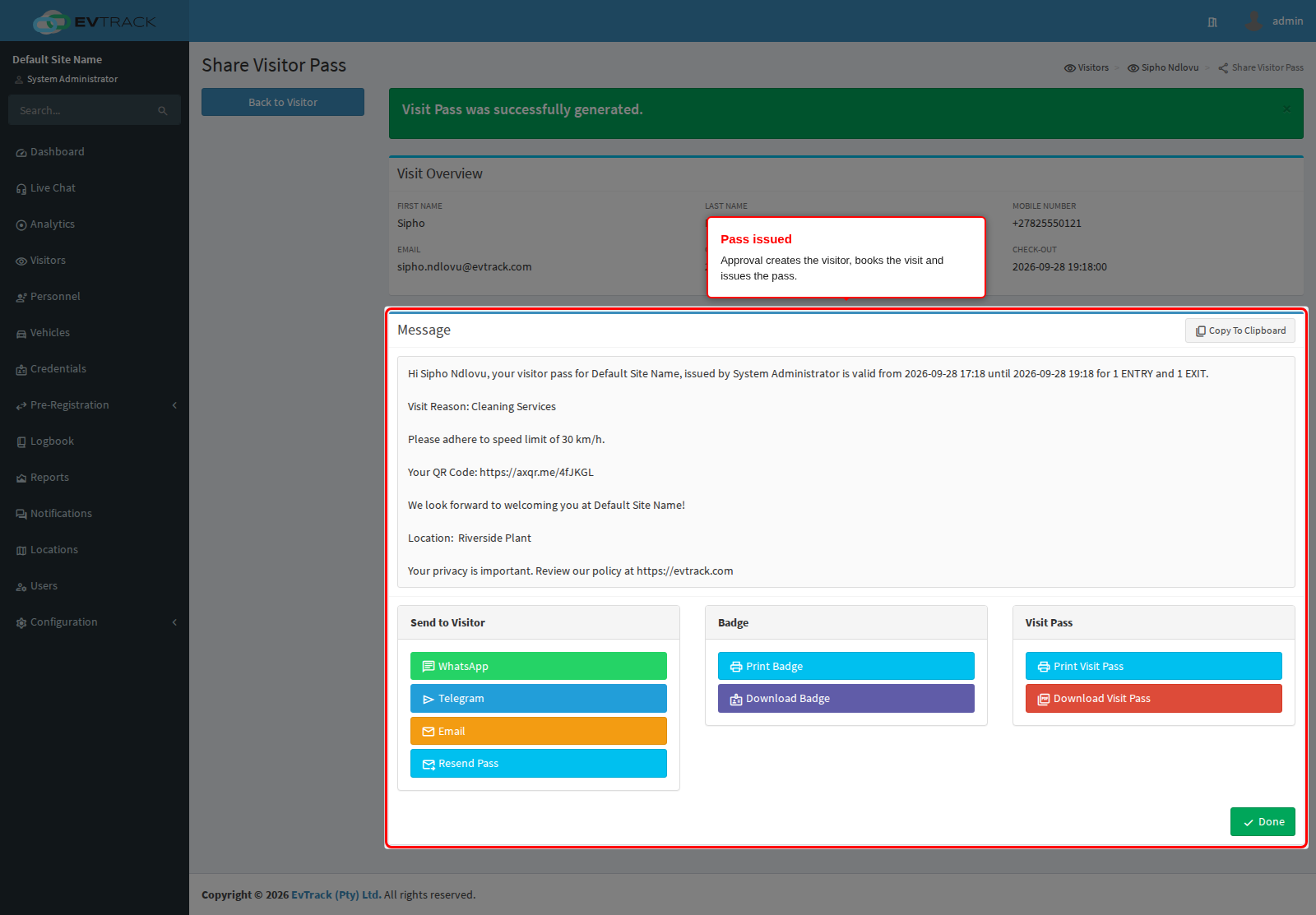
- For the visitor: a visitor record is created (or merged into the one they already have), the visit is booked for the window you set, and a visit pass with its access credential is issued and sent to them on the channels you have enabled - email, SMS, WhatsApp. See Visit Passes.
- For the host: the visit appears against them, and they get the arrival notifications they are subscribed to when the visitor turns up.
- In the system: the request leaves the queue. Who approved it, and when, is recorded on the pass under Location Manager Approval. You land on the pass share page, from where the pass can be re-sent, printed or shared.
Decline ->
- For the visitor: no visitor record, no visit, no pass. They receive the decline message if you chose to tell them.
- For the host: the decline notice, if you chose to tell them.
- In the system: the request is removed from the queue entirely. There is no declined pile to sift through later, so write the message as if it is the only record of the decision, because it is.
Timeout ->
- A request in this queue never times out. It remains exactly where it is until a person approves it, declines it, withdraws it or deletes it. Nothing expires it, and nothing auto-declines it. If your site depends on stale requests disappearing, that has to be somebody’s routine, not the system’s.
- The one timeout in visitor approval is a different feature entirely: a visitor standing at a kiosk or a checkpoint whose host is asked to approve their arrival. That request does expire, in about two minutes by default, and the visitor is refused entry rather than declined. It is covered in Host Approval.
When a request is held for a host
Some systems require every visit to have a host. Host can be required globally (see Self-Registration Settings) or by a location’s own required-field override, and either way, when a public registration arrives with nobody named, the request is not refused - it is accepted and held. For an operator who is allowed to assign a host, opening it shows a warning above the usual approve buttons, plus a picker to search for and pick the host.
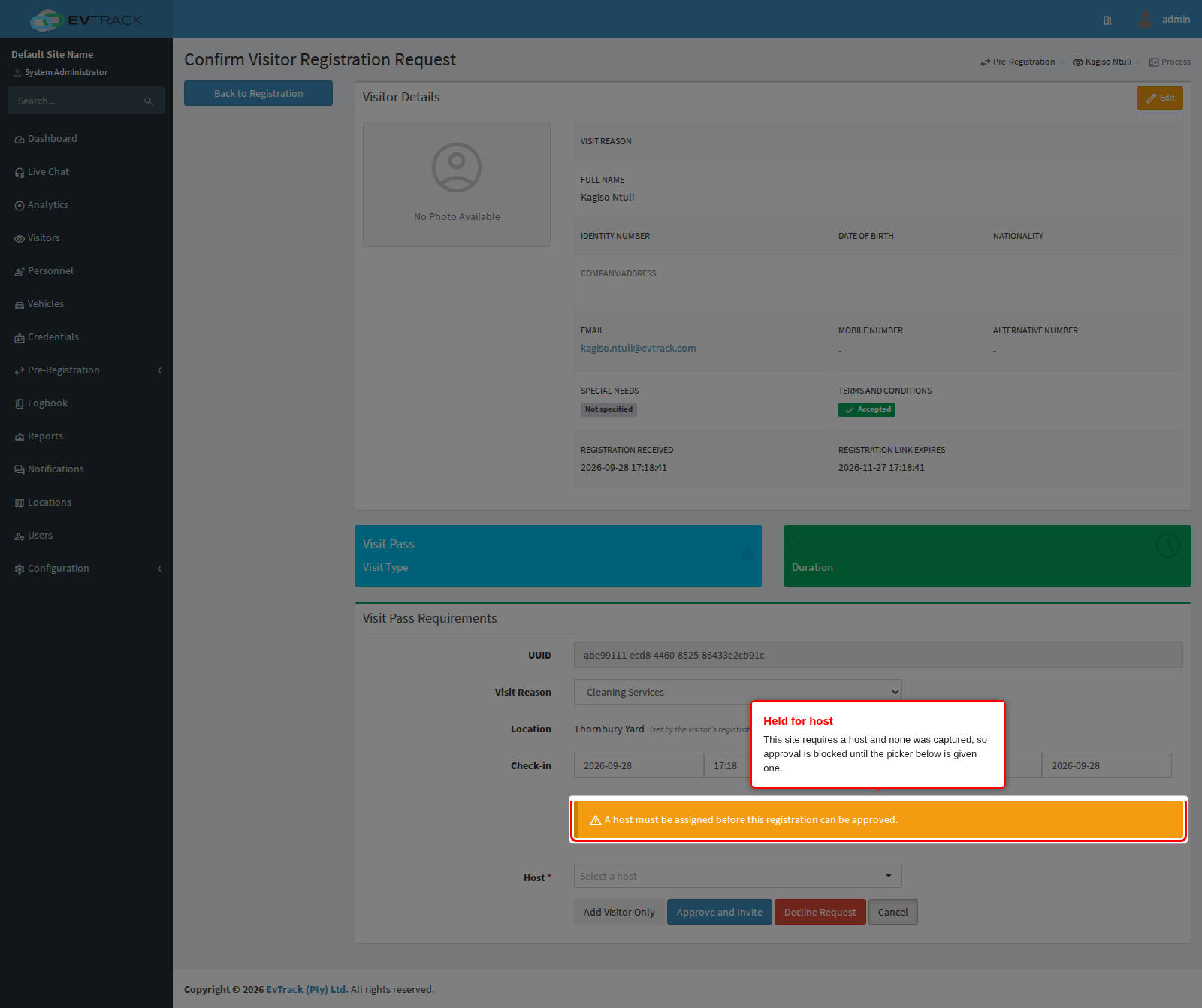
Approval remains blocked until a host is picked; picking the host and approving happen in the same step. An operator who is not allowed to assign a host instead sees a short notice explaining that they will be recorded as the host themselves once they approve - nobody is stuck with an approval they cannot complete.
Step 7 (single-layer): Approving in one step
On a site with no manager step, the same screen offers Approve and Invite instead, and that single click carries out everything under Approve -> above.
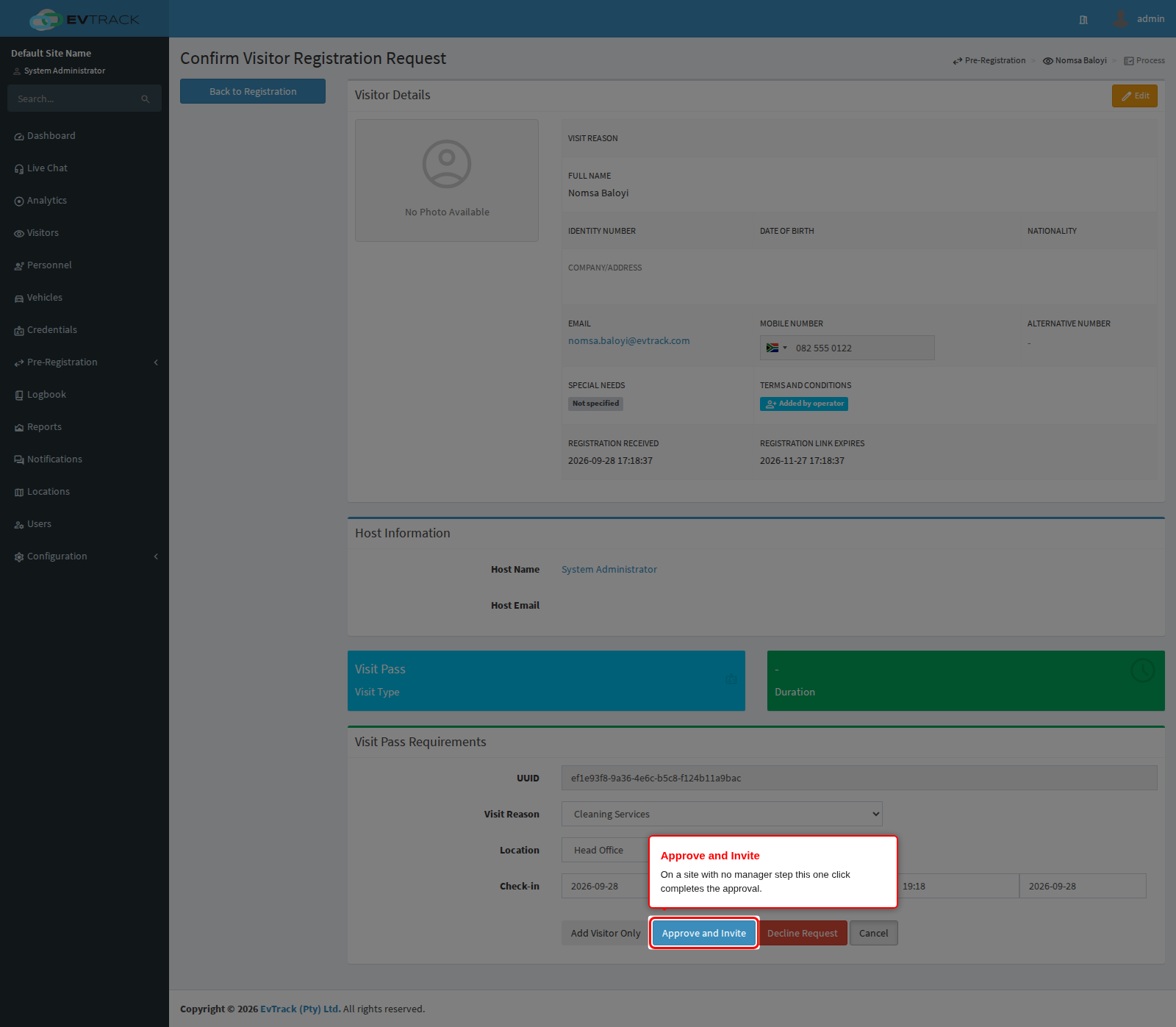
Add Visitor Only sits beside it and does half the job: it creates the visitor record without creating a visit or issuing a pass. Use it when you want the person on file but the visit itself is not settled.
Step 8: Declining a request
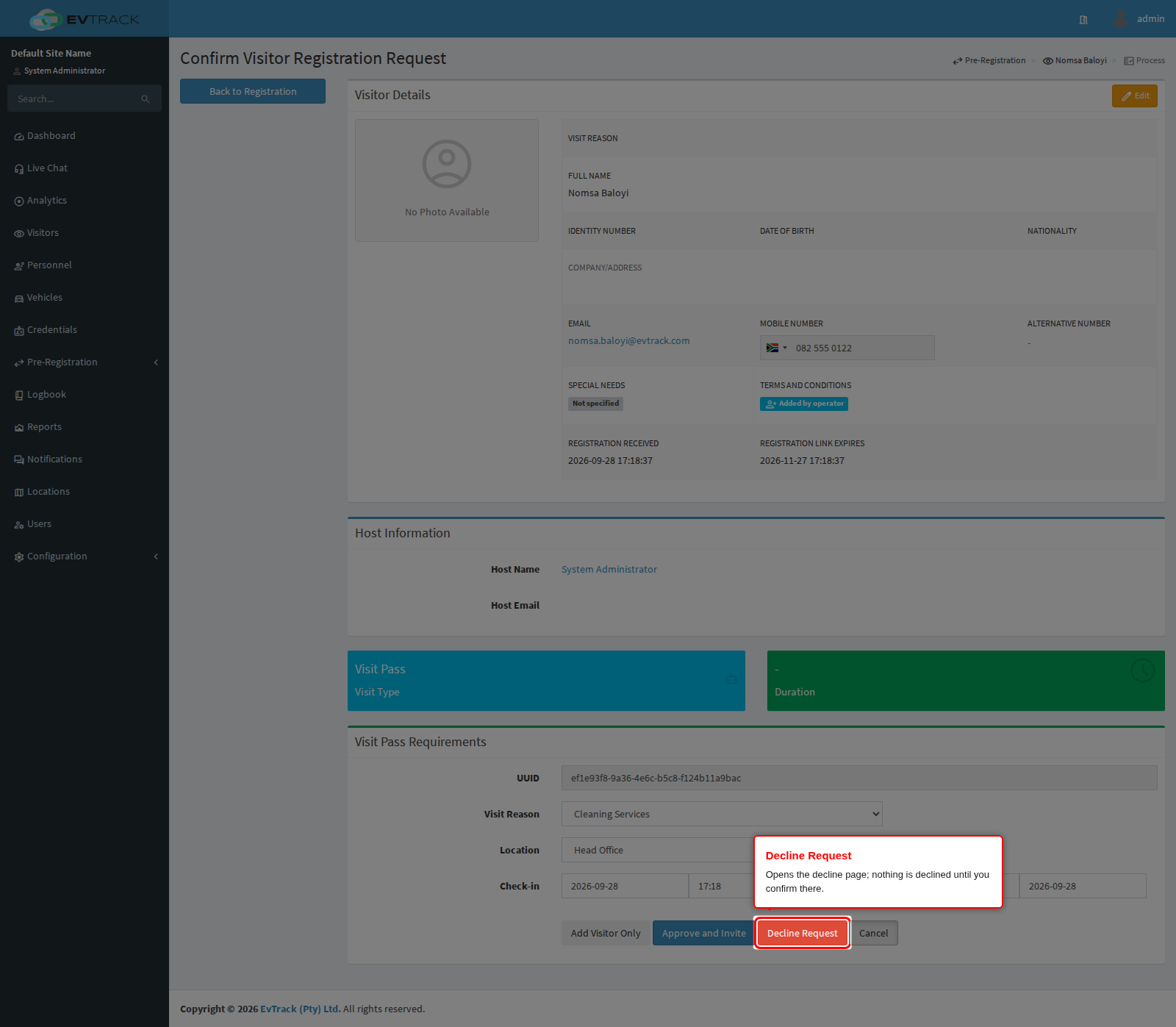
Decline Request is available on the processing screen at every stage, and it is the only action still available on a request the watchlist has flagged. It opens a confirmation page - nothing is declined until you confirm there.
Decline Reason offers your reason templates: Meeting Cancelled, Host Unavailable, Capacity Exceeded, ID Verification Failed and so on. Picking one fills the message body with that template’s wording and pre-selects who it notifies.
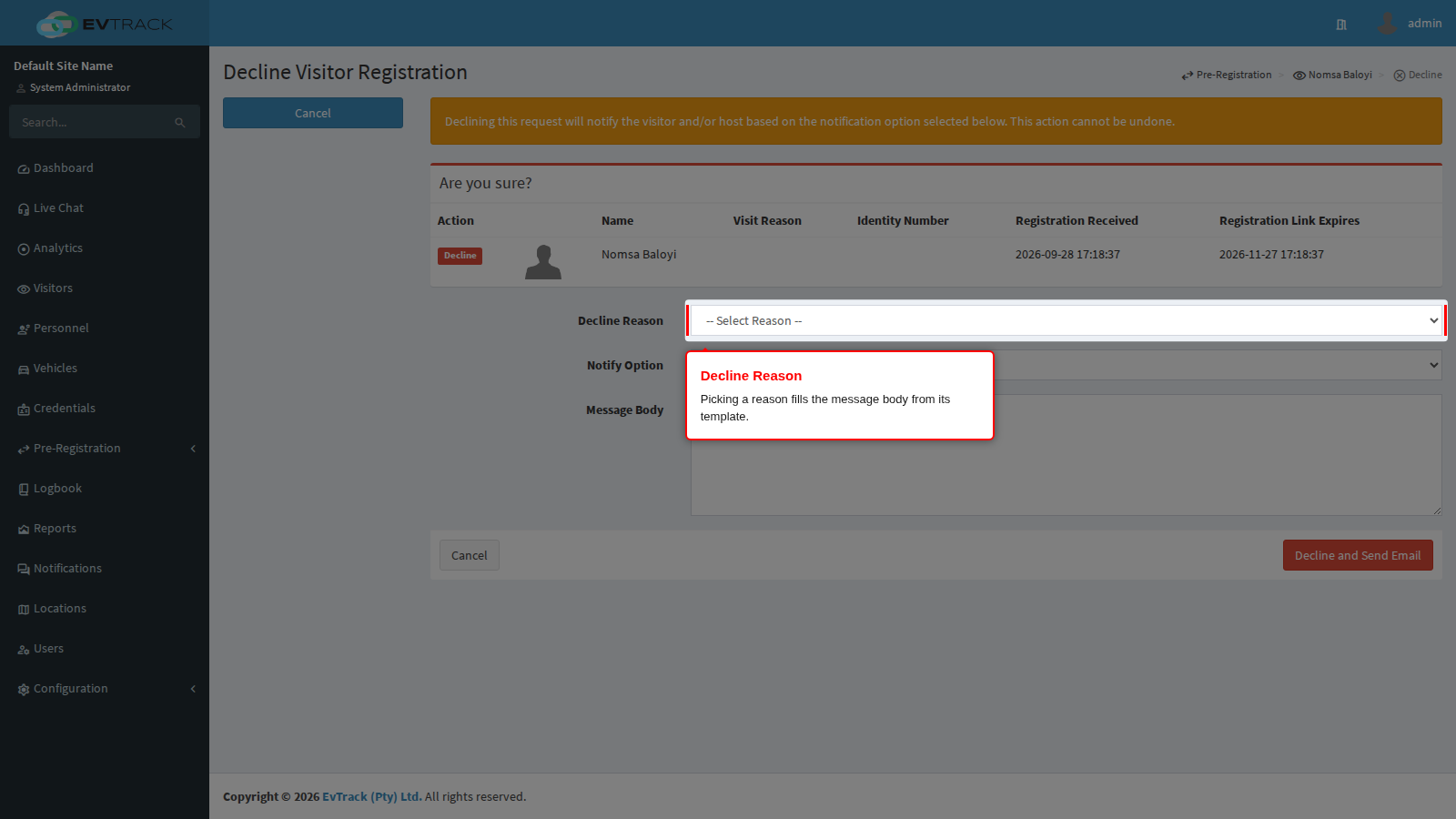
The reason itself is not stored anywhere. It is a shortcut for writing the message, nothing more: only the Message Body you end up with is saved and sent. If the reason matters to whoever reads the notice later, it has to be in the wording of the message.
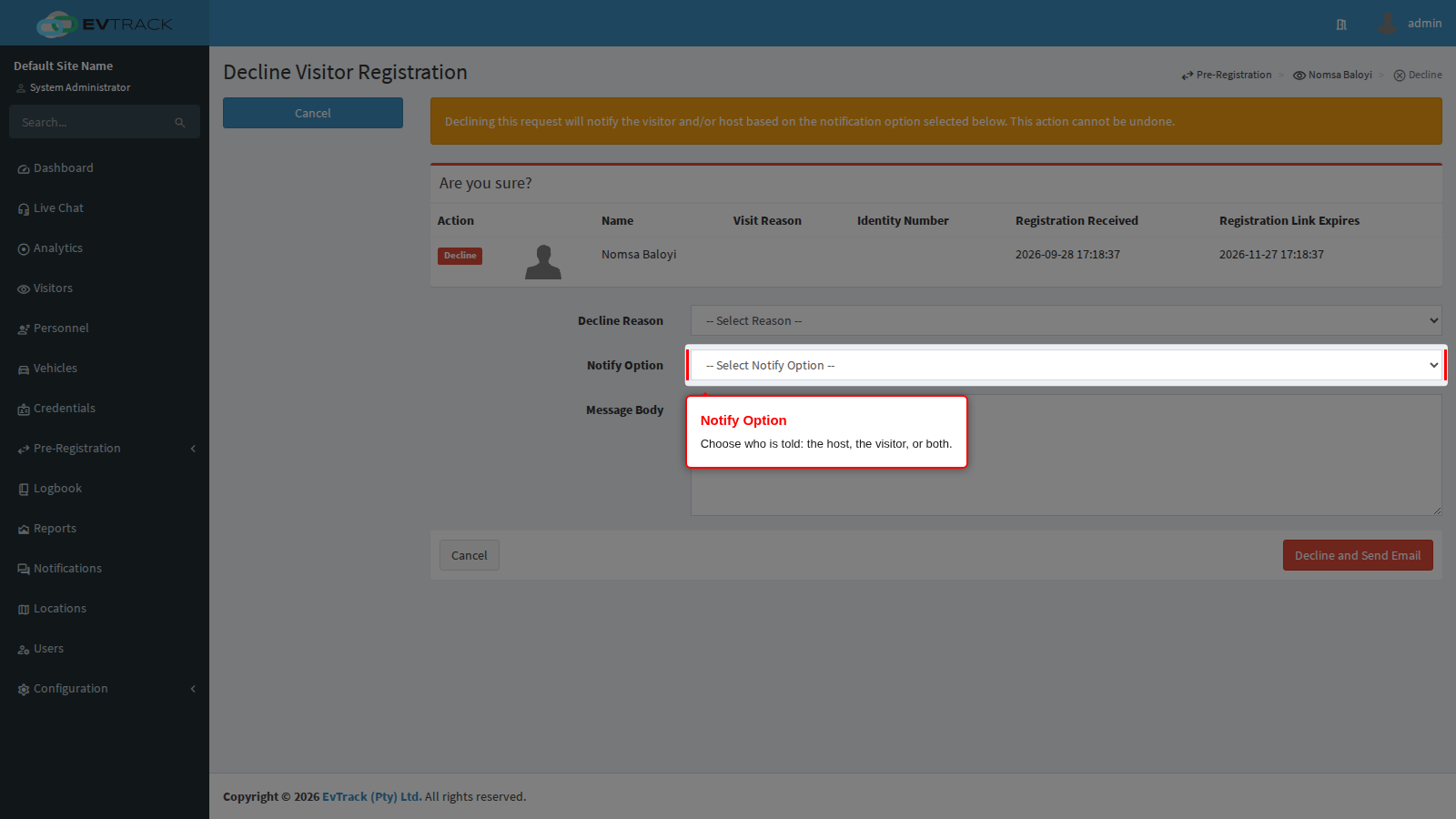
Notify Option chooses who hears about it: Host and Visitor, Host Only, or Visitor Only. Use Host Only for anything you would not put in front of the visitor - a security flag, a failed check - and note that some supplied templates are already set to Host Only for exactly that reason. A request that began as a host’s own invitation is fixed to Host Only and says so on the page.
Finish by clicking Decline and Send Email. Reason, notify option and message are all required.
Decline reasons are their own list, edited under Configuration > Visitor Settings > Compliance > Rejection Messages. They look almost identical to the cancellation reasons used when an already-approved visit is called off, but they are a separate list on a separate page: editing one does not change the other. See Compliance for the decline templates and Cancellation for the cancellation ones.
Step 9: Approving several requests at once
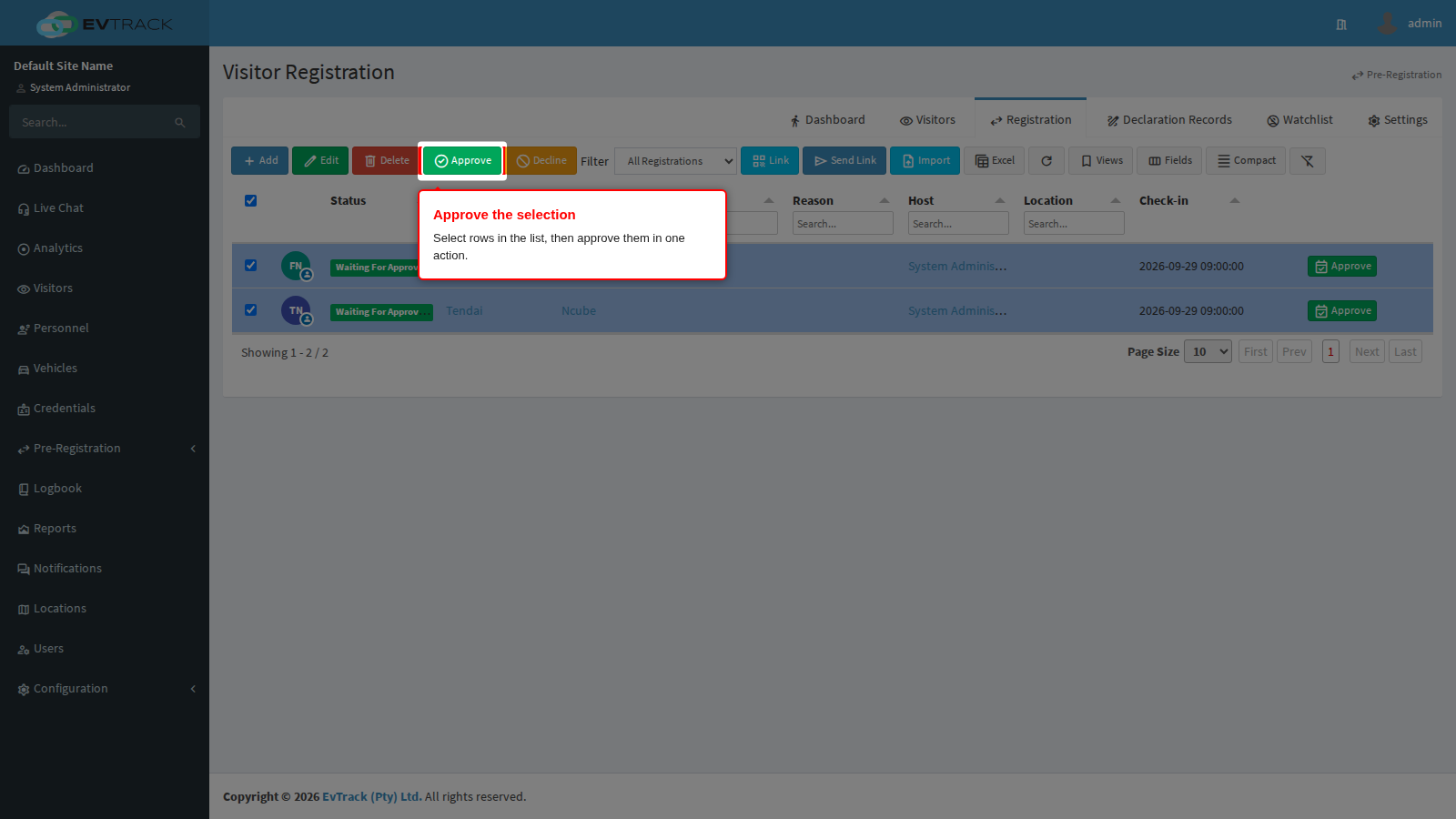
Tick the rows you want in the queue - or the box in the header to take the whole filtered page - and the toolbar’s Approve and Decline buttons come alive.
A confirmation page opens before anything happens. It does not just list what you picked: it sorts the requests by what the action will actually do to each one, under headings such as Approve and create visitor, Submit for manager review, Manager approval and Compliance confirmation - because a mixed selection can be at different points in the chain, and one click moves each of them one step along its own path. Anything that cannot be actioned is listed separately under Skipped, with the reason: missing event dates, invalid dates, a watchlist match, a status that does not allow it, or a permission you do not have.
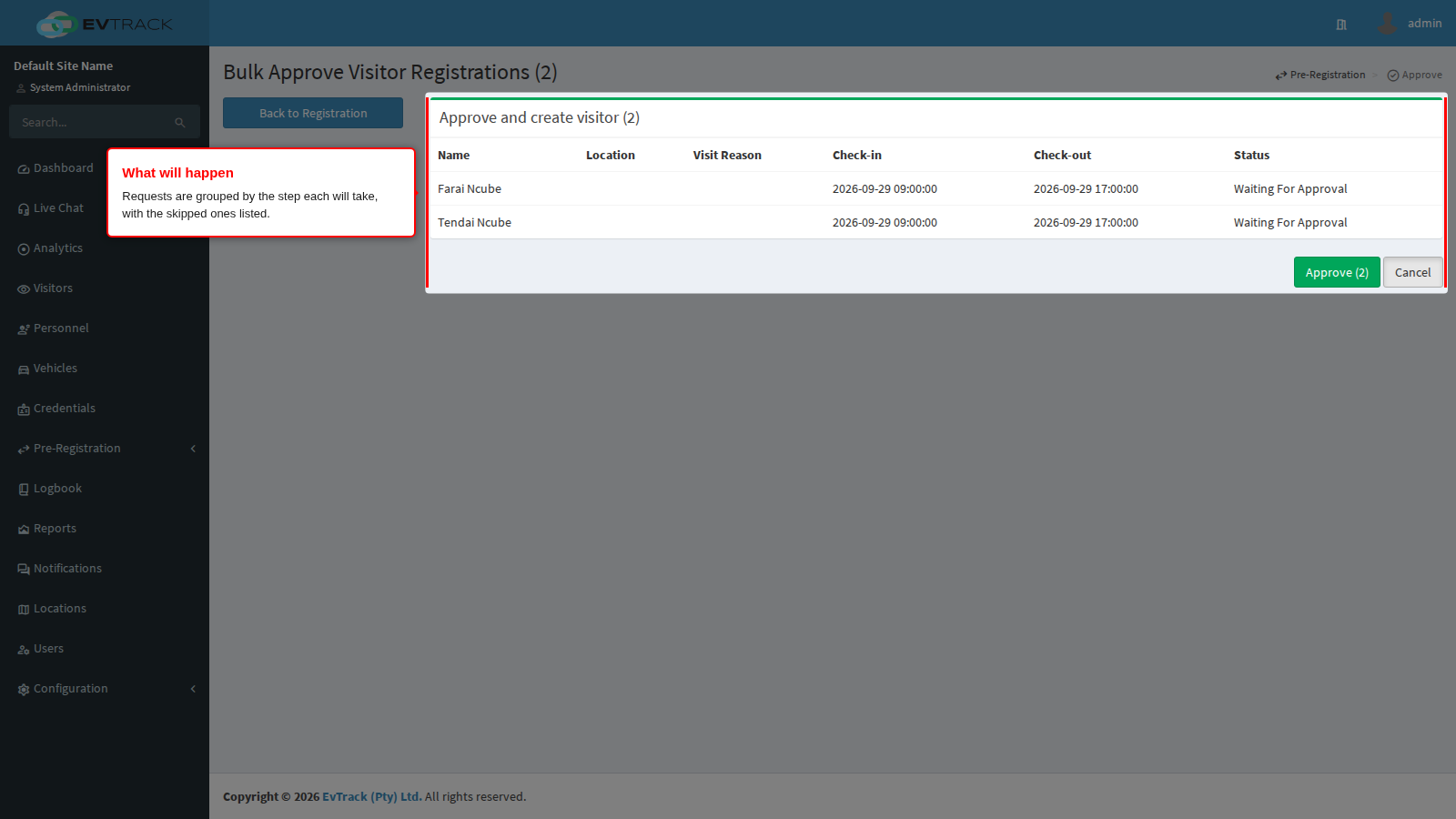
Then click Approve, which is labelled with the number of requests it will really act on. A summary tells you how many were approved or advanced and how many were skipped.
Things to know before you rely on bulk actions:
- Approve takes up to 50 requests at a time; decline, delete and edit take up to 200.
- The plan is re-checked at the moment you confirm. Anything that changed since the confirmation page was drawn is skipped rather than acted on blindly, and reported as such.
- Bulk approve is deliberately stricter than approving one by one. Only the host or the operator who owns a request can bulk-approve it at the first step. A compliance officer or a site manager who is neither can approve that request individually but will see it skipped in a bulk run.
- A watchlist match is never bulk-approved. Those requests must be opened and dealt with individually. See Watchlist.
- Bulk decline shares one reason, one message and one notify option across the whole batch. If the requests need different explanations, decline them separately.
Groups: approving the leader approves everyone with them
A group request is one leader plus their members. In the queue the members are shown nested under the leader and carry no button of their own, and they cannot be ticked for a bulk action. The leader is the only thing you decide on, and your decision applies to the whole group.
Approve -> what the members get depends on how the site is configured to process them:
- List Only, the supplied behaviour: only the leader becomes a visitor and receives a pass. The members are recorded as the group travelling with them, on the leader’s visit. Use it for a tour party arriving together behind one host.
- Full Visitor: every member becomes a visitor in their own right, with their own visit and their own pass. Issuing those runs in the background after you approve, so members briefly show as Issuing Visit Pass and then settle. A large group takes a moment to finish.
Decline -> the leader and every member are removed together, and the decline notice names the group.
Two gates apply before a group can be approved at all, and both surface as a skip reason in a bulk run: a leader with no members cannot be approved, and a group larger than the configured maximum cannot either. Group registration must also be enabled on the site the group is being approved onto.
Setting the members up, and choosing between the two modes, is covered in Group Pre-Registration and Group Registrations (Admin).
Where requests come from, and what they arrive as
| Where it came from | Arrives as |
|---|---|
| An operator types it in | Waiting For Approval - the operator owns it and decides when to send it on |
| A visitor uses a registration link for a site that requires manager review | Waiting Location Manager Approval - straight to the managers, skipping the operator |
| A visitor uses a registration link, compliance is on | Require Host Approval |
| A visitor uses a registration link, no manager step, no compliance | Waiting For Approval |
| An import in Import All Mode with fields missing | Draft - complete it and it joins the queue by itself |
Related chapters
- Host Approval - the separate feature that asks a host to approve a visitor arriving at a kiosk or a checkpoint, including its timeout.
- Reception Host Approval - the same idea for a walk-in registered from the Visitors Dashboard.
- Visit Passes - what approval produces and how the pass reaches the visitor.
- Check-in and Check-out - what happens on the day, after approval.
- Group Pre-Registration and Group Registrations (Admin) - building the groups this chapter approves.
- Compliance - the compliance step and the decline reason templates.
- Cancellation - calling off a visit that was already approved.
- Importing Data - where Draft requests come from.