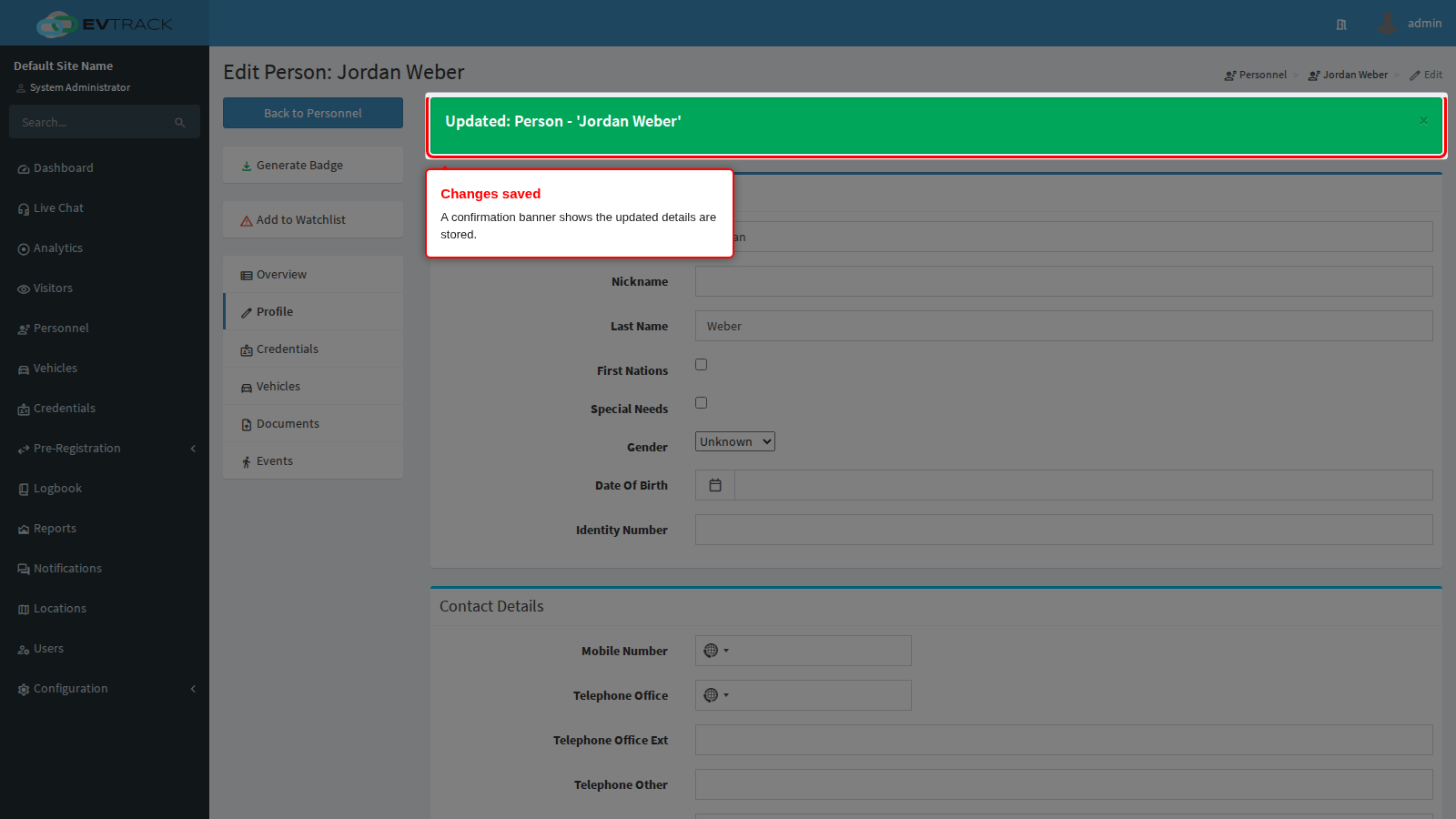
A person’s details can be updated at any time from the Personnel section.
Step 1: Open the Personnel list
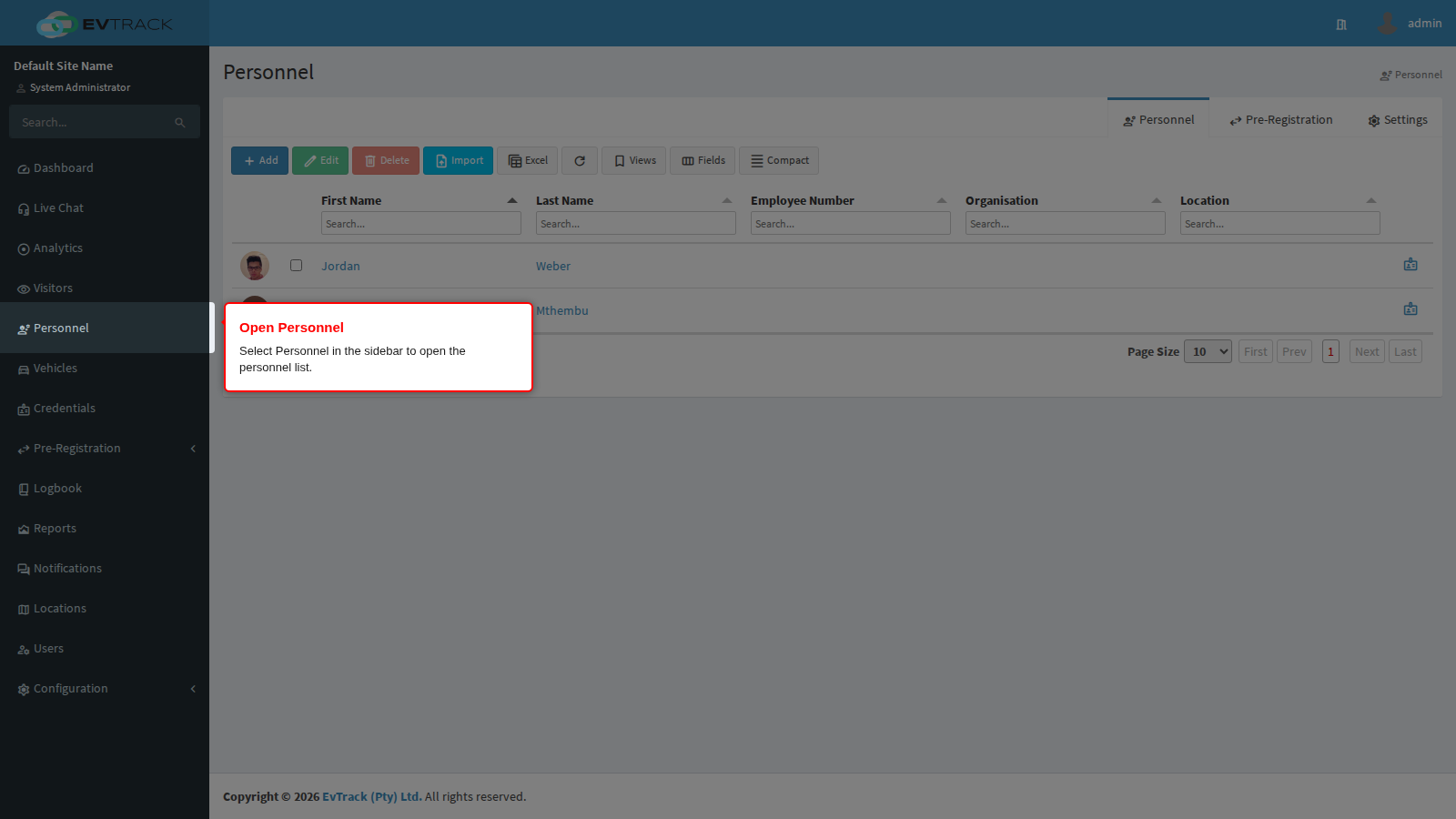
Select Personnel in the sidebar. The personnel list opens with search fields above each column.
Step 2: Find the person
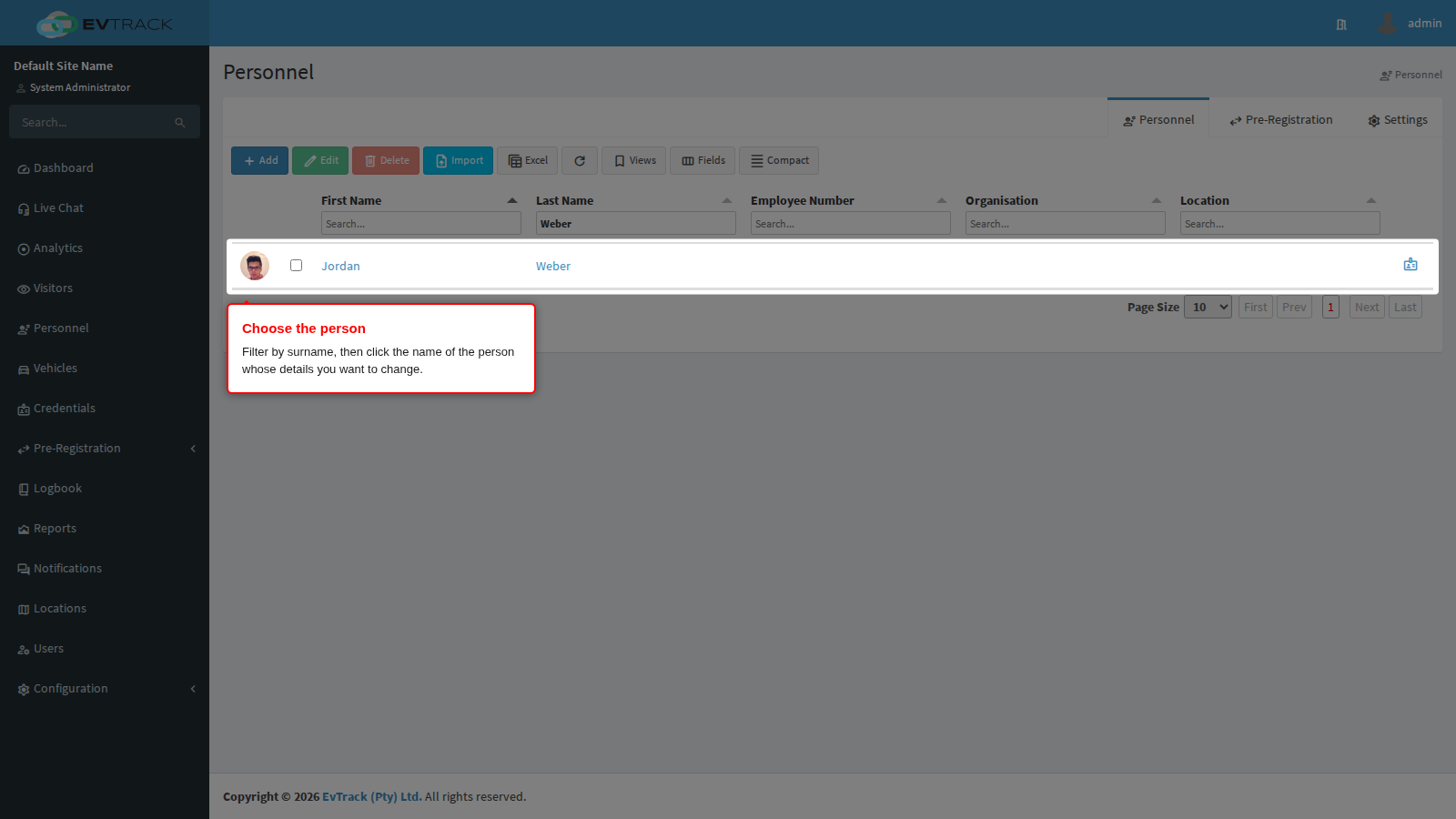
Type the person’s surname into the search field above the Surname column - the list narrows as you type. Click the person’s name to open their record; the edit page opens on the Overview tab.
Step 3: Update the details
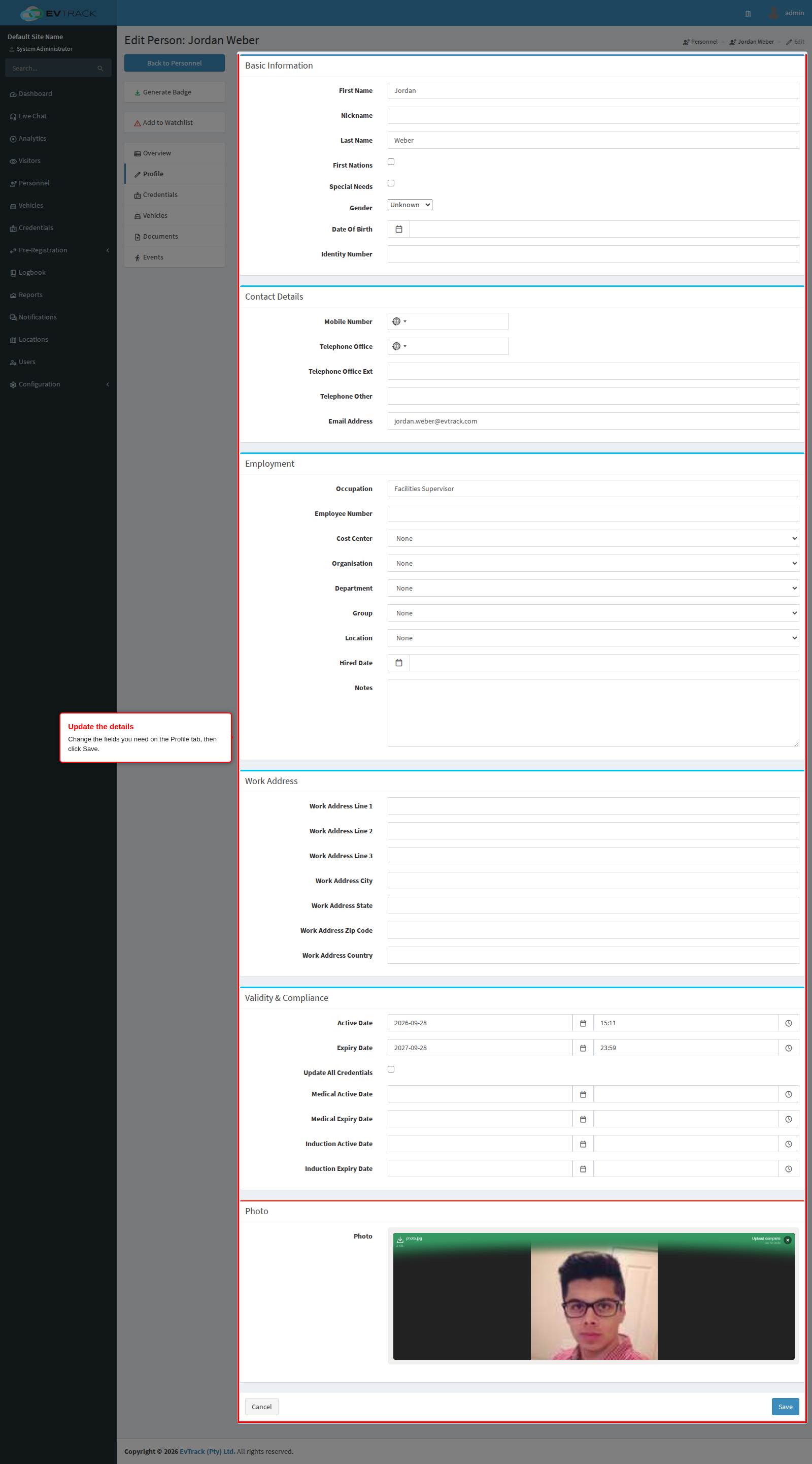
Switch to the Profile tab and change the fields you need - contact details, organisation, department or cost-center assignments, and the profile photo.
Step 4: Save
Click the Save button at the bottom of the Profile tab. The page reloads with a confirmation banner and the updated details are stored.