The User Registration page controls the public self-registration form that lets new users and personnel submit their own registration requests online. It switches the form on or off and gives you the public link and QR code to share. Open it via Configuration > User & Personnel Settings > Self-Registration (the General tab).
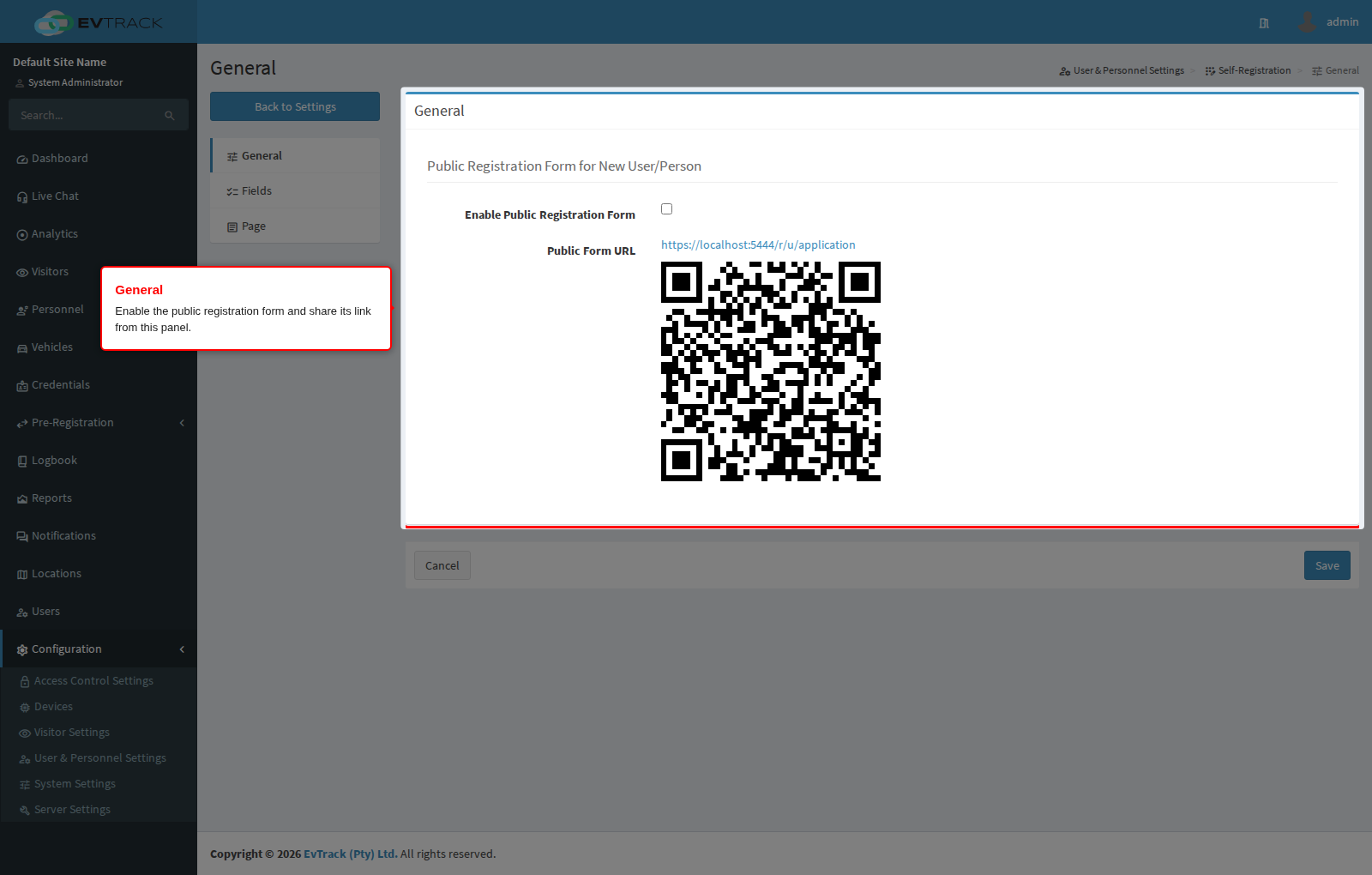
Settings
- Enable Public Registration Form - turns the public self-registration form on or off system-wide. Enable it when you want new users and personnel to register themselves; disable it to allow only administrator-created accounts.
- Public Form URL - the link to the public registration form, displayed together with a scannable QR code. Copy the link or print the QR code and share it wherever new users should register; the URL is generated by the system and cannot be edited here.
Click Save to apply your changes, or Cancel to discard them.
Notes
- New registration requests are announced to the administrator by email. Before sharing the public form, make sure the Company Name and Send Admin Notices to Email Address fields are completed in the system settings - if no admin notice address is configured, the system cannot notify anyone when a registration is submitted.
- Submitted requests appear under Pre-Registration in the sidebar, where an administrator converts each one into a new user or person. The add form is pre-populated with the submitted details, and the request is removed from the list once it has been processed.