RFID cards (Mifare contactless cards) are issued to personnel as credentials. This page covers the full card lifecycle: add, assign access, review and delete.
Before you start you need the card’s number (32-bit HEX, printed on the card or read from a desktop reader) and a role that may manage personnel and credentials - if the Credentials tab or the Add button described below is missing, ask an administrator to extend your role.
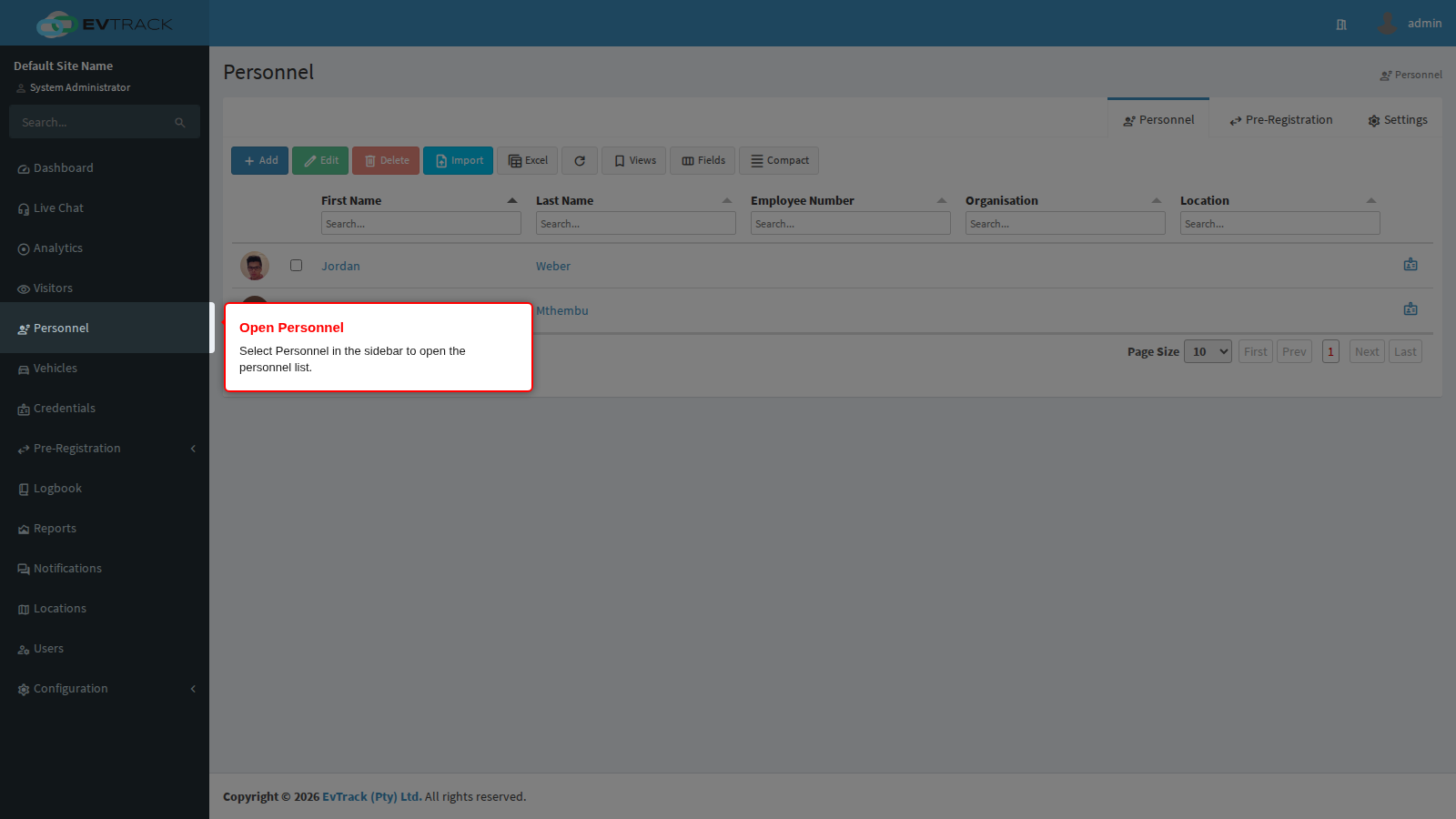
Step 1: Open Personnel
Select Personnel in the sidebar. The personnel list opens, showing every person with search fields above each column.
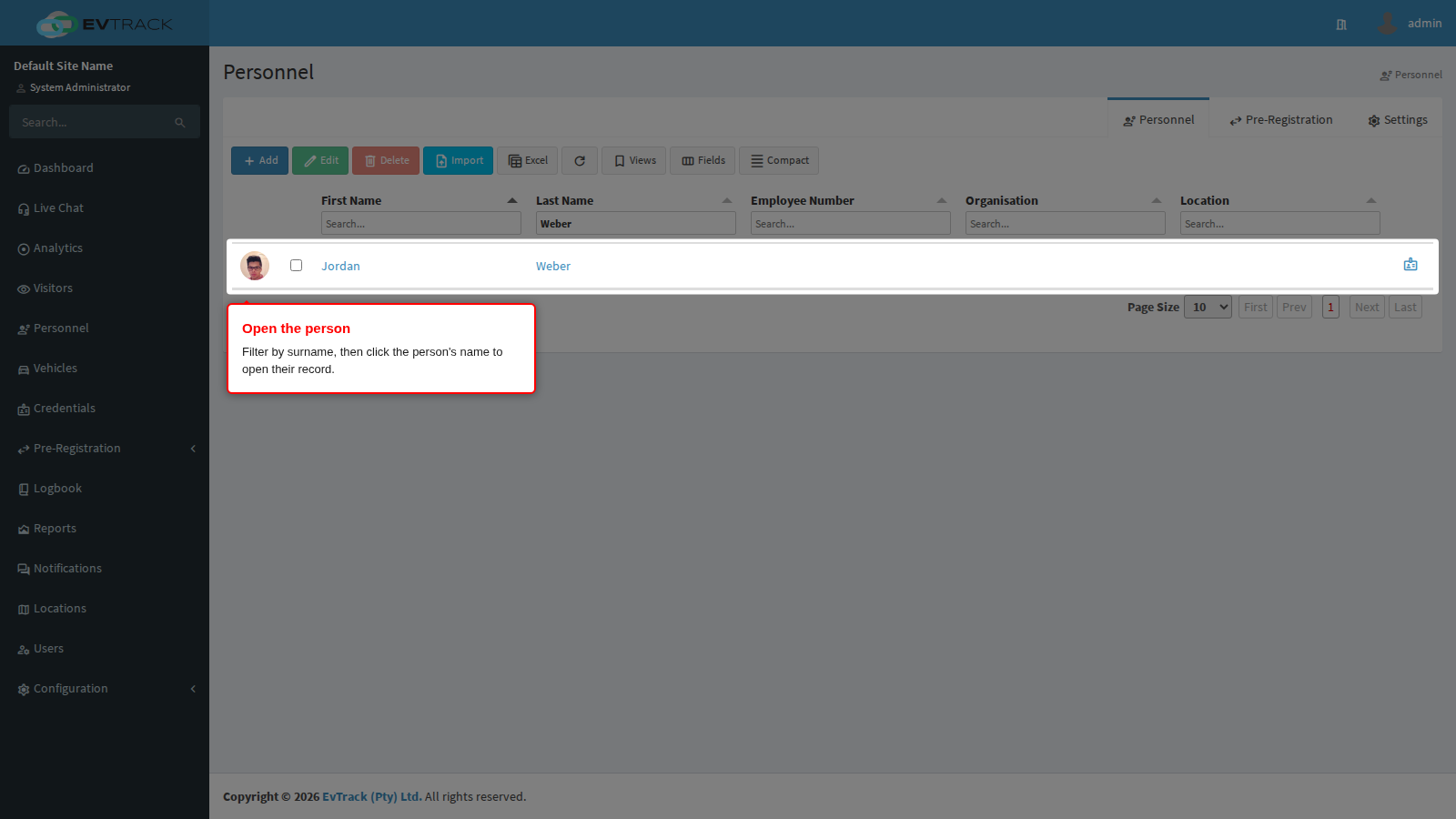
Step 2: Open the person
Type the person’s surname into the search field above the Surname column - the list narrows as you type. Click the person’s name to open their record; the person’s edit page opens on the Overview tab.
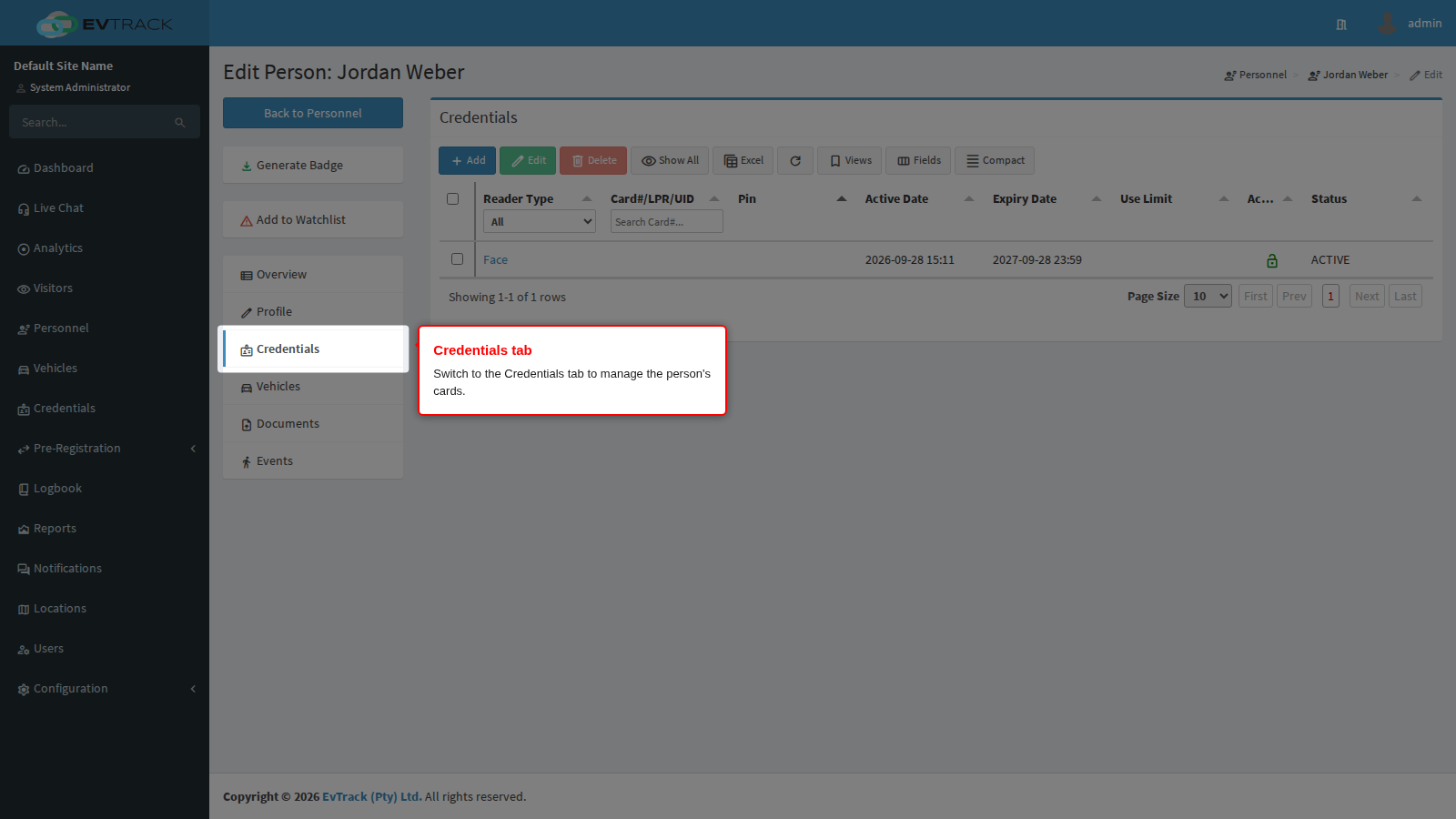
Step 3: Go to the Credentials tab
In the tab list on the left of the person’s record, select Credentials. The tab shows a table of the person’s existing credentials (empty for a person without any) with a toolbar above it.
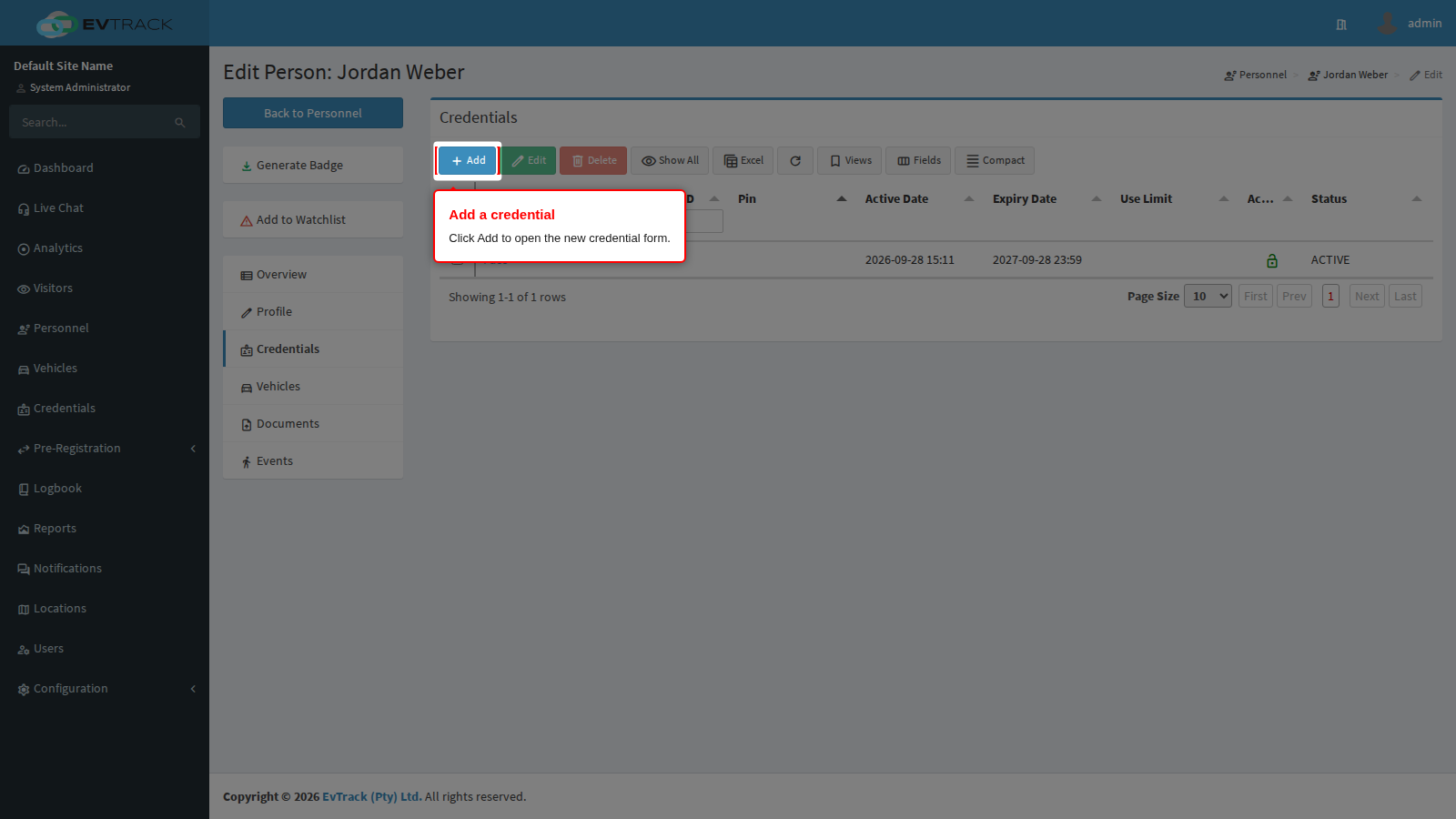
Step 4: Click Add
Click the Add button in the credentials toolbar. The new-credential form opens.
Step 5: Complete the card details
Choose Contactless Card as the reader type and enter the card’s value as a 32-bit HEX number (8 hex characters, for example A1B2C3D4). Activation and expiry pre-fill from the person’s validity window. Click Save - the saved credential opens on its edit page.
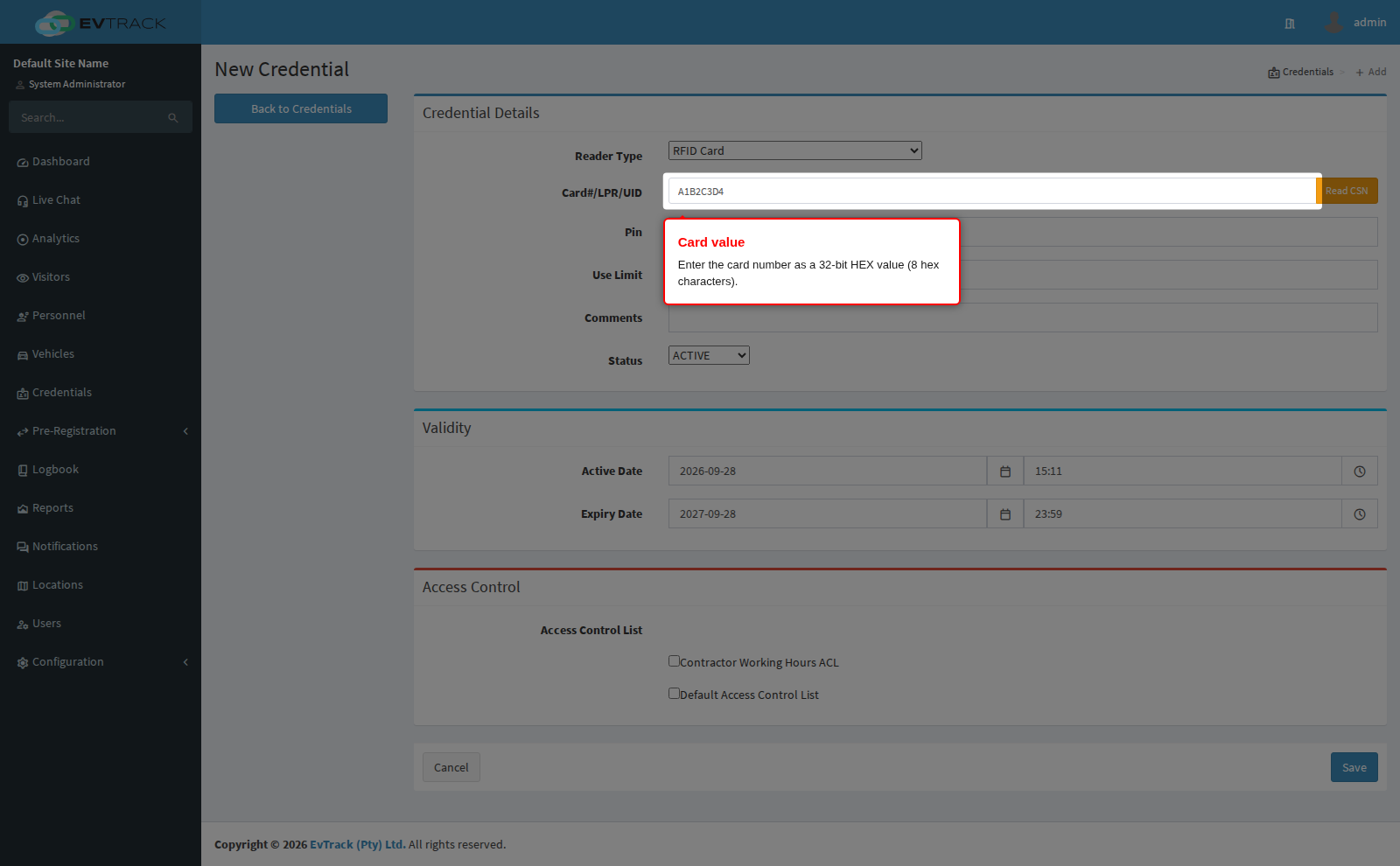
Note: enter the value in the format your readers report. 32-bit HEX is the common Mifare format; the card number printed on the card may be decimal and need conversion.
Step 6: Assign an Access Control List
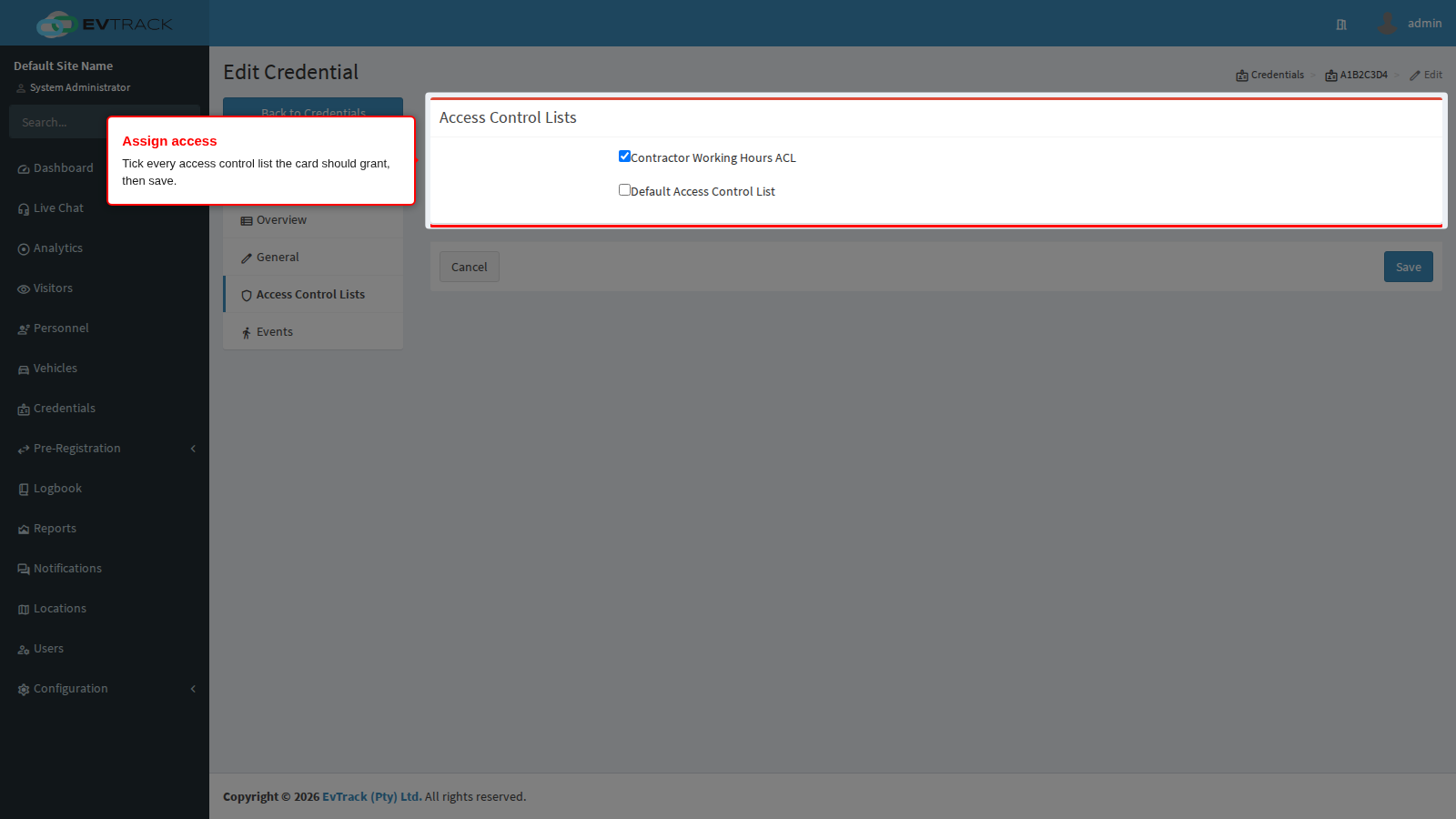
On the saved credential’s ACL tab, tick the access control lists the card should grant and save again. The ACL determines which access control points admit the card and on what schedule - see the Access Control section for building ACLs. A credential with no ACLs assigned identifies the person but opens nothing.
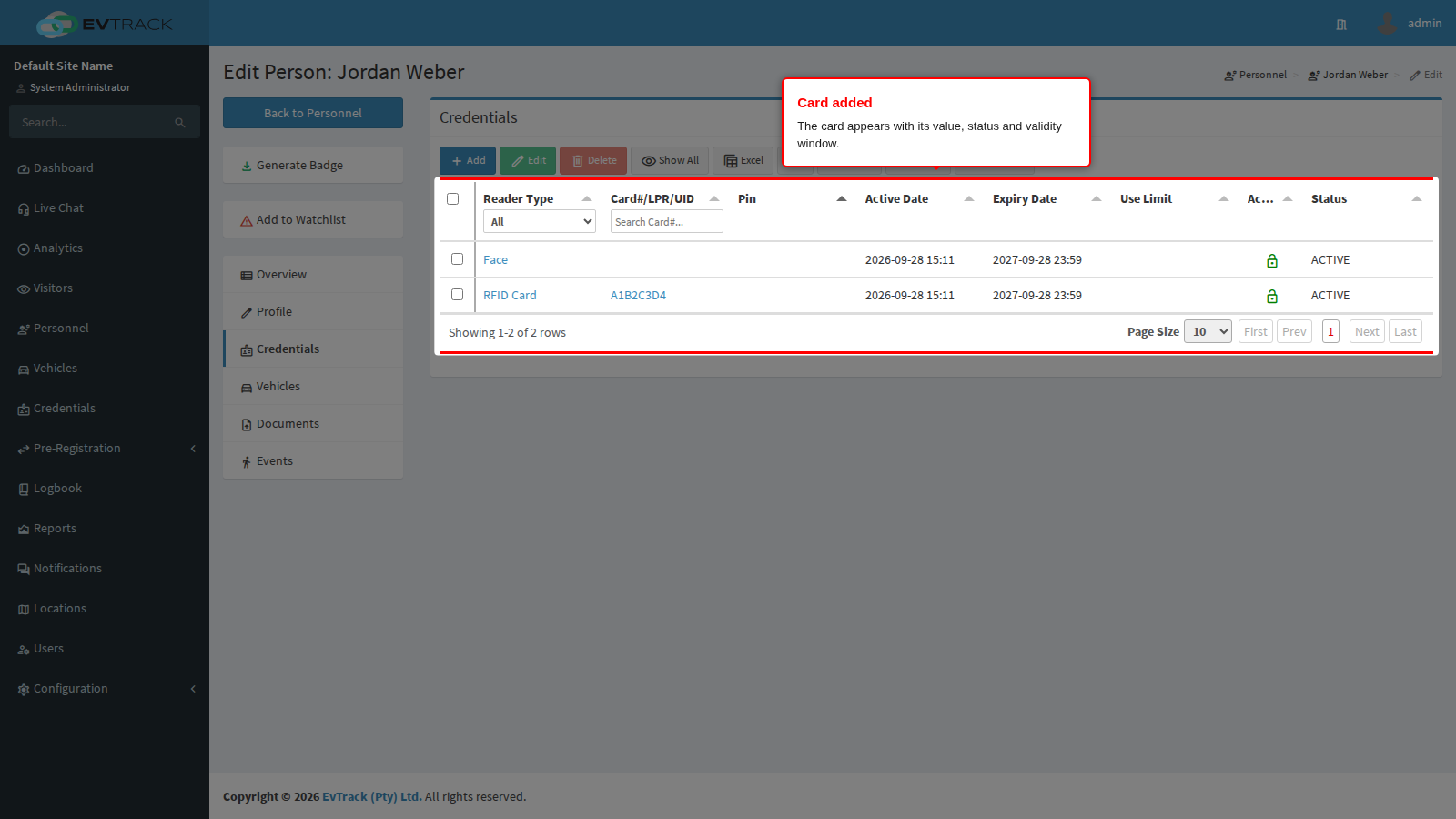
Step 7: The card on the credentials tab
Back on the person’s Credentials tab, the card now appears in the list with its value, status and validity window.
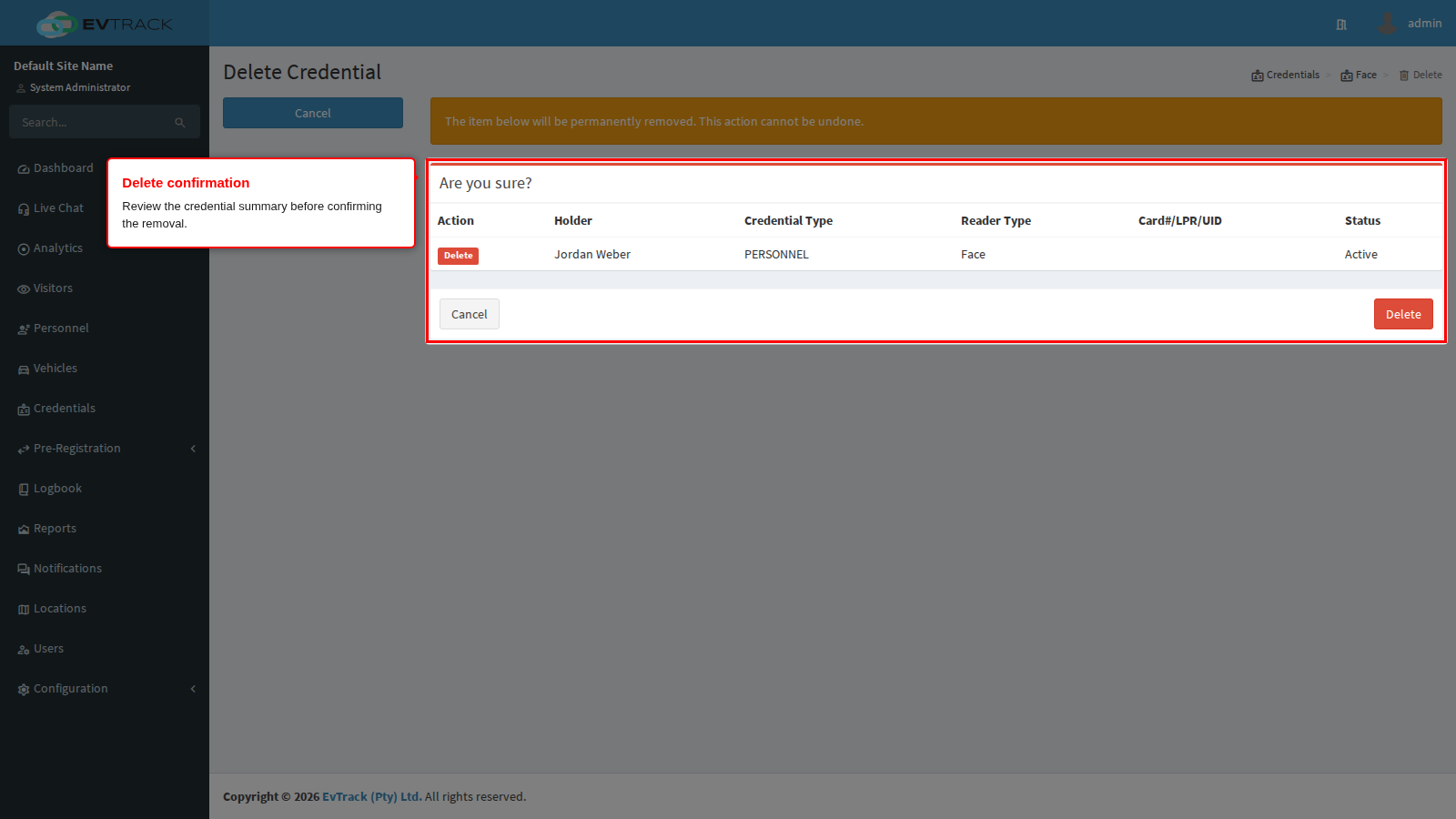
Step 8: Deleting a card
Deleting (or disabling) a credential withdraws it from the connected access control hardware. Select the card on the Credentials tab and click Delete in the toolbar - a confirmation page summarises the credential before removal.
See also: Personnel Validity and Credential Expiry for the credential lifecycle diagram - what Valid, Active, Expired, Disabled and Deleted mean, and how a credential moves between them - and Access Control Lists for why a reader refuses a card.