Removing a user account revokes their login and takes them out of the user list.
Before you start: you need user administration rights. Consider whether disabling the account (clearing its validity window) is enough - deletion removes the user from day-to-day views, while their historical events remain in the logbook for the audit trail.
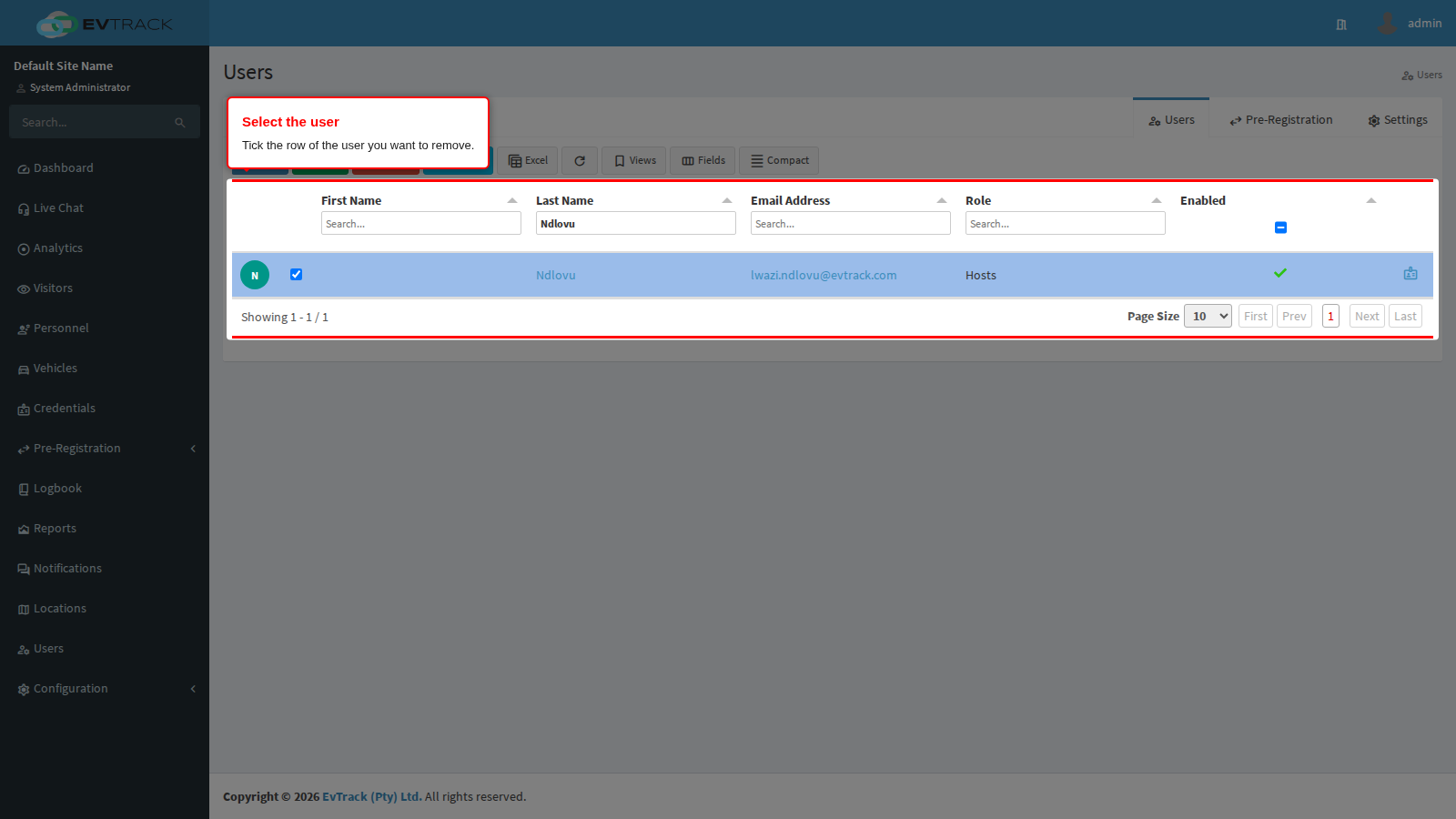
Step 1: Select the user
Click Users in the sidebar, find the user in the list and click their row to select it. The toolbar’s Edit and Delete buttons become active once a row is selected.
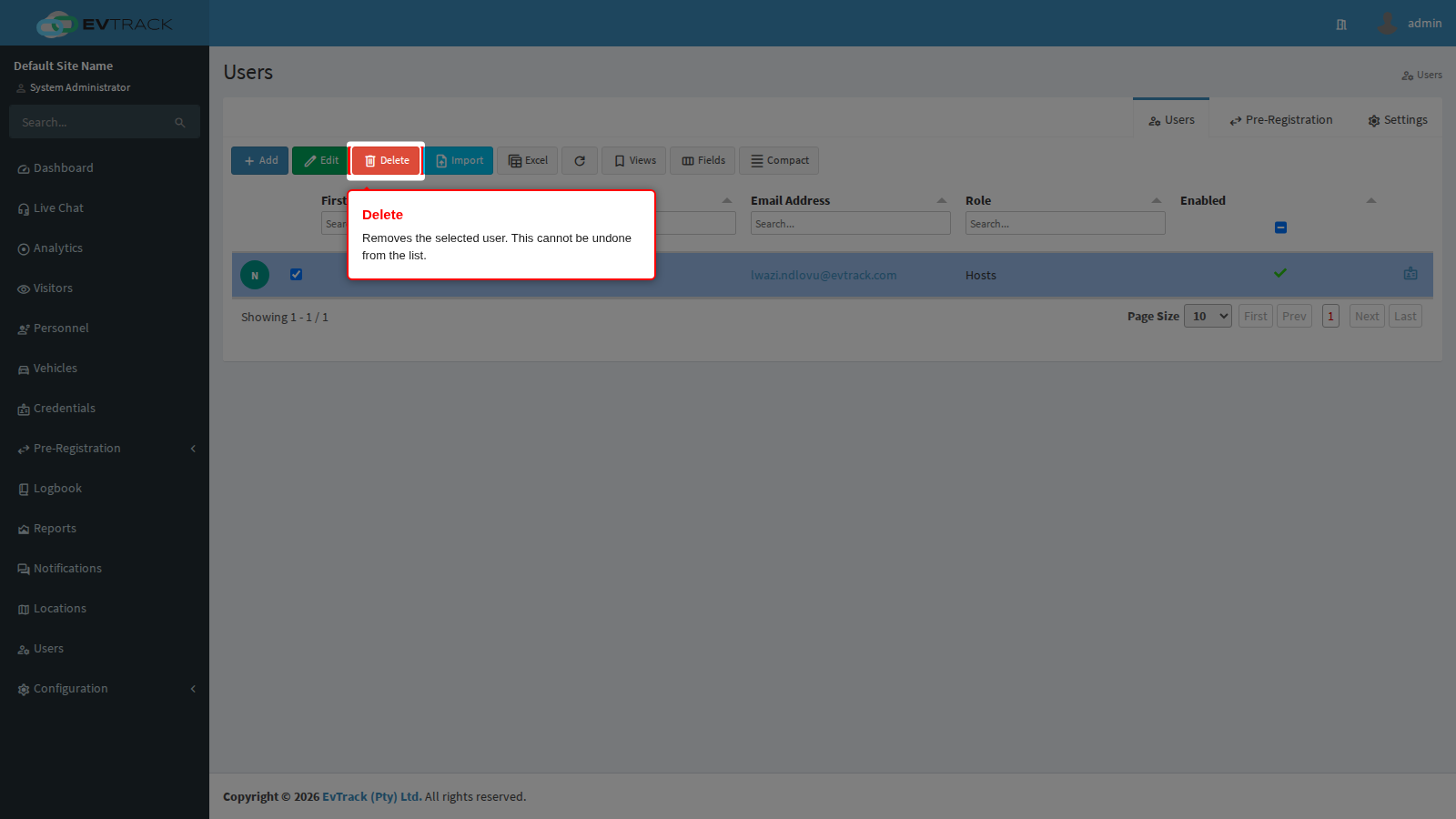
Step 2: Click Delete
Click Delete in the toolbar above the list.
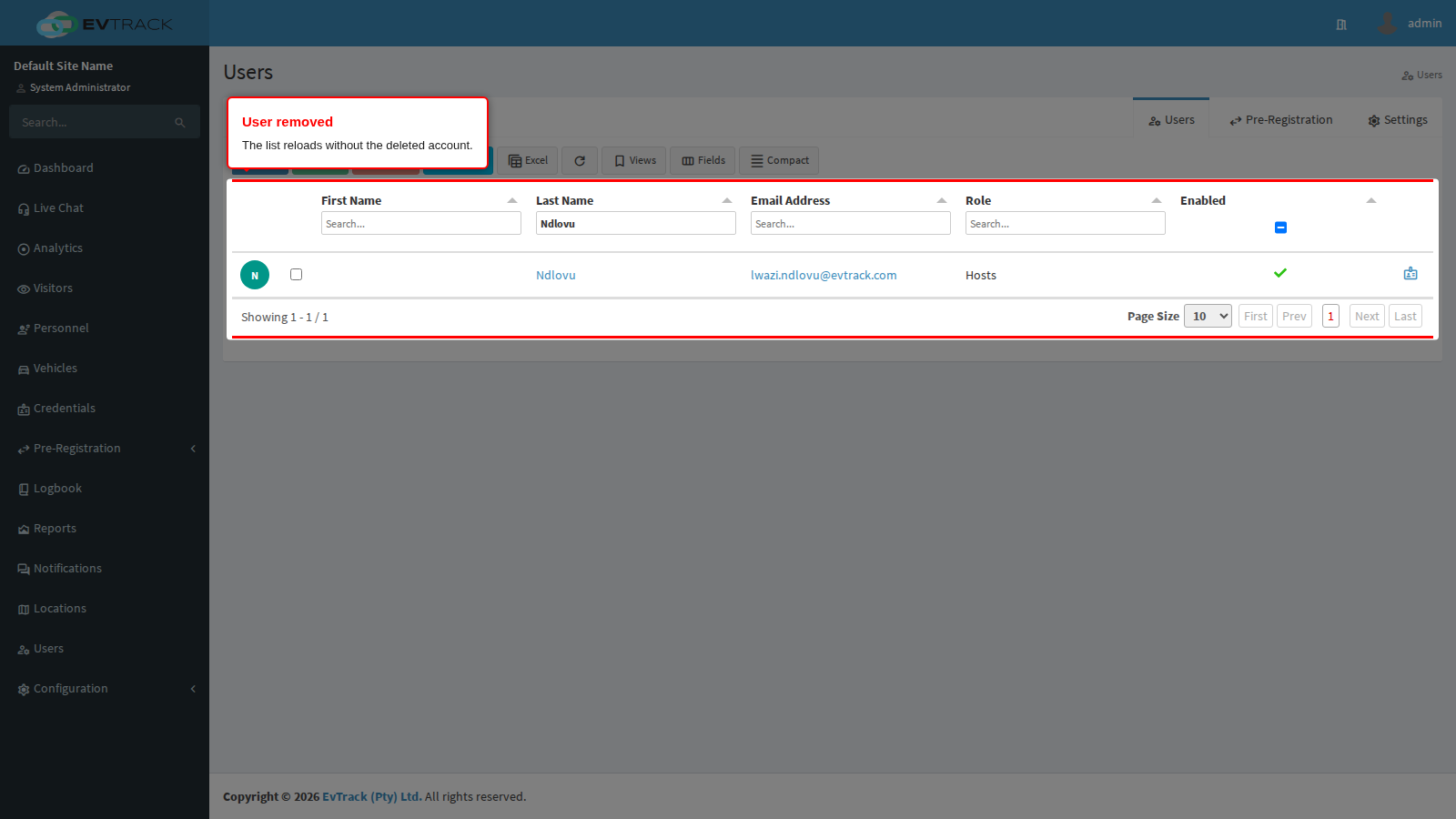
Step 3: The user is removed
The list reloads without the deleted account - if you search for the name, no row is found. The user can no longer log in, and any credentials they held stop granting access.
Notes
- Deleting a user does not erase their past visits or events - the logbook keeps the audit trail.
- If the user was a host, reassign their upcoming visitors first so invitations and notifications keep working.
See also: Add a User and Edit a User.