Inviting a visitor creates a scheduled visit with an access credential (QR code or PIN) and shares it with the visitor ahead of their arrival. The visitor must already exist on record - see Add Visitor if they do not.
Step 1: Find the visitor in the Visitors list
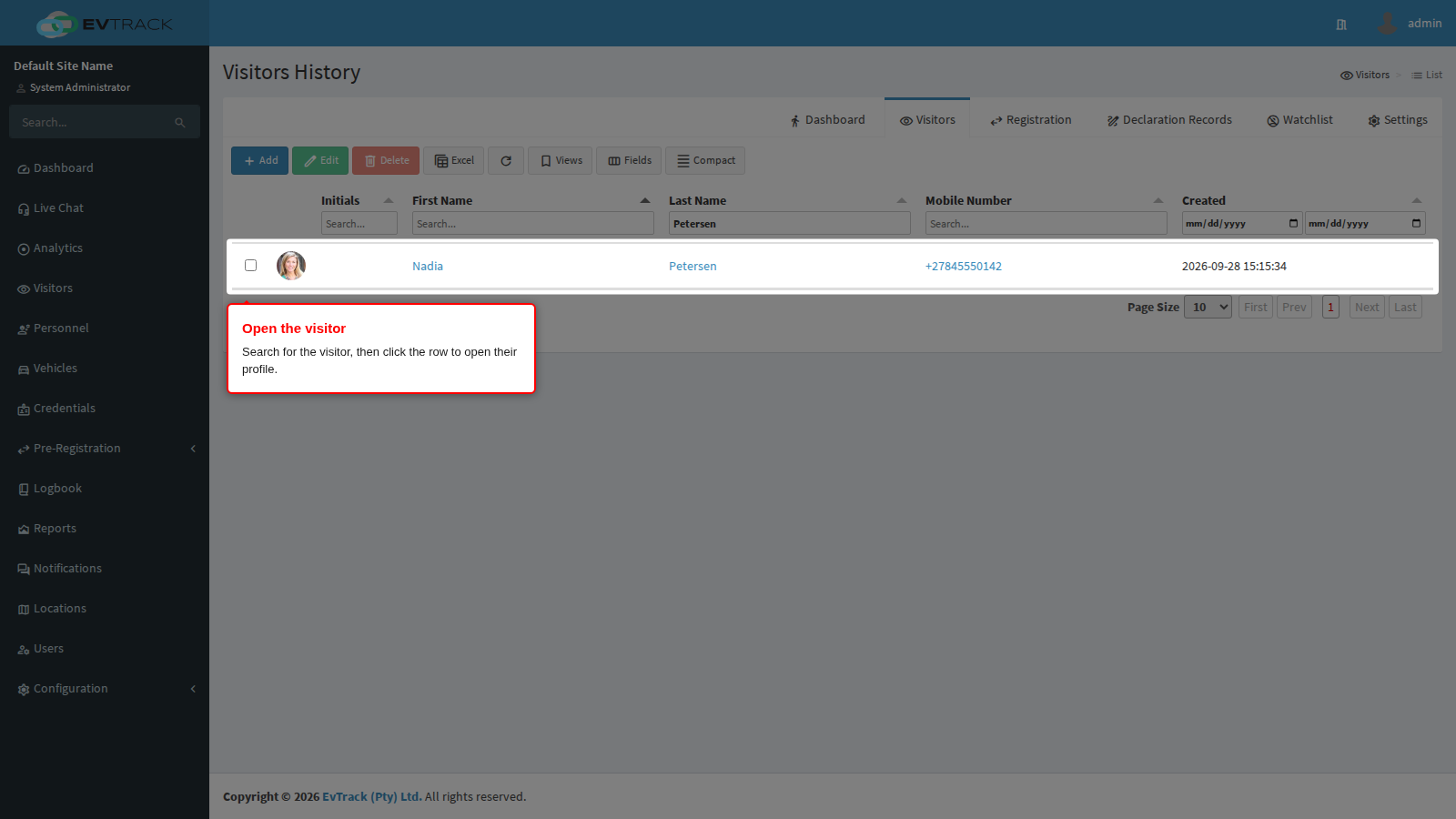
Select Visitors in the sidebar to open the Visitors History list. Type part of the visitor’s name into the column filter under the Last Name header, then click the visitor’s row to open their profile.
Step 2: Select the Invite tab
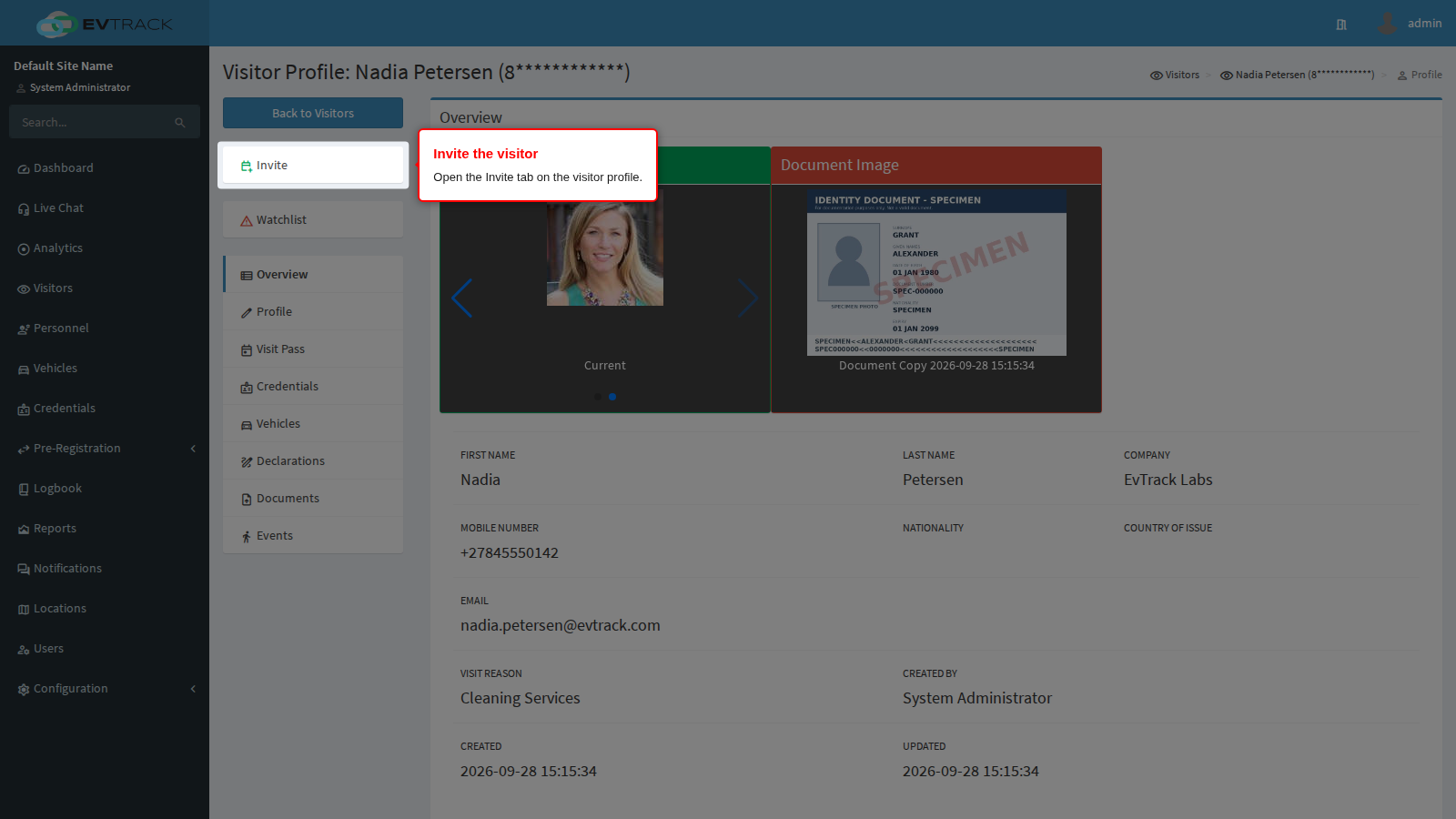
The visitor’s profile opens on the Overview tab. Select the Invite tab to open the invite form.
Step 3: Fill in the invite details
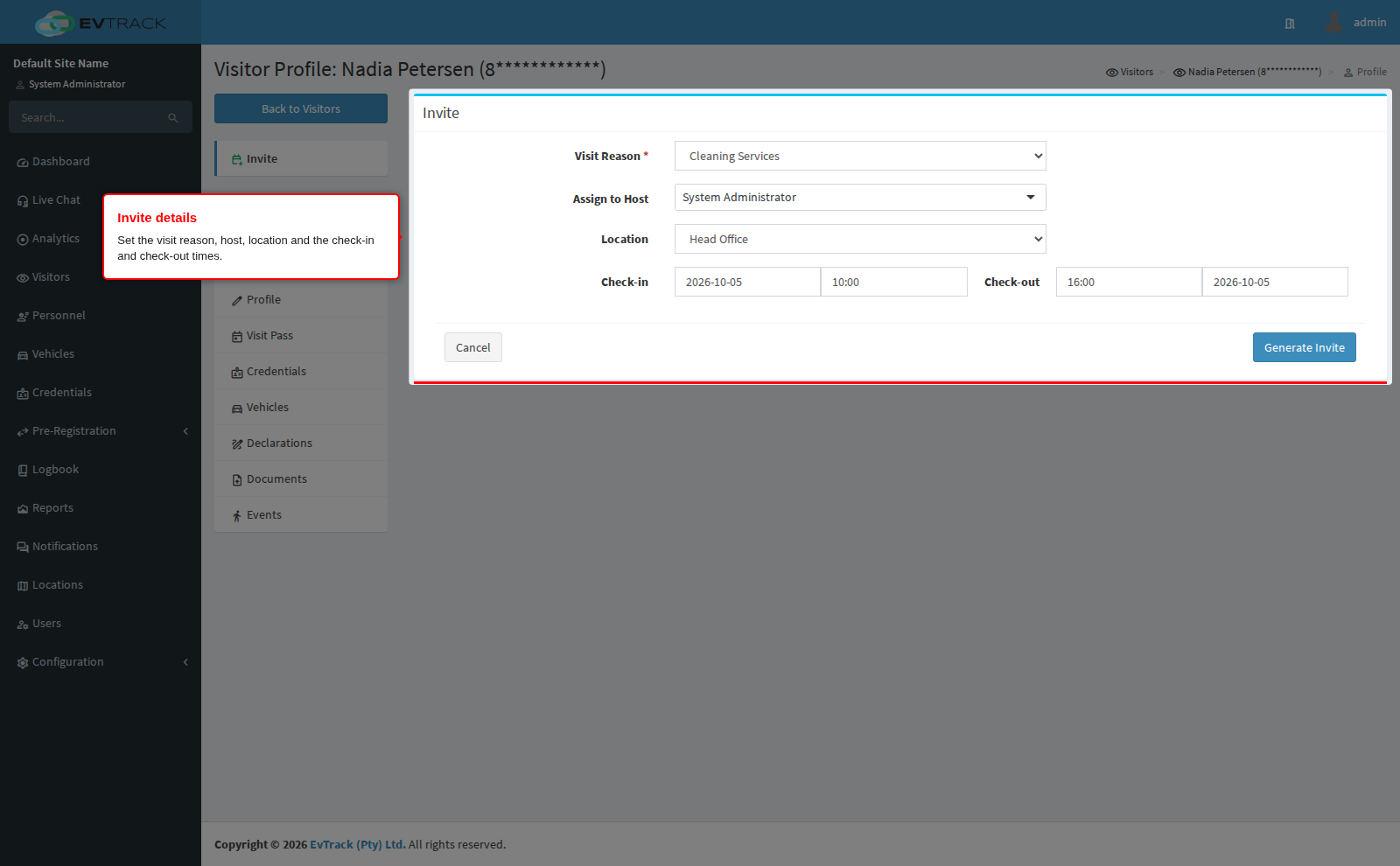
Complete the invite details:
- Visit Reason
- Assign to Host - the person being visited
- Location the visit applies to
- Check-in and Check-out dates and times
Step 4: Generate the invite
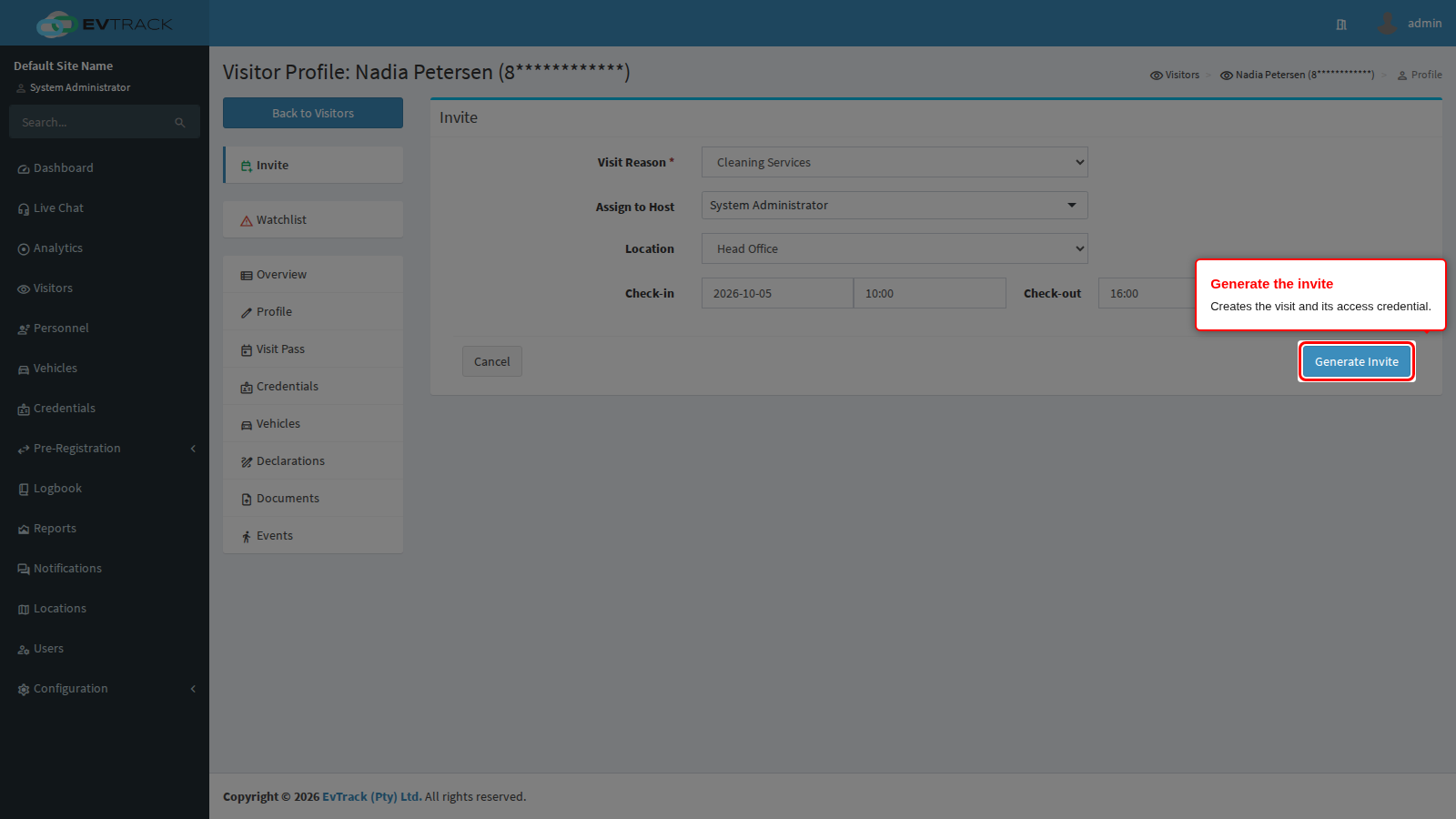
Click the Generate Invite button. The visit is created together with its access credential.
Step 5: Share the invite
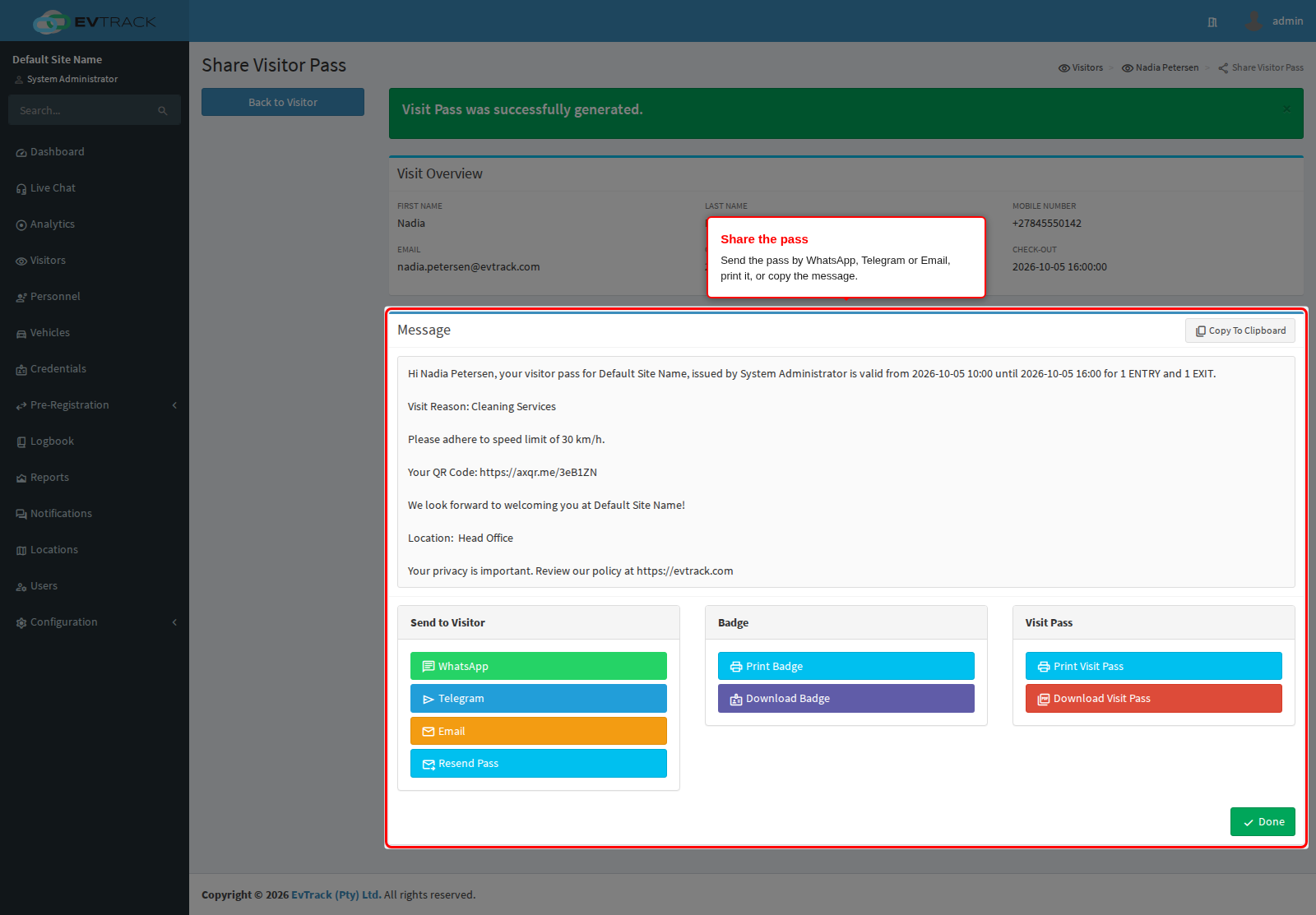
The Share Visitor Pass page opens with the visit overview (visitor, contact details and validity window) and the generated pass message shown as a read-only preview - every channel sends exactly the text you see. Use Copy To Clipboard in the message header to copy it, the Send buttons to deliver it via WhatsApp, Telegram or Email or to resend the pass, and the Documents buttons to print or download the badge or download the visit pass. Only the buttons your role allows are shown. When invitation emails are enabled, the system also sends the pass to the visitor’s email address automatically.
Step 6: What the visitor receives
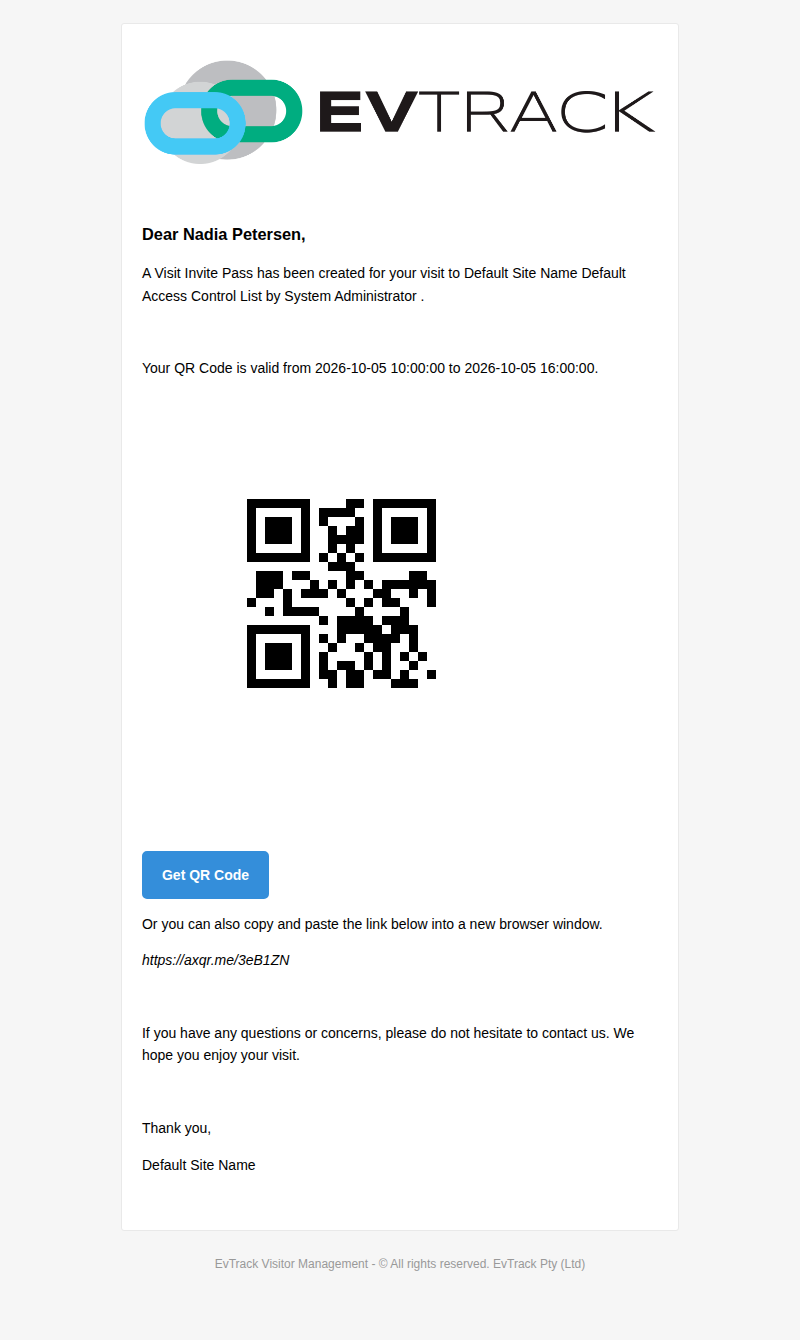
The visitor receives the invitation with the visit details and the access credential to present at the checkpoint. The capture below shows the invitation email exactly as it arrives in the visitor’s inbox.
Note: for security reasons, access and exit codes are only ever shared by the host - a visitor who is unsure of the visit address or needs a code should verify the details with the person they are visiting, not with EvTrack support.
Notes
Invitations can also be sent from the EvTrack Visitor mobile app (available for cloud-hosted deployments) - the invite carries the same visit details and credential either way.