Server Settings is where an onsite (self-hosted) deployment is configured: the address the server publishes itself on, how it sends email, SMS and WhatsApp, which licence it runs under, how it reaches the internet, and where it reports its own errors. These settings apply to the whole server, not to one location or one group of visitors.
Before you start:
- You need a system administrator account. Server Settings is refused to every account that belongs to a single environment inside a shared server, even one with full administrative rights inside that environment. If the menu entry is missing or the page answers with an access-denied error, you are logged in with the wrong kind of account.
- You need the credentials for whatever you are configuring (mail server, SMS provider, proxy, licence key). Nothing on these panels is discovered automatically.
- Changes take effect as soon as you click Save, except where a panel says otherwise. On a Windows onsite server, restart the EvTrack service after changing email or SMTP settings (via the service manager, or by running
evtrack-service-restart.batas Administrator).
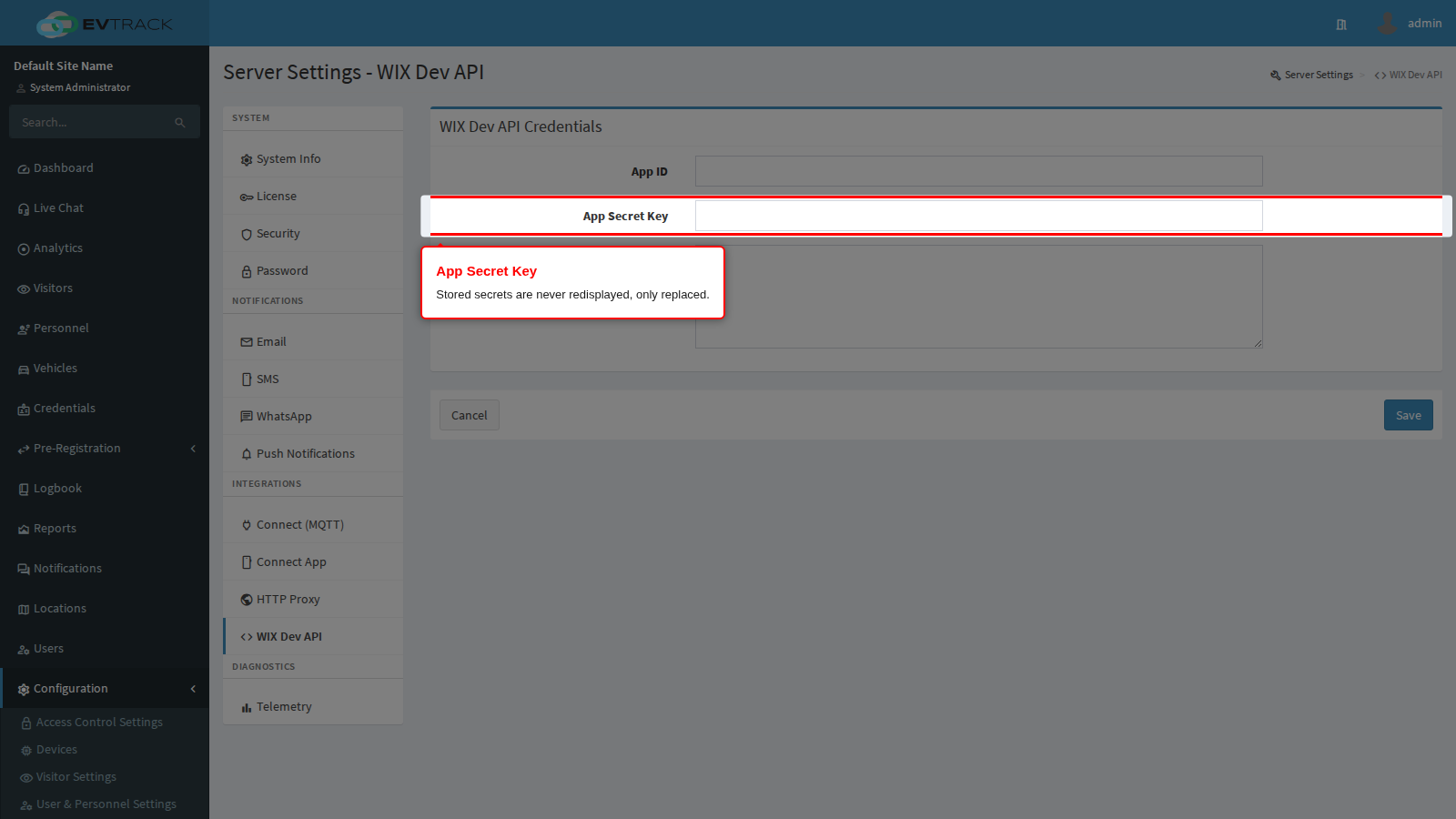
Stored secrets are never shown back to you. Password, API-key and certificate fields render a fixed placeholder, or an empty box for multi-line values such as a service-account JSON or a PEM block. Leave such a field exactly as you found it to keep the current value; type a new value only when you actually mean to replace it. Clearing a masked single-line field clears the stored secret.
Step 1: Open Server Settings
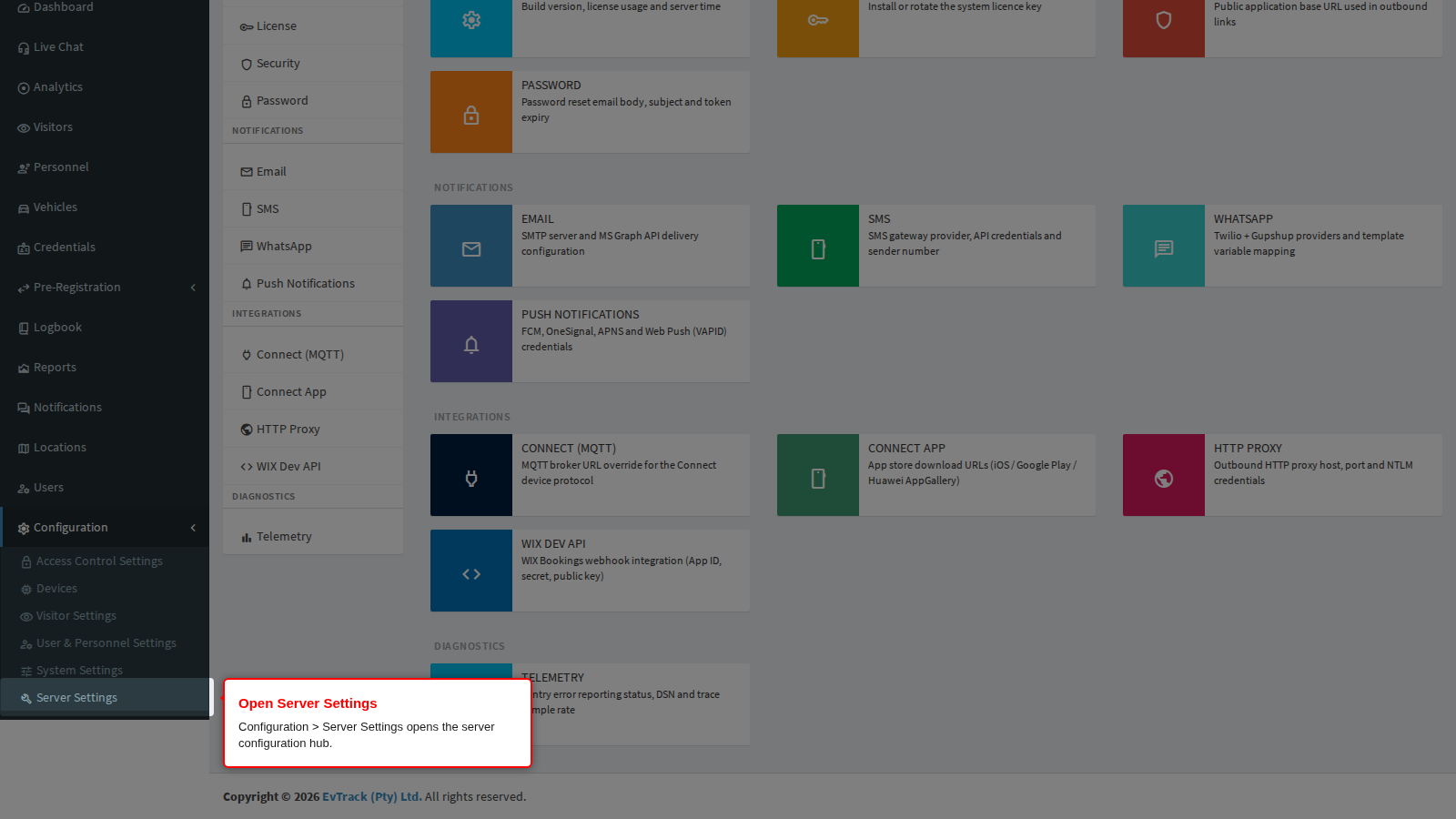
In the left sidebar open Configuration, then click Server Settings.
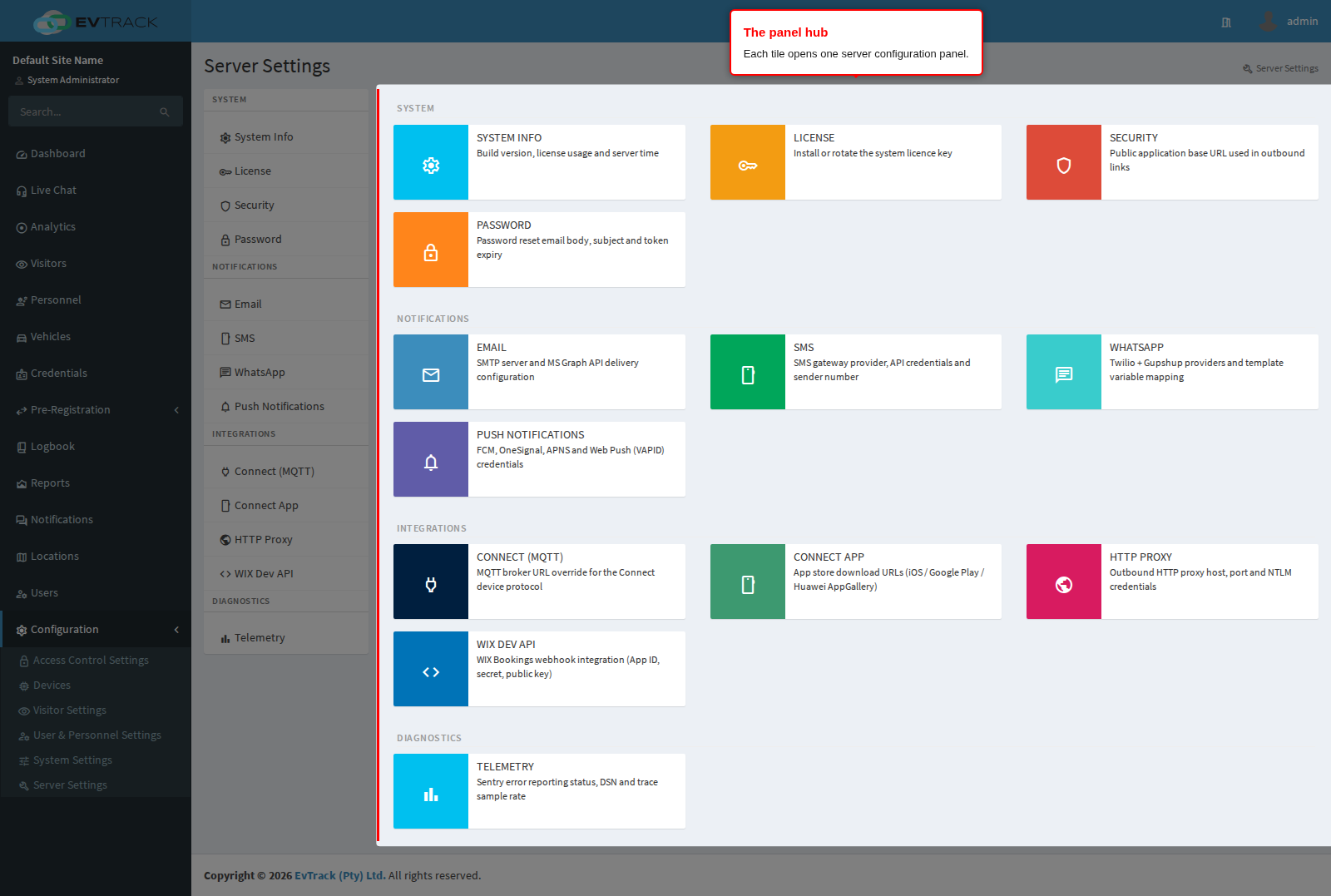
The hub opens, listing every panel as a tile grouped into System, Notifications, Integrations and Diagnostics. Click a tile to open that panel.
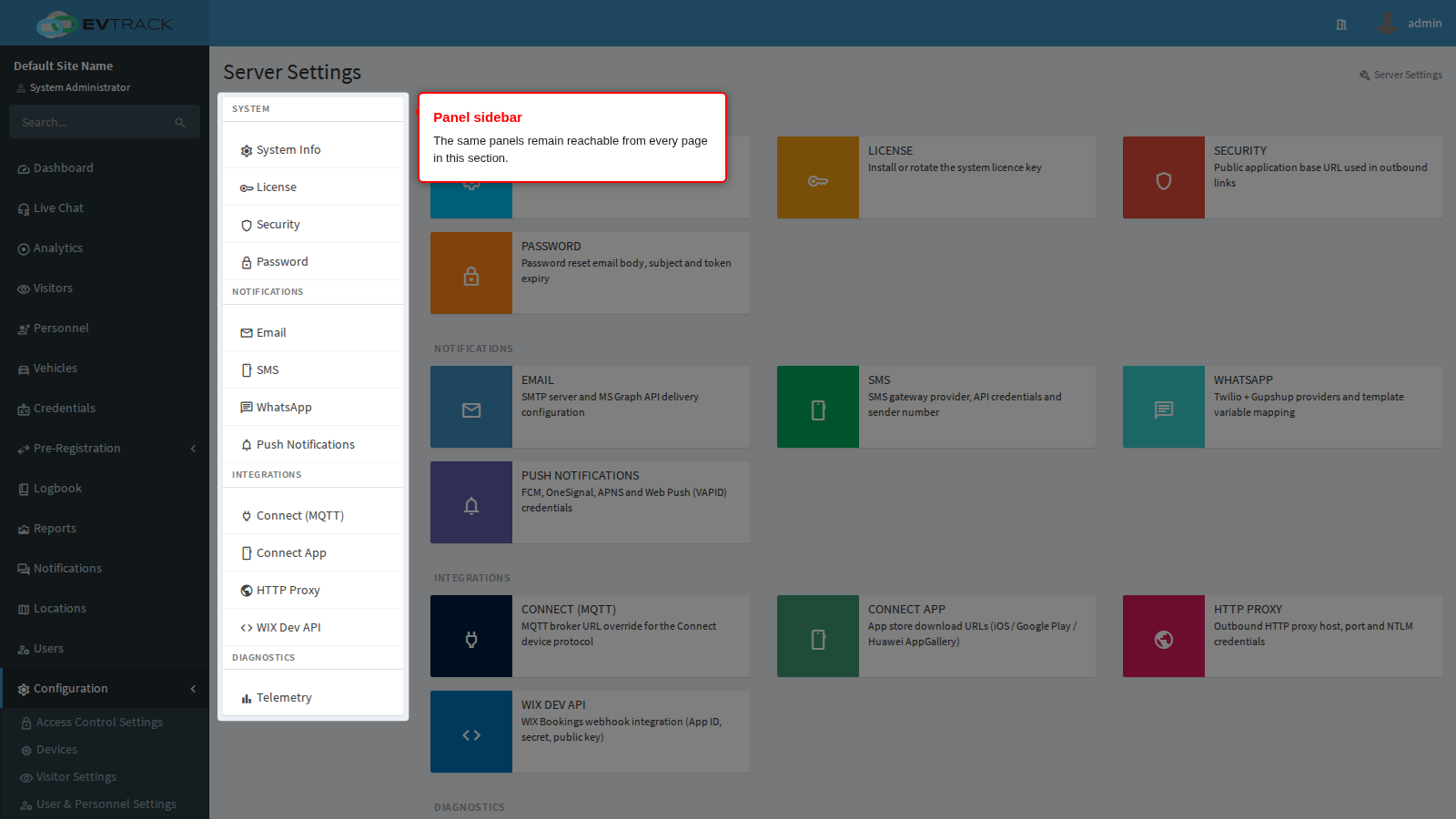
Every panel page keeps the same sidebar, so you can move between panels without returning to the hub.
Each panel below ends with Save and Cancel. Cancel discards your edits and reloads the stored values; nothing is written until you click Save.
System Info
Read-only. This is the first page to open when you contact support or plan an upgrade: it identifies exactly which build is running and how much of your licence is in use.
Build Information identifies the running server: package name, module, version, build number and build date.
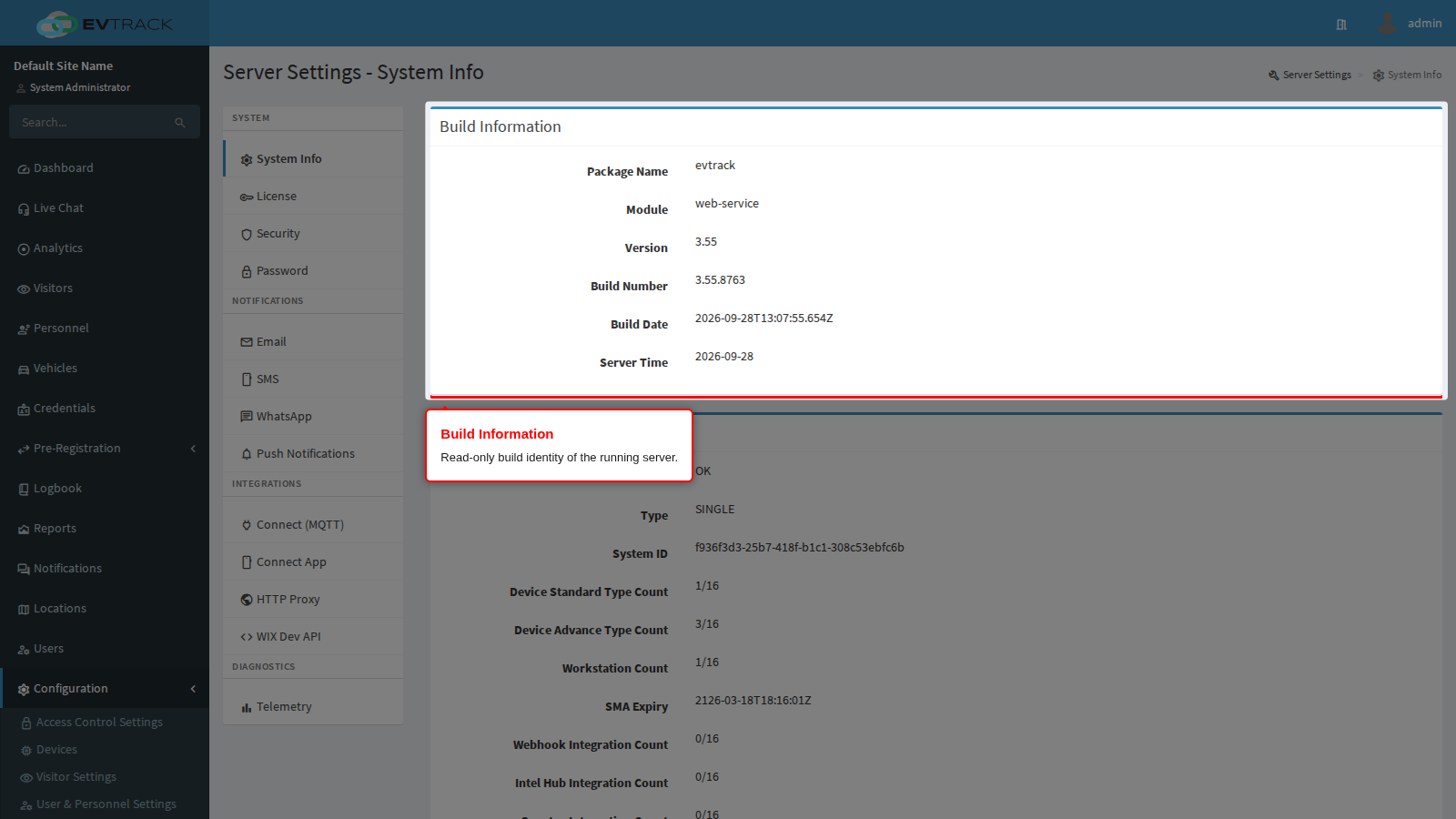
- Version and Build Number are the two values support will ask for first. Quote both. They also tell you whether an upgrade actually took effect: after replacing the application file and restarting the service, this page must show the new version.
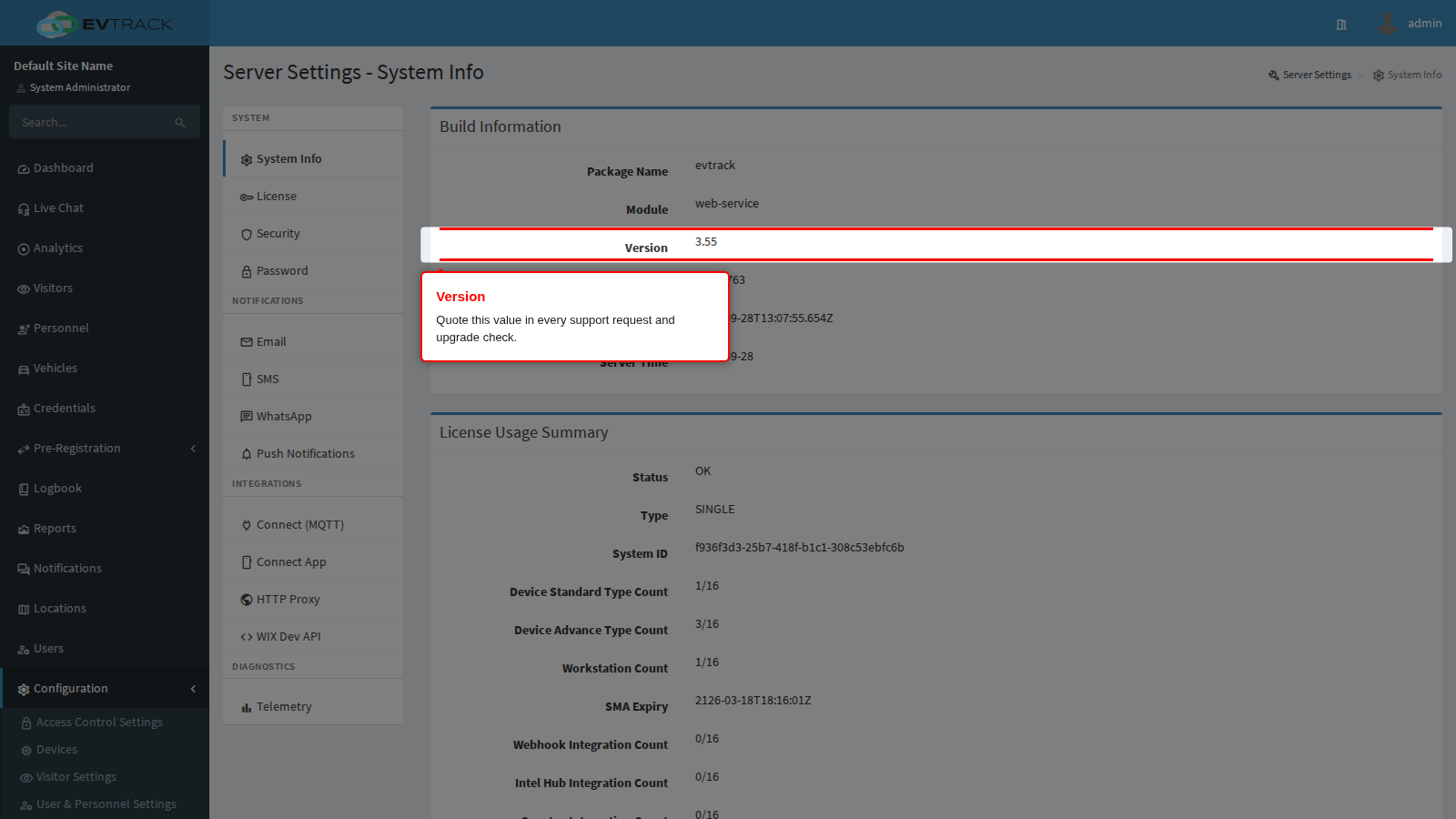
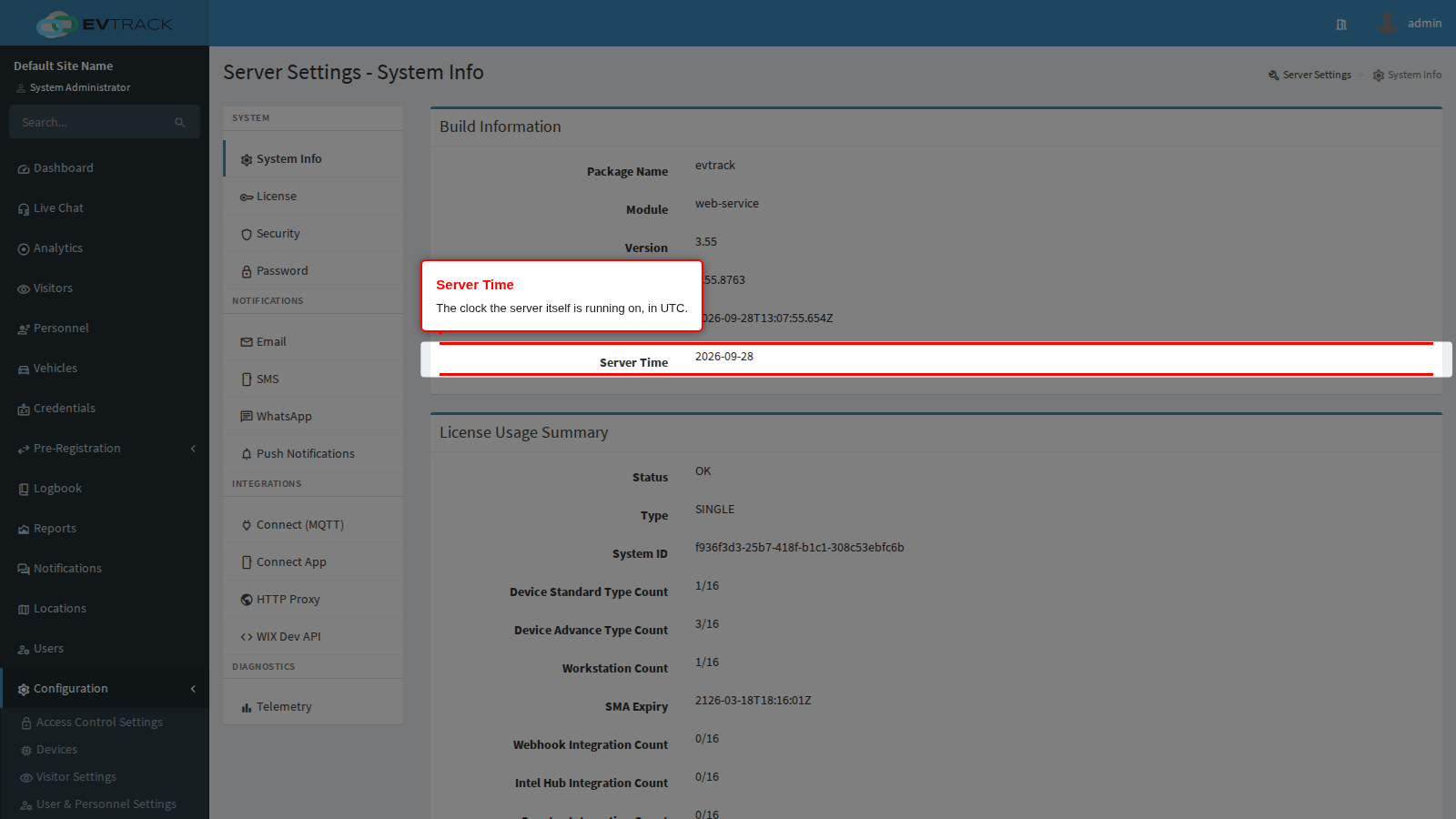
- Server Time is the clock the server itself is running on, expressed in UTC. It is not the zone your operators see: displayed timestamps are converted to the zone configured under Configuration > System Settings > Region. Use this row to check for clock drift on the host; a server whose clock is wrong issues passes and QR codes with wrong validity windows.
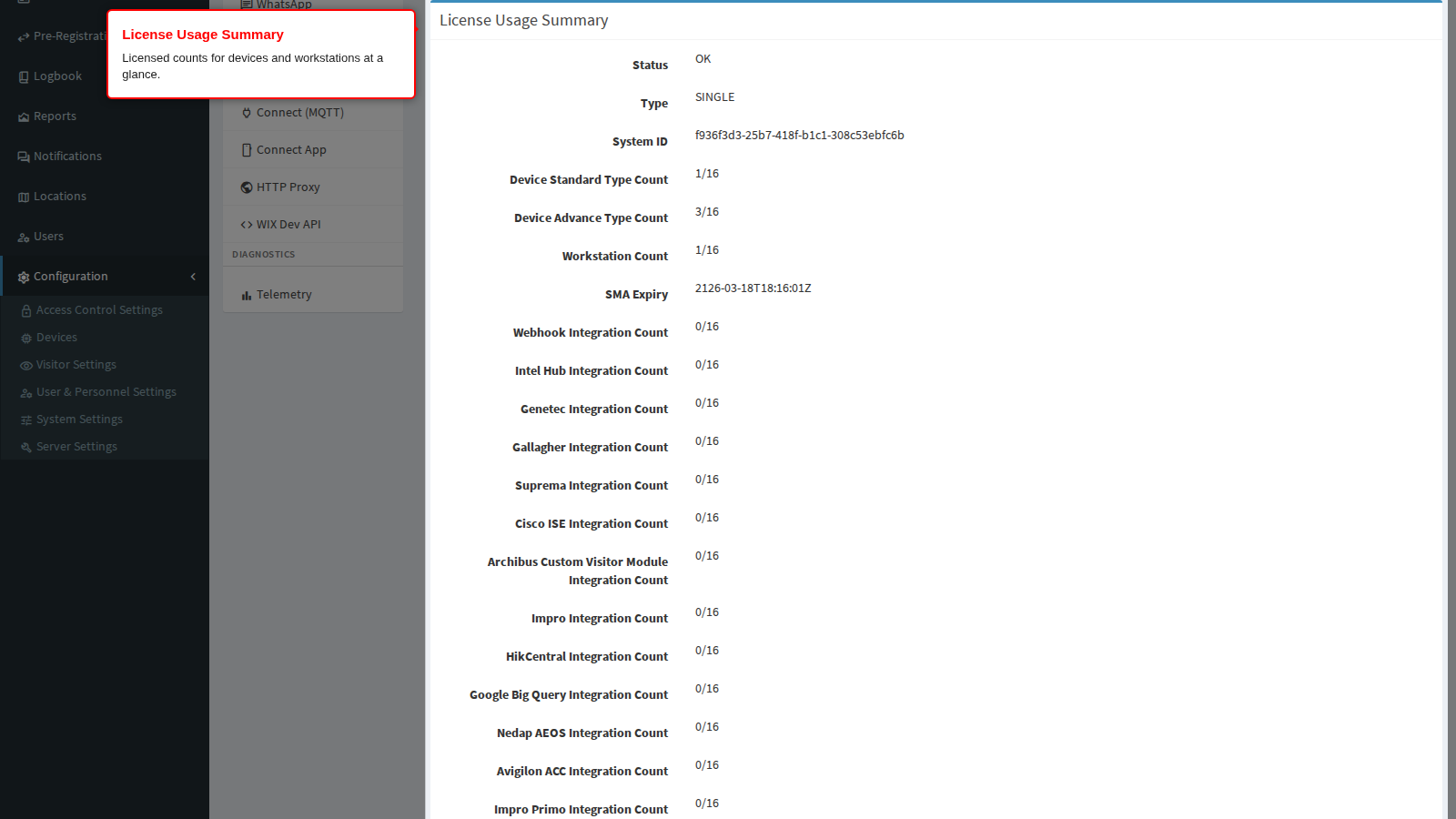
License Usage Summary repeats the key licence figures - status, type, System ID, standard and advanced device counts, workstations, and the expiry dates - so you can confirm at a glance that you still have capacity before adding hardware.
License
The licence controls what the server is allowed to run: how many standard and advanced devices, how many workstations, which integrations, and until when. Open this panel when you buy capacity, renew maintenance, or move the server to new hardware.
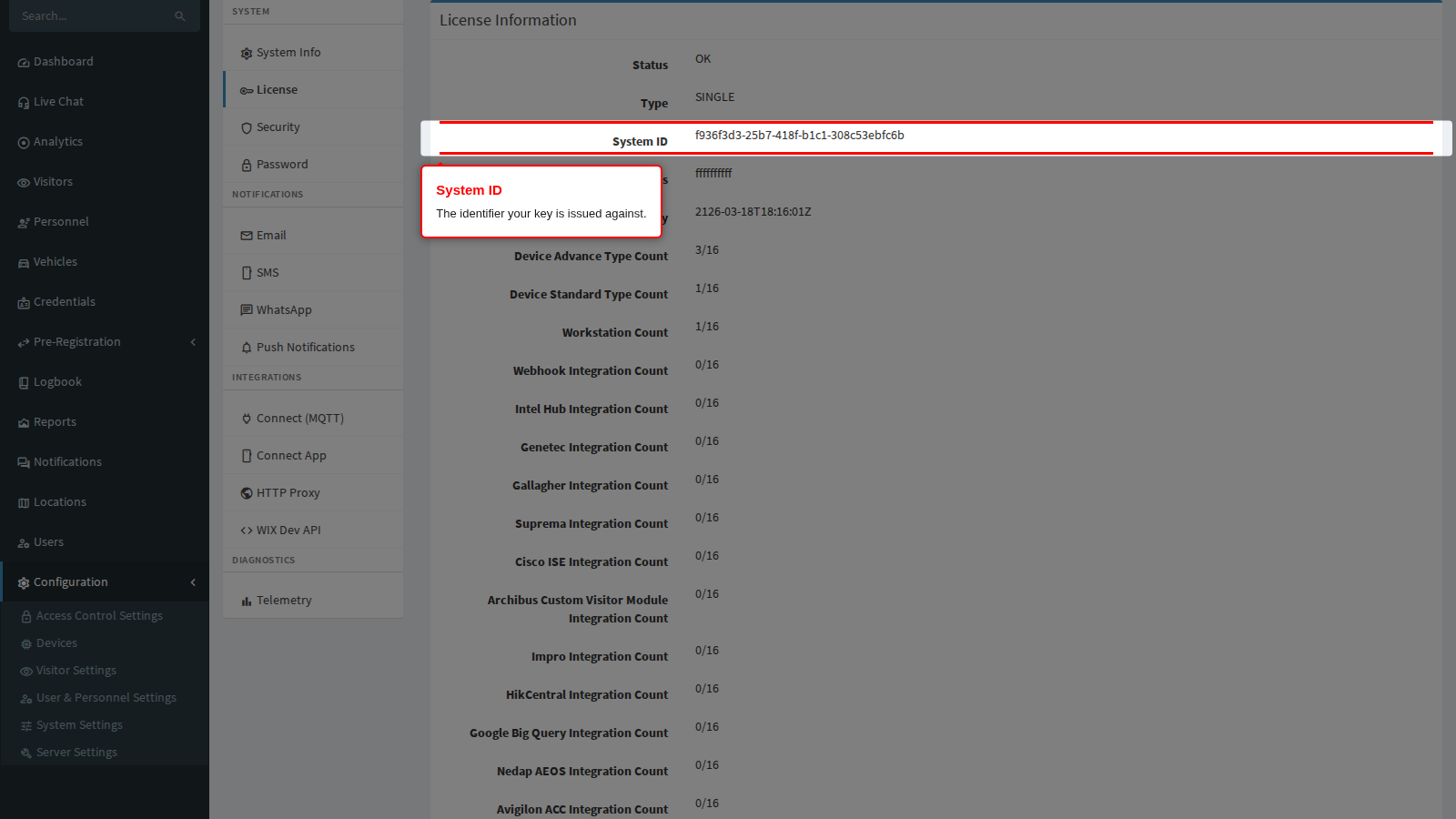
License Information shows the parsed contents of the installed key.
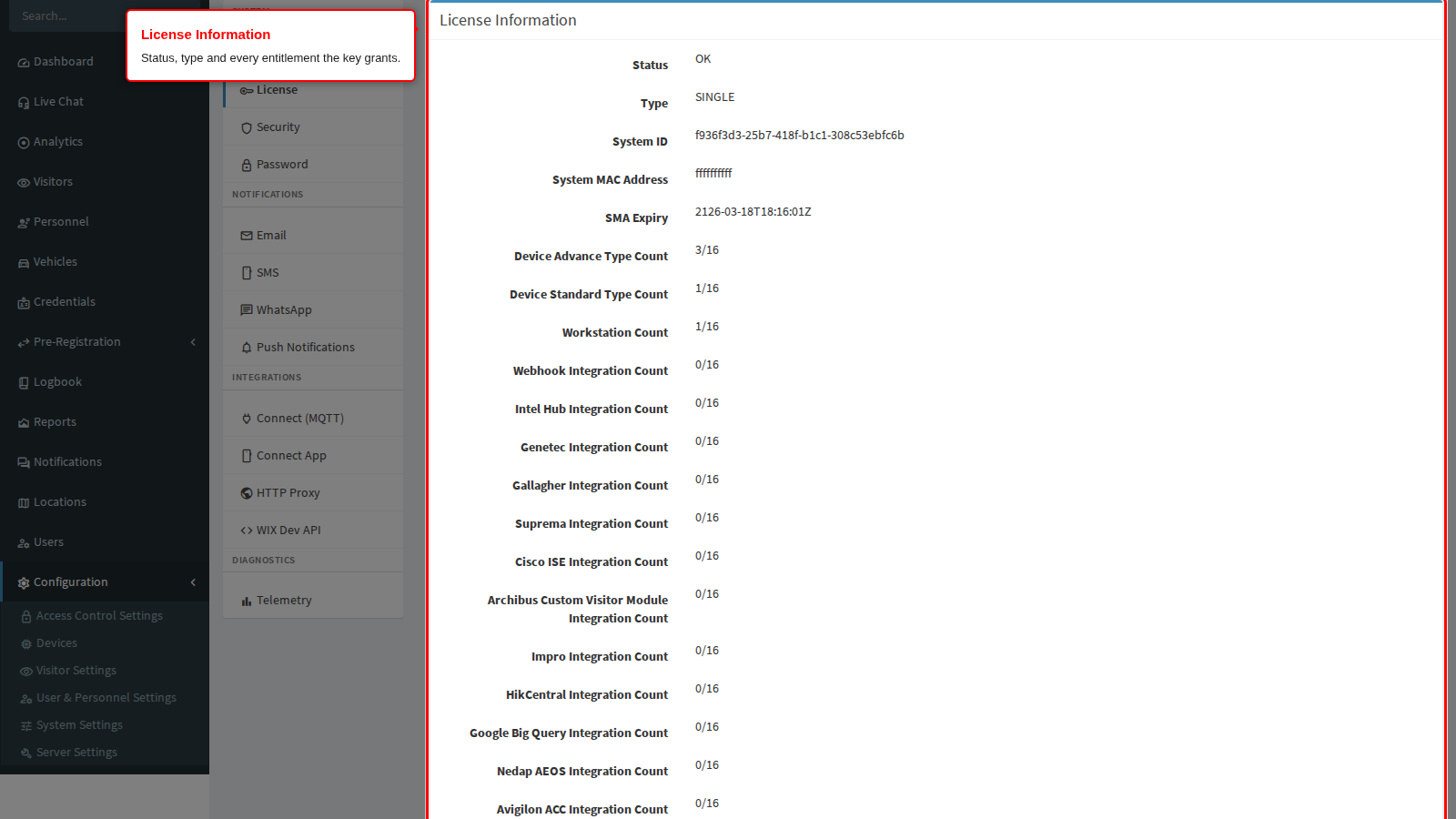
- Status is OK, INVALID or expired. When it is not OK, a Reason banner appears above the details and explains exactly why - for example that the licence MAC address is not present on any of this server’s network interfaces, that the maintenance (SMA) date is older than the running build, or that the licence is locked to a domain that does not match the configured Application Base HTTP URL. Fix the stated cause rather than re-pasting the same key.
- Type distinguishes a single-environment licence from a shared-server licence, and a demo licence from a full one.
- SMA Expiry is the maintenance date. A build newer than the SMA date is not covered, and the licence is reported invalid even though the key itself is genuine - so check this before upgrading, not after.
- Demo Expiry appears only on time-limited licences. Once it passes, the licence is expired.
- Device Standard Type Count, Device Advance Type Count and Workstation Count are your entitlements. Integration counters (webhook, Genetec, Gallagher, Suprema, Cisco ISE, Archibus and others) appear only when the licence grants them.
System ID and System MAC Address identify this installation. Send the System ID to your supplier when ordering or renewing a licence: keys are issued against it, and a key issued for a different System ID is rejected.
System License Key is where a new key is installed. Paste the whole key exactly as supplied, with no added line breaks, then click Save.
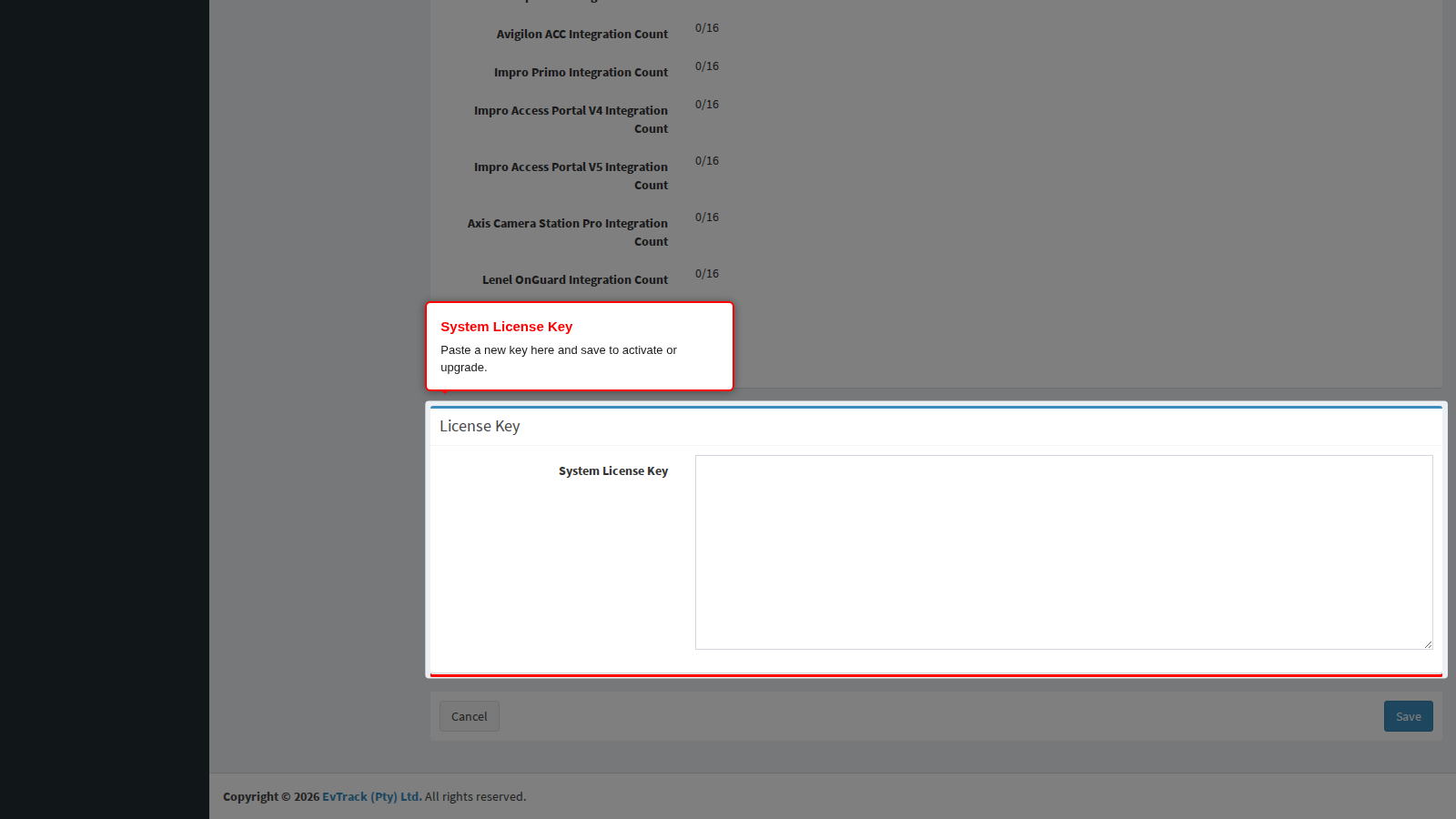
- The key is validated before it is stored. If it is invalid or expired the page reports the failure and keeps the previous key - a bad paste cannot take a working server offline.
- After a successful save, return to System Info and confirm the new entitlements appear in the License Usage Summary.
- Replacing the server hardware or its network card changes the MAC address, which invalidates a MAC-locked key. Request a re-issued key before the migration.
Security: Application Base HTTP URL
One setting, and the most consequential one on the whole page.
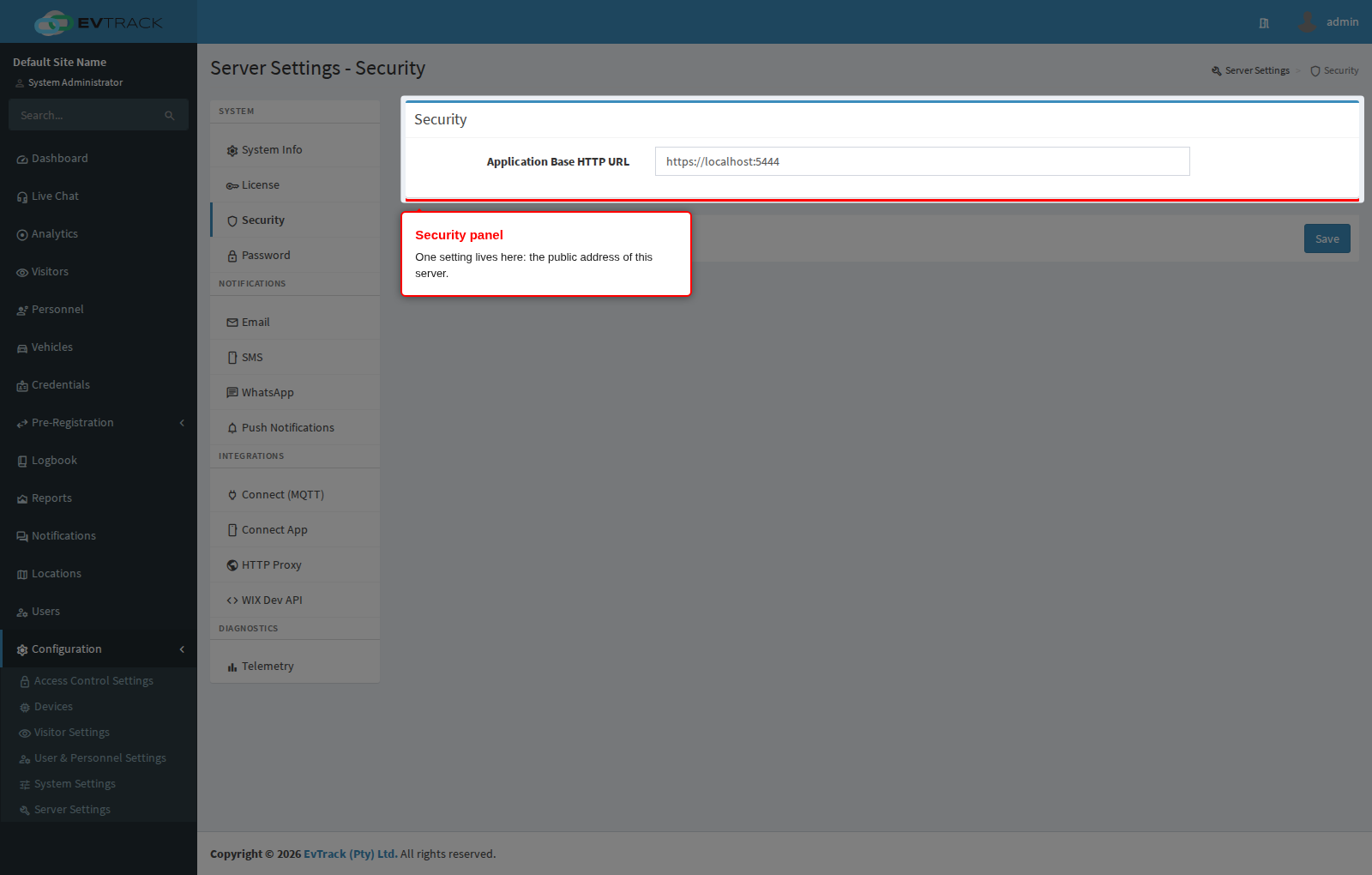
- Application Base HTTP URL is the public address of this server. Every link the product generates is built from it: invitation links, self-registration links, host-approval links, password-reset links, short QR links, and the address mobile, kiosk and guard apps connect back to. It also supplies the host name used to derive the MQTT broker address for Connect devices, and it is the value a domain-locked licence is checked against.
- Enter the full HTTPS address with no trailing slash, for example
https://visitors.example.com. It must be between 6 and 50 characters. Use the name external recipients can actually resolve, never an internal host name or a bare IP address: an invitation containing an unreachable address is useless to the visitor who receives it. - Getting it wrong does not raise an error at save time. It surfaces later as links that time out for visitors, apps that cannot connect, and a domain-locked licence that reports a mismatch.
- On some deployments the URL is supplied by the server environment configuration instead. The field is then read-only and the page says so; change it in the environment configuration and restart the service.
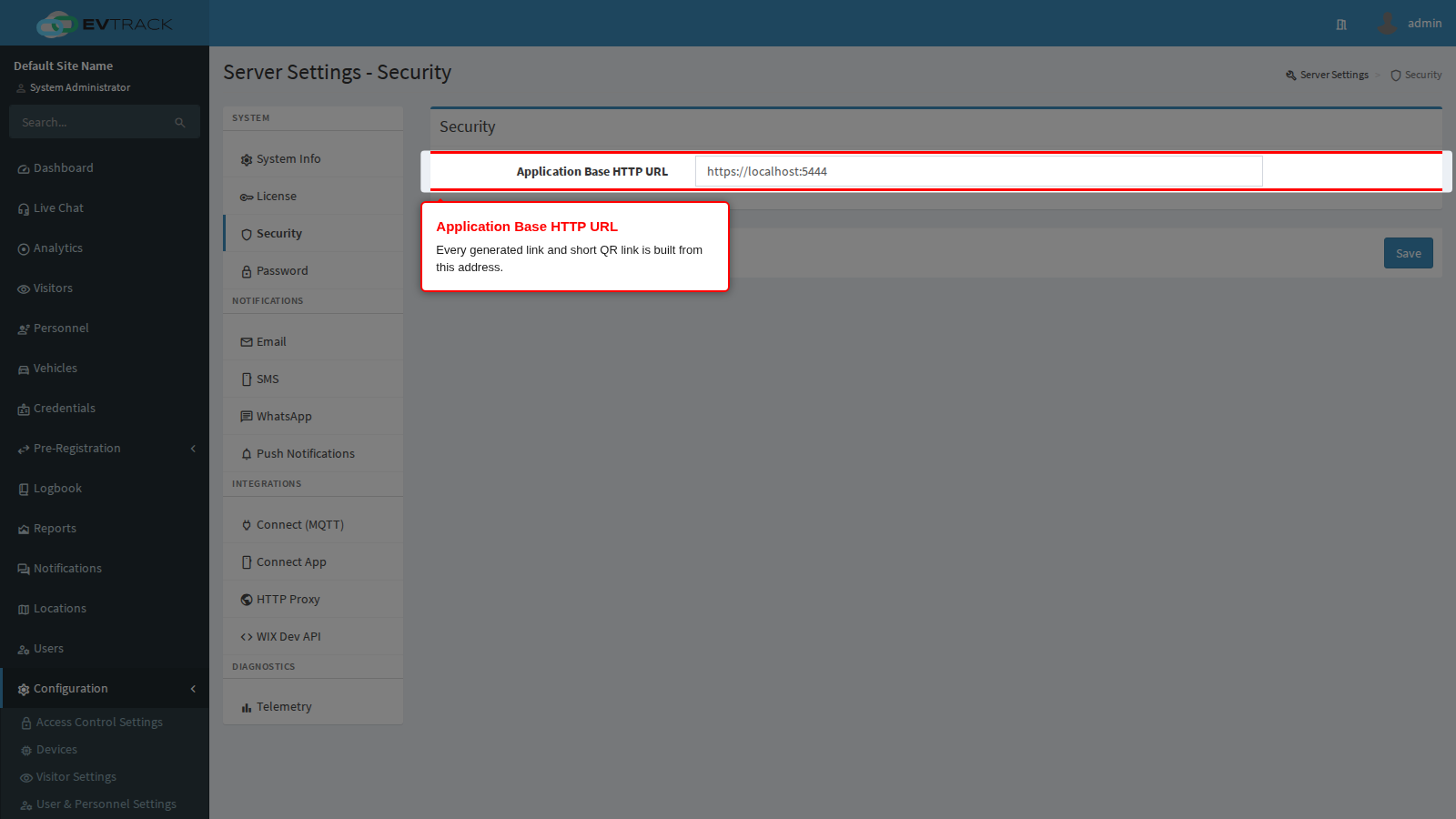
Full walkthrough including HTTPS prerequisites: Application Base URL.
Password
Controls the self-service password reset flow reached from the login page at /auth/password-reset/forgot.
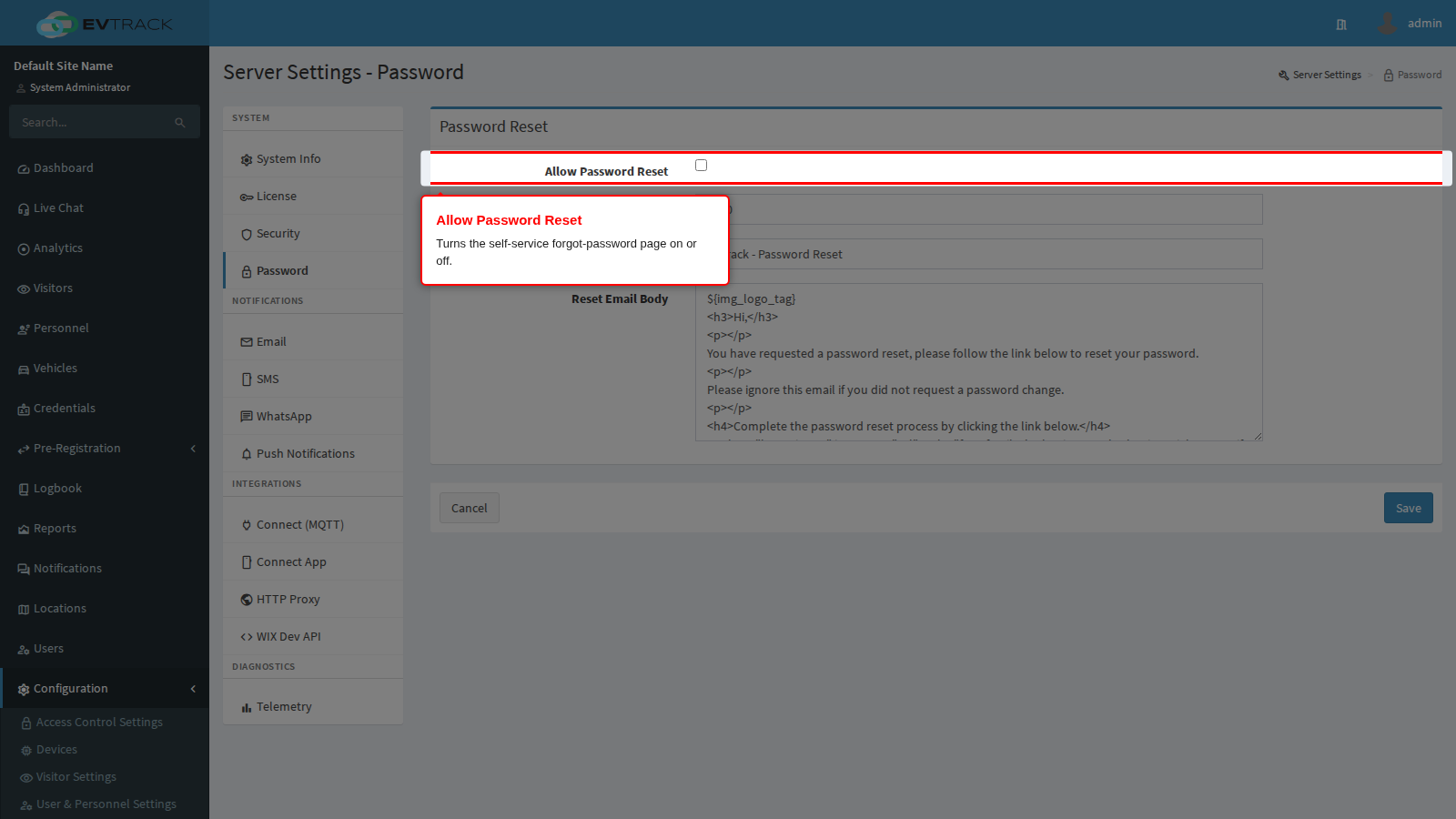
- Allow Password Reset switches the feature on or off for the whole server. With it off, the forgot-password page returns a “reset disabled” notice and no reset email is ever sent, so every forgotten password becomes an administrator task. Turn it off only where policy forbids self-service resets.
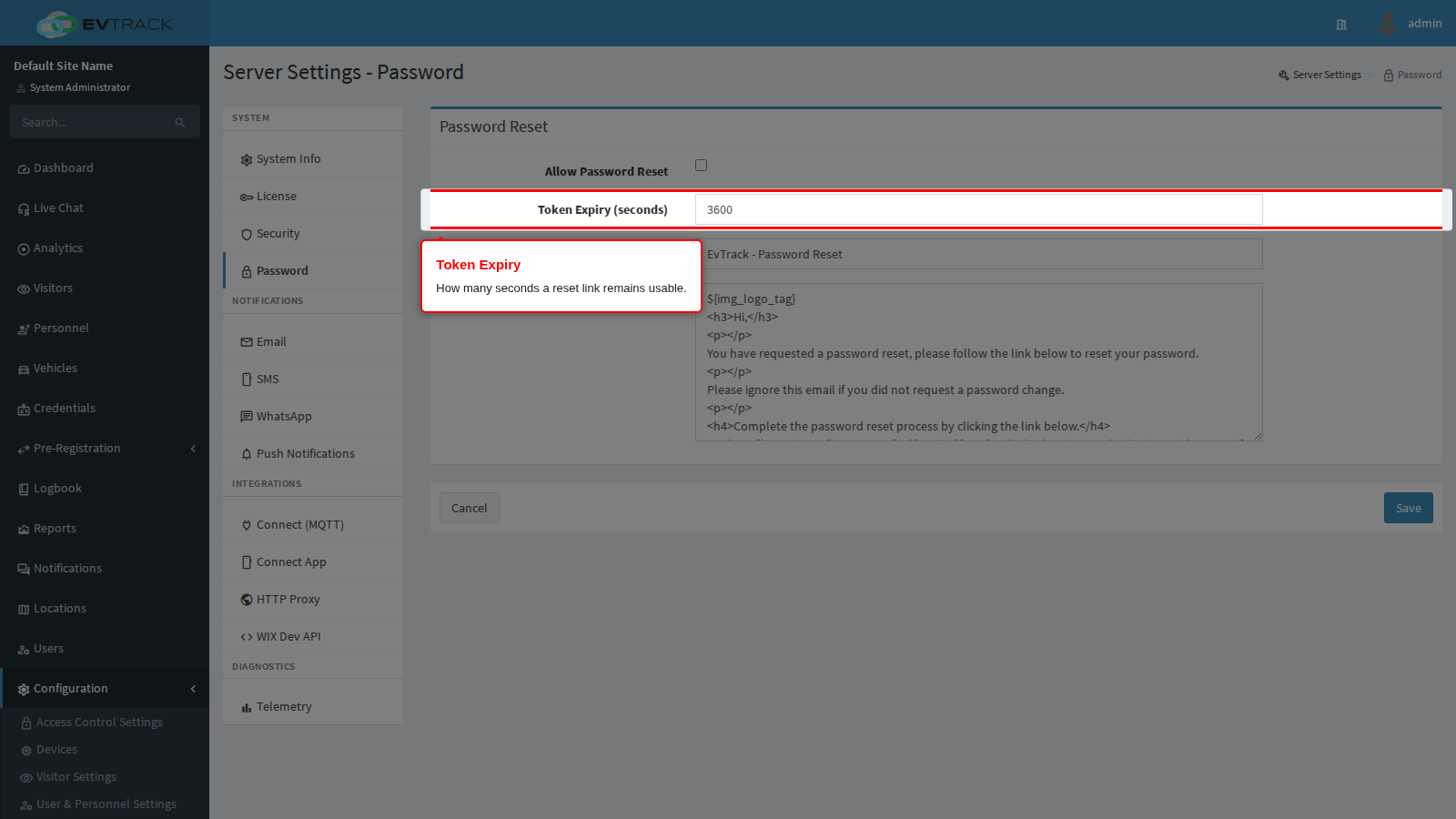
- Token Expiry (seconds) limits how long a reset link remains usable after it is emailed. The minimum accepted value is 300 (five minutes). Short windows reduce the value of an intercepted mailbox; windows shorter than about fifteen minutes tend to expire before a user checks their email, and they will simply request another link.
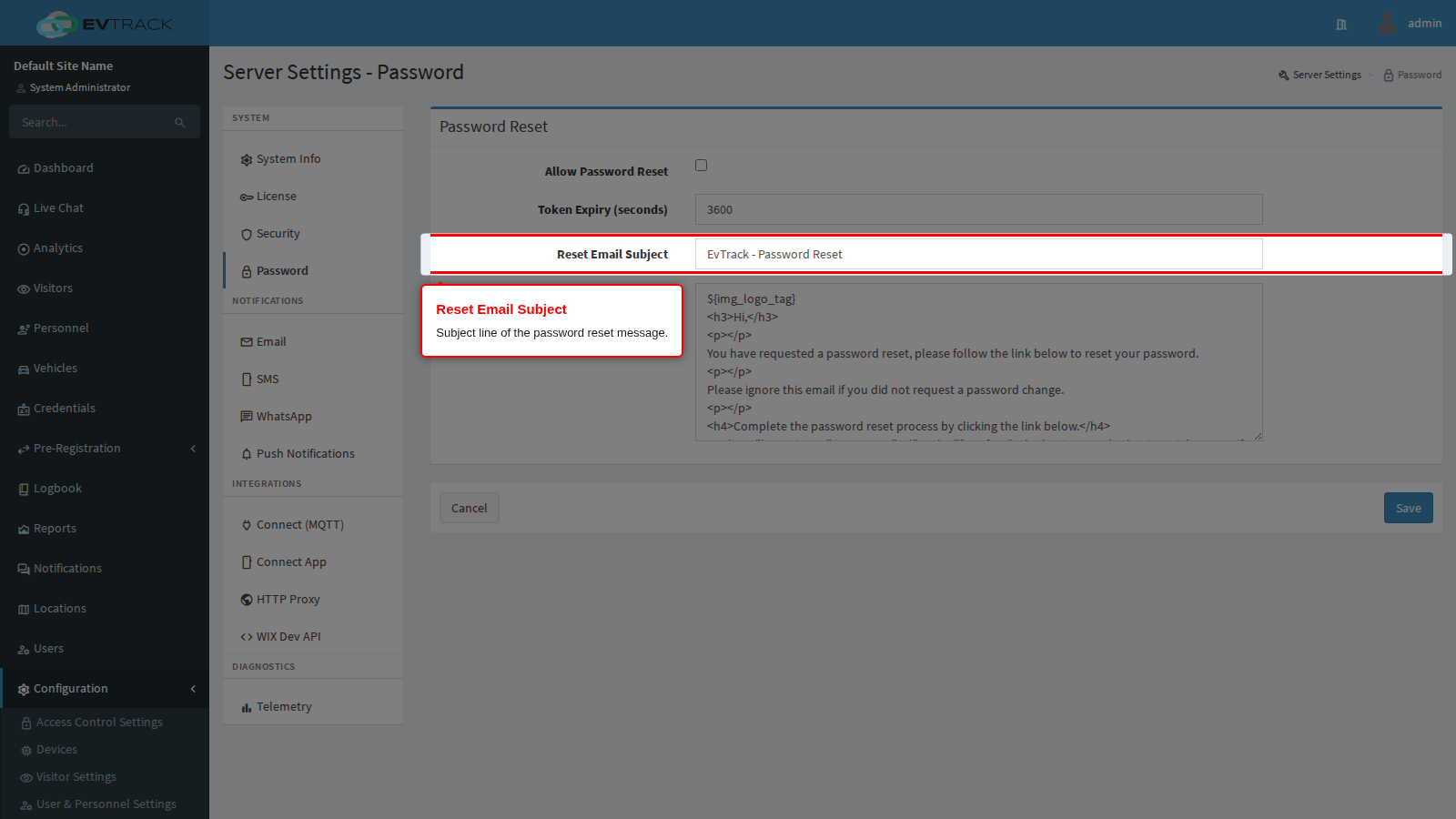
- Reset Email Subject is the subject line, between 6 and 100 characters.
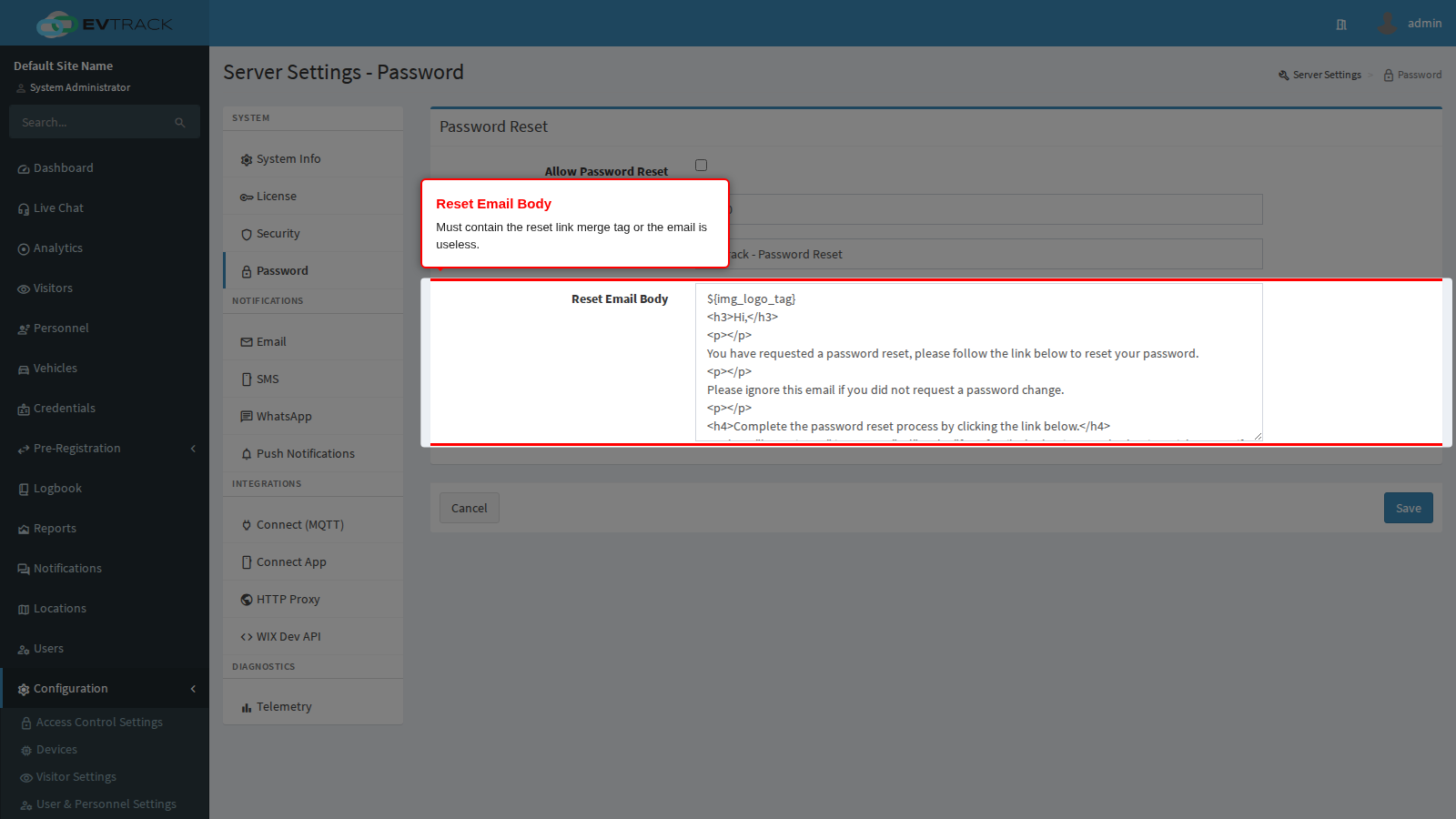
- Reset Email Body is the message, between 20 and 20 000 characters. It supports merge tags in the
${tag_name}form, and it must contain${password_reset_url}- that tag is replaced with the one-time reset link. A body without it produces an email that tells the user to reset their password but gives them no way to do it. The link is assembled from the Application Base HTTP URL above, so a wrong base URL breaks password resets even when this template is perfect. See the Merge Tags reference for the full catalogue.
The forgot-password page is rate limited per source address, so a user who requests several links in quick succession is temporarily refused. That is expected behaviour, not a fault.
Outbound email for invitations, passes, notifications, onboarding and password resets.
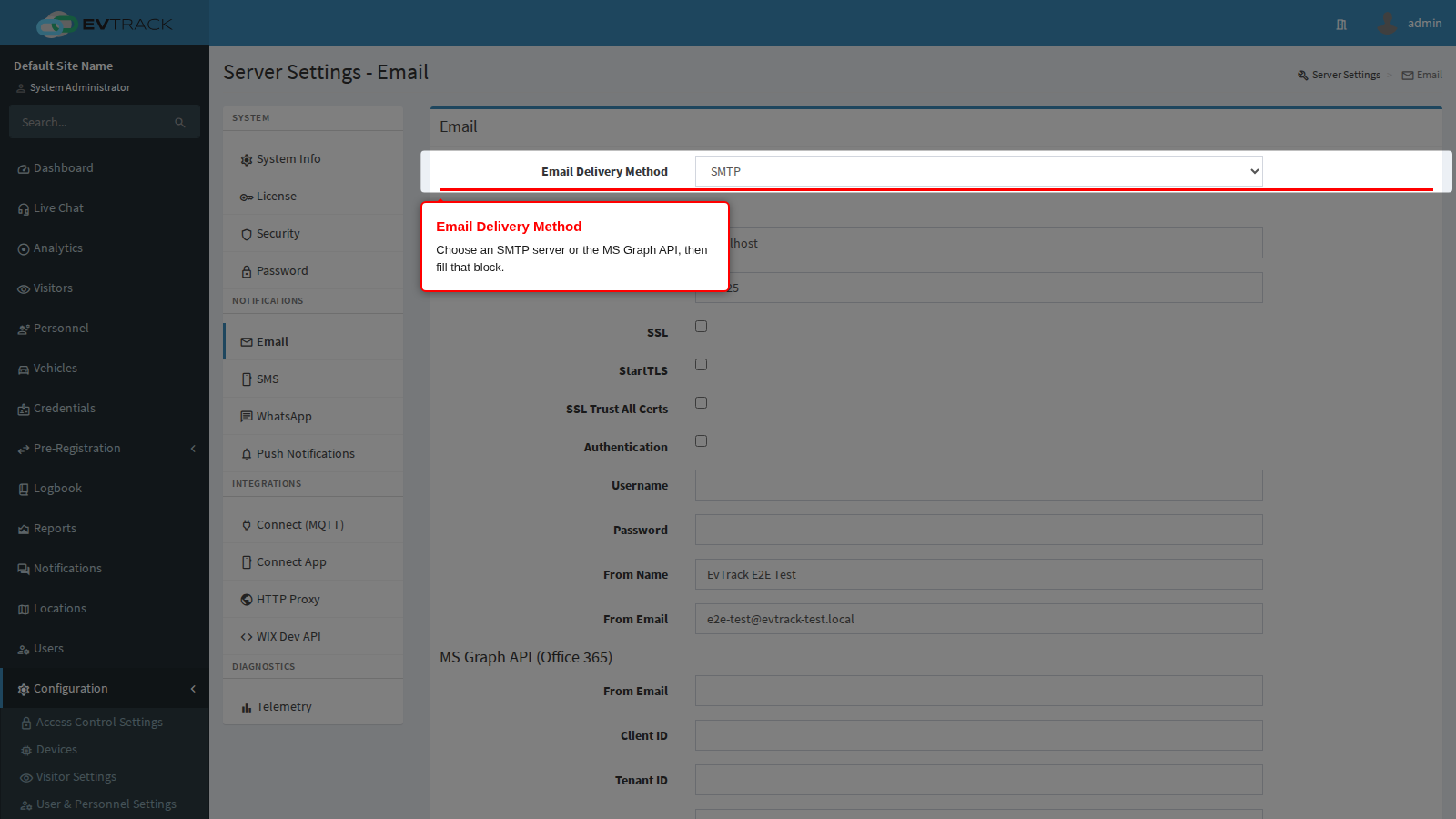
- Email Delivery Method selects between an SMTP Server and the MS Graph API (Office 365). Both blocks are always shown; only the block matching the selected method is used.
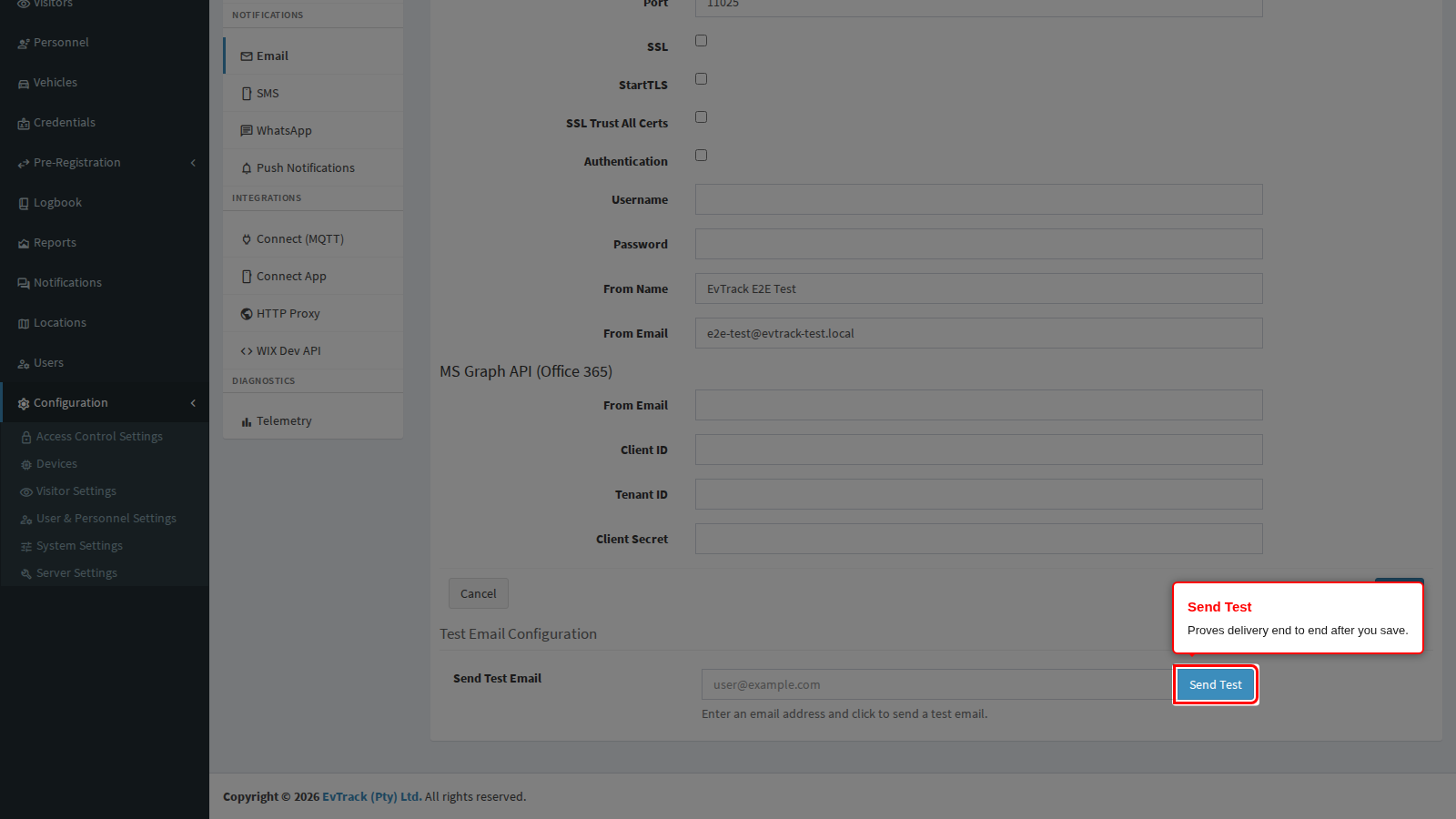
- Send Test delivers a real message to an address you type in, and reports the result on the page. Always run it after saving: a wrong password or a blocked port shows up here in seconds instead of as silently missing invitations days later.
Field-by-field setup, port and encryption choices, and the Azure app registration prerequisites for MS Graph: Email Server (SMTP and MS Graph).
SMS
Outbound SMS for visitor codes, passes and notifications.
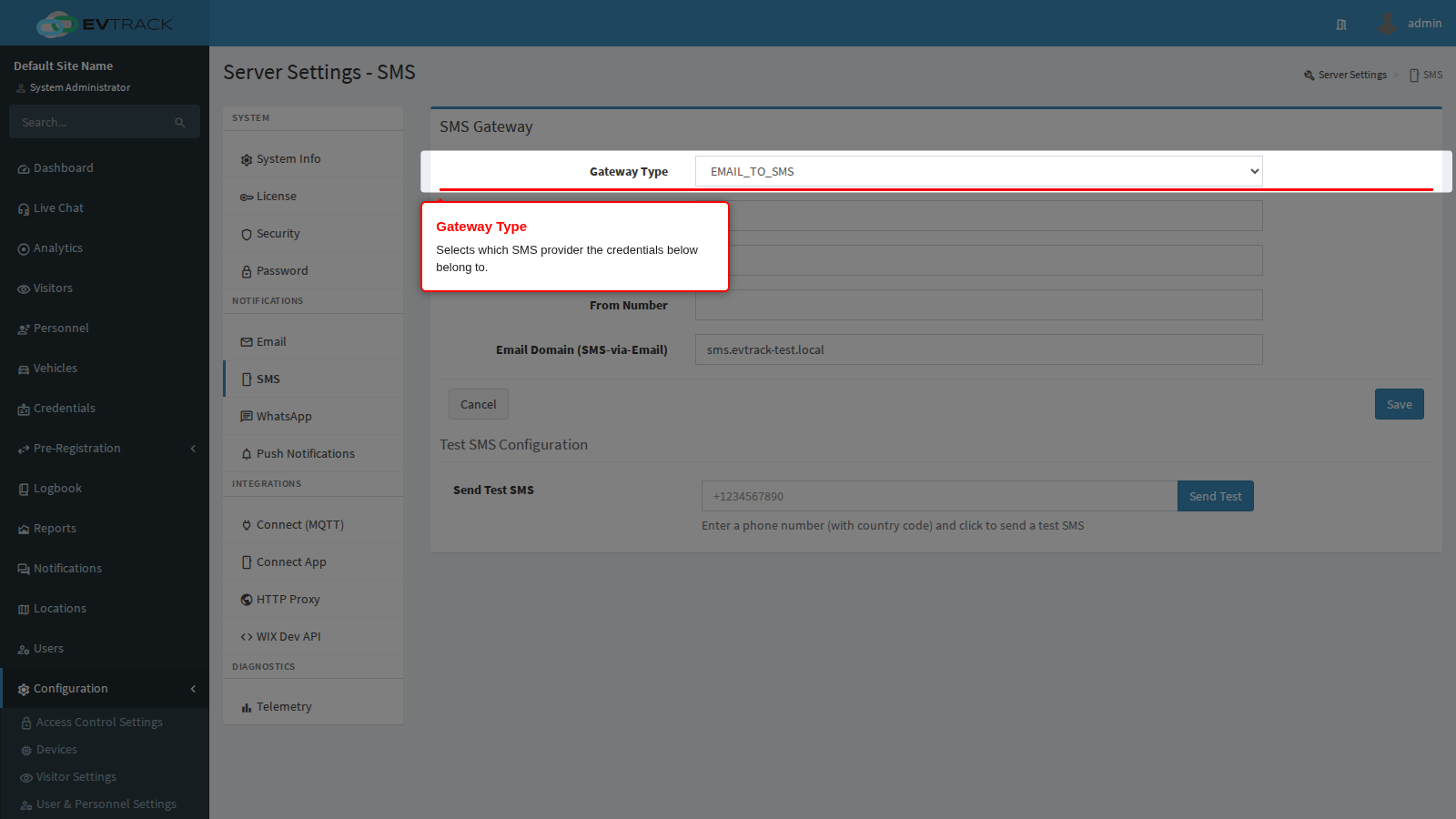
- Gateway Type selects the provider. The API ID, API Key, From Number and Email Domain (SMS-via-Email) fields below belong to the selected provider; a value left over from a different provider is ignored but is worth clearing to avoid confusion.
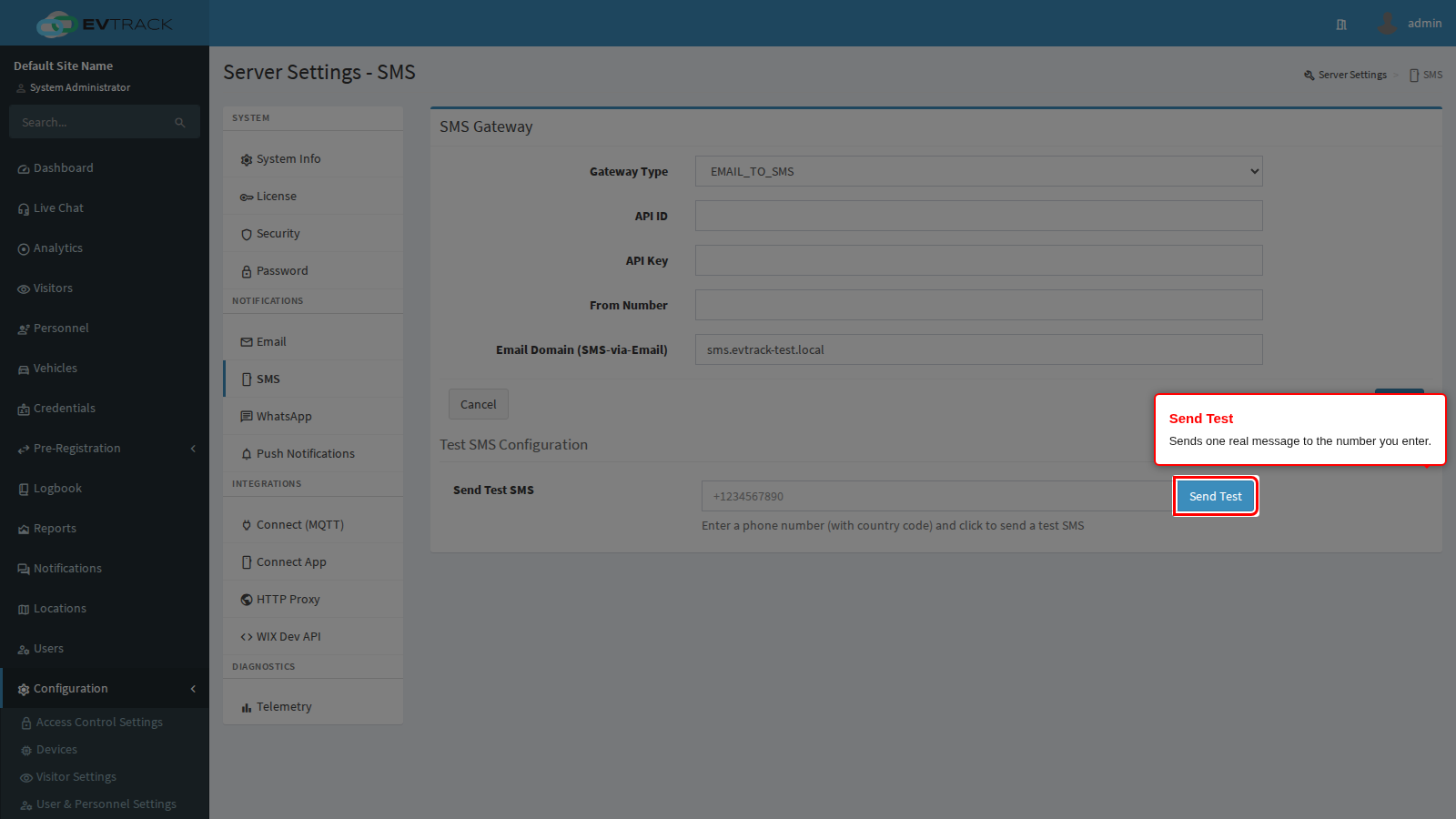
- Send Test sends one real, billable message to the number you enter. Include the country code.
Provider-specific credentials and account setup: SMS Gateways, with pages for Clickatell, BulkSMS and Email to SMS.
Outbound WhatsApp messaging, used where visitors prefer it to SMS.
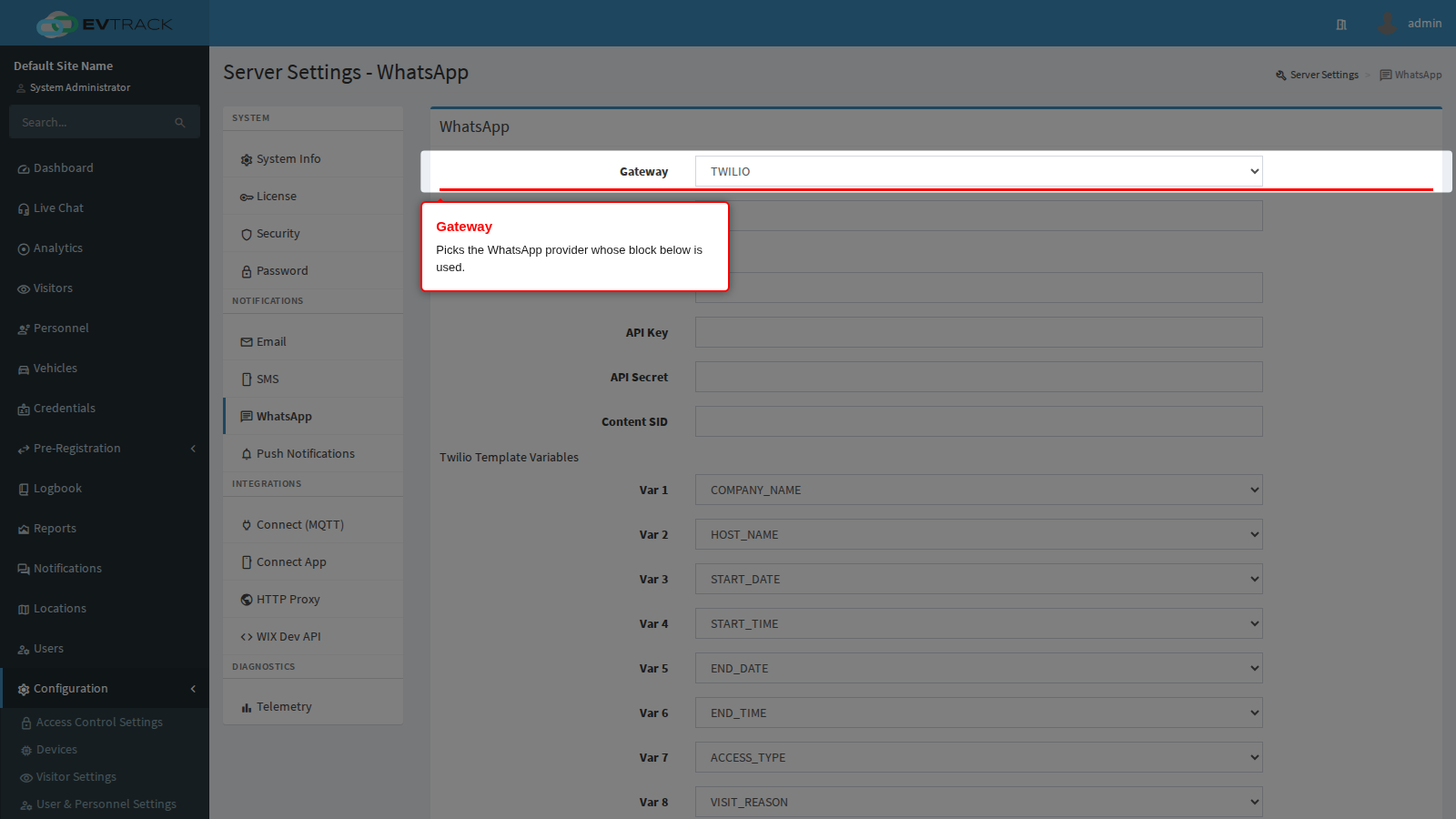
- Gateway selects the provider, and Sender Number is the WhatsApp-enabled number messages are sent from. The provider blocks below - Twilio, Gupshup (Media Gateway) and Gupshup (Multi-Platform API) - each carry their own credentials plus the template variable mapping that positions your data inside the provider-approved message template.
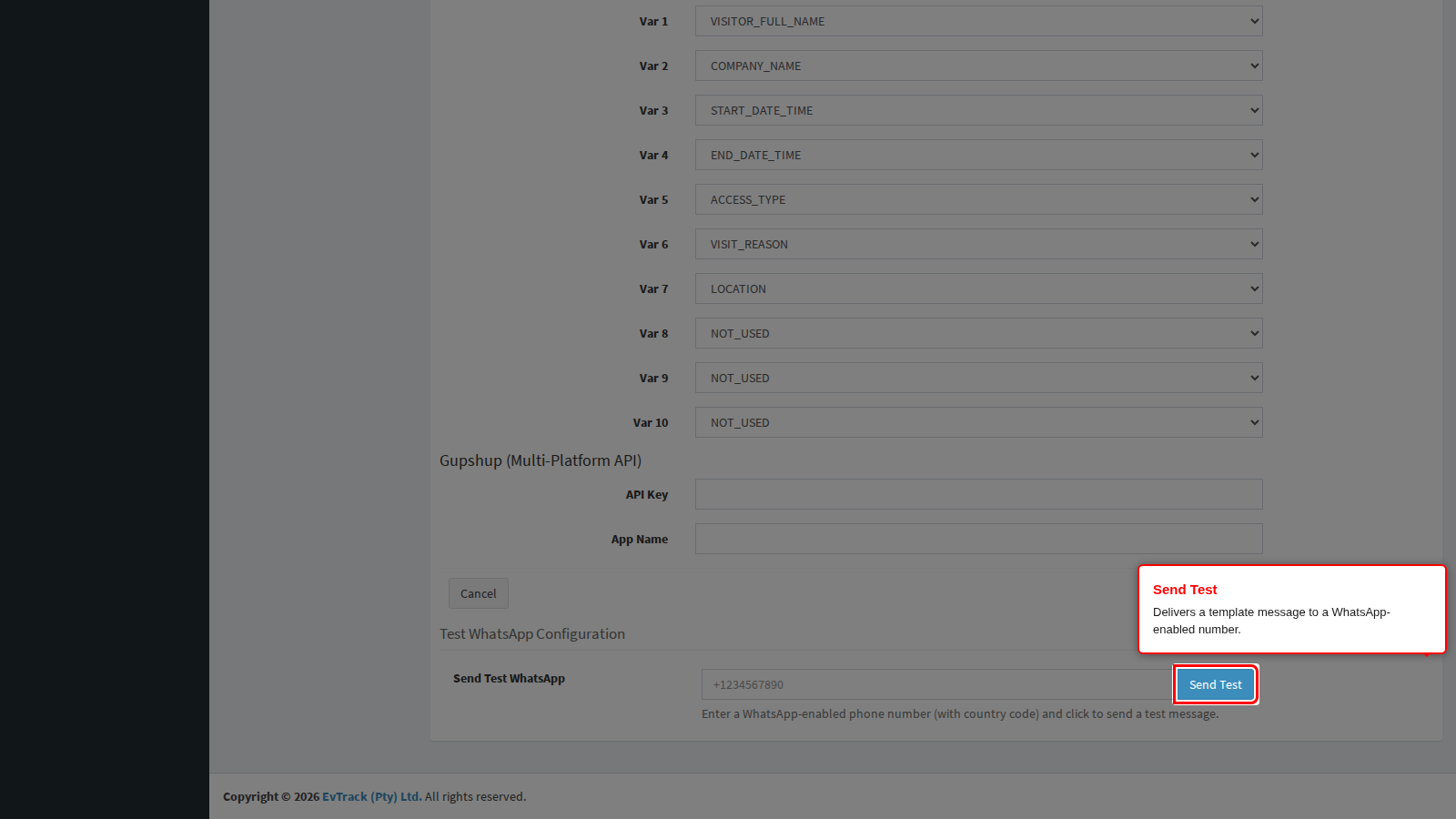
- Send Test delivers a template message to a WhatsApp-enabled number. WhatsApp only permits pre-approved templates for business-initiated messages, so a test that fails with a template error means the template is not approved yet, not that these settings are wrong.
Per-provider setup: WhatsApp Delivery, with pages for Twilio, Gupshup Business API and the Gupshup Media Gateway (Legacy).
Push Notifications
Credentials for the push channels that deliver alerts to the mobile apps and to browsers. Each block is independent: configure only the channels you actually use, and leave the rest empty.
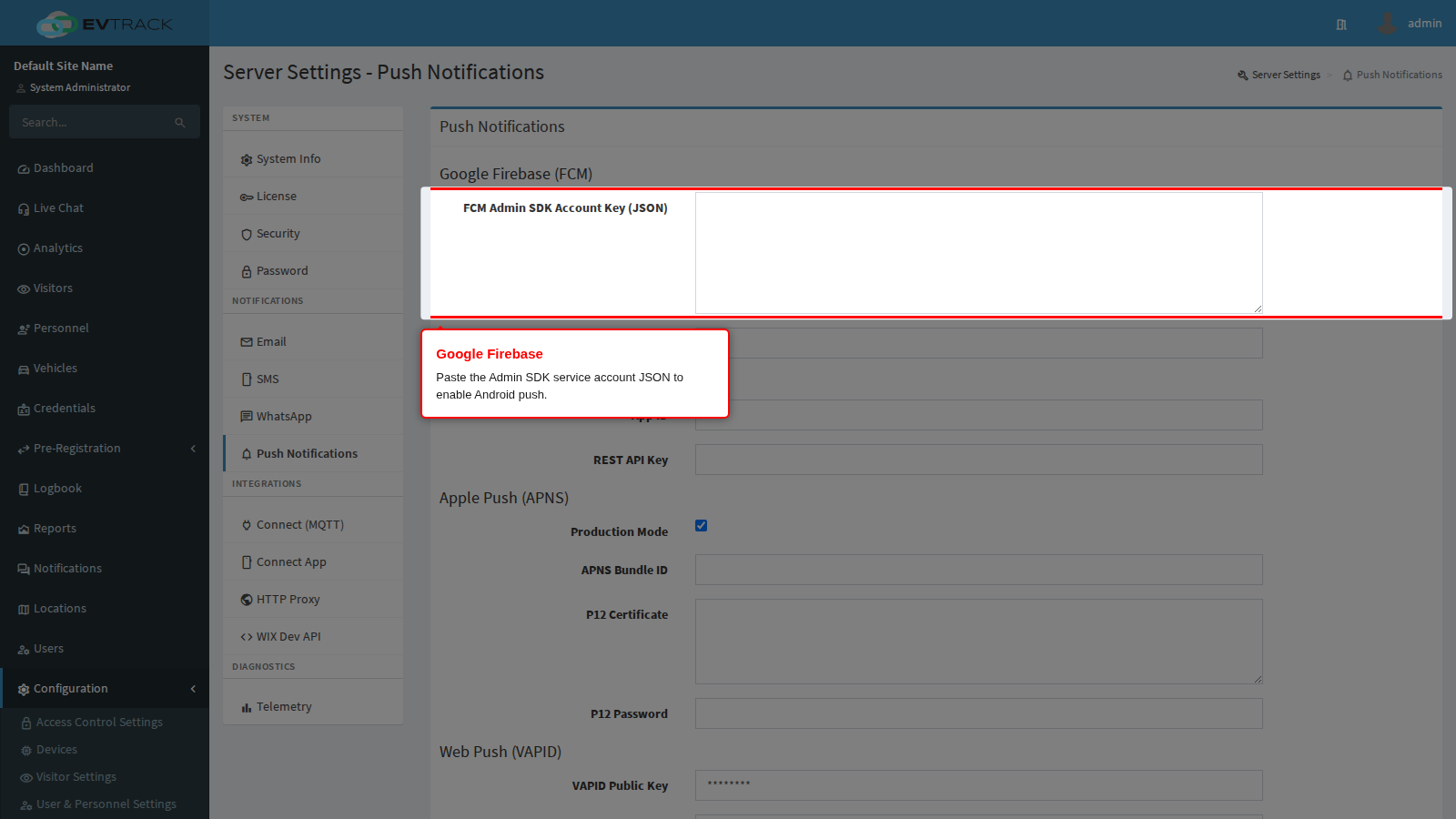
- Google Firebase (FCM) drives Android push. Paste the FCM Admin SDK Account Key (JSON) downloaded from your Firebase project’s service accounts page, and set the FCM Bundle ID to the app’s package name. The JSON box renders empty even when a key is stored: submitting it blank keeps the stored key, submitting new content replaces it.
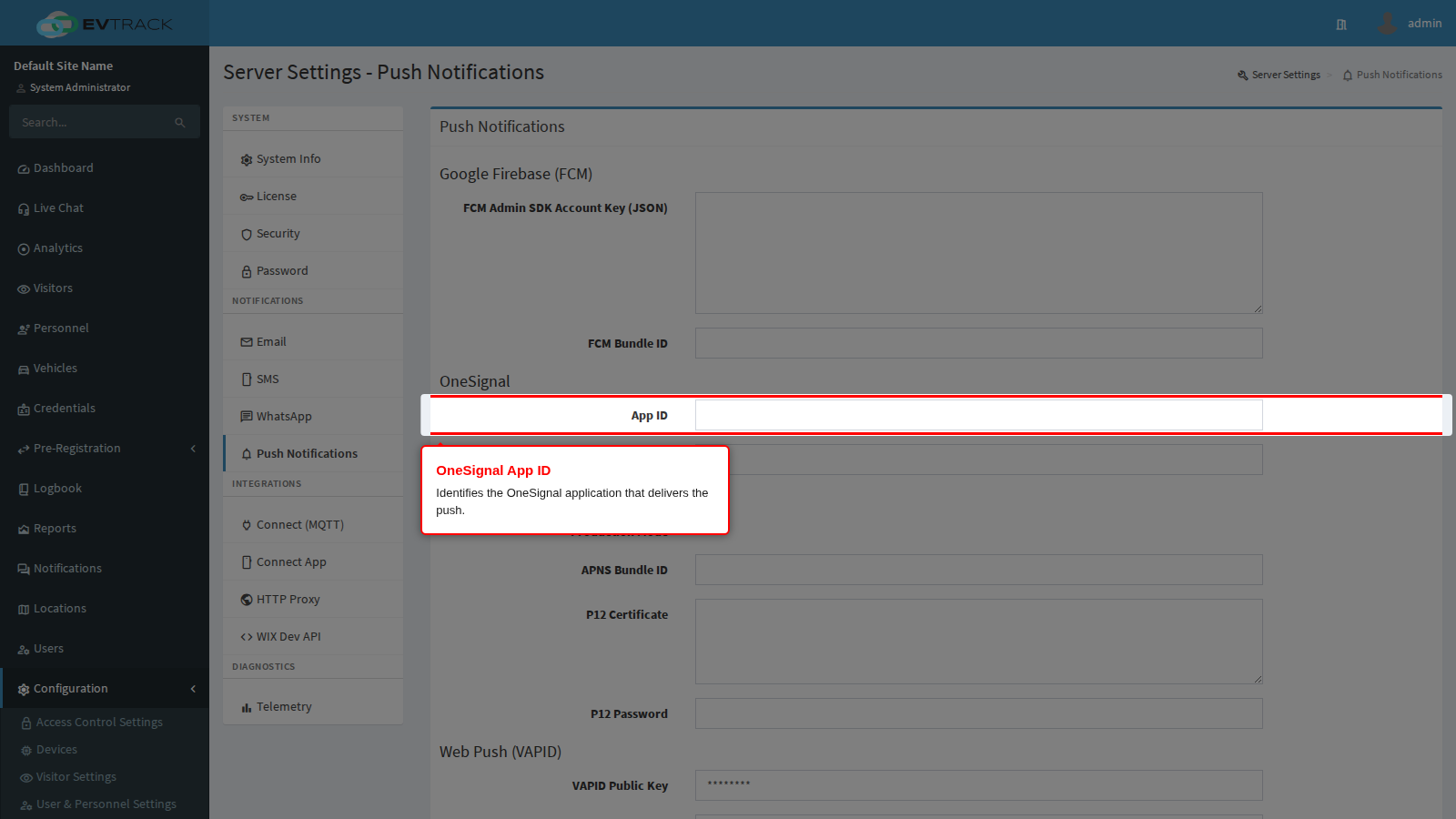
- OneSignal is an alternative delivery service for mobile push. Set the App ID and the REST API Key from your OneSignal application. Use it instead of, not alongside, a direct Firebase configuration unless your supplier tells you otherwise.
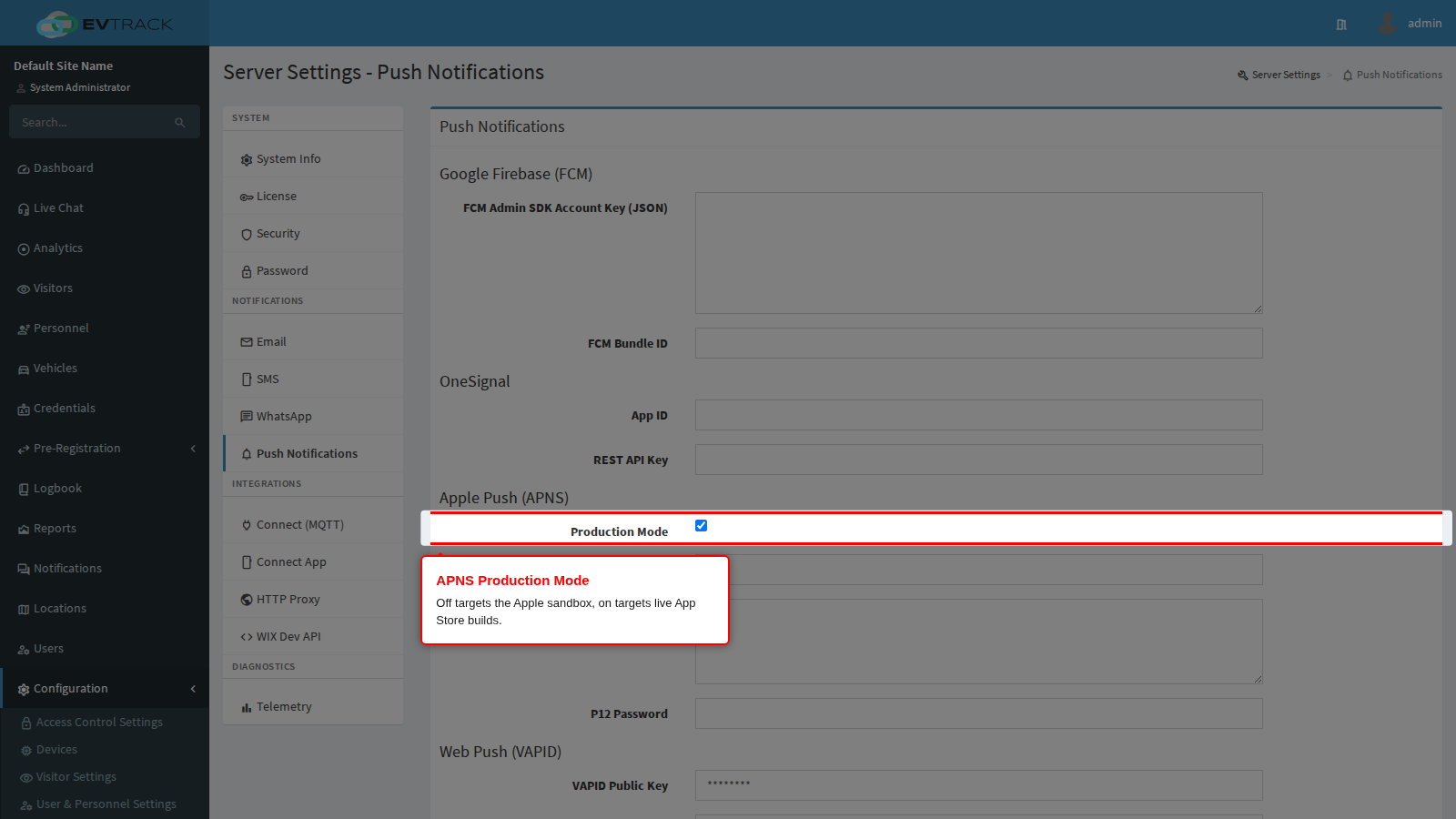
- Apple Push (APNS) drives iOS push. Production Mode must be off while you test against a development build and on for a build distributed through the App Store; a certificate used against the wrong Apple environment simply fails to deliver, with no error visible to the user. Set the APNS Bundle ID to the app’s bundle identifier and paste the P12 Certificate with its P12 Password. Apple push certificates expire, typically after a year - a suddenly silent iOS app is usually an expired certificate.
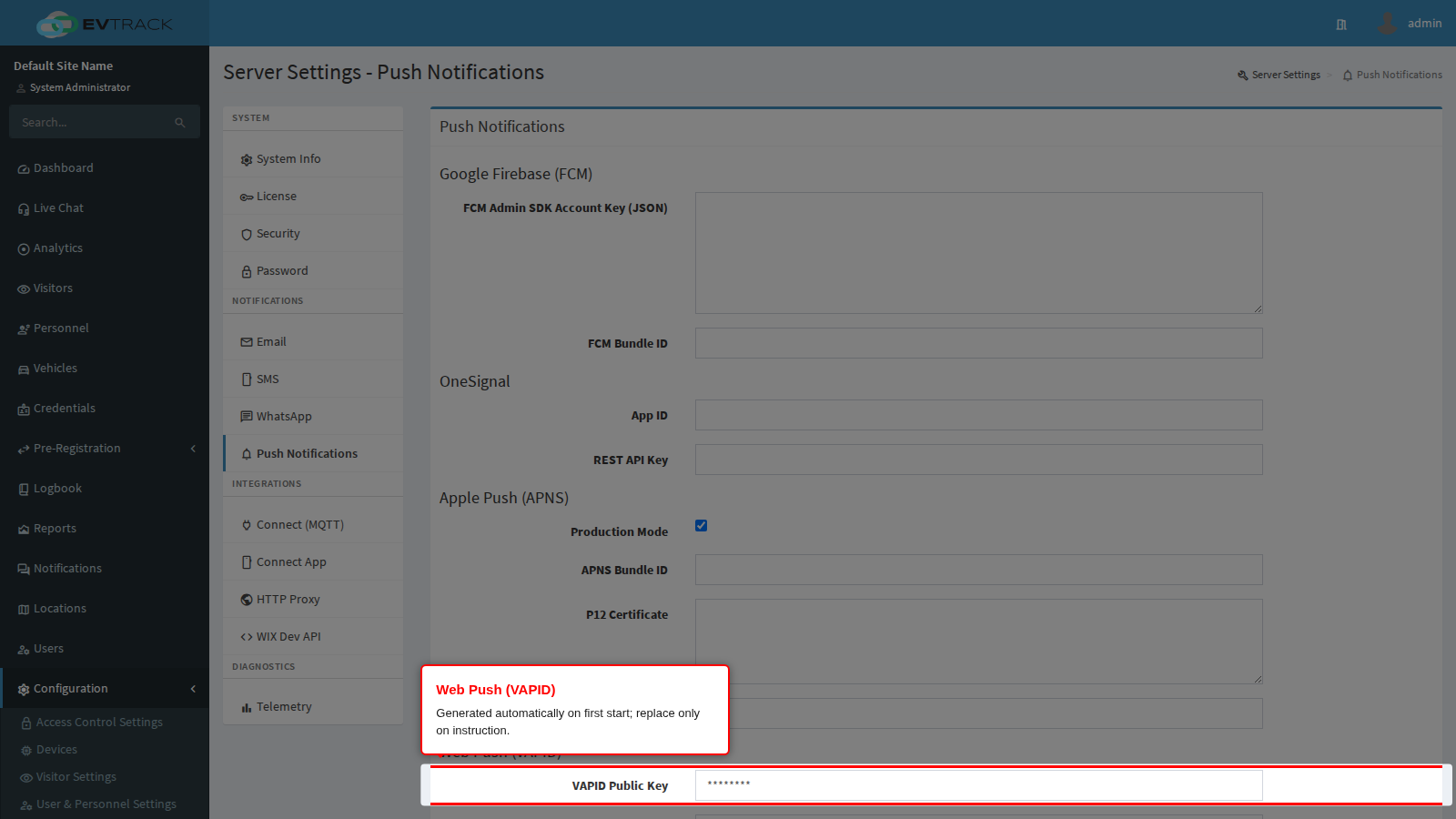
- Web Push (VAPID) drives browser notifications. The key pair is generated automatically the first time the server starts, so in normal operation you never touch these two fields. Replacing them invalidates every existing browser subscription and users must re-enable notifications, so change them only when instructed by support.
Connect (MQTT)
Connect devices and agents reach the server over an MQTT broker.
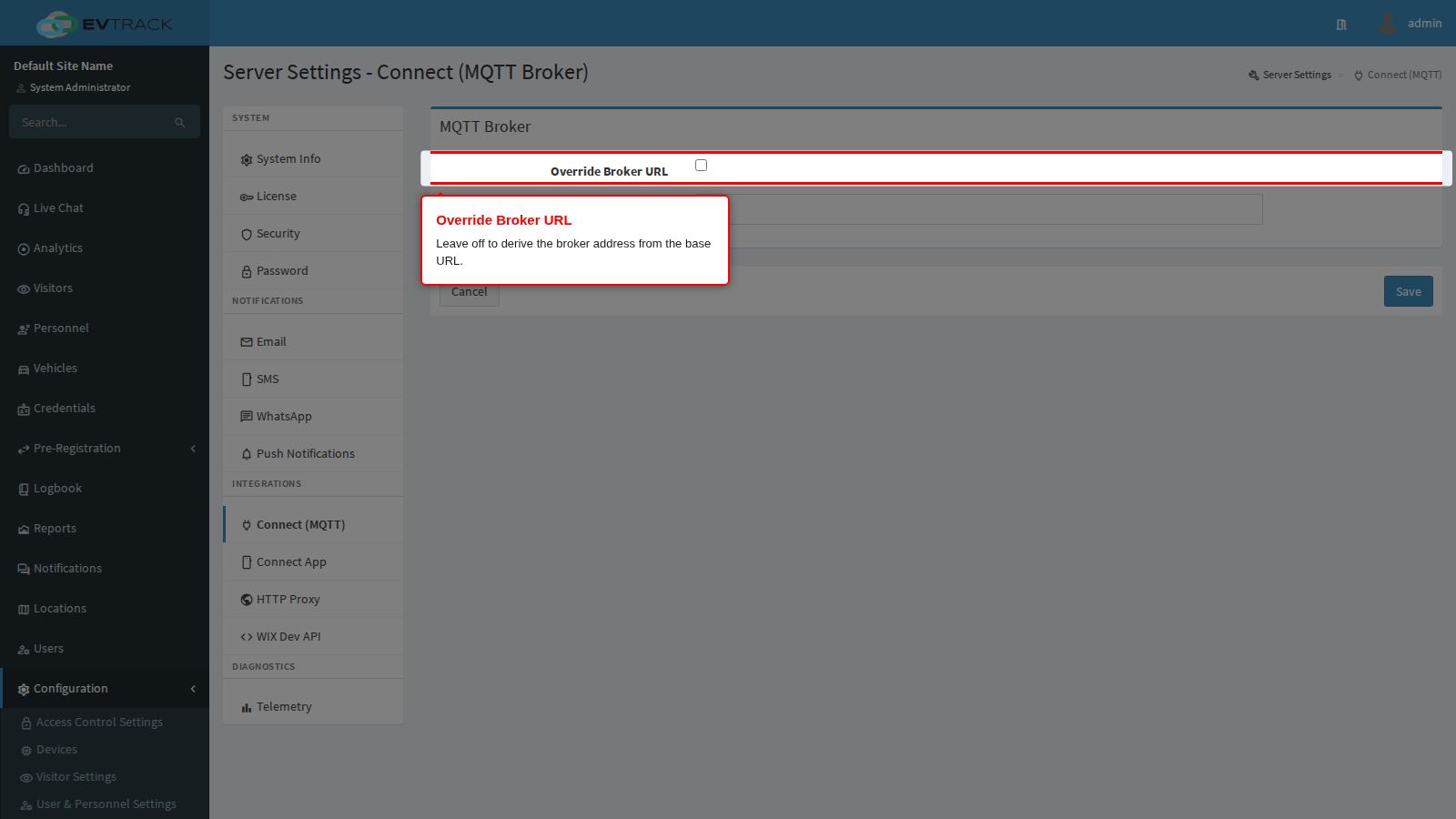
- Override Broker URL should remain off in almost every deployment. With it off the broker address is derived automatically: the host is taken from the Application Base HTTP URL and combined with the configured broker port and transport. That means fixing the base URL usually fixes the broker address too.
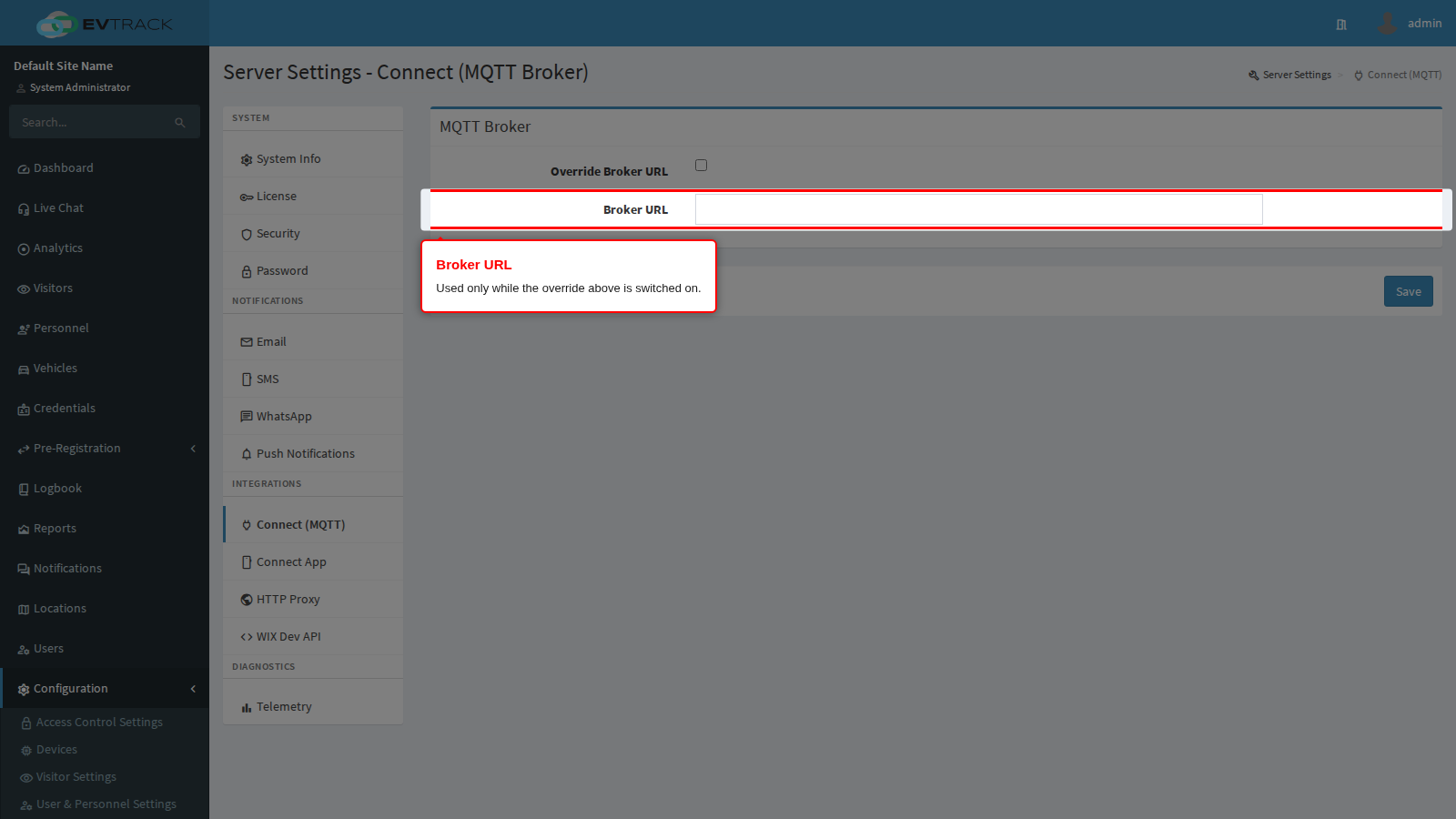
- Broker URL is used only while the override is on. Set it when devices must reach the broker at an address the web server is not published on - for example when the broker sits behind a separate load balancer or on a dedicated network segment. Enter the full address including scheme and port, for example
ssl://mqtt.example.com:8883. An override pointing at an address the devices cannot reach silently stops every Connect agent from connecting, and the devices themselves report nothing.
Changing the override affects newly generated agent configuration bundles. Agents already deployed keep the address baked into their configuration until they are re-provisioned.
Connect App
The download addresses offered to people who are told to install the Connect mobile app. They are inserted into onboarding and account emails through the ${app_ios_url}, ${app_android_url} and ${app_huawei_url} merge tags.
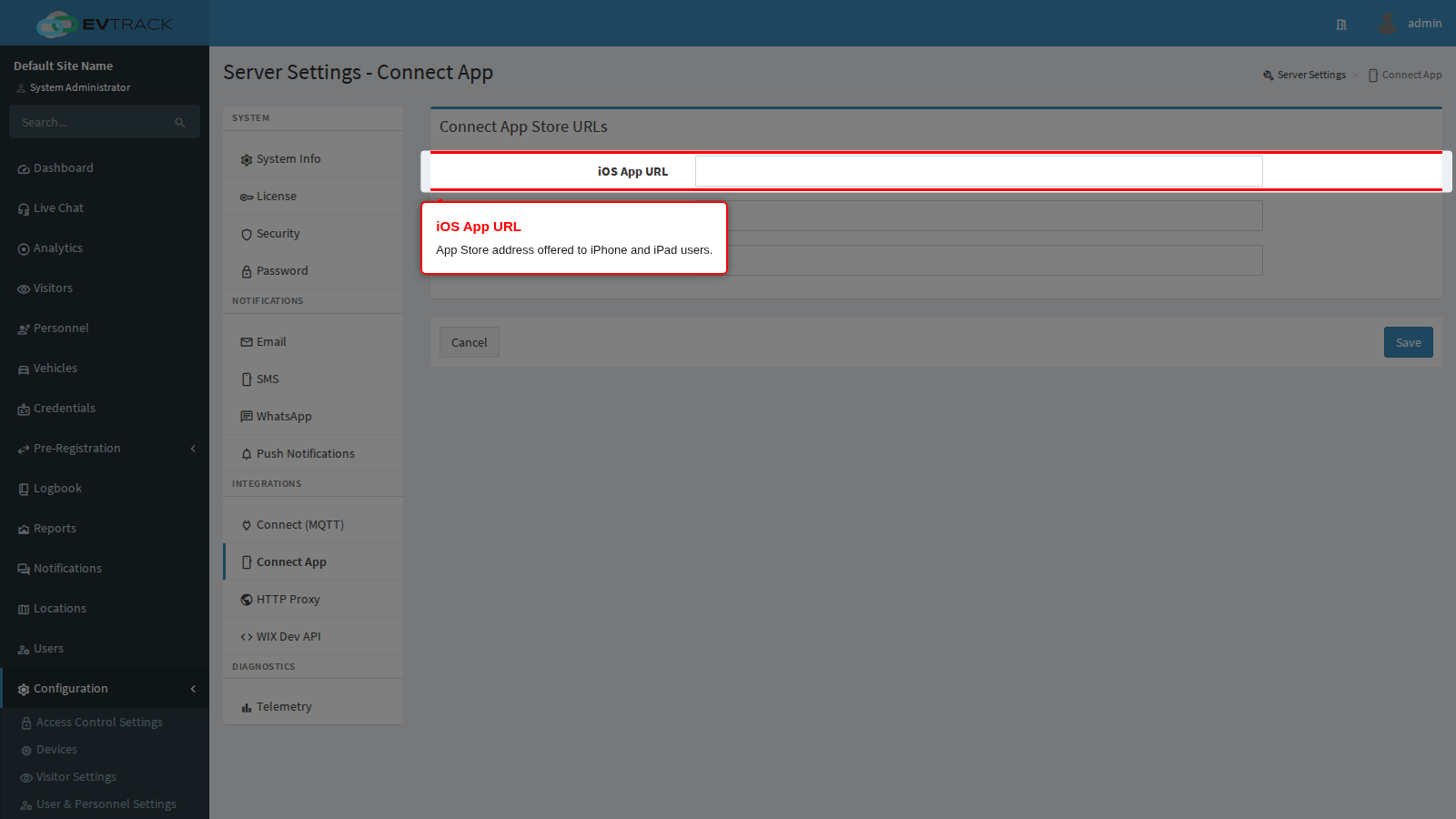
- iOS App URL - the App Store address for iPhone and iPad users.
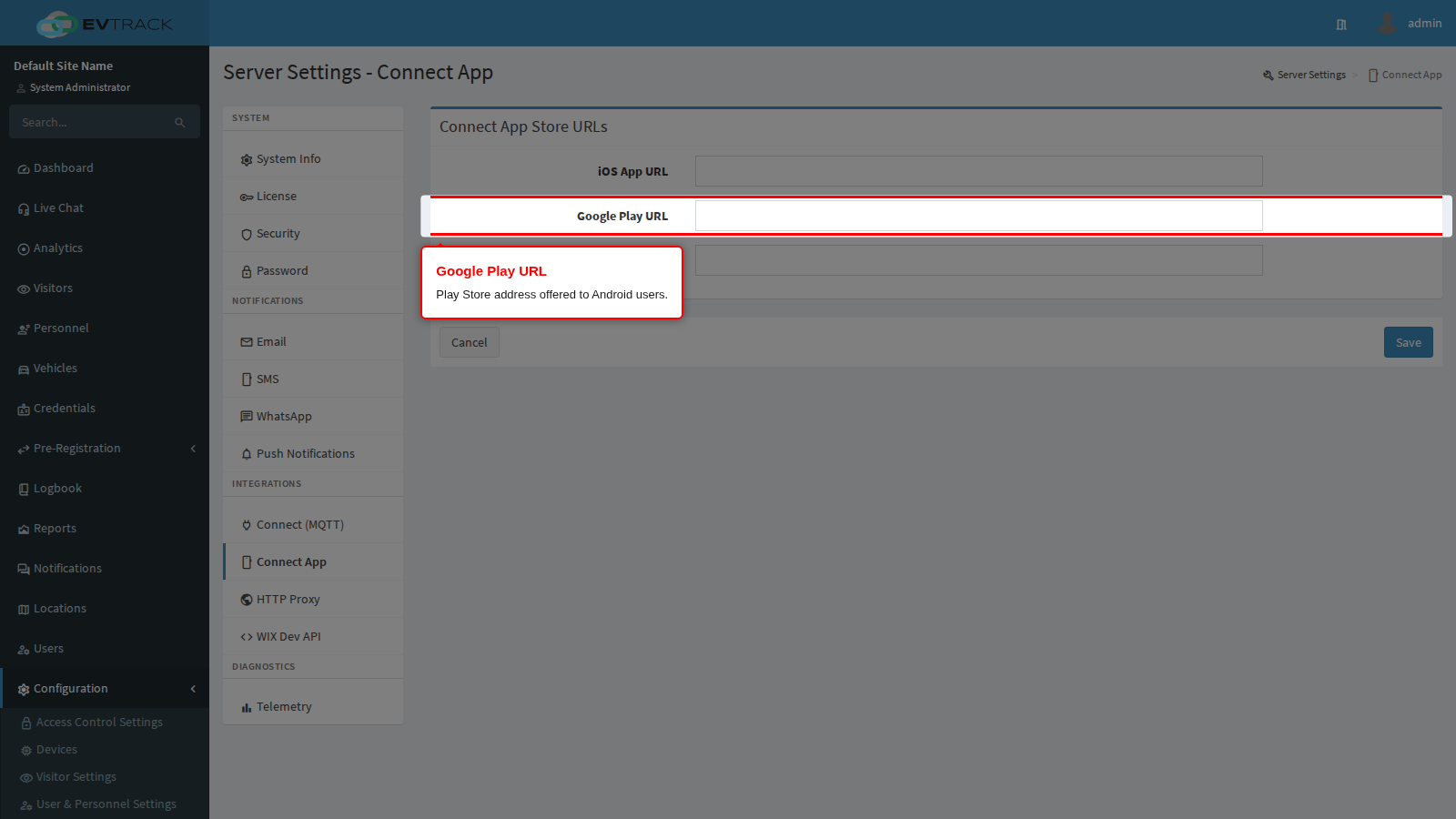
- Google Play URL - the Play Store address for Android users.
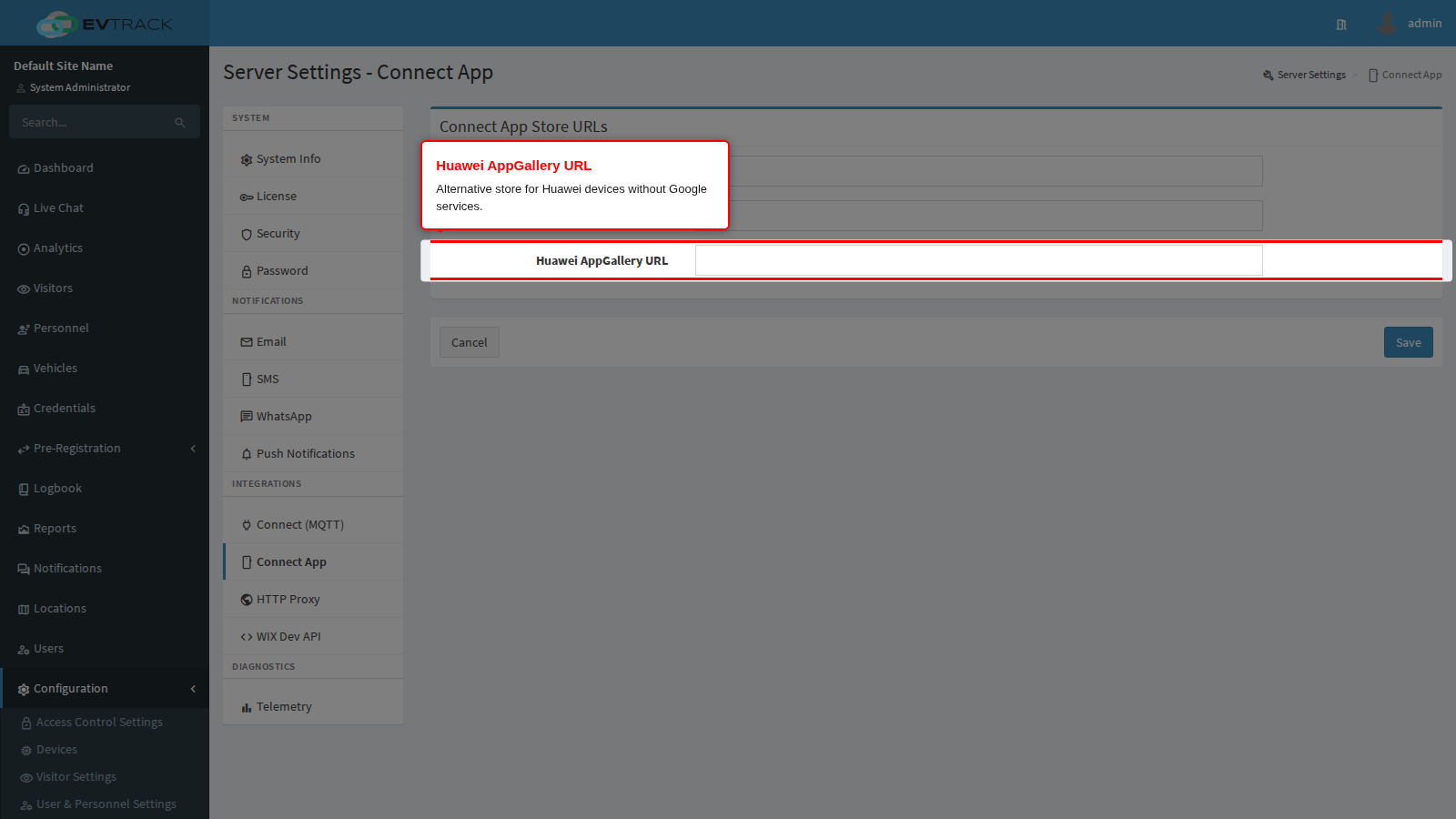
- Huawei AppGallery URL - the alternative store for Huawei devices shipped without Google services. Leave it blank if you have no Huawei users; the corresponding merge tag then resolves to an empty string.
Each address must be a valid URL of 6 to 500 characters with no trailing slash - a trailing slash is rejected when you save. A blank or wrong address does not raise an error at send time; it simply produces an onboarding email with a dead or missing download link, so verify each one by opening it after saving. Related: User Onboarding Emails.
HTTP Proxy
For servers with no direct route to the internet. When enabled, outbound calls the server makes on its own behalf - to messaging providers, push services and integration endpoints - are routed through the proxy.
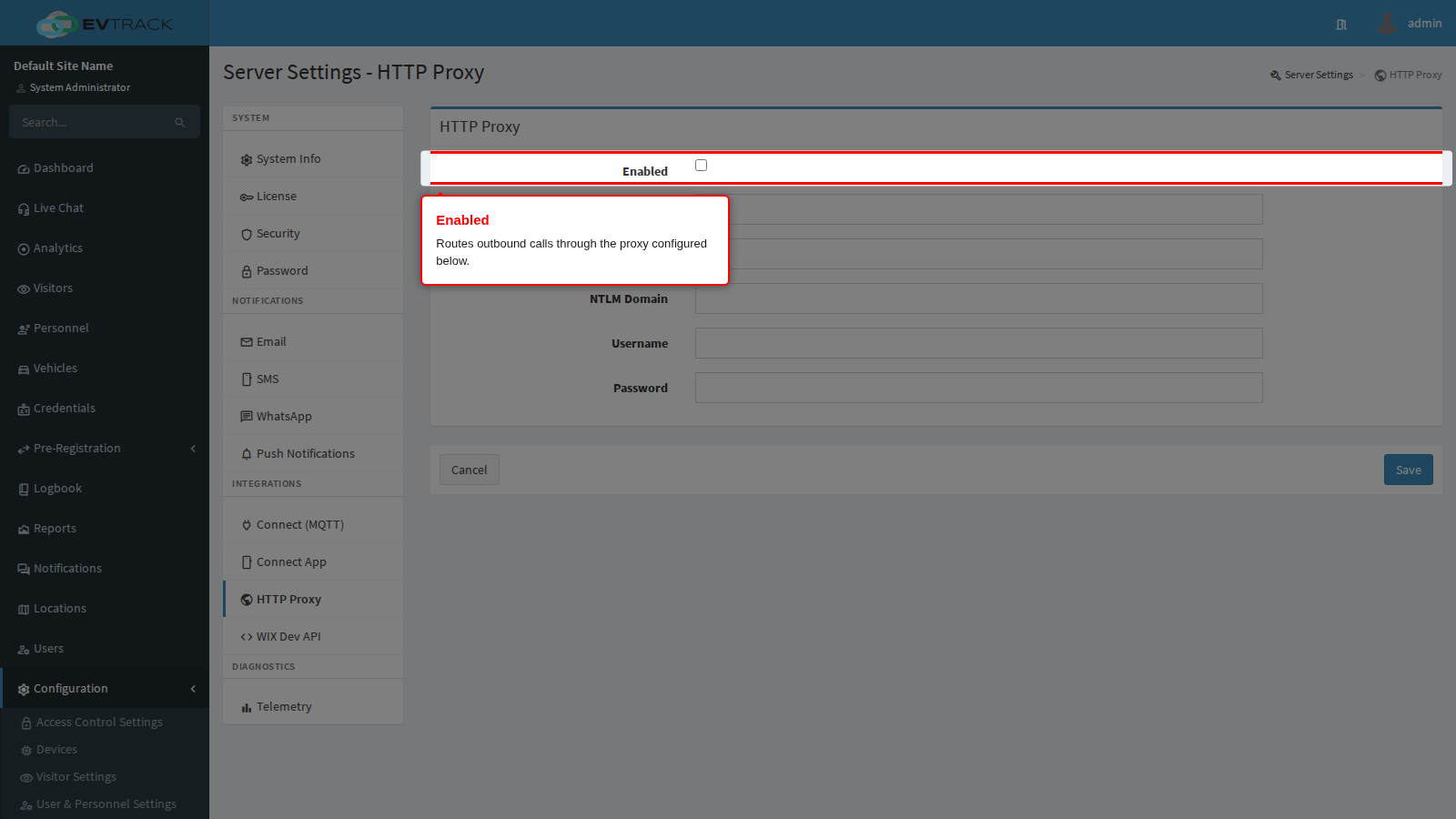
- Enabled is the master switch. Turning it on with an unreachable or wrong proxy stops outbound email, SMS, WhatsApp, push and integration traffic, usually without an obvious error in the user interface, so change this together with a Send Test on the Email panel to confirm the route still works.
- Host is the proxy hostname or address.
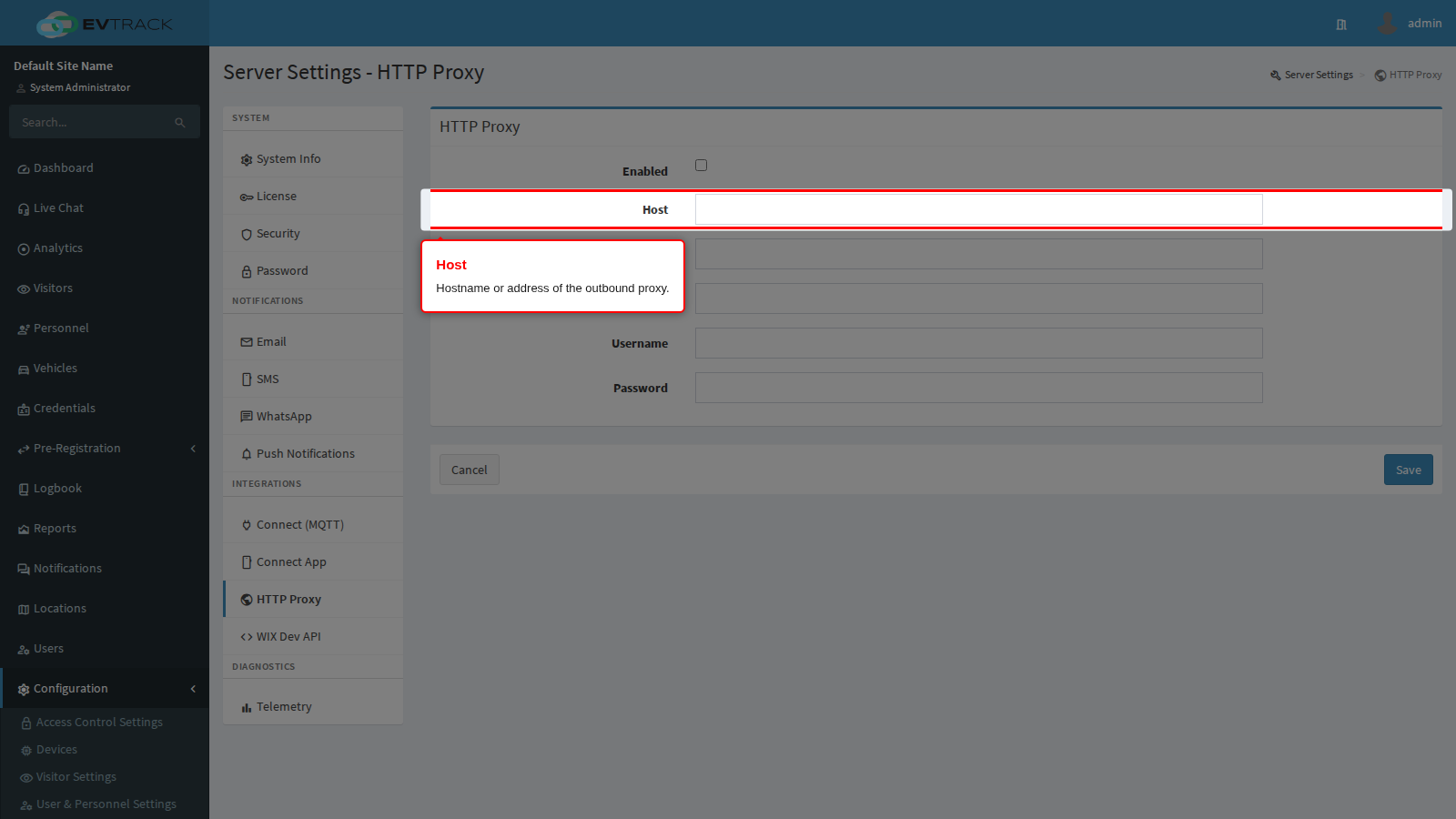
- Port is its listener port; 3128 and 8080 are the common choices. It must be a positive number.
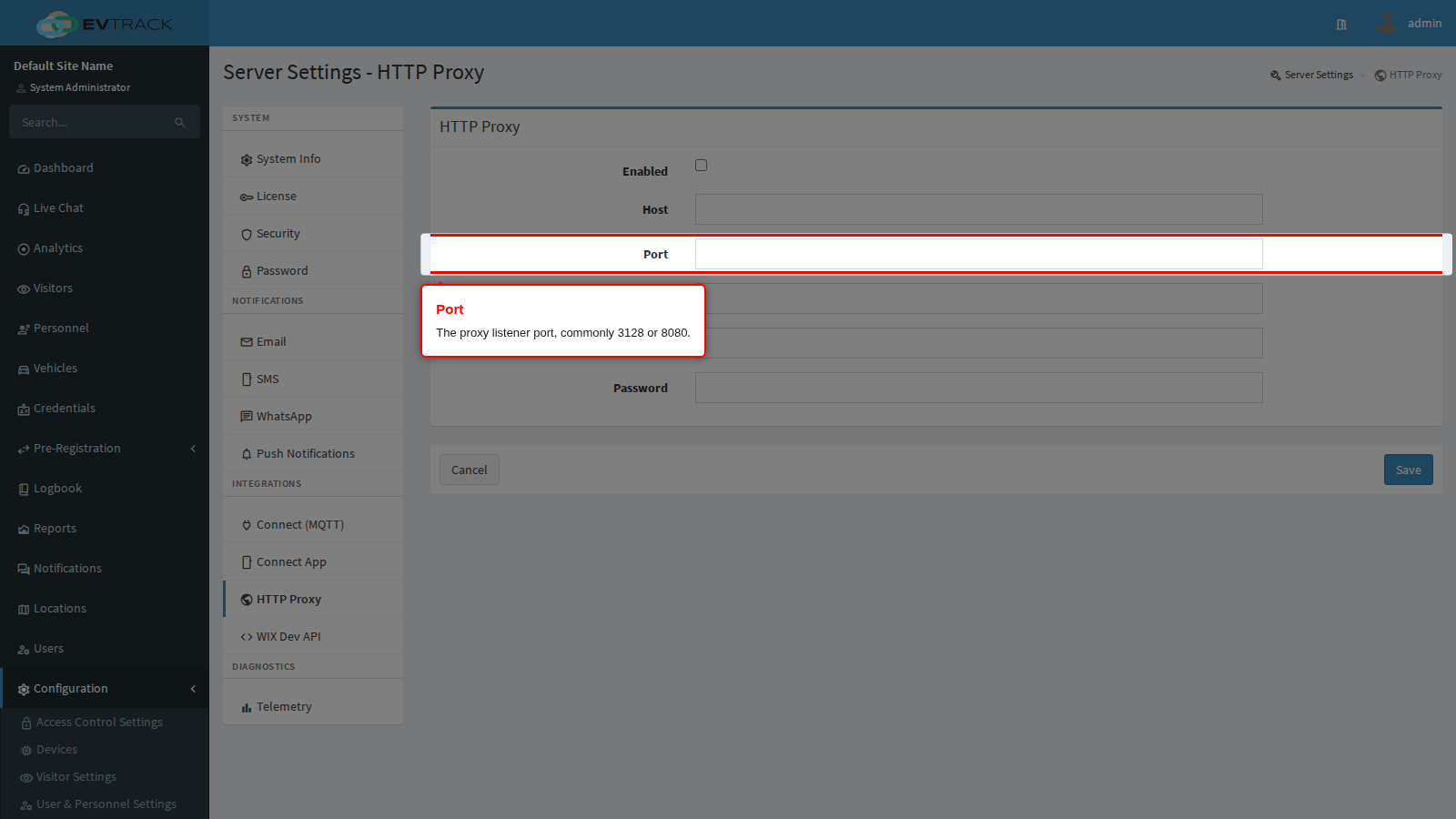
- NTLM Domain, Username and Password are needed only by a proxy that demands authentication. Leave all three blank for an open proxy. The stored password is masked when the page is redisplayed; leave the masked value untouched to keep it.
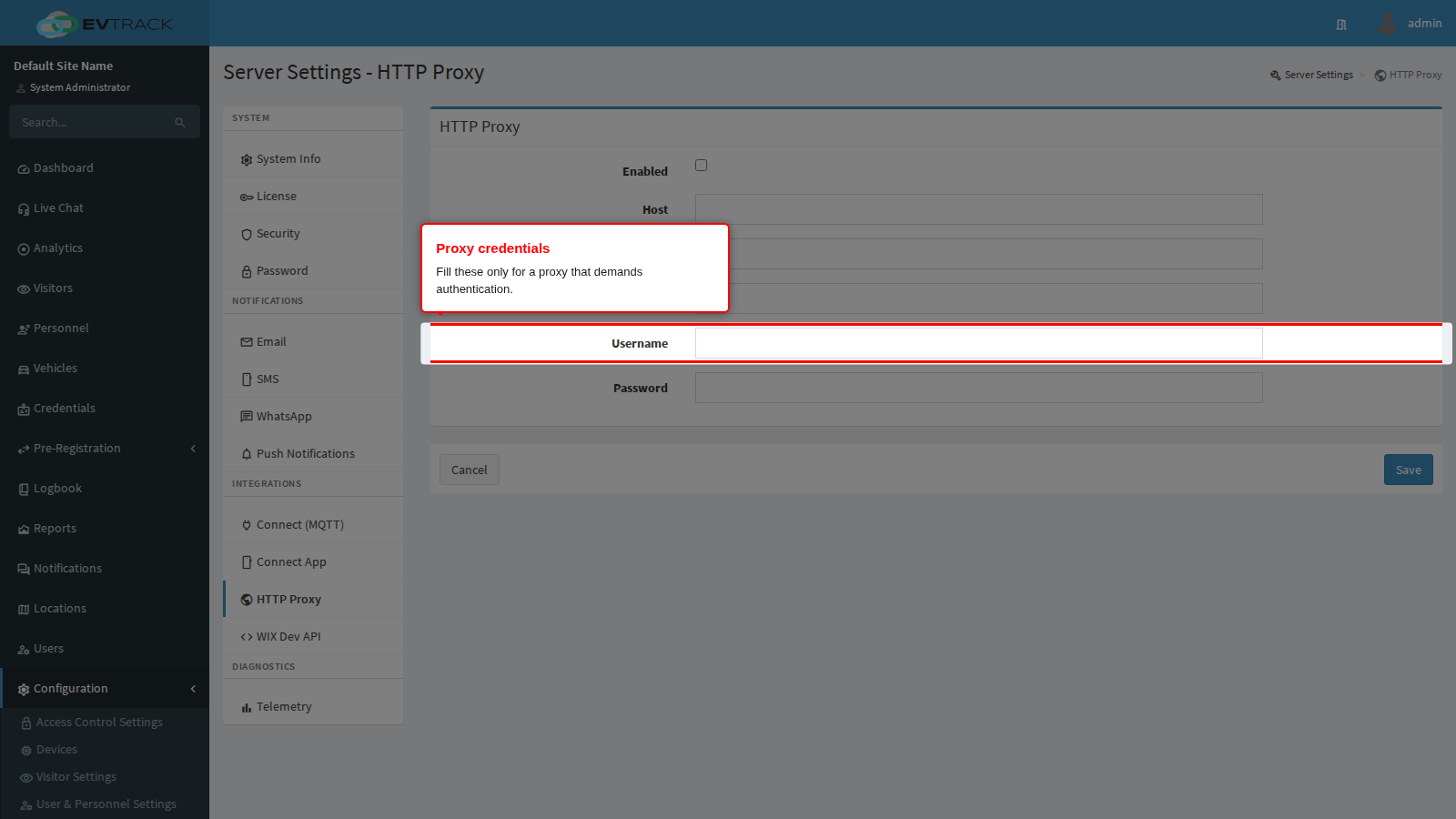
A proxy that intercepts TLS also needs its root certificate trusted by the server, which is done in the server’s own certificate store rather than here.
WIX Dev API
Developer credentials backing the Wix Bookings integration. These identify your Wix application to the server; the per-site connection itself is granted from your Wix site, and the day-to-day behaviour of the integration is configured under Configuration > System Settings > Wix Bookings.
- App ID identifies your Wix developer application.
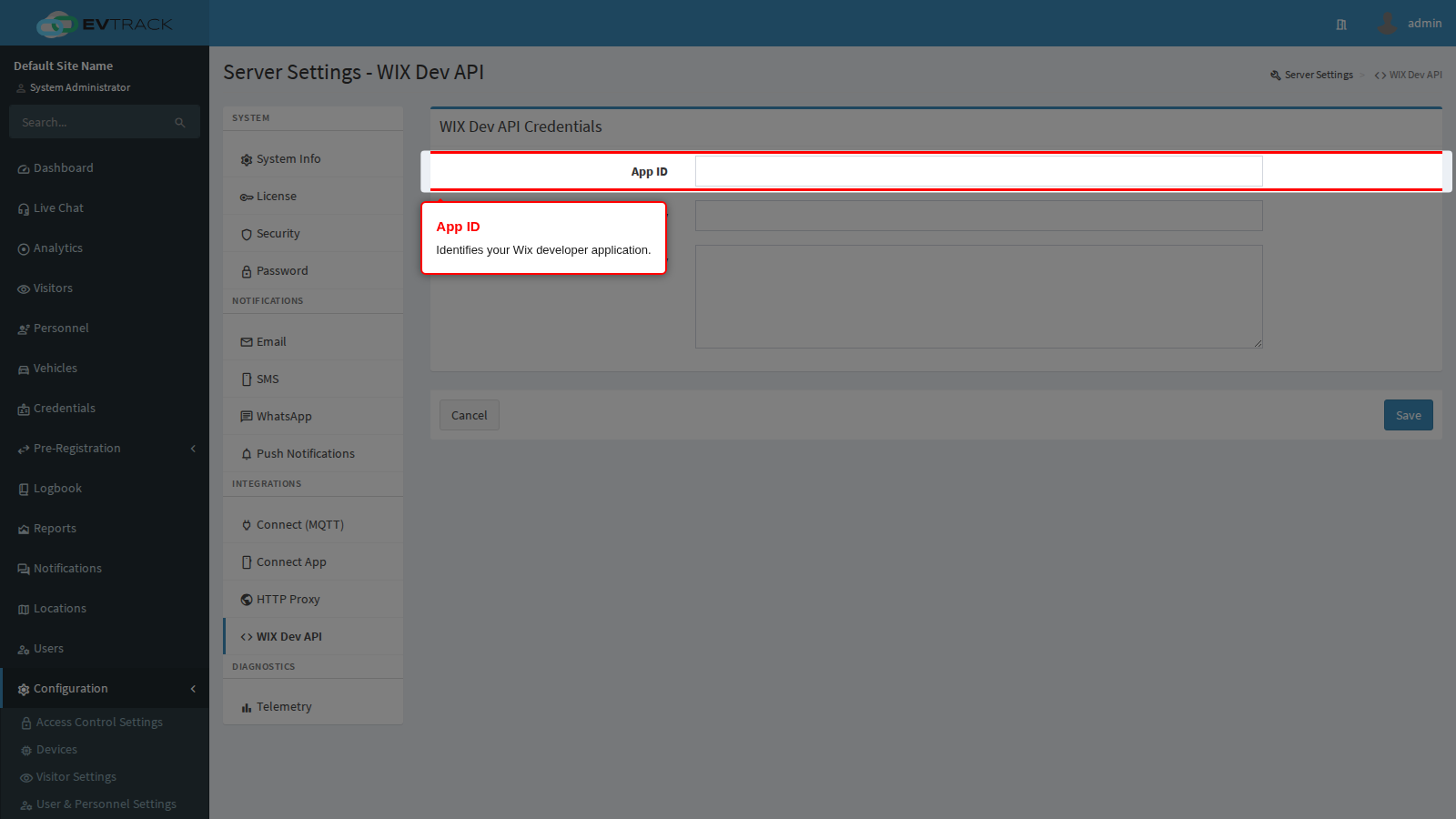
- App Secret Key authenticates the server to Wix. It is stored write-only: the field shows a fixed placeholder once a value exists, and typing a new value replaces it.
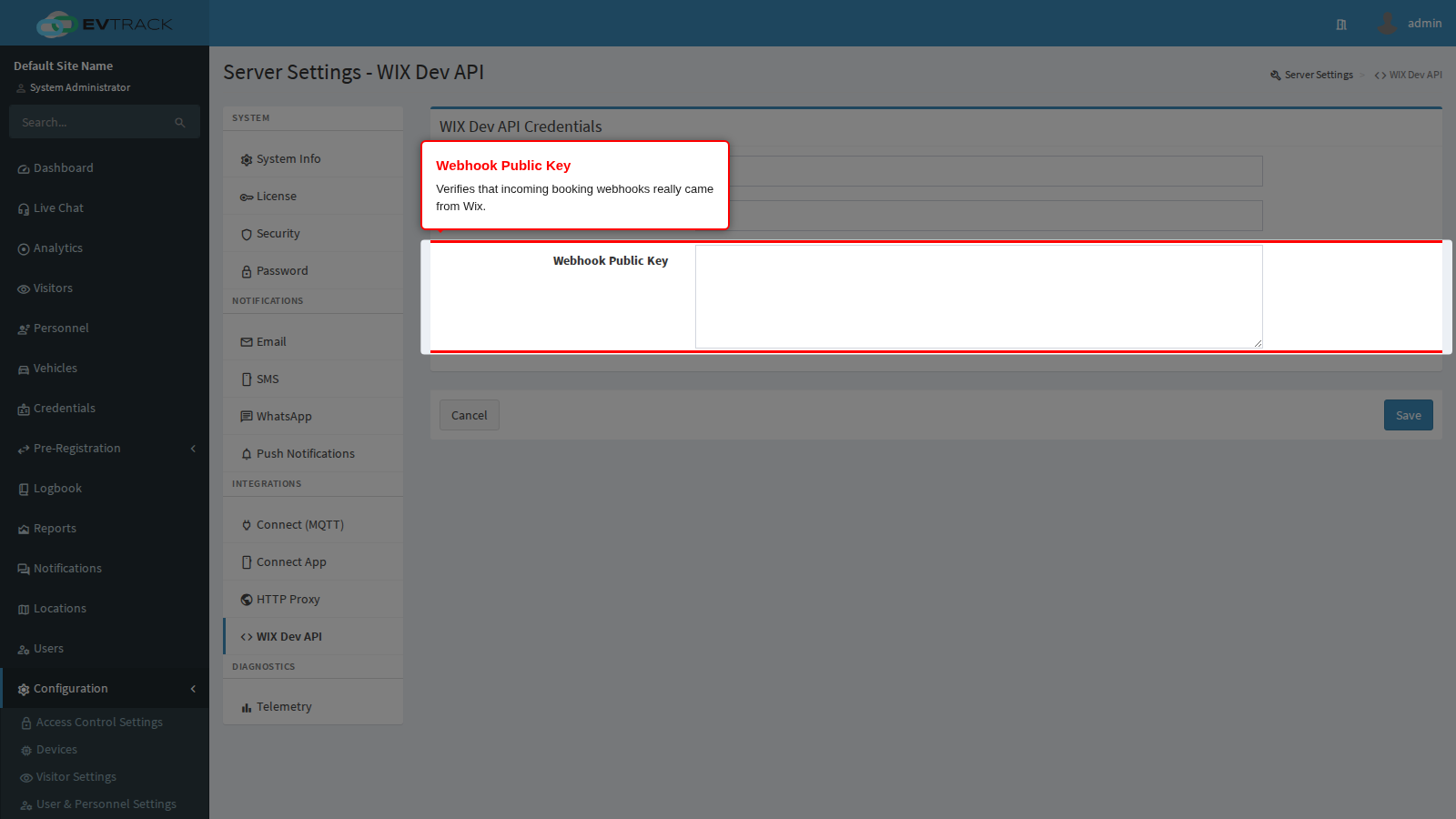
- Webhook Public Key is the PEM block Wix publishes for your application. It is used to verify that an incoming booking webhook genuinely came from Wix. Without it, or with the wrong key, booking webhooks are rejected and no registrations are created. The box renders empty even when a key is stored - leave it blank to keep the current key, paste a new PEM block to replace it.
Operational settings for the integration: Wix Bookings.
Telemetry
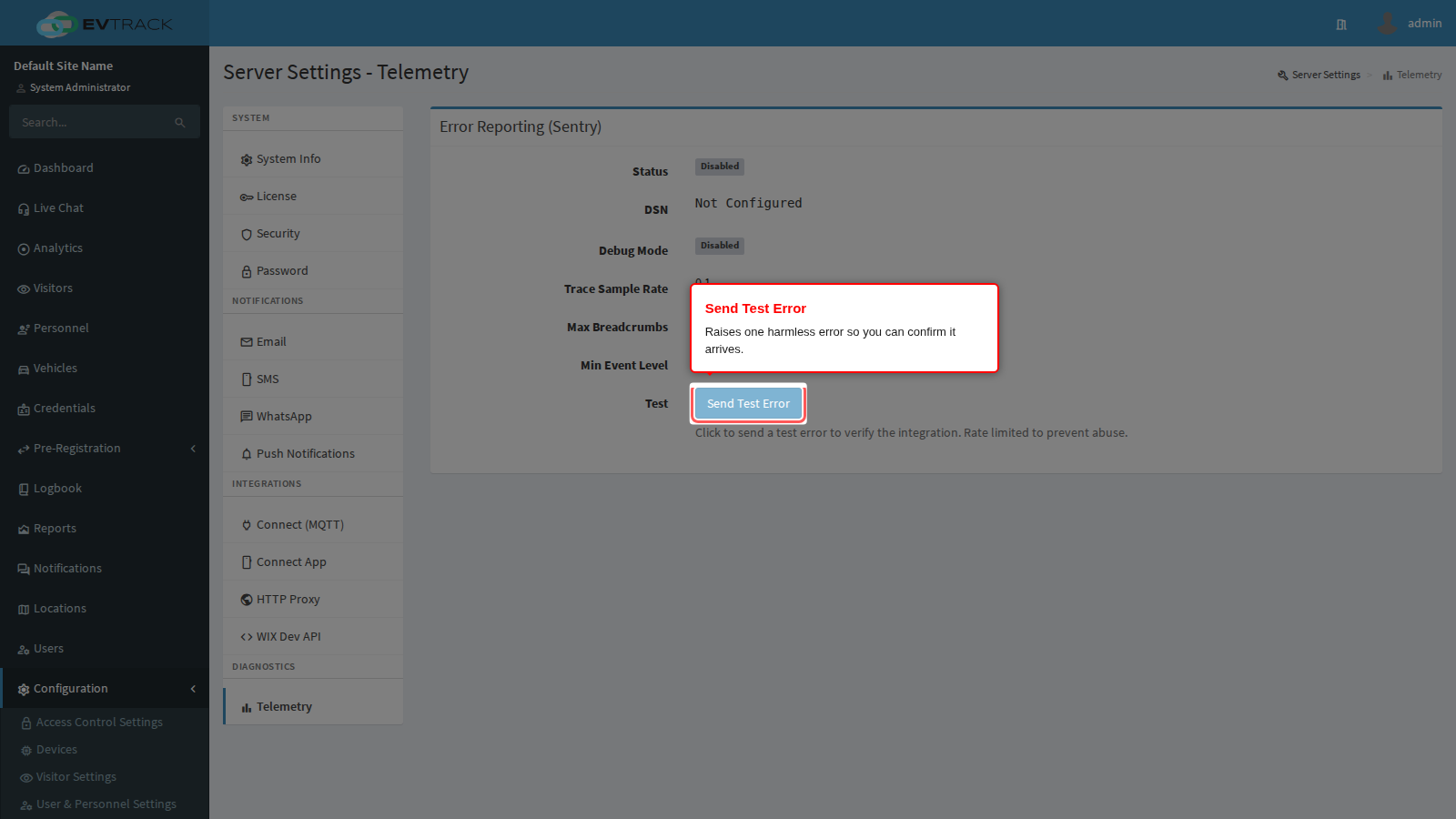
Read-only status of the server’s own error reporting. Nothing on this panel is edited here: the reporting destination is supplied by the server environment configuration and applied at startup.
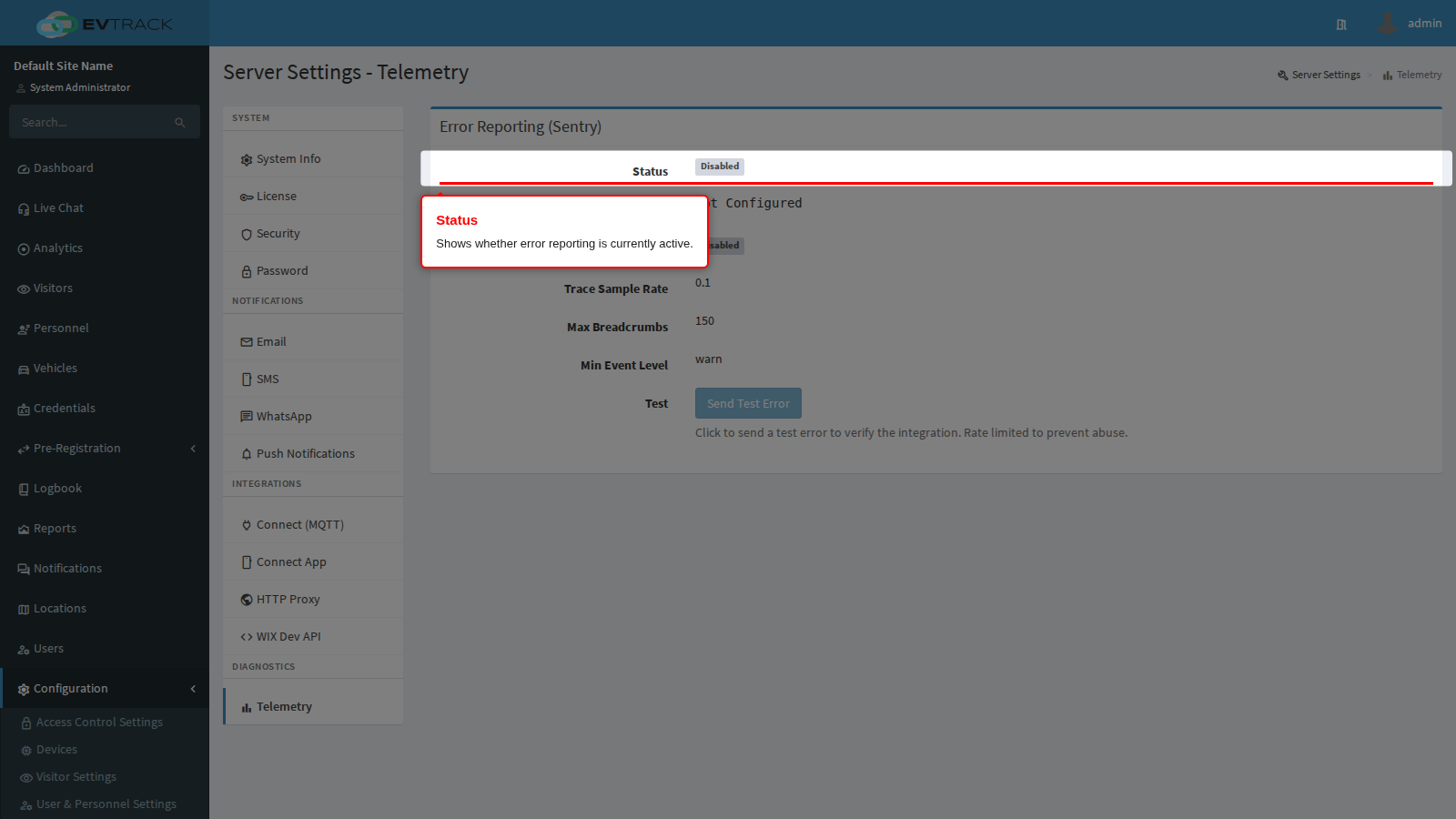
- Status shows whether reporting is currently active. It is disabled until a destination is configured.
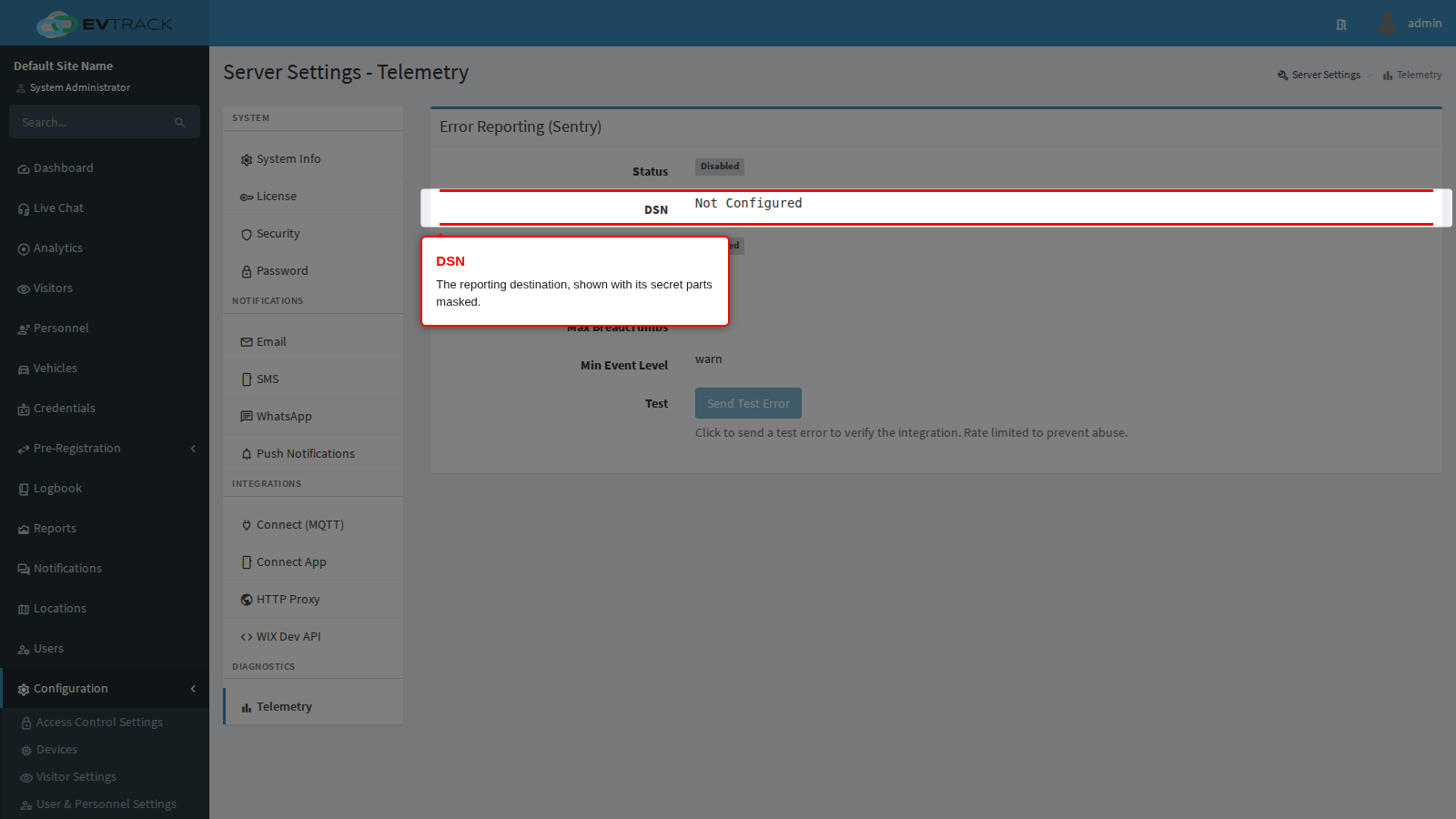
- DSN is the reporting destination, displayed with its secret portions masked. Debug Mode, Trace Sample Rate, Max Breadcrumbs and Min Event Level below it show the rest of the effective configuration: how much diagnostic detail is kept with each report, what fraction of requests is traced, and how severe an event must be before it is sent.
- Send Test Error raises one harmless error so you can confirm it arrives in your monitoring project. The button is disabled while reporting is off, and the action is rate limited.
Setting the destination and interpreting what arrives: Error Reporting (Sentry).
Onsite server notes
- Firewall ports - the web service listens on TCP port 5443 by default. Allow it through the server firewall, and publish it through whatever reverse proxy or load balancer serves the address you entered as the Application Base HTTP URL.
- Restart after messaging changes - on a Windows onsite server, restart the EvTrack service after saving email or SMTP settings.
- Upgrading - stop the service, replace
evtrack-service.jarwith the new version, start the service, then confirm the new version number on the System Info panel. Check SMA Expiry on the License panel first: a build newer than your maintenance date reports the licence as invalid. - Encrypted properties - sensitive values in
application.propertiescan be stored encrypted. See the deployment guide in this section.
Troubleshooting
- Slow web interface, or guard devices timing out - confirm the server can complete a reverse DNS lookup for connecting clients. Give LAN addresses valid reverse DNS entries, or add static host entries to the server’s hosts file.
- Notification emails not arriving - run Send Test on the Email panel first. If the test succeeds but real notifications do not arrive, check the recipient’s spam folder and ask their IT administrator to allow mail from your configured sender address. Some mail systems greylist unknown senders and defer the first message; delivery is retried automatically.
- Links in emails point at the wrong address - correct the Application Base HTTP URL on the Security panel. Messages already sent keep the old address and must be resent.
- Licence suddenly reports invalid after an upgrade - compare the build date on System Info with SMA Expiry on the License panel. Maintenance that predates the build does not cover it.