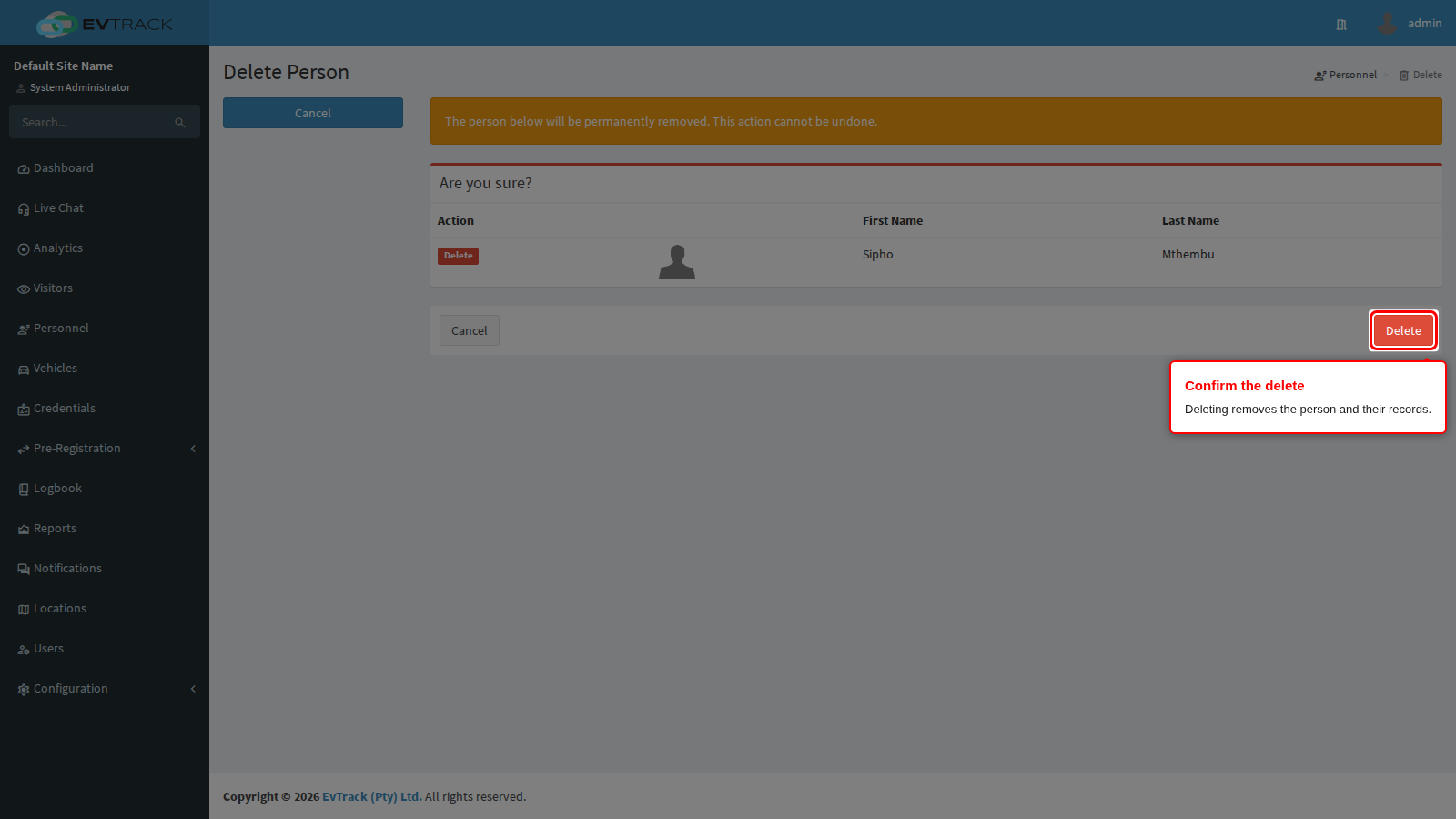
Deleting a person permanently removes them and their associated records - credentials, vehicles and documents. This cannot be undone.
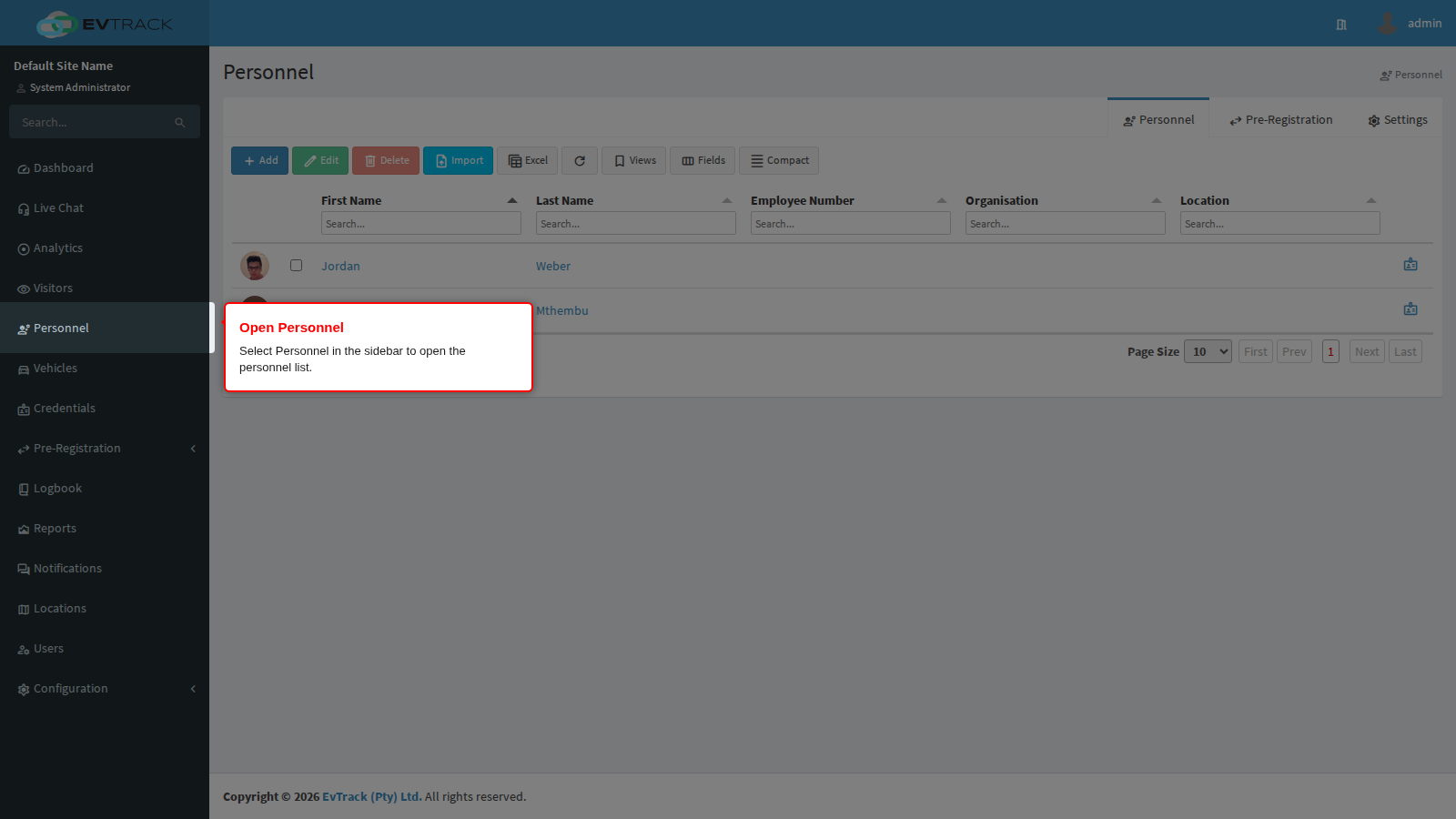
Step 1: Open the Personnel list
Select Personnel in the sidebar. The personnel list opens with search fields above each column and a toolbar above the table.
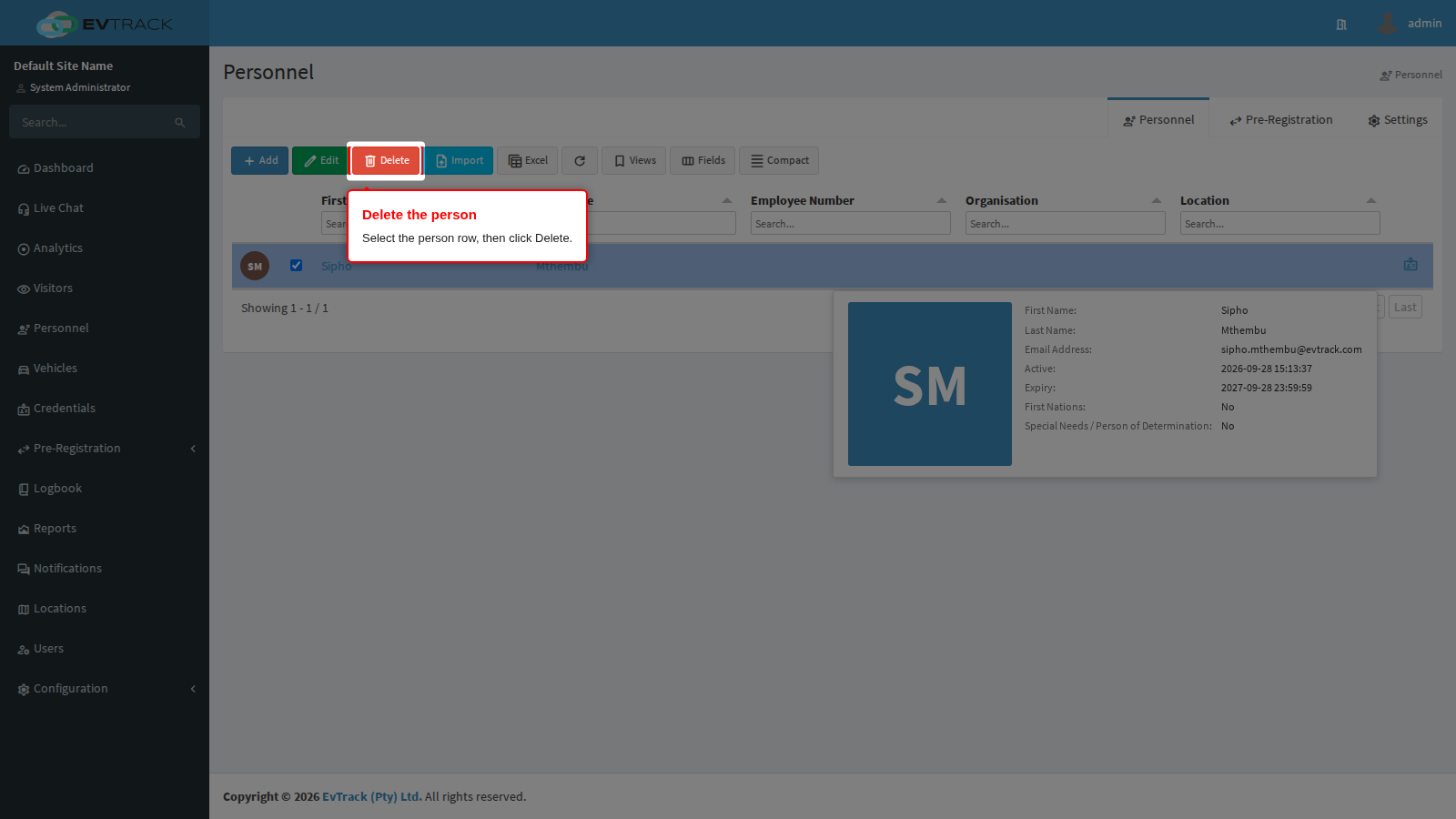
Step 2: Select the person and click Delete
Type the person’s surname into the search field above the Surname column, then click the person’s row once to select it - the row highlights and the toolbar’s Delete button becomes active. Click Delete.
Step 3: Review and confirm
A confirmation page summarises the person that will be removed. Click Delete to confirm, or Cancel to abandon the delete. After confirming, the list reloads without the removed person.