Face credentials let readers with facial recognition admit a user without a card. The credential is built from the user’s profile photo - the photo IS the biometric template source, so its quality determines recognition reliability.
You need a role that may manage users and credentials - if the Credentials tab or the Add button described below is missing, ask an administrator to extend your role. Only one face credential per user can exist.
Step 1: Open Users
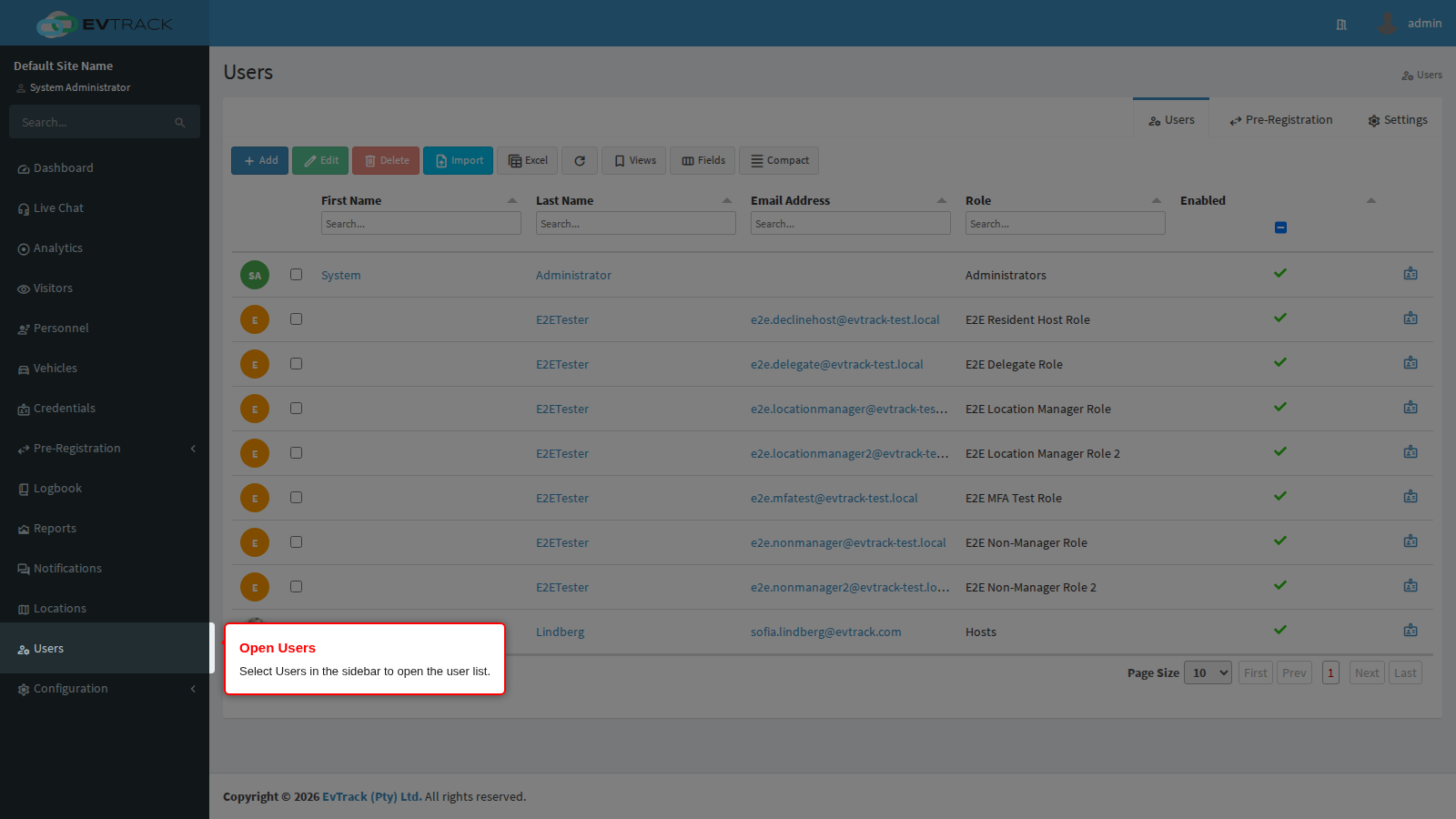
Select Users in the sidebar. The user list opens, showing every system user with search fields above each column.
Step 2: Open the user
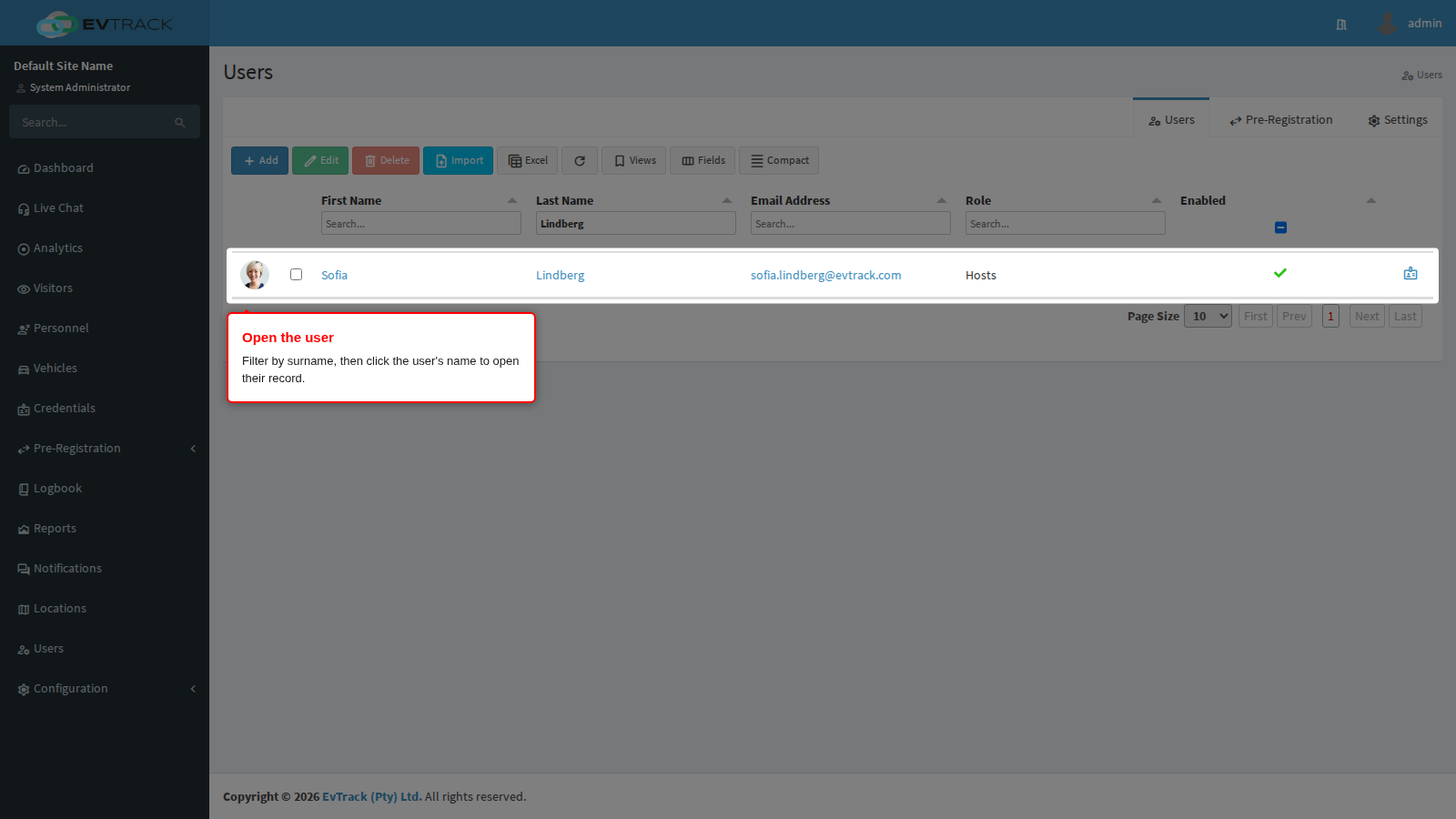
Type the user’s surname into the search field above the Surname column, then click the user’s name. The user’s edit page opens on the Overview tab.
Step 3: Check the profile photo
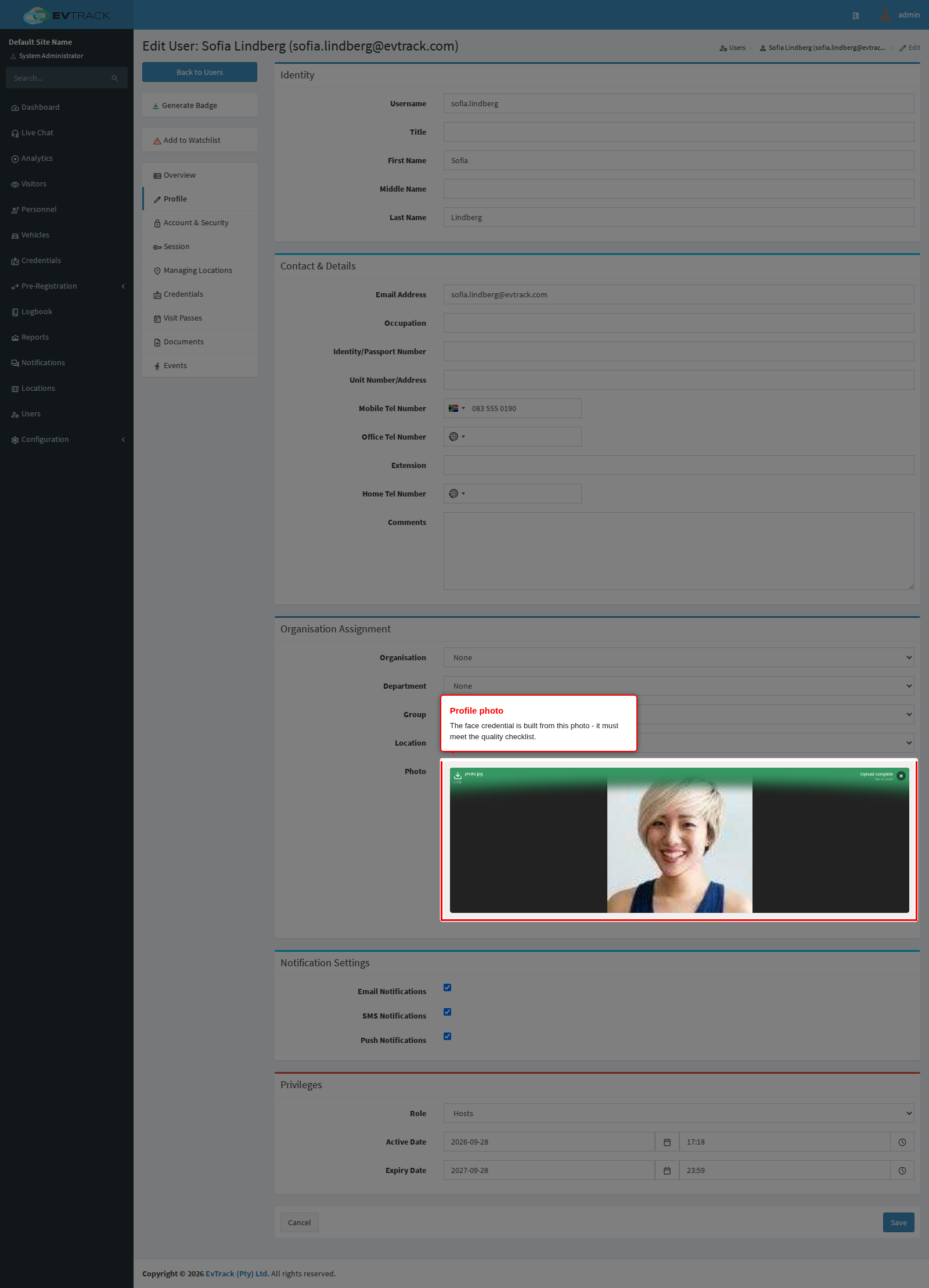
On the Profile tab, make sure the user has a photo that meets face-recognition quality requirements:
- Front-facing, eyes open, neutral expression, looking at the camera
- Even lighting with no harsh shadows or backlight; plain background preferred
- Unobstructed face - no sunglasses, cap brims or masks; regular glasses without glare are usually acceptable
- Sharp and recent - in focus, good resolution, showing the user as they currently look
- The photo capture screen performs a face-detection check when a photo is taken or uploaded; retake the photo if it is rejected
Step 4: Go to the Credentials tab
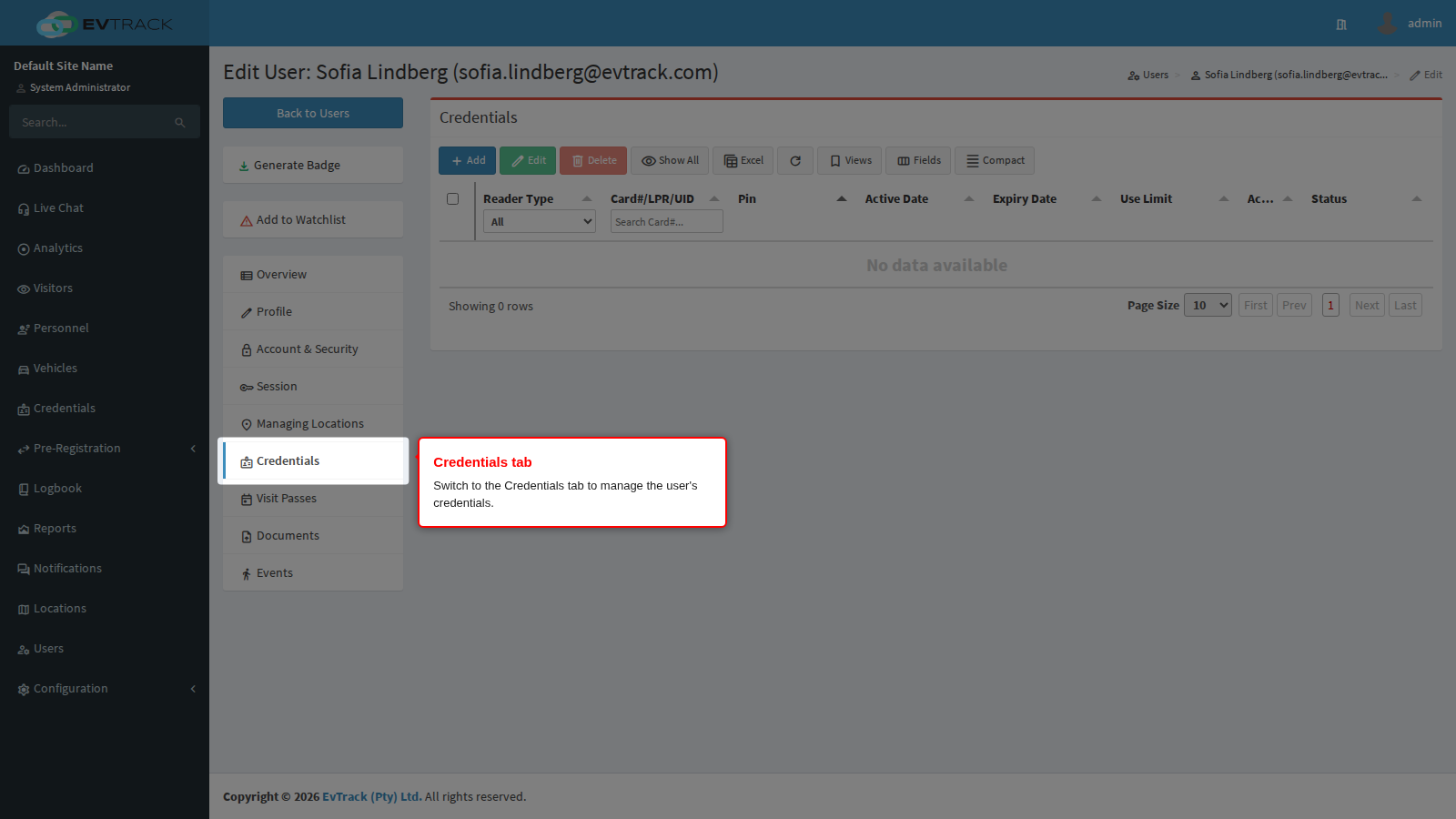
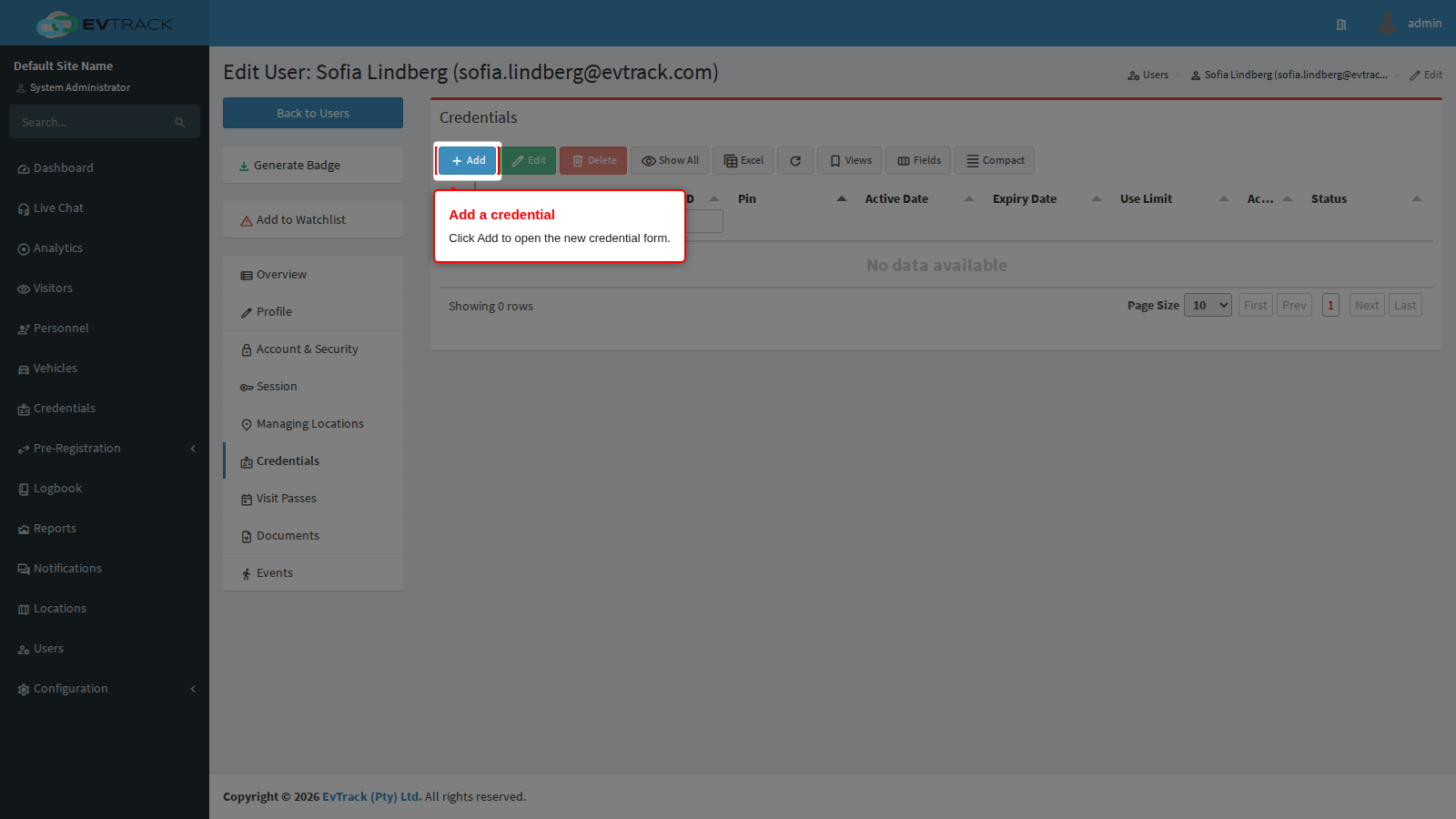
In the tab list on the left of the user’s record, select Credentials. The tab shows a table of the user’s existing credentials with a toolbar above it.
Step 5: Click Add
Click the Add button in the credentials toolbar. The new-credential form opens.
Step 6: Add the face credential
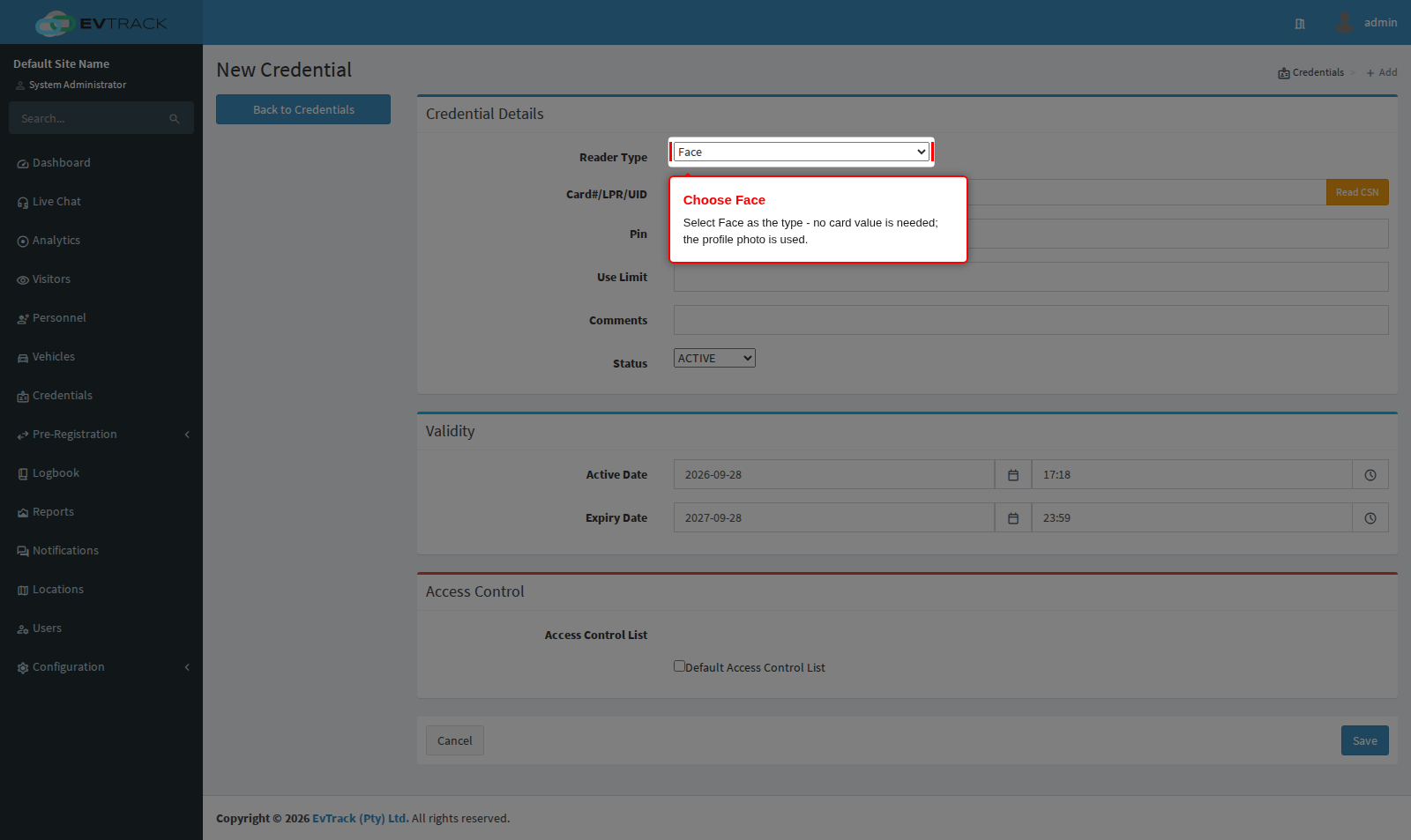
Choose Face as the type - no card value is needed; the credential uses the profile photo. Activation and expiry pre-fill from the user’s validity window. Click Save - the saved credential opens on its edit page.
Step 7: Assign access control lists
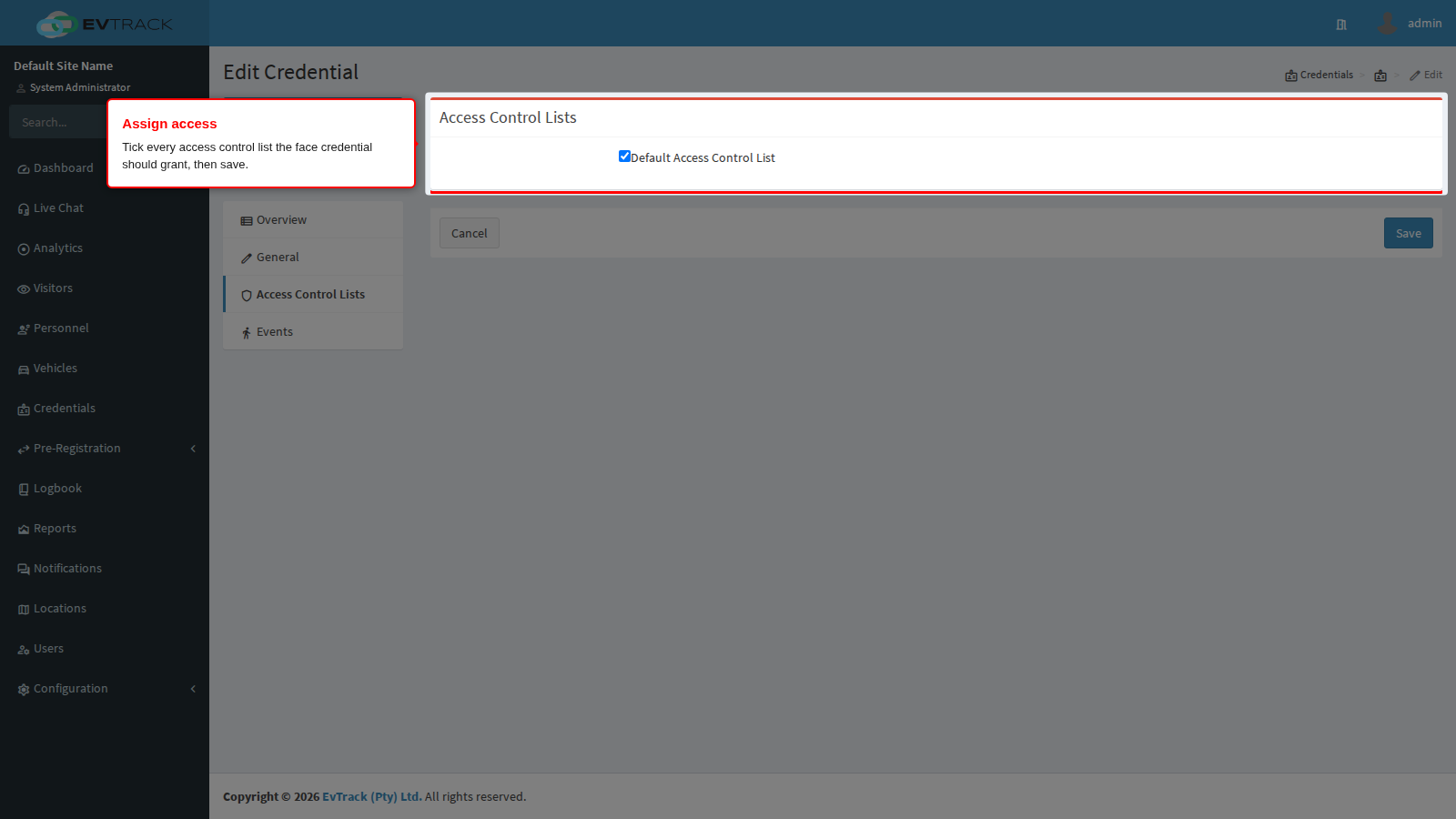
On the saved credential’s ACL tab, tick every access control list the face credential should grant - a credential with no ACLs assigned identifies the user but opens nothing. Save the credential again after changing the selection; the assignment is pushed to connected devices.
Step 8: The credential on the user
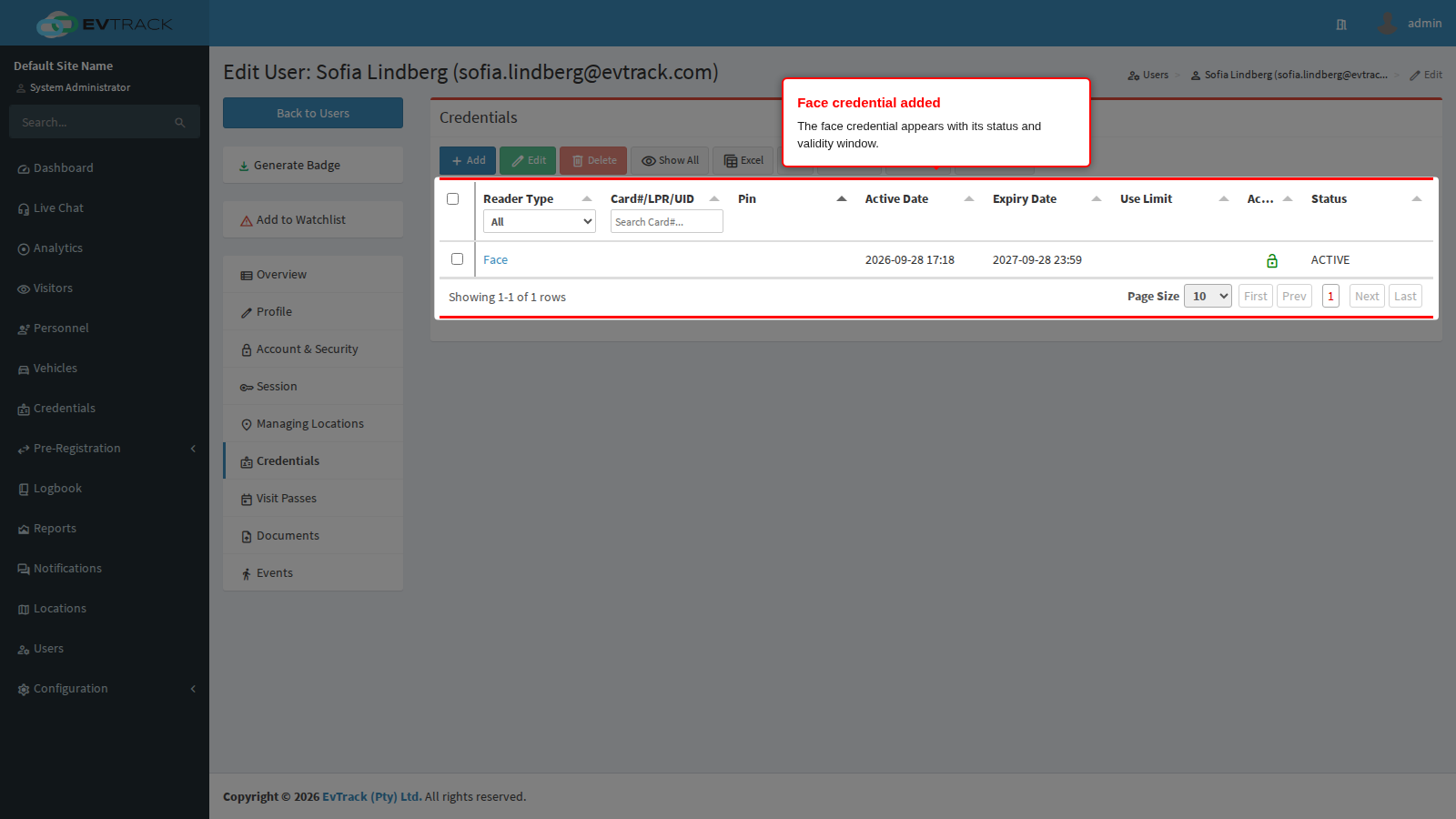
Back on the user’s Credentials tab, the face credential now appears in the list. The ACL assignment can be changed at any time from the credential’s ACL tab, exactly as for cards.
Step 9: Deleting
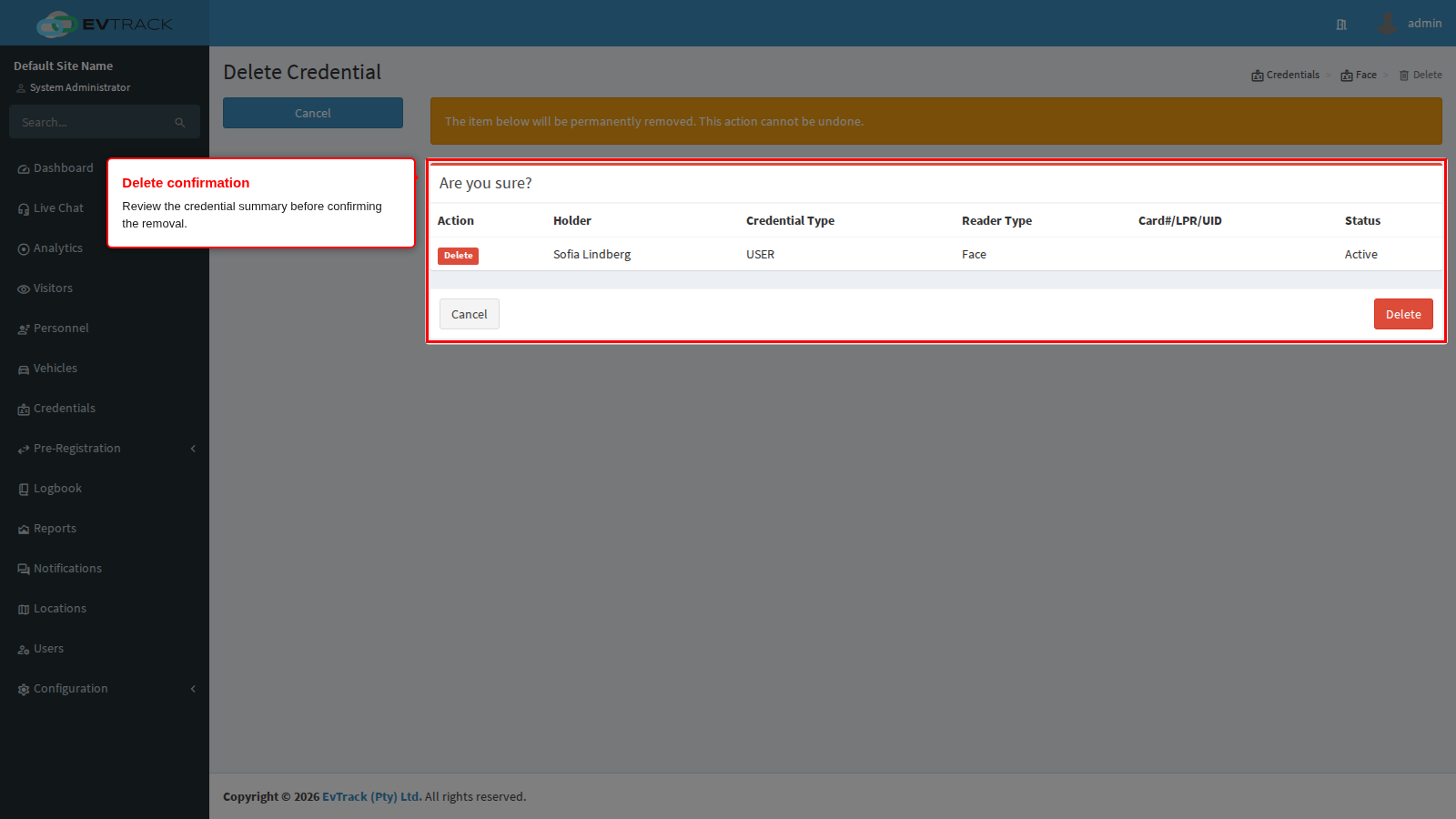
Deleting the credential removes the face template from connected facial-recognition hardware. Select the credential on the Credentials tab and click Delete in the toolbar - the confirmation page summarises it first. Updating the user’s profile photo re-enrols the face on synced devices.
See also: RFID Card Credentials (Users) and User Validity and Credential Expiry.
The card number sent to facial-recognition hardware for a face credential follows the Credential Identifier format under Identifier Formats.
The credential lifecycle diagram on Personnel Validity and Credential Expiry covers face credentials too: the statuses and their transitions are the same for every credential type.