The Plustek document scanner lets an operator scan a passport or ID card straight into a visitor record, instead of photographing it or uploading a file.
What you need
- A Plustek document scanner connected to the reception workstation.
- The scanner service installed and running on that same workstation. It listens on port 17778.
- The scanner is per workstation. Desks without one simply never see the Scanner tab.
Step 1: turn it on for the system
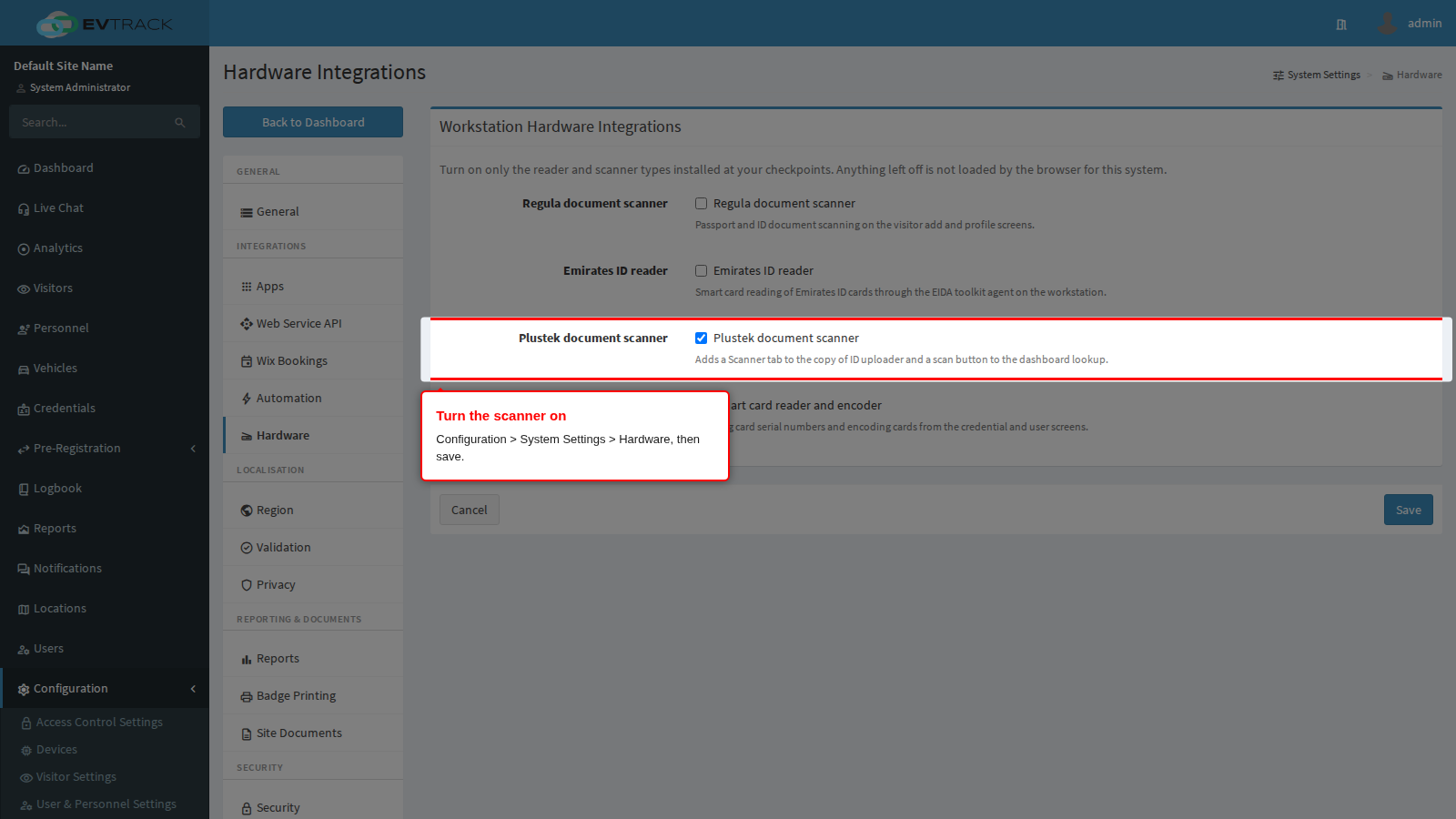
Go to Configuration > System Settings > Hardware, tick Plustek document scanner, and save. Until this is on, the scanner software is never sent to the browser, so the Scanner tab cannot appear no matter what is plugged in.
Step 2: check it appears
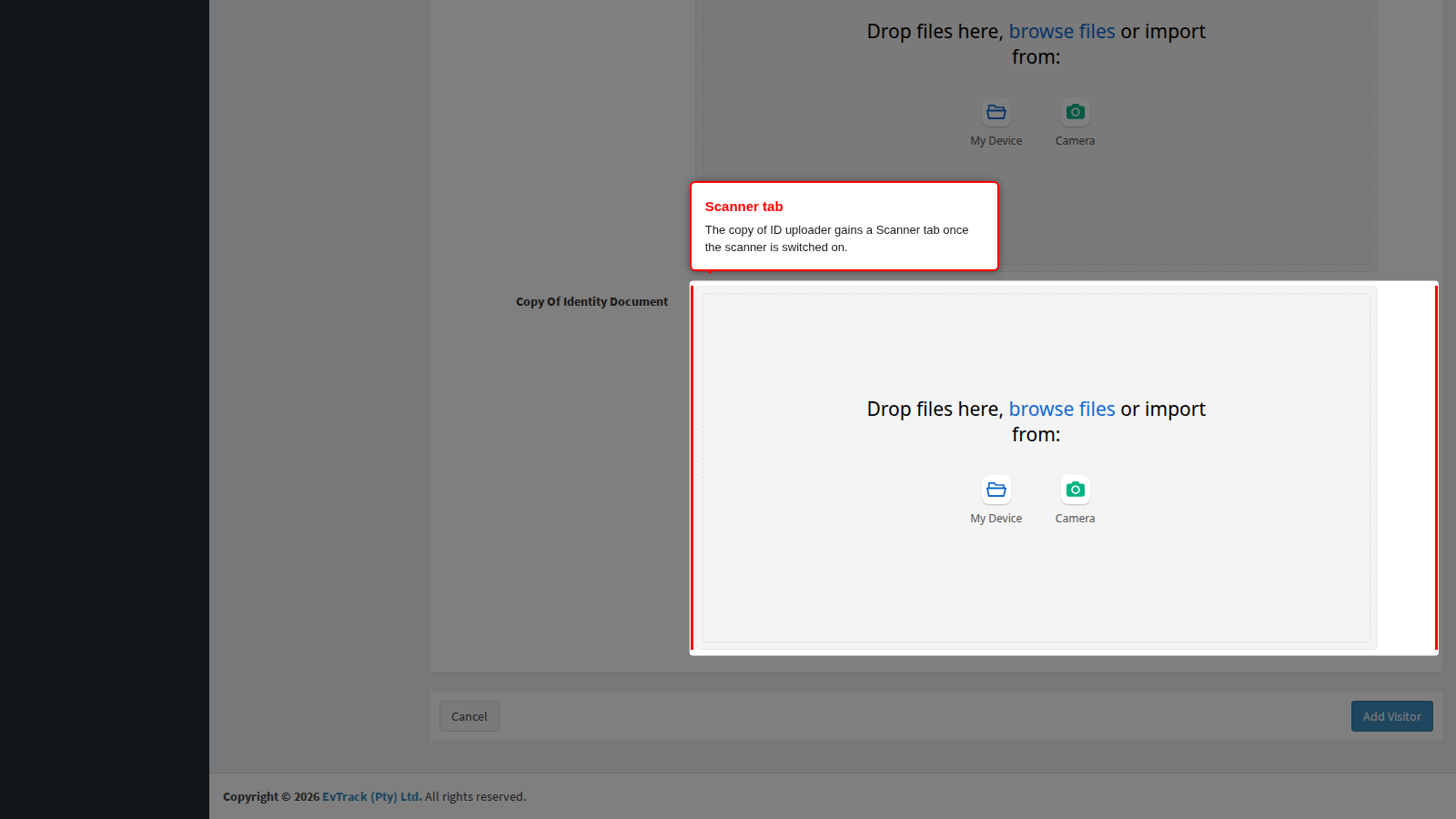
Open Visitors > Add Visitor. The copy of ID uploader now offers a Scanner tab next to the usual upload and camera options. The same tab appears on an existing visitor’s profile, and the dashboard quick lookup gains a scan button.
Step 3: scan
Select the Scanner tab and choose Connect. The scanner software only reaches for the device at this point, which is why the tab appears even on a desk whose scanner is switched off. Once connected, pick the device and scan. The captured image is attached to the visitor record like any other copy of ID.
If the Scanner tab does not appear
- Confirm the switch is on under Configuration > System Settings > Hardware, and reload the page. A screen opened before the setting changed keeps the old behaviour until it is refreshed.
- Confirm the scanner service is running on that workstation, not on the server. This is desk software; the server never talks to the scanner.
If Connect fails
- Check the scanner is powered on and its cable is seated.
- Check the scanner service is running and listening on port 17778.
- Try the scanner in its own bundled utility. If that cannot see it either, the problem is the device or its driver rather than EvTrack.