When you create a system user, EvTrack can email them their account details and a first-login link - no manual password handover needed.
Step 1: Open Users
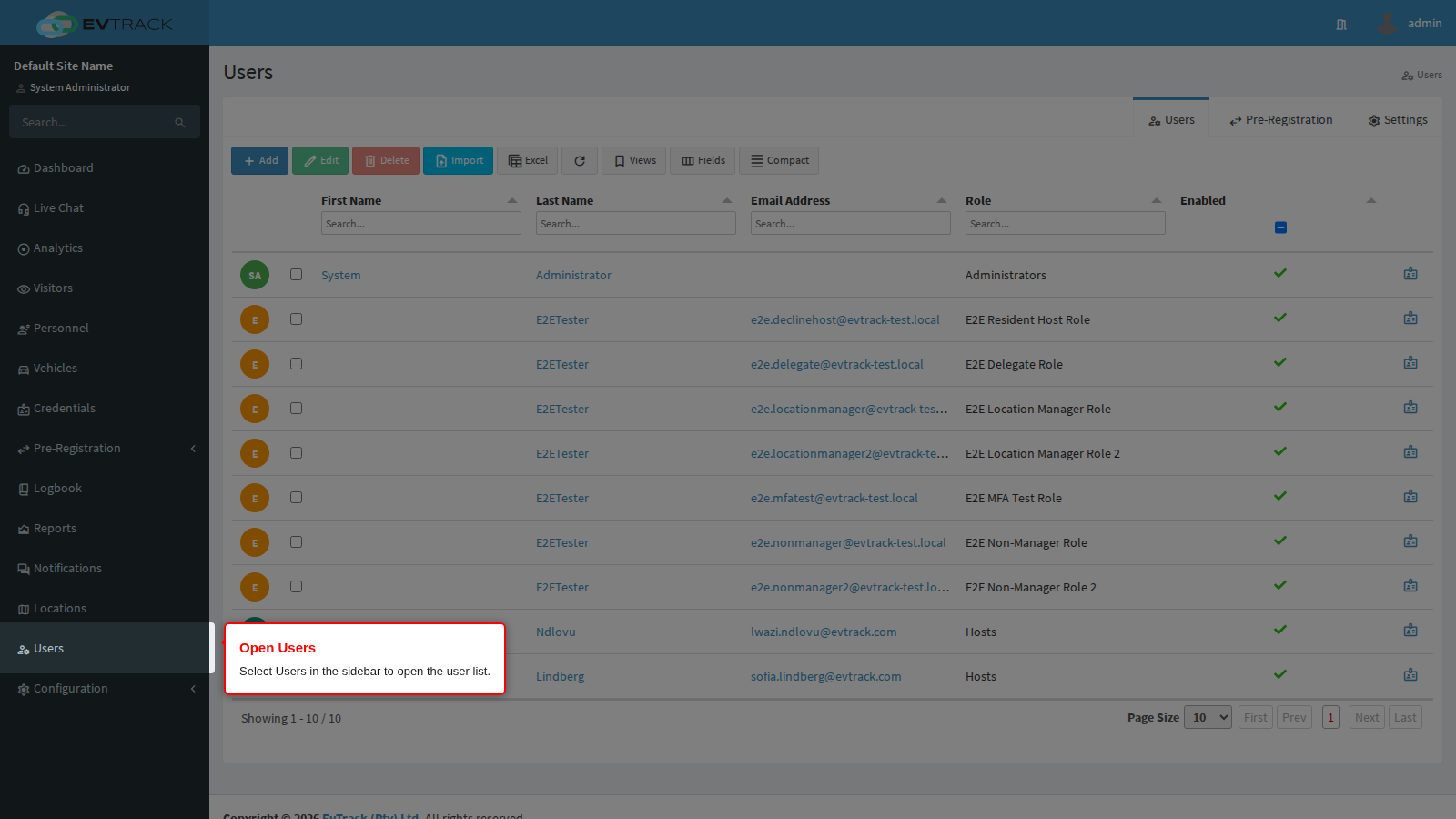
Select Users in the sidebar. The user list opens with a toolbar above the table.
Step 2: Click Add
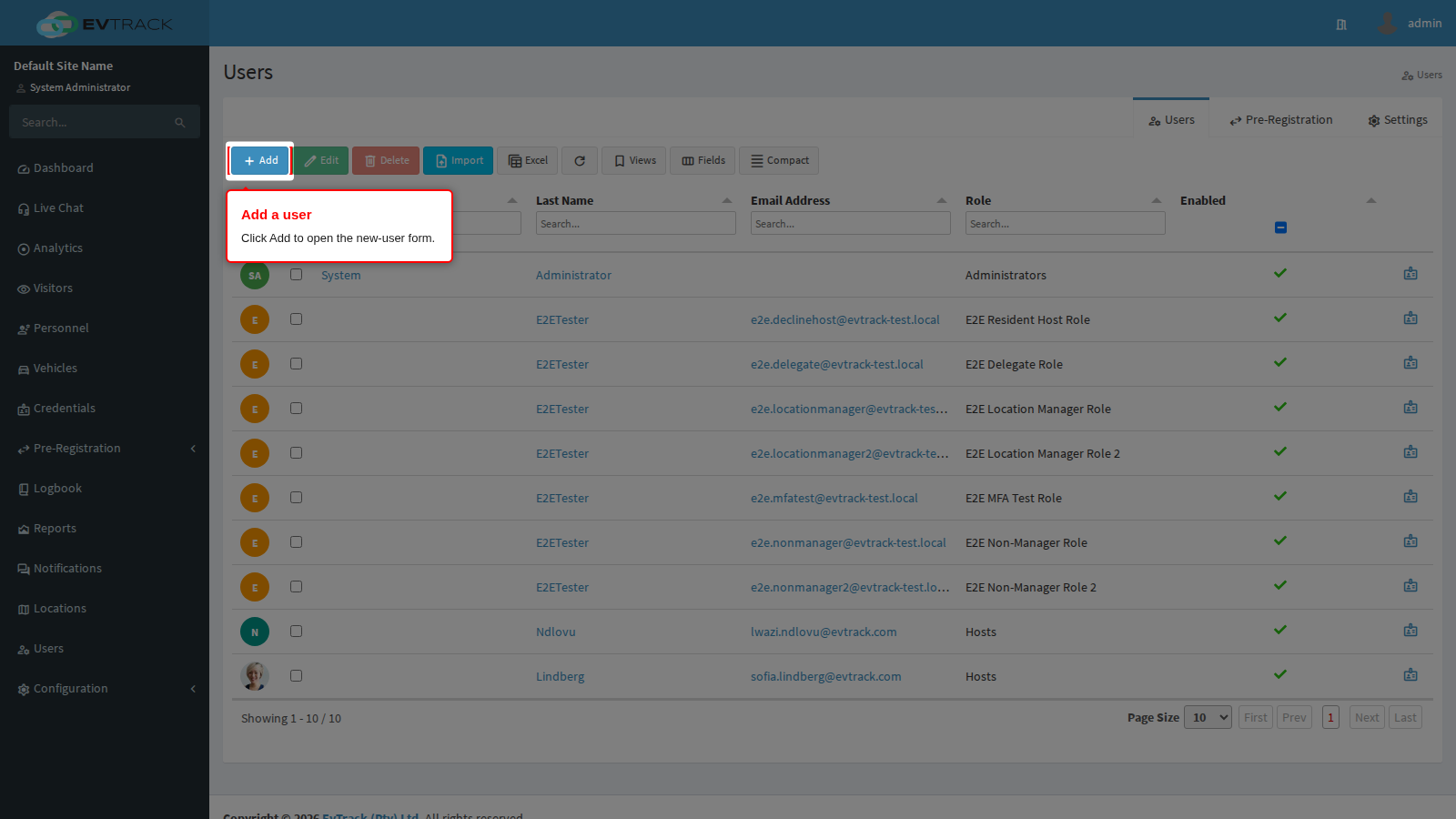
Click the Add button in the toolbar. The new-user form opens.
Step 3: Complete the form and enable the onboarding email
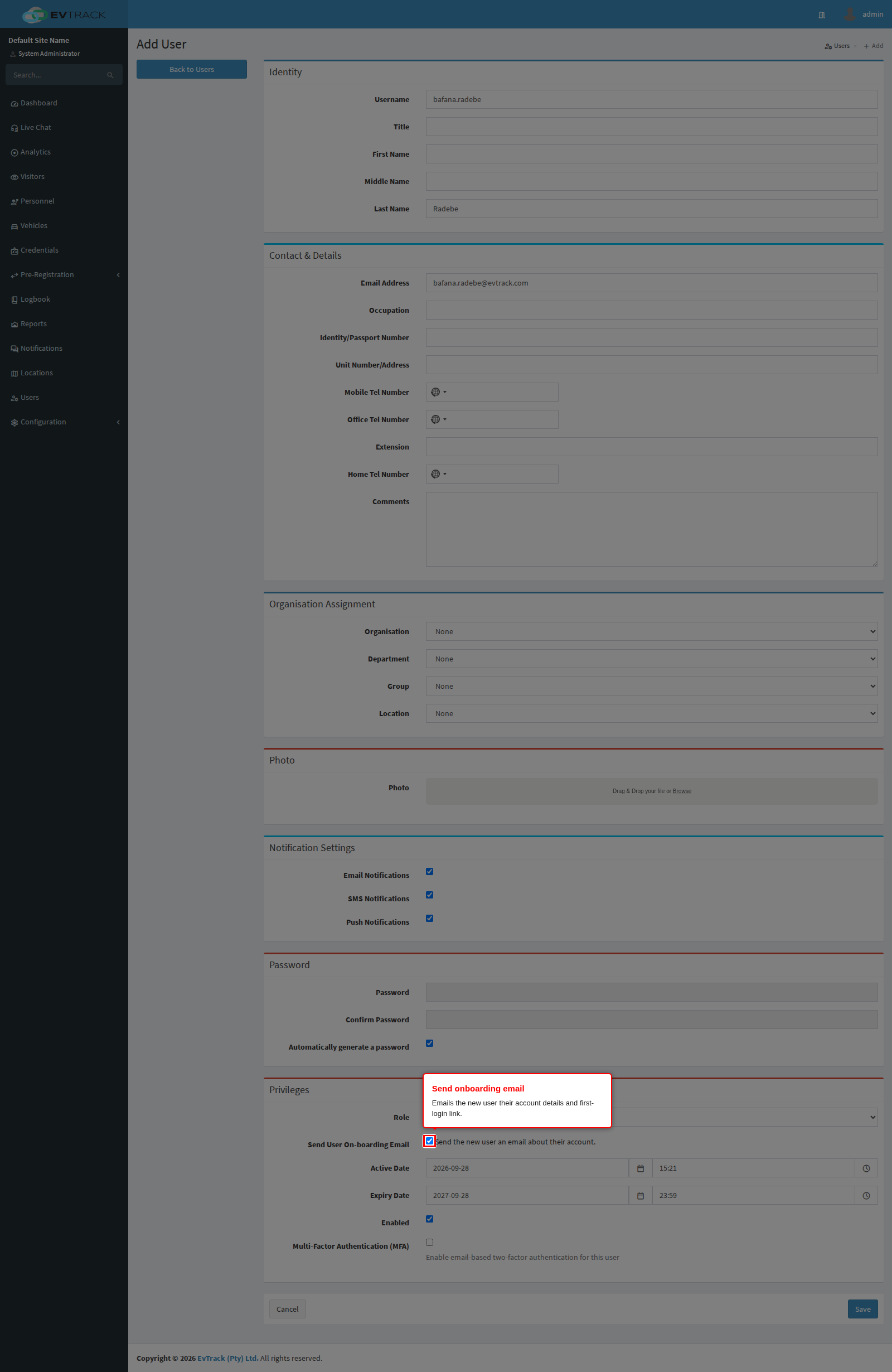
Fill in the user’s details and role. The Send onboarding email option controls delivery per user. Combined with Auto-generate password, the new user receives a secure account email and sets their own credentials on first login; leave auto-generate off to set a password manually instead (then the email carries your custom password choice flow). Click Save - the user is created and the email is sent immediately.
Step 4: What the user receives
The onboarding email arrives in the new user’s inbox with their username, the login link and, depending on the password option chosen, either a first-login link or the manually set password flow:
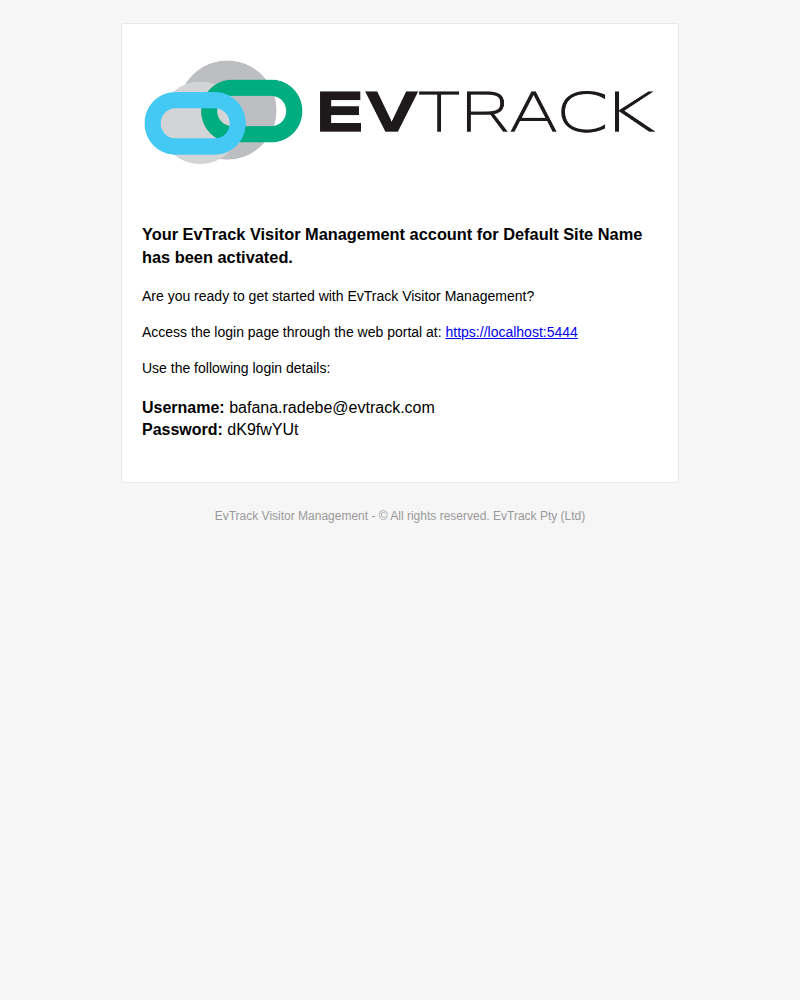
- The email template supports merge tags: the person’s names and contact fields,
${username}and (when set manually)${password}, the access${activeDate}/${expiryDate},${app_base_url}for the login link,${company_name}, and the mobile app store links (${app_ios_url},${app_android_url},${app_huawei_url}). See Merge Tags for the full reference. - Delivery uses the server email settings (Server Settings).
- Users created through self-registration follow the User Registration flow instead, where admins process the request first.