Host approval puts the person being visited in control: a check-in naming a host waits for the host’s approval before access is granted. This guide covers enabling it, the field prerequisites on each capturing surface, and what the host experiences.
This page covers the kiosk and guard app gate only. A walk-in captured through the Visitors Dashboard’s quick check-in dialog has its own switch, its own timeout, and its own per-location override - see Reception Host Approval. The two are independent: turning one on does not turn the other on.
How the request reaches the host
There are three channels, and they are not a simple list of alternatives - the order and the conditions matter, because a host who is reachable on none of them changes the outcome for the visitor standing at the checkpoint.
flowchart TD
    start(["A visitor at the kiosk or the checkpoint names a host"])
    qPush{"Does the host's mobile app accept a push notification?"}
    pushSent["Sent as a push notification"]
    qSms{"Is SMS fallback switched on,<br>and does the host have a mobile number?"}
    smsSent["Sent as an SMS"]
    qEmail{"Is email fallback switched on,<br>and does the host have an email address?"}
    emailSent["Sent as an email"]
    qAny{"Did at least one channel take the request?"}
    waiting(["The visitor waits, up to the approval timeout"])
    failed(["Timed out at once, and the visitor is not admitted"])

    start --> qPush
    qPush -- yes --> pushSent
    qPush -- no --> qSms
    qSms -- yes --> smsSent
    qSms -- no --> qEmail
    pushSent --> qEmail
    smsSent --> qEmail
    qEmail -- yes --> emailSent
    qEmail -- no --> qAny
    emailSent --> qAny
    qAny -- yes --> waiting
    qAny -- no --> failed
Four rules follow from the shape of that diagram:
- Push is always tried first, and it fails quietly. A host whose phone has never logged in to the mobile app, or whose app has been reinstalled, has no notification link, and the attempt fails exactly the same way as a genuine delivery failure. There is nothing to configure and nothing to see - the request simply moves on to the fallbacks.
- SMS is a true fallback; email is not. SMS is only tried when the push attempt failed. Email is sent regardless, so a host with a working app and an email address on file gets both a push notification and an email for the same visitor. That is expected, not a duplicate-send fault. Email fallback is on out of the box; SMS fallback is off.
- A host nobody can reach fails the visitor immediately. If push fails and neither fallback applies, the request is timed out on the spot rather than waiting out the timeout period, and the visitor is refused entry. The kiosk reports the same timeout outcome it would report for a host who simply never answered, so a report of “the host never got it” and one of “the host ignored it” look identical from the checkpoint. Check the host’s record for a mobile number and an email address before assuming the host was at fault.
- Sent is not delivered. The three channels report success once the message is handed over. A malformed mobile number or email address on the host’s record is dropped afterwards, silently, and the visitor then waits out the full timeout.
WhatsApp is not one of the host approval channels. It carries visit passes and invitations, not approval requests.
Step 1: Enable host approval
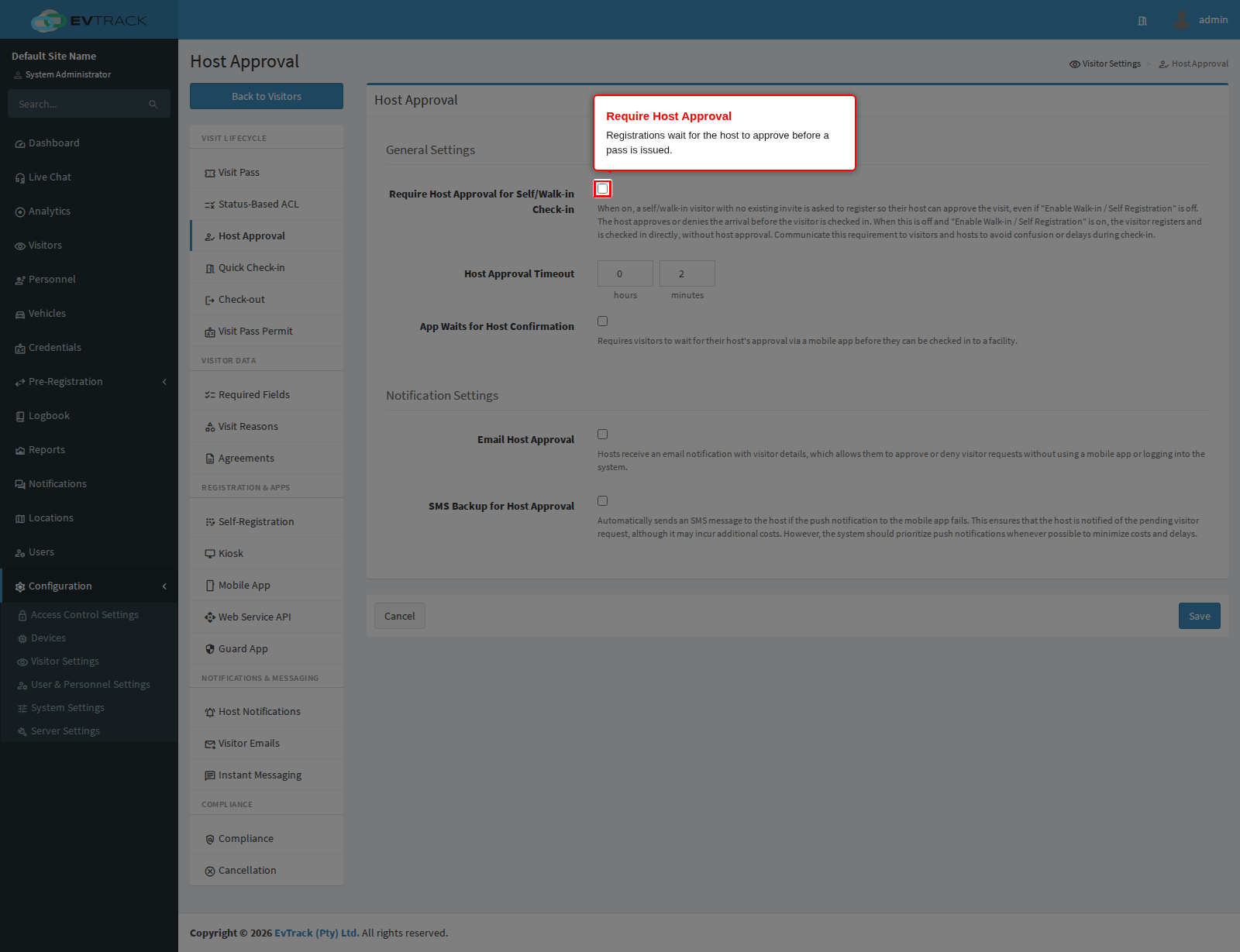
Open Visitors > Settings > Host Approval and enable Require Host Approval. The page also holds the supporting options:
- Fallback email / SMS - where approval requests go when the named host has no reachable address
- Approval timeout - how long a request may wait before it is treated per your policy
- Guard app waits for host approval - makes the guard flow hold at the checkpoint until the host answers
Step 2: Make sure the host is captured
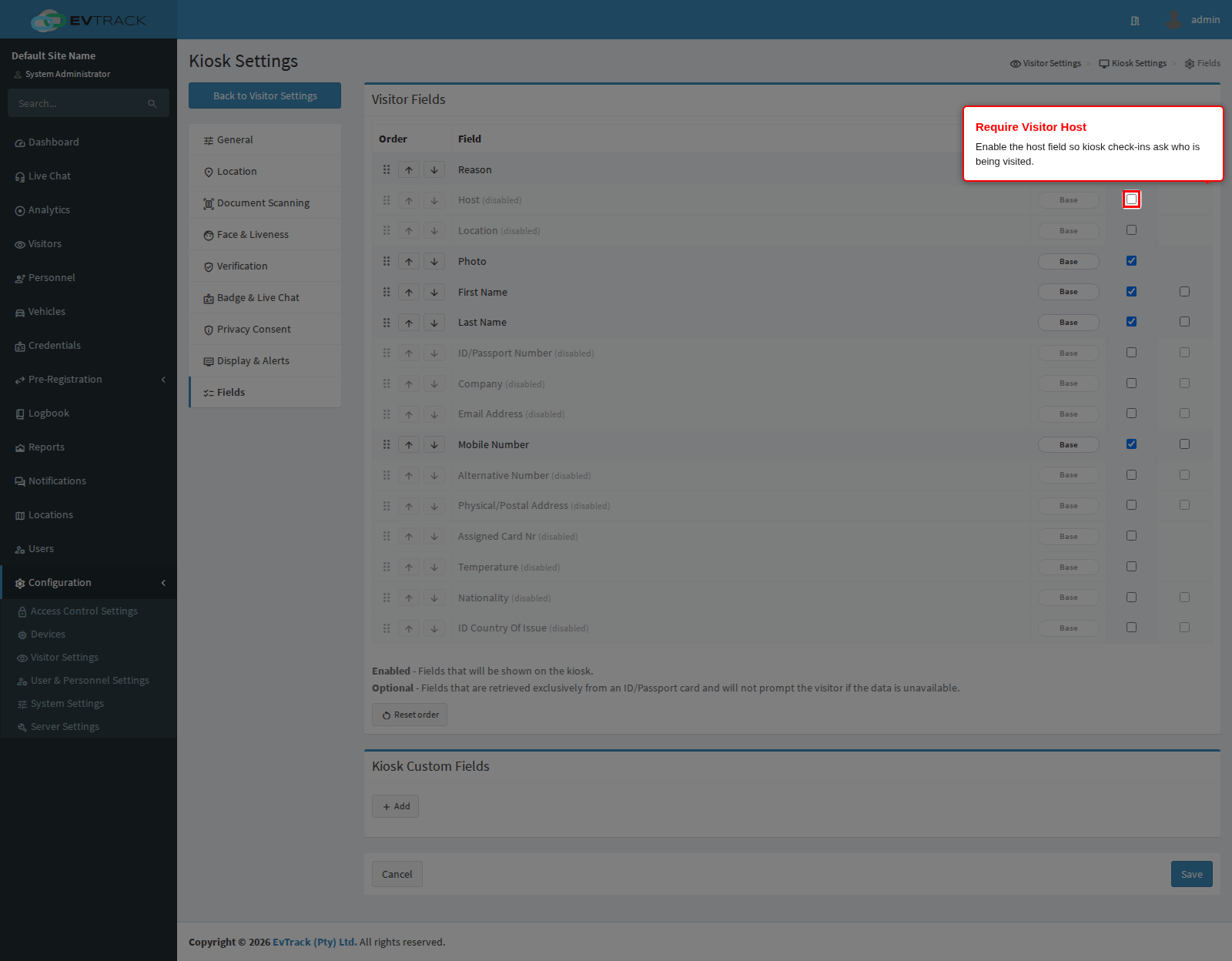
Approval only works when the check-in carries a host. Check the host field on every surface you use:
- Kiosk - enable the host field under Visitors > Settings > Kiosk > Fields so kiosk check-ins ask who is being visited
- Guard app - the equivalent field settings under Visitors > Settings > Guard App
- Invites - Assign to Host on the invite form names the host up front
The host user must have a valid email address on their user profile - that is where approval requests are sent.
Step 3: The approval flow
When a visitor checks in at the kiosk or with the guard app and names a host, the host receives an approval email with the visitor’s details and approve / deny action links. The visitor waits at the checkpoint; the kiosk and guard flows hold until the host answers (per the settings above) or the timeout passes.
Step 4: The outcome pages
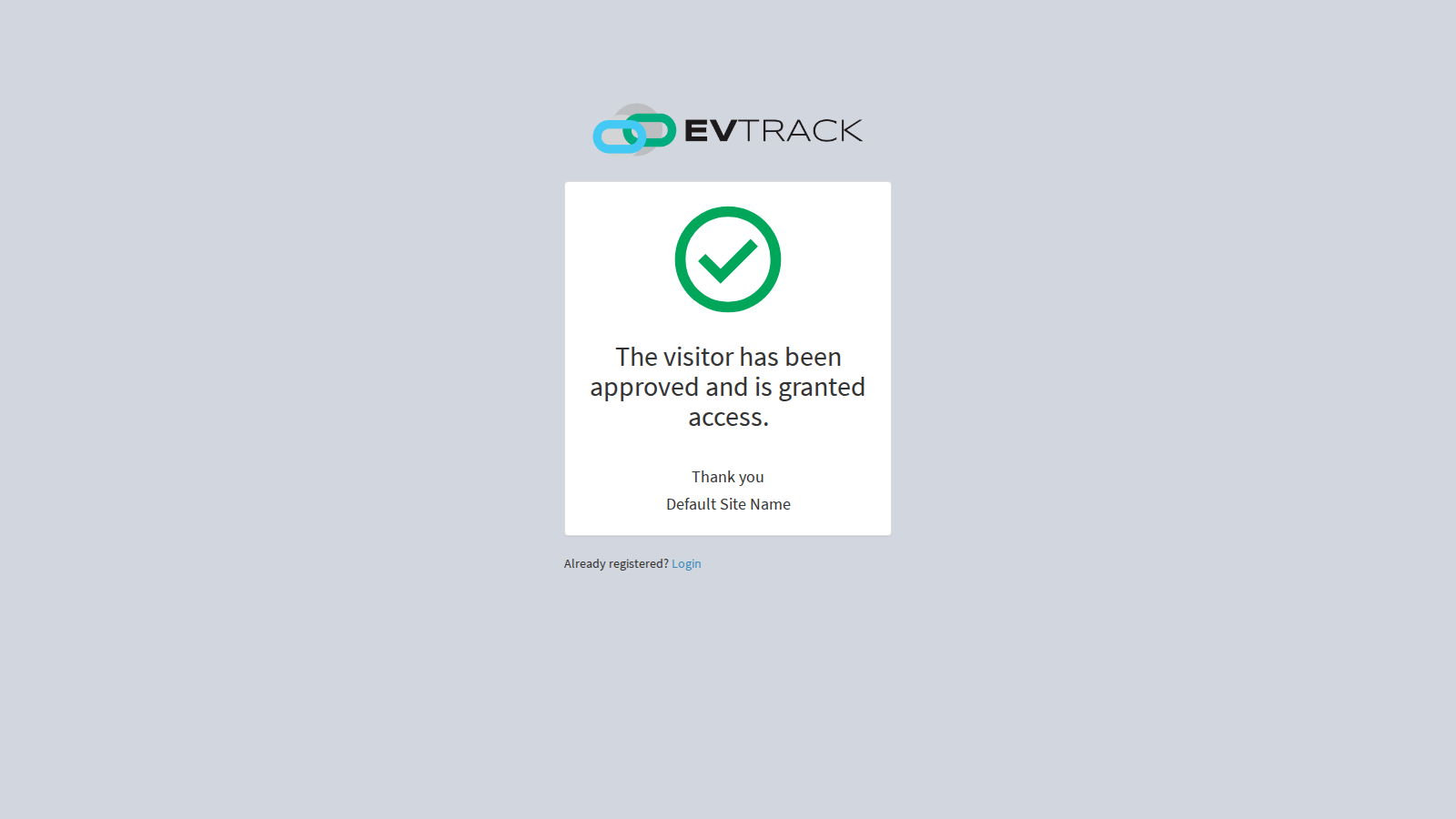
The email’s action links are public - no login needed. After acting, the host lands on a confirmation page; the visitor’s flow continues (access granted) or ends (denied). An expired request shows the timeout page. The capture below shows the full public confirmation page exactly as the host sees it after approving.
Note: while a request waits for approval it is visible to operators, who can still process it manually. See Check-in and Check-out for the lifecycle and Host Notifications for the arrival notifications hosts receive after approval.