EvTrack synchronises visitors and their credentials to Suprema BioStar 2 through the BioStar 2 Web SDK: approved visitors are created as BioStar 2 users with their card/QR credentials and access-group assignments, and are removed or disabled when the visit ends (configurable).
Prerequisites
- A reachable BioStar 2 server with the Web SDK (REST API) enabled and an API account (login ID + password) for EvTrack
- The BioStar 2 access groups the visitors should be assigned to
- Network access from the EvTrack server to the BioStar 2 server (HTTPS)
Step 1: Add the integration
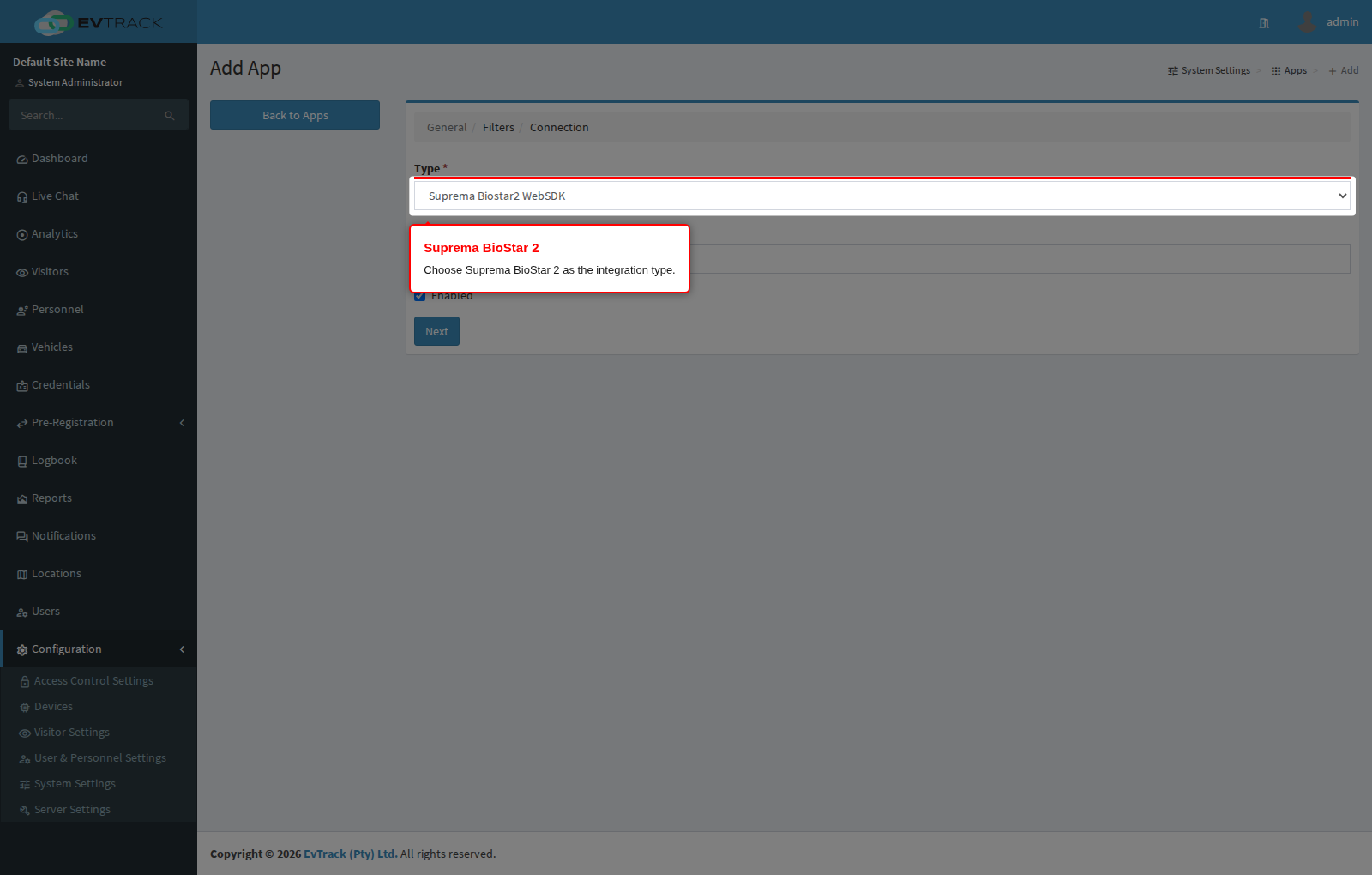
Open Configuration > System Settings > Apps and click Add, then choose Suprema Biostar2 WebSDK from the integration catalogue.
Step 2: Configure the connection
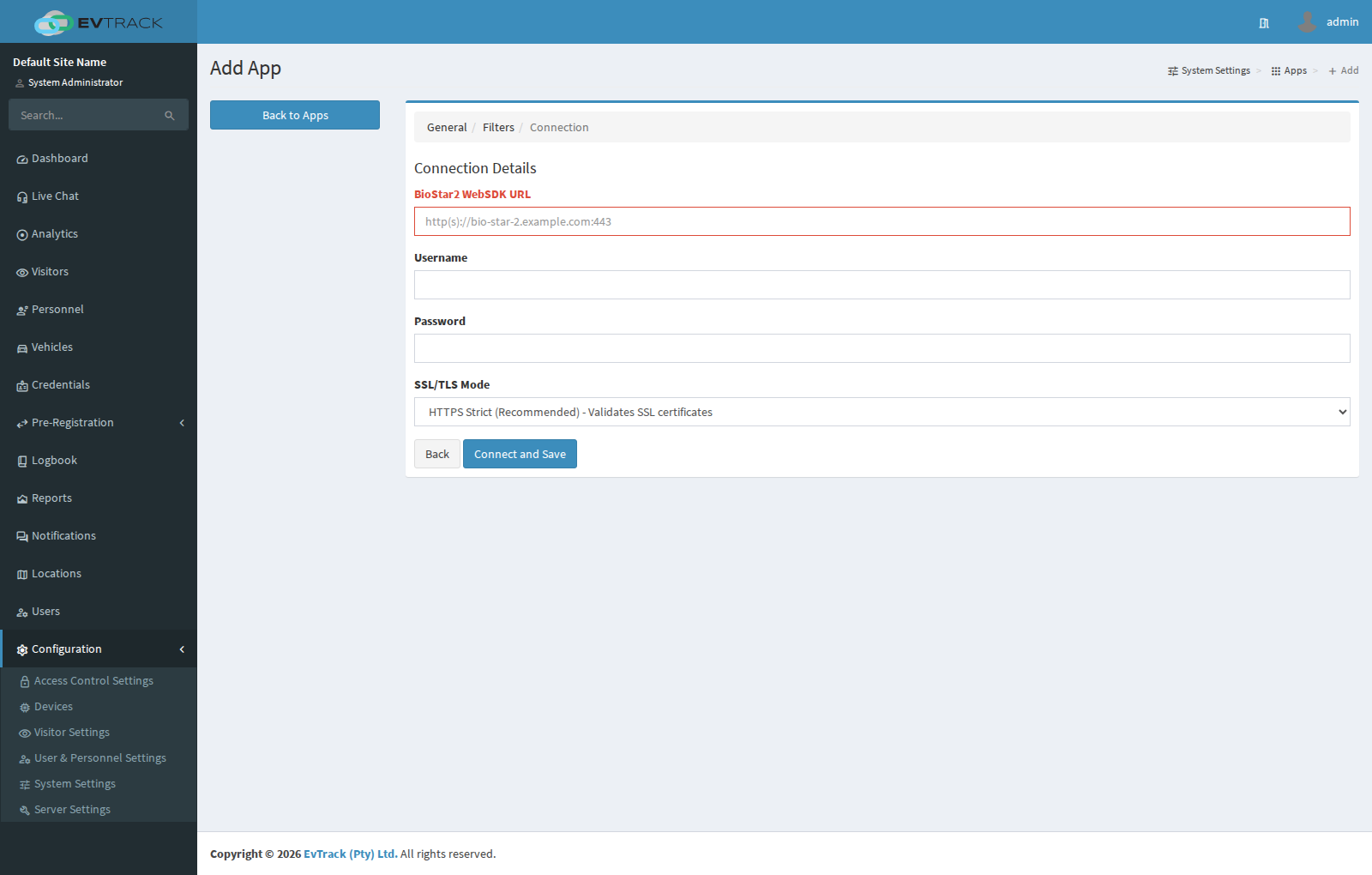
Give the integration a name and complete the connection settings - the BioStar 2 server URL, the API account credentials, and the synchronisation options (access groups, custom field mappings, and what happens on check-out). The form is a two-step wizard - General Details, then Next to Connection Details - and Connect and Save verifies the connection to the BioStar 2 server.
Once enabled, visit events flow to BioStar 2 automatically - no manual user administration is needed in BioStar 2 for visitors.
Only the access control lists a visit picks up from its current status and from its location are sent to BioStar 2, so a BioStar 2 access group mapped to the system-wide Visitor Default list alone is never assigned there - put that group on a per-status or location list as well.