Any detail of a user account - contact details, role, photo, validity window - can be changed from the user’s edit page.
Before you start: you need user administration rights. Changes take effect immediately on save; a logged-in user keeps their current session.
Step 1: Find the user
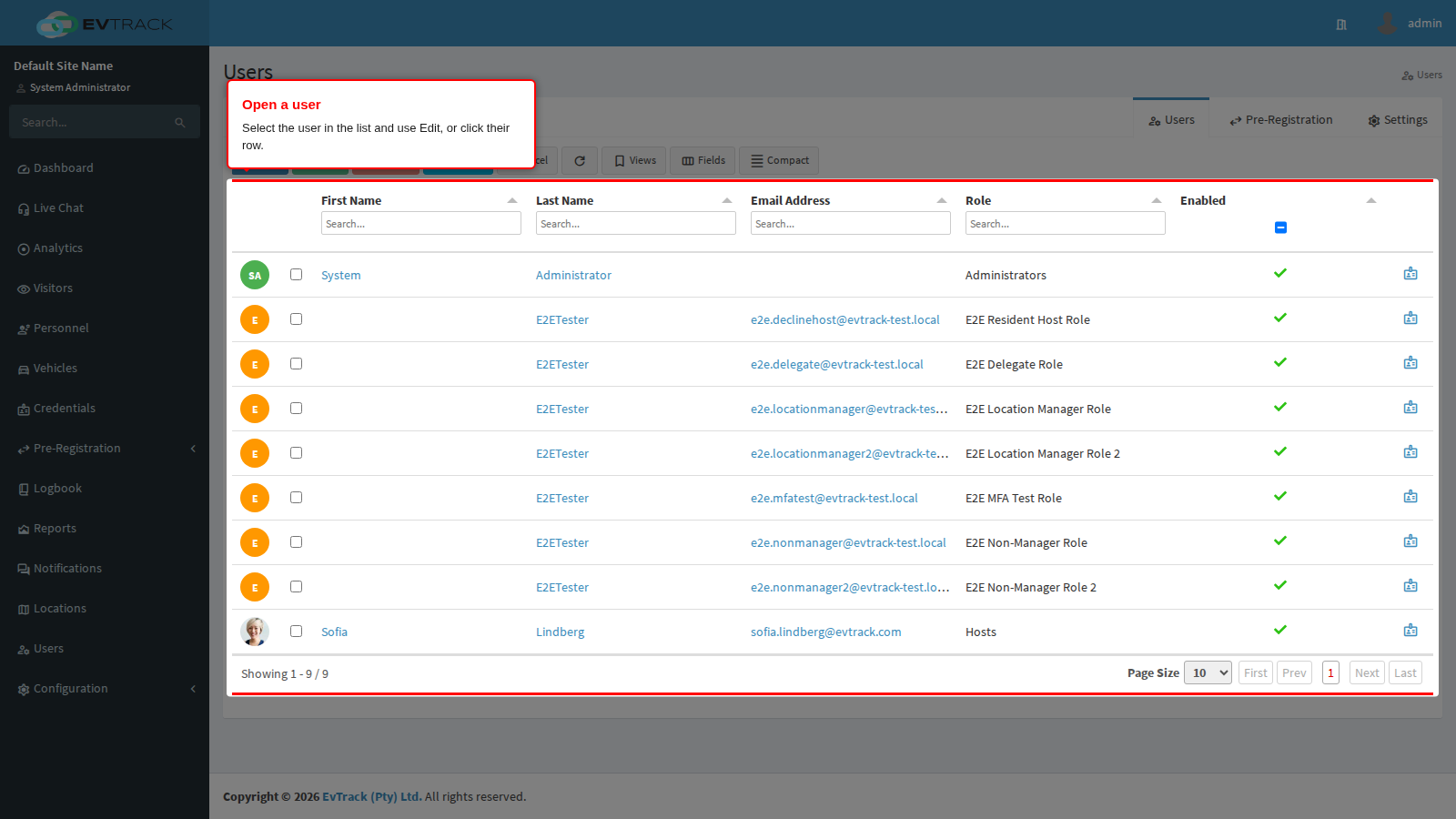
Click Users in the sidebar to open the user list. Find the user - the column headers filter as you type - then select their row and click Edit (or click the row) to open their record.
Step 2: Open the Profile tab
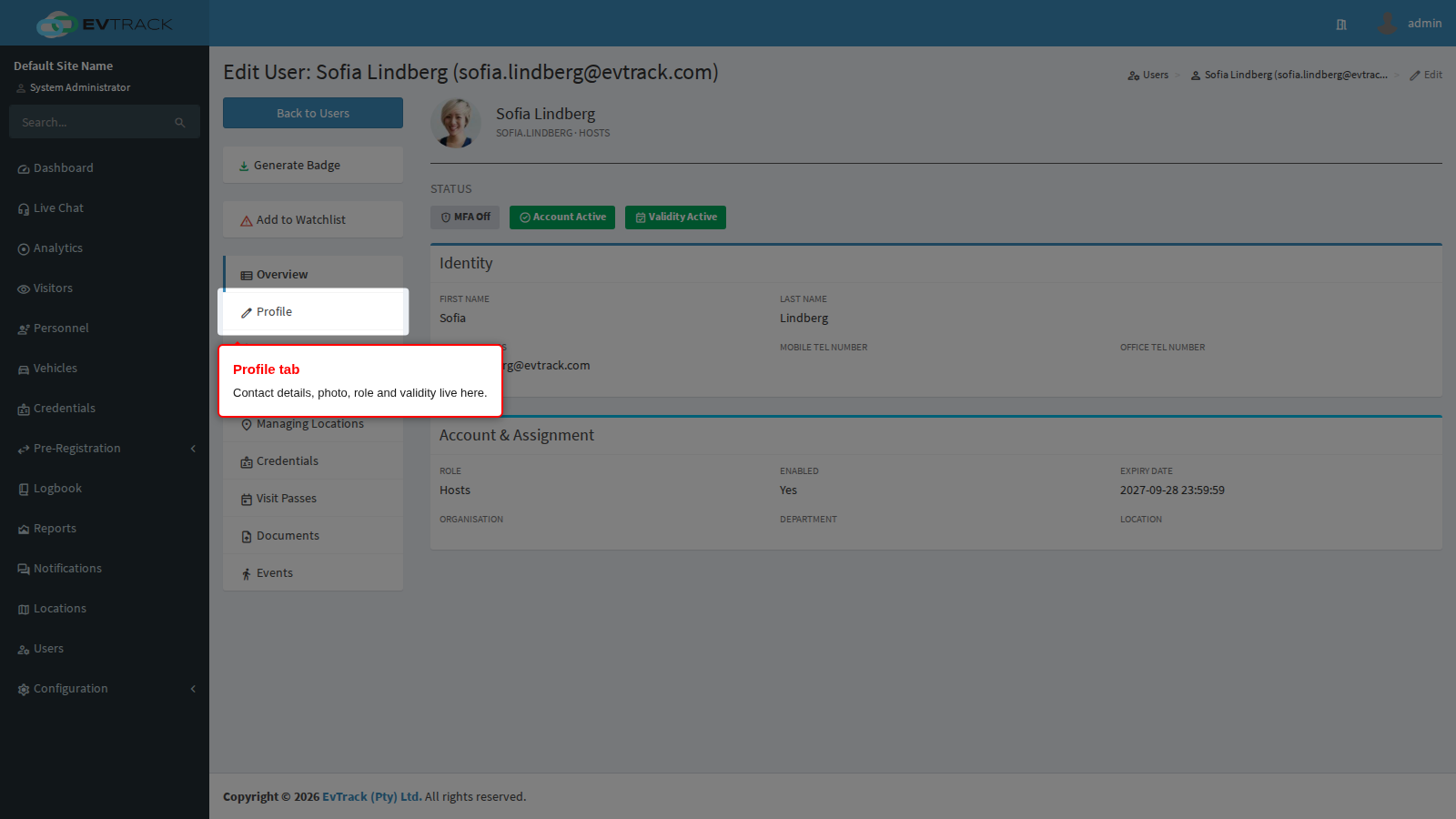
The edit page opens on the user’s tabs. Click Profile - contact details, the profile photo, role and the validity window all live here. Other tabs hold the user’s credentials, documents and history.
Step 3: Change the details
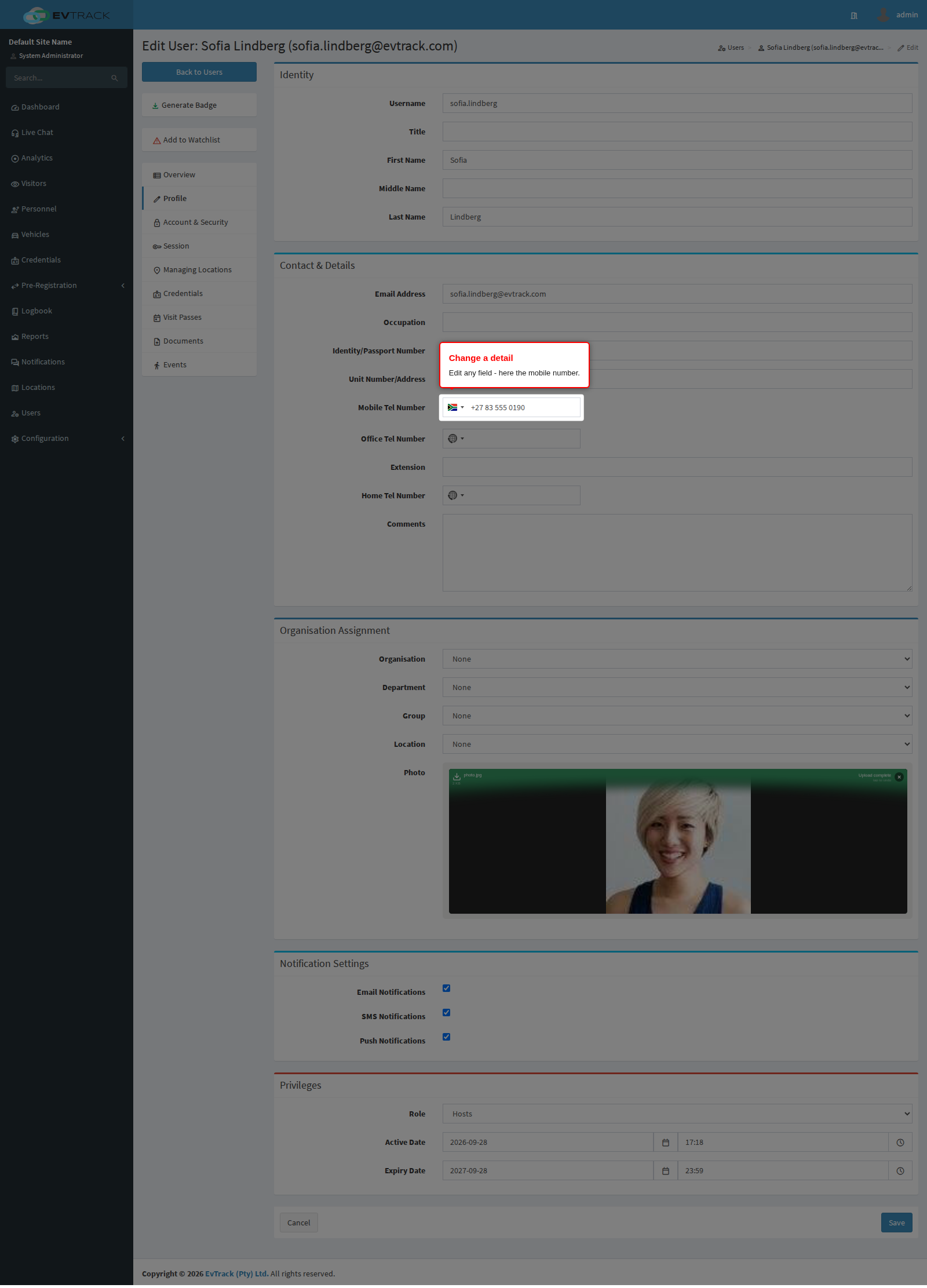
Edit any field. Here the mobile number is updated - the same applies to names, email, role or the photo.
Step 4: Save
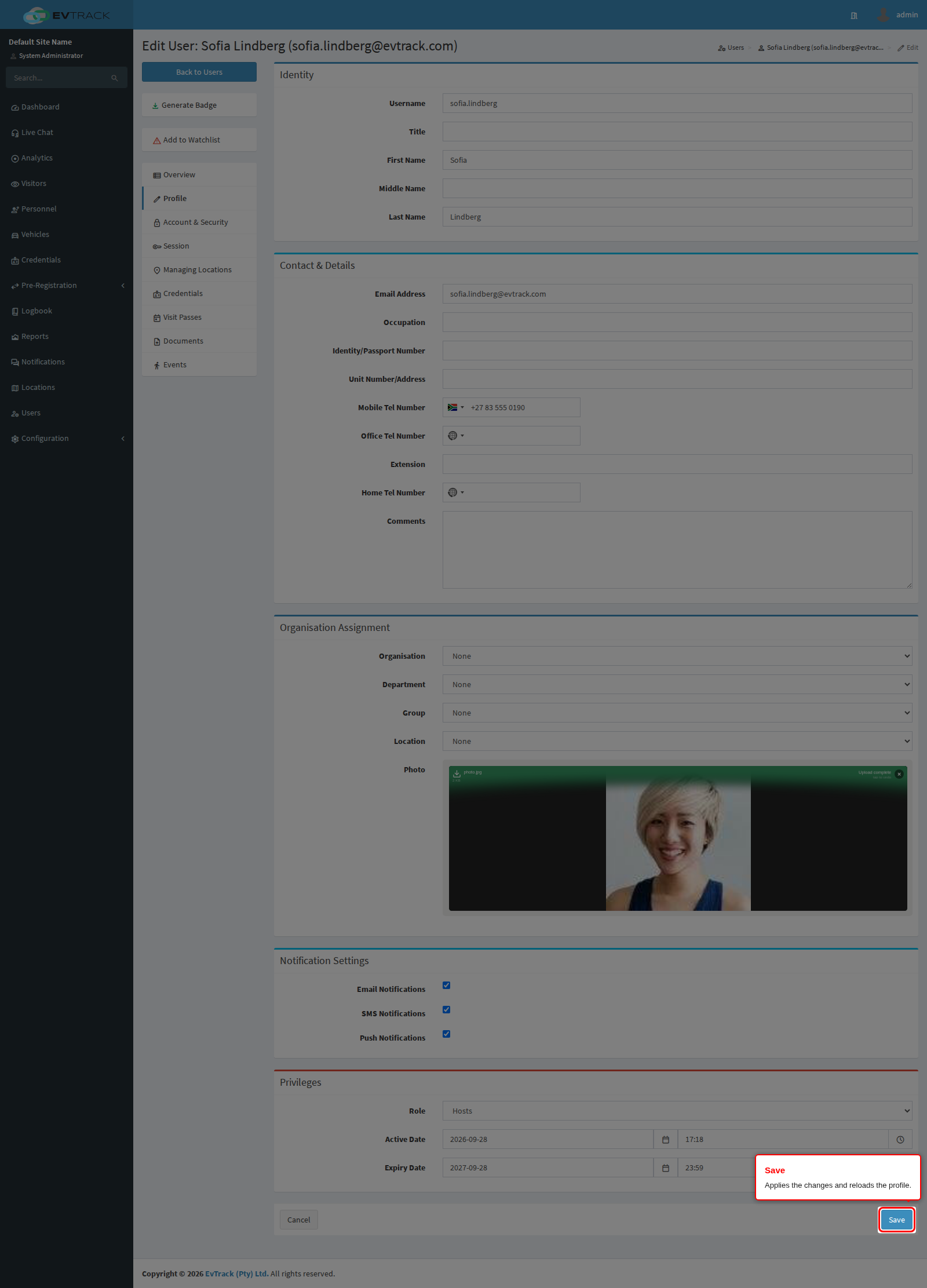
Click Save. The page reloads with the updated details; if a value is invalid the form re-opens with the problem highlighted. You should see the new value in place after the reload.
Notes
- Changing the validity window can update the user’s credentials too - see User Validity and Credential Expiry.
- Changing the email address affects where notifications and approval requests go.
- A changed role applies at the user’s next page load.
- Moving someone onto an administrator role, or onto a role that can view all visitors, opens a confirmation page before the change is stored: retype the person’s email address and confirm, exactly as when adding a user. Cancel leaves the account unchanged.
See also: Add a User and Delete a User.