Validation decides which identity-document numbers the system accepts, when two people are treated as the same person, and whether an expired scanned document may be used. It is one panel with four sections, and everything on it applies system-wide - to the admin screens, to public self-registration, to group member capture and to the kiosk.
Before you start: you need settings administration rights. Decide first which documents your visitors and staff actually present: an identity card, a passport, a driver’s licence, a works number. Every rule you leave unticked is a document format your operators will not be able to capture.
Step 1: Open Validation
In the left sidebar open Configuration, click System Settings, then click Validation under Localisation.
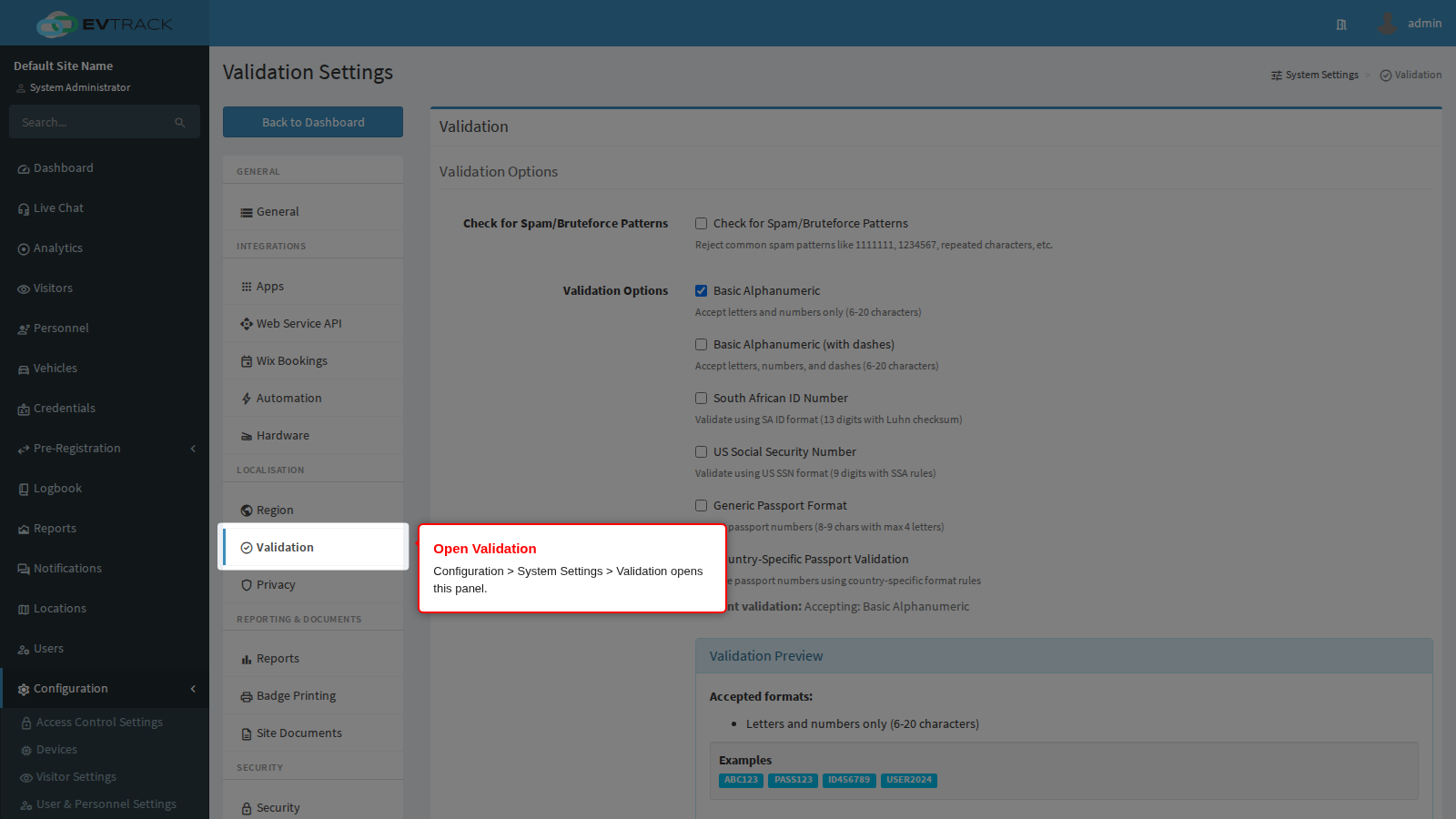
Click Save at the bottom of the panel to apply your changes, or Cancel to discard them. Nothing takes effect until you save.
How a document number is checked
Before the individual settings, the rule that ties them together:
- The enabled validation types are combined with OR. A number is accepted if it satisfies any one of the ticked rules. Ticking more types makes the check more permissive, not stricter.
- A blank field is always accepted here. Whether a field must be filled in at all is a separate decision, made by the required-fields settings for each capture channel. Validation only judges the content of a value that was supplied.
- If you untick every type, the system falls back to Basic Alphanumeric so capture never breaks completely.
- When a value is rejected, the operator or visitor sees “Invalid ID/Passport Number” on the identity field and the form is redisplayed with everything else they typed intact. Nothing is saved until the value passes.
- On the personnel form the two identity fields are checked against fixed rules regardless of the ticks below: Passport Number is always checked as a passport, and ID Number is always checked as a South African identity number. On visitor and user forms, the multi-choice OR rules apply.
Allowed Validation Types
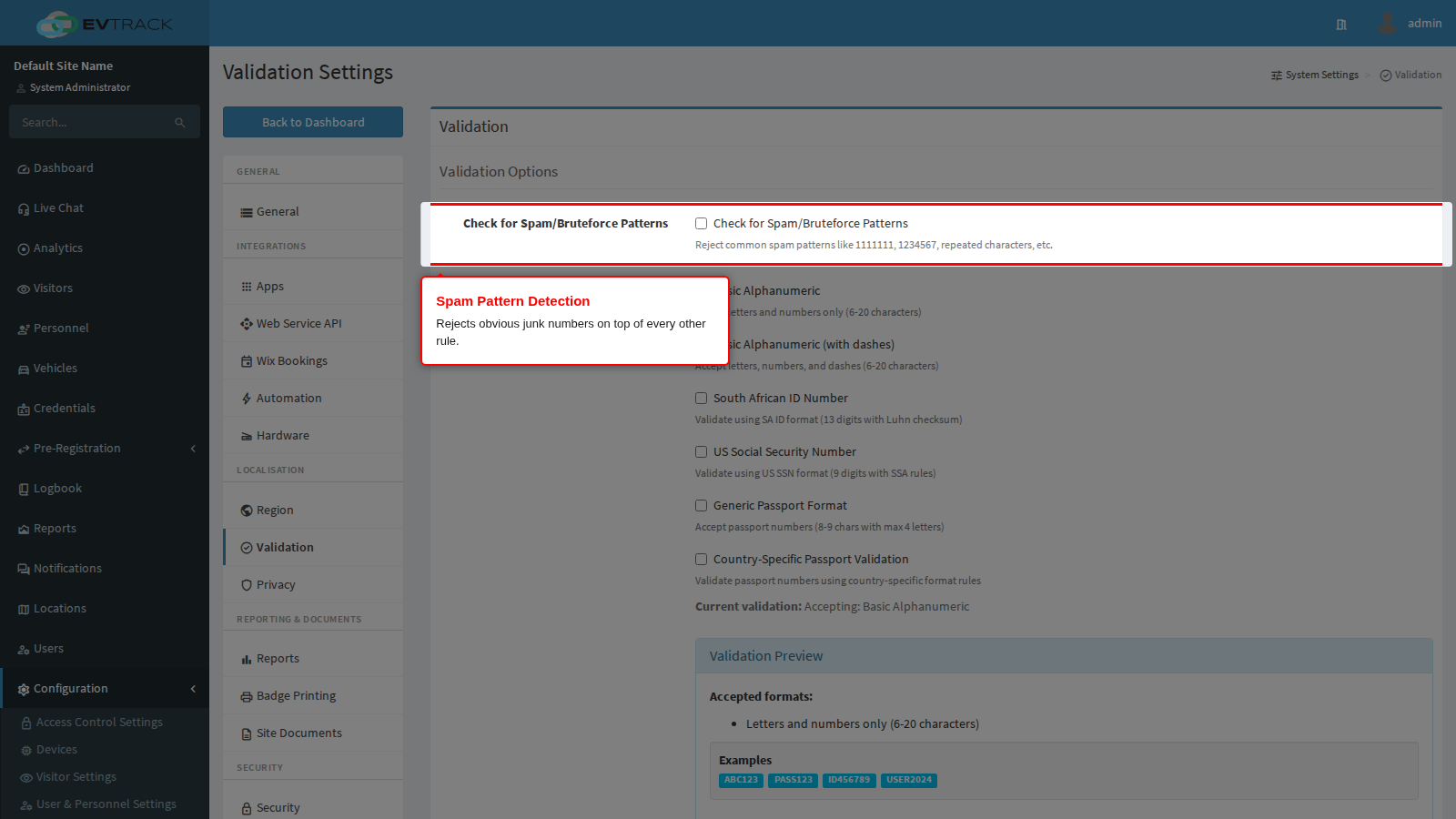
Check for Spam/Bruteforce Patterns rejects obvious junk before any other rule is applied: runs of one repeated digit (1111111), straight sequences (1234567, 7654321), and similar throwaway values. It is a filter on top of the other types, not a type of its own, so a value it rejects cannot be rescued by any other tick.
Turn it on for public self-registration, where visitors who do not want to give a real number type a placeholder. Turn it off if your organisation issues genuinely sequential works numbers that the filter would refuse.
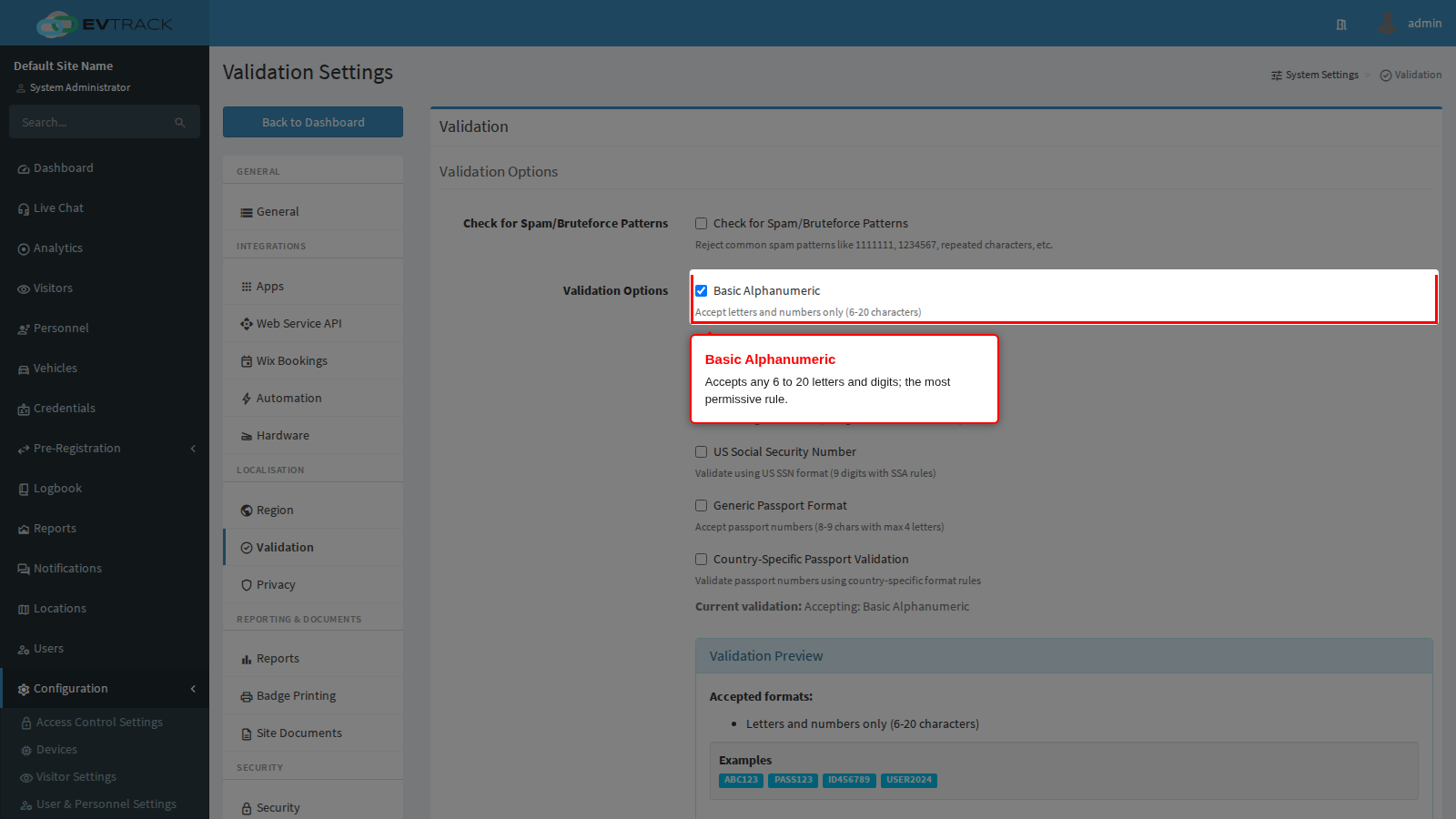
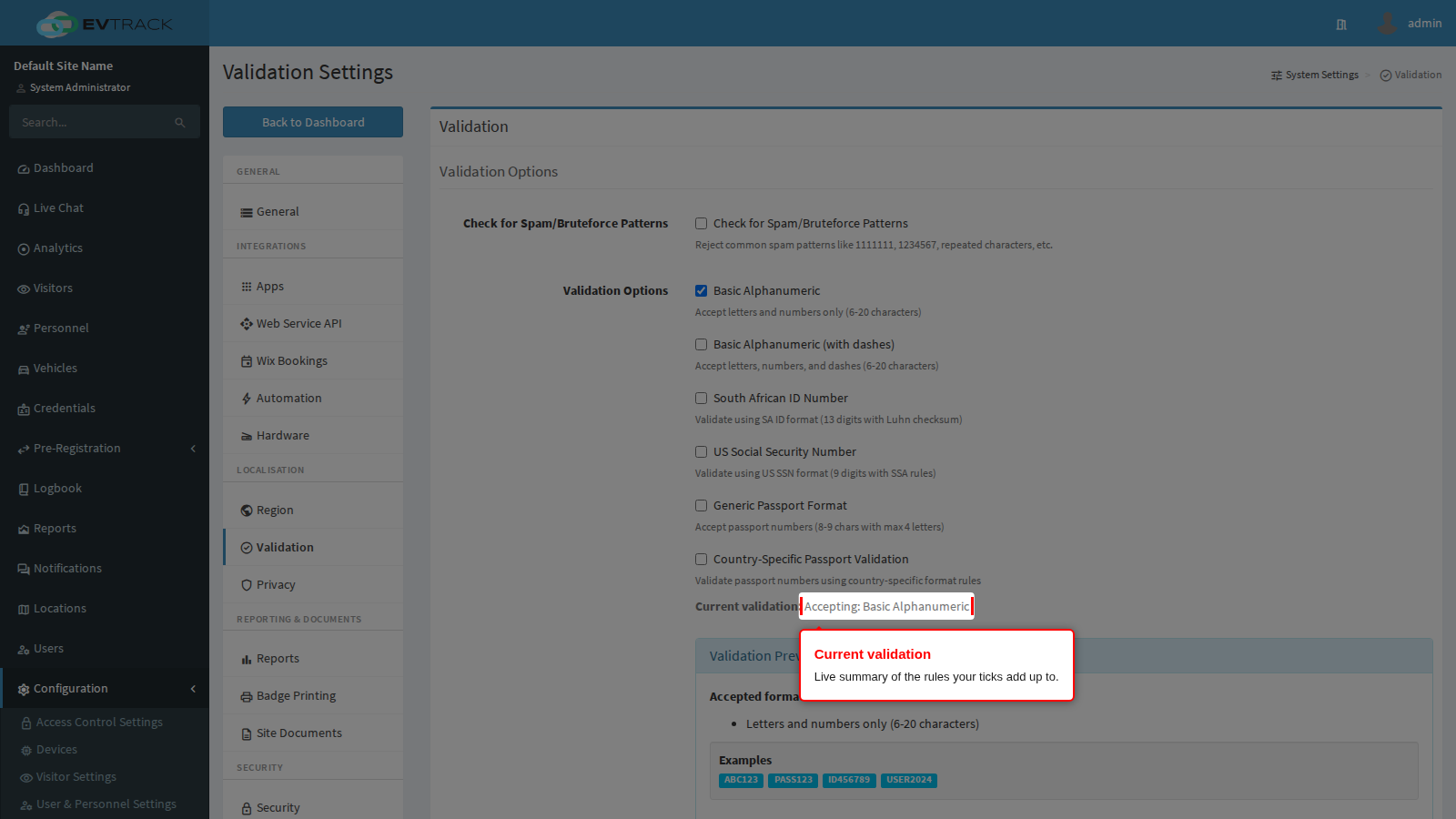
Basic Alphanumeric accepts any combination of letters and digits between 6 and 20 characters. It is the default, and it is the right choice when your visitors present a mix of documents you cannot predict. The trade-off is that it catches almost nothing: a typo of the right length passes.
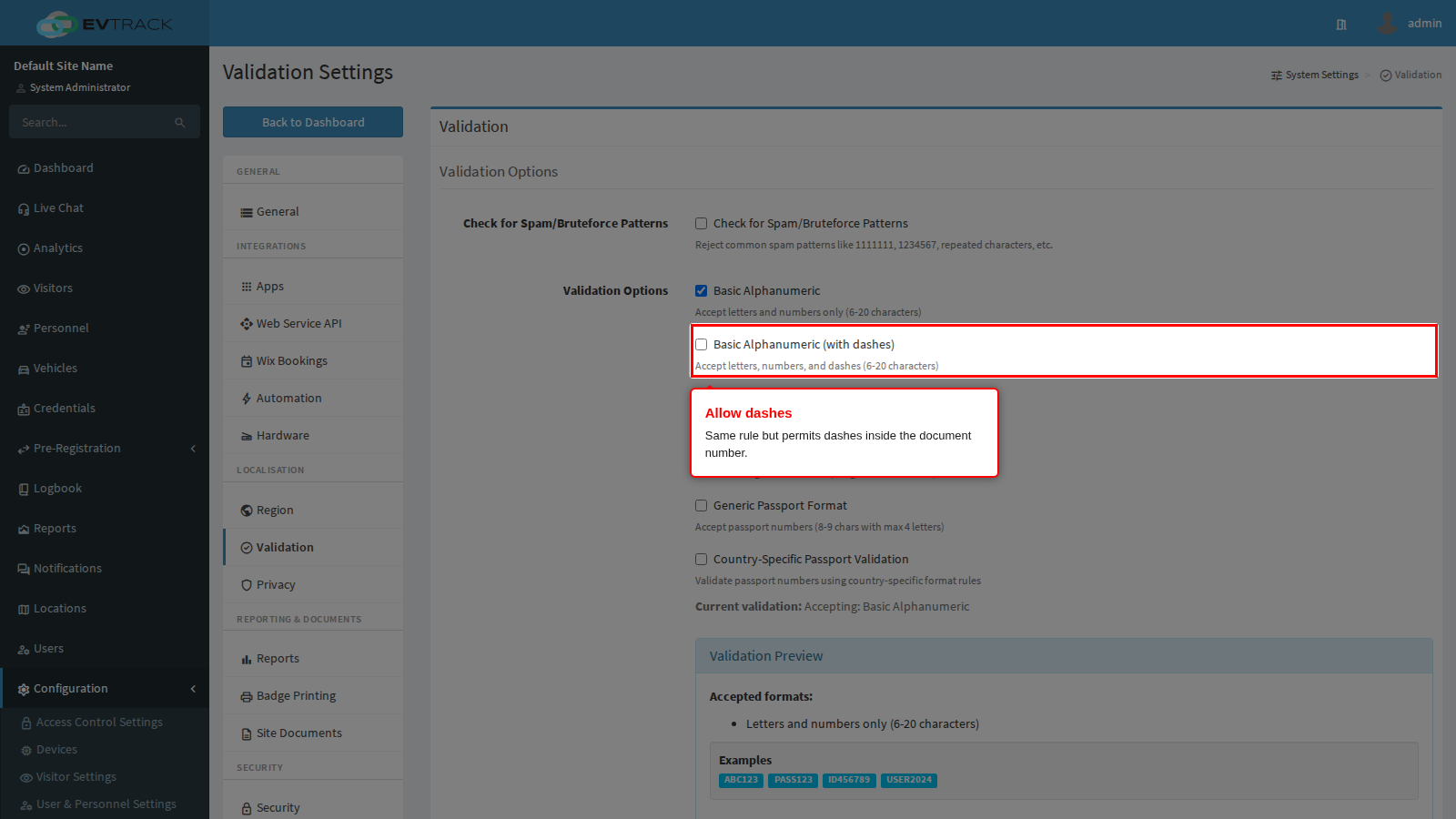
Basic Alphanumeric (with dashes) is the same 6 to 20 character rule but also permits dashes, for documents whose numbers are printed with separators. Enable it alongside, or instead of, Basic Alphanumeric when operators would otherwise have to strip the dashes by hand.
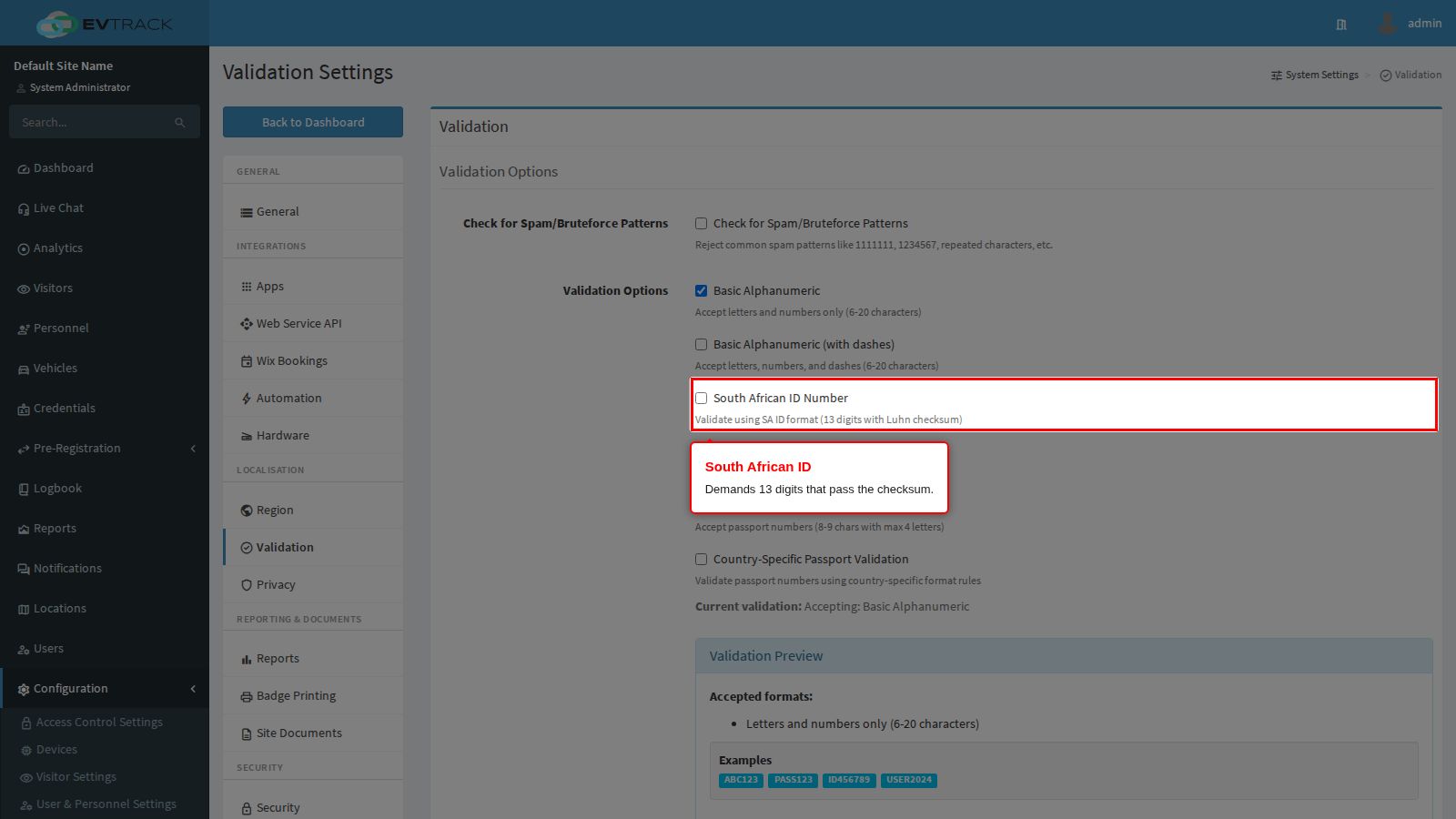
South African ID Number requires 13 digits that pass the South African checksum. This is the one rule with a special interaction worth knowing: when it is enabled, a 13-digit value must pass the checksum even if Basic Alphanumeric is also ticked. Without that rule a mistyped identity number would slip through on the permissive rule; with it, a transposed digit is caught at capture. Values that are not 13 digits (passports, staff numbers) are unaffected and still benefit from the other ticked rules.
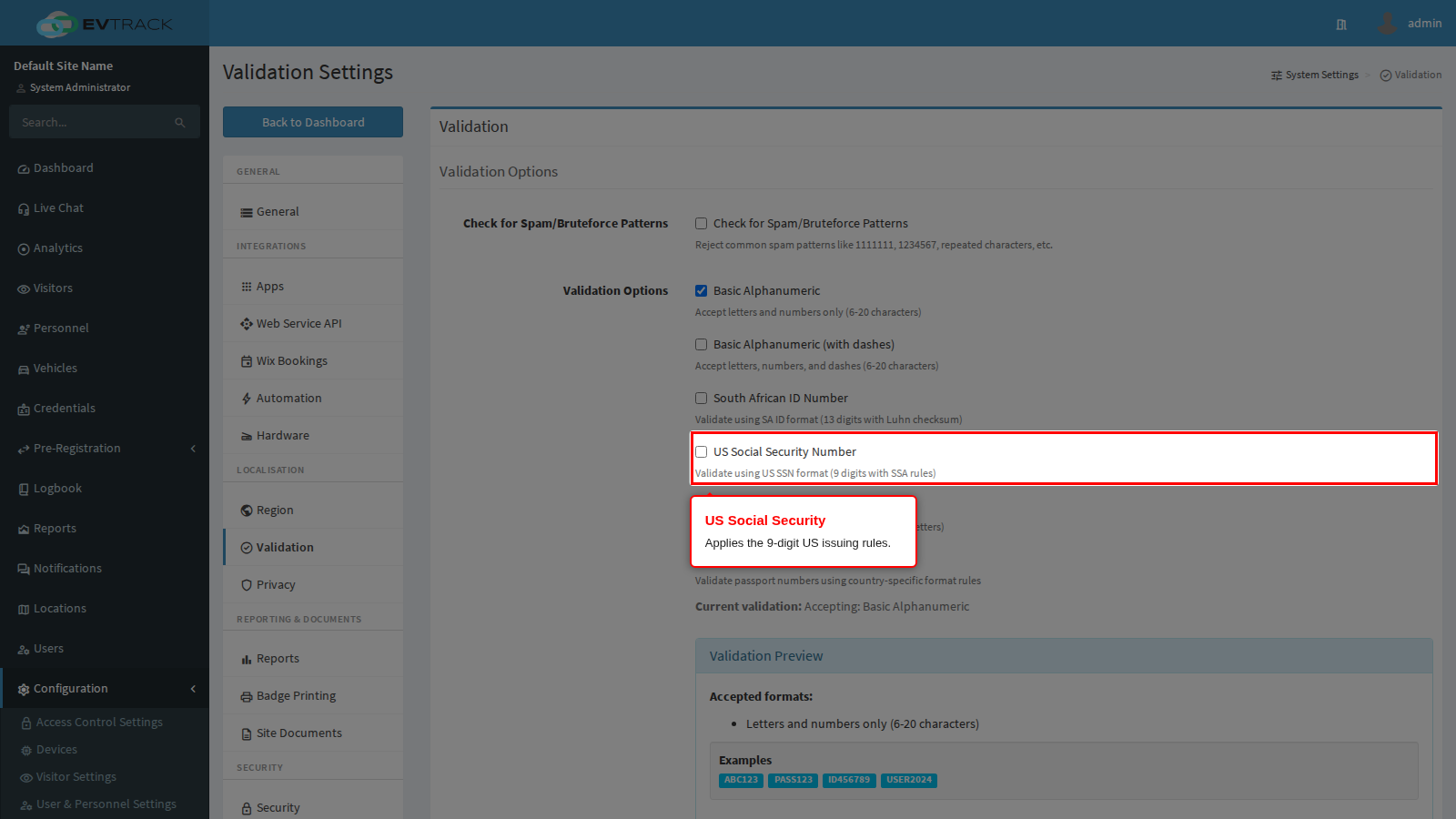
US Social Security Number applies the 9-digit US issuing rules. Enable it only where SSNs are genuinely presented; collecting them where they are not needed is a data-protection liability.
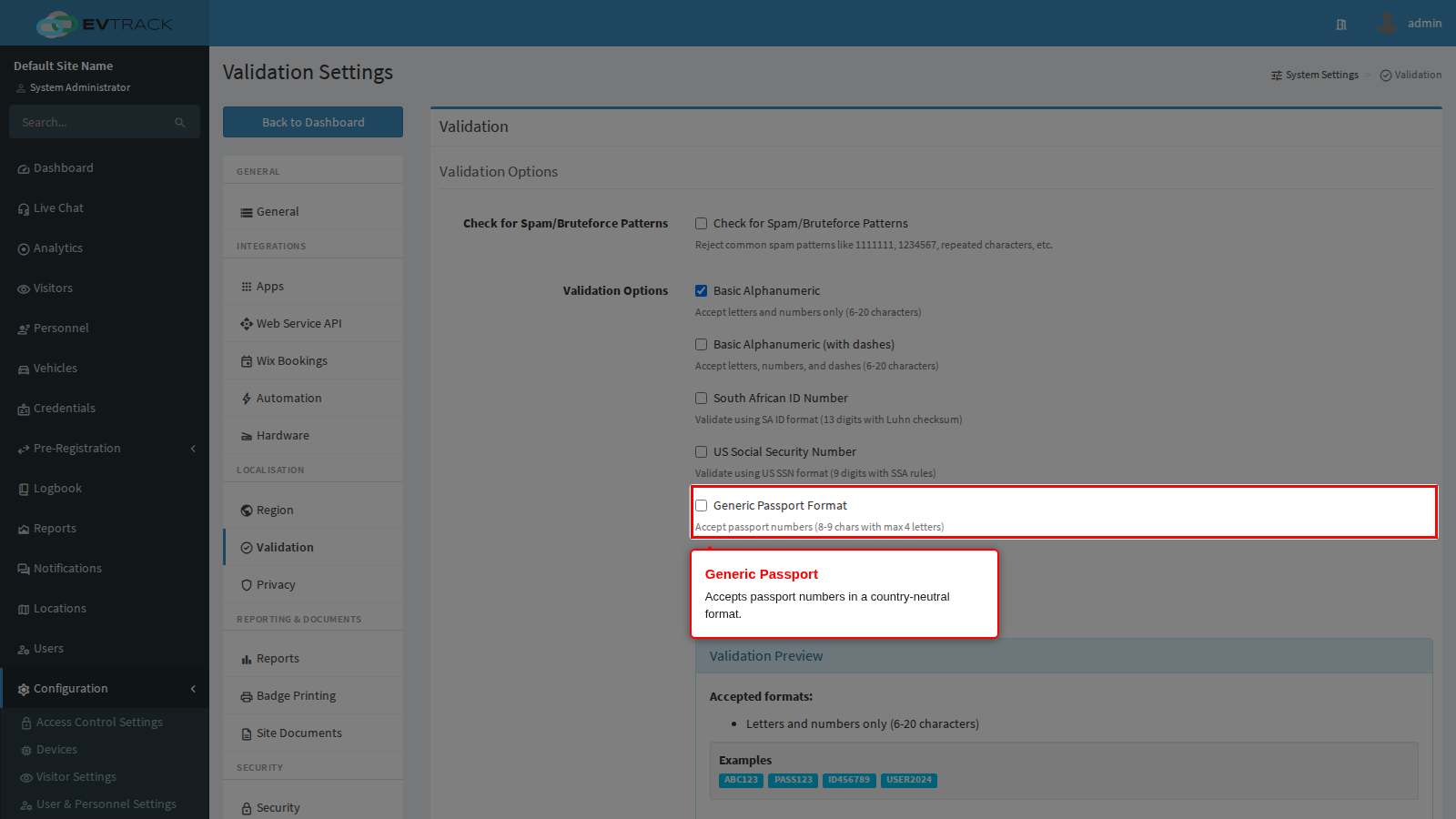
Generic Passport Format accepts a country-neutral passport number of 6 to 20 alphanumeric characters. This is the practical choice for a site that receives international visitors: it accepts every real passport without you having to predict which countries turn up.
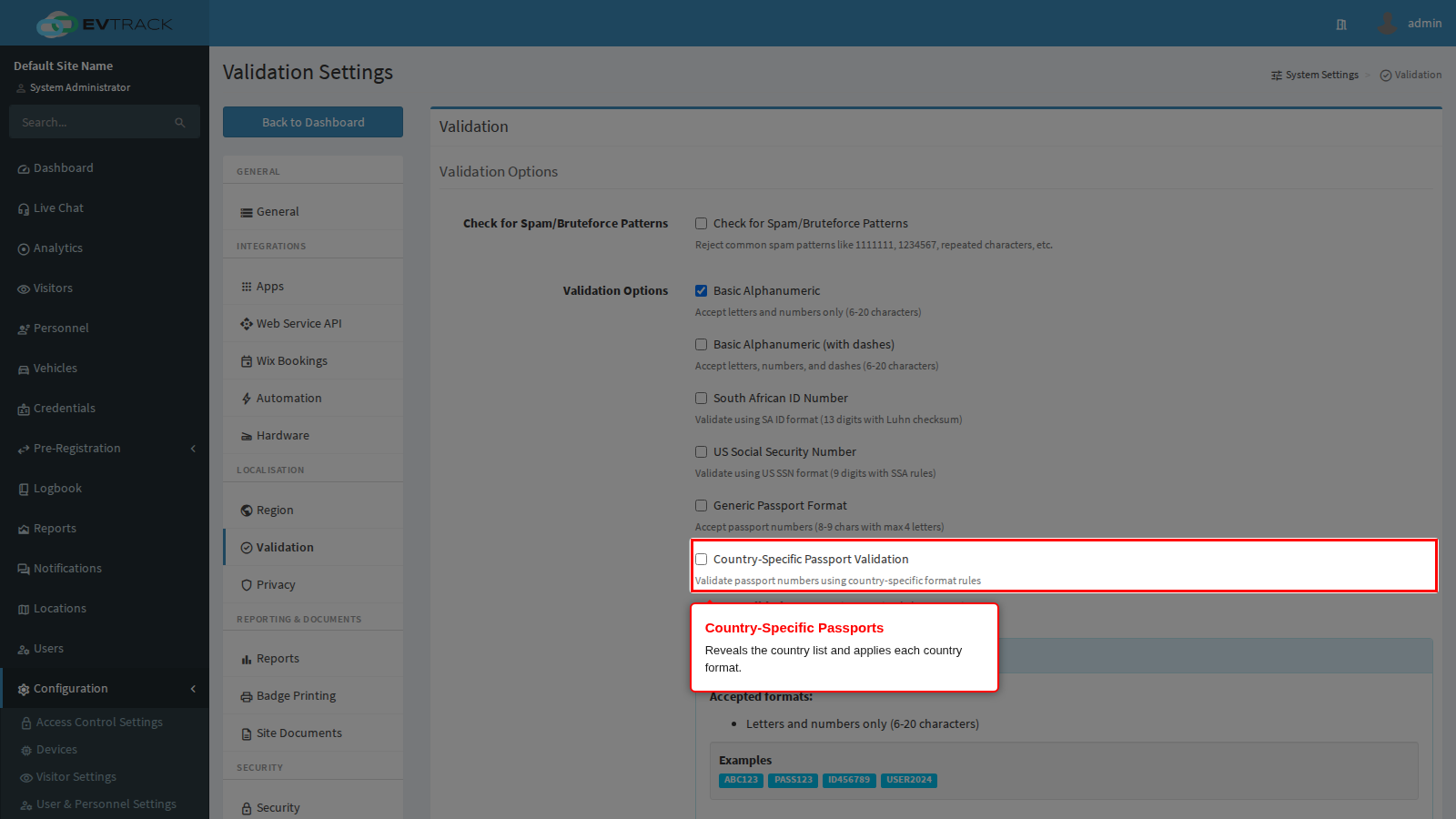
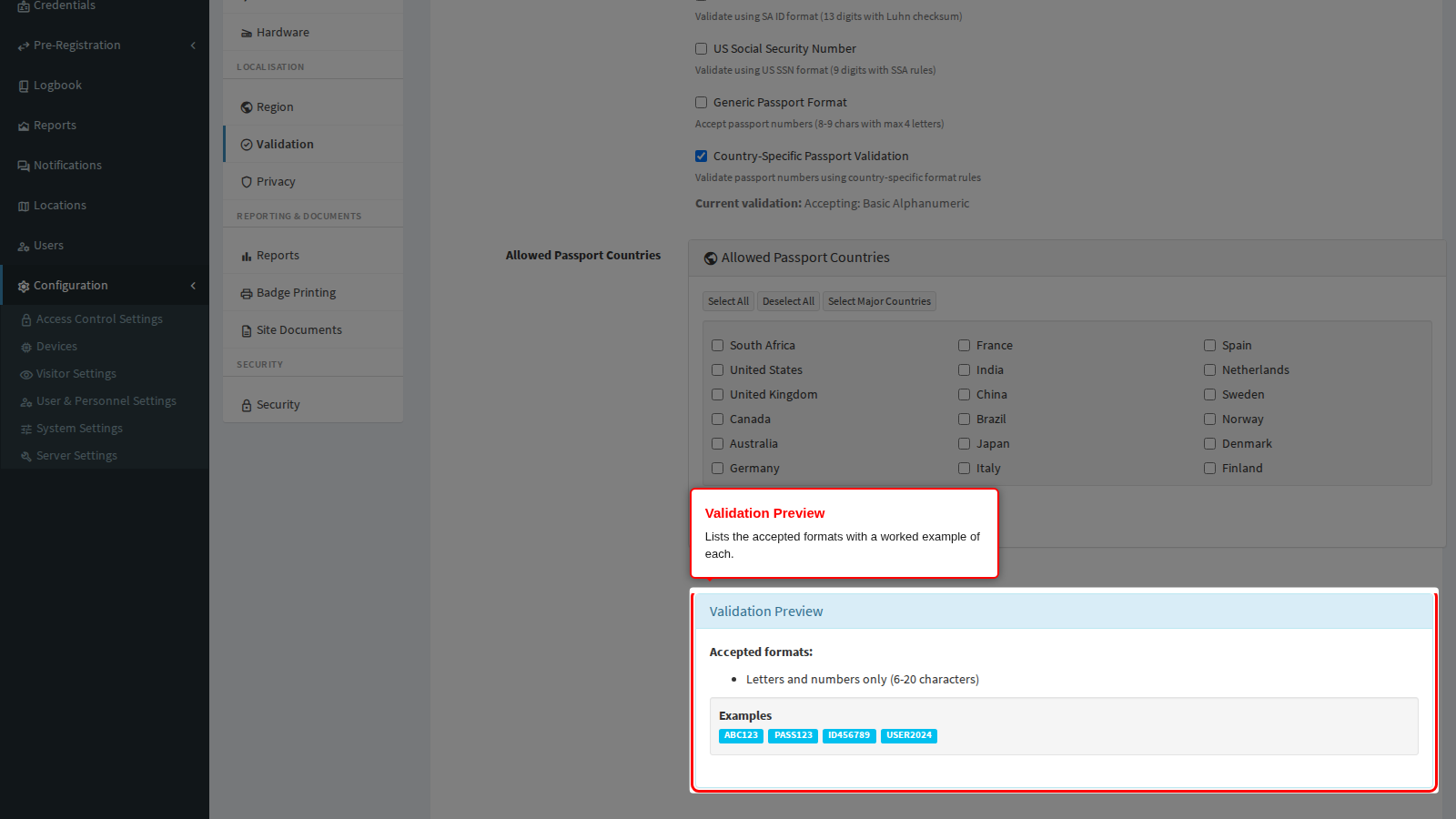
Country-Specific Passport Validation replaces that generic rule with per-country format rules and reveals the Allowed Passport Countries panel below. It is stricter and it will reject a valid passport from any country you did not tick, so use it only where you control who visits. If you enable it and tick no countries at all, the country rule contributes nothing and the panel is not saved as valid.
Current validation is a live line of text under the options that restates the rules your ticks add up to. Read it after every change: it is the quickest confirmation that you enabled what you meant to. A warning also appears here if you have unticked everything.
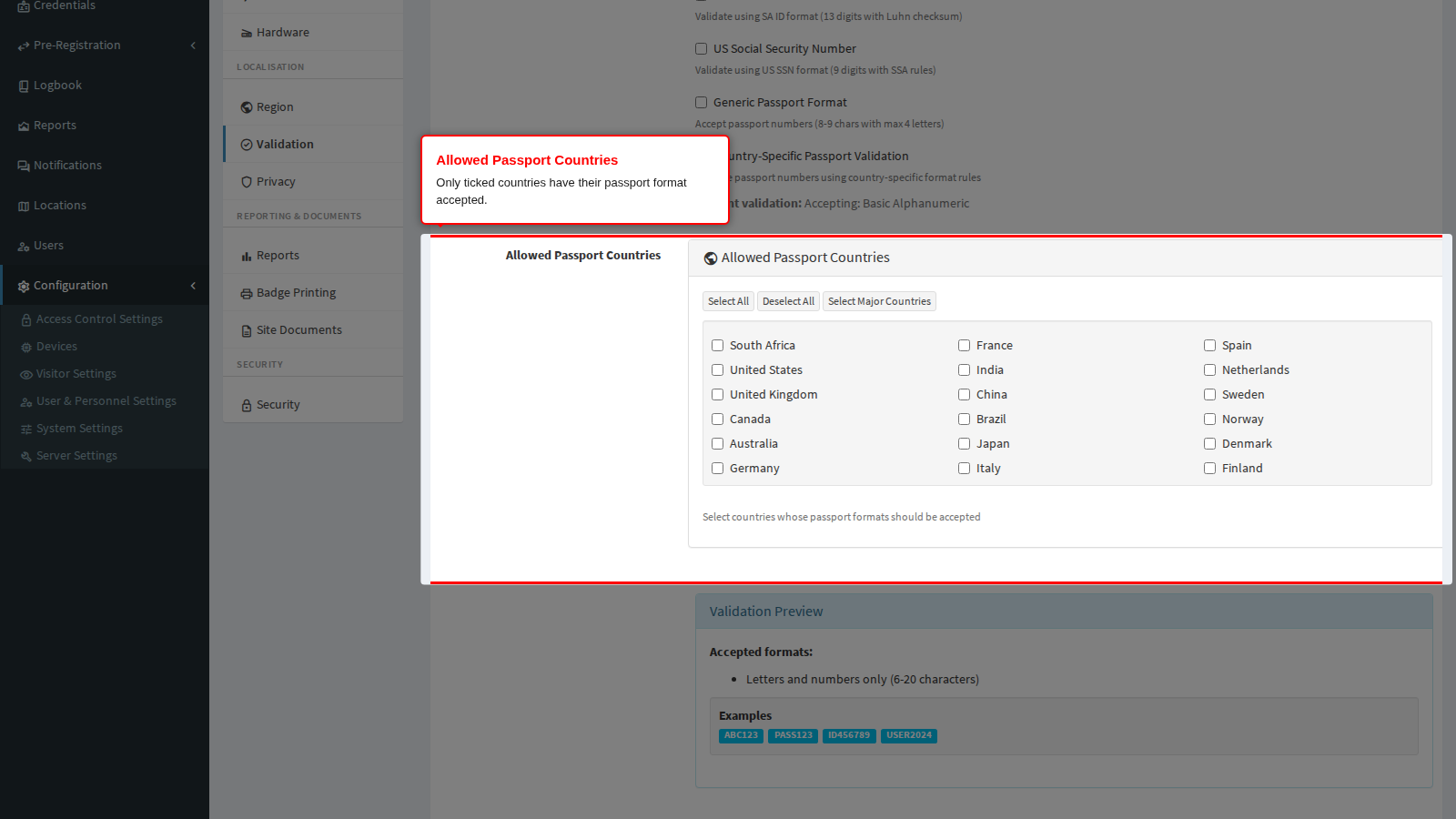
Allowed Passport Countries
This panel appears only while Country-Specific Passport Validation is ticked. Passports from countries that are not ticked are rejected.
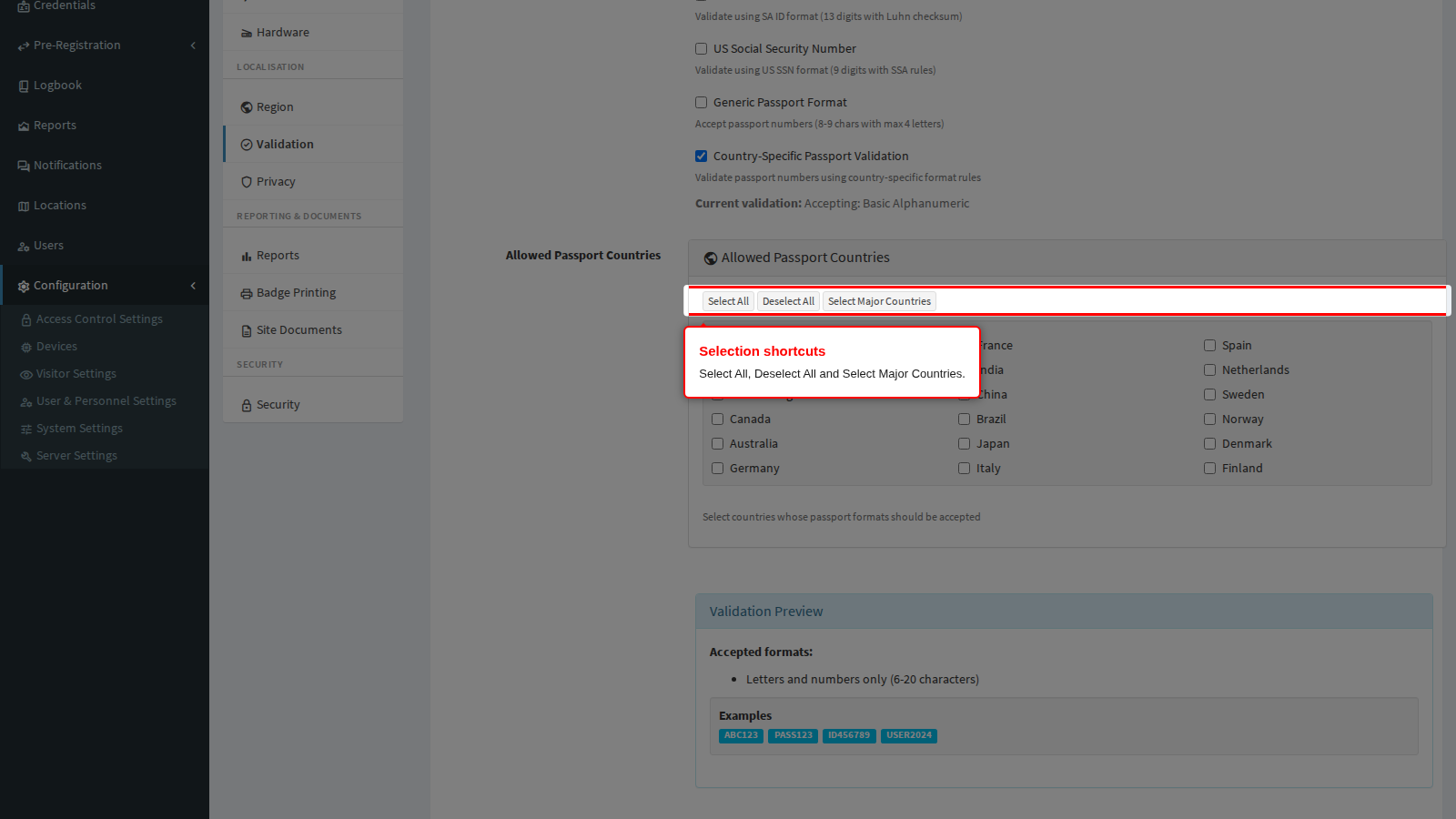
The shortcut buttons operate on the whole list: Select All ticks every country, Deselect All clears them, and Select Major Countries ticks the eleven largest-traffic countries so you can start from a sensible set and prune it.
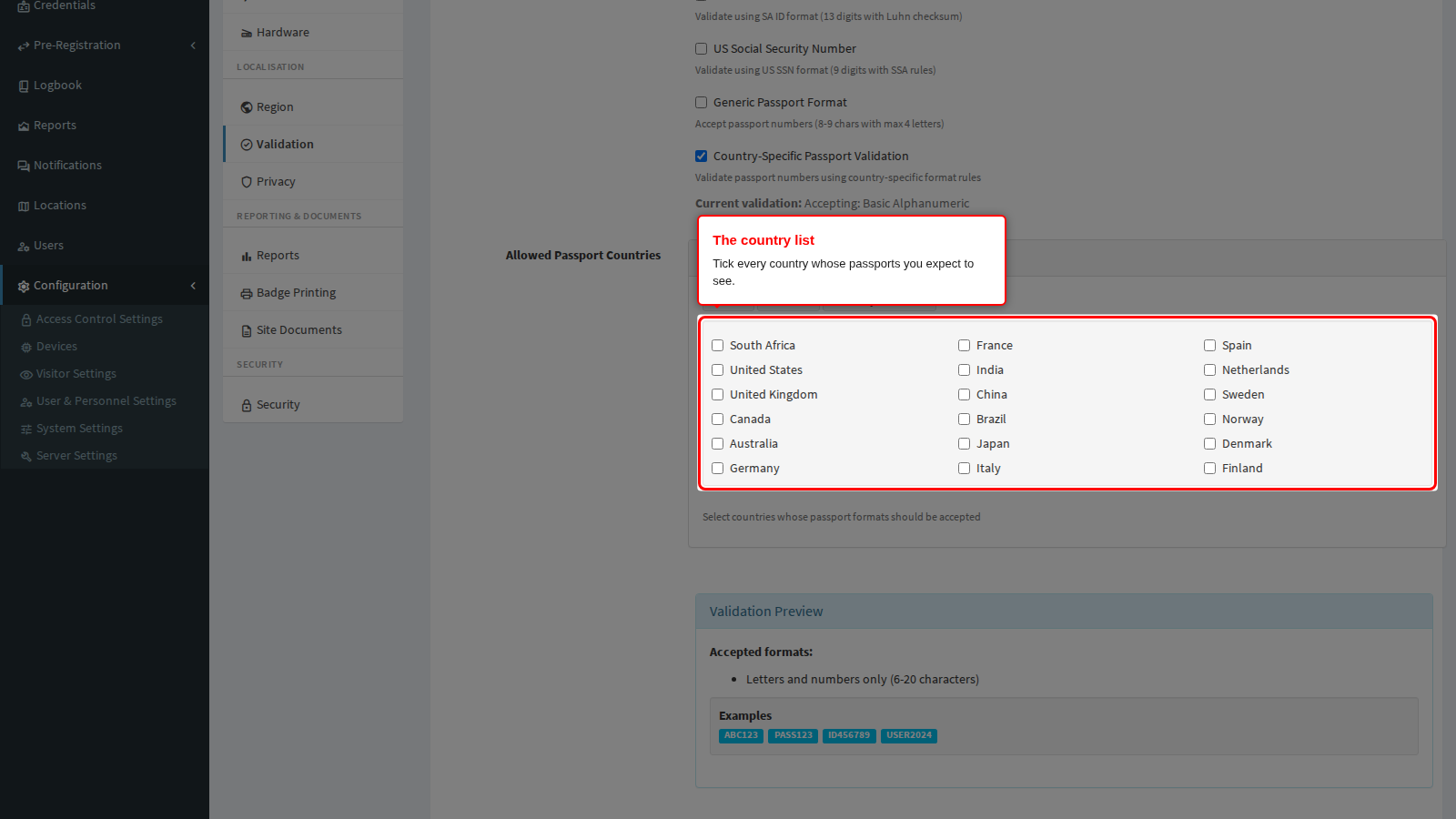
The list itself covers South Africa, United States, United Kingdom, Canada, Australia, Germany, France, India, China, Brazil, Japan, Italy, Spain, Netherlands, Sweden, Norway, Denmark and Finland. Tick every country whose passports your reception genuinely sees; an unticked country means a real visitor standing at the counter cannot be captured.
Validation Preview
The preview panel restates, in plain language, every format currently accepted and shows a worked example of each. It updates as you tick and untick, before you save.
Use it as the acceptance test for this page: if a format your operators handle every day is not listed here, they will not be able to capture it after you save.
Duplicate Visitor Detection
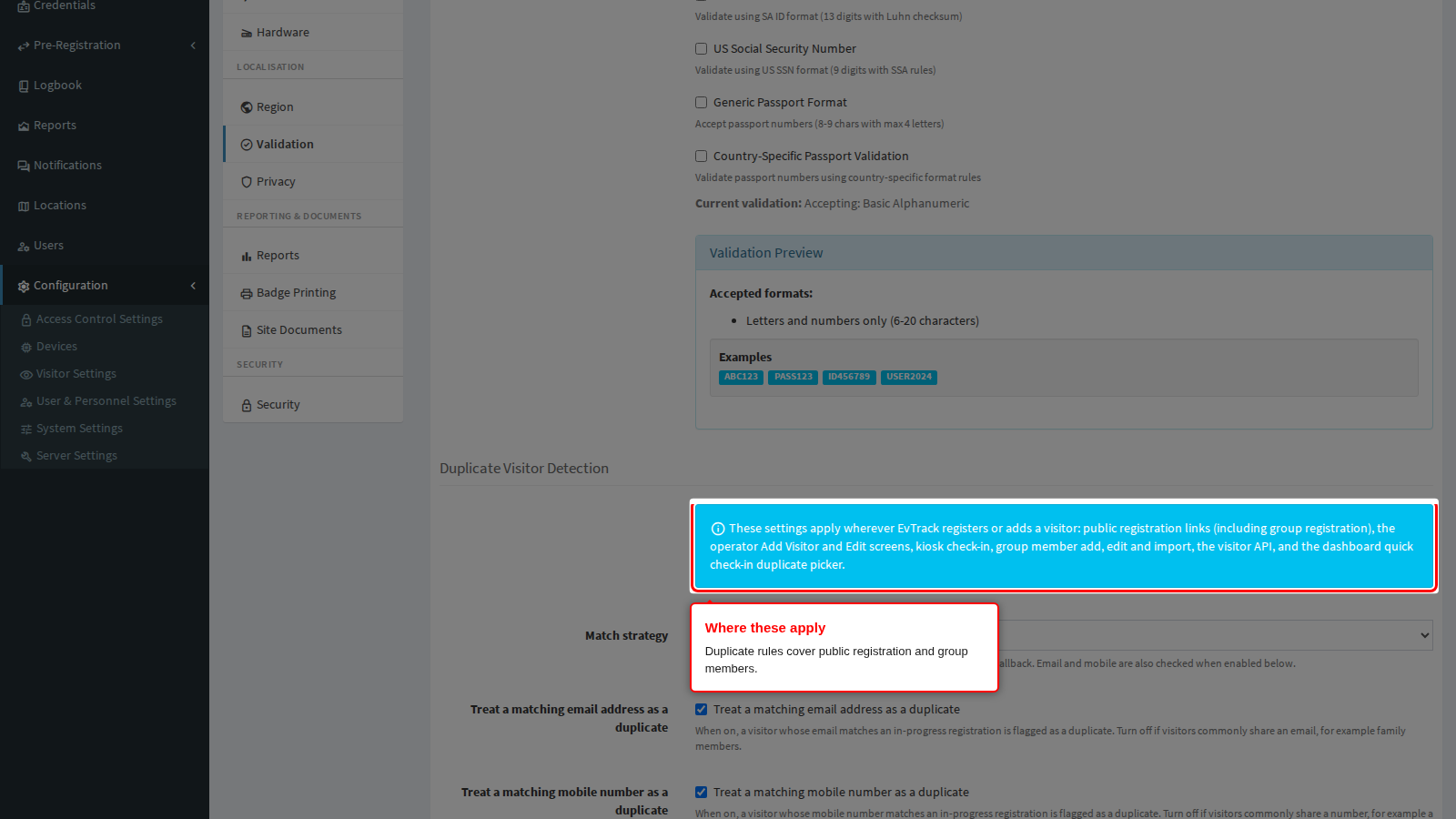
These rules decide when an incoming registration is treated as somebody who is already in the system. They apply to public visitor registration and group member management - the channels where the person, not an operator, types their own details.
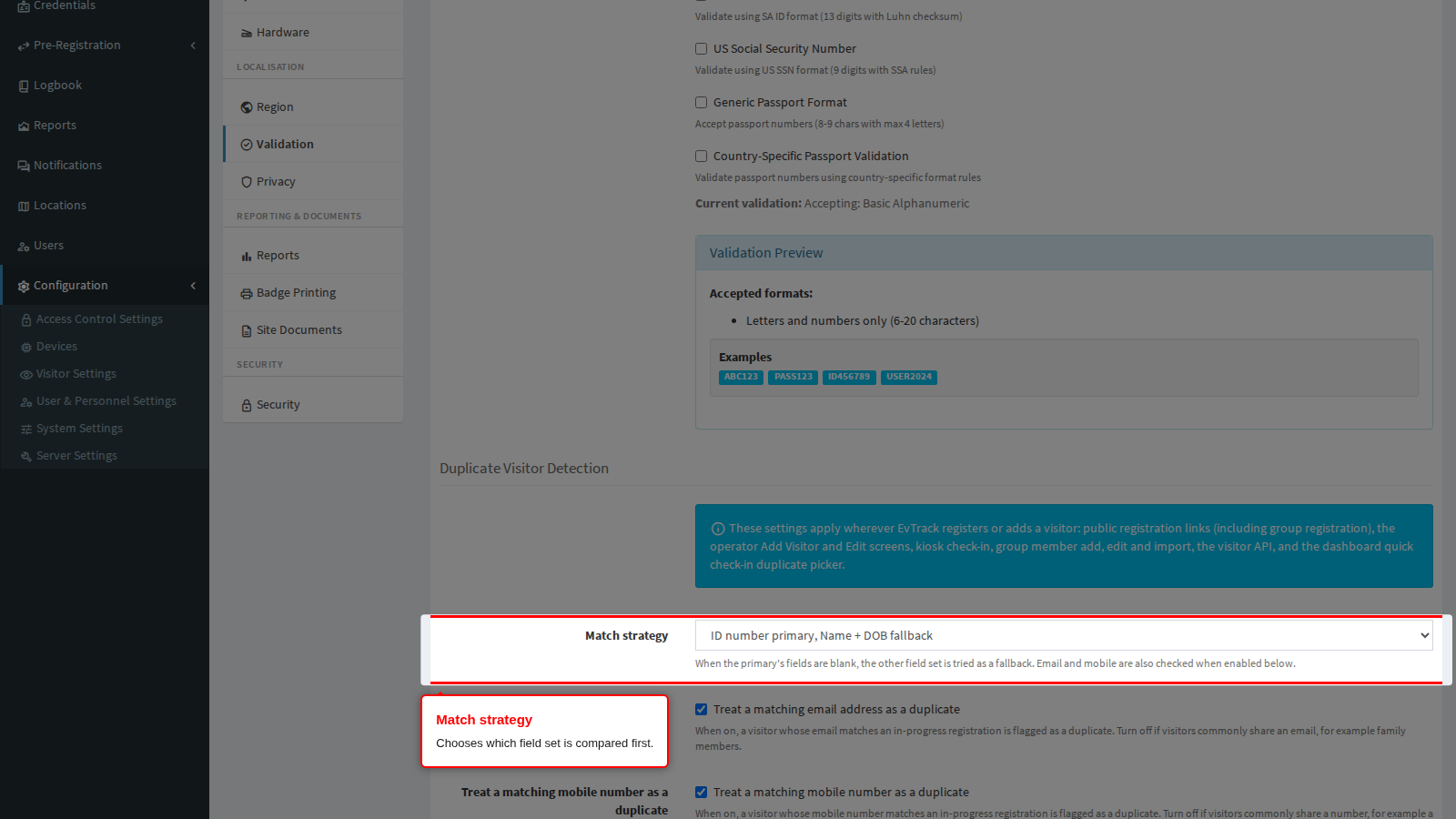
Match strategy chooses which field set is compared first, with the other used automatically as a fallback when the first is blank on either side:
- ID number primary, Name + DOB fallback (the default) compares the identity number first. Best where an identity document is always captured.
- Name + DOB primary, ID number fallback compares first name, last name and date of birth first. Best where identity numbers are optional or often left blank.
Email and mobile are checked alongside whichever strategy you pick; they are not part of the fallback chain.
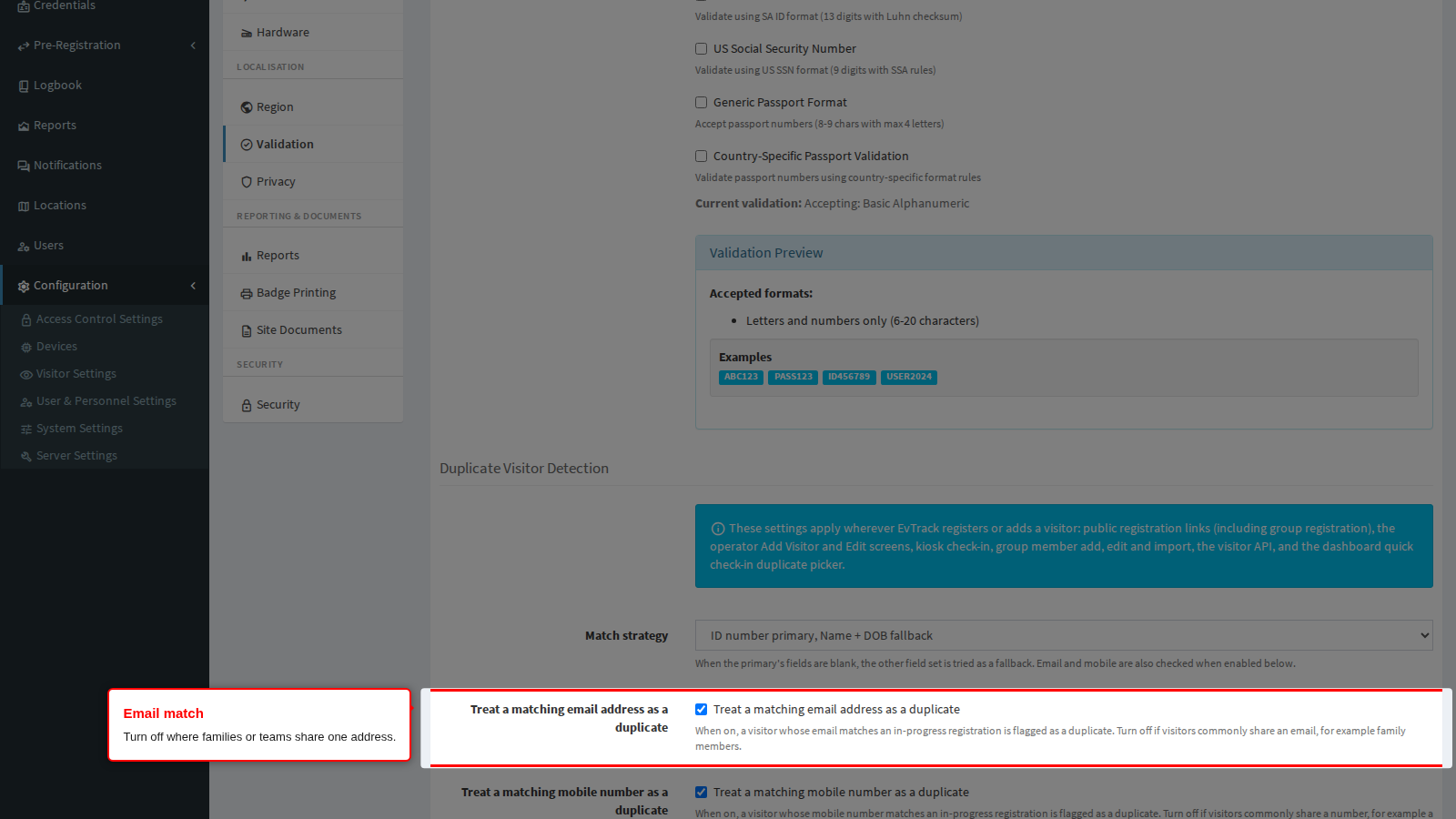
Email match treats a matching email address, on its own, as a duplicate. It is on by default. Turn it off where families, contractor crews or school groups legitimately share one address - otherwise the second person to register is blocked by the first.
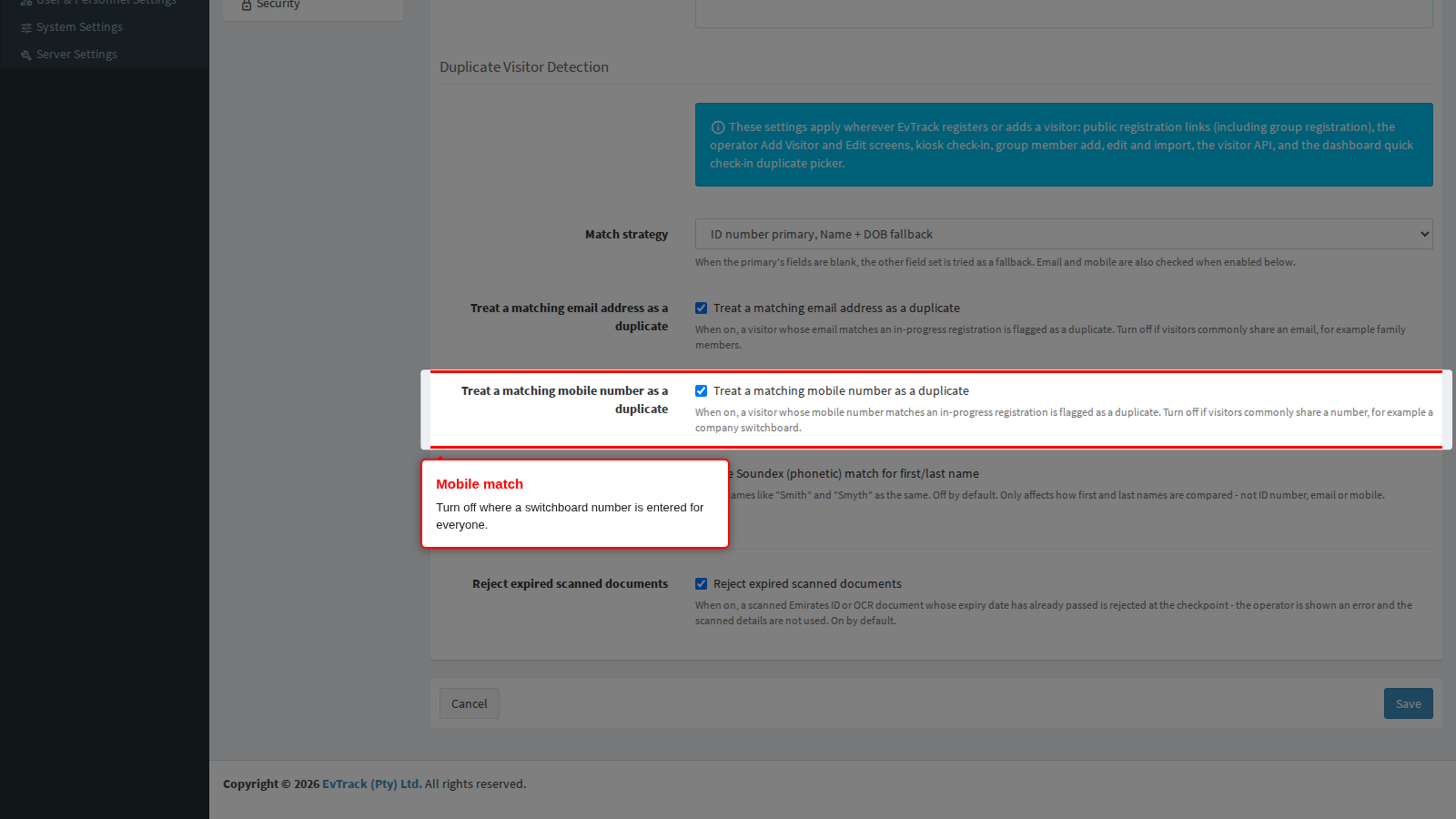
Mobile match does the same for the mobile number, and is also on by default. Turn it off where a company switchboard or a single site number is entered for everyone.
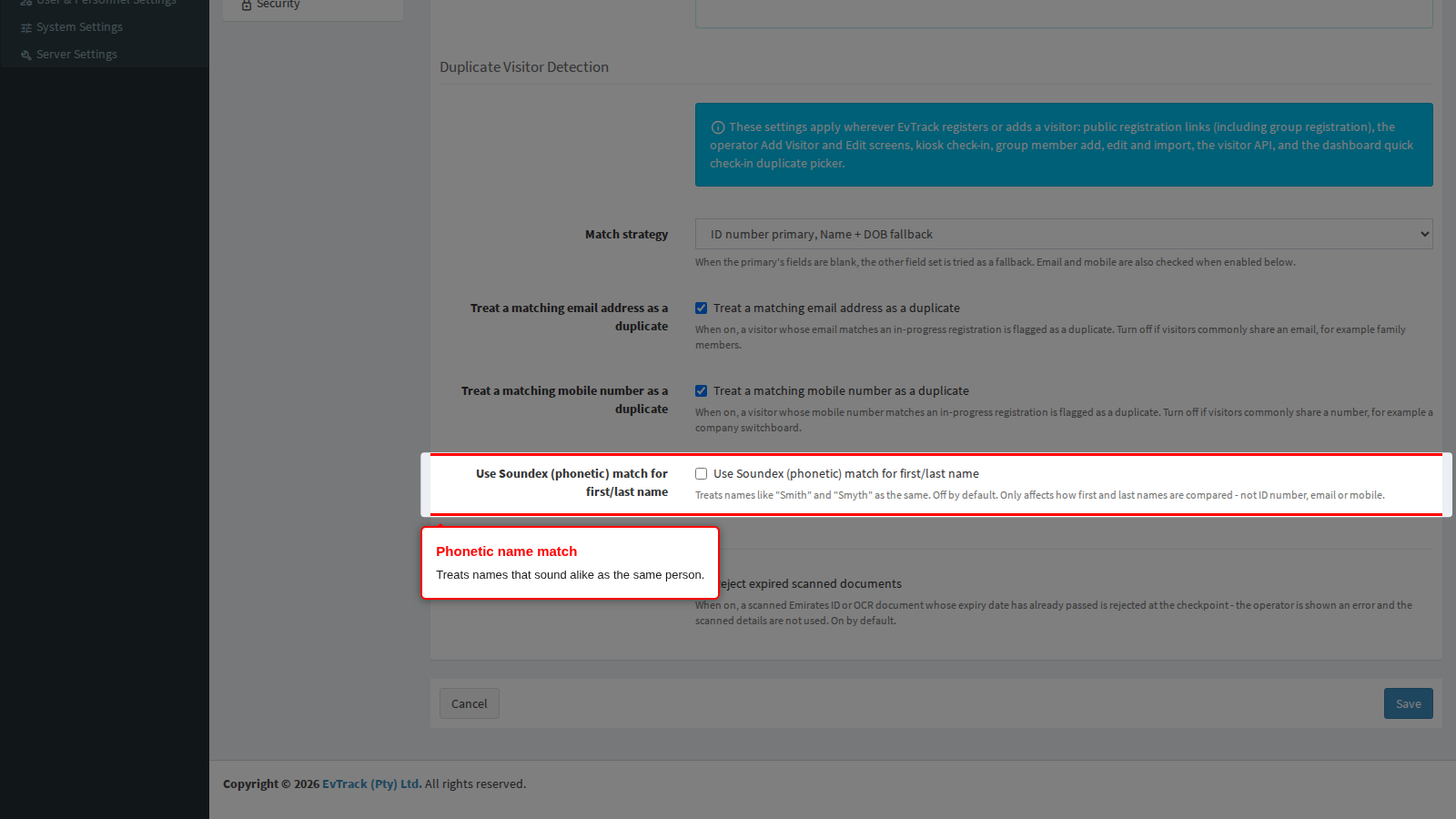
Phonetic name match compares first and last names by how they sound rather than how they are spelled, so “Smith” and “Smyth” count as the same name. It is off by default. Turn it on where names are transliterated or frequently misspelled; be aware that it makes the check considerably broader, and unrelated people with similar-sounding names will start colliding.
When a duplicate is detected, the registration is stopped and the person is told an existing record already matches. Making these rules too broad turns into visitors who cannot register at all; making them too narrow fills the system with near-identical records.
Scanned Document Validation
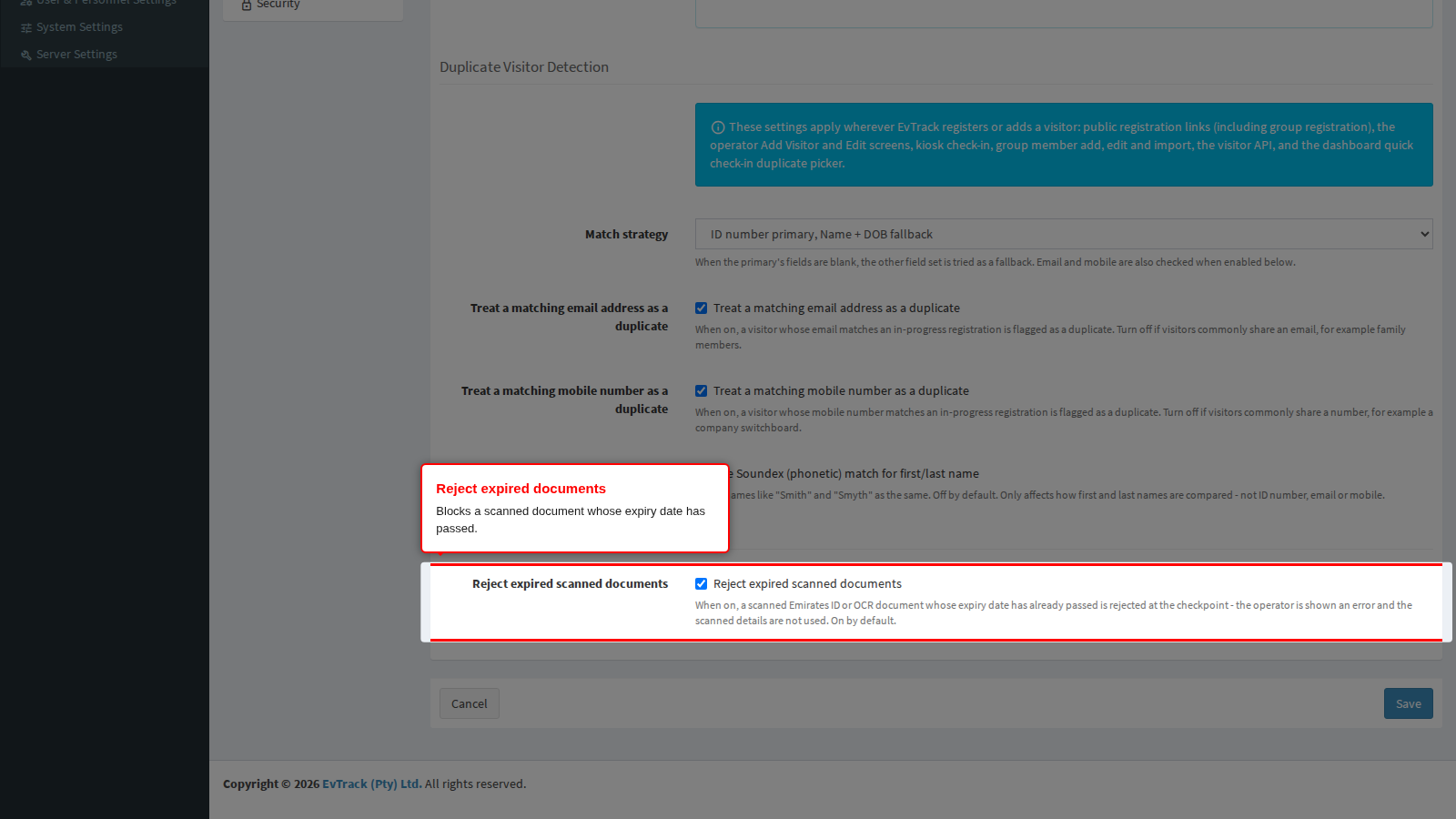
Reject expired scanned documents is on by default. When a document is read by an identity-card reader or by document scanning, its expiry date is checked: if the date has passed, the scan is refused and none of the scanned details are used to fill the form. The operator sees the rejection at the point of scanning and can decide what to do about it.
Turn it off only if your site knowingly admits people on expired documents; the consequence is that expired document details are captured silently and your records will contain them.
Related pages
- Which fields must be captured at all, per channel, is set under Configuration > Visitor Settings > Required Fields and the equivalent kiosk, guard and web service pages.
- Retention of the personal data these rules govern is set under Privacy.
- Regional defaults such as the telephone country code are set under Region.