Badges are printable identity cards for personnel - carrying the person’s photo, details and scannable credential. This page covers generating and downloading them.
Generate a badge
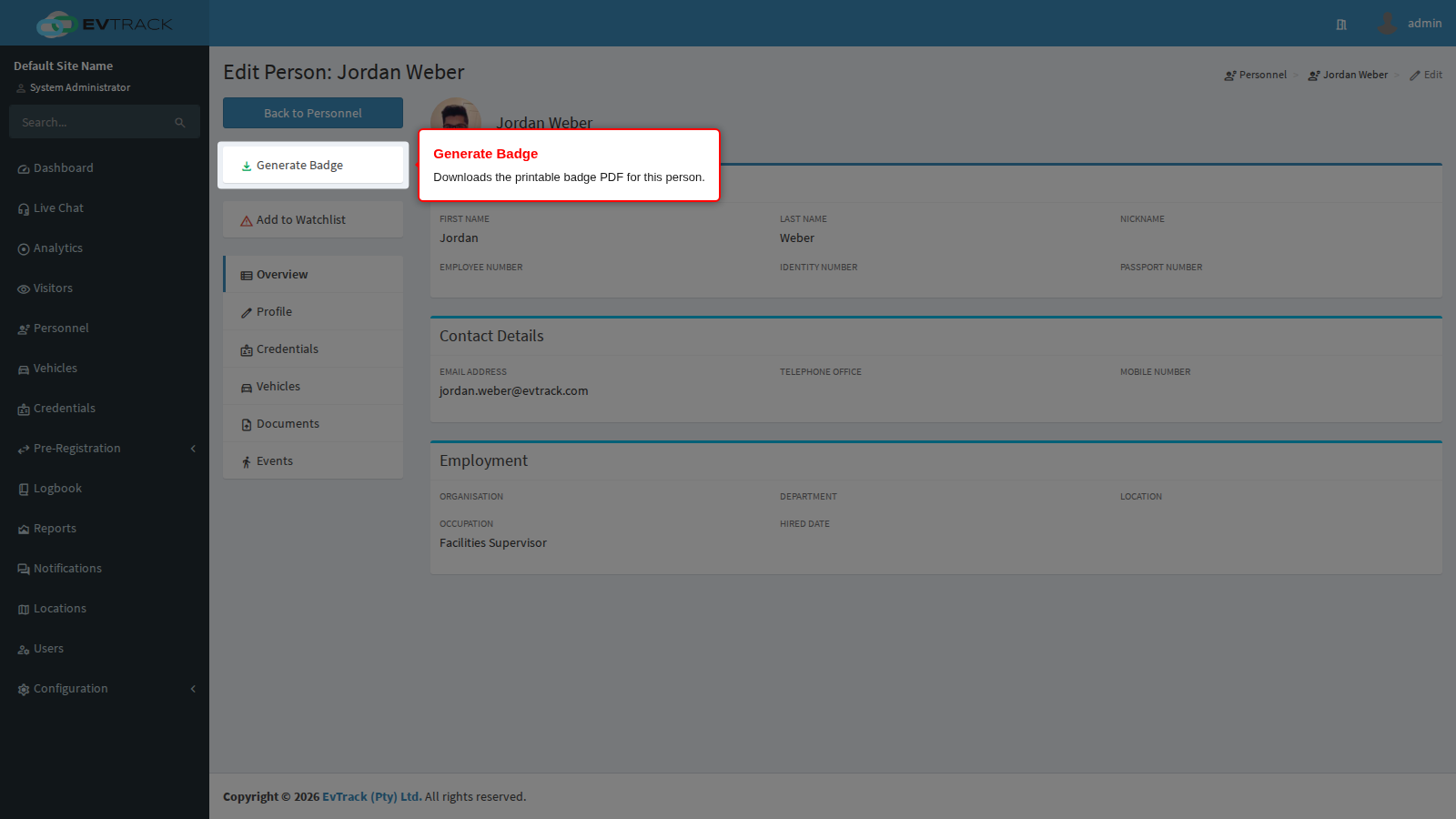
Open Personnel in the sidebar, search for the person and click their name to open their record. In the actions panel on the left (below Back to Personnel), click Generate Badge - the browser downloads the badge as a print-ready PDF. The same download is available from the badge icon on the person’s row in the Personnel list.
The badge PDF
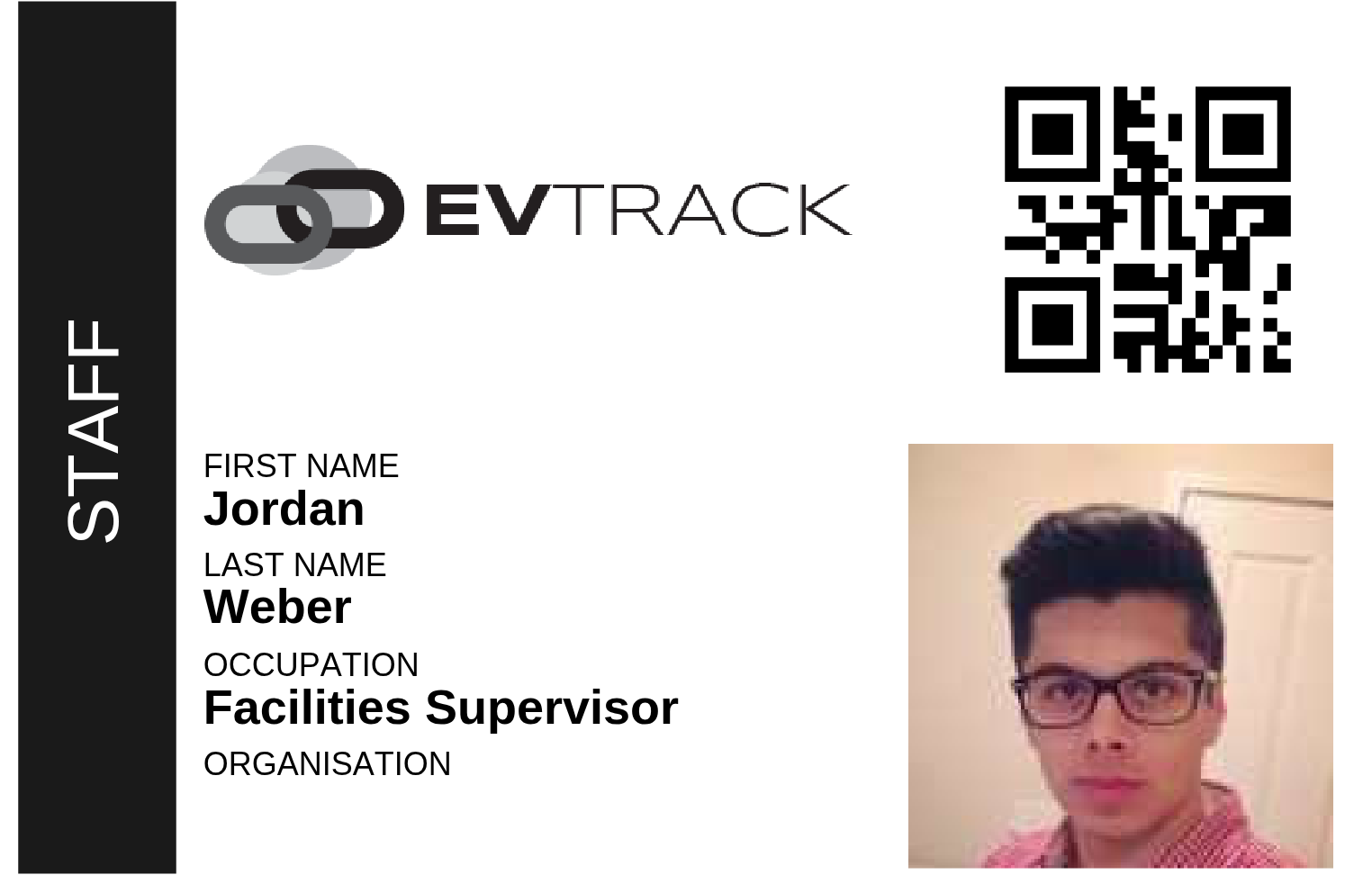
The downloaded PDF is generated from the person’s profile: the profile photo, name and organisation details, and the scannable code of the person’s credential, laid out on the selected badge template.
Template examples
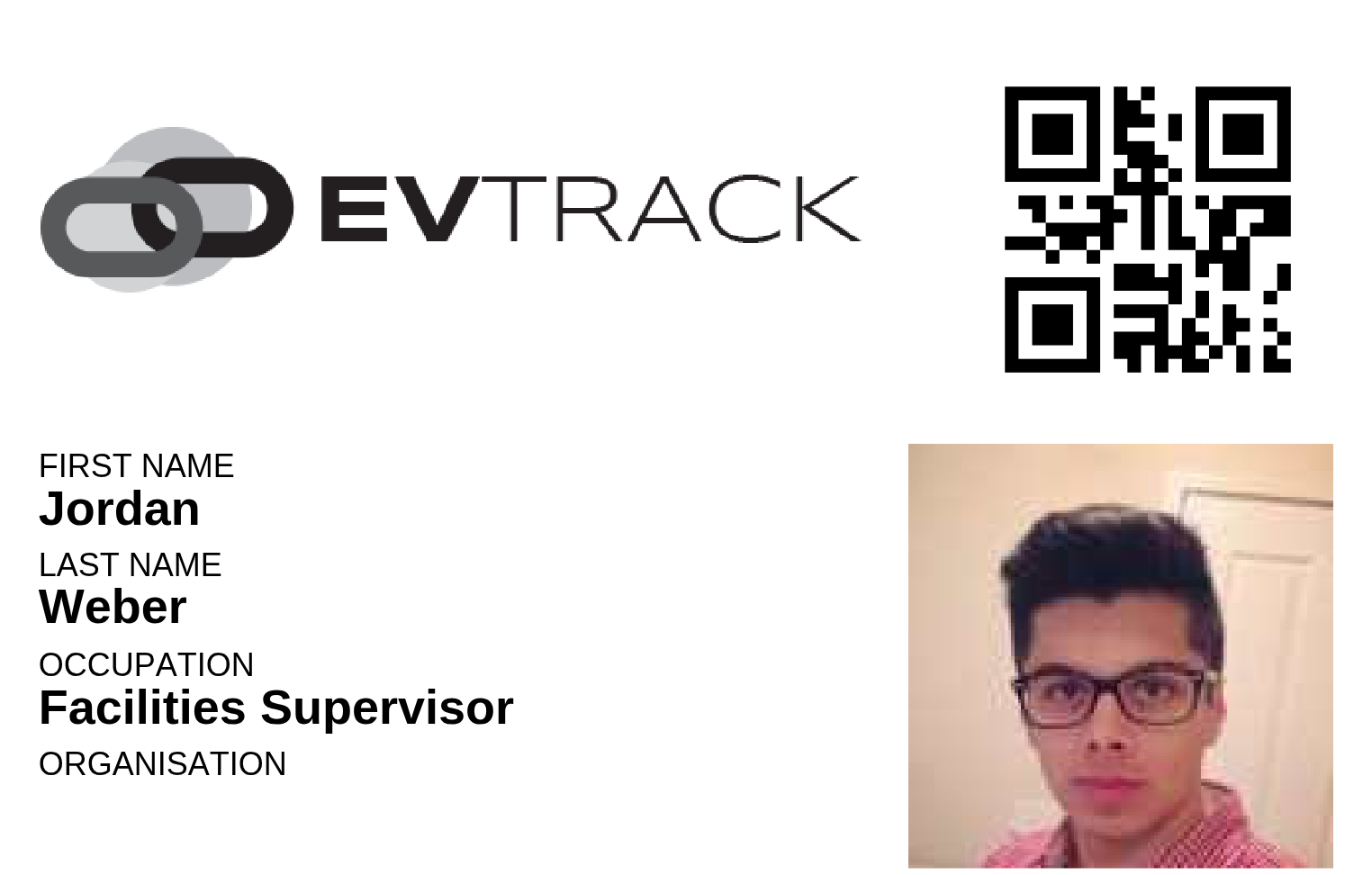
The layout is controlled by the Personal Template setting under Configuration > System Settings > Badge Printing - it applies to personnel and users alike. One generated example per built-in layout:
Basic - a simple layout with the person’s details.

QR Code Only - a minimal badge carrying just the QR code.
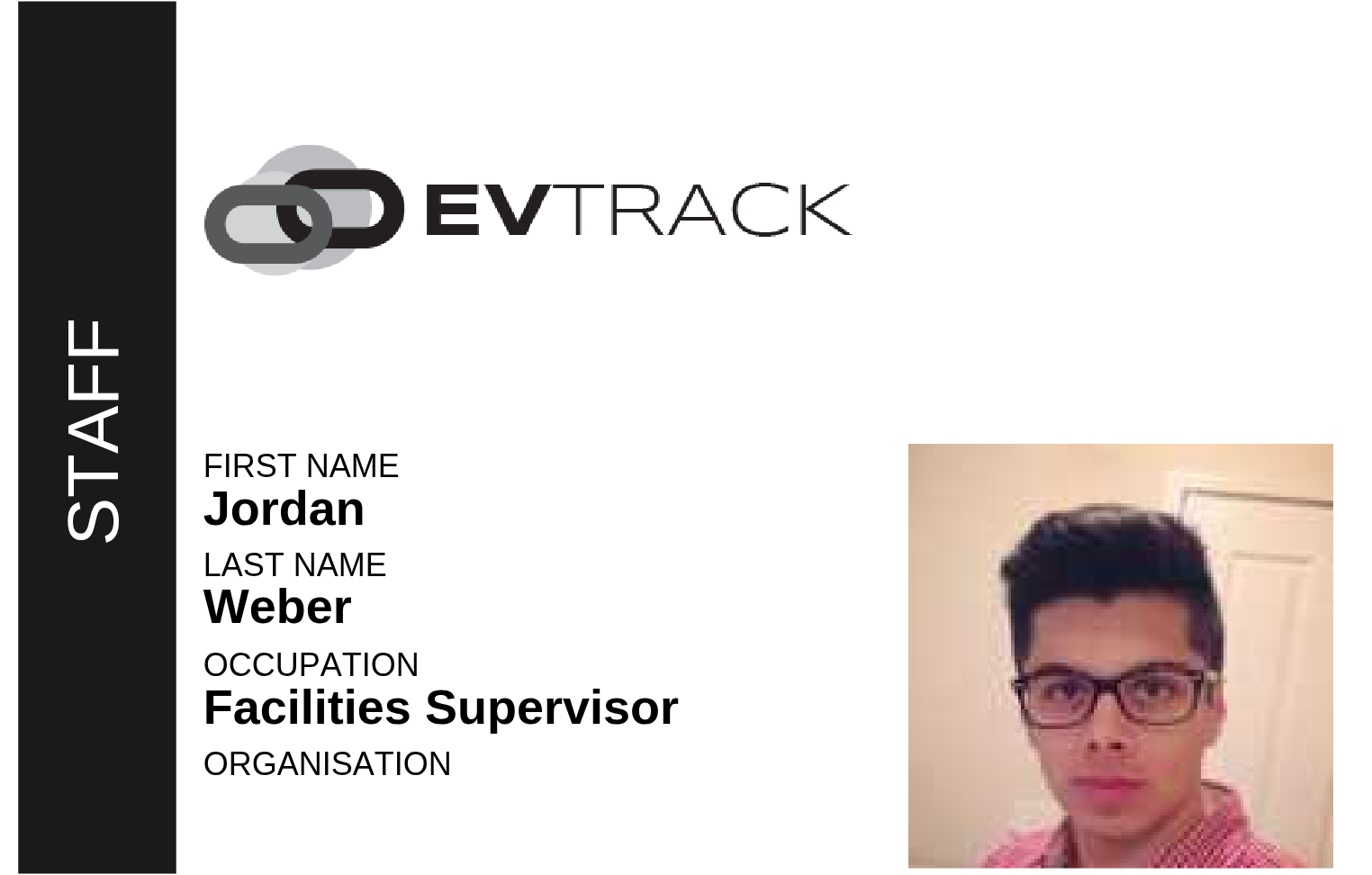
Group Banner Style - a banner layout without a QR code.
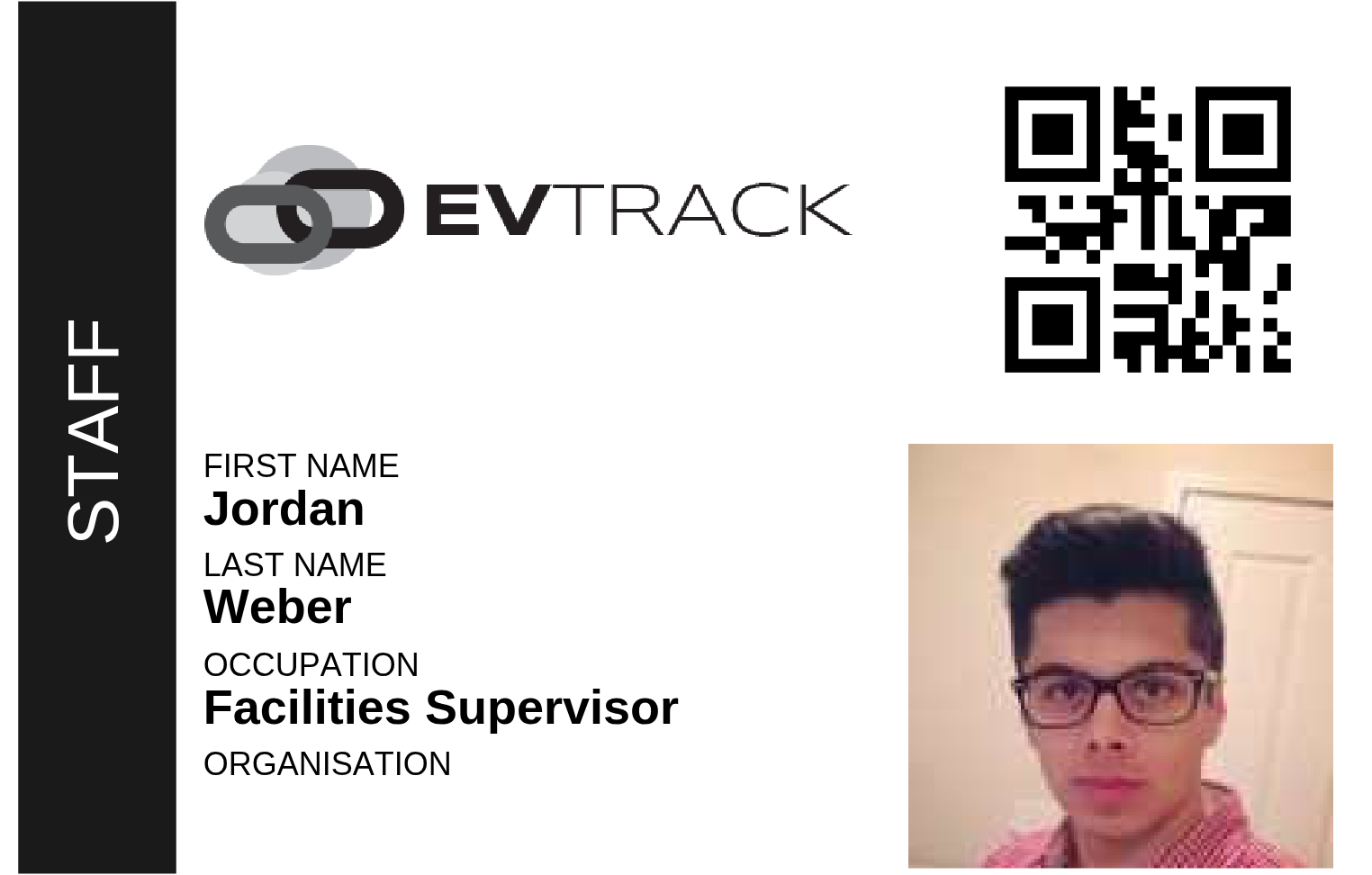
Group Banner with QR Code - the banner layout plus the access QR code.
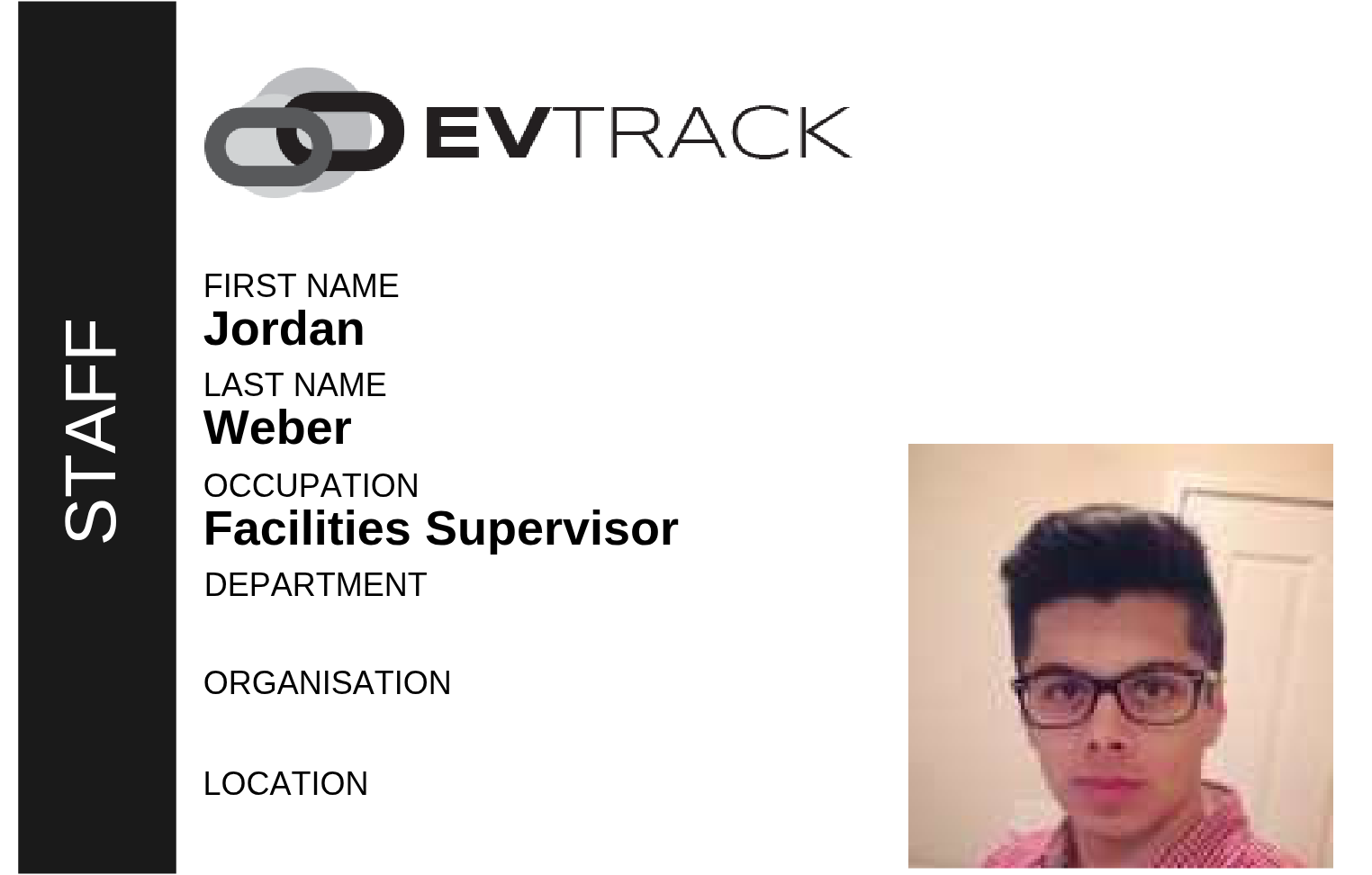
Extended Group Banner Style - a wider banner layout including department and location, without a QR code.
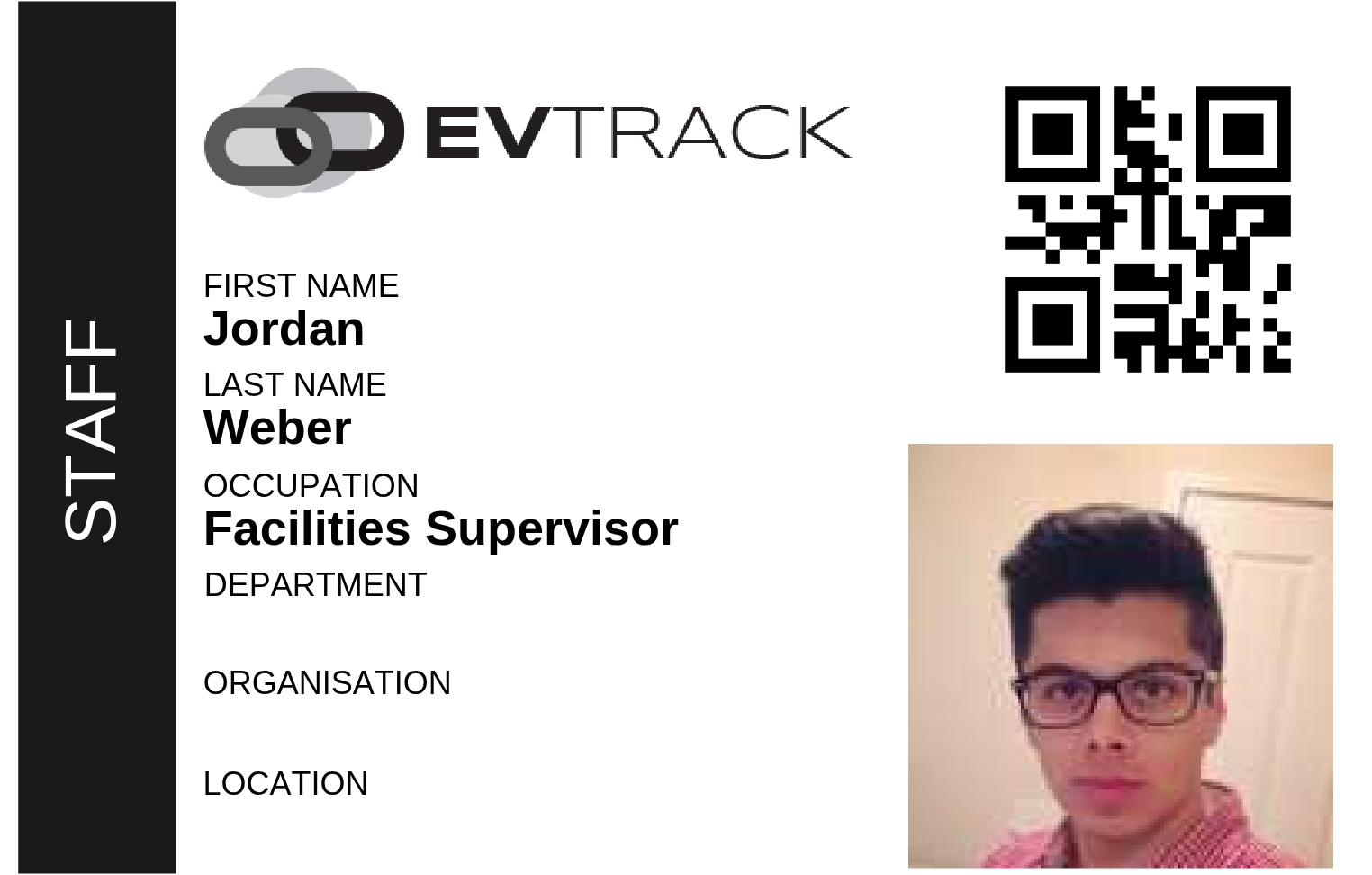
Extended Group Banner with QR Code - the extended banner layout plus the QR code.
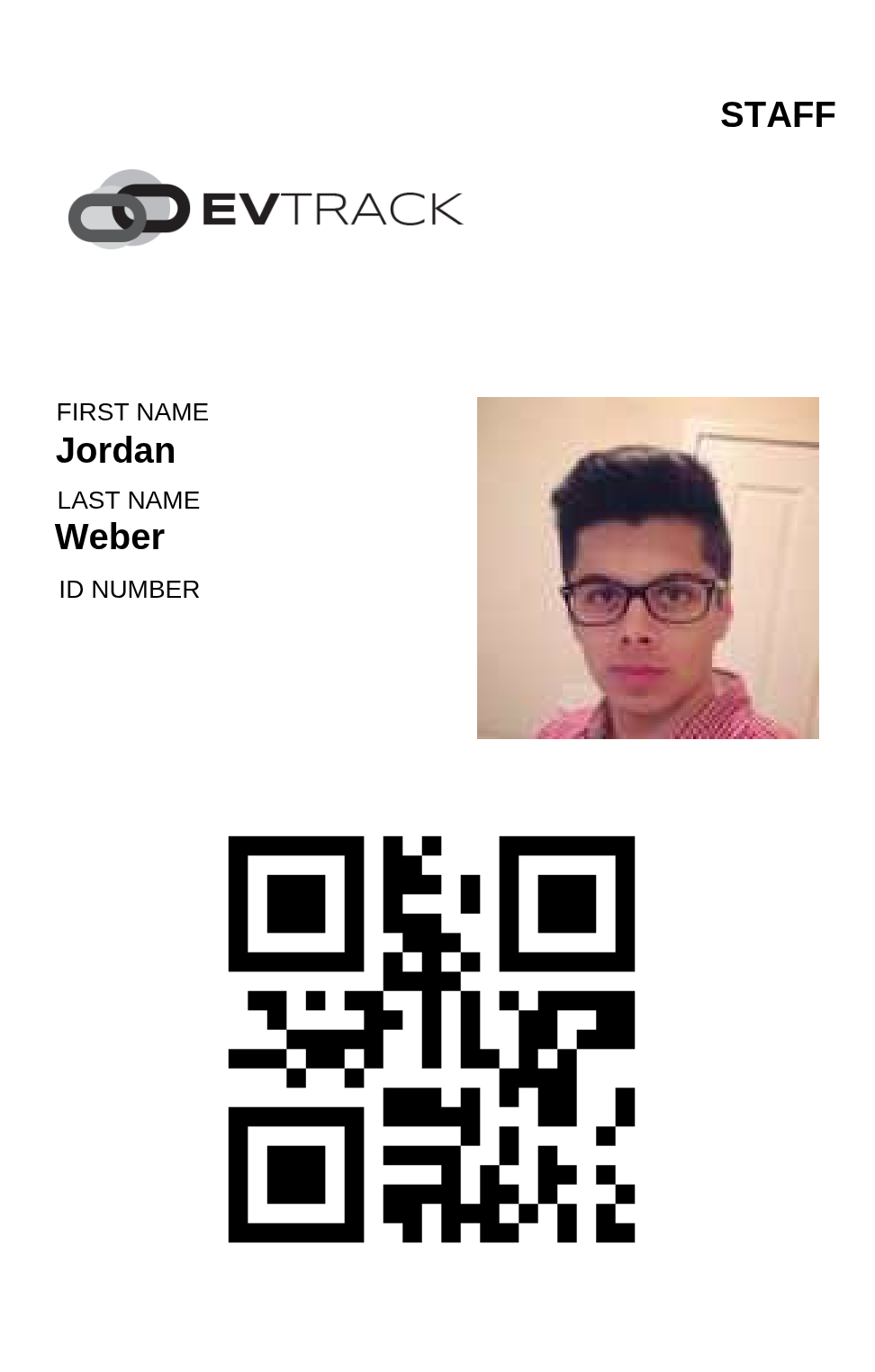
Portrait with QR Code - a vertical badge layout with the QR code, for portrait badge holders.
- Layout and content are configured under Configuration > System Settings > Badge Printing - including the badge logo, the template examples above, and custom SVG layouts.
- A profile photo makes the badge complete - badges without a photo render without the photo panel. Upload one on the person’s Profile tab before generating.
- Users have the same badge download on their edit page - see Badges for Users.
- Visitors receive their badge via the visit pass - see Visit Passes - and passes can also be printed at the checkpoint or via the guard app’s label printers.
- Access to badge downloads is permission-controlled, so only authorised roles can produce badges - if Generate Badge is missing, ask an administrator to extend your role.
- The badge QR code is the person’s identifier. Its format is chosen under Identifier Formats; a change applies only to people added afterwards.