EvTrack sends invitations, passes, notifications and onboarding emails through the email server configured here. Two delivery methods are supported: a classic SMTP server and the MS Graph API (Office 365).
Before you start: you need settings administration rights, plus the credentials for your mail system - an SMTP account, or an Azure app registration for MS Graph (prerequisites below).
Step 1: Choose the delivery method
Open Configuration > Server Settings > Email and pick the Email Delivery Method. The form shows the fields for the selected method.
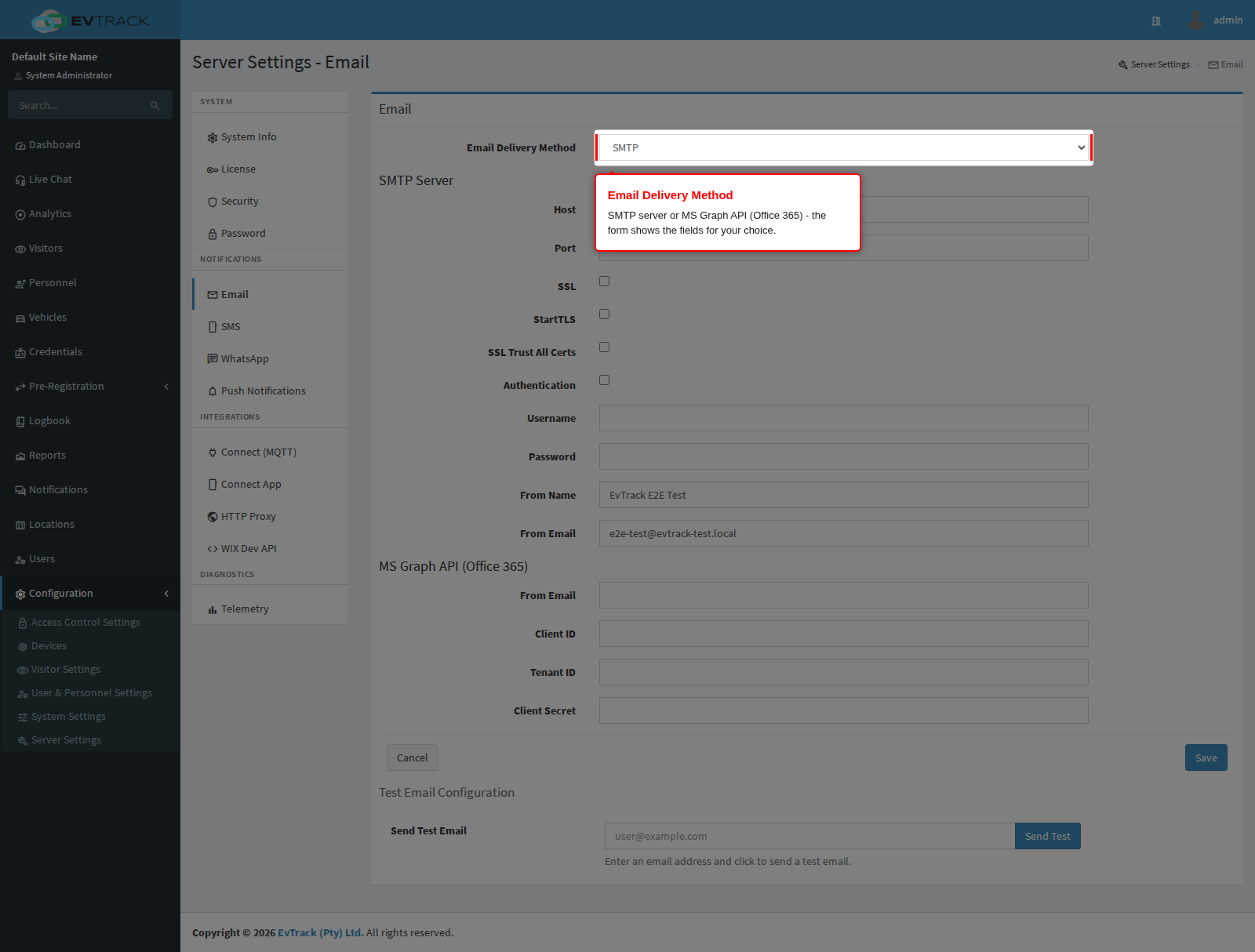
Option A: SMTP server
Fill in the SMTP section:
- Host and Port - your mail server. Use port 587 with StartTLS (recommended) or port 465 with SSL.
- SSL / StartTLS - enable the one matching your port; never leave both off on a network you do not fully control.
- SSL Trust All Certs - only for internal relays with self-signed certificates; it weakens certificate validation, so leave it off for internet mail servers.
- Authentication, Username, Password - the account allowed to send through the server.
- From Name and From Email Address - what recipients see. The from address must be one the account is allowed to send as, or receiving servers will reject or spam-folder the mail (check your SPF/DKIM records cover the server).
Option B: MS Graph API (Office 365)
Prerequisites in Azure before filling the form:
- Create an App Registration in your Microsoft Entra admin center.
- Grant it the Mail.Send application permission (Microsoft Graph) and have an administrator grant admin consent.
- Create a client secret and note its value.
Then fill in: Client ID (the app registration’s ID), Client Secret, Directory ID (your Microsoft directory/tenant ID from the same overview page), and From Email - the mailbox the app sends as (it must exist in your organisation).
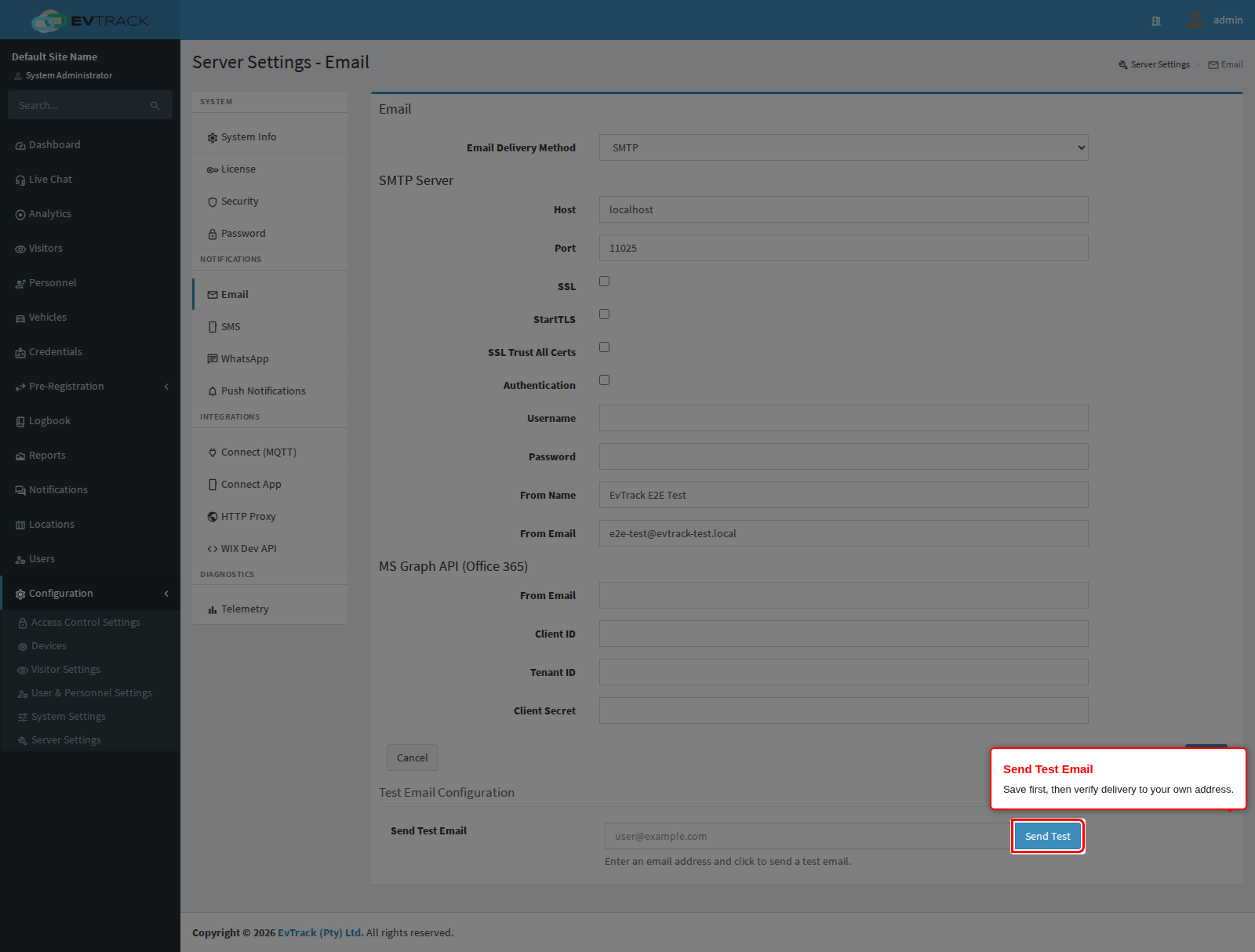
Step 2: Save, then send a test email
Click Save first - the test uses the saved configuration. Then enter your own address under Send Test Email and click the test button. Delivery success or the exact server error appears next to the button, and the message should arrive within a minute.
Troubleshooting
- Test fails with an authentication error - re-check username/password (SMTP) or client secret and admin consent (MS Graph).
- Test succeeds but recipients get nothing - check their spam folder and ask their IT to allow your from address; greylisting servers defer first contact and retry automatically.
- On a Windows onsite server, restart the EvTrack service after changing email settings if sends still use the old configuration.
With delivery working, author the actual email content under Visitor Emails and the Invitation Email Guide.