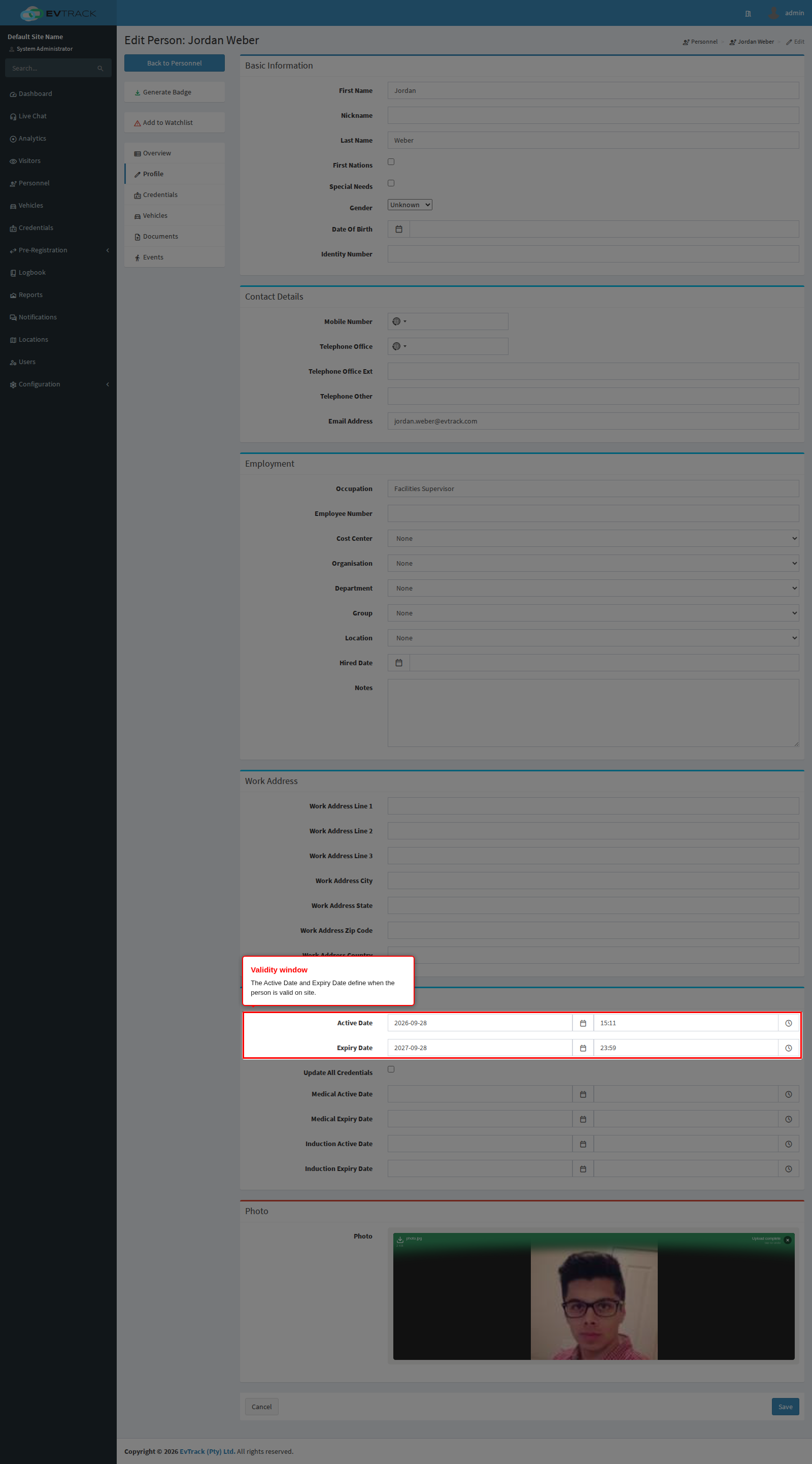
Every person carries an Active Date and an Expiry Date - the window in which they are considered valid on site. Credentials issued to the person inherit this window, and readers deny access outside it. Use this page as the reference for how personnel validity and credential expiry interact.
The credential lifecycle
A credential is always in exactly one status, and most of the time nobody sets it by hand: it follows the dates. The diagram is the whole set of statuses and how a credential moves between them. It applies to every kind of credential and every kind of holder - personnel, system users and visitors alike.
stateDiagram-v2
    VALID: Valid
    ACTIVE: Active
    EXPIRED: Expired
    DISABLED: Disabled
    DELETED: Deleted
    LOST: Lost
    STOLEN: Stolen
    DESTROYED: Destroyed

    [*] --> VALID: issued with a start date in the future
    [*] --> ACTIVE: issued with a start date of now or earlier
    [*] --> EXPIRED: issued with an expiry date already past

    VALID --> ACTIVE: its start date arrives
    VALID --> EXPIRED: its expiry date passes
    ACTIVE --> EXPIRED: its expiry date passes, or its last entry is used

    VALID --> DISABLED: switched off
    ACTIVE --> DISABLED: switched off
    VALID --> DELETED: deleted, or taken off its holder
    ACTIVE --> DELETED: deleted, or taken off its holder

    DISABLED --> ACTIVE: switched back on
    DISABLED --> VALID: switched back on, start date still ahead
    DELETED --> ACTIVE: restored, or the visitor is checked in again
    DELETED --> VALID: restored, start date still ahead
    EXPIRED --> ACTIVE: given a new validity window
    EXPIRED --> VALID: given a window that has not started yet

    note right of LOST
        Lost, Stolen and Destroyed are offered in the status list on
        the credential form, but they are never stored. Choosing one
        saves the credential as Expired instead.
    end note
Five rules govern the diagram, and they answer nearly every question this page gets:
- The dates decide the status, not the other way round. Whenever a credential is saved, its status is recomputed from its own activation and expiry dates. A start date in the future produces Valid; a start date that has passed produces Active; an expiry date that has passed produces Expired, whatever was chosen on the form.
- A background job does the switching, so it is not instantaneous. A Valid credential becomes Active when its window opens, and an Active one becomes Expired when its window closes or the last entry on a limited-use pass is spent. The job runs every few minutes by default, so allow for a short lag rather than expecting the change on the stroke of the minute. Some access control platforms only receive Active credentials, so a future-dated card appears on the hardware only once the job has switched it.
- Nothing is a dead end. Every status can be brought back into service. Switching a Disabled credential back on, restoring a Deleted one, or simply giving an Expired one a new validity window all return it to Valid or Active, decided by the new dates. Re-checking a visitor in also brings back the credentials that were removed when they checked out.
- Lost, Stolen and Destroyed do not work. They appear in the status list, but choosing one saves the credential as Expired. To take a card out of service, switch it off (Disabled) or delete it, and record the loss in your own records or in the credential’s comments.
- Disabling a credential that has already expired saves it as Expired. The expiry test runs before anything else, so a card past its expiry date cannot be parked in Disabled. If you need it visibly switched off rather than simply out of date, extend its window first, then switch it off.
Visitor credentials are eventually removed from the database altogether, whatever status they hold, once their expiry date is older than the Events (Days) retention period set under Privacy. Personnel and user credentials are not swept this way.
The Validity Dates panel
Open Personnel in the sidebar, search for the person and click their name, then switch to the Profile tab. The Validity Dates panel holds the Active Date and Expiry Date (date and time), plus separate Medical and Induction active/expiry pairs for compliance windows. After changing the dates, click Save - the new window is stored on the person.
Update All Credentials
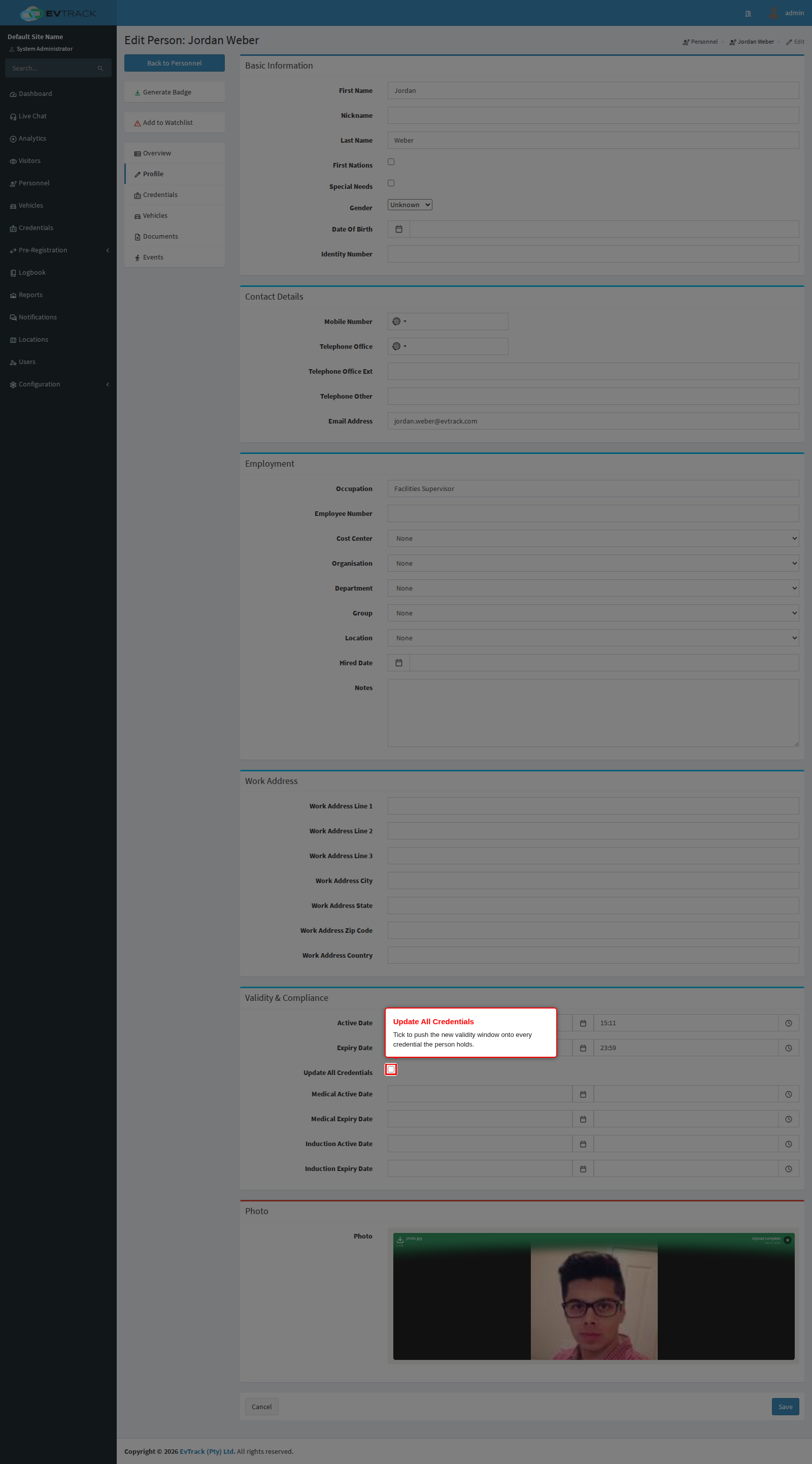
Below the validity dates, the Update All Credentials checkbox controls whether saving also rewrites the validity window on every credential the person already holds. Leave it unticked to change only the person’s own window.
How the sync works, and its side effects
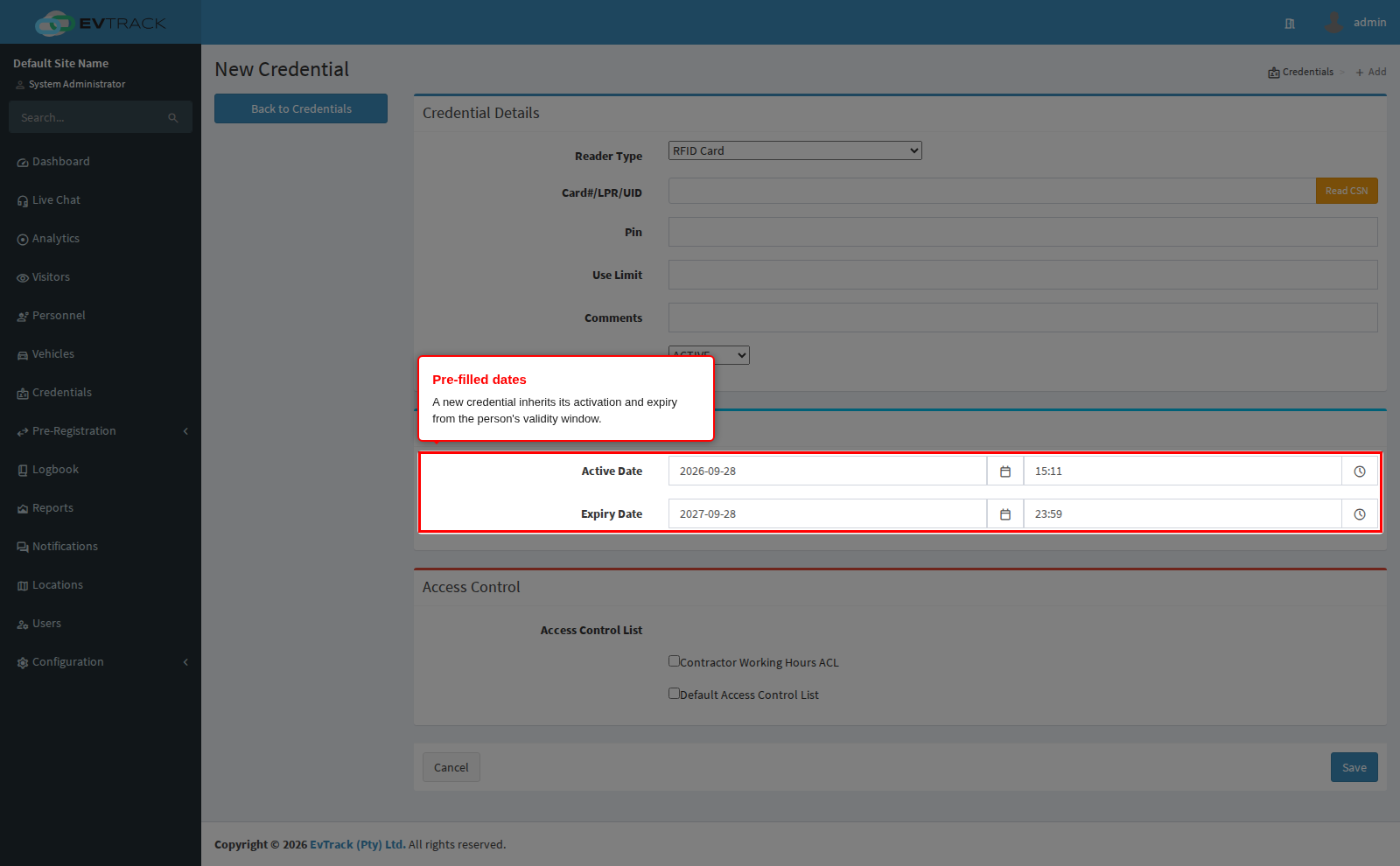
- On credential creation - a new credential pre-fills its activation and expiry from the person’s dates, so cards issued to a person never outlive the person’s own validity unless deliberately changed.
- On save with Update All Credentials ticked - the new window is pushed onto all existing credentials of the person. Any credential that was deliberately shortened or extended is overwritten - review credential-specific windows afterwards.
- Status transitions - a credential whose activation lies in the future is created as VALID and switches to ACTIVE automatically when its window opens (a periodic synchronisation job performs the switch). Some access control platforms only receive ACTIVE credentials, so a future-dated credential appears on the hardware only once it activates.
- At the reader - an expired credential is denied with an “expired” result, and one presented before its activation with a “not valid yet” result; both denials are recorded in the Logbook. Expiry is applied to the end of the minute in which it falls.
The pre-fill is visible on the credential form: open the person’s Credentials tab and click Add - the activation and expiry fields arrive already filled with the person’s dates.
Note: the Medical and Induction date pairs do not gate credentials by themselves - they are compliance windows reported on the person; site policy determines how they are enforced.
See also: RFID Card Credentials (Personnel) and User Validity and Credential Expiry.