Some visitors are never typed in by anybody at your site. A property management system books a contractor, a booking platform confirms a meeting, a service desk raises a delivery, and each of them hands EvTrack the visitor over an interface instead. These two pages decide what EvTrack does with what it is handed: which details it insists on before it will accept the registration, and what it does when the site named in the submission is not one it recognises.
Before you start: you need an operator account with settings permissions, and the other system needs an enabled API key. Without a key nothing can reach the interface at all, whatever you set here. Keys are managed under Configuration > System Settings > Web Service API - see Web Service API keys, and the last step of this chapter.
Step 1: Open the Web Service API pages
Open Visitors in the sidebar and click Settings. Web Service API has no tile on that page - it is reached from the Registration & Apps group in the menu on the left. Click Web Service API.
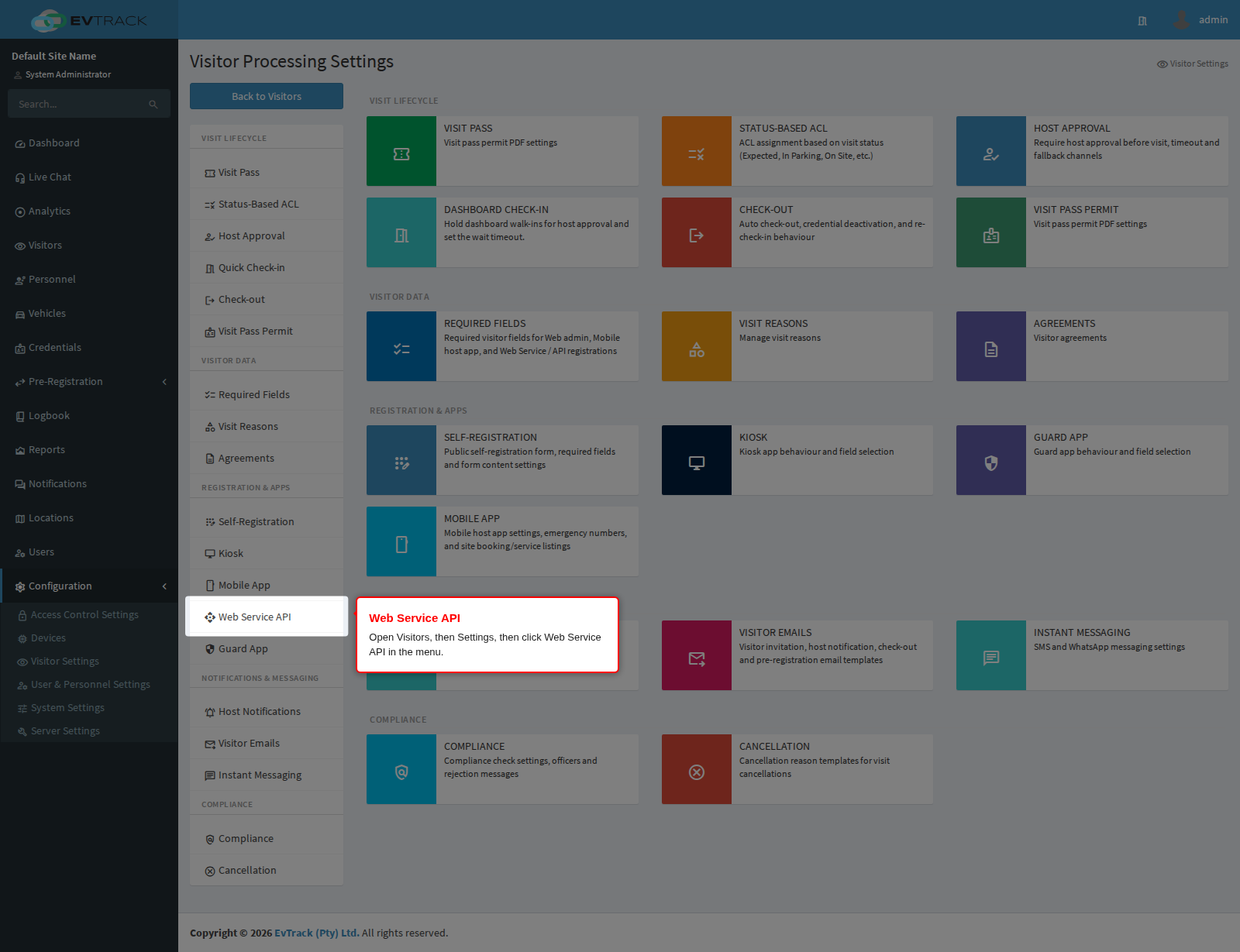
End state: the General page opens with its own two-entry menu on the left.
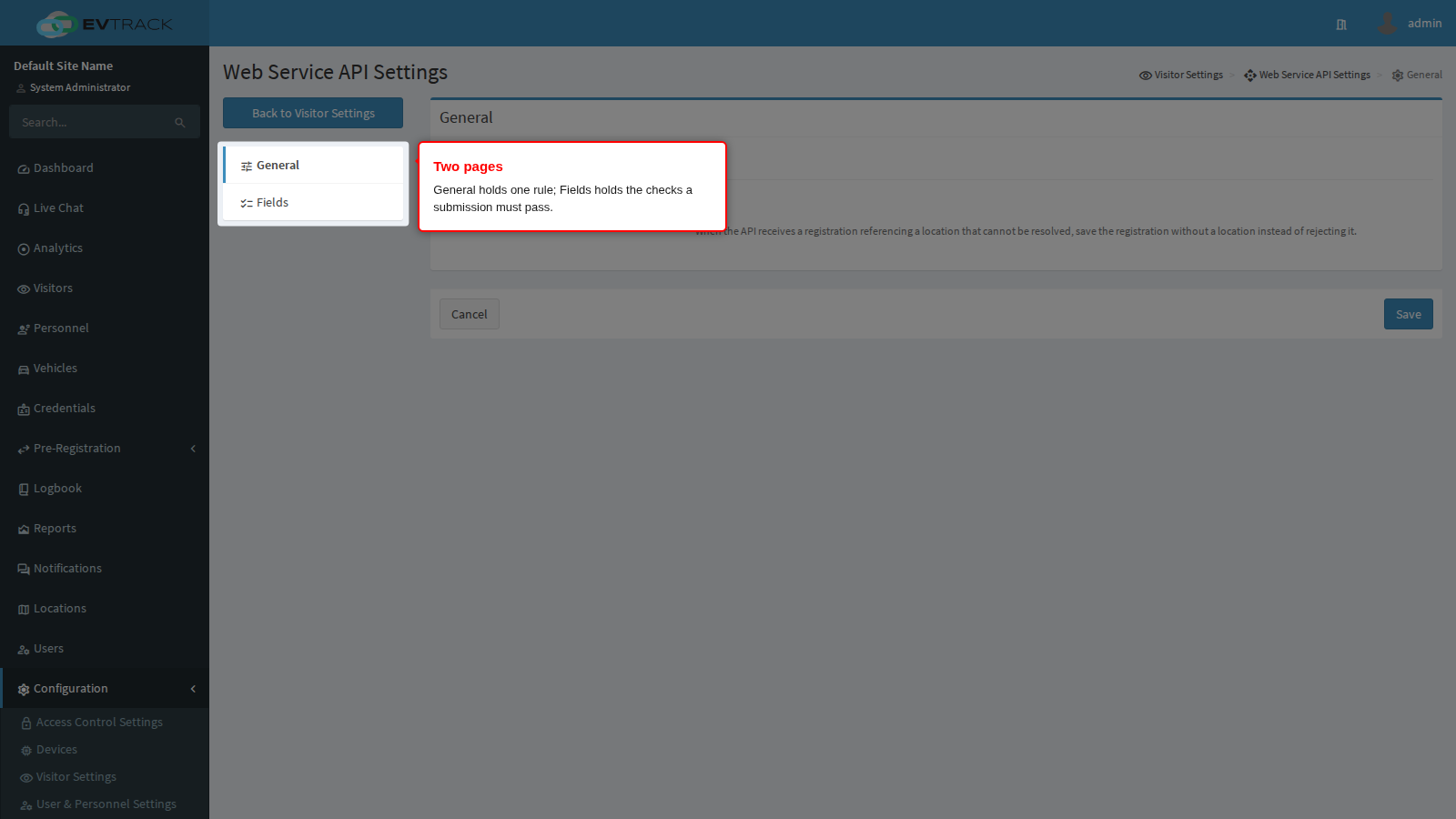
| Page | What it decides |
|---|---|
| General | What happens when a submission names a site that cannot be matched |
| Fields | Which details a submission must include before it is accepted |
Each page is saved on its own, and a saved change applies to the very next call - there is nothing to restart and no cache to clear.
Step 2: Decide what happens to an unrecognised location
When a submission names a site, EvTrack matches it by name against your configured locations. The name has to match one you have set up; it is not a fuzzy or partial match. That works well until the system on the other end calls the same building something slightly different from the way you spelled it.
Skip Invalid Location Field decides what happens then.
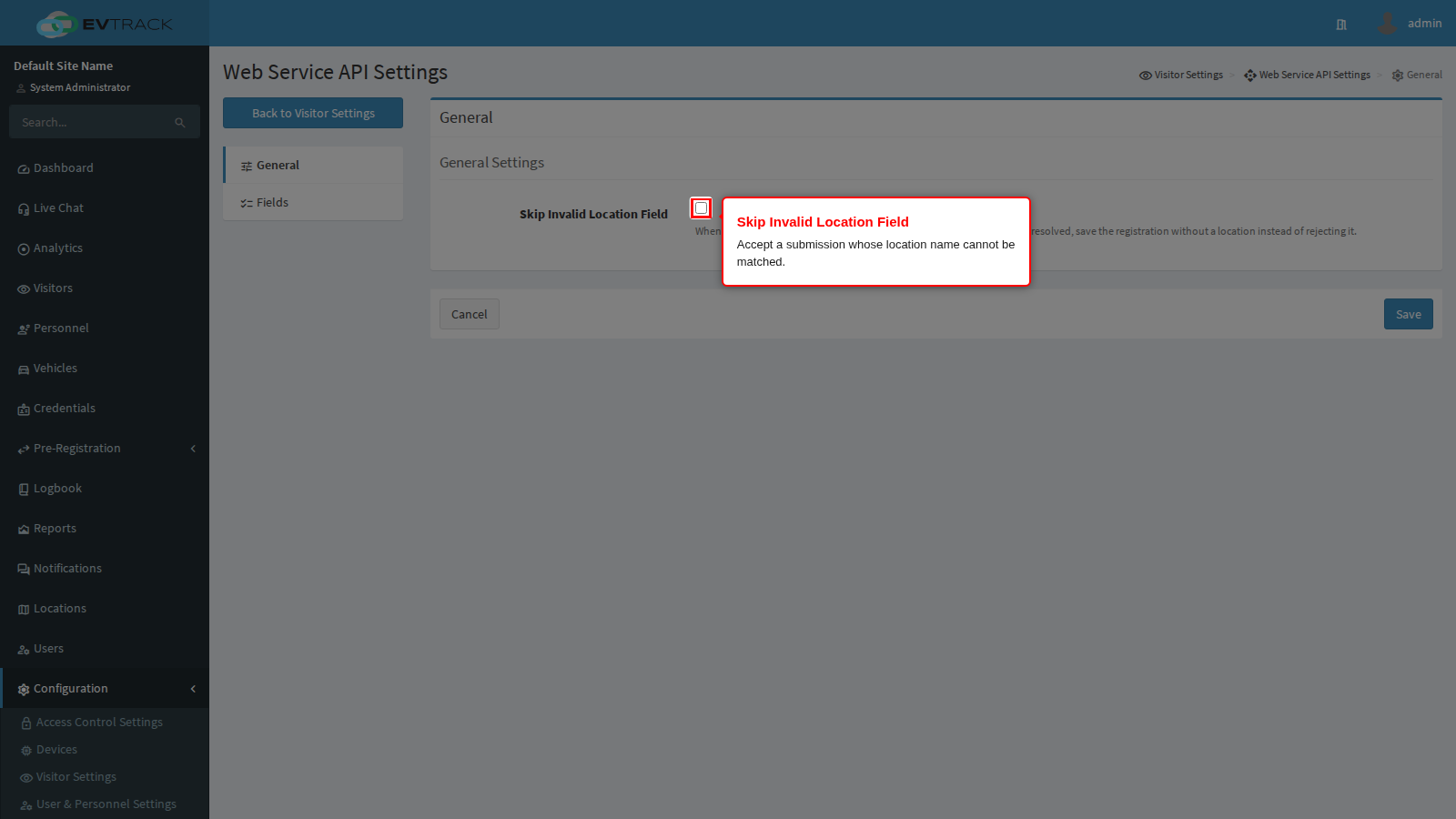
Off, the submission is refused and the other system is told the location could not be found. Nothing is stored, and somebody has to fix the name at one end or the other before that visitor can be booked.
On, the registration is saved anyway, with no location attached, and whatever name was sent is kept in the visit’s comments so an operator can see what was intended.
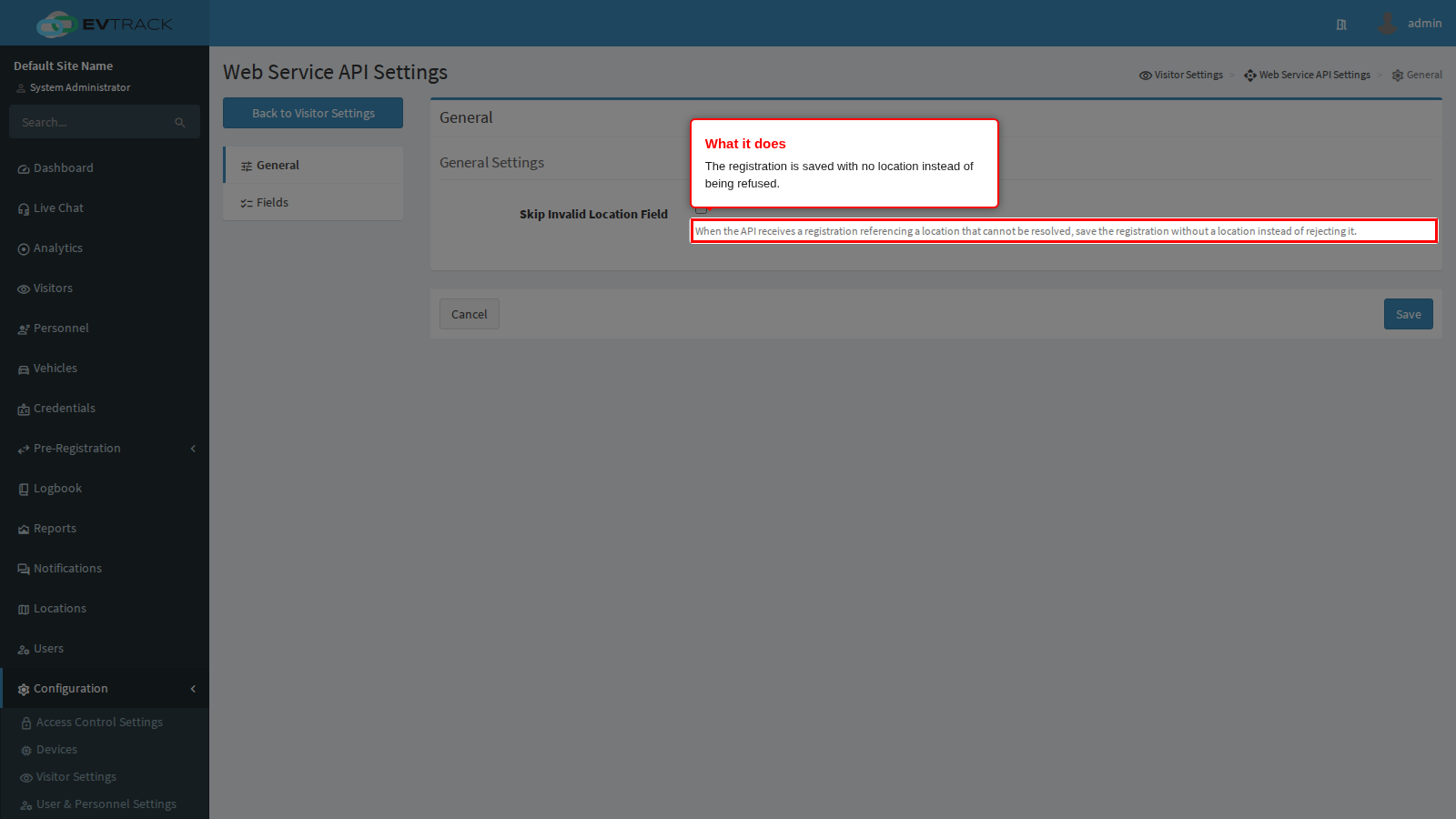
Choose deliberately, because the two options fail in opposite directions. Off is the strict choice: nothing enters your system in a state you did not intend, at the cost of visitors being turned away by a spelling difference. On is the forgiving choice: nobody is lost, at the cost of a queue of visits with no site against them, which will not appear in per-location reports and may not pick up location-specific access rules. If you turn it on, make somebody responsible for reviewing those registrations.
Save applies the page.
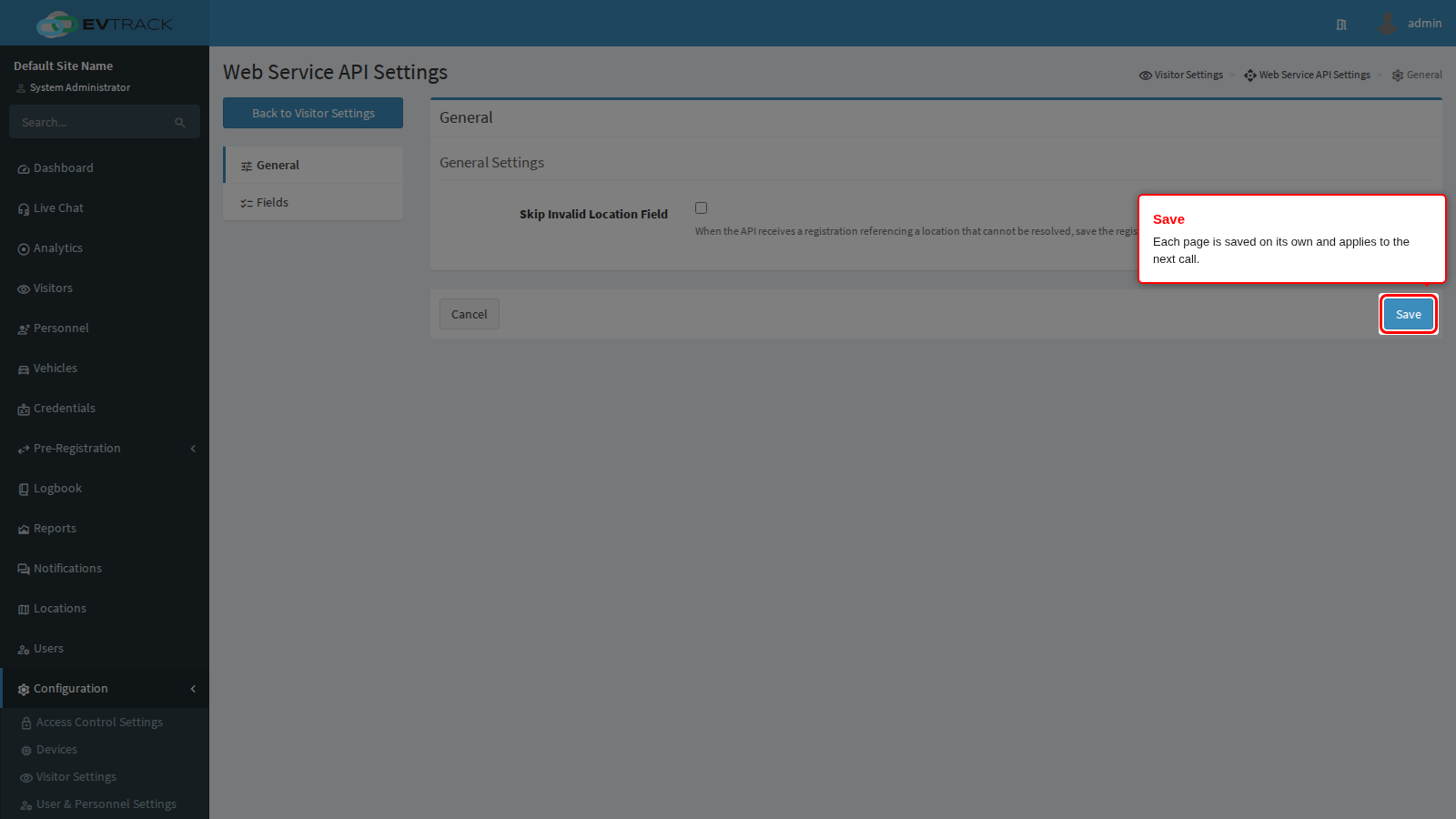
End state: a green confirmation appears at the top of the page, and the next call is treated under the new rule.
Step 3: Decide what a submission must contain
Click Fields in the page menu.
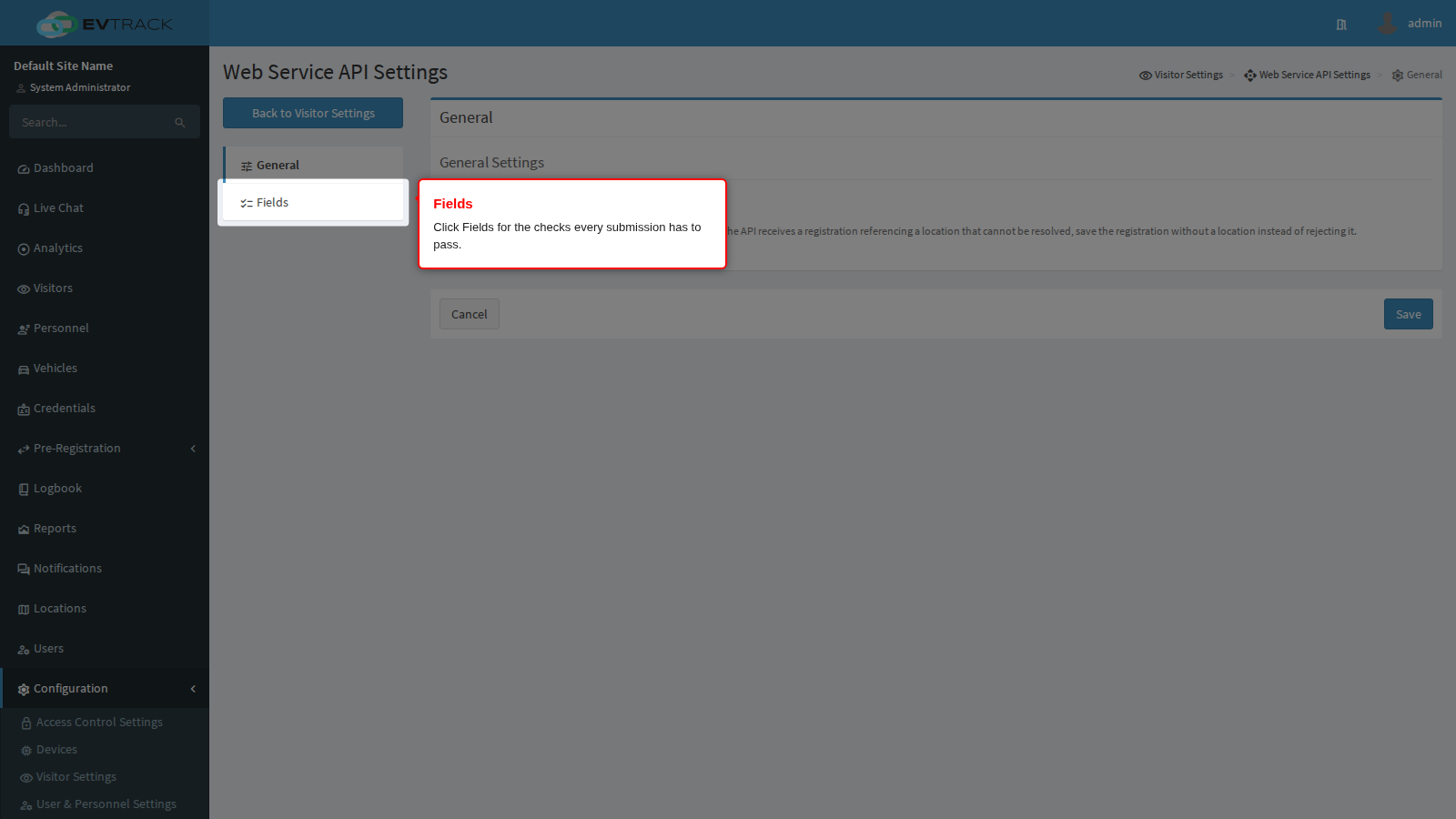
Every ticked row here is a check applied to each incoming submission. A submission that leaves a ticked field out is refused, and the other system is told which field was missing by name, so whoever maintains it can fix the mapping without guessing.
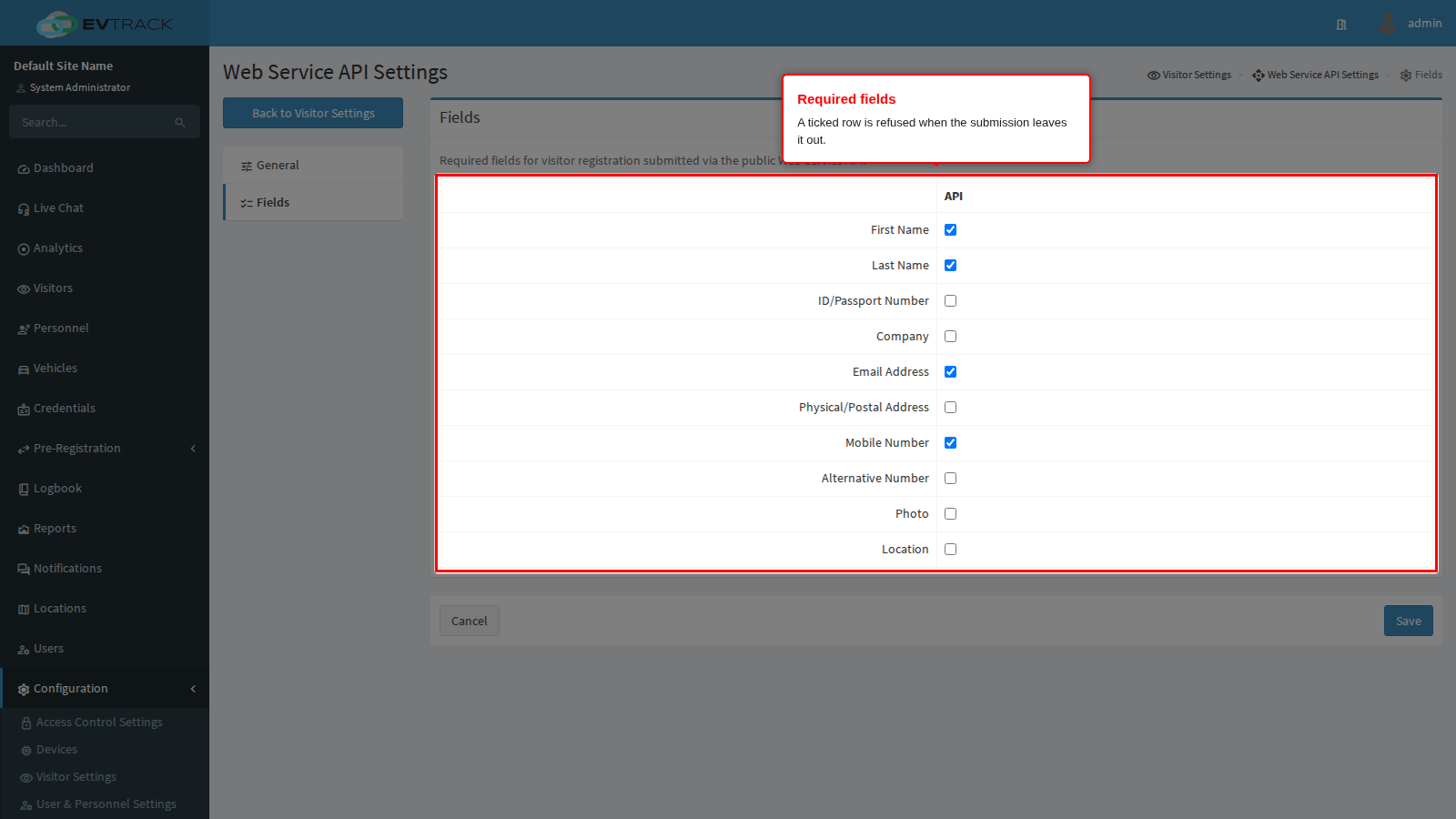
Out of the box a new system starts with First Name, Last Name, Email Address and Mobile Number ticked, which is the smallest set that lets a visitor be identified and sent their credential.
First Name refuses a submission with no first name.
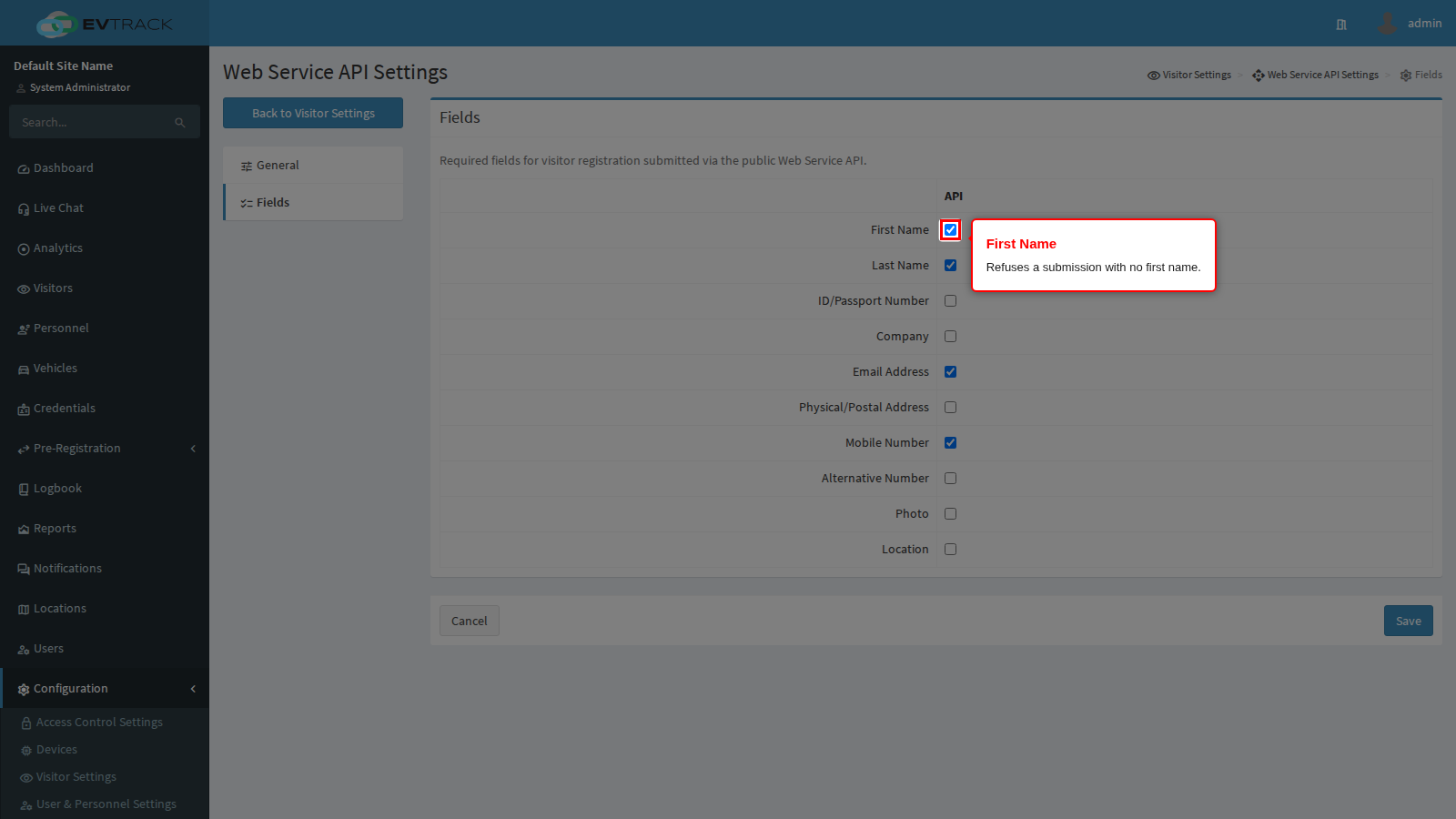
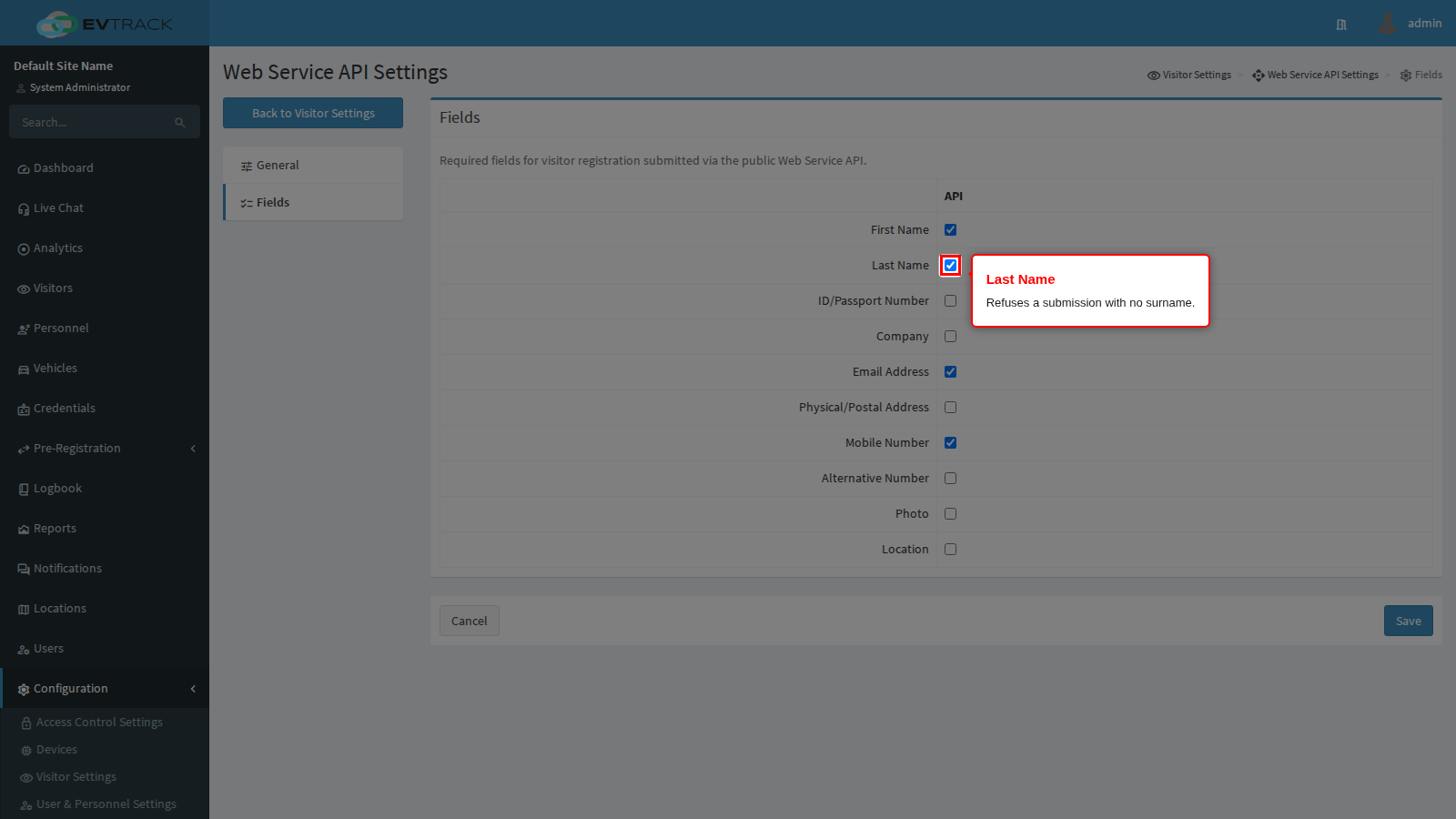
Last Name refuses a submission with no surname. Between them these two are what makes a visit readable in a list and on a badge.
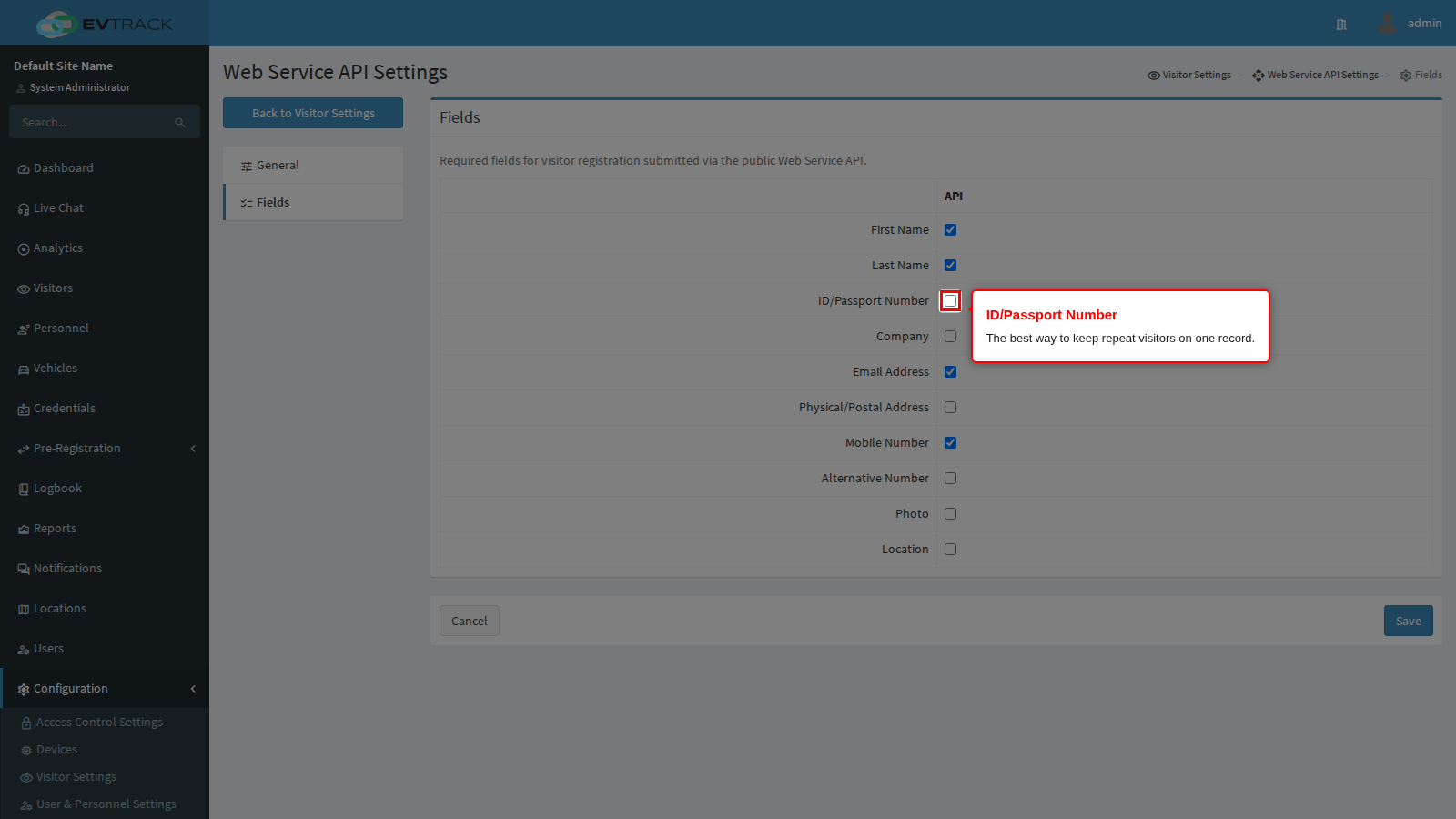
ID/Passport Number refuses a submission with no identity or passport number. This is the row that keeps a contractor who visits every week on one visitor record instead of forty, because it is the number a returning visitor is matched on first. If the system on the other end holds an identity number at all, tick this.
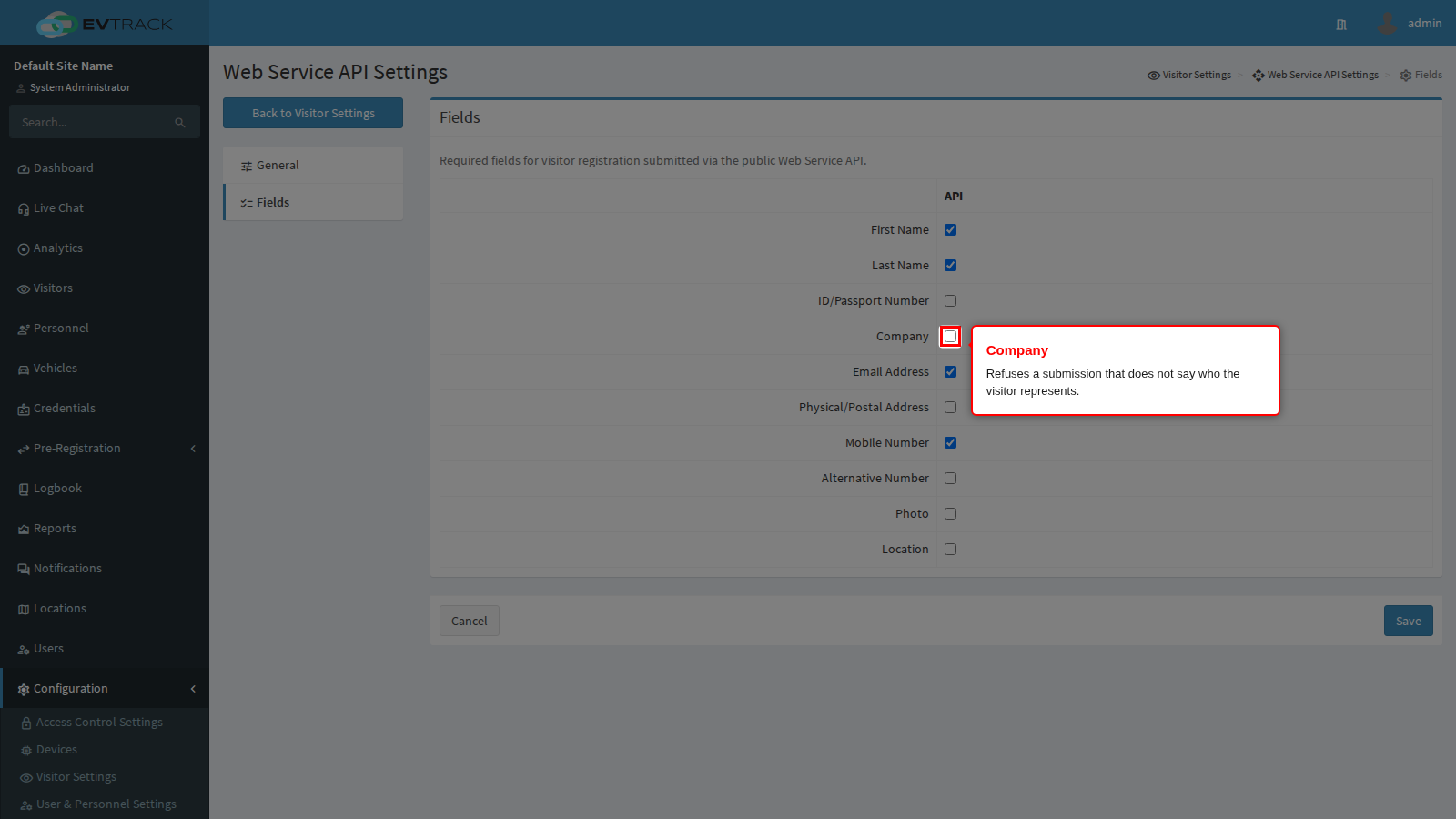
Company refuses a submission that does not say who the visitor represents.
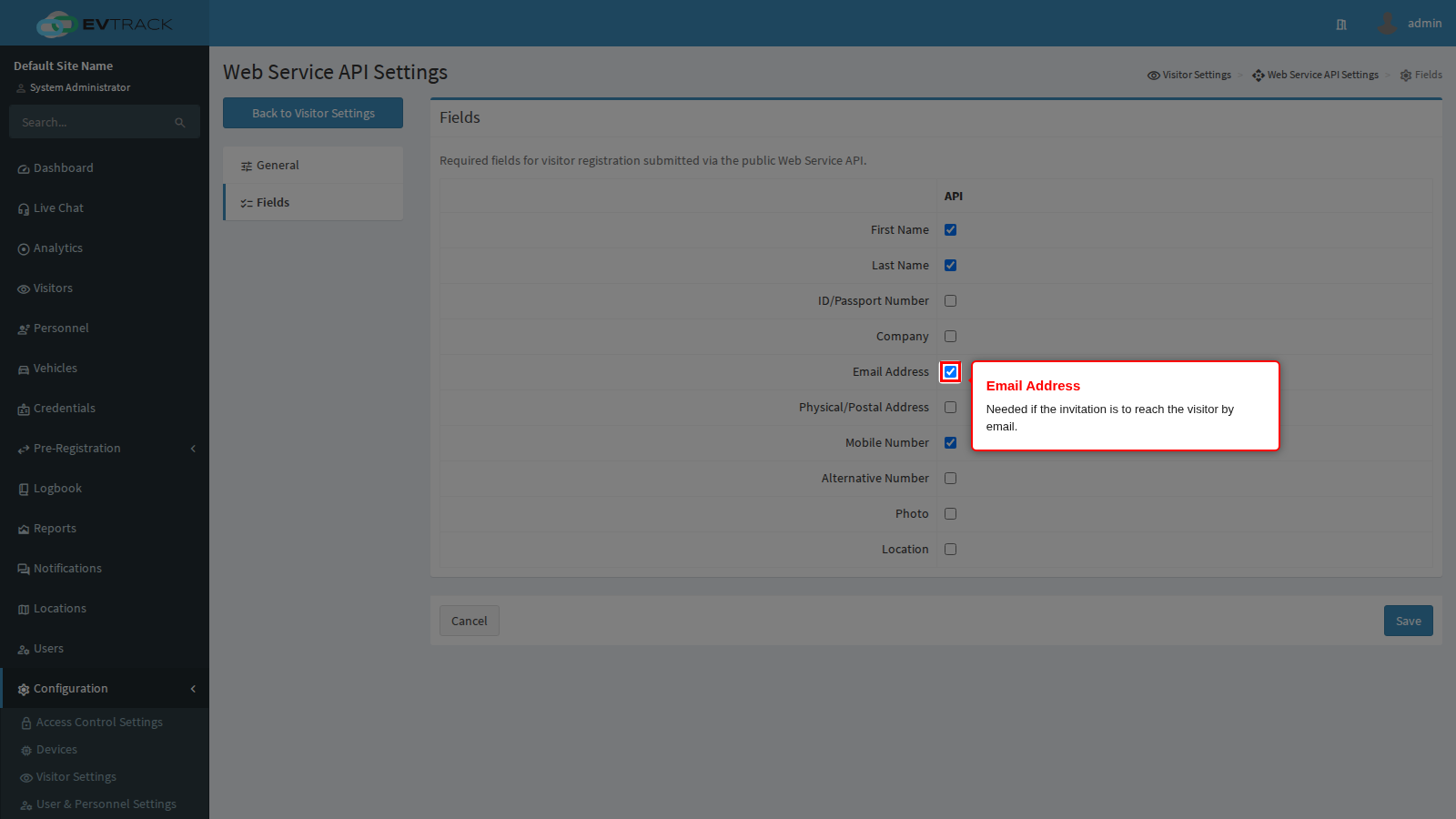
Email Address refuses a submission with no email address. Tick it if invitations from this interface are delivered by email, since a submission without one produces a visit whose visitor is never emailed anything.
Physical/Postal Address refuses a submission with no physical address. Useful for long-running contractor records, unnecessary for a meeting invitation.
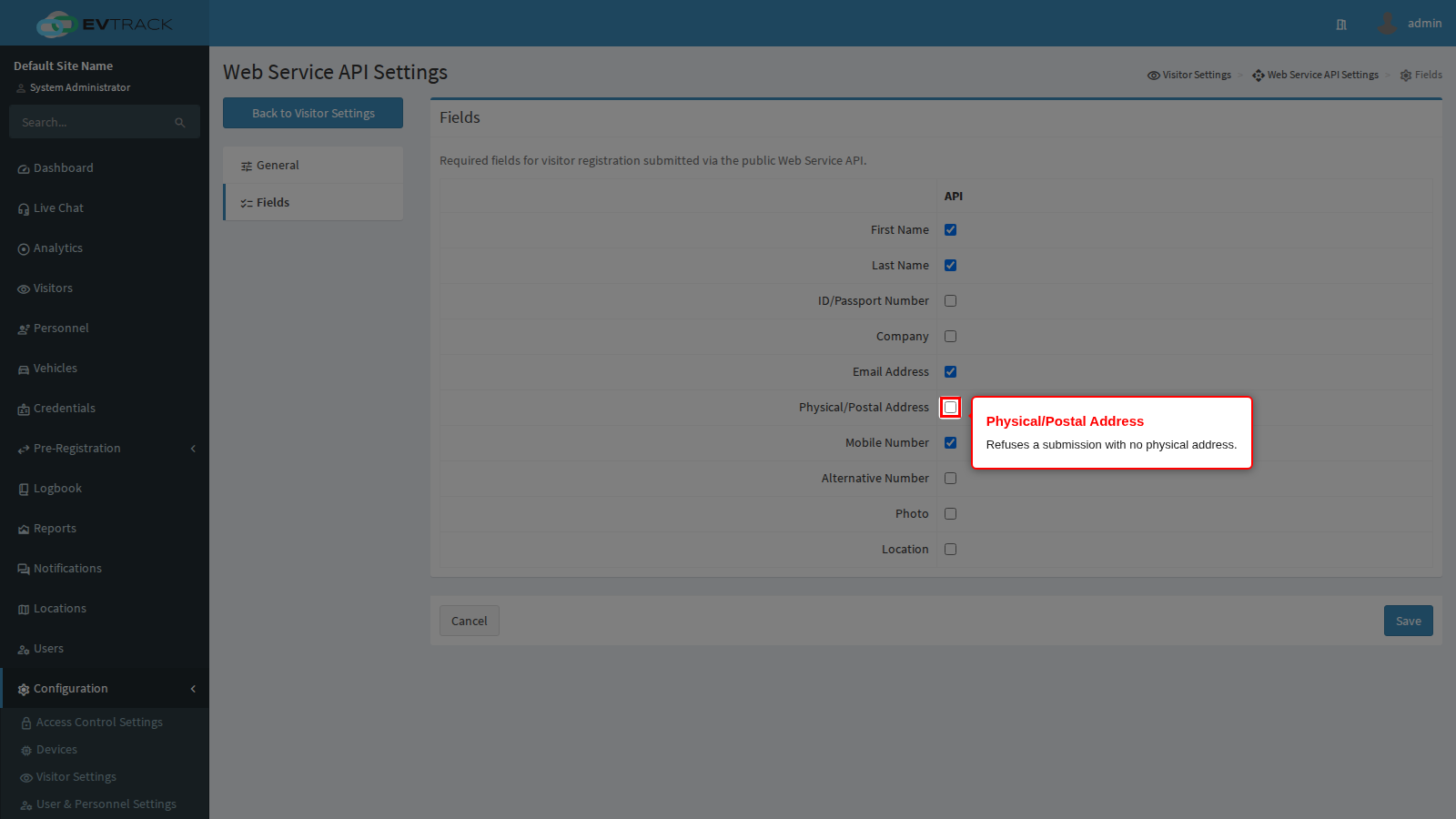
Mobile Number refuses a submission with no mobile number. Tick it if credentials from this interface are delivered by SMS or instant message - the same logic as email, on the other channel.
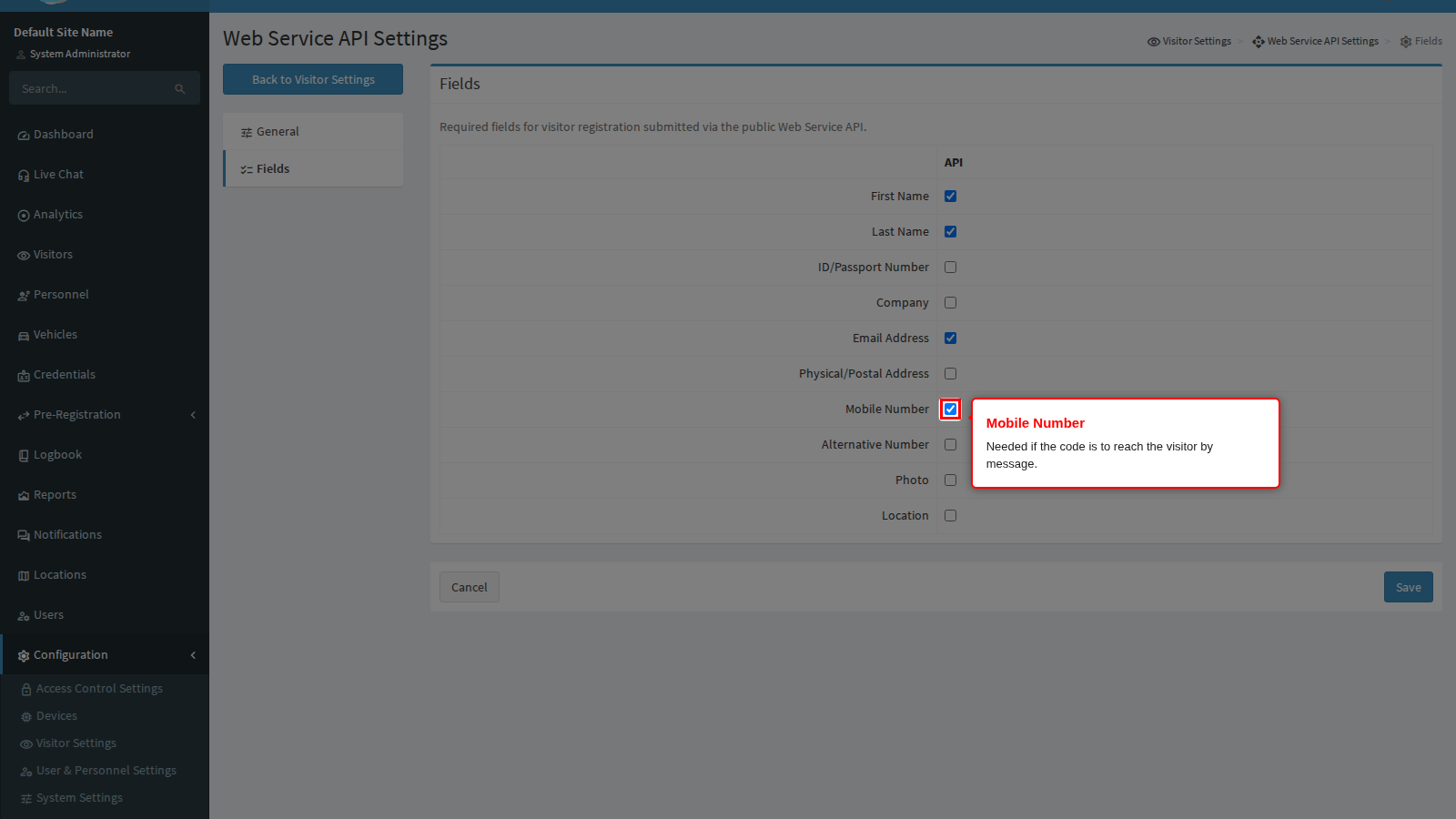
Alternative Number refuses a submission with no second contact number. Few integrations have one to send, so it is rarely worth insisting on.
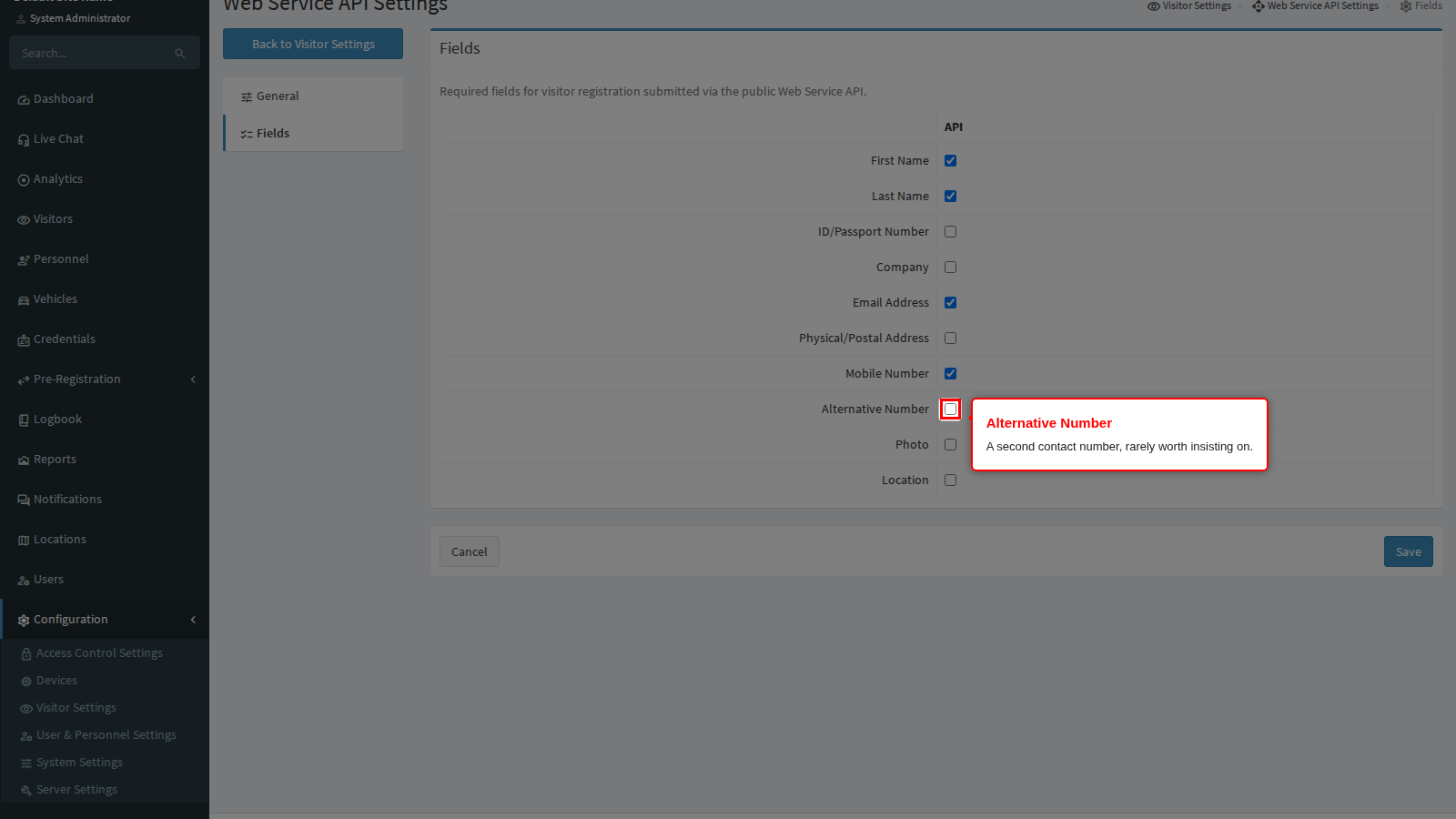
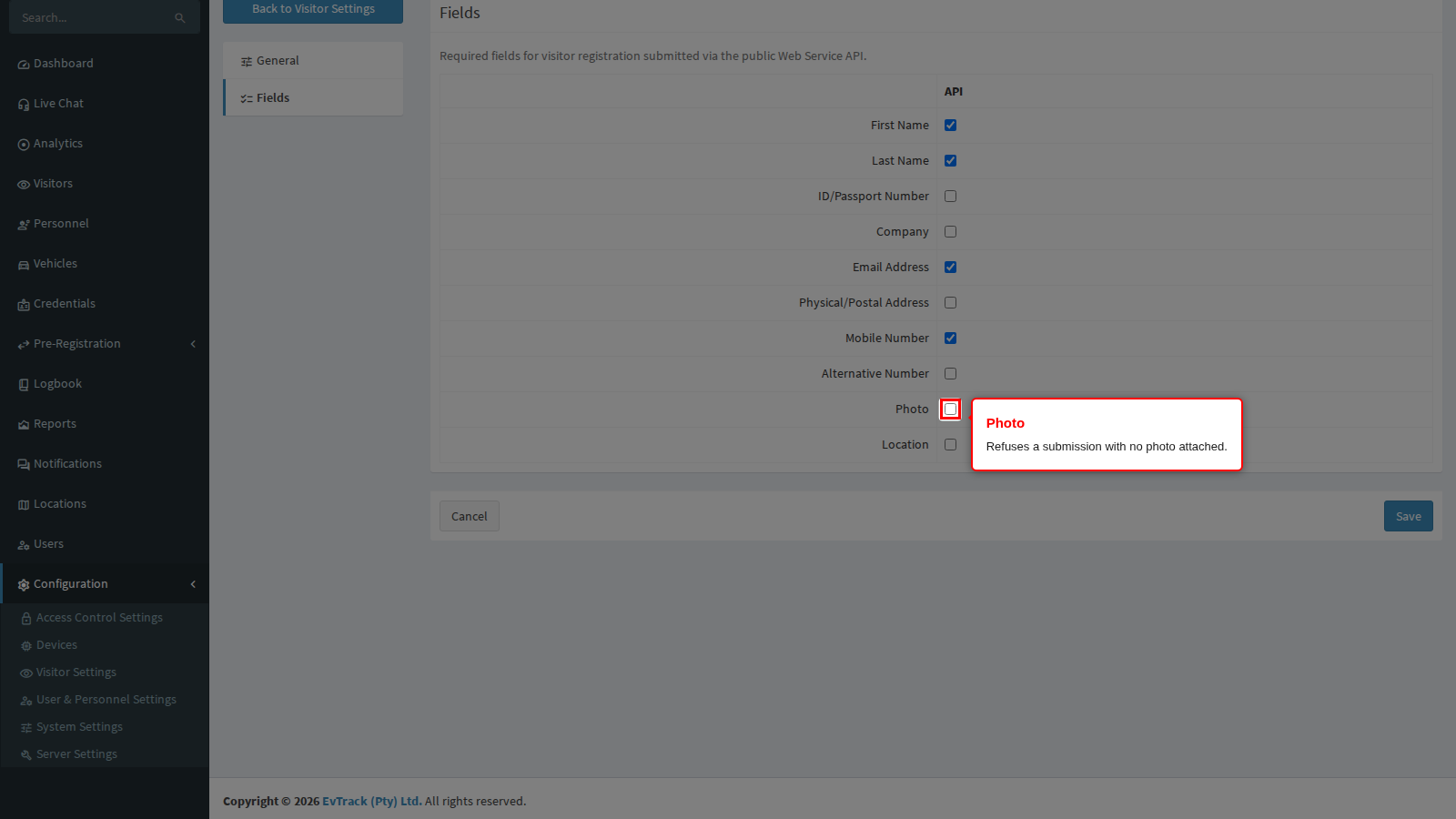
Photo refuses a submission with no photograph attached. Tick it only where the other system genuinely holds visitor photographs and sends them; at a site that prints photo badges for API-booked visitors it is the row that stops a blank badge, and everywhere else it will simply block every call.
Location refuses a submission that names no site at all. It is a different question from the previous page: this row is about a submission that is silent about the location, while Skip Invalid Location Field is about a submission that names one you do not recognise. At a multi-site installation tick this row and leave the other one off, so a visit can never be filed against nothing.
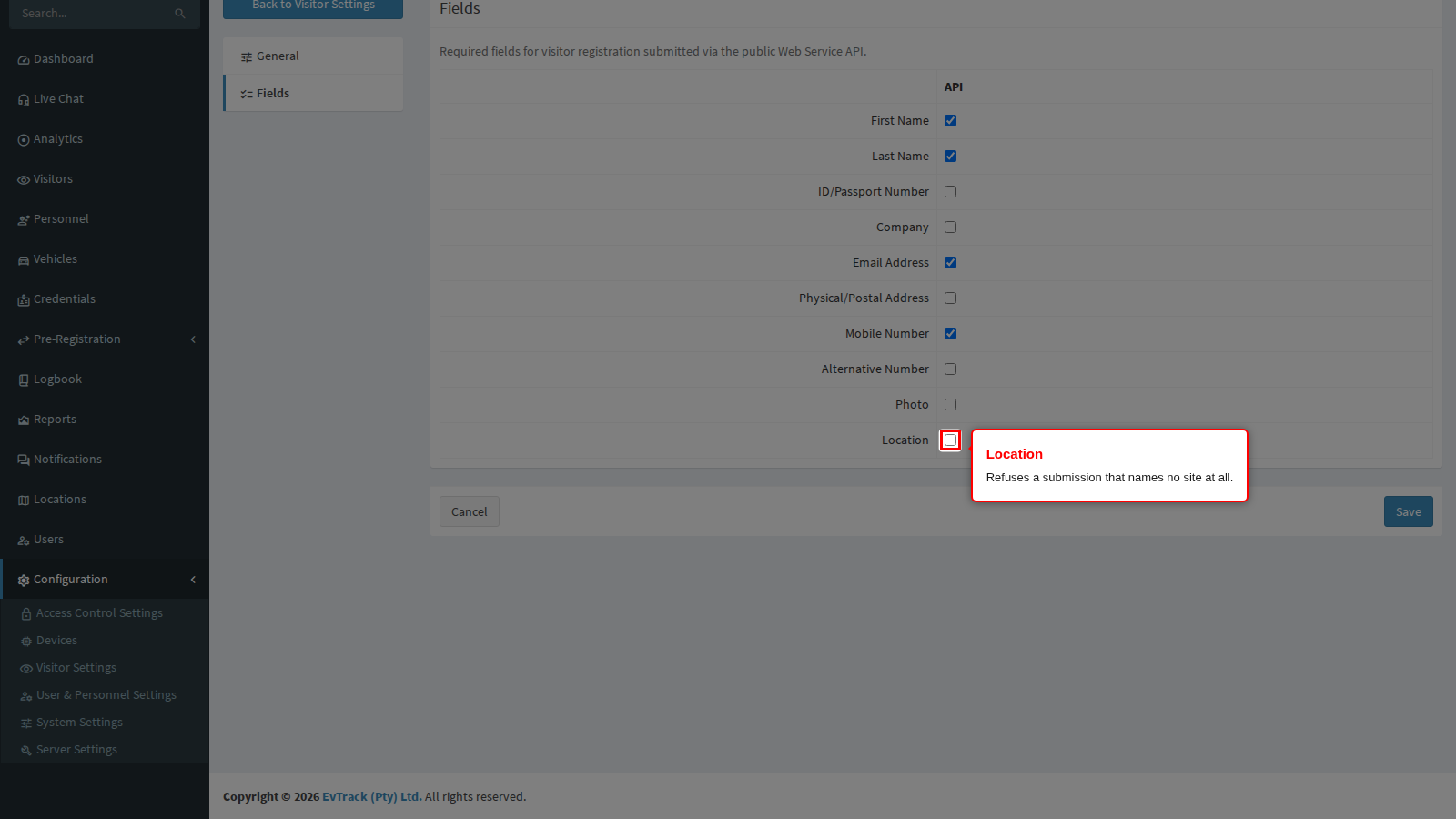
End state: every registration this interface accepts carries the details your process depends on, and the other system gets a clear, specific message about anything it left out.
Tick the fewest rows that make a visit usable. Each row you add is a way for the other system’s next release to start failing. Ask for what you need to identify the visitor and deliver their credential, and pull the rest out of the submission later.
Step 4: Check the key
None of the above applies until something can actually call the interface, and that needs an enabled API key. Open Configuration > System Settings > Web Service API to see the keys that exist, what each is allowed to do, and whether it is switched on.
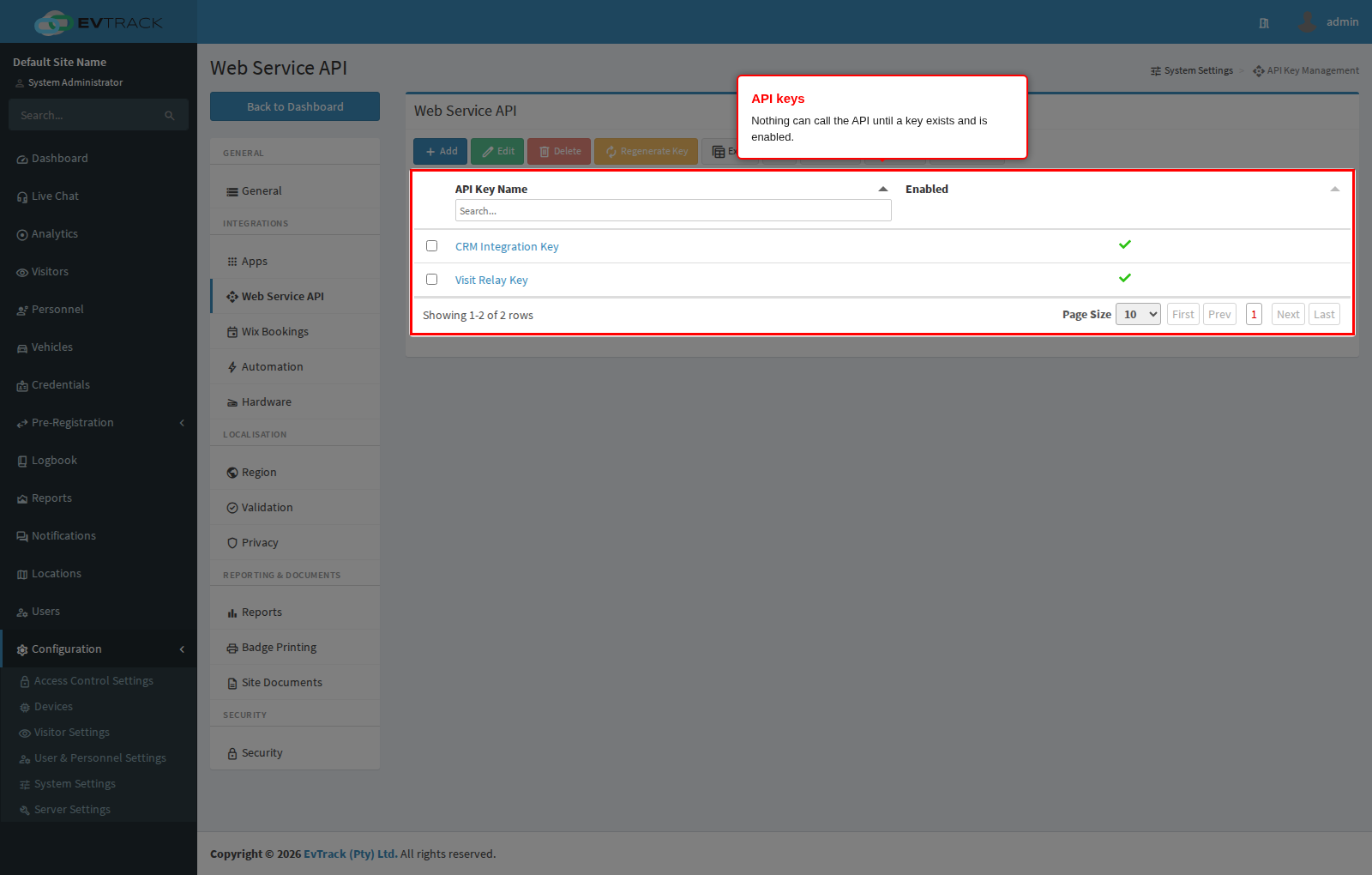
A key carries its own read and write permissions, so a key that is allowed to create invitations may still not be allowed to change a visit’s status. If a call is refused even though the submission looks complete, check the key’s permissions before re-reading this chapter. The full walkthrough for creating, editing, regenerating and deleting a key is in Web Service API keys.
What next
- Web Service API keys for creating a key, its payload encryption and its permission grid.
- Required Fields for the equivalent field policy used by your own operators, and how it relates to the other channels.
- Configuration > Locations for the site names an incoming submission is matched against.
- The complete interface reference, with example requests and responses, is published at https://api.docs.evtrack.com/.