The Regula document scanner reads passports and ID documents at the desk and fills the visitor form from what it reads, instead of the operator typing names and document numbers by hand.
What you need
- A Regula document scanner connected to the reception workstation.
- The Regula service installed and running on that same workstation, reachable at
https://localhost. - The scanner is per workstation. Desks without one never see the scanner menu.
Step 1: turn it on for the system
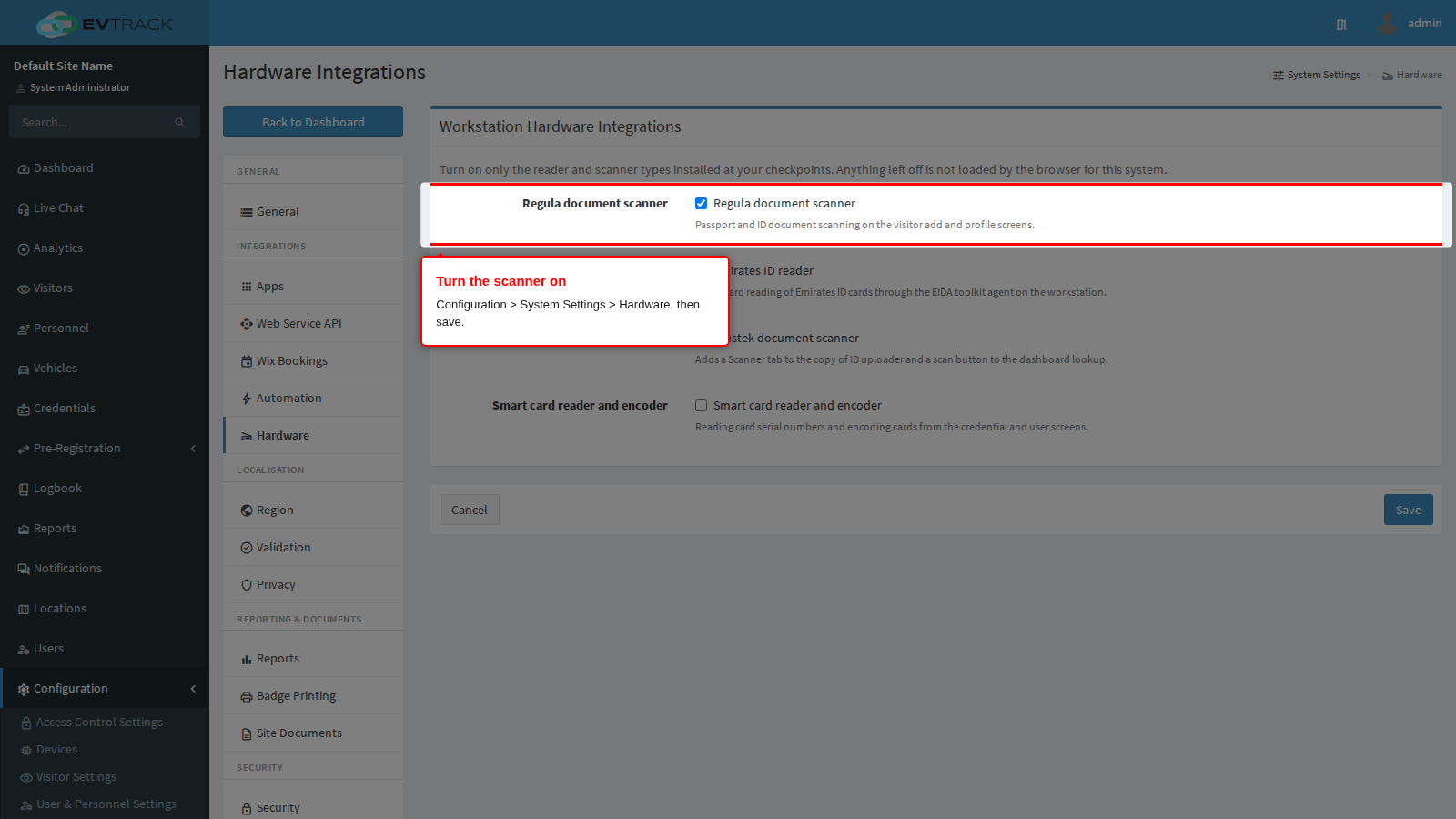
Go to Configuration > System Settings > Hardware, tick Regula document scanner, and save. Until this is on, the scanner software is never sent to the browser, so the scanner menu cannot appear regardless of what is connected.
Step 2: check it appears
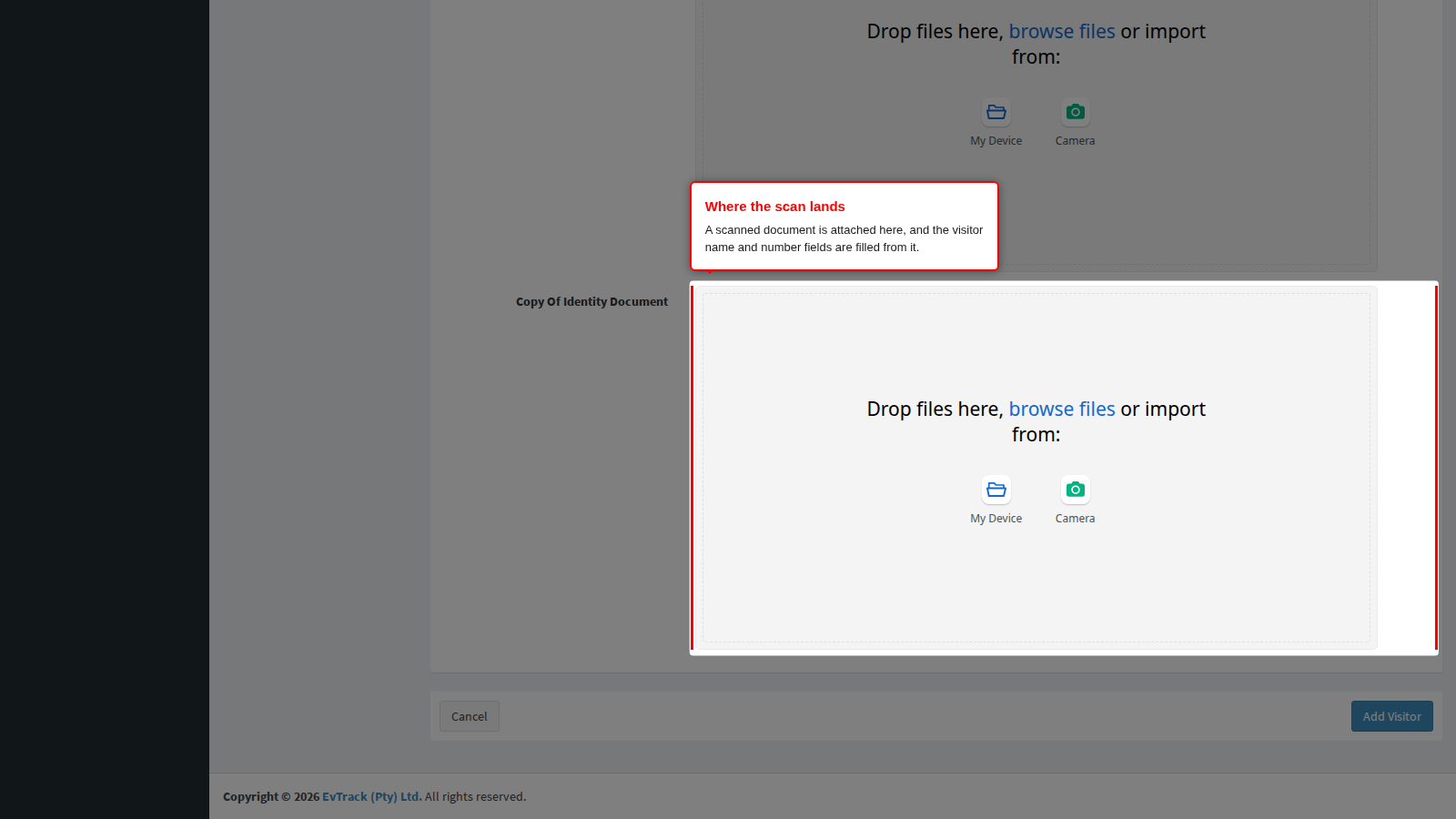
Open Visitors > Add Visitor, or an existing visitor’s profile. The scanner menu appears once the Regula service answers on that workstation, so it shows up on scanner desks and remains hidden everywhere else. That is deliberate: an operator without a scanner is never offered a control that cannot work.
Step 3: scan a document
Place the document on the scanner and start the scan from the scanner menu. The scanned images are attached to the visitor as a copy of ID, and the name, document number and nationality fields are filled from the document. Check the filled fields before saving: a worn or unusual document can be read imperfectly, and the operator is the last check.
If the scanner menu does not appear
- Confirm the switch is on under Configuration > System Settings > Hardware, then reload the screen. A screen opened before the setting changed keeps the old behaviour until it is refreshed.
- Confirm the Regula service is running on that workstation, not on the server. This is desk software; the server never talks to the scanner.
- Confirm the browser trusts the service’s certificate. The service is reached over HTTPS on the workstation, and a browser that rejects its certificate cannot reach it. Open
https://localhostin that browser: a certificate warning there means the Regula service’s certificate still has to be installed as trusted on the workstation. - Confirm the scanner works in its own bundled Regula utility. If that cannot see it either, the problem is the device or its driver rather than EvTrack.