A visitor’s details can be updated at any time from their profile, and visitors that are no longer needed can be removed.
Step 1: Find the visitor in the Visitors list
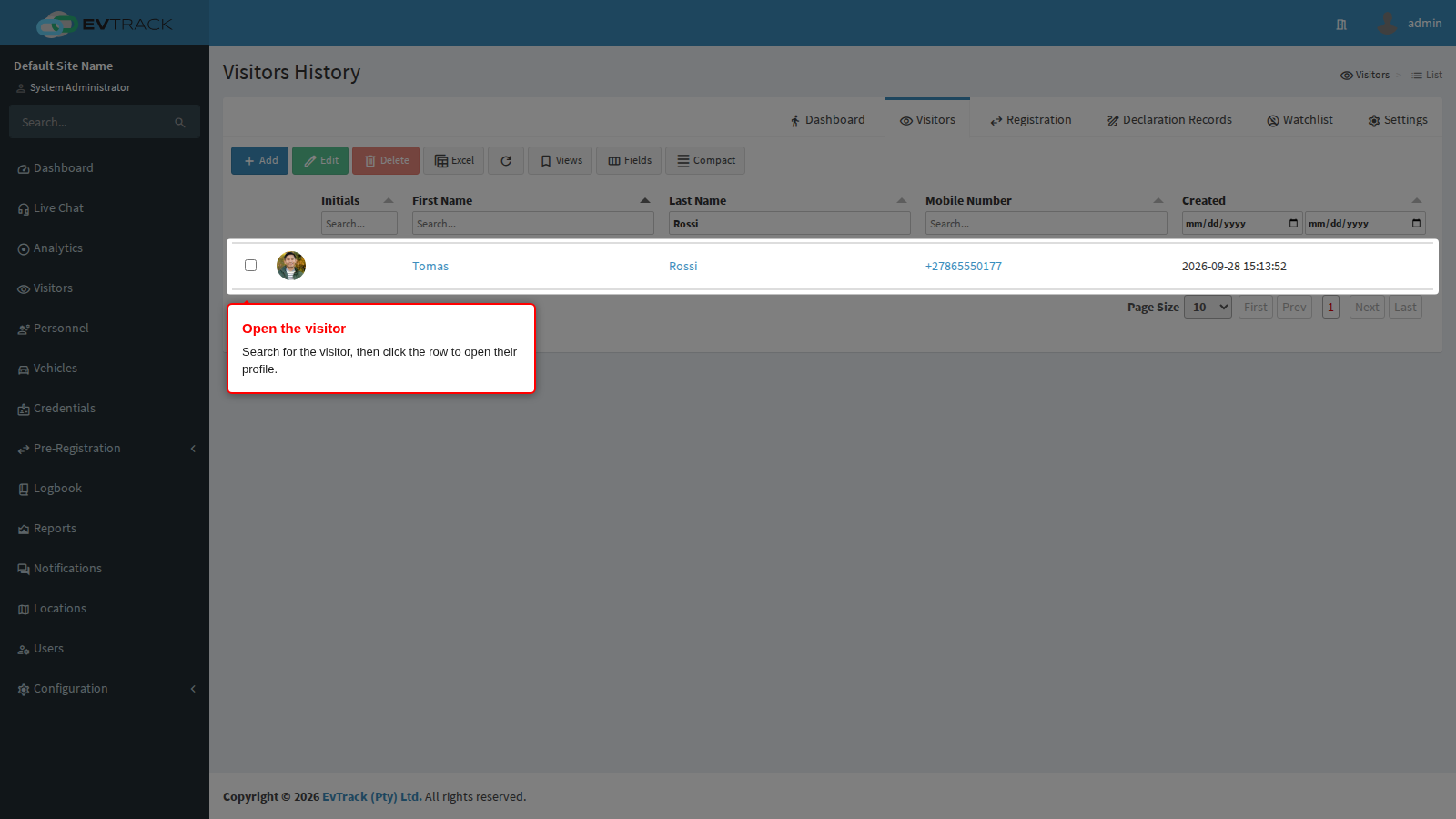
Select Visitors in the sidebar to open the Visitors History list. Type part of the visitor’s name into the column filter under the Last Name header, then click the visitor’s row to open their profile.
Step 2: Open the Profile tab
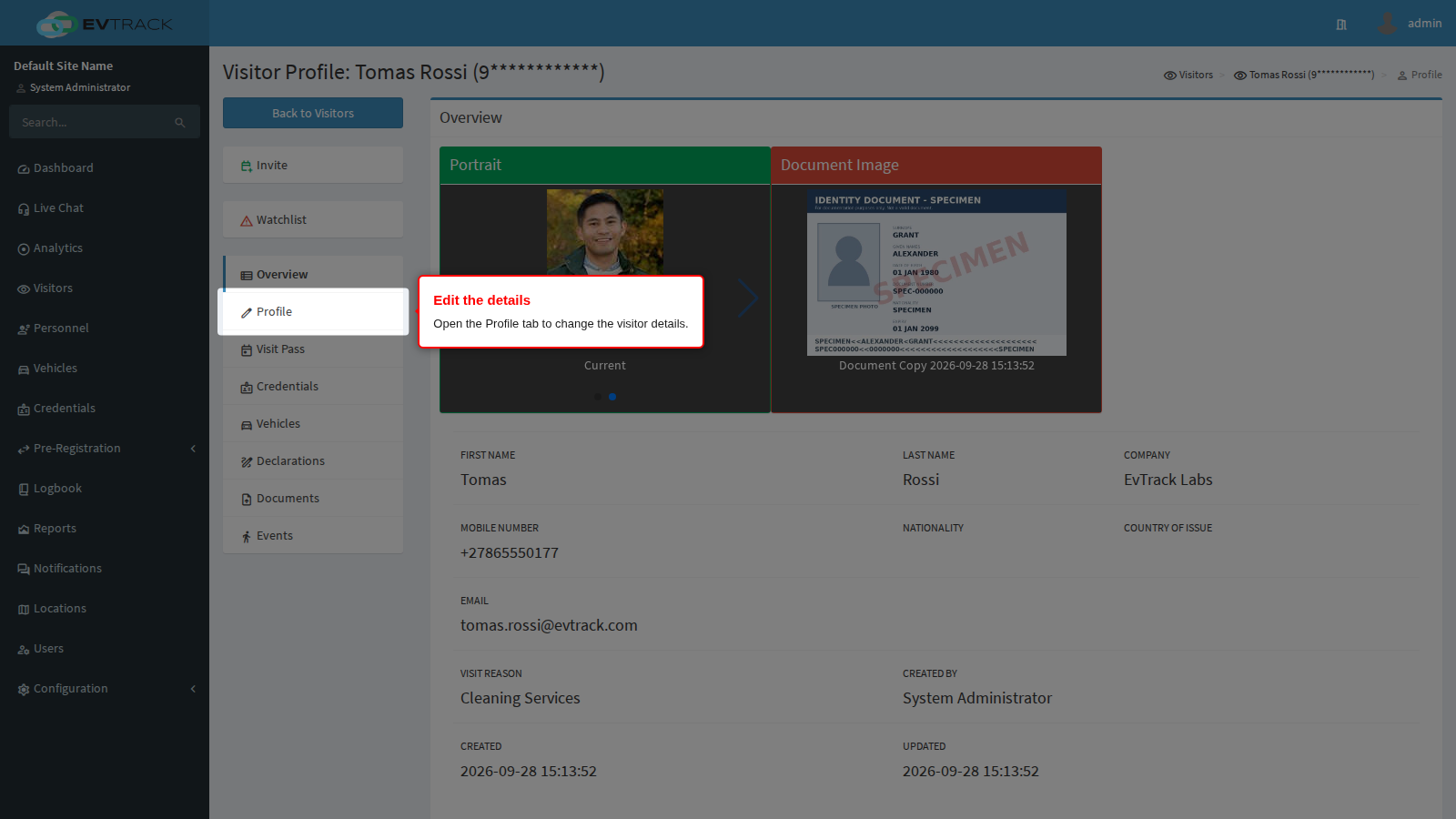
The visitor’s profile opens on the Overview tab. Select the Profile tab to make the details editable.
Step 3: Update the details
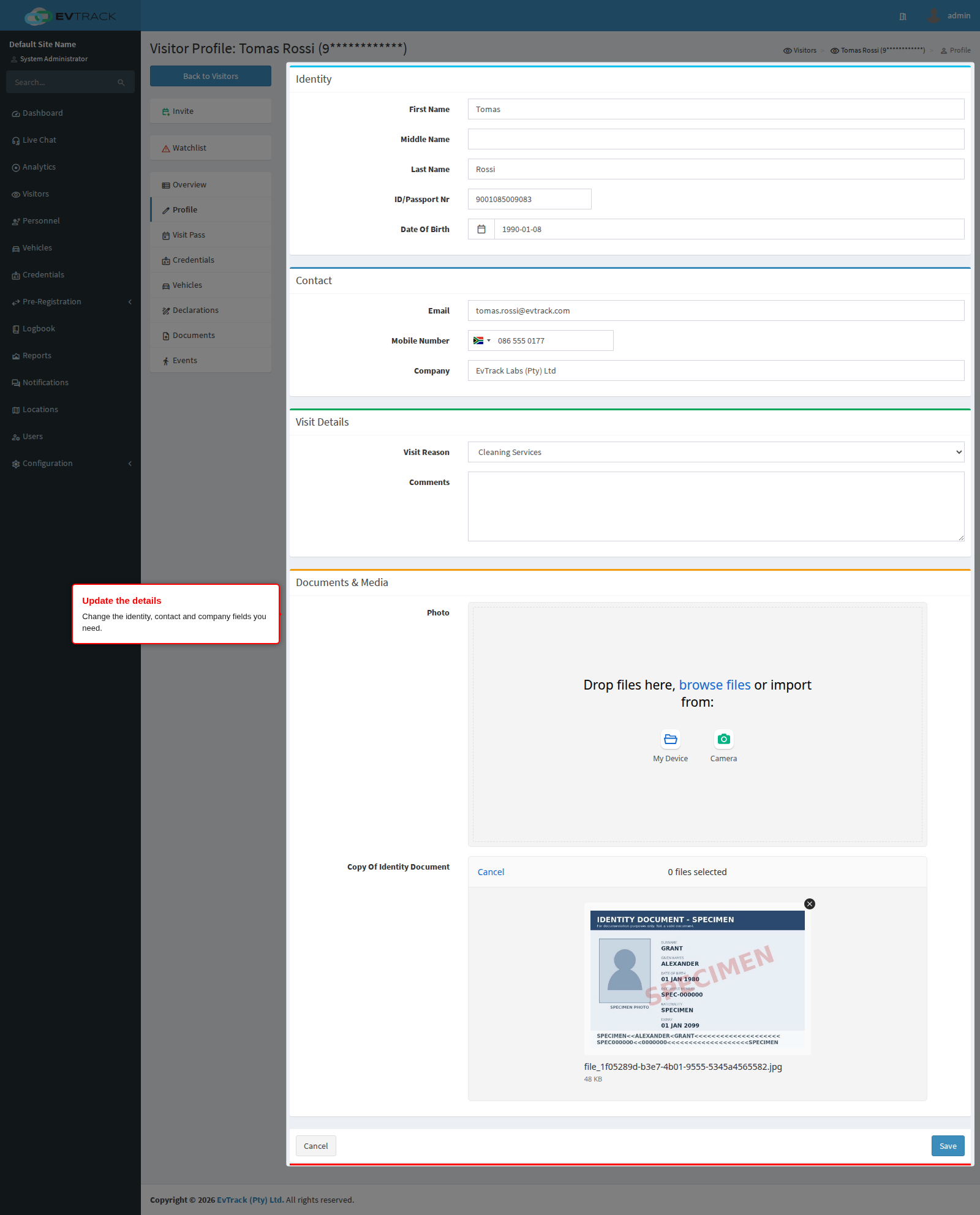
Change the fields you need - identity, contact and company details, or the badge photo and documents. The form shows the current values, so only edit what has changed.
Step 4: Save
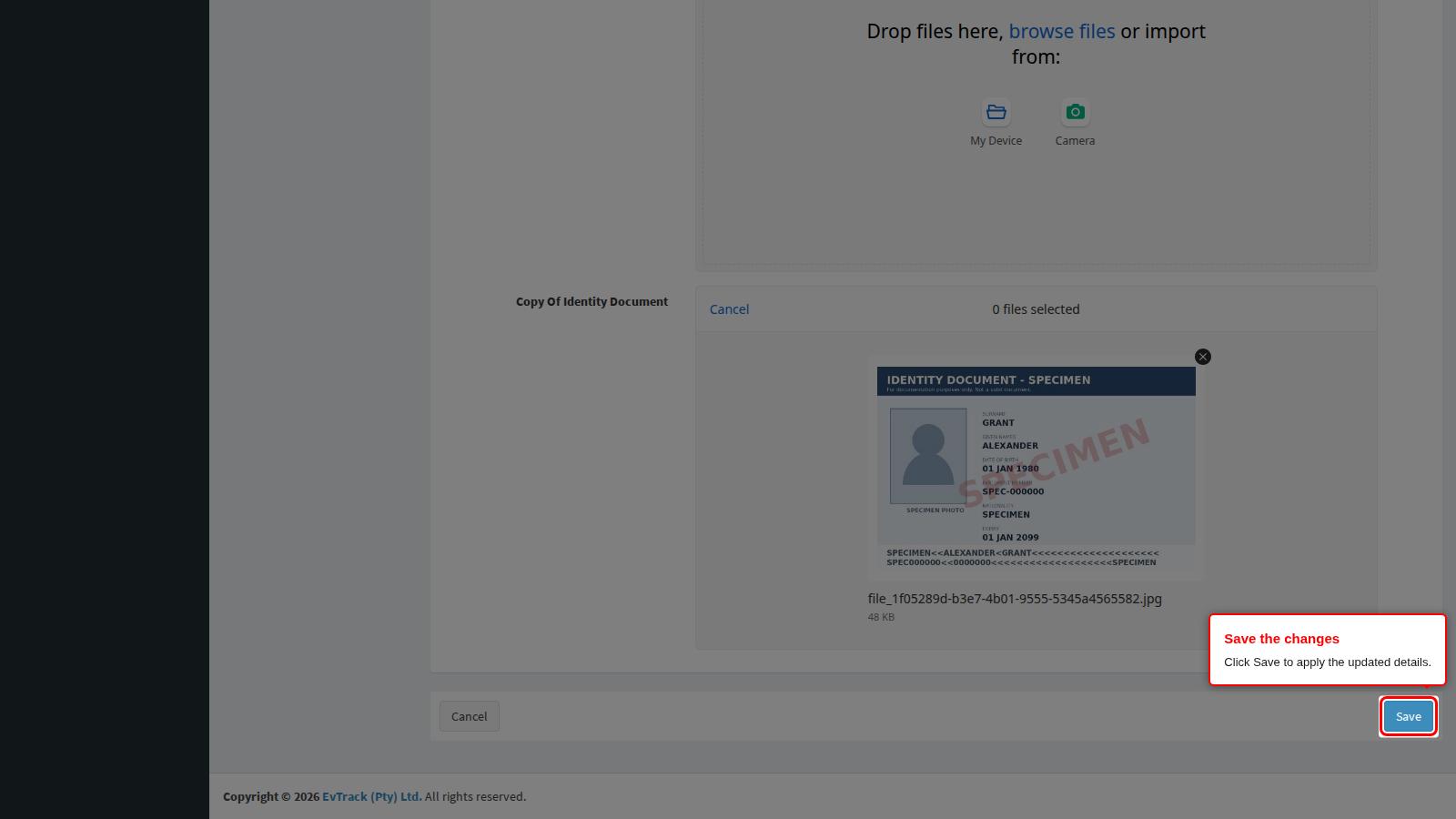
Click the Save button at the bottom of the form.
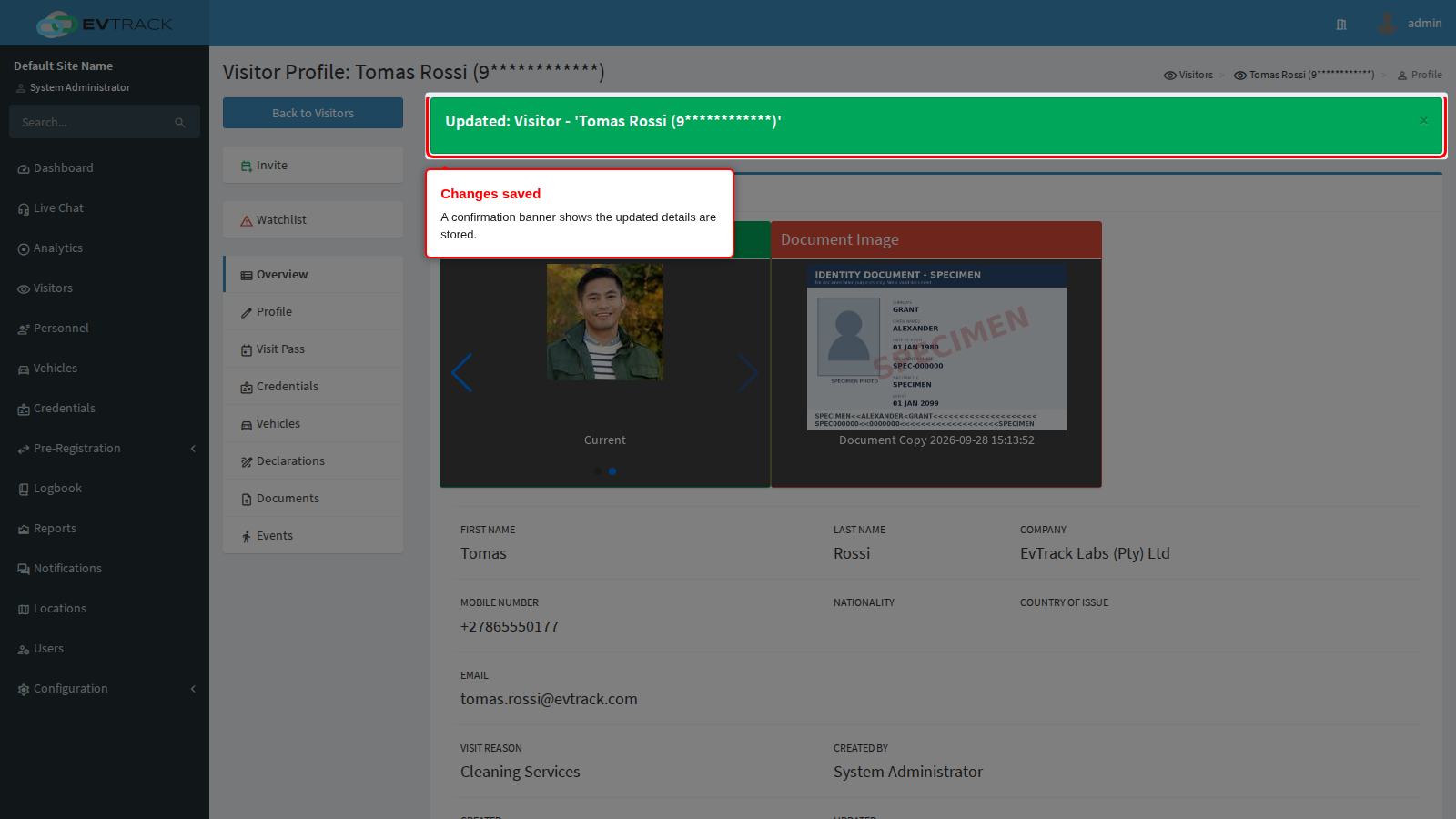
A green confirmation banner appears at the top of the profile and the updated details are stored.
To remove a visitor entirely, see Delete Visitor.