Every link EvTrack generates - visit pass links, QR short links, registration and approval links, and the address mobile/kiosk/guard apps connect to - is built from the Application Base HTTP URL. On an onsite server this must be set correctly before invitations, self-registration or device apps can work.
Before you start: you need settings administration rights, and the server must be reachable at a stable HTTPS address (see HTTPS Configuration).
Step 1: Open the setting
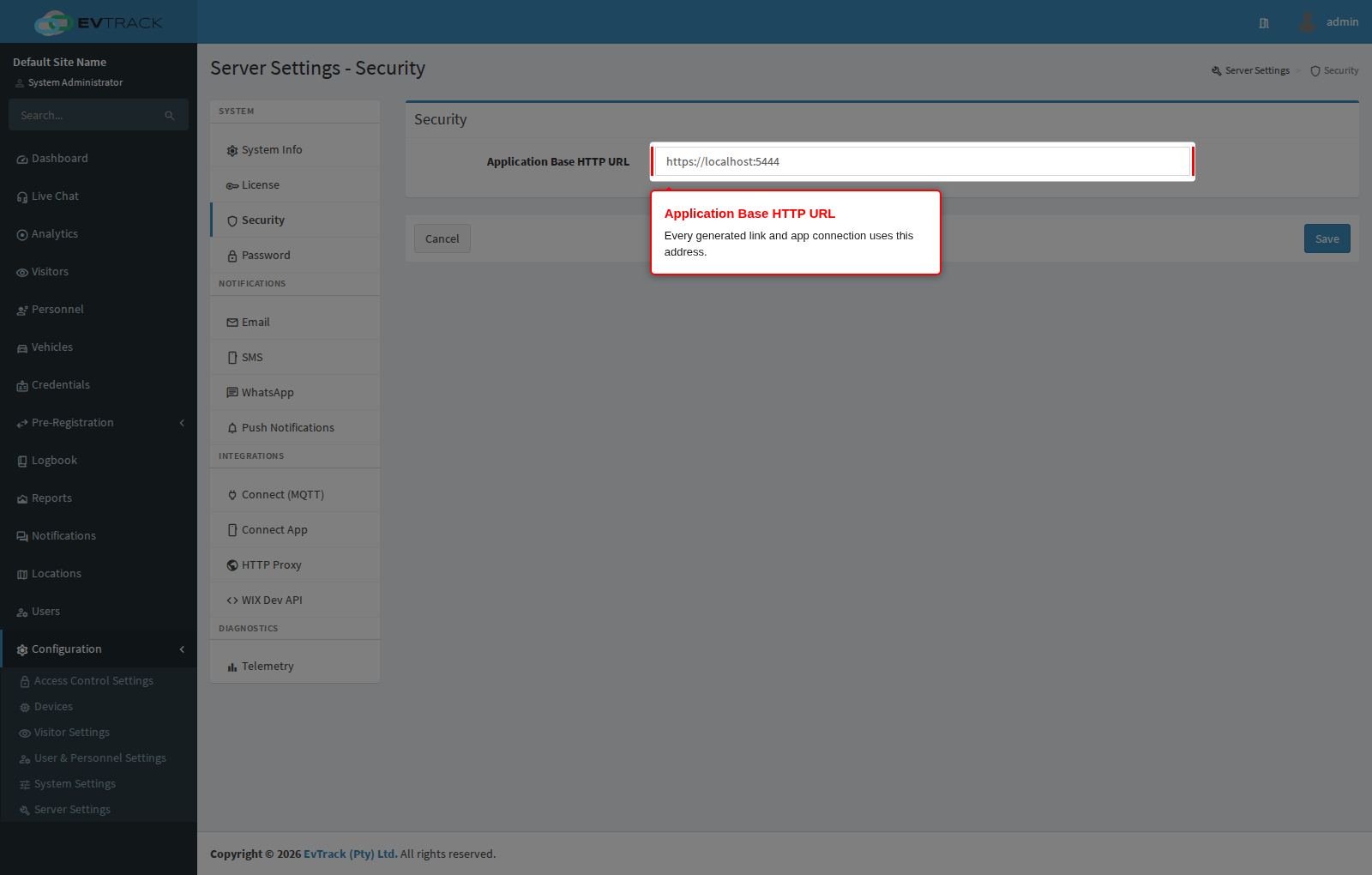
Open Configuration > Server Settings > Security. The Application Base HTTP URL field is at the top of the panel.
Step 2: Enter the public address
Enter the address your users and devices actually reach the server on, including the scheme and port when it is not the default - for example https://evtrack.example.com or https://10.20.30.40:5443. Rules of thumb:
- Use the externally reachable name, not
localhostor an internal-only address - links are opened on visitors’ phones, outside your network. - Use HTTPS. Passes, registrations and approvals carry sensitive links; kiosk and mobile apps require a trusted certificate.
- If the address is managed by your license or environment configuration, the field is read-only here - change it at the source instead.
Step 3: Save and verify
Click Save. Then generate a test invite for yourself (Invite a Visitor) and confirm the links in the email open from a phone that is not on the server’s own network. Links generated before the change keep their old address, so re-send any active invitations after correcting a wrong base URL.
Notes
- Kiosk and FrontDesk devices refuse to pair while the base URL points at a loopback address - see Kiosk and Guard Devices.
- The base URL is also available to message templates as the
${app_base_url}merge tag - see Merge Tags.