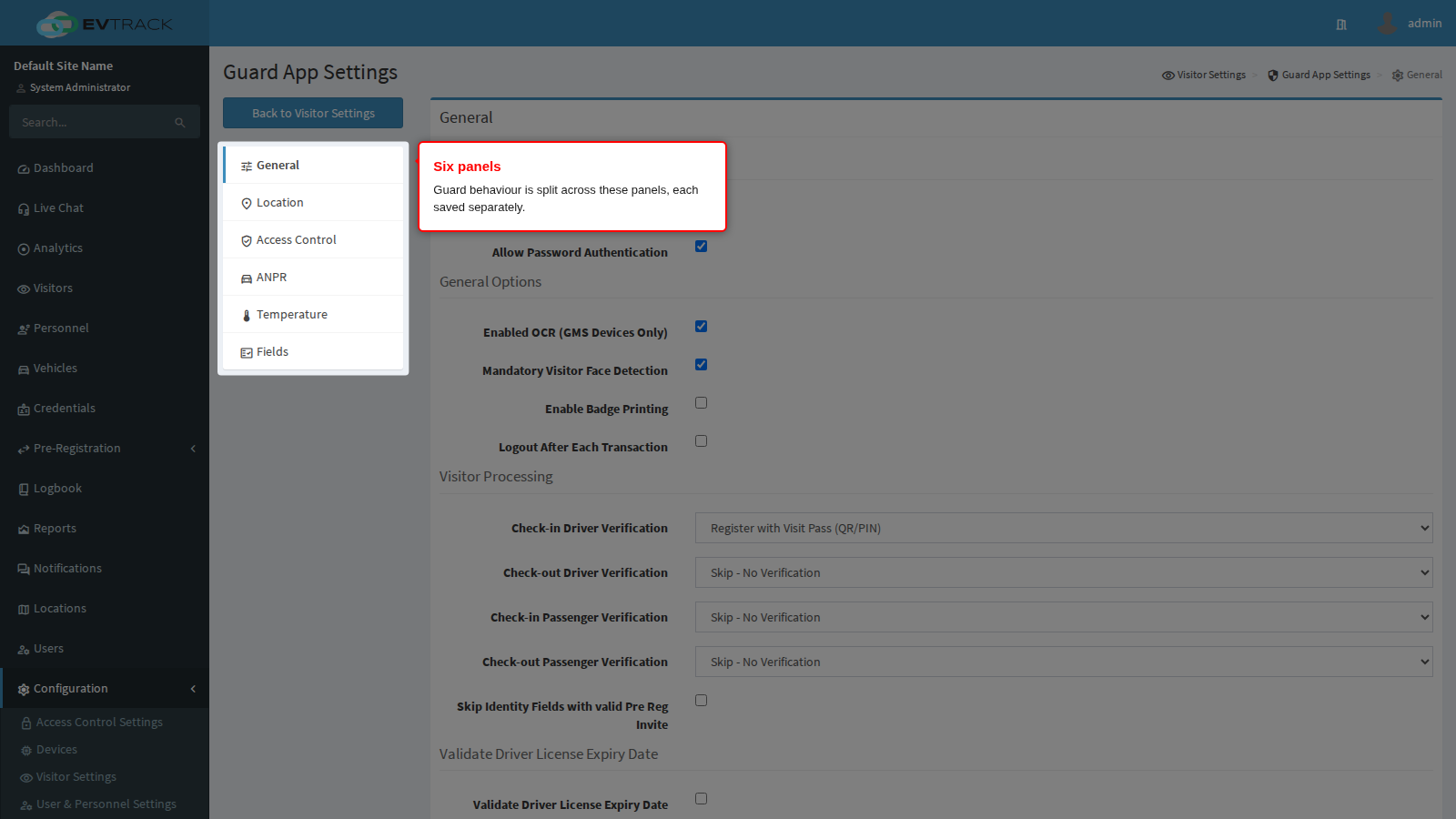
The Guard app is the handset a security officer carries at the checkpoint. It scans passes, verifies people against what the system holds, enrols walk-ins, records vehicles and temperatures, and prints badges. These six panels decide what the officer is asked to do at every step, so they are the difference between a two-second wave-through and a full identity check.
Before you start: you need an operator account with settings permissions and a paired guard device. If you have not set one up, work through the kiosk and guard device quickstart first: it creates the device record, installs the app, matches the handset identifier and puts the checkpoint readers on the Default Access Control List. The officer’s own account needs nothing special: give it the ready-made Guards role, which lets the app work fully and shows nothing in the web product.
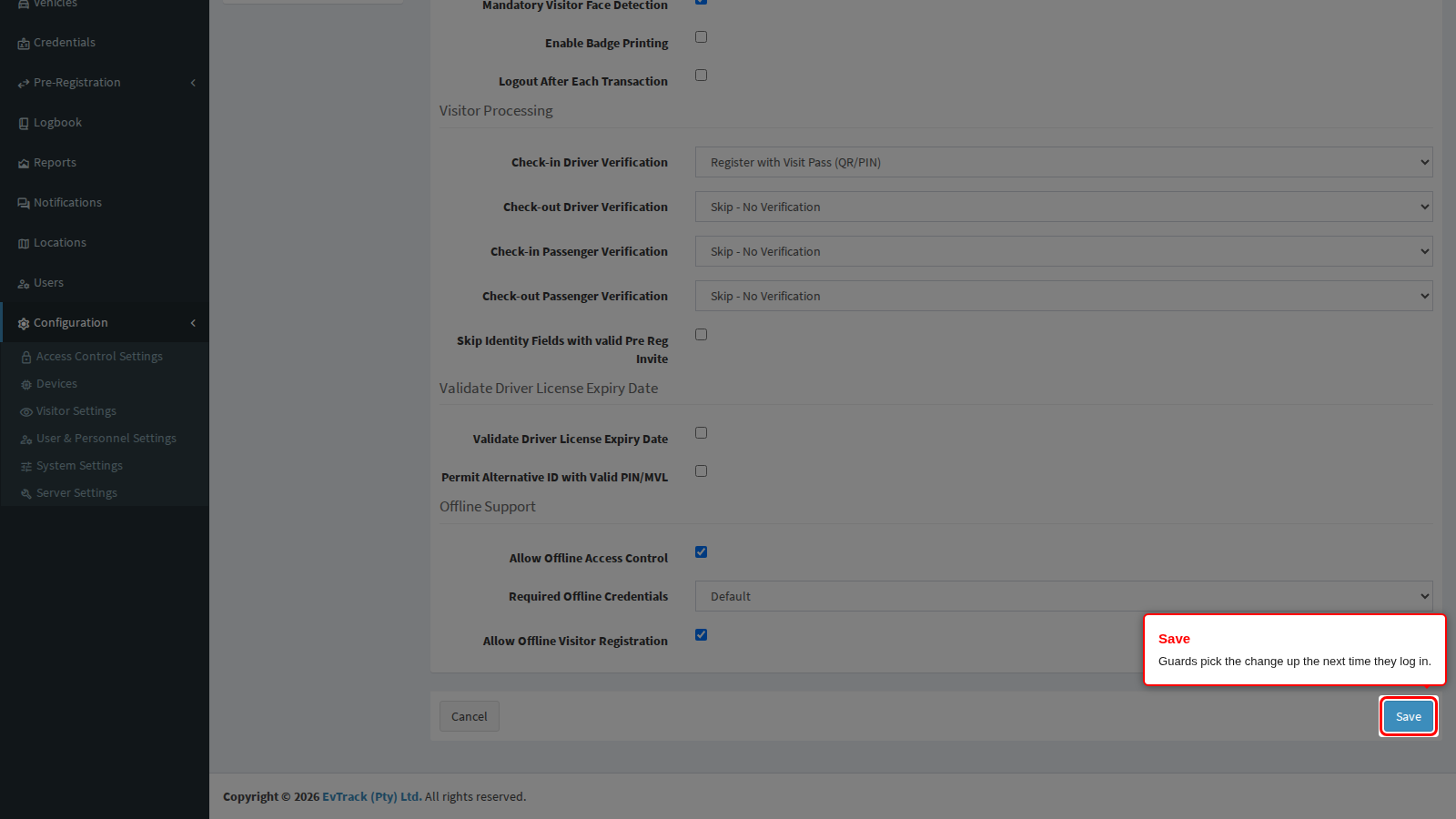
The app reads its configuration when the officer logs in. After saving anything here, the officer must log out of the Guard app and log in again before the change reaches them. If a change appears not to work, check that first.
Step 1: Open the Guard App settings
Open Visitors in the sidebar, click Settings, and click the Guard App tile.
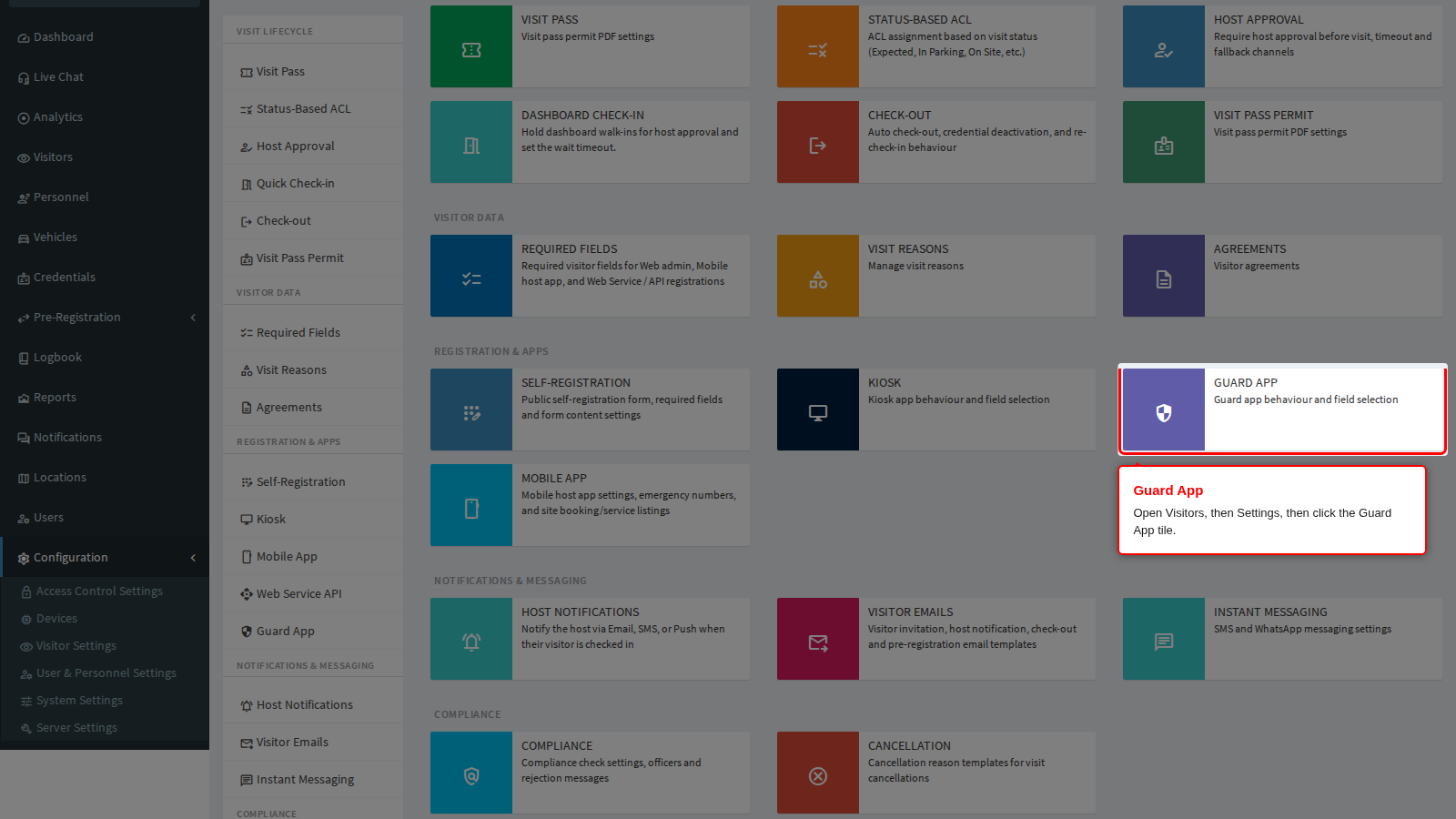
End state: the General panel opens with the guard menu on the left. The menu is the same on every guard panel.
Save is at the bottom of every panel and each panel saves on its own.
End state: a green confirmation appears at the top of the panel, and the setting applies to the officer at their next login.
General: how officers log in
The two settings under the Authentication Options heading at the top of the General panel decide which login method the app opens on. Read the next two entries together before you change either: only one of them actually changes anything, and neither of them can lock an officer out.
Allow SmartCard Authentication decides which login form the app opens on.
With it on, the app starts on the card screen: the prompt reads Hold Access Card Behind Device, there are no user name and password boxes, and there is a Use Password button below. So this is card-first, not card-only. An officer who has forgotten their card, or whose card has never been enrolled, presses Use Password and logs in normally. With it off, the app opens straight on the user name and password form.
The card has to be enrolled before it can be used, and this is the step people miss. The officer logs in once with their user name and password with the card held against the handset and the Save to NFC switch ticked; the app writes the login onto the card and confirms with Credentials Saved to Tag. From then on a tap is enough. That switch only appears on the password form when this setting is on, so a site that never turns it on can never enrol a card. When the login stored on a card expires, the tap is refused with a message about a bad user name, password or unauthorised access tag, and the officer enrols again the same way.
Two hardware facts to check before you plan a card rollout:
- Only MIFARE Classic cards work. Other card families are simply ignored by the login screen, with no message.
- The card keys are configured elsewhere, under Configuration > System Settings > Security, in the Smart Card Login section. Without the right keys the handset cannot read or write the card.
- On a handset with no card reader, the card screen waits indefinitely and shows no error. The officer presses Use Password.
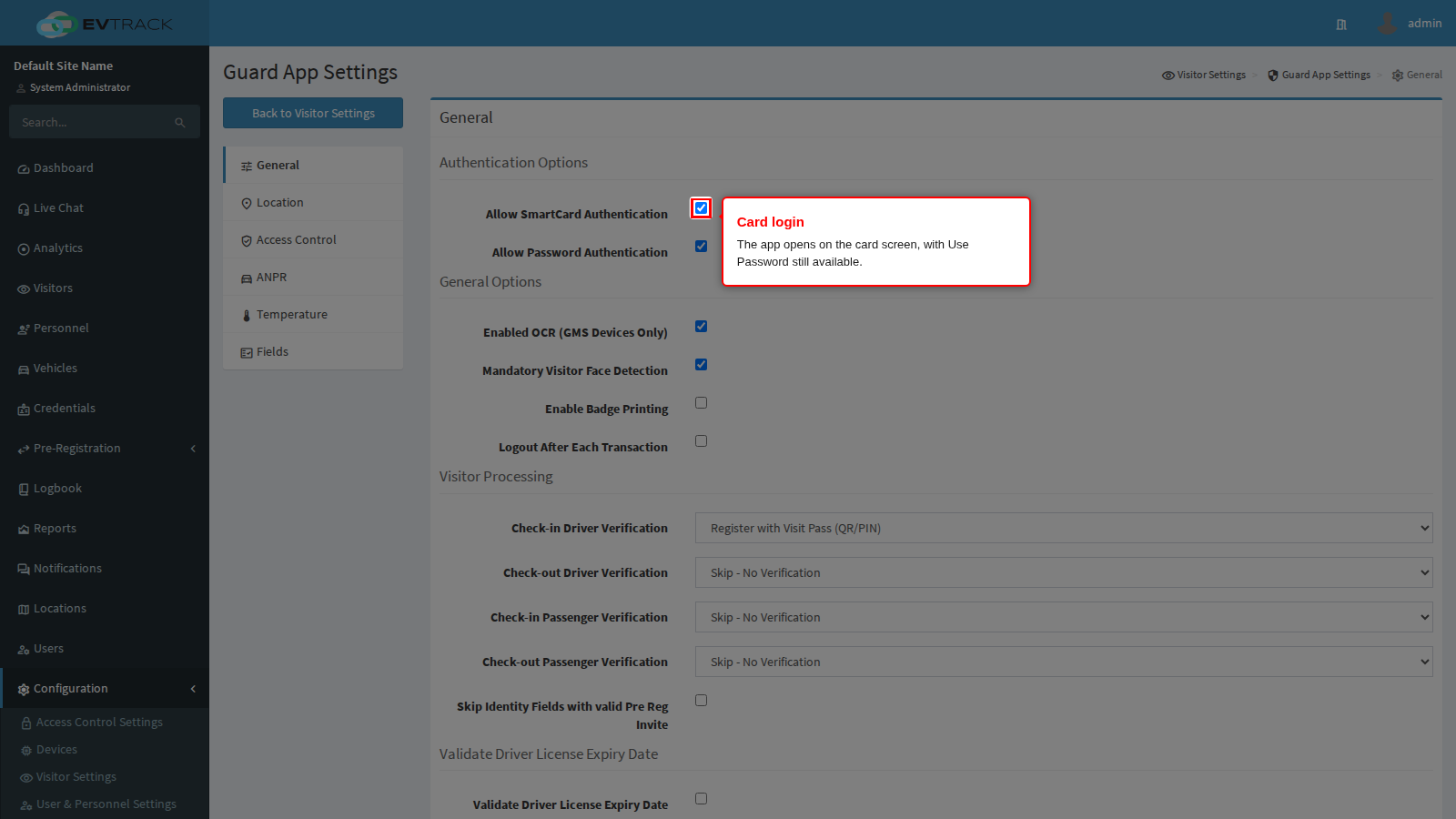
Allow Password Authentication has no effect. Neither the app nor the product acts on it: the app never consults it when deciding what to show or what to accept, and the login itself always accepts a valid user name and password. Turning it off does not stop officers logging in with a password, and the Use Password button remains on the card screen either way. Treat it as informational until that changes, and do not rely on it as a control.
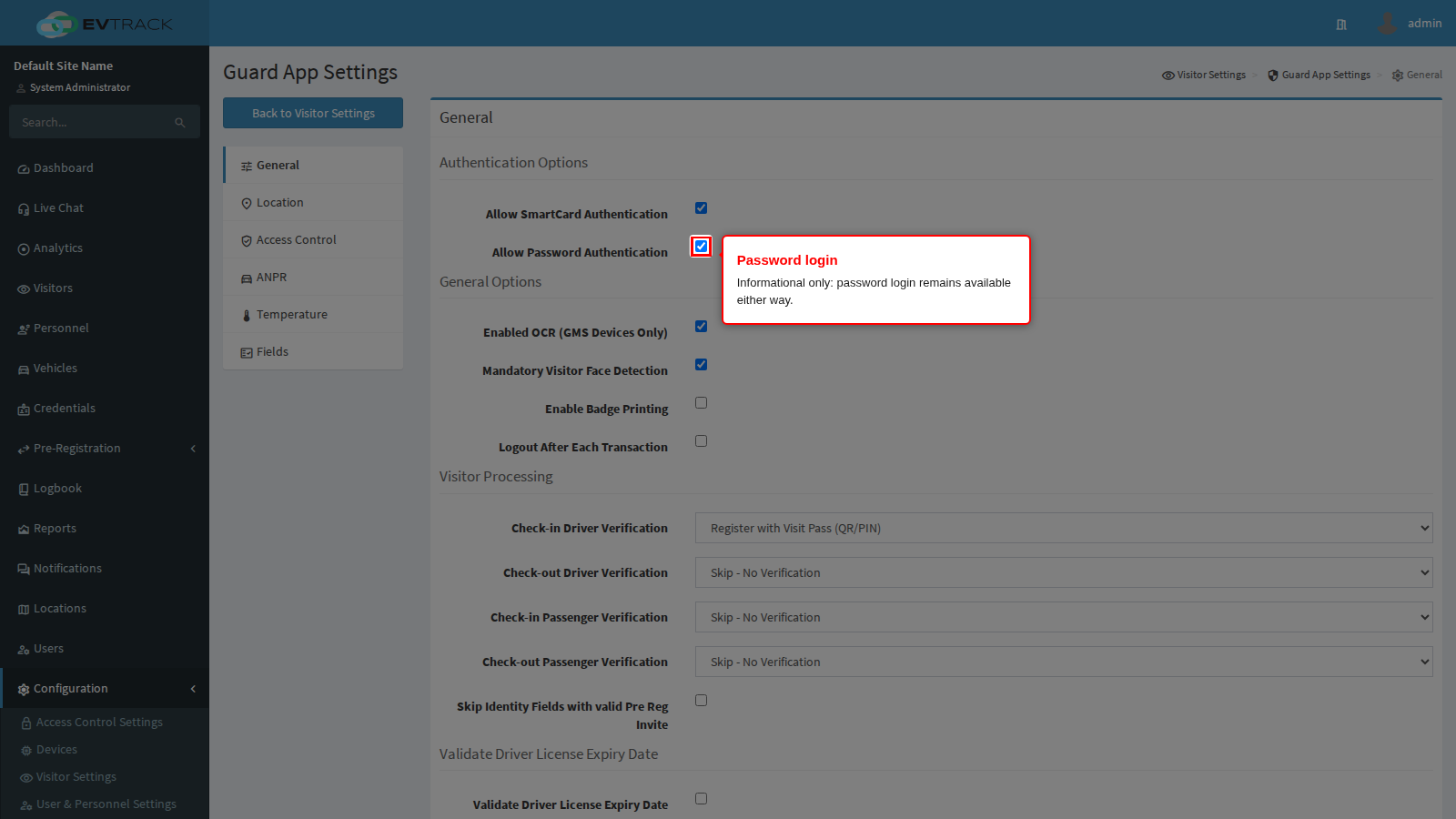
Logout After Each Transaction, further down the same panel under General Options, ends the officer session as soon as a transaction finishes, so the next person to pick up the handset has to identify themselves again.
What counts as a transaction is broader than it sounds. The logout happens when the officer acknowledges the dialog that ends a transaction, and that includes the ones that did not go well: access granted, access denied, credential not found, vehicle not found, already checked in, a watchlist match, a plate refused, and a transaction that was queued because the handset was offline. It also covers both kinds of work, an ordinary entry or exit as well as a full enrolment. It does not fire when the officer cancels a scan part-way, or from the intermediate capture screens.
Anything half-finished is lost. The officer is returned to the login screen, and a registration that was partly captured behind the dialog is gone rather than parked. Warn your officers: acknowledge the dialog when they have really finished.
Turn it on for a handset that is shared, passed between officers, or left on a counter, so every movement is attributed to the officer who actually processed it and the movement log stands up in an investigation. It costs a login per transaction, so pair it with card login above rather than passwords, otherwise your queue grows by the length of a typed password every time.
Turn it off and the officer remains logged in until their session expires. That is faster and is the right choice for a handset issued to one named officer for a shift, but every movement made on it is recorded against whoever logged in last.
Two cautions for offline working. The logout also happens after a transaction that was queued offline, so the officer is put back to the login screen during an outage. If neither offline option on this panel is enabled, they cannot get past that screen again until the connection returns, and the checkpoint stops. And an offline login does not verify the password against the server, so during an outage this setting is a discipline measure rather than a security control.
General: what the handset captures and prints
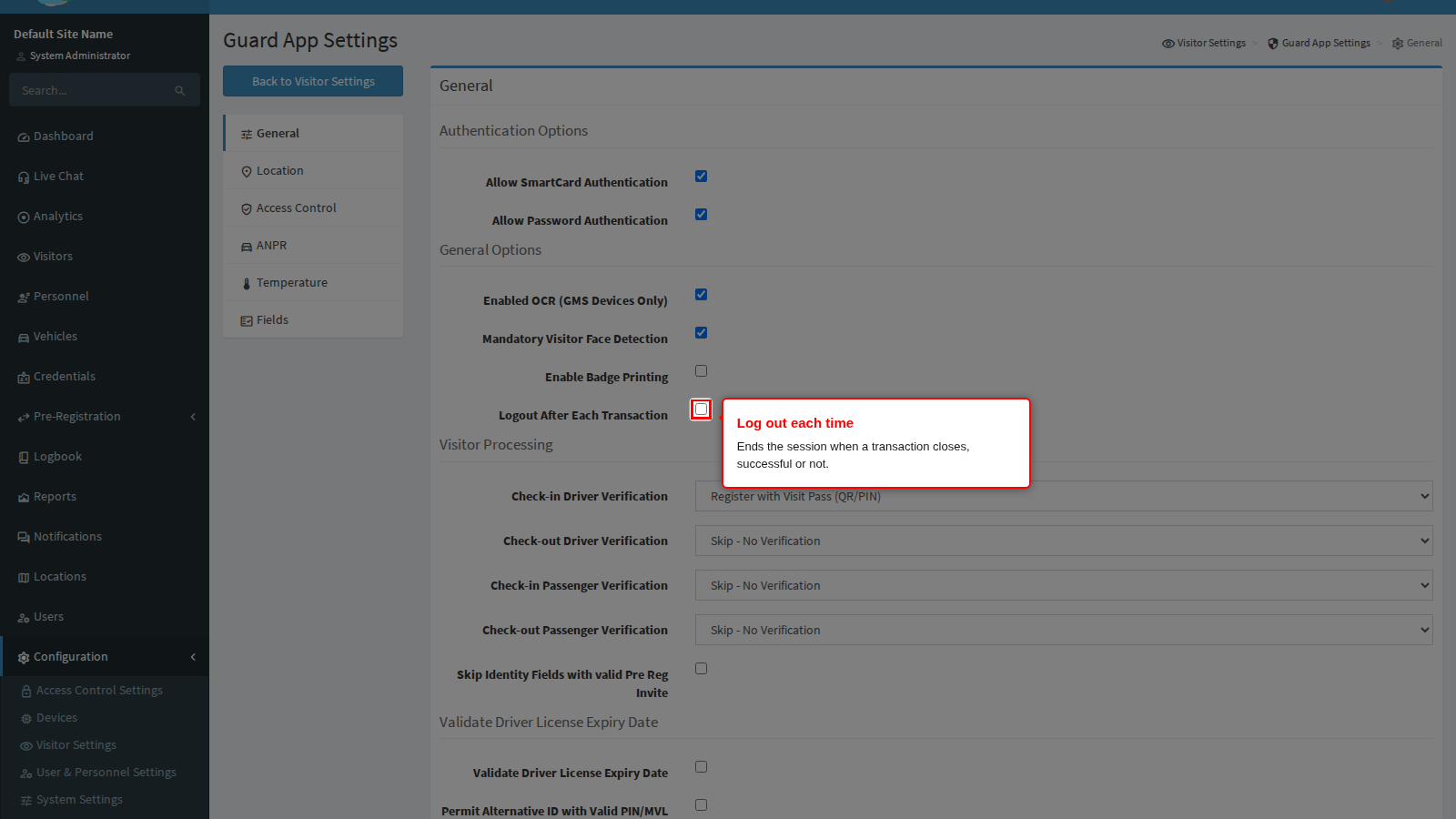
Enabled OCR (GMS Devices Only) puts a document-reading button in the enrolment flow. The officer frames the document in the camera view, presses the shutter, and the details are read off it and dropped into the form instead of being typed. The torch comes on by itself so the document is lit whatever the light at the checkpoint is like. If the document is not one the app recognises, the officer sees a brief Document Not Recognised message and the camera arms again for another try, so a failed read costs a few seconds and never blocks the enrolment.
About the “(GMS Devices Only)” in the label. It describes how older versions worked: the handset used to fetch the text recognition libraries from Google Play Services on first use, which is also what the “waiting for the text recognition model to be downloaded” message in the troubleshooting section below is about. Current builds carry the recognition inside the app, so a handset with no Google services keeps working. If you are rolling out to rugged handsets that ship without Google services, prove it on one handset before you commit to the fleet.
Which documents it reads. The list is deliberately narrow: a passport (the machine-readable strip along the bottom), a United Kingdom driving licence front, and the identity cards of a handful of countries including the South African green identity book and the South African smart identity card front. Anything outside that list is not recognised and the officer types the details. In particular it does not read a South African driving licence card, which matters for the licence expiry check below.
Turning this off does not turn off the camera generally. Plate reading has its own switch on the ANPR panel, and barcode scanning is always available, so an officer still has the scanner even with document reading off.
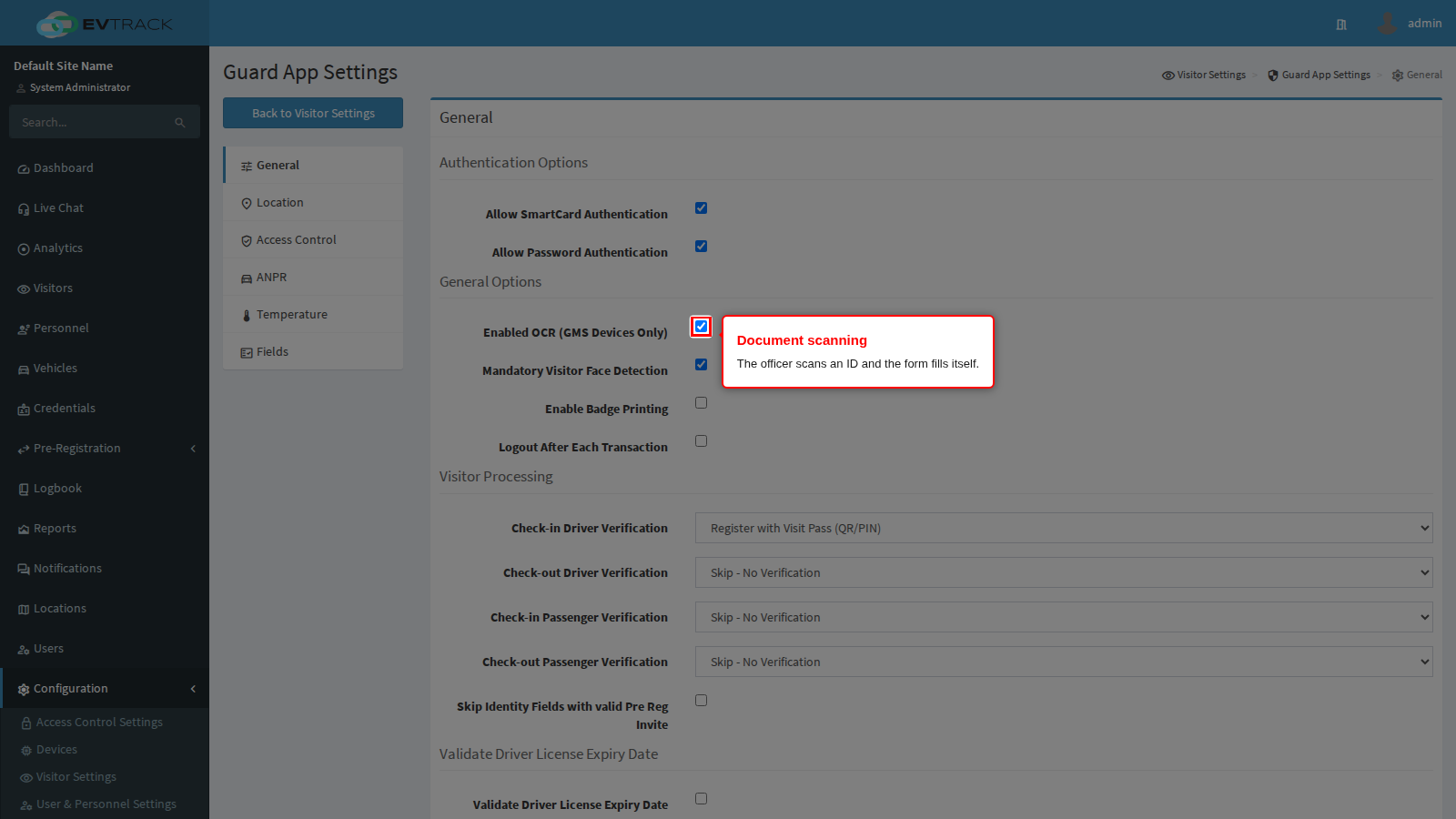
Mandatory Visitor Face Detection makes the app find a face in the photo the officer takes and crop the picture to it, which turns a hurried snapshot into a usable badge photo and gives face readers something they can match later.
The word “mandatory” is the part to plan for. Where a visitor photo is also a required field (see the Fields panel), the officer cannot move on until the app finds a face: no face, no enrolment. That is what stops a visitor record being created with a photo of a jacket or the inside of a vehicle, and it is also what leaves an officer stuck in the dark or against a low sun. A camera fault produces the same No Face Detected message as a genuinely faceless picture, so if one handset shows it constantly, suspect the handset rather than the officer.
Photos captured through your own custom questions are never face-checked, whatever this is set to; the check only applies to the visitor photo.
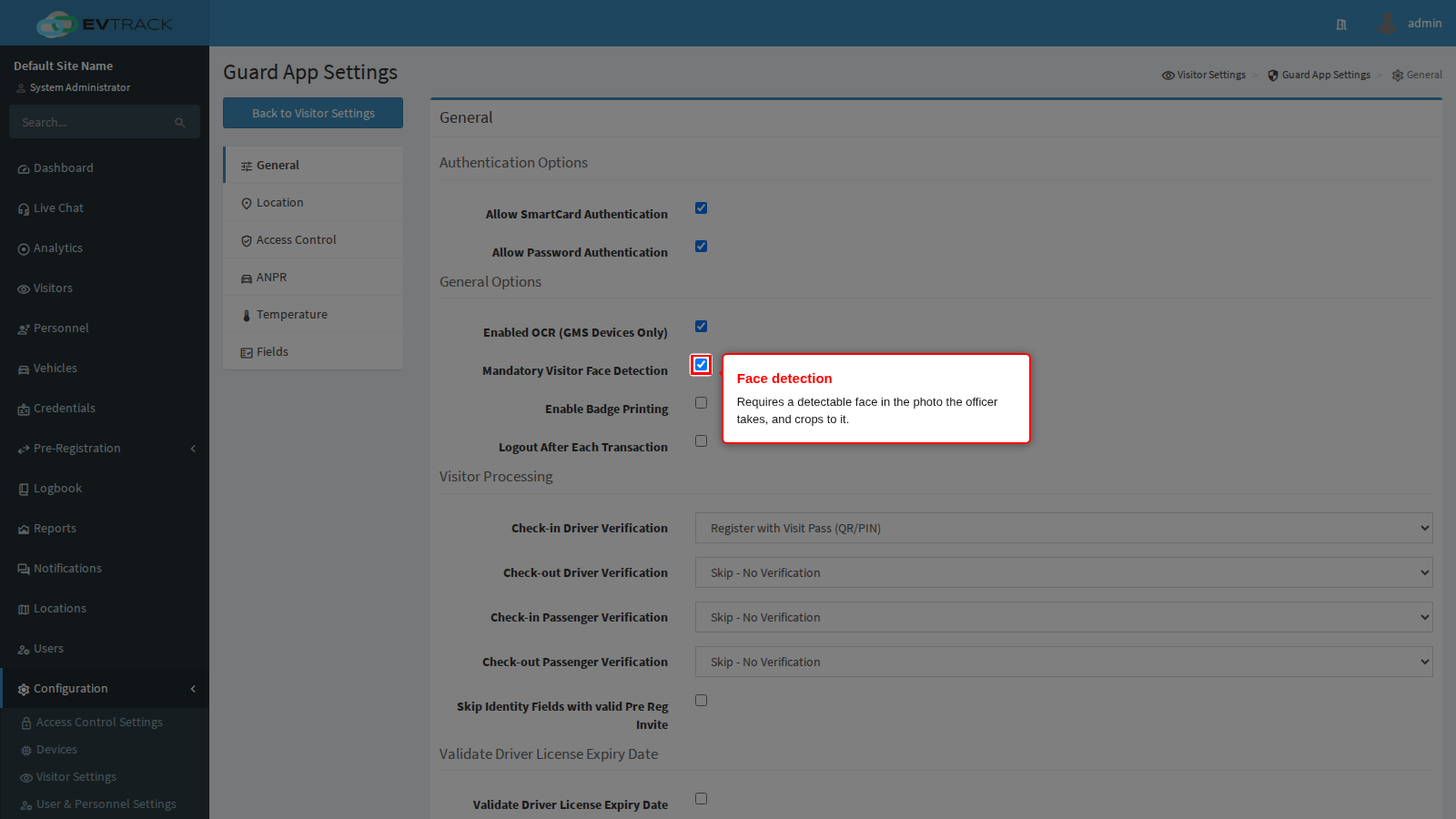
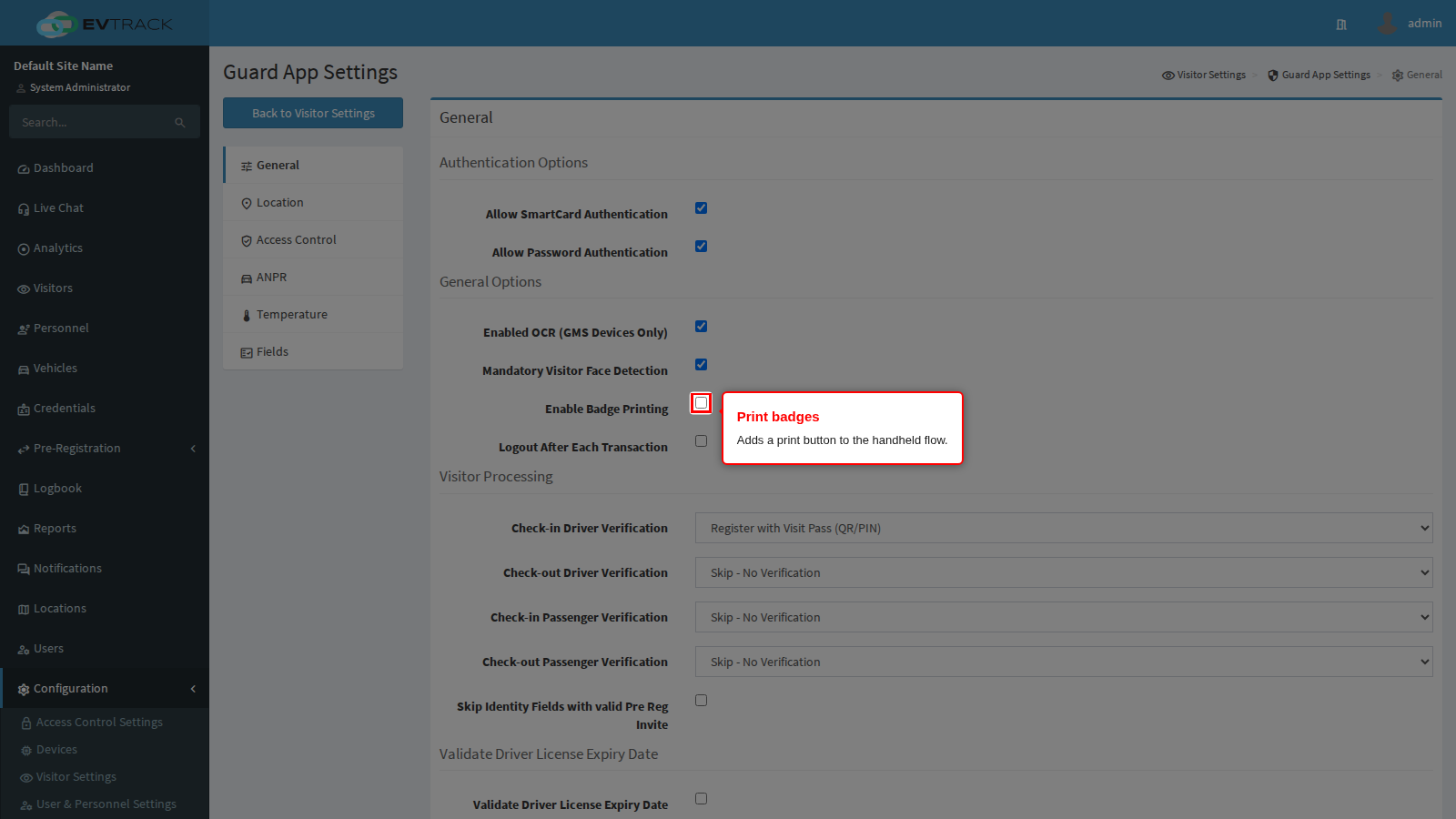
Guard App Enabled to Print Badges adds a print action to the handheld flow so the officer can hand over a printed badge at the checkpoint. Without it the officer has no print option at all, however the printer is configured. The badge layout is set under Badge Printing.
General: verification during visitor processing
These four selectors are the core of the checkpoint. Each says what the officer must verify before the app will let a movement through.
- Skip - No Verification waves the person through with no check. Use it only where a barrier elsewhere already does the work.
- Register with Visit Pass (QR/PIN) takes the pass and then collects the rest of the visitor details.
- Verify Visit Pass (QR/PIN) AND ID Document requires both the pass and an identity document, and runs both through your watchlists.
- Verify Visit Pass (QR/PIN), ID AND Vehicle adds the vehicle, checking the licence disc as well. It is offered for drivers only.
Check-in Driver Verification applies to the driver on the way in, which is where you want the strictest setting.
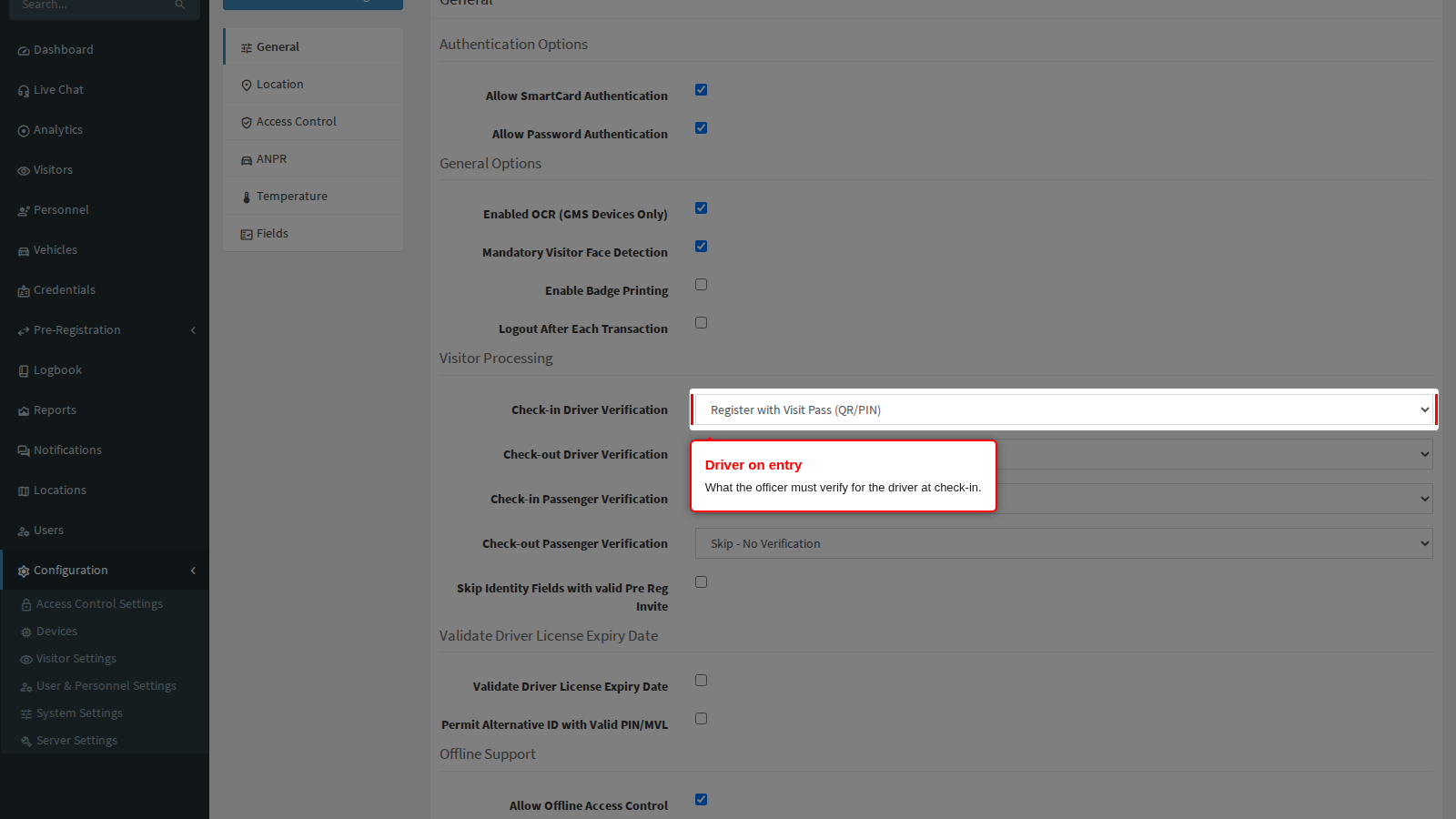
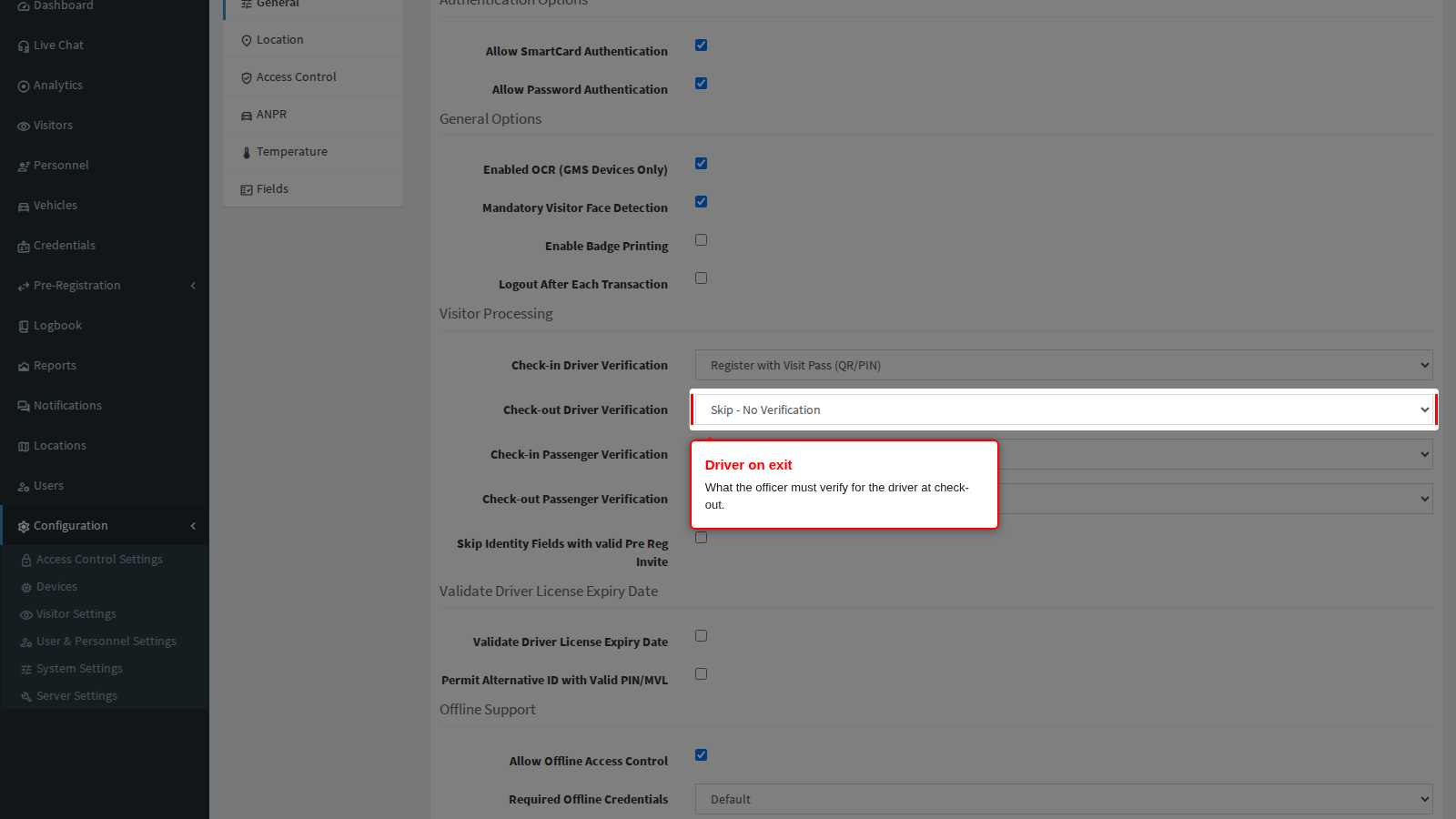
Check-out Driver Verification applies on the way out. Many sites verify hard on entry and lightly on exit, since the person is already inside and the point of the exit scan is to close the visit and take the card back.
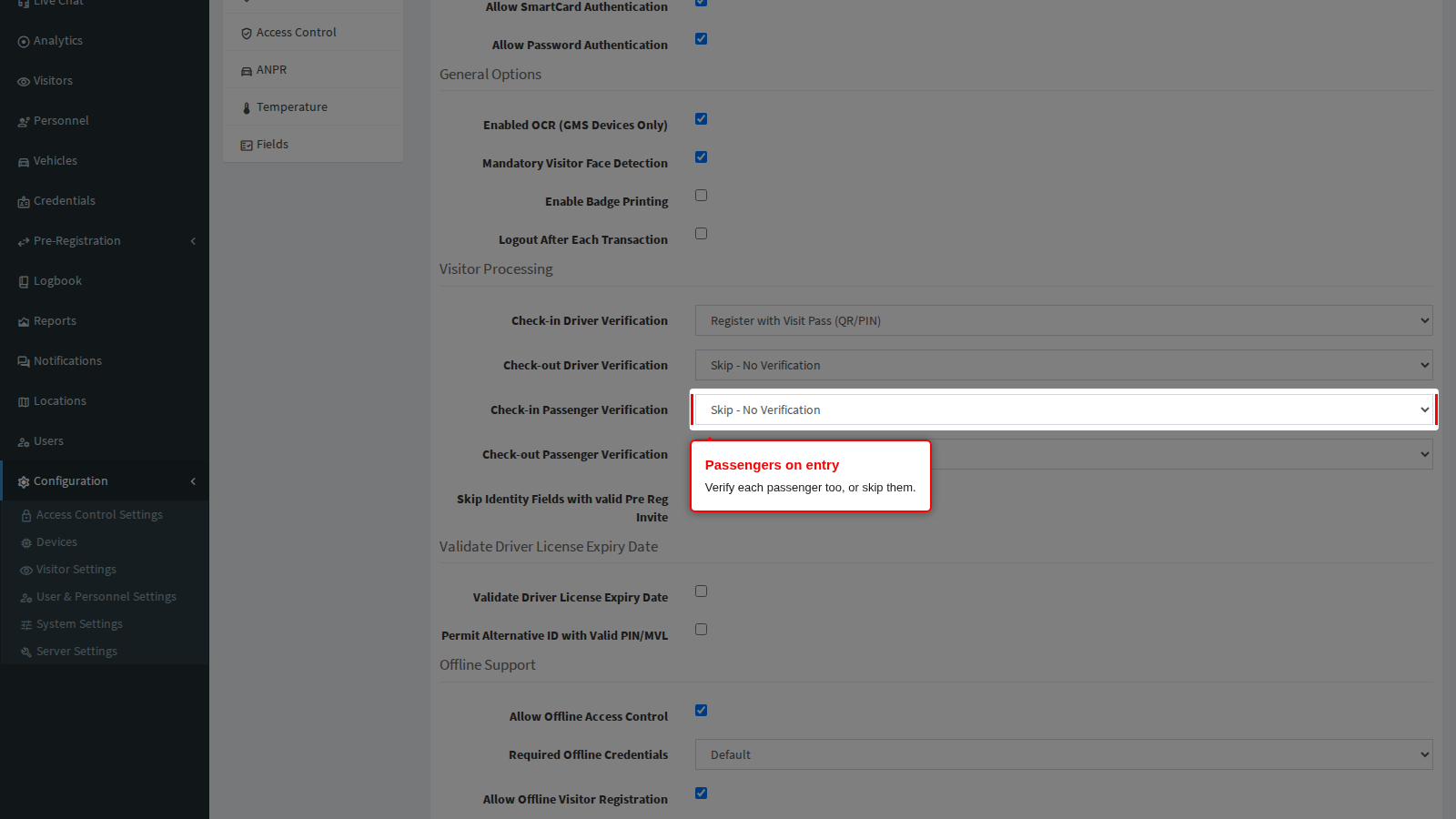
Check-in Passenger Verification covers everybody else in the vehicle. Only two choices are offered: skip them, or require pass and identity document for each. Verifying every passenger is slow, so decide it deliberately.
Check-out Passenger Verification is the same choice on the way out.
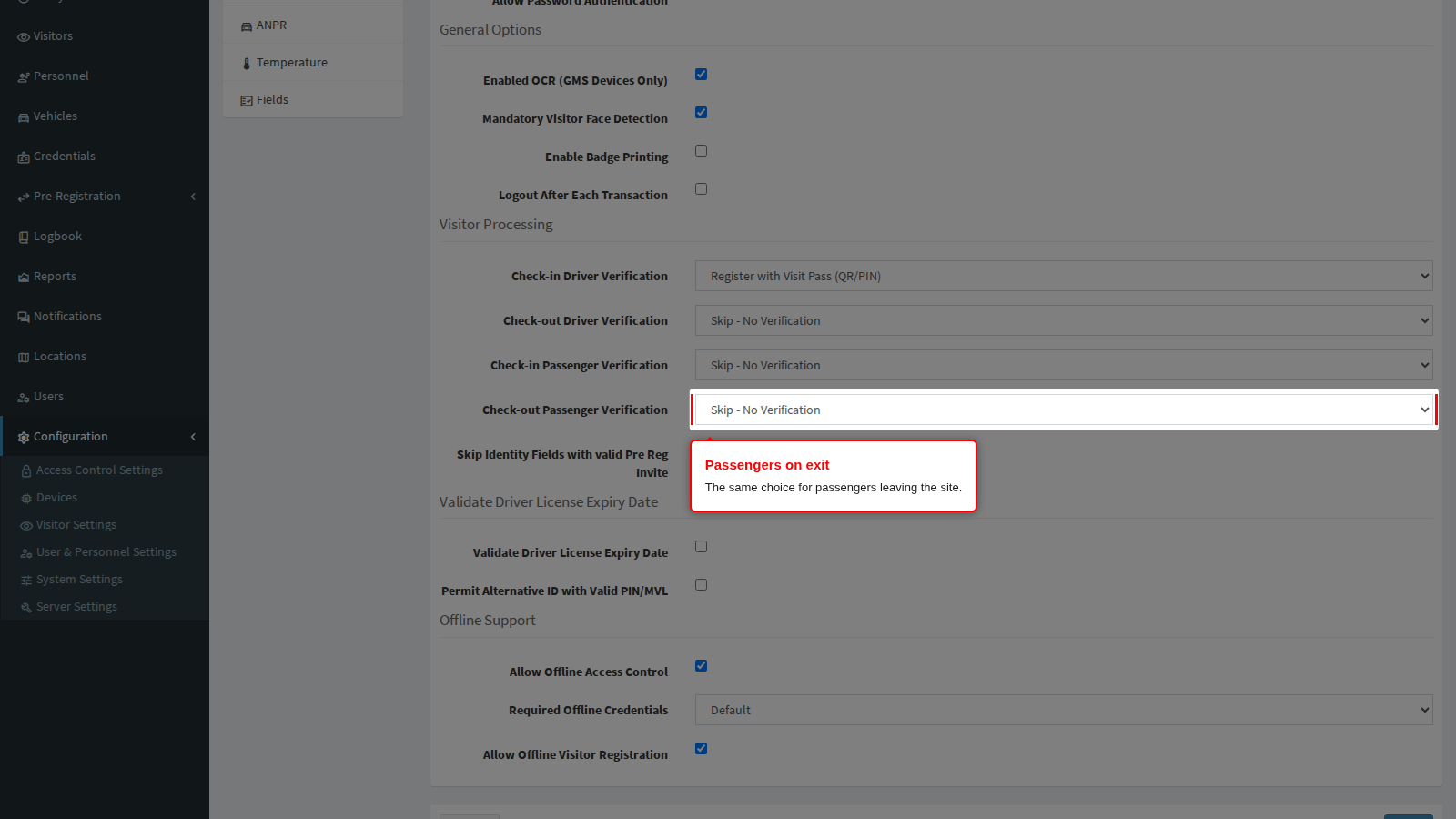
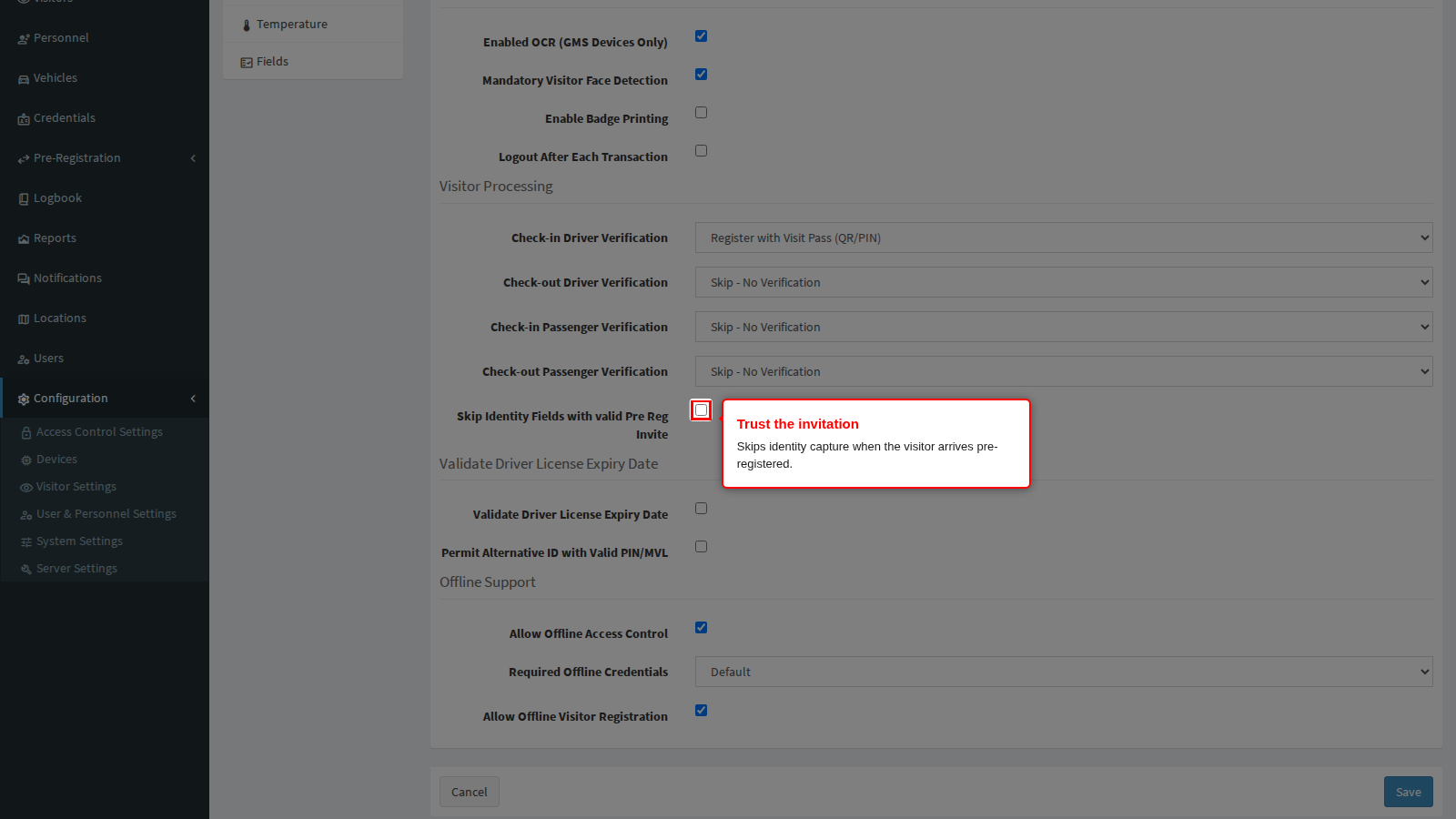
Skip Identity Fields with valid Pre Reg Invite stops the app asking again for details the visitor already supplied when they pre-registered. Turn it on where visitors are invited in advance: the officer confirms the pass and the visitor is through in seconds. Turn it off where the identity must be re-proved in person every time.
General: driver licence checks and offline support
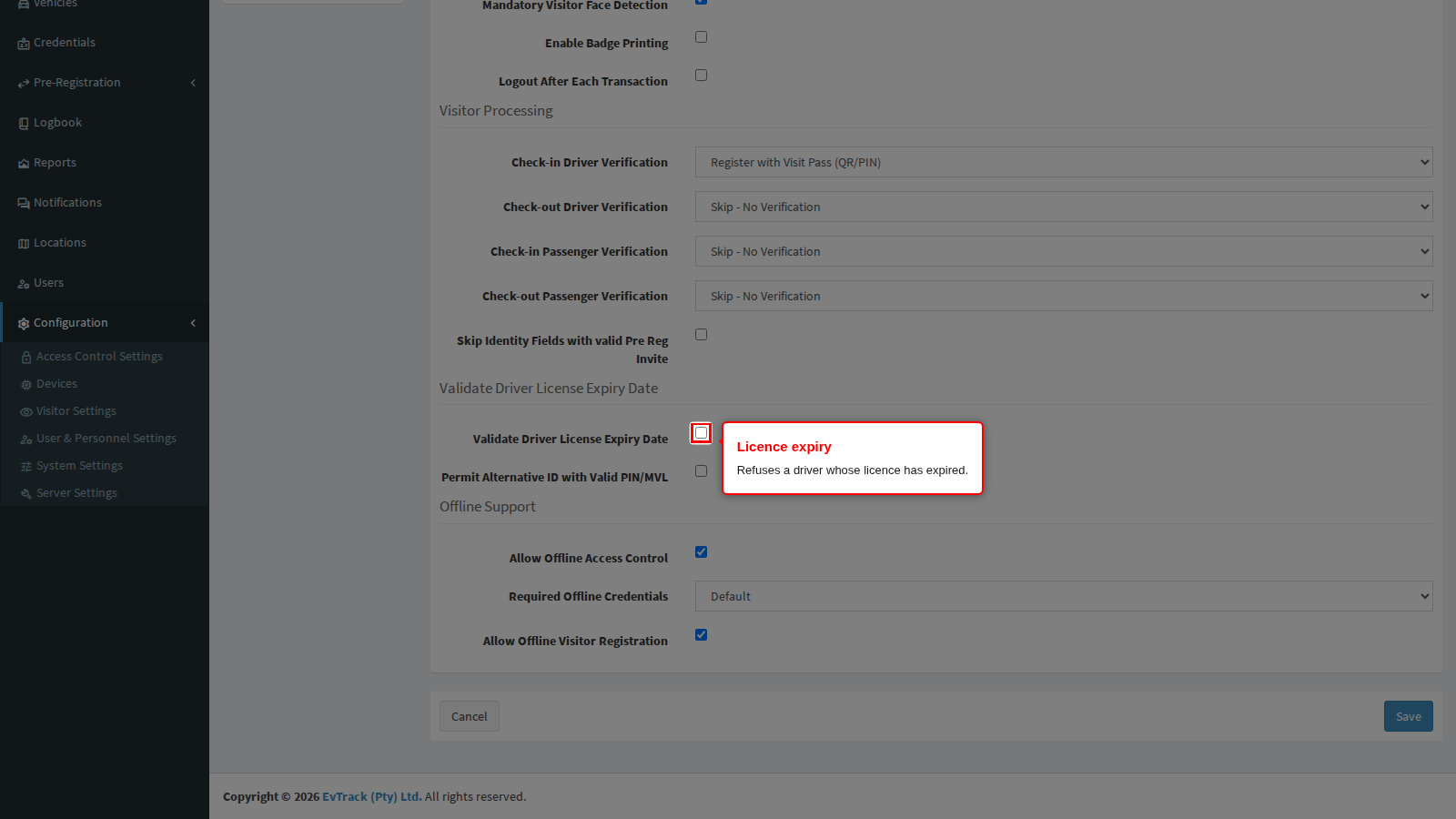
Validate Driver License Expiry Date refuses a driver whose licence has already expired: the officer sees the app decline the document and the visitor cannot be admitted as a driver.
It only bites on a licence card the app has actually decoded as a driving licence, and that is narrower than it sounds:
- The licence card is read by scanning its barcode, not by the document reader. On a rugged handset with a built-in imager the imager does the scan; on an ordinary handset the camera does it.
- On South African licence cards the handset needs the separate decoder application installed alongside the guard app. Without it the card cannot be decoded, so it never presents itself as a driving licence and the expiry is never checked. This is the usual reason the setting appears to do nothing on a new fleet - check that the decoder is deployed with the app.
- A document captured with the document reader never triggers the check, because the reader does not recognise a South African driving licence card at all. If you are relying on this as a control, make sure your officers are scanning the licence rather than photographing it.
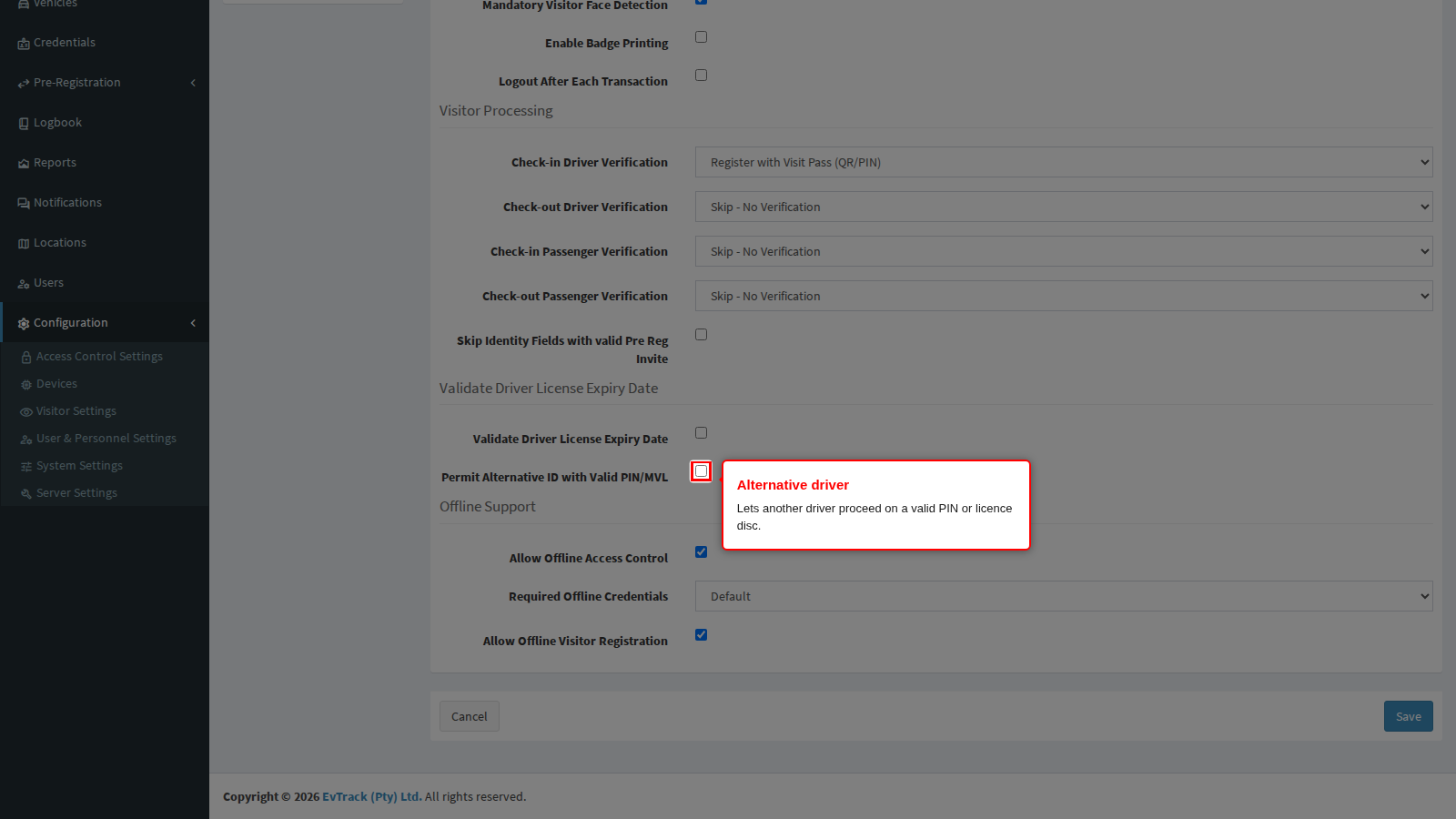
Permit Alternative ID with Valid PIN/MVL covers the case where the person at the wheel is not the person on the invitation. With it on, a different driver may proceed when they present a valid PIN or the vehicle licence disc, and the app offers the officer a Register Driver step to capture who is actually driving. With it off, only the invited driver gets in and anybody else is refused.
Two practical notes:
- The alternative driver is captured from scratch. The registration opens empty, so the officer types or scans the whole identity. It is not pre-filled from the invitation, and it should not be: the point is to record the person who is really there.
- It does not work while the handset is offline. The prompt is the app reacting to a specific answer from the server, so during an outage the offer never appears and an alternative driver cannot be processed at all. Give your officers a documented manual procedure for that case.
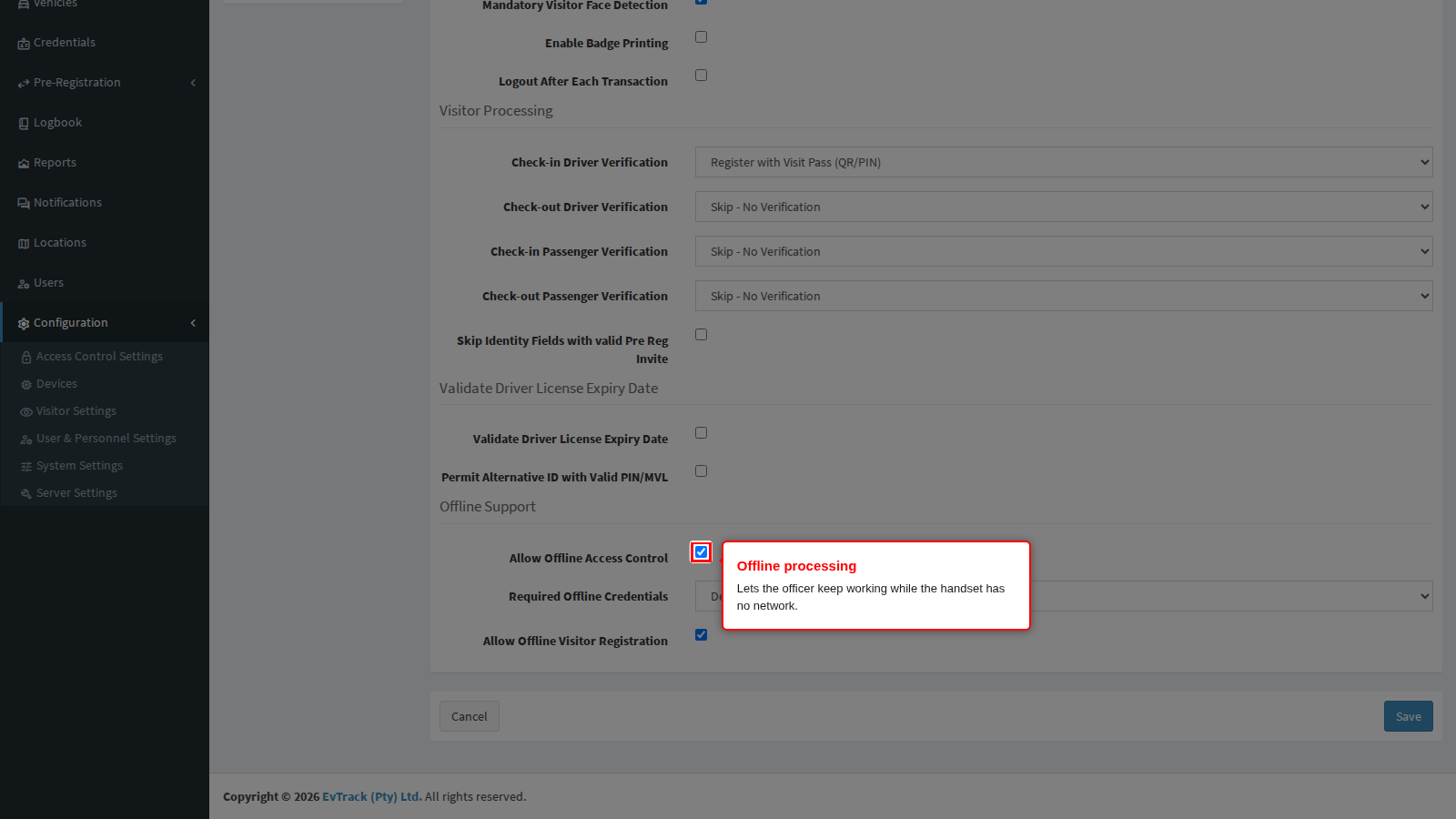
Guard App Allow Offline Access Control lets the officer keep processing entries and exits while the handset has no connection, holding the transactions encrypted on the device and syncing them when it reconnects. It keeps a checkpoint moving through a network outage, at the cost of decisions made on data that may be a few minutes old.
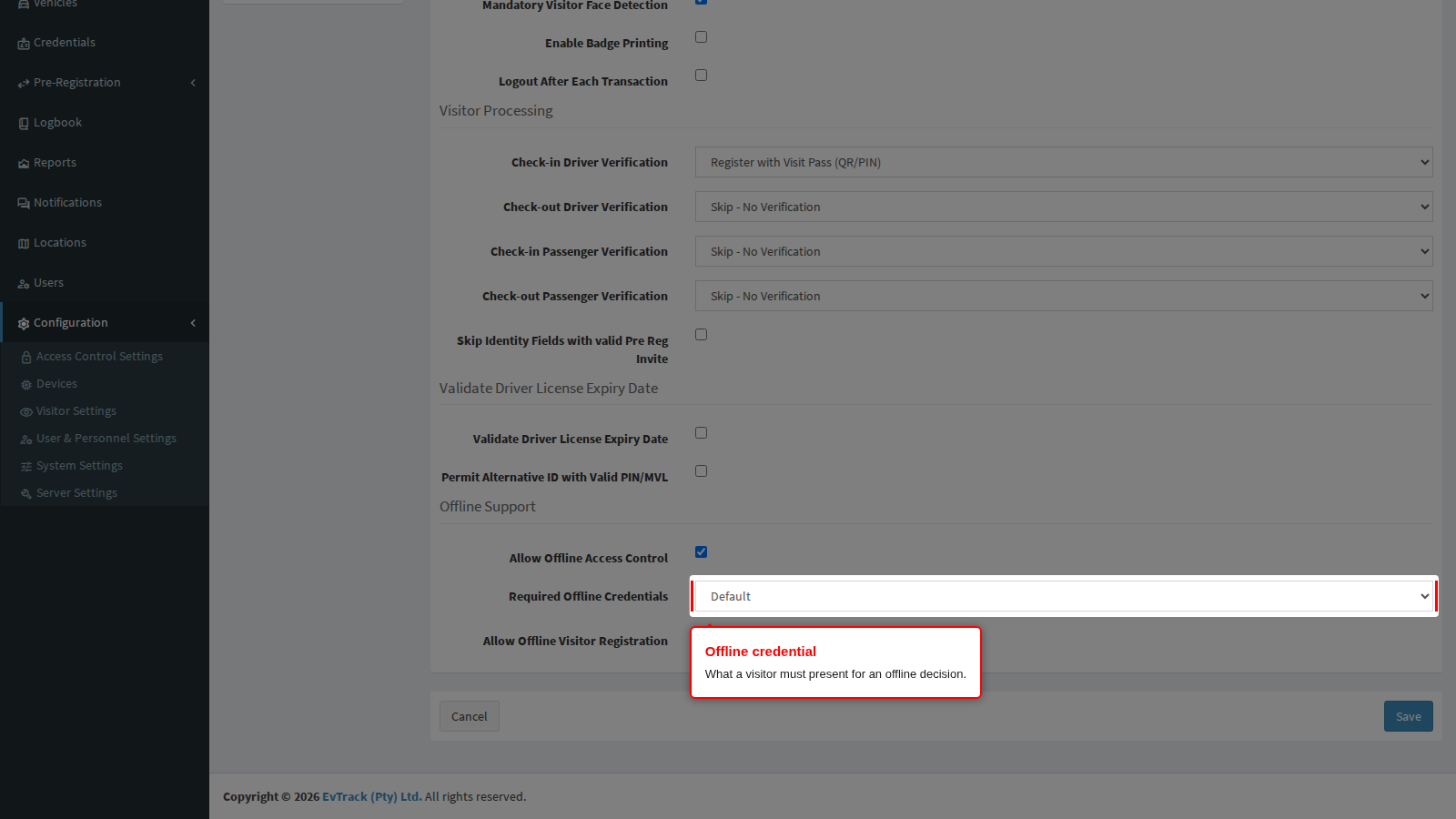
Required Offline Credentials narrows what the app will accept while it is offline. Leave it on Default to accept the usual credential types, or name one type that a visitor must present for an offline decision to be made at all.
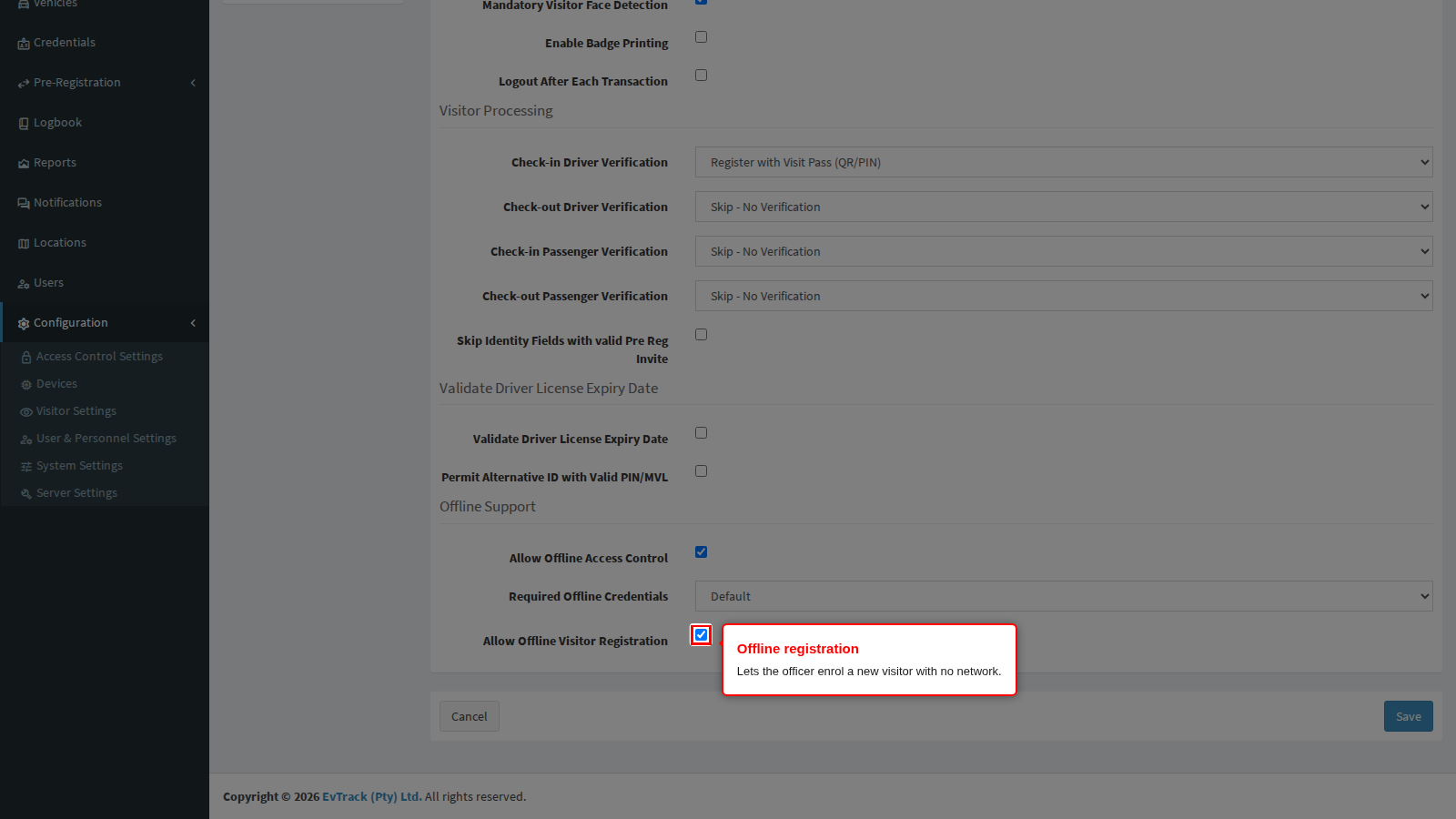
Guard App Allow Offline Visitor Registration lets the officer enrol a brand new visitor with no network, uploading the record later. Turn it off where a new visitor must always be checked against your watchlists before they are admitted, because that check needs the server.
Location: where checkpoint registrations are filed
Every visit is recorded against a location, and reports, badge branding and the access control lists a visitor receives all depend on it being right. Click Location in the guard menu.
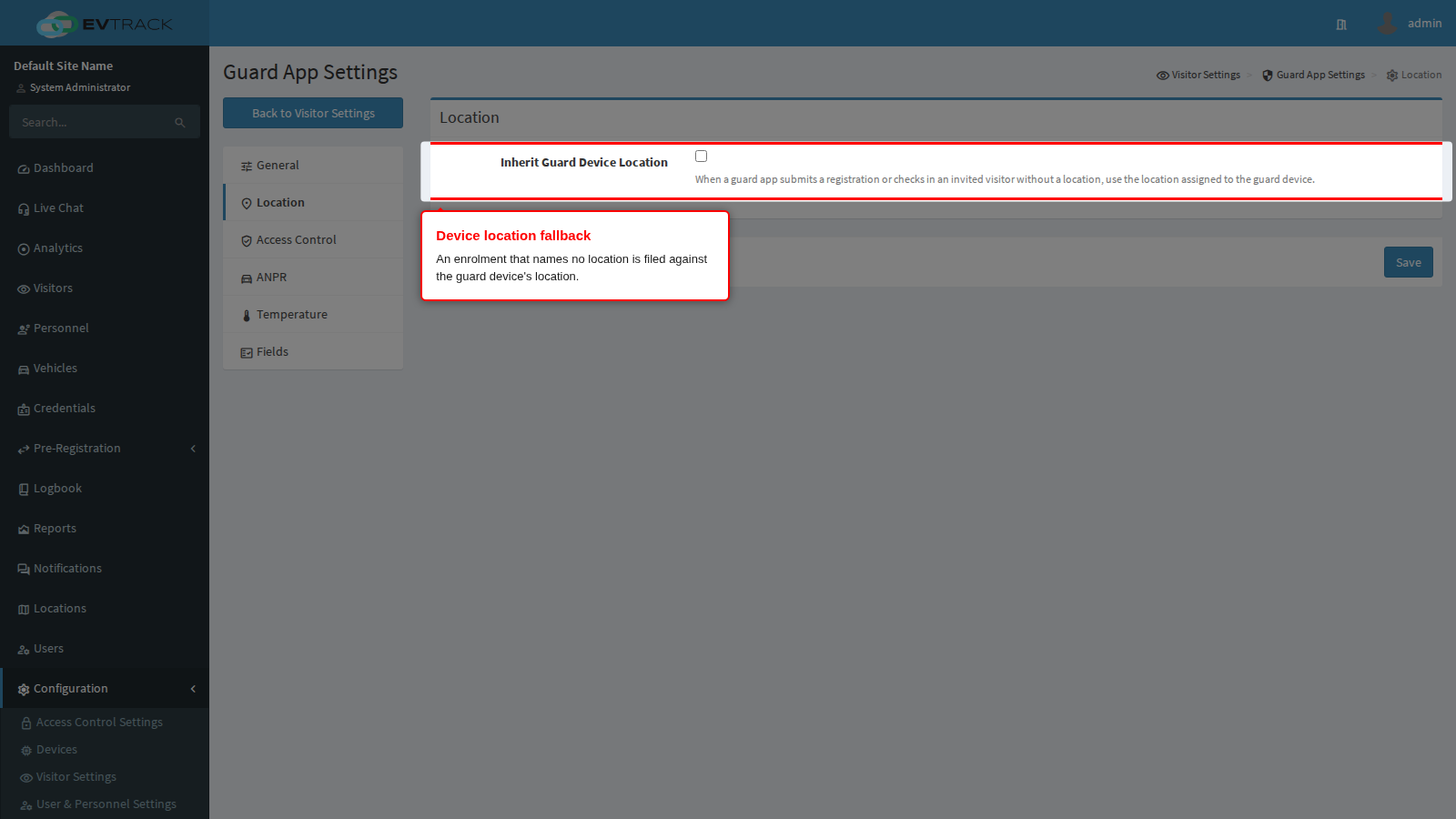
Inherit Guard Device Location makes an enrolment the officer submits without a location fall back to the location assigned to the guard device record. Turn it on at a site with more than one location so a handset issued to the Cape Town checkpoint files its walk-ins against Cape Town without the officer choosing anything. It is the same choice the kiosk already offers, so a mixed checkpoint of handsets and tablets can be configured to behave alike.
Two limits are worth knowing before you rely on it:
- A location that the handset does send always wins. This is a fallback for an enrolment that names no location, never an override of one that does.
- It applies to enrolment only. An ordinary entry or exit by somebody who already holds a pass never moves the location on their visit; that is the job of the access control point, which can be configured to move a visit to its own location as the visitor passes.
The location on a visit is what decides which access control list each visit status grants, so at a site with several locations this setting and Status-Based Access per Location are configured together: the officer enrols a walk-in, the device supplies the location, and the location’s own rows decide what the visitor’s pass opens.
Access Control
This panel decides what the officer and the visitor are asked during an ordinary entry or exit, as opposed to an enrolment.
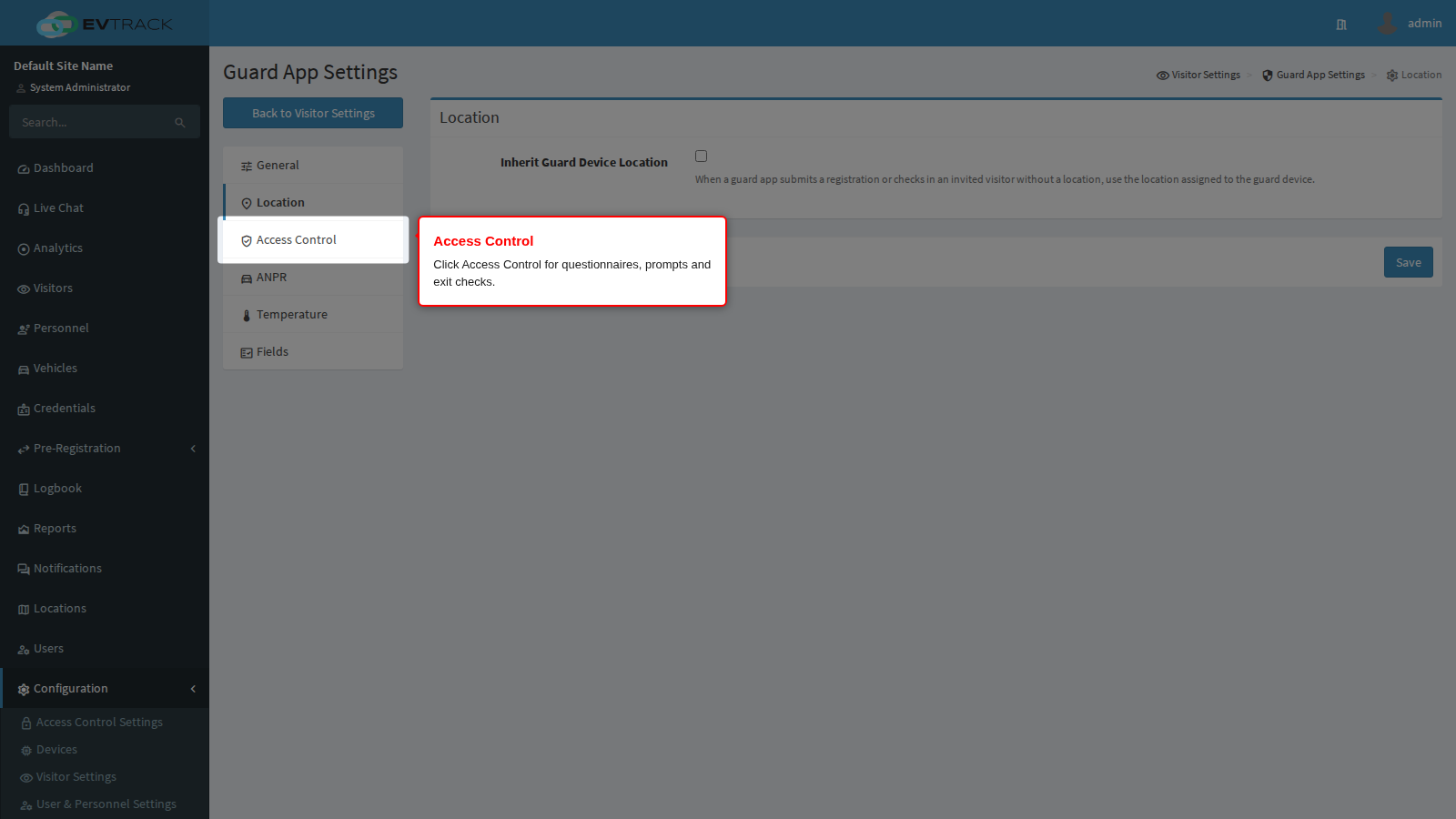
Direction Requiring Questionnaire decides when the agreement questionnaire is presented: never, on the way in, on the way out, or both. Entry is the usual choice, since a site rules acknowledgement is worth having before somebody is inside.
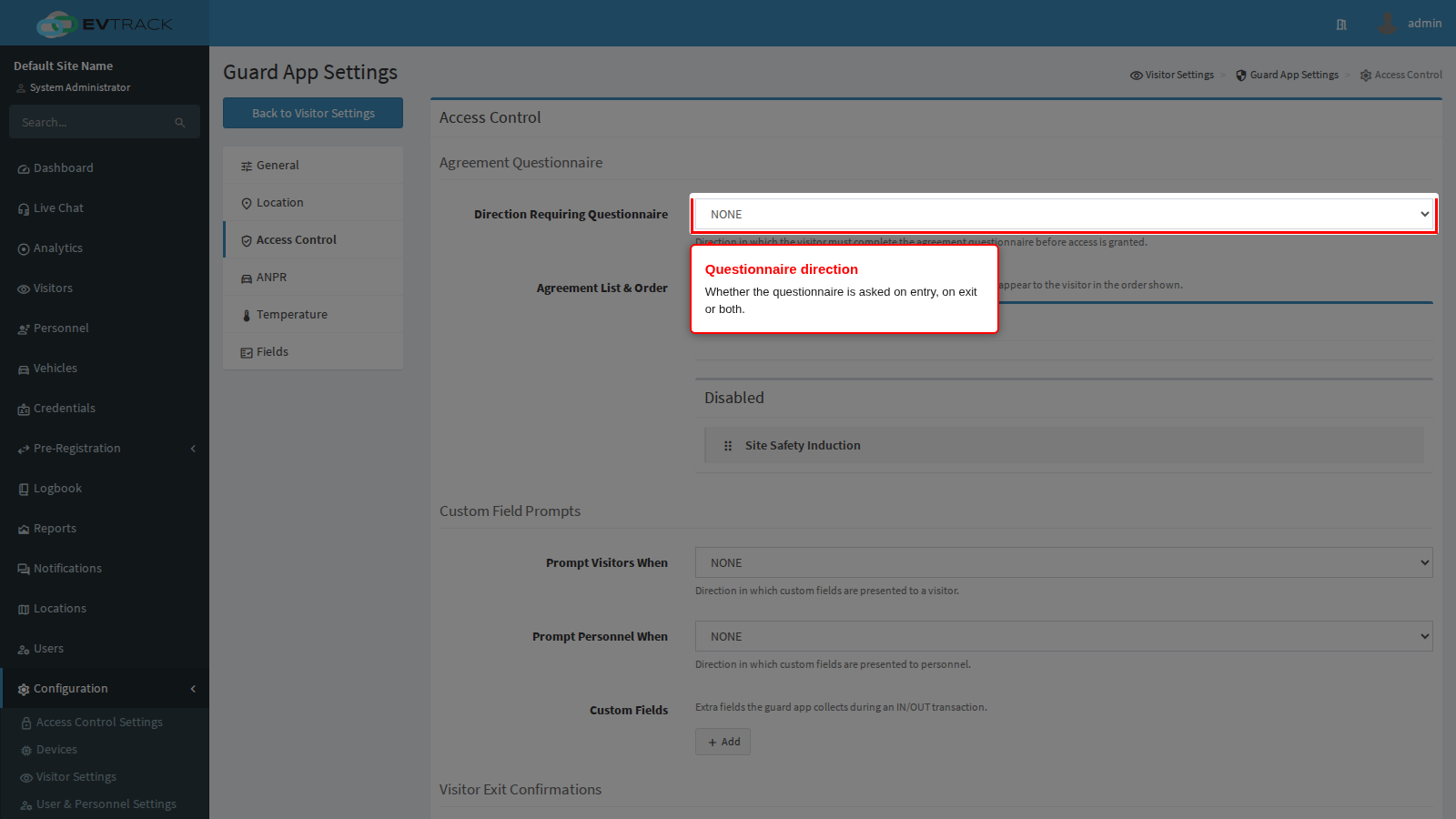
Agreement List and Order holds two lists. Drag an agreement from Disabled to Active to have it asked, and drag inside Active to change the order the visitor sees. Agreements themselves are written under Agreements.
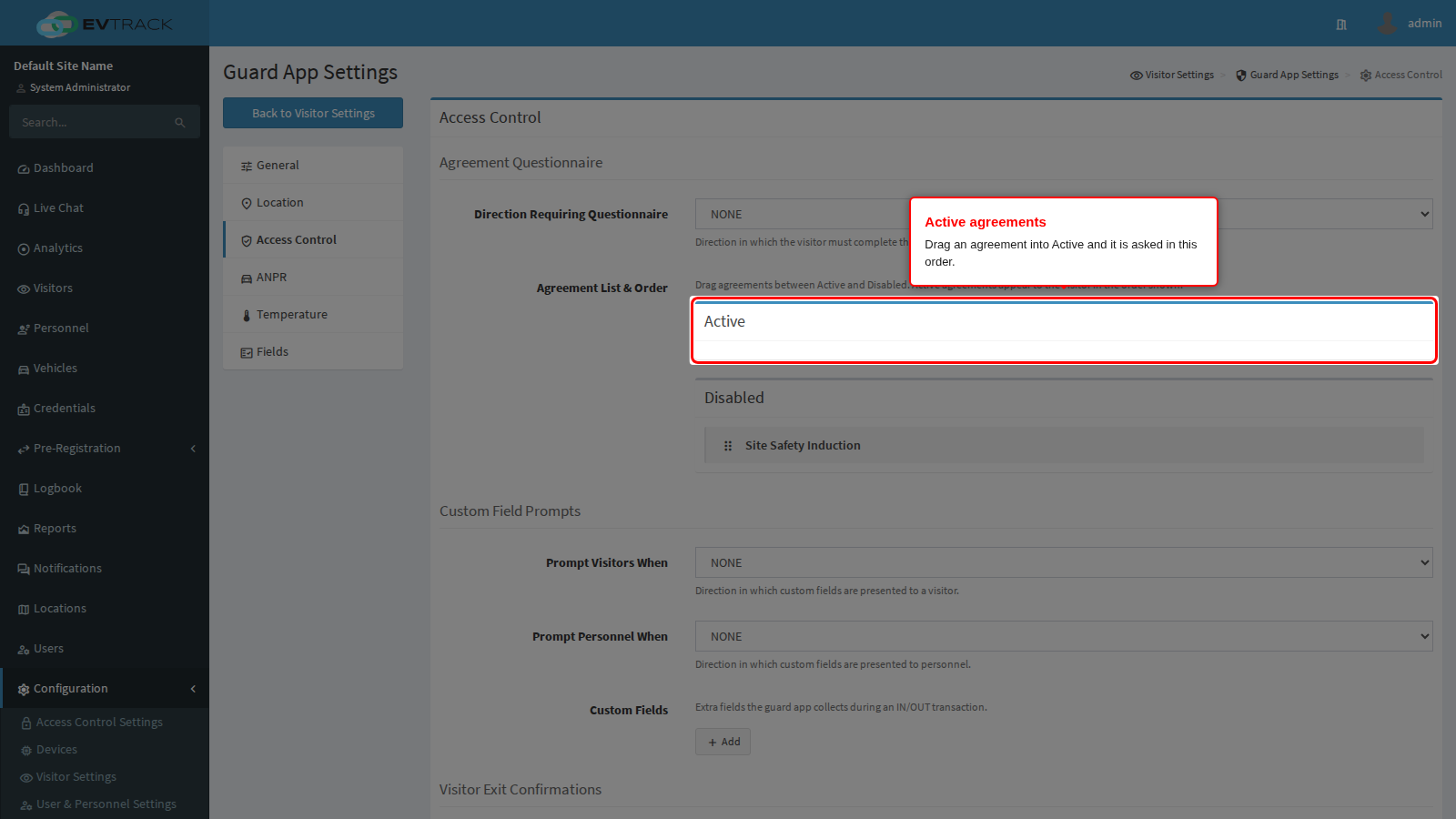
Prompt Visitors When decides in which direction your own custom questions are put to a visitor: never, in, out or both. Use the exit direction for questions that only make sense on the way out, such as what is being removed from site.
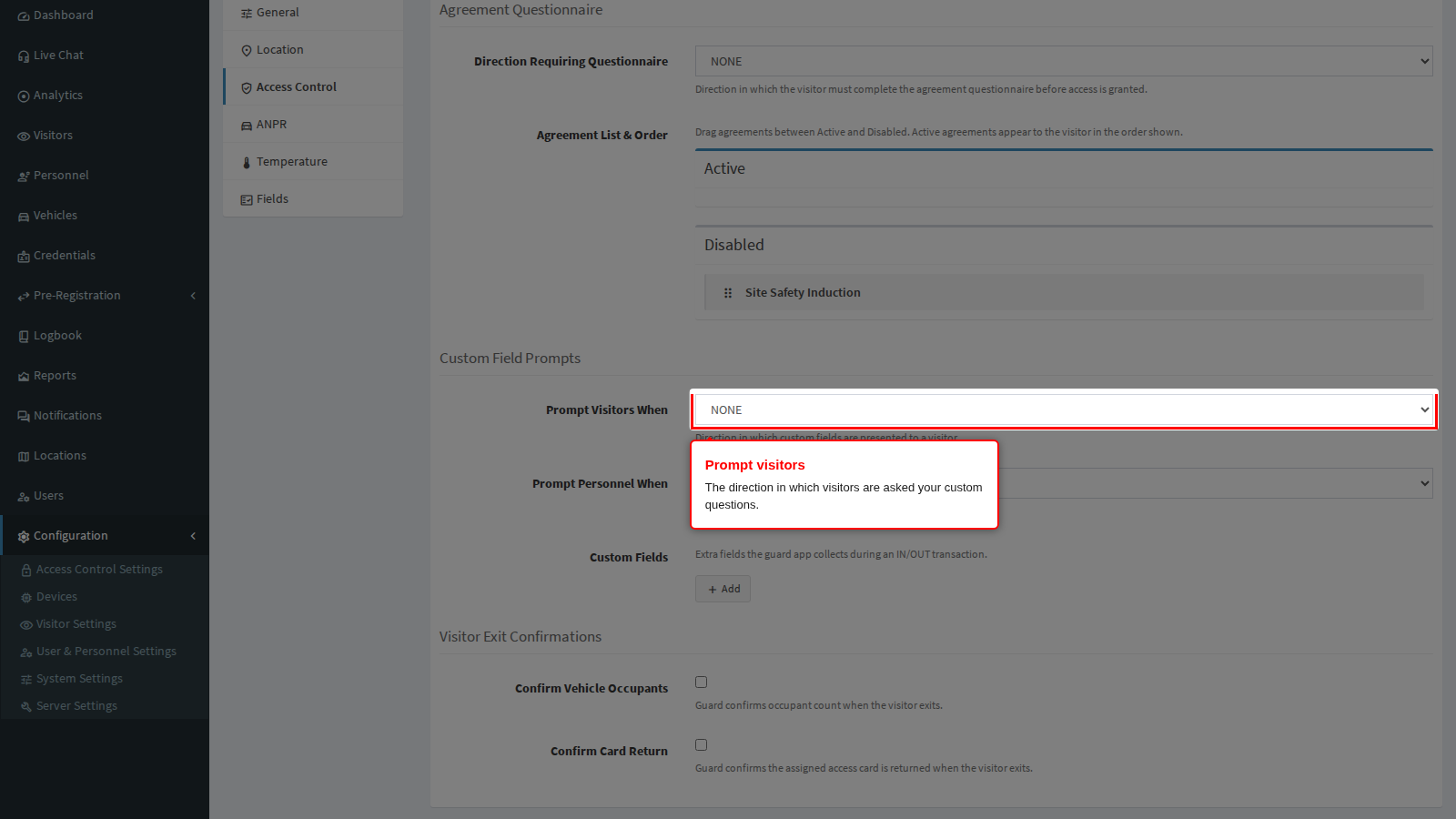
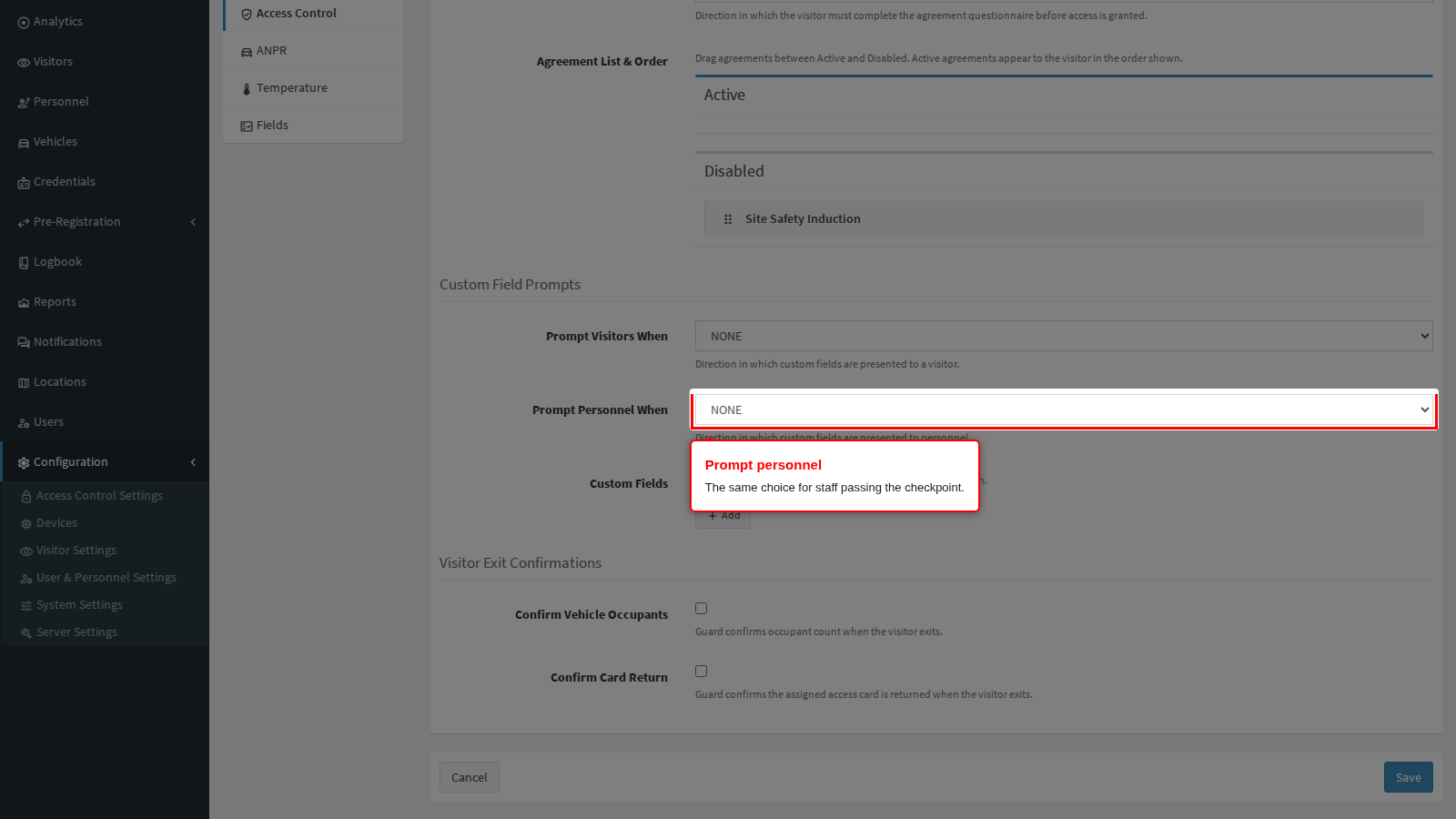
Prompt Personnel When is the same choice for staff passing the checkpoint. Staff usually resent being questioned twice a day, so keep this narrower than the visitor setting.
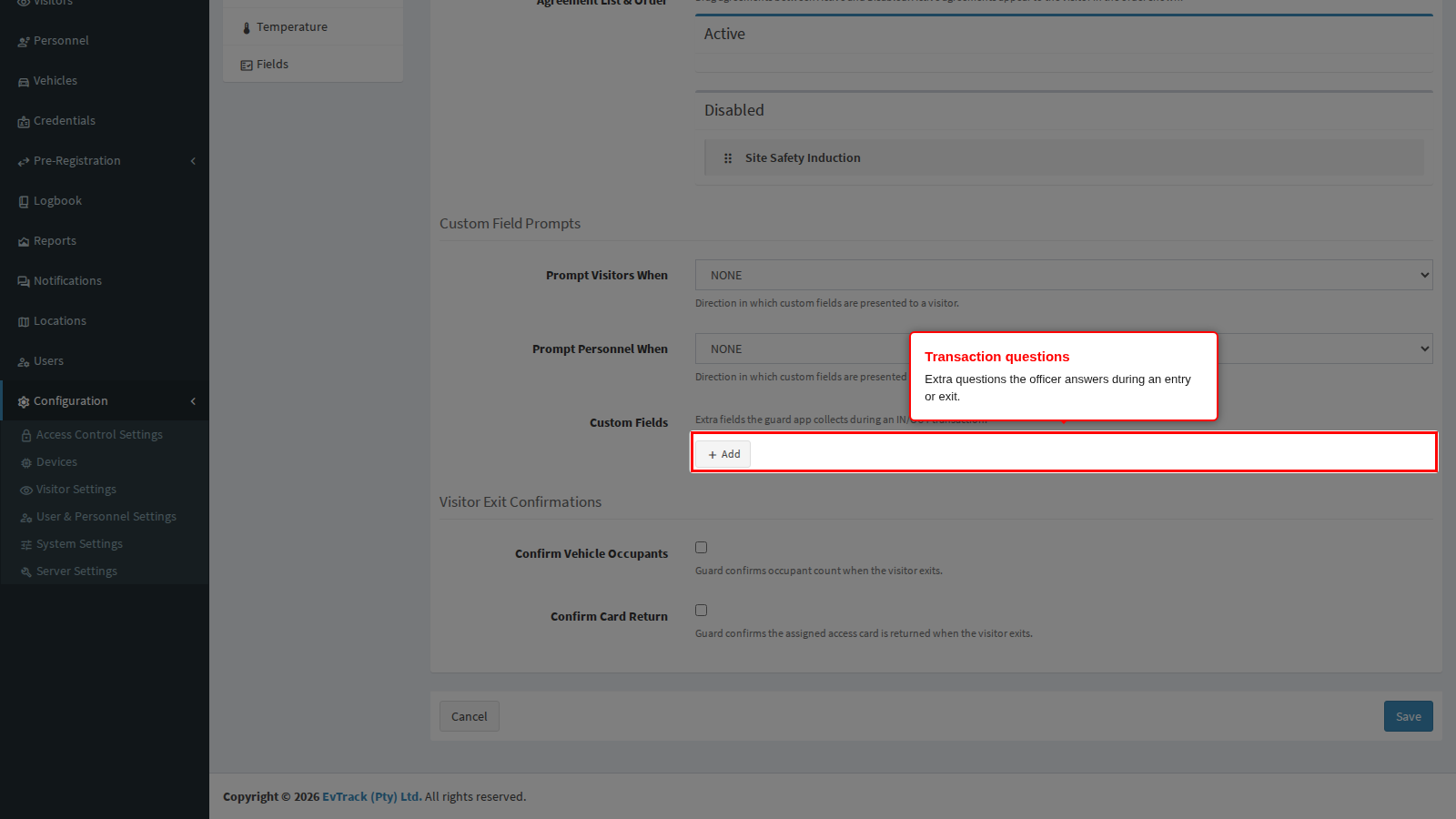
Custom Fields is where those questions are defined. Each one has a type (text, number or photo), a label and a required flag. A photo question is how you capture, for example, the load in an open vehicle.
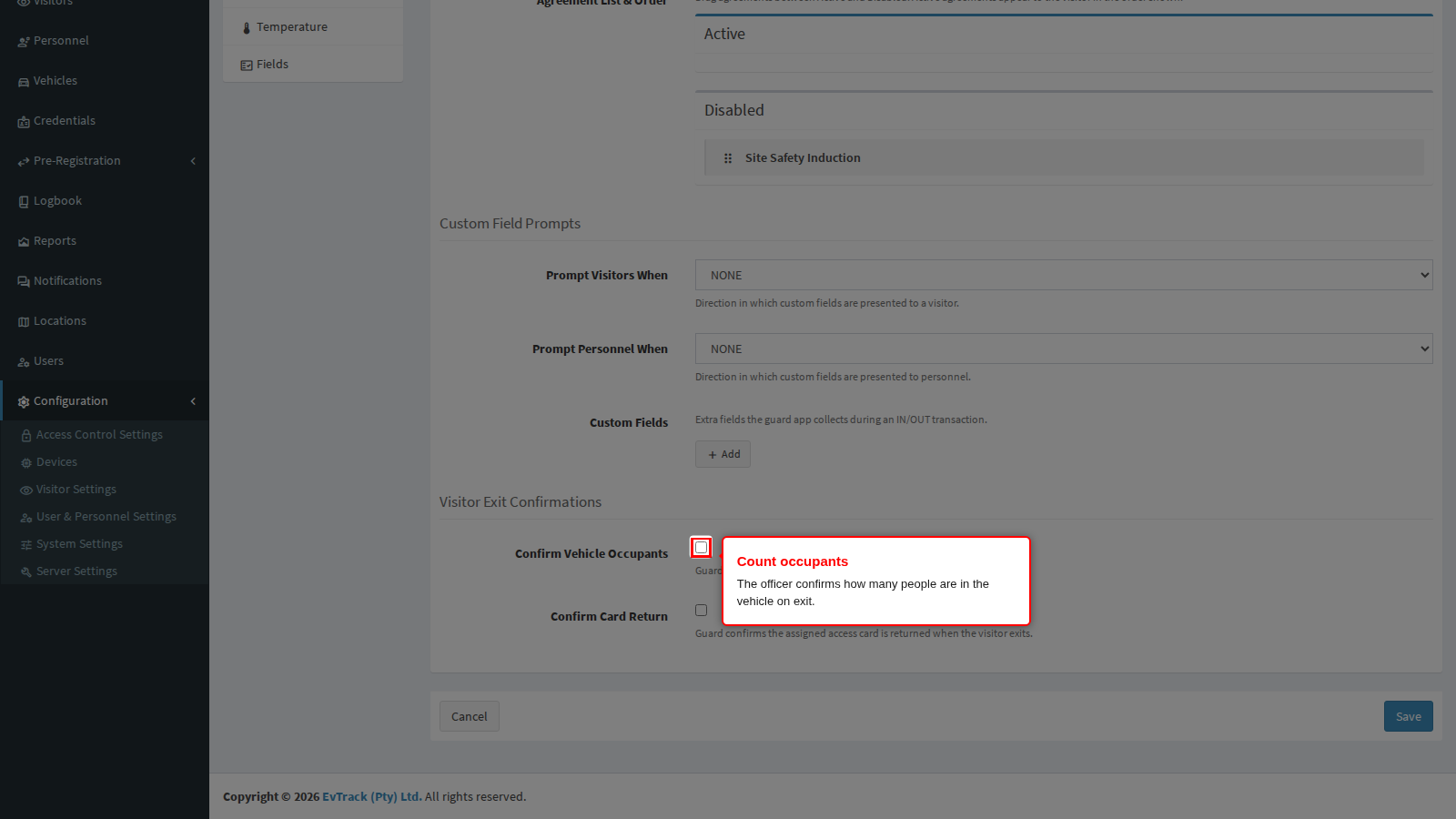
Confirm Vehicle Occupants makes the officer confirm how many people are in the vehicle when it leaves. Together with the occupant count captured on entry, that is what catches somebody who came in on a full vehicle and is not leaving on it.
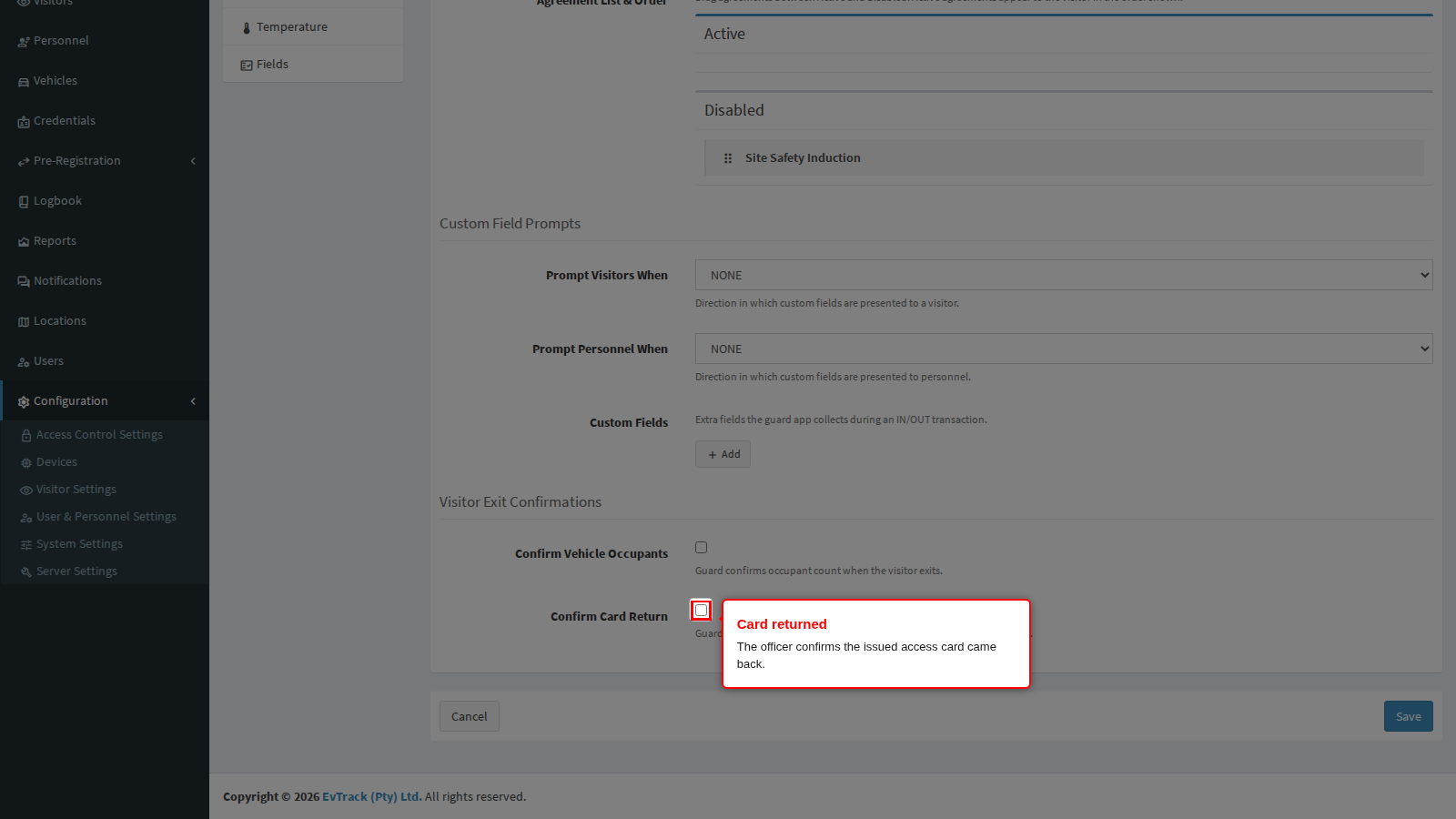
Confirm Card Return makes the officer confirm the access card that was issued has come back. Turn it on wherever you hand out physical cards, otherwise the pool quietly empties.
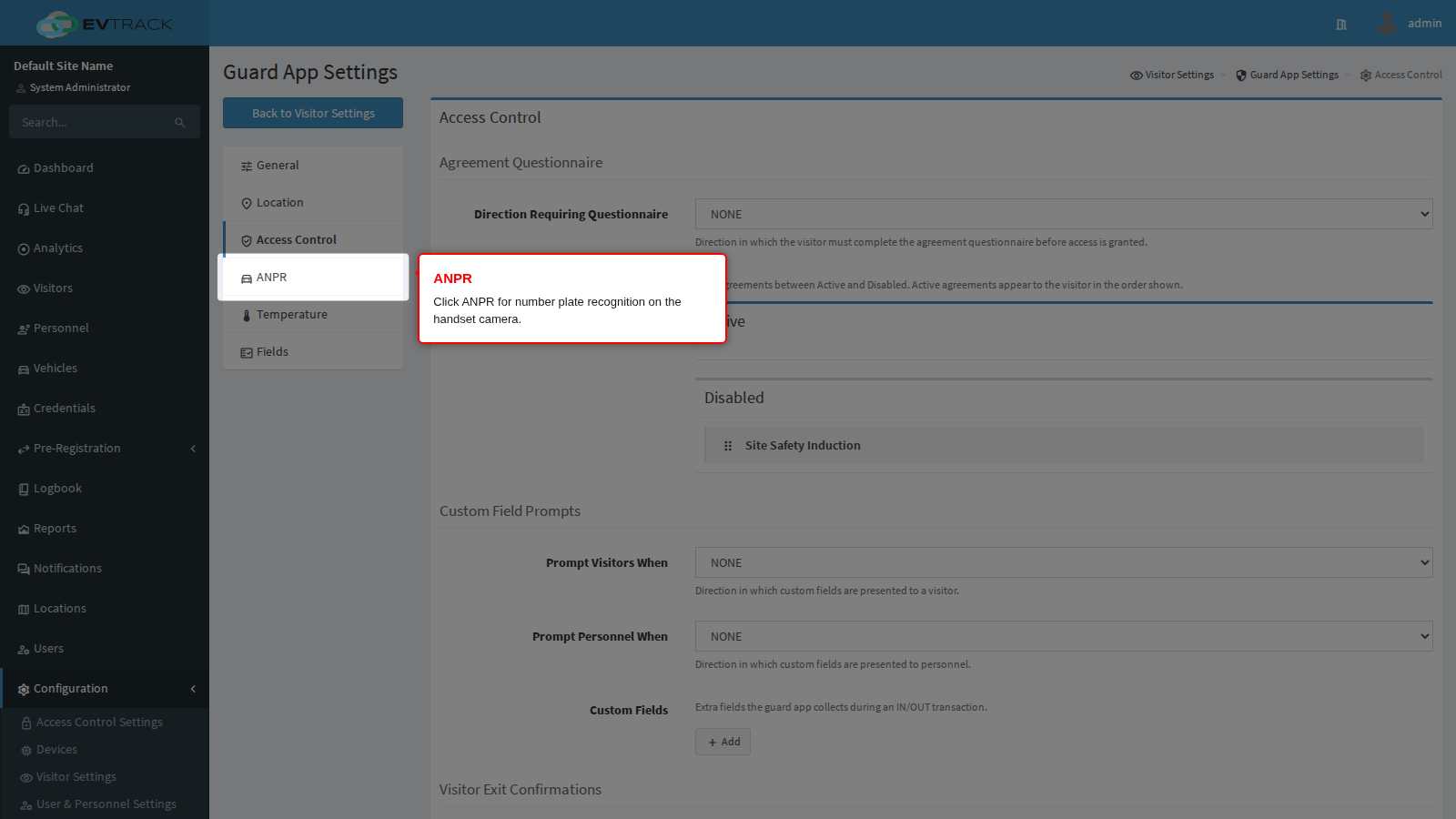
ANPR
Automatic number plate recognition lets the handset camera read a plate instead of the officer typing it.
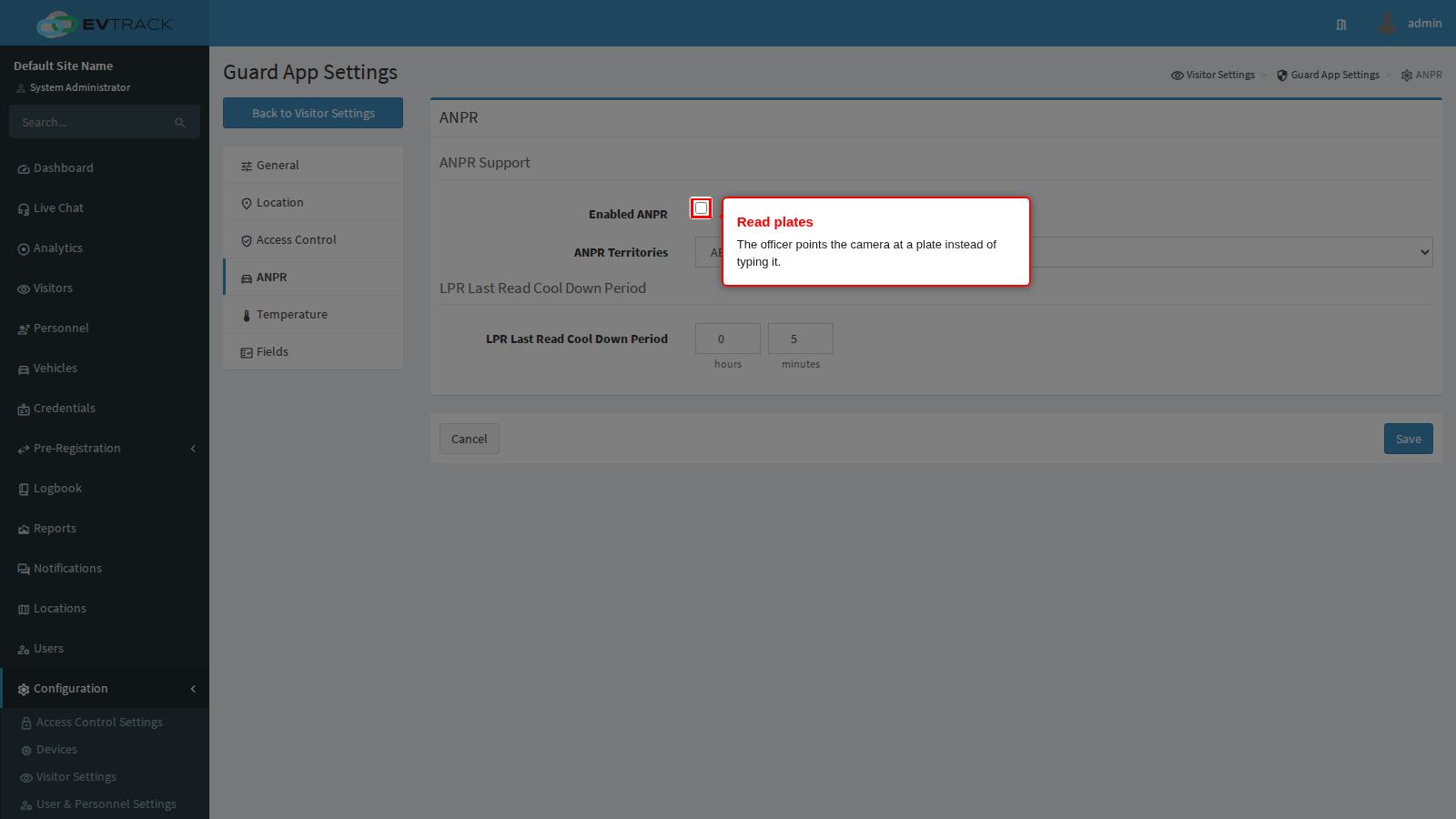
Enabled ANPR turns the reader on in the app. The officer then points the camera at the plate and the field fills itself, which is both faster and free of typing mistakes that break a later search.
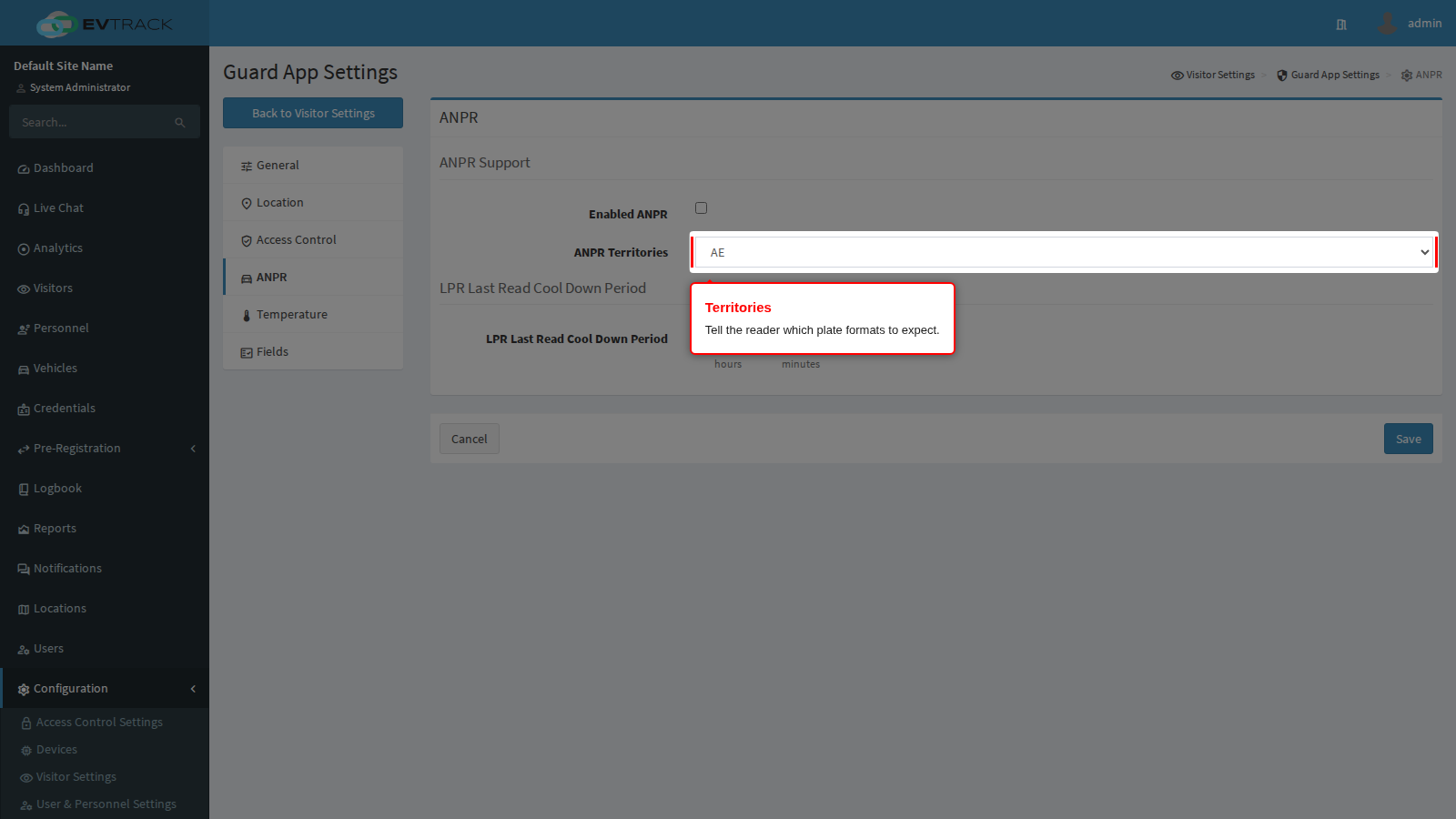
ANPR Territories tells the reader which plate formats to expect. Getting this wrong is the usual cause of plates being misread or not recognised at all, so select the territories your traffic actually comes from.
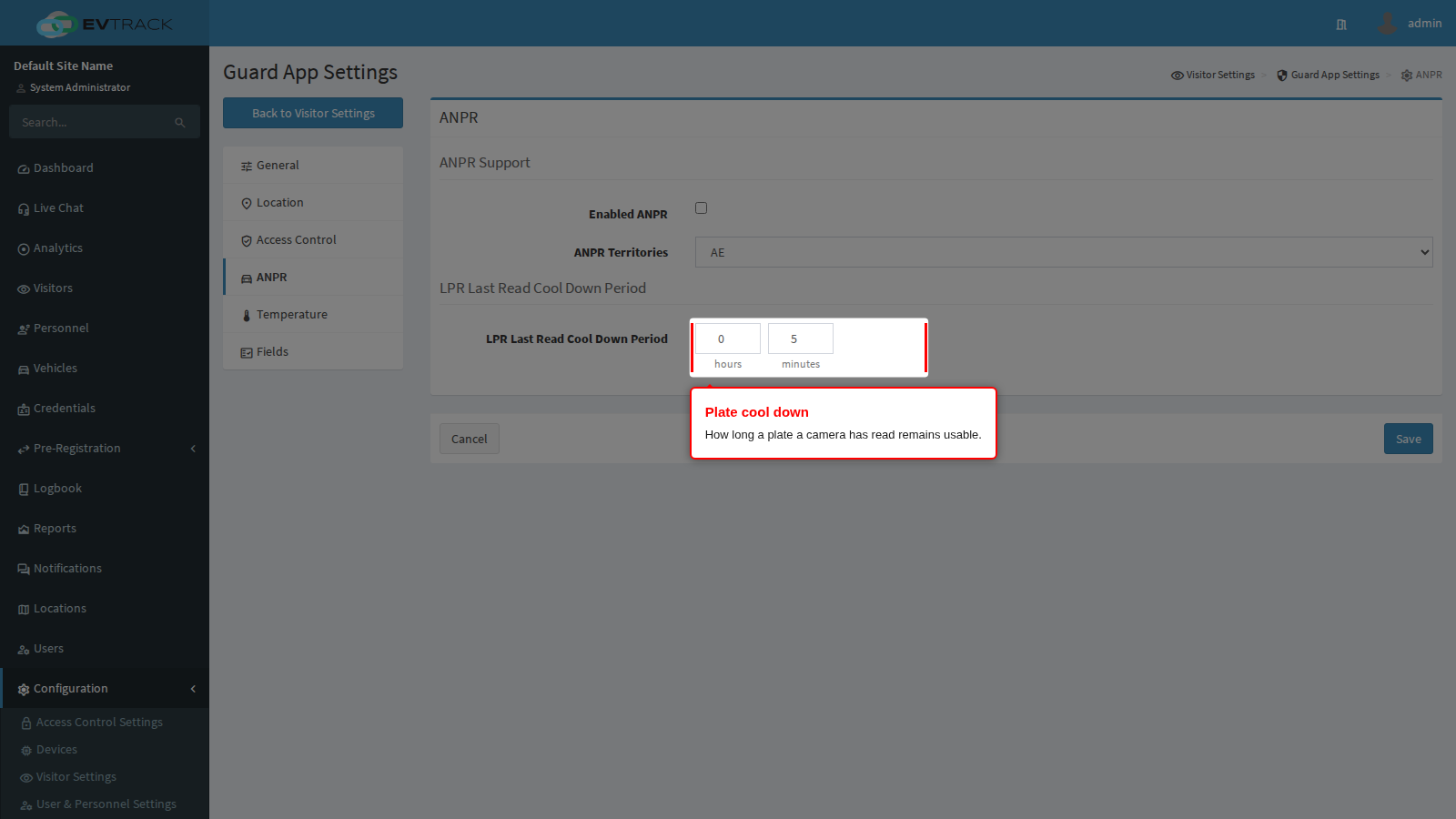
LPR Last Read Cool Down Period is how long a plate that a camera has just read remains usable, entered as hours and minutes. The supplied value is five minutes.
It matters in two places, and neither of them is on this panel:
- Multi-factor checks at the checkpoint. Where a pass requires a plate and something the visitor holds, the officer only captures the second factor: the plate comes from the last read on the same access control point in the same direction. If the camera read the plate longer ago than this period, the product treats it as if nothing had been read, and the check is refused as no plate match while the handset is online. Too short a period and a driver who queued behind three other cars is refused for no visible reason; too long and a plate read from a vehicle that has since driven away can be paired with whoever presents a code next.
- ANPR auto-enrolment. The same window decides which plate is picked up by Add ANPR Credential to Visitor Registration on an access control point, which turns the last plate read into a credential for the visitor who has just checked in.
Set it to the realistic time between a vehicle passing the camera and the driver finishing at the checkpoint, then leave it alone. If it is set very high, a plate read is still considered current long after the vehicle has gone, and that is what lets a plate be paired with the wrong person.
Temperature
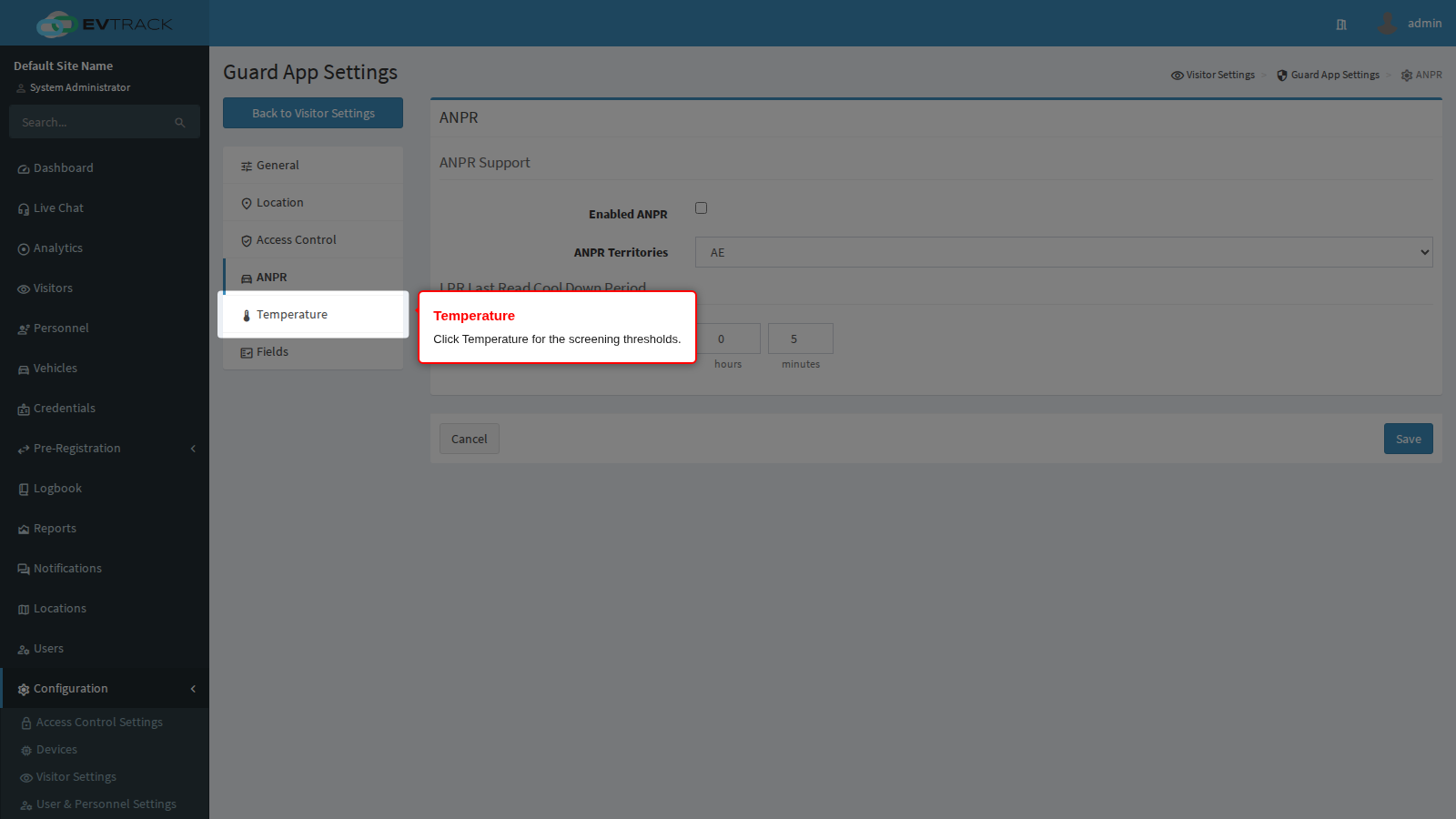
Min C (degrees Celsius) is the lowest reading that is treated as a real measurement. Anything below it is a bad reading (a cold forehead, a badly aimed sensor) rather than a healthy person, and the officer is asked to measure again.
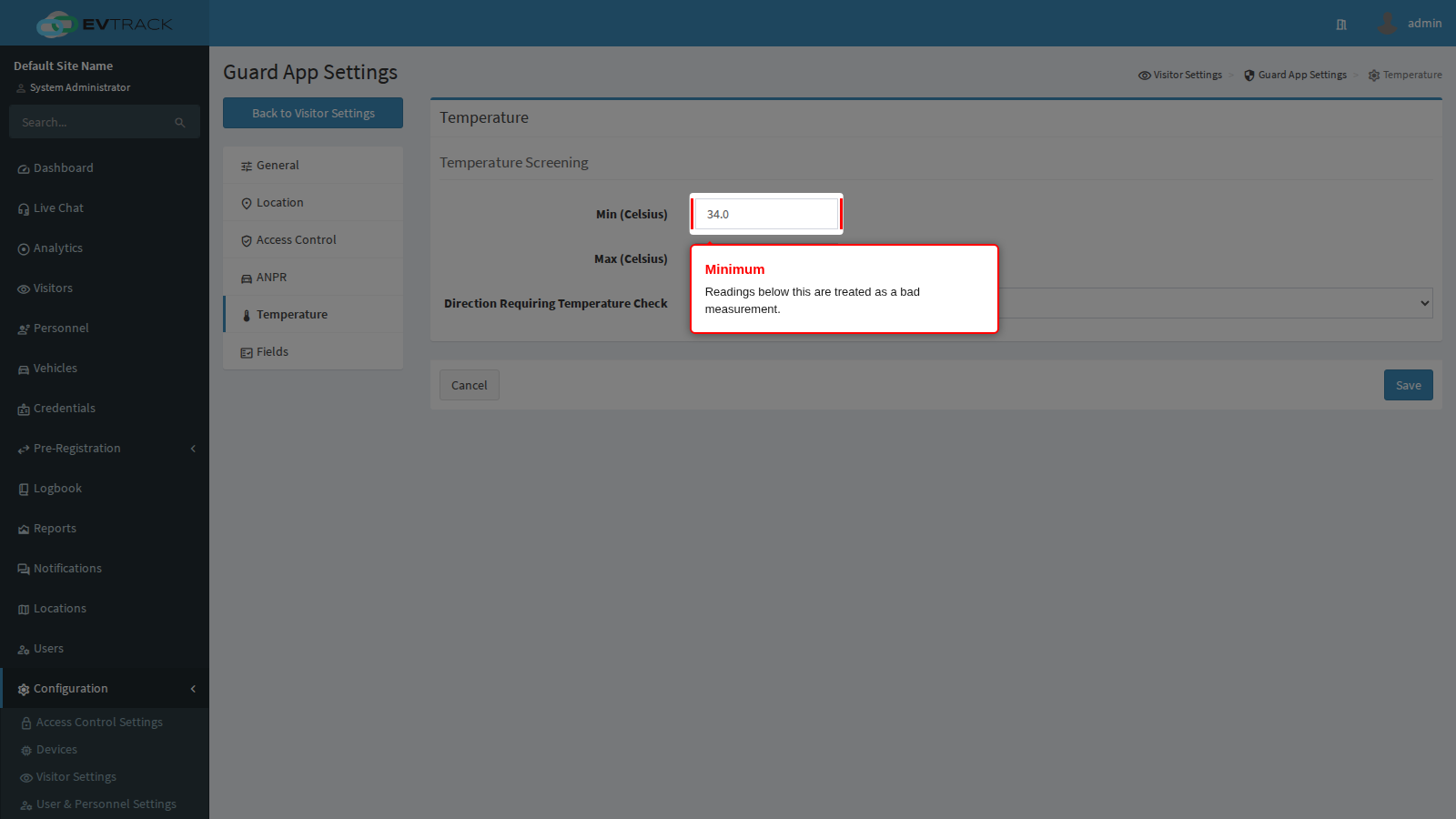
Max C (degrees Celsius) is the threshold that fails the screening. A reading above it is flagged and the officer follows your site procedure.
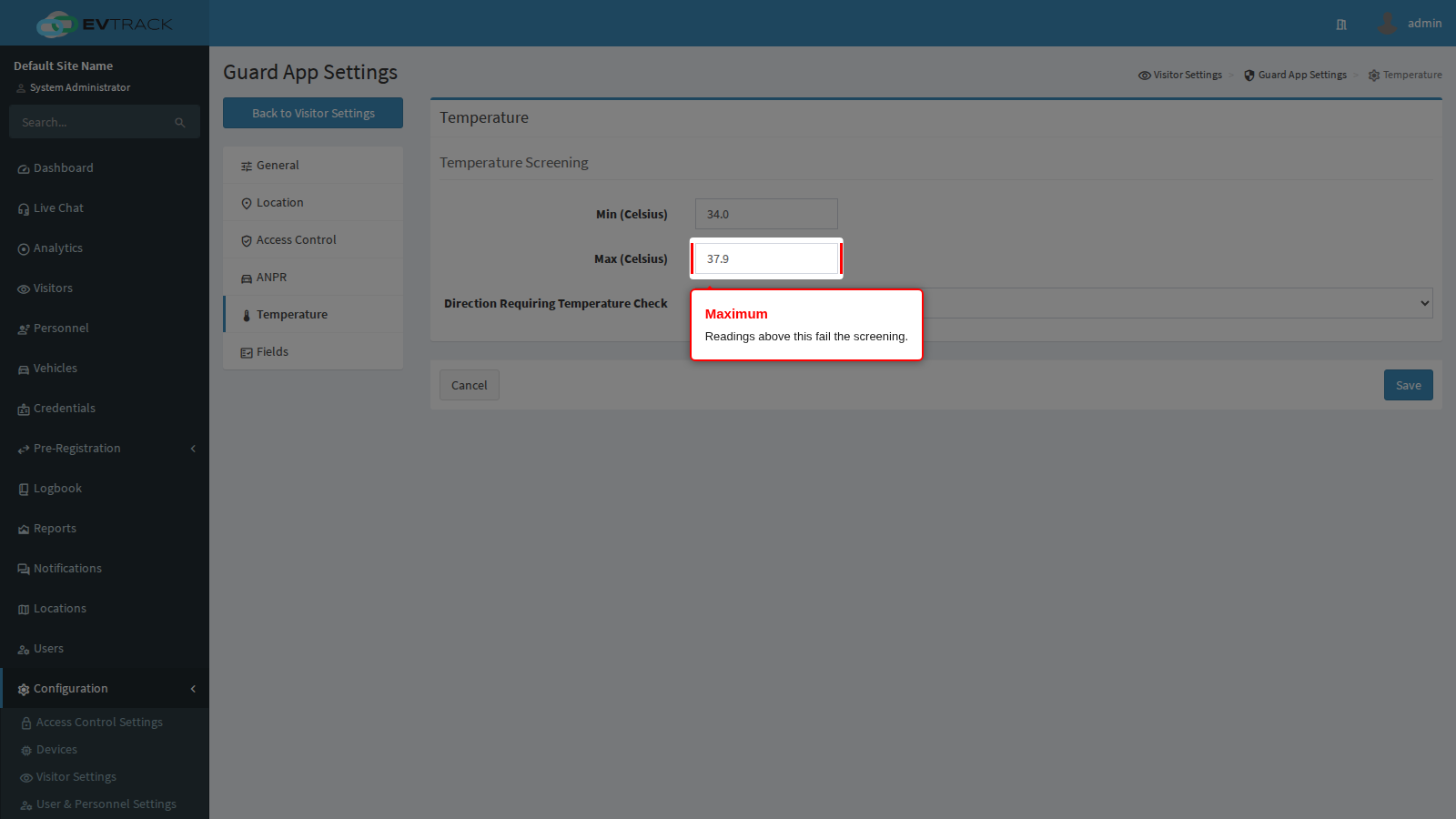
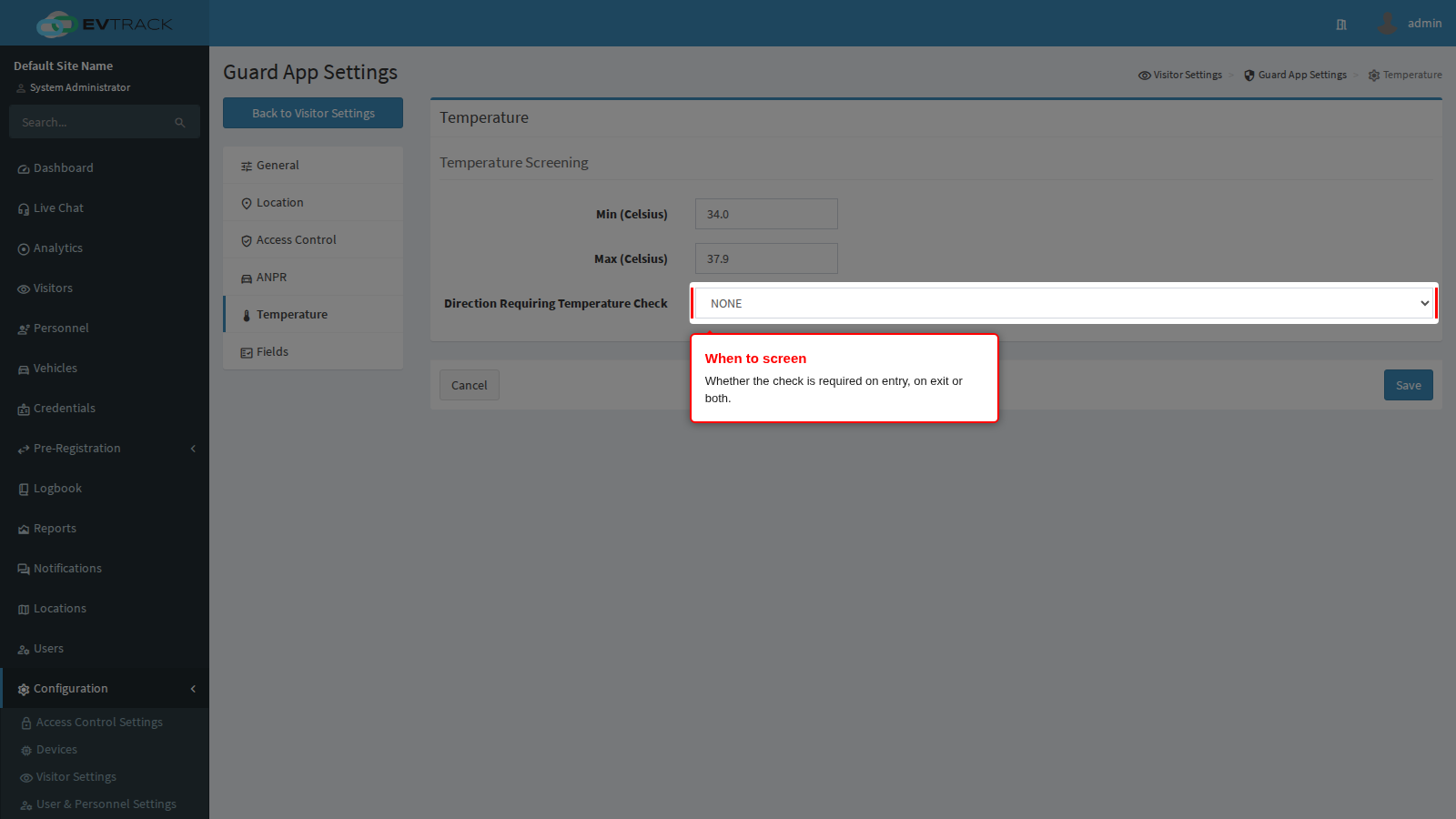
Direction Requiring Temperature Check decides when a reading is demanded: never, on entry, on exit or both. Entry-only is the usual choice. This works with the Temperature field on the Fields panel, which is what makes the officer enter a value at all.
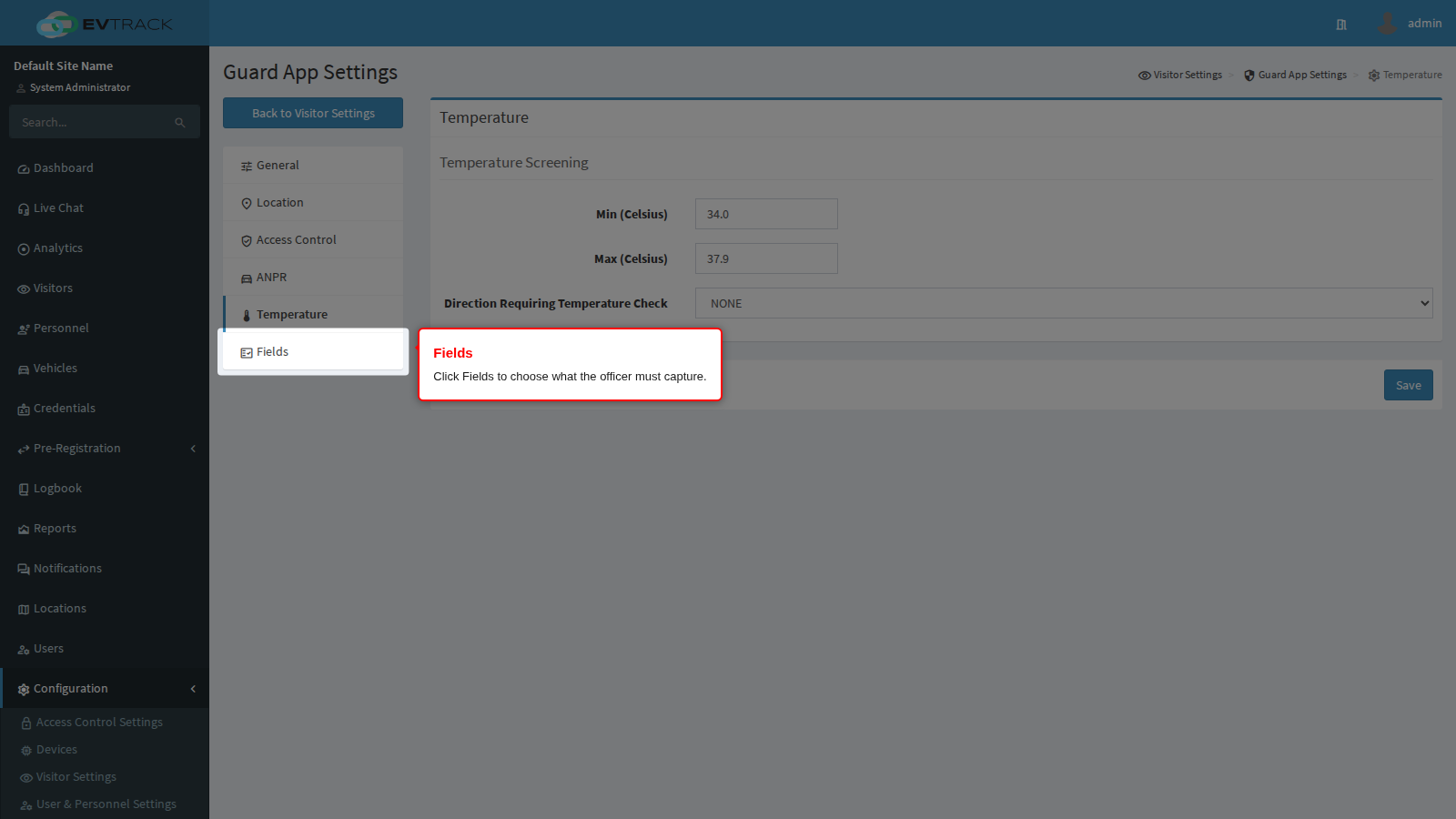
Fields: what the officer must capture
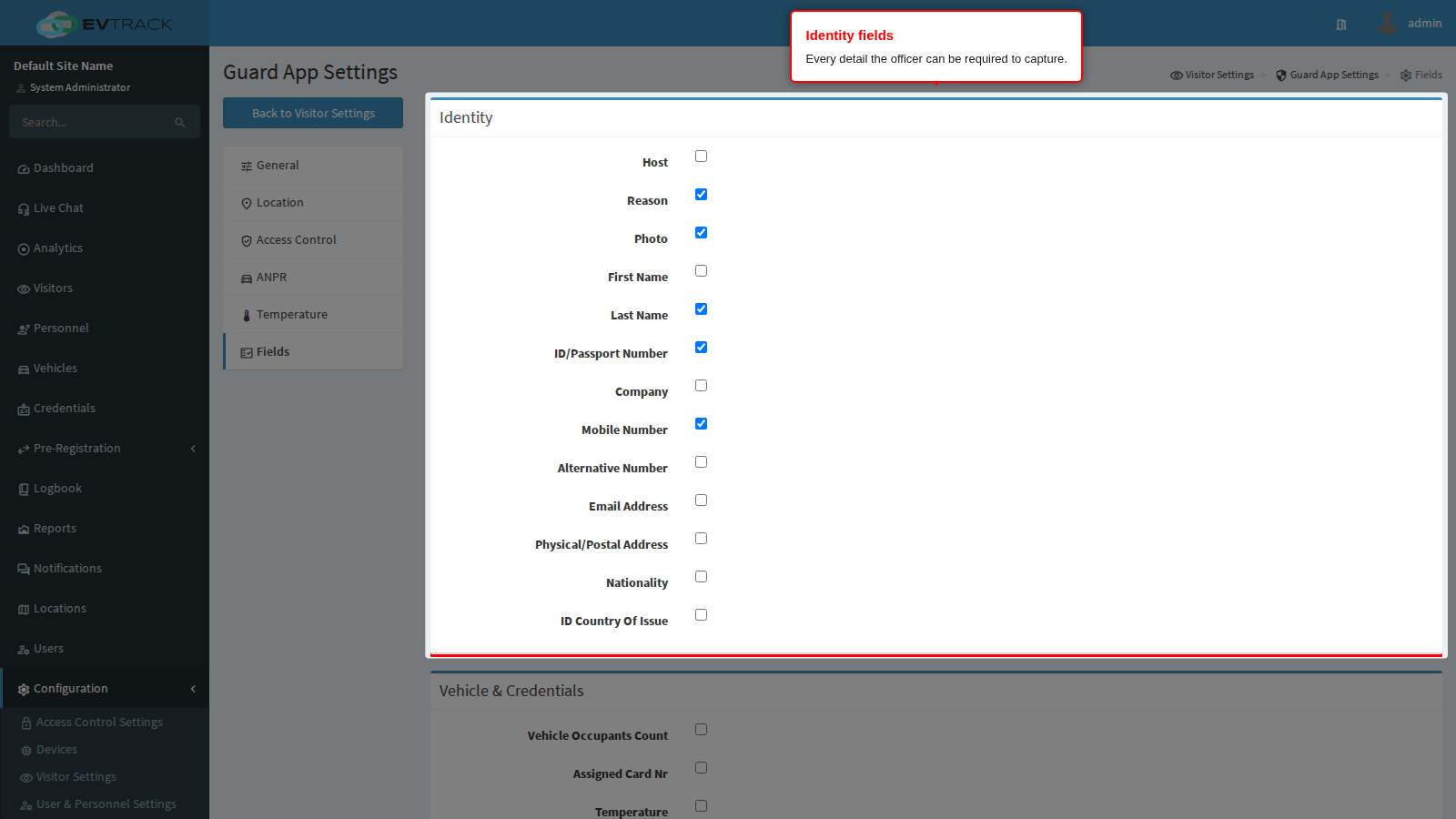
The Fields panel governs enrolment: what the officer has to collect when they register somebody new at the checkpoint. Every tick is a question the officer must answer before the visitor is admitted, so this panel is where a fast checkpoint is won or lost.
The Identity box holds the personal details: host, reason, photo, name, surname, ID number, company, mobile number, alternative number, email, address, nationality and country of issue.
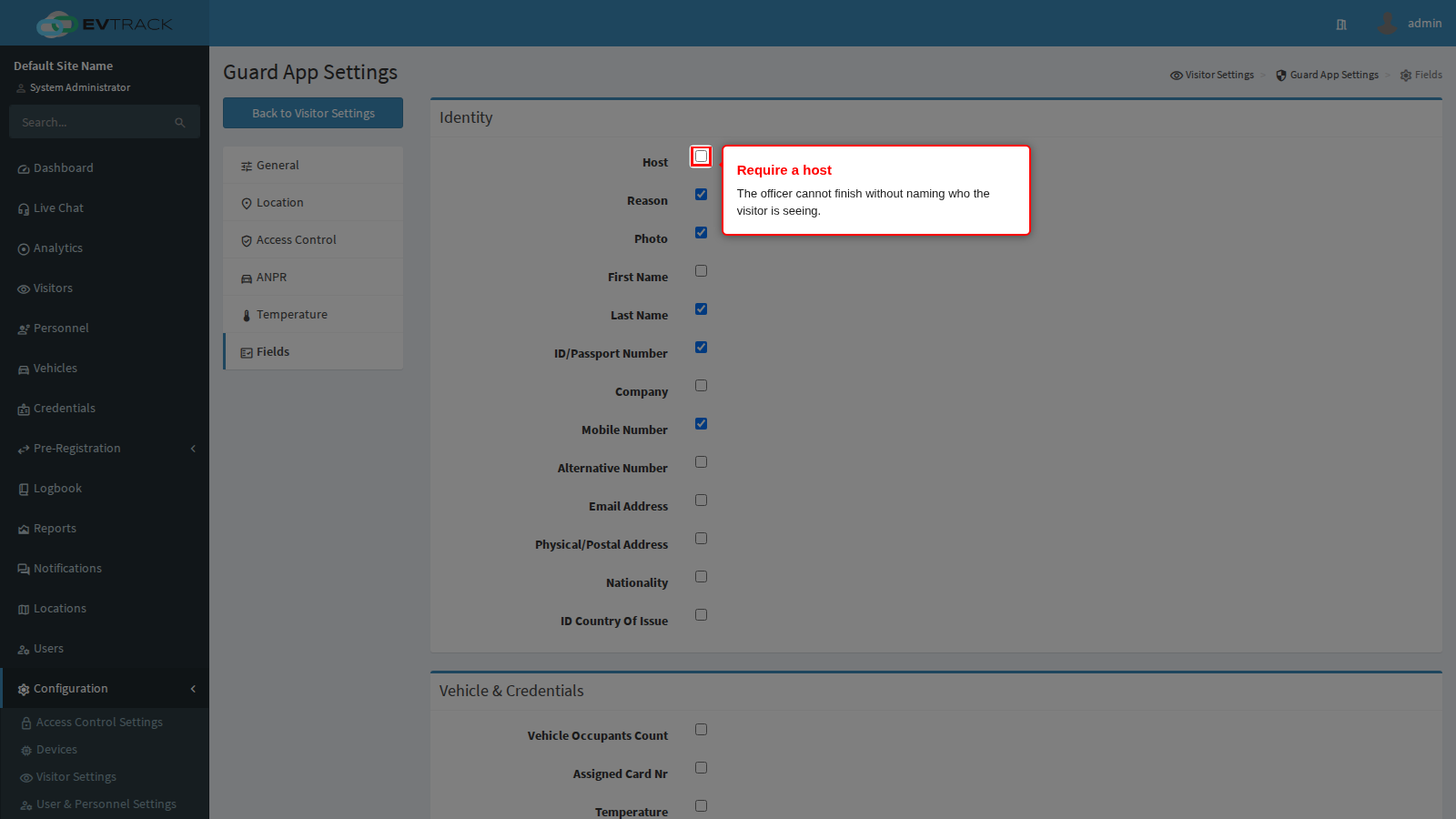
Require Visitor Host stops the officer completing an enrolment without naming who the visitor is there to see. It is what makes host notifications and host approval possible, and what makes an evacuation list meaningful.
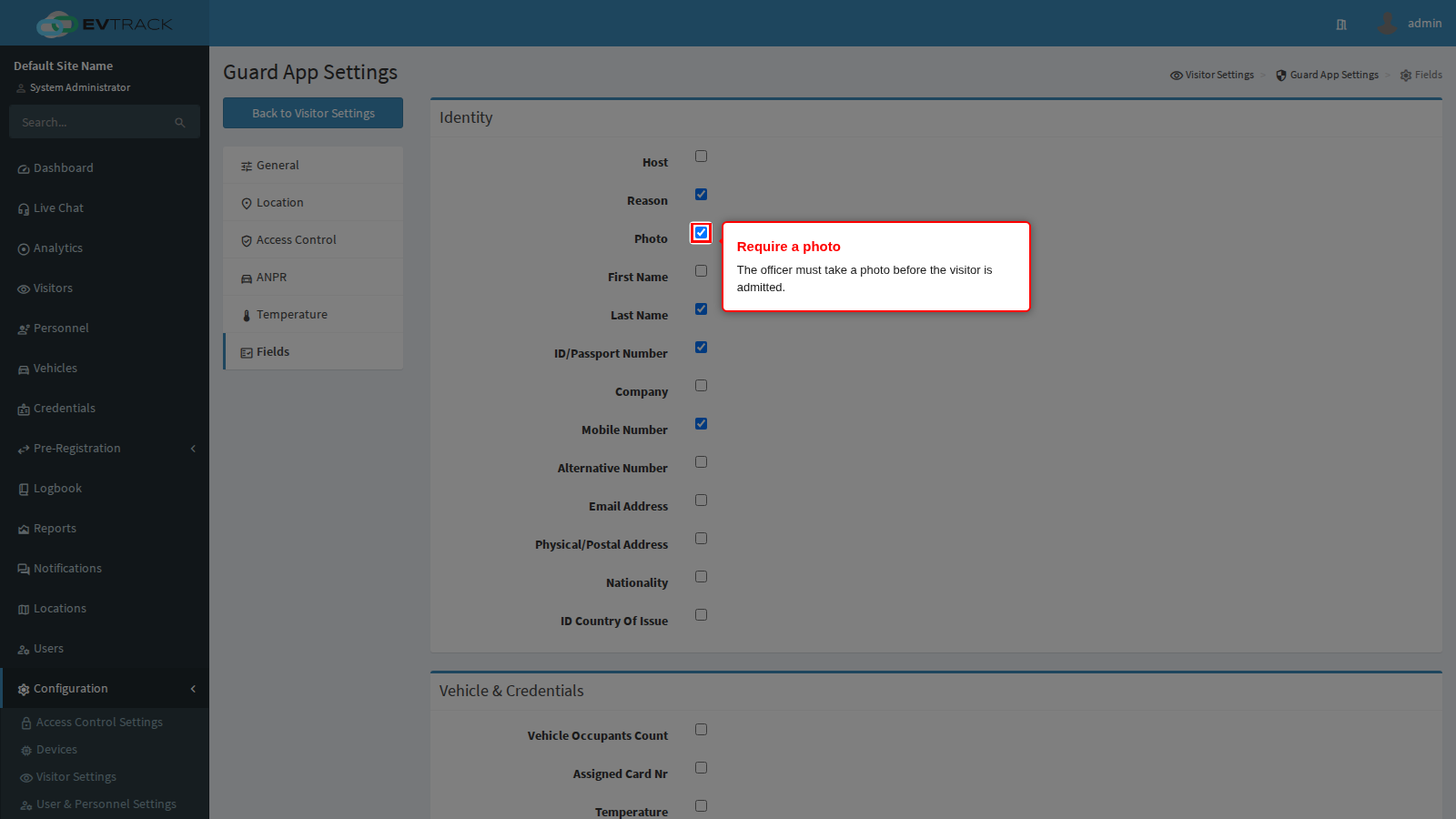
Require Visitor Photo makes the officer take a photo. Combined with face detection above, it produces the badge photo and the face record; without it a visitor can be enrolled with no picture at all.
Fields: vehicle and credentials
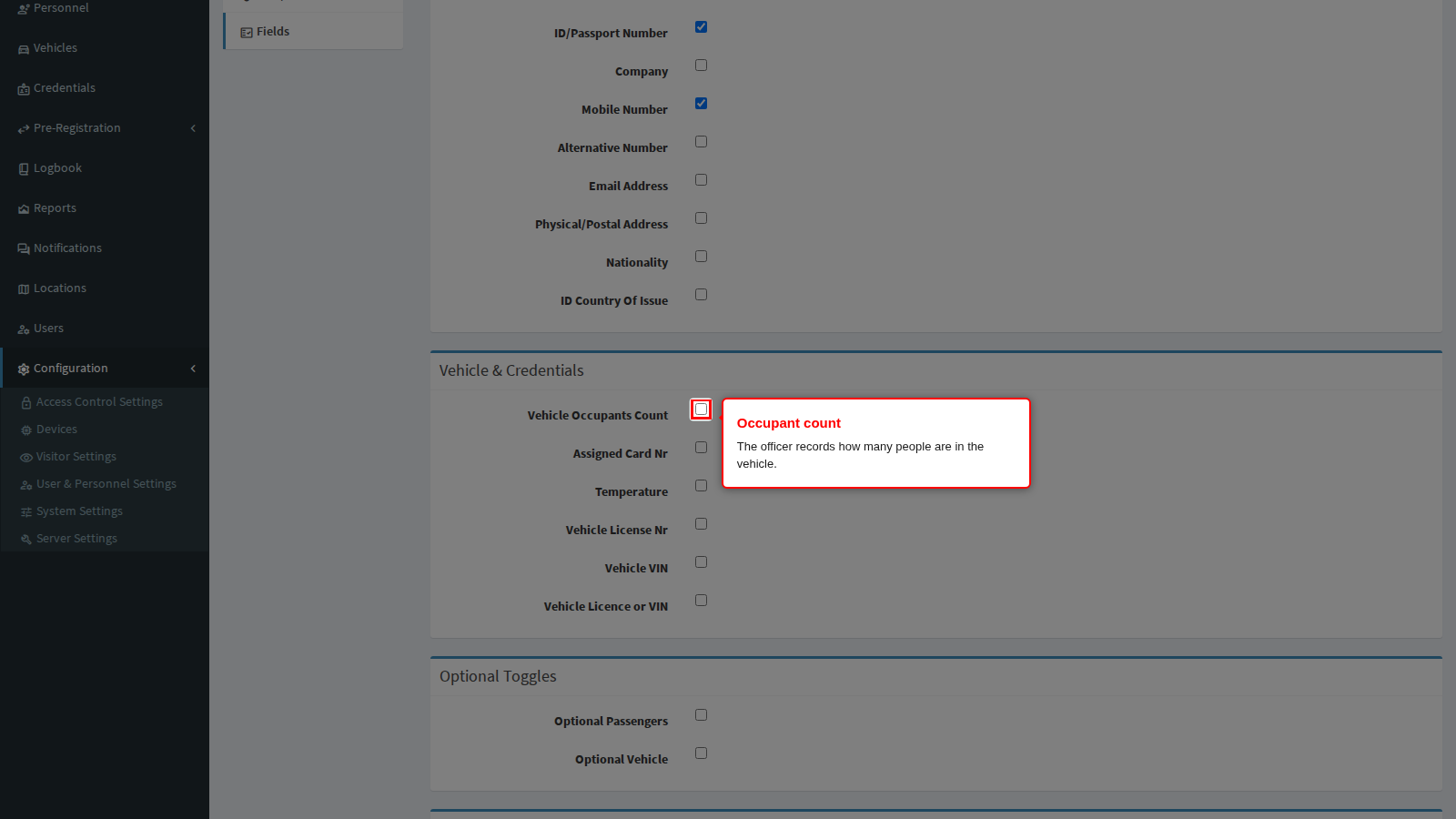
Vehicle Occupants Count makes the officer record how many people are in the vehicle, which is the number the exit confirmation on the Access Control panel is checked against.
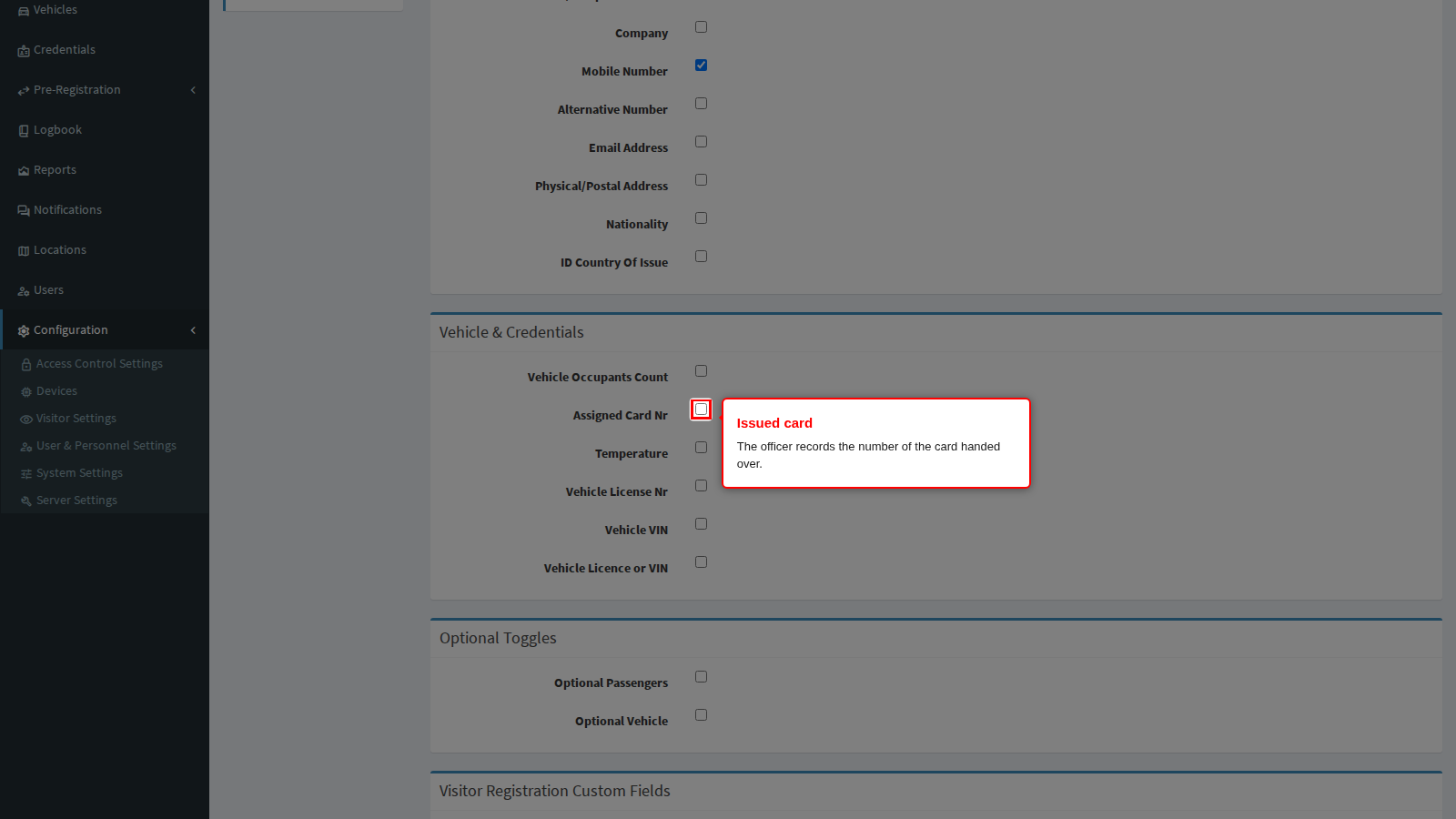
Assigned Card Nr makes the officer record the number of the card handed to the visitor, which is what lets the exit check ask for it back.
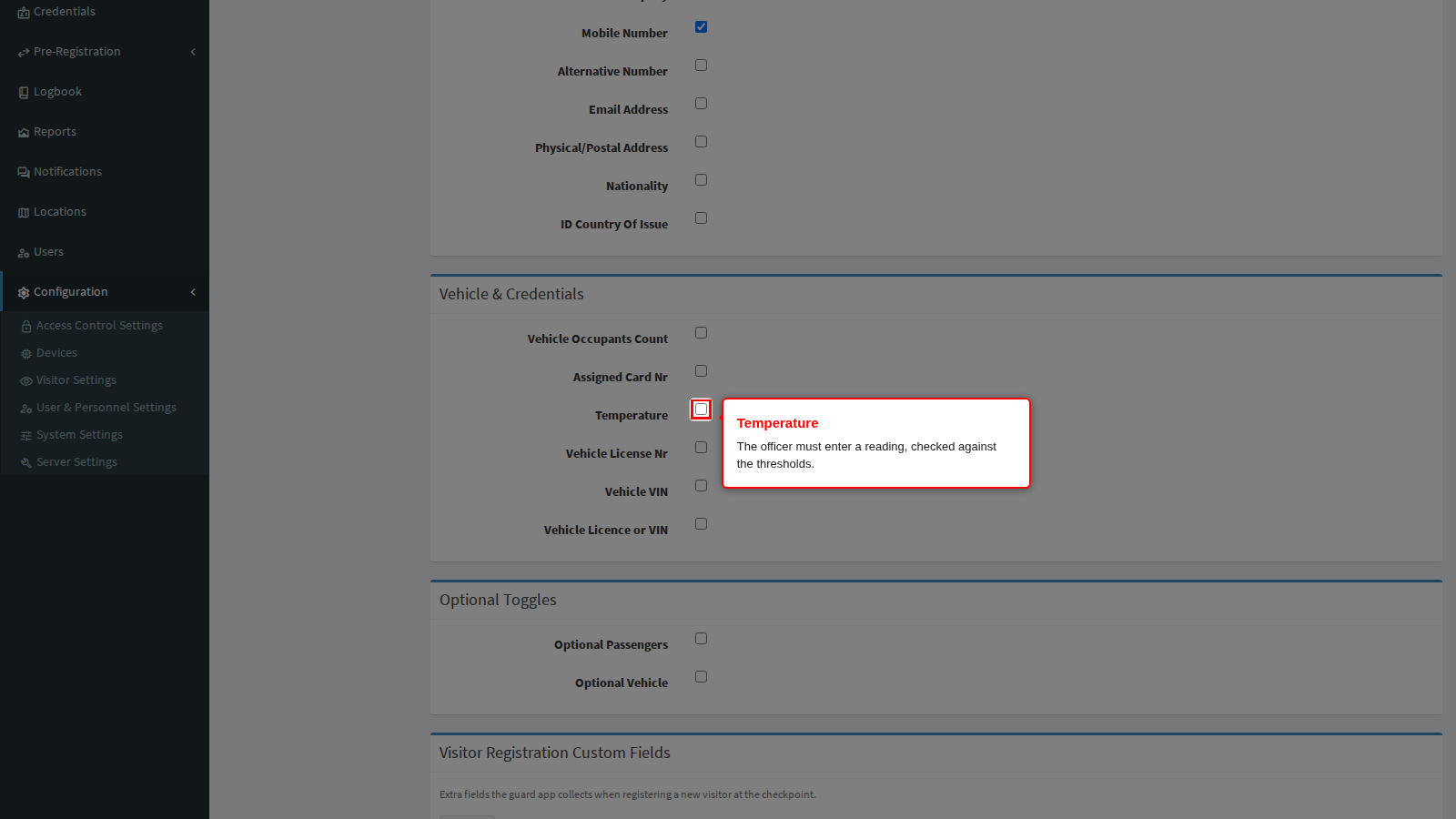
Temperature makes the officer enter a reading, checked against the thresholds on the Temperature panel. Ticking it here without setting the direction there gives you a field with no rule behind it.
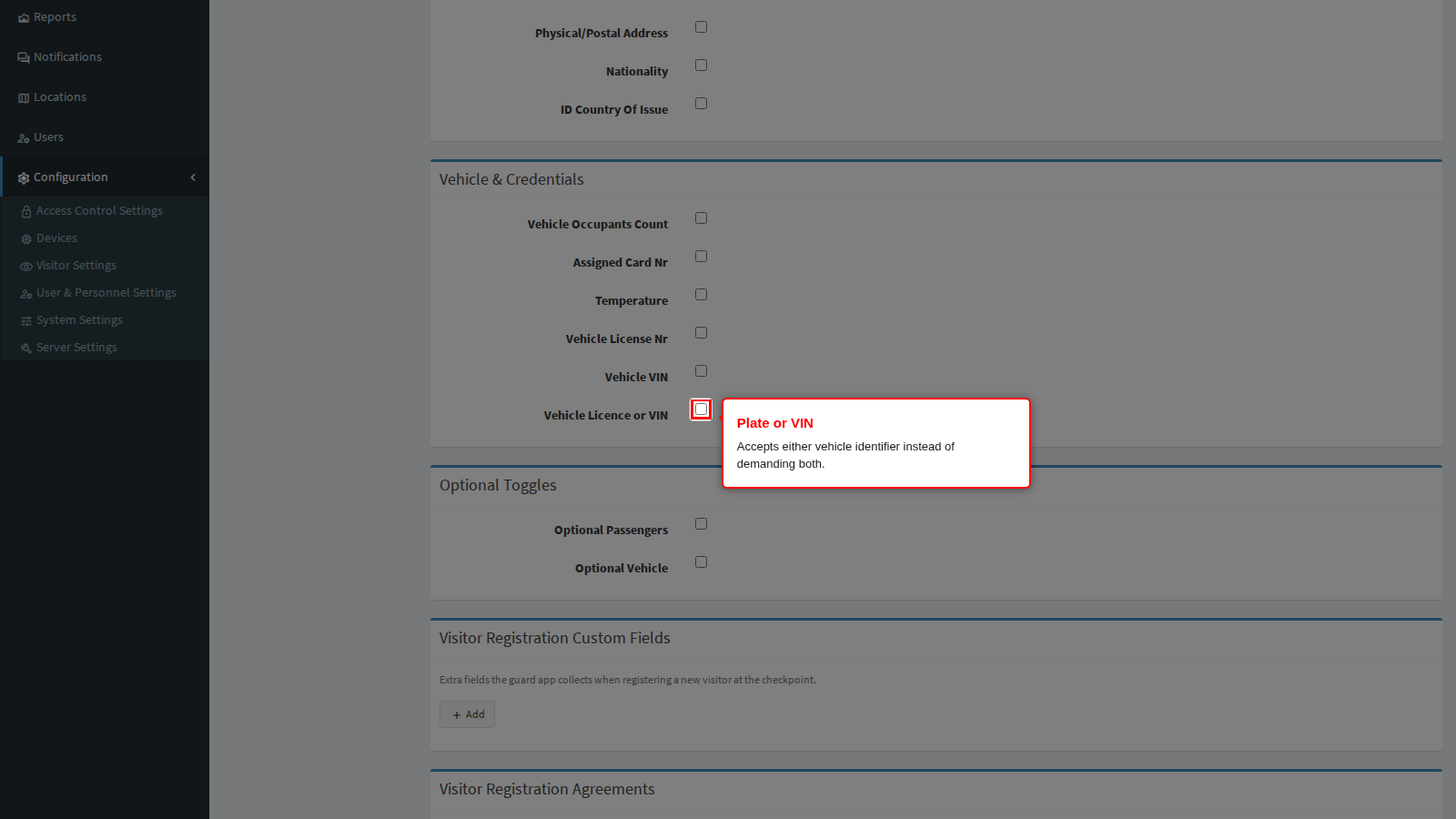
Require Vehicle License or VIN accepts either vehicle identifier, which is the practical setting: the officer captures whichever one is legible. The two rows above it demand a specific one, so use those only where your procedure names it.
Fields: optional items, questions and agreements
Allow Optional Passengers offers the officer a passenger list without forcing it. Turn it on where vehicles sometimes carry passengers who must be recorded but often do not.
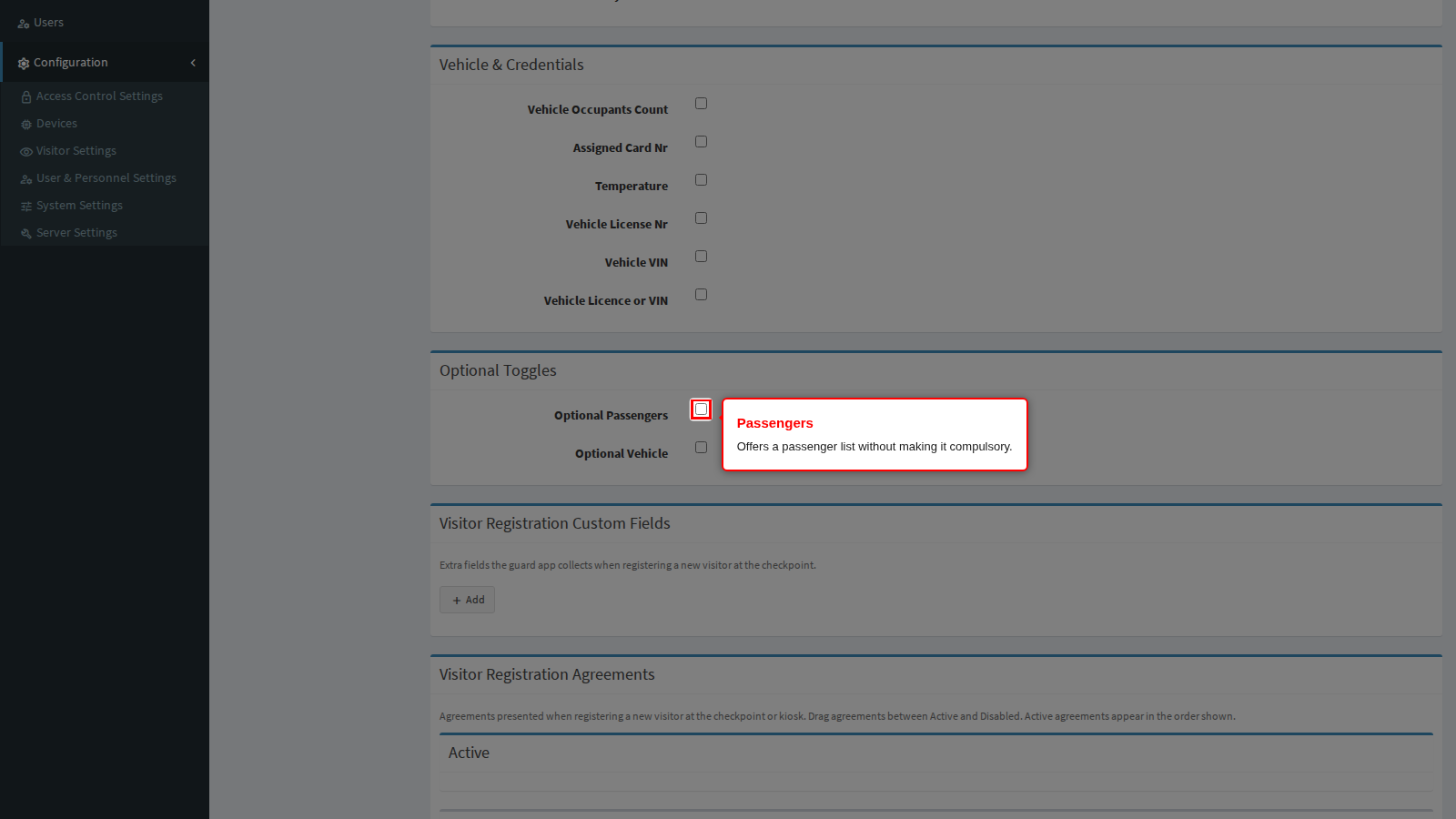
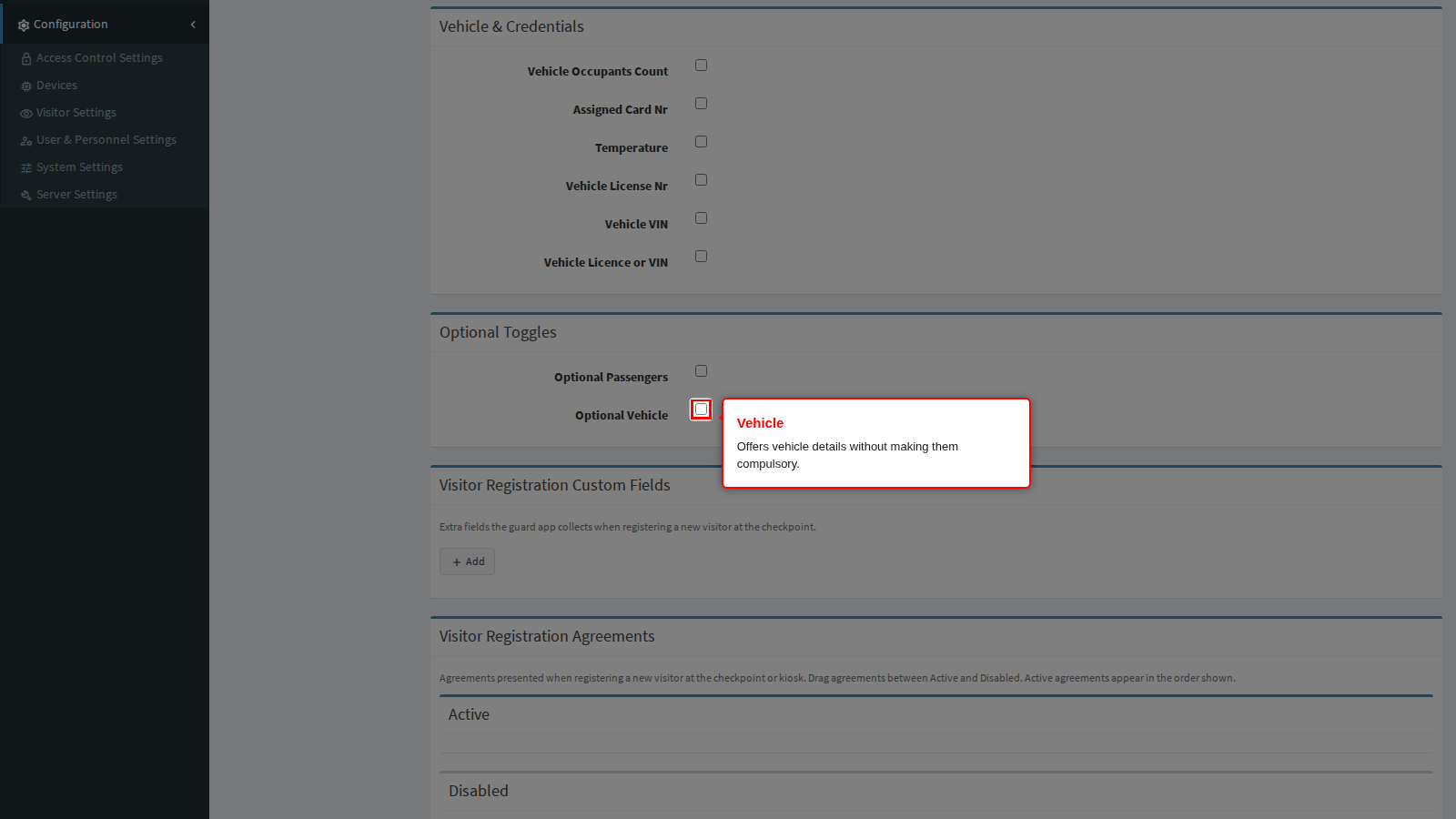
Allow Optional Vehicle does the same for vehicle details, so a visitor who walks in is not asked for a number plate.
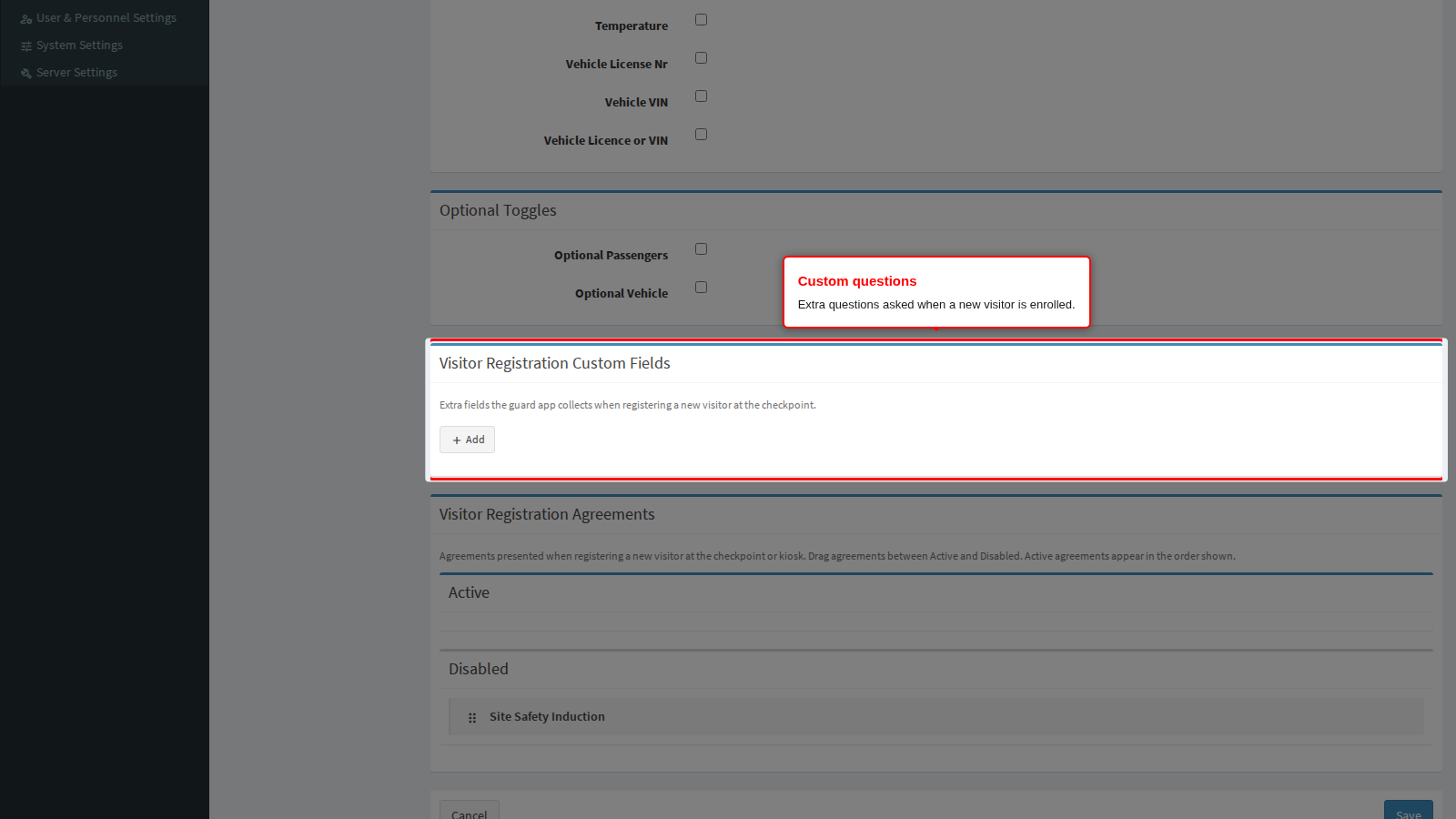
Visitor Registration Custom Fields are your own questions asked during enrolment, separate from the transaction questions on the Access Control panel. Use these for details that belong to the person (a contractor company number), and the Access Control ones for details that belong to the movement.
Visitor Registration Agreements are the agreements presented while the officer enrols a new visitor. Drag them between Disabled and Active and order them inside Active, exactly as on the Access Control panel.
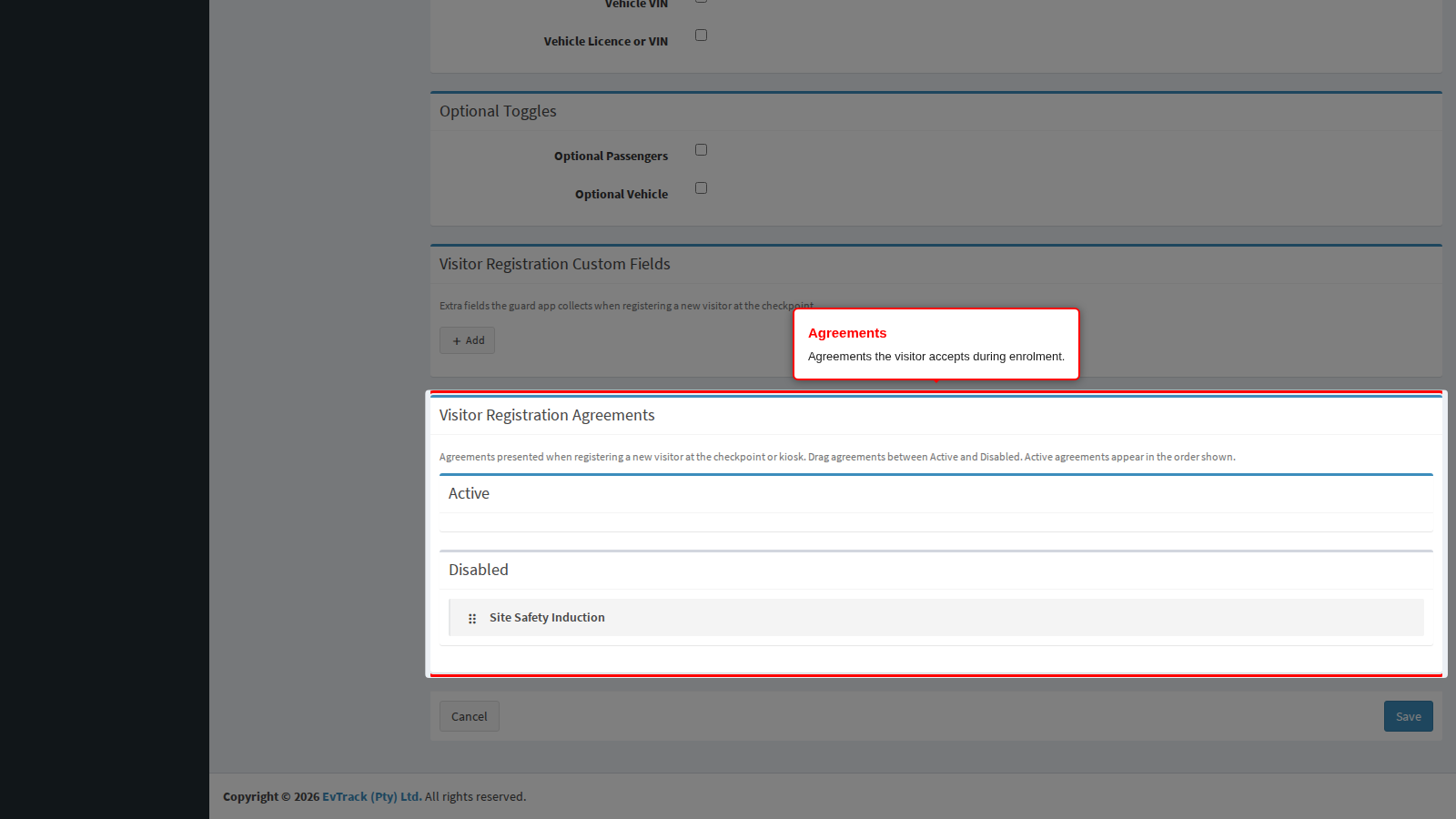
End state: the officer sees exactly these fields, questions and agreements, in this order, the next time they enrol somebody.
Host approval at the checkpoint
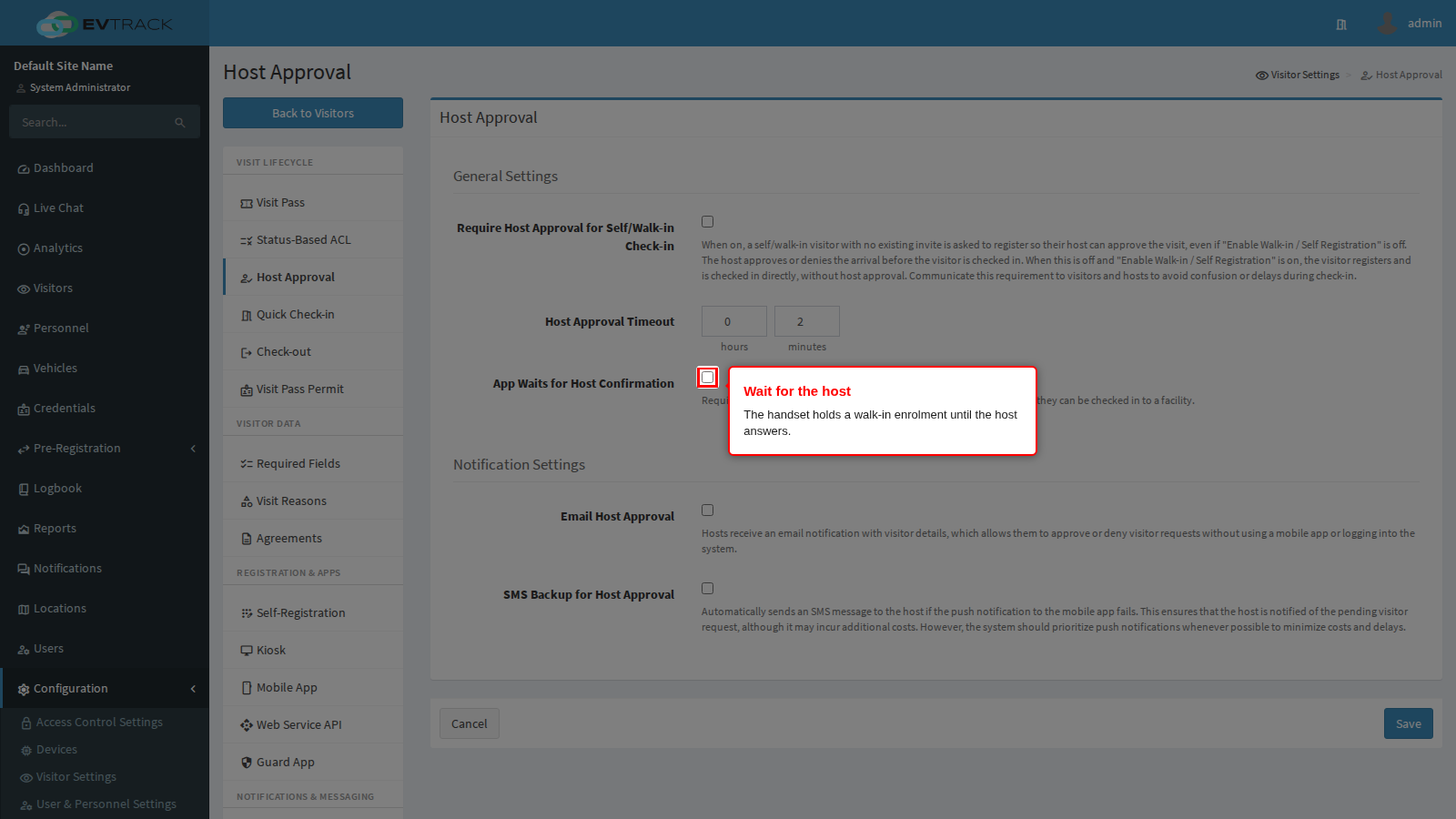
A walk-in at the checkpoint can be held until the person they are visiting agrees to see them. It is configured under Visitors > Settings > Host Approval, because it also covers the kiosk.
App Waits for Host Confirmation decides whether the officer stands and waits. It only has any effect where host approval is already switched on for walk-ins; on its own it approves nothing. It applies to a walk-in the officer enrols at the checkpoint; an ordinary entry or exit by somebody who already has a pass never waits for anybody.
With it on, the handset submits the enrolment and shows a WAITING FOR HOST screen with a spinner while it checks back with the server. The screen cannot be dismissed, backed out of or overridden, so the visitor is never admitted on the officer judgement alone. This is the setting for a checkpoint where an unapproved visitor must not get past the boom. Three things to prepare your officers for:
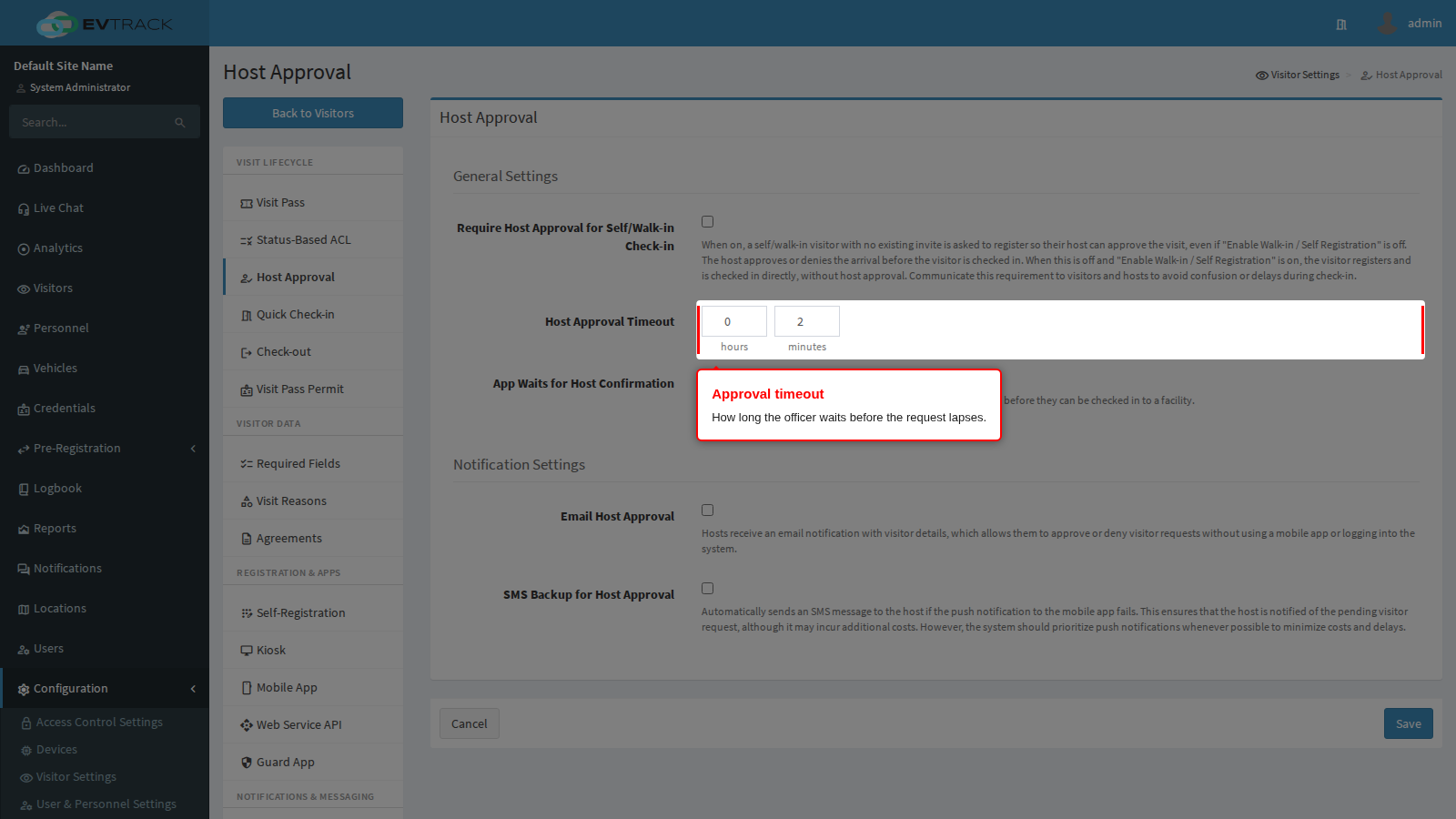
- There is no countdown on screen. The officer cannot see how much of the host approval timeout is left, only that it is still waiting. Tell them roughly how long the wait can run so they can manage the queue behind them.
- A refusal looks like an ordinary refusal. When the host declines, the handset shows a plain access denied message with nothing to say the host was the one who said no. If your officers need to tell a visitor why they were turned away, they will have to check the visit record or telephone the host.
- A lapsed request is recoverable. When the timeout passes, the handset shows Timeout - the host did not respond. Please try again, with RETRY, which submits the whole enrolment again and starts a fresh approval, and OK, which abandons it.
With it off, the officer gets Registration Submitted instead, with wording that says the host will be notified and the visitor will be told once the registration is approved. The officer is not shown access granted, and no badge is printed at that point; they acknowledge the message and move on to the next vehicle while the approval runs its course on the server. Use this where the approval is a record rather than a gate and holding a queue at the boom is the bigger problem. Be clear with your officers which of the two you have chosen, because the handset gives them no other clue.
Neither mode survives an outage. If the handset loses its connection while it is waiting, the wait screen disappears with a network error and nothing is queued: the officer has no sign that an approval may still be pending, and submitting again creates a second, separate request for the same visitor. Give your officers a written fallback for that case.
The panel help text describes this as requiring visitors to wait for their host approval through a mobile app before they can be checked in.
Host Approval Timeout is how long that wait lasts before the request lapses. Set it to something an officer can hold a queue for, and give them a documented fallback for requests that time out.
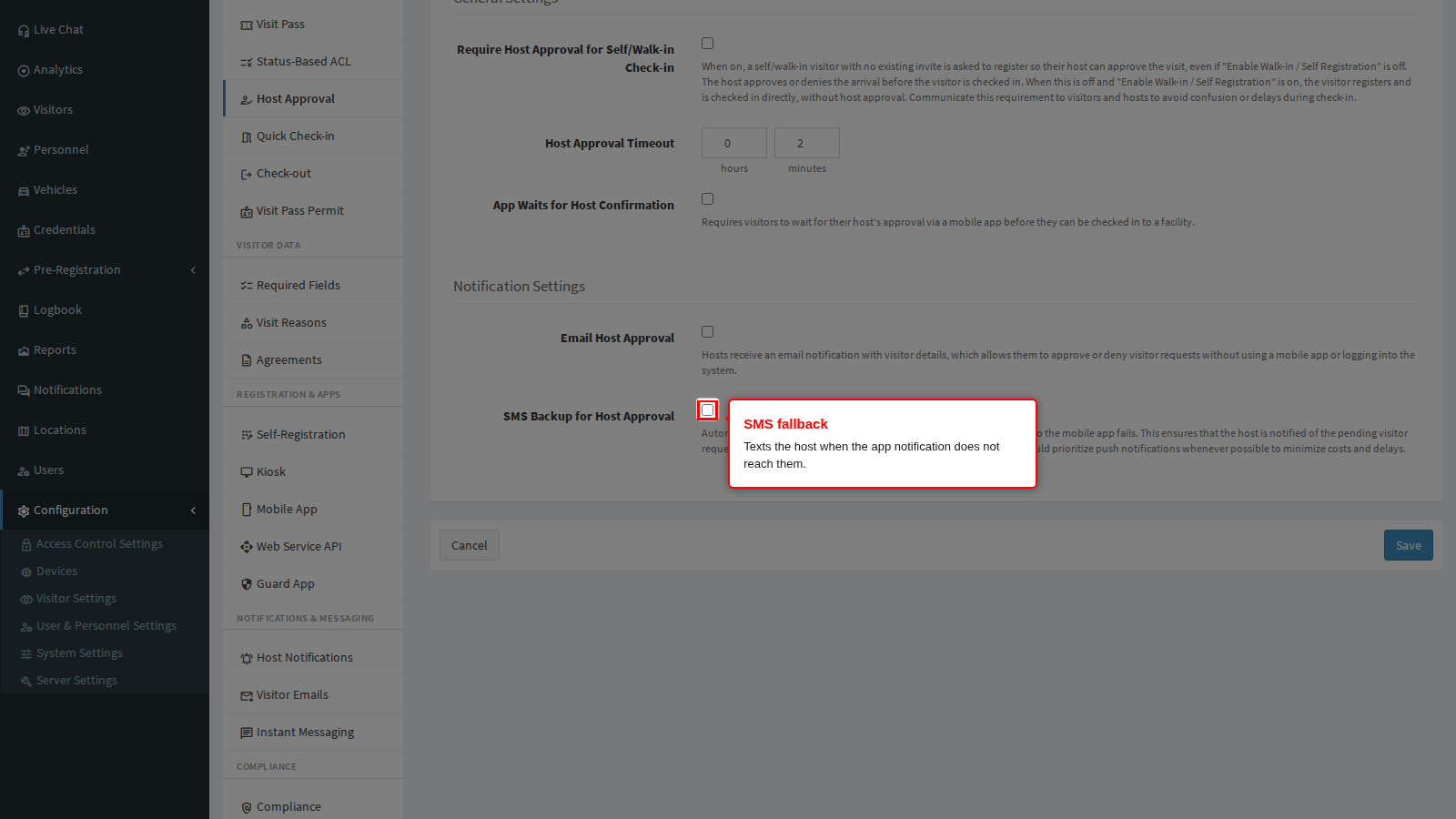
Fallback Host Approval via SMS, and its email counterpart, reach a host whose mobile app is not responding. Without a fallback a host who does not run the app can never approve anybody, and every walk-in times out. The full flow is described in Host Approval, the settings in Host Approval settings.
Troubleshooting
- The guard app runs on any Android 6 or later handset. Current builds carry document reading inside the app, so Google services are no longer required for it, despite what the OCR setting label says. Prove it on one handset before rolling out to a fleet without Google services.
- A setting appears to have no effect. The app loads its configuration at login: have the officer log out and back in.
- Every setting appears to be off on a new handset. The app only learns the settings once it has completed an online login. Until then it behaves as though everything is switched off: no document reading, no face requirement, no alternative-driver offer. Log the handset in on a working connection before it is issued.
- Plates are not recognised. Confirm rotation lock is not active on the handset, and check that the correct territories are selected on the ANPR panel.
- “Waiting for the text recognition model to be downloaded”. The handset needs internet access to download the text recognition libraries, and must have a working Google Play Store account. If it persists, update Google Play Services, or clear its data via Settings > Apps > Google Play Services > Storage > Manage Space > Clear All Data.
Related chapters
- Kiosk and Guard Devices - creating the device record, installing the app and matching the handset identifier.
- Kiosk - the same decisions for unattended self check-in.
- Visit Pass - what the officer is scanning and which access control list it opens.
- Host Approval - the approval flow from the host point of view.
- Agreements - writing the agreements the officer presents.
- Access Control Lists - the lists that decide whether a scanned credential opens anything.