Personnel are the people who work at your sites - employees, contractors and staff who host visitors, hold credentials and appear in access reports.
Step 1: Open the Personnel list
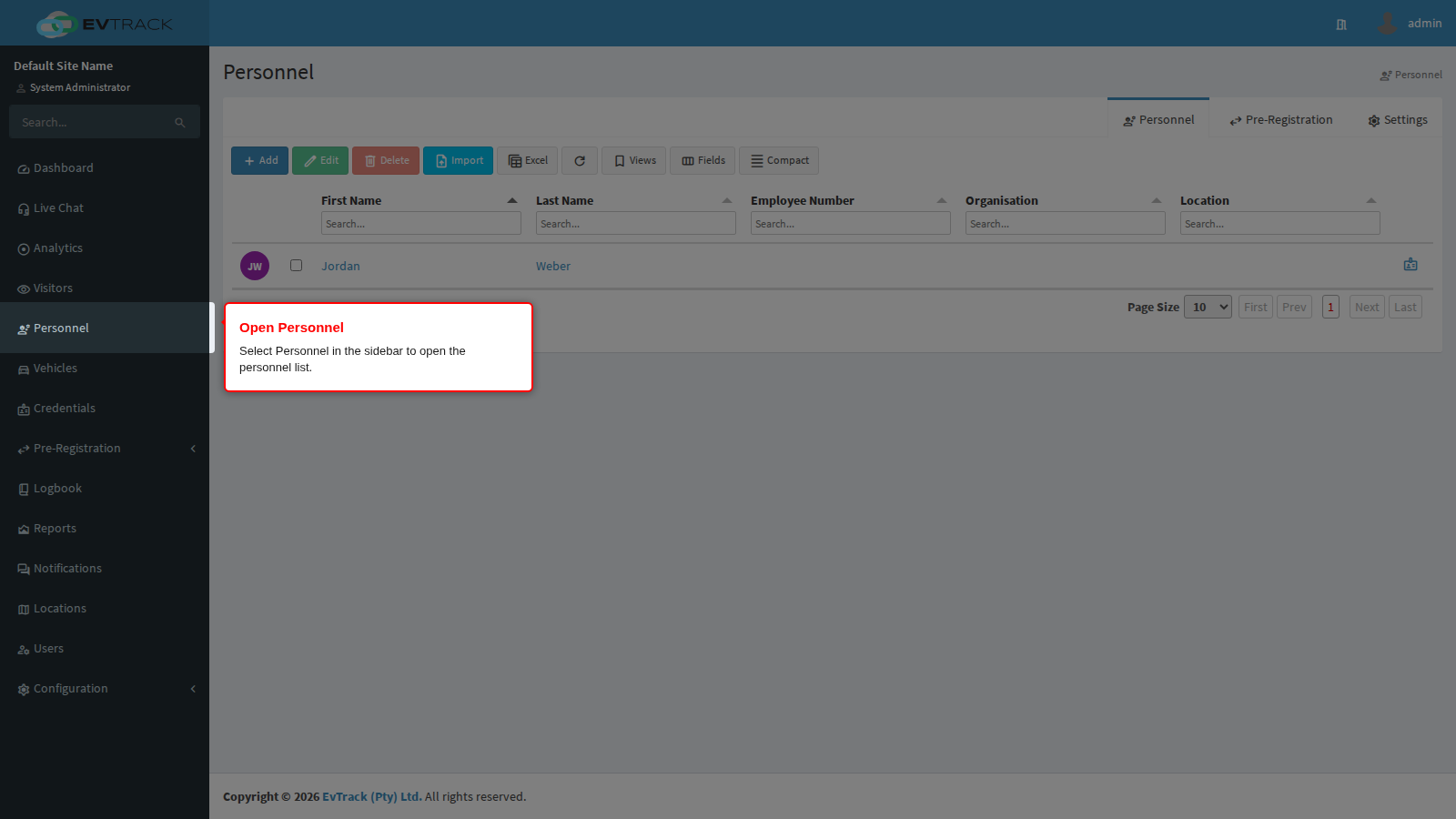
Select Personnel in the sidebar. The personnel list opens, showing every person already on record with a toolbar above the table.
Step 2: Click Add
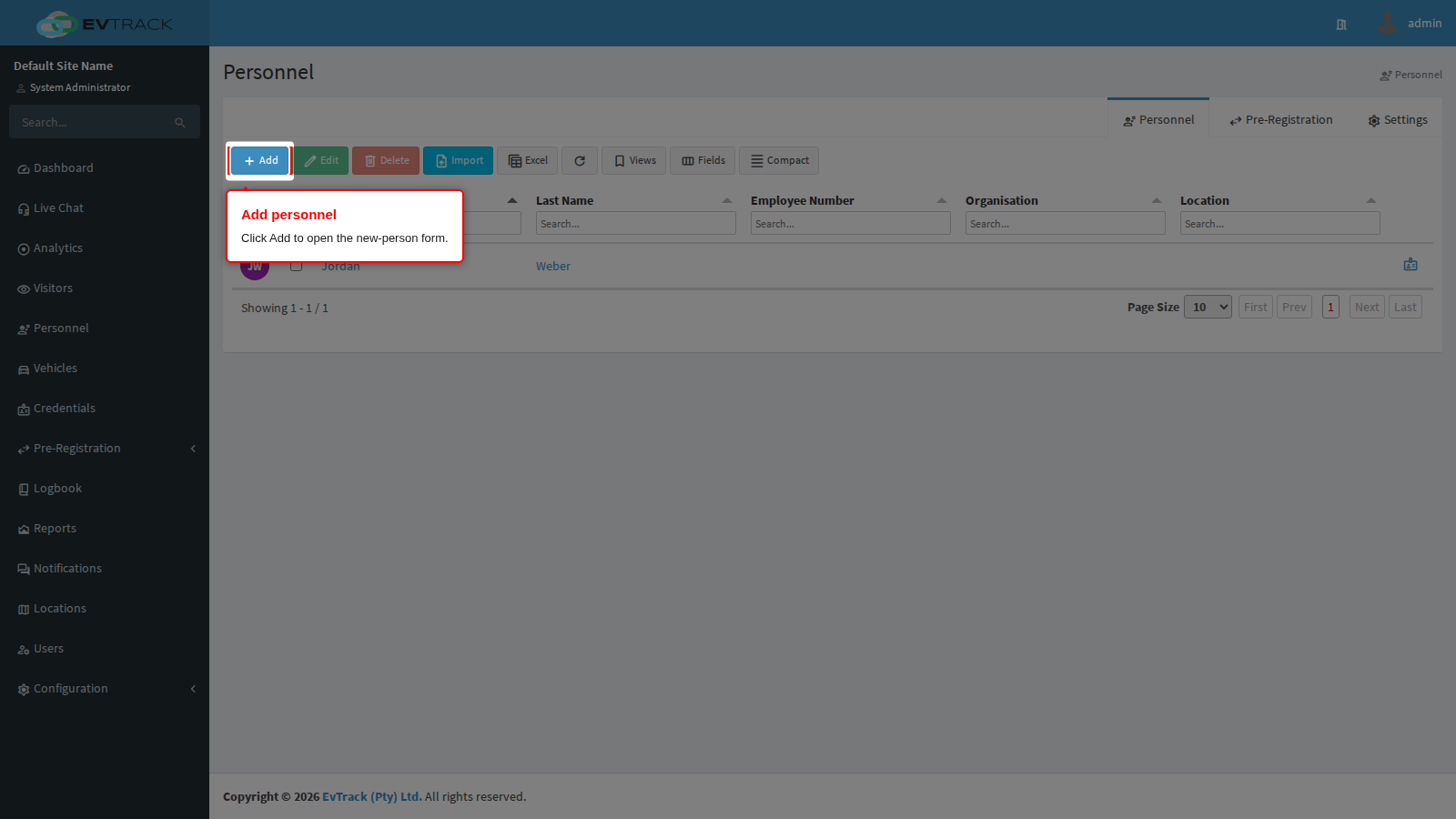
Click the Add button in the toolbar. The new-person form opens.
Step 3: Fill in the person’s details
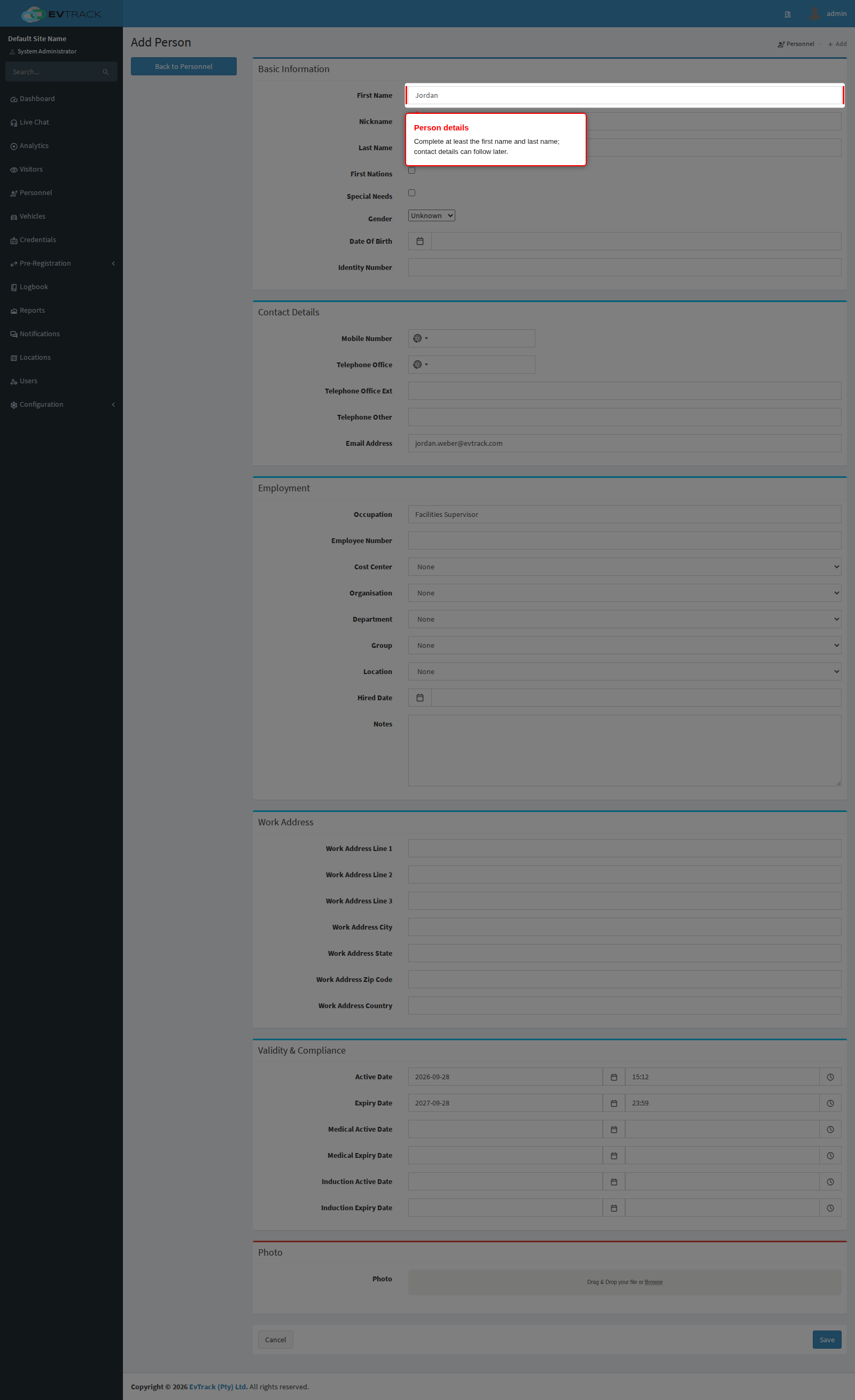
Complete the person’s details - First Name, Last Name and contact information. Organisation, department and cost-center assignments can also be captured here or added later. Click Save - the person’s record opens on the Edit Person page.
Step 4: Upload a profile photo
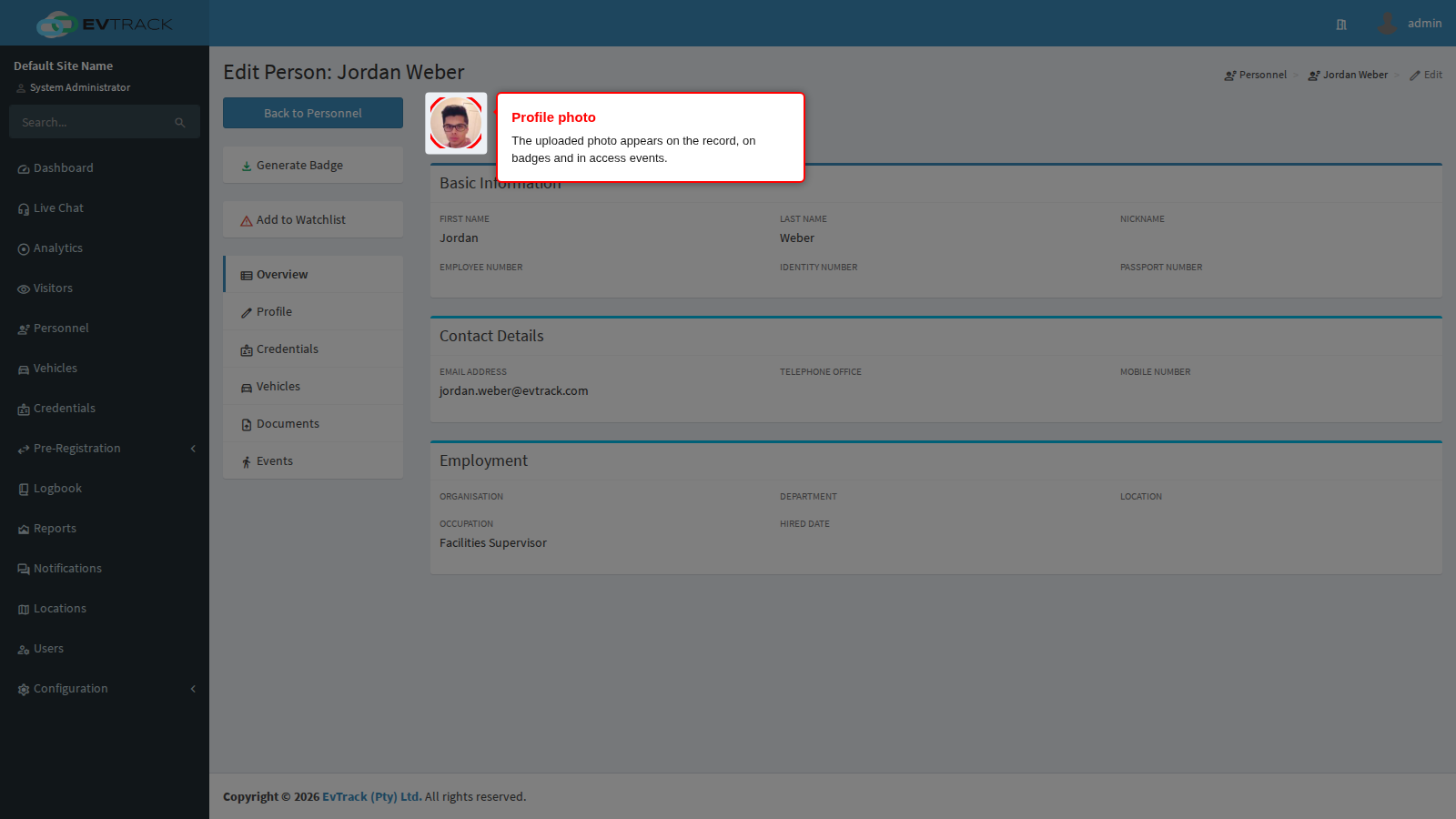
On the person’s record, open the Profile tab and upload a photo - drag and drop a file or browse, then click Save again to store it. The photo now appears on the person’s record, and is used on badges and in access events.
Note: People can also register themselves. When the public self-registration form is enabled (Configuration > User & Personnel Settings > User Registration), new personnel submit their own details online and the request appears under Pre-Registration in the sidebar, where an administrator converts it into a personnel record with the form pre-populated from the request.