Host approval puts a person between an unannounced visitor and your building. When it is on, someone who walks up to a kiosk or presents themselves to a guard with no existing invitation cannot simply register and walk in: the product raises an approval request, sends it to the host they named, and waits for the host to approve or deny before the visitor is checked in.
This page decides whether that gate exists, how long the visitor stands at the checkpoint waiting for an answer, whether the kiosk or guard app holds its screen while the answer is awaited, and which channels are used to reach the host.
Before you start: you need an operator account with settings permissions. Approval requests are addressed to a host, so the hosts your visitors will name must exist as users with a working email address (and a mobile number if you intend to use the SMS backup). A host with no reachable channel at all cannot approve anything, and the consequence of that is described in Step 3.
What is affected: these rules apply from the moment you save, to walk-in and self-service arrivals only. A visitor who was invited in advance already carries a pass their host issued, and is not asked for approval again.
Step 1: Open the Host Approval settings
Open Configuration in the sidebar, click Visitor Settings, and click the Host Approval tile.
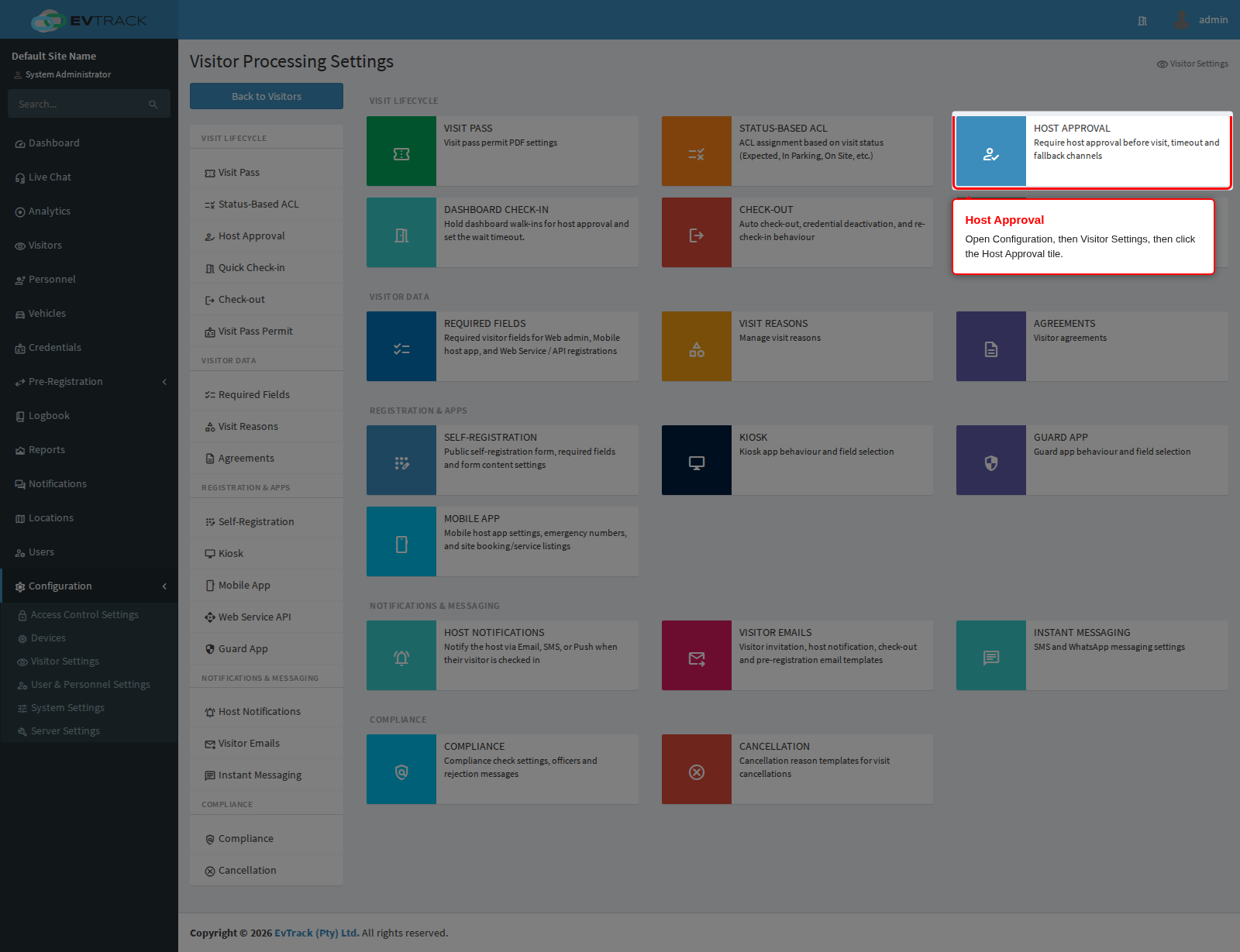
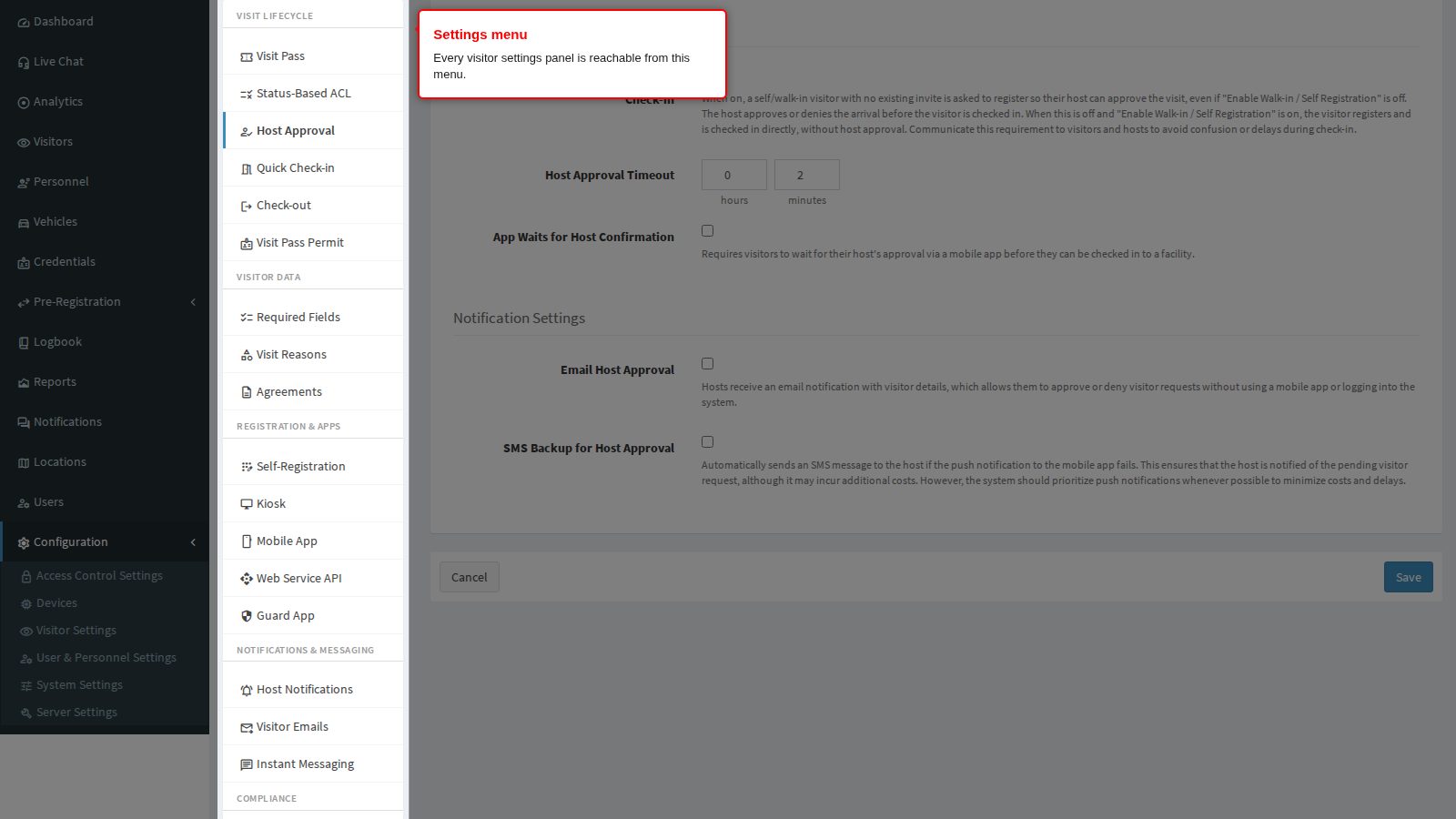
End state: the Host Approval panel opens. The menu on the left remains visible so you can move to any other visitor settings panel without going back to the tiles.
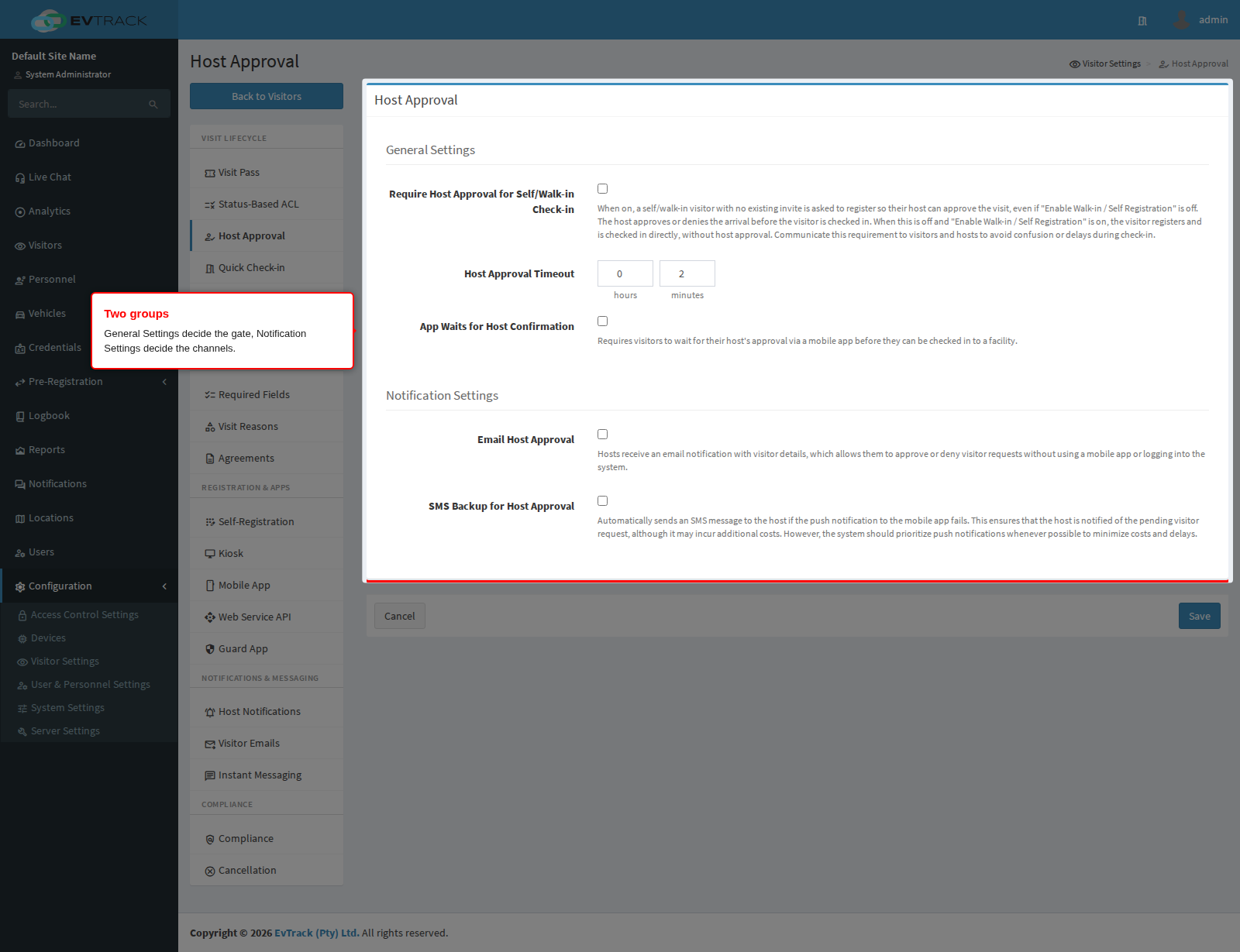
The panel holds two groups: General Settings, which decide whether and how the gate applies, and Notification Settings, which decide how the host is reached.
Step 2: Turn the gate on
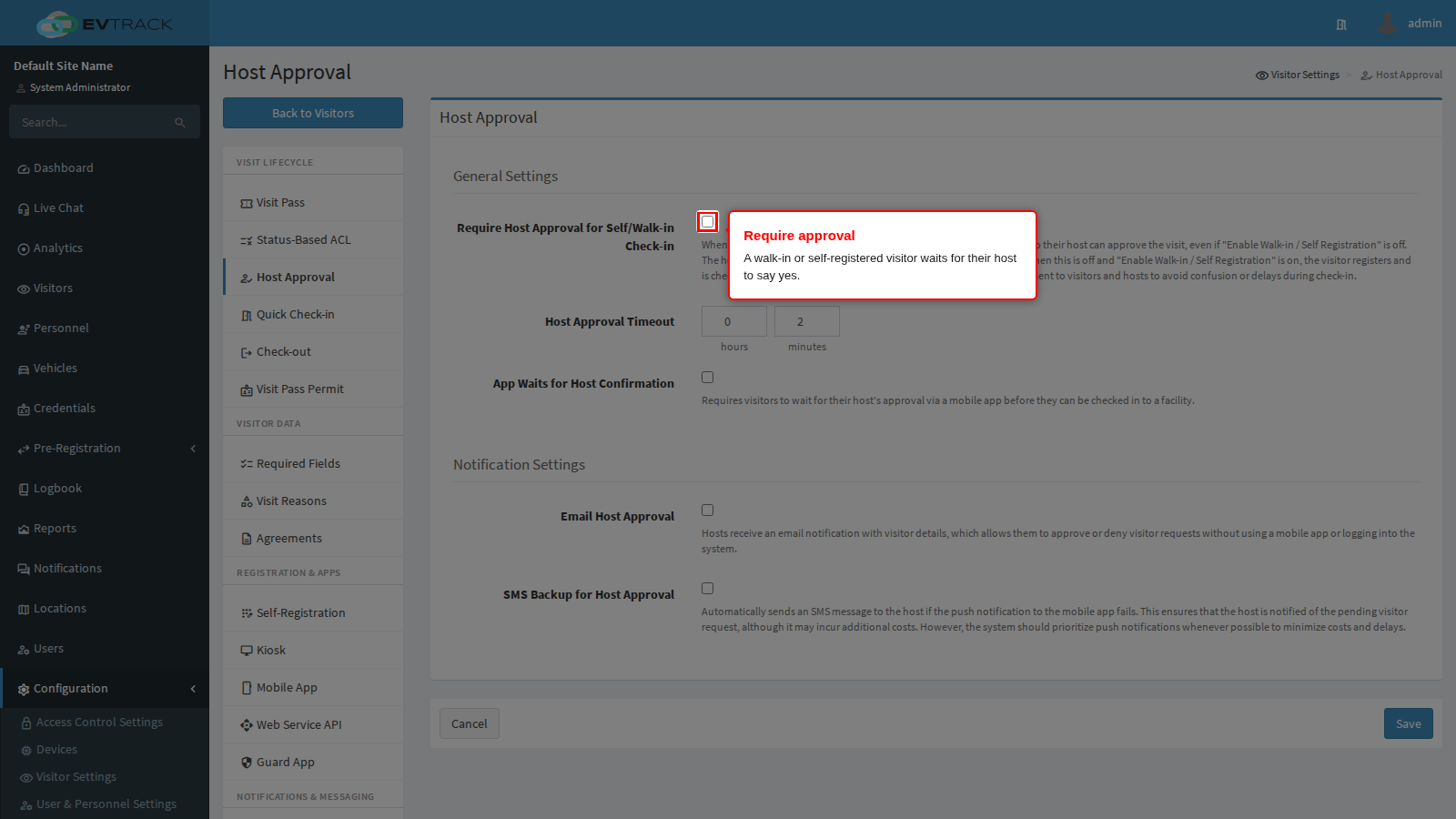
Require Host Approval for Self/Walk-in Check-in is the master switch. With it on, a visitor arriving without an invitation is asked to register and their host is asked to approve before check-in completes. With it off, that visitor is checked in as soon as they finish registering, with nobody consulted.
Three consequences are worth knowing before you turn it on:
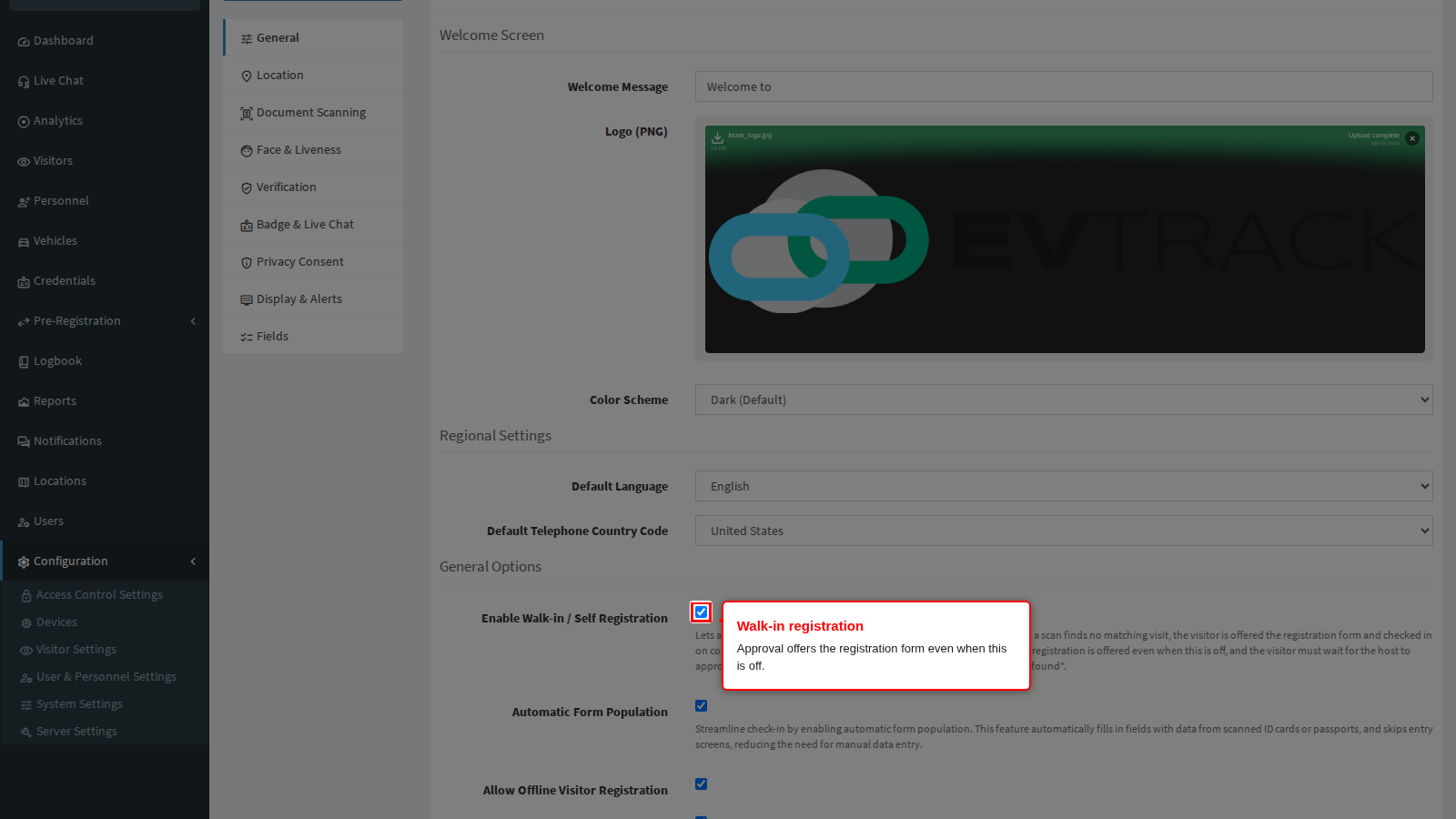
- The registration form is offered even when walk-in registration is switched off. Requiring approval implies the visitor must be able to identify themselves and name a host, so the kiosk presents the form regardless of the Enable Walk-in / Self Registration setting.
- A pre-booked visitor is never stopped by this gate. If the scan matches a valid pass the invitation already issued, whether a QR code, a PIN or a scanned identity document, their host has already authorised them and they are checked in directly. Only a genuine walk-up with no pass is routed to approval.
- Quick check-in from the dashboard is refused while this is on. An operator who tries it is told to use the Add Visitor page instead, so the arrival can be sent for approval rather than admitted on the spot.
Host Approval Timeout is how long an approval request remains open, entered as hours and minutes. The default is two minutes. When the time runs out the request is marked as timed out and the visitor is not checked in; they have to start again or be handled by an officer at the checkpoint.
Choose it against the reality of your hosts. Two minutes works where hosts carry the mobile app and expect visitors. Where hosts are in meetings and answer email, minutes are not enough and the visitor is left standing at the kiosk, so either raise it or route arrivals through reception instead. The field must be a positive number: the panel refuses a saved value of zero.
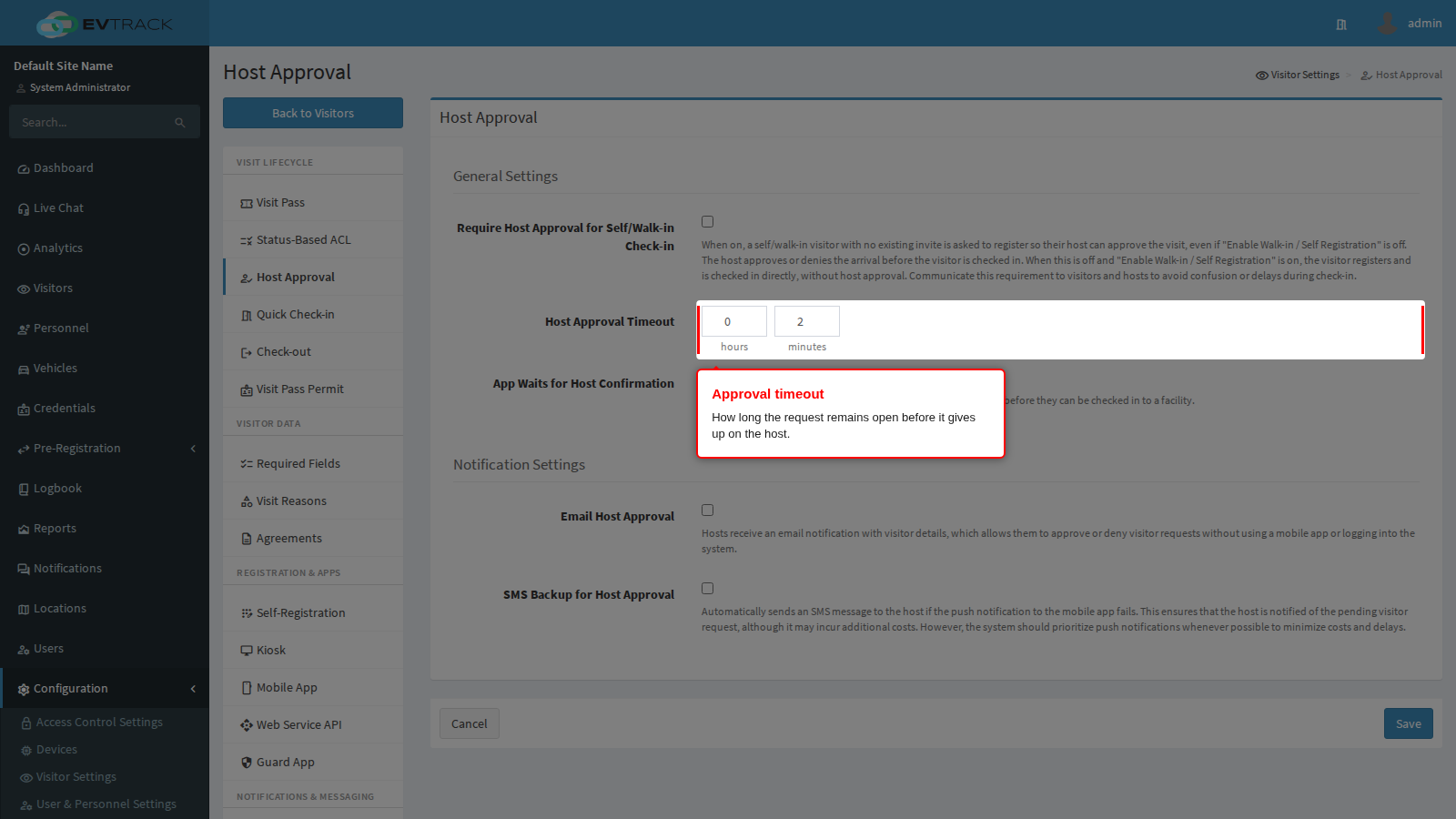
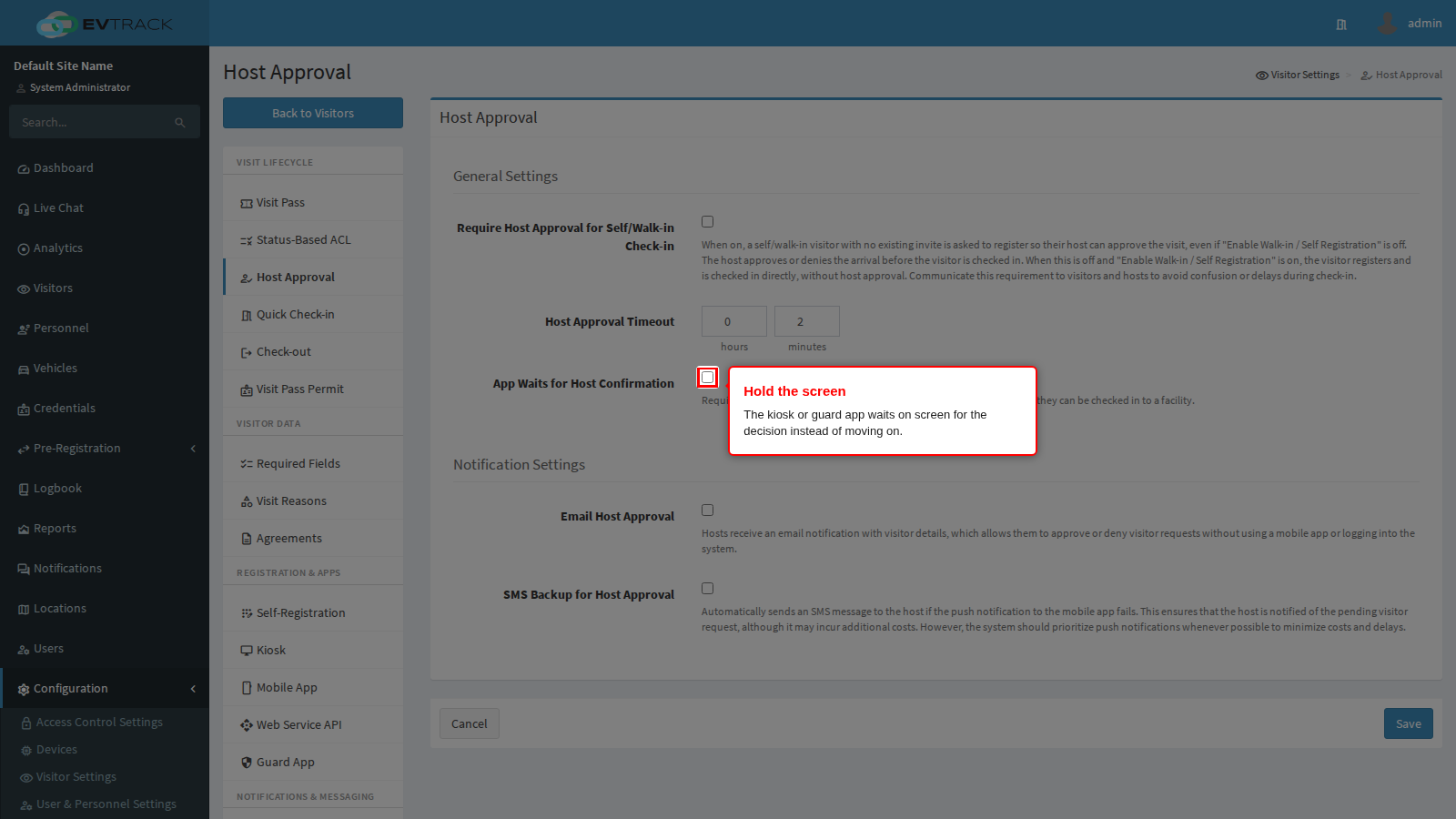
App Waits for Host Confirmation decides what the kiosk or guard app does while the request is open. With it on, the app holds the visitor on a waiting screen with a countdown seeded from the timeout above, and refreshes it as the clock runs down: the visitor sees the decision the moment it arrives. With it off, the app tells the visitor their request was submitted and returns to its idle screen; the registration is then completed on the server when the host approves, and the visitor has to present themselves again to be let in.
Turn it on where a visitor is standing at an unmanned entrance and needs an answer before they can move. Turn it off where the kiosk is busy and cannot afford to be occupied by one waiting visitor, or where approval is expected to take longer than anyone will stand still for.
Step 3: Choose how the host is reached
The product always tries the host’s mobile app push notification first: it is instant, free, and carries approve and deny buttons. The two settings below decide what else happens.
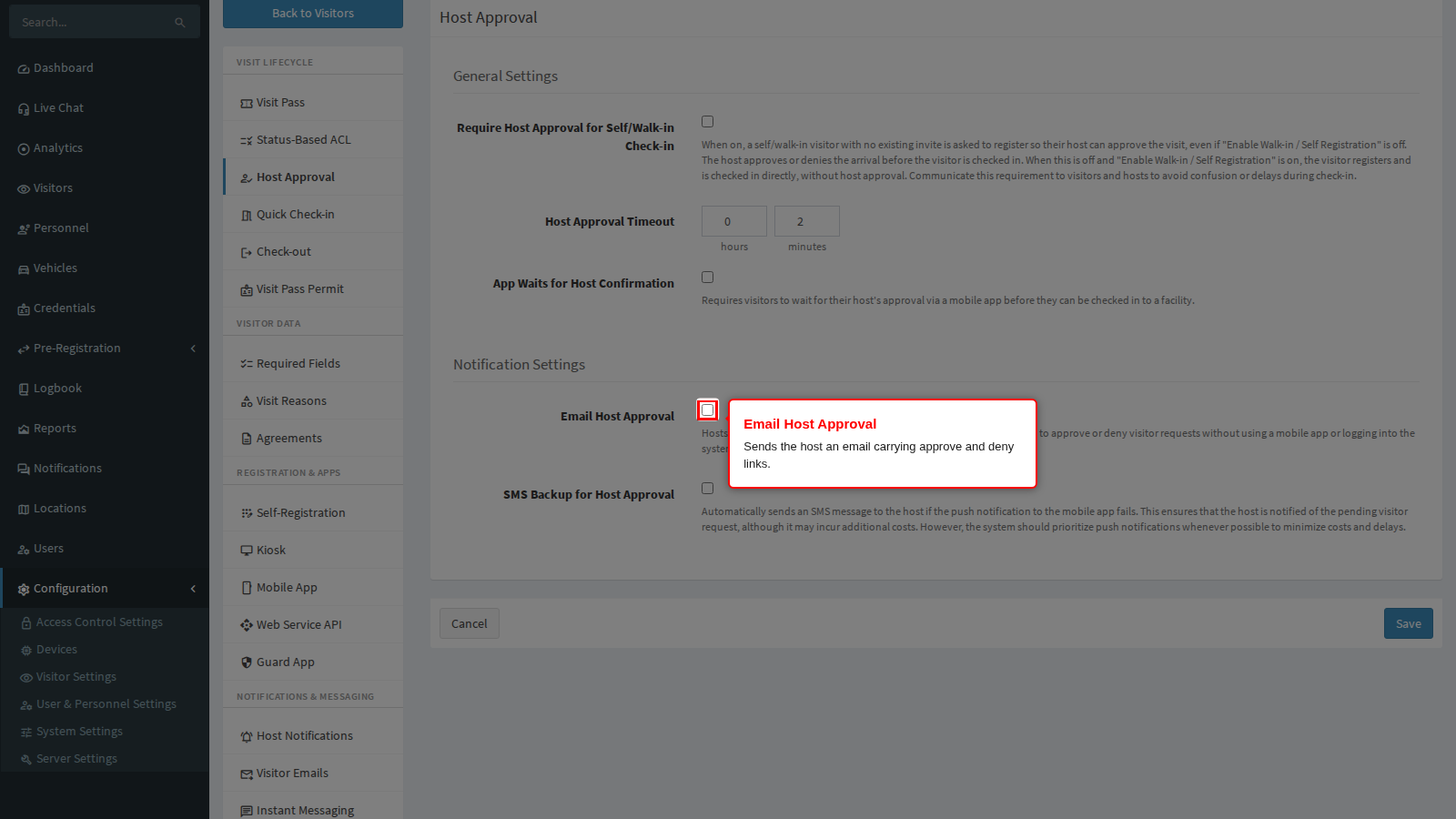
Email Host Approval sends the host an email carrying the visitor’s details and approve and deny links, so a host with no mobile app can still respond from any device. This one is not conditional on the push failing: when it is on, the email goes out on every request, alongside the push. It is on by default. Turn it off only where every host is known to carry the app, because it is the one channel that works for a host who has never installed anything.
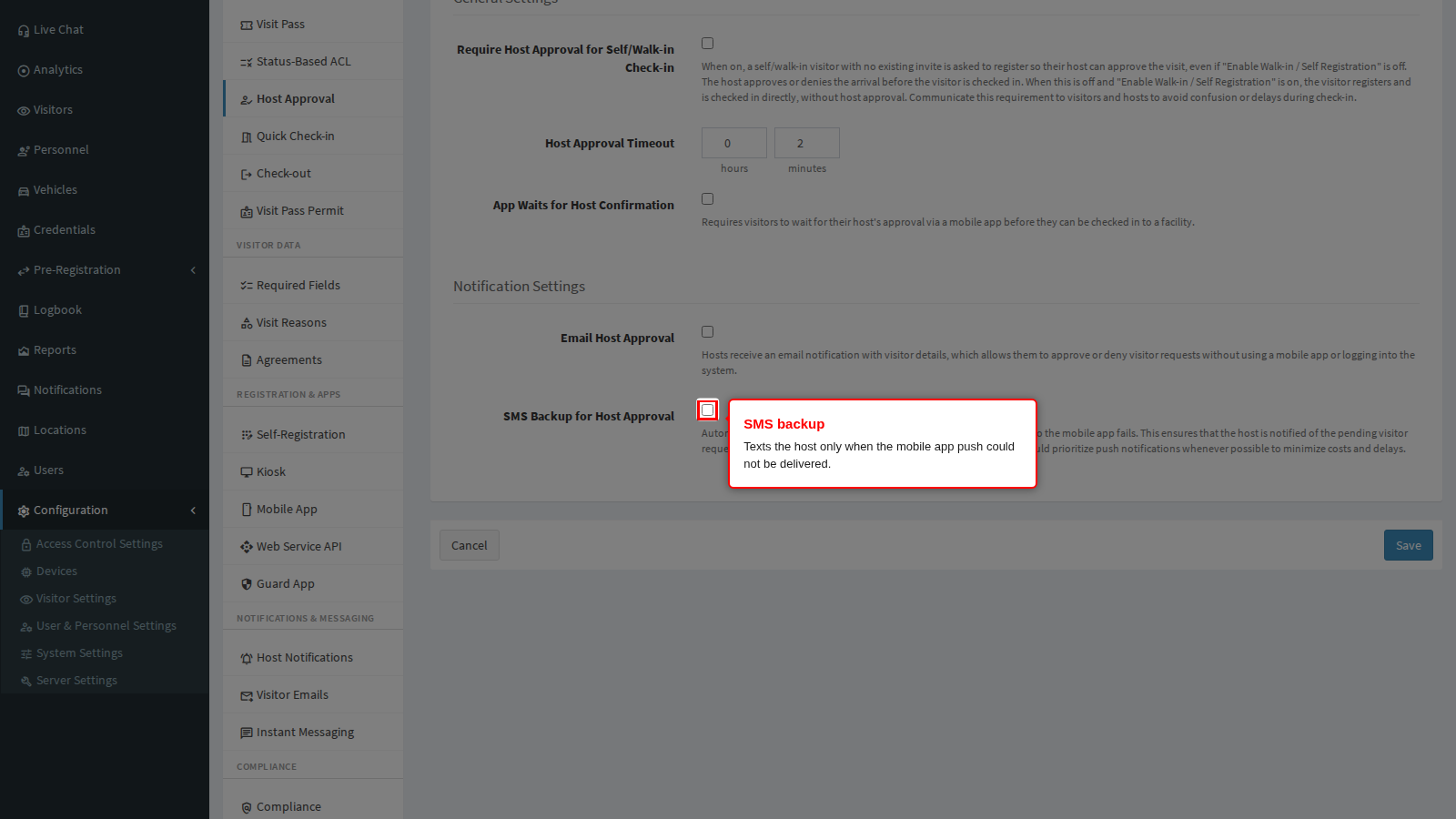
SMS Backup for Host Approval texts the host, but only when the push notification could not be delivered and only when the host has a mobile number on their user record. It is off by default because each message costs money. Turn it on where hosts are frequently offline or have not installed the app, and accept the cost.
The setting that catches people out: if no channel can reach the host at all, meaning the push fails, SMS is off or the host has no mobile number, and email is off or the host has no valid email address, the request is timed out immediately rather than after the timeout period. The visitor is refused within seconds and the host never learns anyone called. Leave Email Host Approval on unless you are certain of your hosts’ devices.
Step 4: Save
Click Save at the bottom of the panel. Cancel discards your edits and returns you to the settings home page.
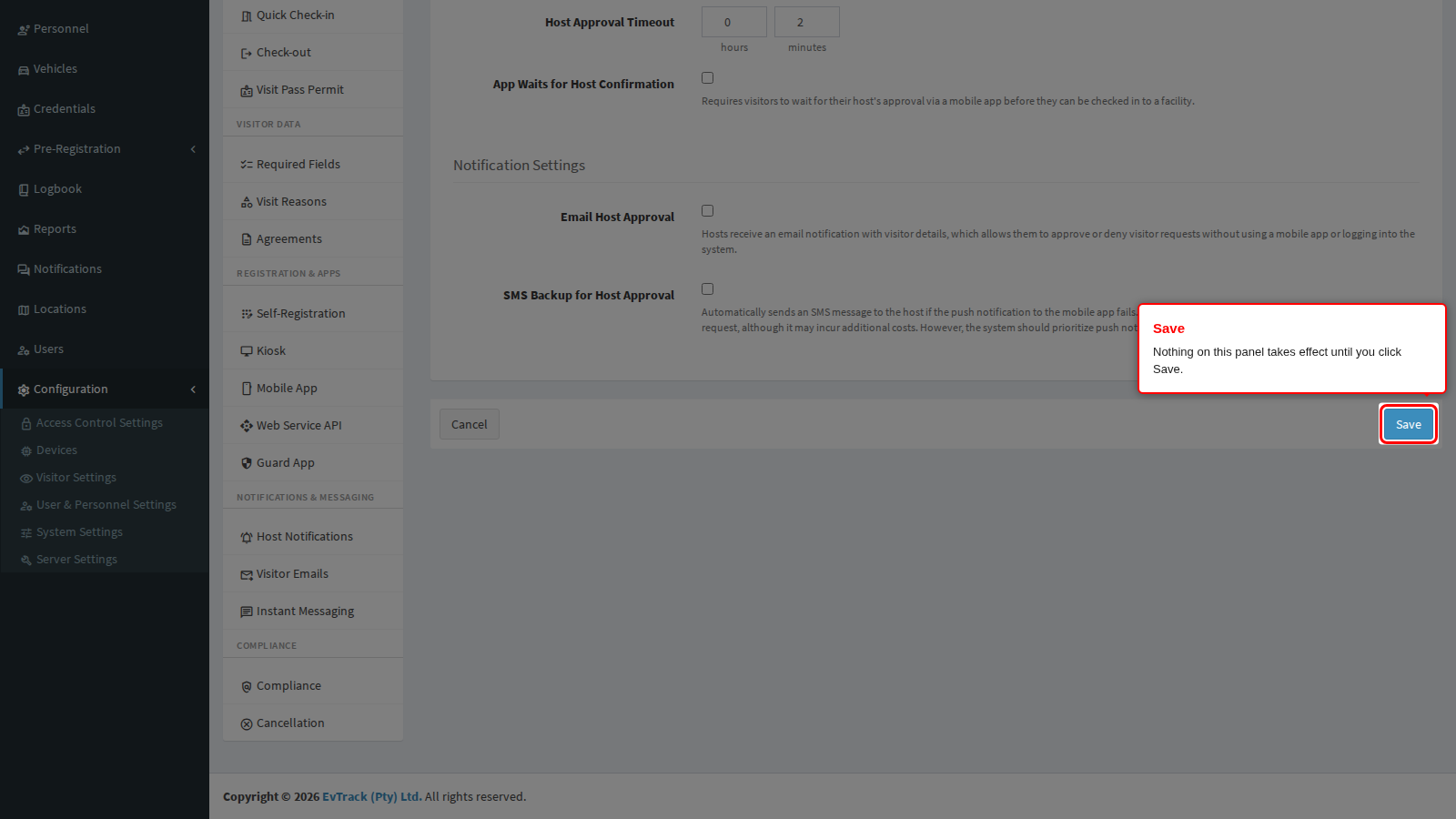
End state: a green confirmation appears at the top of the panel. The next walk-in arrival follows the new rules; kiosks pick up the change on their next sync.
The settings on other panels that interact with the gate
Enable Walk-in / Self Registration, on Visitor Settings > Kiosk > General, decides whether a kiosk offers the registration form to a visitor whose scan finds no invitation. Requiring host approval overrides it: the form is offered either way, because approval only makes sense once the visitor has said who they are and who they are visiting. Leave it off and turn approval on where the only self-registrations you want are ones a host has vetted.
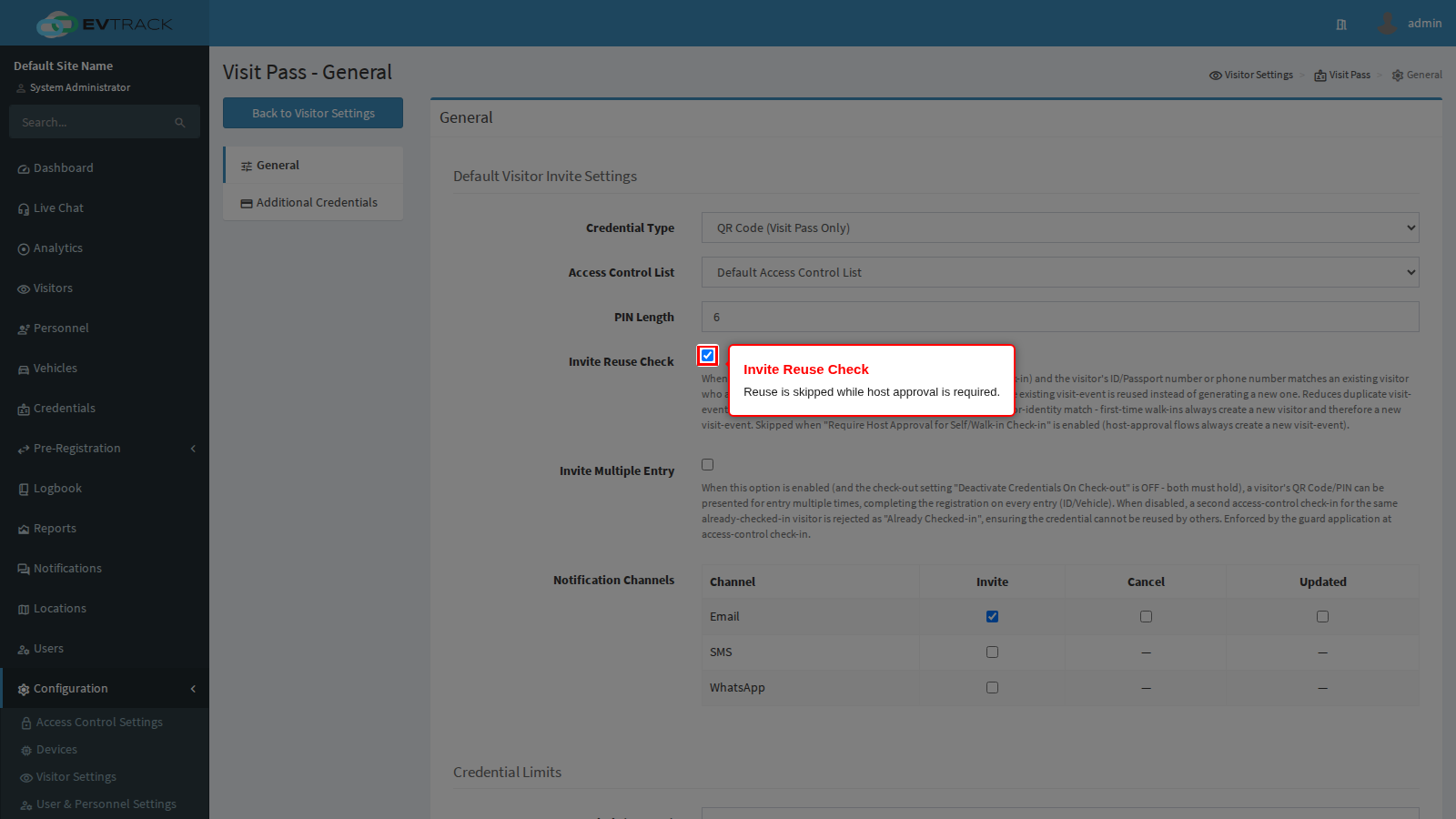
Invite Reuse Check, on Visitor Settings > Visit Pass > General, normally reuses an existing active visit when the same visitor is booked again in the same window, so they are not left holding two codes. That reuse is skipped entirely while host approval is required: an approval flow always creates a new visit, so the host is asked about this arrival rather than a previous one being silently reopened. Expect one visit record per approved arrival.
A separate gate for the dashboard
Everything above is the kiosk and guard app gate. The Visitors Dashboard’s own quick check-in dialog has a matching but entirely independent setting, Dashboard Check-in, with its own switch and its own timeout. Turning this panel’s Require Host Approval for Self/Walk-in Check-in on does not affect the dashboard, and turning it off does not stop the dashboard from holding a walk-in either.
The Dashboard Check-in panel goes further than this one, because reception acts on visits that already exist as well as on new arrivals. Alongside the switch and the timeout it carries six further controls:
- Require Host Approval When Reception Moves a Visit To: three independent status gates - Checked-in, On-Site and Hosted - each deciding whether reception moving an existing visit to that status waits for the host.
- Require Host Approval When Reception Assigns or Changes the Host.
- Require Host Approval When Reception Assigns an Access Card.
- Also When the Host Invited the Visitor Themselves, the override that decides whether a personally invited visitor is put through the same wait or walks straight in.
Each location can switch all of them off for itself on its own Advanced tab, so a quiet side entrance need not wait on a host at all.
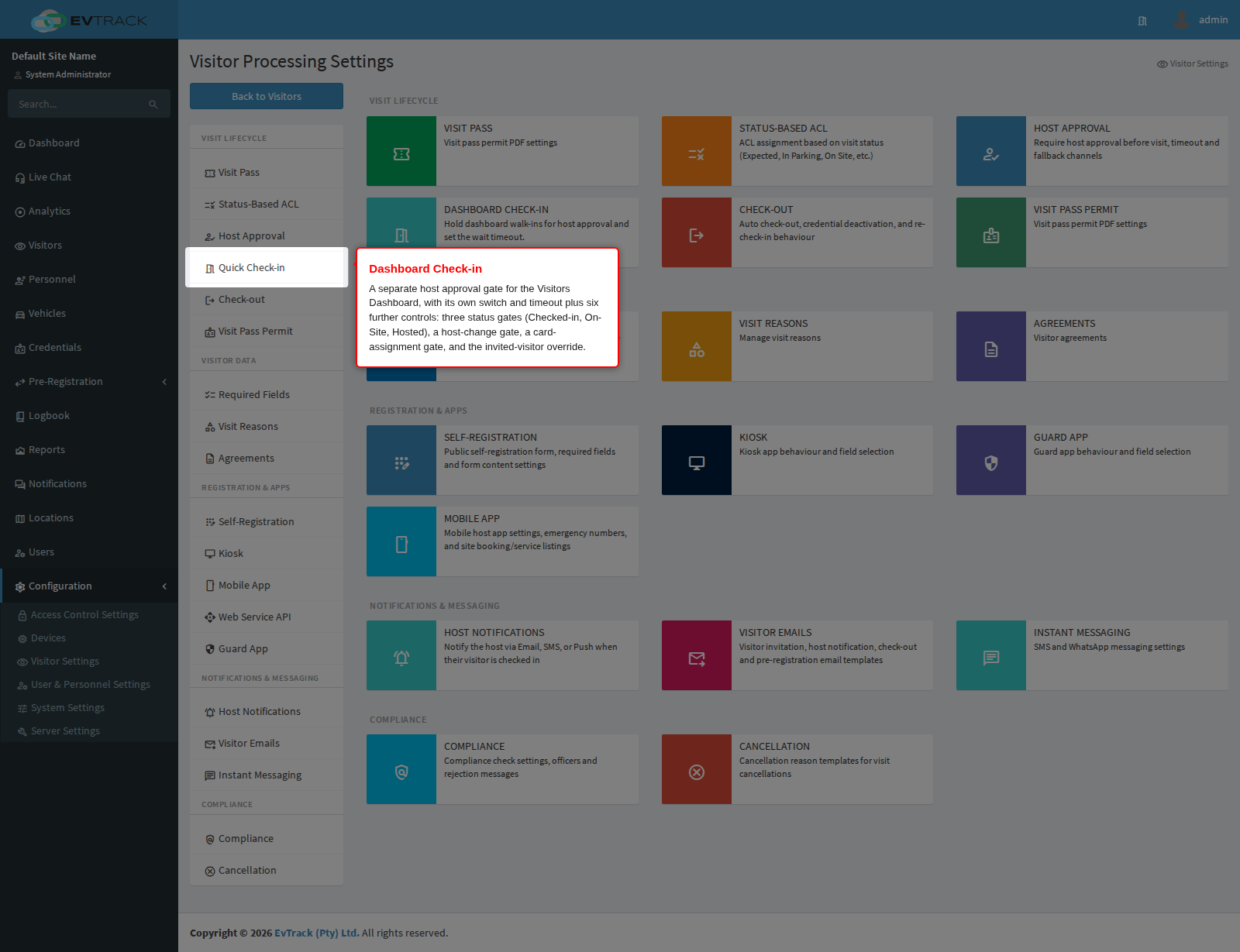
See Reception Host Approval for that panel, the per-location override, and what reception and the host each see while a dashboard walk-in waits.
Troubleshooting
- Hosts say the approval email never arrives. Ask them to check their spam folder, and ask your IT administrator to allow mail from noreply@evtrack.com. Corporate filters commonly block automated messages.
- Visitors are refused within seconds, well before the timeout. No channel could reach the host. Check the host’s user record for a valid email address and mobile number, and confirm Email Host Approval is on.
- The kiosk returns to its idle screen and the visitor is left confused. App Waits for Host Confirmation is off. Turn it on, or brief guards to explain that the visitor must present themselves again once approved.
- Approval is being asked for visitors who were invited. It should not be. A pre-booked visitor presenting a valid pass bypasses the gate; if they are being asked, their scan did not match a valid pass, so check the pass has not expired and that the credential type is one the kiosk accepts.
- You expected the dashboard to change when you turned this on. It does not. This panel is the kiosk and guard app gate only. The Visitors Dashboard quick check-in is governed by its own Dashboard Check-in setting, and when that one is on the dialog holds the walk-in for the host instead of refusing it - the receptionist waits in the panel until the host answers. See Reception Host Approval.
Related chapters
- Kiosk - walk-in registration, the fields the kiosk asks for, and the waiting screen.
- Guard App - the officer-operated equivalent of the kiosk walk-in flow.
- Host Approval Guide - what the host sees and how they approve or deny.
- Reception Host Approval - the dashboard’s own, separate host approval gate.
- Visit Pass - invite reuse and the defaults an approved visit is issued with.
- Compliance - the separate review step for pre-registrations, which runs before arrival rather than at the checkpoint.