A visitor comes back to the desk, hands over the badge and leaves. The Visitors Dashboard closes that visit the same way it opened it: one button, a search, a confirmation. This page covers the departure end at Reception, including the part people forget - getting the loan card back into its pool so it can be issued to somebody else.
Before you start:
- Your role needs the dashboard quick check-out permission and permission to set a visit to Checked-out. If the red Check-out button is missing from the toolbar, ask an administrator to extend your role.
- The visitor must have an open visit. Check-out only works on a visit that is Expected, In Parking, Checked-in, On-Site or Hosted; a visit that is already finished is not offered.
- If you issue cards, see Walk-in Registration and Check-in for the moment the card goes out. This page is where it comes back.
Step 1: Click Check-out with nothing selected
The red Check-out button mirrors the green one. With no row ticked it opens the visitor search described here; with exactly one row ticked it goes straight to the confirmation for that visit; with two or more it asks you to use the Set Status… list instead.
Make sure no row is ticked, then click Check-out.
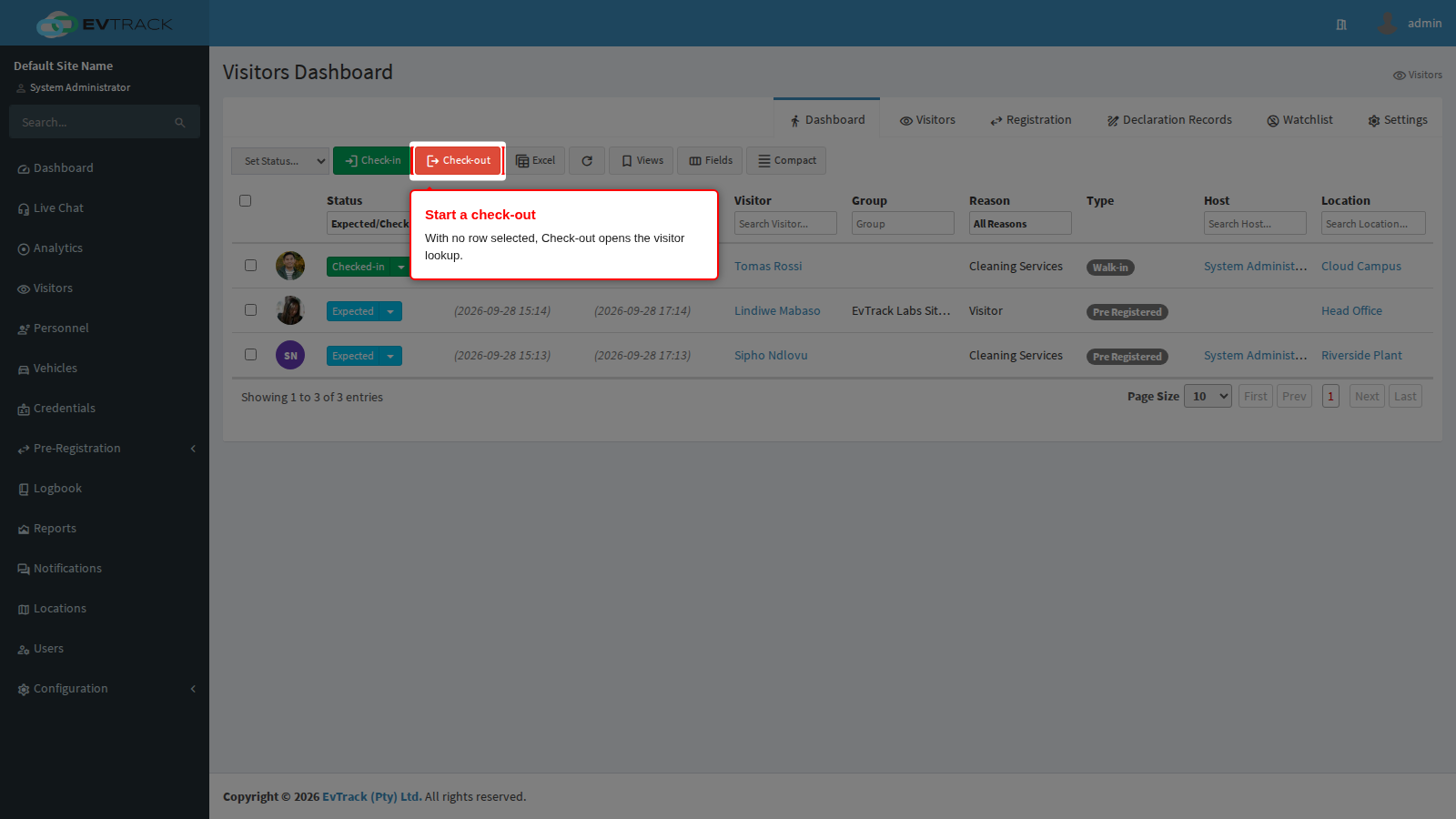
End state: the Find a visitor dialog opens, with the wording telling you it will check somebody out rather than in.
Step 2: Find who is leaving
Search by mobile number, or use the second box for the pass QR code, the visit PIN, an ID or passport number, or the number of the card the visitor is holding. Scanning the badge you are being handed back is the fastest way to close the right visit. Keyboard-style scanners work without any setup.
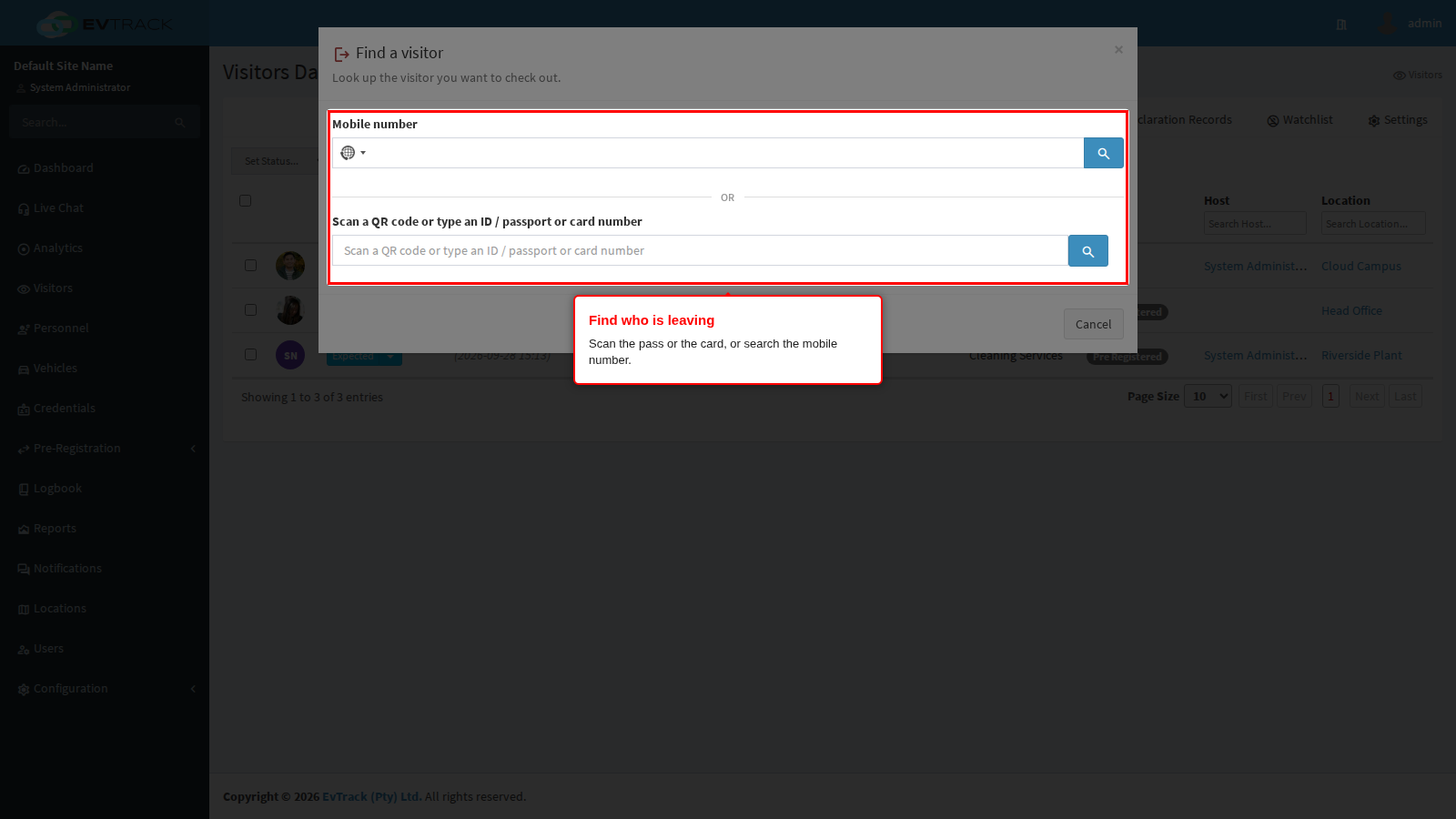
Two differences from the check-in search are worth knowing:
- Only visitors with an open visit are offered. Somebody who is on file but not on site is left out of the results entirely, so you cannot close the wrong thing by accident.
- There is no option to create a visitor. Registering somebody is a check-in action; the shortcut is hidden here.
If the search finds nobody, you are told there is no matching visit rather than being offered a form. Check the value, and remember a visitor who was registered without a mobile number can only be found by their pass, PIN, ID number or card.
If more than one visitor matches, they are shown as cards to pick from under Currently on-site, each with the name, a partly hidden mobile number and identity number, and the photo on file. Click the right one to go to its confirmation page.
Step 3: Check the visit before you close it
A single match with an open visit takes you straight to the confirmation page. Nothing has changed yet: this page exists so you can be sure the visit in front of you is the visitor in front of you.
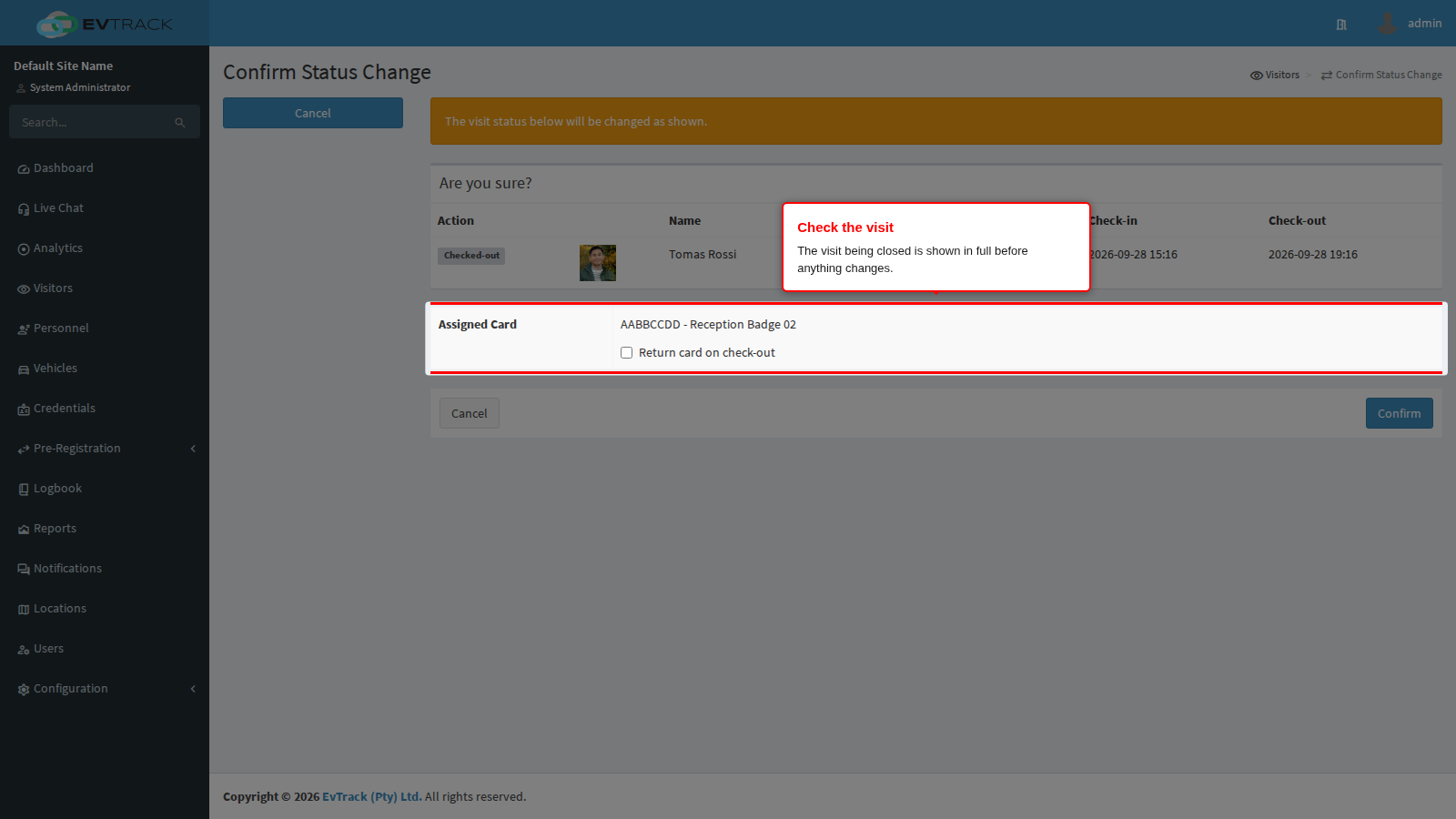
It shows the visitor’s photo and name, the visit window, the host, the site and the current status. Back returns you to the dashboard without touching anything.
If the visit is still Expected - the visitor never actually checked-in - confirming raises a warning first, saying the visitor has not checked in and asking whether you really want to check them out. Check-out anyway proceeds and Cancel leaves the visit alone. It is usually a sign that the arrival was never recorded, so it is worth asking before you continue.
Step 4: Take the card back
If the visit is holding a card from a pool, an extra row appears on the confirmation page. It names the card, and it carries a tick box: Return card on check-out.
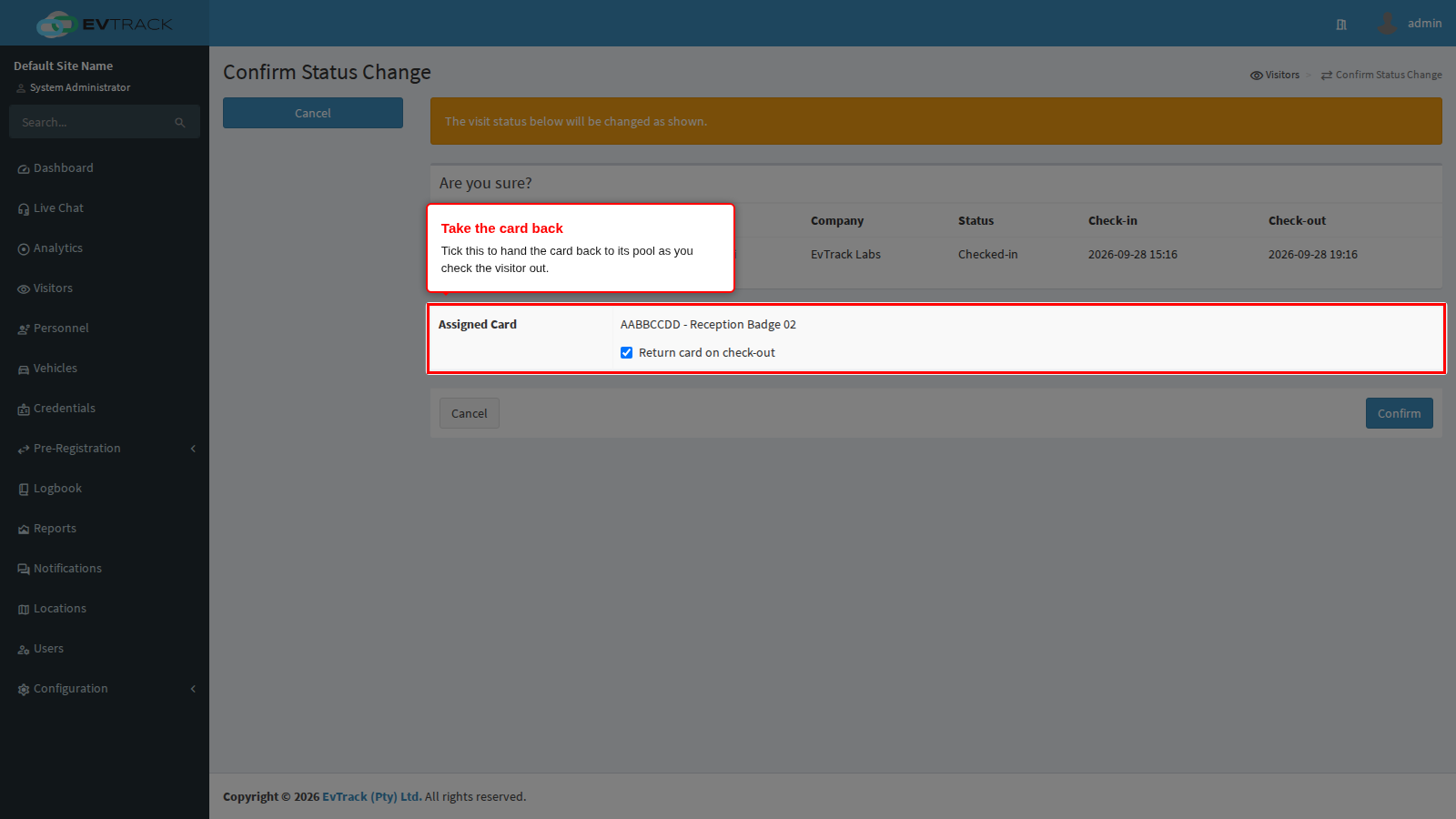
The tick box is deliberately empty when the page opens, and the check-out will not go through until you tick it. That is the point: it makes you confirm that the physical badge is actually back in your hand before the visit is closed. If the visitor has walked off with it, do not tick the box - leave the visit open, or close it and mark the card as lost from Card Pools.
Ticking it hands the card back to its pool as part of the same action, so it becomes available for the next visitor and the assignment is recorded in the card’s history.
Step 5: Confirm
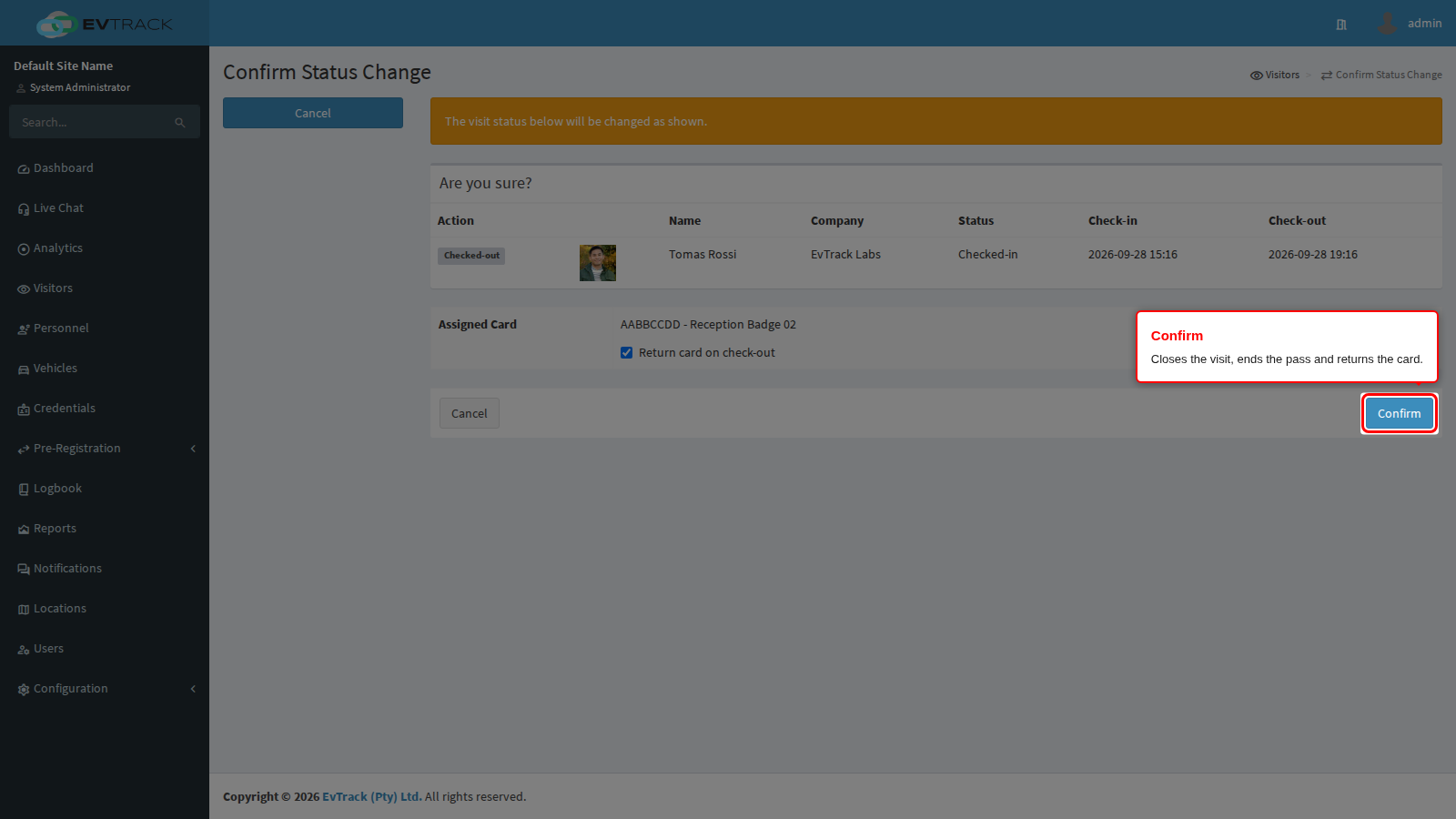
Clicking Confirm does everything in one step: the visit moves to Checked-out, the departure time is stamped, the card goes back to its pool, and the visitor’s pass is dealt with according to your settings.
What happens to the pass is decided under Check-out Settings:
- On Check-out Deactivate Credentials decides whether the pass, PIN or card stops working at the readers the moment the visit closes. With it off, a pass keeps working until its own end time.
- Allow re-check-in after check-out decides whether the same visitor can come back in on the same pass. With it on, presenting the pass again re-opens the visit and puts it back to Checked-in, as long as the visit has not passed its end time.
Step 6: The closed visit
You land back on the dashboard. A closed visit drops out of the default Expected/Checked-in view, so to see it, set the Status filter at the top of the status column to Checked-out, and type the visitor’s name into the Visitor filter.
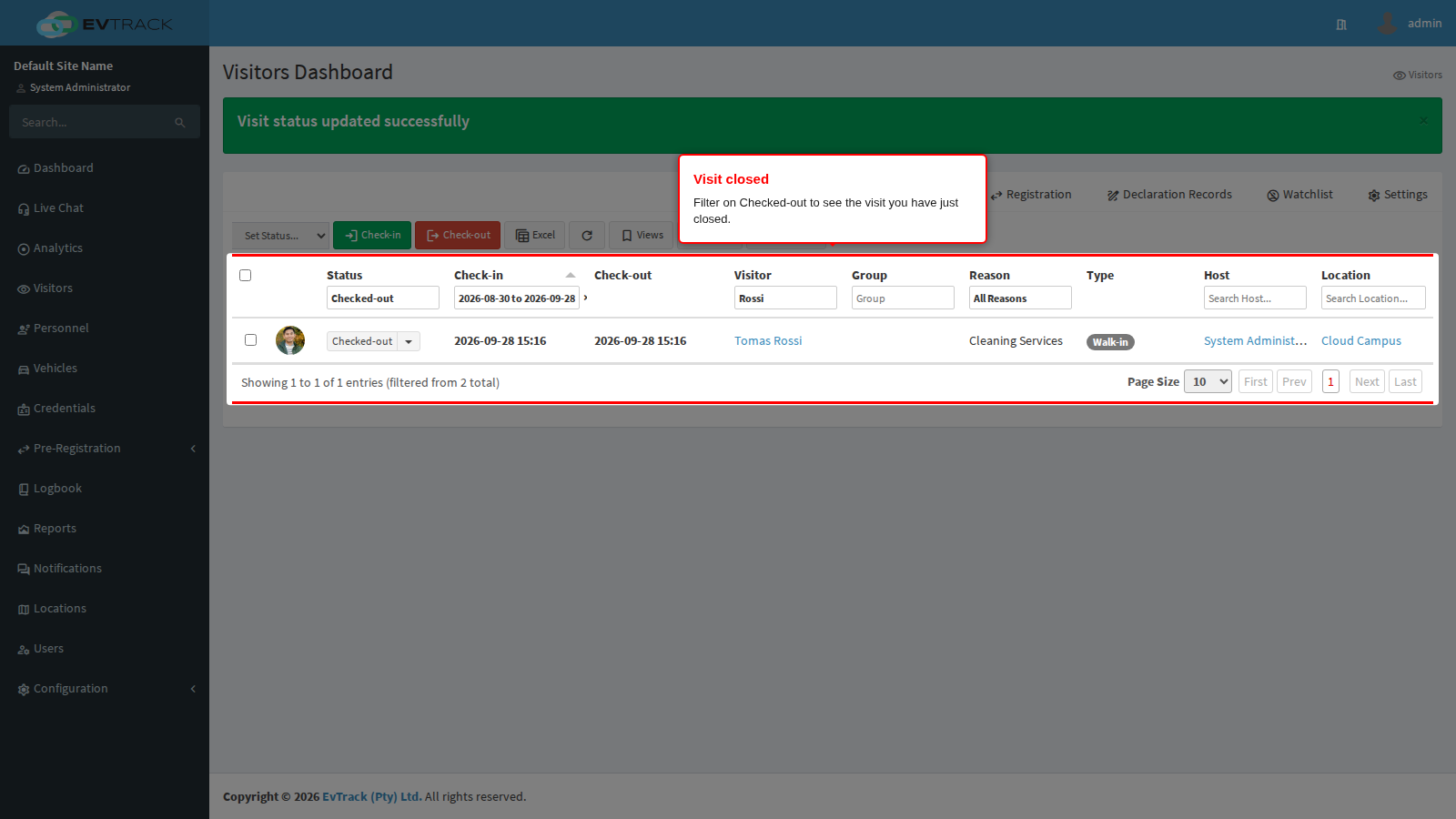
The row now shows Checked-out with both a check-in and a check-out time. The whole movement is in the Logbook as well.
Step 7: The card is back in the pool
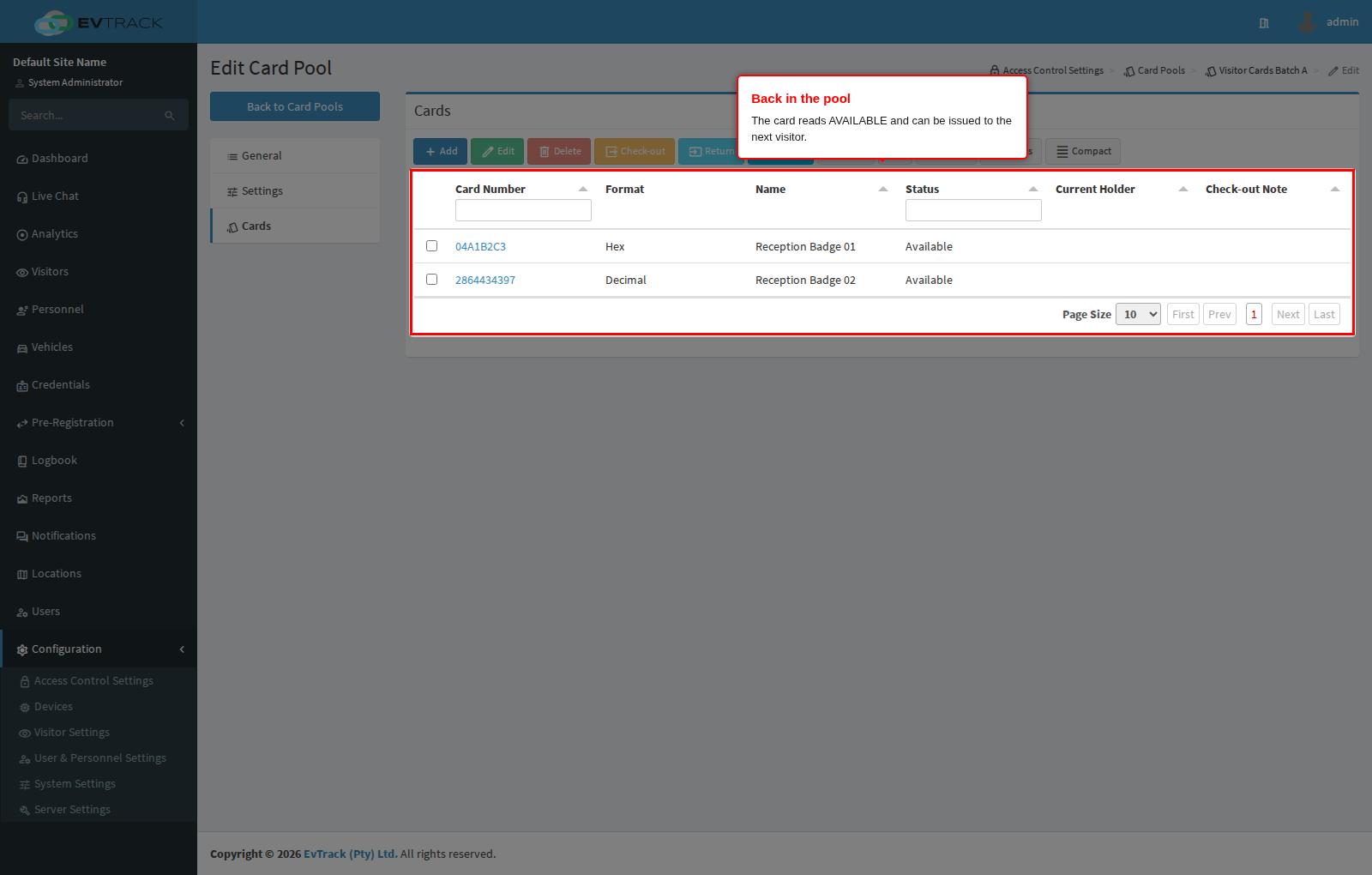
Open Credentials > Card Pools, open the pool and click Cards: the card you took back reads Available and is offered to the next visitor. Its history records who had it, who took it back and when.
Cards are only returned when you return them
This is the single most misunderstood part of issuing cards, so it is worth stating plainly: a card is handed back only when somebody ticks the box on a check-out. Nothing else returns it.
In particular:
- Automatic check-out does not return cards. When the background sweep closes an overrun visit, the visit is finished but the card is still recorded as issued to that visitor. If you run automatic check-out and issue cards, expect to collect and return those cards by hand from Card Pools, and treat a growing list of issued cards as your reminder.
- Check-outs from a kiosk or the guard app do not return cards either. They close the visit; the badge in the visitor’s hand is your problem at the desk.
- A card left issued is never offered to anyone else. The pool keeps it out of circulation until it is returned, so an unreturned card quietly shrinks your stock rather than being handed to two people at once.
Returning a card by hand is one click: select it on the pool’s Cards panel and click Return. See Card Pools.
If the visitor comes back
A checked-out visit can be re-opened while its pass is still inside its validity window, either by the visitor presenting the pass again (when re-check-in is allowed) or by an operator re-checking them in from the dashboard. A re-check-in can issue a card again, and the card row works the same way as it does here.
A visit closed by the automatic sweep cannot be re-opened. If that visitor returns, register the arrival as a new visit.
Related pages
- Walk-in Registration and Check-in - the arrival half of this workflow, including issuing the card
- Check-in and Check-out - the full visit lifecycle and the single-visit status flow
- The Visitors Dashboard - filters, the Card Number column and bulk status changes
- Check-out Settings - automatic check-out, credential deactivation and re-check-in
- Card Pools - issuing, returning and tracking the physical cards