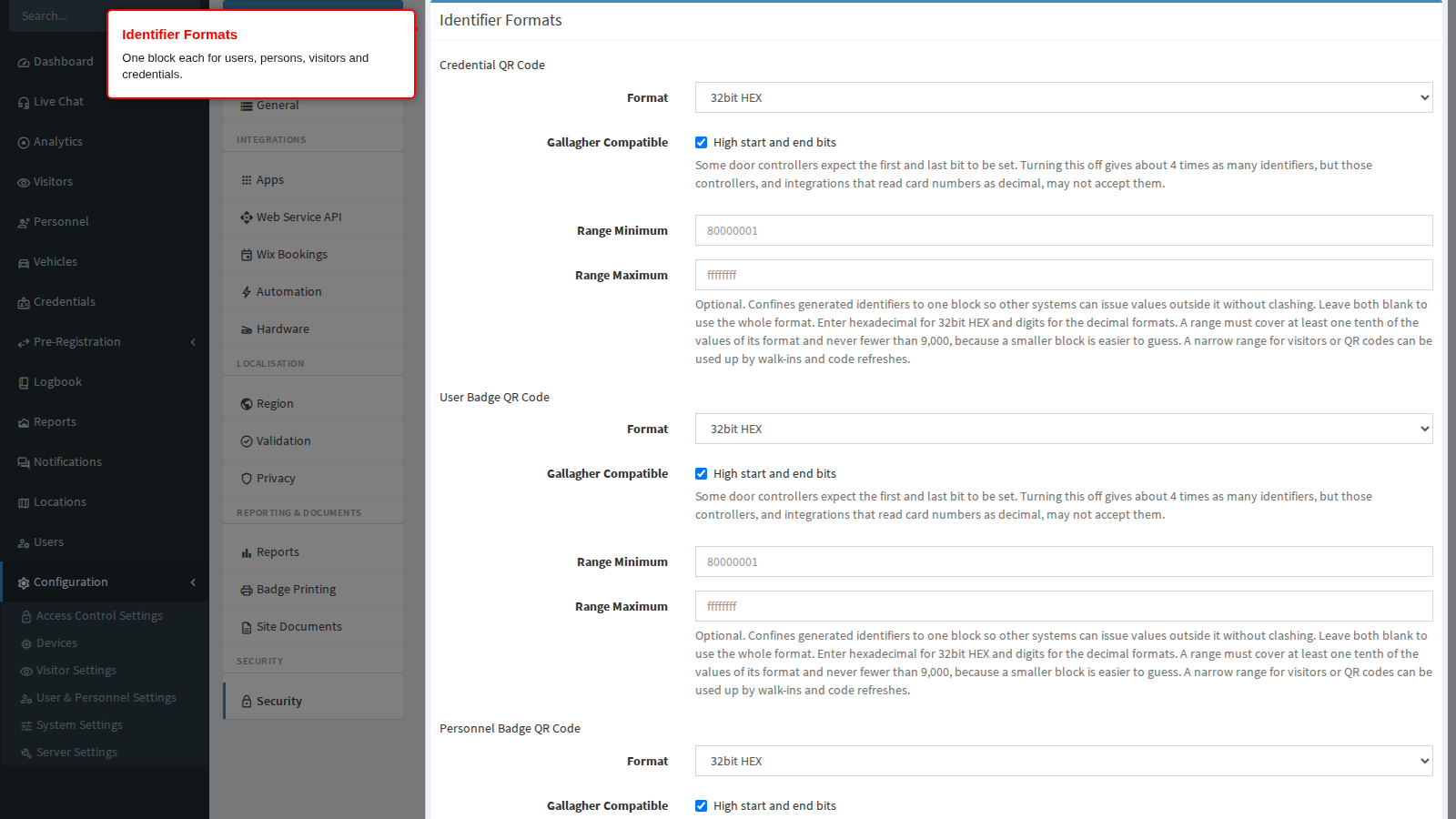
Every user, person, visitor and credential receives a short identifier, and every visit pass or invitation carries a QR code built the same way. These identifiers are what readers, badges and access controllers see, so their format has to match your hardware. Identifier Formats lets you choose the format for each kind of record separately, so the small formats that some readers require are used only where they are needed.
Before you start: you need settings administration rights, and you should know which readers and controllers scan each kind of identifier on your site. Every change applies only to identifiers issued after it is saved - existing badges, cards and codes keep their values.
Step 1: Open Security
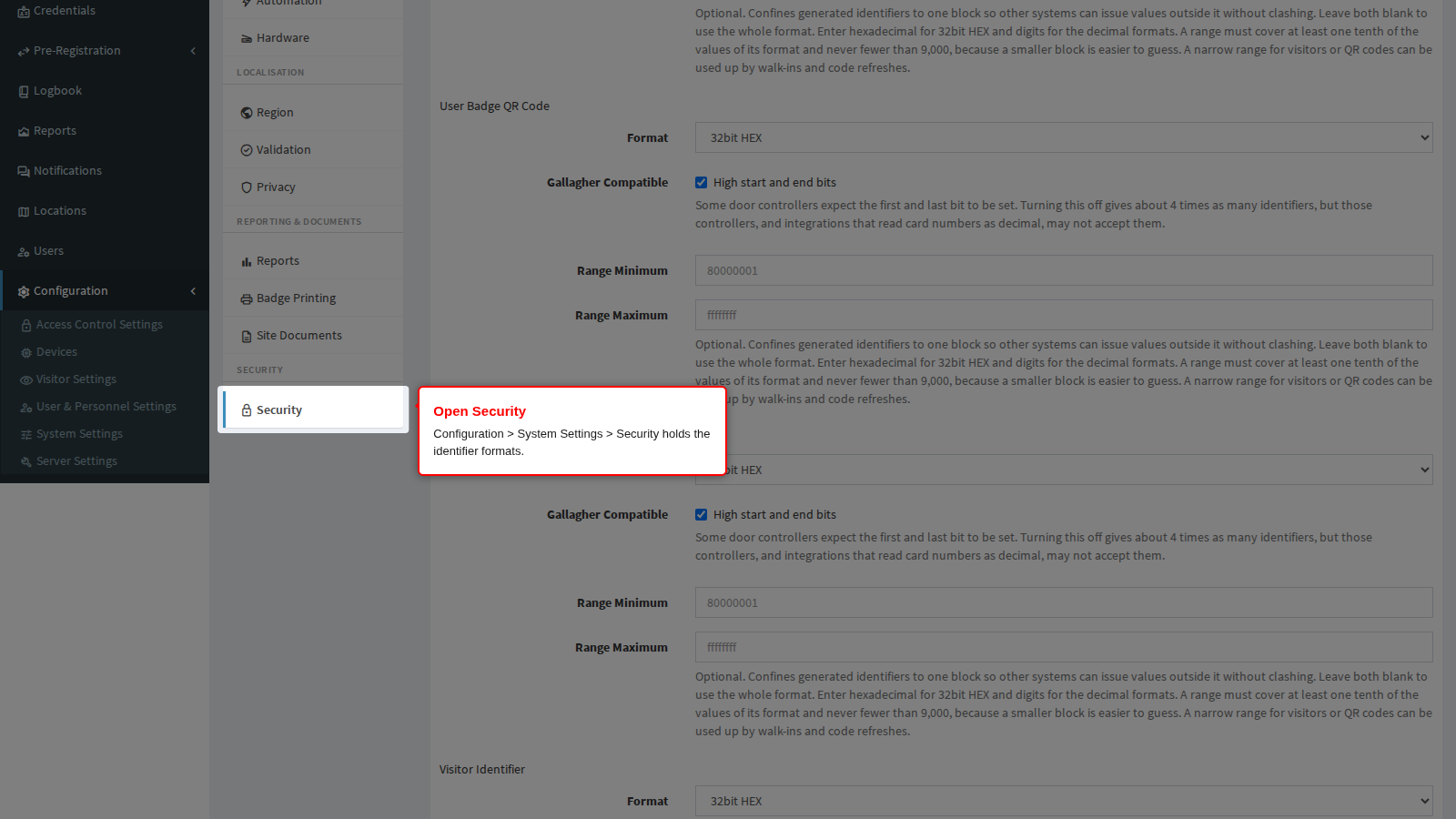
In the left sidebar open Configuration, click System Settings, then click Security.
Where each identifier is used
| Identifier | Where it appears |
|---|---|
| Credential QR Code | Visit passes, invitations and the mobile app, and the QR code printed on visitor badges |
| User Badge QR Code | The QR code on user badges, and the identity card number sent to readers |
| Personnel Badge QR Code | The QR code on personnel badges, and the identity card number sent to readers |
| Visitor Identifier | The identity card number sent to readers |
| Credential Identifier | Matched when any credential is scanned, and sent to facial-recognition devices as the card number of a face credential |
Step 2: Choose a format
The Credential QR Code block leads the Identifier Formats panel, above the four entity blocks.
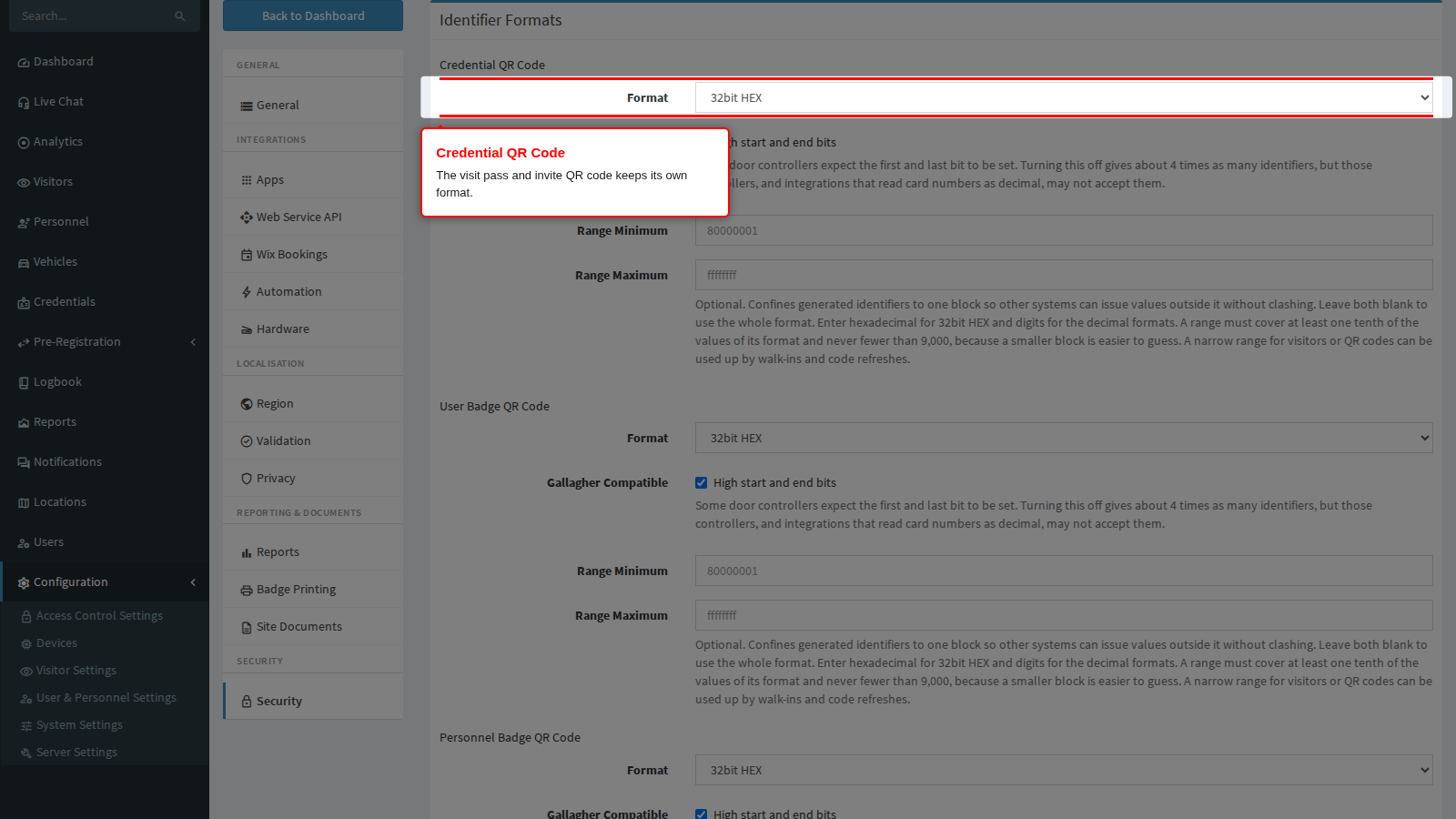
Each block under Identifier Formats has its own Format:
- 32bit HEX - about 1 billion values (about 4 billion without the Gallagher option). The right choice unless a reader needs a decimal number.
- 24bit Decimal - about 16 million values, for readers that expect a decimal card number up to 16,777,215.
- 16bit Decimal - 65,535 values, for readers that only accept Wiegand 26-bit card numbers.
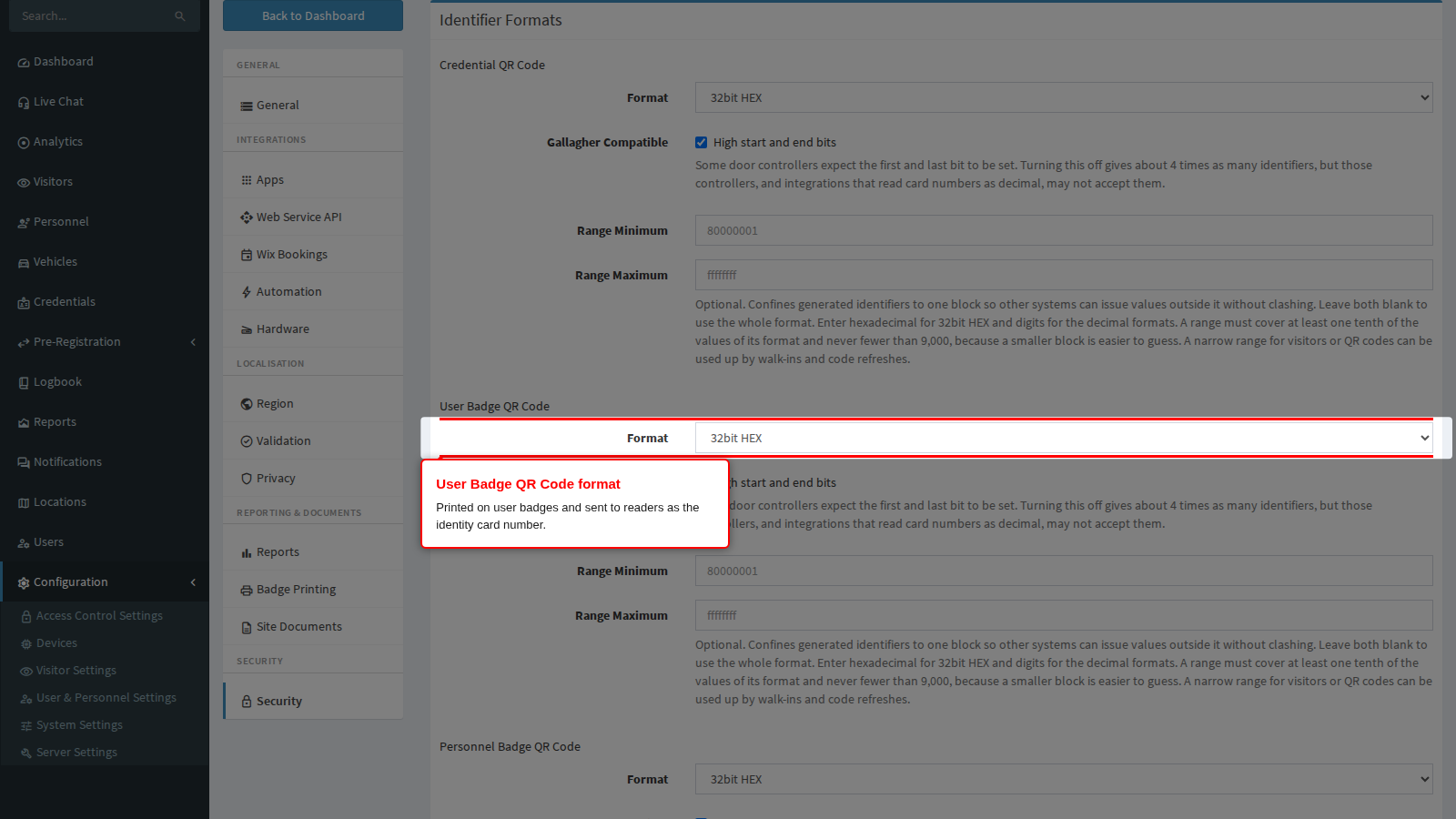
Identifiers set to the same decimal format share its values. User, person and visitor identifiers are not reused while their record exists; deleting a record returns its identifier to the pool, so collect a deleted person’s badge. A site that sets everything to 16bit Decimal will eventually run out. Keep 16bit Decimal for the credential QR code where your readers need it, and use 32bit HEX for identifiers those readers never scan.
After an upgrade: if the credential QR code was already 16bit Decimal, the four identifier formats start at 32bit HEX; if it was 24bit Decimal, they start at 24bit Decimal. These starting formats apply from the first identifier issued after the upgrade, before the page is saved; saving keeps them. On a 16bit Decimal site, check before upgrading that the readers that scan badges and identity cards accept longer numbers. If they do not, set the user and person identifiers to 16bit Decimal and save straight after upgrading.
Step 3: The Gallagher option
Gallagher Compatible (32bit HEX only) keeps the first and last bit of every identifier set, which some Gallagher door controllers expect. It is on by default.
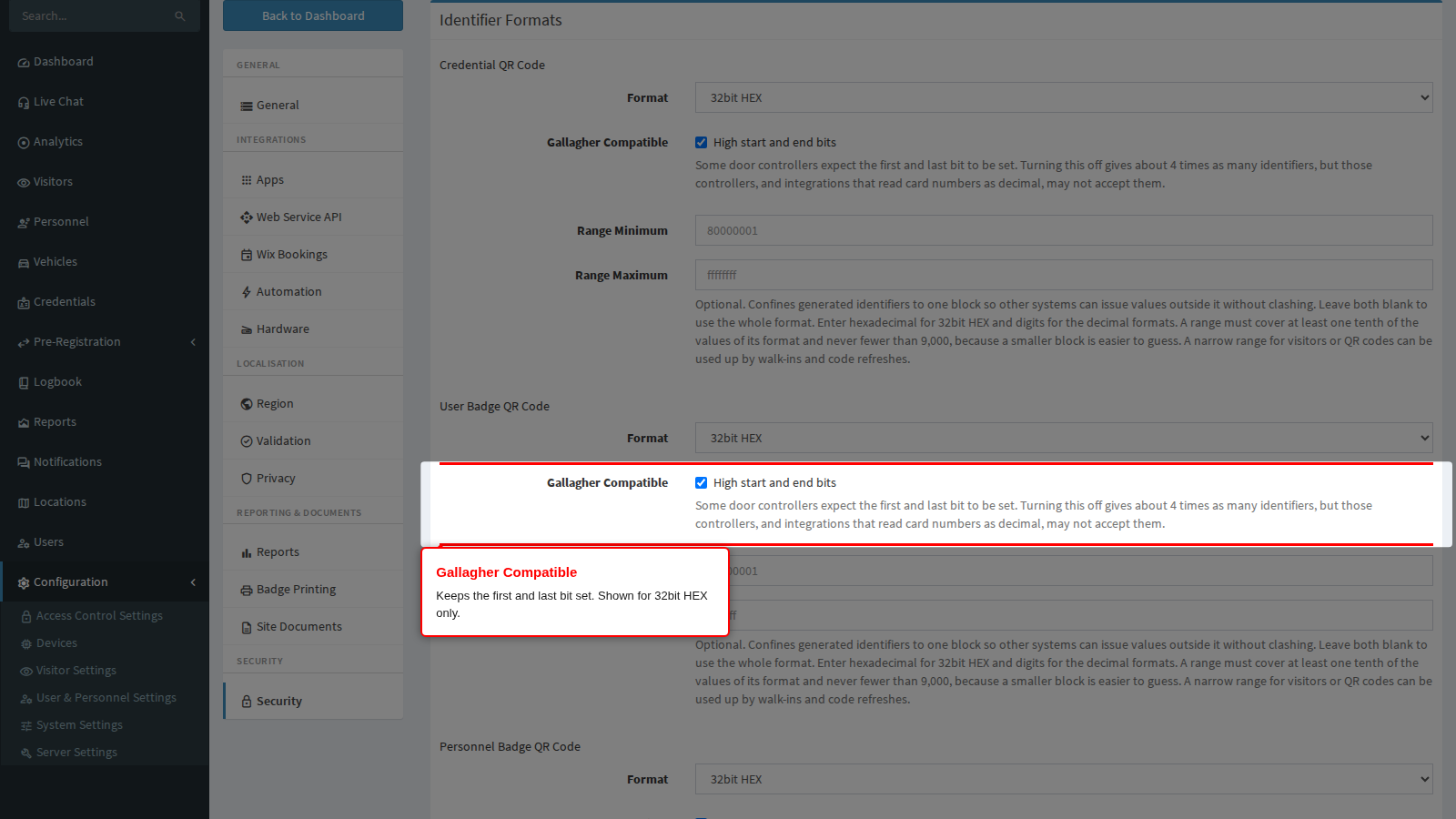
Turning it off gives about four times as many identifiers, but those controllers, and integrations that read card numbers as decimal, may not accept them. Leave it on unless you know no such hardware or integration reads that kind of identifier.
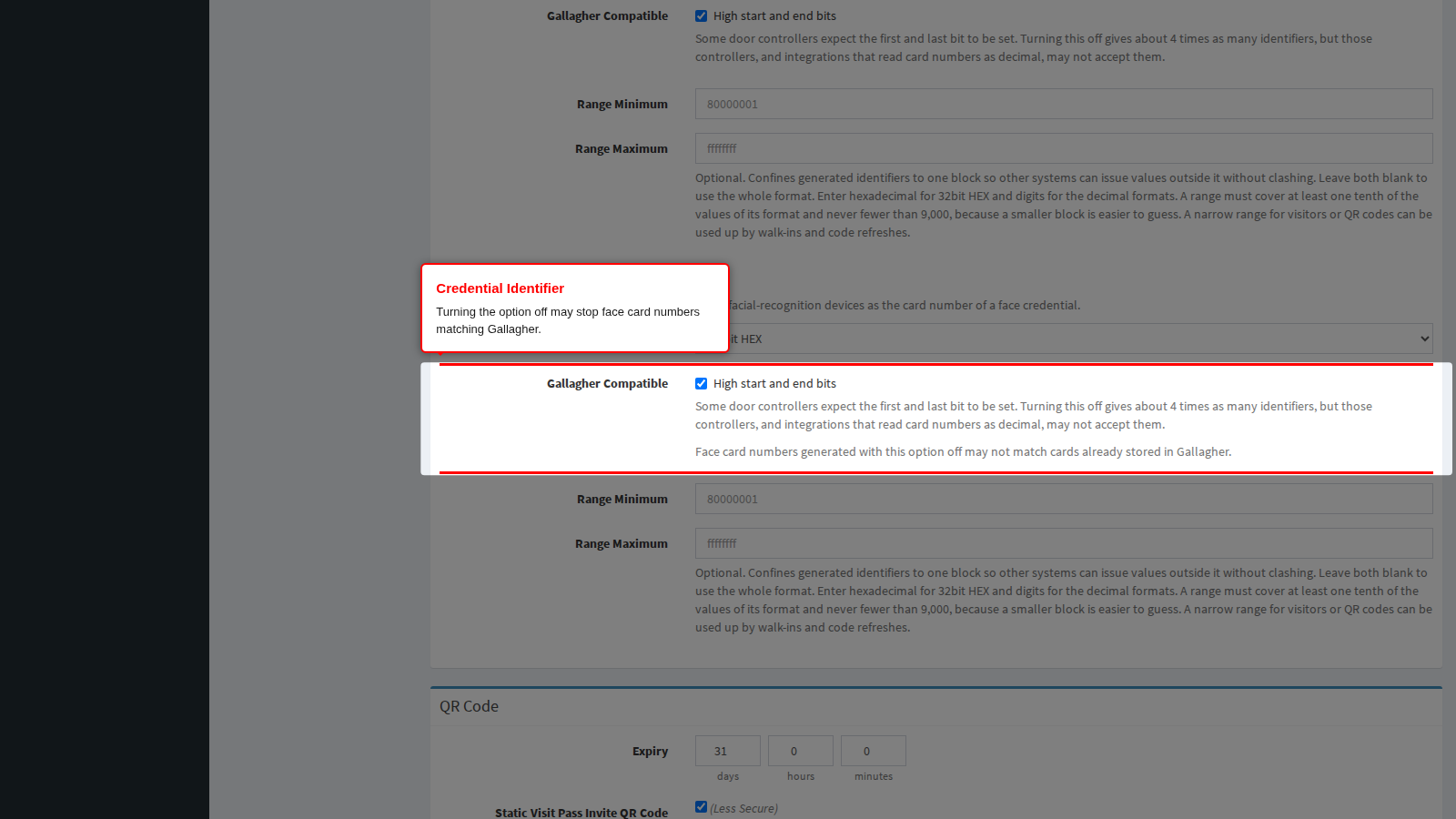
The Credential Identifier block adds a warning: face card numbers generated with the option off may not match cards already stored in Gallagher.
Step 4: Reserve a range
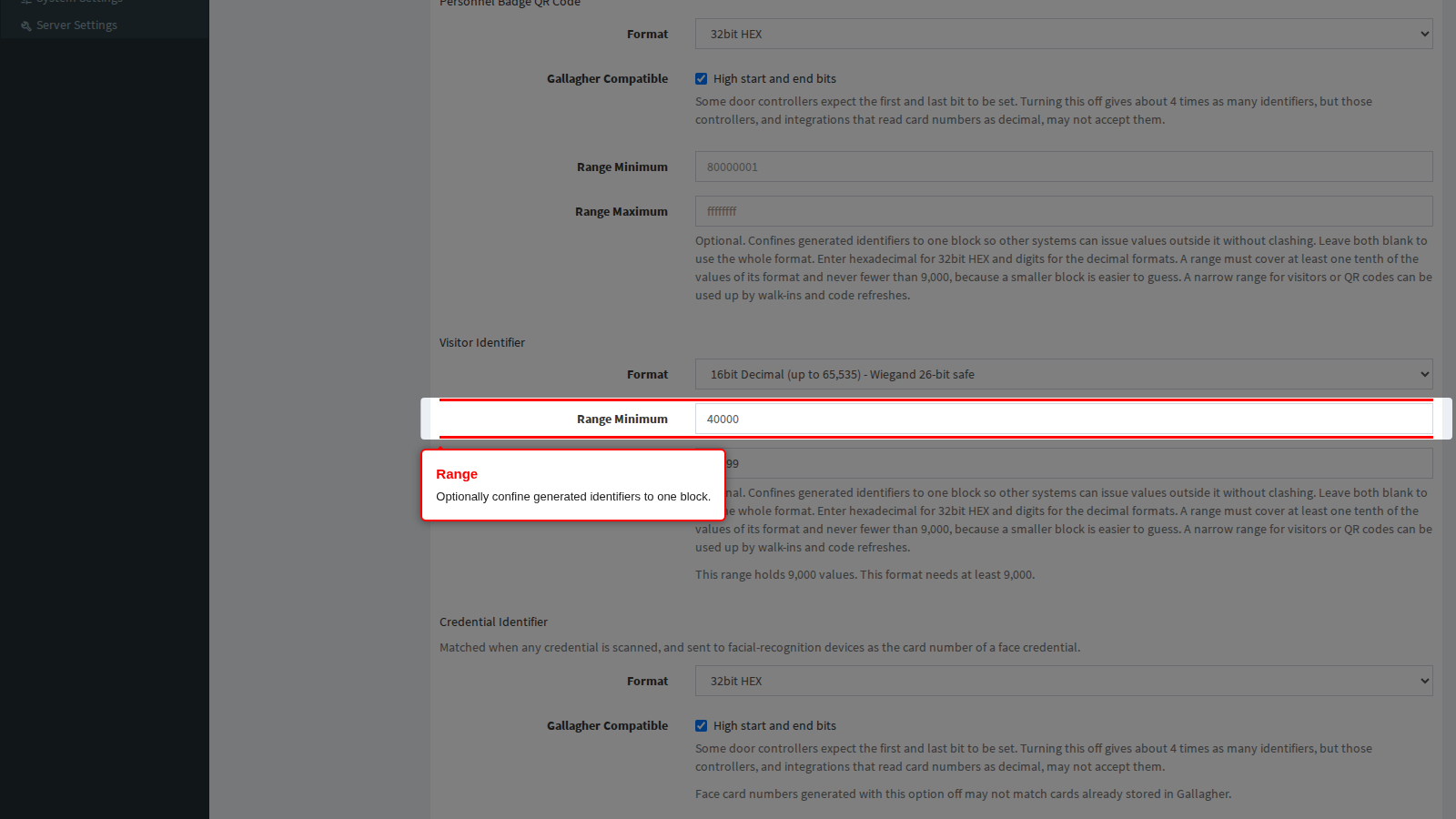
Range Minimum and Range Maximum optionally confine generated identifiers to one block. Use a range when another system issues card numbers in the same number space: give the product one block and the other system everything outside it, and the two never collide. Enter hexadecimal for 32bit HEX and digits for the decimal formats. Leave both blank to use the whole format.
The page shows how many identifiers the range holds as you type, and the minimum size for the format.
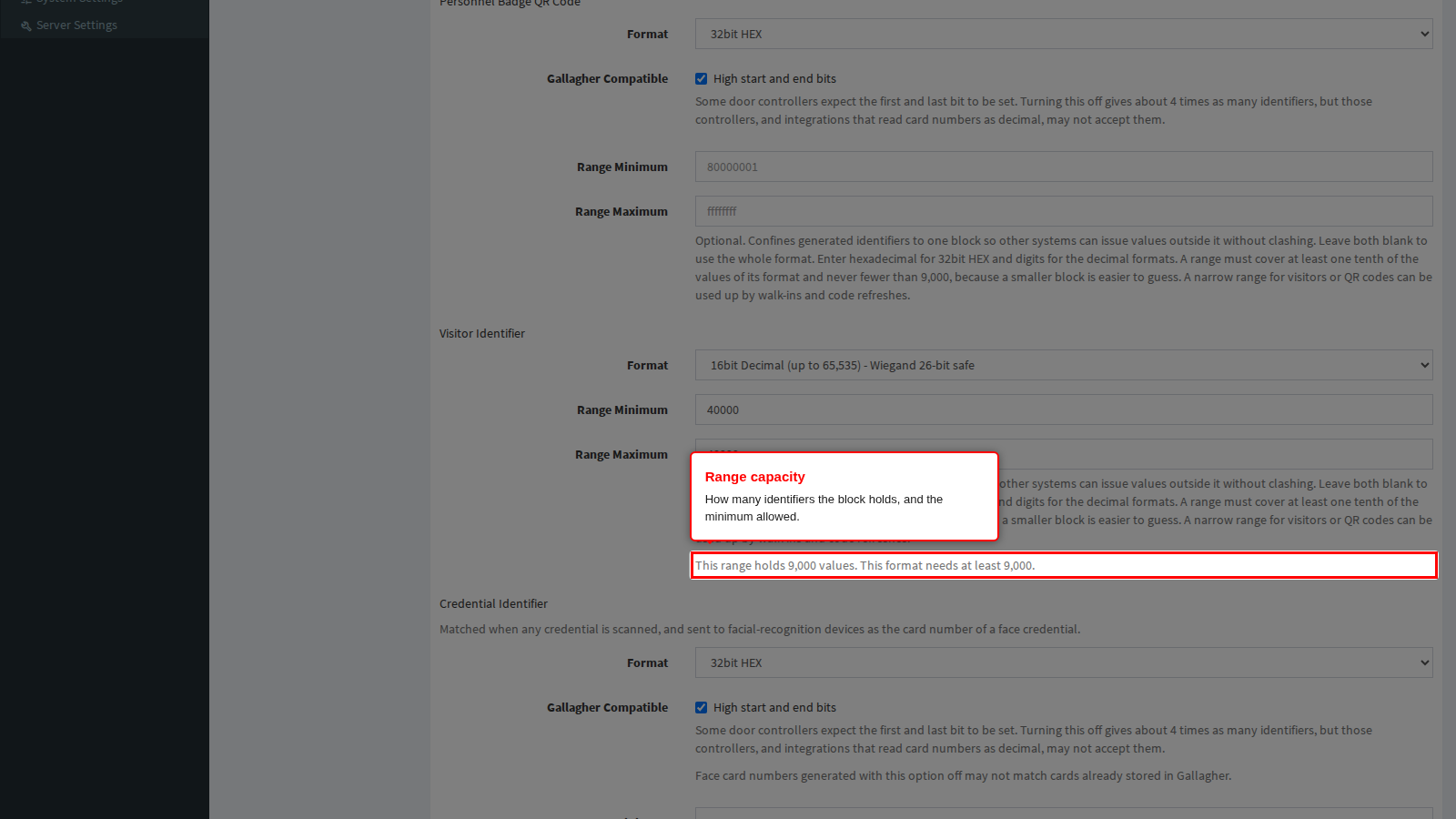
A range must cover at least one tenth of the values of its format, and never fewer than 9,000. A smaller range is rejected when you save, and nothing on the page is stored until it is corrected.
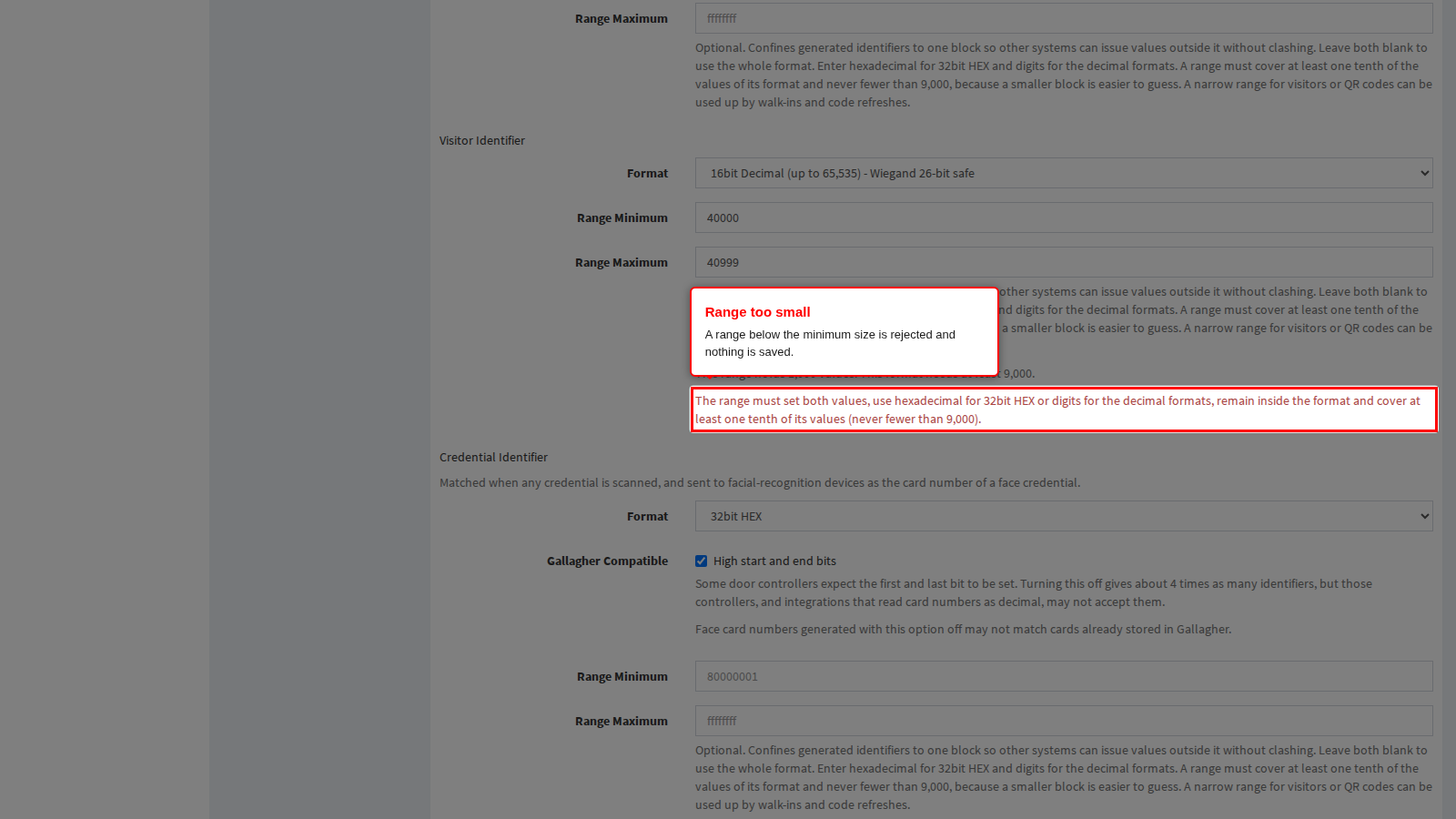
A narrow range is easier to guess and can be used up. The product does not lock out repeated wrong scans, so anyone who learns the block needs fewer tries, and permanent identifiers accumulate in it. A narrow visitor or QR code range can be used up by walk-ins and code refreshes, after which new visitors or codes cannot be issued until the range is widened. Prefer the widest range the other system allows, and configure attempt limits on the readers themselves.
Identifiers issued before a range was set keep working, even when they fall outside it.
Related pages
- QR code expiry, static codes and the rest of the page: Security.
- Badges that print these identifiers: Badges for Personnel and Badges for Users.
- Face credentials: Face Credentials (Personnel) and Face Credentials (Users).