A host is the person your visitor came to see. This page decides whether that person is told when their visitor arrives and leaves, and over which channels the message goes out. Get it right and hosts stop phoning reception to ask “is my visitor here yet”; get it wrong and either nobody hears anything, or every host is buzzed twice per visitor all day.
Before you start: you need an operator account with settings permissions. For messages to actually arrive you also need the channel’s plumbing in place: a working mail server for email (Server Settings), an SMS gateway for SMS (SMS Configuration), and hosts logged in to the mobile app for push.
Three things must agree before a host is notified. This is the single most useful fact in this chapter.
- The mode on this page must cover the movement that happened.
- The channel must be switched on on this page, for everybody.
- The host themselves must have that same channel switched on in their own profile, and must have the contact detail it needs - an email address for email, a mobile number for SMS.
If any one of the three says no, nothing is sent and nothing is logged as an error, because all three are ordinary configuration states rather than failures. When a host reports that notifications never arrive, check all three before suspecting the mail server.
Step 1: Open the Host Notifications page
Open Visitors in the sidebar, click Settings, and click the Host Notifications tile.
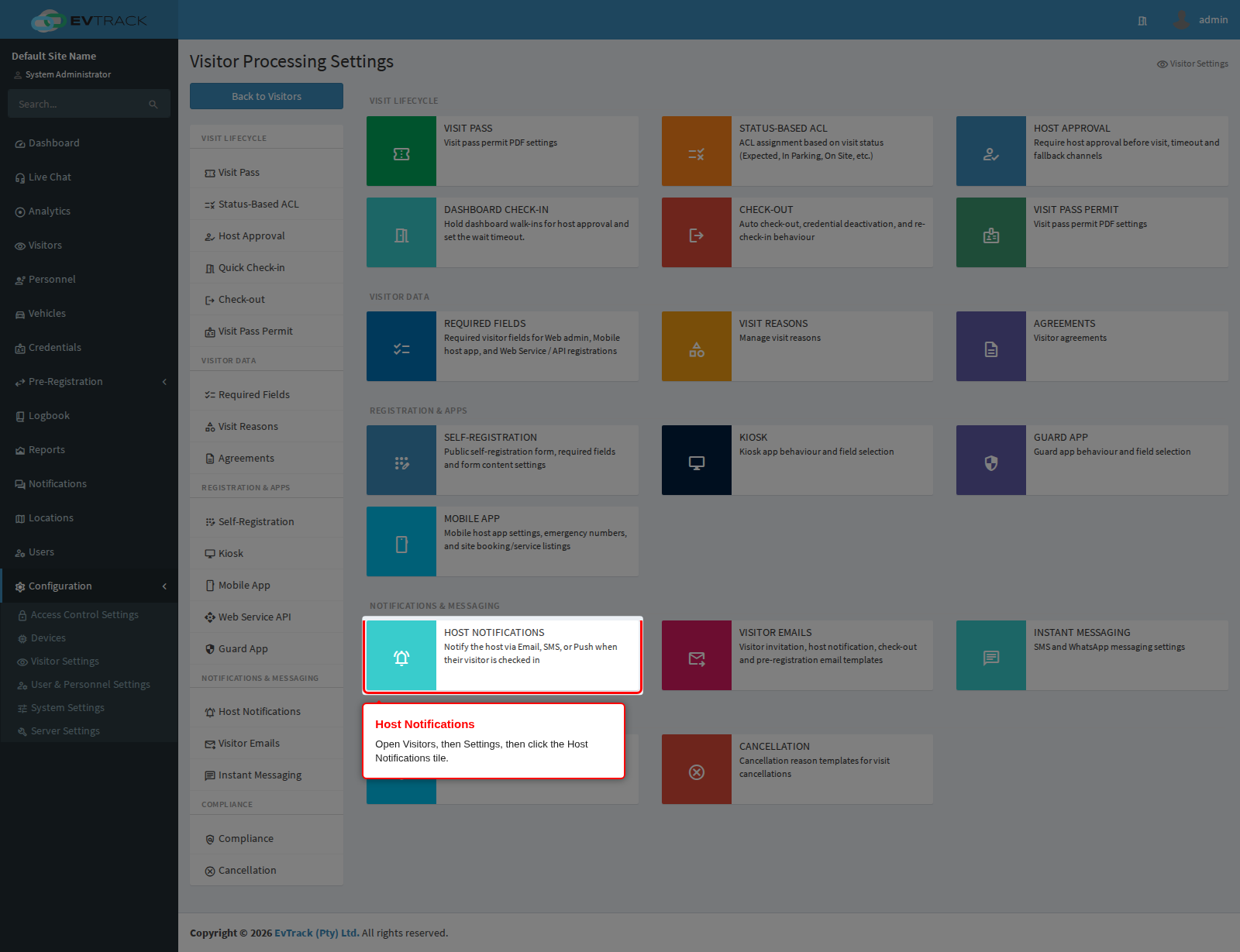
End state: the page opens with a single panel, and the Visitor Settings menu on the left. Host Notifications sits under Notifications & Messaging, alongside the two pages that hold the wording of the messages this page switches on.
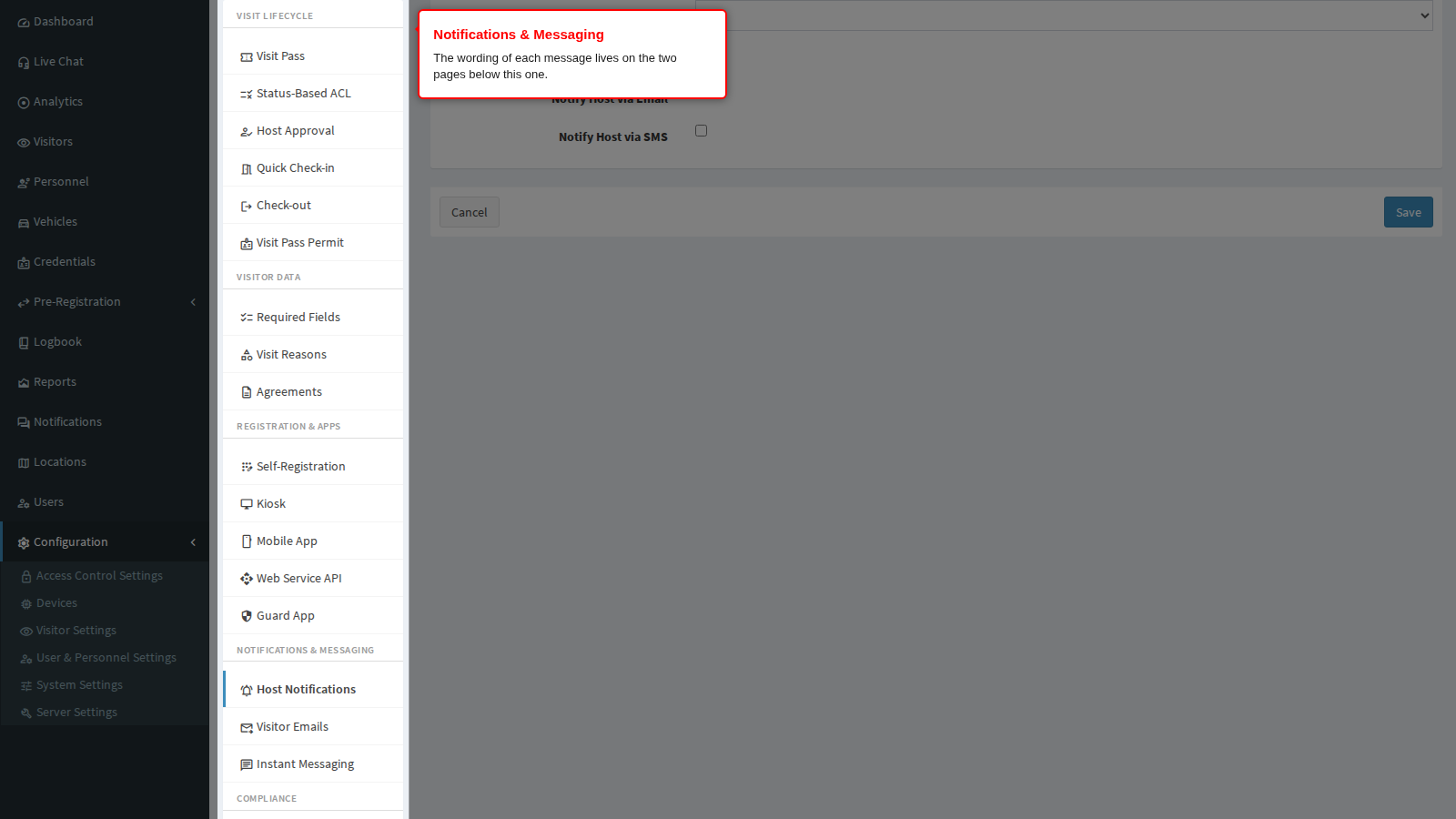
Everything on this page is in one panel, Visitor Status Update Notification, and is saved together.
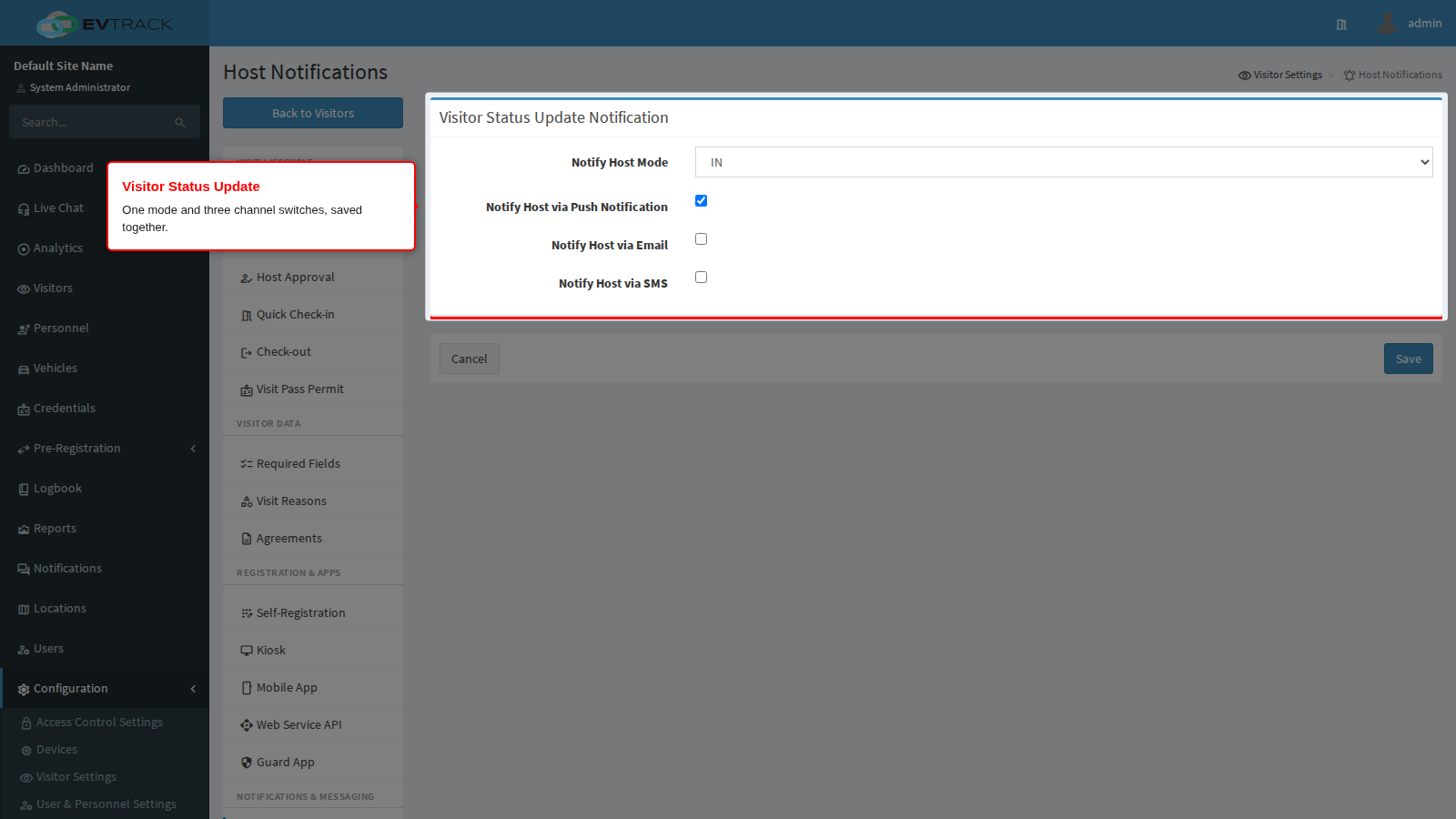
Step 2: Choose when hosts are notified
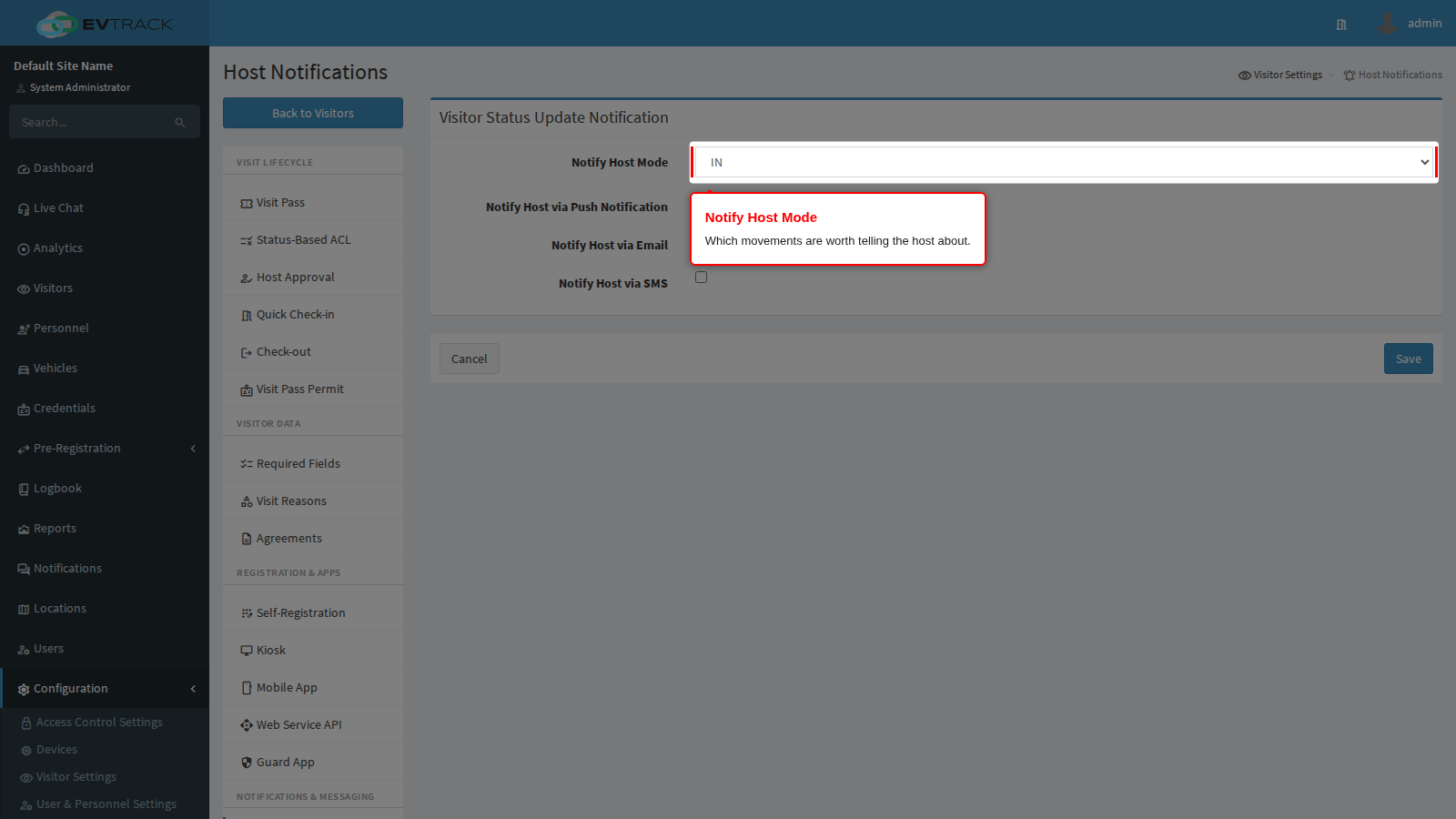
Notify Host Mode decides which movements are worth a message. It has three choices:
- IN notifies on arrival only. Use it where hosts need to know their visitor has arrived and do not care when they leave, which is most offices.
- OUT notifies on departure only. Use it where the departure is the event that matters, for example a contractor who must be cleared off site.
- BOTH notifies on arrival and on departure, giving hosts a complete trail at the cost of twice as many messages.
What counts as a movement is wider than the check-in button. Manual check-in and check-out by an operator, a self-service check-in at the kiosk or in the guard app, and access-granted events at connected readers all count. A grant on a reader configured as an entry counts as IN; a grant on an exit reader counts as OUT. Where a movement carries a status rather than a direction - a visitor moved into parking, marked on site, or handed over to their host - the host is notified whichever of IN or OUT you have chosen, because those transitions matter under either policy.
End state: hosts receive one message per movement your mode covers, per channel you switch on below.
Step 3: Choose the channels
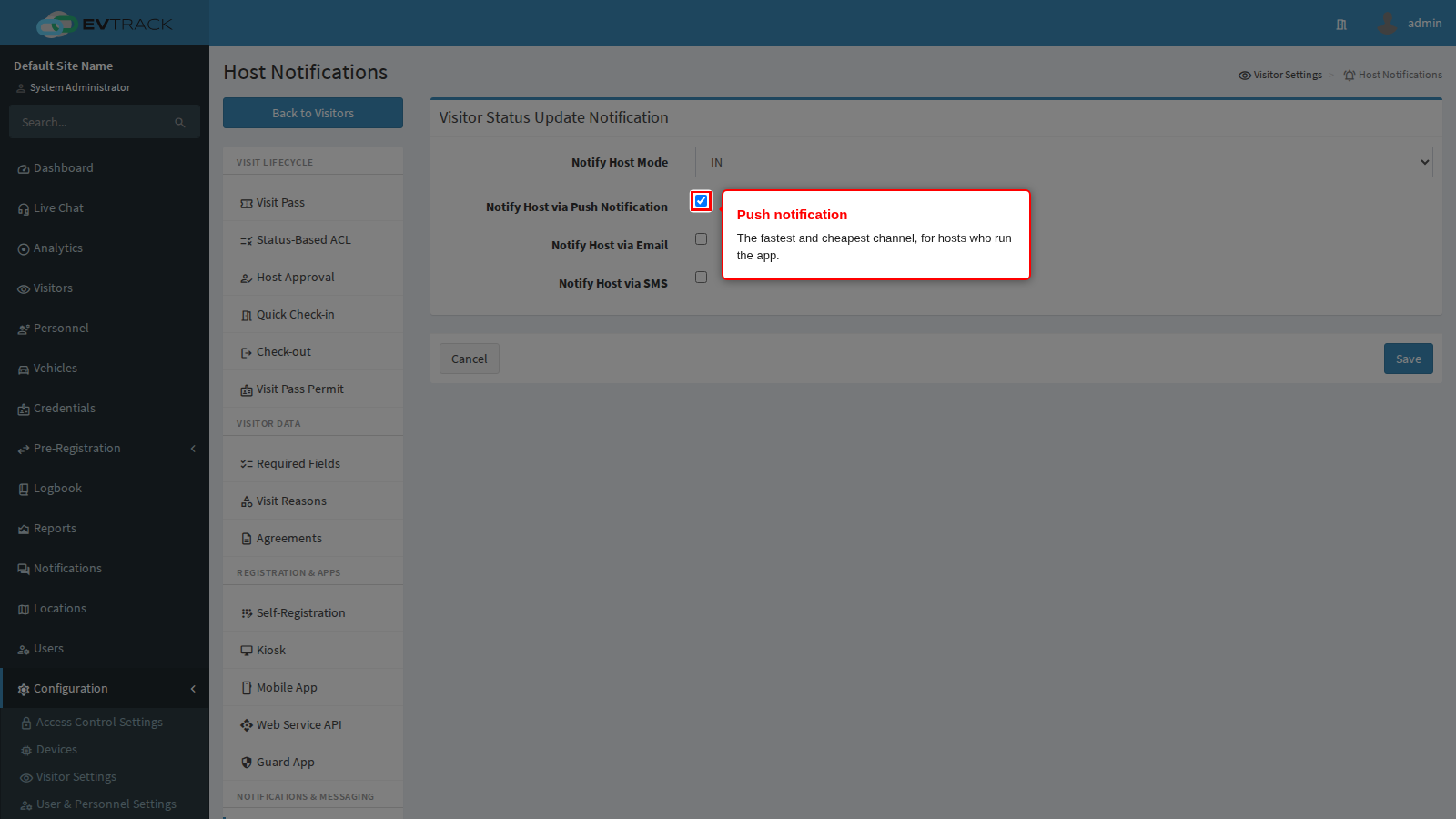
The three switches are independent and additive: turning on two channels sends the host two messages for the same movement. Pick the fewest that reach your hosts reliably.
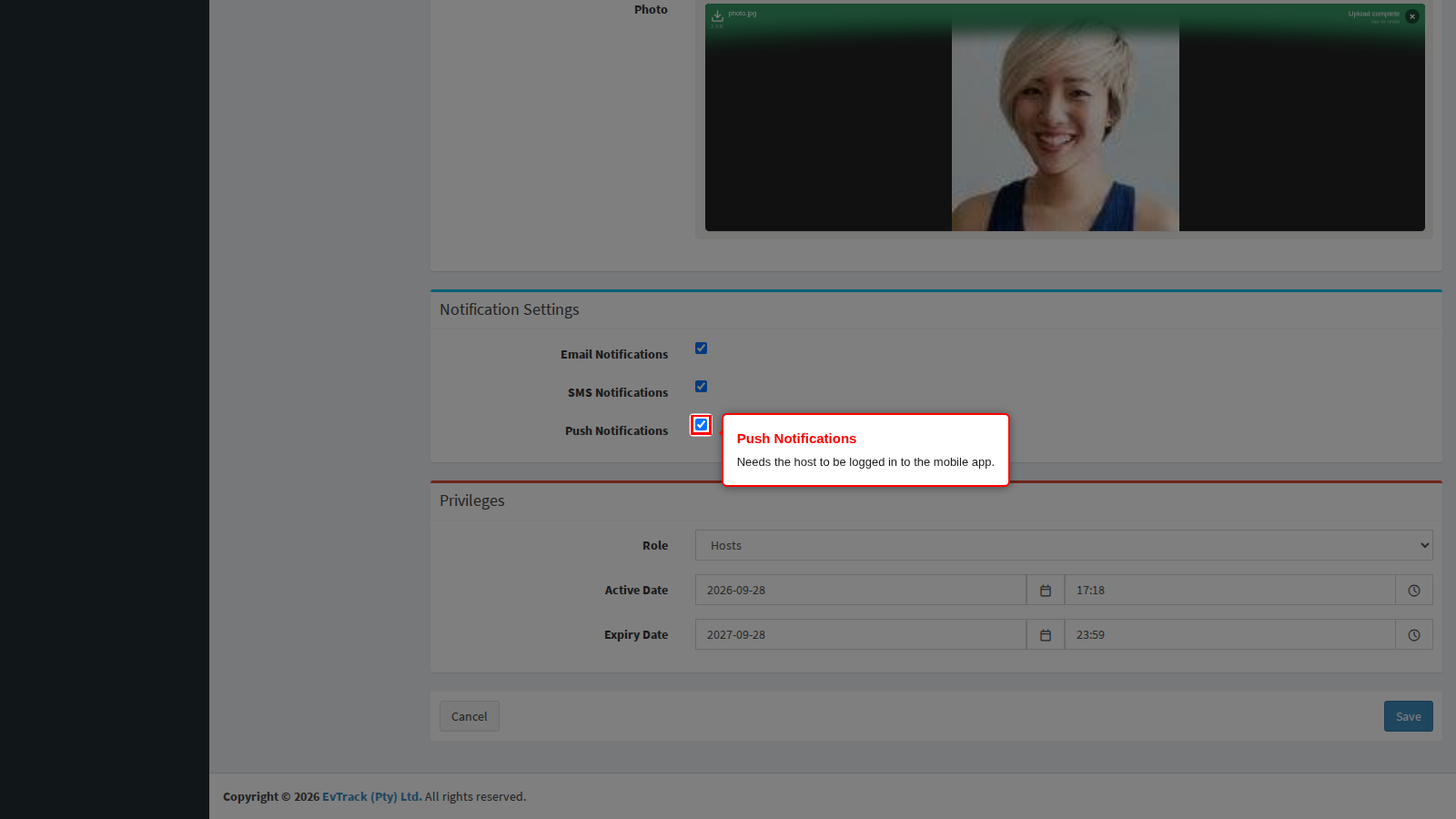
Notify Host via Push Notification sends the message to the host’s mobile app. It is the fastest channel and it costs nothing per message, so leave it on wherever your hosts use the app. It needs nothing but the host being logged in to the app on a device that can receive notifications.
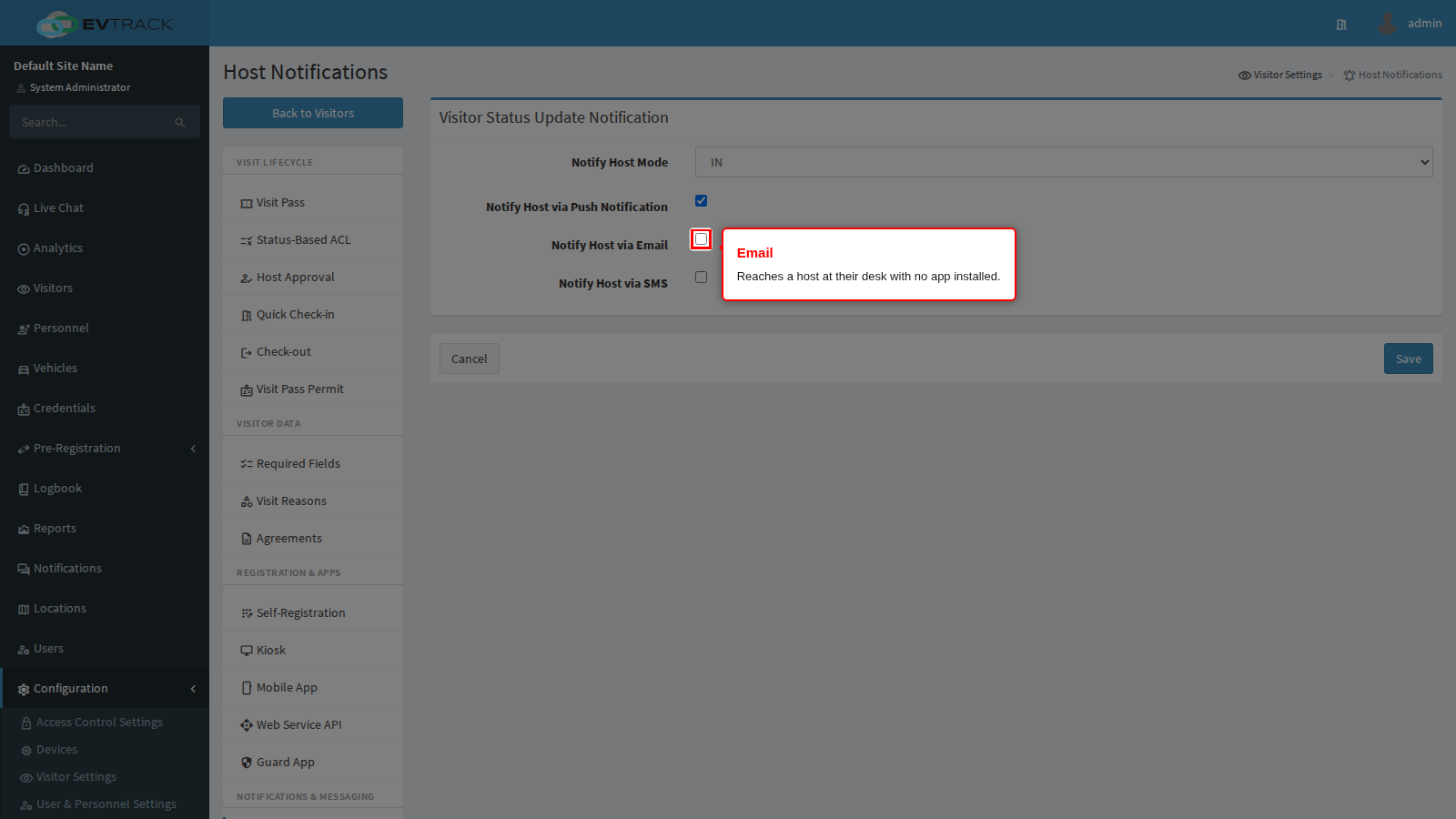
Notify Host via Email sends the message to the host’s email address. This is the safest default: every host has an address, no app has to be installed, and the message survives being read an hour later. It needs a valid email address on the host’s profile - a blank or malformed address means no email, silently.
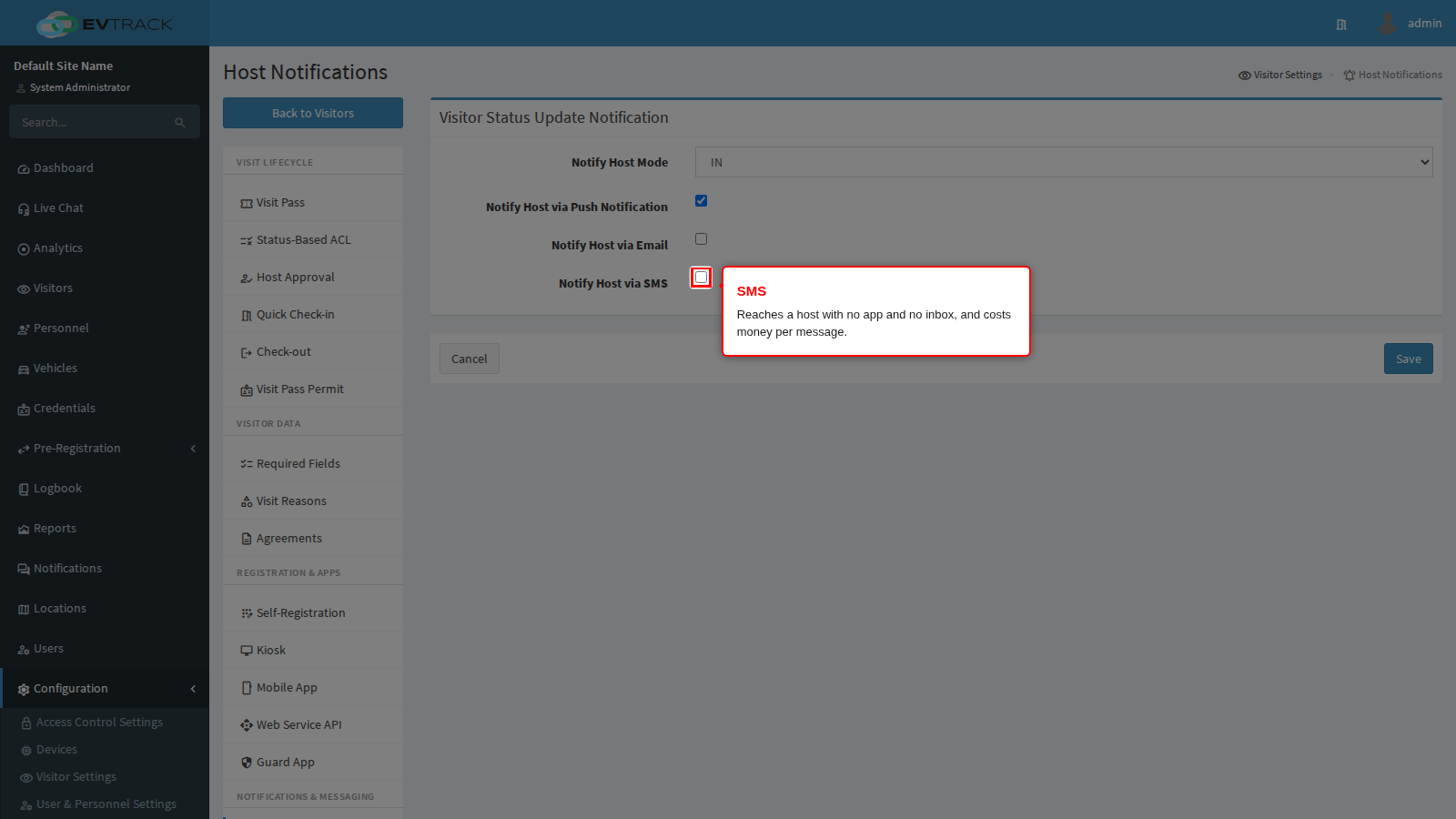
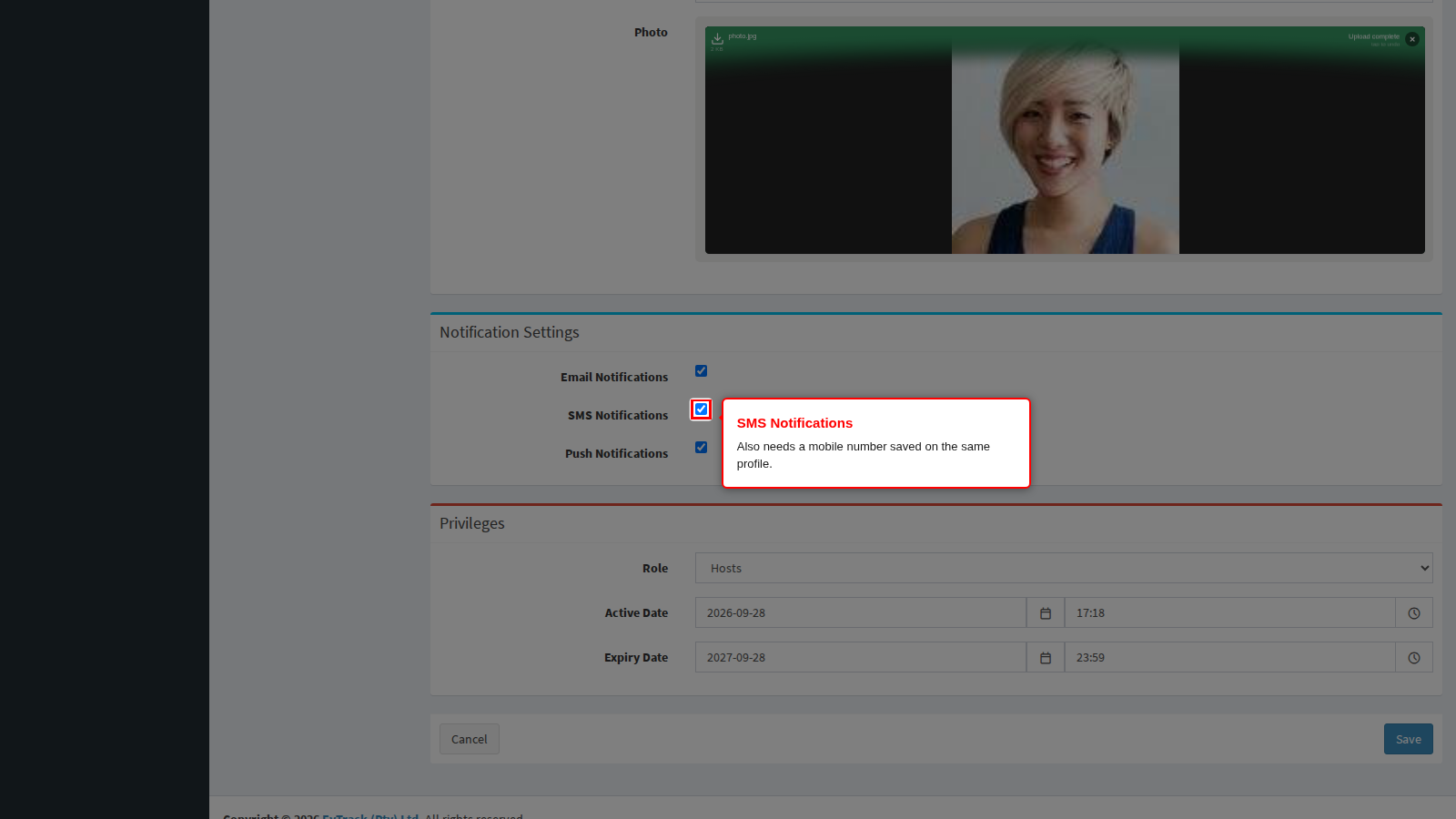
Notify Host via SMS sends the message as a text to the host’s mobile number. Use it where hosts are away from a desk and do not carry the app - a plant, a warehouse, a site office. Two things to weigh first: every message is billed by your SMS gateway, and the host must have a mobile number saved on their profile or nothing is sent.
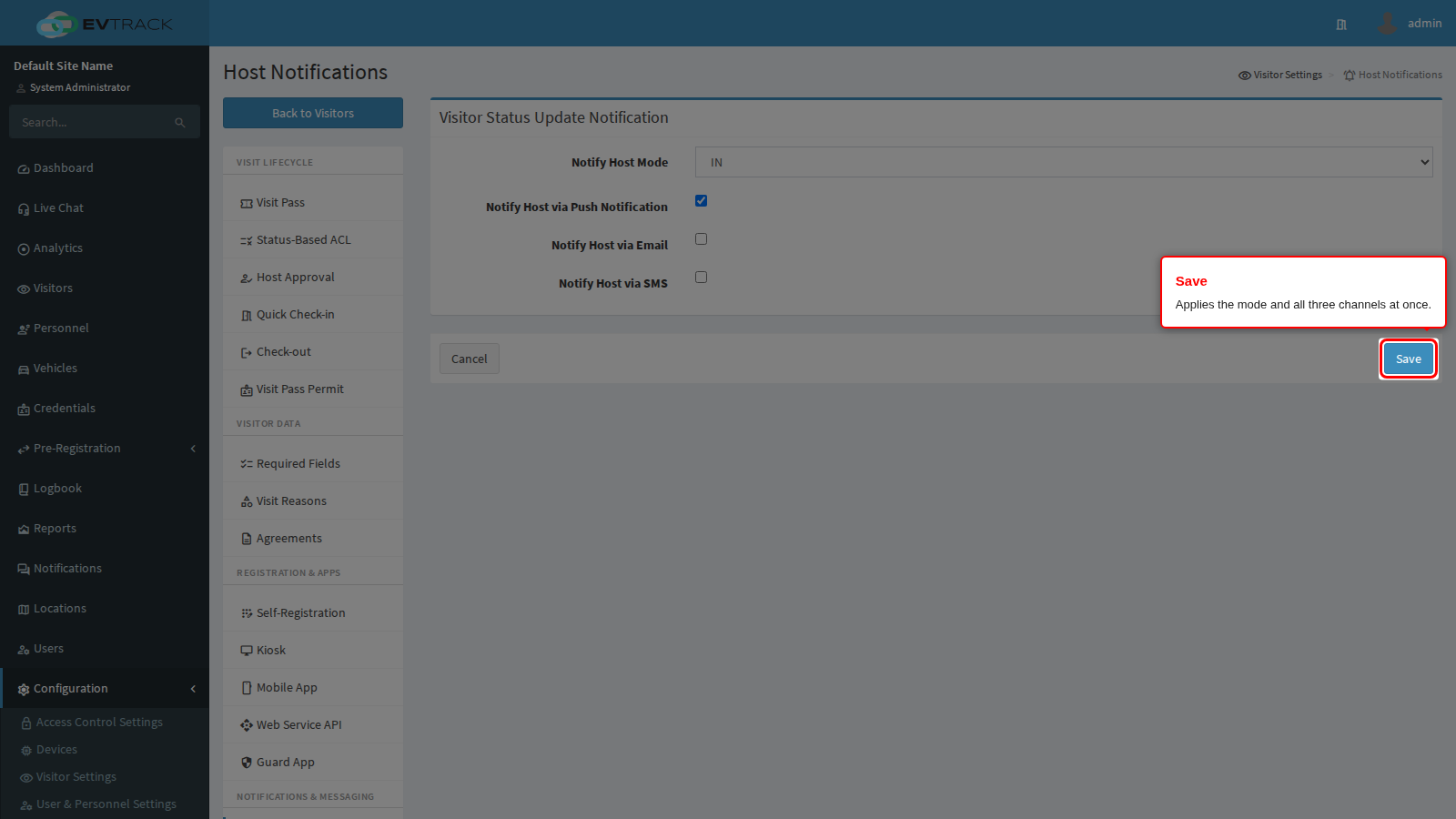
Save applies the mode and all three switches together. Cancel discards your changes and reloads the saved values.
End state: a green confirmation appears at the top of the page, and the next visitor movement notifies hosts over the channels you selected.
Step 4: Check the host’s own preference
The switches above decide what is possible for everybody. Each host then decides what they personally want, and both have to agree. This is the usual reason a single host gets nothing while their colleagues do.
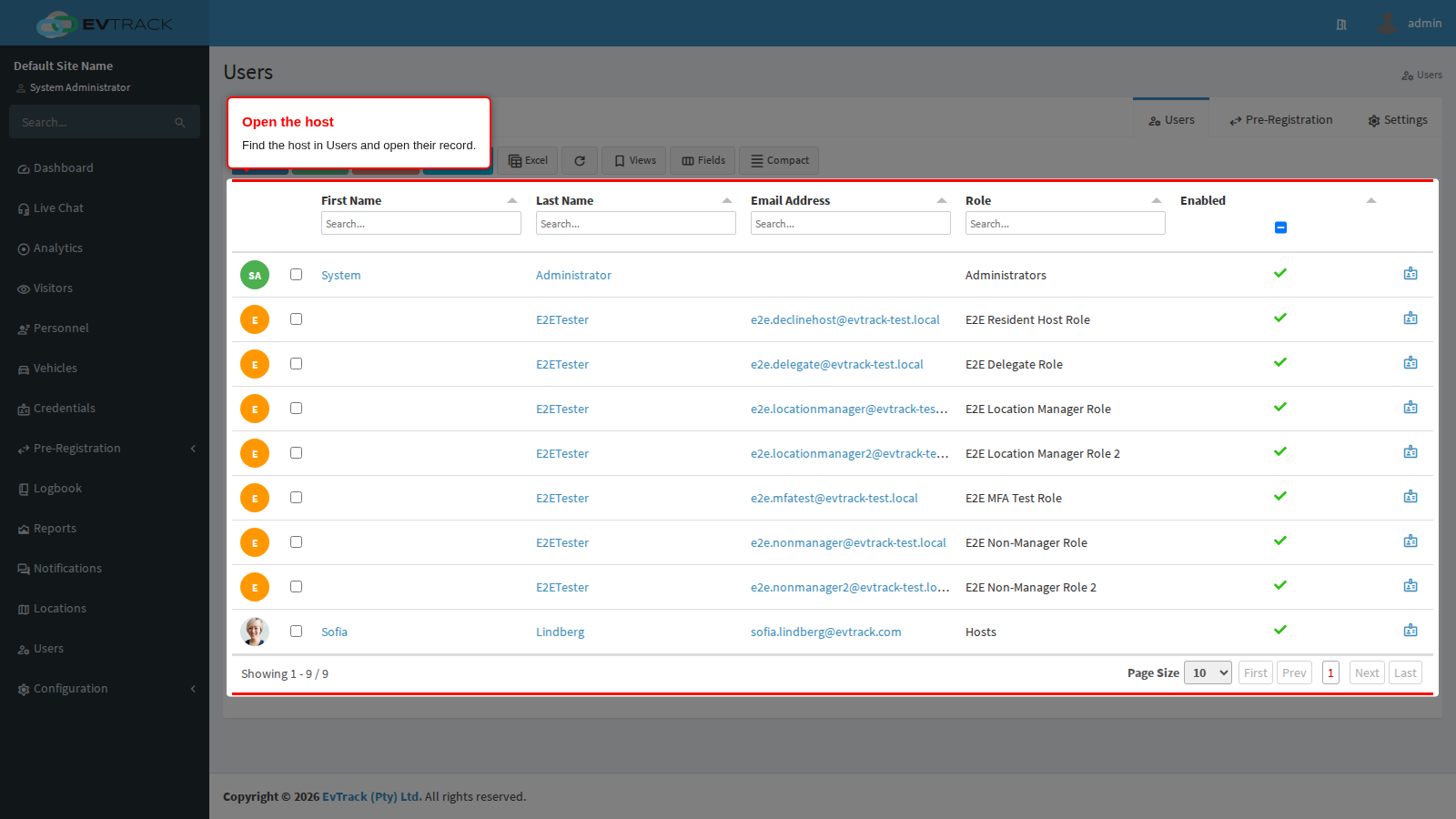
Open Users in the sidebar and find the host in the list.
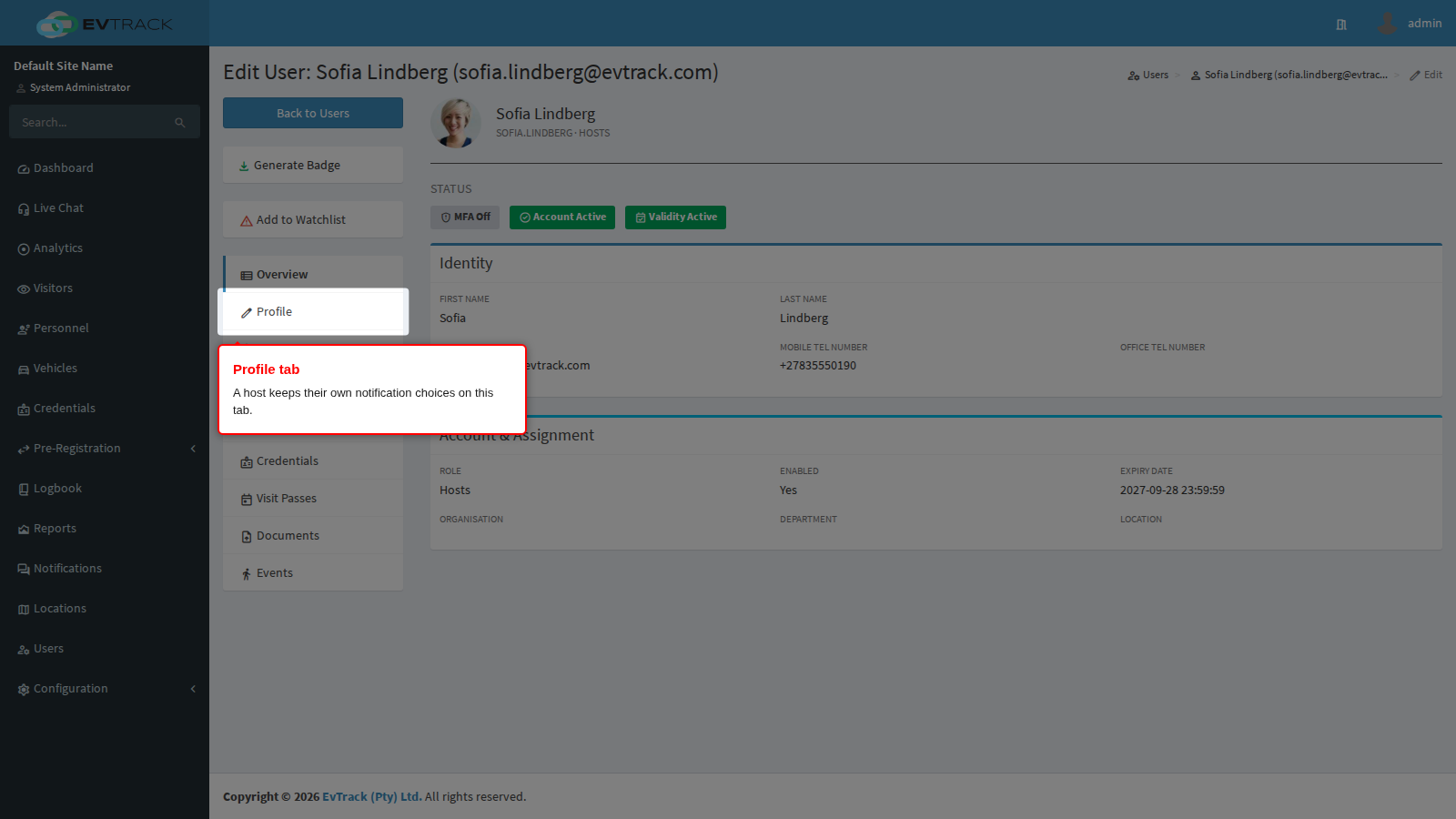
Open their record and switch to the Profile tab.
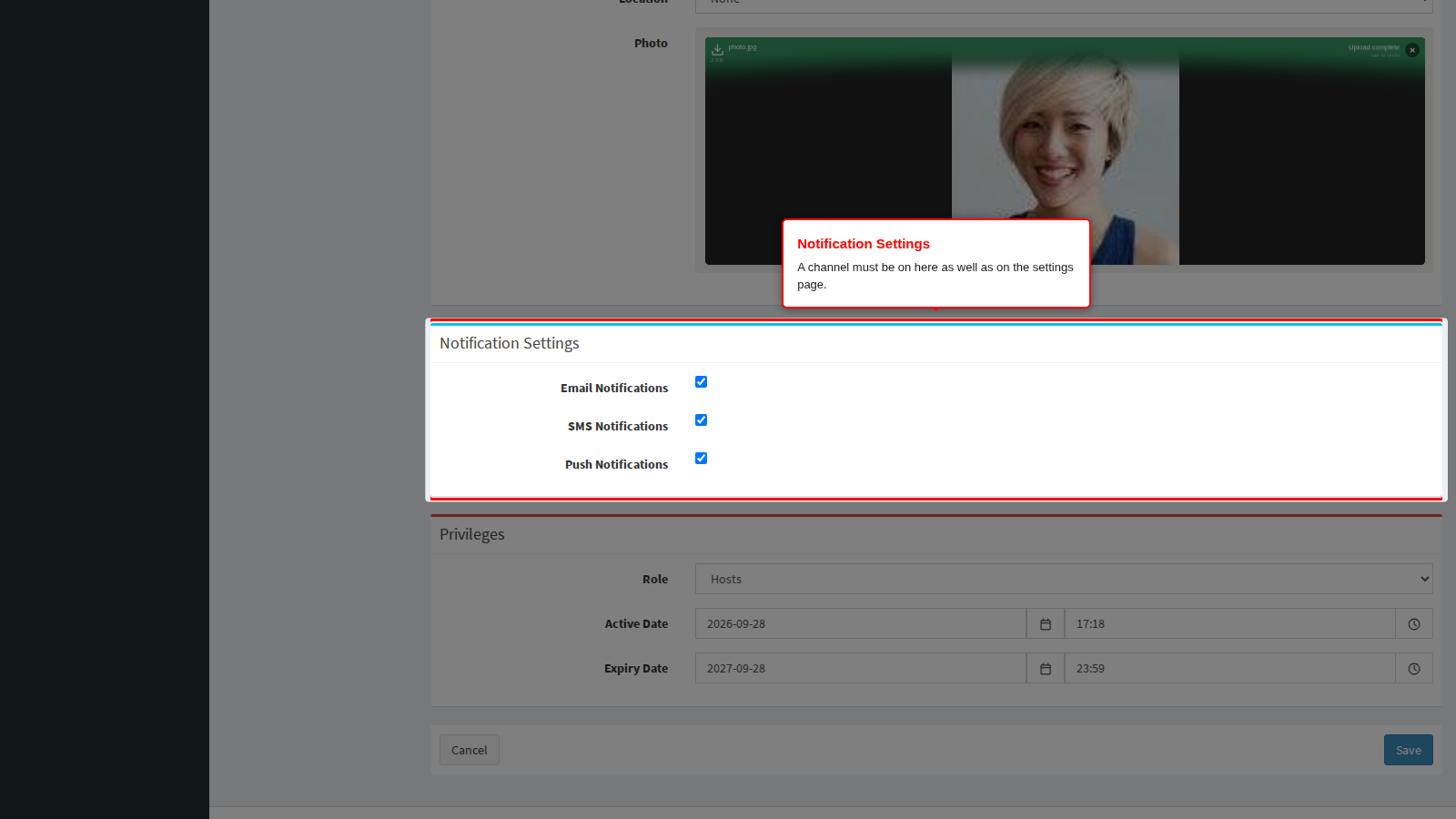
Scroll to the Notification Settings panel. It carries the same three channels as the settings page, but for this one person.
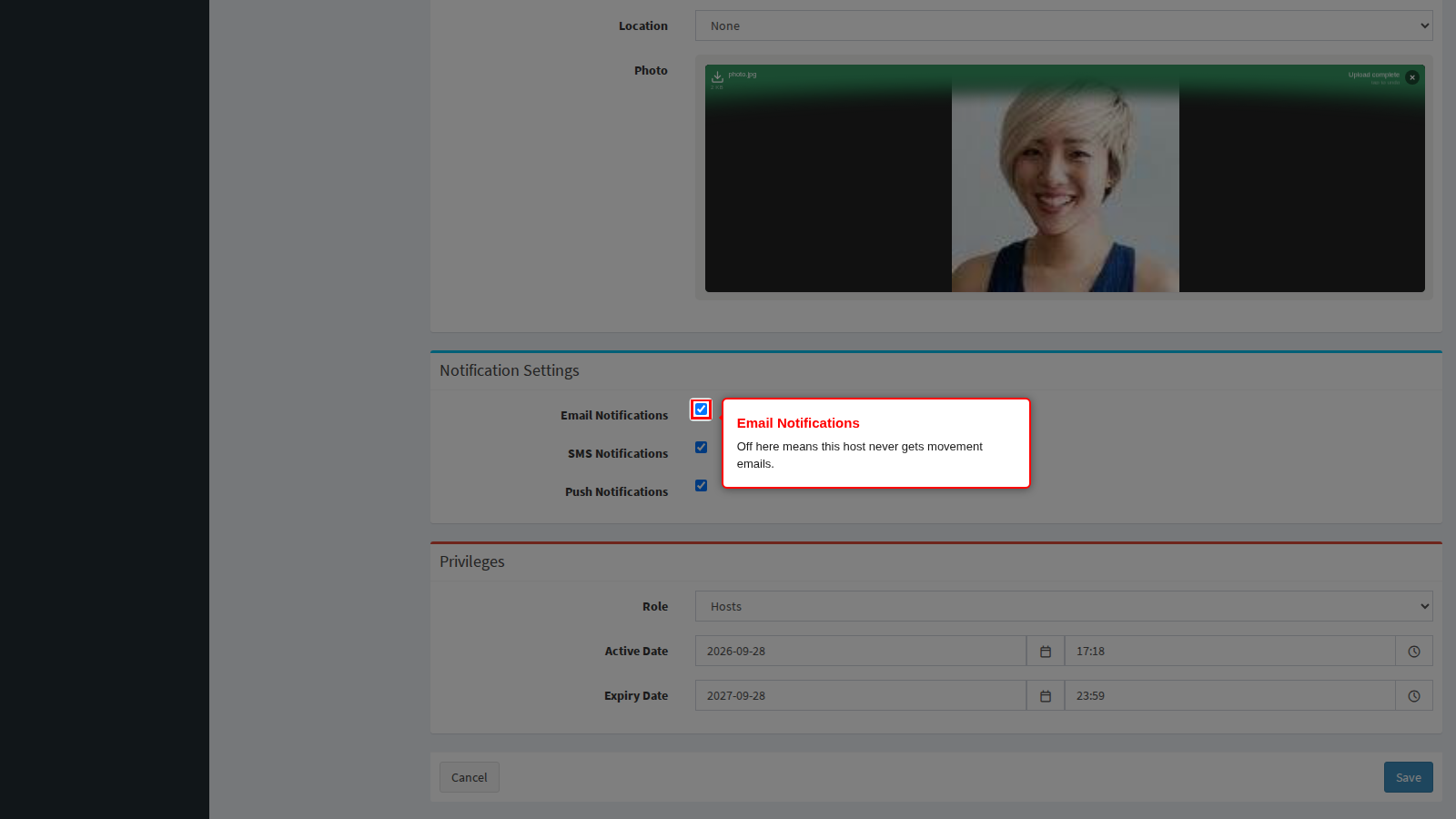
Email Notifications must be ticked here, and the host must have a valid email address on the same profile, before movement emails reach them.
SMS Notifications must be ticked here, and the host must have a mobile number on the same profile. A ticked box with an empty mobile number sends nothing.
Push Notifications must be ticked here, and the host must be logged in to the mobile app.
End state: you can now answer “why did this host not get told” by reading three boxes: the mode, the channel here, and the same channel on their profile.
Step 5: Check what the message says
This page decides whether a host is told. Two other pages decide what they read.
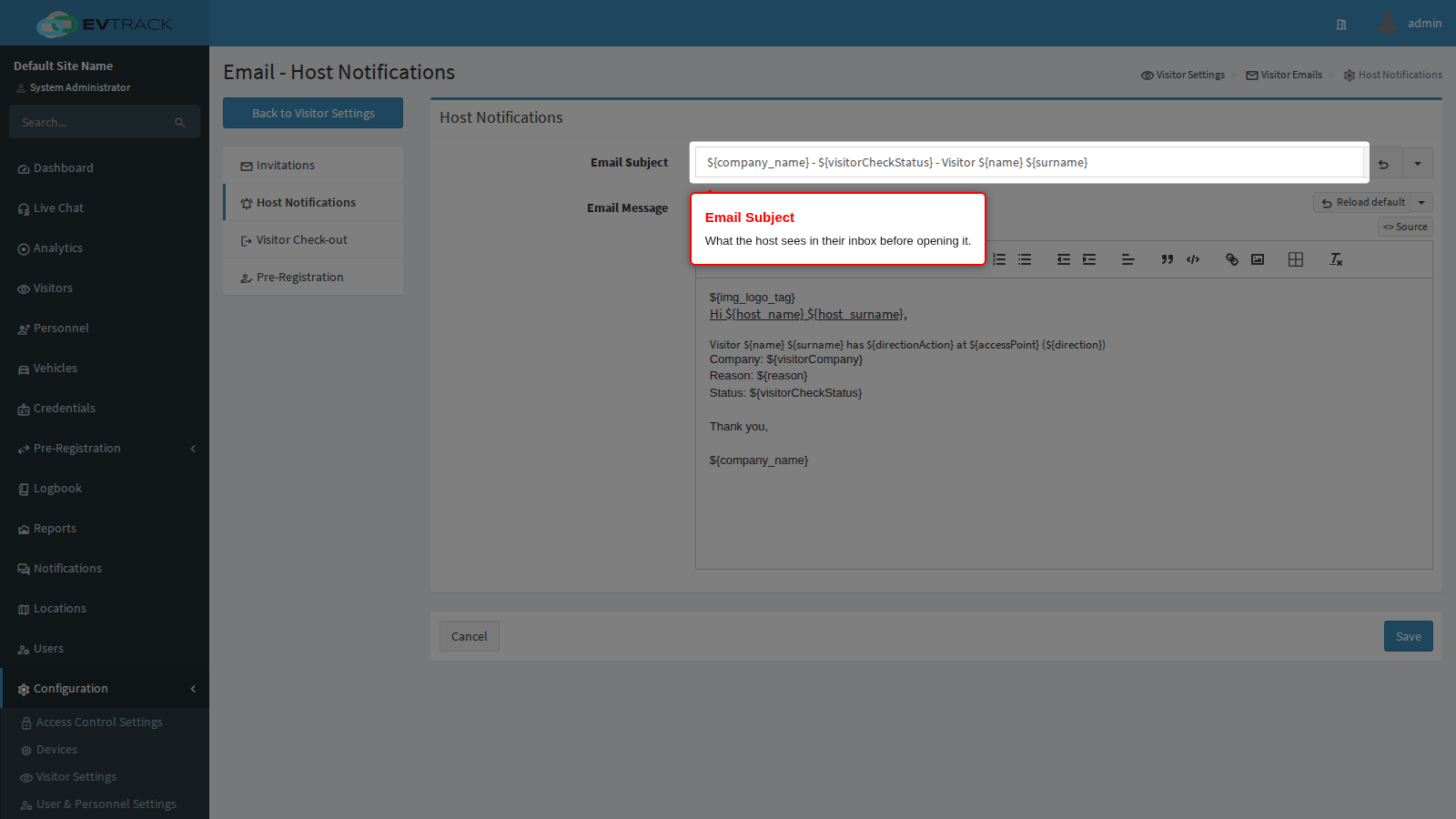
The email wording is on Configuration > Visitor Settings > Visitor Emails > Host Notifications. Email Subject is what the host sees in a crowded inbox, so make it recognisable at a glance - the visitor’s name is a better subject than the word “Notification”.
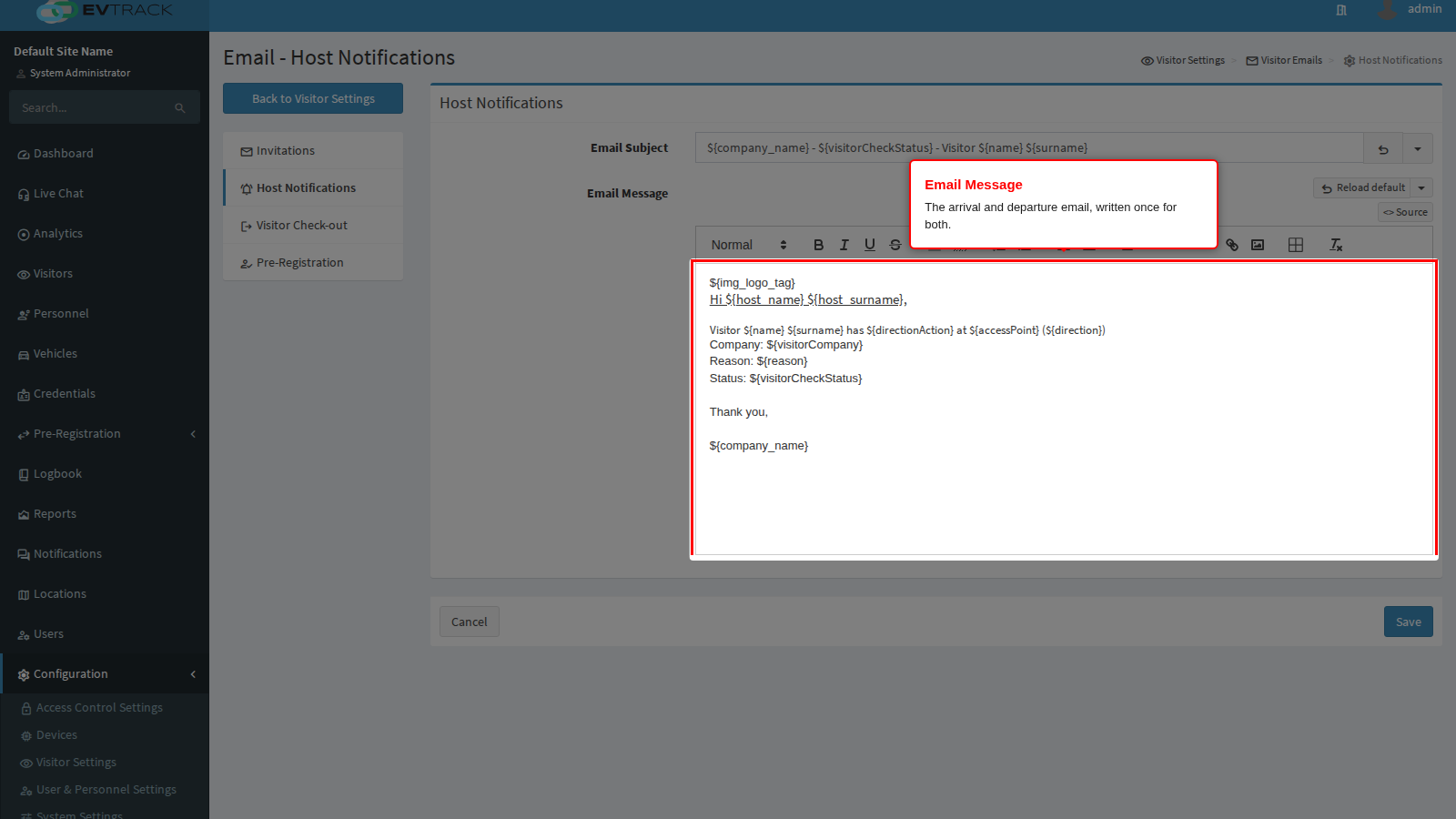
Email Message is the message itself, written once and used for both arrival and departure. Merge tags fill in the visitor, the reader and the direction when it is sent, so a single body reads correctly either way. Each field has a Reload default button that restores the wording supplied with the product, in any of the bundled languages.
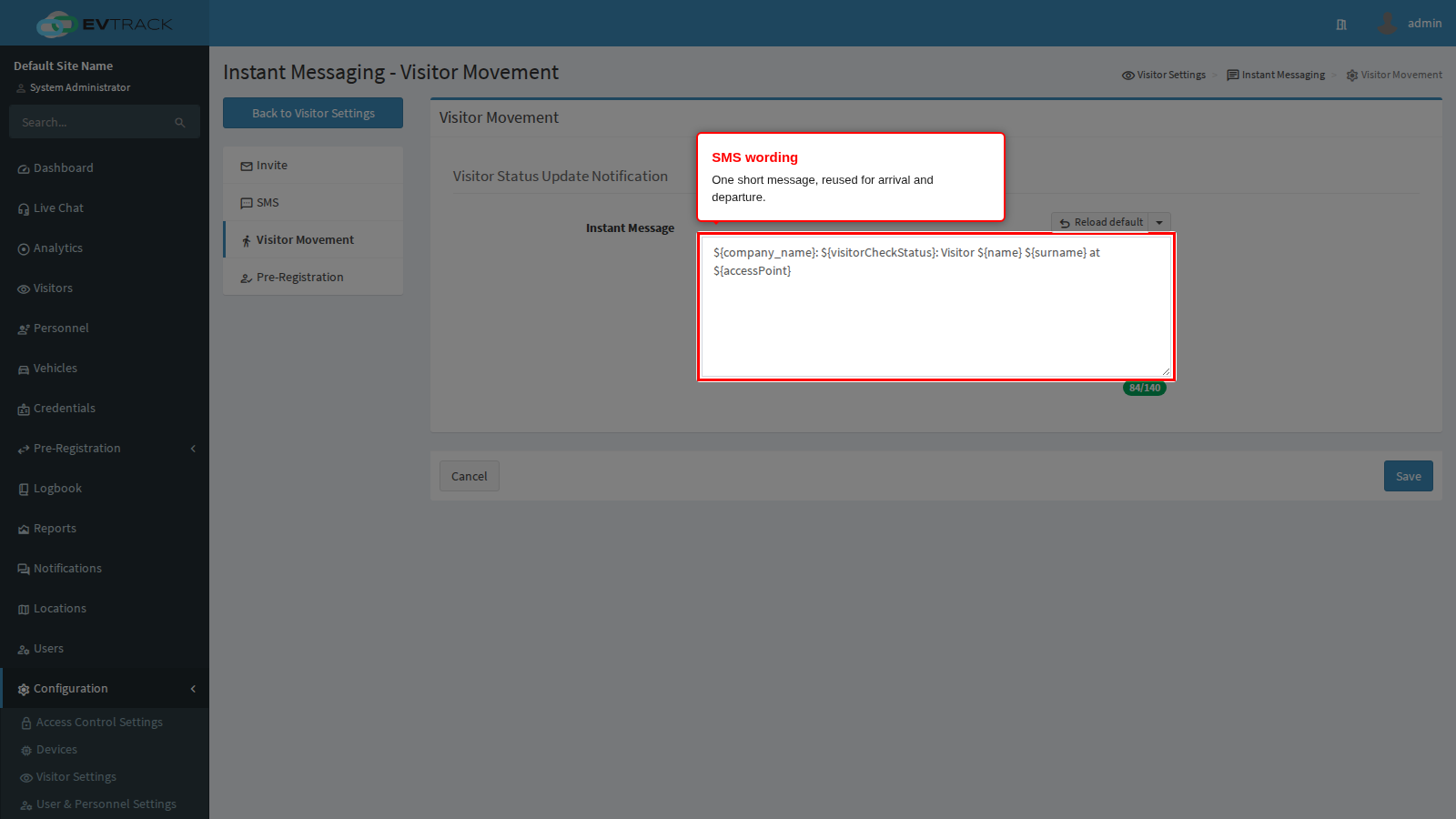
The SMS wording is on Configuration > Visitor Settings > Instant Messaging > Visitor Movement. It is a single short message limited to the number of message parts you allow, so keep it to the visitor’s name, the direction and the door.
Location branding. When the visit is at a location with its own company name (on the location’s Advanced tab) or its own email logo (on its Invite Email tab), the host’s email uses that logo and company name and the host’s SMS uses that company name. Location tags such as ${location_name} fill in from the visit’s location. A visit at a location without its own branding, or with no location, uses the global logo and company name.
The complete list of merge tags, including which ones an arrival or departure message actually fills in, is in the Merge Tags reference. The movement tags that only exist in these messages are the access point name, the direction, and an action word that renders as “arrived” or “departed”.
Troubleshooting
One host gets nothing, everybody else is fine. Their own profile is the cause almost every time: the channel is unticked in Notification Settings, or the contact detail that channel needs is missing. Check the profile first, before the mail server.
Nobody gets anything. Check the mode covers the movement you are testing - a site set to IN sends nothing at all when you test with a check-out. Then check the channel is on here. Then check the channel’s plumbing: the mail server for email, the gateway for SMS.
Emails arrive late or not at all. Ask the host to look in their spam or junk folder first, since automated messages are a common false positive. On a corporate network the company mail server may be blocking them outright; ask the IT administrator to allow mail from your configured sender address, which is set under Configuration > Server Settings > Email. Mail servers that use greylisting deliberately defer the first attempt from an unfamiliar sender: delivery is retried for up to 72 hours, and an address that still cannot be delivered to after that is suppressed from further attempts.
Hosts complain about too many messages. Switch the mode from BOTH to IN, or turn off a channel. Two channels on means two messages per movement, and BOTH doubles that again.
What next
- Visitor Emails for the subject and body of the host notification email, and the three other visitor emails.
- Instant Messaging for the SMS wording, its length limit and its delivery schedule.
- Merge Tags for the placeholders these templates can use.
- Host Approval for the separate flow where a host must approve a visitor rather than simply being told about them.
- Host Notifications for users for the same subject written from the host’s point of view.