Every visitor record starts with somebody filling in a form. This page decides what that form asks for when the person filling it in is one of your own operators working in the admin console: which boxes appear on Add Visitor and on the Profile tab of an existing visitor, and which of them the operator is not allowed to leave blank.
Before you start: you need an operator account with settings permissions. Nothing else has to exist first, and the change takes effect the moment you save - the next time anybody opens the visitor form they see the new set of fields.
Read this before you change anything. This page governs the admin console only. Every other way a visitor can be registered keeps its own separate list of required fields, on its own page. Setting Photo to Required here does not make the kiosk demand a photo. The last section of this chapter shows each of those pages and links to it.
There is one exception, and it is worth knowing about: the Add Visitor Registration screen also reads the Self-Registration list to decide which boxes to show. What is mandatory there still comes from the location the operator picks. See Self-Registration.
One visitor record, eight ways in, seven field policies
There is no single list of required fields. Every channel that can create a visitor reads its own, and the diagram is the map. All of them produce the same kind of visitor record at the end, which is exactly why the settings are so easily mistaken for one shared list.
flowchart LR
    admin["Admin console: Add Visitor,<br>the visitor Profile tab, the registration<br>processor, the dashboard quick check-in"]
    addreg["Admin console:<br>Add Visitor Registration"]
    selfreg["The public registration form"]
    groupreg["Group pre-registration,<br>for each member"]
    kiosk["The reception kiosk"]
    guard["The guard app"]
    mobile["The mobile app, when a host<br>invites somebody"]
    wsapi["The Web Service API"]
    wix["Wix bookings"]

    pRequired["Required Fields<br>(this page)"]
    pSelfReg["Self-Registration,<br>Required Fields tab"]
    pGroup["Self-Registration, Group Registration tab,<br>Group Member Required Fields"]
    pKiosk["Kiosk, Fields tab"]
    pGuard["Guard App, Fields tab"]
    pMobile["Mobile App, Fields tab"]
    pWsApi["Web Service API, Fields tab"]
    pNone["No field policy at all"]

    record(["One visitor record"])

    admin --> pRequired
    addreg --> pSelfReg
    selfreg --> pSelfReg
    groupreg --> pGroup
    kiosk --> pKiosk
    guard --> pGuard
    mobile --> pMobile
    wsapi --> pWsApi
    wix --> pNone

    pRequired --> record
    pSelfReg --> record
    pGroup --> record
    pKiosk --> record
    pGuard --> record
    pMobile --> record
    pWsApi --> record
    pNone --> record
Five rules follow from that map, and between them they head off the mistake this page most often causes:
- Almost no setting on one row of the diagram affects any other row. There is no inheritance, no defaults page and no global override. Making Photo required here changes the admin console and nothing else. If a field matters to your organisation, it has to be set on every channel you actually use, one page at a time. The single exception is the one noted at the top of this page: the Add Visitor Registration screen reads the Self-Registration list as well, but only to decide which boxes appear - never to decide what is mandatory.
- The wording differs from page to page even where the field is the same. The admin console offers Required, Not Required and Optional; the kiosk’s Optional means “accept it from a document scan but never demand it”; the guard app and the mobile app offer a plain on and off. Do not assume a tick means the same thing on two pages.
- Group members are a seventh policy, not part of self-registration. The leader of a group is asked for the fields on the Self-Registration page; each member is asked for the separate Group Member Required Fields list on the Group Registration tab. Changing one does not change the other.
- Self-registration has a second axis: the location. A location can switch off “use the global required fields” and publish its own list on its own registration link, so two links into the same system can ask for different things. No other channel has a per-location override.
- Wix bookings enforce nothing. A booking arriving from Wix is accepted on its dates alone; there is no field policy behind it and no page to configure one. If completeness matters for those visitors, capture the missing details when the visit is processed.
Step 1: Open the Required Fields page
Open Visitors in the sidebar, click Settings, and click the Required Fields tile.
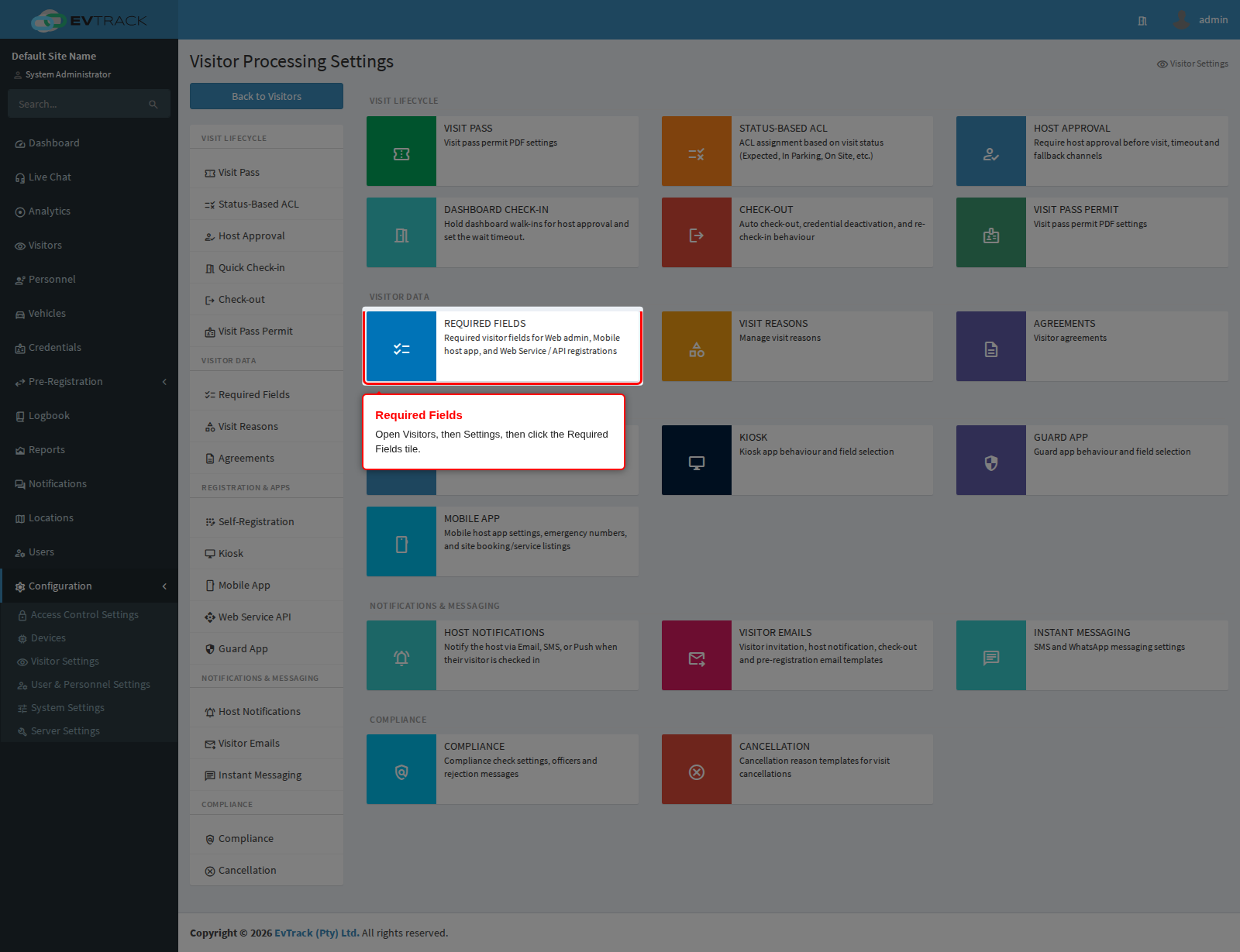
End state: the page opens with six panels stacked down the page, and the Visitor Settings menu on the left. Required Fields is listed under Visitor Data in that menu, so you can come back to it from any other settings page.
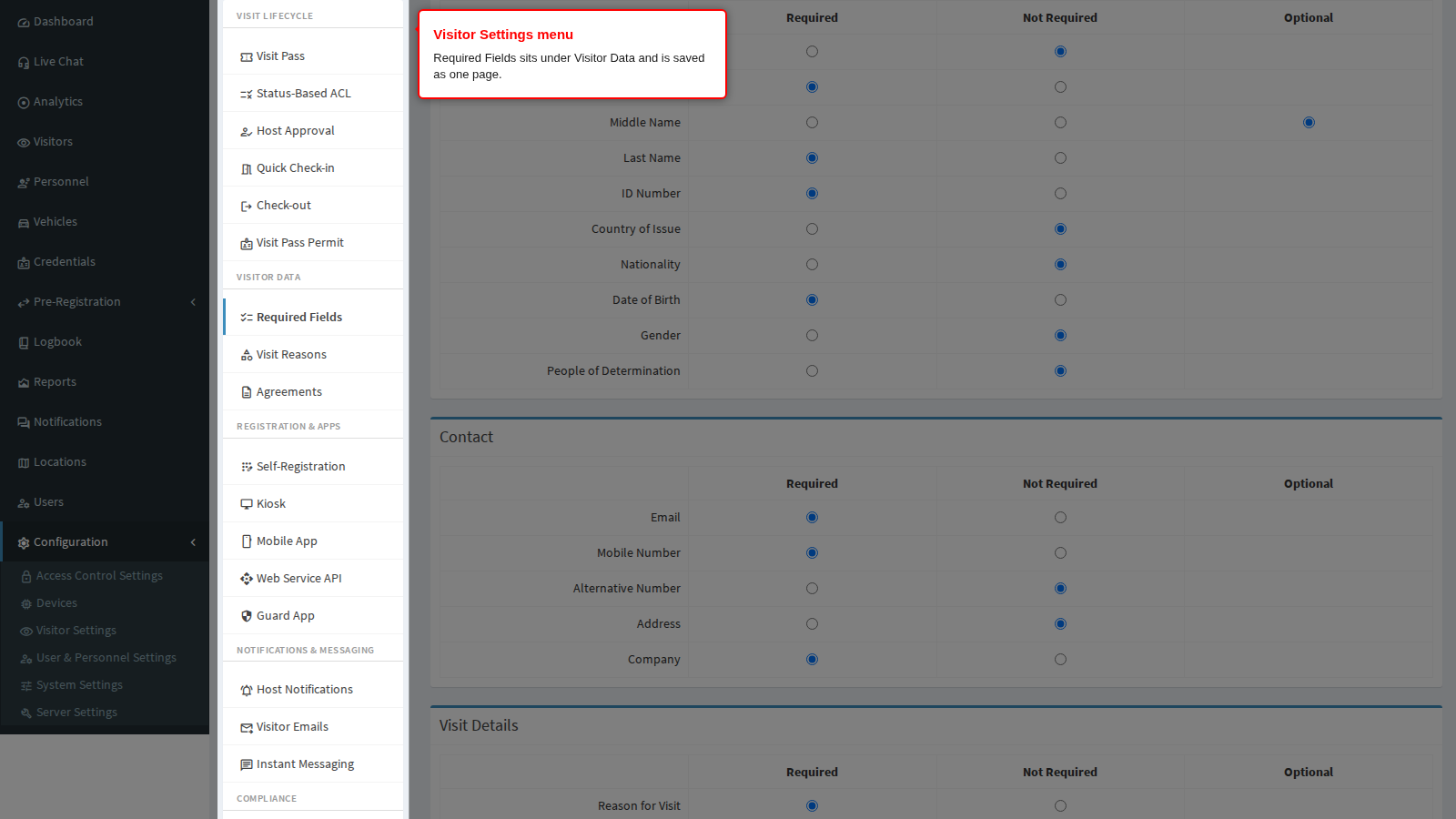
Step 2: Understand the three columns
Every panel is a table with one row per field and the same three columns. Each row is a single choice: pick one column and that is what the field does.
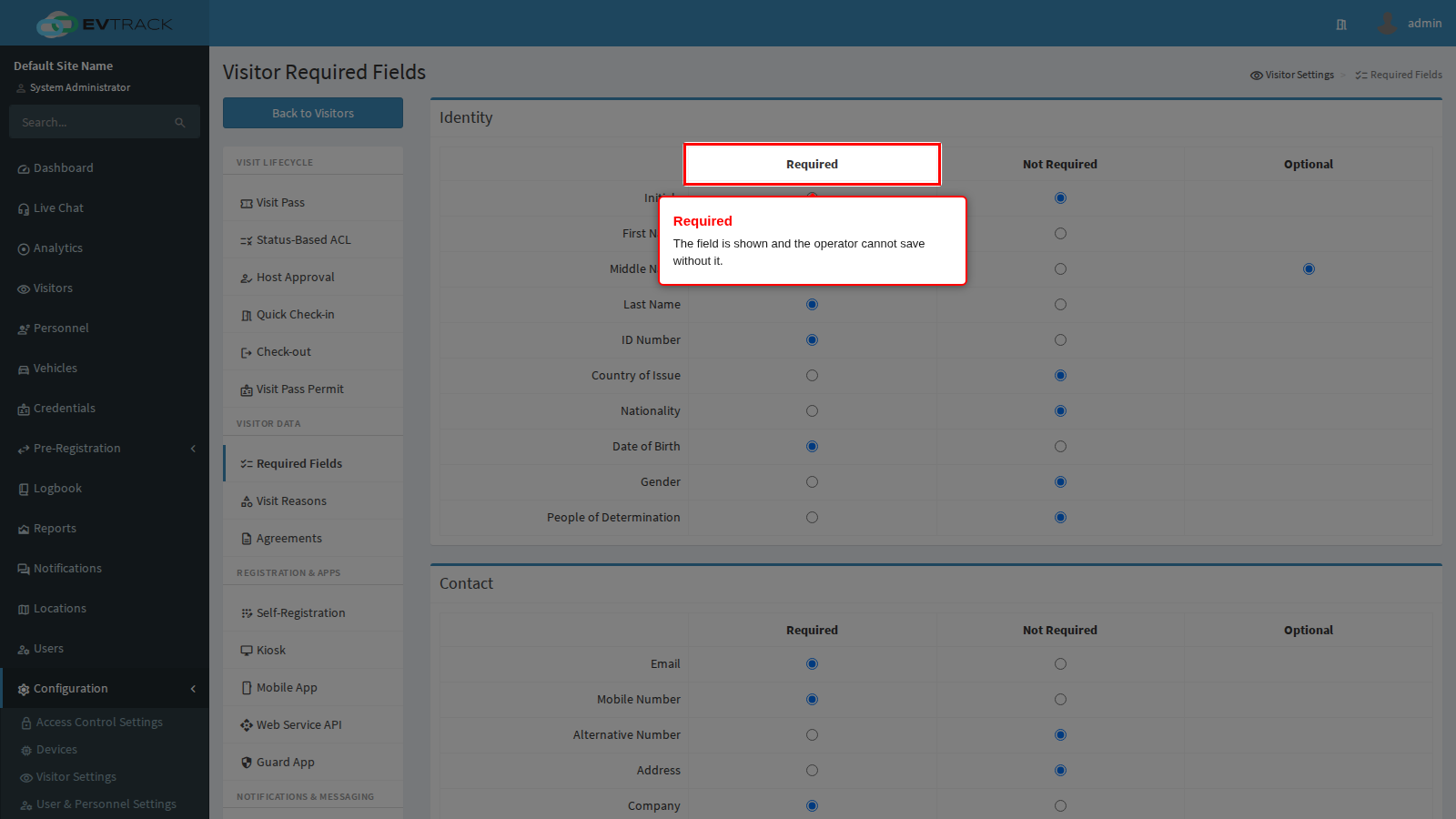
Required shows the field on the form and refuses to save the visitor while it is empty. The operator sees the field marked as compulsory, and a message next to it if they try to save without it.
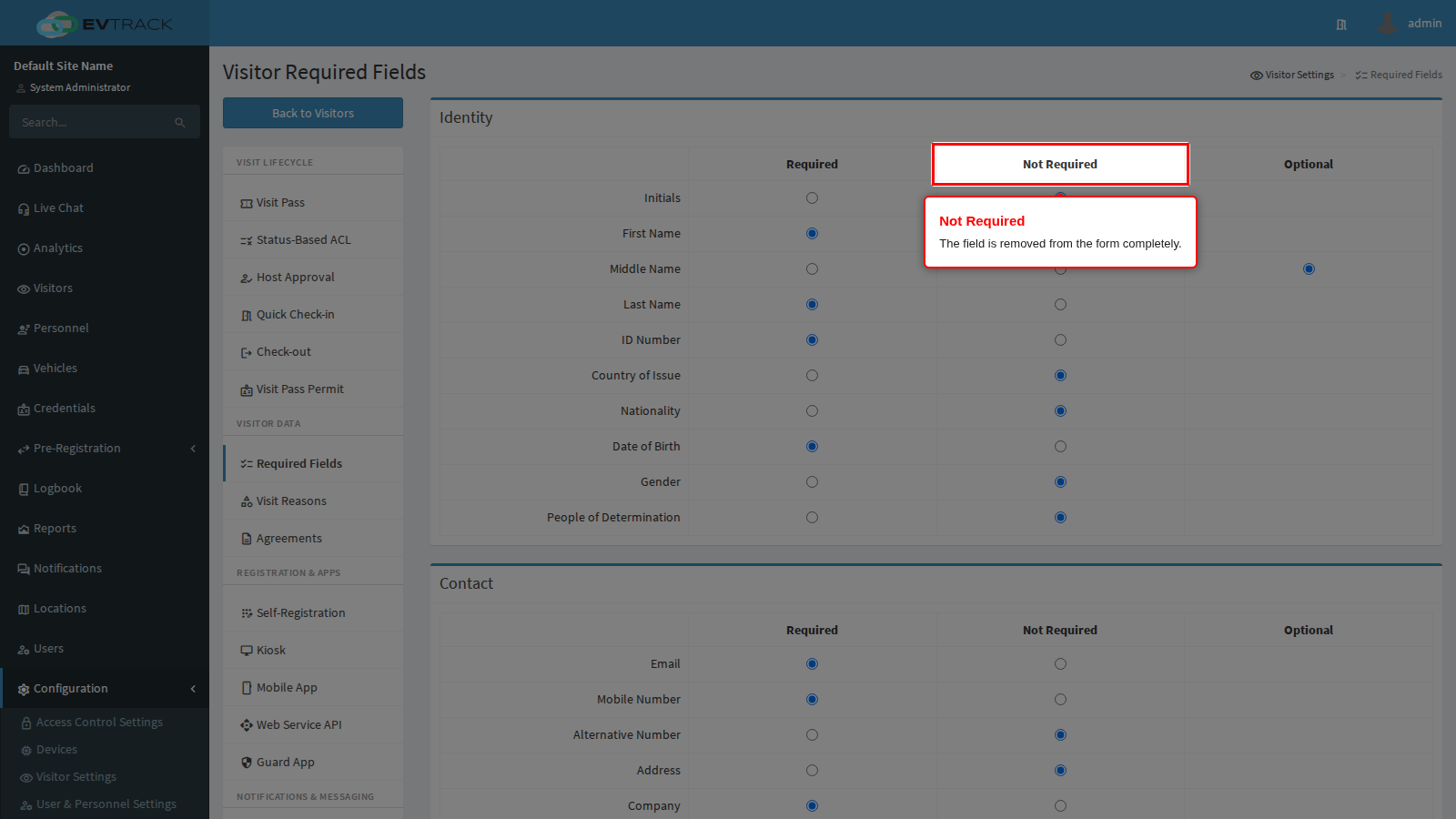
Not Required does more than “you may leave it blank” - it takes the field off the form altogether. The operator never sees it and can never fill it in, even deliberately. Use this to shorten the form to what your reception desk actually needs, and do not use it for a field you still want captured sometimes.
Optional is the middle ground: the field is shown, the operator may fill it in, and saving with it empty is accepted. Only some rows offer it - Middle Name, Host, Assign Card from Pool, Comments, Location, Photo, Copy of Identity Document and Signature. Every other row is a straight two-way choice between Required and Not Required, and its Optional cell is left empty.
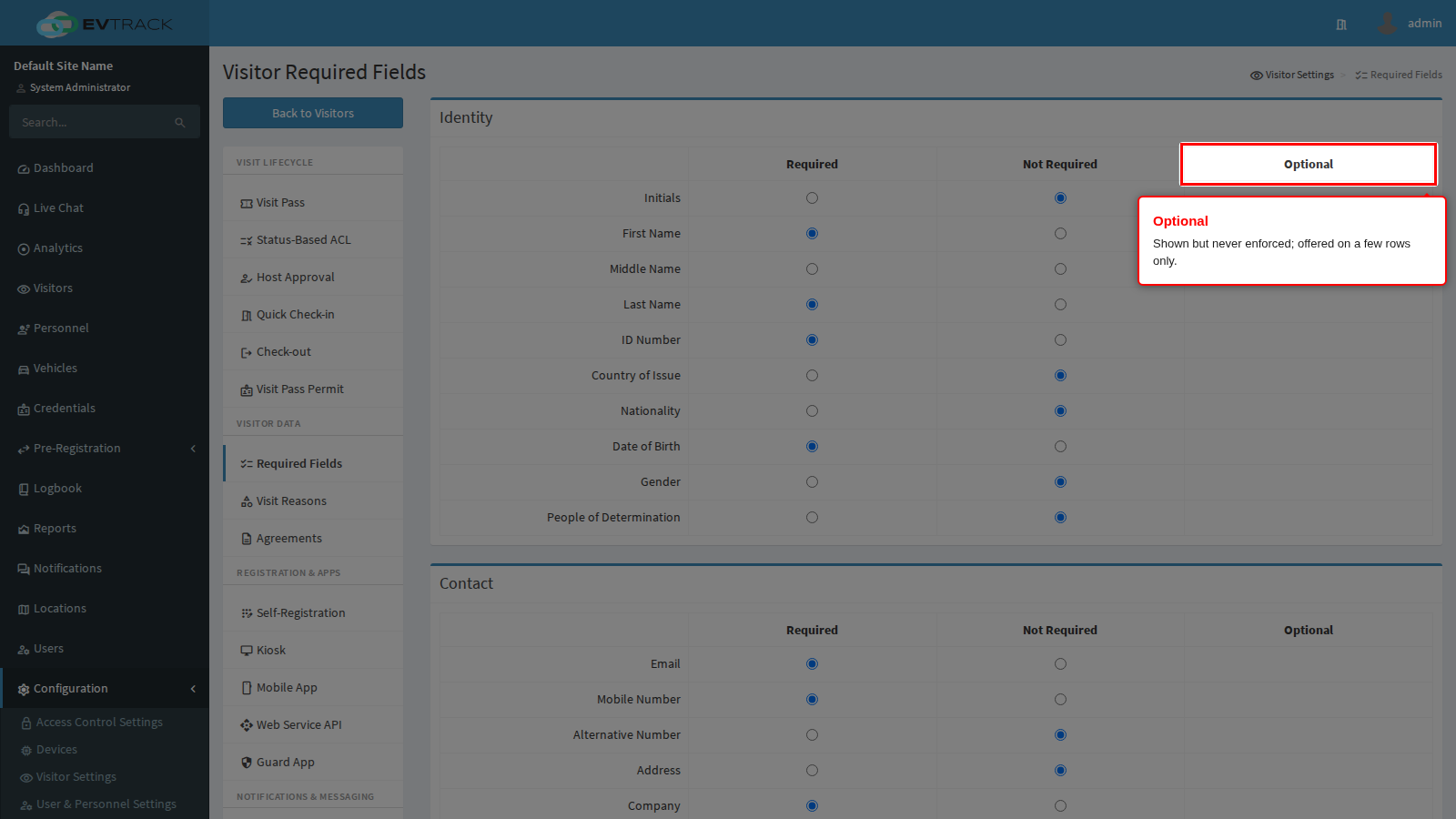
End state: you can now read any row on the page. The rest of this chapter explains what each row is for.
Identity
Who the visitor is, and which document proves it.
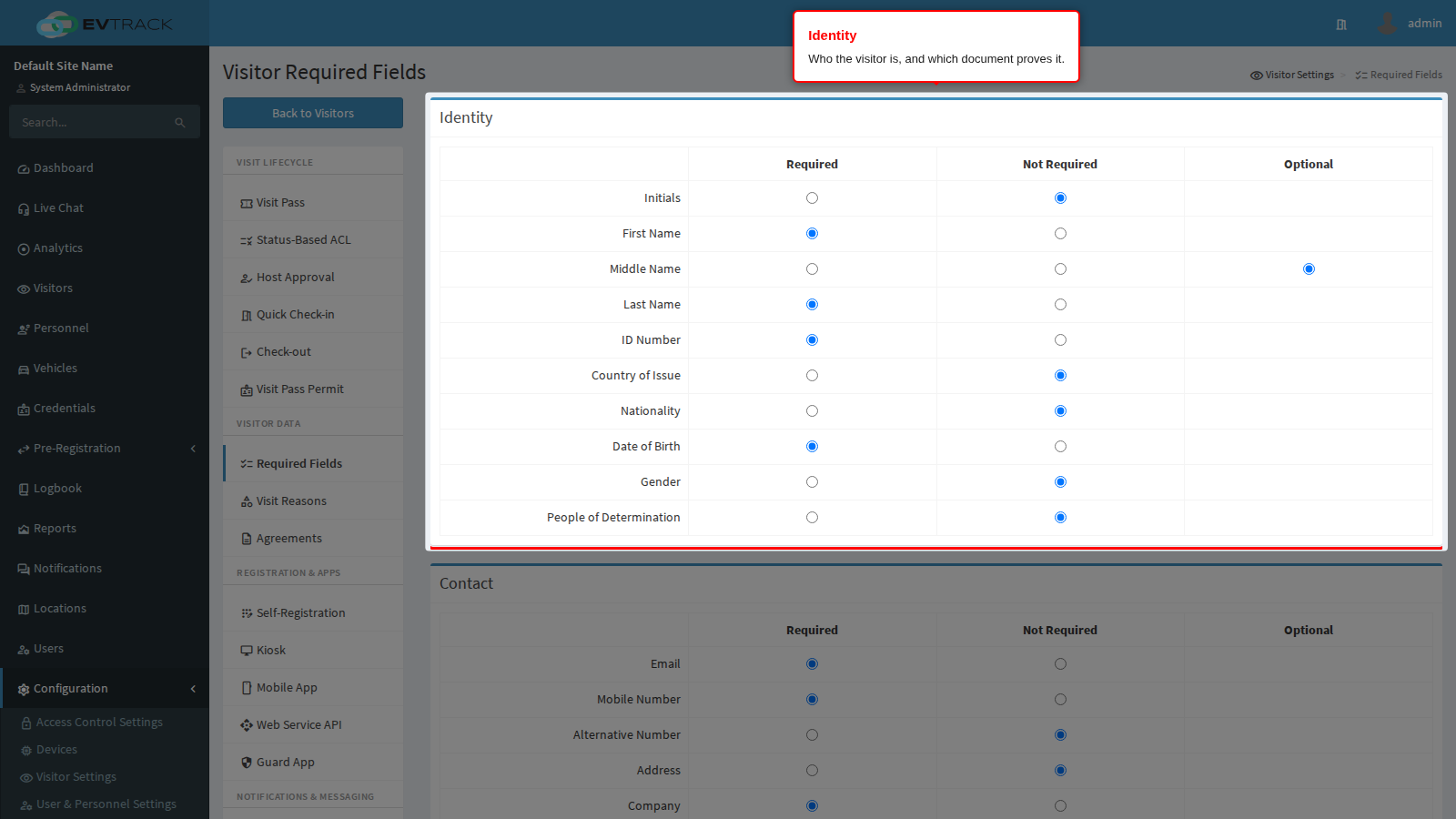
Initials adds a separate initials box on top of the first name. Most sites leave it off; turn it on where your records or your printed badges are formatted with initials.
First Name is Required out of the box, and should remain that way unless your process identifies visitors purely by document number. It is also part of the fallback used to recognise a returning visitor who has no ID number on file.
Middle Name is one of the rows that offers all three choices, so you can show it without demanding it.
Last Name is Required out of the box, for the same reasons as the first name.
ID Number is the identity or passport number, and it is the strongest signal the system has for recognising somebody who has visited before: a returning visitor is matched on this number first. Keeping it Required gives you the cleanest visitor history and the fewest duplicate records.
Country of Issue records which country issued the document the visitor presented. Turn it on where document checks depend on where the document came from, or where visitors routinely arrive with foreign passports.
Nationality records the visitor’s nationality, which is a different question from the country that issued their document. Sites with reporting obligations usually want both.
Date of Birth is Required out of the box. It is needed if you enforce a minimum age, and it is the second half of the fallback used to match a returning visitor when the ID number is blank.
Gender records the visitor’s gender. Leave it off unless you have a specific reason to hold it - it is personal information, and every field you do not collect is one you do not have to protect.
People of Determination asks the operator to record whether the visitor has accessibility needs, so reception can arrange assistance, an escort or a suitable route before the visitor arrives.
End state: the Identity section of the visitor form shows exactly the rows you set to Required or Optional. If you set every row in a panel to Not Required, the whole panel disappears from the visitor form.
Contact
How the visitor is reached, and who they represent.
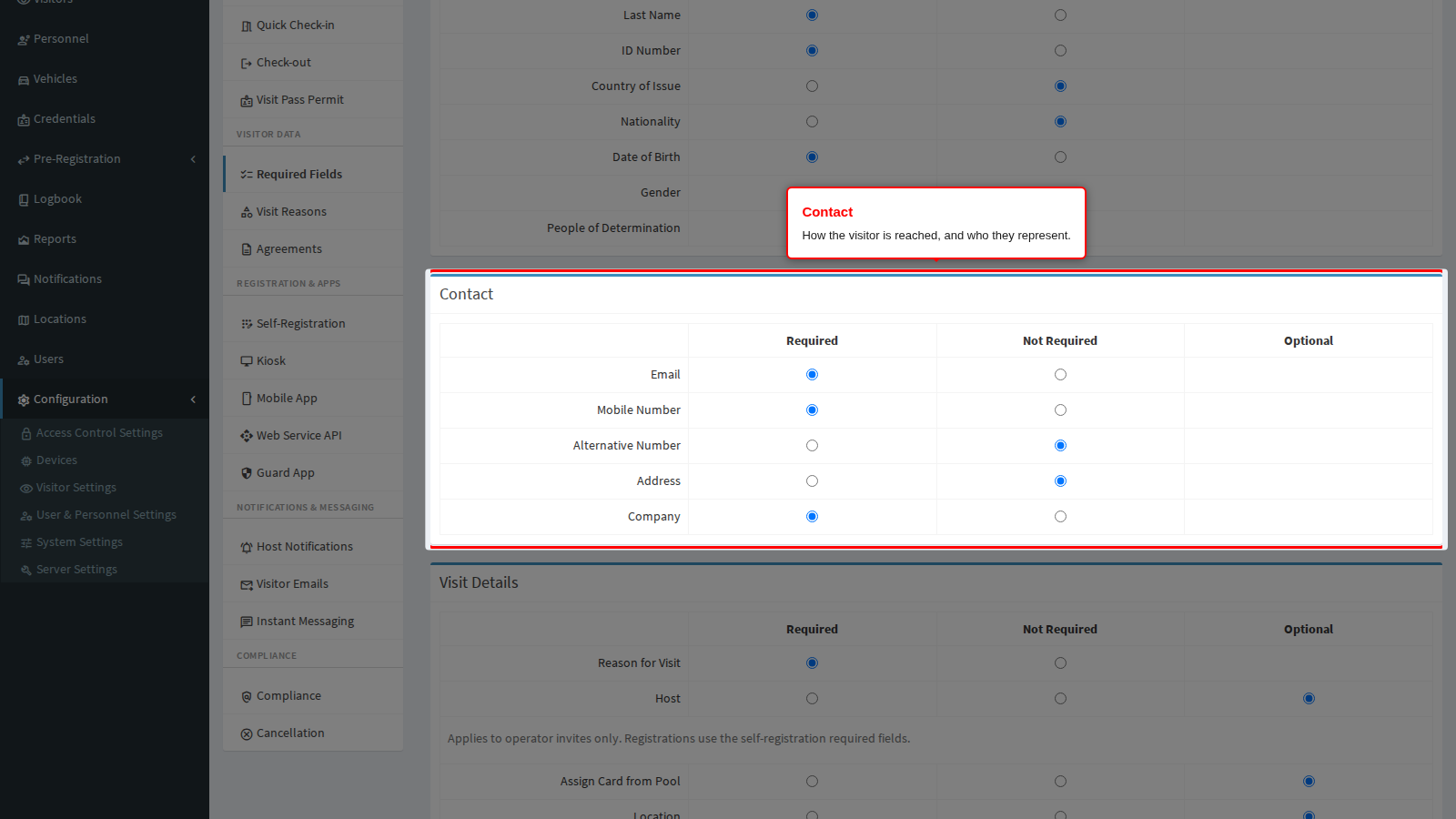
Email is Required out of the box. Without an address the visitor cannot be sent an invitation, a pre-registration link, a QR code or a check-out follow-up - those messages are simply not sent for that visitor. A matching email address on its own is also enough to flag a duplicate visitor record.
Mobile Number is Required out of the box, and it is what SMS and instant-message delivery depend on. A visitor with no mobile number never receives a PIN or a QR link by message, however the invite is configured. Like the email address, a matching mobile number on its own flags a duplicate.
Alternative Number is a second contact number, useful where a visitor’s mobile is unreachable inside the building.
Address is the visitor’s physical address. Sites that issue long-term contractor records usually want it; a busy reception desk usually does not.
Company records the organisation the visitor represents, and is what makes “which companies visited us this month” answerable.
End state: with Email and Mobile Number both Required, every visitor your operators capture can be reached by at least two channels, and duplicate records are caught early.
Visit Details
Why the visitor is here, who they are seeing, and where.
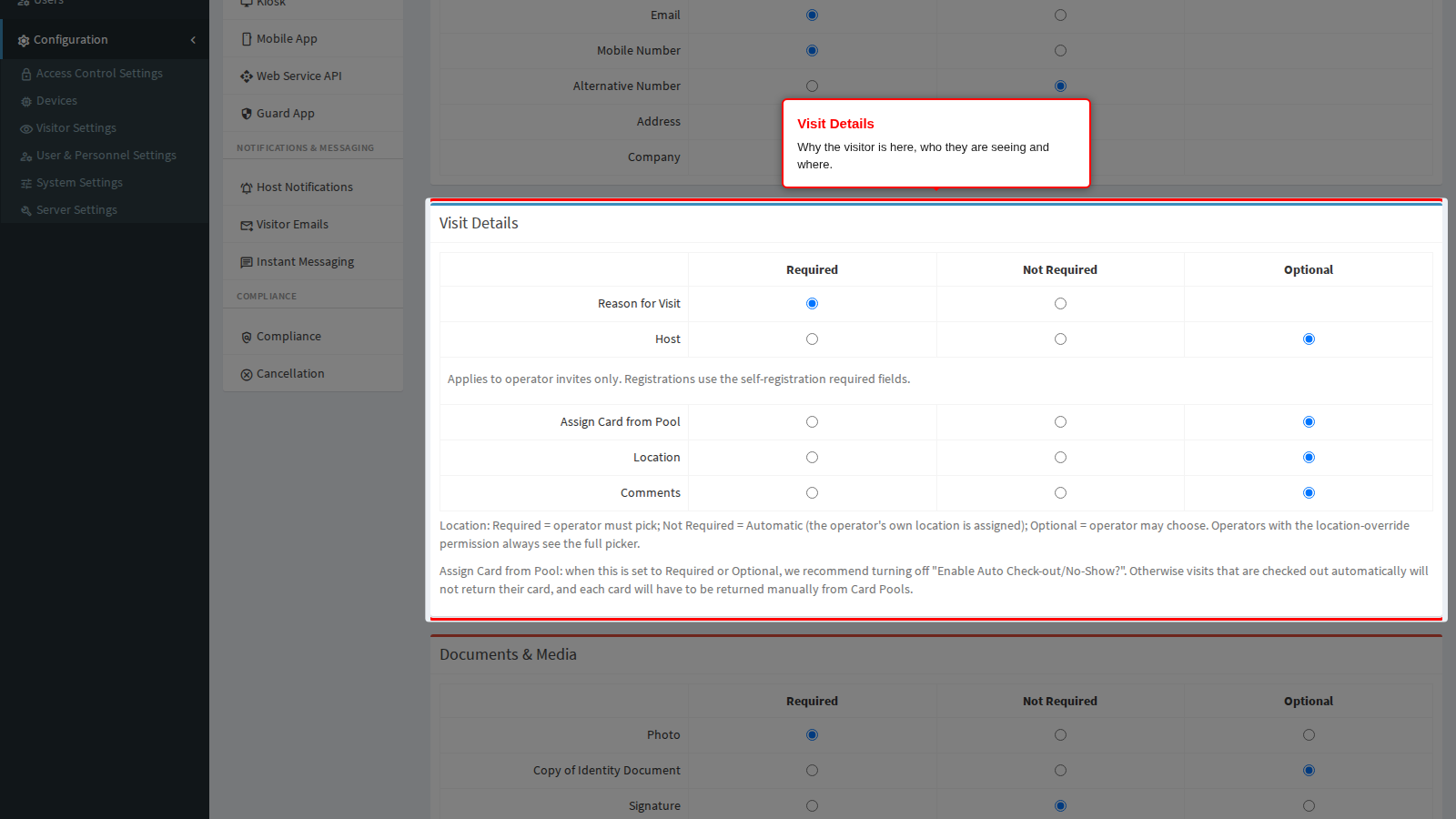
Reason for Visit is Required out of the box. The reason is more than a label: reasons can carry their own access rules, so the reason chosen here can decide which doors the visitor’s credential opens. The list of reasons is maintained under Visit Reasons.
Host decides whether the visit must name the person being visited. It behaves differently in each of the three states, and the difference matters:
- Optional (the default) shows the host picker with the operator already selected, so a visit captured without thinking is attributed to the operator who captured it.
- Required shows the picker with nobody pre-selected and refuses to save until a host is chosen. Where the visitor has been before, their previous host is offered as the suggestion.
- Not Required hides the picker; the host silently becomes the operator who captured the visit.
The picker is only shown at all to operators whose role allows them to assign a host. For every other operator the host is the operator, whatever this row says.
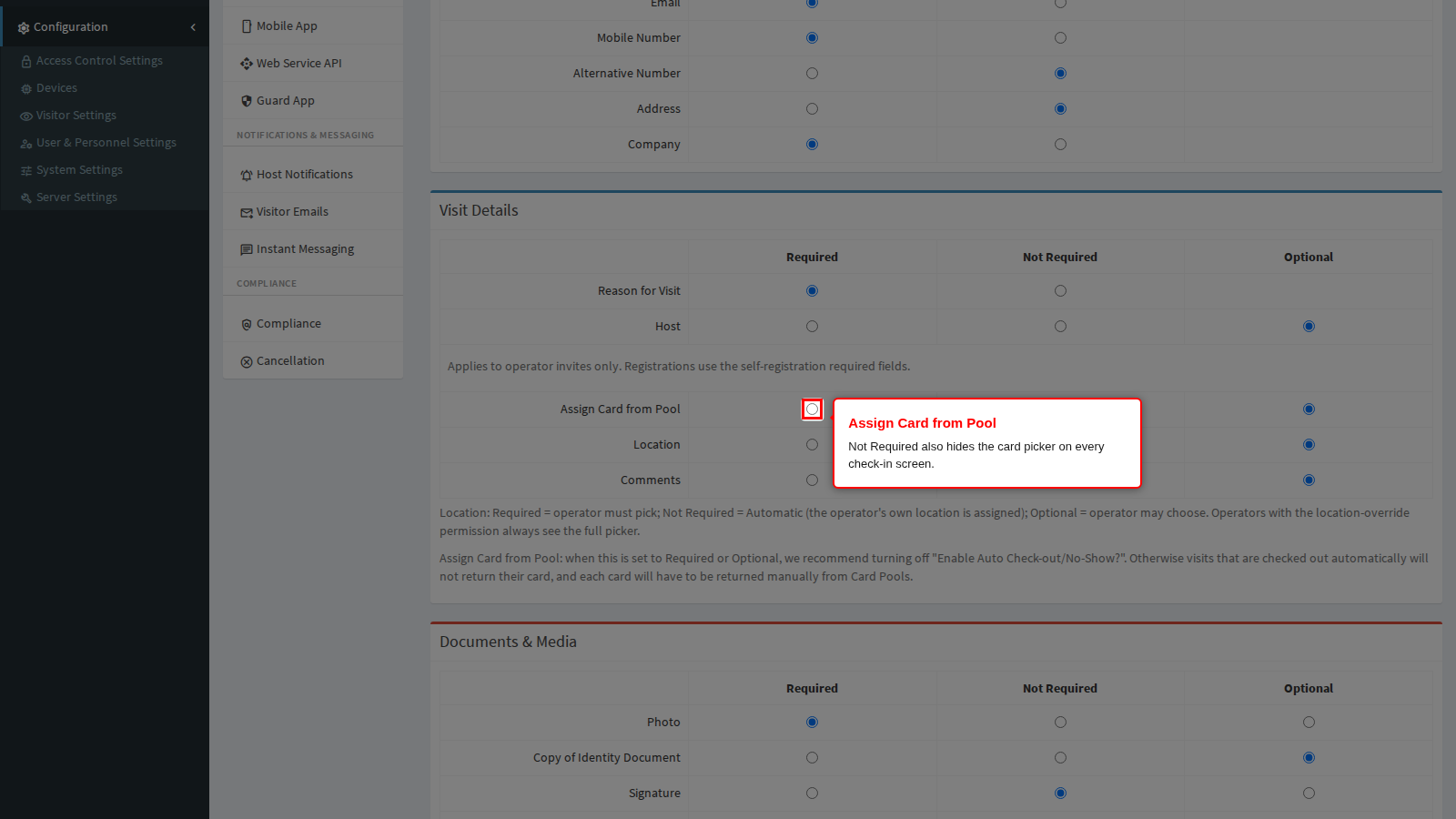
Assign Card from Pool controls issuing a physical card from a card pool at check-in. Not Required does more than hide one box: it switches the card-pool feature off across the check-in screens, so no card picker is offered anywhere. Optional offers the picker without insisting, and Required blocks the check-in until a card has been assigned.
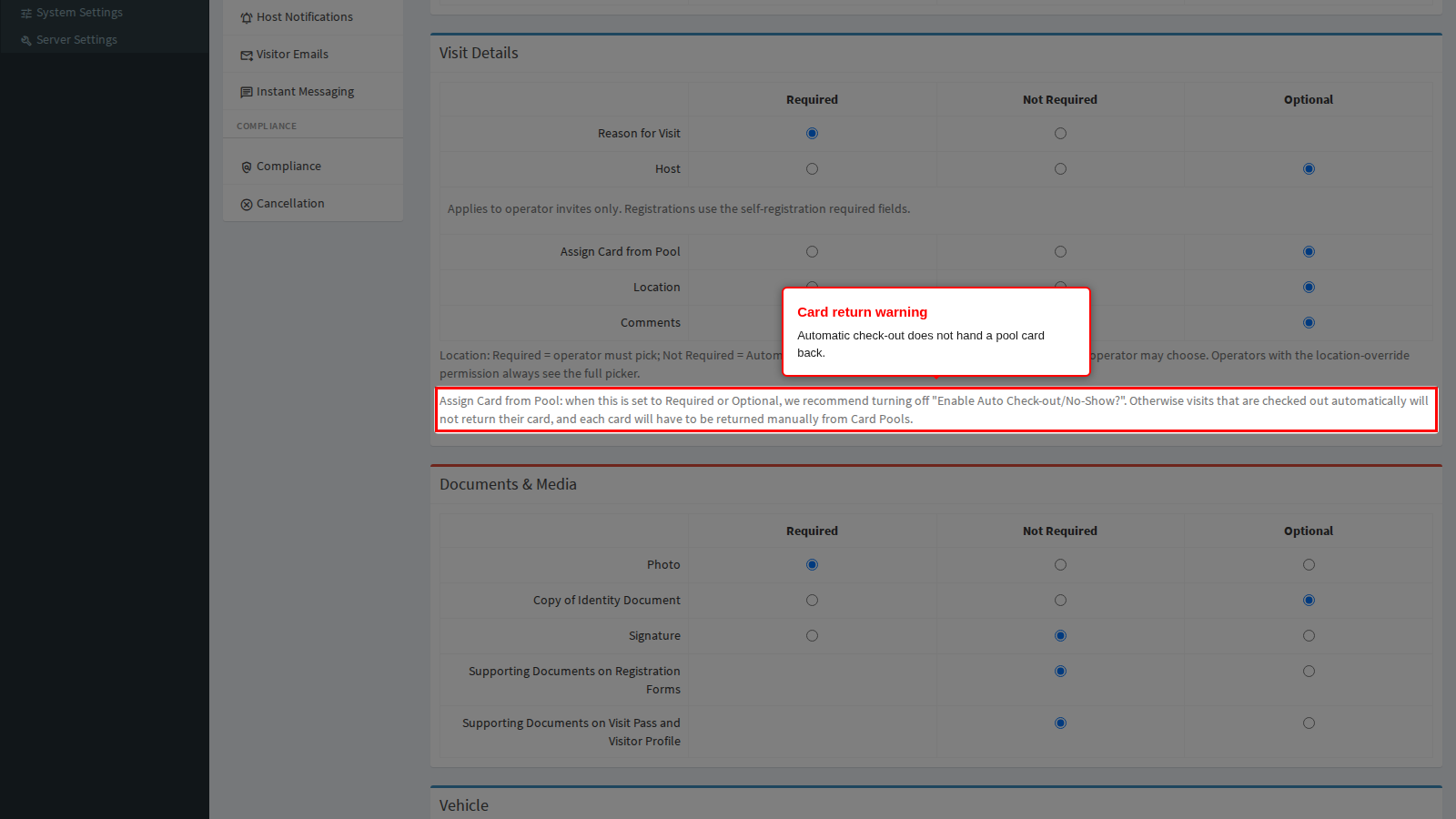
The warning printed under the table is worth acting on. If you set this row to Required or Optional, turn Enable Auto Check-out/No-Show off under Check-out. A visit that is checked out automatically overnight never hands its card back, so every one of those cards has to be returned by hand from Card Pools before it can be issued again.
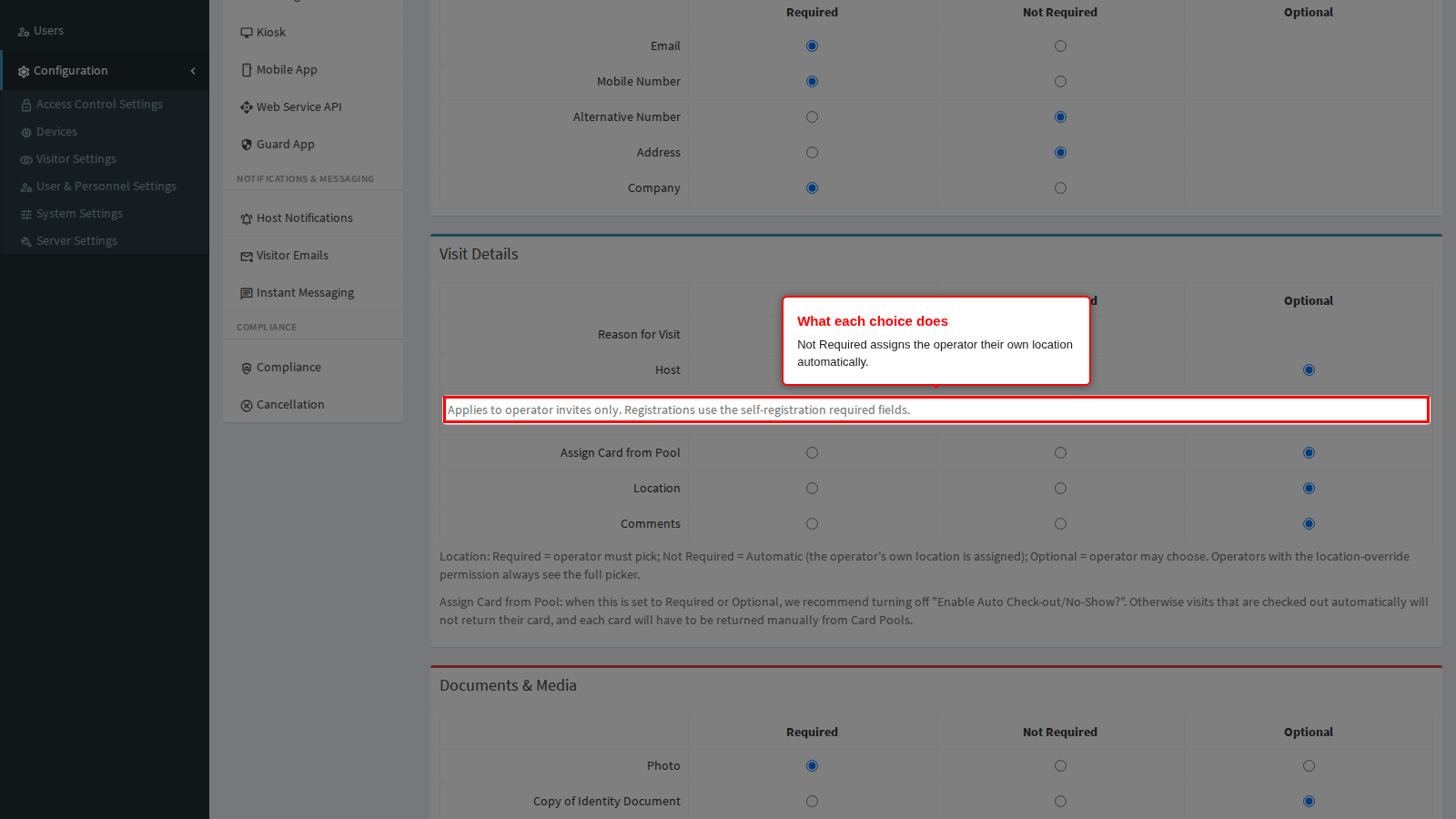
Location decides how the site is chosen for a visit, on the visitor’s invite panel, the visit pass update form and the dashboard quick check-in. Its three choices are worded like the others but do something slightly different:
- Required shows the full location picker and refuses to continue until a specific site is chosen. Leaving it on the “Inherited” entry counts as not choosing.
- Not Required hides the picker and assigns a site automatically: the operator’s own location, or the location marked as the default for the system if the operator has none.
- Optional shows the picker with the “Inherited” entry available, so the operator can either choose a site or accept the automatic one.
Operators whose role carries the location-override permission always see the full picker regardless of this row - it is the escape hatch that lets a supervisor file a visit against a site they do not normally work at.
Comments is a free-text note about the visit, which the next operator to open the record will read. Optional out of the box.
End state: every visit an operator captures now carries the reason, host and site your reporting depends on, without the operator having to remember to fill them in.
Documents & Media
The three rows that always offer all three choices, because “show the panel but do not insist” is a genuinely useful setting for a camera, a scanner or a signature pad.
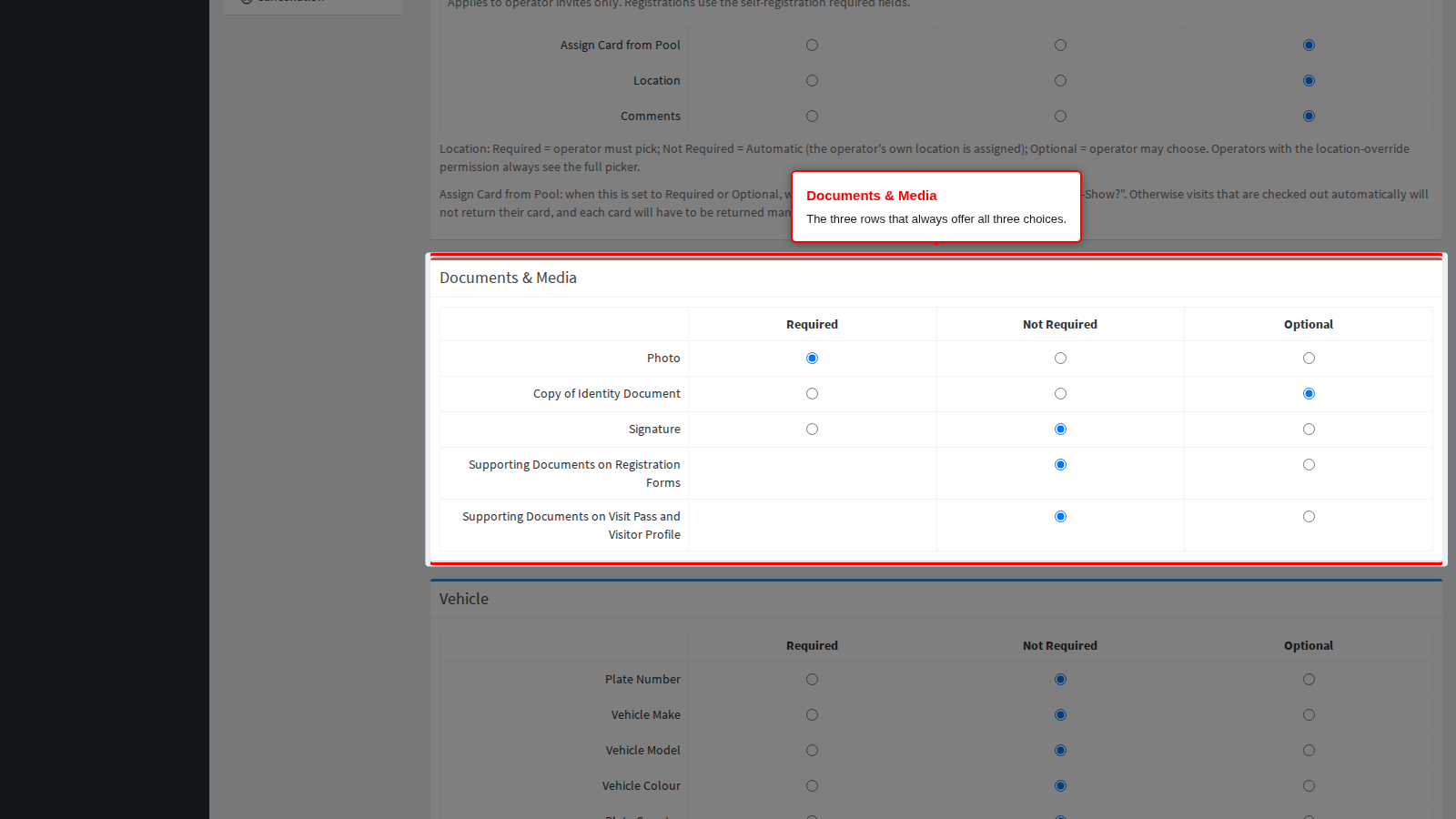
Photo is Optional out of the box, which means the capture panel is always there for an operator who has a moment to use it. A photo is what makes a printed badge recognisable and what face verification compares against, so set it to Required at any site that prints badges or uses face readers. Set it to Not Required and the photo panel disappears from the form entirely.
Copy of Identity Document stores a scan or photograph of the visitor’s ID or passport against their record, for sites that must be able to prove afterwards who they admitted. Remember that this is personal information you are then responsible for - check what your retention rules say under Privacy before turning it on.
Signature captures the visitor’s signature on screen. Sites that ask visitors to accept site rules in person usually pair this with an agreement; see Agreements.
End state: the media panel on the visitor form shows exactly the capture widgets you enabled, and a Required one cannot be skipped.
Vehicle and Parking
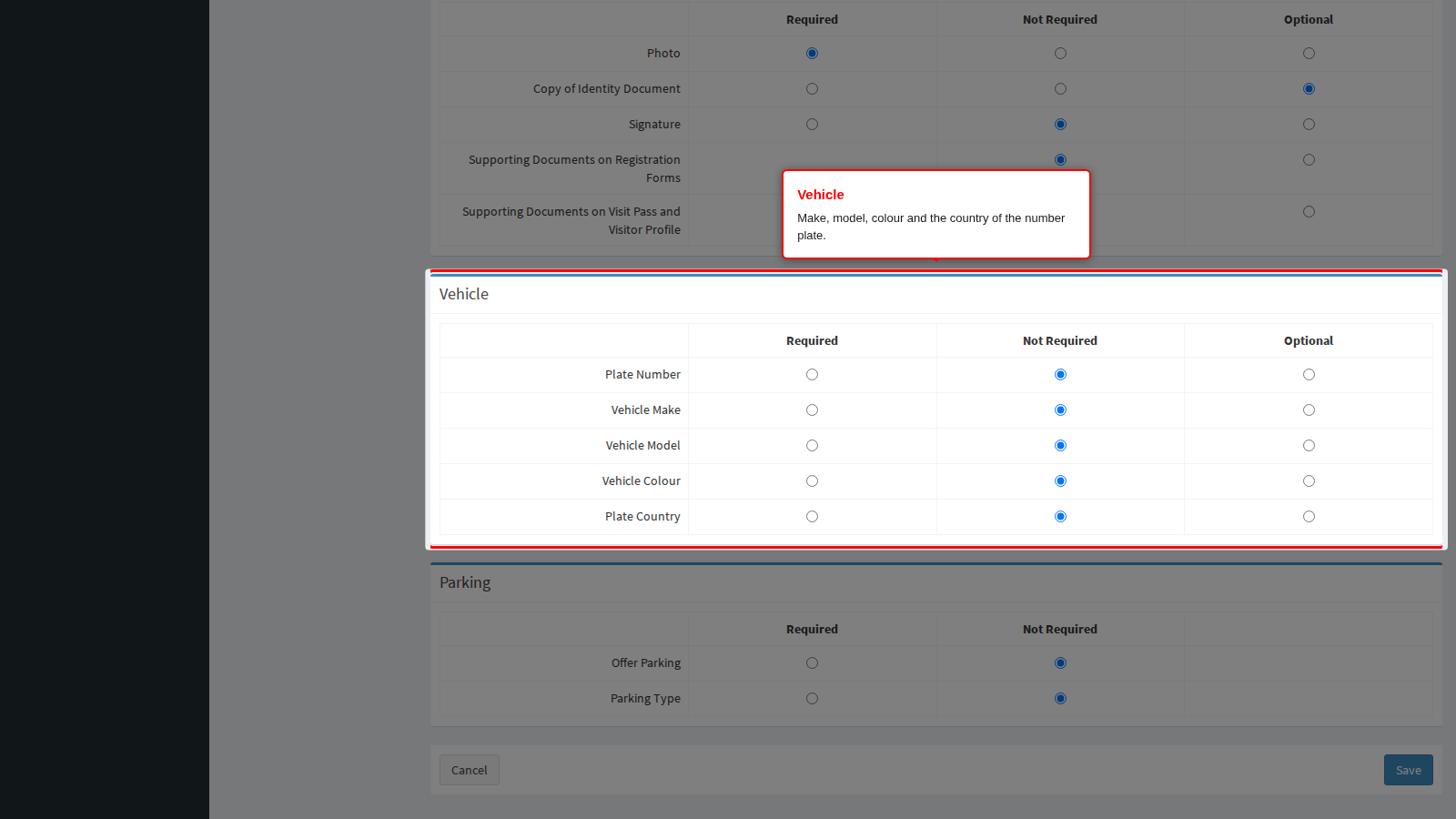
Vehicle covers the make, model, colour and the country of the number plate. Plate Country matters where number-plate cameras read plates from more than one country, since the same plate text can be issued in two places.
Parking covers whether the visitor needs parking, and which type of bay - a normal bay, an electric-vehicle bay or an accessible bay.
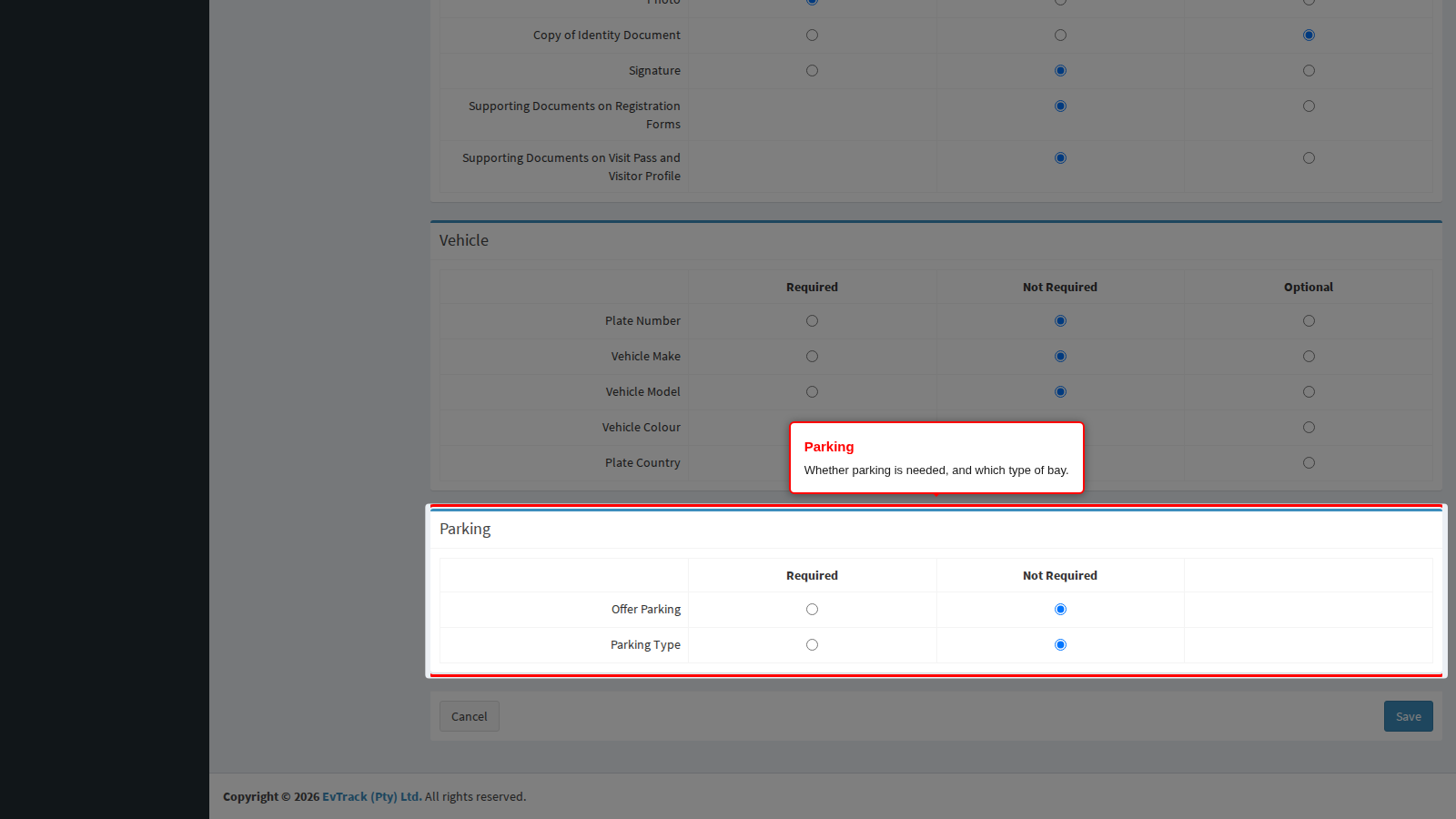
What these two panels do today. Their settings are stored and kept, but the admin console’s own visitor form does not currently show or demand vehicle and parking fields on the basis of them - an operator records a visitor’s vehicles on the Vehicles tab of the visitor’s record instead, which is always available. The equivalent rows on the Self-Registration Required Fields tab are the ones that decide whether a visitor is asked for vehicle and parking details, and those do take effect. Set these two panels to describe your intended policy by all means, but do not expect them to change what an operator sees.
Step 3: Save
One Save button at the foot of the page applies all six panels together. Cancel discards everything you changed since the page was opened and reloads the saved values.
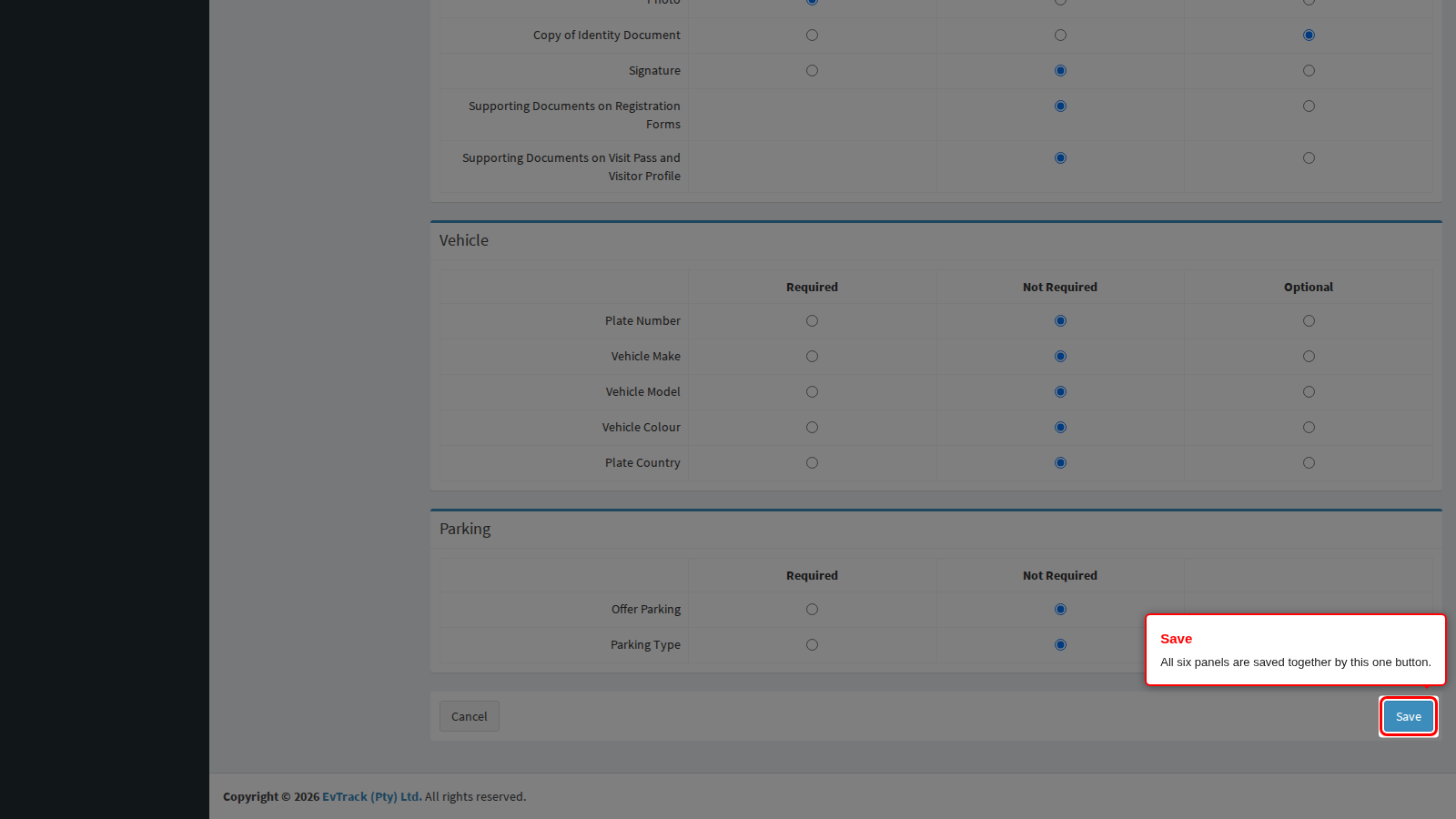
End state: a green confirmation appears at the top of the page. Open Visitors > Add Visitor in another tab to see the form as your operators will now see it.
What each field controls
| Field | Panel | Choices | What it affects |
|---|---|---|---|
| Initials | Identity | Required / Not Required | A separate initials box on the visitor form |
| First Name | Identity | Required / Not Required | Visitor name; part of the duplicate match when no ID number is held |
| Middle Name | Identity | All three | Middle name box |
| Last Name | Identity | Required / Not Required | Visitor surname; part of the duplicate match |
| ID Number | Identity | Required / Not Required | The primary duplicate match for returning visitors |
| Country of Issue | Identity | Required / Not Required | Which country issued the visitor’s document |
| Nationality | Identity | Required / Not Required | The visitor’s nationality |
| Date of Birth | Identity | Required / Not Required | Age rules; part of the duplicate match when no ID number is held |
| Gender | Identity | Required / Not Required | Recorded on the visitor profile |
| People of Determination | Identity | Required / Not Required | Whether reception is told the visitor needs assistance |
| Contact | Required / Not Required | Every email the visitor could receive; flags duplicates on its own | |
| Mobile Number | Contact | Required / Not Required | SMS and instant-message delivery; flags duplicates on its own |
| Alternative Number | Contact | Required / Not Required | Second contact number |
| Address | Contact | Required / Not Required | Visitor’s physical address |
| Company | Contact | Required / Not Required | Reporting by visiting organisation |
| Reason for Visit | Visit Details | Required / Not Required | Reason-based access rules and visit reporting |
| Host | Visit Details | All three | Whether the visit must name a host, and who it defaults to |
| Assign Card from Pool | Visit Details | All three | Whether the card-pool picker exists at all, and whether check-in waits for a card |
| Location | Visit Details | All three | Whether the operator picks the site or it is assigned automatically |
| Comments | Visit Details | All three | Free-text visit note |
| Photo | Documents & Media | All three | Badge printing and face verification |
| Copy of Identity Document | Documents & Media | All three | Stored scan of the visitor’s document |
| Signature | Documents & Media | All three | On-screen signature capture |
| Vehicle Make / Model / Colour | Vehicle | Required / Not Required | Stored policy; see the note above |
| Plate Country | Vehicle | Required / Not Required | Stored policy; see the note above |
| Parking Required / Parking Type | Parking | Required / Not Required | Stored policy; see the note above |
The other registration channels
Each of the remaining ways a visitor can be registered keeps its own field policy, on its own page, using its own wording. None of them reads the page you have just been working on. They are the rows of the map at the top of this chapter.
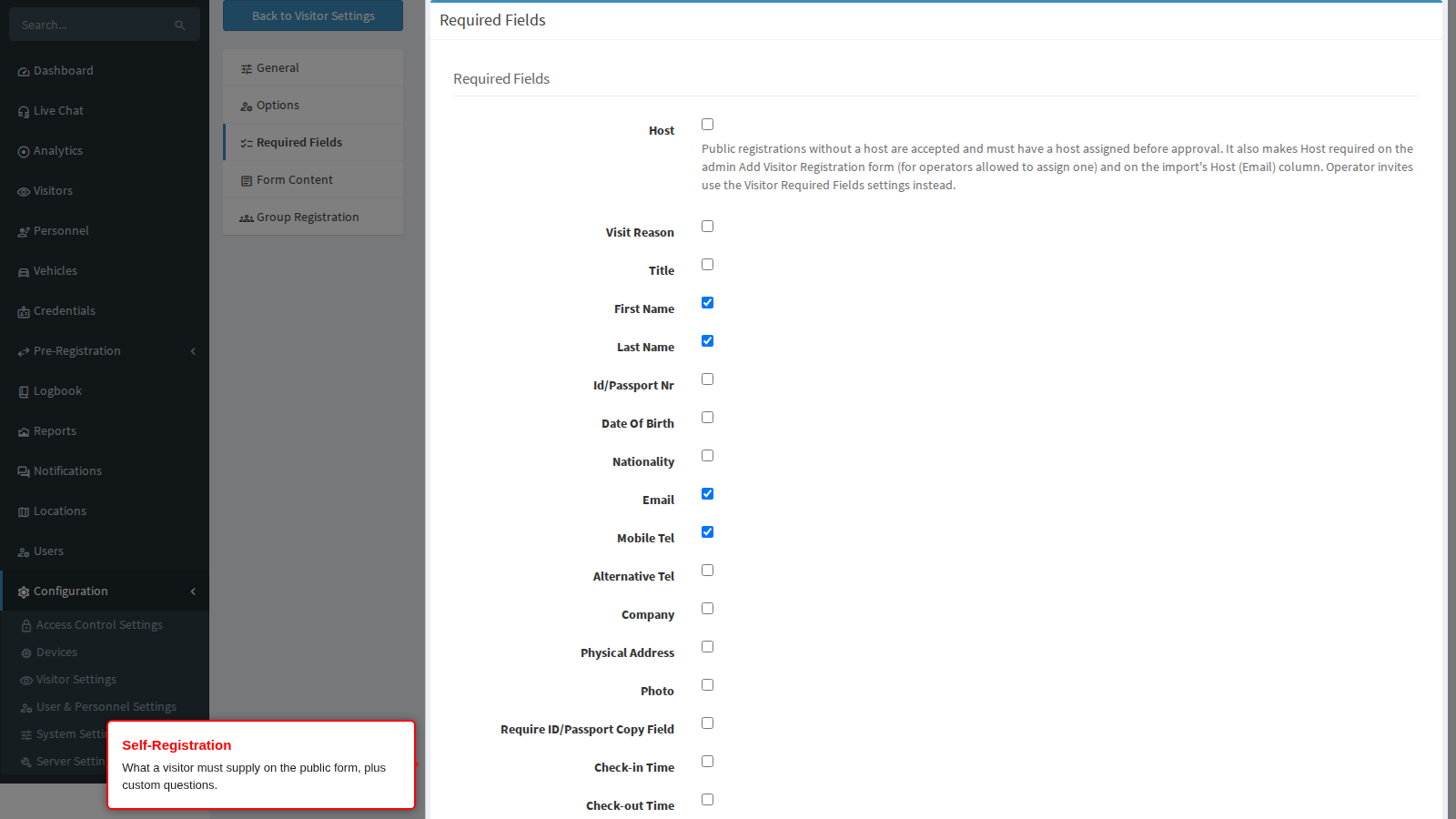
Self-Registration decides what a visitor must supply on your public registration form, and it is also the only place where you can invent entirely new questions of your own. Those custom questions then appear in an Additional Fields panel on the registration an operator reviews. Open Configuration > Visitor Settings > Self-Registration > Required Fields.
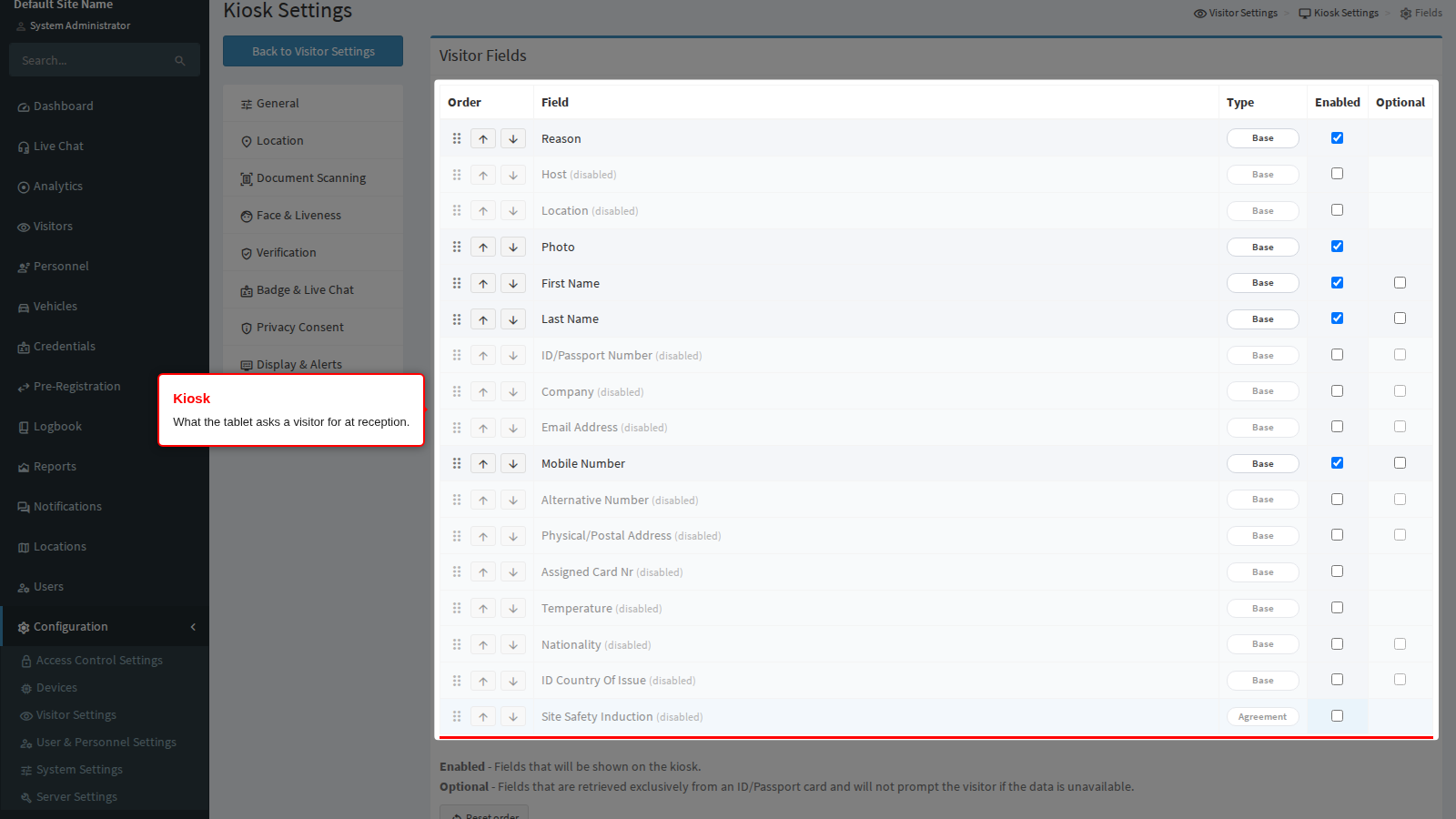
Kiosk decides what the reception tablet asks a walk-in visitor for, with an extra Optional column meaning “accept this from a document scan but never demand it”. Open Configuration > Visitor Settings > Kiosk > Fields.
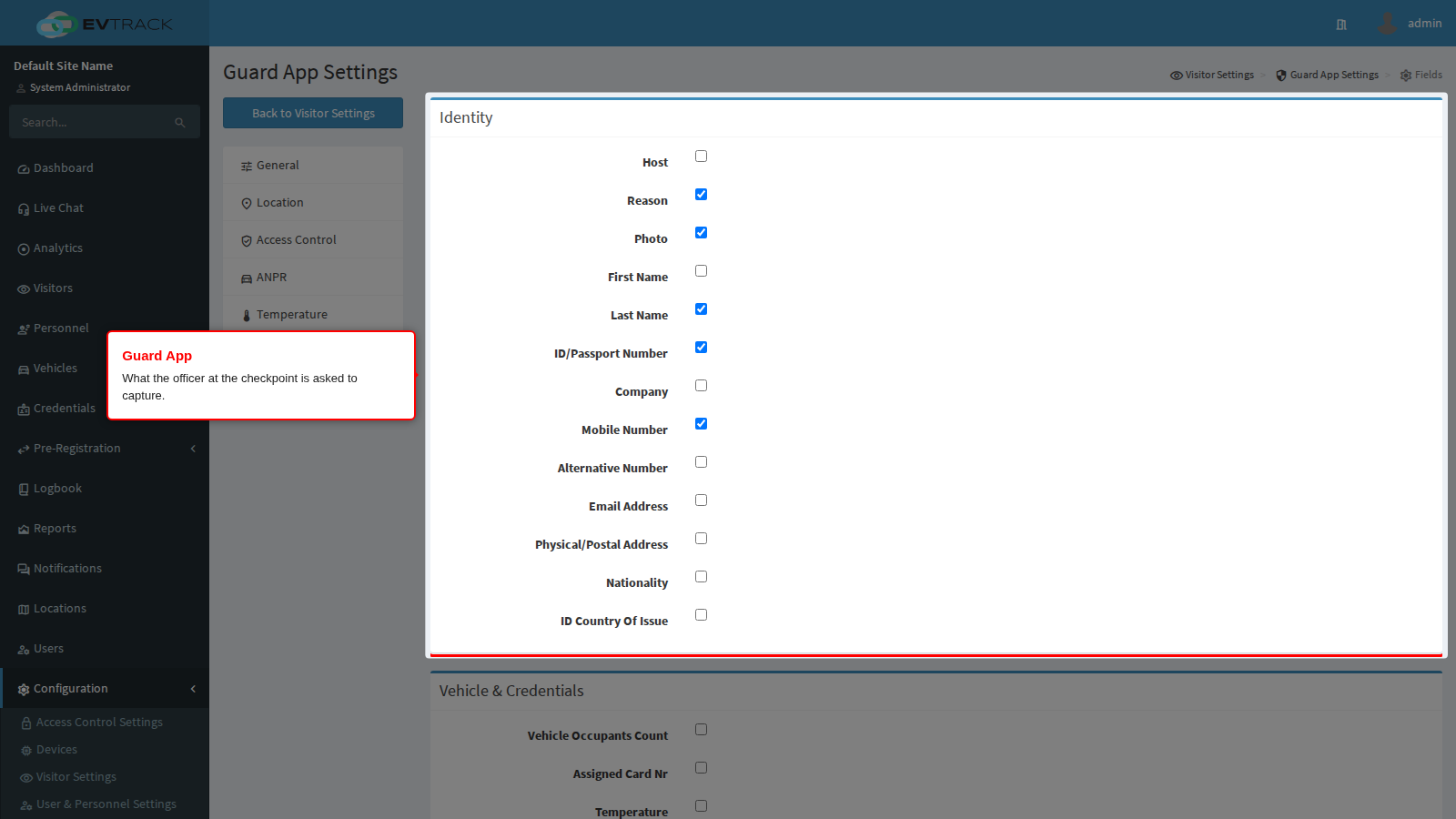
Guard App decides what the officer at the checkpoint is asked to capture. Open Configuration > Visitor Settings > Guard App > Fields.
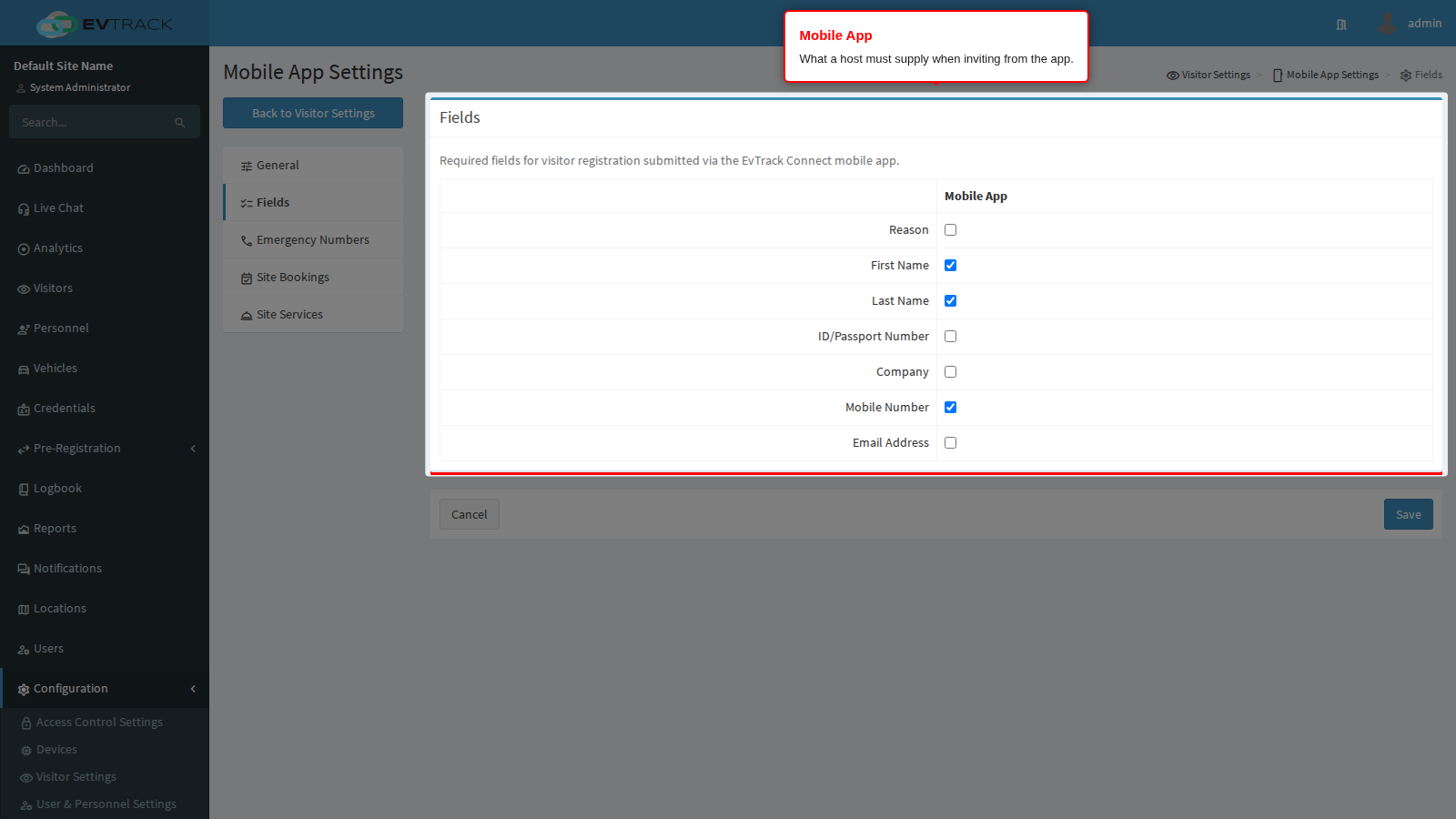
Mobile App decides what a host must supply when they invite somebody from the mobile app. Open Configuration > Visitor Settings > Mobile App > Fields.
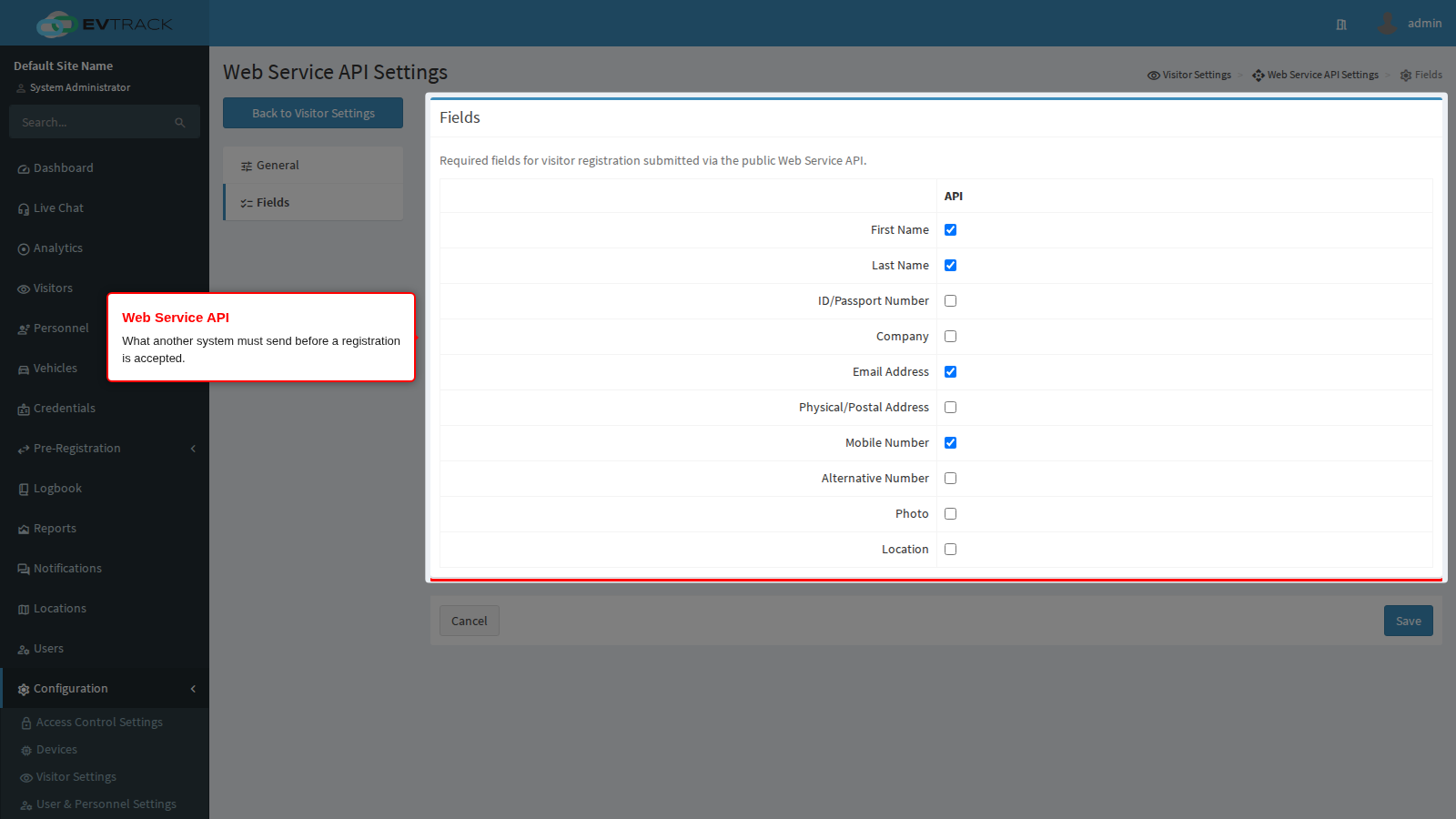
Web Service API decides what another system must include before a registration it submits is accepted; a submission missing a required field is rejected outright. Open Configuration > Visitor Settings > Web Service API > Fields.
Group members are the seventh policy and the one most often missed, because it does not live on a page of its own: Group Member Required Fields sits on Configuration > Visitor Settings > Self-Registration > Group Registration, and it decides what each member of a group is asked for. The group’s leader is governed by the ordinary Self-Registration list instead. See Group Pre-Registration.
Wix bookings have no field policy. A booking accepted from Wix is not checked against any of these pages, so anything you need from those visitors has to be captured when the visit is processed. See Wix Bookings.
Duplicate visitors and required fields
The two settings interact. A returning visitor is matched on their ID or passport number first, falling back to first name, last name and date of birth when no ID number is held; a matching email address or mobile number is enough to flag a duplicate on its own. So the more of ID Number, Mobile Number and Email you keep Required, the fewer duplicate visitor records you accumulate. The matching strategy itself - including whether email and mobile matching is used, and whether similar-sounding names are treated as matches - is configured under Configuration > System Settings > Validation.
What next
- Self-Registration for the public form: its links and QR codes, what visitors must supply, the form wording, group registration and the custom-question builder.
- Kiosk for the reception tablet, including its own field list and field order.
- Guard App for the officer at the checkpoint.
- Web Service API for registrations submitted by another system.
- Visit Reasons for the list behind the Reason for Visit field.
- User Registration Fields for the equivalent policy used by staff and contractor self-registration.