When someone is standing at the desk and all you have is a name, a card number or a number plate, the search box finds them without you having to guess which module they are in. It looks across the whole database at once.
Before you start: you need an account with search rights. What search can find also depends on your other permissions, one kind of record at a time: if you may not see personnel, personnel never appear in your results.
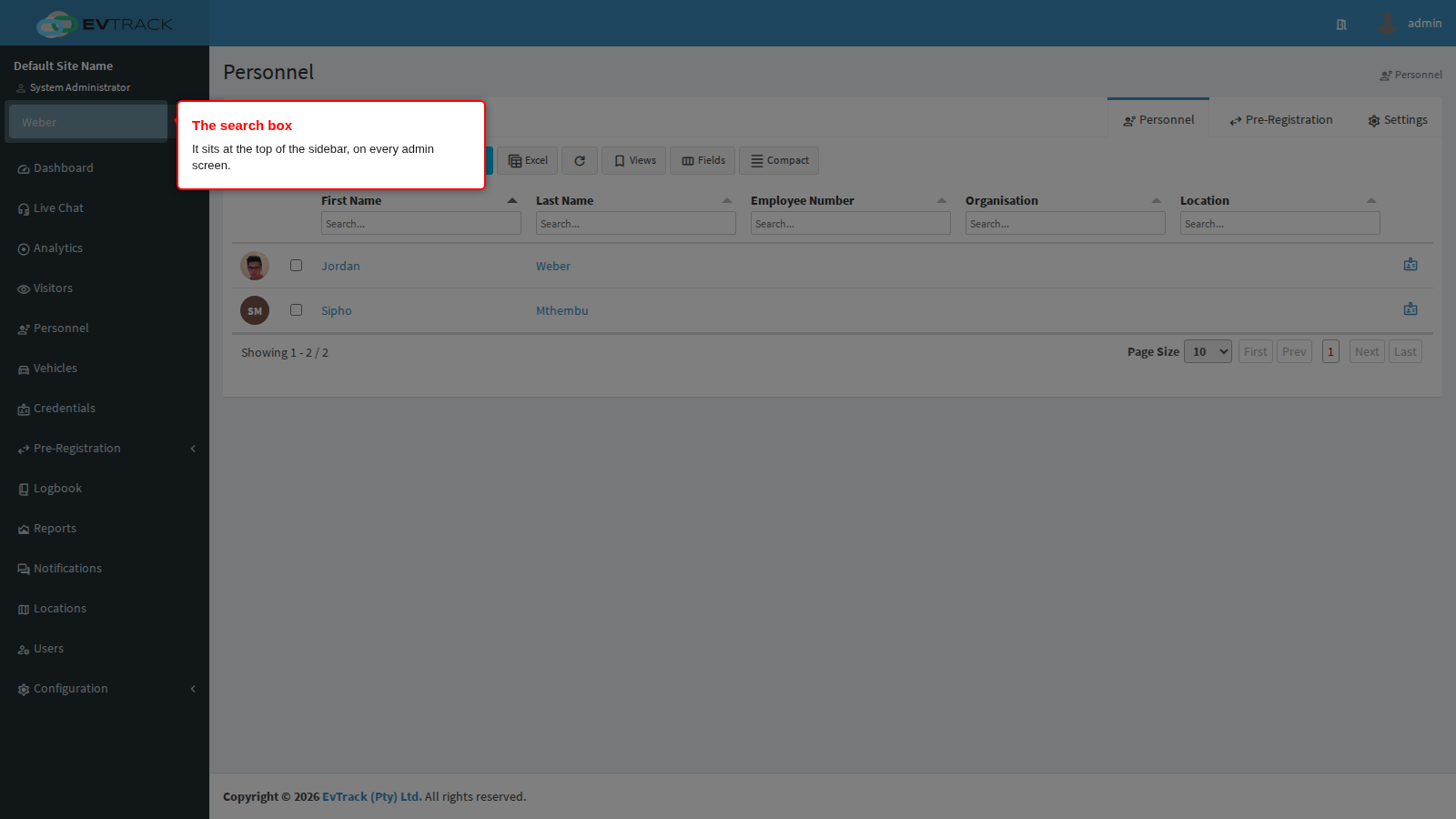
Step 1: Find the search box
The box sits at the top of the left sidebar, under your name, and it is on every admin screen. Type your keyword into it.
Step 2: Run the search
Click the magnifier beside the box, or press Enter. The results page opens.
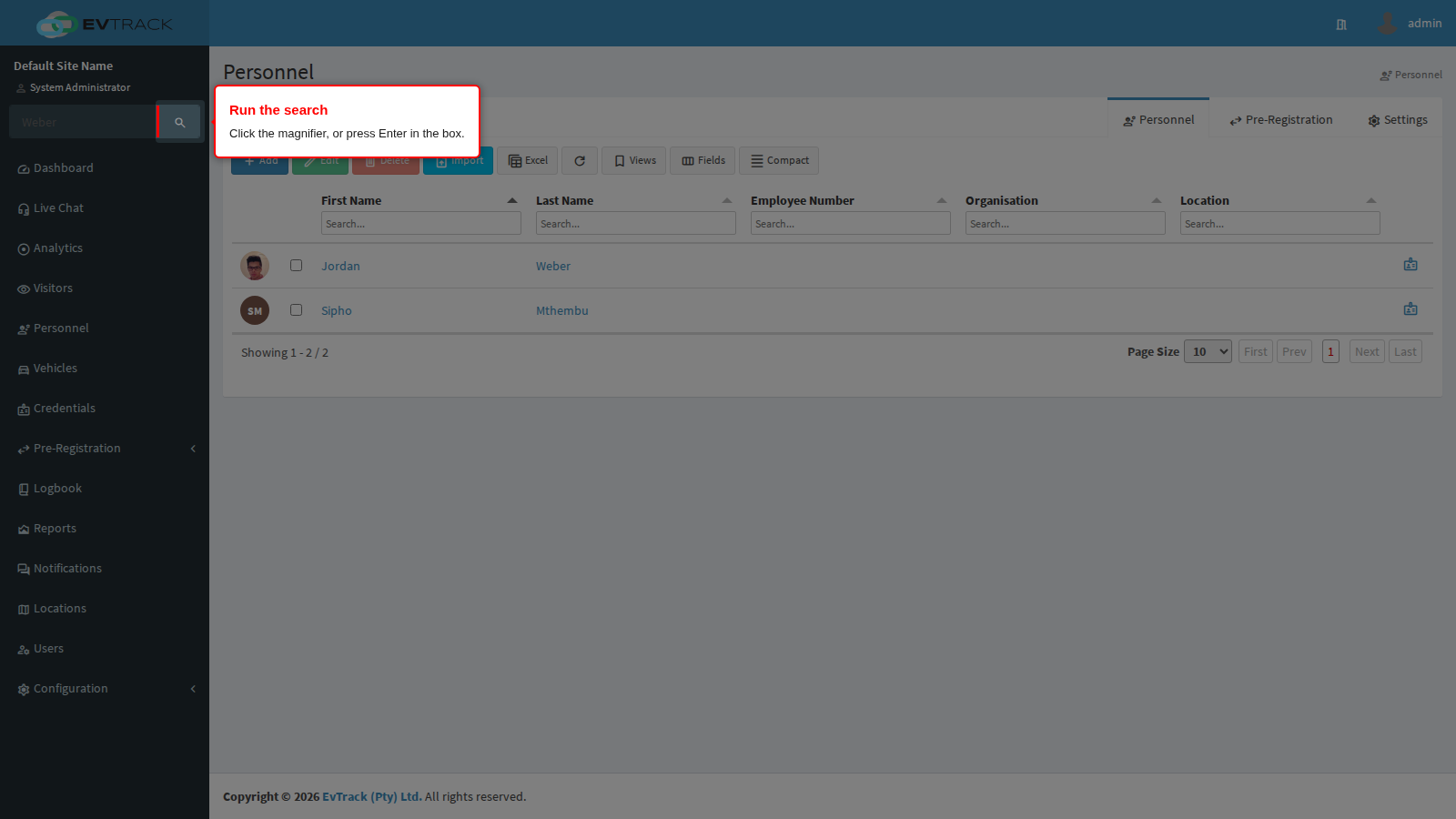
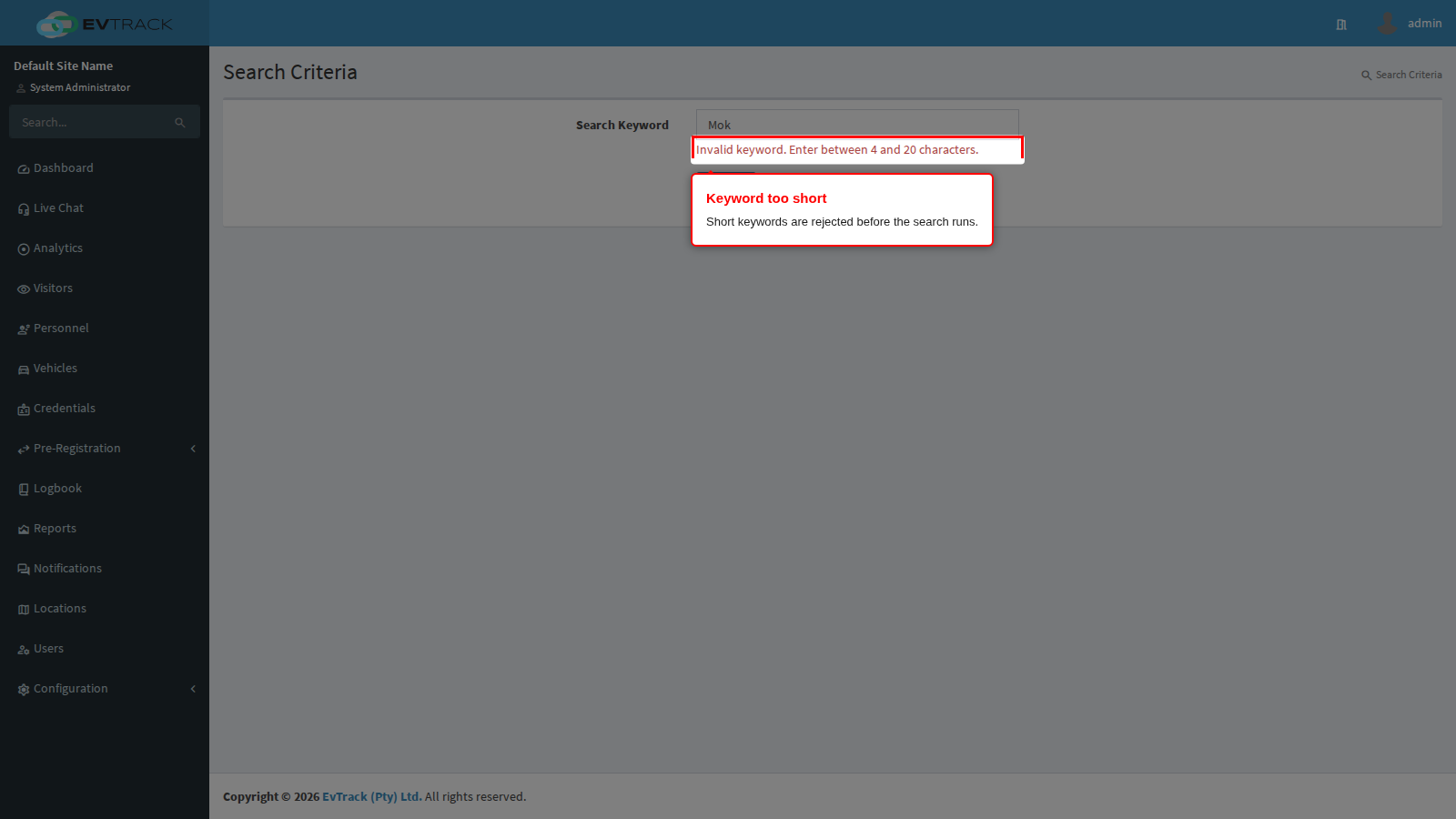
The keyword must be at least 4 characters and no more than 20. Anything shorter is rejected before the search runs (step 6). There are no wildcards to learn: a partial word is enough, so Moko finds Weber.
Step 3: Read the results
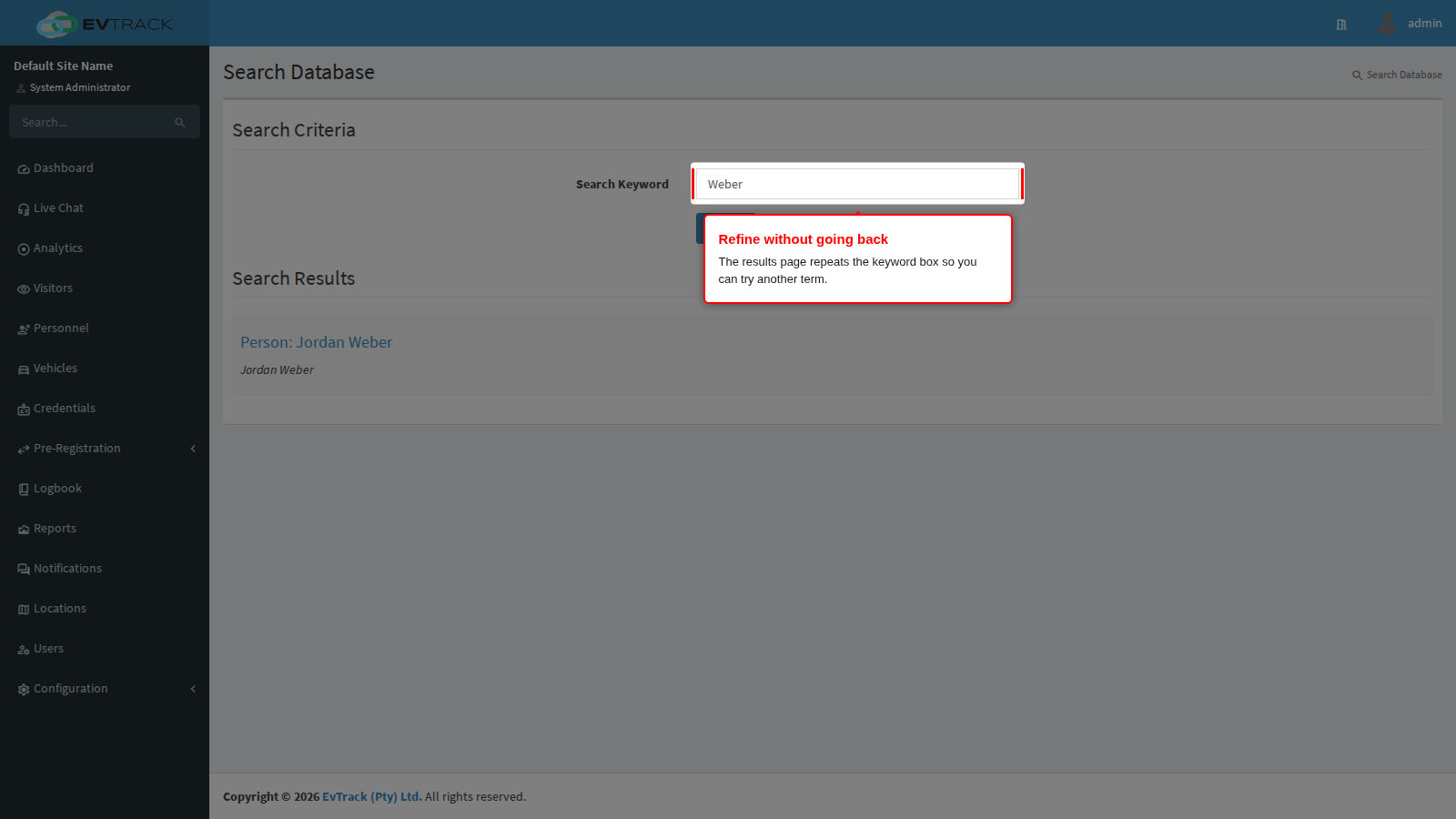
Results come back as one list, not as separate panels per record type. Every hit is labelled with the kind of record it came from, so you can tell at a glance what you are looking at:
- User: a system user account
- Person: a personnel record
- Visitor: a visitor record
- Vehicle: a vehicle record
- Credential: a card, tag, PIN or other credential
- Event: something the system recorded
Under each one is a short description line to help you pick the right record when several people share a surname.
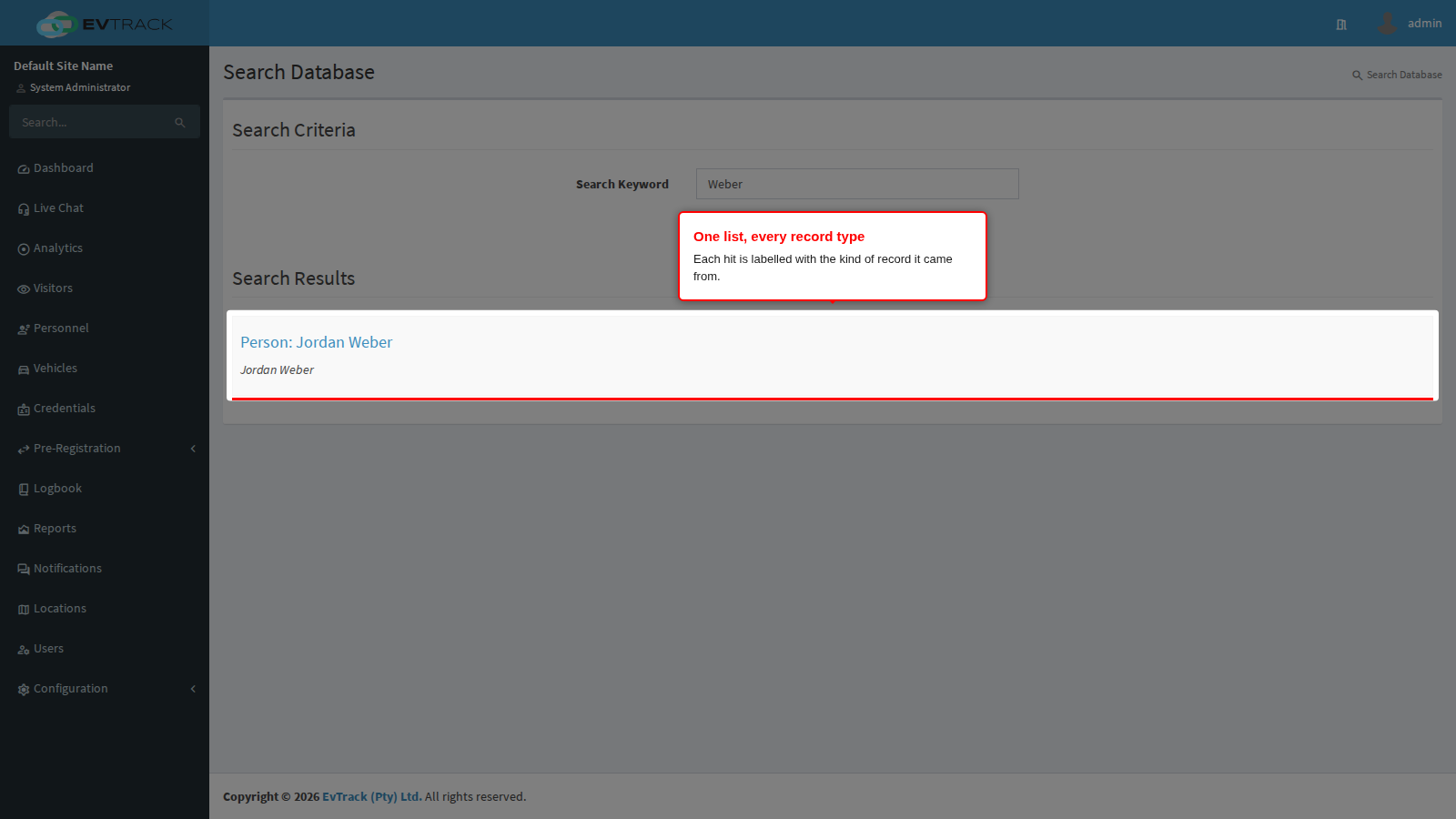
If nothing matches, the list simply comes back empty. There is no “not found” message, so an empty results page means no record matched your keyword.
What each keyword is matched against
Knowing what is searched saves you a second attempt:
- Users - name, surname, username, email address, identity number, mobile, office and home numbers, and the comments on the account.
- Personnel - title, name, middle name, surname, suffix, nickname and identity number.
- Visitors - first name, last name and company. A mobile number is matched when your keyword contains at least 8 digits in a row, and an email address is matched when the keyword is longer than 6 characters, so search a full address rather than the first few letters. Unless your account may see all visitors, only the visitors you captured are searched.
- Vehicles - number plate, VIN, engine number, licence and document numbers, plus type, make, model, colour and comments.
- Credentials - the credential’s unique identifier (the card or tag number) and its comments.
- Events - the credential number on the event and any custom fields captured with it.
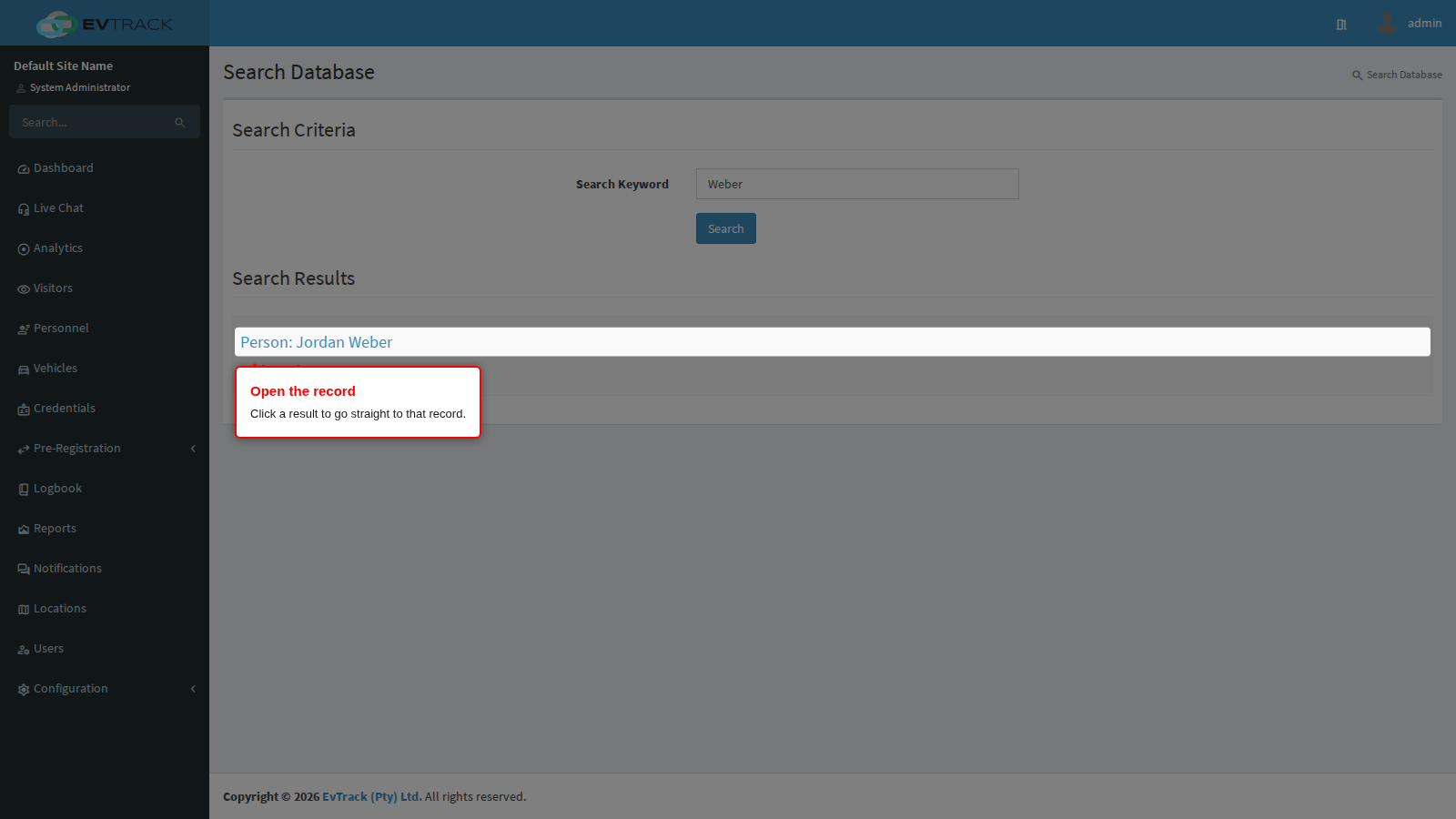
Step 4: Open a record from a result
Click a result and you go straight to that record: a user, personnel or visitor result opens their profile, a vehicle result opens the vehicle, and a credential result opens the credential. From there you carry on as normal - edit the details, add a credential, check the visitor in.
Event results are the exception: they are shown for information and do not open anything.
Step 5: Try another keyword
The results page repeats the keyword box above the list. Correct the keyword there and search again without going back to the previous screen.
Step 6: When the keyword is too short
Fewer than 4 characters and you are sent back to the search page with the keyword rejected and an explanation under the box. Nothing was searched. Type more of the name, number or plate and try again.
Related pages
- The Visitor Dashboard - filtering visits by visitor, host or location
- Add Visitor - capturing someone search could not find
- Check-in and Check-out - the quick lookup by mobile, pass or ID at the desk