Some sites cannot let a host book whoever they like. A regulated plant, a government building or a data centre needs a named person to look at each new visitor and say yes or no before the visit is confirmed. Compliance review is that step: with it on, a visitor registration is held in a queue until a designated compliance officer approves it, and only then does it become a real visit with a pass.
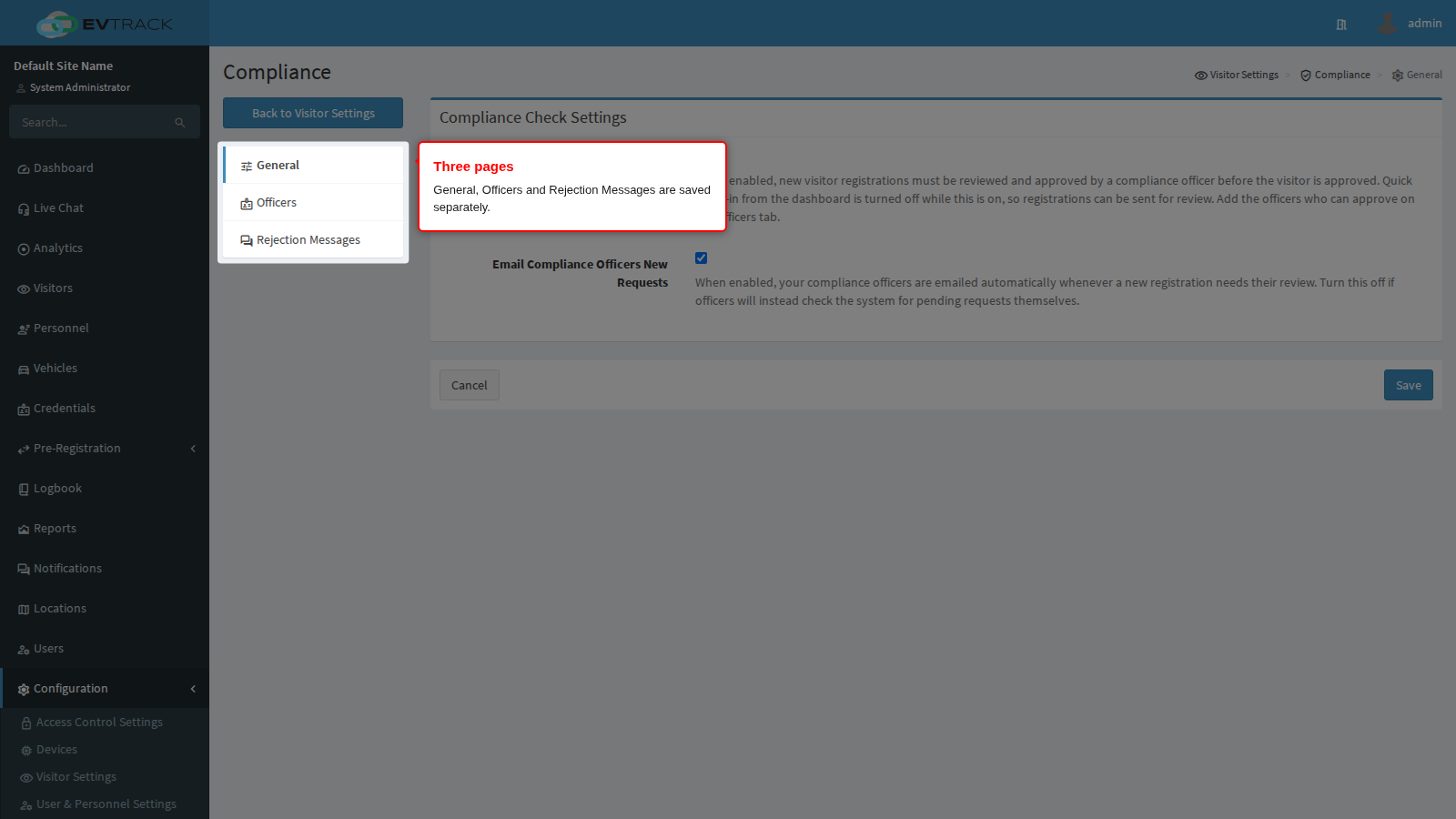
The section has three pages, and all three matter:
- General turns the review step on and decides whether officers are told about new requests.
- Officers is the list of users who may review. Without it the feature is inert.
- Rejection Messages is the wording an officer picks from when they turn a registration down.
Each page is saved on its own, so saving one never disturbs another.
Before you start:
- You need an operator account with settings permissions.
- The people who will review must already exist as users, with a valid email address on their user record if you want them notified. Create them first under Add Personnel or the user pages.
- Decide the order of work: add the officers first, then turn the check on. Turning the check on with an empty officer list holds every new registration in a queue that nobody is told about and nobody can clear.
What is affected: the review step applies to visitor registrations raised from now on. Registrations already approved are not reopened.
Where it sits in the approval chain. A registration is routed in a fixed order: if its location requires manager approval and has at least one active manager, it goes to that manager first. Otherwise, if compliance review is on, it goes to the compliance officers. If neither gate applies, it is approved directly. So a site with both gates configured sees the location manager review first and compliance second.
Step 1: Open the Compliance settings
Open Configuration in the sidebar, click Visitor Settings, and click the Compliance tile.
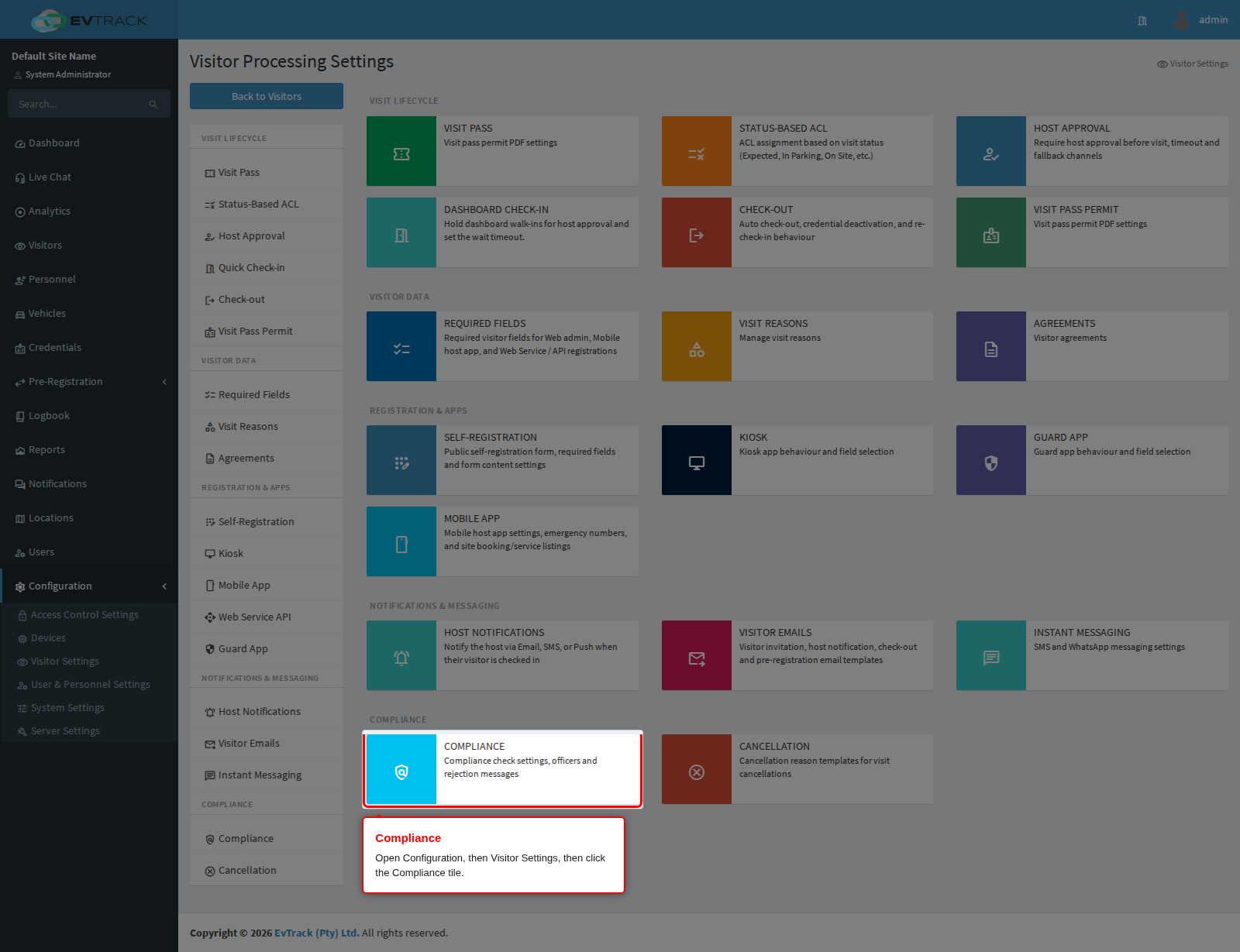
End state: the Compliance General page opens, with its own menu on the left listing the three pages. Back to Visitor Settings at the top of that menu returns you to the tiles.
Step 2: Turn the review step on
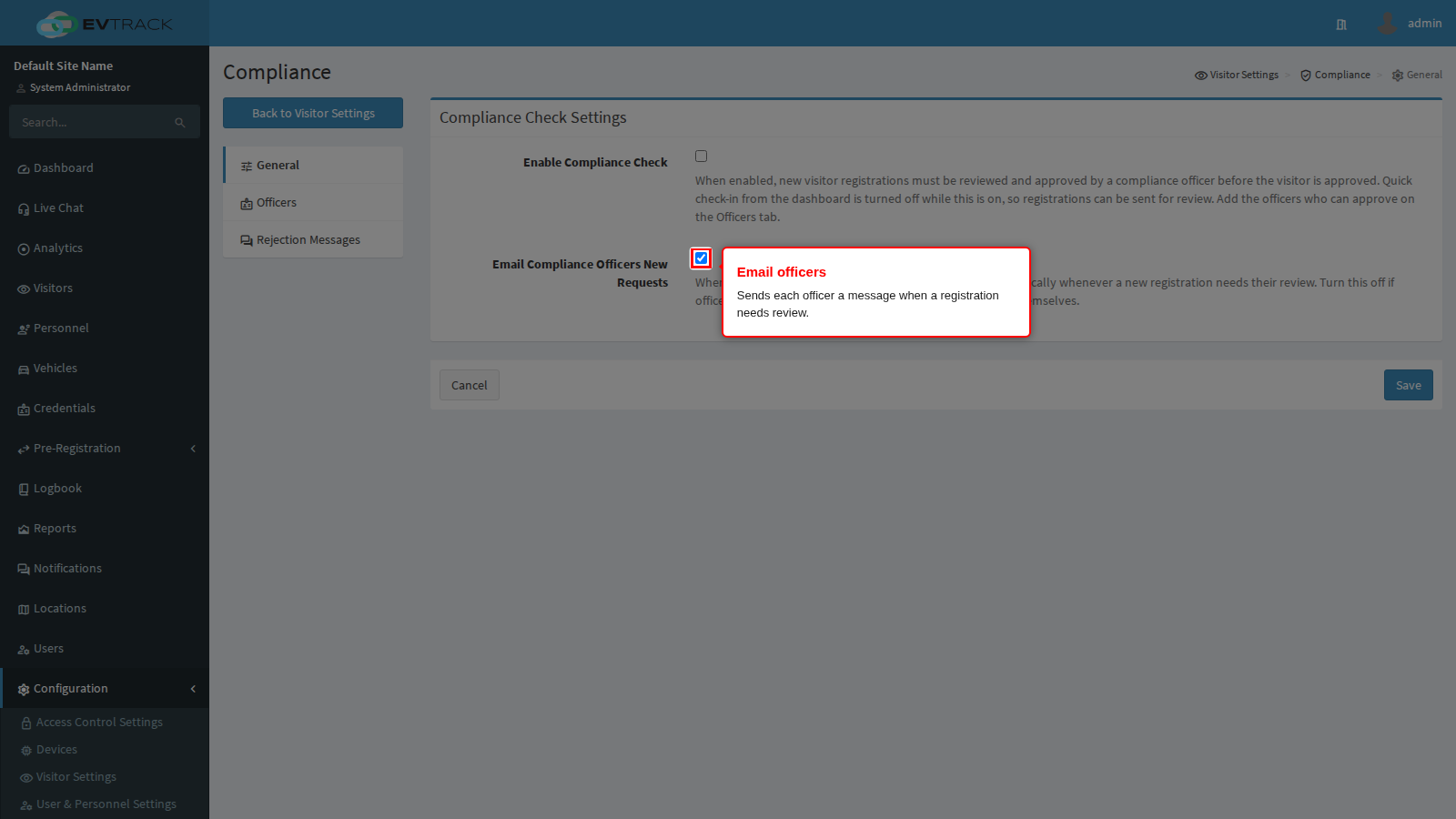
The General page holds one box, Compliance Check Settings, with two switches.
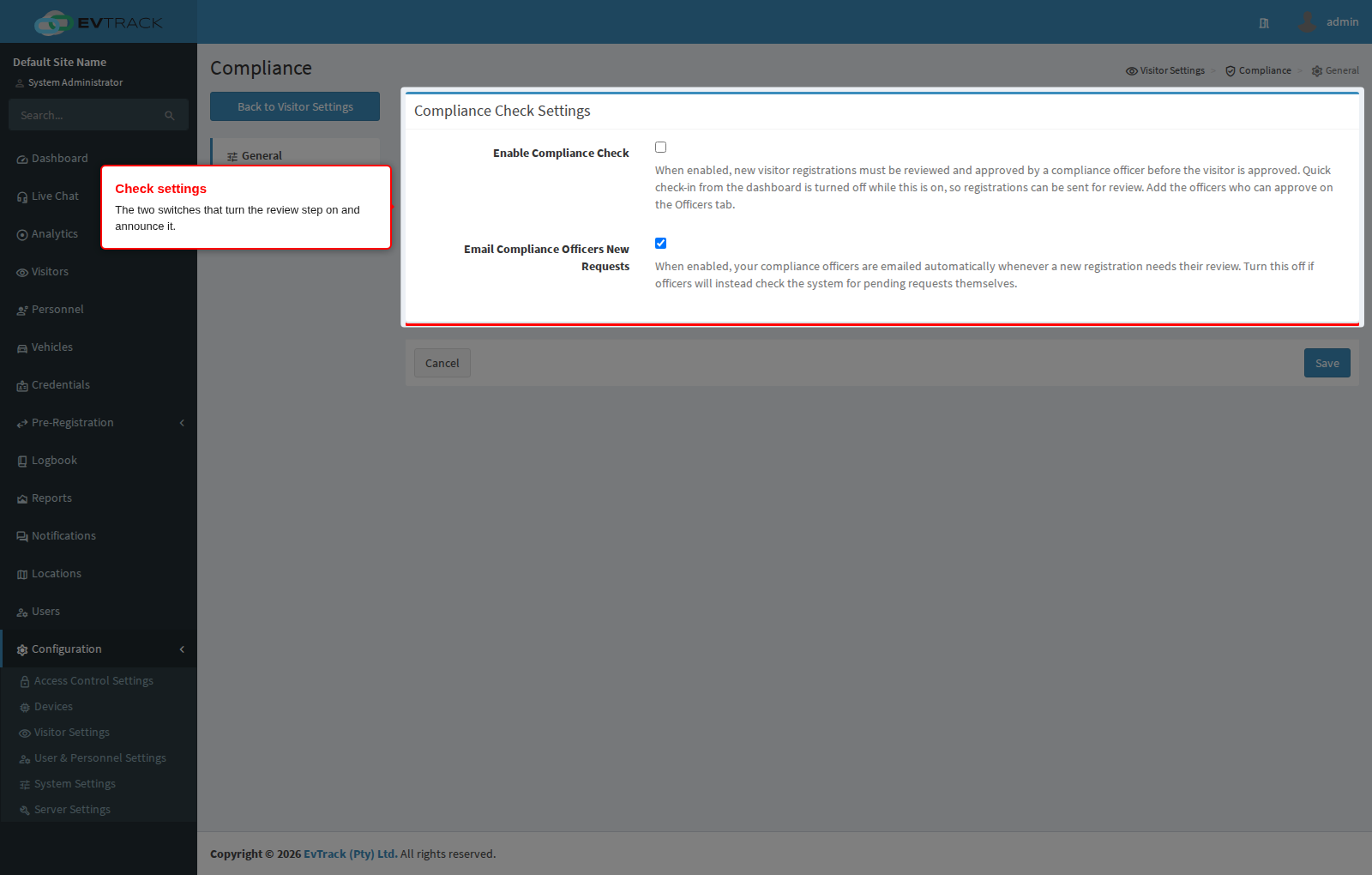
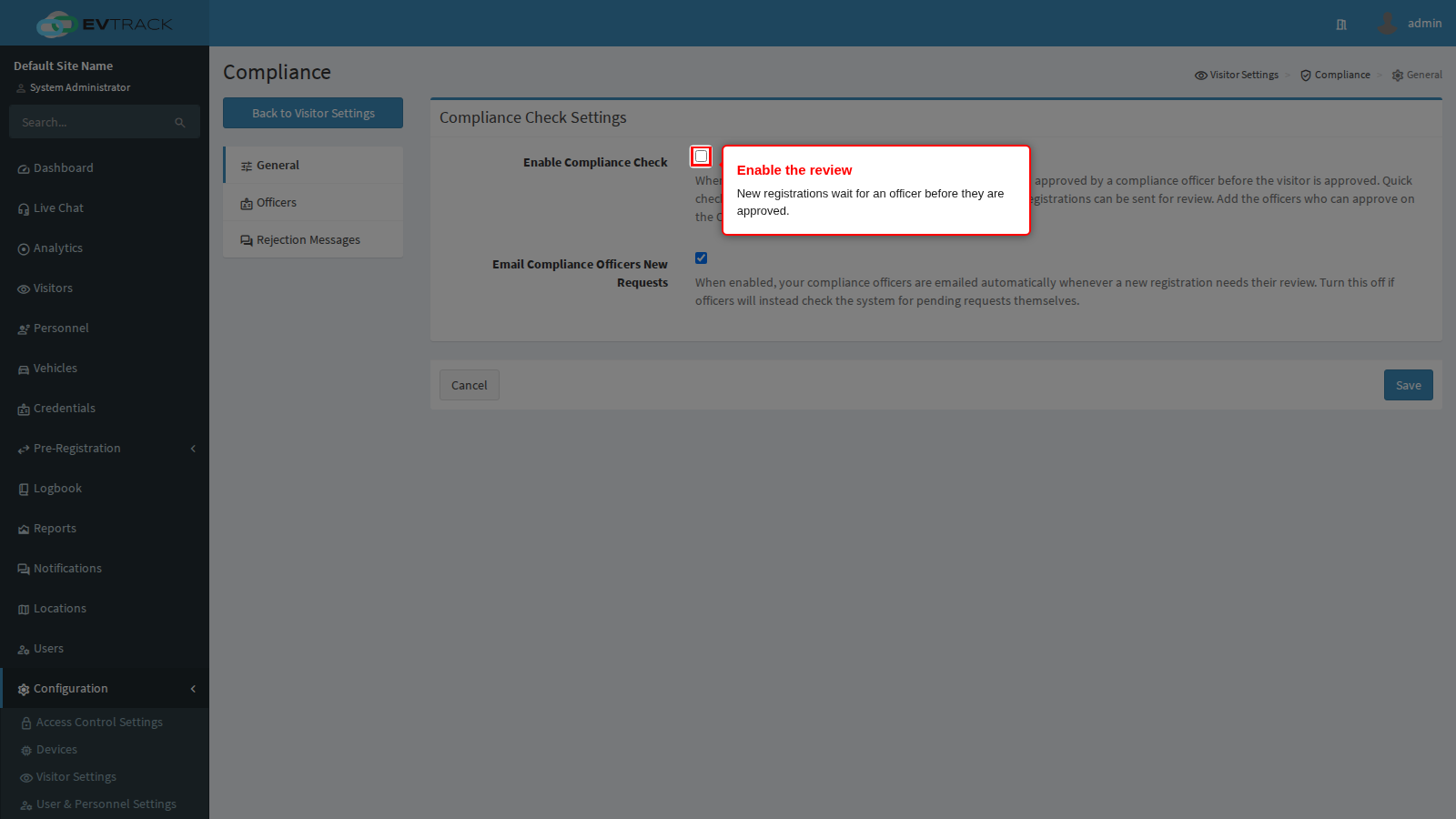
Enable Compliance Check is the master switch. With it on, a new visitor registration is not approved on submission: it is routed to the compliance officers and waits for one of them to approve or decline it.
One side effect is deliberate and surprises people: quick check-in from the dashboard is turned off while this is on. An operator who tries it is told to use the Add Visitor page instead, so the arrival is routed for review rather than admitted on the spot. That is the point of the feature, but brief reception before you enable it.
Do not enable this before the Officers page has at least one entry. See Step 4.
Email Compliance Officers New Requests emails every listed officer whenever a registration needs review, so nobody has to sit watching the queue. It is on by default.
The message goes to each officer on the Officers page, one message per officer, at the email address on their user record. An officer with no valid email address is skipped silently, so when somebody says they never get the notice, check their user record before you suspect the setting. With no officers listed, nothing is sent at all and registrations pile up unseen.
Turn it off where officers work the queue as a shift task and one message per registration would just be noise. Two things are worth knowing before you do:
- The review request is the only message this setting silences. Turning it off does not remove anything from the queue, so somebody must be checking the queue instead.
- The courtesy notice sent when a host withdraws a request they had already submitted still reaches the officers either way. An officer can therefore be told a request was pulled back without ever having been told it arrived.
Step 3: Save the General page
Click Save. Cancel discards your edits.
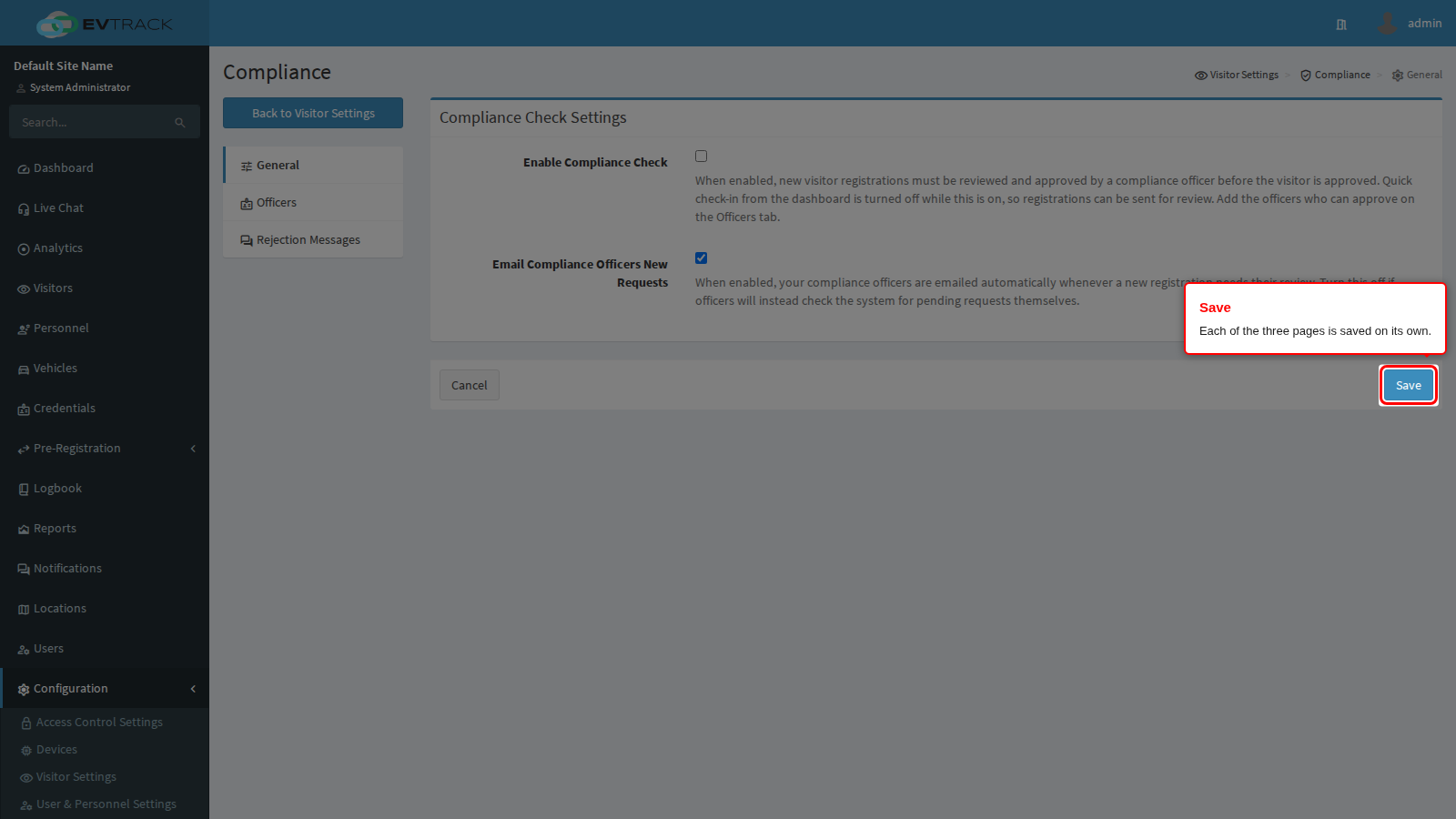
End state: a green confirmation appears at the top of the page. The next registration submitted follows the new routing.
Step 4: Add the compliance officers
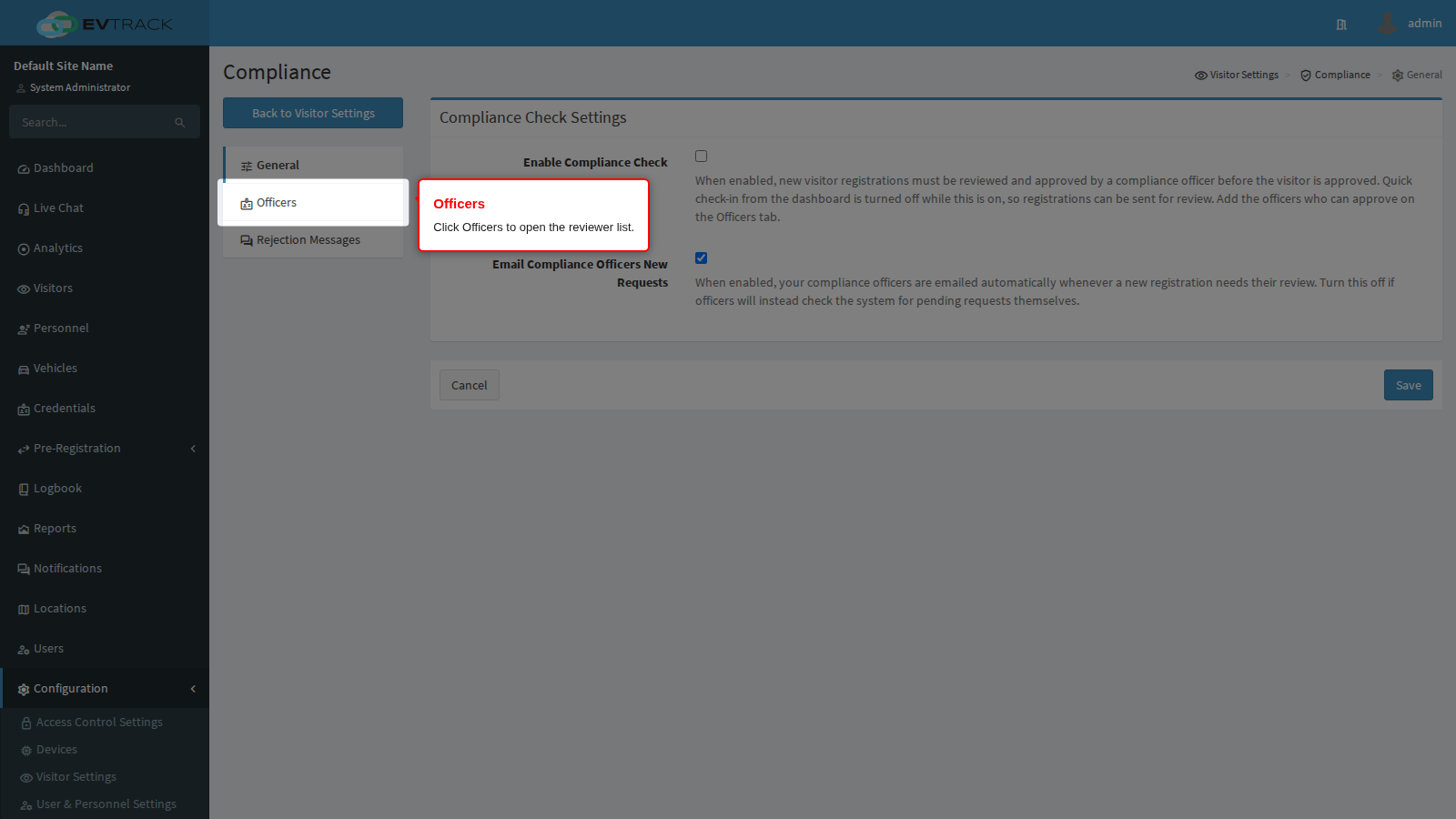
Click Officers in the menu on the left.
The page shows every current reviewer in a table, with two columns: Type, the department the reviewer answers for, and Officer, the user. The list is empty on a new system.
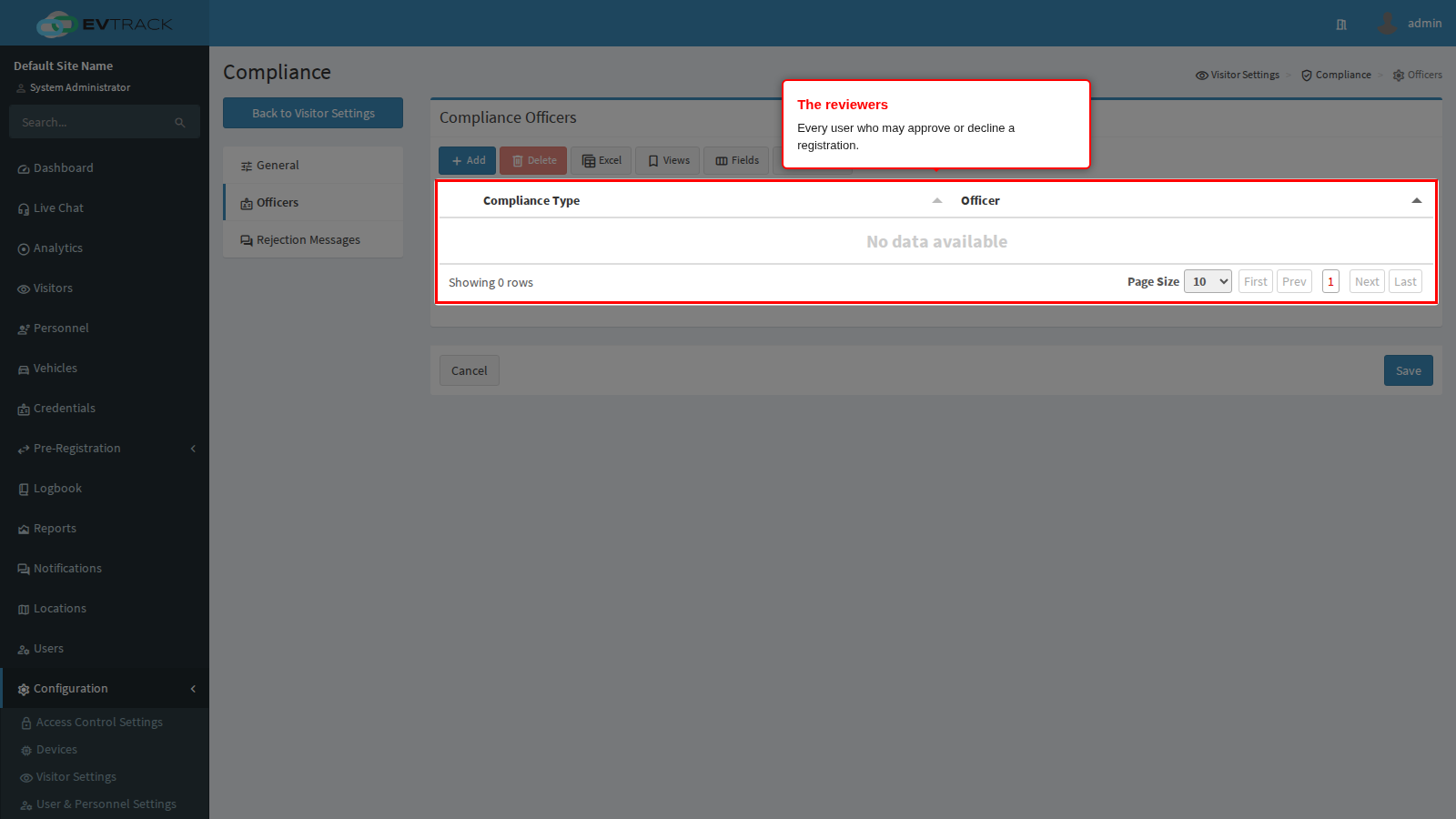
Above the table is a toolbar: Add opens the dialog below, Delete removes the rows you have ticked and only becomes available once at least one row is ticked, and Excel downloads the list as a spreadsheet.
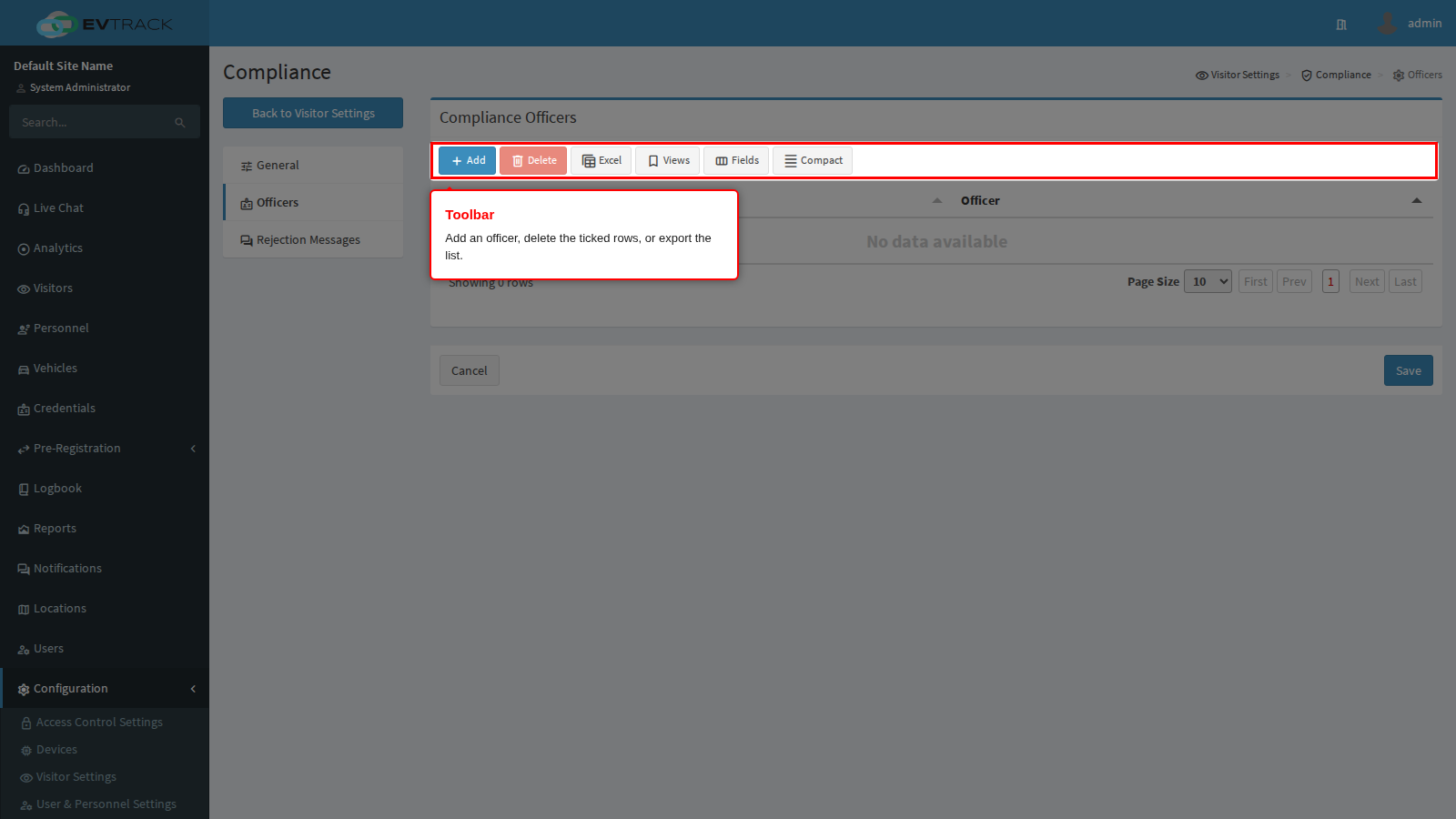
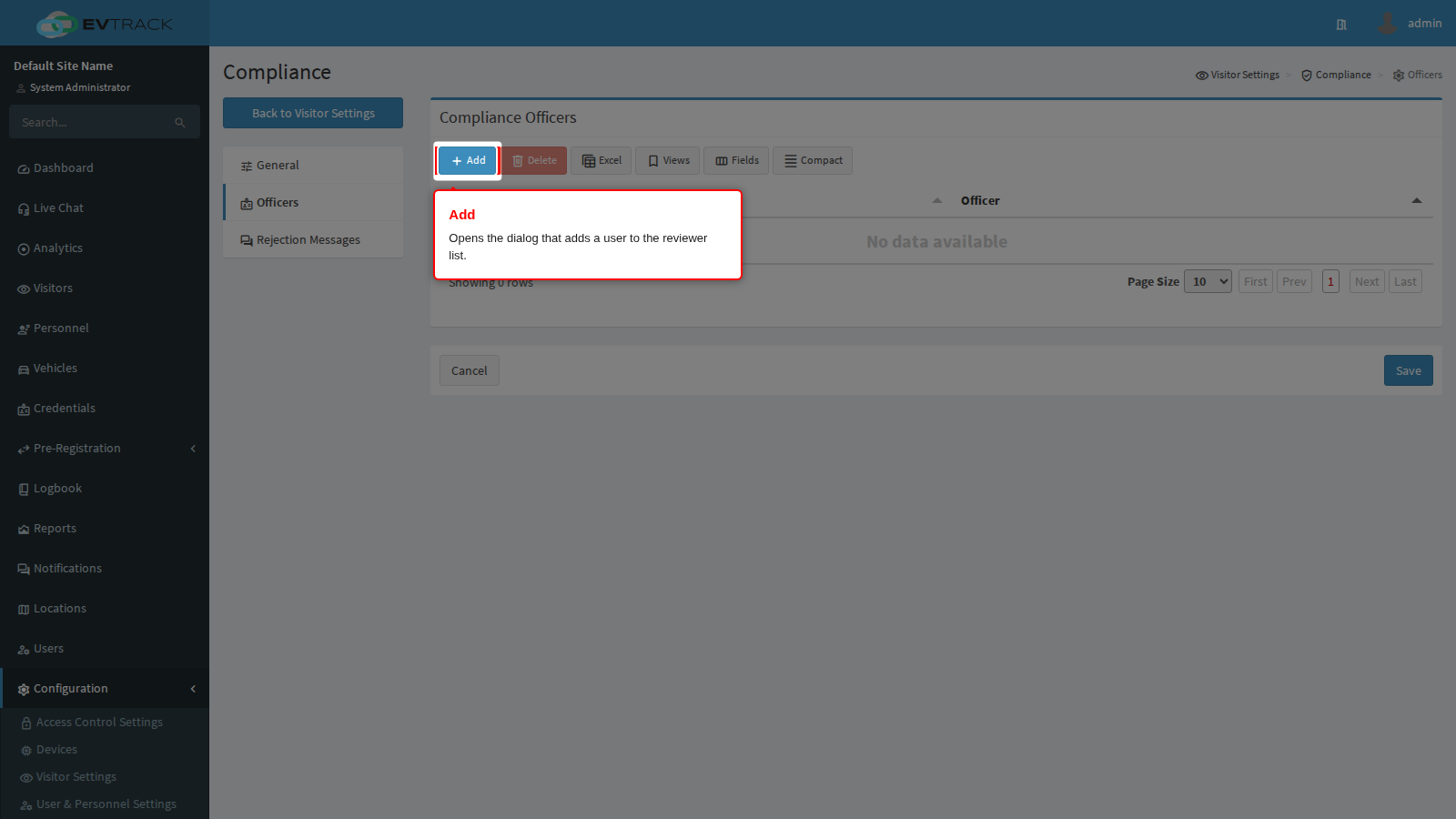
Click Add to open the dialog.
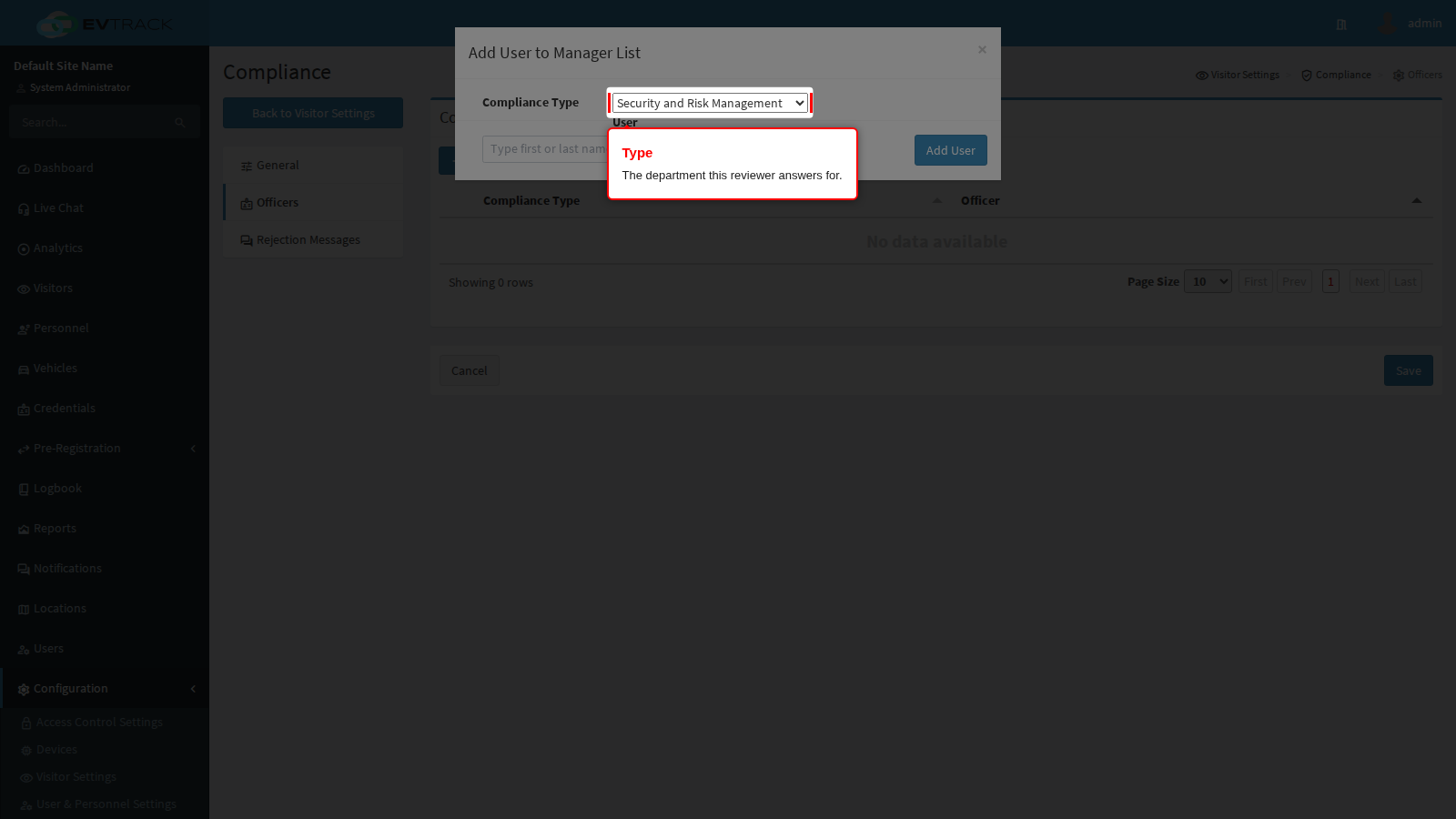
Type is the department this reviewer answers for. The list covers corporate departments (Security and Risk Management, Human Resources, Legal Department, Health and Safety, Facilities Management), government-facing ones (Background Checks, Law Enforcement, National Security Agencies), industrial ones (Health, Safety and Environment, Risk Management, Executive Office, Corporate/Internal Security) and residential ones (Property Management, Community Security, Legal and Compliance). It records why this person is on the list, which matters when an auditor asks who signed a visitor off; it is not an extra approval gate on its own.
User is a searchable picker over your existing users. Start typing a first or last name and pick the match. Only users on your own system can be chosen, and the same user can be added more than once under different types if they genuinely cover two departments.
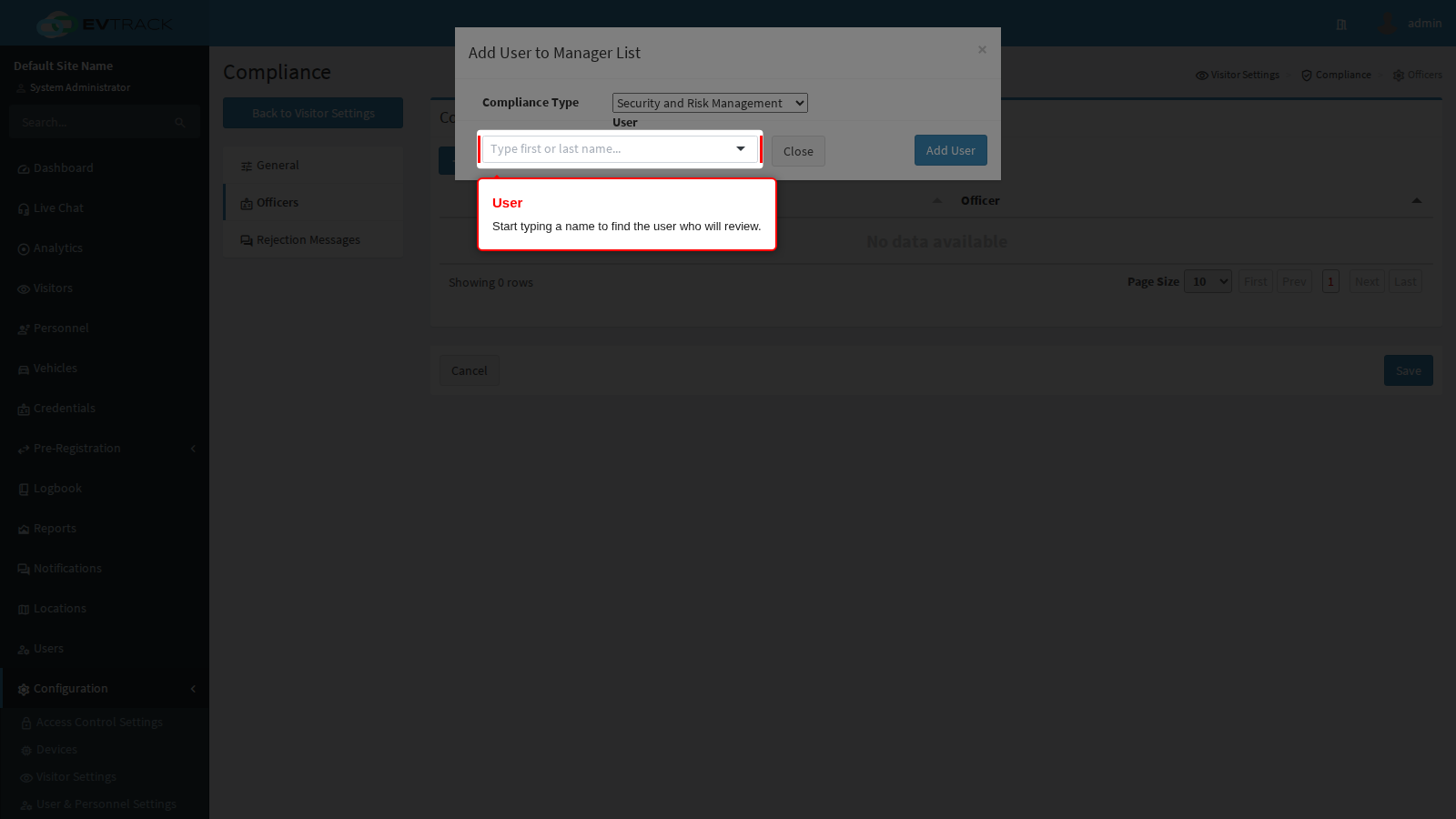
Click Add User to add the row to the table. The dialog closes and the person appears in the list.
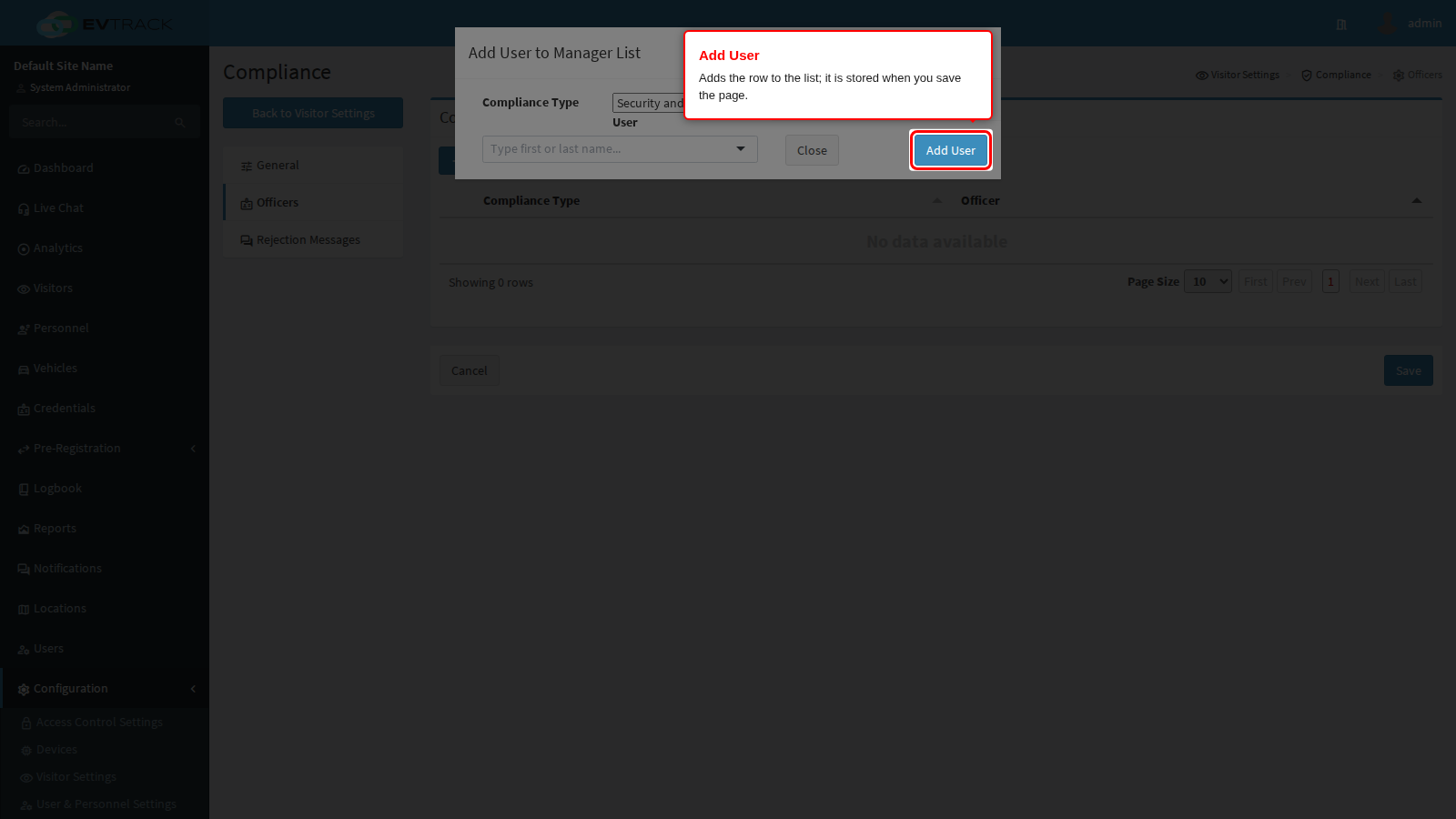
The row is not stored yet. Click Save on the page to commit the list. Leaving the page without saving loses everything you added.
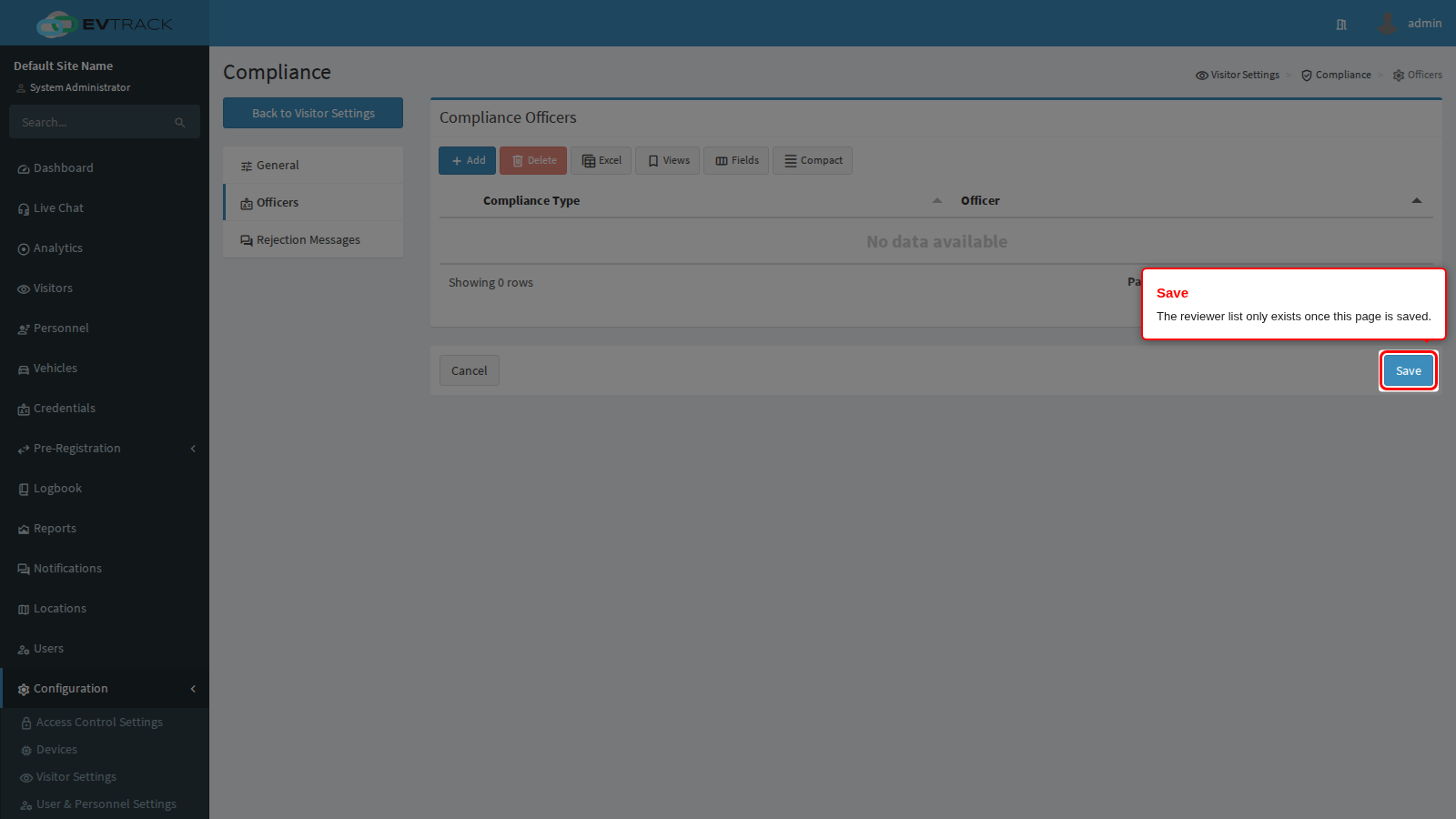
End state: a green confirmation appears and the saved officers can now open the review queue, approve registrations and decline them.
A saved officer whose user account is later deleted quietly drops off the list the next time the page is loaded. If your list is shorter than you remember, check whether one of those users still exists.
Step 5: Write the rejection messages
Click Rejection Messages in the menu on the left.
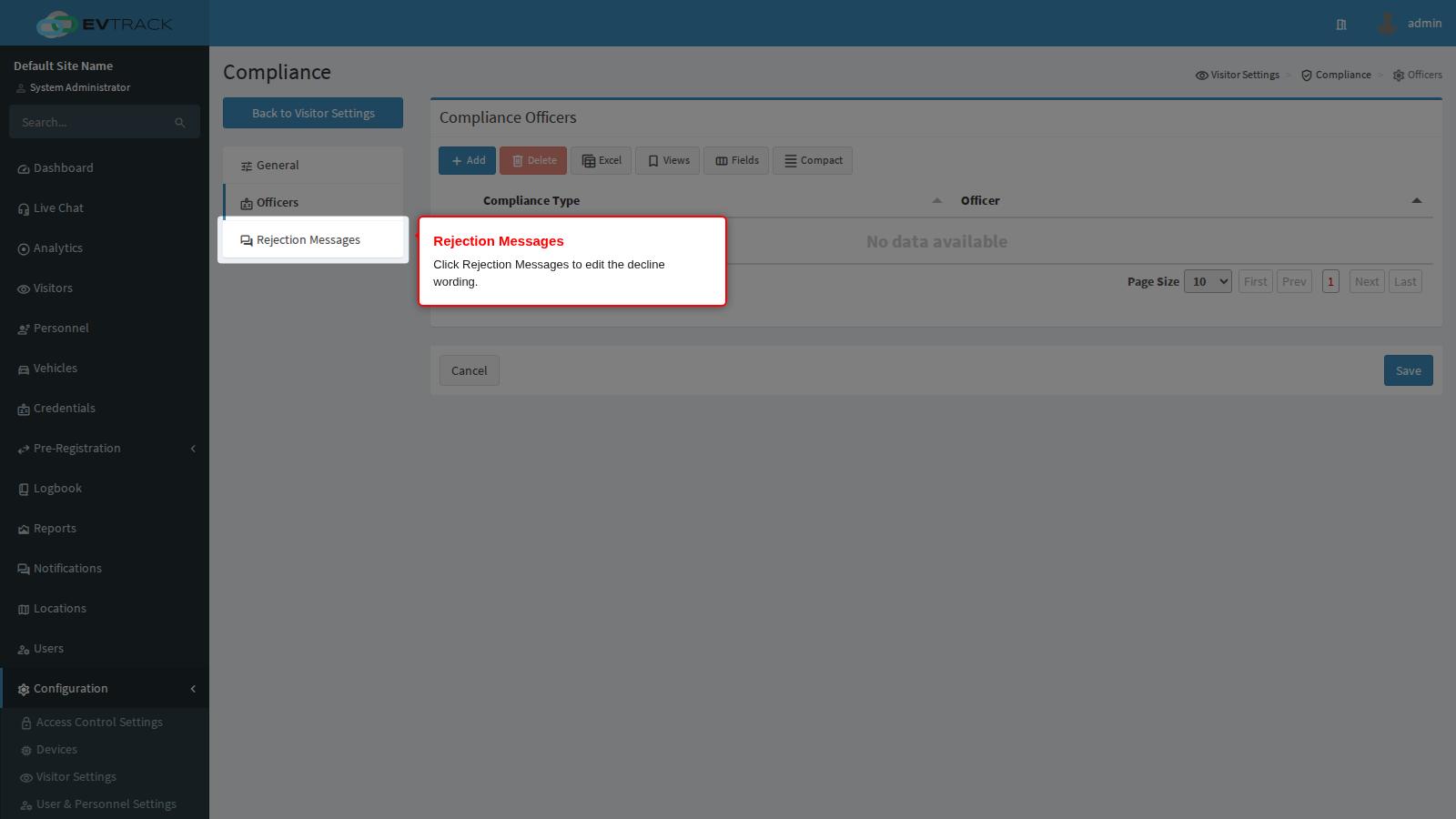
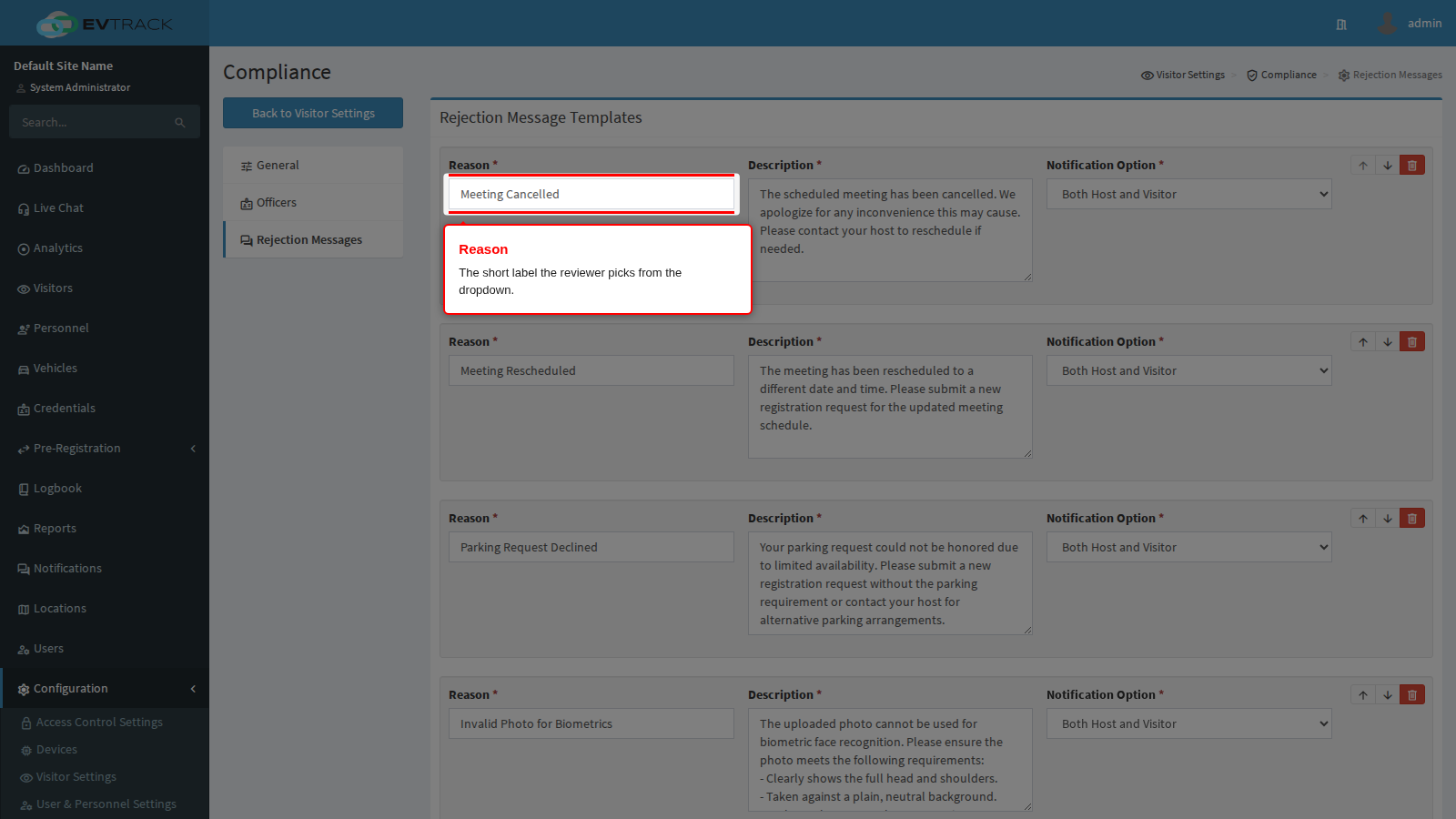
This page holds the reusable wording an officer picks from when declining a registration, so a decline is explained consistently instead of being typed out from scratch. The product ships with a set of common templates (Meeting Cancelled, Meeting Rescheduled, Parking Request Declined, Invalid Photo for Biometrics, Duplicate Registration, Facility Unavailable, Capacity Exceeded and others), which is what you see the first time you open the page.
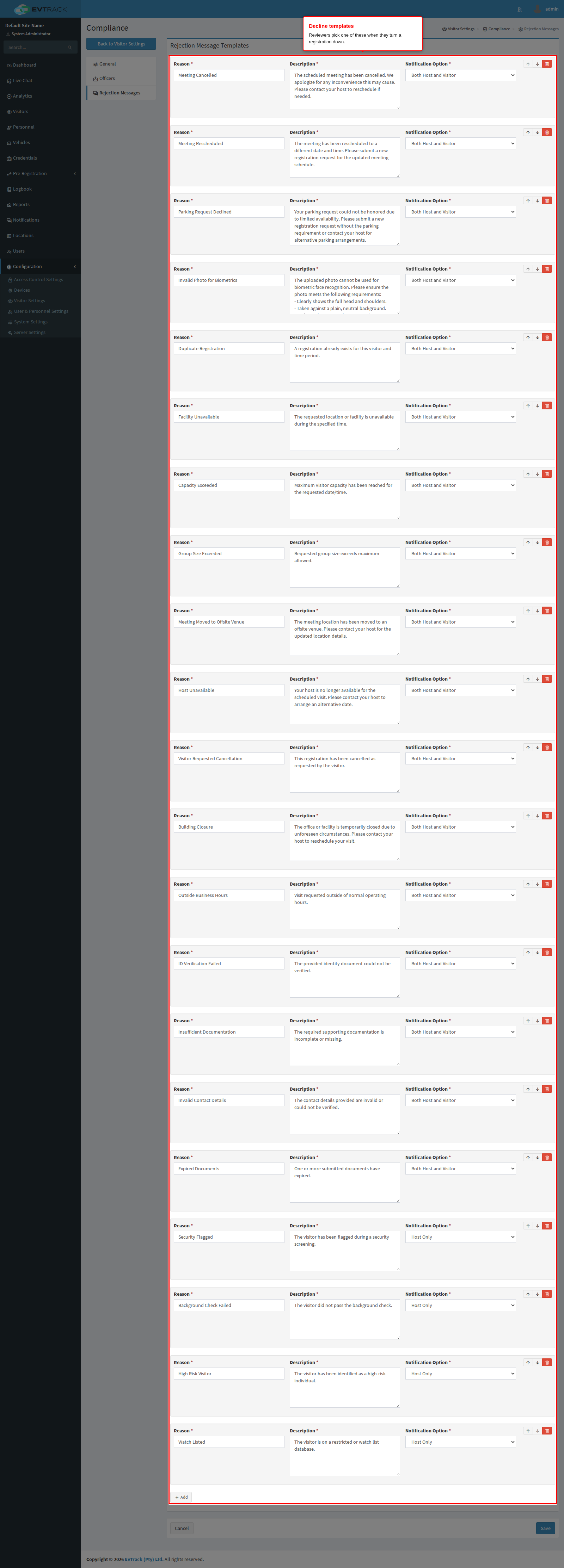
Each row has three fields, and all three are required.
Reason is the short label the officer picks from a dropdown on the decline screen. Keep it to a few words and make sure two reasons never read almost the same.
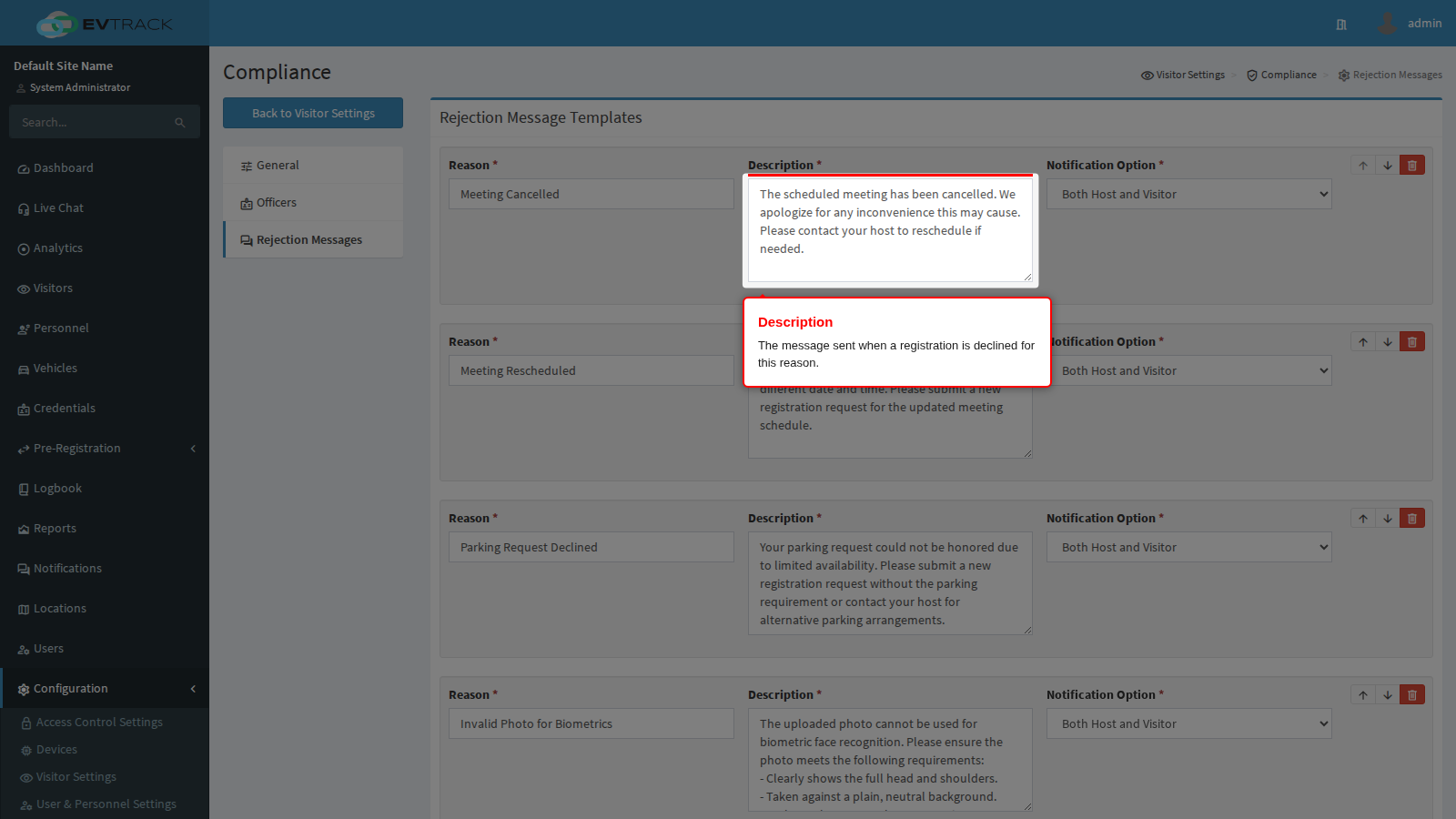
Description is the message sent when a registration is declined for that reason. Choosing the reason on the decline screen fills this text into the message box, where the officer can still edit it before sending. Write it for the person who will read it: say what is wrong and what they should do about it. The shipped Invalid Photo for Biometrics template is a good model, because it lists exactly what a usable photo must show.
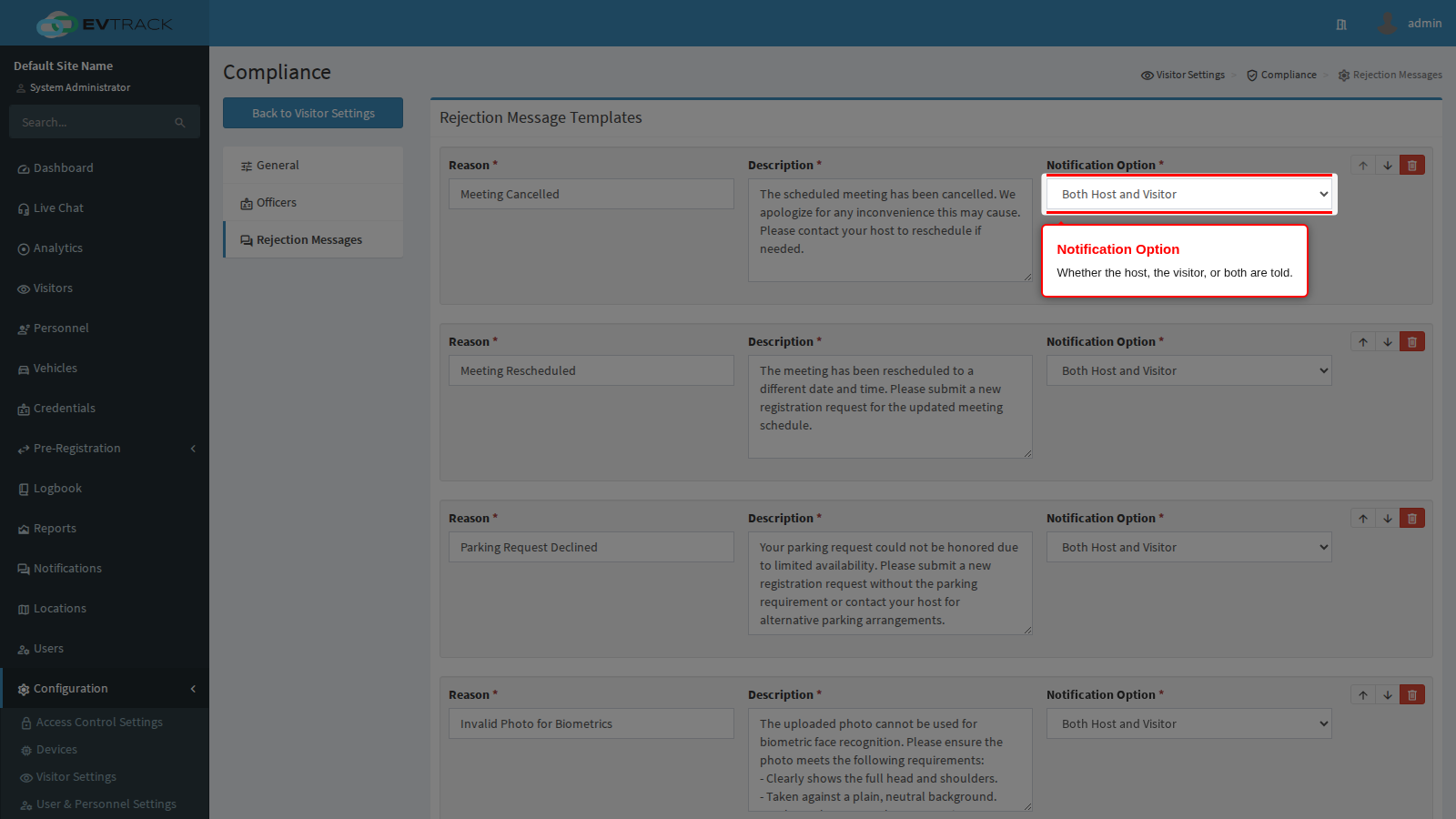
Notification Option decides who is told: Host Only, Visitor Only, or Both Host and Visitor. Choose it per reason rather than once for the whole list. A capacity problem is the host’s business; a photo that has to be retaken is the visitor’s; a security decline is often best sent to the host alone so the reason is not disclosed to the person it concerns.
This is a default, not a rule: selecting the reason pre-selects this option on the decline screen, and the officer can change it before sending.
Add appends an empty row at the bottom of the list. Fill in all three fields before you save.
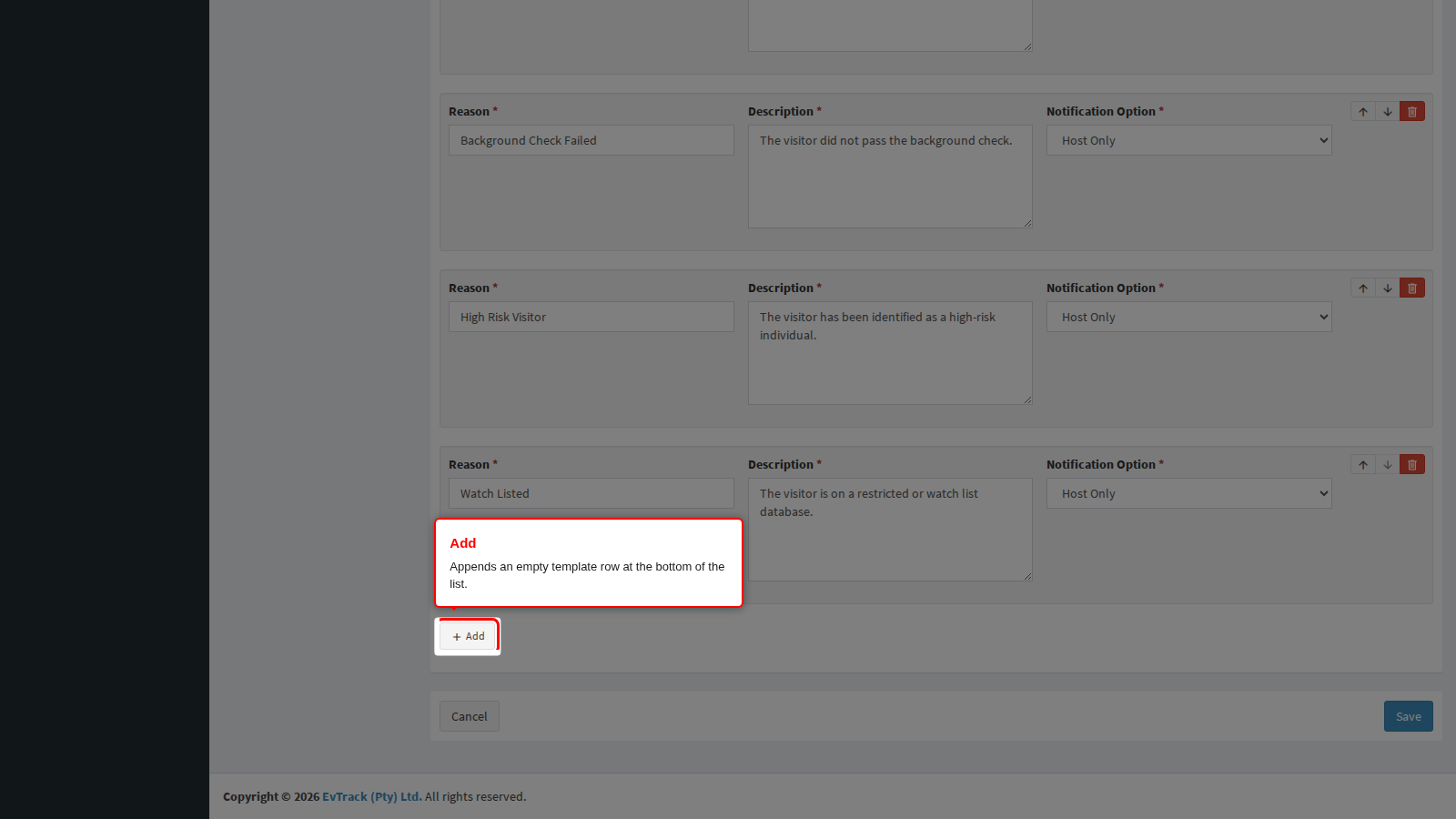
Click Save to store the list. It is saved as a unit, so a single incomplete row blocks every other change on the page: if nothing happens when you click Save, look for a row with an empty field.
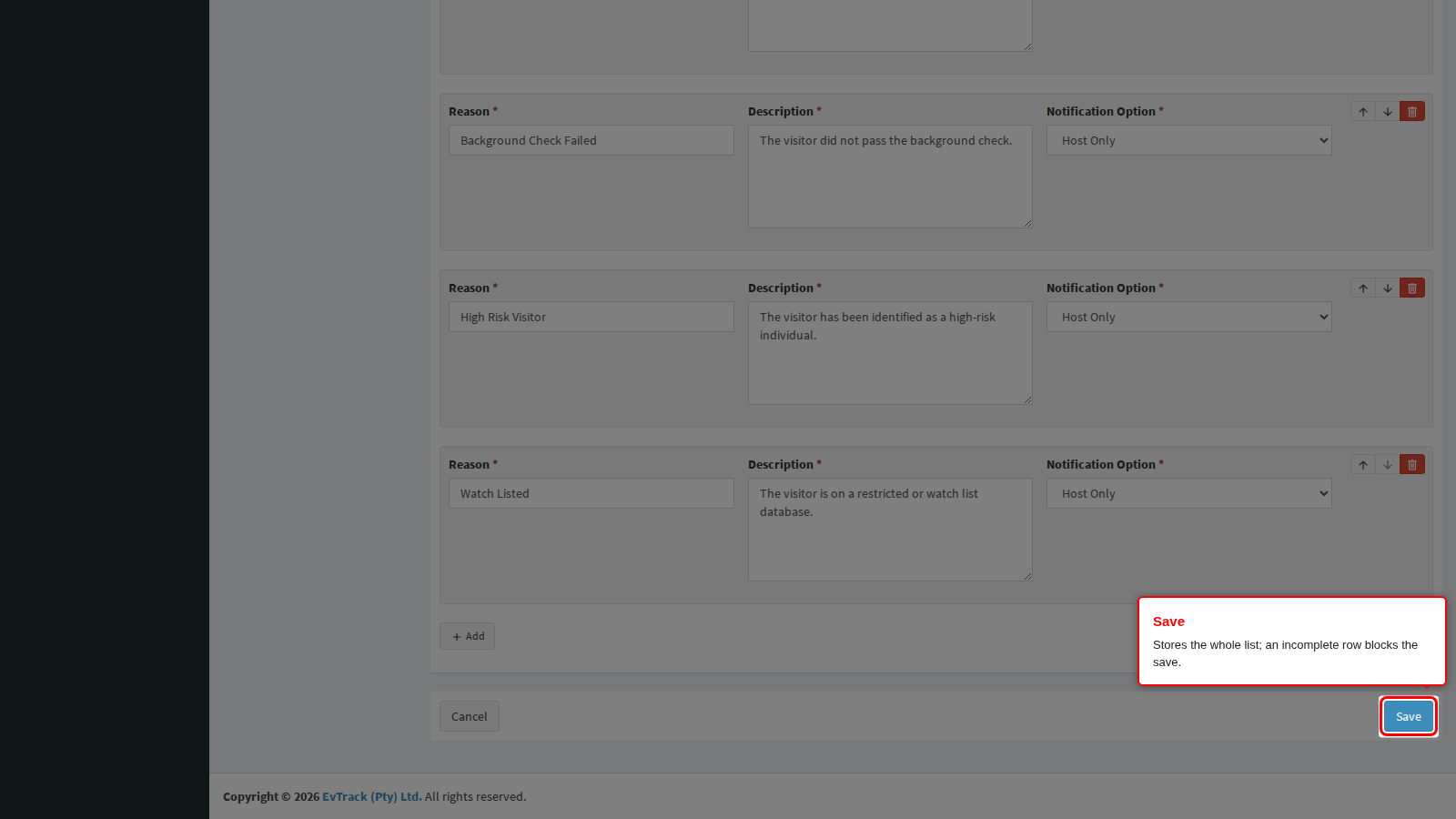
End state: a green confirmation appears and the next officer to open a decline screen sees the new list.
Troubleshooting
- Registrations are stuck and nobody has been told. The officer list is empty, or every officer lacks a valid email address. Fill the Officers page first, then re-check the notification switch.
- An officer says they never get the review email. Check their user record for a valid email address, check the notification switch is on, and have them check their spam folder.
- Quick check-in is refused on the dashboard. That is intended while compliance review is on. Use the Add Visitor page so the registration can be routed for review.
- A registration went to a location manager instead of an officer. That is the routing order: a location that requires manager approval and has active managers is reviewed first, compliance second.
- An officer added someone but the change vanished. The dialog only adds the row to the table on screen. The page has to be saved.
- The decline screen dropdown is empty. The saved rejection list is empty. Add at least one template.
Related chapters
- Approval Workflow - what a reviewer sees and how they approve or decline a queued registration.
- Host Approval - the separate approval that happens at the checkpoint for walk-ins, rather than in advance.
- Cancellation - the equivalent template list for cancelling a visit that was already approved.
- Self-Registration - the public form that produces most of the registrations this queue reviews.
- Add Personnel - creating the user accounts that officers are chosen from.