Security holds five groups of settings that share one thing: getting them wrong either locks people out or lets the wrong people in. QR code behaviour governs how visitor access codes are issued and how long they live; identifier formats govern the numbers printed on badges and sent to readers; mobile app security governs how long an app session lasts and what signs it; smart card login governs which cards the system can read; PIN / OTP governs how generated PINs are produced.
Before you start: you need settings administration rights. Two of these settings invalidate things already issued - changing the app secret ends every mobile session, and changing a Mifare key stops every card encoded with the old one - so plan them, do not experiment with them on a live site.
Step 1: Open Security
In the left sidebar open Configuration, click System Settings, then click Security.
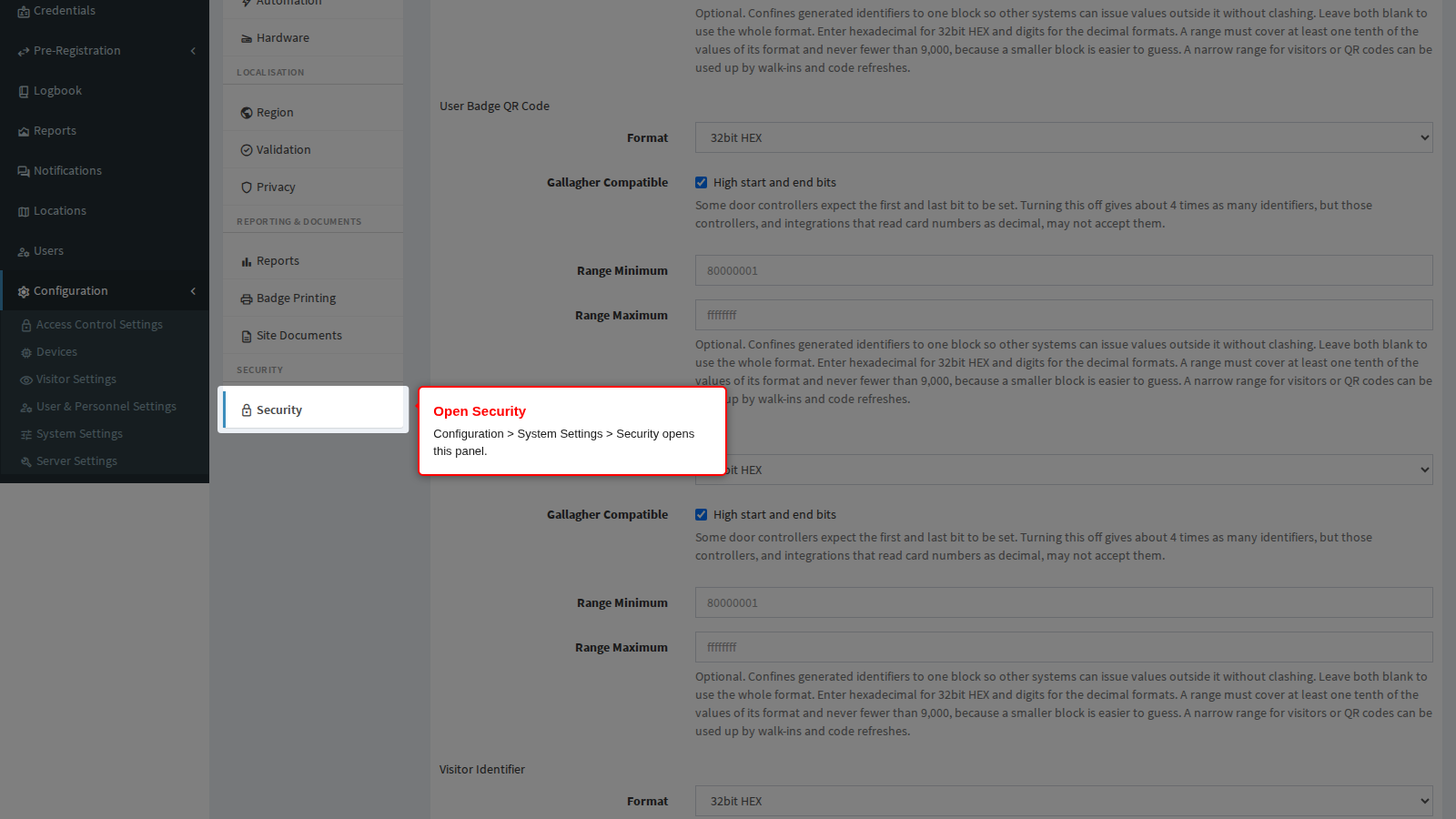
Click Save at the bottom of the panel to apply your changes, or Cancel to discard them.
Identifier Formats
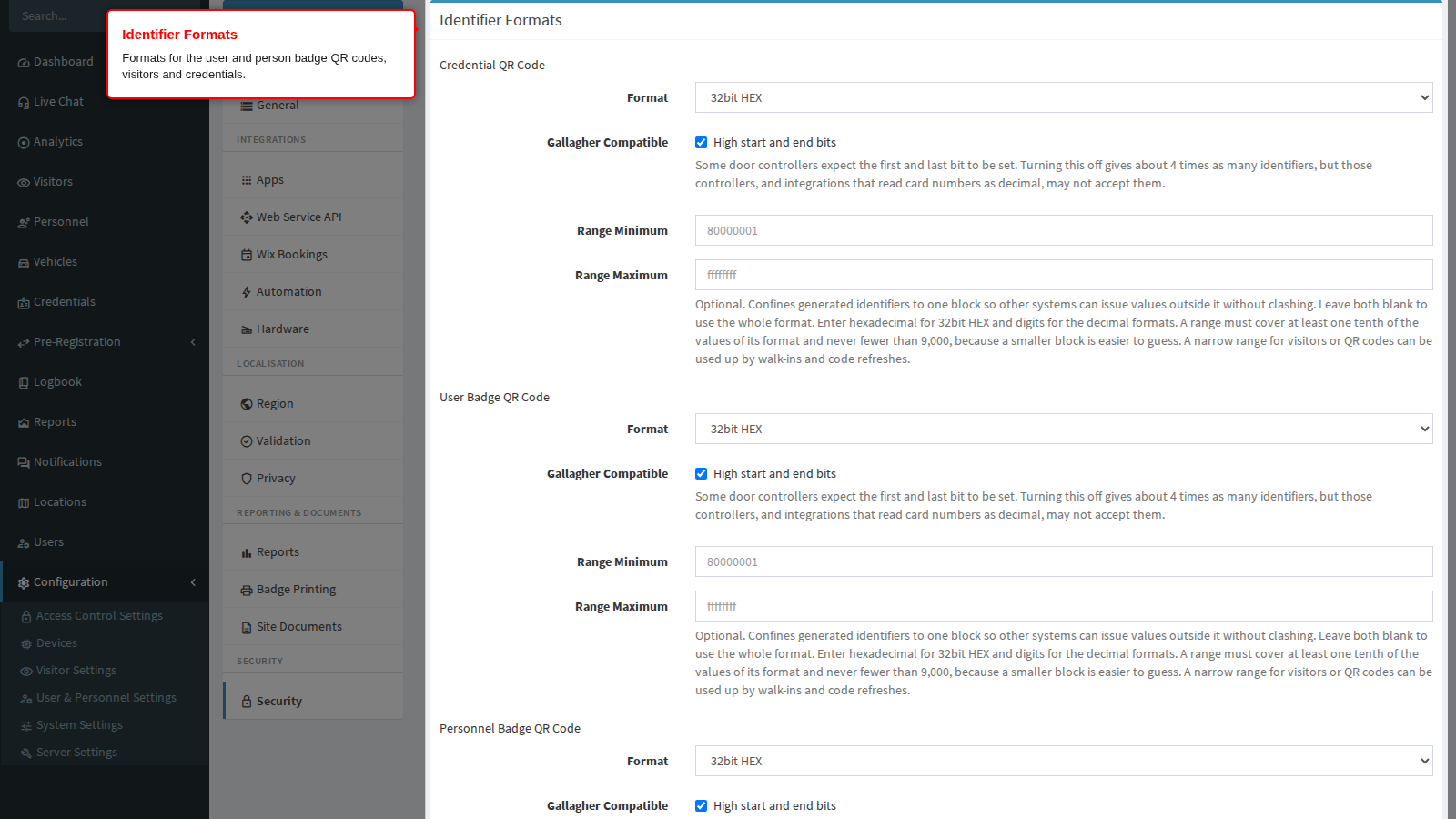
The credential QR code and every user, person, visitor and credential each carry a generated identifier: user and person identifiers are printed as the QR code on access badges, and user, person and visitor identifiers are sent to readers as identity card numbers. Each has its own format, Gallagher option and optional range, so the scarce 16bit Decimal space can be left to the credential QR code. A change applies only to identifiers issued after it is saved.
The Credential QR Code block sets the encoding of the visit pass, invitation and mobile app QR code. Its Format is: 32bit HEX, 24bit Decimal or 16bit Decimal. It must match what your readers and access controllers expect - 16bit Decimal is the choice for readers that only accept Wiegand 26-bit card numbers. Its block offers the Gallagher option and an optional range too, described in Identifier Formats. A change applies only to codes issued after it is saved.
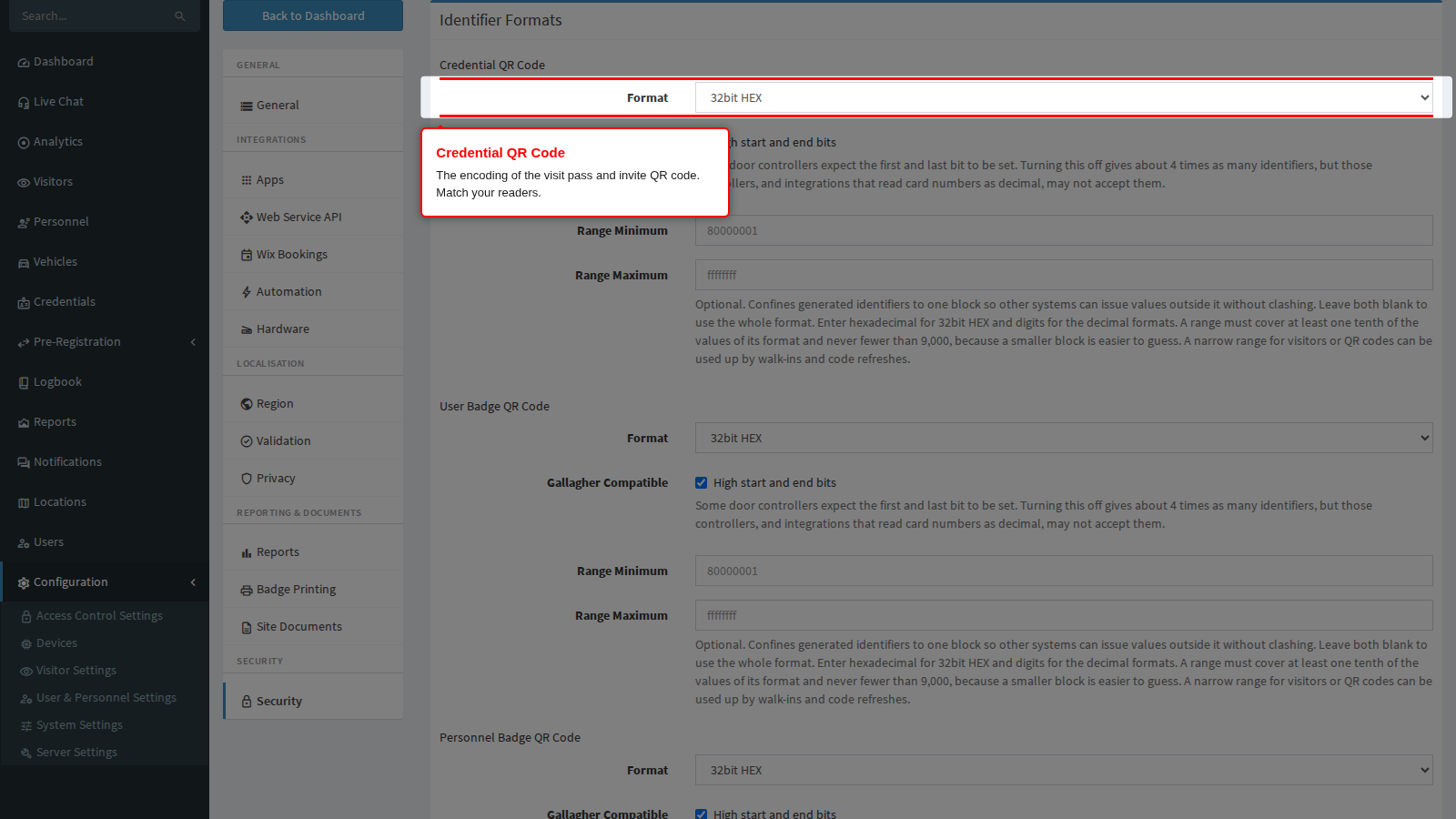
How to choose a format, when to turn the Gallagher option off, and how ranges work are covered in Identifier Formats.
QR Code
Every QR code the product issues is a randomly generated unique value, checked against the codes already in use so no two are ever the same, and every presentation of a code is recorded as an event. These two settings decide how a code is delivered and how long it lives. Its format is set under Identifier Formats above.
Expiry is how long a generated code remains valid, entered as days, hours and minutes. The minimum accepted value is 30 minutes; the default is 31 days.
A dynamic code also carries a refresh point set at half its validity: once that point passes, the mobile app asks for a fresh code and the old one is replaced. That is what makes a screenshot of somebody’s pass useless after a while - the shorter the expiry, the shorter that window. Set it as short as your visitors’ actual behaviour allows: a code that expires between the invitation being sent and the visitor arriving simply gets replaced, but a code emailed to a visitor who cannot refresh it will fail at the reader.
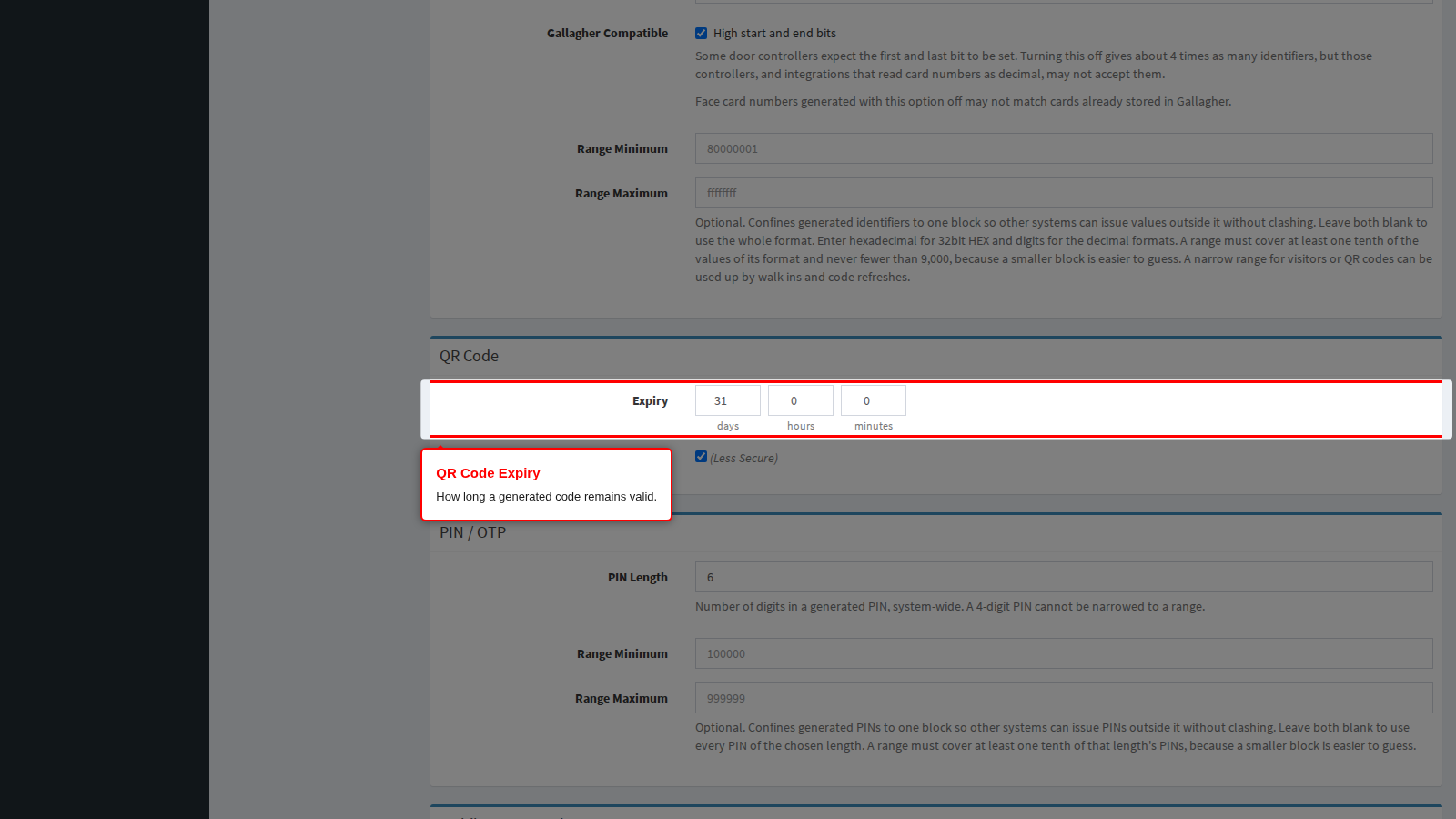
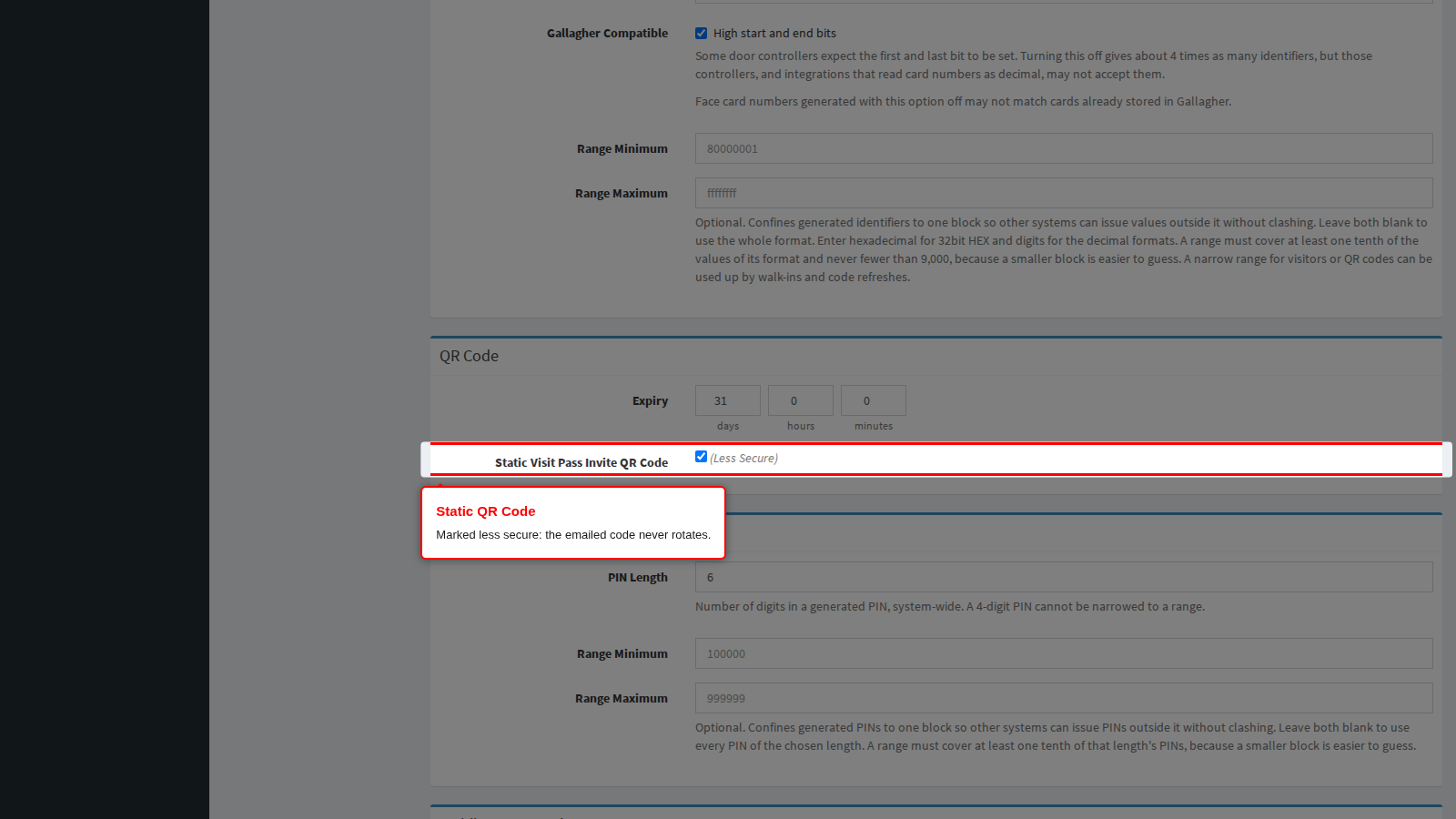
Static Visit Pass Invite QR Code (Less Secure) turns rotation off for codes sent out by email or SMS. The label says “Less Secure” for a reason, and the trade-off is worth stating plainly:
- Off (the default, and the recommended setting) - codes rotate. A code that leaks stops working shortly afterwards, and a visitor who forwards their pass to somebody else hands over something that expires.
- On - the emailed or texted code is a fixed image that does not rotate. Codes issued for QR readers while this is on are given a very long life (ten years) and are not refreshed; the maintenance job only clears out codes that have genuinely expired. In practice the code in that email works for as long as the visit does, and anyone who obtains the email obtains a working credential.
Turn it on only where recipients genuinely cannot refresh a code - for example a site whose visitors present a printed pass, or where the receiving devices cannot open a live link. Where you do enable it, compensate elsewhere: keep visit validity windows tight, and make sure the pass is revoked when the visit is cancelled or checked out.
PIN / OTP
A PIN is the number a visitor keys in at a keypad, and the same value is sent as a one-time PIN by the mobile and kiosk apps. These settings decide how PINs are generated.
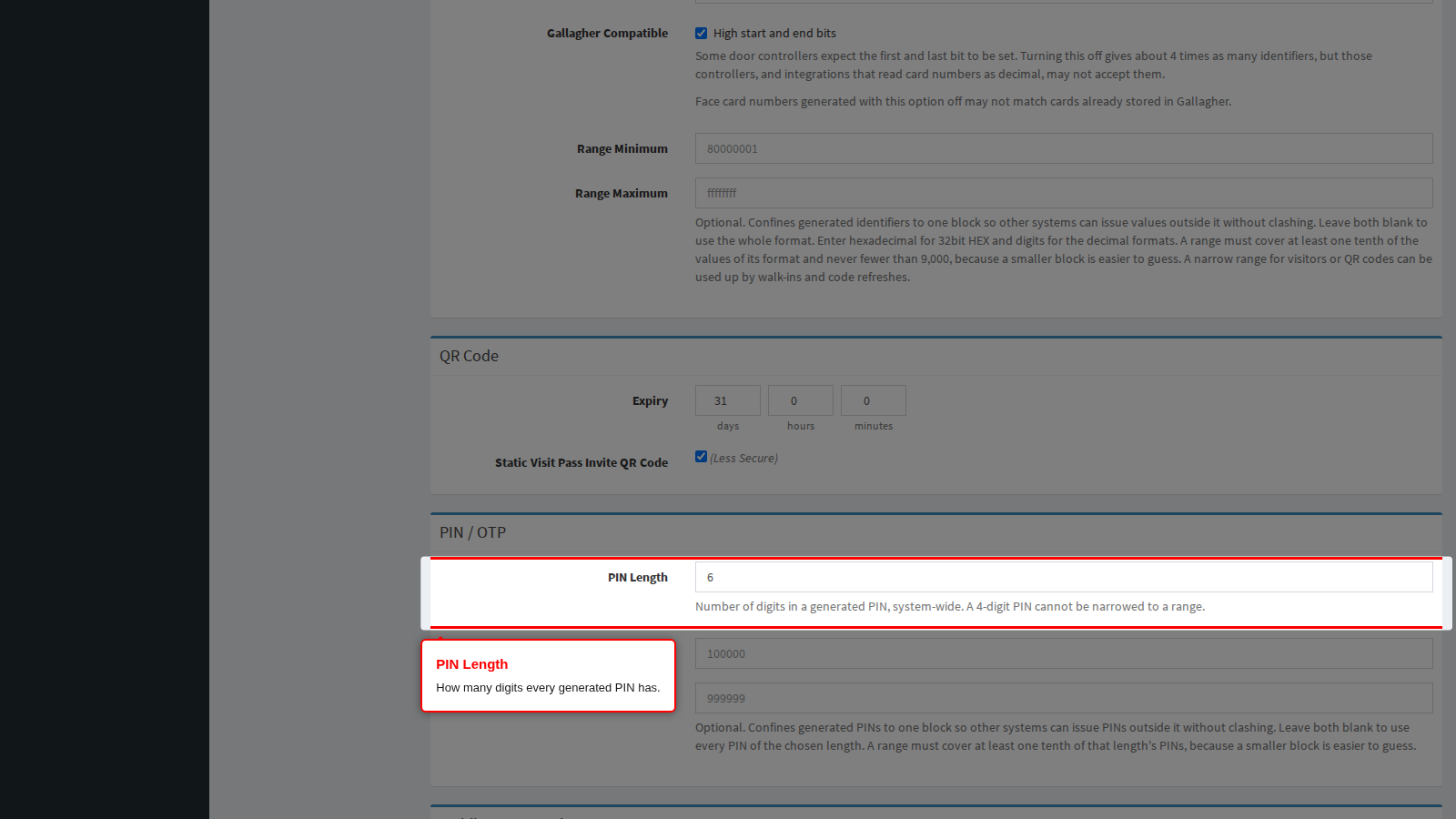
PIN Length is how many digits a generated PIN has, from 4 to 9. Longer PINs are harder to guess; shorter ones are quicker to type.
Range Minimum and Range Maximum optionally confine generated PINs to one block of numbers. Use this when another system also issues PINs through the web service API: give the product one block and the other system everything outside it, and the two can never hand out the same PIN. Leave both blank to use every PIN of the chosen length.
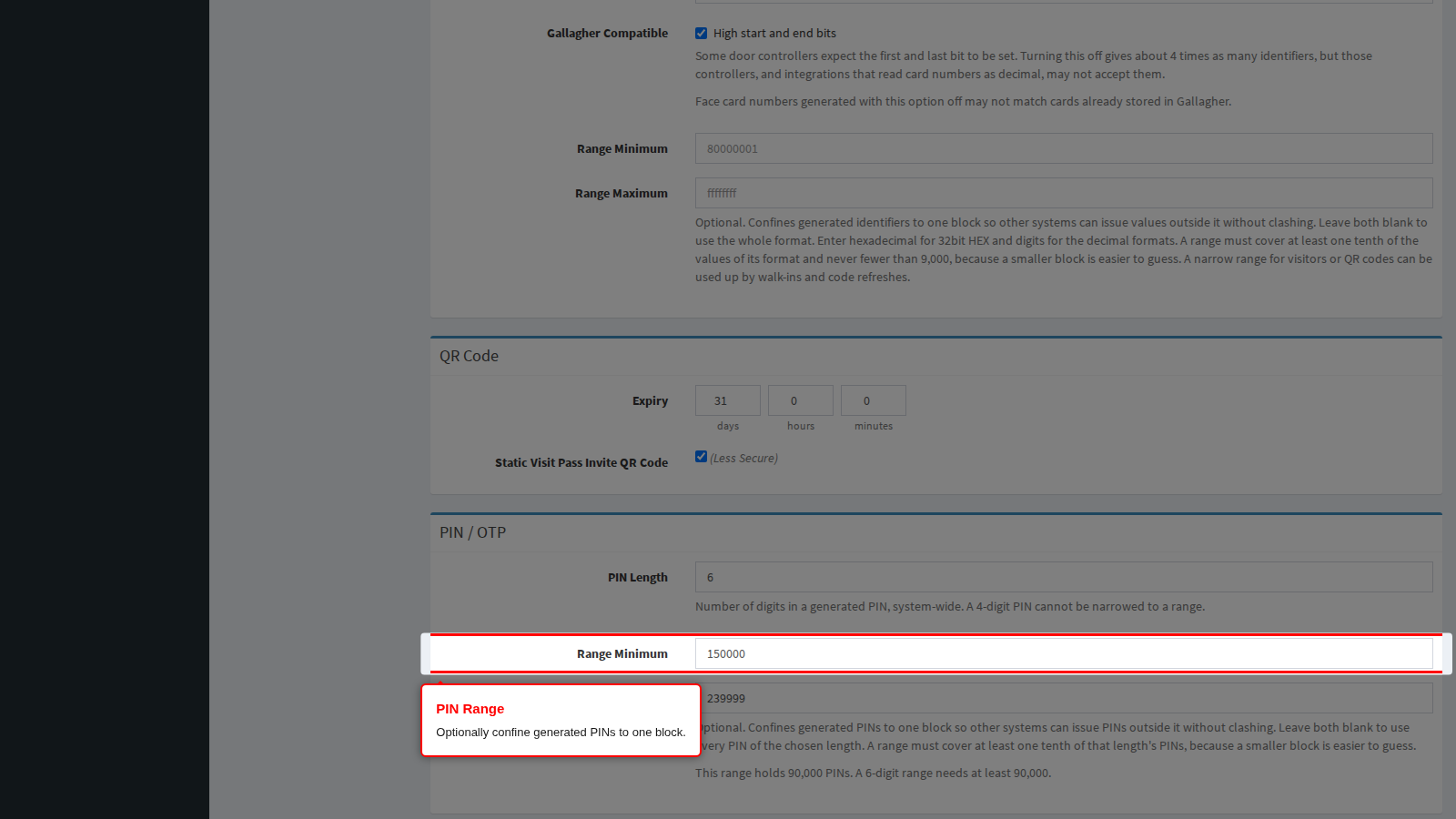
A range must cover at least one tenth of the PINs for its length, and never fewer than 9,000. The page shows how many PINs your range holds as you type. A 4-digit PIN has only 9,000 values in total, so it cannot be narrowed.
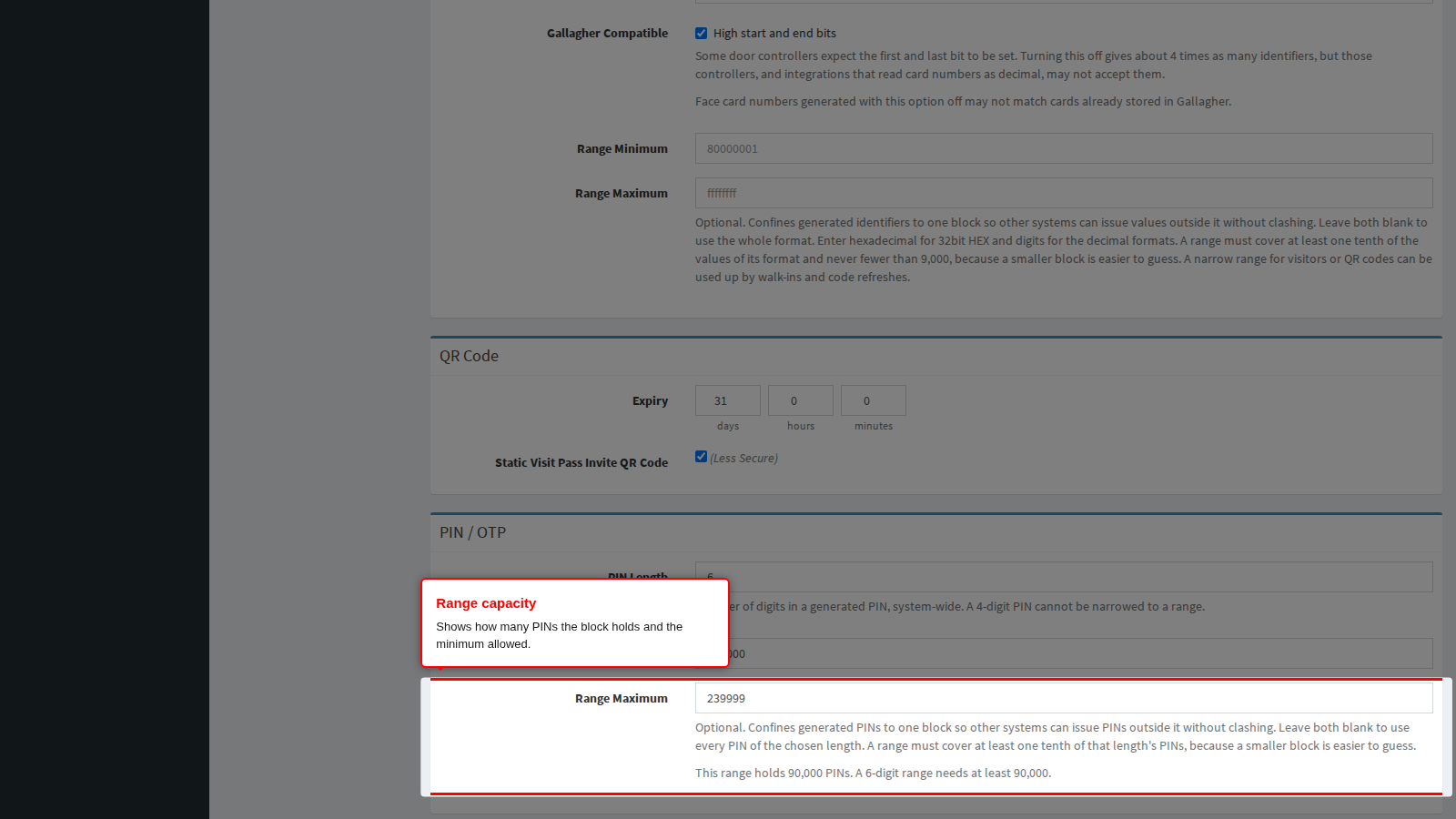
A narrow range makes PINs easier to guess. The product does not lock out repeated wrong PIN attempts at a keypad, so anyone who learns which block you use needs far fewer tries. Configure attempt limits or lockout on the readers themselves, and prefer a longer PIN over a narrower range.
If the PIN length is later changed so the saved range no longer fits, PINs are generated from the whole length until the range is corrected; issuing PINs never stops because of it.
Mobile App Security
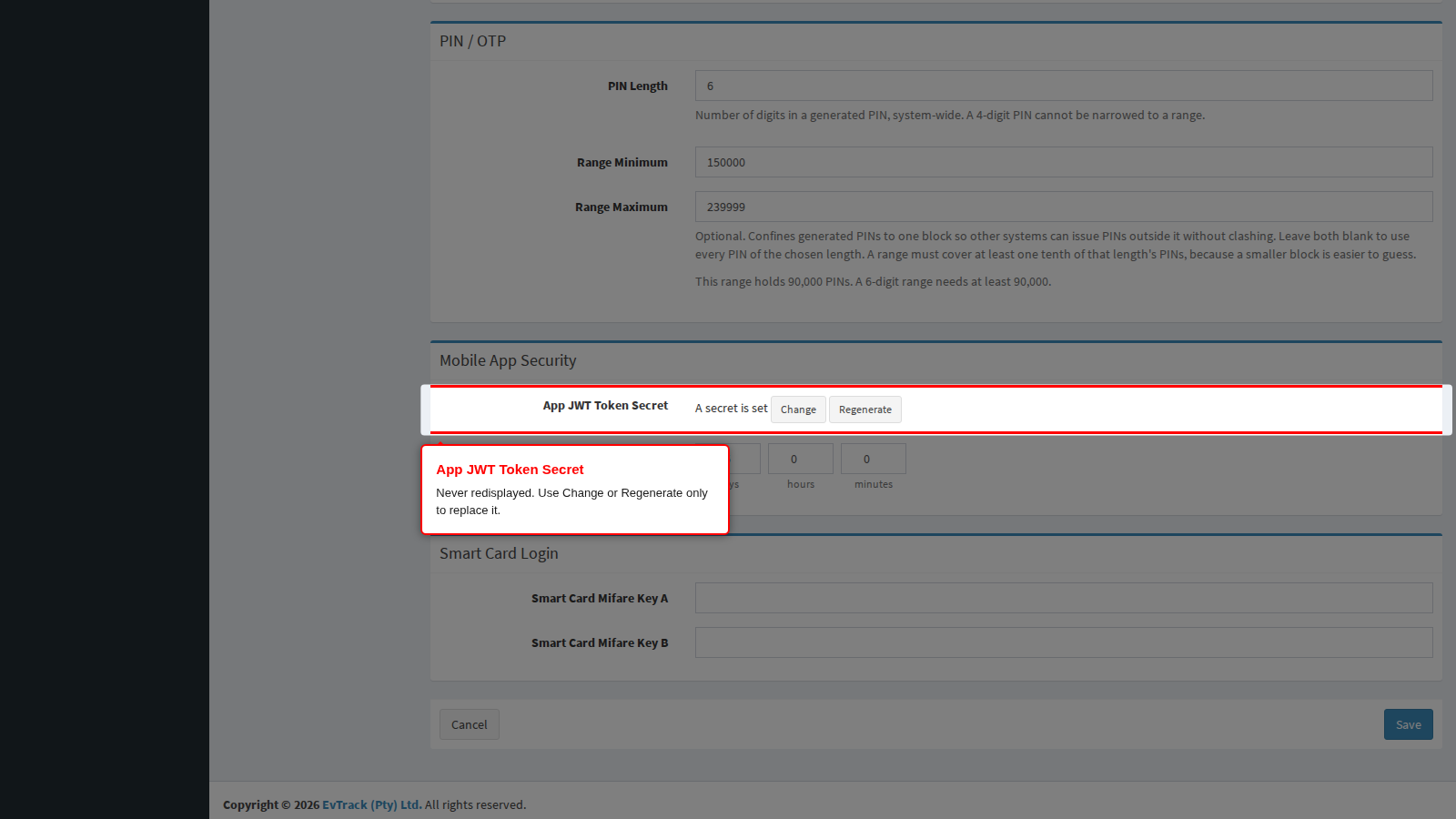
App JWT Token Secret is the key used to sign the tokens that authenticate the mobile app.
The stored secret is never sent back to the browser: the page only shows A secret is set with Change and Regenerate buttons, so there is no password field for the browser to fill with a saved login. Leave it alone to keep the current secret. To replace it, the simplest route is Regenerate: the page shows A new secret will be generated when you save. and a strong random secret is created on save, so you never have to type one. Click Change only if you must enter a specific secret; it must be a Base64 key of at least 64 bytes (88 characters). Either way, Keep Current Secret backs out before you save - and the moment you save a new secret, every existing mobile app session becomes invalid and every user must log in again. If no secret exists yet, one is generated automatically the first time this page is opened, so in normal operation you never need to touch this field at all.
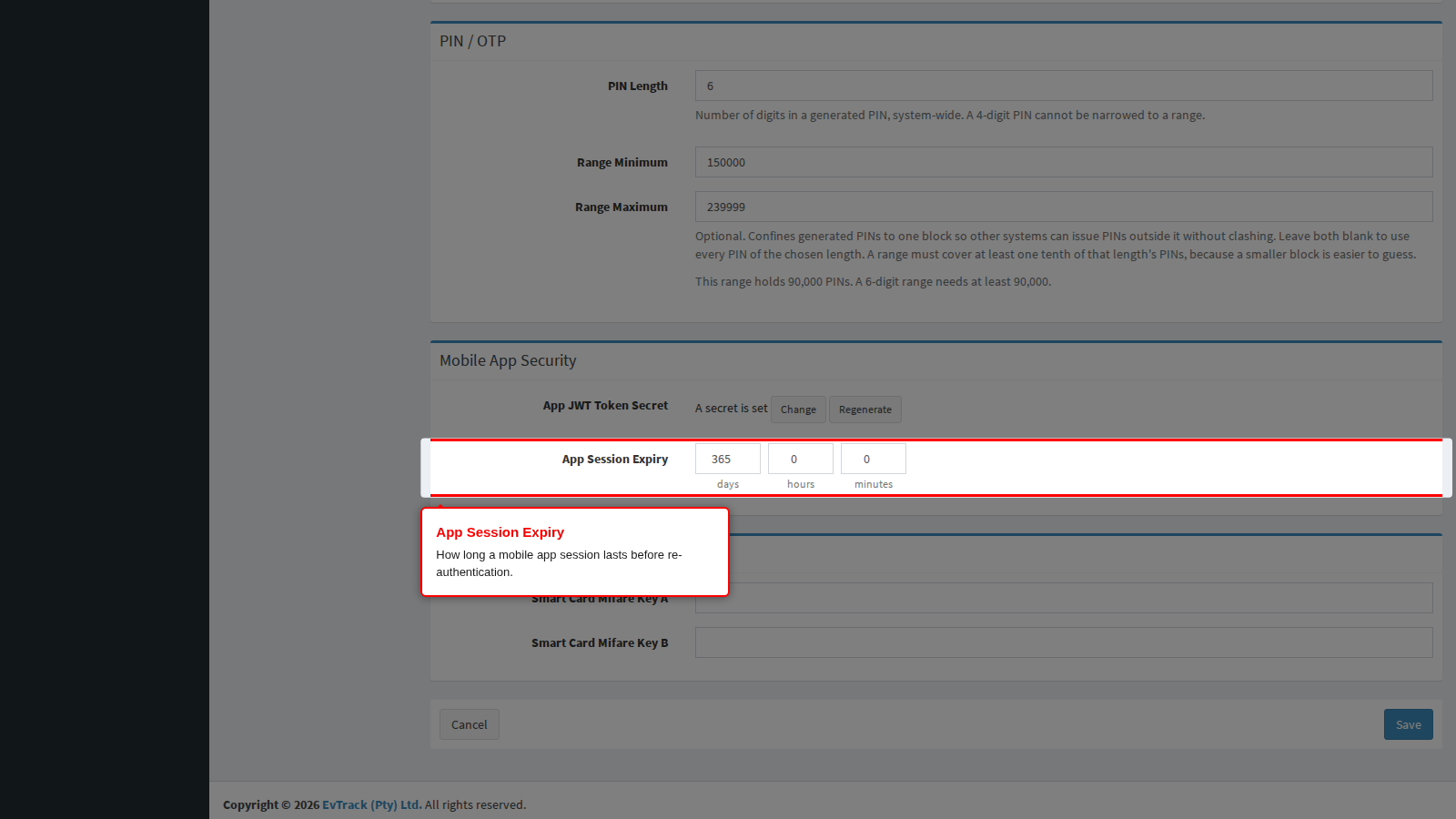
App Session Expiry is how long a mobile app session remains valid before the user must authenticate again, entered as days, hours and minutes. The minimum accepted value is five minutes.
This is the balance between convenience and the exposure window on a lost or stolen phone. A long expiry means a found phone keeps working for days; a short one means your staff re-authenticate constantly and start writing passwords down. Pick a value that matches how the app is used on your site - a guard patrolling all shift is not the same case as a host who opens the app once a week.
Smart Card Login
Where operators log in by presenting a smart card instead of typing a password, these two keys are what let the reader read the card.
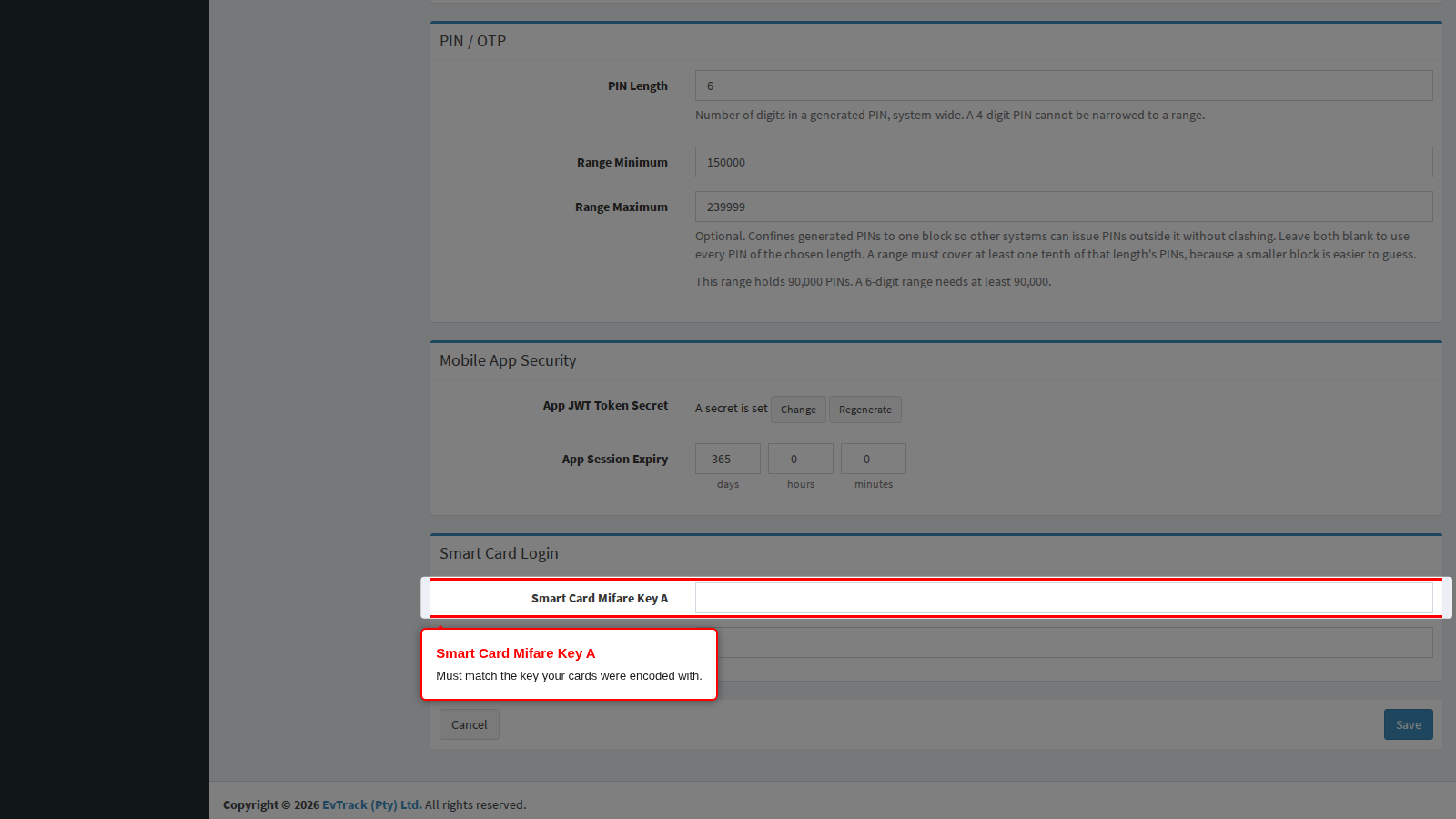
Smart Card Mifare Key A must be exactly 12 hexadecimal characters and must match the key your cards were encoded with. A wrong key does not produce a helpful error at the reader - the card simply is not recognised, and it looks like a broken card or a broken reader.
Smart Card Mifare Key B follows the same rule: exactly 12 hexadecimal characters. Both keys control read access to the card sectors, so treat them as secrets: they are as sensitive as a password, and anyone who has them can read the cards your site issues. Unlike the app secret above, these two fields are shown in plain text on the page - do not leave the page open on a shared screen, and do not paste the keys into a support ticket.
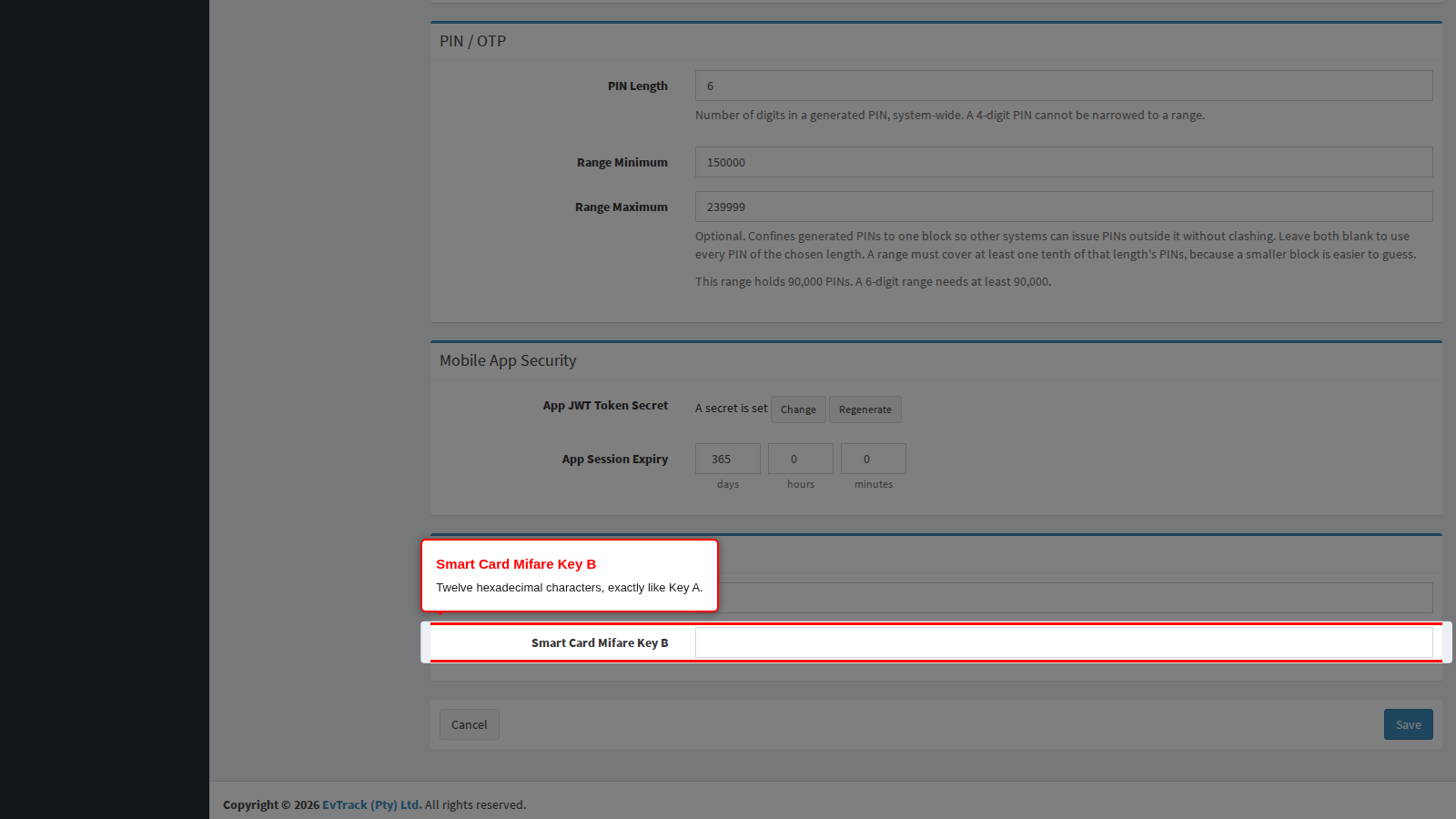
Changing either key breaks every card encoded with the old one. Re-encode the cards first, or plan a cutover, before you save a new value.
Related pages
- Sign-on, session hardening and server-side security options live in the Privacy and Security section.
- Data retention and visitor visibility: Privacy.
- Issuing the codes themselves, and the pass a visitor receives: Configuration > Visitor Settings > Visit Pass.
- Choosing identifier formats, the Gallagher option and ranges: Identifier Formats.