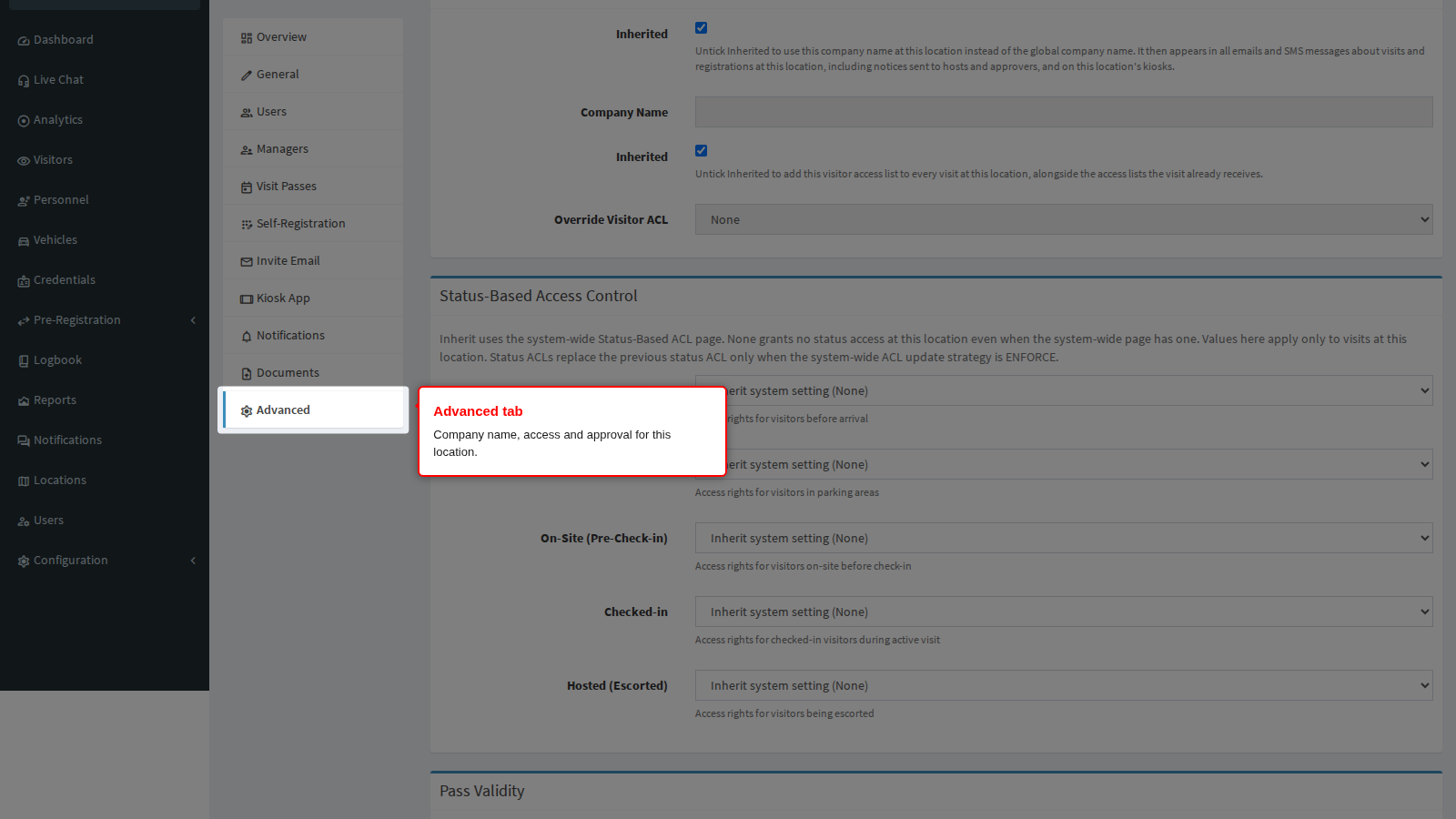
The Advanced tab holds the settings that make one location behave differently from the rest of the system: its own company name in emails, SMS messages and kiosks, an extra access control list for its visits, a different pass validity, manager approval, and host approval for dashboard check-ins. Each setting follows the global value until you change it here. The tab has its own Save button and saves only itself.
Who can use this tab: to see it, “Configuration: Location - Edit/View” and “Configuration: System Settings - View”; to save it, “Configuration: Location - Save” and “Configuration: System Settings - Save”.
Step 1: Open the Advanced tab
Open Locations in the sidebar, open the location, and click Advanced in the menu on the left. The tabs of a location are a stacked list on the left of the page.
Step 2: See what the location inherits
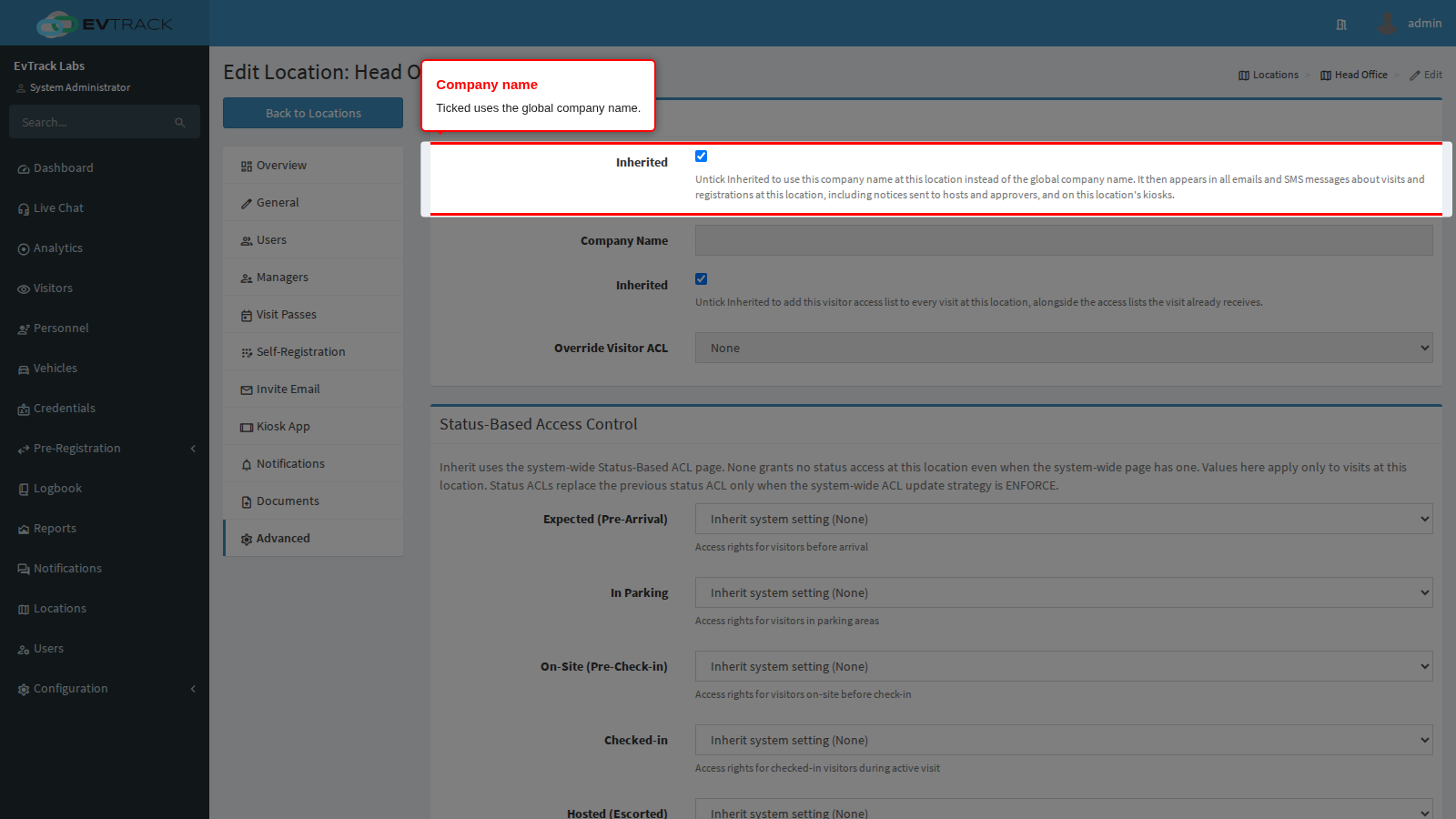
The Visitor Invite Settings panel has two independent rows, each with its own Inherited tick, and both are ticked by default. The first row covers the Company Name. With the tick on, the location uses the global company name and the name field is disabled.
Step 3: Set a company name for this location
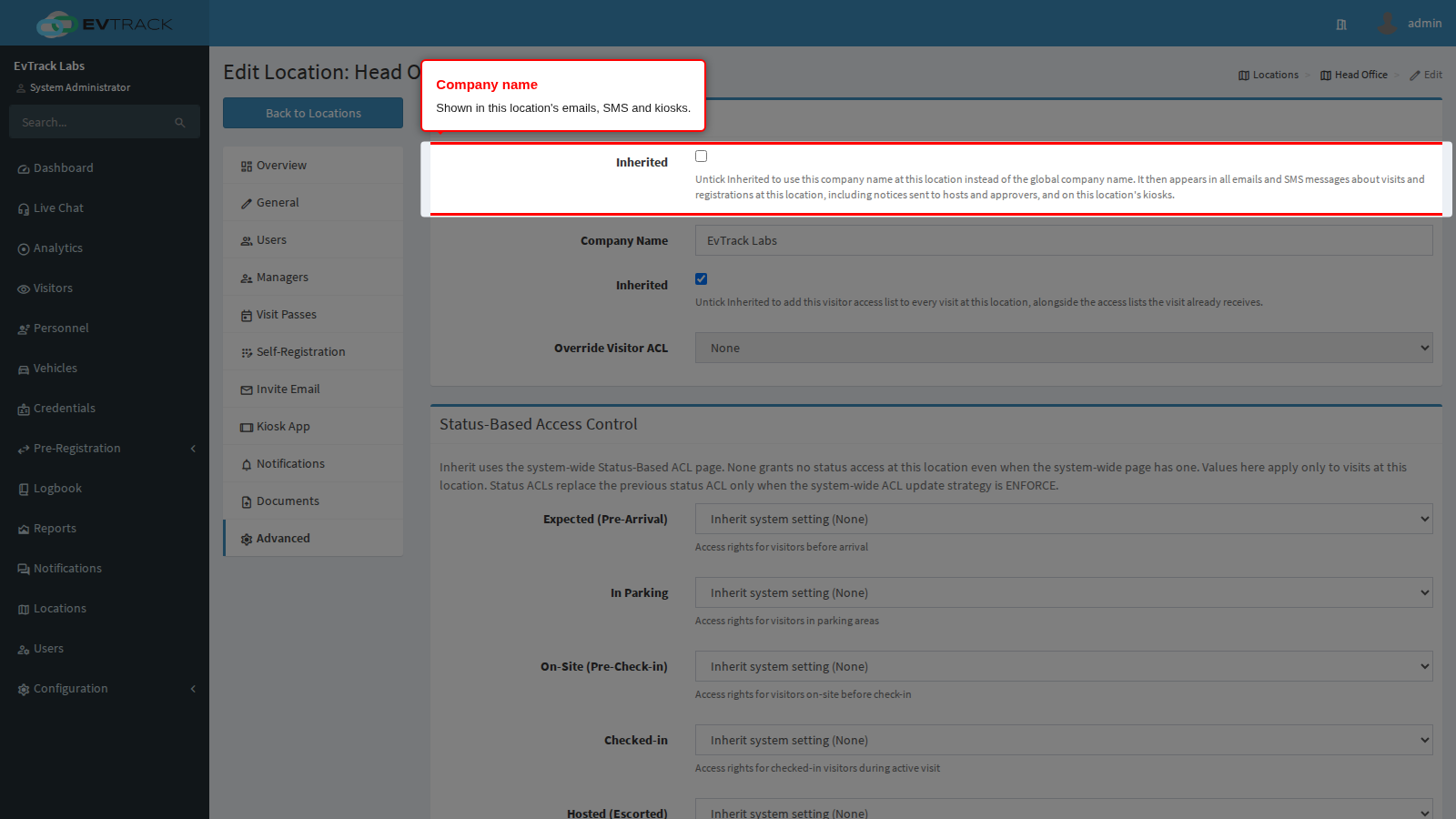
Untick Inherited in the first row and type the name in Company Name. It replaces the global company name wherever this location is named in a message, and on the welcome screen of the kiosks assigned to this location. The tick of the second row is not affected: a company name no longer needs an access control list.
Step 4: Add an access control list for this location
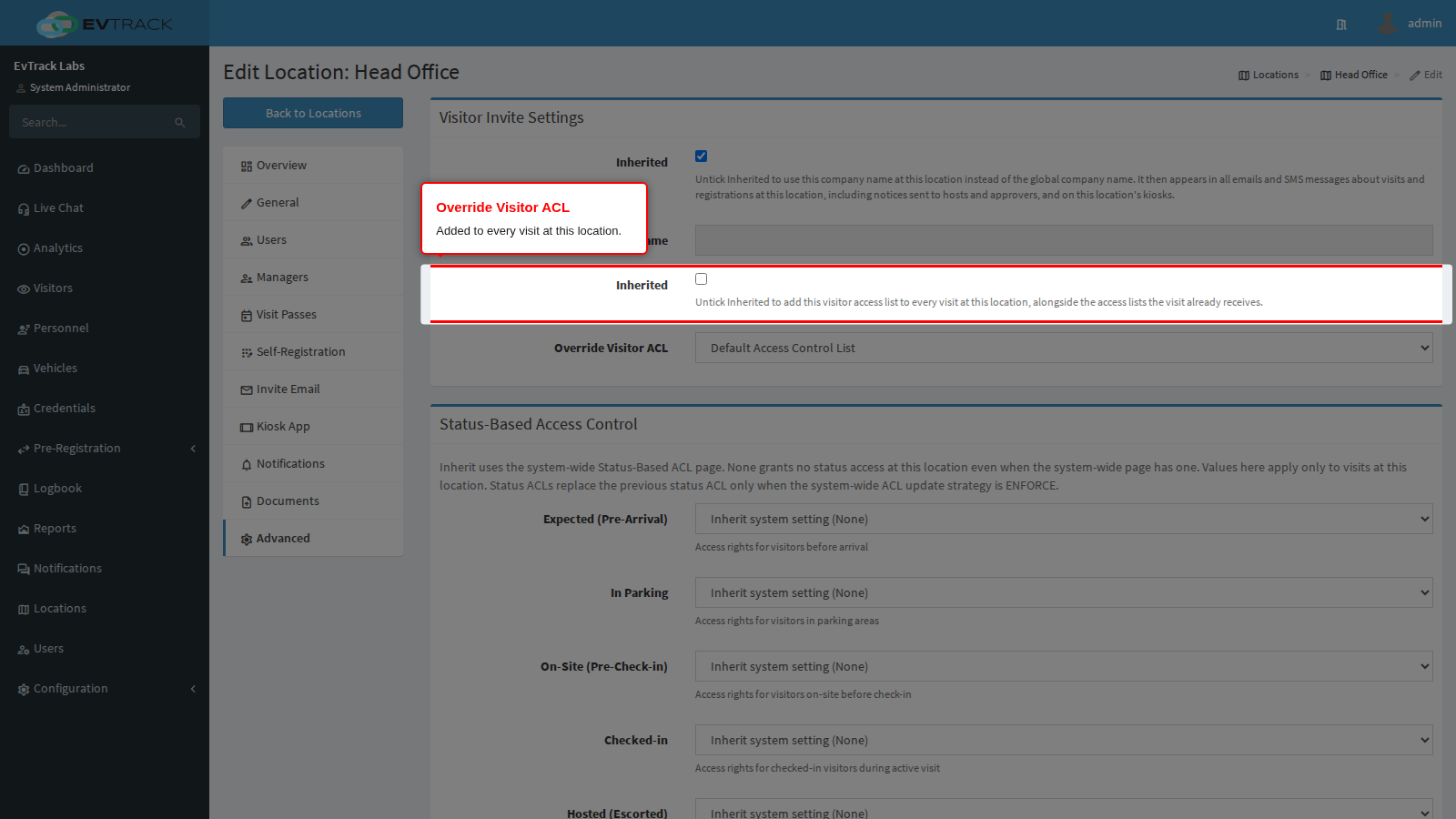
Untick Inherited in the second row to choose an Override Visitor ACL. The list is added to every visit at this location, on top of the lists a visit already receives. While you override, the select offers only real access control lists, with no None choice.
Step 5: Review status-based access
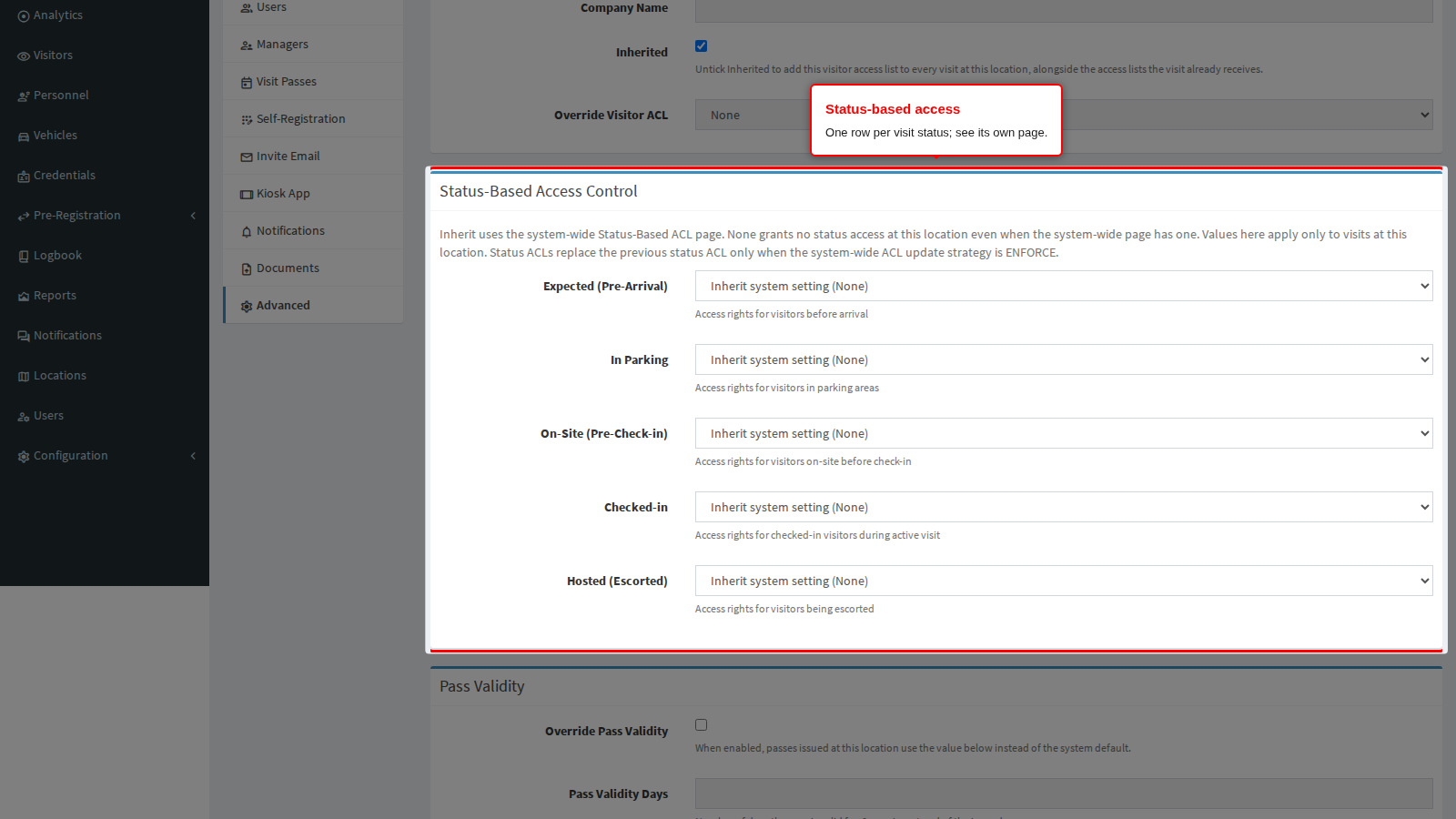
The Status-Based Access Control panel sets, for each visit status, which access control list this location grants. It has its own page: Status-Based Access per Location.
Step 6: Change the pass validity
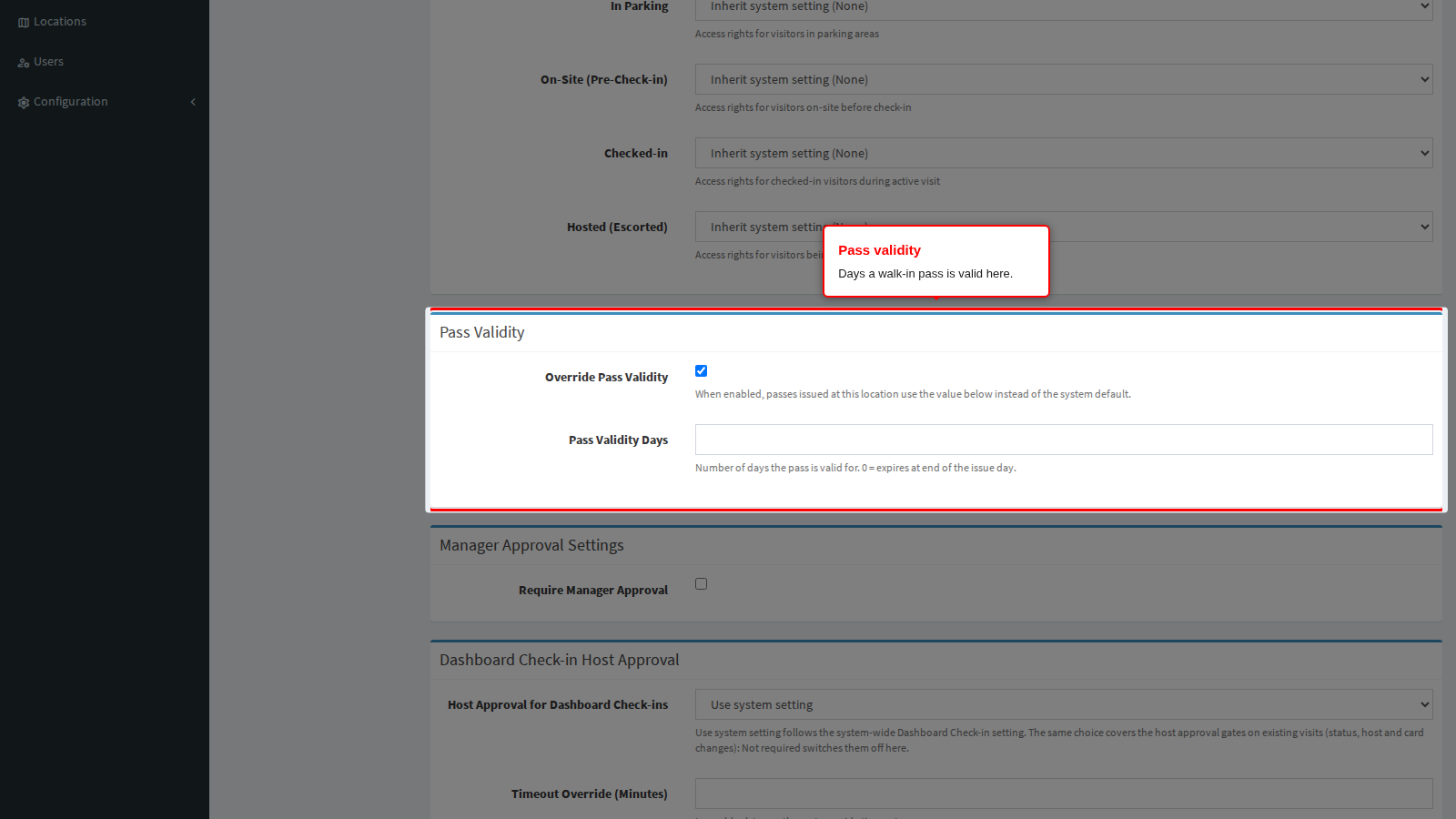
Tick Override Pass Validity to enable Pass Validity Days and set how long a walk-in pass is valid at this location.
Step 7: Decide whether registrations need approval
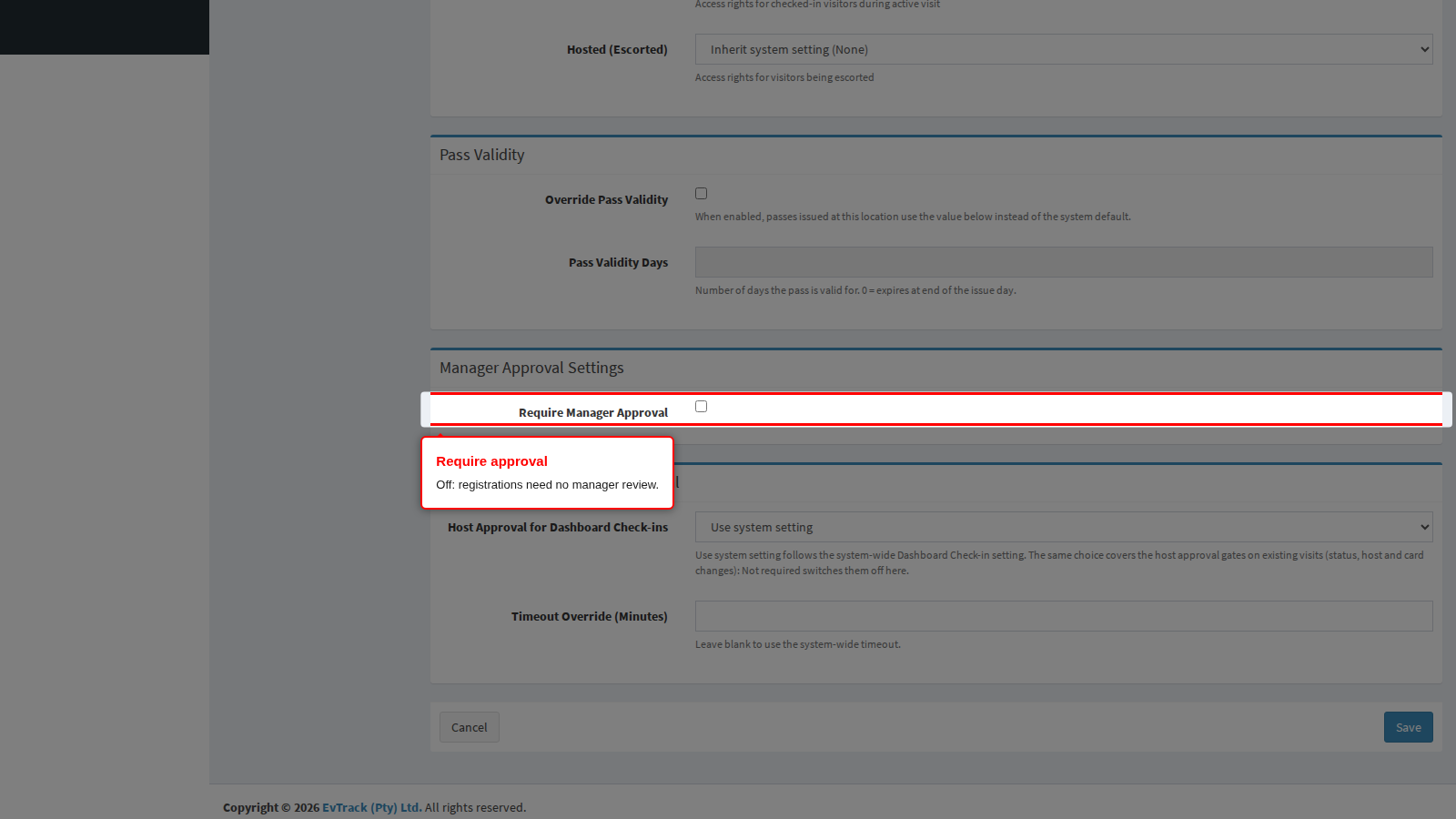
Require Manager Approval is off by default. While it is off, registrations and invitations for this location need no manager review, and Approval Mode is hidden.
Step 8: Choose the approval mode
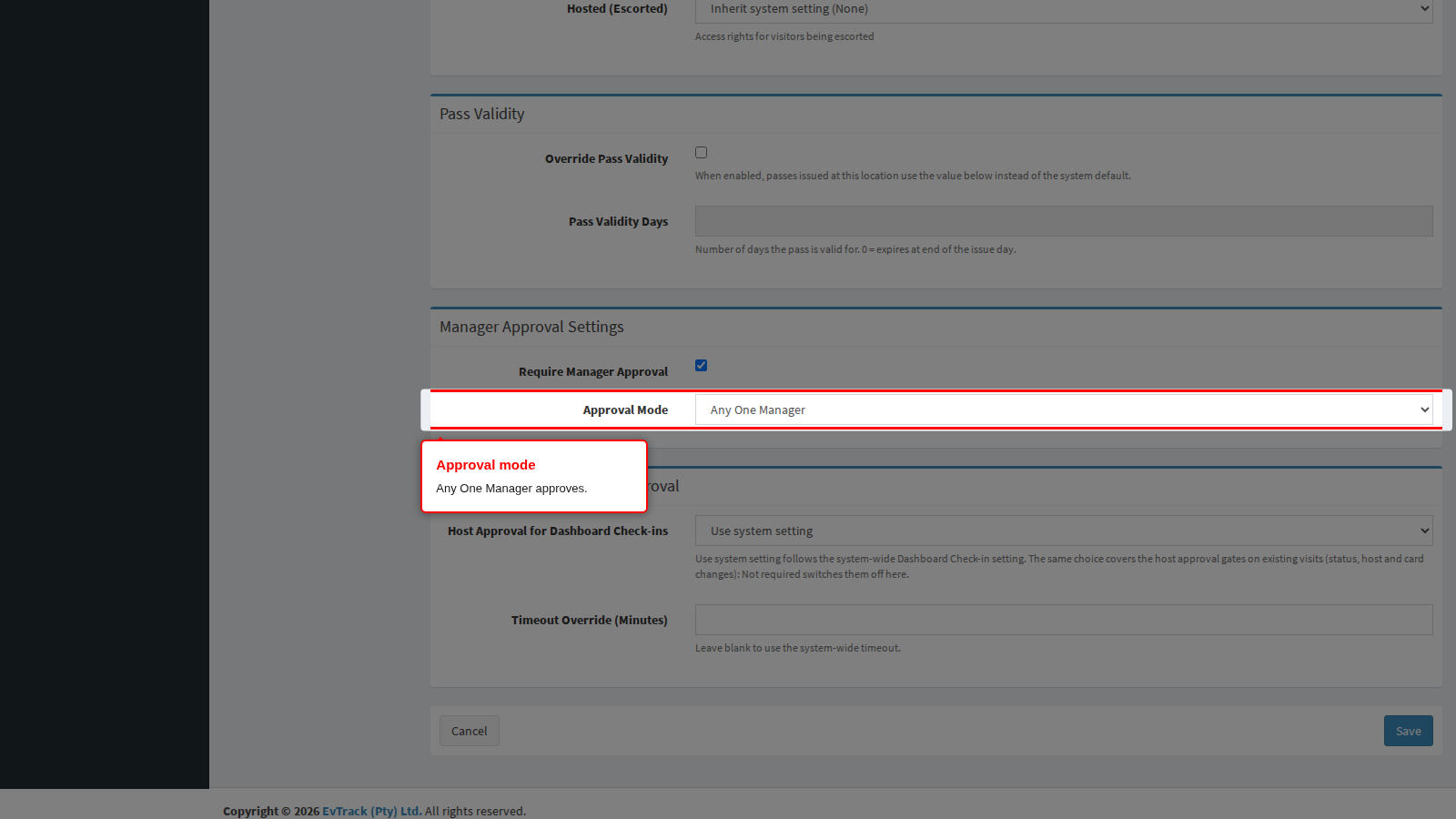
Tick Require Manager Approval. Approval Mode appears and offers one choice, Any One Manager: the approval of any single manager of the location is enough.
Step 9: Set host approval for dashboard check-ins
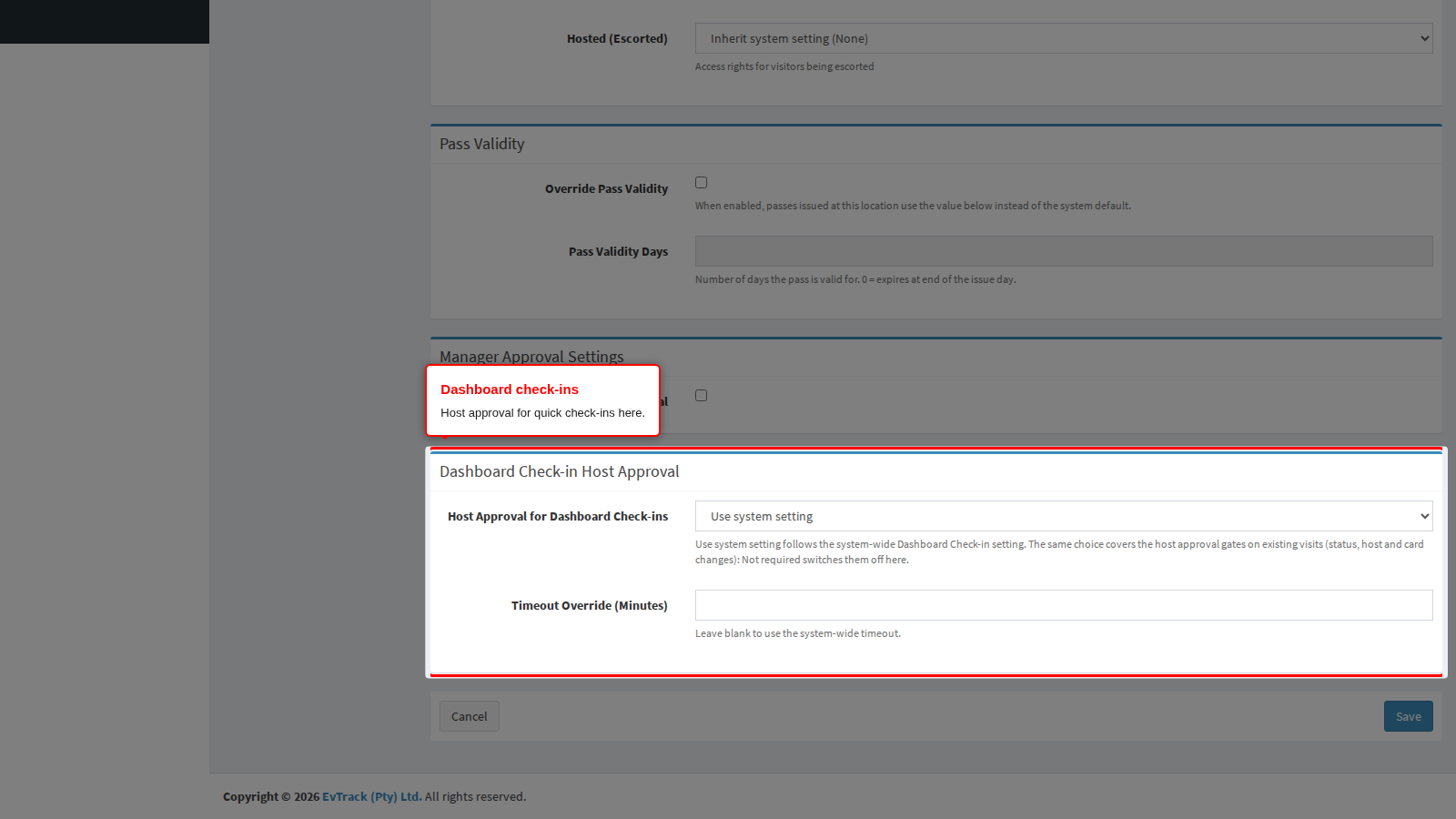
The Dashboard Check-in Host Approval panel decides whether a check-in made from the dashboard at this location waits for the host.
Step 10: Save
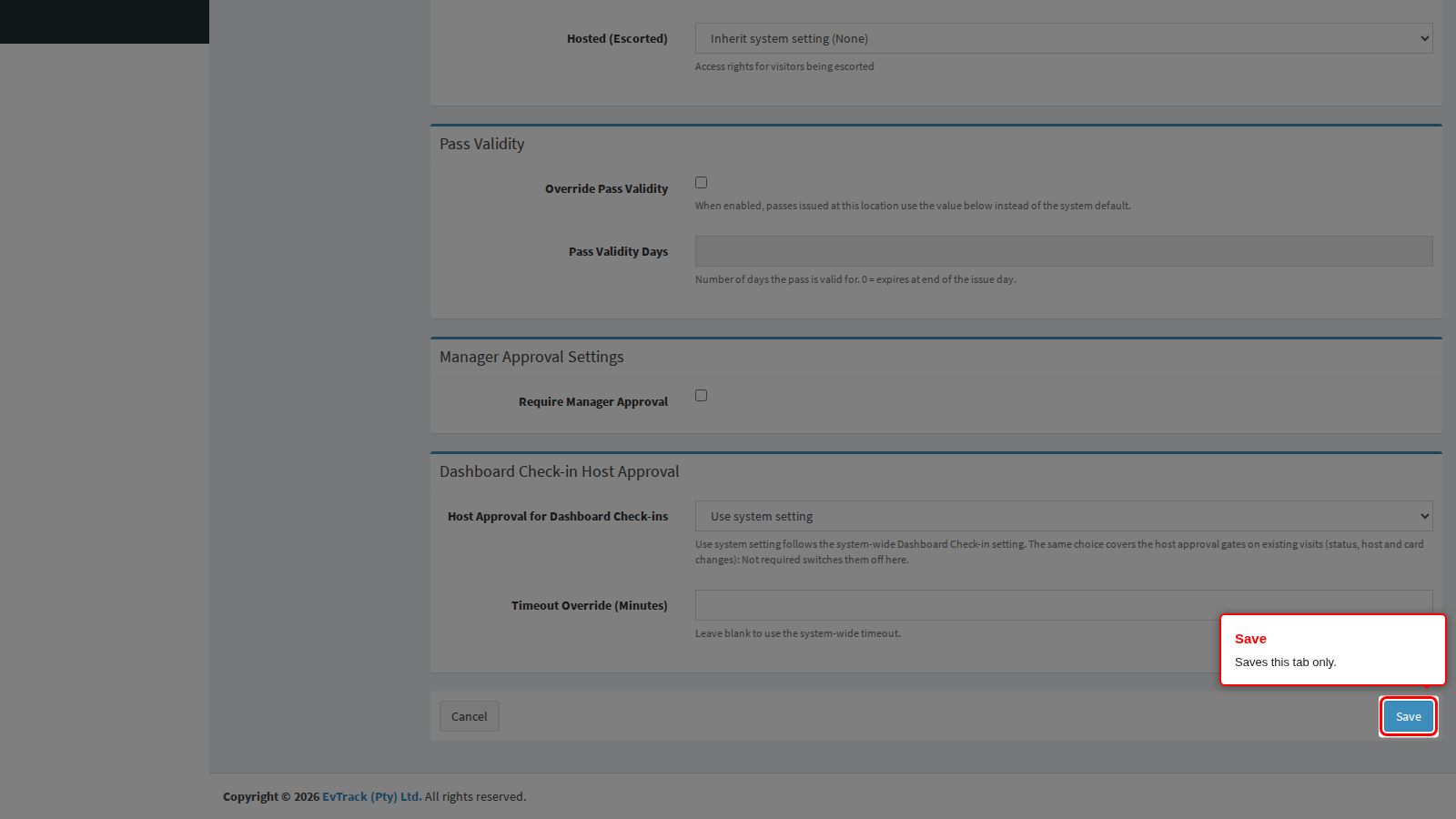
Click Save at the bottom of the tab. This saves the Advanced tab only and returns you to the location list. If a field is refused, the tab opens again with the message beside the field and nothing is saved.
Options on this tab
Visitor Invite Settings
| Option | Default | Values and rules |
|---|---|---|
| Inherited (company name) | Ticked | Help text: “Untick Inherited to use this company name at this location instead of the global company name. It then appears in all emails and SMS messages about visits and registrations at this location, including notices sent to hosts and approvers, and on this location’s kiosks.” Ticked stores no name. |
| Company Name | Empty | 6 to 200 characters on one line; line breaks are removed when you save. Letters of any language, digits, spaces and the characters / . , - ‘ ( ) & : ; @ ? ! are allowed. A name with any other character is refused at save, and a name already stored with one is ignored: messages then silently use the global company name. |
| Inherited (Override Visitor ACL) | Ticked | Help text: “Untick Inherited to add this visitor access list to every visit at this location, alongside the access lists the visit already receives.” Ticked stores no list. |
| Override Visitor ACL | None | An access control list. There is no None choice while you override: a None left over from earlier is cleared and the save asks for a real list. |
The two ticks are independent. Untick only what you need: a company name no longer requires an access control list, and an access control list no longer requires a company name. Before this release both values were set together through one tick; locations saved before then keep both values exactly as they were.
The company name replaces the global company name (see System Settings) in all emails and SMS messages about visits and registrations at this location, including notices to hosts and approvers. It also appears on the welcome screen of the kiosks assigned to this location, see Location Kiosk App.
The Override Visitor ACL is added to the lists a visit at this location receives. It does not replace the Visitor Default ACL, which is the global counterpart on Visit Pass Settings. A host based at this location brings the list to their visits at other locations too: for a visit at location A whose host is based at location B, the credential receives the Visitor Default ACL, location A’s own Override Visitor ACL, location A’s list for the current status and location B’s Override Visitor ACL.
Status-Based Access Control
Five rows: Expected (Pre-Arrival), In Parking, On-Site (Pre-Check-in), Checked-in and Hosted (Escorted). Each offers Inherit system setting with the current global value in brackets, None, or an access control list. Full detail is on Status-Based Access per Location.
Pass Validity
| Option | Default | Values and rules |
|---|---|---|
| Override Pass Validity | Off | When on, passes issued at this location use Pass Validity Days instead of the global value. |
| Pass Validity Days | Empty | 0 to 3650. 0 means the pass expires at the end of the day it is issued. The number is kept while the box is off, so switching the box on again restores it. |
The override applies to new walk-in visits created at a kiosk or a Guard checkpoint at this location. The pass is valid from the start of today to the end of today plus the number of days. It does not change invitations. It overrides Additional Days on Visit Pass Settings, which is 1 by default.
Manager Approval Settings
| Option | Default | Values and rules |
|---|---|---|
| Require Manager Approval | Off | When on, registrations and invitations for this location wait for a location manager. |
| Approval Mode | Any One Manager | Shown only while Require Manager Approval is ticked. The only choice is Any One Manager. |
A location that requires approval needs at least one Active manager; add managers on Location Managers. An invitation to such a location becomes a pre-registration for manager review. Location pickers group locations under Direct Approval and Requires Manager Review.
Dashboard Check-in Host Approval
| Option | Default | Values and rules |
|---|---|---|
| Host Approval for Dashboard Check-ins | Use system setting | Use system setting follows the global Dashboard Check-in setting. Required asks the host to approve. Not required skips the approval. The same choice covers the host approval steps on existing visits (status, host and card changes), so Not required switches those off at this location. |
| Timeout Override (Minutes) | Empty | 1 to 240. Empty uses the global timeout, which is 15 minutes when none is set. |
Required is refused while the global Location field is hidden. The message reads: “Host approval for dashboard check-ins needs a location. Set the Location field to Required or Optional under Visitor Settings - Required Fields before requiring host approval here.” See Required Fields Settings, and Reception Host Approval for how the approval works at the reception desk.
How it works
- The settings of the Notifications tab are stored together with this tab, but only the Notifications tab saves them. Saving the Advanced tab keeps whatever the Notifications tab last stored.
- Every access control list chosen on this tab must belong to this system. A list that does not is refused and nothing is saved.
Related chapters
- Status-Based Access per Location - the five status rows in detail.
- Location Kiosk App - the kiosk look and fields, including the company name shown on the welcome screen.
- Location Managers - the managers who approve registrations.
- Visit Pass Settings - the global Visitor Default ACL and Additional Days.