These switches on the General panel decide whether the FrontDesk kiosk can take a visitor who has no invitation, how much it fills in for them, and what it does when it cannot reach the server. They are on the same panel as Welcome Screen and Branding, further down.
Before you start:
- You can edit visitor settings.
- You know whether your site needs walk-in visitors, and whether a queue at reception is worse than an unverified entry during an outage. The offline switches below are that decision.
Go to Configuration > Visitor Settings, click the Kiosk tile, and choose General in the kiosk menu on the left.
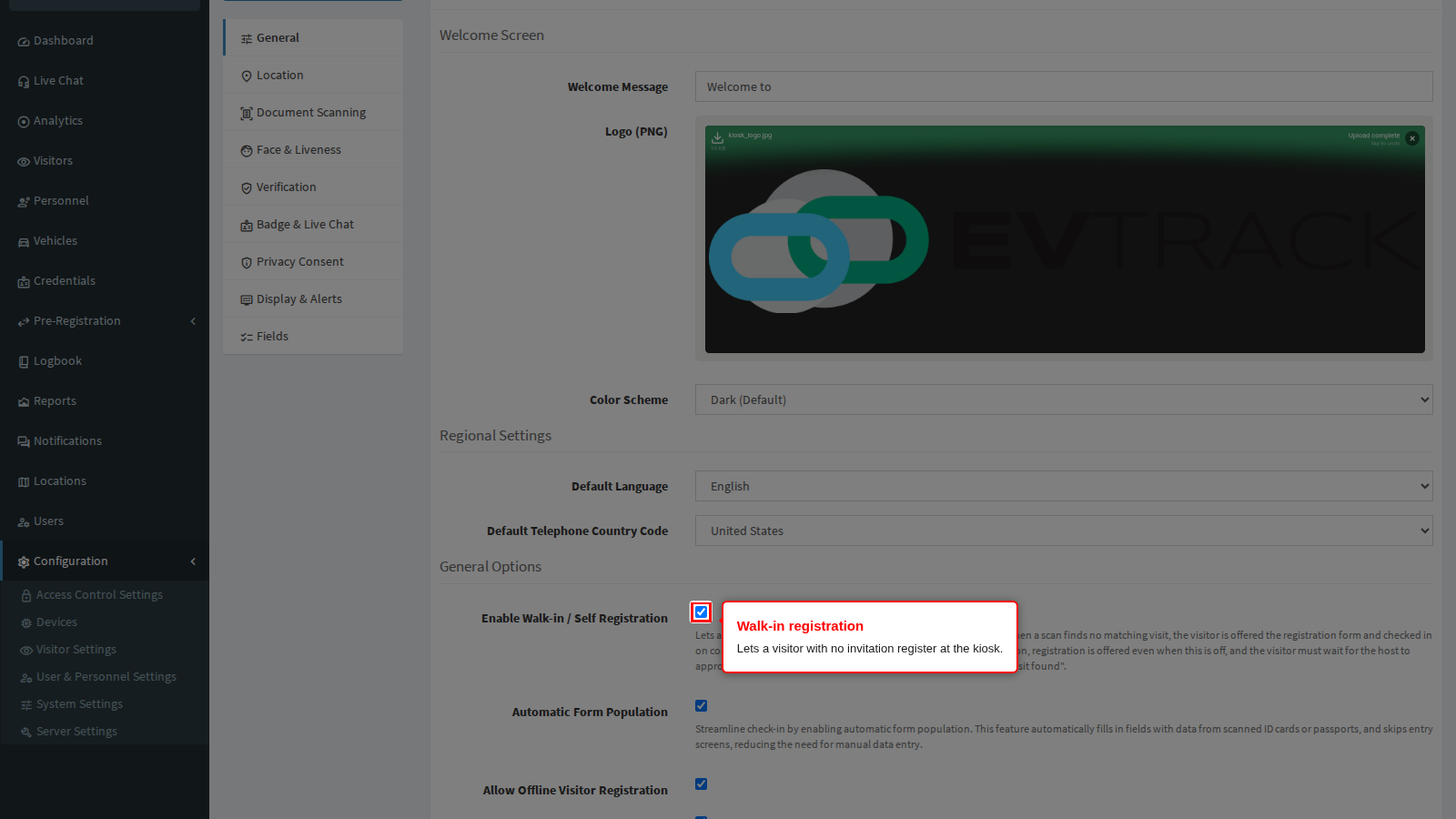
Enable Walk-in / Self Registration
On by default. With it on, a scan that finds no matching visit offers the registration form, and the visitor enrols themselves and is checked in when they finish. With it off, a visitor with no matching visit sees “No visit found”. Turn it on for a public lobby, and off where every visitor must be invited in advance.
One exception: when Require Host Approval for Self/Walk-in Check-in is on, the kiosk offers registration even with this switch off, and the visitor then waits for the host to approve.
Automatic Form Population
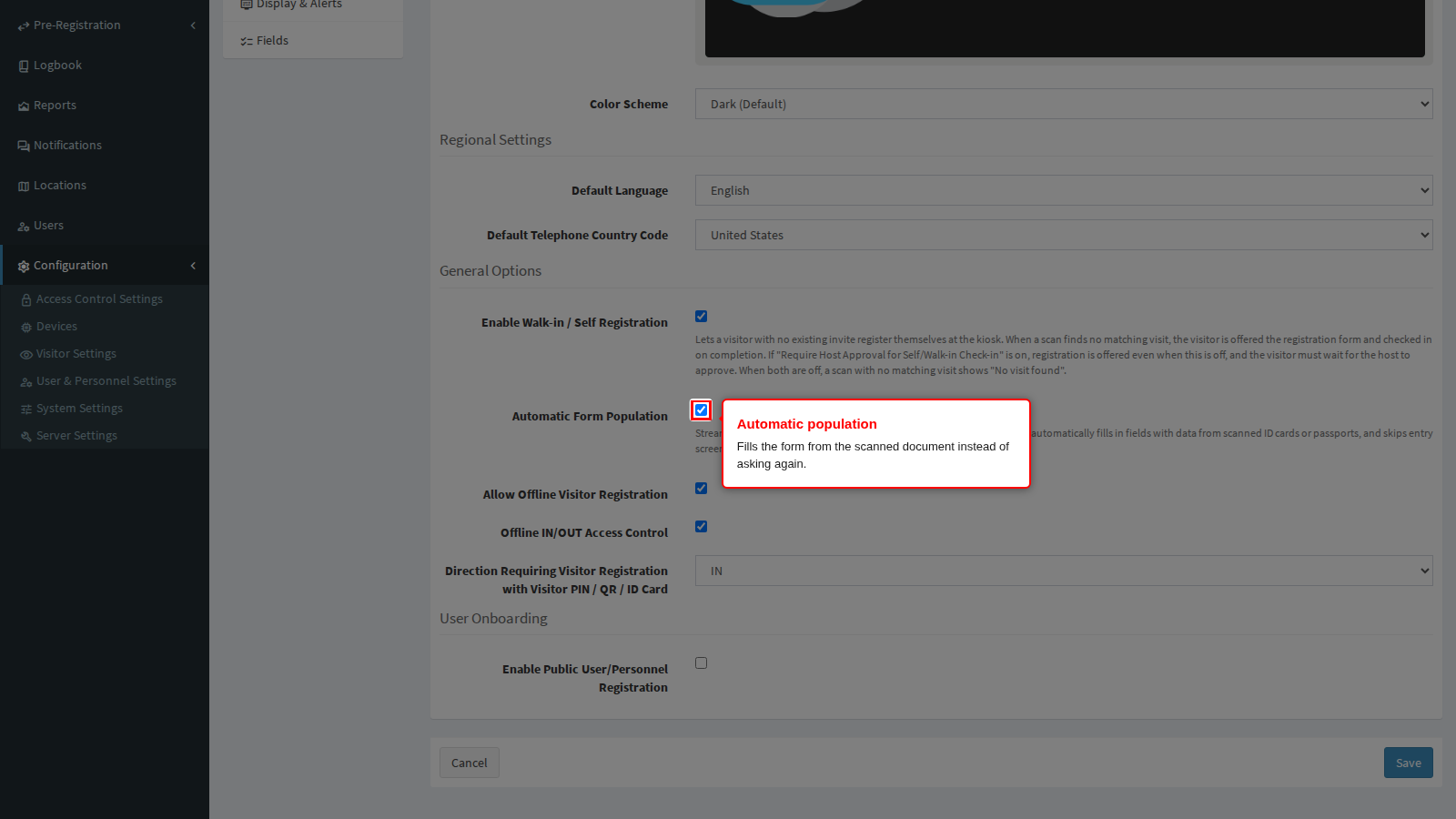
On by default. The kiosk fills in the registration form from a scanned ID card or passport and skips the screens it no longer needs to ask, so the visitor types less. The help text on the panel describes it: it fills in fields with data from scanned ID cards or passports and skips entry screens. It does nothing for a visitor who does not scan a document. Scanning itself is set on the Document Scanning panel.
Allow Offline Visitor Registration
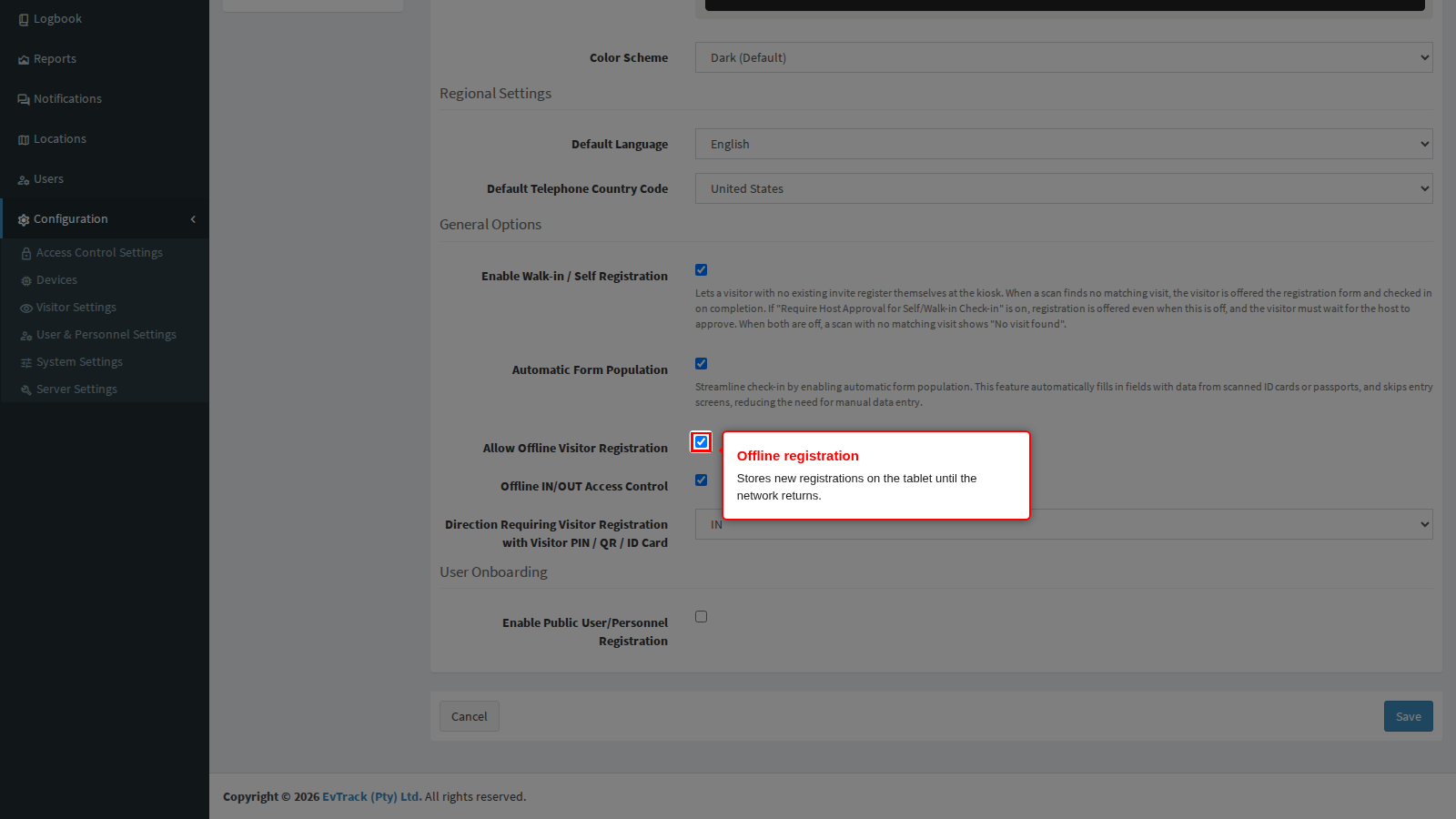
On by default. While the kiosk cannot reach the server, it holds new registrations, check-ins and check-outs on the tablet and uploads them when the connection returns. Turn it on where the network is unreliable and a queue at reception is worse than a delayed record. With it off, nothing is stored: the visitor sees a message that the server is offline and their request could not be processed.
Offline IN/OUT Access Control
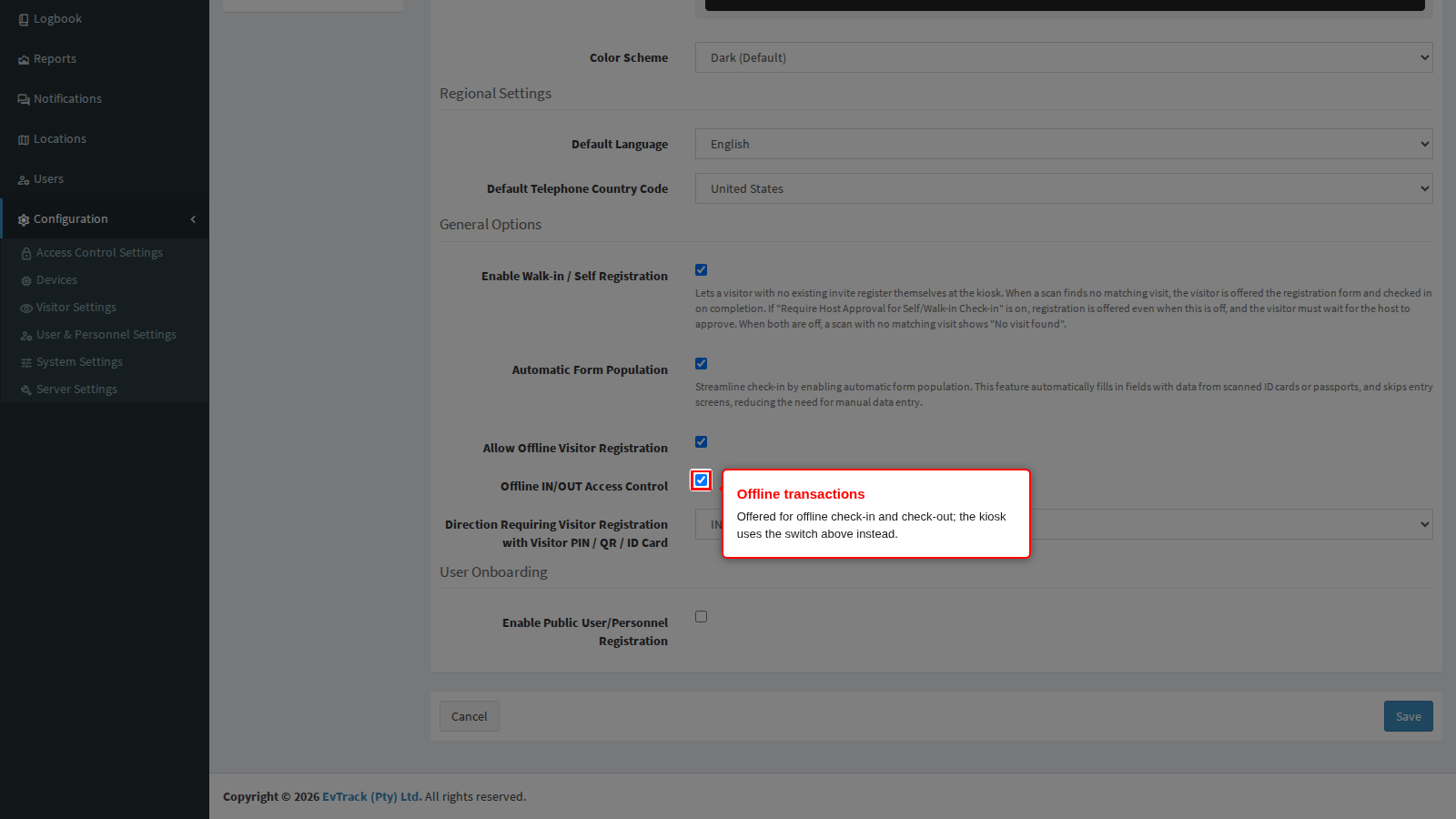
On by default, but the FrontDesk kiosk ignores it. The switch is offered as the equivalent for visitors who already exist, yet the app reads only Allow Offline Visitor Registration above, and that one governs the offline queue for check-ins and check-outs as well as for new registrations. Set the switch above to the behaviour you want, and treat this one as having no effect.
What a kiosk can and cannot check while it is offline. This matters more than either switch. The kiosk never checks the network in advance; it takes the visitor through the whole flow and only discovers the outage when it tries to submit. Everything that runs on the tablet still runs: document reading, required fields, face detection, liveness, the photo comparison with the document. Everything that lives on the server does not. The tablet holds no copy of your credentials, access control lists, validity windows, watchlists or visit records, so while it is offline it cannot tell whether a code is genuine, still valid, already used, cancelled, or belongs to somebody on a watchlist, and it cannot ask a host for approval (see Host Approval Prompts).
With offline queueing on, the visitor sees a message thanking them and saying the information will be submitted later, and they are through. With it off they see a message saying the server is offline and their request could not be processed, and nothing is stored. Neither outcome is wrong; they are opposite risk decisions. A site that must never admit an unverified person turns queueing off and accepts that an outage closes the kiosk. A site where a queue at reception is the bigger problem turns it on and accepts that anything scannable gets in.
One consequence to plan for: when the queue is uploaded later, the server may well reject some of the movements it now sees in full, and by then the visitor has long gone. Treat a queued check-in as a record of what happened, not as an approved entry, and reconcile the movement log after an outage.
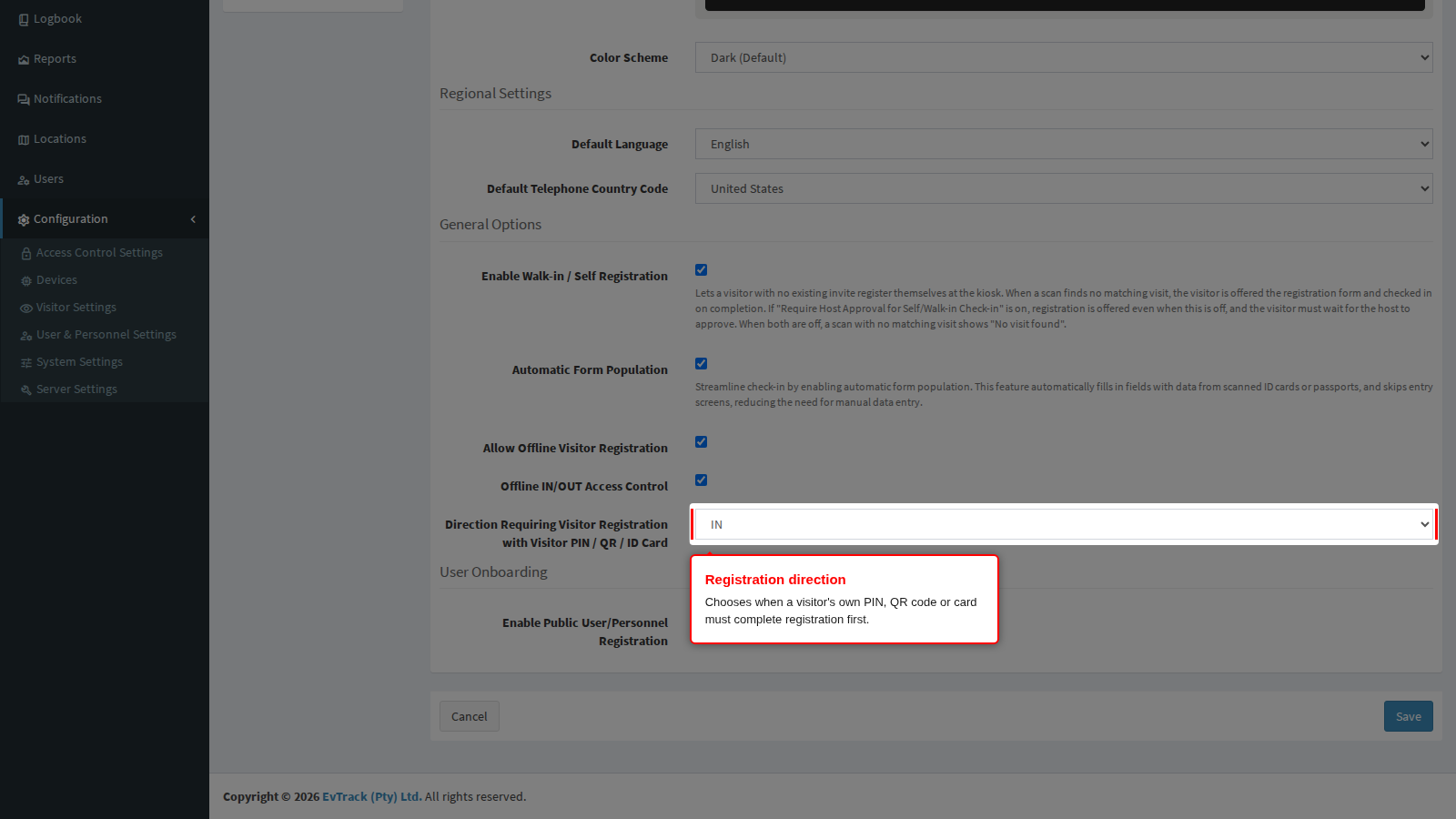
Direction Requiring Visitor Registration with Visitor PIN / QR / ID Card
Decides when a visitor who presents a PIN, QR code or card issued to them must complete the registration form first. The choices are NONE, IN, OUT and BOTH. A new system starts on IN. The kiosk asks only while it is online, and only about a visitor’s own PIN, QR code or card.
What each choice does depends on where the visitor is scanning:
- Scan on the welcome screen, before choosing check-in or check-out. The kiosk first identifies the visitor. Any choice except NONE sends a visitor who has not yet checked in to the registration form here, so IN, OUT and BOTH all behave the same on this screen.
- On the check-in screen, after the visitor has chosen check-in. Only IN and BOTH show the form to a visitor checking in.
- On the check-out screen, after the visitor has chosen check-out. Only OUT and BOTH show the form to a visitor checking out.
- NONE never forces the form on any of these screens.
So OUT does not mean “ask on the way out only”: a visitor with an upcoming visit who scans on the welcome screen is still sent to the form. To collect details at arrival only, use IN; to collect them at departure as well, use BOTH.
IN and BOTH also make the kiosk offer QR code check-in, because a QR code is how the visitor reaches the form.
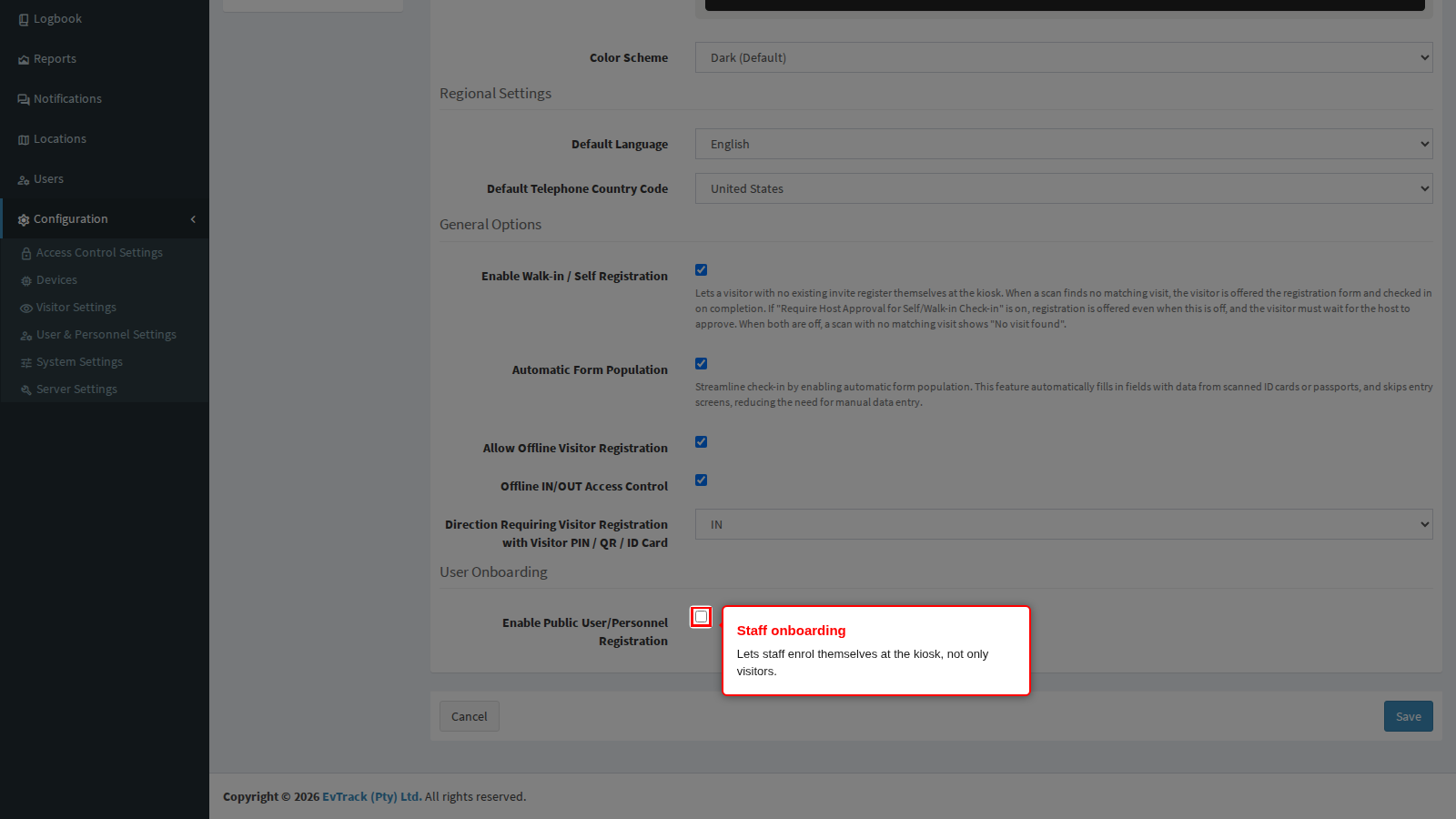
Enable Public User/Personnel Registration
Off by default. Switched on, the welcome screen shows an ONBOARD button so staff can enrol themselves at the kiosk, not only visitors. Turn it on for an onboarding drive and off afterwards, so the kiosk does not offer a staff option to the public. The fields that flow asks for are set under User Registration Fields.
Save
Click Save at the bottom of the panel. A green confirmation appears at the top, and paired kiosks pick the change up within five minutes, or at once when the app restarts.