A walk-in enrolled at the checkpoint can be held until the visitor’s host approves it. These settings are on the shared Visitors > Settings > Host Approval page; the ones below are the ones that change what the officer sees.
They are shared with the FrontDesk kiosk: App Waits for Host Confirmation, Host Approval Timeout and the email and SMS backups apply to walk-ins registered at a kiosk as well, so a change here changes the kiosk too (see Host Approval).
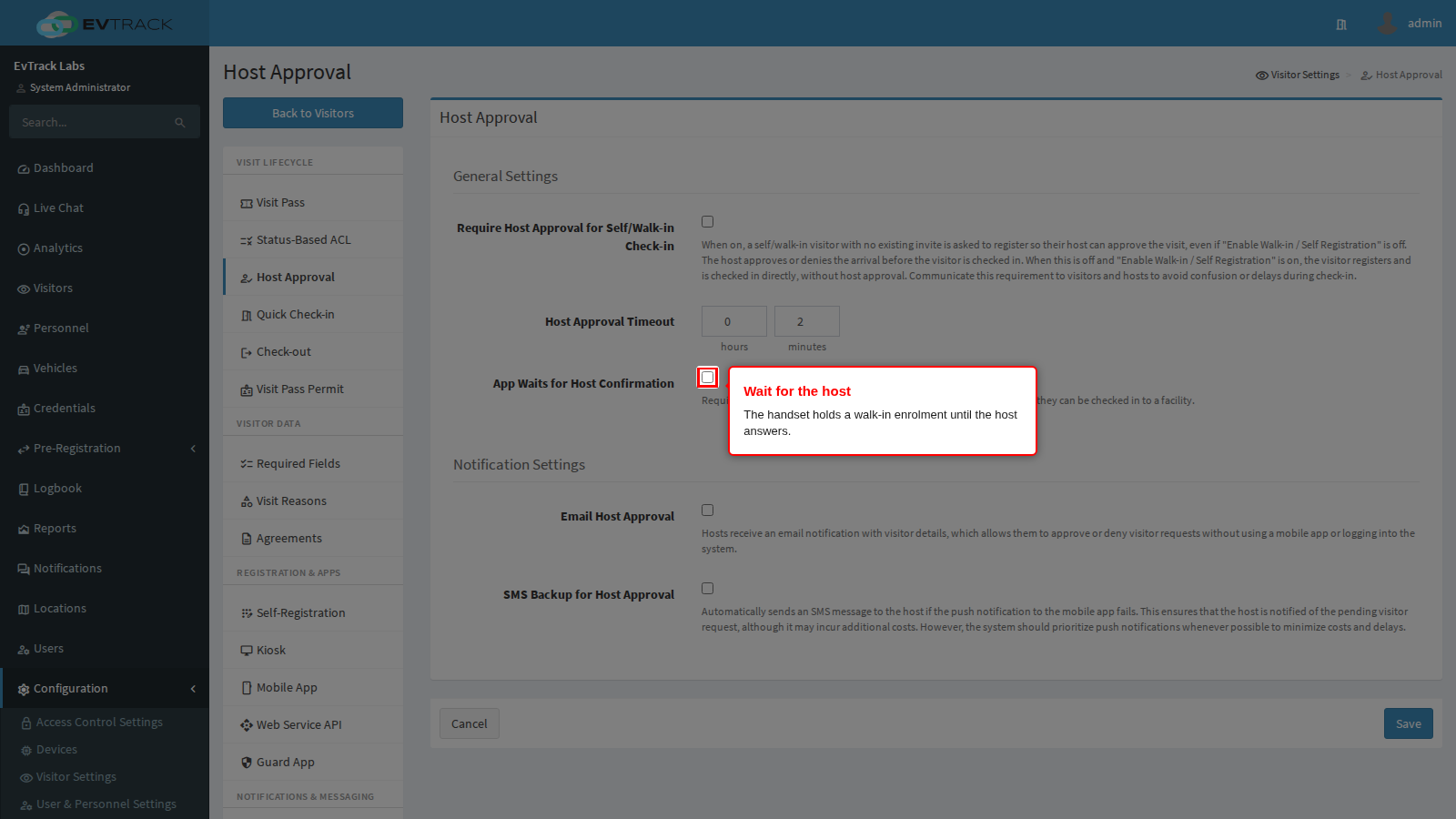
App Waits for Host Confirmation decides whether the officer stands and waits. It only has any effect where host approval is already switched on for walk-ins; on its own it approves nothing. It applies to a walk-in the officer enrols at the checkpoint; an ordinary entry or exit by somebody who already has a pass never waits for anybody.
With it on, the handset submits the enrolment and shows a WAITING FOR HOST screen with a spinner while it checks back with the server. The screen cannot be dismissed, backed out of or overridden, so the visitor is never admitted on the officer judgement alone. This is the setting for a checkpoint where an unapproved visitor must not get past the boom. Three things to prepare your officers for:
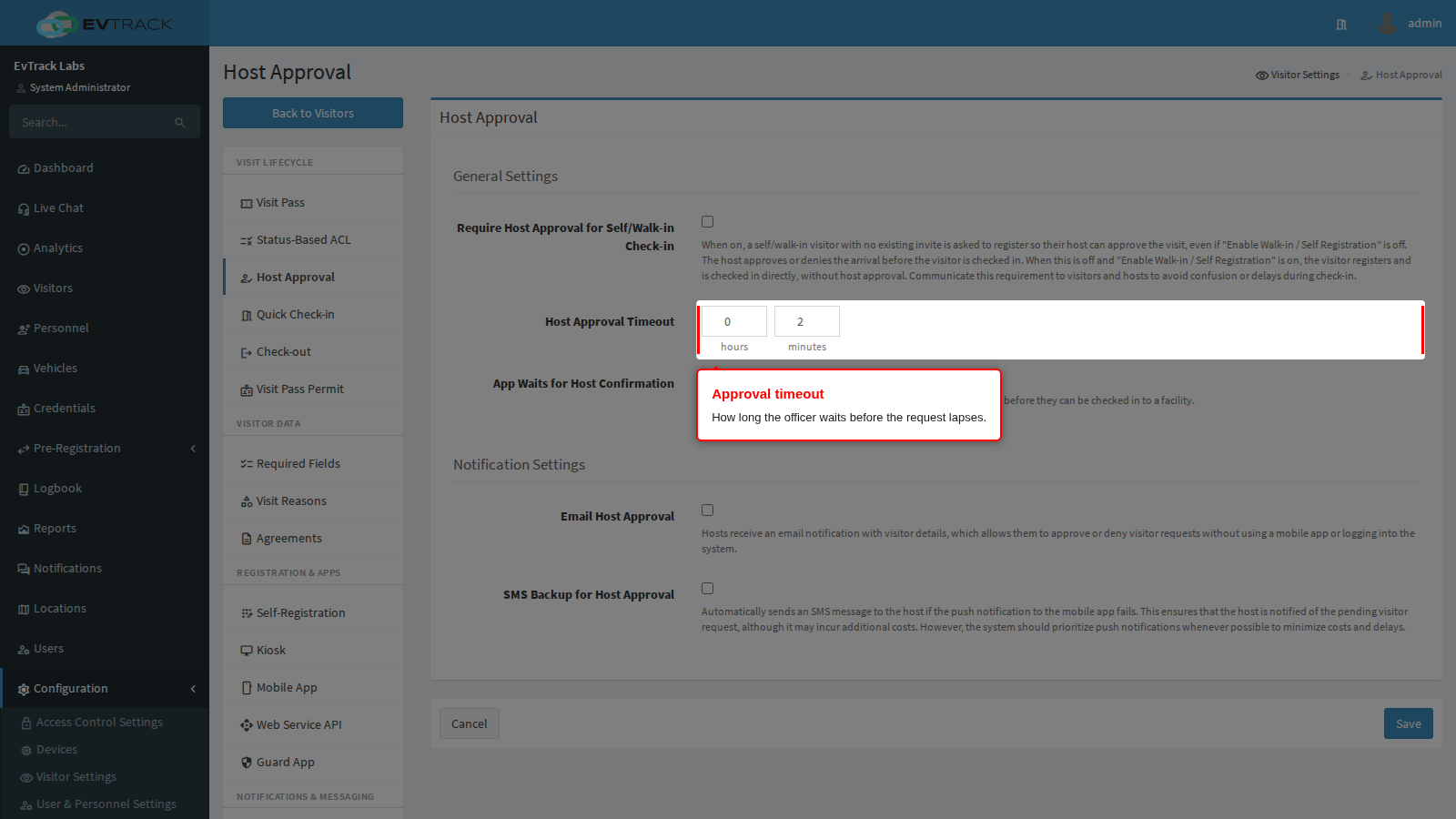
- Tell them how long the wait can run. The server gives the app the Host Approval Timeout with the waiting request, so the handset knows how long the wait lasts. Tell your officers roughly how long that is so they can manage the queue behind them.
- A refusal looks like an ordinary refusal. When the host declines, the handset shows a plain access denied message with nothing to say the host was the one who said no. If your officers need to tell a visitor why they were turned away, they will have to check the visit record or telephone the host.
- A lapsed request is recoverable. When the timeout passes, the handset shows Timeout - the host did not respond. Please try again, with RETRY, which submits the whole enrolment again and starts a fresh approval, and OK, which abandons it.
With it off, the officer gets Registration Submitted instead, with wording that says the host will be notified and the visitor will be told once the registration is approved. The officer is not shown access granted, and no badge is printed at that point; they acknowledge the message and move on to the next vehicle while the approval runs its course on the server. Use this where the approval is a record rather than a gate and holding a queue at the boom is the bigger problem. Be clear with your officers which of the two you have chosen, because the handset gives them no other clue.
Neither mode survives an outage. If the handset loses its connection while it is waiting, the wait screen disappears with a network error and nothing is queued: the officer has no sign that an approval may still be pending, and submitting again creates a second, separate request for the same visitor. Give your officers a written fallback for that case.
The panel help text describes this as requiring visitors to wait for their host approval through a mobile app before they can be checked in.
Host Approval Timeout is how long that wait lasts before the request lapses. Set it to something an officer can hold a queue for, and give them a documented fallback for requests that time out.
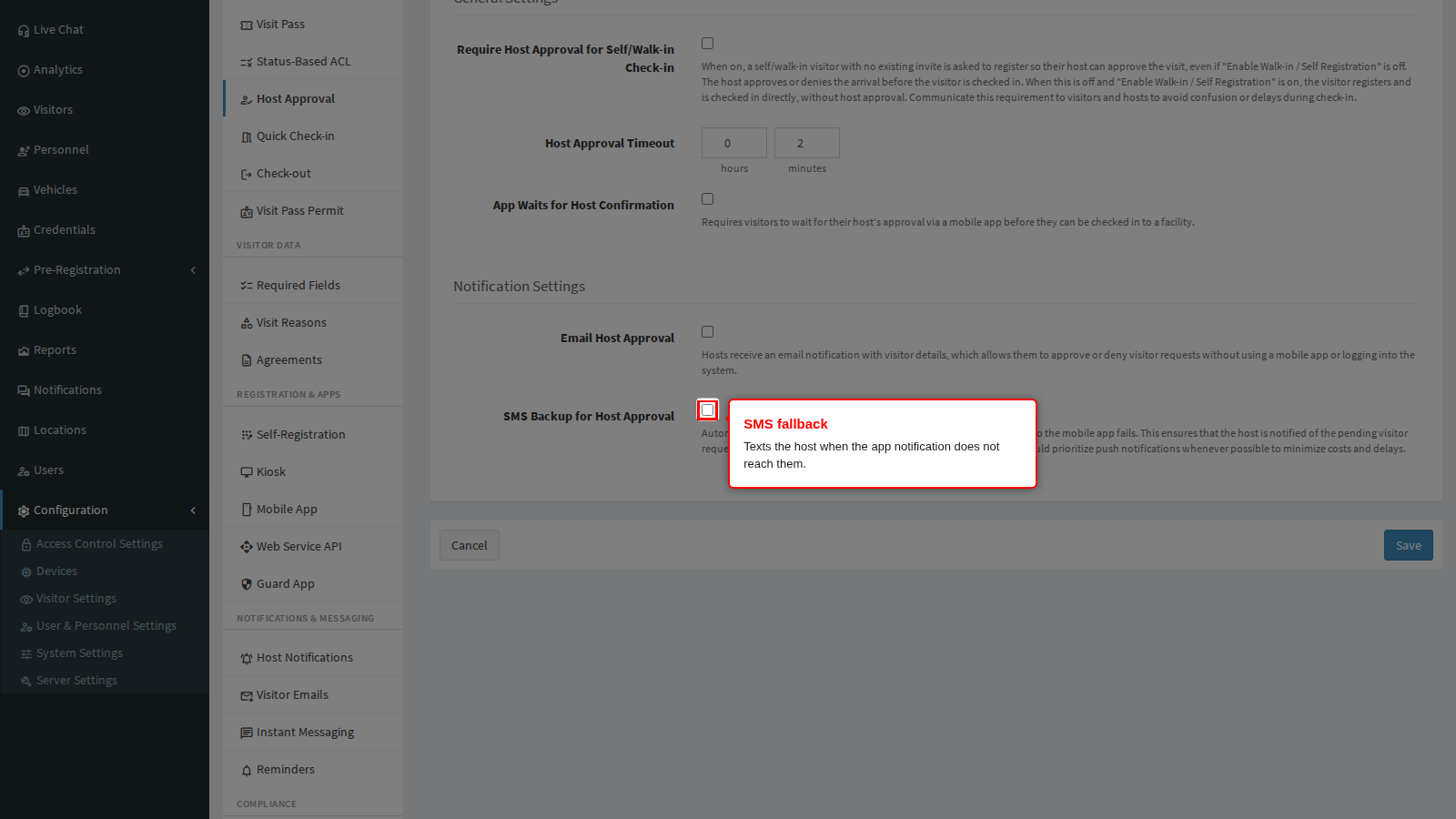
SMS Backup for Host Approval, and its email counterpart, reach a host whose mobile app is not responding. Without a fallback a host who does not run the app can never approve anybody, and every walk-in times out. The full flow is described in Host Approval, the settings in Host Approval settings.