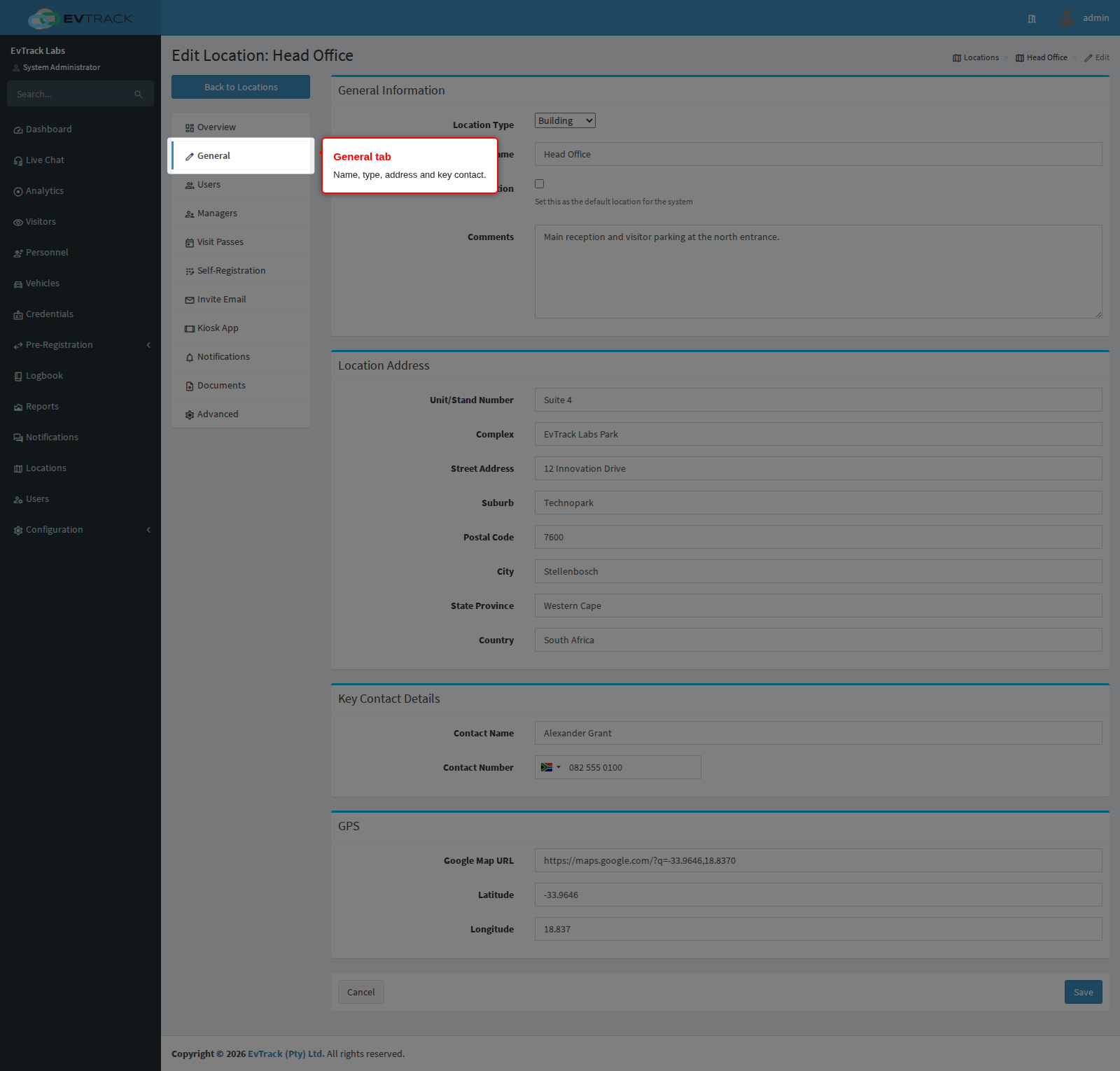
The General tab holds a location’s own details: its name and type, whether it is the default location, its address, its key contact and its map position. Everything on this tab is saved together, and nothing else about the location changes when you save it.
Who can use this tab: to see it, “Configuration: Location - Edit/View”; to save it, “Configuration: Location - Save”.
Step 1: Open the General tab
Open the location from the location list and click General in the menu on the left.
Step 2: Set the name, type and default
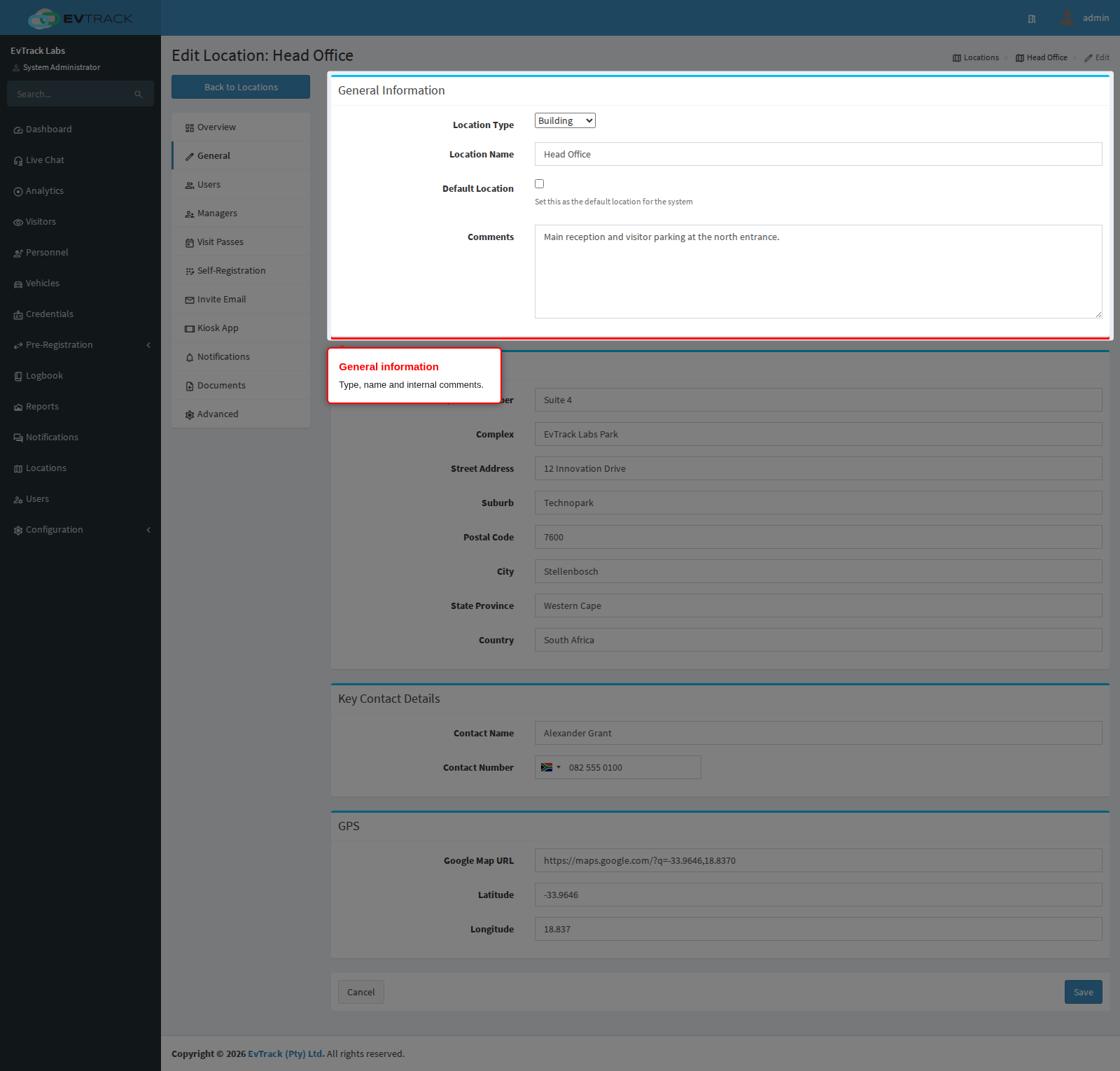
The first box, General Information, holds the location’s type, name, default flag and comments.
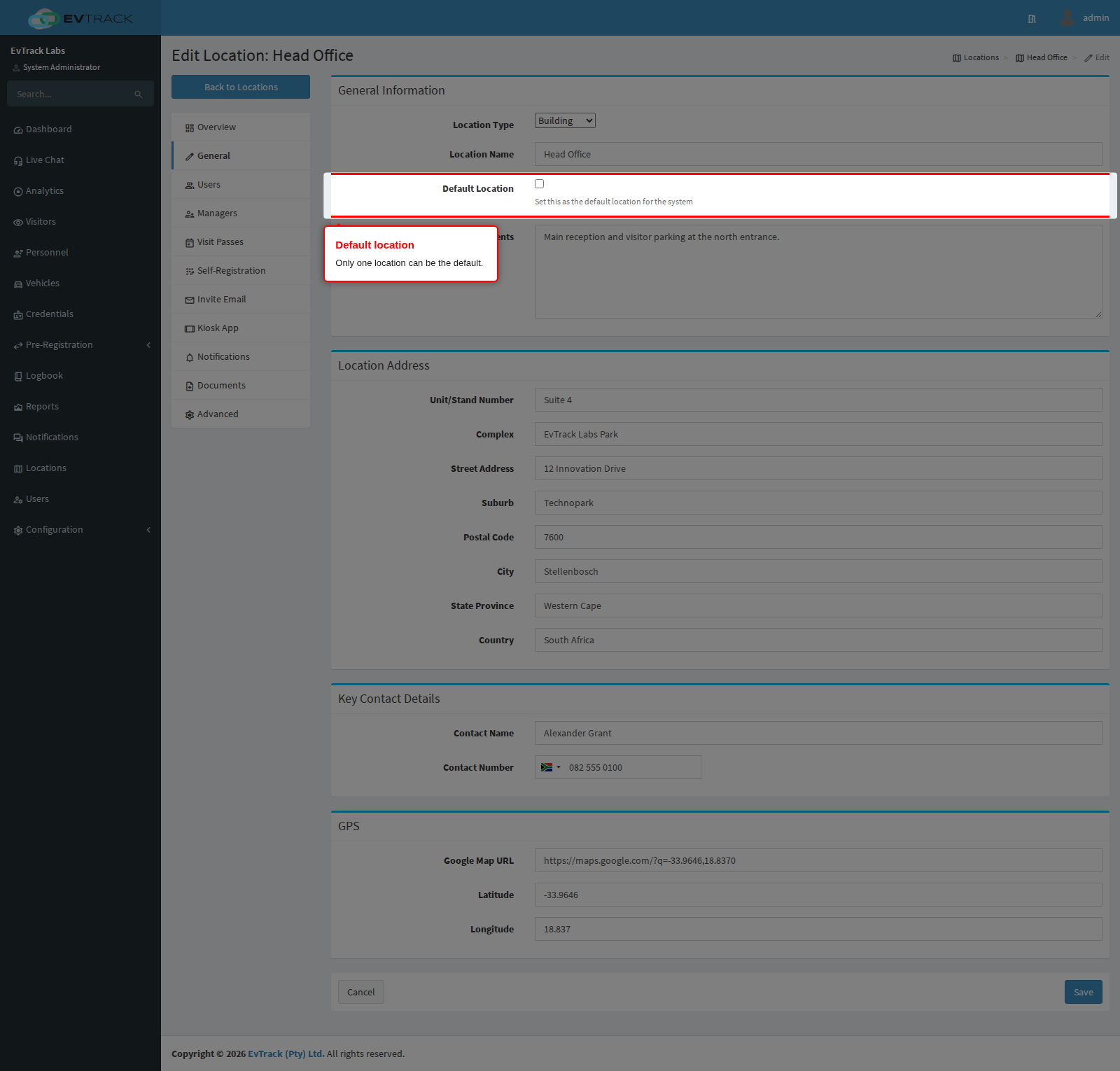
Tick Default Location to make this the default location for the system. Only one location can be the default, so ticking it clears the flag on every other location. The Default column of the location list shows which one it is.
Step 3: Fill in the address, key contact and map position
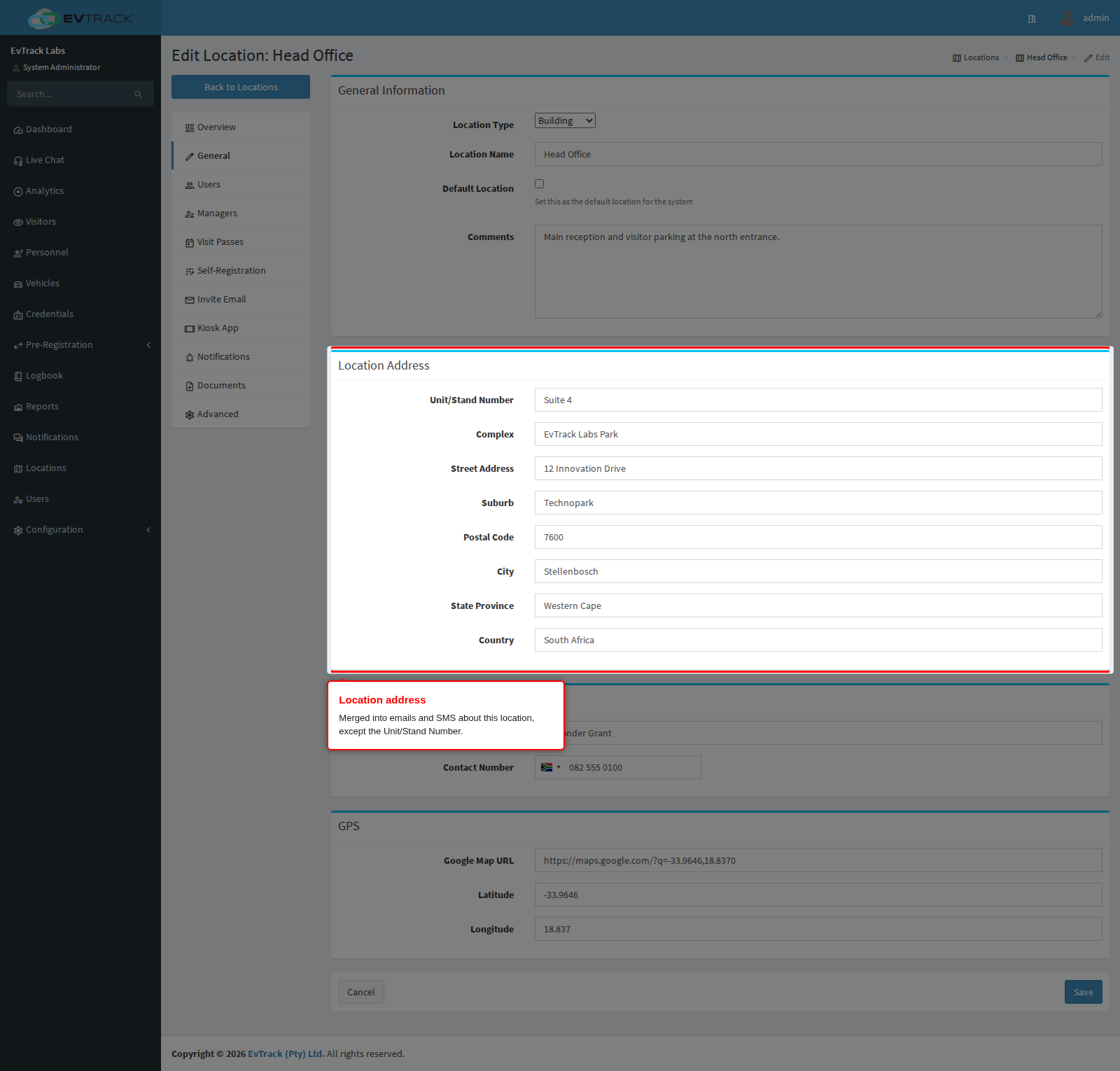
Location Address holds the Unit/Stand Number, Complex, Street Address, Suburb, Postal Code, City, State Province and Country.
Key Contact Details holds the contact’s name and number. The number is chosen with a country flag and stored with its + country code.
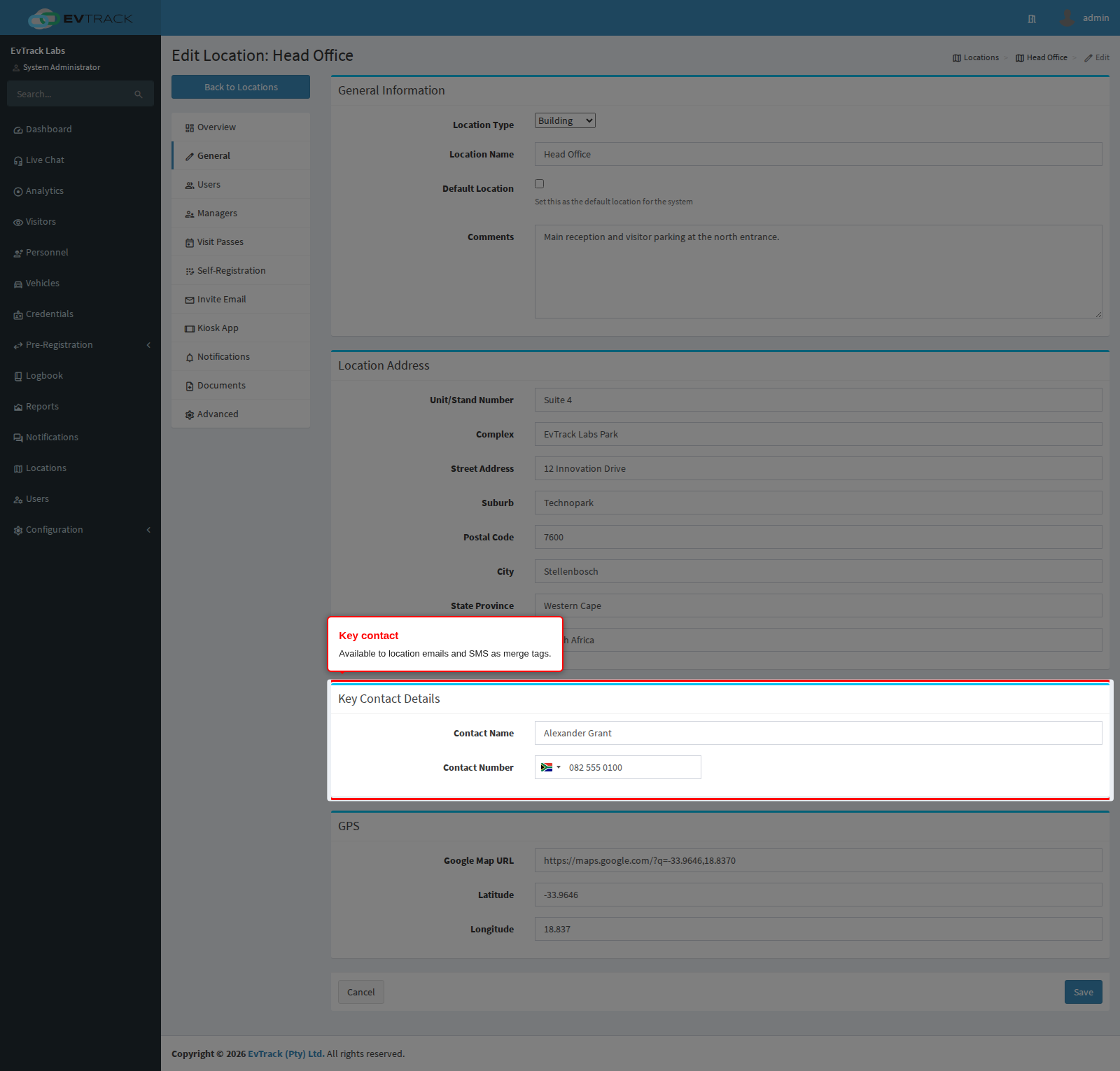
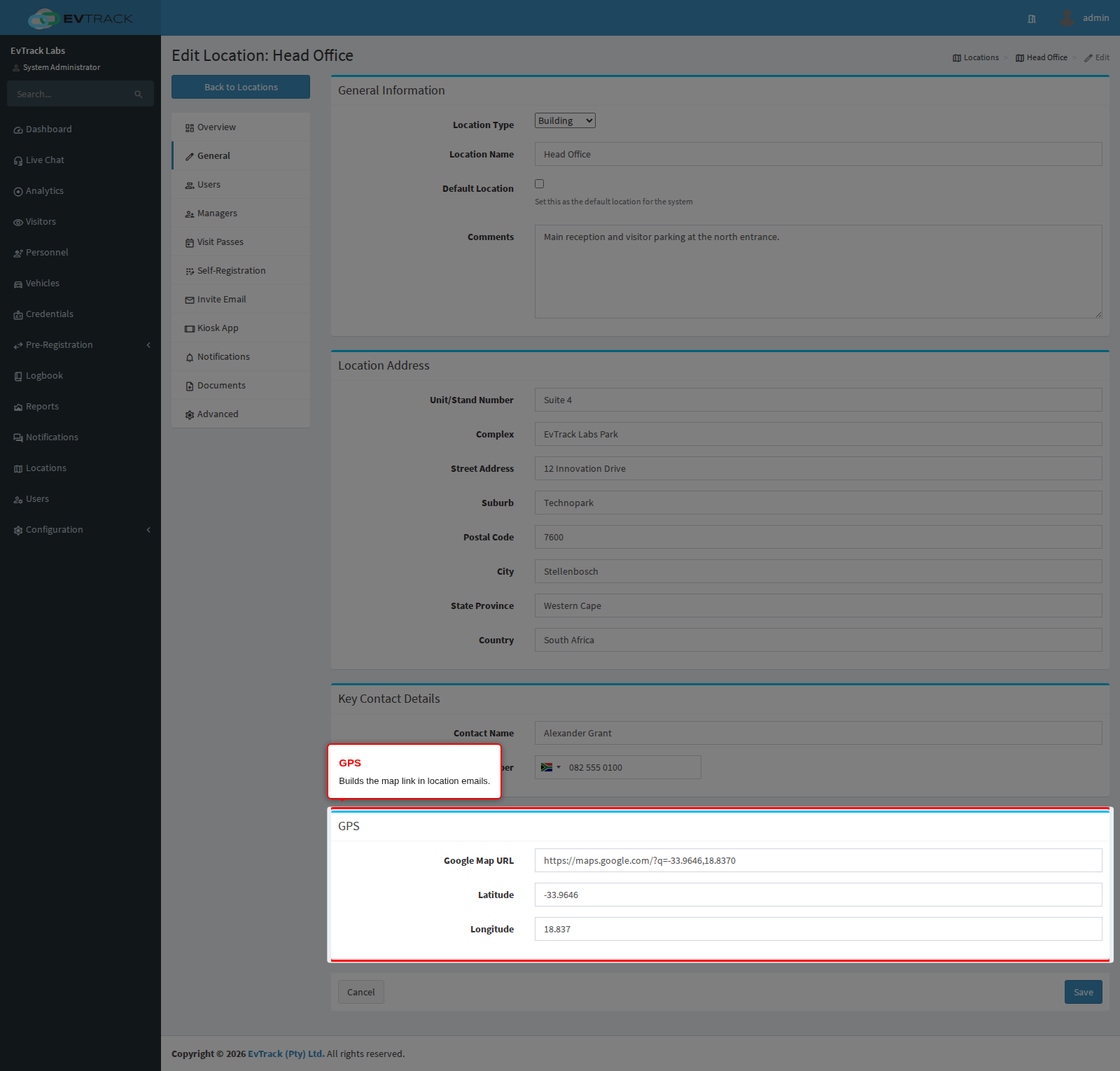
GPS holds the Google Map URL, the latitude and the longitude.
Step 4: Save
Click Save. Only this tab is saved.
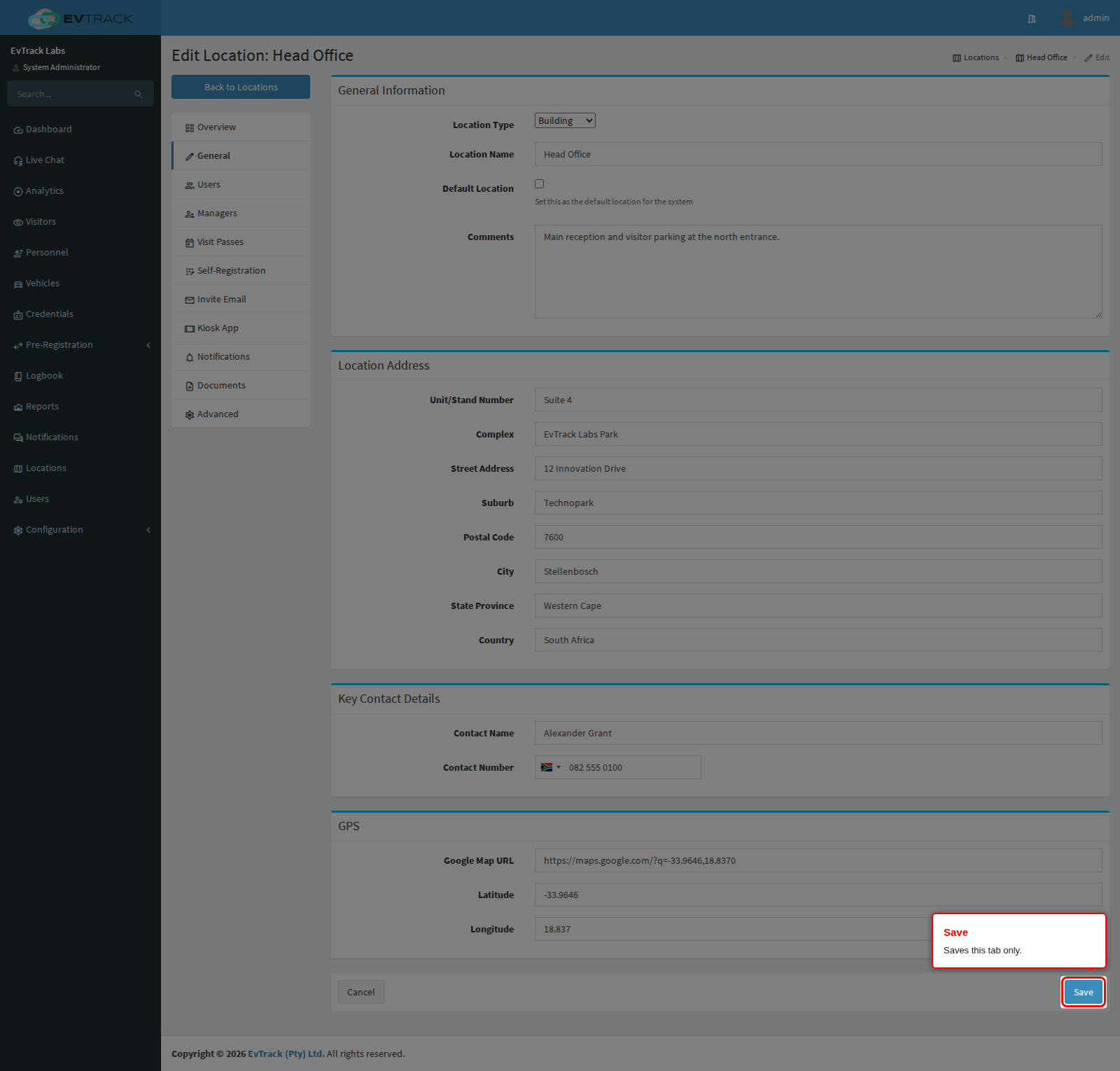
You return to the location list with the message “Updated: Location - ‘
Options on this tab
| Option | Required | Rules | Default |
|---|---|---|---|
| Location Type | No | One of the nine types: Region, Campus, Building, Floor, Area, Estate, Stand, Complex, Apartment. | The saved type (Building for a new location) |
| Location Name | Yes | 2 to 50 characters: English letters, numbers, spaces and these marks / . , - ' ( ) & : ; _. Must be unique: two locations cannot share a name, and capital letters do not count as a difference. | The saved name |
| Default Location | No | A tick box. Ticking it clears the flag on every other location. | Unticked |
| Comments | No | Up to 5000 characters. | Empty |
| Unit/Stand Number | No | Up to 100 characters. Shown on the Overview tab. | Empty |
| Complex | No | Up to 50 characters. | Empty |
| Street Address | No | Up to 100 characters. | Empty |
| Suburb | No | Up to 50 characters. | Empty |
| Postal Code | No | Up to 50 characters. | Empty |
| City | No | Up to 50 characters. | Empty |
| State Province | No | Up to 50 characters. | Empty |
| Country | No | Up to 100 characters. | Empty |
| Contact Name | No | Up to 50 characters. | Empty |
| Contact Number | No | An international number chosen with the country flag, up to 50 characters. Leave it empty, or enter a valid number: Save is blocked while the number is invalid. It is stored with its + country code. | Empty |
| Google Map URL | No | A valid web address, up to 255 characters. | Empty |
| Latitude | No | A number above -90 and below 90, up to 15 decimal places. | Empty |
| Longitude | No | A number above -180 and below 180, up to 15 decimal places. | Empty |
The text fields (Comments, Unit/Stand Number, the address fields and Contact Name) accept letters from any language, numbers, spaces and these marks: . , / - ' ( ) & : ; @ ? !. No field accepts HTML tags.
How it works
- Emails and SMS. The name, address, key contact and map fields are merged into emails and SMS messages about this location through the location merge tags:
${location_name},${location_complex},${location_street_address},${location_suburb},${location_postal_code},${location_city},${location_state_province},${location_country},${location_key_contact_name}and${location_key_contact_number}. The map link tag,${external_url_google_search_maps_position}, uses the Google Map URL when one is set, otherwise a Google Maps link built from the latitude and longitude. The Unit/Stand Number and Comments are not available as merge tags. See Merge Tags for every tag. - The default location. When the location of a registration is worked out, EvTrack tries the location of the link the visitor used first, then the host’s location, then the default location.
- Other tabs are untouched. Saving General changes only the fields on this tab. It never changes the settings on the override tabs, such as Self-Registration, Invite Email or Advanced.
- Where the name appears. The name and type show wherever a location is picked.