The Documents tab stores files against one location: the site map handed to contractors, the evacuation plan, the building rules, a permit or lease. A file stored here is found where the people who manage that building work, and an expiry date shows when a permit has to be renewed.
Who can use this tab: “Documents: Download” shows the tab and its list. “Documents: Upload” and “Documents: Delete” allow adding and removing files. The Upload and Delete buttons show for everyone who can see the tab, but the server refuses the action without the permission.
Step 1: Open the Documents tab
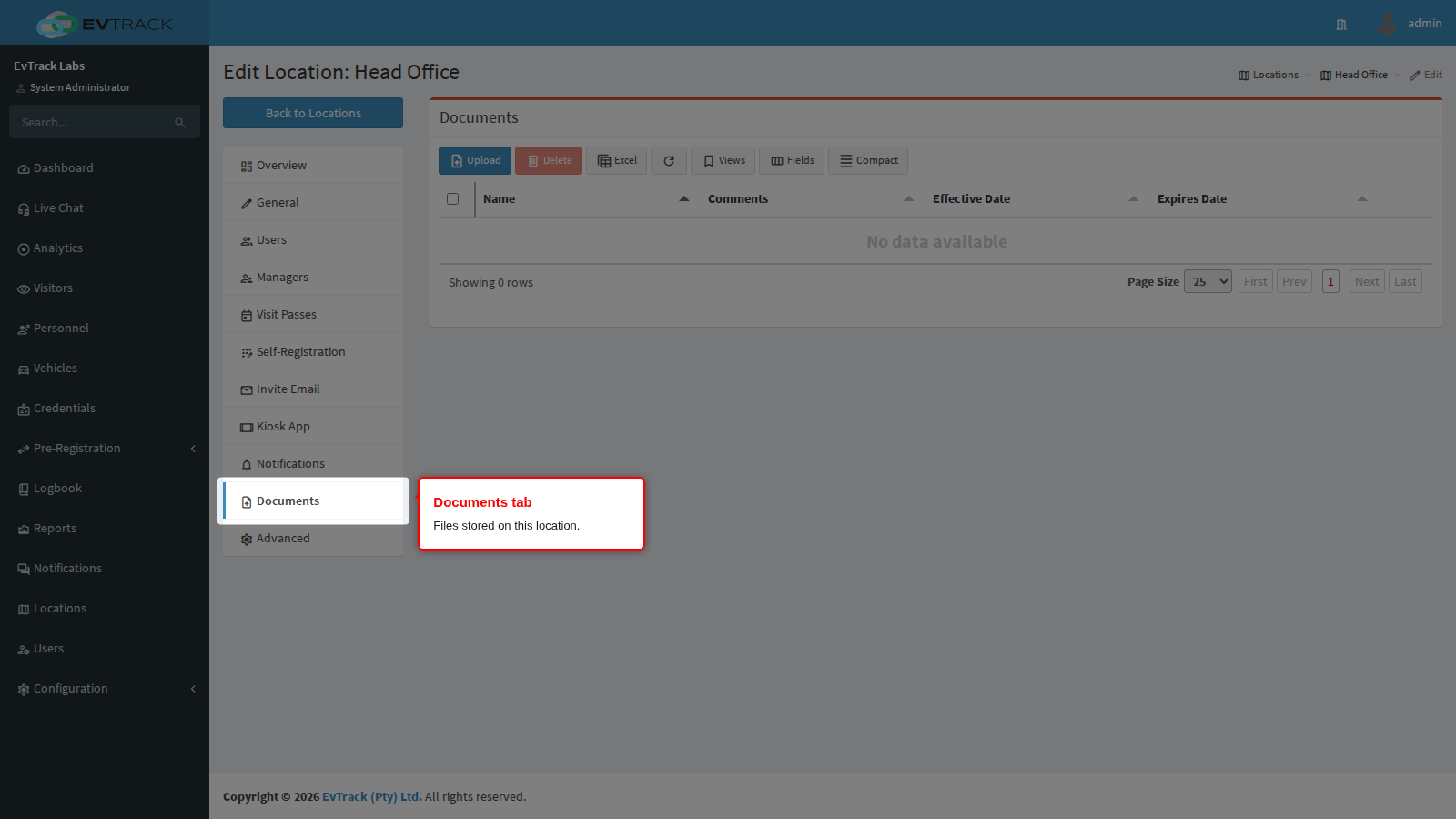
Open Locations in the sidebar, open the location, and click Documents in the menu on the left.
Step 2: Upload a document
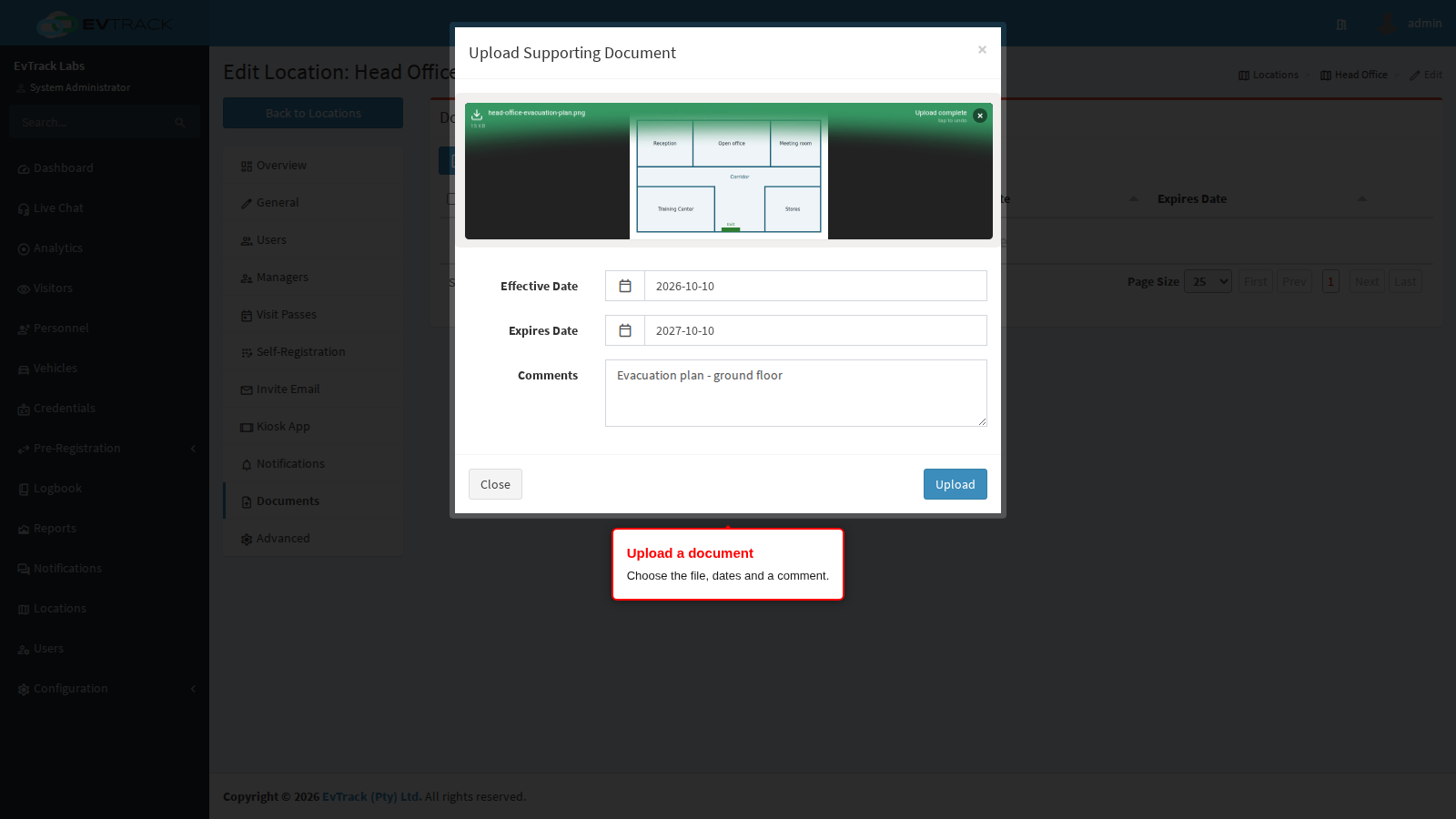
Click Upload in the toolbar. In the Upload Supporting Document dialog, drop the file onto the uploader or click Browse, wait for the upload to finish, set the dates, describe the file in Comments and click Upload.
Step 3: Check the list
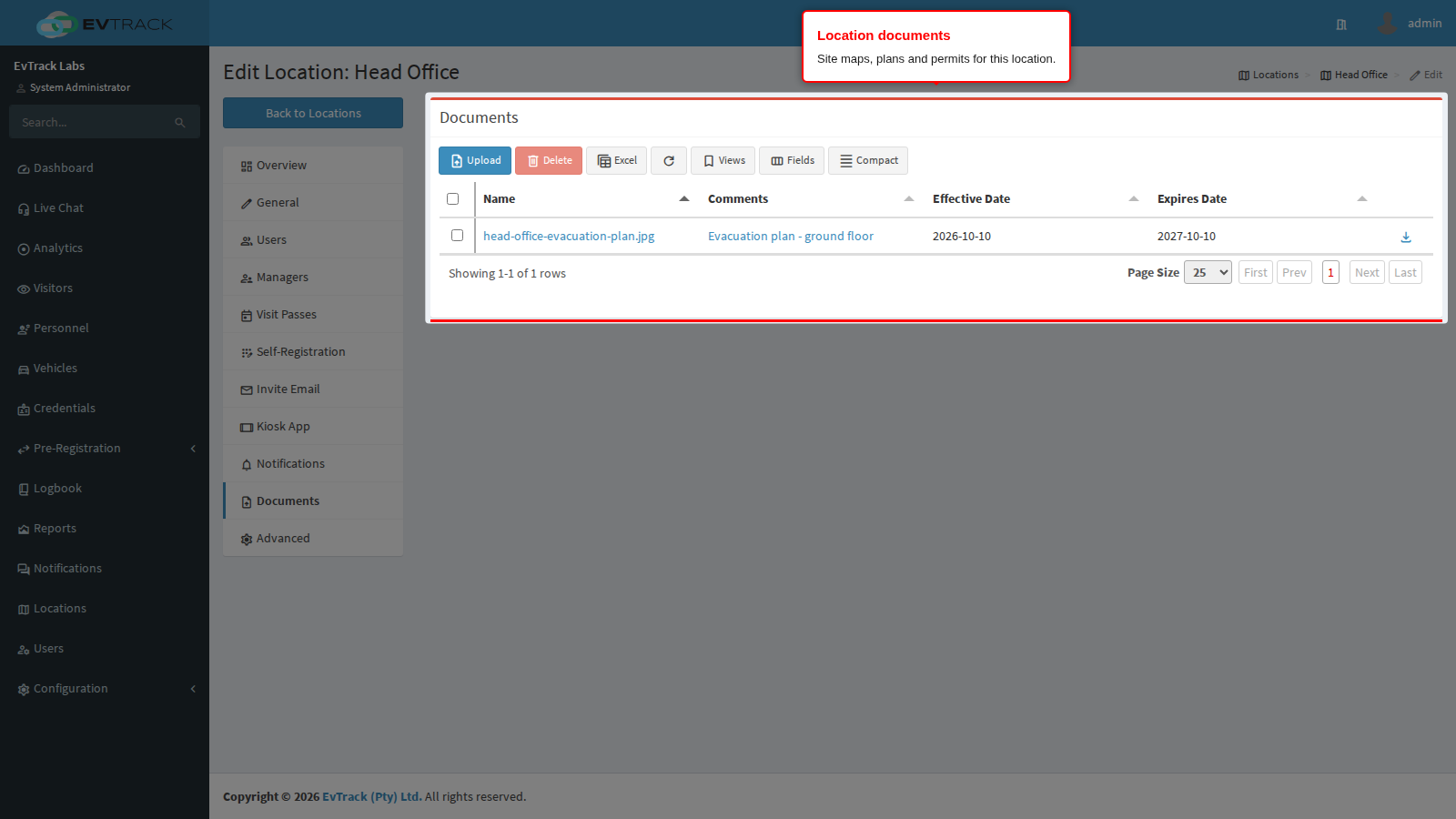
The dialog closes and the file appears in the list, with its comment and dates.
Step 4: Delete a document
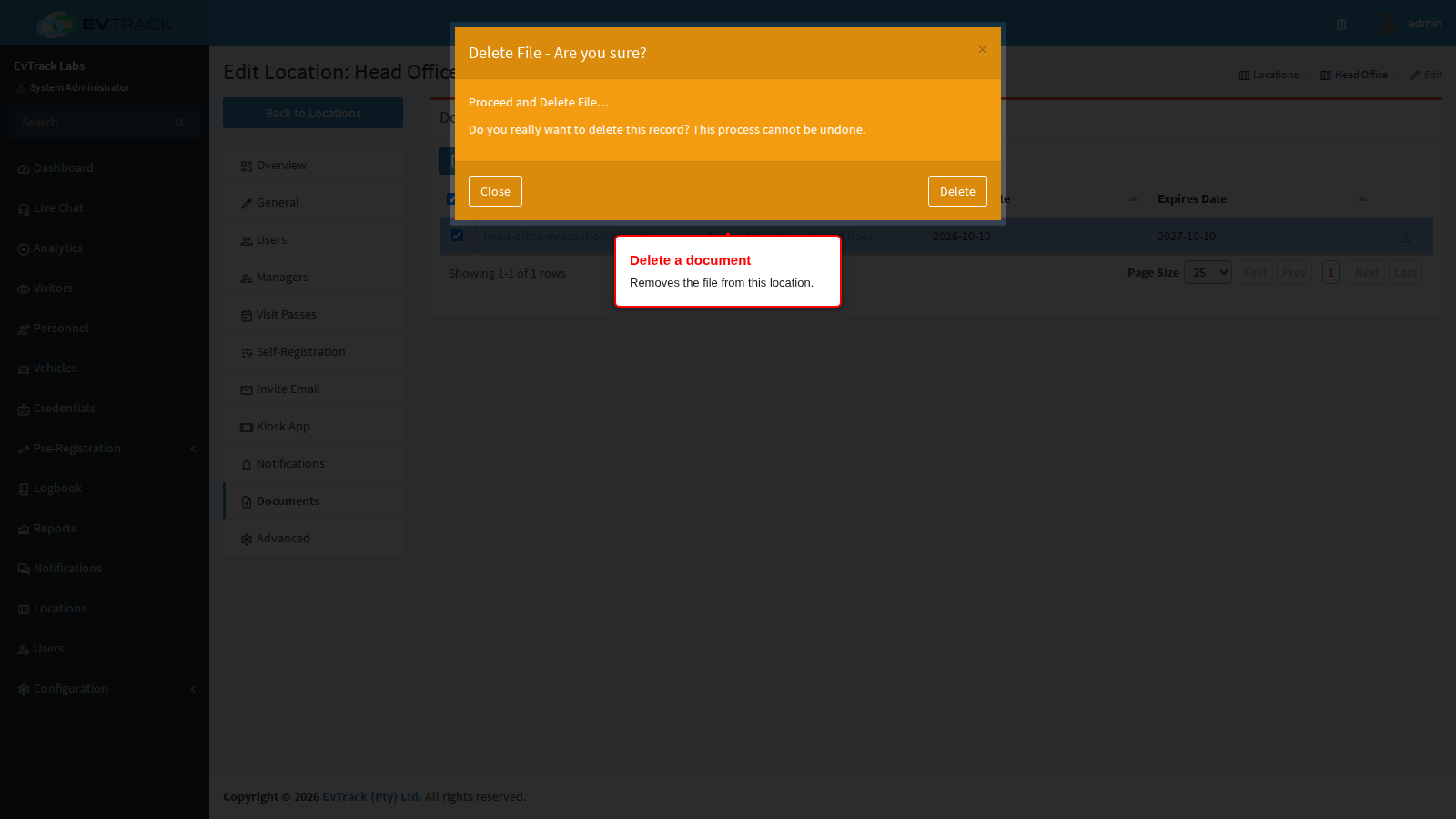
Tick the box at the start of the row, then click Delete. A confirmation window titled “Delete File - Are you sure?” opens. Click Delete to remove the file, or Close to keep it. Deleting a file cannot be undone, so download a copy first if you may need it again.
Options on this tab
| Option | Values and rules |
|---|---|
| Name | The file name. Click it to open the file; an image opens in a preview window and any other file downloads. |
| Comments | The description entered at upload, up to 500 characters. It also opens the file when clicked. |
| Effective Date | The date the file is current from. It is today by default. |
| Expires Date | The date after which the file is out of date. Optional, and empty by default. |
| Download icon | At the end of each row: saves a copy of the file to your computer. |
The toolbar above the list has these buttons:
| Button | What it does |
|---|---|
| Upload | Opens the Upload Supporting Document dialog. |
| Delete | Opens the delete confirmation for the ticked row. It works on one row at a time. |
| Spreadsheet icon | Exports the list (names, comments and dates, not the files) to documents.xlsx. |
| Refresh icon | Reloads the list. |
| Views, Fields, Compact | Save a view of the list, choose its columns and tighten the row spacing. |
The Upload Supporting Document dialog accepts JPEG, PNG, PDF, DOCX and XLSX files. A file other than an image can be up to 10 MB. Images are resized and compressed on upload, so the 10 MB limit does not apply to them.
Related chapters
- Documents on Records - the same panel on visitors, personnel, users and vehicles, and the site-wide documents.