The General panel of the kiosk settings decides what a visitor sees on the idle FrontDesk screen: the greeting, the logo and company name, the colour scheme and the language. Everything on it applies to every kiosk, except where a location overrides it, see “Different branding per location” at the end of this page.
Before you start:
- You can edit visitor settings.
- For a kiosk to show these values, its device record exists and the tablet is paired, see Register the Device and Get Its Key.
Step 1: Open General
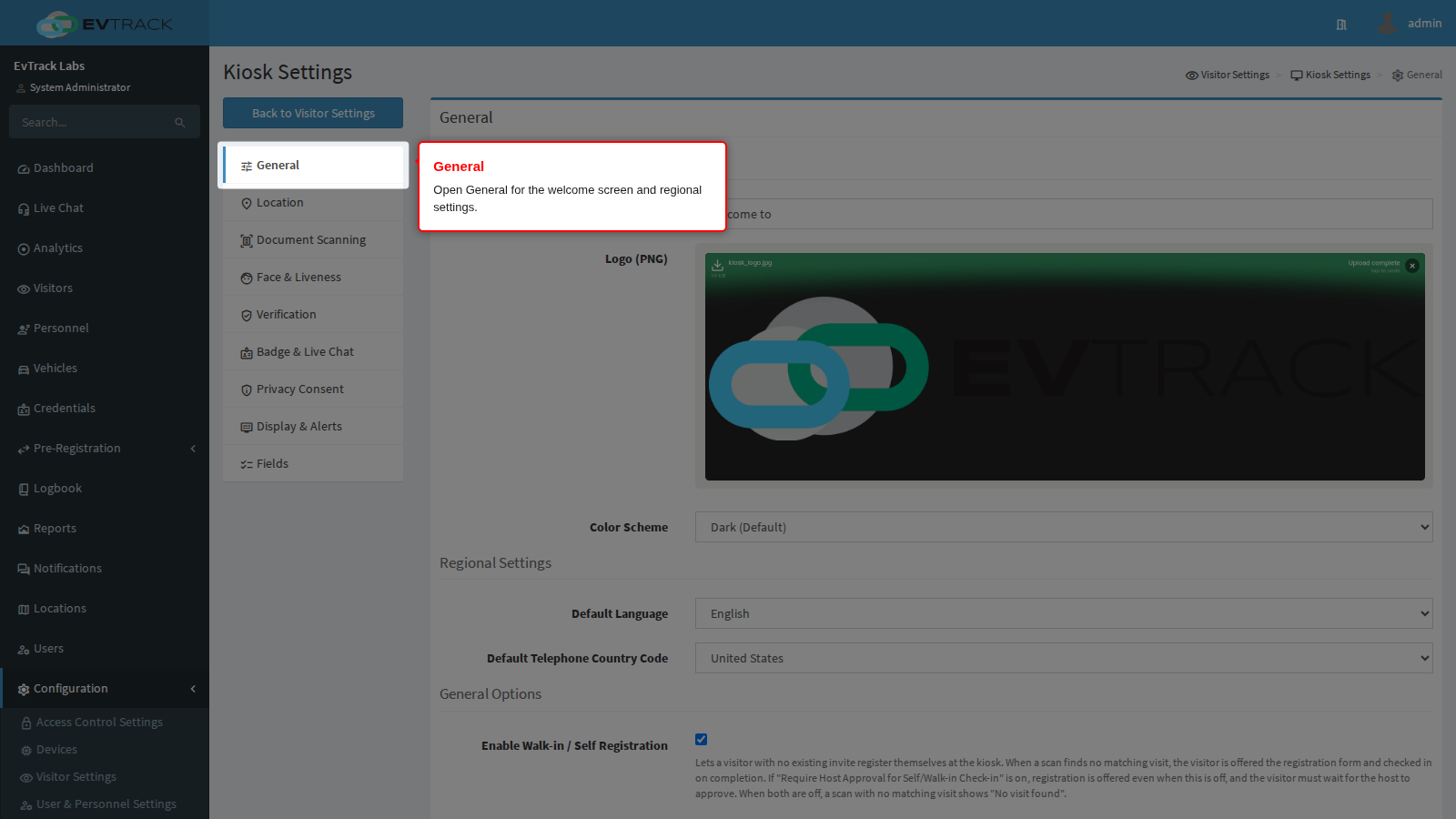
Go to Configuration > Visitor Settings, click the Kiosk tile, and choose General in the kiosk menu on the left. The same menu is on every kiosk panel.
Welcome Message
The greeting on the idle kiosk screen. The kiosk shows it on the first line; the company name is printed on the line below it. A new system has “Welcome to” here, so the kiosk reads “Welcome to” followed by the company name as one greeting. If you clear the field, the kiosk falls back to the same “Welcome to”.
The company name is not typed here. It is the Company Name of the location on the kiosk’s device record (its Advanced tab) when that location has its own name switched on, and otherwise the global Company Name on the General page of System Settings.
If you replace the greeting, remember that the company name still follows it, and write a line that reads well above a name, for example “Please check in at”. Use the line to tell the visitor what to do, not only to greet them. The message can be up to 500 characters.
Logo (PNG)
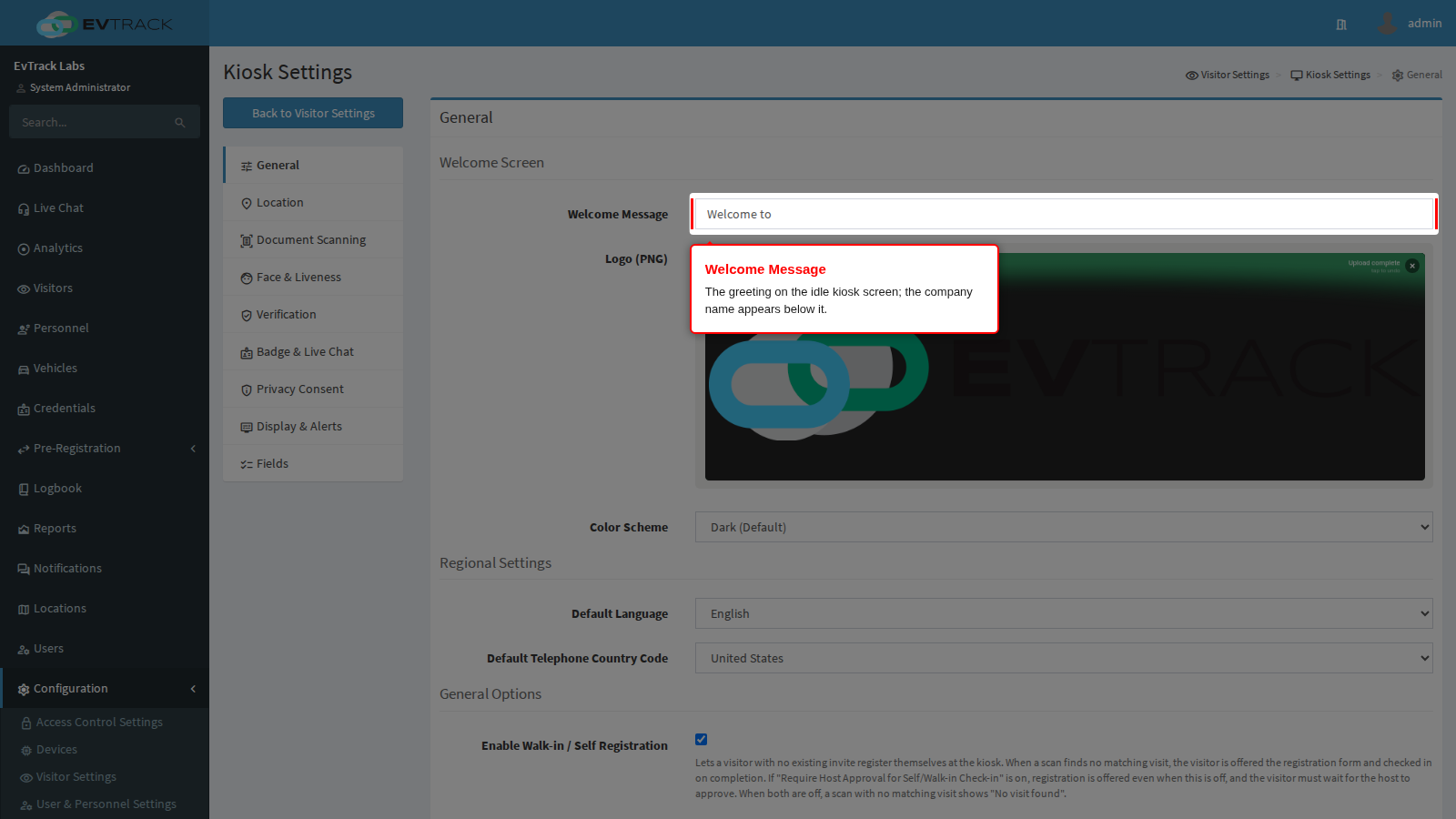
The picture on the welcome screen. One logo serves every kiosk whose location has no logo of its own. A new system already has the EvTrack logo here, so replace it with yours. Use a PNG with a transparent background, so the logo works with either colour scheme. A JPEG also works, but it has a solid background.
Keep the file small. A location’s own logo must be a PNG or JPEG of at most 256 KB, and the same size is plenty here. Drop the file onto the upload area, or click it to browse. Remove it to go back to no logo.
A kiosk fetches the logo again only when its size changes. If you replace the logo with a file of exactly the same size, a paired kiosk keeps showing the old one until you clear the app’s data, see Clear App Data.
Color Scheme
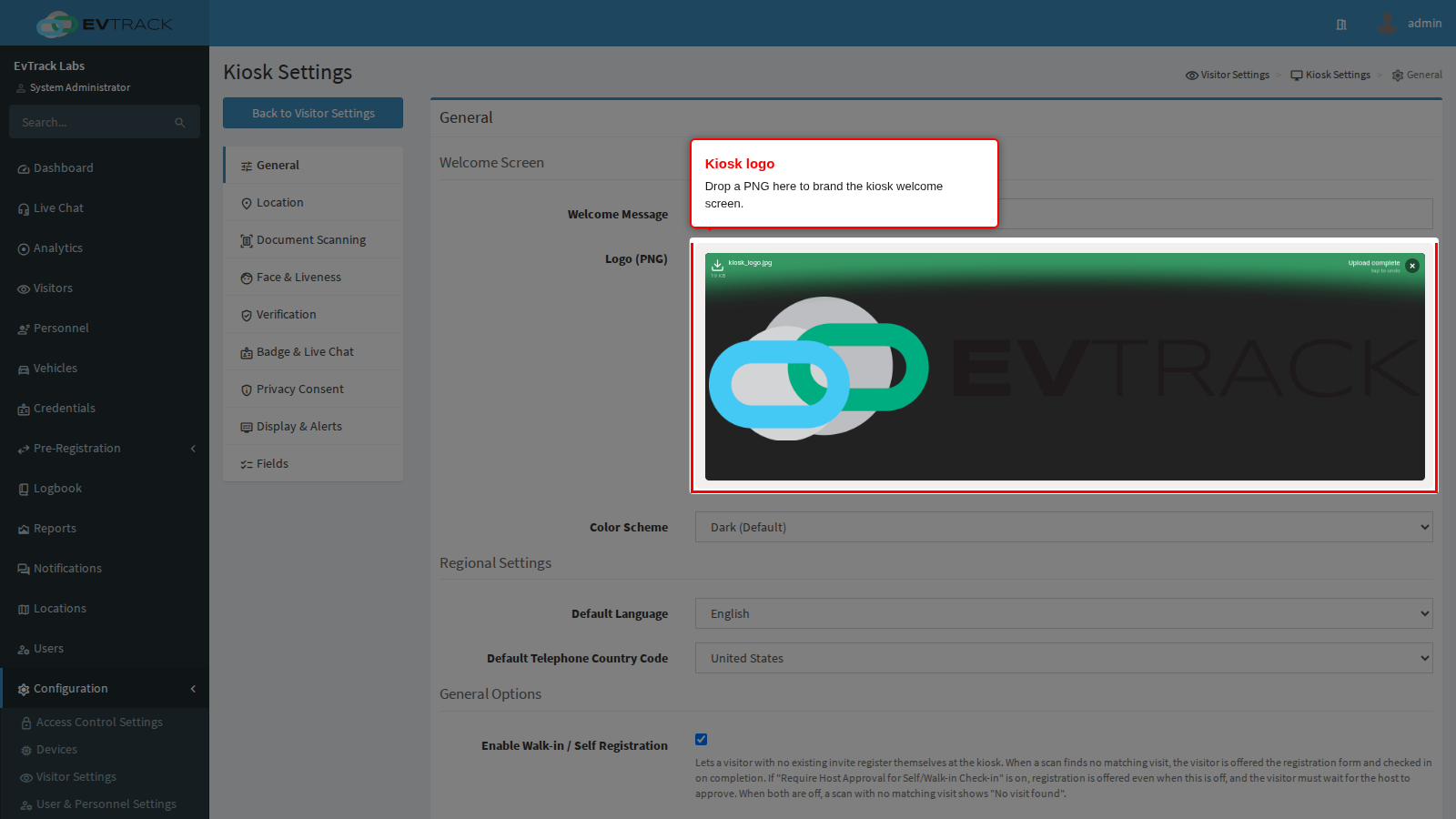
The kiosk theme. There are two choices:
- Dark (Default)
- Light (Continuous white display can cause damage, not covered by warranty!)
Dark is the default. A tablet that shows a white screen all day can be damaged, and the damage is not covered by warranty.
Default Language
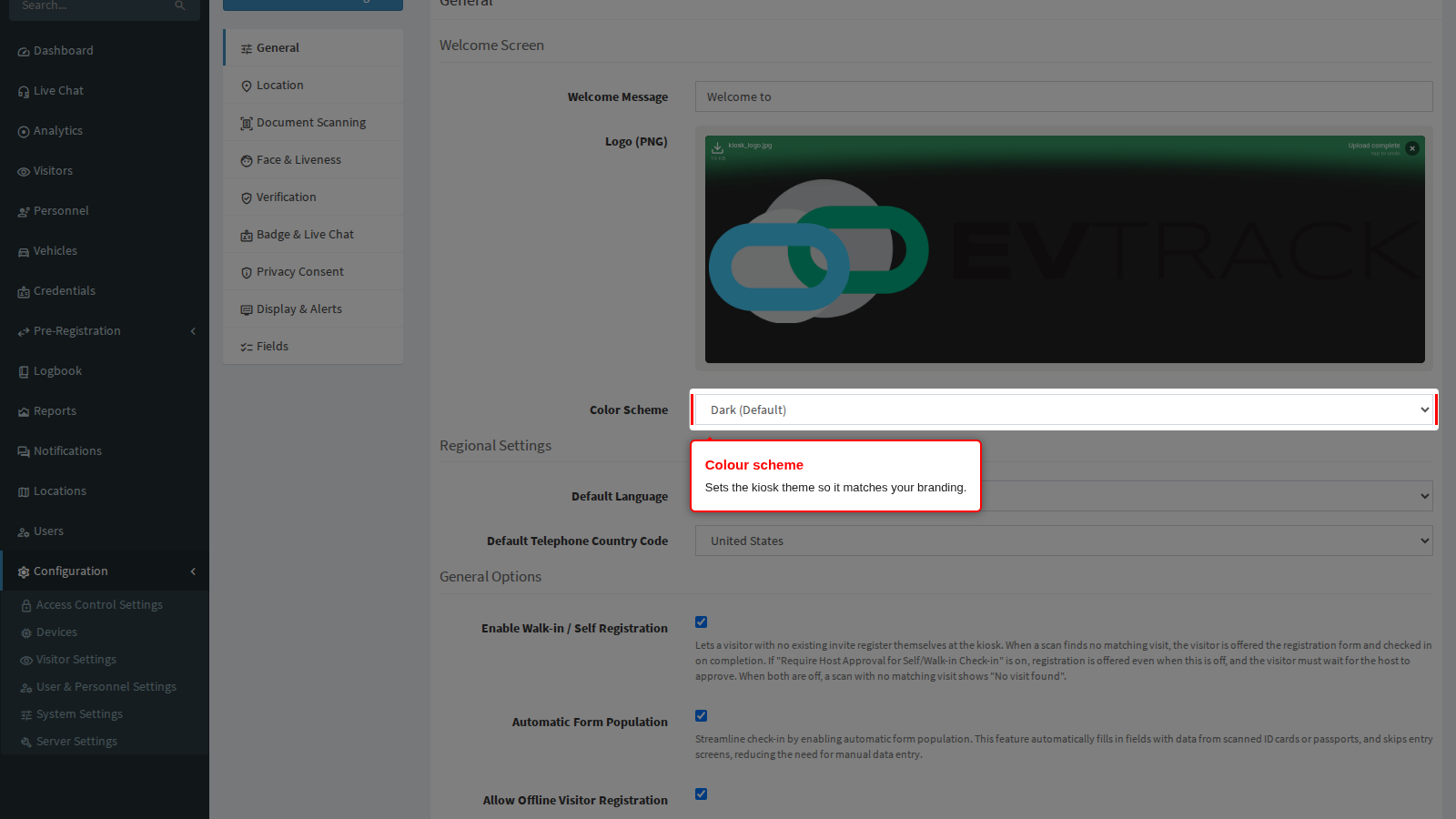
The language every kiosk session starts in. The choices are English, Afrikaans, Arabic, German, Spanish, French, Indonesian, Italian, Malay, Dutch, Portuguese, Thai and Chinese. A new system starts in English.
A visitor can switch language for their own session. The kiosk returns to the default when it goes idle.
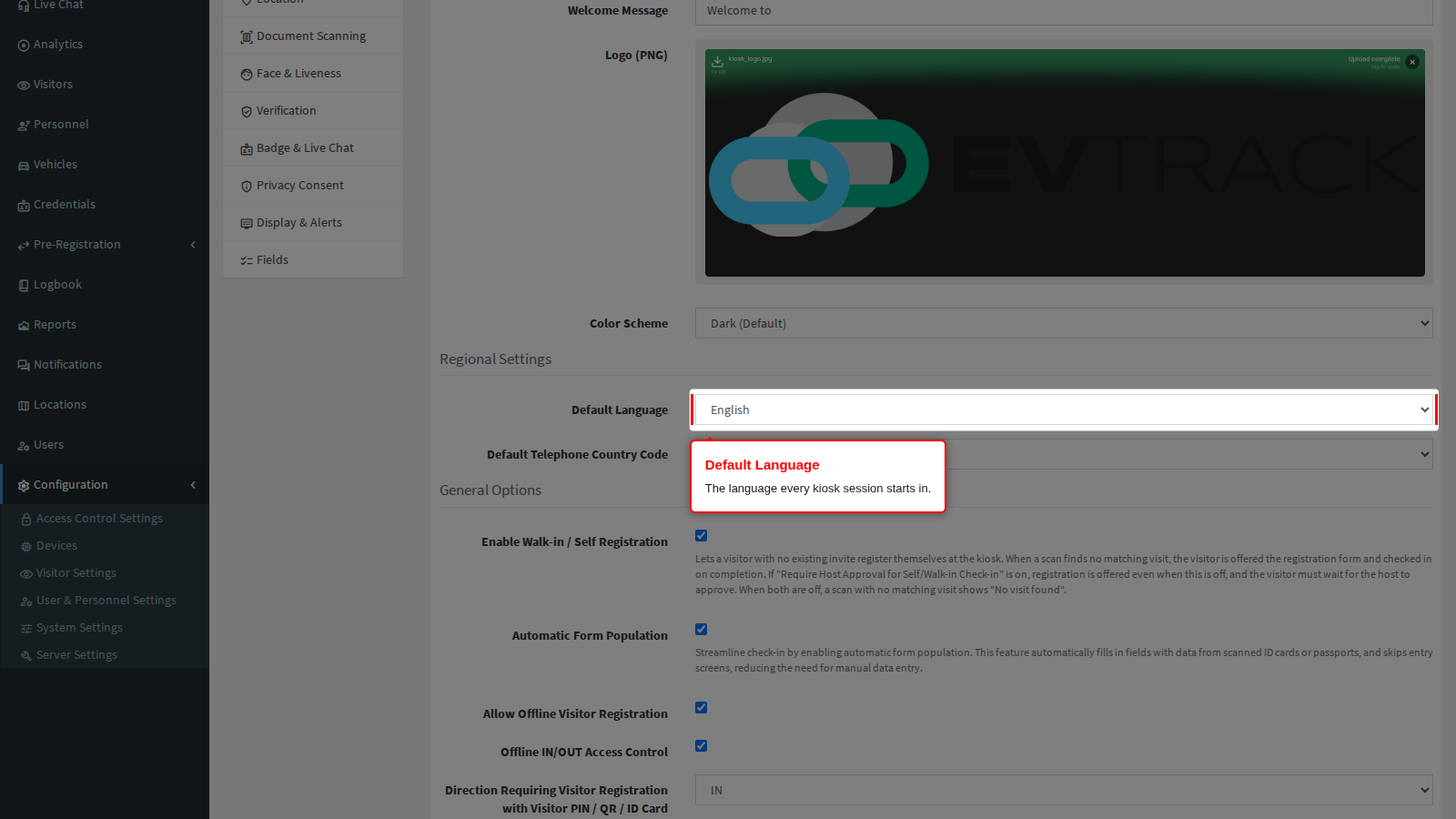
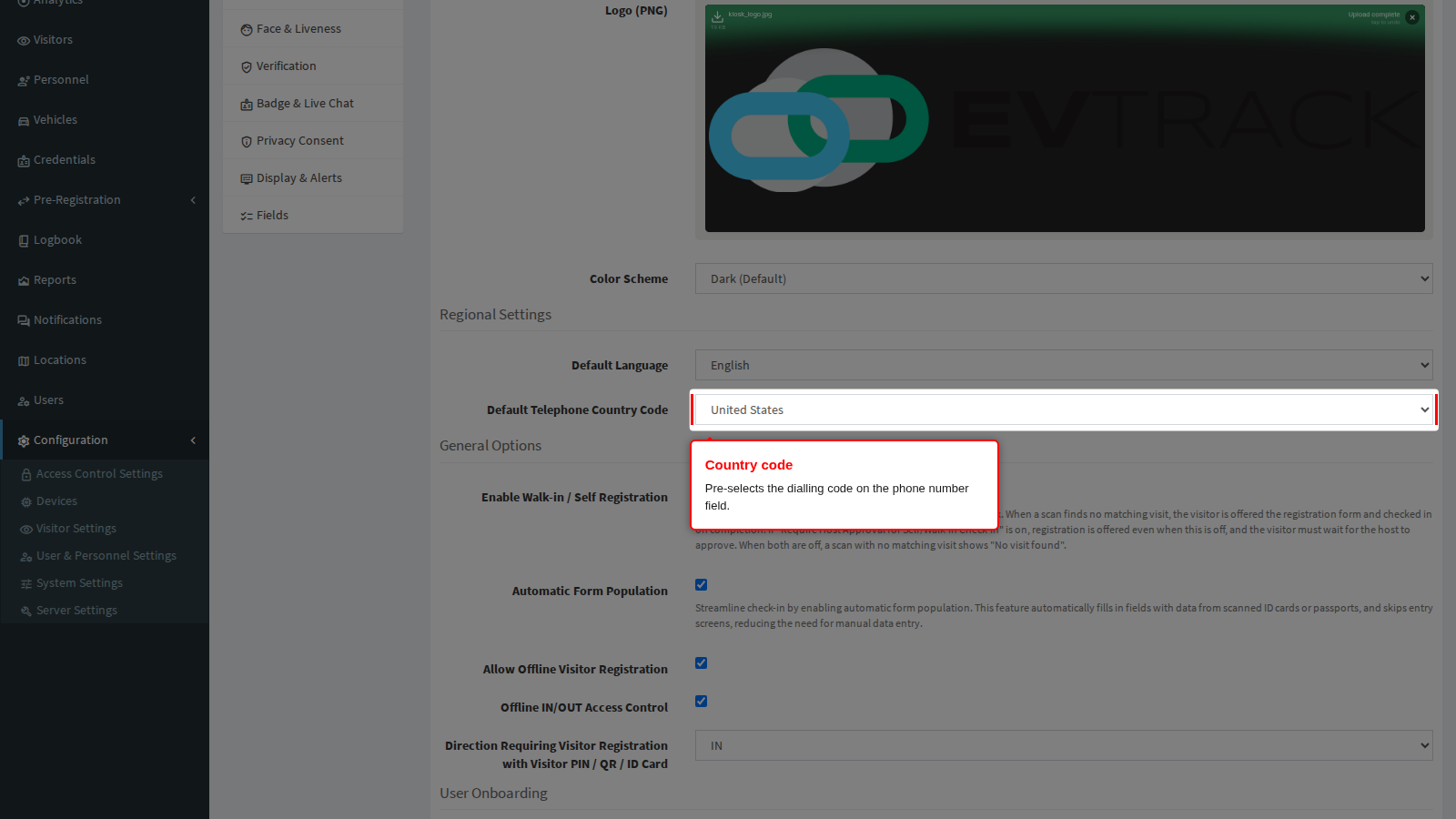
Default Telephone Country Code
The country the telephone number field starts on, so local visitors do not have to search a long list. Choose a country, or leave it on Automatic. Automatic does not detect anything: the field then starts on United States, which is also what a new system has. The visitor can always pick another country on the form.
Save
Click Save at the bottom of the panel. Each kiosk panel saves on its own, so a change is lost if you move to another panel first.
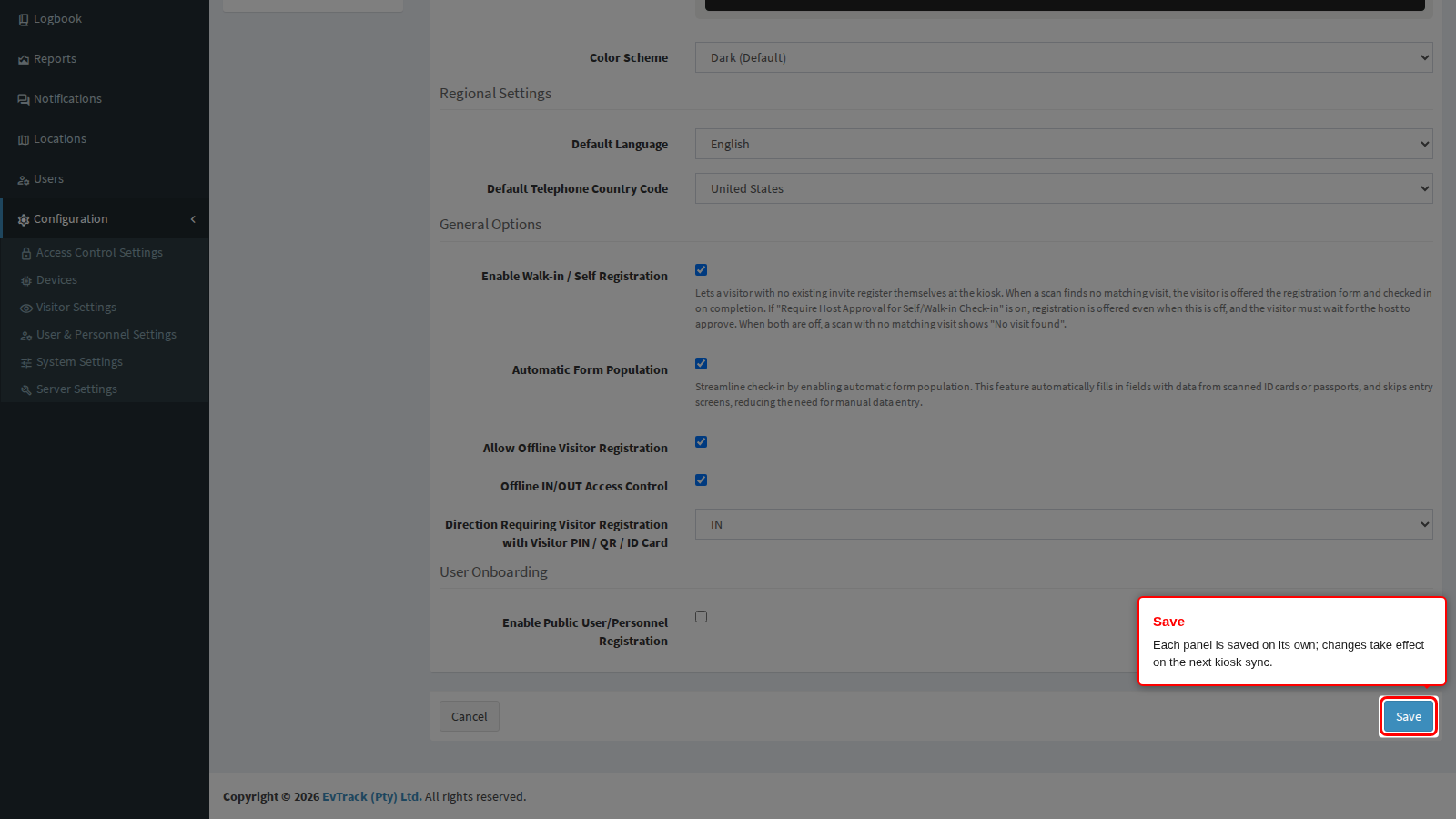
A green confirmation appears at the top of the panel. Paired kiosks pick the change up within five minutes, or at once when the app restarts.
Different branding per location
These five settings, and only these, can also be set for one location: the logo, the welcome message, the colour scheme, the default language and the default telephone country code. The location’s field list can differ too. A kiosk uses the values of the location on its own device record, and the global values above for anything the location leaves on global. The company name line follows the same location, through its Advanced tab.
Open the location and use its Kiosk App tab; every location setting is described in Location Overrides. When a kiosk shows the wrong logo or company name, follow The Kiosk Shows the Wrong Logo or Company Name.