Use this page when you changed a Guard setting and the handsets still behave the old way, or when a new handset behaves as though every setting is off.
Symptom
You saved a change under Visitors > Settings > Guard App, the green confirmation appeared, but officers’ handsets still ask for, skip or print what they did before. Or a handset that has just been issued reads no documents, asks for no face, and never offers an alternative driver, whatever the settings say.
What it means
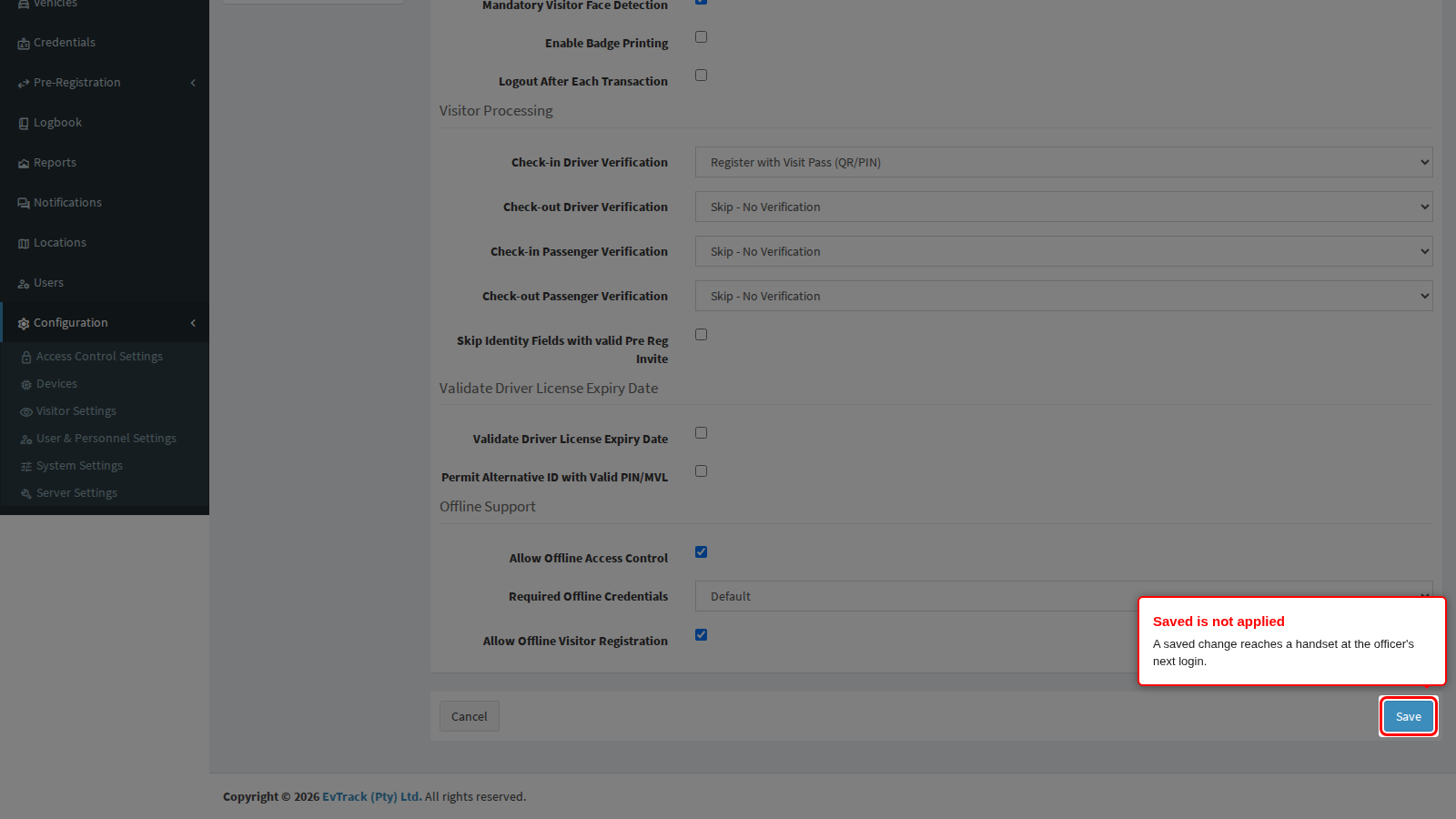
The Guard app does not watch for changes. It asks the server for its settings when the officer logs in and keeps them until the next login. Saving a panel changes what the server will send, not what a logged-in handset is using.
Why it happens
- The officer has not logged out and back in since the change was saved.
- The handset is new and has never completed an online login. Until it has, it has no settings at all and behaves as though everything is switched off.
- The handset logged in while offline, so it kept the settings from its last online login.
Fix it now
Step 1: Confirm the change was saved
Each panel saves on its own. Open the panel you changed and check the value is still what you set; a change on one panel is lost if you moved to another panel without clicking Save.
Step 2: Log the officer out and in again
On the handset, the officer logs out of the Guard app and logs in again on a working connection. The new settings apply from that login.
Step 3: For a new handset
Log it in once on a working connection before issuing it, so it receives its settings.
Make it stick
- Tell officers to log out and back in after a settings change, or schedule changes for a shift change.
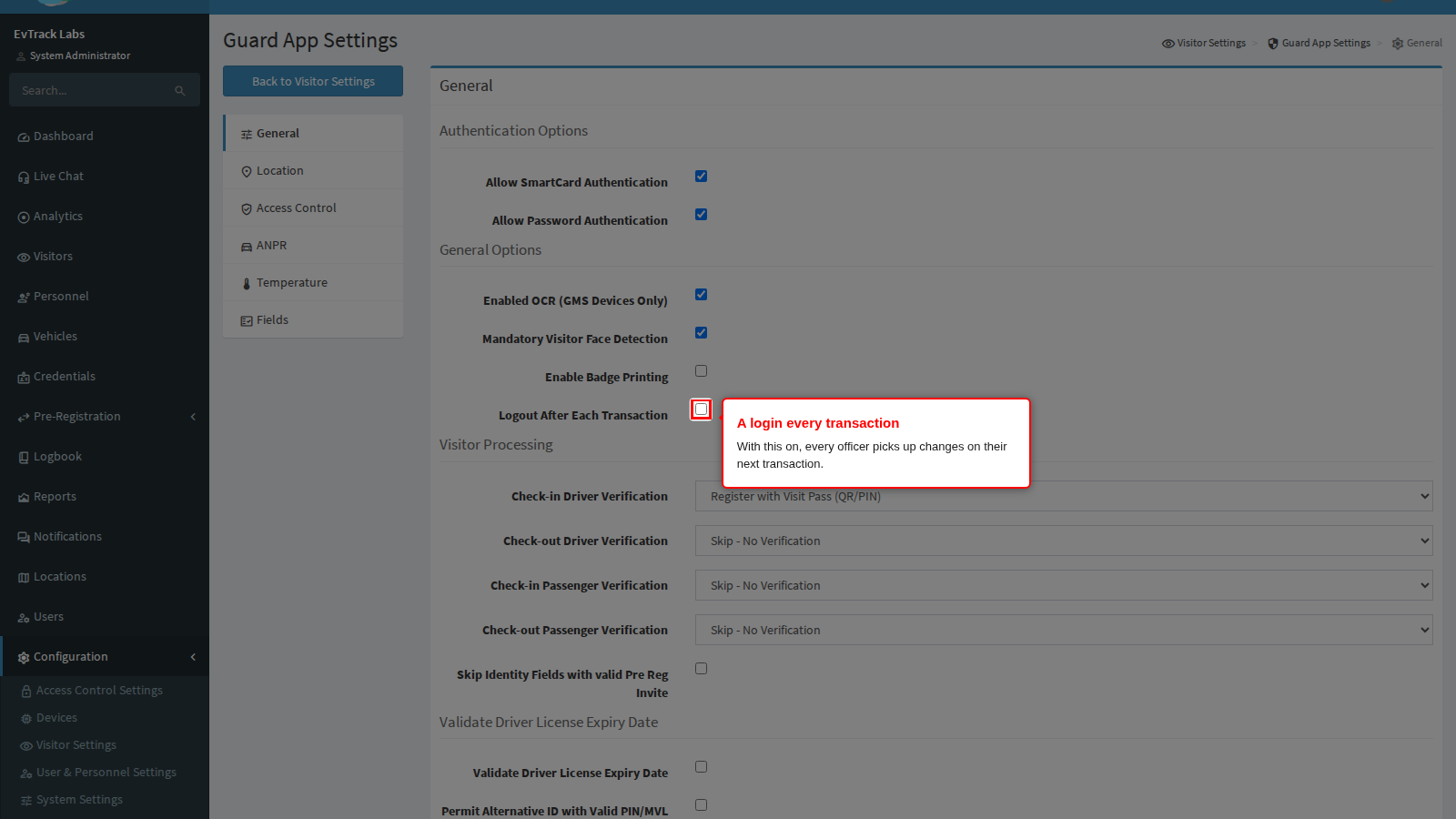
- Where settings change often, or handsets are shared, turn on Logout After Each Transaction on the General panel: every officer then logs in again after each transaction and picks up changes straight away. See Officer Login for what else it changes.
- Log every new handset in once, online, before it is issued.
If it comes back
If a handset still behaves the old way after an online logout and login, check the officer is logging in to the right server and system, and that the handset is not being refused (see The Handset Is Refused After Login).