The Verification panel of the kiosk settings decides how a visitor proves who they are or how to reach them at the FrontDesk kiosk: a one-time code sent to their email or phone, a PIN, a QR code, and whether the kiosk shows the visitor their own pass at the end. The settings apply to every kiosk.
Before you start:
- You can edit visitor settings.
- For one-time codes by SMS, an SMS gateway is configured and you accept the per-message cost.
Step 1: Open Verification
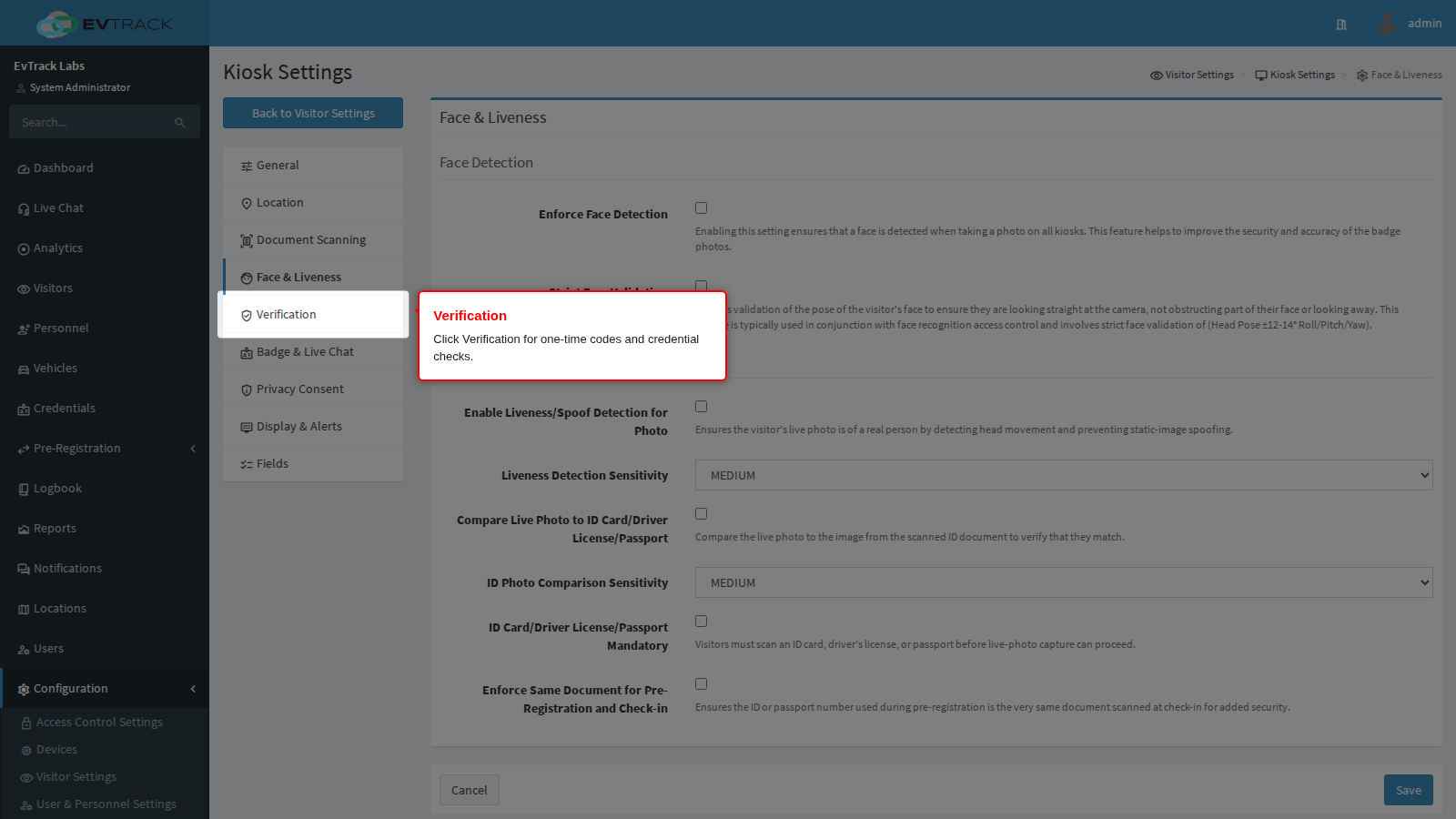
Go to Configuration > Visitor Settings, click the Kiosk tile (the Kiosk Settings page gives the overview), and choose Verification in the kiosk menu on the left.
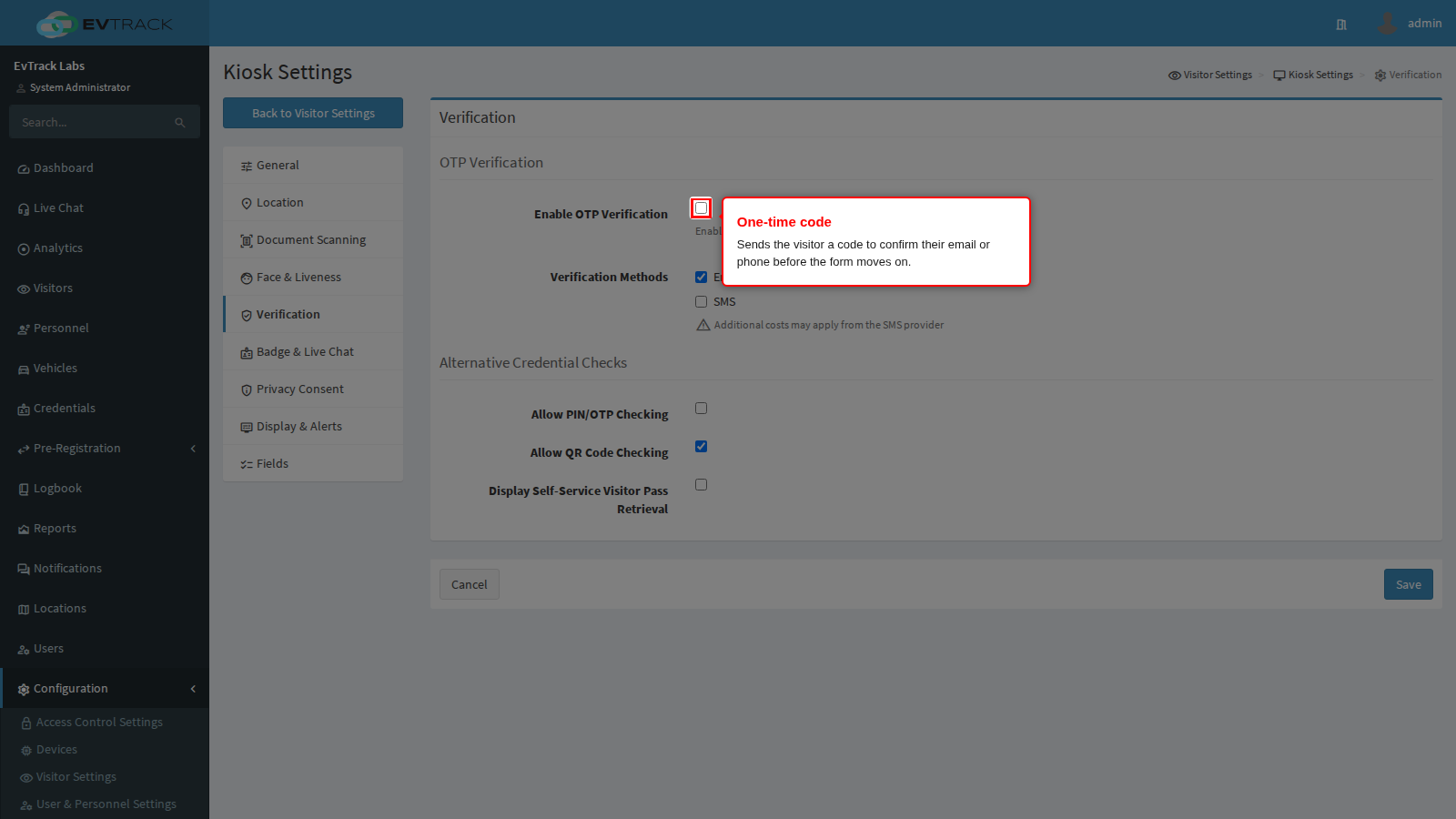
Enable OTP Verification
Off by default. With it on, the kiosk checks that the contact details a visitor types are really theirs. When the visitor taps Next on the Email or Mobile Number question of the registration form, the kiosk sends a six-digit code to that address or number, and the visitor must key the code in before the form moves on. A code is asked for again only when the visitor changes the value. It matters most for walk-ins nobody invited, because it proves they can be reached on the details they gave.
Two cases are not verified: a question the visitor left blank, and an Email question that is marked Optional on the Fields panel.
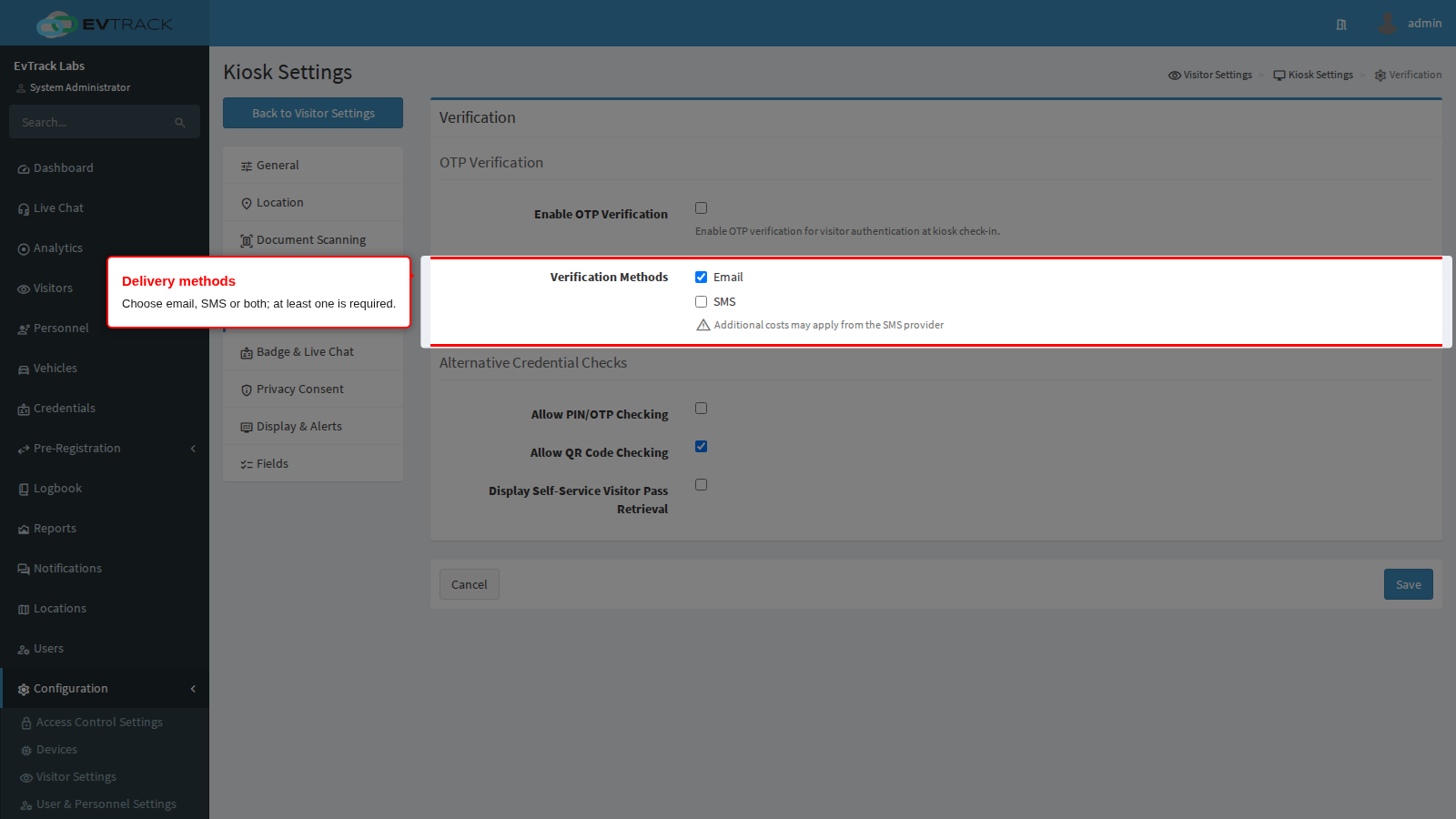
Verification Methods
Email is on by default and SMS is off by default. At least one must be ticked, or Save is refused with “At least one OTP verification method must be selected”. Email is free and needs an email address on the registration form. SMS reaches people who gave only a mobile number, and the panel warns that additional costs may apply from the SMS provider.
Each method is tied to a question on the registration form:
- Email verifies the Email question, and SMS verifies the Mobile Number question.
- A method can be ticked only while its question is enabled on the Fields panel (Fields and Required Fields). Otherwise Save is refused with “Email field must be enabled on the Fields page when Email OTP is selected”, or the matching message for Mobile Number.
- While OTP verification is on, the Fields panel refuses to save with that question switched off. It shows only the general message “Something is wrong. Please check your input and try again.” and nothing is saved. Switch the question back on, or turn off that method on this panel first.
- On a location’s own field list, the Email or Mobile Number row is locked on, with the note “Locked rows remain enabled because OTP verification on the global kiosk Verification page uses them”.
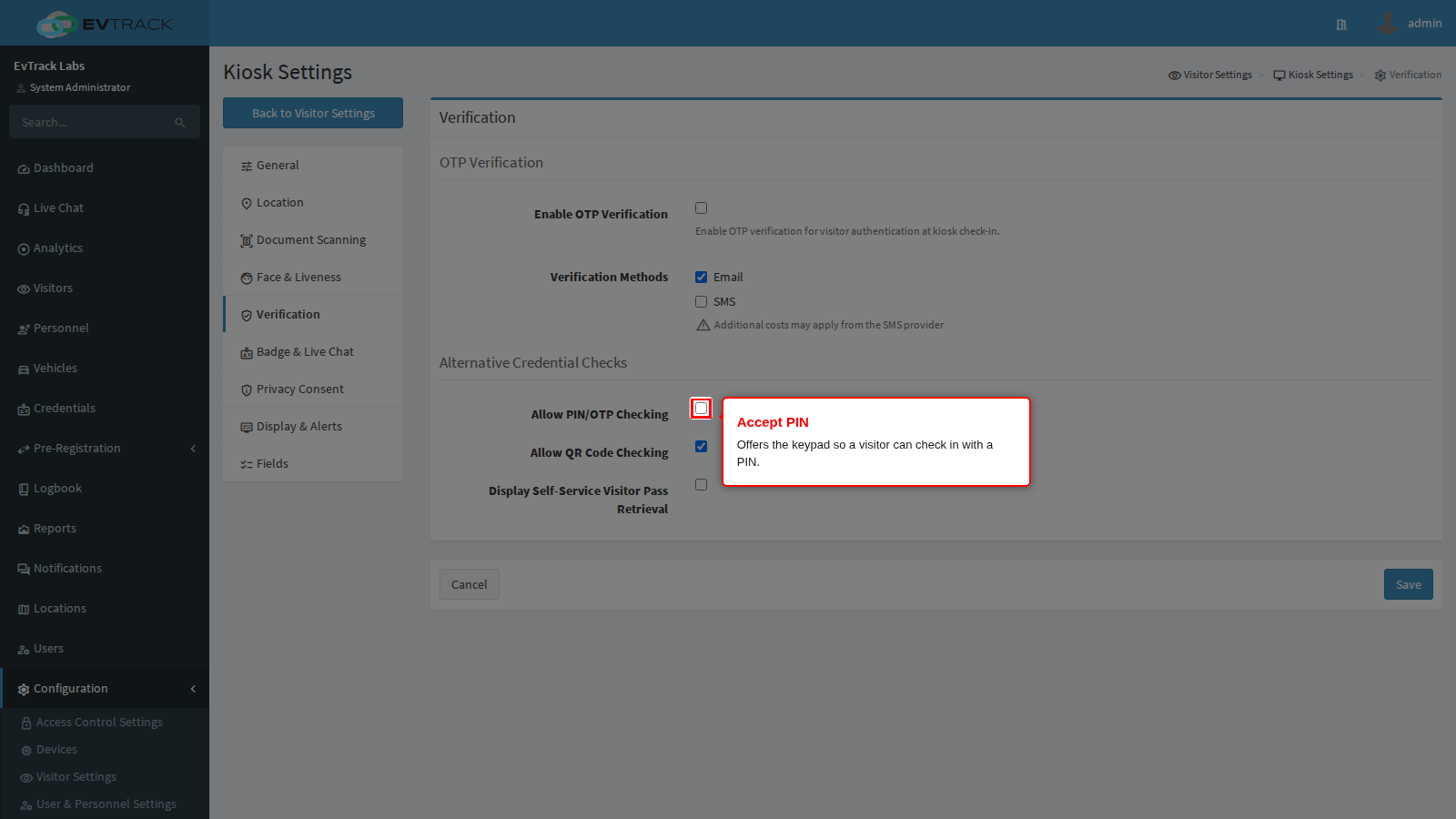
Allow PIN/OTP Checking
Off by default. It adds an OTP tile to the kiosk’s choice of ways to identify, which opens a keypad so a visitor who was sent a PIN with their invitation can key it in. It is not the same thing as Enable OTP Verification above: this PIN identifies an invited visitor, while the verification code only confirms a contact detail. The keypad has as many digits as the default PIN length set for invitations, or six when no length is set.
A site can offer a PIN and nothing else. When document scanning and QR codes are both off and this is on, the kiosk goes straight to the PIN keypad.
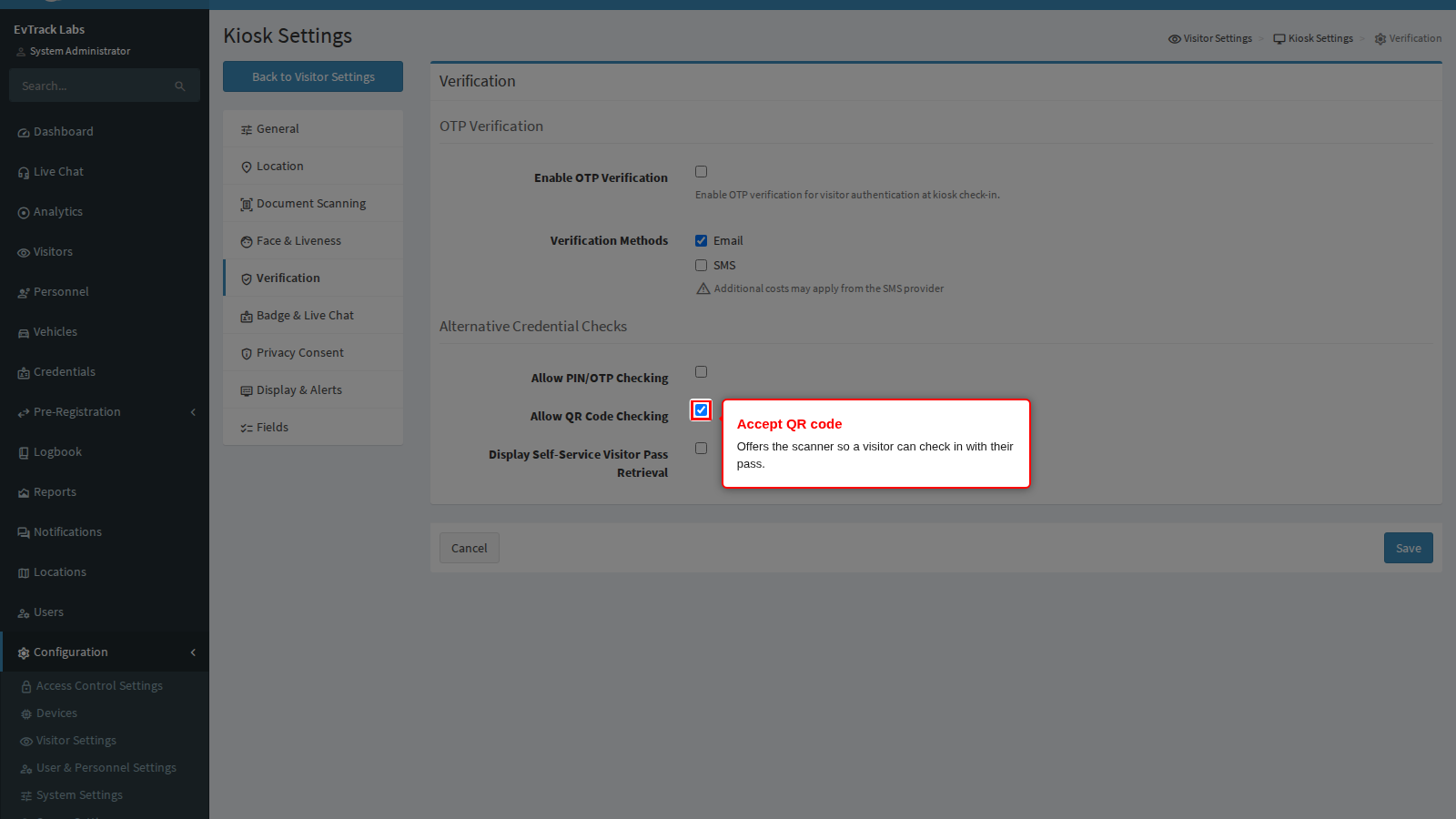
Allow QR Code Checking
On by default. It adds a QR Code tile, which opens the camera so a visitor with a pass can hold up their code. The kiosk also offers QR code check-in when the Direction Requiring Visitor Registration with Visitor PIN / QR / ID Card setting on the General panel is IN or BOTH, whatever this switch says, because a QR code is how those visitors reach the form.
Between them the PIN and QR code settings decide what an invited visitor is able to present. Turning both off leaves only document scanning and manual registration.
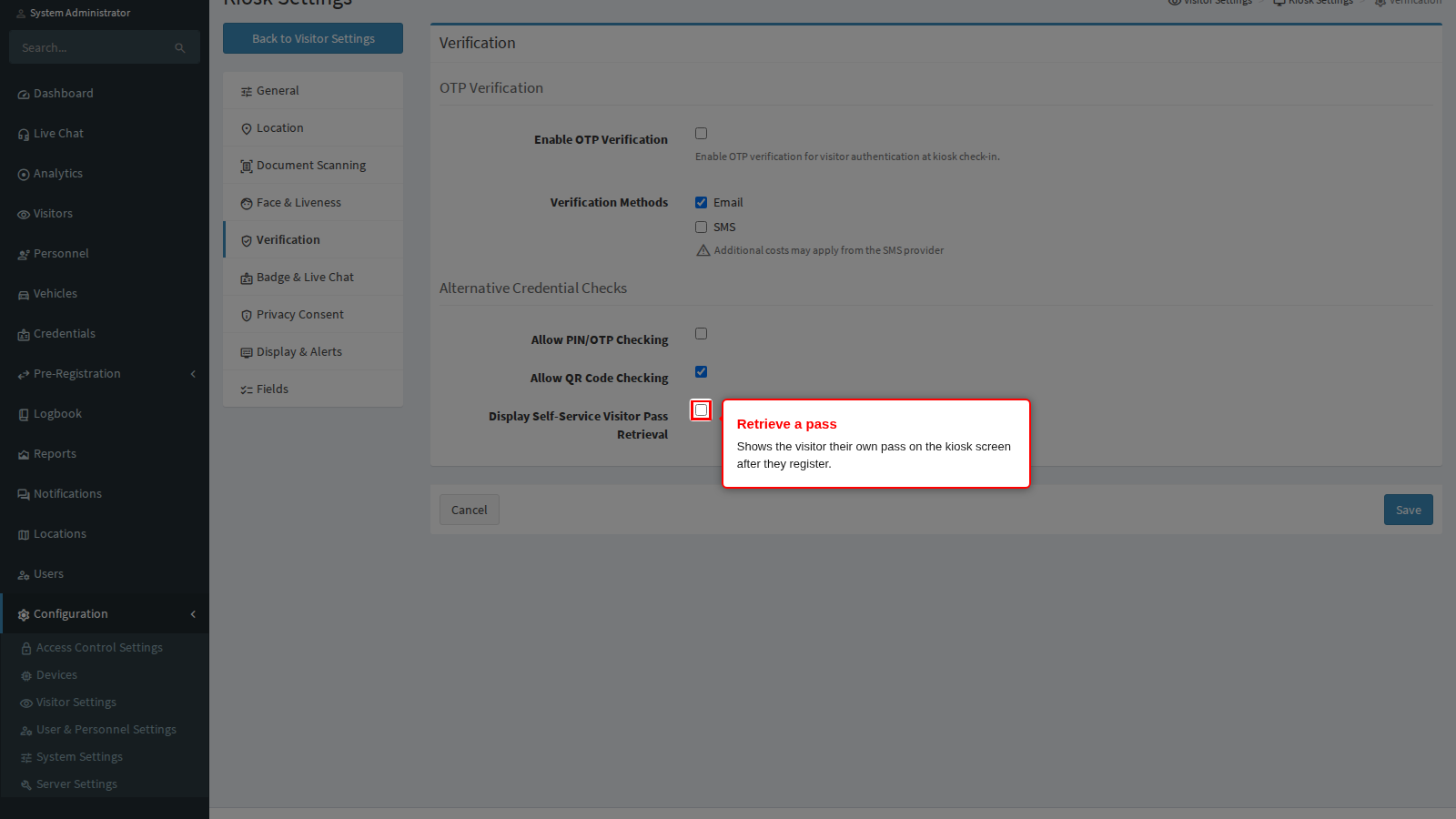
Display Self-Service Visitor Pass Retrieval
Off by default. With it on, once a visitor has registered and been granted access, the kiosk shows their pass on screen instead of returning at once to the welcome screen. The pass is a QR code, or a one-time PIN when the visit uses one. The screen tells the visitor to photograph the QR code with their own phone, or to note the PIN and key it in at the turnstile, and it closes itself after a countdown of about a minute. It saves reception handing over a pass. Leave it off where a pass must always be handed over by a person.
Save
Click Save at the bottom of the panel. Paired kiosks pick the change up within five minutes, or at once when the app restarts.