Use this page when a kiosk shows another site’s logo or company name. An operator who can edit devices, locations and settings can fix it in about ten minutes.
Symptom
The kiosk welcome screen shows another site’s logo, or its second line reads “Welcome to” followed by the wrong company name, for example the head office name on a kiosk that stands in a training centre. Other kiosks may look right.
What it means
A kiosk takes its branding from the Location on its own device record, never from where the tablet physically stands. When the app asks the server for its settings, the server looks that location up and resolves five settings in this order:
- The kiosk device’s assigned location (Devices > the device > General > Location, also shown on the Status panel).
- That location’s Kiosk App tab override.
- The global Kiosk value (Visitor Settings > Kiosk > General, see Welcome Screen and Branding).
The five settings are the logo, the welcome message, the colour scheme, the default language and the default telephone country code. The options the app reads and the logo it downloads use the same resolution, so they never disagree.
An override (see Location Overrides) applies only when its “Use global …” box is unticked and the value is not blank. An override that is unticked but empty silently means global. A device whose Location is None (or whose location was deleted) gets every global value.
The welcome screen shows two lines: the Welcome Message (by default “Welcome to”) and, below it, the company name. The company name is the Company Name on the device location’s Advanced tab when that tab’s company-name Inherited tick is off and the name uses only letters, digits, spaces and the characters / . , - ‘ ( ) & : ; @ ? ! on one line. Otherwise it is the global Company Name under Settings > System > General. The location’s own name is never shown on the kiosk.
Why it happens
- The device was created with the wrong Location, or with None, or the tablet was moved to another site and the device record was not.
- The right location still has Use global kiosk logo ticked on its Kiosk App tab.
- The logo was uploaded on the Self-Registration or Invite Email tab. Those brand the public registration form and the emails, not the kiosk.
- The location’s Advanced tab still inherits the company name.
- The logo upload was rejected (only PNG or JPEG, at most 256 KB, are accepted) and the old logo was kept.
- Inherit Kiosk Device Location (Visitor Settings > Kiosk > Location) was expected to change the branding. It does not: it only files registrations that arrive without a location. Branding always follows the device’s Location.
Fix it now
The example below is a kiosk that stands in the Training Center but whose device record says Head Office, so the tablet shows the Head Office branding.
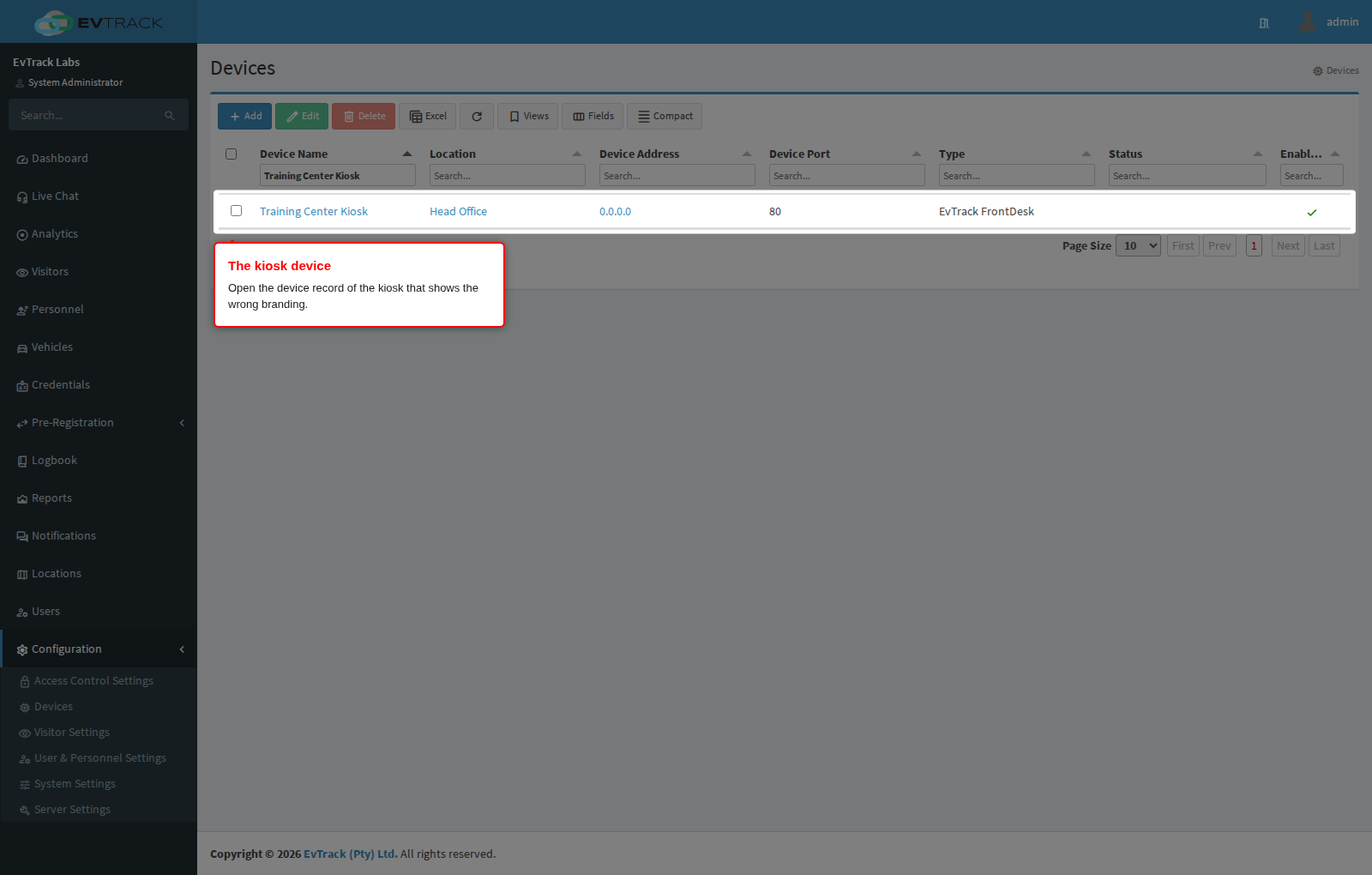
Step 1: Find the kiosk’s device record
Go to Configuration > Access Control Settings > Devices, filter by the kiosk’s name and open it.
Step 2: Check its location
On the Status panel, read the Location row.
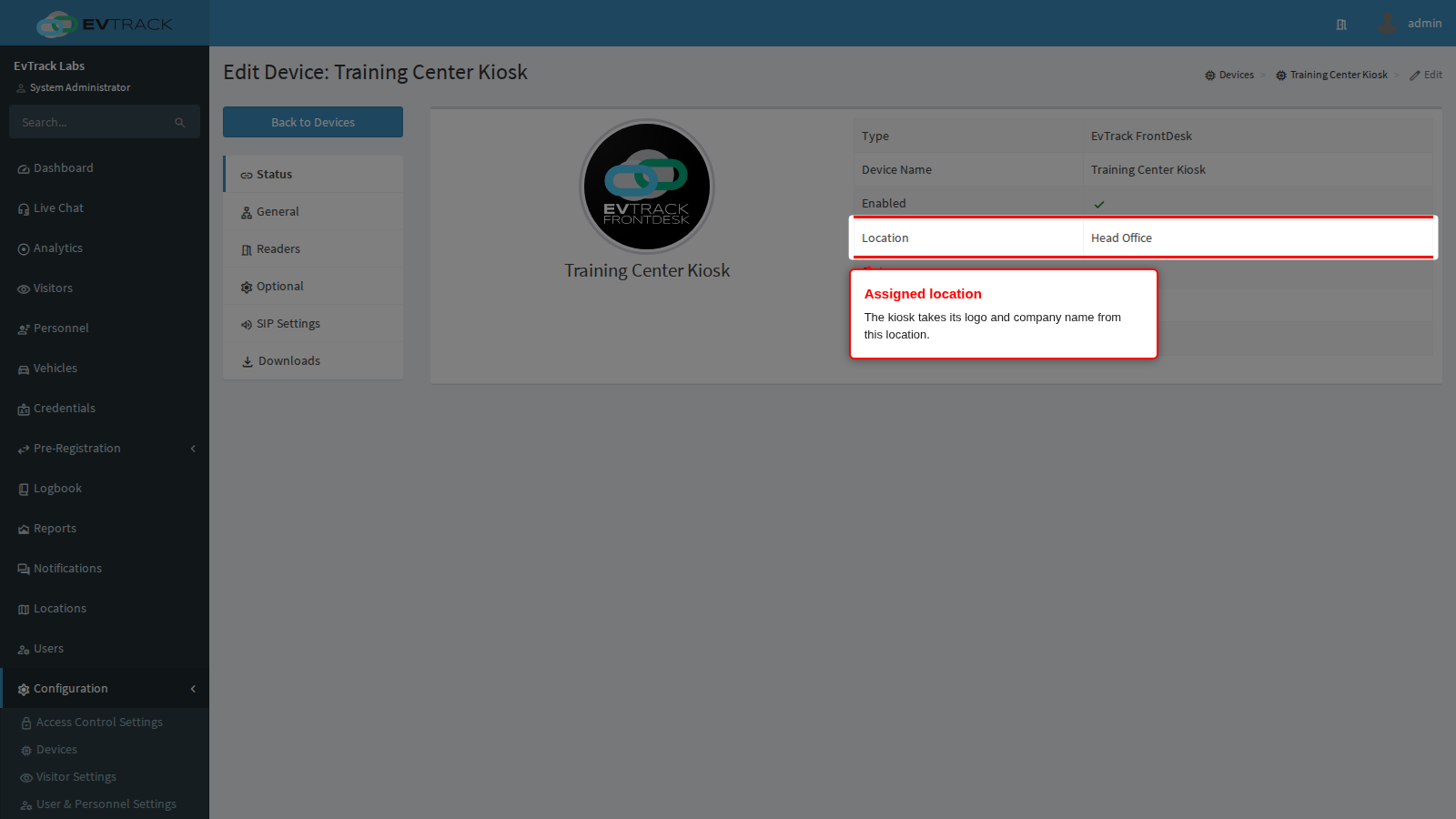
You now know which location the kiosk takes its branding from. Here it is Head Office, which is wrong.
Step 3: Assign the right location
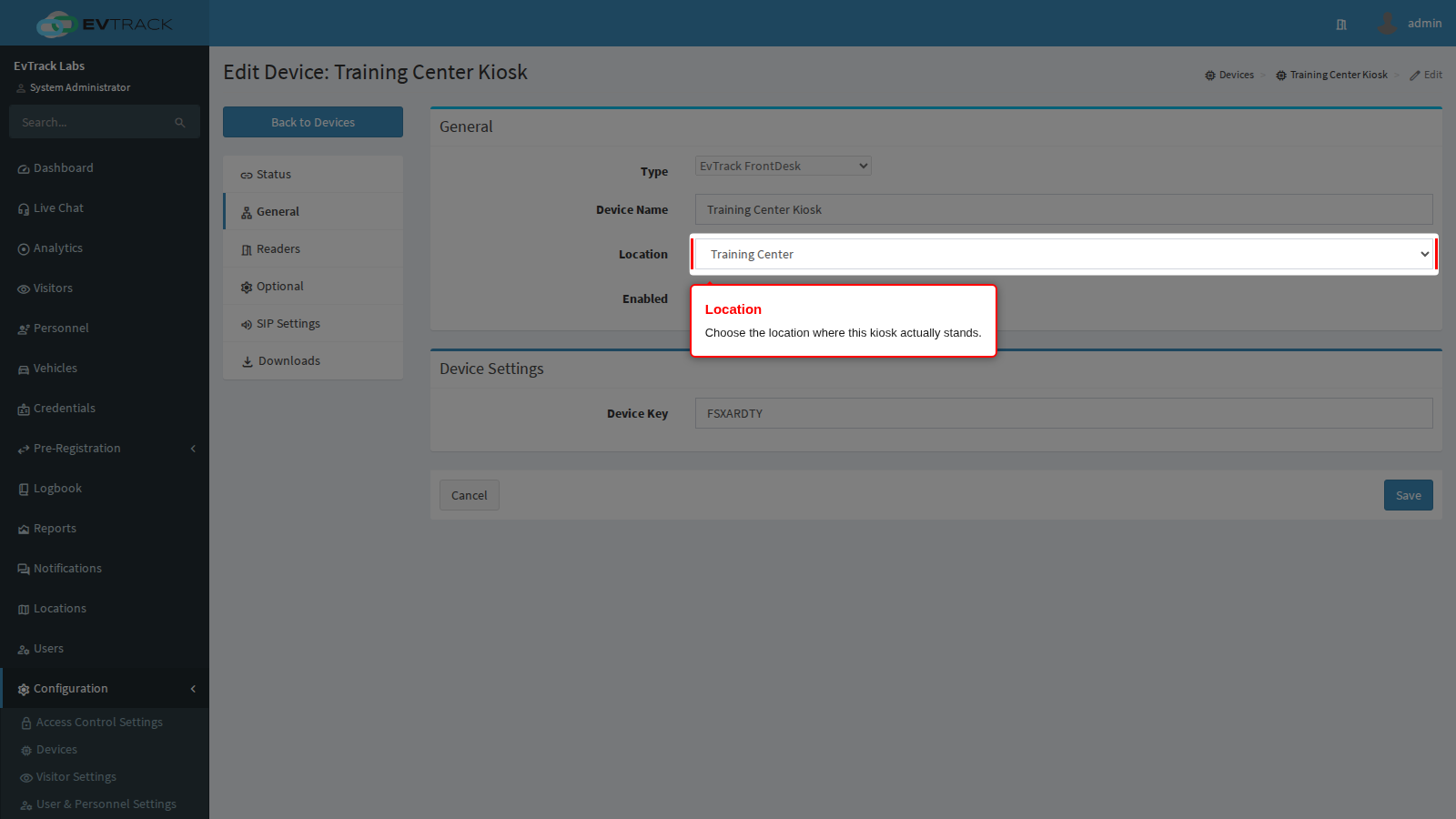
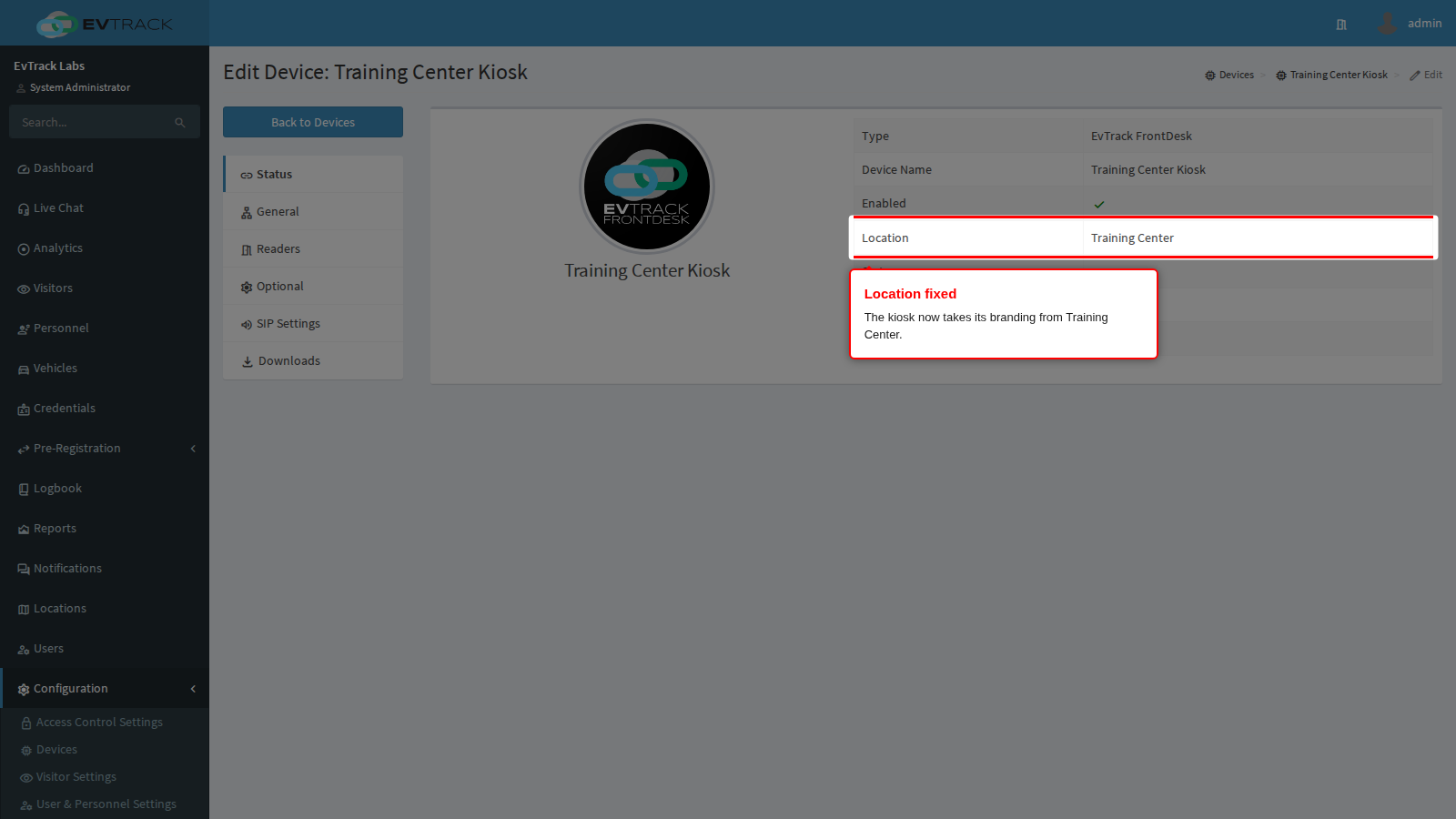
Open the General panel and choose the correct site in the Location select, here Training Center.
Click Save.
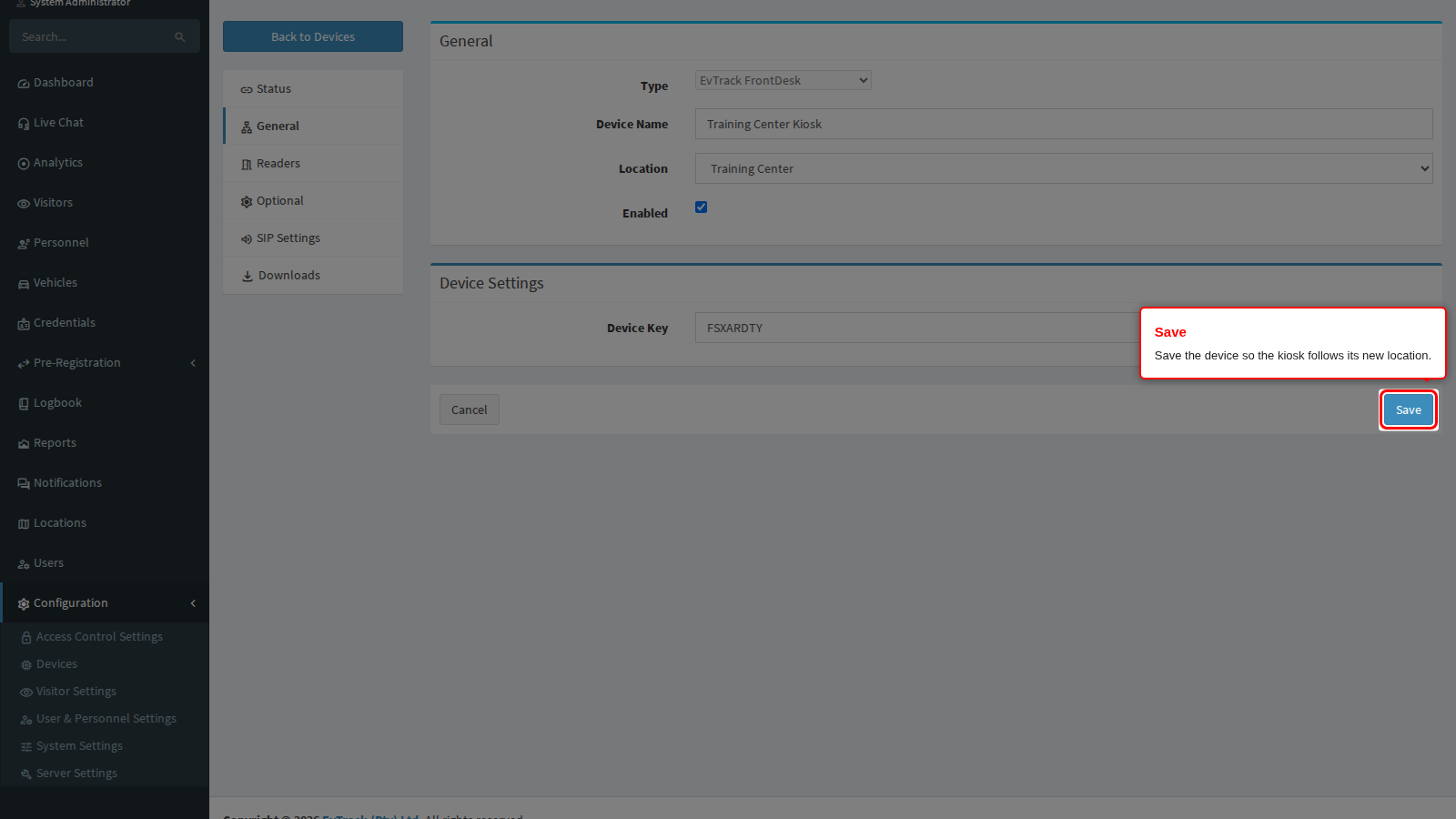
If the save is refused with “Please change the Application Base HTTP URL to the external IP/Network Address that is reachable from the device…”, the server’s App Base URL still points at localhost. Correct it first, see App Base URL, then save again.
The Status panel now shows the new location.
Step 4: Open the location’s Kiosk App tab
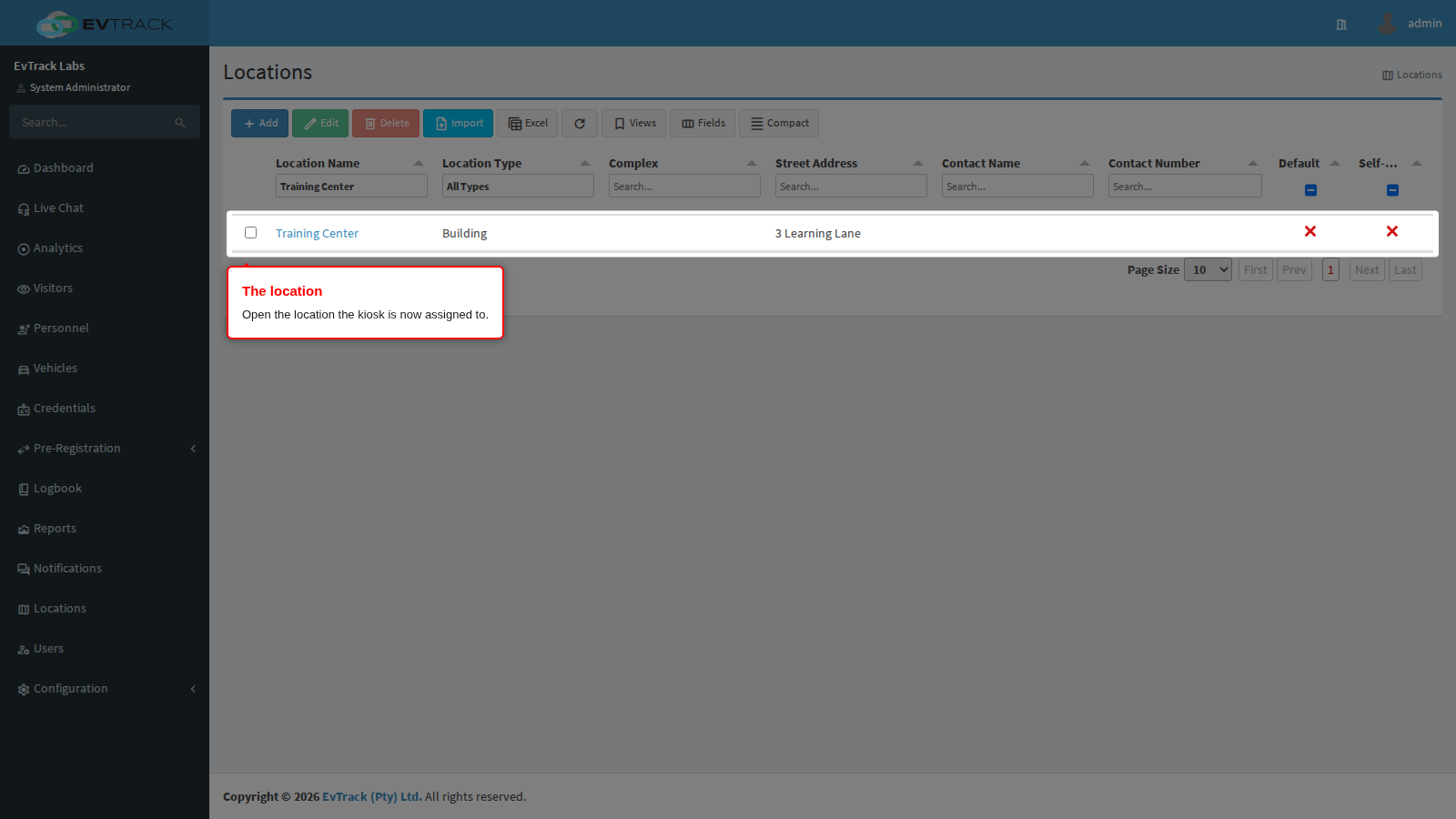
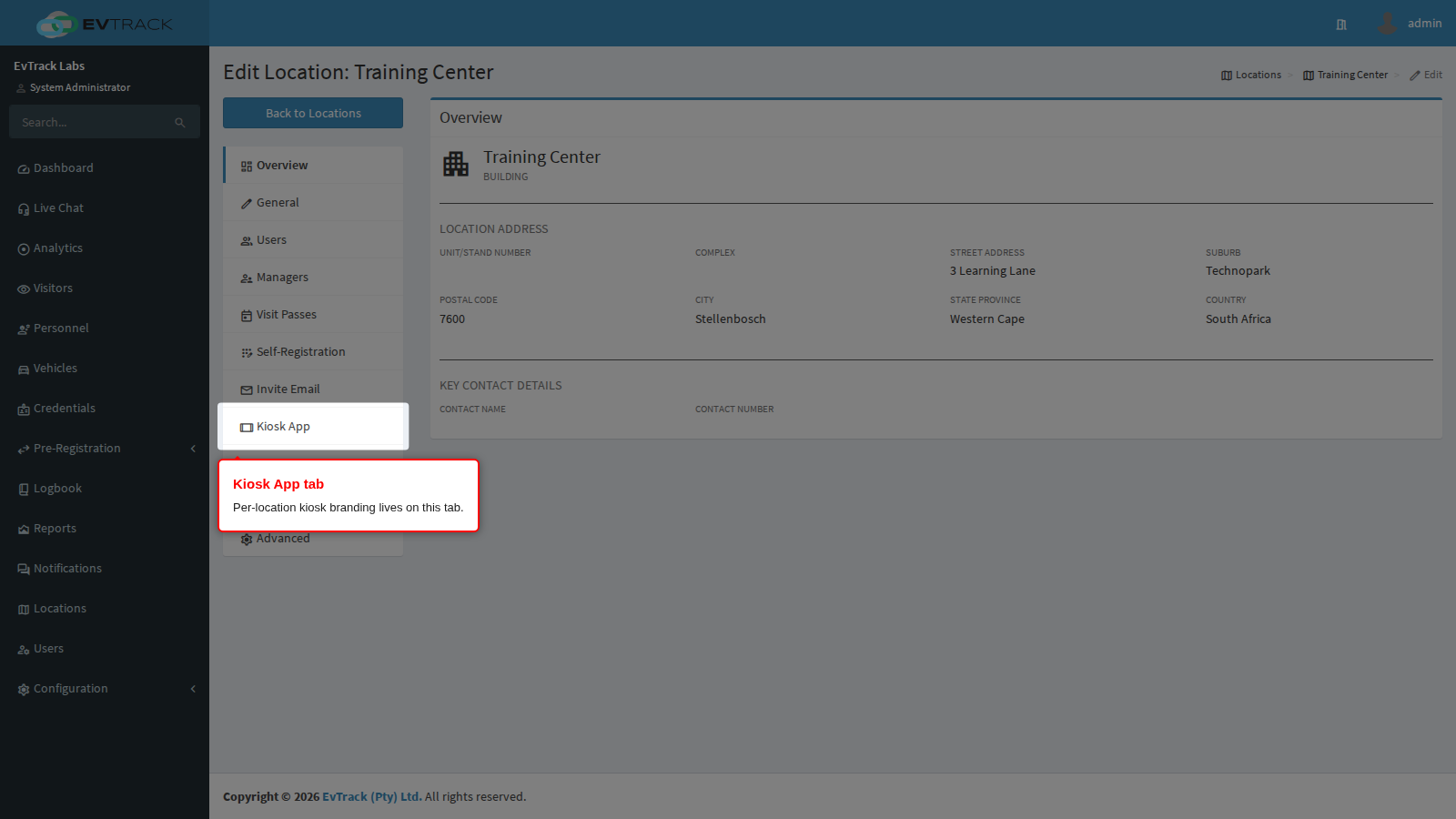
Go to Locations, open Training Center, and click Kiosk App.
Step 5: Give the location its own logo
This override is described in full in Location Overrides.
With Use global kiosk logo ticked, kiosks here show the global logo.
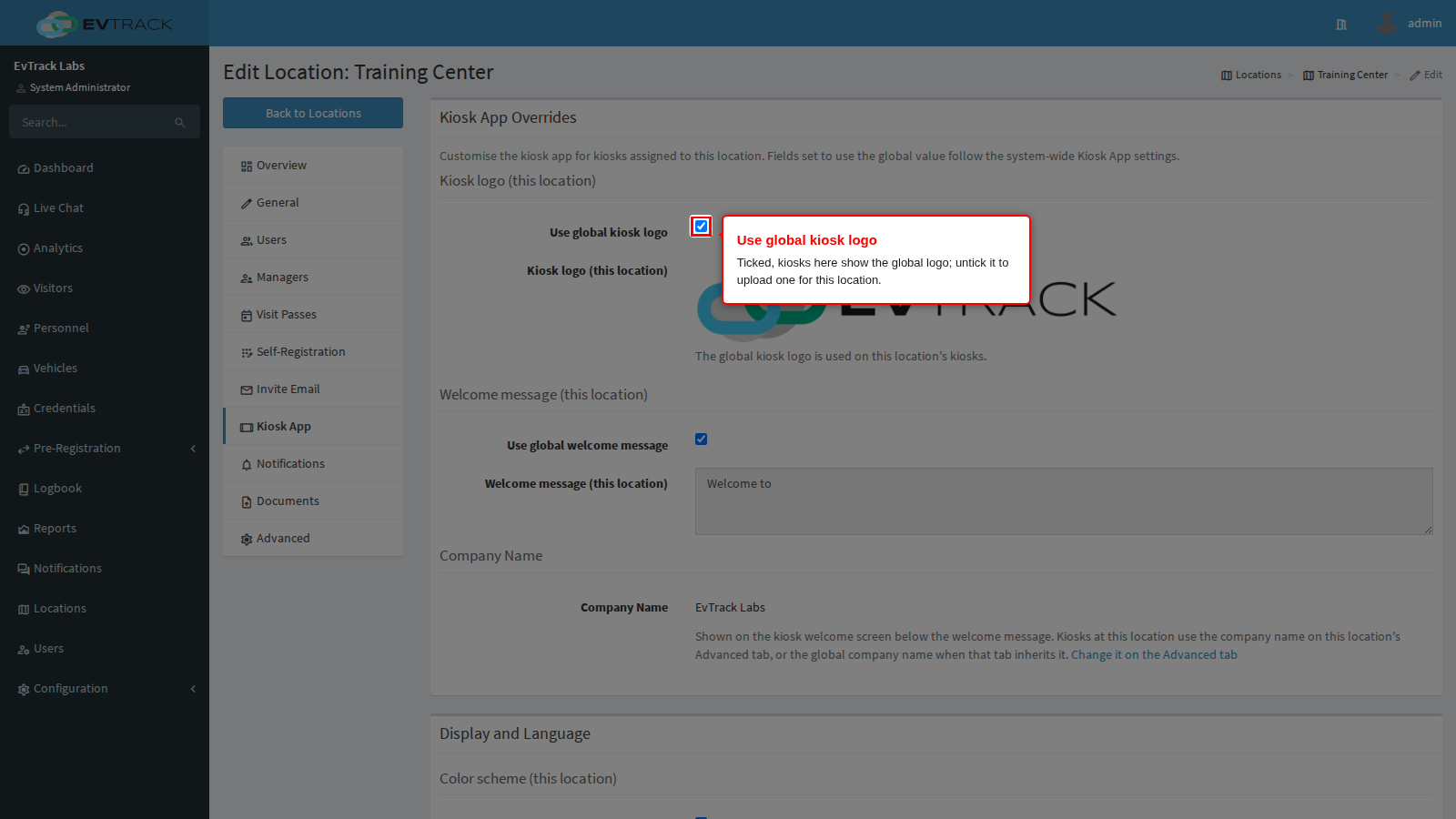
Untick it and drop the location’s logo into the uploader. The logo must be a PNG or JPEG of at most 256 KB; the type is checked from the file’s content, not its name, and a GIF is refused. The uploader turns away an oversized or wrong-type file before it uploads.
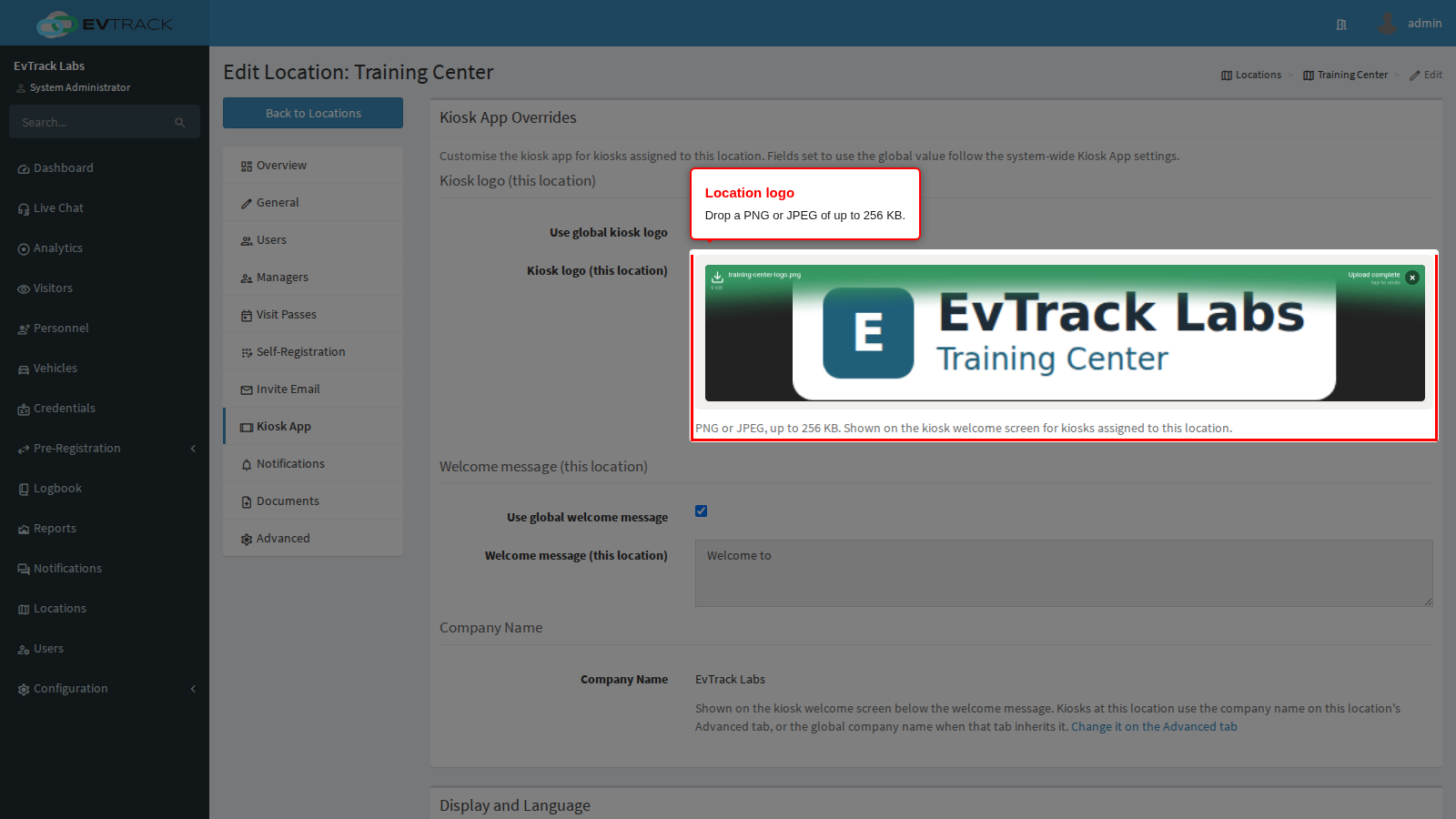
Click Save.
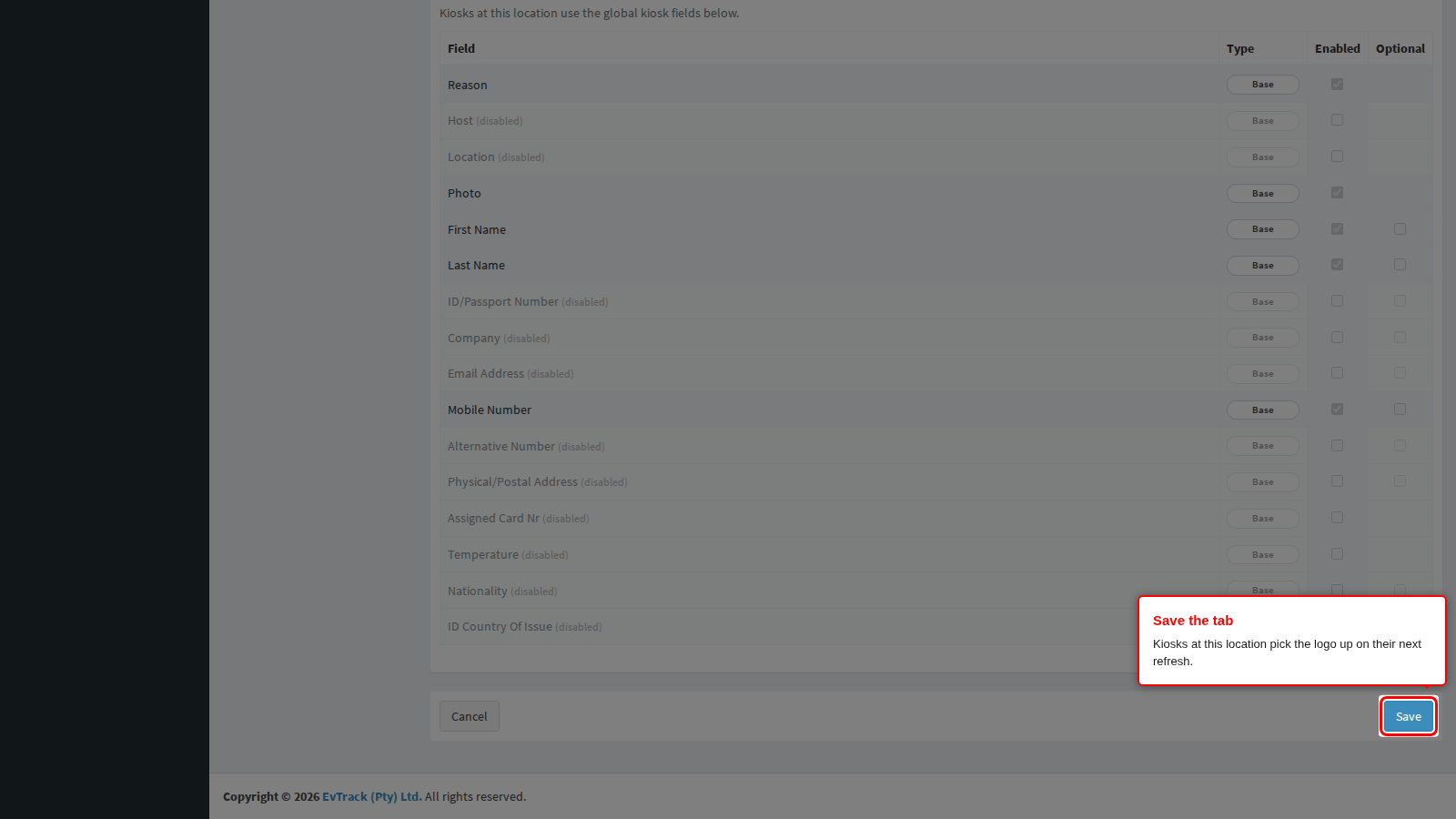
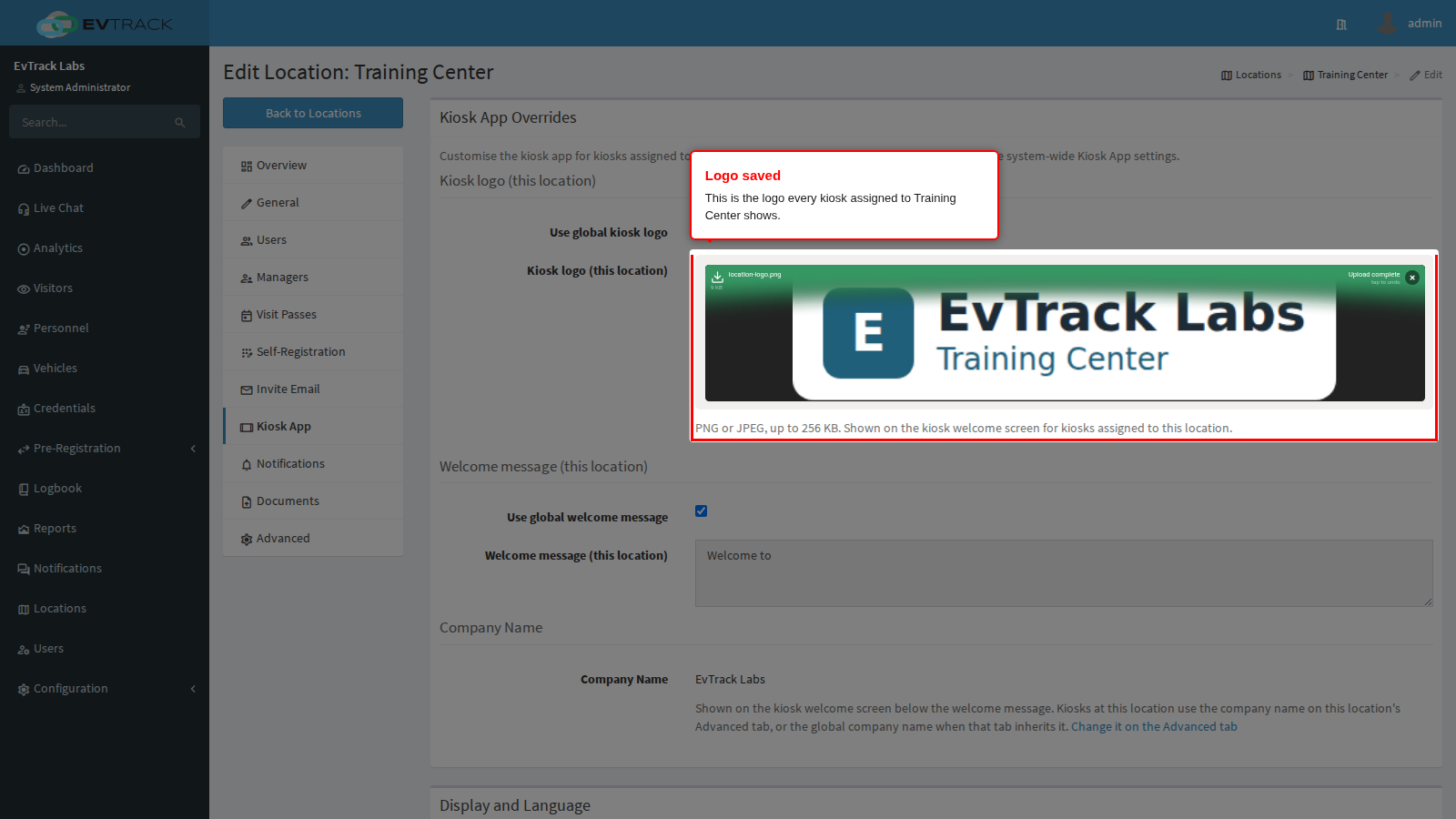
The tab now shows the stored logo.
If a warning says “The uploaded logo could not be saved (file too large or not a PNG/JPEG image). The existing logo was kept.”, the server refused the file and the old logo is still in place. The rest of the tab did save. Convert the logo to PNG or JPEG under 256 KB and upload it again.
Step 6: Set the company name for the location
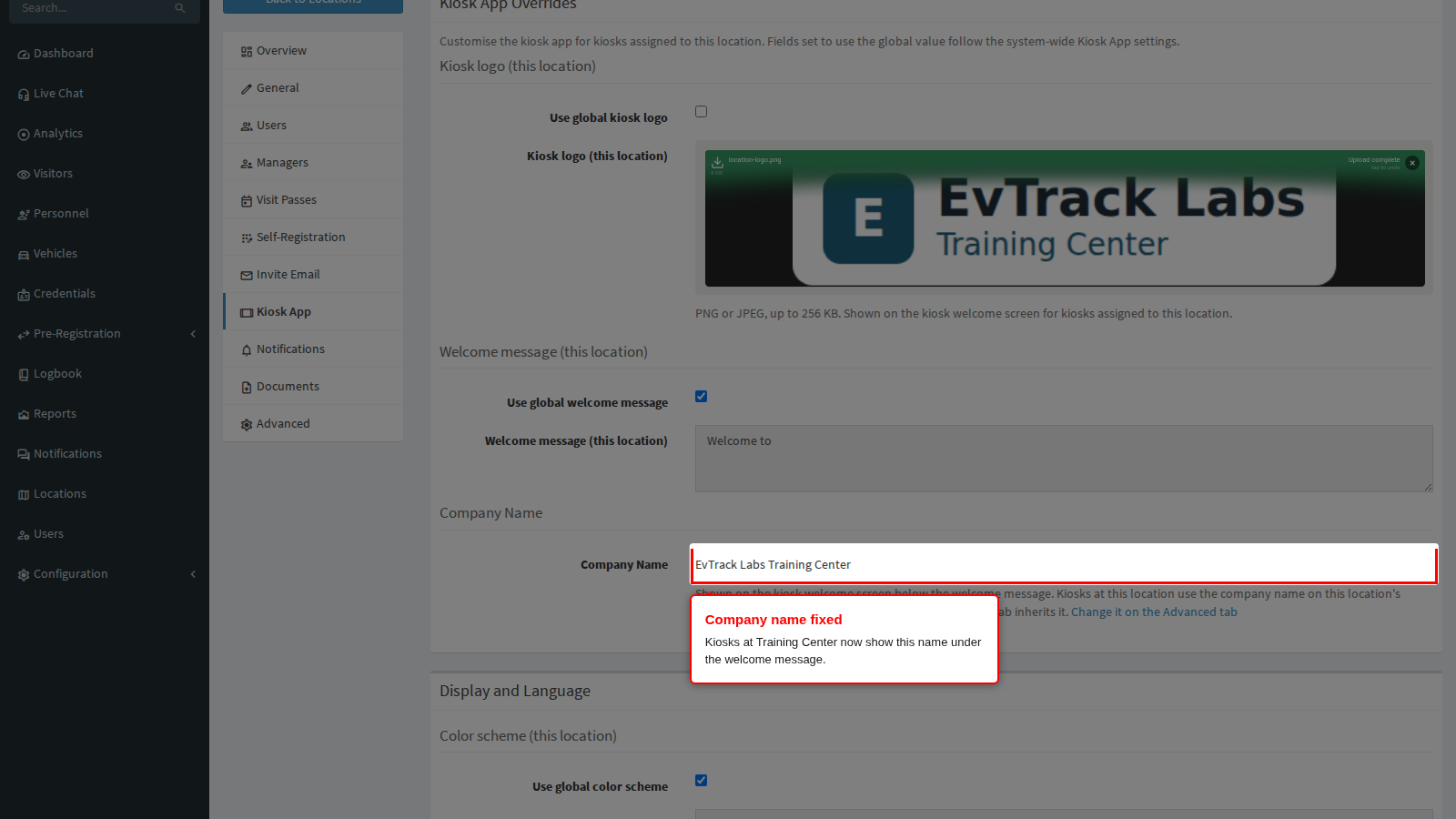
The Company name line on the Kiosk App tab shows the name kiosks at this location display. Here it still shows the global name, EvTrack Labs. The link beside it opens the Advanced tab.
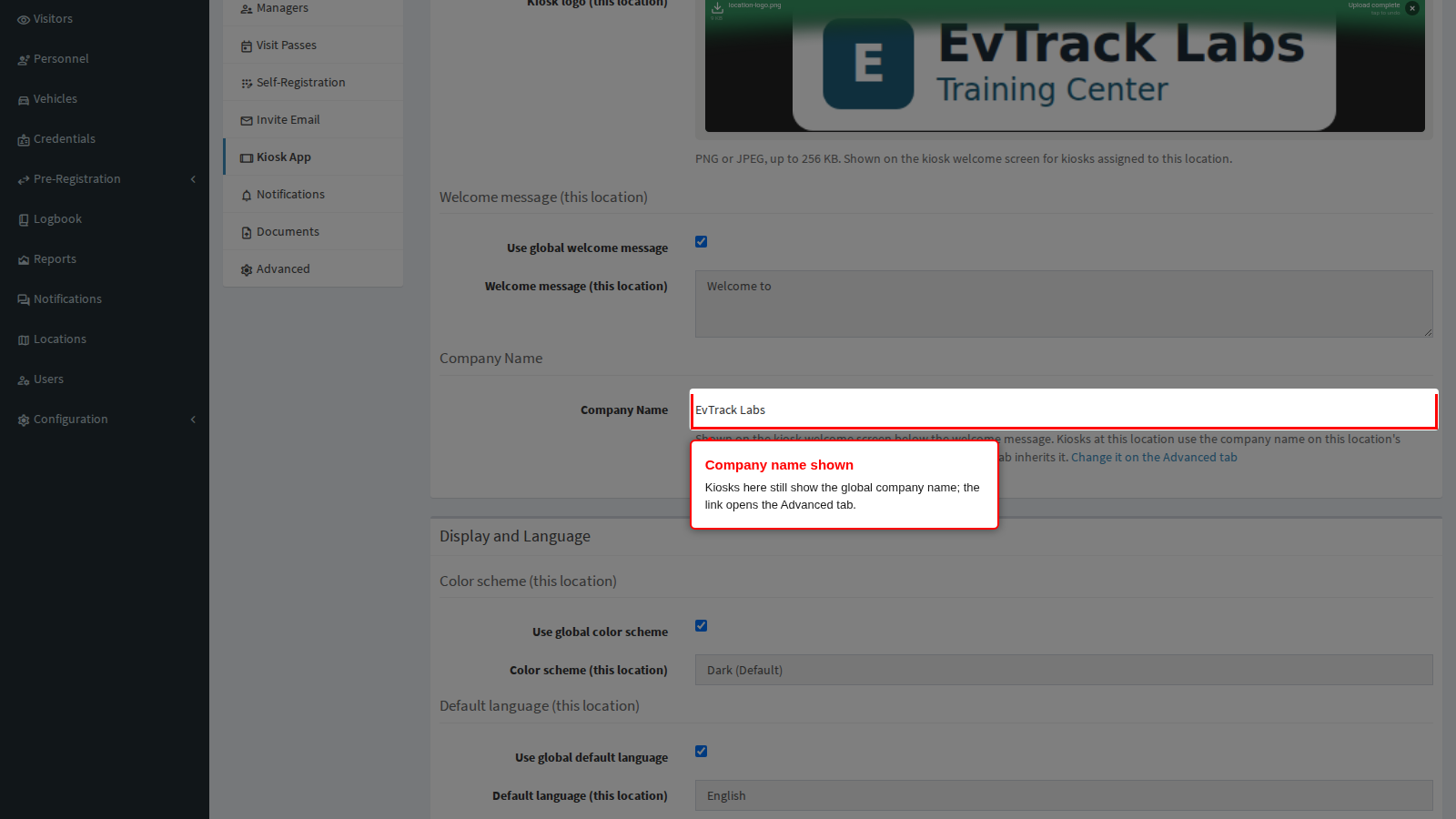
On the Advanced tab, untick the company-name Inherited tick and type the Company Name (6 to 200 characters, on one line).
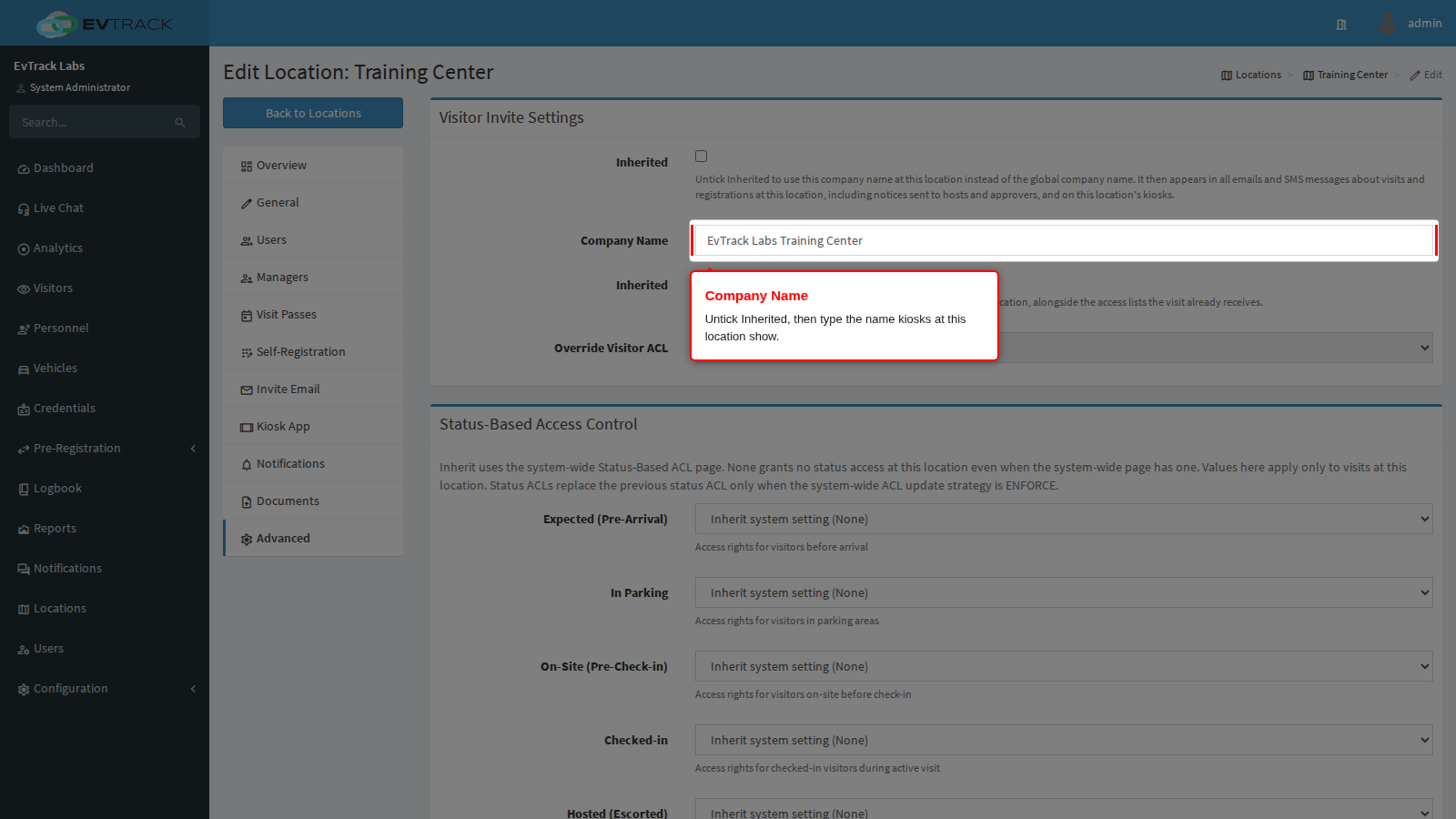
The company name and Override Visitor ACL each have their own Inherited tick. Setting a company name no longer requires an access control list: leave the access list tick inherited unless you also want to add a visitor access list to every visit at this location. Before this release the two had to be set together.
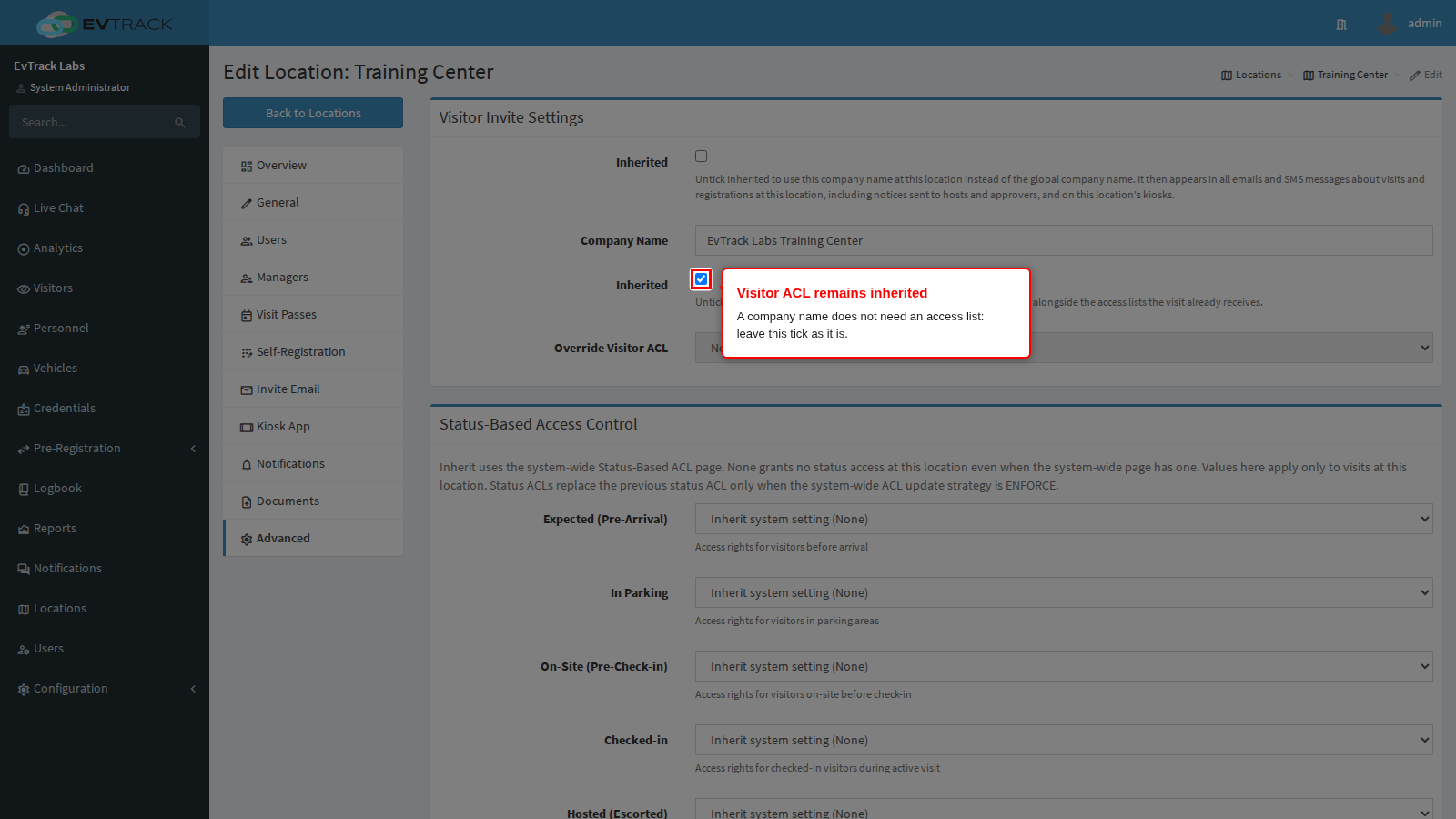
Click Save. The same company name now also appears in emails and SMS about visits at this location. Back on the Kiosk App tab, the line shows the new name.
Step 7: Refresh the kiosk
Restart the FrontDesk app on the tablet, or wait up to 5 minutes. The welcome screen now shows the Training Center logo and “Welcome to” followed by “EvTrack Labs Training Center”.
Make it stick
- Set the Location on the Add form when you create a kiosk device, see Register the Device and Get Its Key.
- Name devices after where they stand.
- Give every location that has kiosks its own logo and company name, and keep the global values as the neutral brand.
- After moving a tablet between sites, change its device Location the same day.
If it comes back
- The new logo is exactly the same size as the old one. The app downloads the logo again only when its size changes, so a replacement of identical size keeps showing the old one. Save the logo at a slightly different size, or clear the app’s data and pair again, see Clear App Data.
- Someone ticked “Use global kiosk logo” again. Saving with that box ticked deletes the location’s logo.
- “Use global kiosk logo” is unticked but no file was uploaded, or the upload was rejected. An empty override silently uses the global logo, with no warning. Only PNG or JPEG, at most 256 KB, are accepted.
- The device record was edited back to another location. Check the Status panel again.
- The second line is still wrong. The company-name Inherited tick on the location’s Advanced tab is still ticked, or the saved name contains a character outside letters, digits, spaces and / . , - ‘ ( ) & : ; @ ? ! (a name saved by an older version can). The kiosk then quietly uses the global name: open the Advanced tab, retype the name and save.
- A whole site changed at once. The global Kiosk > General values changed, see Kiosk Settings.
The app re-reads its options every 5 minutes while it can reach the server (every minute while it is offline) and at every app start, so a change you make is never more than a few minutes away from showing.
Related
- Devices
- System Settings (the global company name)
- Kiosk Settings