The Fields panel decides what the officer must capture when enrolling a walk-in visitor at the checkpoint, what they may capture, and which questions and agreements are asked. These fields apply to the Guard app only; the kiosk and the web registration form have their own required fields.
What the officer must capture
The Fields panel governs enrolment: what the officer has to collect when they register somebody new at the checkpoint. Every tick is a question the officer must answer before the visitor is admitted, so this panel is where a fast checkpoint is won or lost.
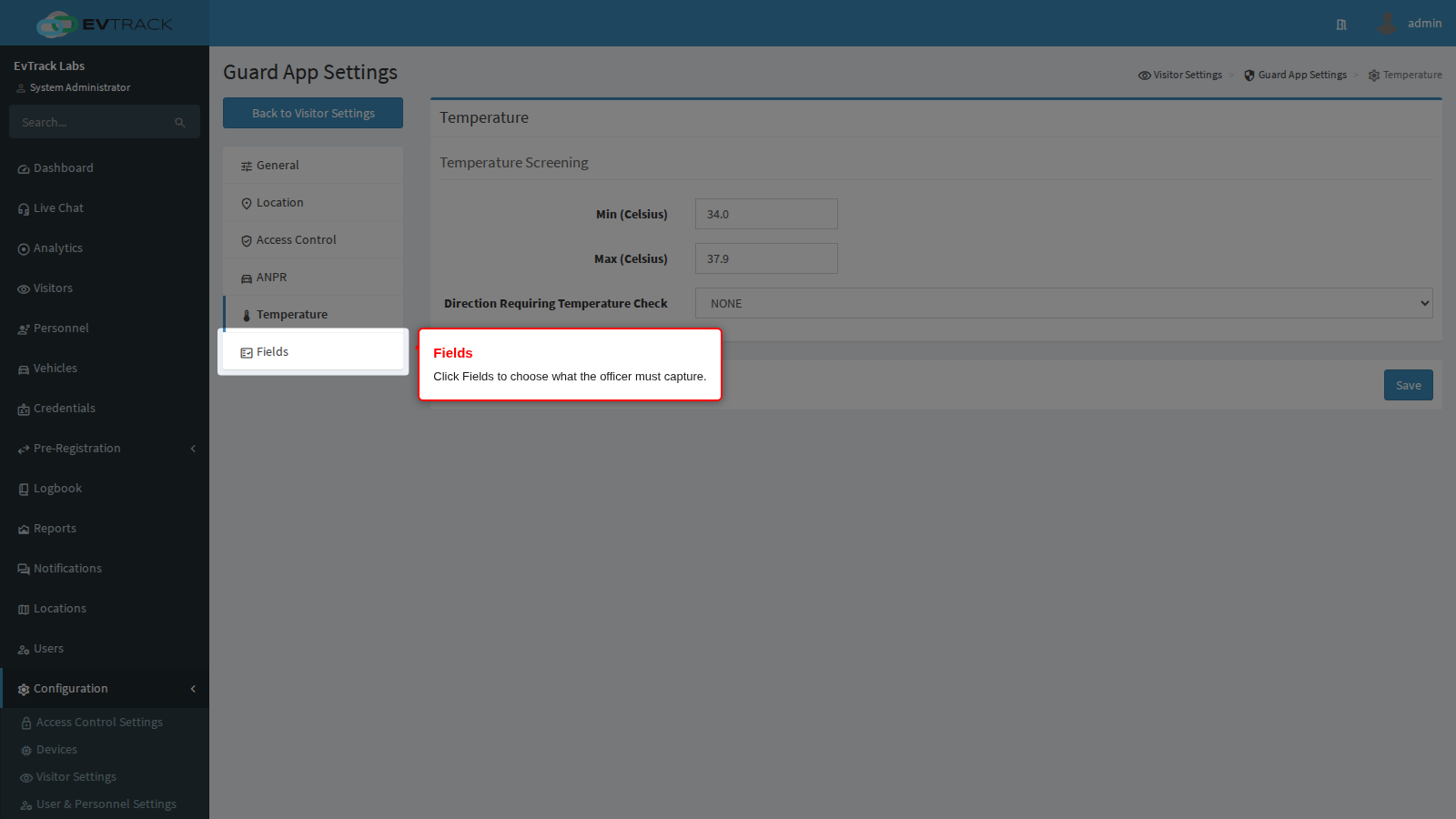
The Identity box holds the personal details: host, reason, photo, name, surname, ID number, company, mobile number, alternative number, email, address, nationality and country of issue.
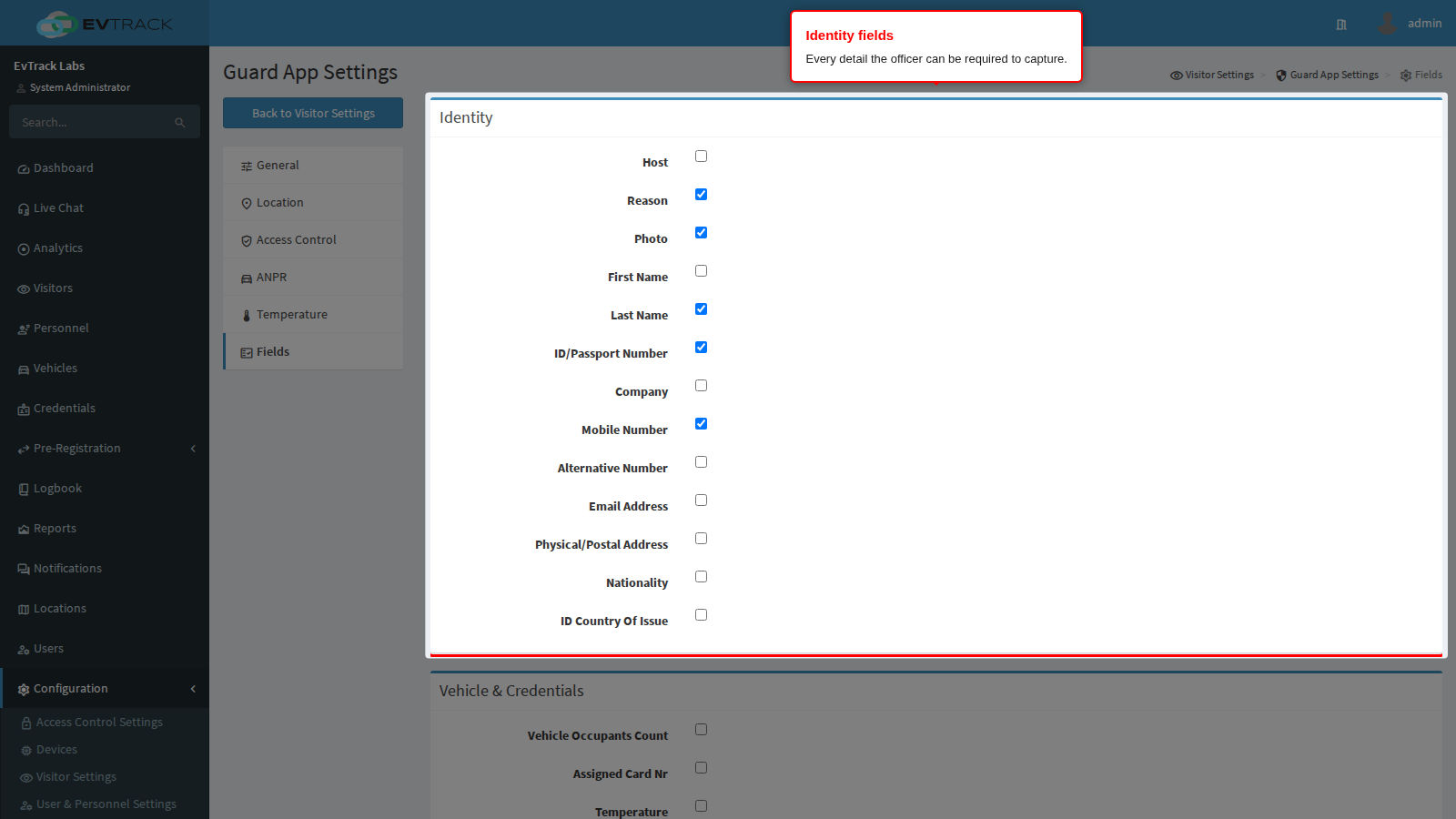
Each tick in the Identity box makes one detail compulsory at enrolment:
| Field | The officer must enter |
|---|---|
| Host | the person the visitor is there to see |
| Reason | the reason for the visit |
| Photo | a photo of the visitor |
| First Name | the visitor’s first name |
| Last Name | the visitor’s last name |
| ID/Passport Number | the number of the visitor’s identity document |
| Company | the company the visitor represents |
| Mobile Number | the visitor’s mobile number |
| Alternative Number | a second contact number |
| Email Address | the visitor’s email address |
| Physical/Postal Address | the visitor’s address |
| Nationality | the visitor’s nationality |
| ID Country Of Issue | the country that issued the identity document |
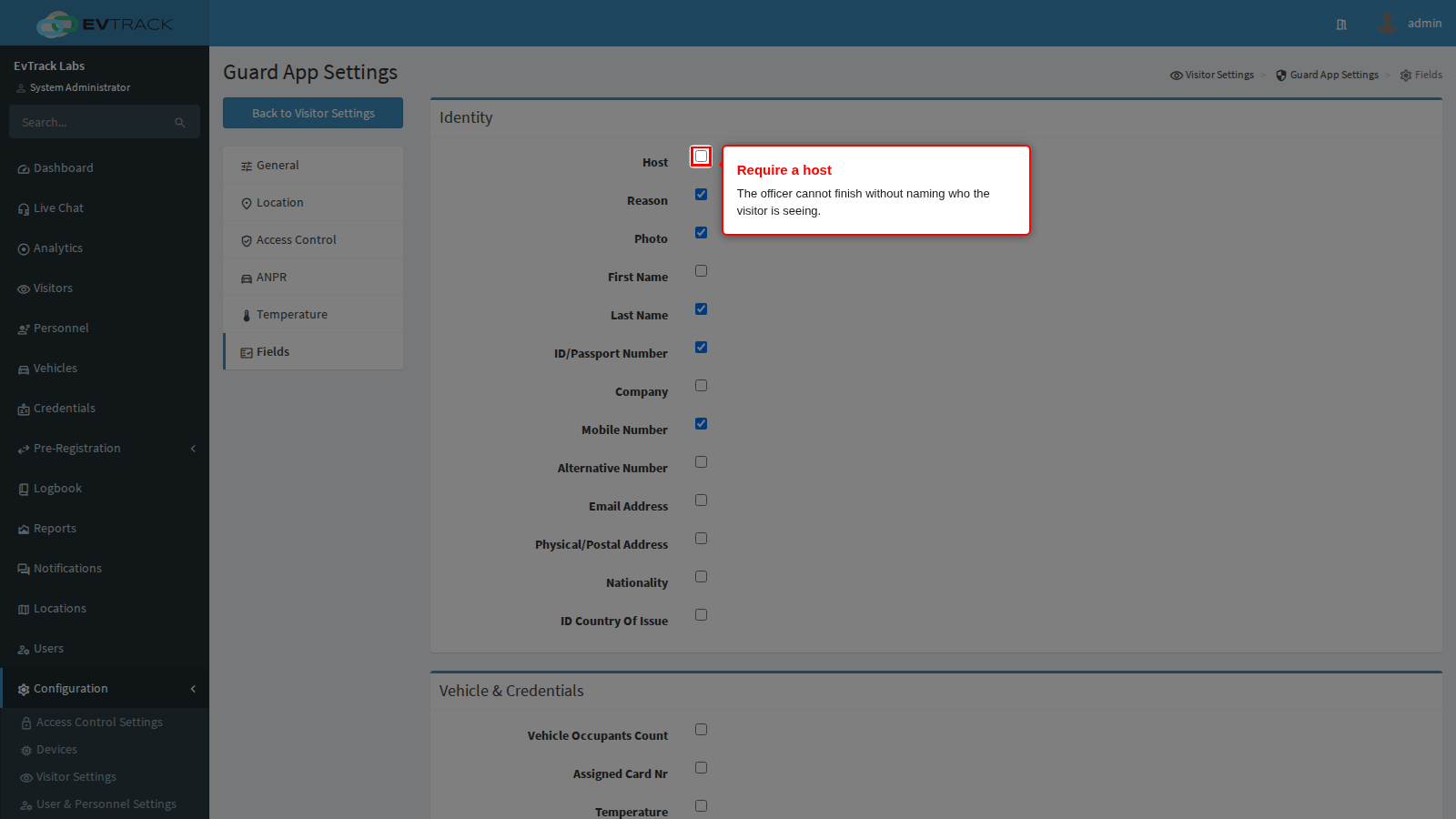
Ticking Host in the Identity box stops the officer completing an enrolment without naming who the visitor is there to see. It is what makes host notifications and host approval possible, and what makes an evacuation list meaningful.
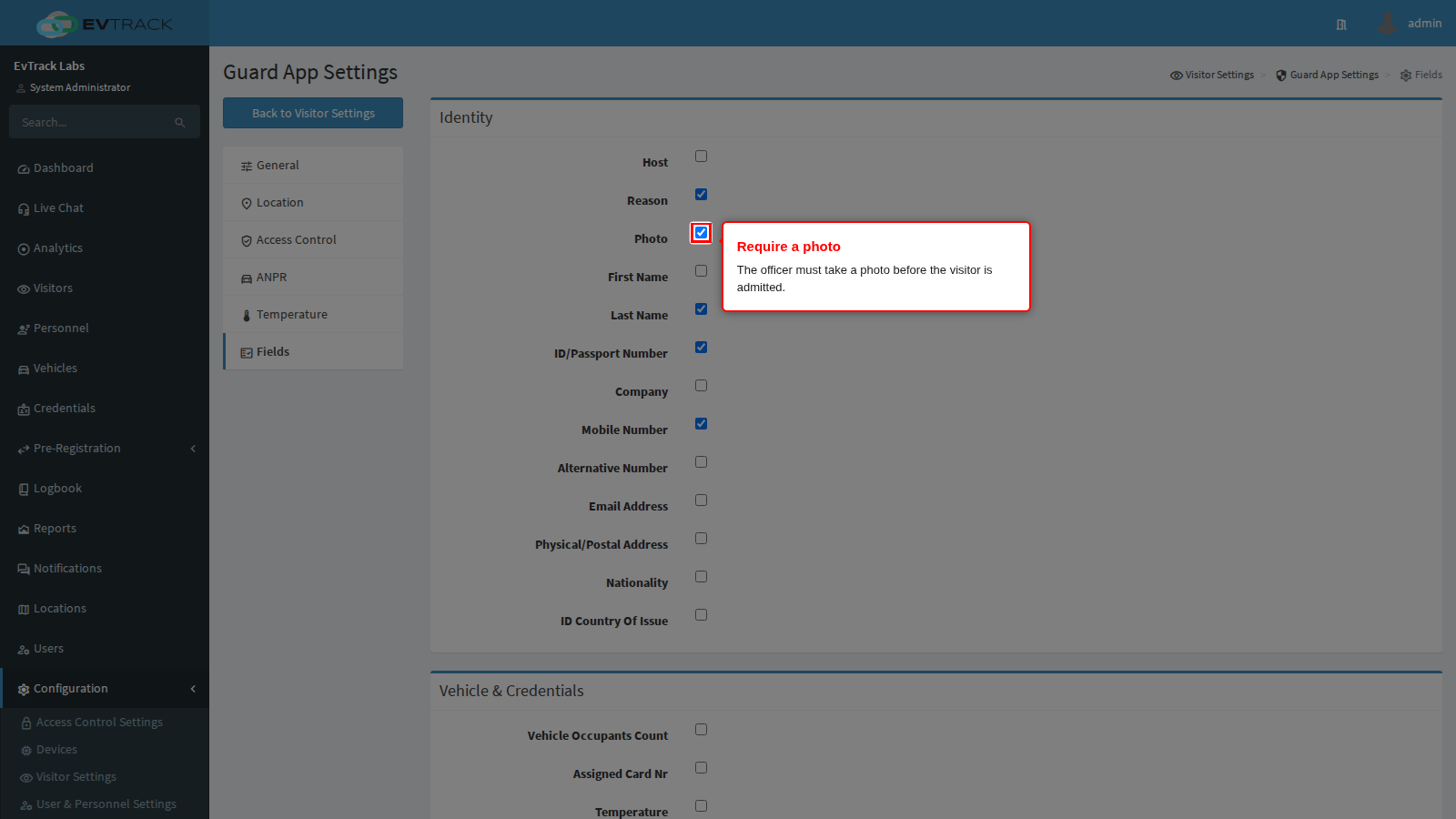
Ticking Photo makes the officer take a photo. Combined with face detection above, it produces the badge photo and the face record; without it a visitor can be enrolled with no picture at all.
Vehicle and credentials
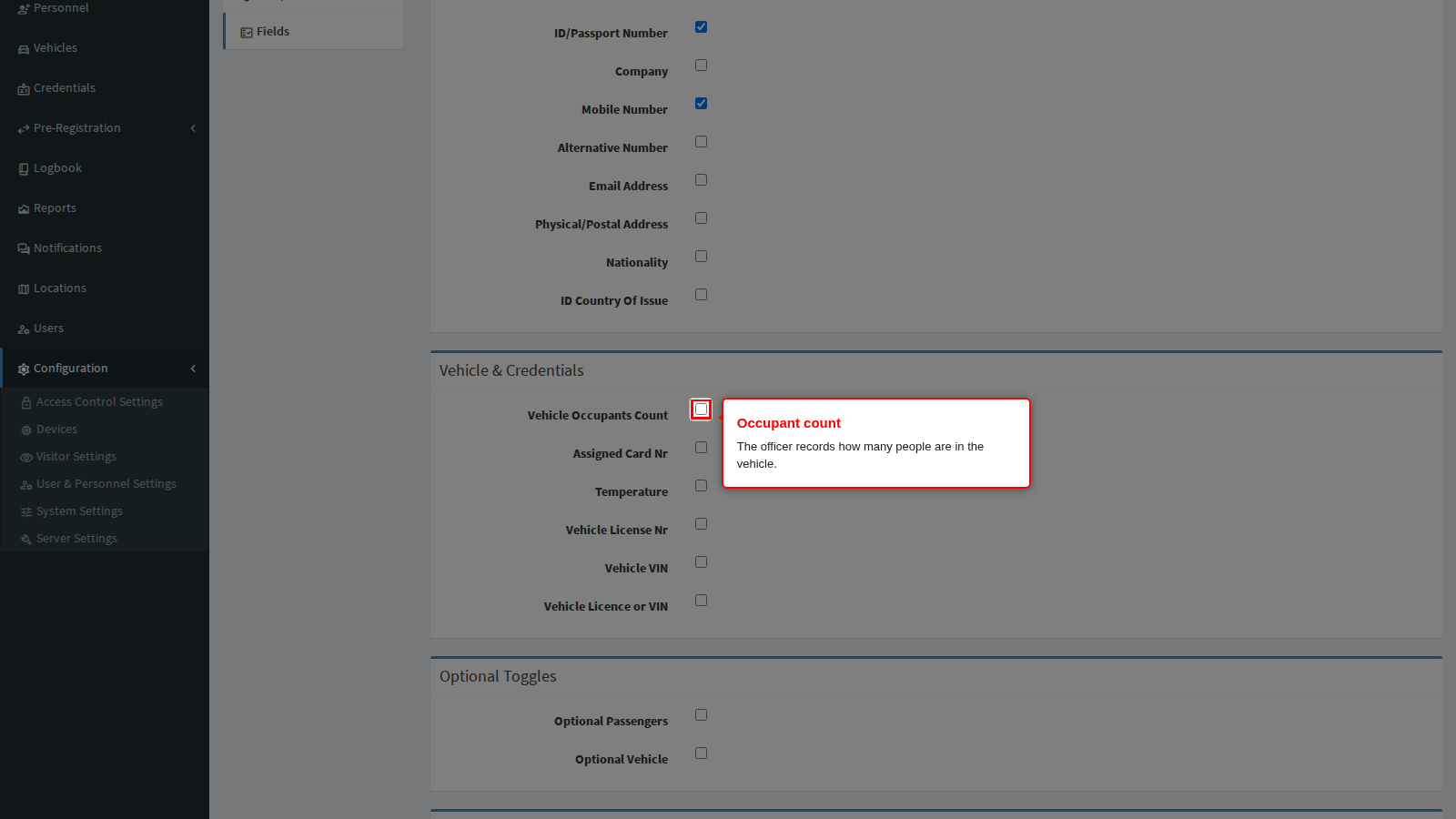
Vehicle Occupants Count makes the officer record how many people are in the vehicle, which is the number the exit confirmation on the Access Control panel is checked against.
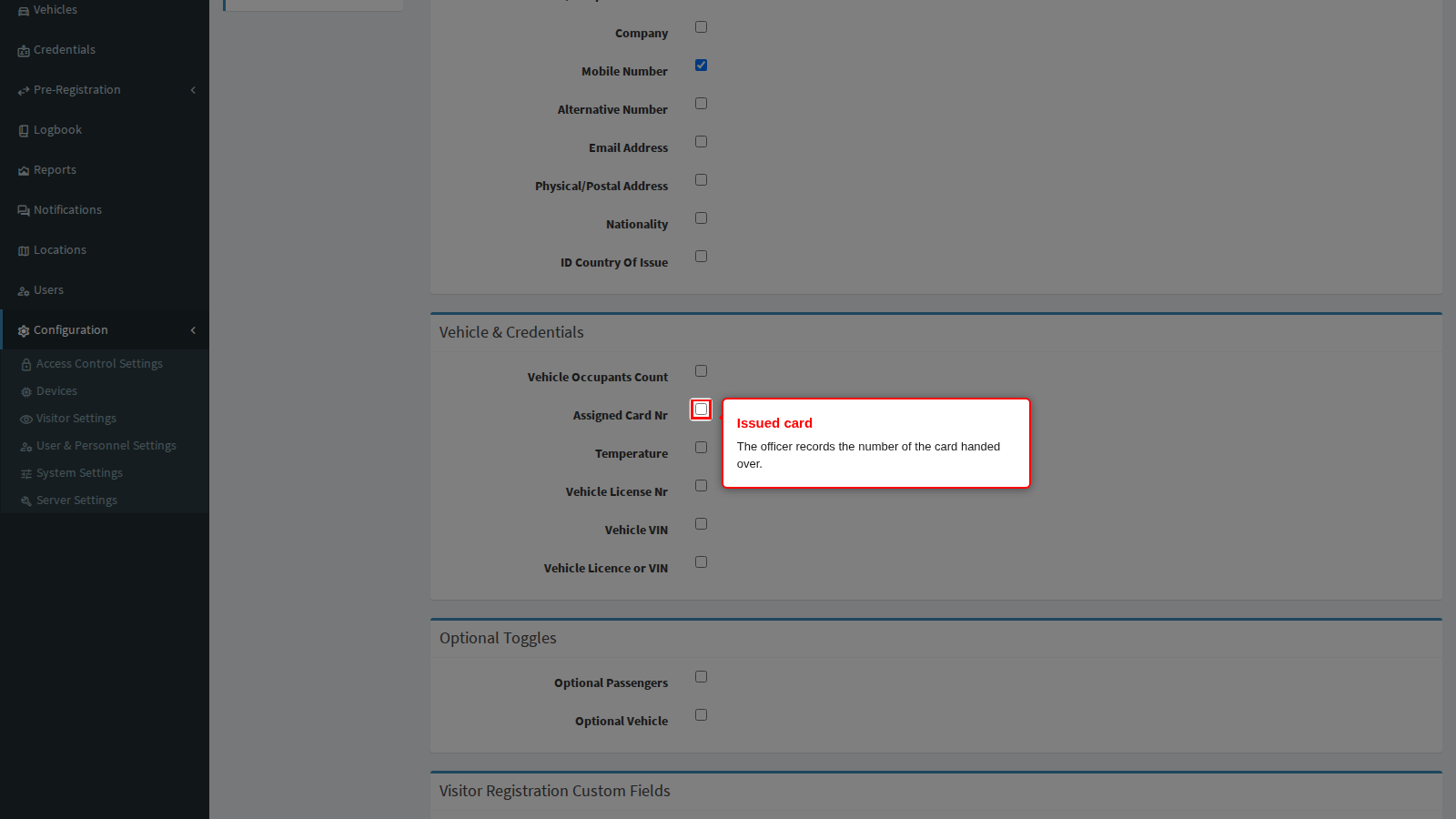
Assigned Card Nr makes the officer record the number of the card handed to the visitor, which is what lets the exit check ask for it back.
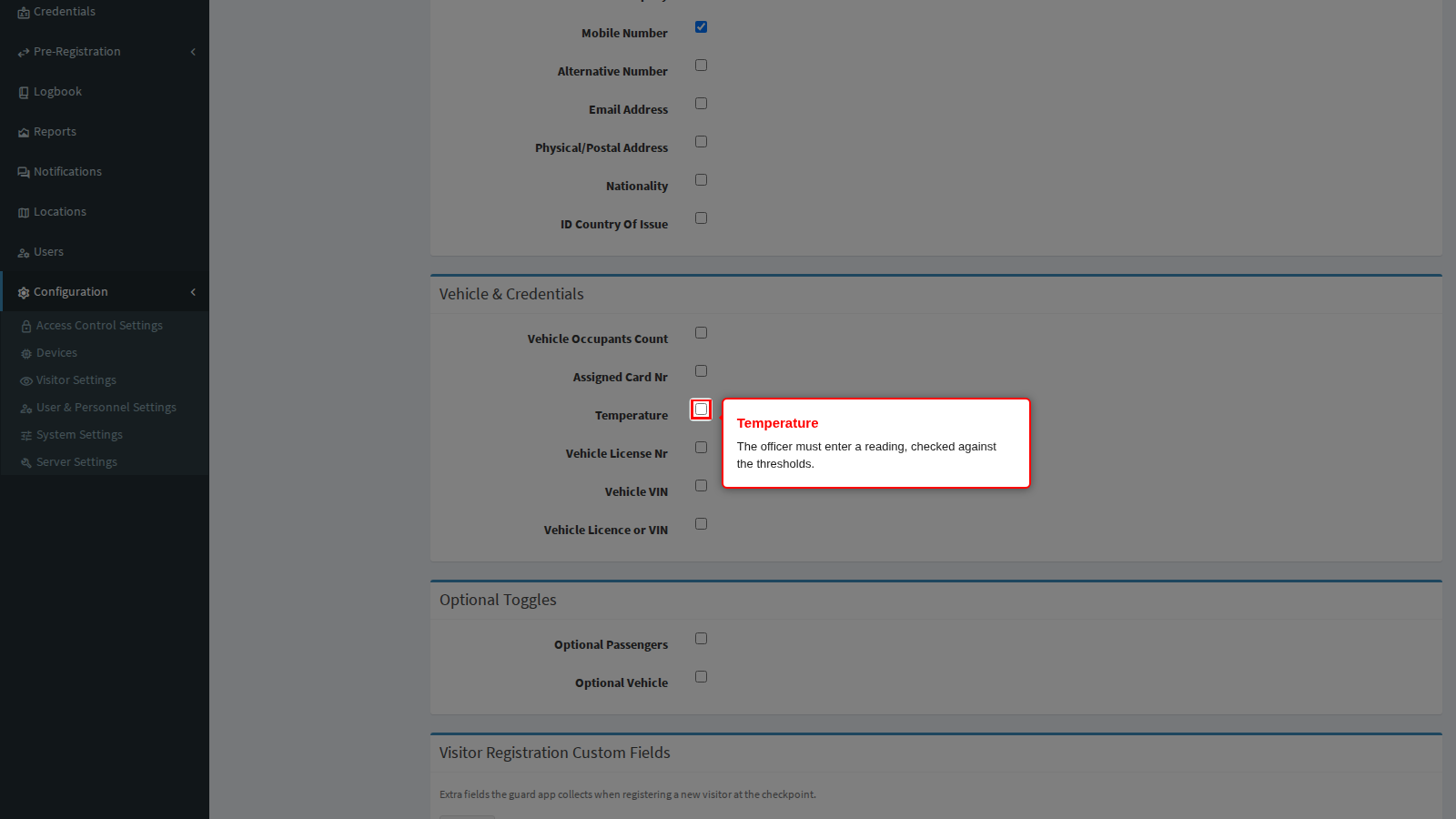
Temperature makes the officer enter a reading, checked against the thresholds on the Temperature panel. Ticking it here without setting the direction there gives you a field with no rule behind it.
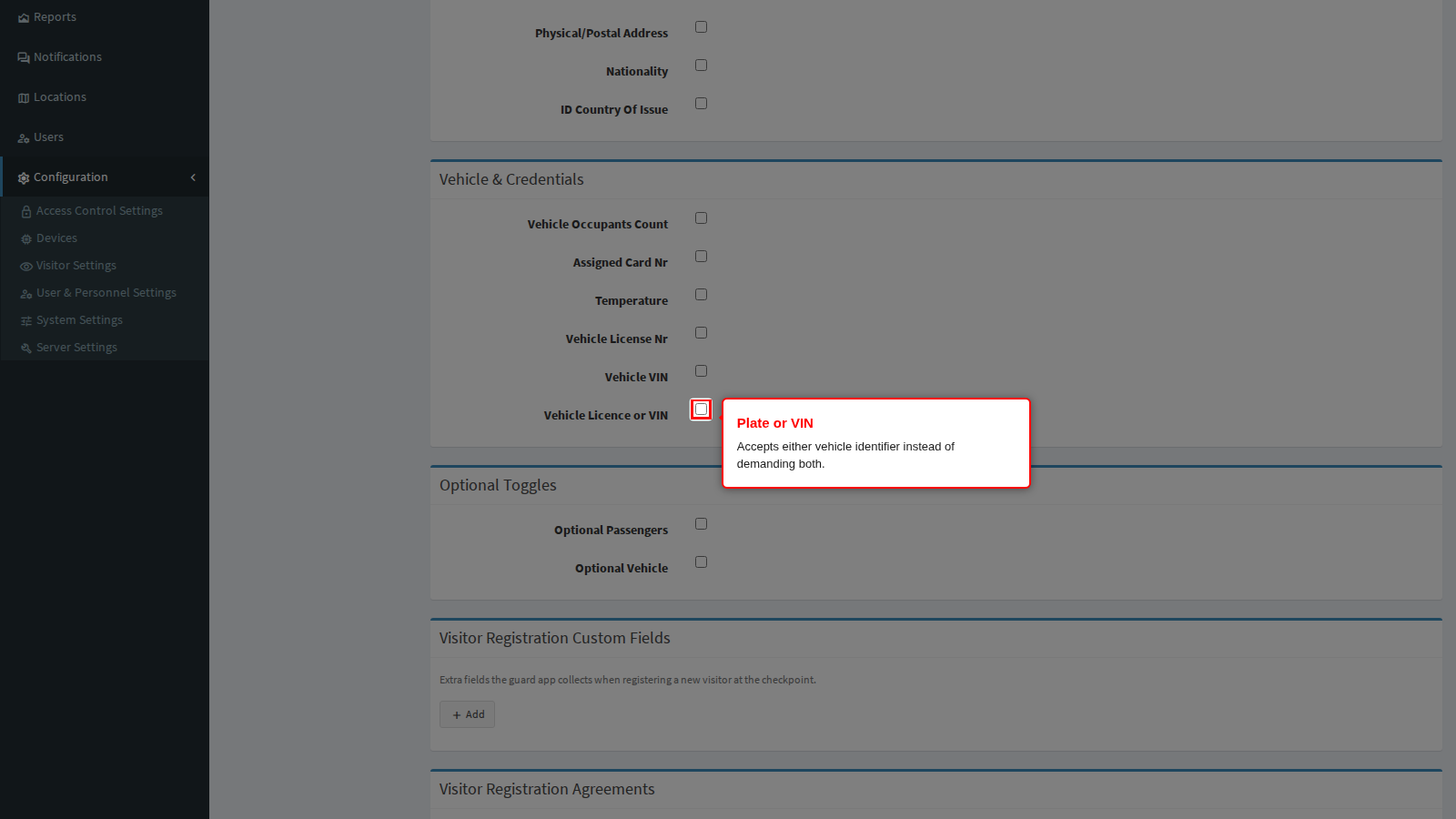
Vehicle Licence or VIN accepts either vehicle identifier, which is the practical setting: the officer captures whichever one is legible. The Vehicle License Nr and Vehicle VIN rows above it demand a specific one, so use those only where your procedure names it.
Optional items, questions and agreements
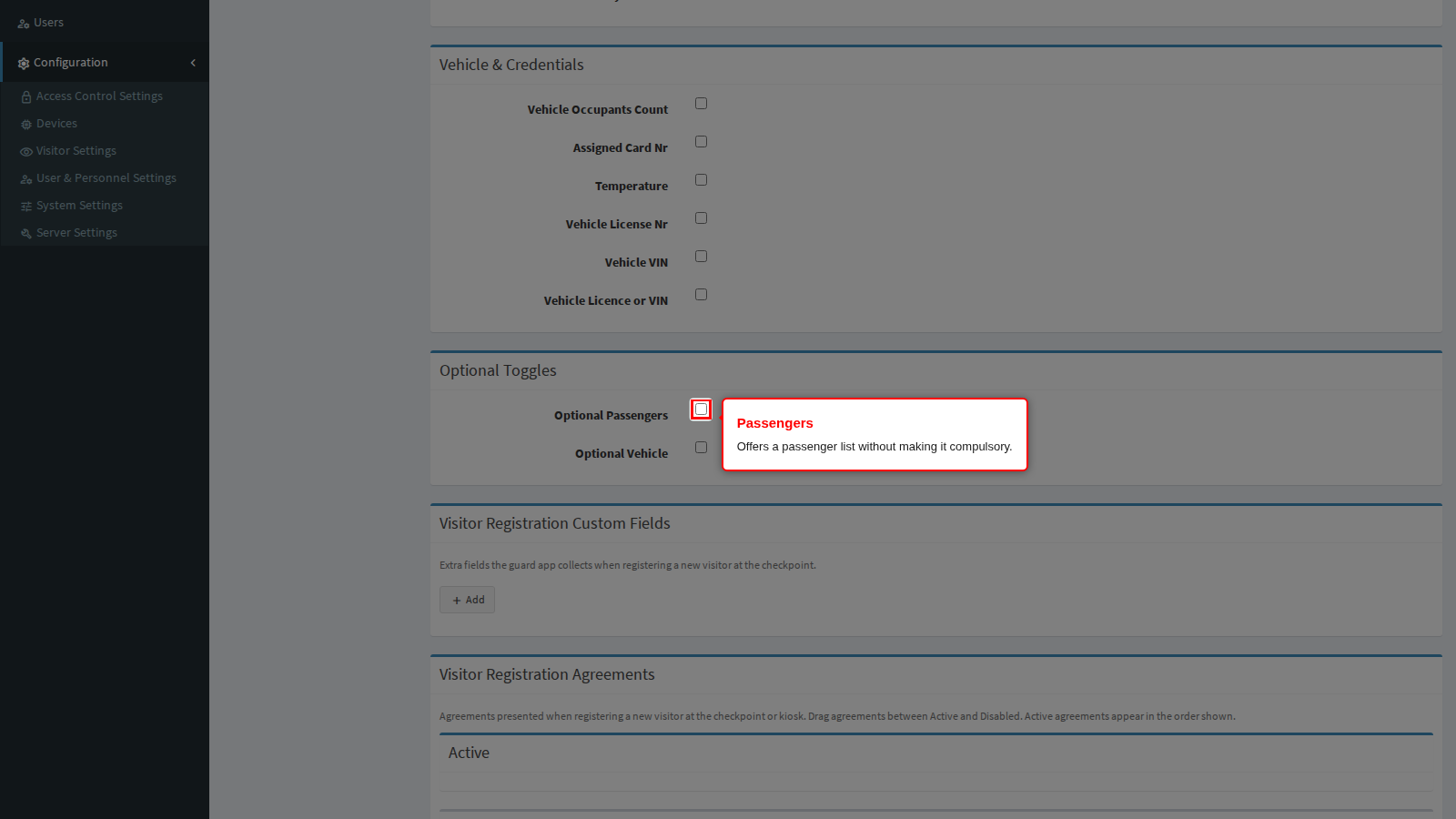
Optional Passengers offers the officer a passenger list without forcing it. Turn it on where vehicles sometimes carry passengers who must be recorded but often do not.
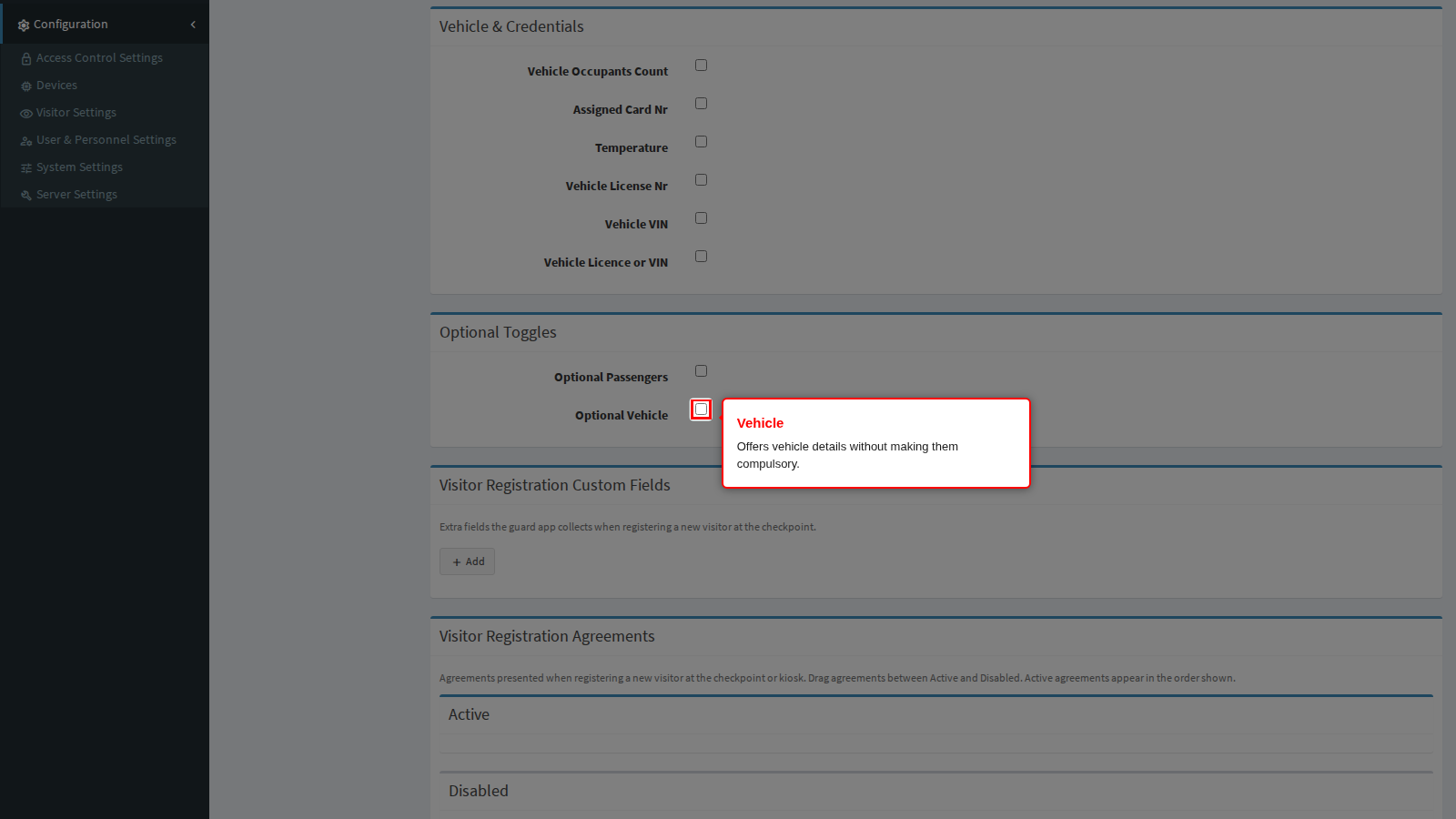
Optional Vehicle does the same for vehicle details, so a visitor who walks in is not asked for a number plate.
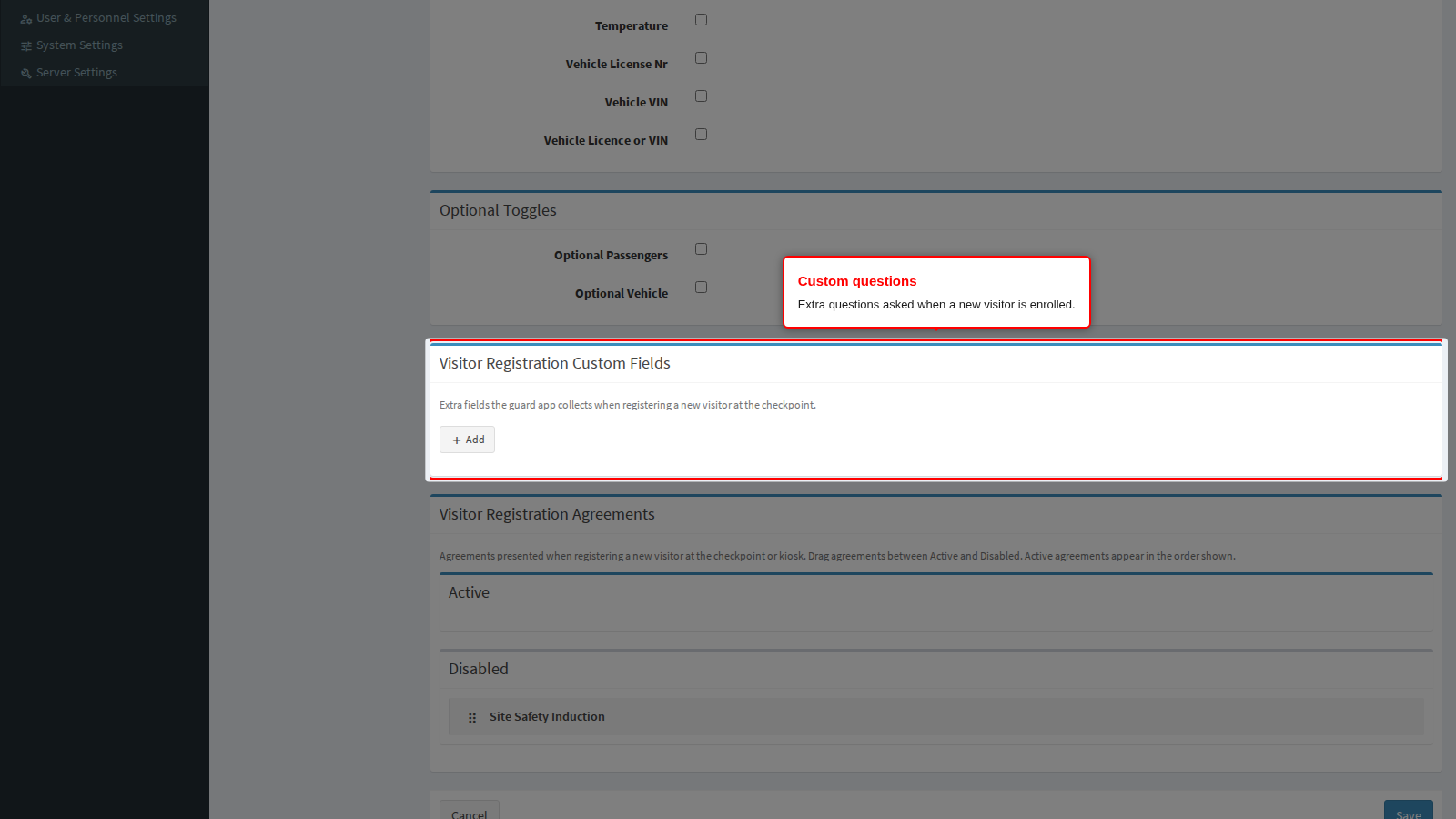
Visitor Registration Custom Fields are your own questions asked during enrolment, separate from the transaction questions on the Access Control panel. Use these for details that belong to the person (a contractor company number), and the Access Control ones for details that belong to the movement.
Visitor Registration Agreements are the agreements presented while the officer enrols a new visitor. Drag them between Disabled and Active and order them inside Active, exactly as on the Access Control panel.
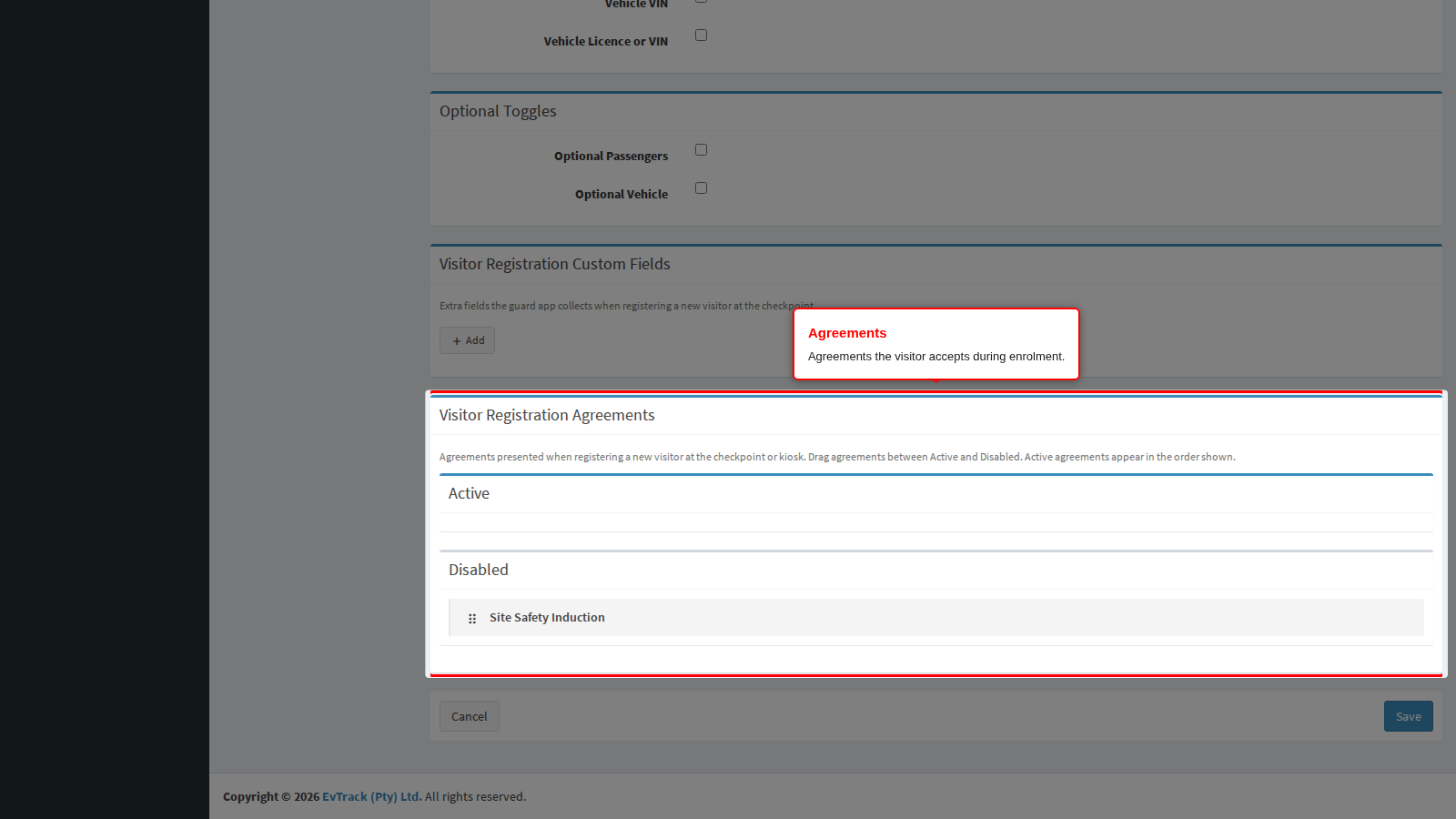
End state: the officer sees exactly these fields, questions and agreements, in this order, the next time they enrol somebody.