The Privacy Consent panel of the kiosk settings decides whether the FrontDesk kiosk shows a privacy notice before registration collects anything, and what that notice says. The settings apply to every kiosk.
Before you start:
- You can edit visitor settings.
- You have the privacy statement your sites need, or you are happy to start from the supplied text.
Step 1: Open Privacy Consent
Go to Configuration > Visitor Settings, click the Kiosk tile (the Kiosk Settings page gives the overview), and choose Privacy Consent in the kiosk menu on the left.
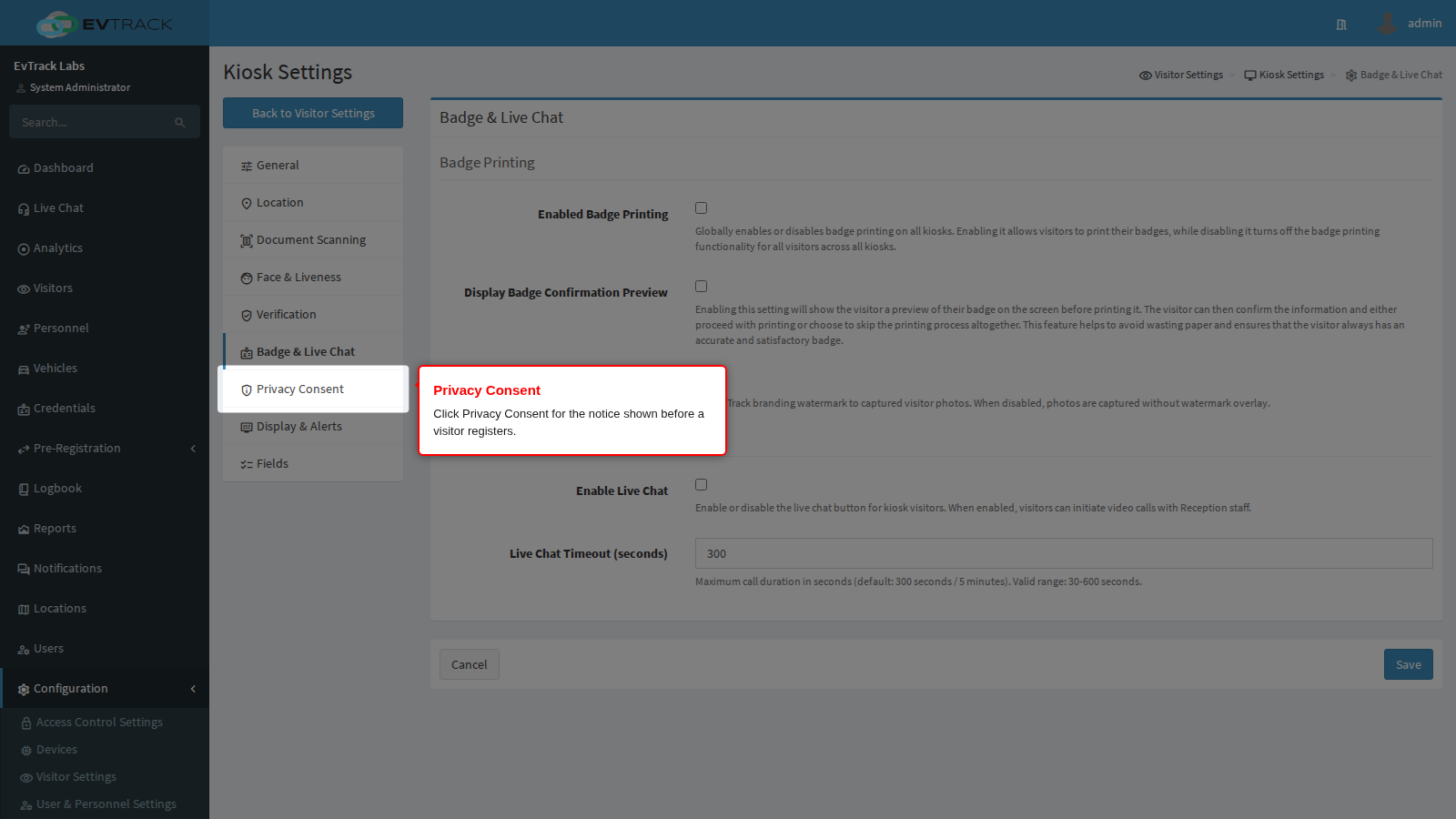
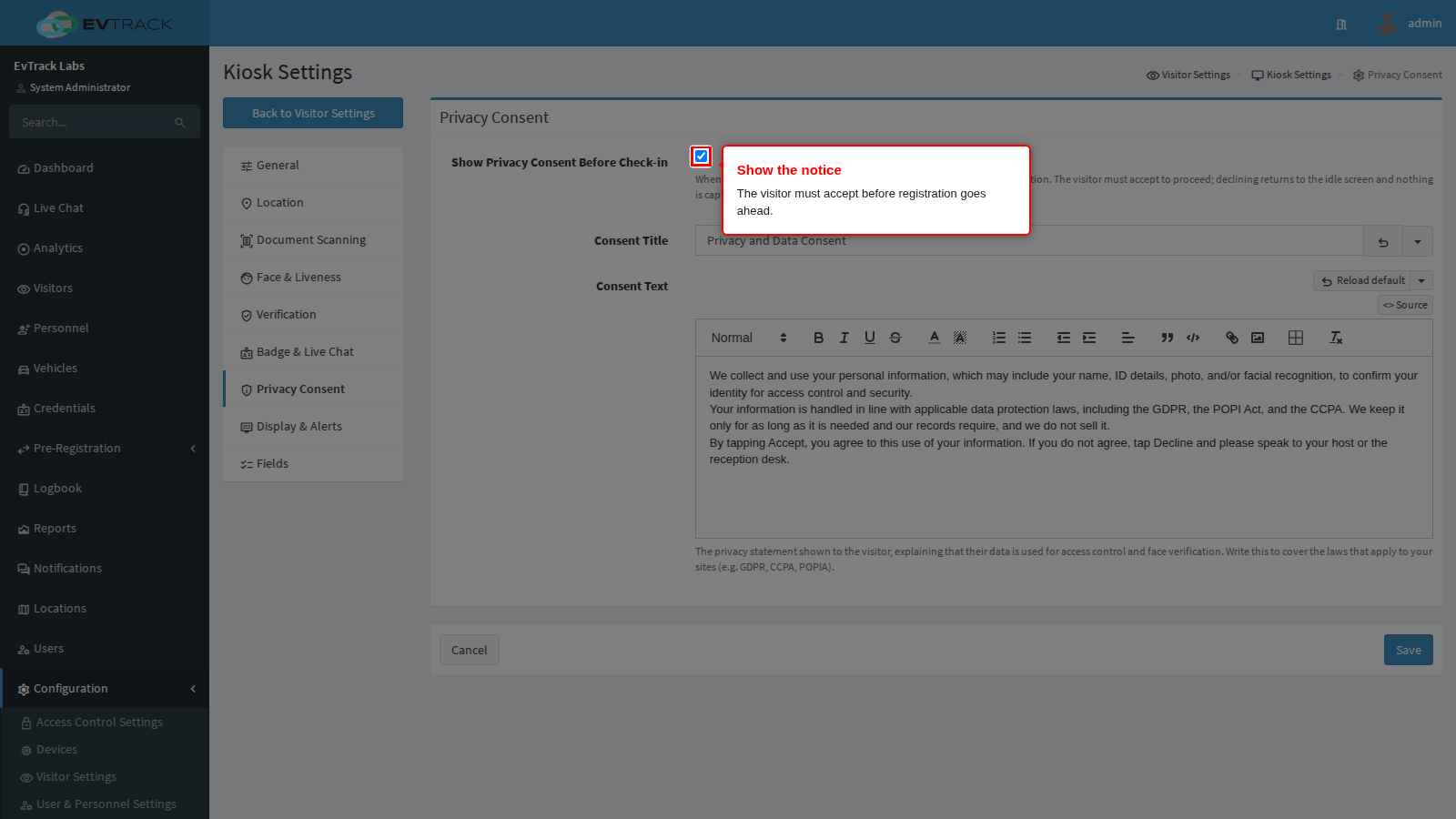
Show Privacy Consent Before Check-in
On by default. The kiosk shows a consent screen before a visitor goes on to register, and the visitor must tap Accept to continue. Where the notice appears depends on how the visitor starts:
- From the on-screen buttons (check-in, or onboarding for staff): the notice comes first. Nothing is scanned or captured until the visitor taps Accept. Decline, or the back control, returns to the idle screen and no scanning or registration screen opens.
- By presenting a document at the idle screen: the kiosk is already listening for the scanner, so the document is read before any notice. The details are sent to the server for an identity check, and for a real identity document they are also held by the kiosk app for the registration form. The notice is shown when the visitor is about to continue, either to the pre-registration screen or to registration. If they decline there, the kiosk returns to the idle screen. Where the visitor was offered registration and declines, the held details are cleared at once. In the other case they are cleared when the idle screen is next set up or the next document is read. If the document matches a visit that needs no further registration, the swipe can complete the check-in, or the check-out of a visitor already on site, without showing the notice.
Turn consent on wherever you scan documents, capture photos or store either, and write the text knowing that a document presented at the idle screen is read first.
Two things about the screen:
- Accept is withheld until the whole text has been on screen. While text remains below the fold the visitor sees a Scroll down button instead. Decline is always available.
- A row of icons shows what is collected. It is built from the questions enabled on the Fields panel, for example name, ID, photo, email, mobile number and company, so it follows your configuration without any editing.
The kiosk does not send the visitor’s choice anywhere. Accepting lets the flow continue and nothing more is recorded, so keep your own record if the law you work under requires proof of consent.
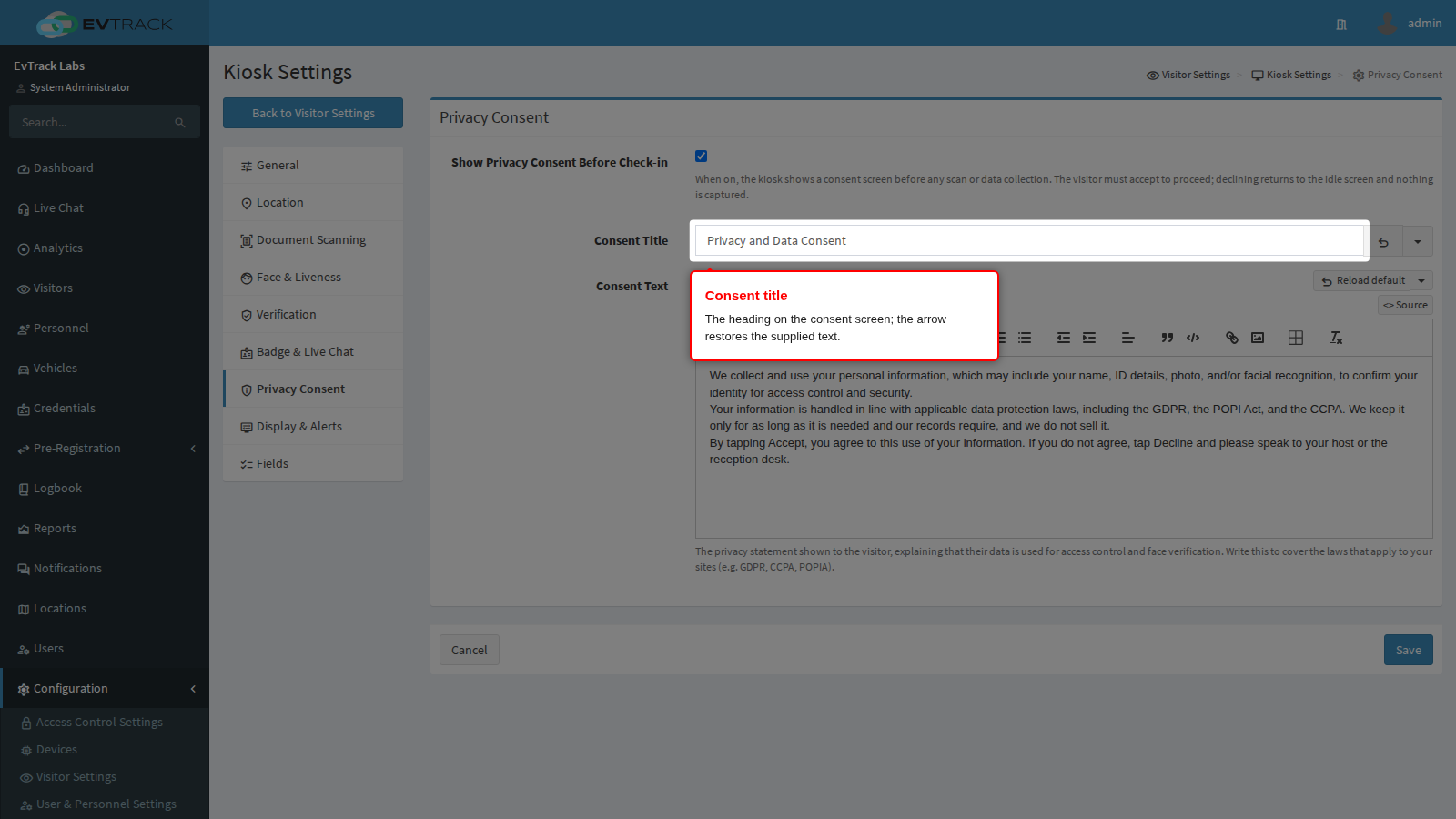
Consent Title
The heading on the consent screen, between 5 and 200 characters. The supplied wording is “Privacy and Data Consent”. The arrow button beside the field restores the supplied wording if you want to start again, and the small menu next to it loads the supplied wording in English or in one of eleven other languages, or in English together with a language. Each choice asks you to confirm and replaces what is in the field.
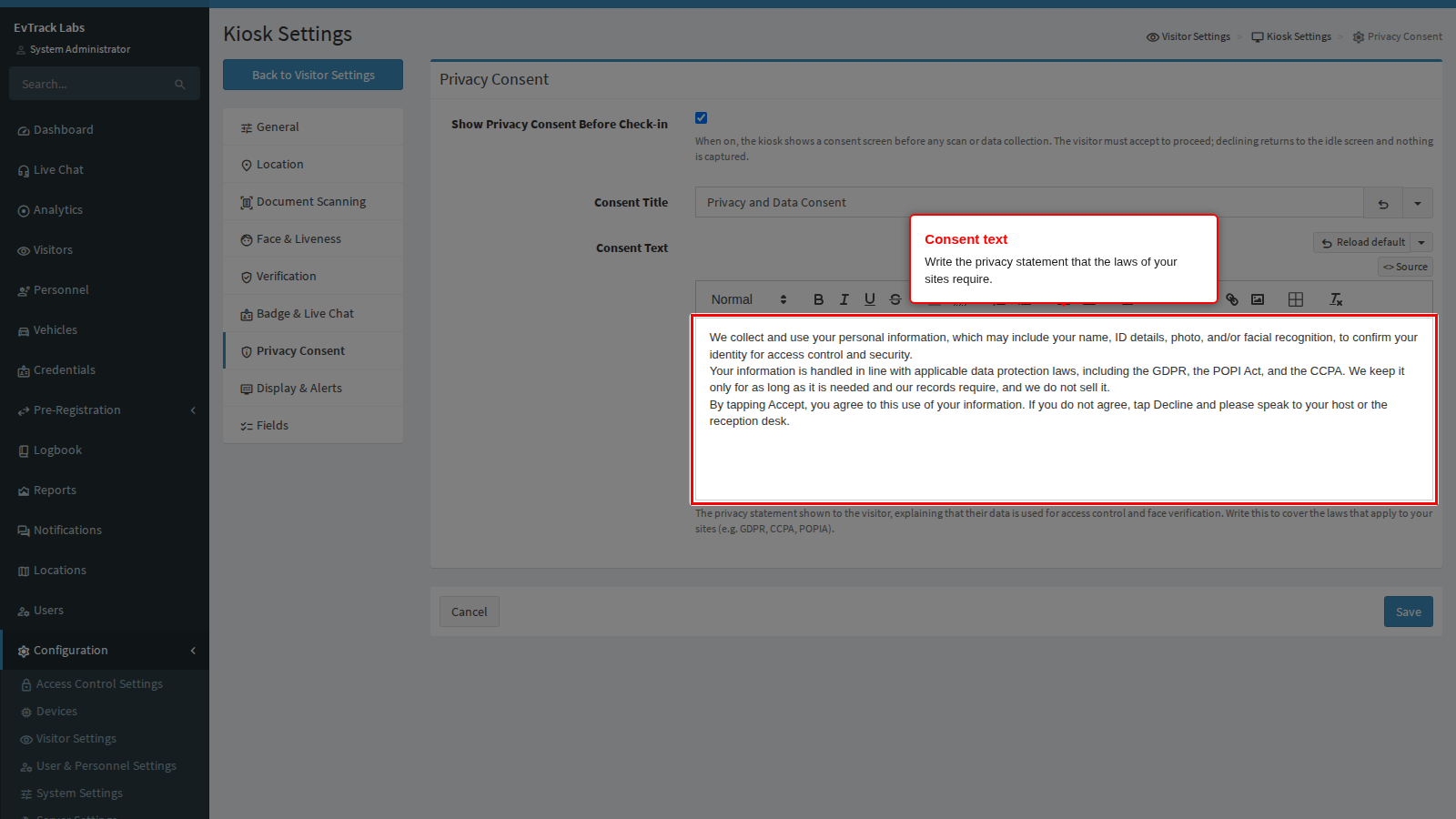
Consent Text
The statement itself, edited with formatting. Write it to cover the laws that apply to your sites, such as GDPR, CCPA or POPIA, and say plainly what is collected, why, and how long it is kept. The Reload default button above the editor restores the supplied text, and the menu beside it offers the same choices as the title: English, eleven other languages, or English together with a language. Each choice asks you to confirm and replaces the text in the editor. If you leave the text empty, the kiosk shows a short built-in notice instead: “We collect and process your personal information for access control and security at this facility. Tap Accept to continue or Decline to cancel.”
Save
Click Save at the bottom of the panel. Paired kiosks pick the change up within five minutes, or at once when the app restarts. The next visitor who registers sees your notice first.