Host approval is what makes a walk-in wait for a person rather than admitting themselves. When it is on, a visitor who arrives at the FrontDesk kiosk with no invitation registers, the kiosk notifies the host they named, and the visit is completed only when the host approves it.
Before you start:
- You can edit visitor settings.
- Every host your visitors may name exists as a user with a working email address. A mobile number is needed as well if you want the SMS backup.
Step 1: Open Host Approval
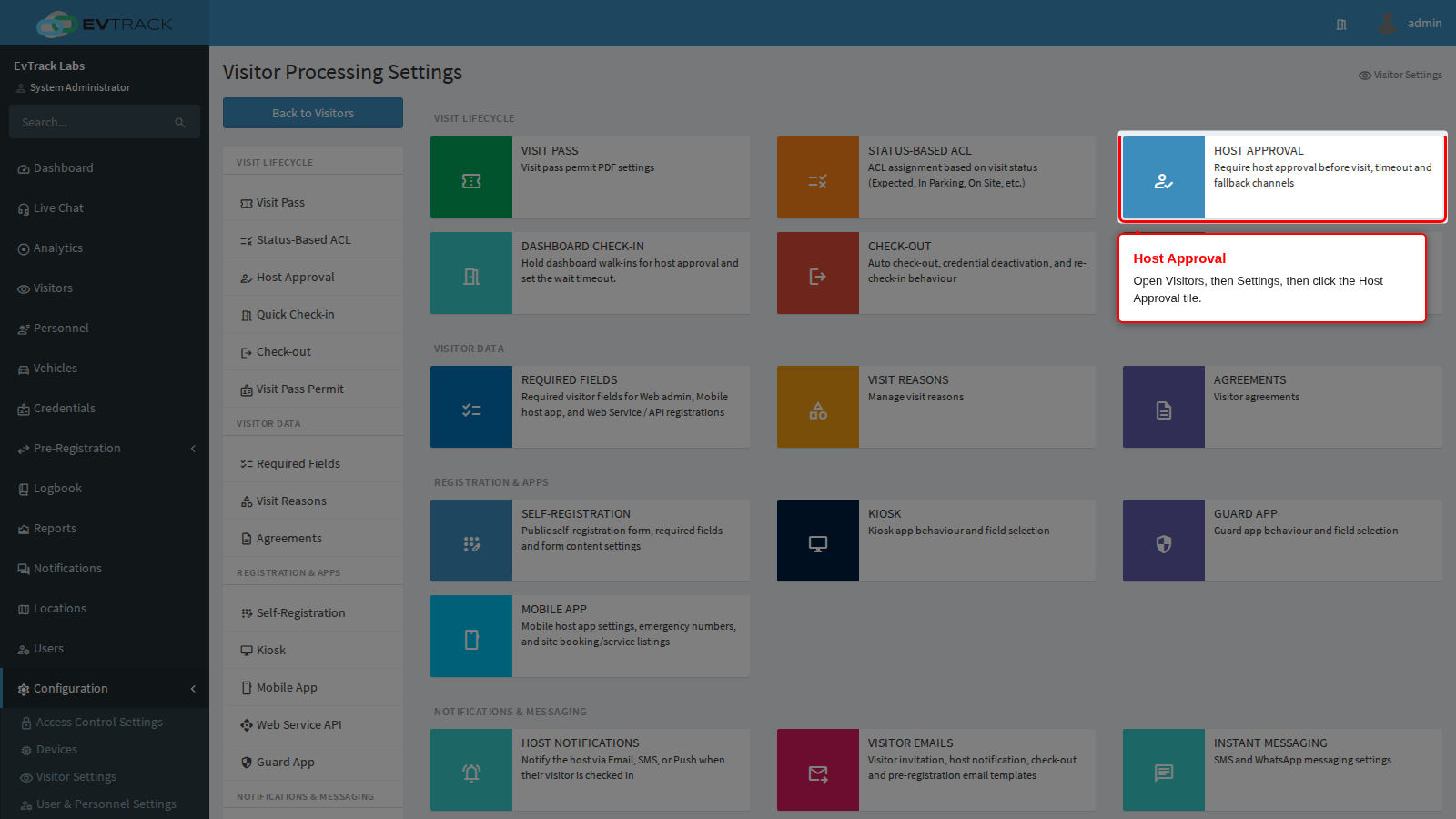
These settings are not in the kiosk menu. Go to Configuration > Visitor Settings and click the Host Approval tile. They live here because they also cover the guard checkpoint, and they change the kiosk flow, so they belong in any kiosk decision.
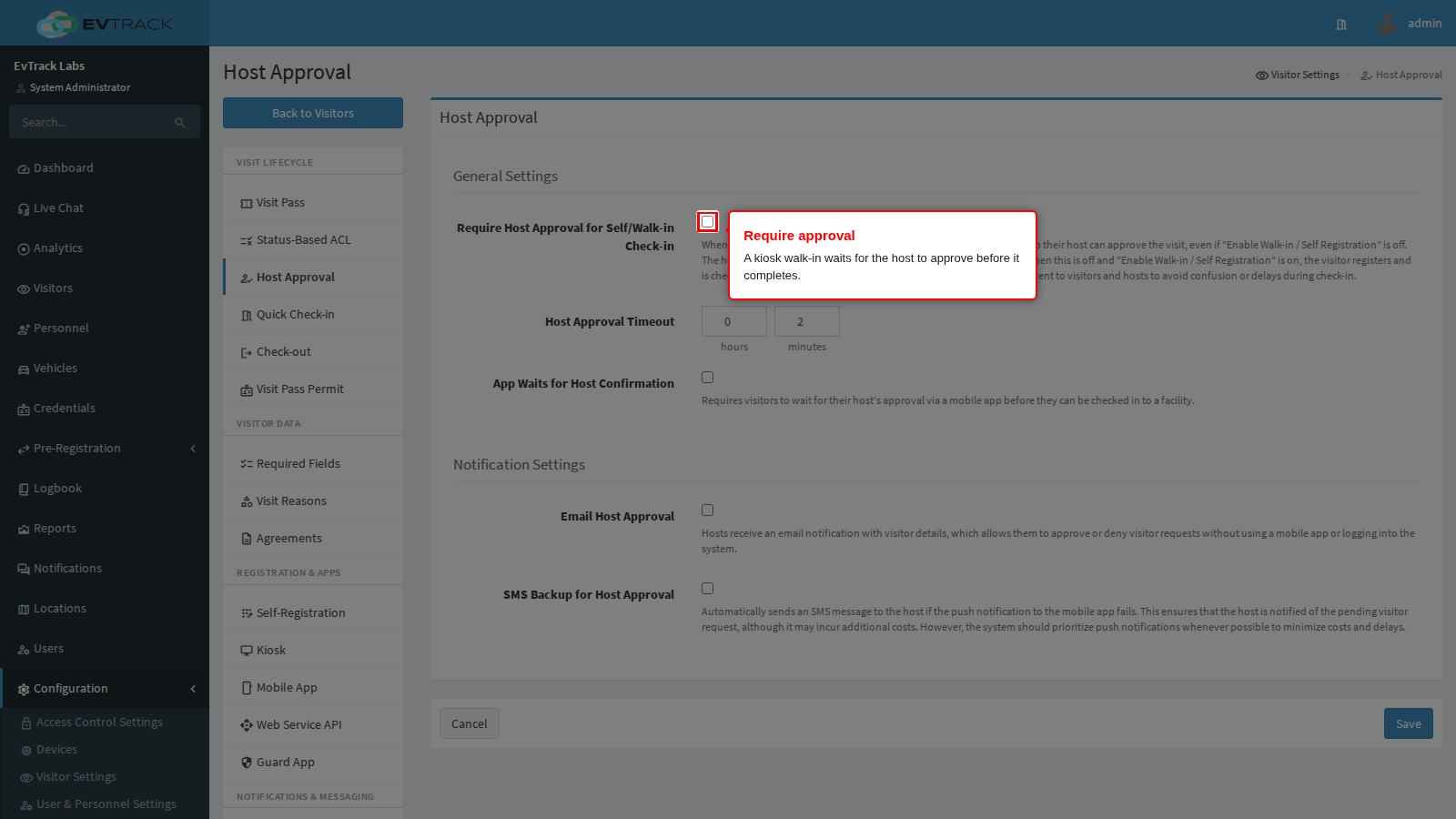
Require Host Approval for Self/Walk-in Check-in
With this on, a self or walk-in visitor with no existing invitation is asked to register so their host can approve the visit, even when Enable Walk-in / Self Registration is off. The kiosk shows a Host approval needed screen that says “You need to register so your host can approve your visit”, lists what it will collect, and then submits the request. The host approves or denies the arrival before the visitor is checked in.
With this off and walk-in registration on, the visitor registers and is checked in directly, with nobody consulted. Tell visitors and hosts which behaviour applies so nobody is left waiting.
The kiosk needs a host to send the request to, so keep the Host row ticked on the Fields panel. If no host is supplied, the registration is refused with a “Host Approval Required” error.
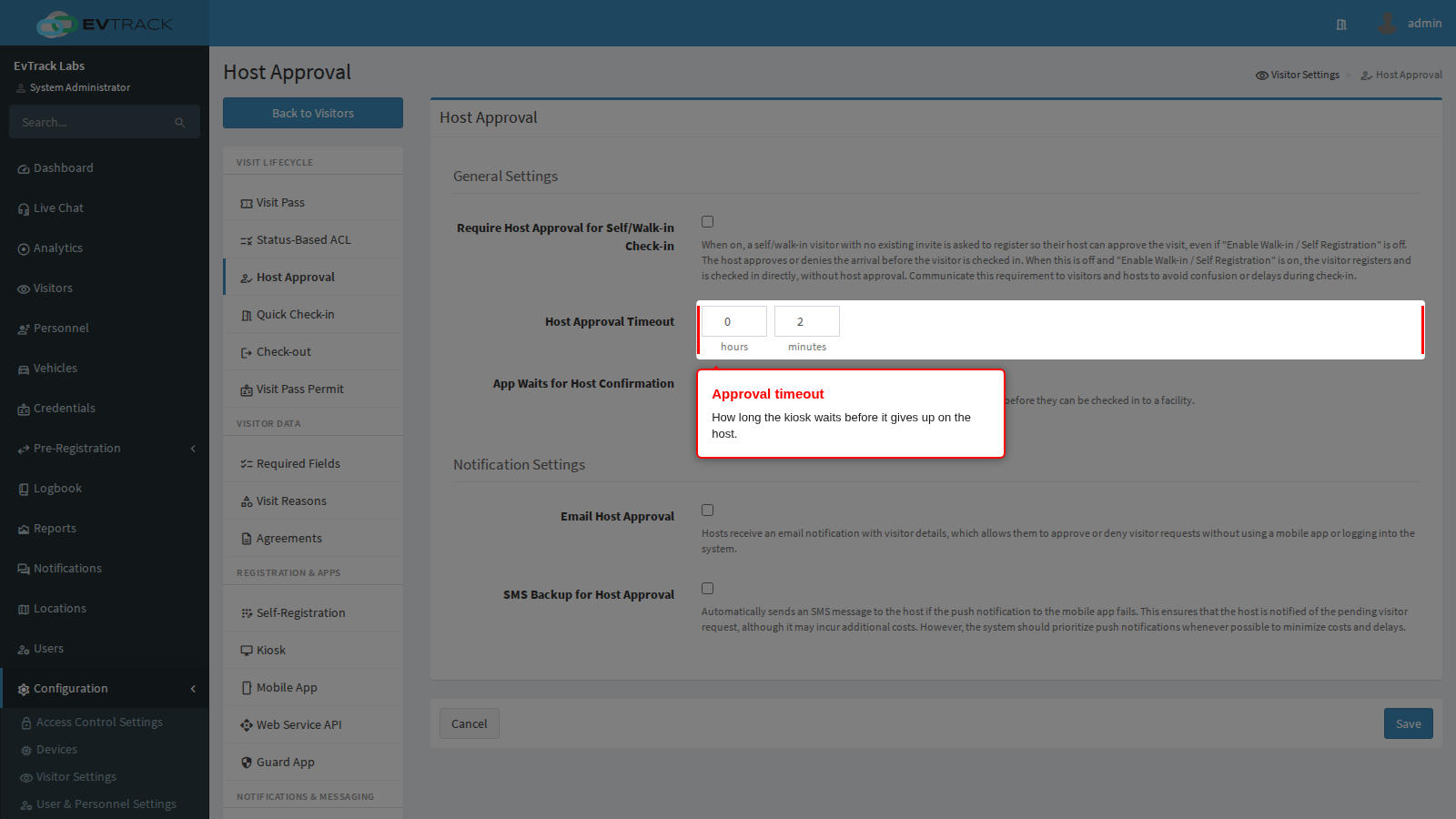
Host Approval Timeout
How long an approval request remains open, entered as hours and minutes. The default is two minutes, and it must be greater than zero. When the time runs out the request is marked as timed out and the visitor is not checked in.
When App Waits for Host Confirmation is on, in the same panel, the kiosk holds the visitor on a waiting screen that counts down from this timeout (“Time remaining 01:59”) and shows the decision the moment it arrives. With it off, the kiosk tells the visitor the registration was submitted and returns to its idle screen.
Set the timeout to something a visitor will tolerate standing at a tablet, and make sure reception knows what to do with the visitors who time out.
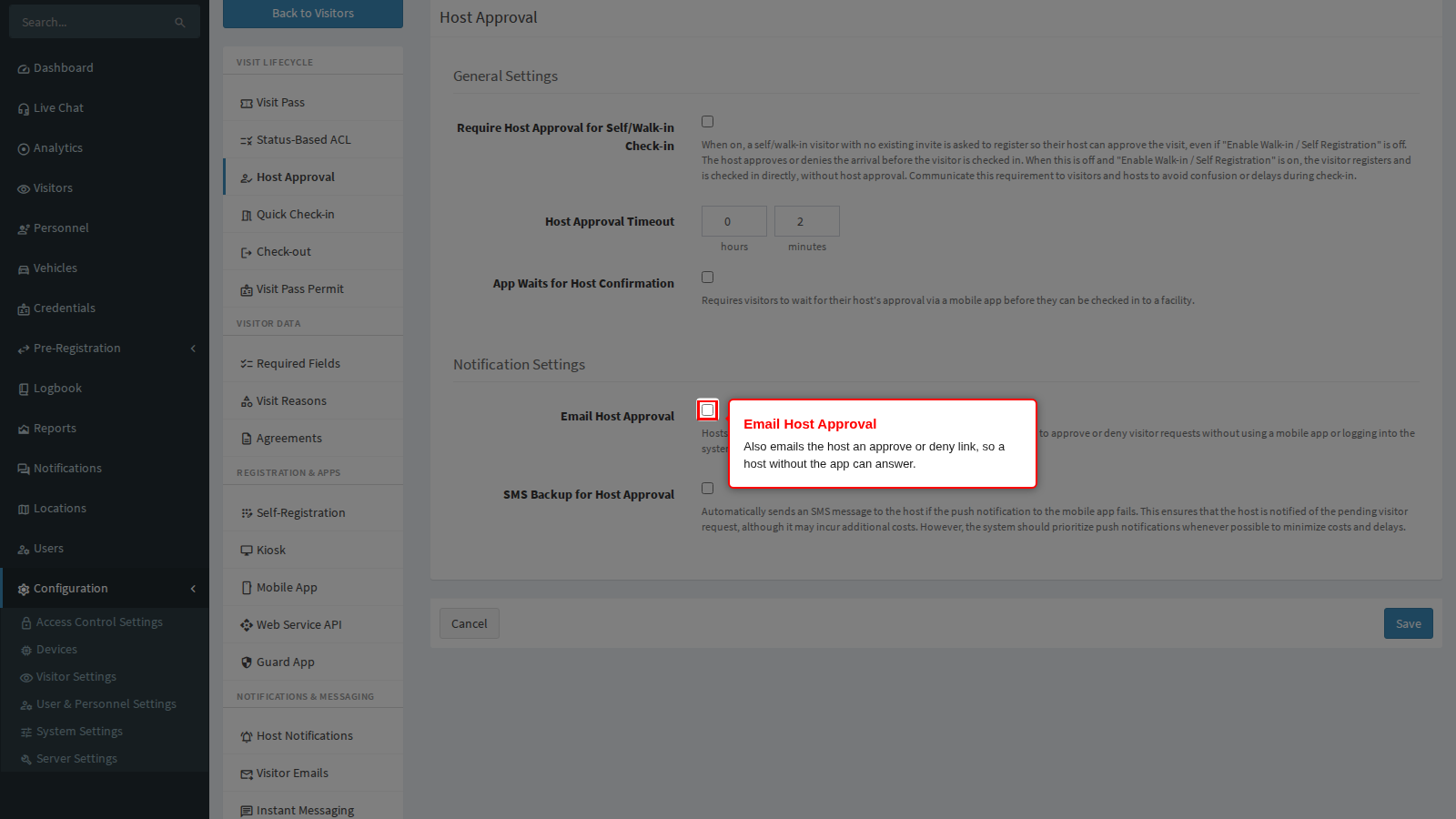
Email Host Approval and SMS Backup
The host is always notified first by a push notification in the mobile app. The two Notification Settings decide what else happens:
- Email Host Approval emails the host the visitor’s details with approve and deny links, so a host without the app can answer from any device. The email goes out with every request whenever it is on, not only when the push notification fails.
- SMS Backup for Host Approval texts the host, but only when the push notification could not be delivered and the host has a mobile number. Each message may cost money from your SMS provider.
Without either, a host who does not run the app can never approve anybody. If no channel can reach the host, the request times out at once instead of after the timeout, and the visitor is turned away within seconds.
The full walkthrough is in Host Approval and every setting on the panel is covered in Host Approval settings.
Save
Click Save at the bottom of the panel. The rules apply to the next registration submitted from a kiosk.