The Notifications tab decides which location notices are sent for this location and to whom: Visit pass issued, Credential expiring and Credential expired. Each location either follows the global defaults on Settings > Reminders or sets its own, and can add recipients who hear only about this one location.
Who can use this tab: to see it, “Configuration: Location - Edit/View” and “Configuration: System Settings - View”; to save it, “Configuration: Location - Save” and “Configuration: System Settings - Save”. The recipients table loads only with “Configuration: Location - Edit/View” and “Configuration: System Settings - View”.
The global defaults on Settings > Reminders
Settings > Reminders has a Notifications panel alongside the reminder schedule. It covers the administrator notices and the defaults every location inherits. See Reminder Emails for the reminder schedule itself.
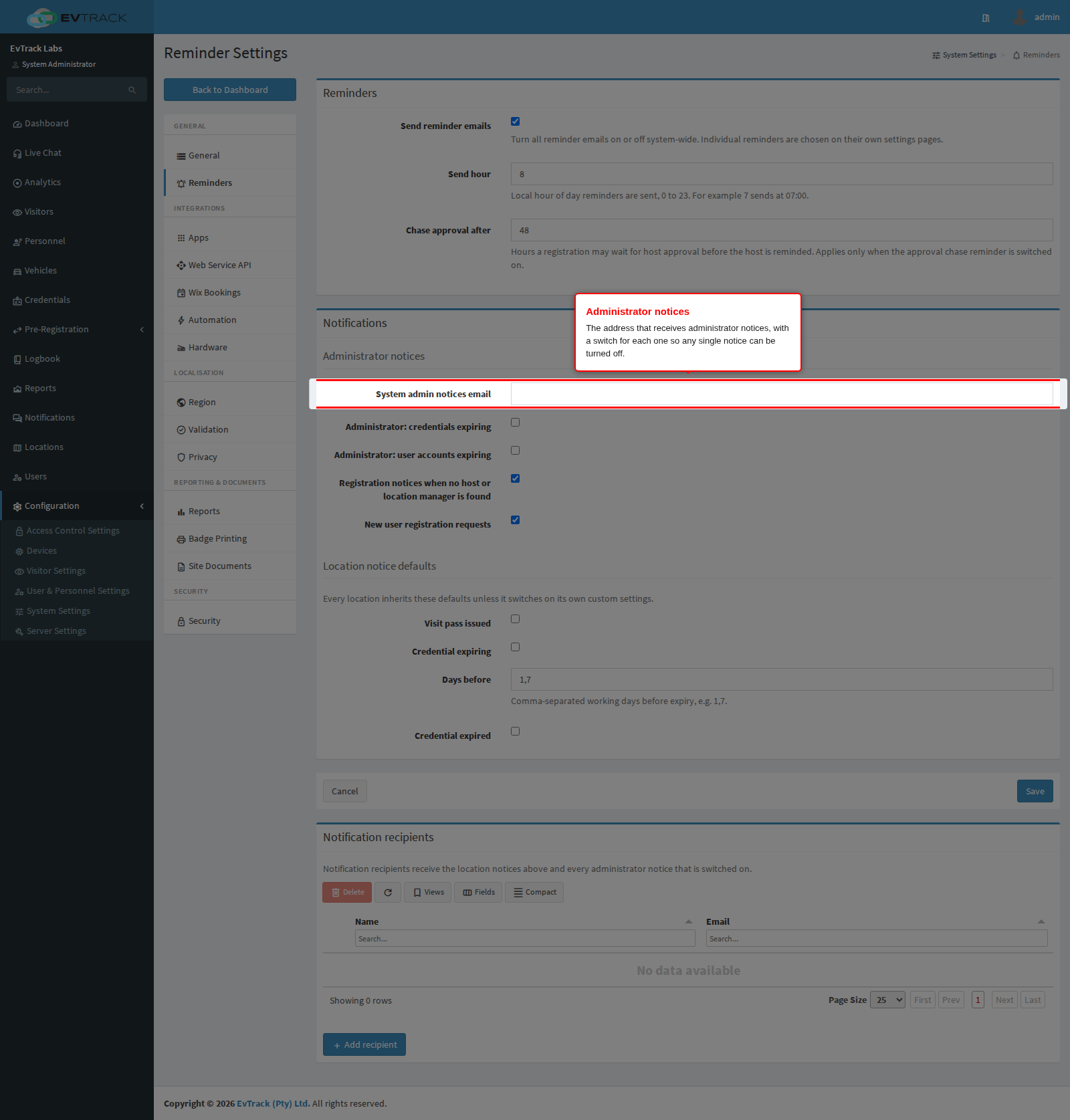
The System admin notices email is the address that receives administrator notices: credentials expiring, user accounts expiring, registration notices when no host or location manager is found, and new user registration requests. Each of those four notices has its own switch on this panel, so an operator can turn any one of them off without touching the others.
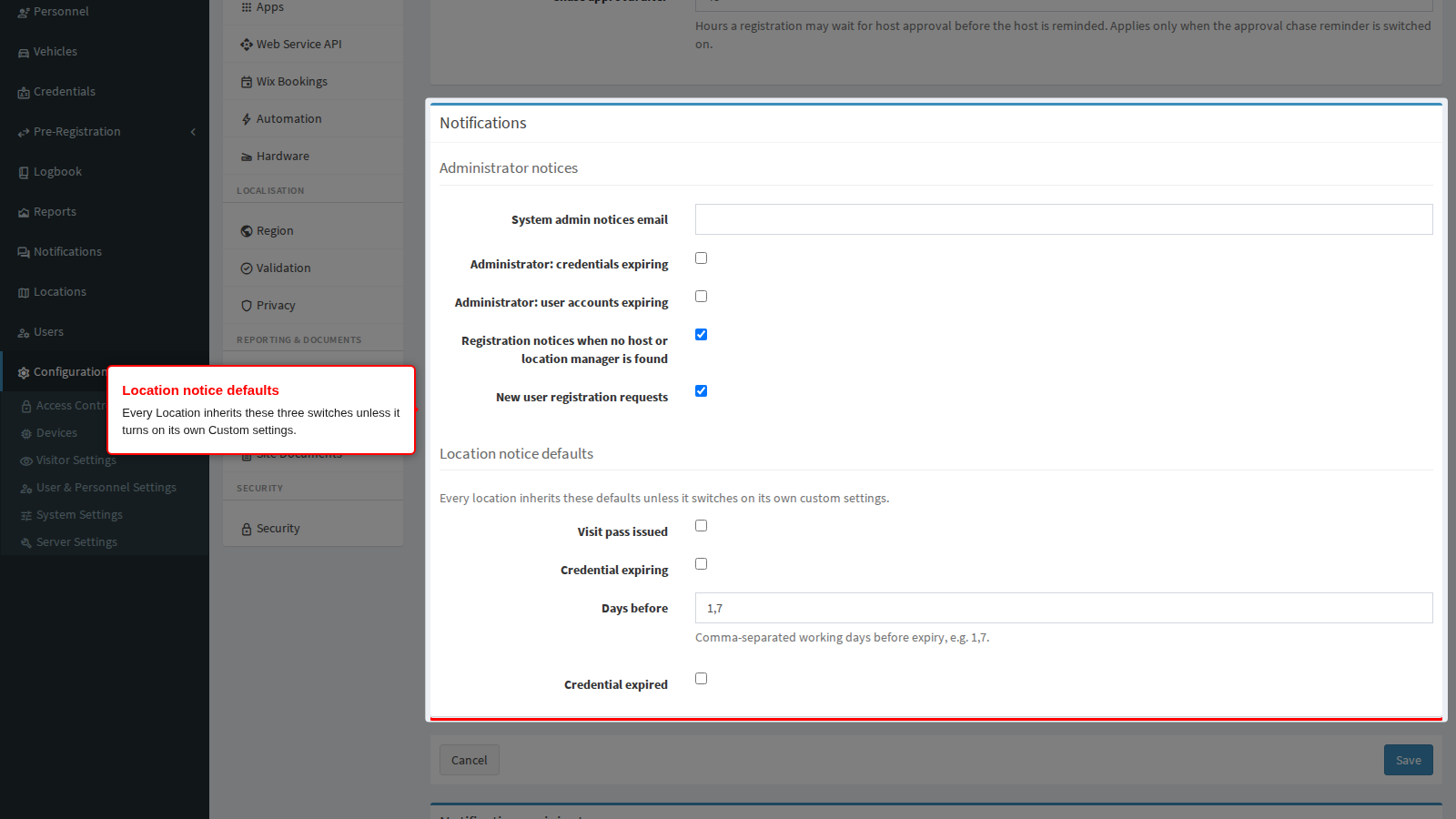
Below the administrator notices, three switches set the global defaults for every location’s own notices: Visit pass issued, Credential expiring (with how many working days before expiry to send it) and Credential expired. A location inherits these unless it switches to its own custom settings.
The credential reminders page lists the location credential digest too. Its box there is labelled Default for locations: it is the same default as the switch above, and locations set to Custom decide for themselves.
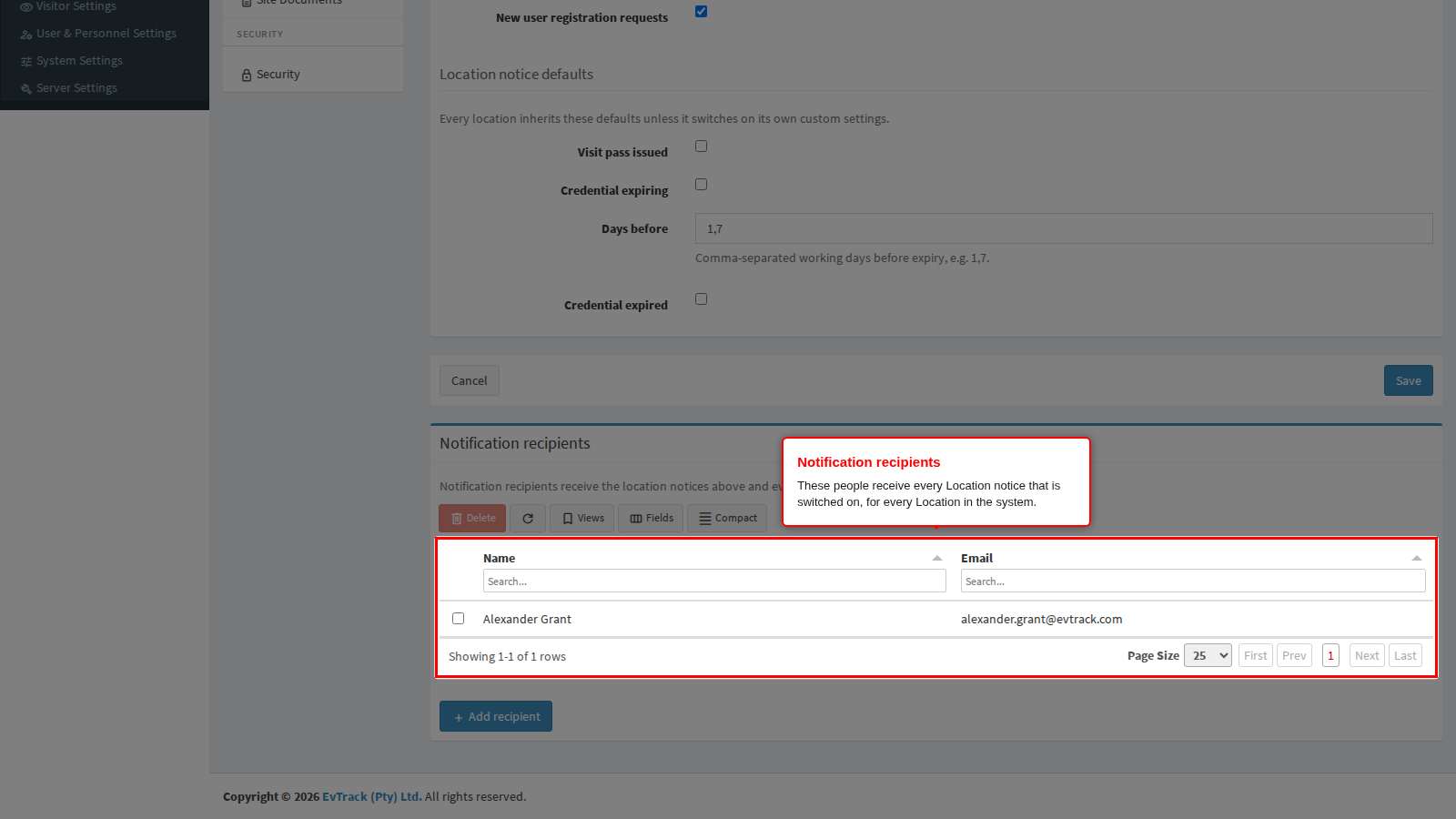
The Notification recipients table lists the people who receive every notice above, for every location in the system. Use Add recipient to search for a user by name and add them. Select one or more rows and use the toolbar’s delete action to remove them.
Step 1: Open the Notifications tab
Open the location from the location list and click Notifications in the menu on the left.
Step 2: Inherit or Custom
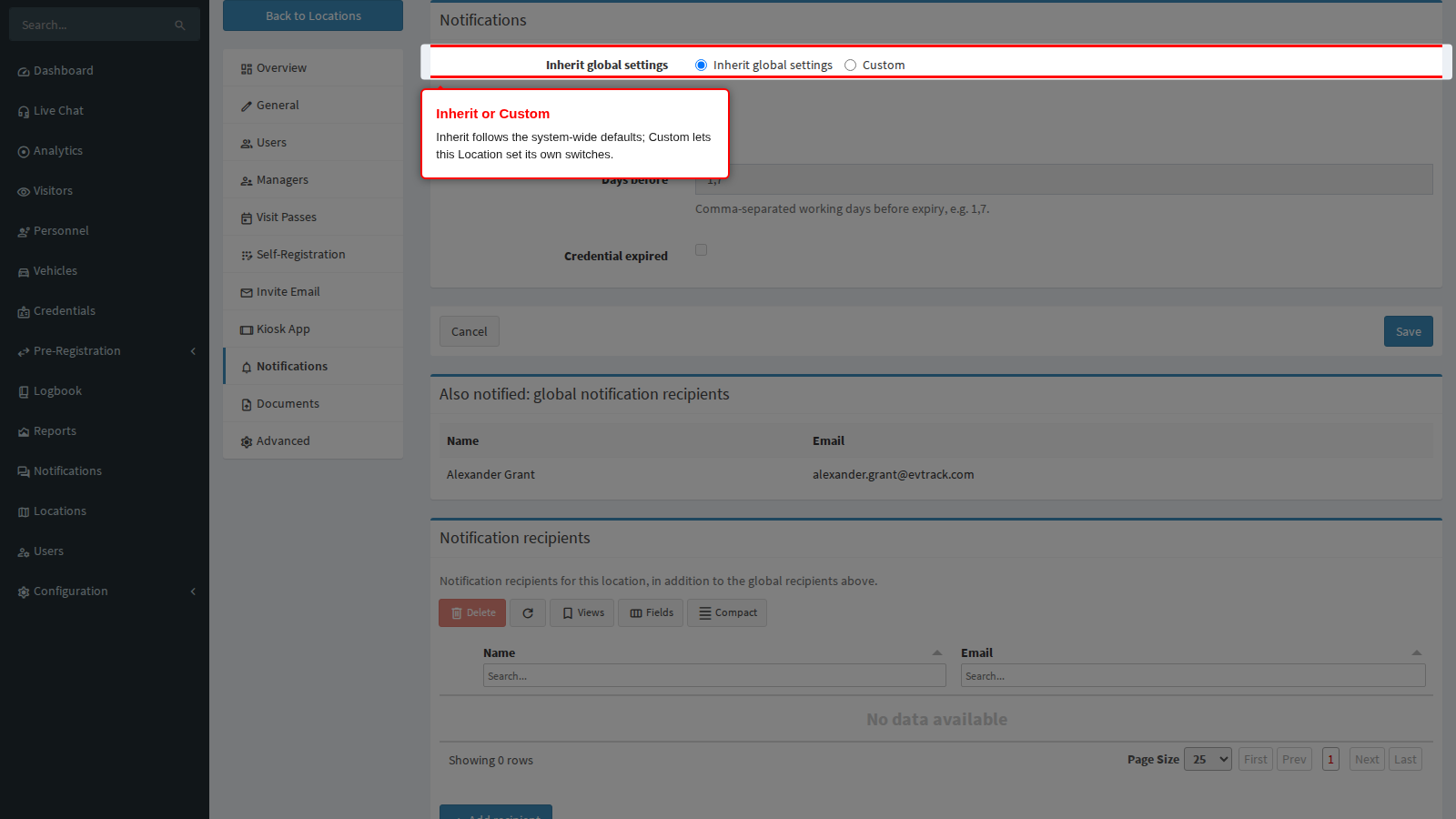
Inherit global settings keeps the location following the global defaults above. Choose Custom to reveal the location’s own notices.
Step 3: Set this location’s notices
With Custom selected, the location has its own Visit pass issued, Credential expiring (with its own Days before value) and Credential expired switches, entirely independent of the global defaults. Click Save to keep them.
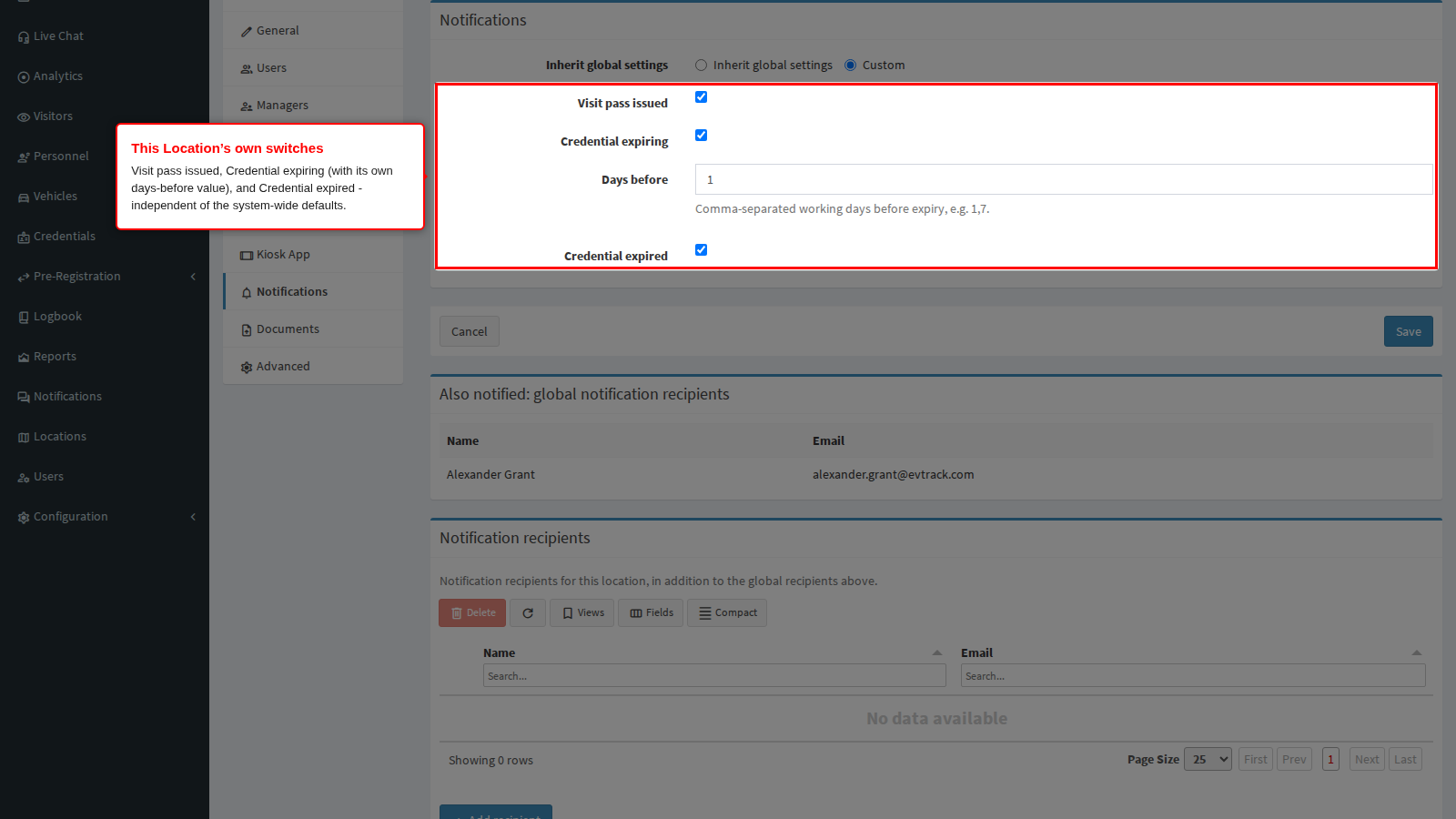
Step 4: Recipients
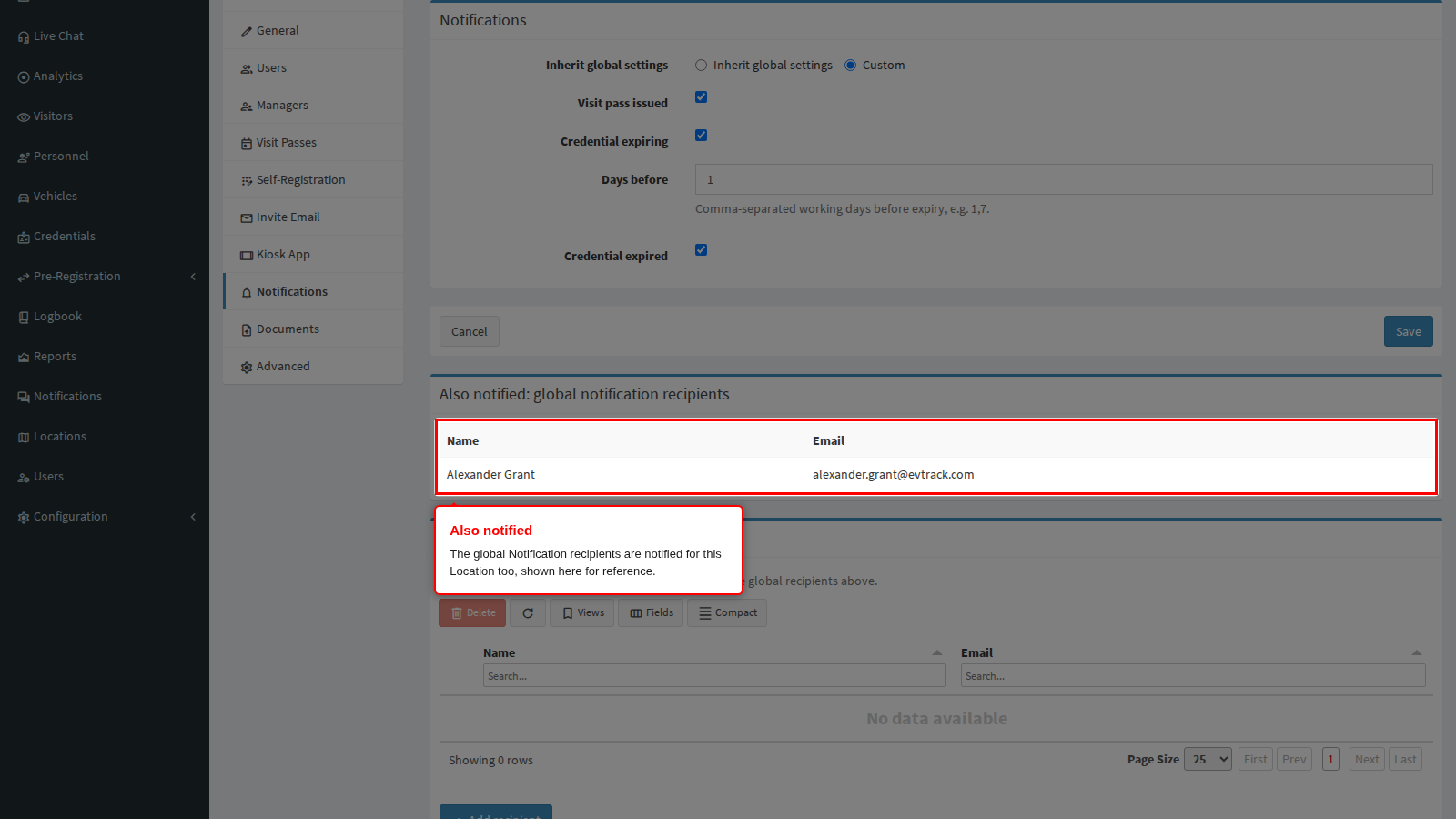
A read-only list titled Also notified: global notification recipients shows the global recipients. They are notified for every location, including this one, so they appear here for reference rather than in the list below. The list reads None when there are no global recipients.
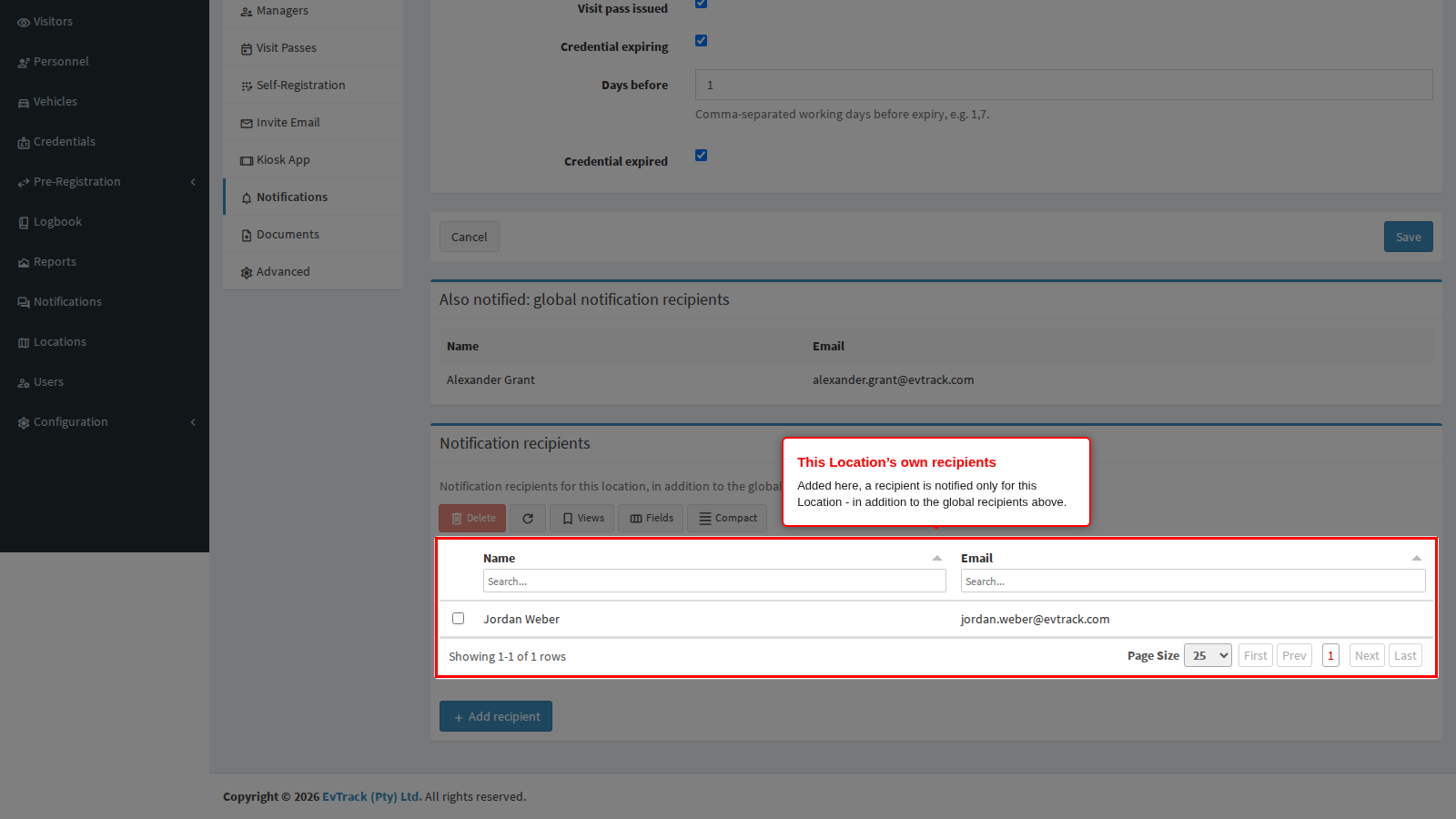
The Notification Recipients table for this location works like the global one. A recipient added here is notified only for this location, in addition to the global recipients.
Options on this tab
| Option | Values and rules |
|---|---|
| Inherit global settings / Custom | Inherit global settings is the default for every location. Custom uses only this location’s values, never a mix of the two. |
| Visit pass issued | Sent when a visit pass is issued at this location. |
| Credential expiring | A digest of credentials about to expire. |
| Days before | Comma-separated working days before expiry, for example 1,7. Empty means the default, 1,7. Each value is 1 to 90, no value repeats and there are at most 10 values. When the location has no days of its own, the field shows the global value. |
| Credential expired | A digest sent on the expiry day. |
| Also notified: global notification recipients | A read-only list of the global recipients, or None. |
| Notification Recipients for this location | Use Add recipient to open the Add Notification Recipient dialog and search for a User. Delete a recipient with the toolbar’s delete action and its confirmation. Recipients are removed when the location is deleted. |
The Days before box shows these messages when a value breaks a rule:
- “Days before must be numbers separated by commas, for example 1,2 - or empty for no advance reminder”
- “Days before must be between 1 and 90. Use the on the day option to remind on the date itself”
- “Days before must not repeat the same number”
- “Days before must not list more than 10 values. Each value sends its own separate reminder”
How it works
While Send reminder emails (Settings > Reminders) is off, no location notice is sent, whatever the switches say. The tab then shows “Location notices are not sent while reminder emails are switched off.” with a link to switch them on.
Saving this tab changes only the notification settings. If the location’s stored advanced settings cannot be read, Save refuses with “The notification settings of