Each FrontDesk tablet has settings of its own on its device record’s Optional tab: its badge printer, which cameras it uses and whether it locks visitors into the app. They apply to that kiosk only, and no location or global setting overrides them. A FrontDesk device has no Advanced tab; everything is on Optional.
Before you start:
- The device record exists and the tablet is paired, see Register the Device and Get Its Key and Install and Pair the App.
- You can edit devices.
- For printing, the printer is powered on and reachable from the tablet.
Step 1: Open the Optional tab
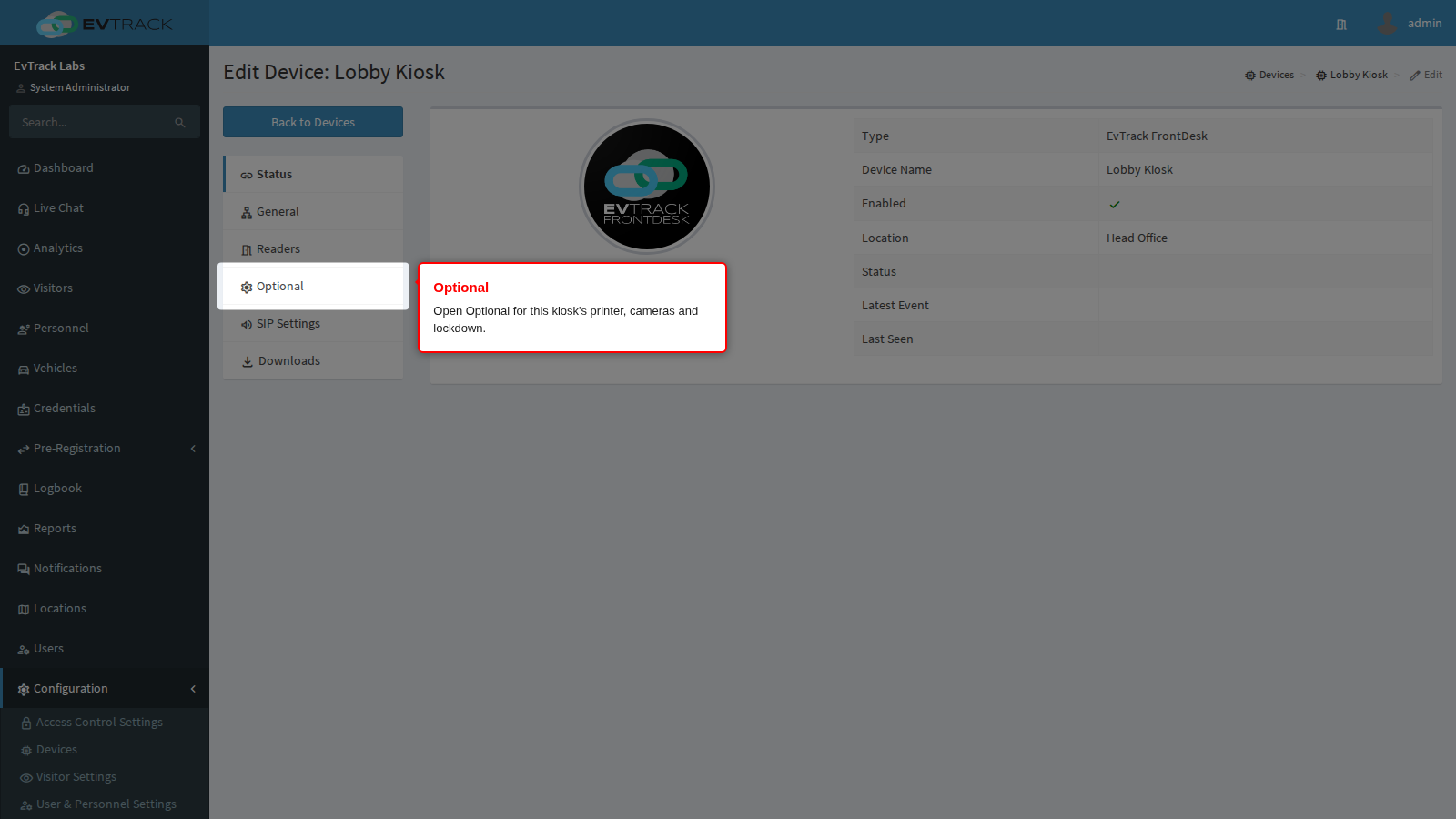
Go to Configuration > Access Control Settings > Devices, open the kiosk’s record (here “Lobby Kiosk”) and click Optional.
Cameras
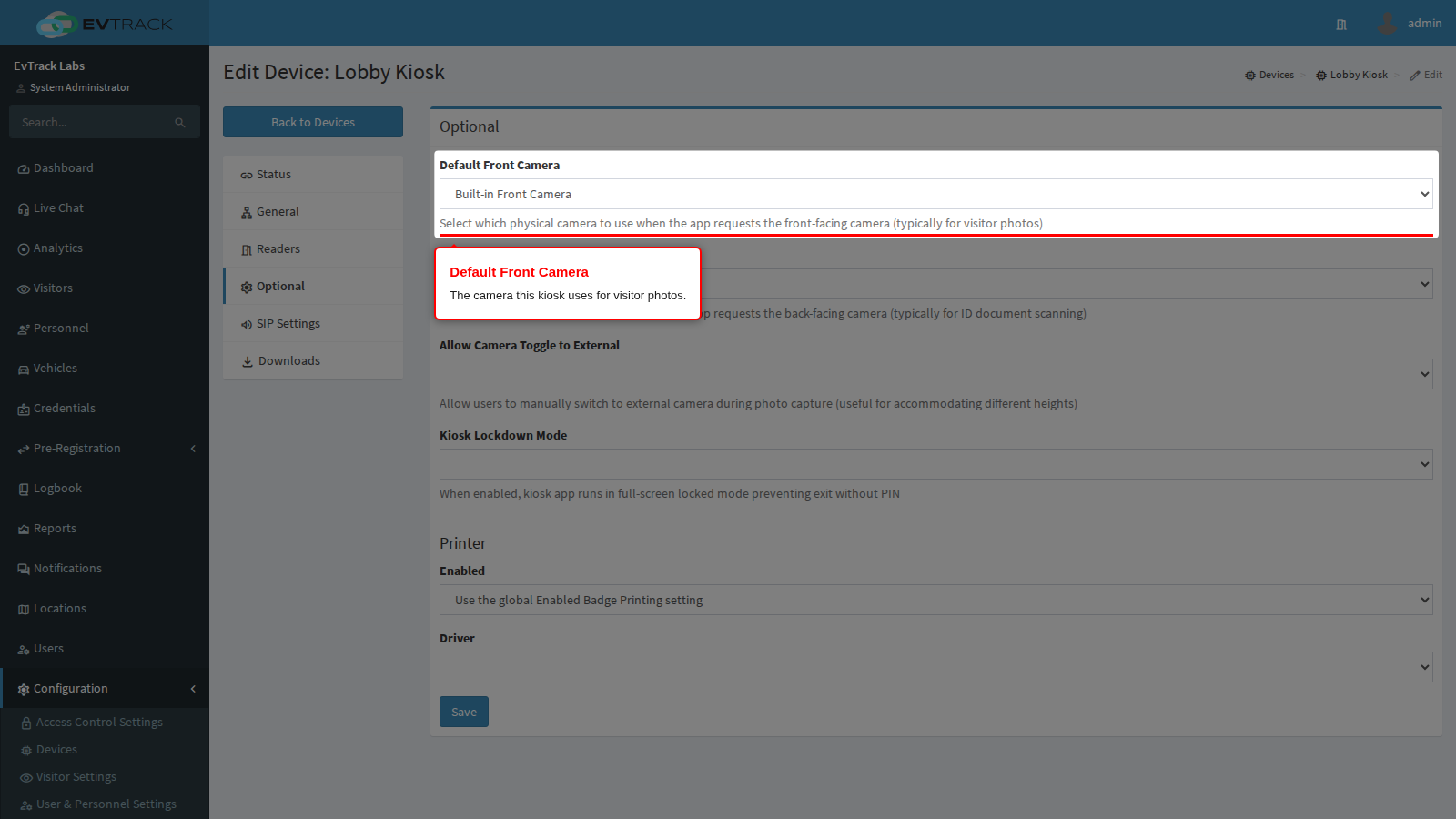
Default Front Camera
Choose Built-in Front Camera, Built-in Back Camera or External Camera. The front camera takes visitor photos. Left empty, the app uses the built-in front camera. External Camera means a USB camera; when none is connected the app falls back to the built-in camera.
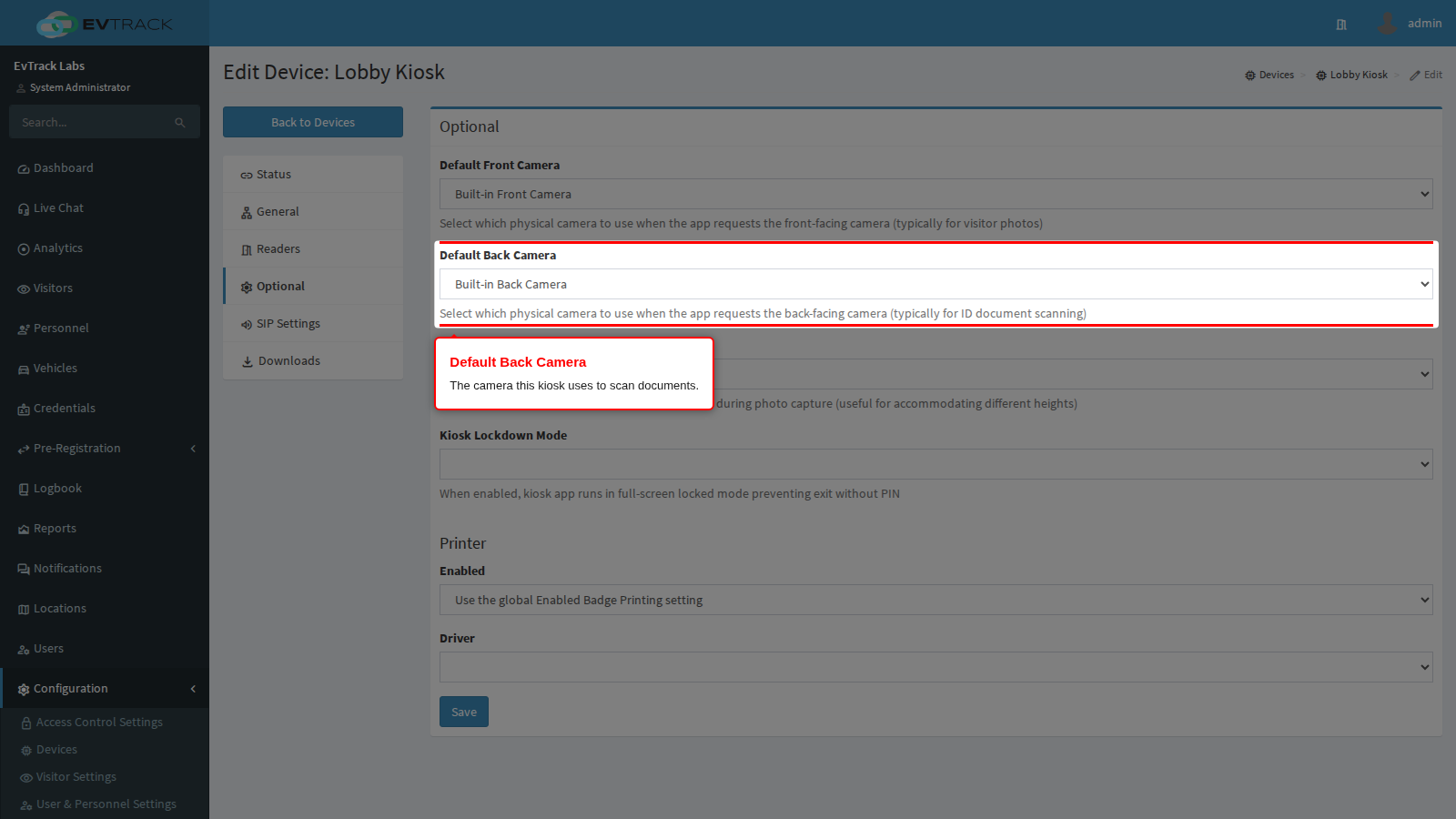
Default Back Camera
The same three choices. The back camera scans documents. Left empty, the app uses the built-in back camera, and it falls back to it when an external camera is chosen but not connected.
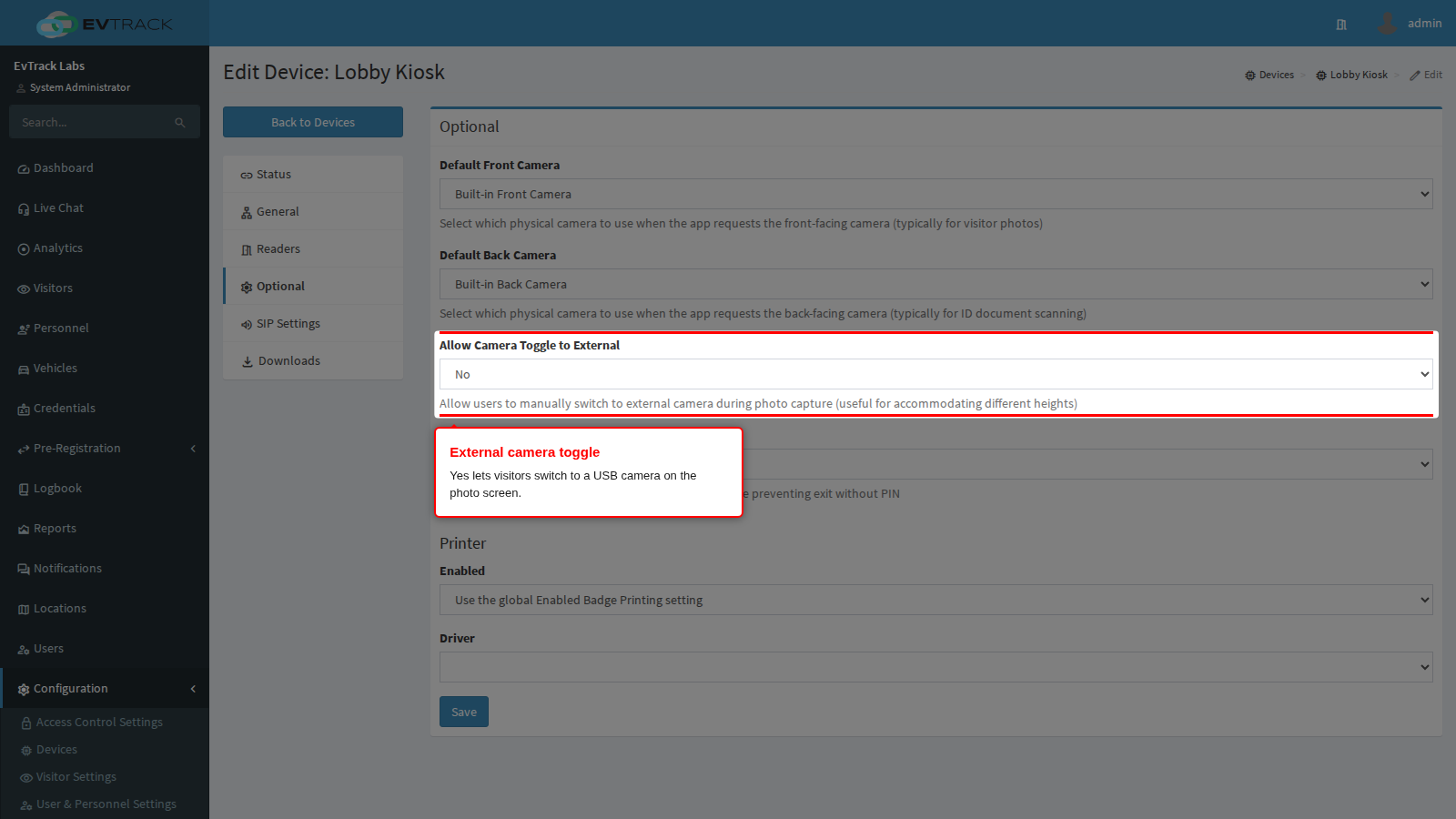
Allow Camera Toggle to External
Choose Yes to show a switch-camera button on the photo screen while a USB camera is connected. This helps visitors of different heights. Left empty, the answer is No.
Kiosk lockdown
Kiosk Lockdown Mode
Choose Enabled or Disabled; empty means Disabled. Lockdown takes effect once the app has fetched fresh settings after it starts.
- When the app is the tablet’s device owner, it pins itself with Android lock task mode: home, recent apps and the system bars are blocked. A tablet is set up this way when it is prepared from a factory reset, by your device-management provider or an administrator.
- Otherwise lockdown is best effort: the app runs full screen, keeps the screen on and blocks screenshots, but a determined user can still swipe out.
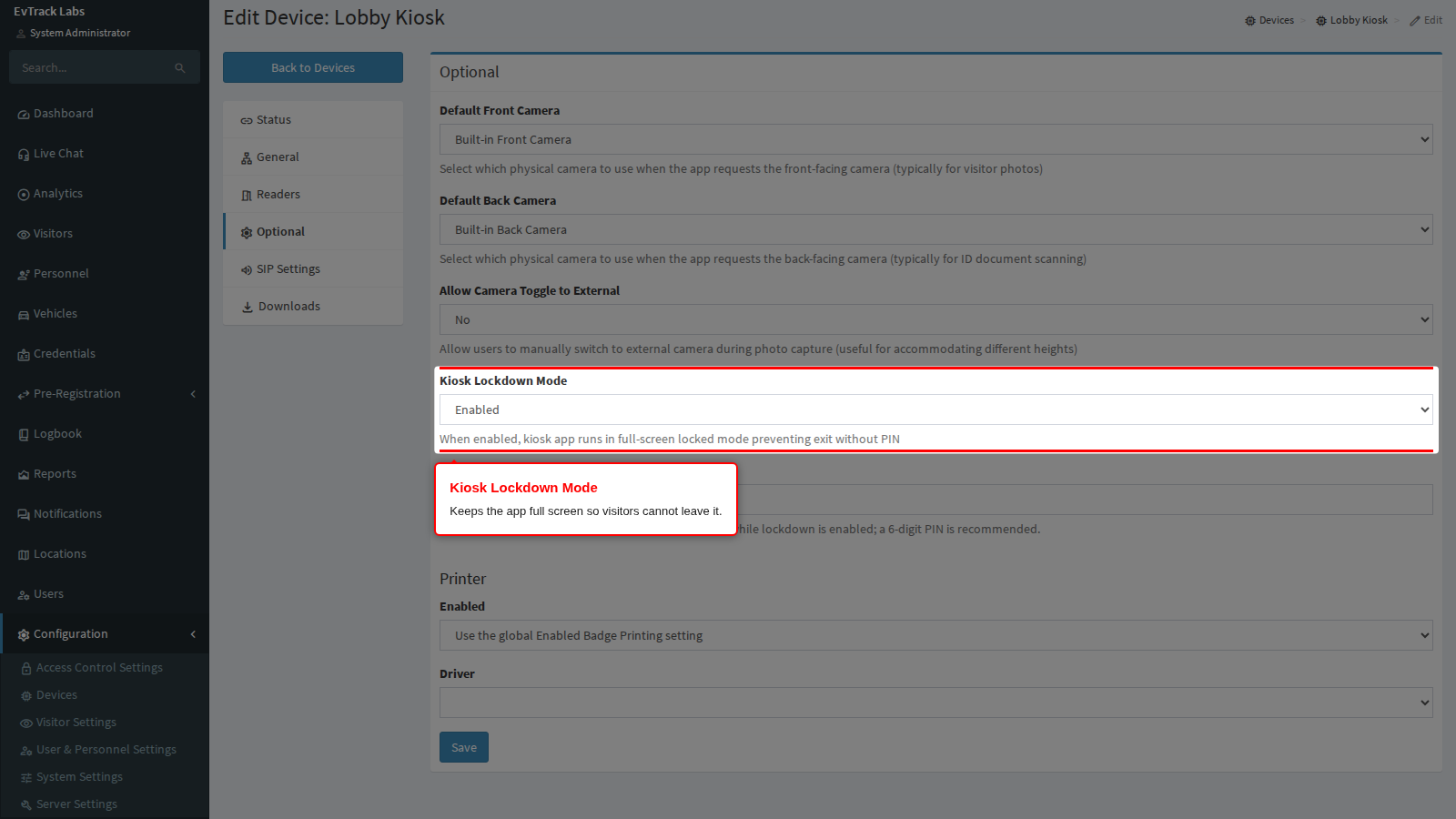
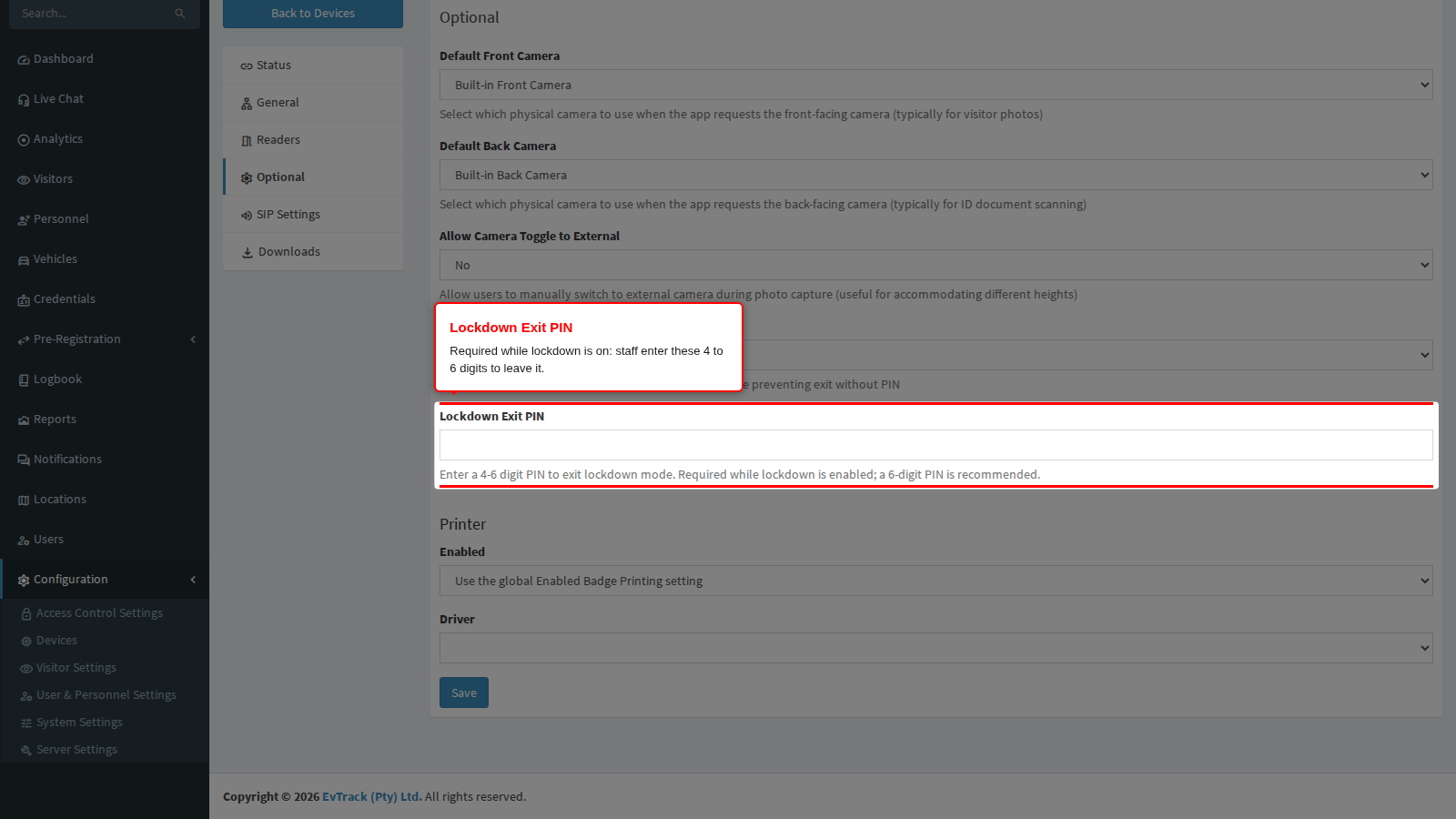
Lockdown Exit PIN
This field appears only when lockdown is Enabled, and then a PIN is required: enter 4 to 6 digits. A 6-digit PIN is recommended because it is harder to guess. The browser refuses anything other than 4 to 6 digits with “The value does not match the expected format.” The server refuses a save with no PIN with “Enter a Lockdown Exit PIN of 4 to 6 digits while Kiosk Lockdown Mode is enabled.” and a PIN of the wrong length with “The Lockdown Exit PIN must be 4 to 6 digits.”
The PIN is shown in clear text to anyone who can edit devices.
Leave lockdown on the tablet
- Touch and hold the top-right corner of the welcome screen for 5 seconds.
- Enter the Lockdown Exit PIN.
Three wrong PINs lock PIN entry for 1 minute. Leaving lockdown this way lasts until the app restarts. To end lockdown for good, choose Disabled here and save; the kiosk follows within 5 minutes or when the app restarts.
Badge printer
The global badge settings are described in Badge Printing and Live Chat.
A kiosk prints badges only when all three of these are true:
- Enabled Badge Printing is on for the system (Visitor Settings > Kiosk > Badge & Live Chat, see Kiosk Settings).
- This tab’s Printer Enabled is not No.
- A Driver is chosen.
A new kiosk follows the global setting, so with global printing on it prints as soon as you choose its Driver. The badge layout and the confirmation preview are global, see Badge Printing.
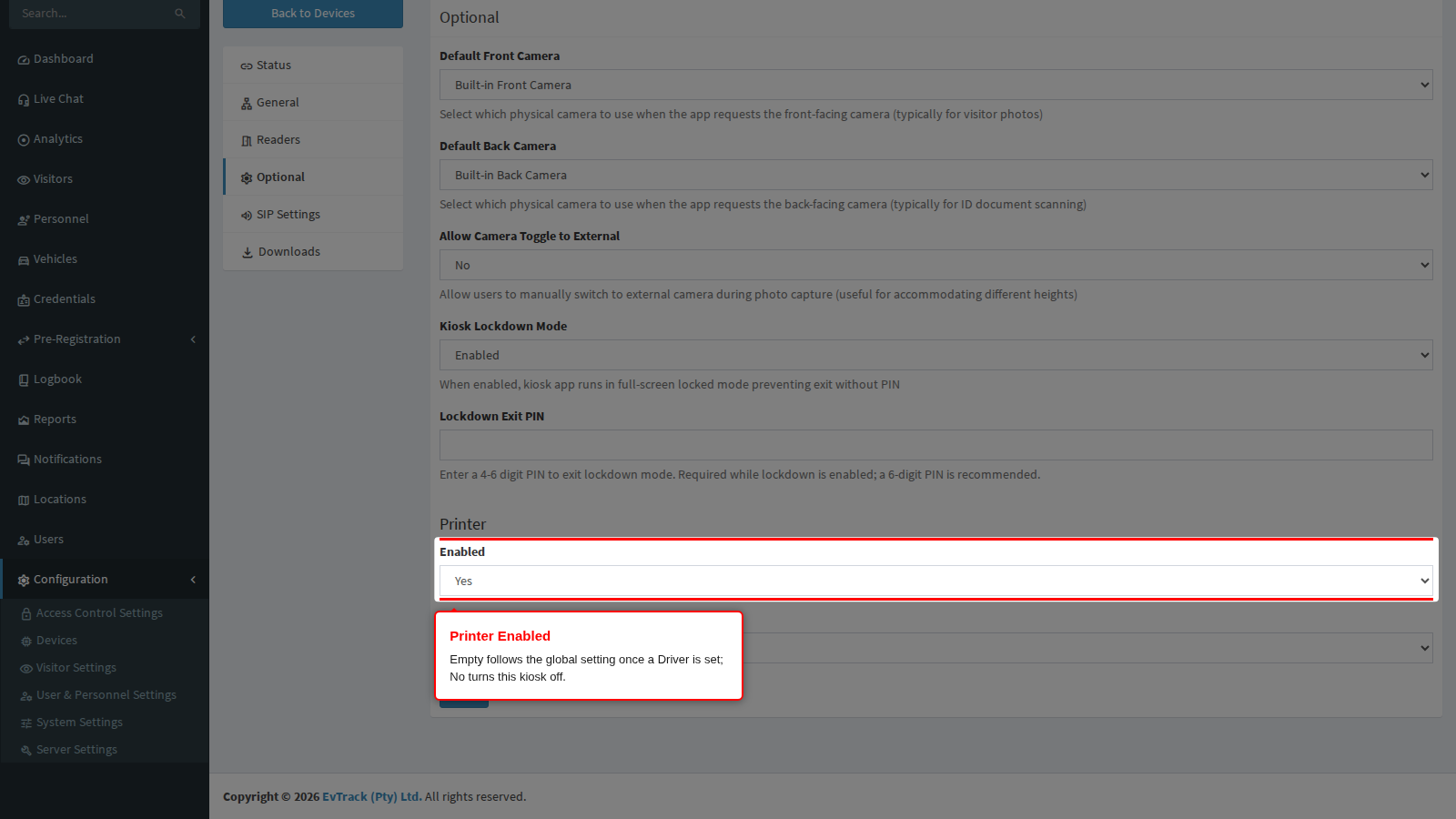
Enabled
There are three states:
- Use the global Enabled Badge Printing setting (empty, the default for a new kiosk) follows the global switch once a Driver is chosen.
- Yes prints while the global switch is on and a Driver is chosen.
- No switches this one kiosk off even when the global switch is on.
The global switch being off always wins, and a kiosk with no Driver never prints, whatever this choice says.
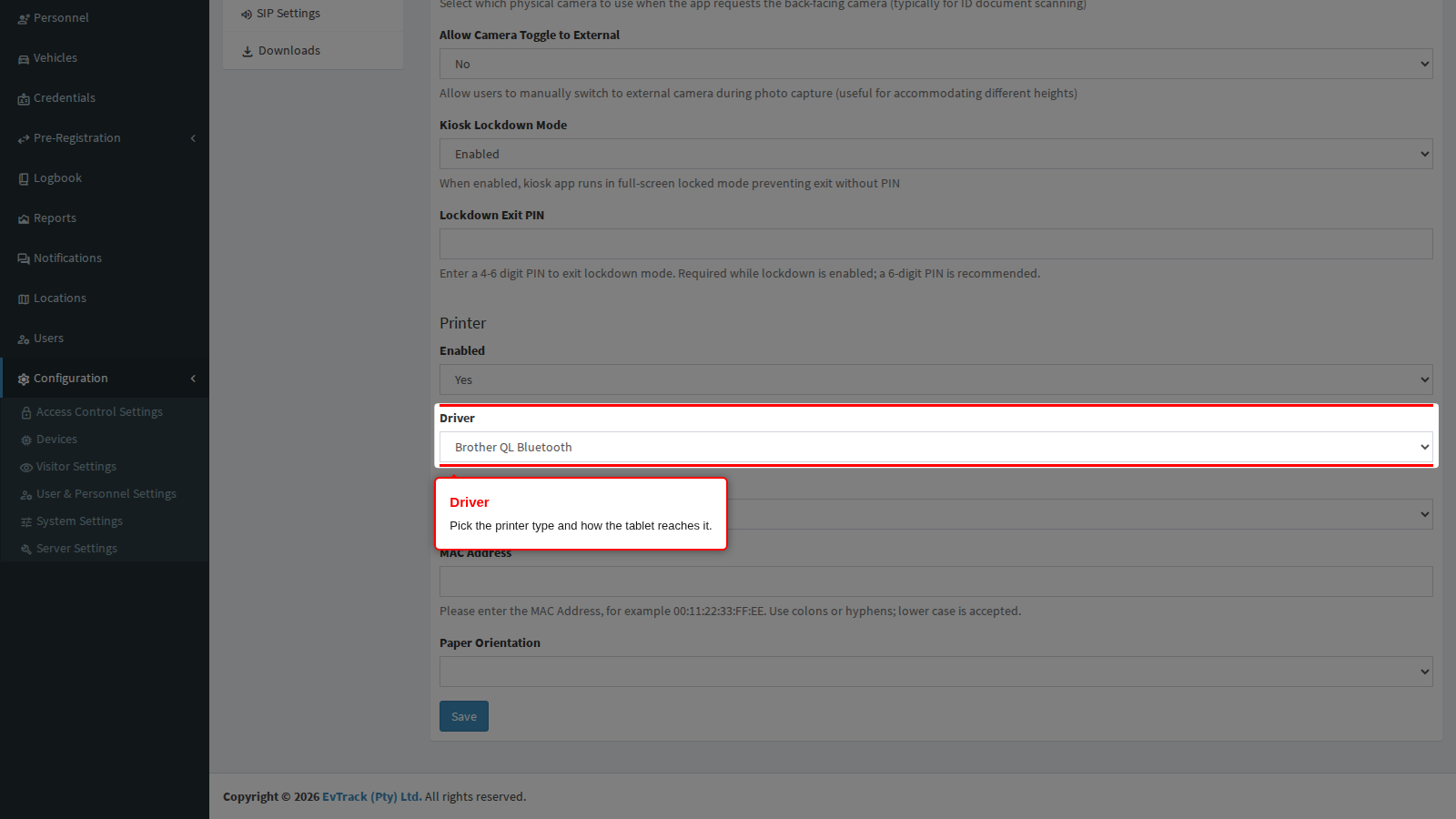
Driver
Pick the printer type and how the tablet reaches it. Left empty, the kiosk has no printer. The fields below the Driver change with your choice.
| Driver | Connects by | Fields you fill | Good to know |
|---|---|---|---|
| Brother QL Bluetooth | Bluetooth | MAC Address, Model, Paper Orientation | Model QL-820NWB; prints on a 62 mm continuous label, cut automatically. Allow Nearby devices at the first print. |
| Brother QL TCP/IP | Network | IP Address/Domain, Model, Paper Orientation | Same model, label and orientation rules. |
| Evolis Card Printer TCP/IP | Network | IP Address/Domain (optional) | A card printer. Empty uses the first Evolis printer the tablet finds; an address uses only a printer found at exactly that address, so tablet and printer must be on the same network segment. The ribbon type is detected automatically. |
| Zebra LINK-OS TCP/IP | Network | IP Address/Domain, Port | Port empty means 9100. Bluetooth is not offered for Zebra. |
| Epson ePOS TCP/IP | Network | IP Address/Domain | No Port field: the app uses the printer’s ePOS default. The app drives the printer as an Epson TM-m30II. |
| Epson ePOS USB | USB cable to the tablet | None | Connect the cable to the tablet. |
| Epson ePOS Bluetooth | Bluetooth | MAC Address | Allow Nearby devices at the first print. |
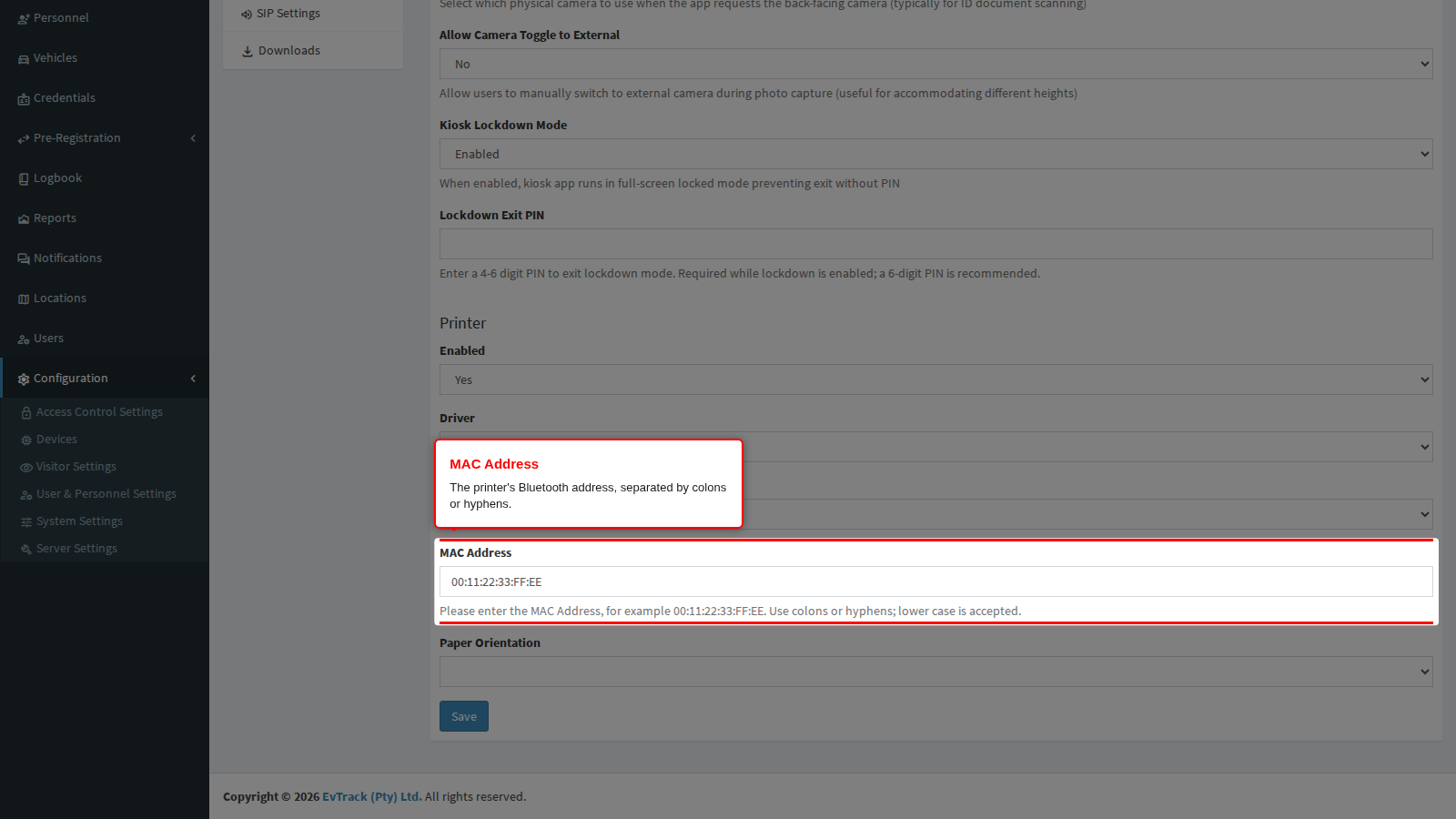
MAC Address
Shown for the Bluetooth drivers. Enter six pairs of digits or letters A to F, separated by : or -, for example 00:11:22:33:FF:EE. Lower case is accepted and saved in capitals, which is what the app expects. Anything else is refused in the browser with “The value does not match the expected format.” and by the server with “Enter the MAC Address as six pairs of digits or letters A to F, separated by colons or hyphens, for example 00:11:22:33:FF:EE.”
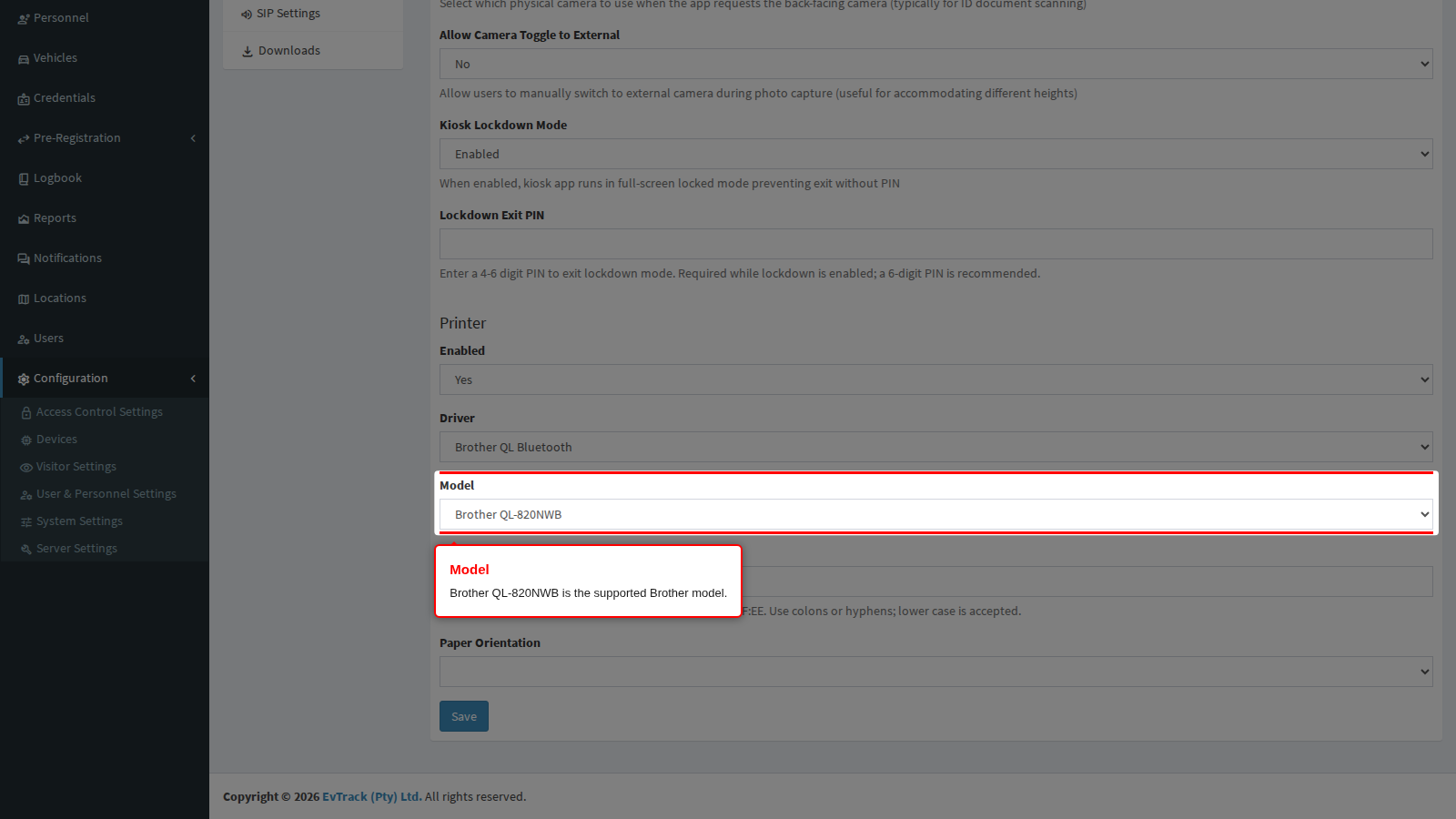
Model
Shown for the Brother drivers. Brother QL-820NWB is the only choice; empty means QL-820NWB.
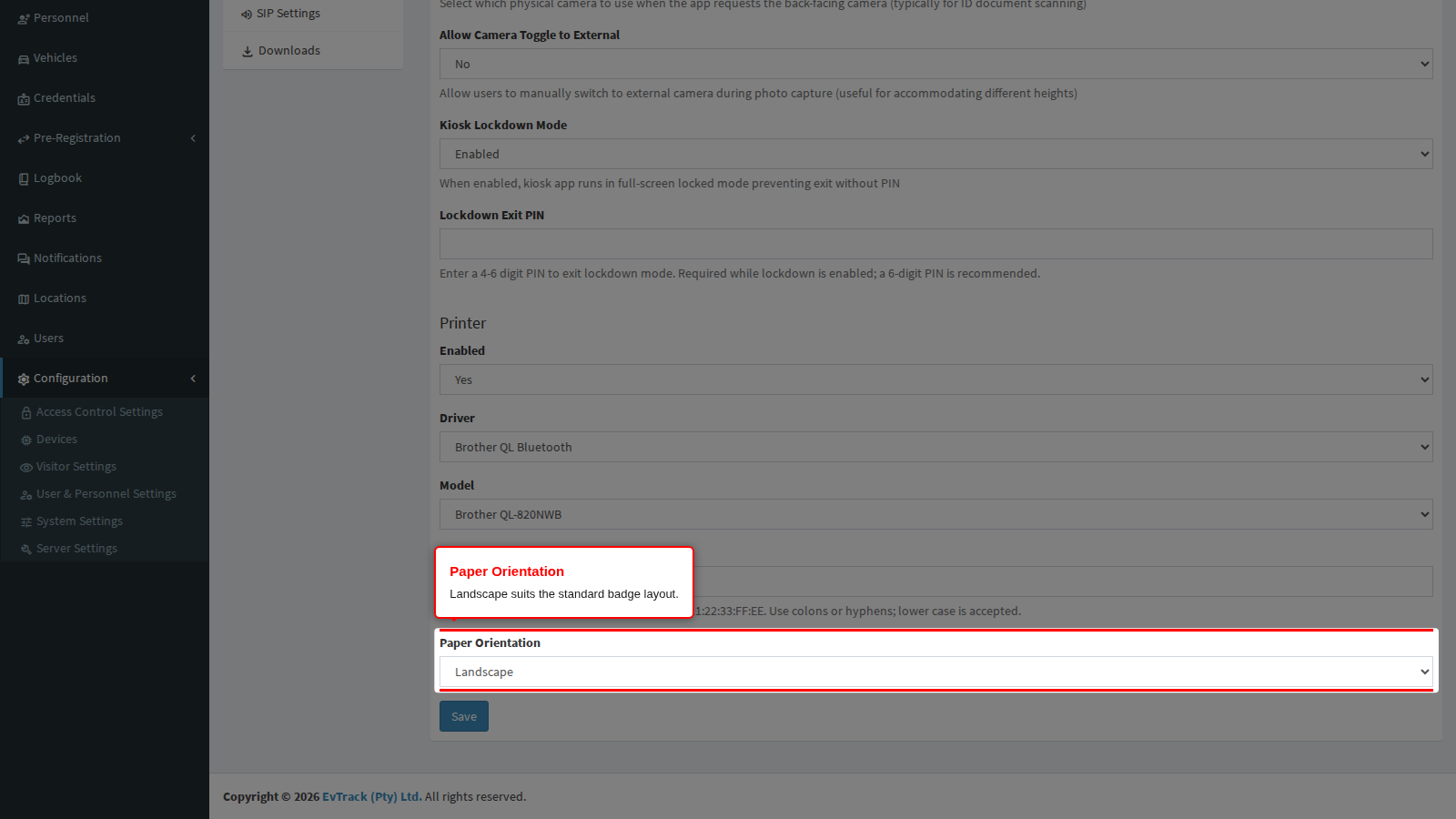
Paper Orientation
Shown for the Brother drivers. Empty means Landscape. Choose Portrait only for a portrait badge layout.
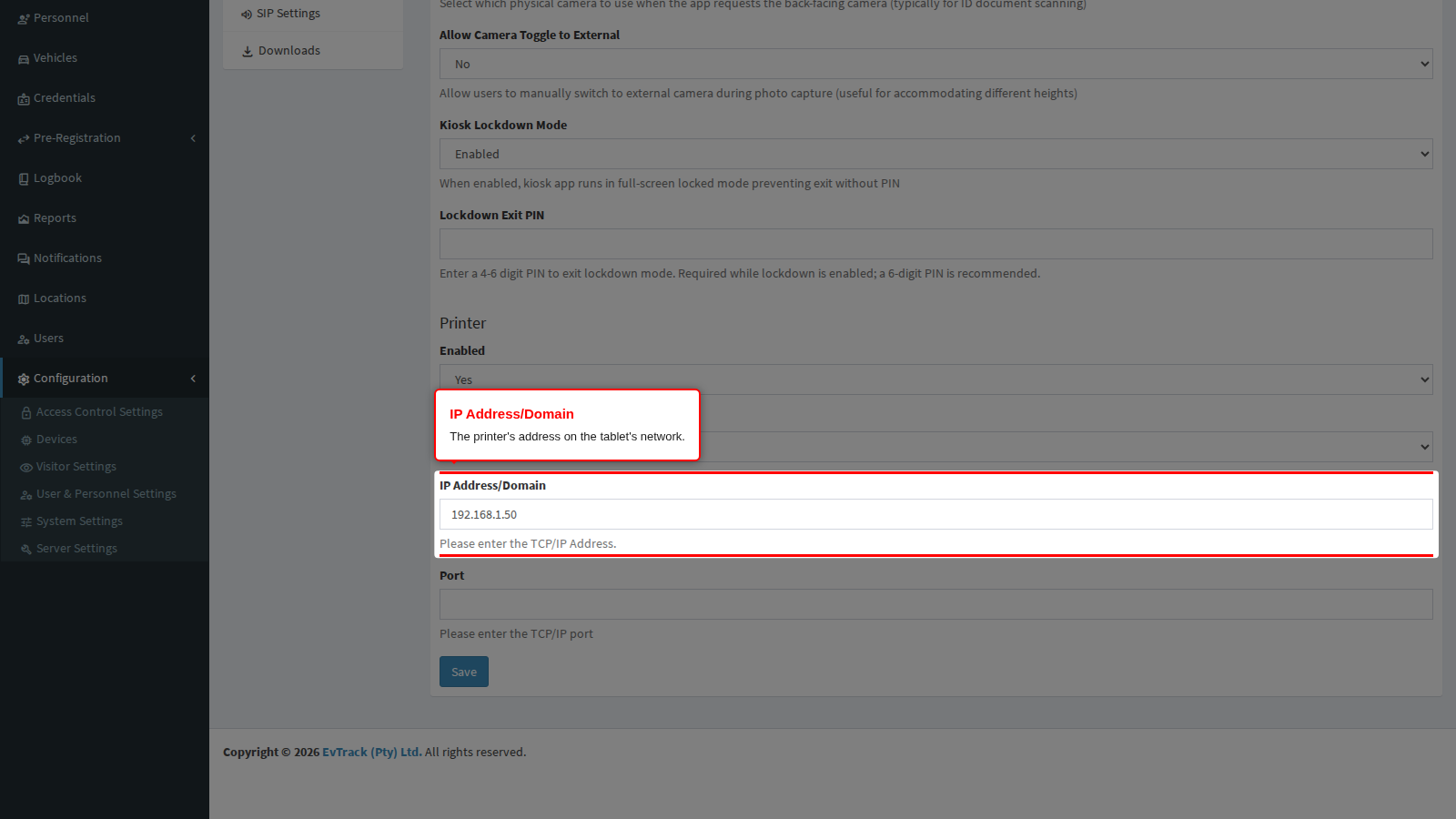
IP Address/Domain
Shown for the network drivers. Enter an address the tablet can reach. Give the printer a fixed IP address on your network so it does not change. For Evolis, leave it empty to use the first Evolis printer found.
Port
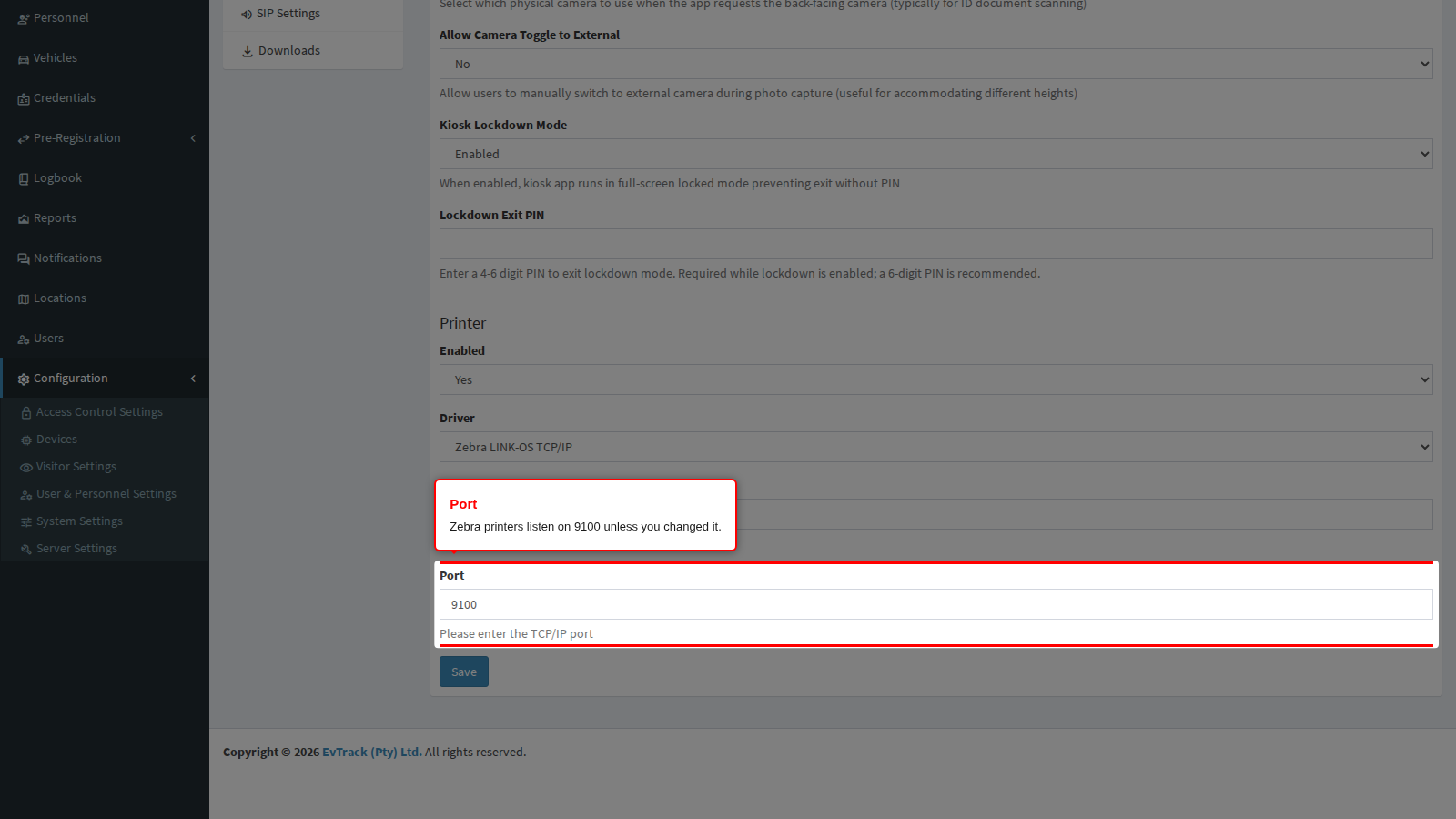
Shown for Zebra LINK-OS TCP/IP only. A whole number from 1 to 65535: the browser refuses a value outside that range with “Must be at least 1.” or “Must be at most 65535.”, and the server refuses anything else with “The printer port must be a whole number from 1 to 65535.” Empty means 9100.
On the tablet
There is no printer screen in the app: everything comes from this tab.
- Bluetooth: turn Bluetooth on (the app asks if it is off) and allow Nearby devices at the first print.
- Network: the tablet and the printer must be on the same network.
- USB: connect the cable.
When a print fails
The check-in still succeeds. The app shows a message that confirms the check-in, says the badge could not be printed and names the cause, for example:
- a printer connection error
- the printer is out of paper
Check the printer and use Retry Print where the app offers it.
Step 2: Save
Click Save.
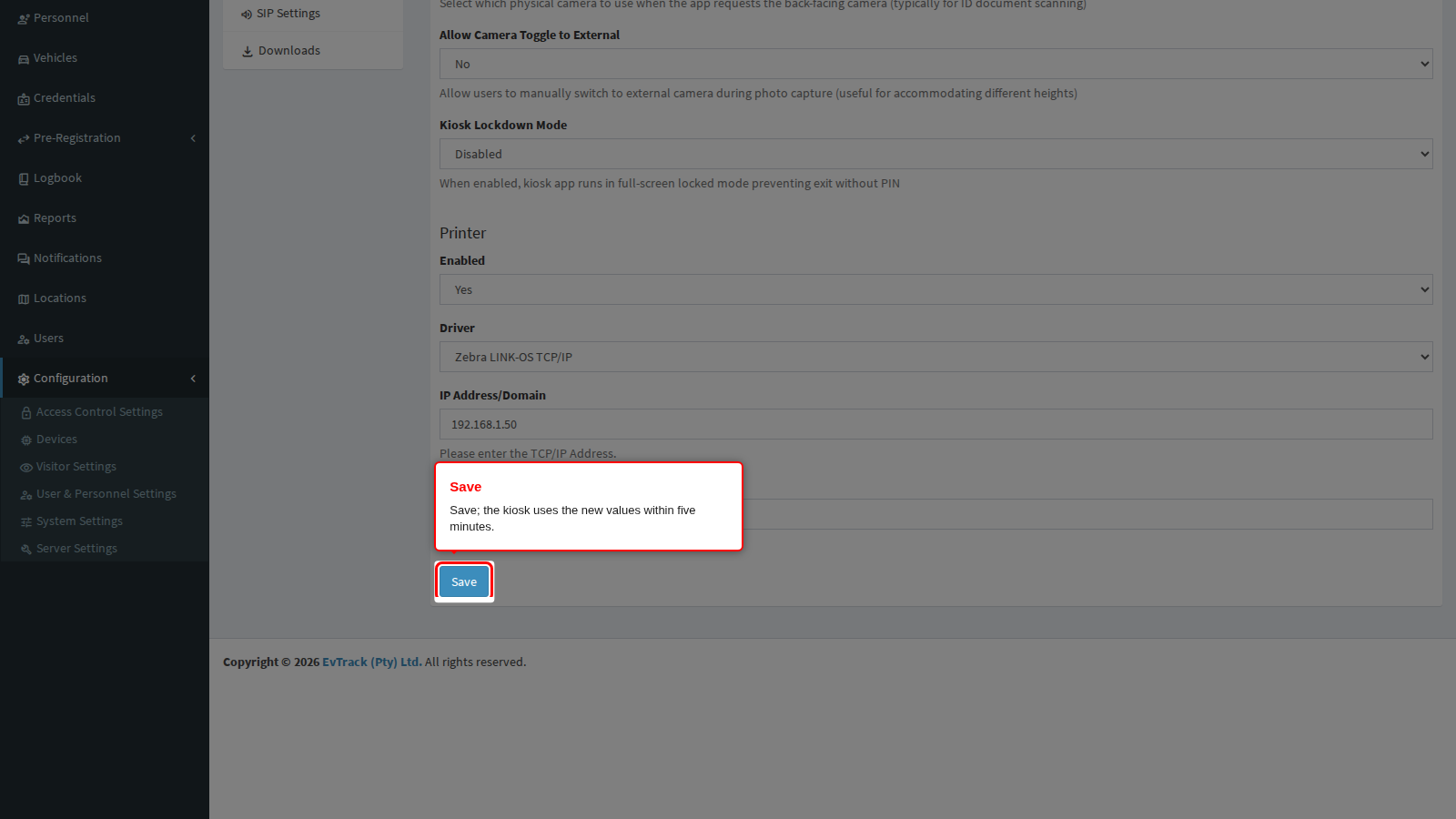
The page reloads on the Optional tab with an “updated” message and the saved values. Only this tab’s settings change: the device’s SIP Settings and pairing keys are kept. The kiosk uses the new values within 5 minutes or when the app restarts.
If the server rejects a value, the Optional tab comes back with the message above the form and nothing is saved. Correct the field and save again. The Lockdown Exit PIN always comes back empty after a rejected save, so enter it again. The server checks MAC Address, Port and Lockdown Exit PIN only while your Driver or lockdown choice shows them. A field you have hidden keeps its value but is not checked, so an older value you cannot see never blocks a save.
End state: reopening Optional shows the saved values.
Where the other kiosk settings live
The settings a location can override for its own kiosks are described in Location Overrides.
| Setting | Where | Applies to |
|---|---|---|
| Printer, cameras, lockdown | This Optional tab | This kiosk only |
| Enabled Badge Printing, Display Badge Confirmation Preview | Visitor Settings > Kiosk > Badge & Live Chat | Every kiosk (a device Enabled of No switches one kiosk off; empty follows it) |
| Badge layout | Badge Printing | Every kiosk |
| Live chat | Visitor Settings > Kiosk (Enable Live Chat), plus this device’s SIP Settings tab | Global switch, per-kiosk account |
| Logo, welcome message, colour scheme, default language, telephone country code, fields | Visitor Settings > Kiosk, see Kiosk Settings | Every kiosk, overridable per location on the location’s Kiosk App tab |
The device record’s other tabs: General holds the Device Key, SIP Settings the kiosk’s live-chat calling account (used only when global Enable Live Chat is on), and Downloads the app packages.