The kiosk settings under Visitors > Settings apply to every FrontDesk kiosk. A location can change how its kiosks look and what they ask, without touching any other site. Use this page to give the Training Center its own logo and welcome message, or its own list of questions, while Head Office keeps the global ones.
Before you start:
- Your role can edit both locations and system settings. The Kiosk App tab is shown to roles that can view system settings, and saving it needs permission to save both locations and system settings.
- The kiosk device is registered and its Location is the one you want to brand, see Register the Device and Get Its Key.
Which settings a location can override
| Setting | Global page | On the location |
|---|---|---|
| Kiosk logo | Kiosk > General | Kiosk App tab, Use global kiosk logo |
| Welcome message | Kiosk > General | Kiosk App tab, Use global welcome message |
| Color scheme | Kiosk > General | Kiosk App tab, Use global color scheme |
| Default language | Kiosk > General | Kiosk App tab, Use global default language |
| Default telephone country code | Kiosk > General | Kiosk App tab, Use global telephone country code |
| Kiosk fields, custom questions and agreements | Kiosk > Fields | Kiosk App tab, Use global kiosk fields |
| Company name | Settings > System > General | Advanced tab, Company Name |
Every other kiosk setting is global only: verification, badge printing, host approval, document scanning and the rest always follow the Kiosk pages. See Kiosk Settings for the overview.
How a kiosk picks its location
A kiosk takes its overrides from the Location on its own device record (Devices > the device > General > Location), never from where the tablet physically stands. For each setting the kiosk resolves the value in this order:
- The location on the kiosk’s device record.
- That location’s Kiosk App tab, when the setting’s Use global box is unticked and a value is set.
- The global Kiosk value.
A kiosk whose device has no location, and kiosks at other locations, are not affected by this location’s overrides.
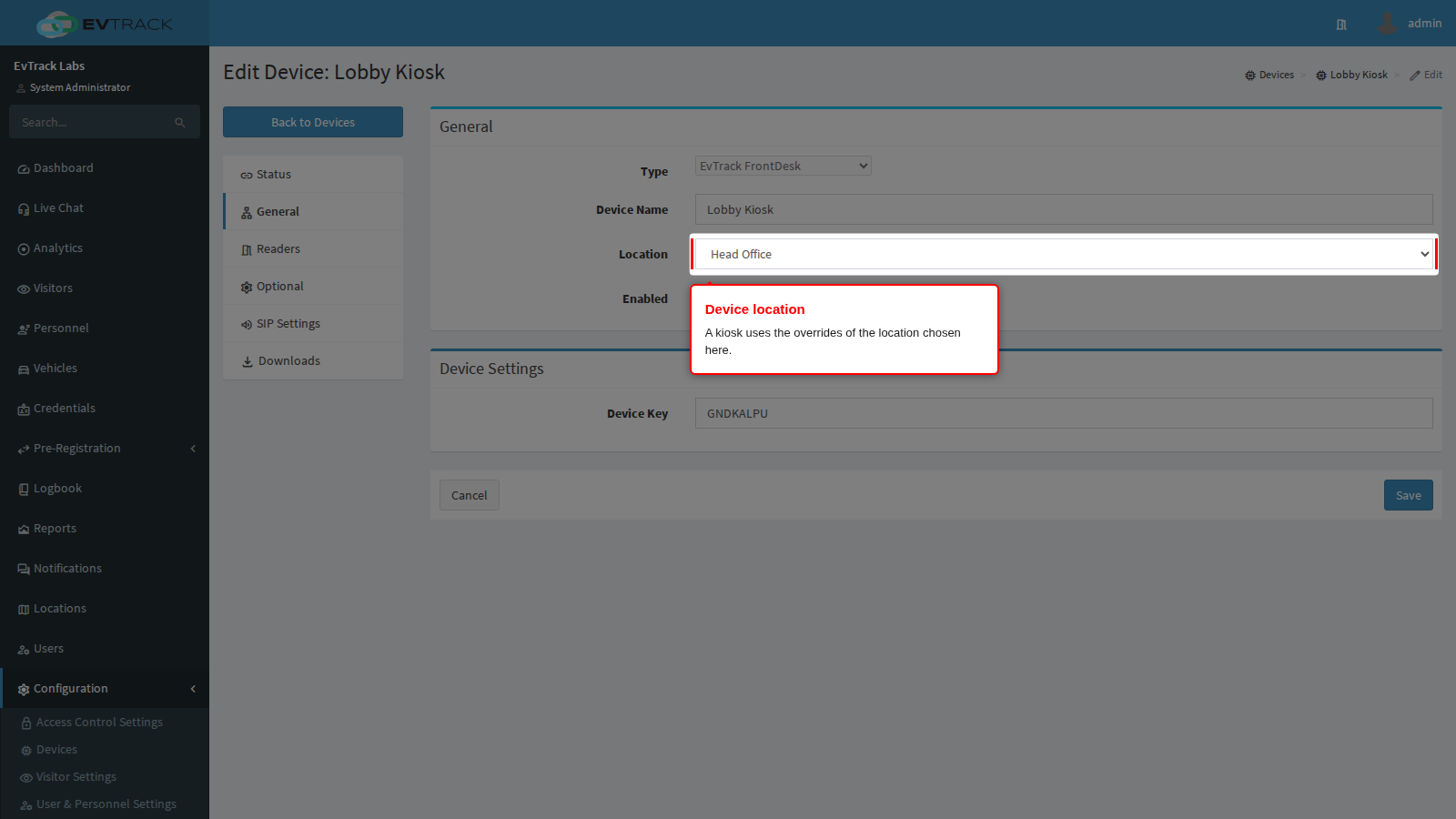
The kiosk setting Inherit Kiosk Device Location is a different thing. It only decides which location a registration is filed under, see the Location panel of the kiosk settings. It does not change the logo, the welcome message or the questions.
Open the Kiosk App tab
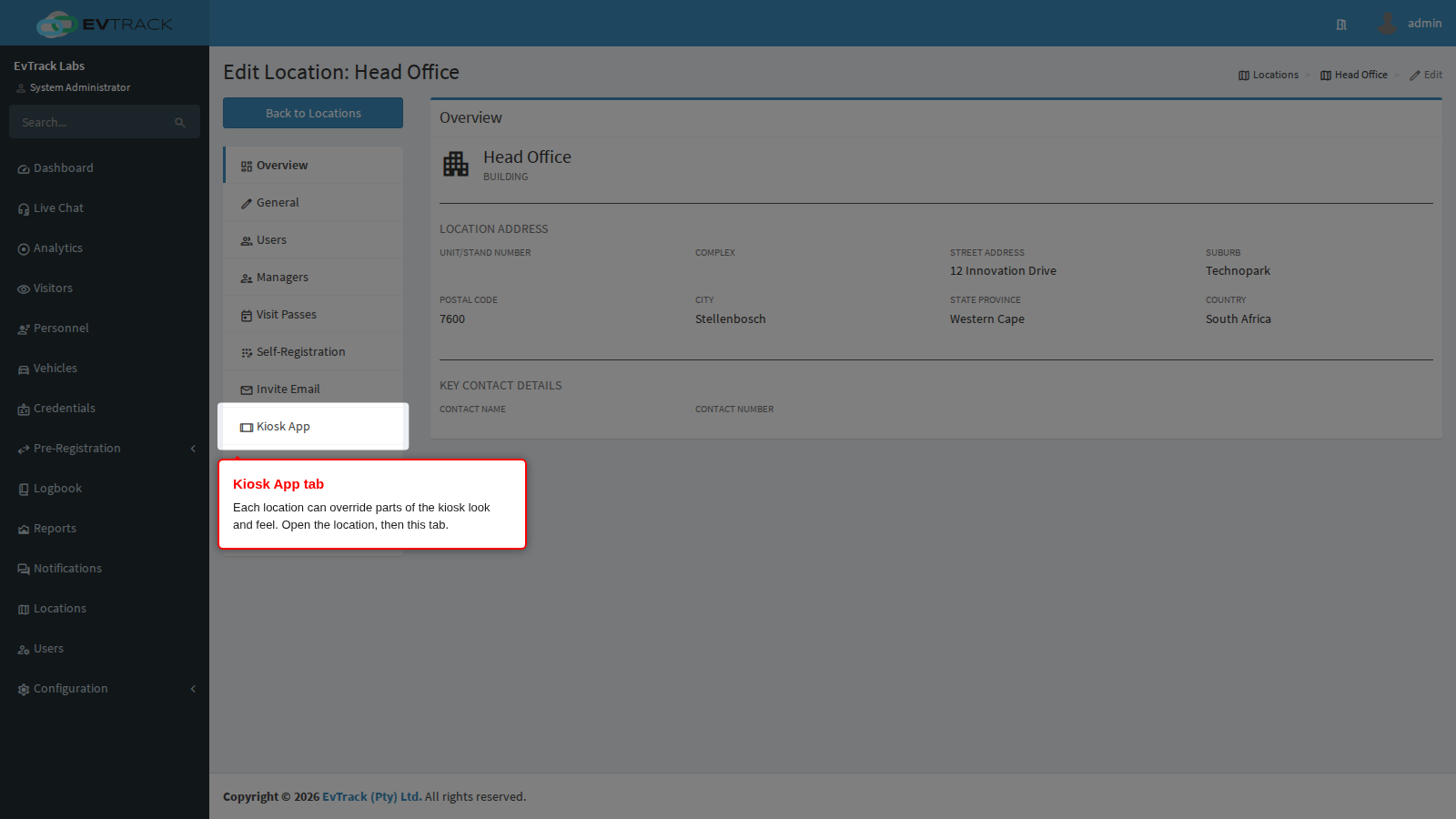
Go to Locations, open the location and click Kiosk App. The tab has three titled sections: Kiosk App Overrides (logo, welcome message and the company name line), Display and Language (color scheme, default language and telephone country code) and Kiosk fields (this location). It opens with the note “Customise the kiosk app for kiosks assigned to this location. Fields set to use the global value follow the system-wide Kiosk App settings.”
Use global, or override
Every setting starts with its Use global … box ticked. The control is hidden and a read-only preview shows what the global value is right now.
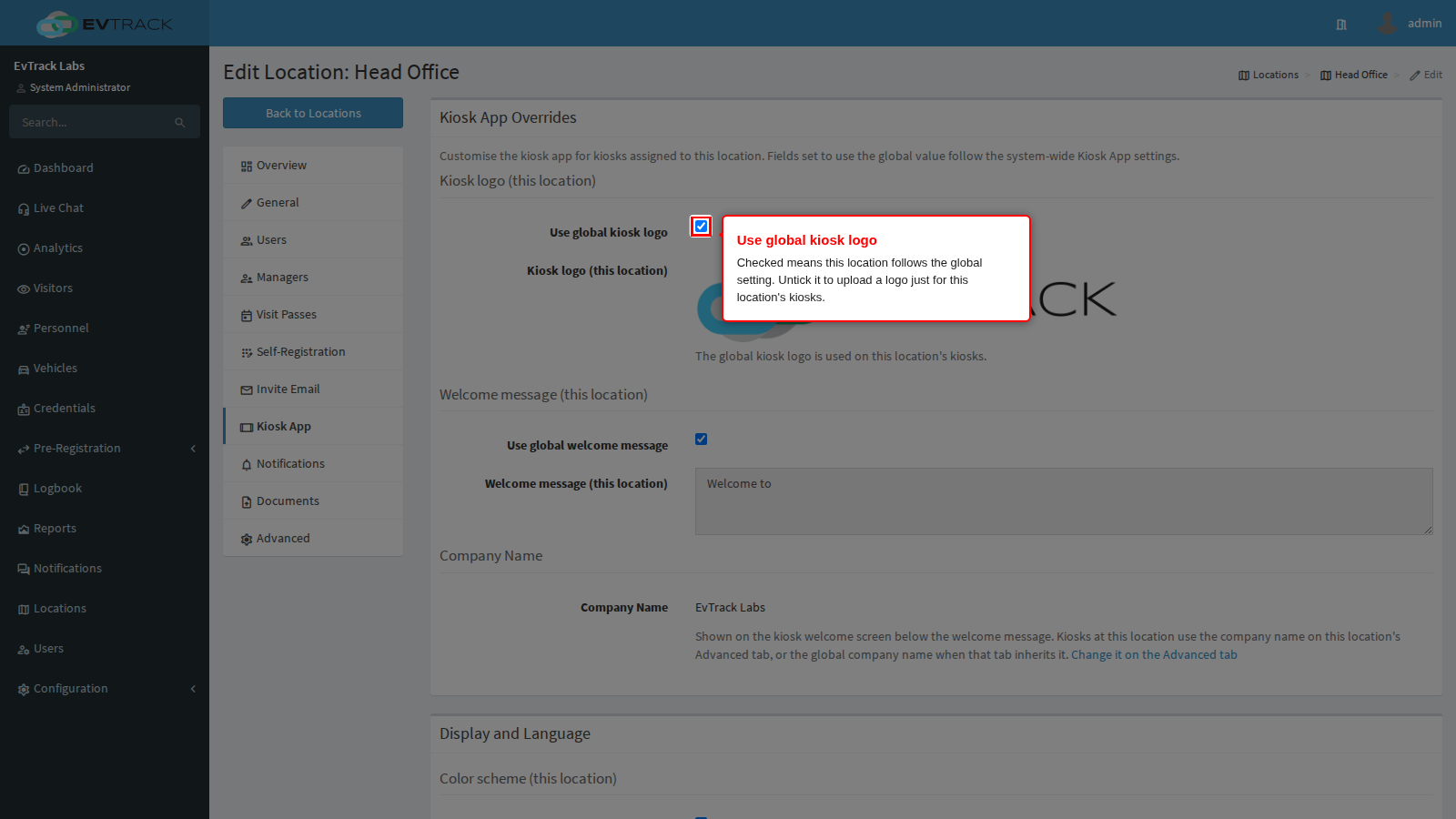
Untick the box to reveal this location’s own control. For the welcome message it is a text box of up to 1000 characters.
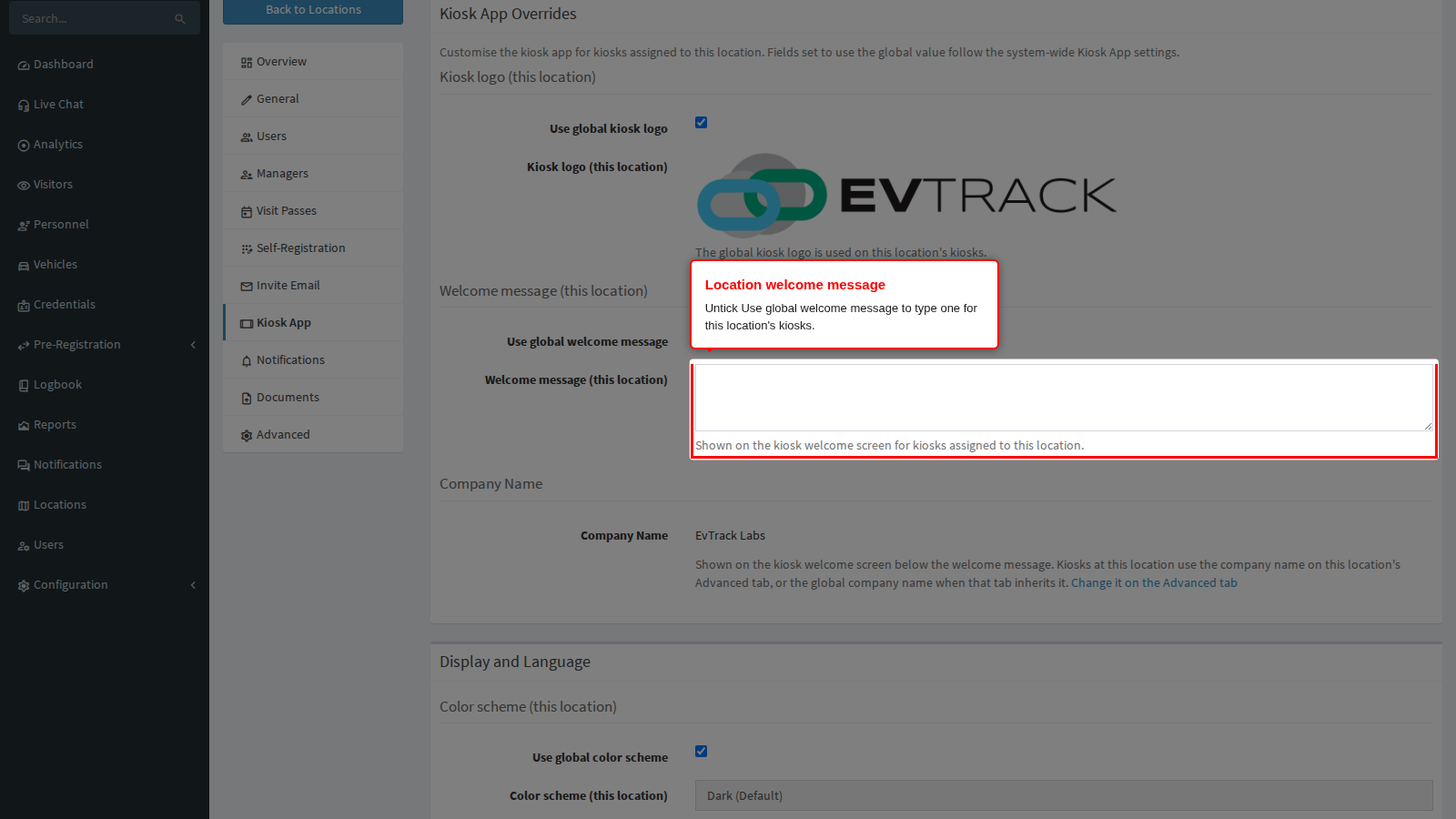
For the logo it is an uploader. The logo must be a PNG or JPEG of at most 256 KB. If the server refuses the file, a warning says “The uploaded logo could not be saved (file too large or not a PNG/JPEG image). The existing logo was kept.” and the old logo remains in place.
An override applies only when its box is unticked and a value is set. If you untick a box and leave the value empty, the kiosk silently uses the global value, and nothing warns you. This is easy to miss on the logo: an unticked Use global kiosk logo with no file uploaded still shows the global logo on the kiosk. Upload the file, or tick the box again. The color scheme, default language and telephone country code lists are different: once unticked they always hold a value, starting on the first entry in the list (for example Dark (Default) or English), and saving stores that value. Check the choice before you save.
To go back to the global value at any time, tick the box again and save. Saving with Use global kiosk logo ticked deletes the location’s stored logo.
Kiosk fields for this location
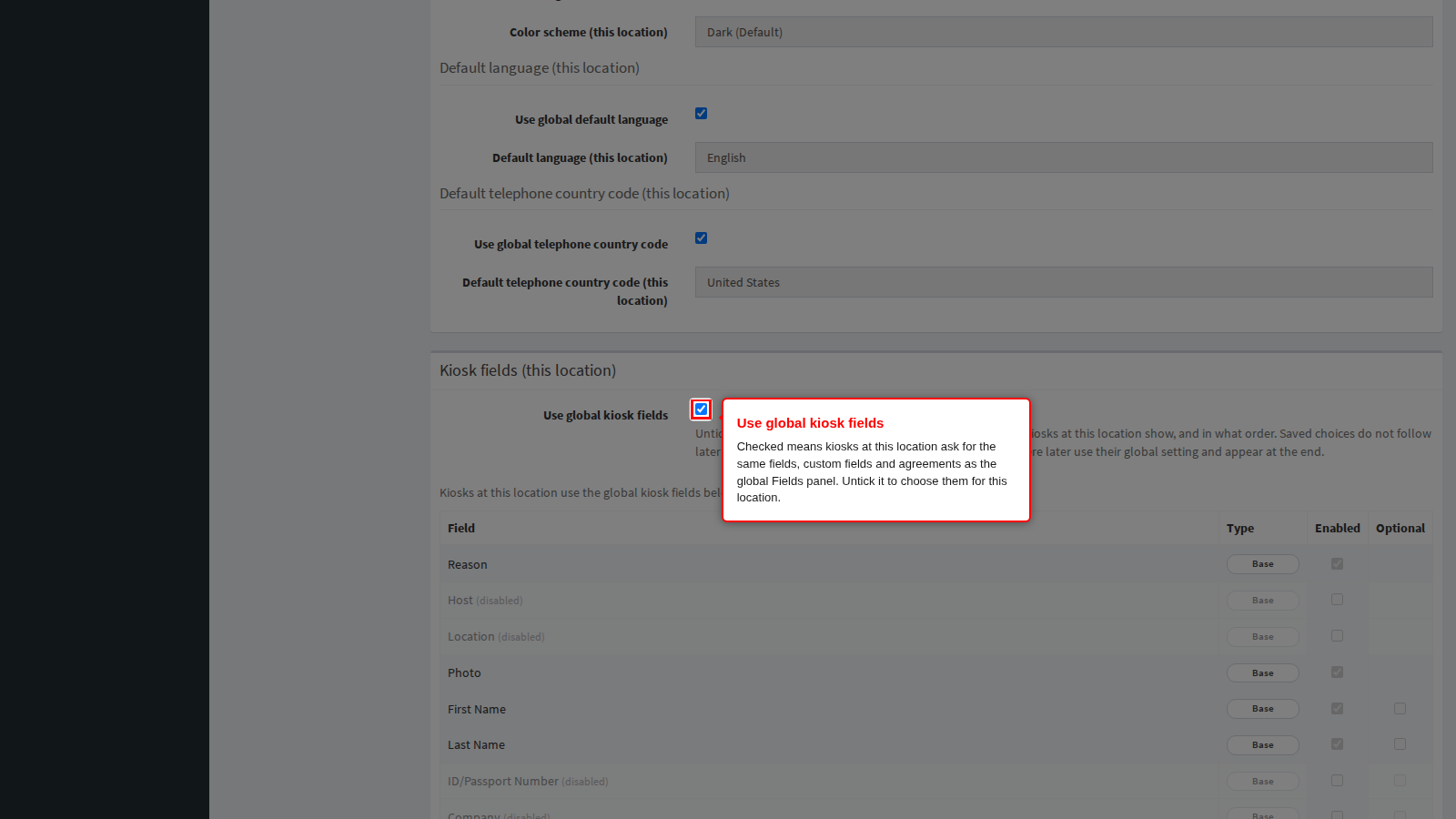
With Use global kiosk fields ticked, kiosks at this location ask for the same fields, custom questions and agreements as the global Fields page, and a read-only copy of that list is shown underneath.
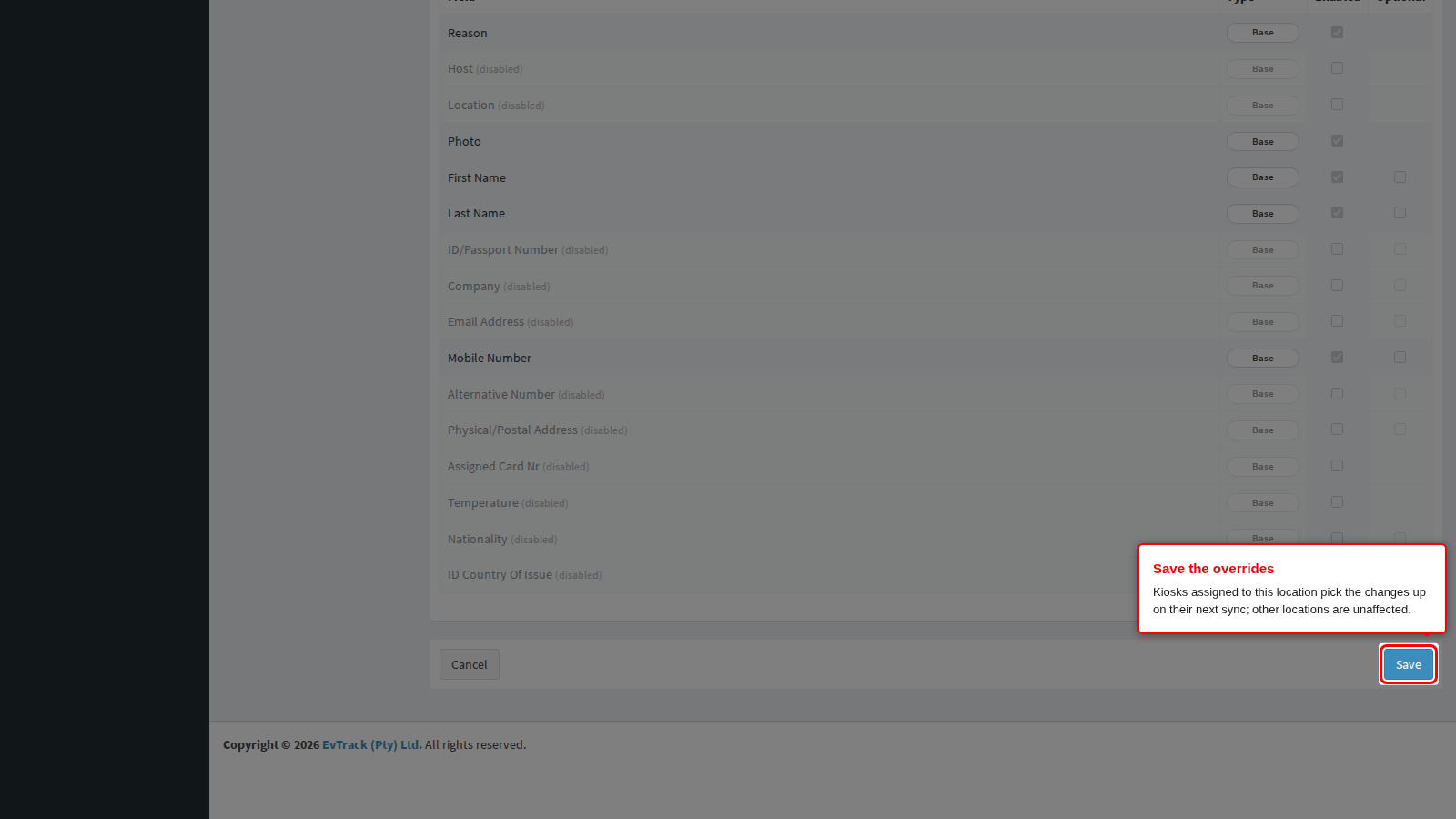
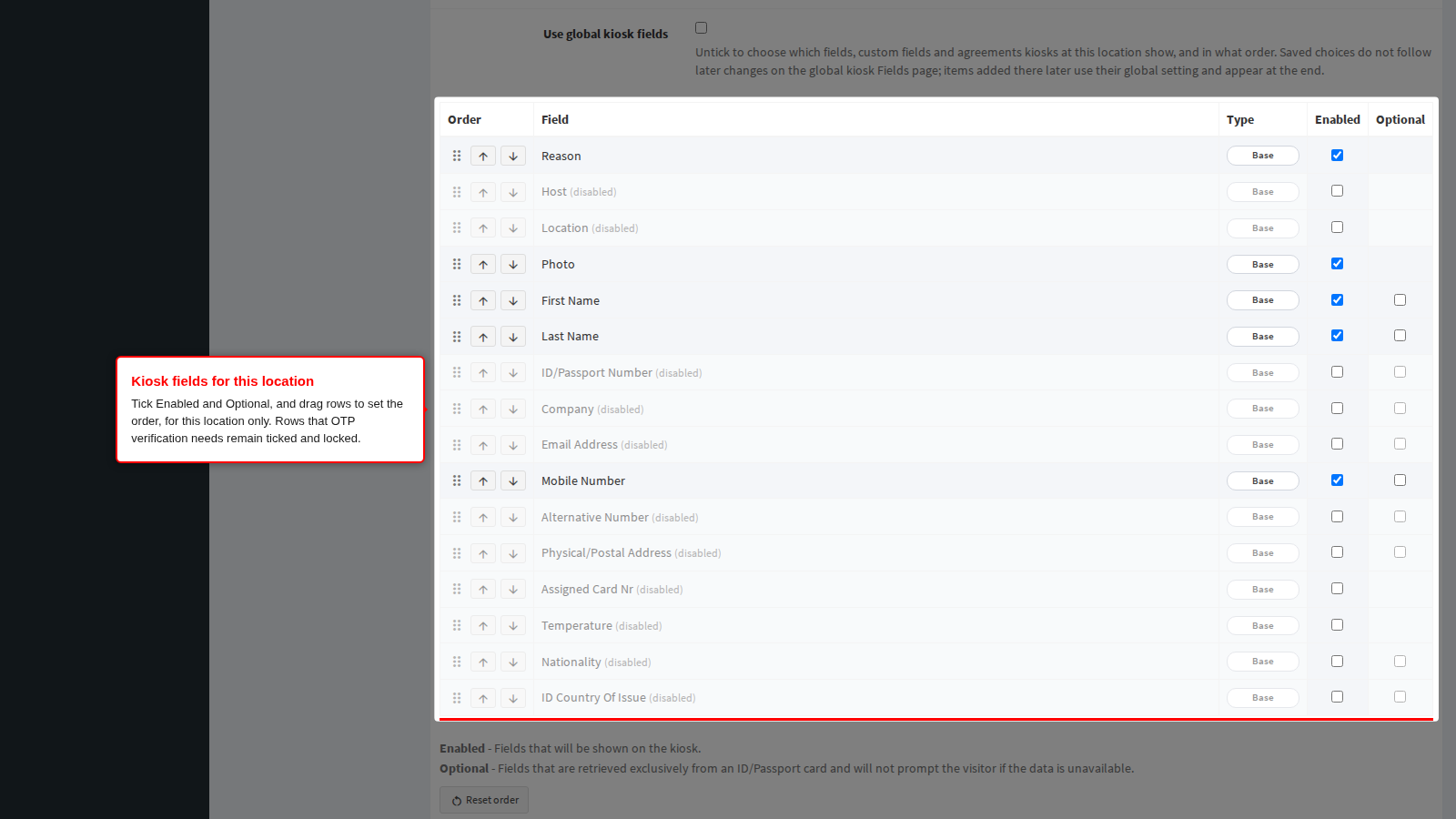
Untick it and the same list appears for this location only: tick Enabled and Optional, drag rows or use their arrow buttons to set the order, and use Reset order to put the rows back in the default order. See Fields and Required Fields for what each column means.
Keep these rules in mind:
- Custom questions are still created and renamed on the global Fields page. Here you only choose whether this location asks them.
- The choices you save do not follow later changes on the global Fields page. A field, custom question or agreement added globally afterwards uses its global setting and appears at the end of this list.
- While OTP verification sends codes by email or SMS, the matching Email Address or Mobile Number row remains ticked and locked. The help text reads “Locked rows remain enabled because OTP verification on the global kiosk Verification page uses them.”
- Until the global Fields page has been saved once, a custom-field override is refused with “Nothing on this tab could be saved. Open the global kiosk Fields page, save it once, then save this tab again.”
- Ticking Use global kiosk fields again and saving discards this location’s list.
The company name kiosks show
The Company name line under the welcome message is read-only here. It shows the name the kiosks at this location display below the welcome message, and its link opens the Advanced tab.
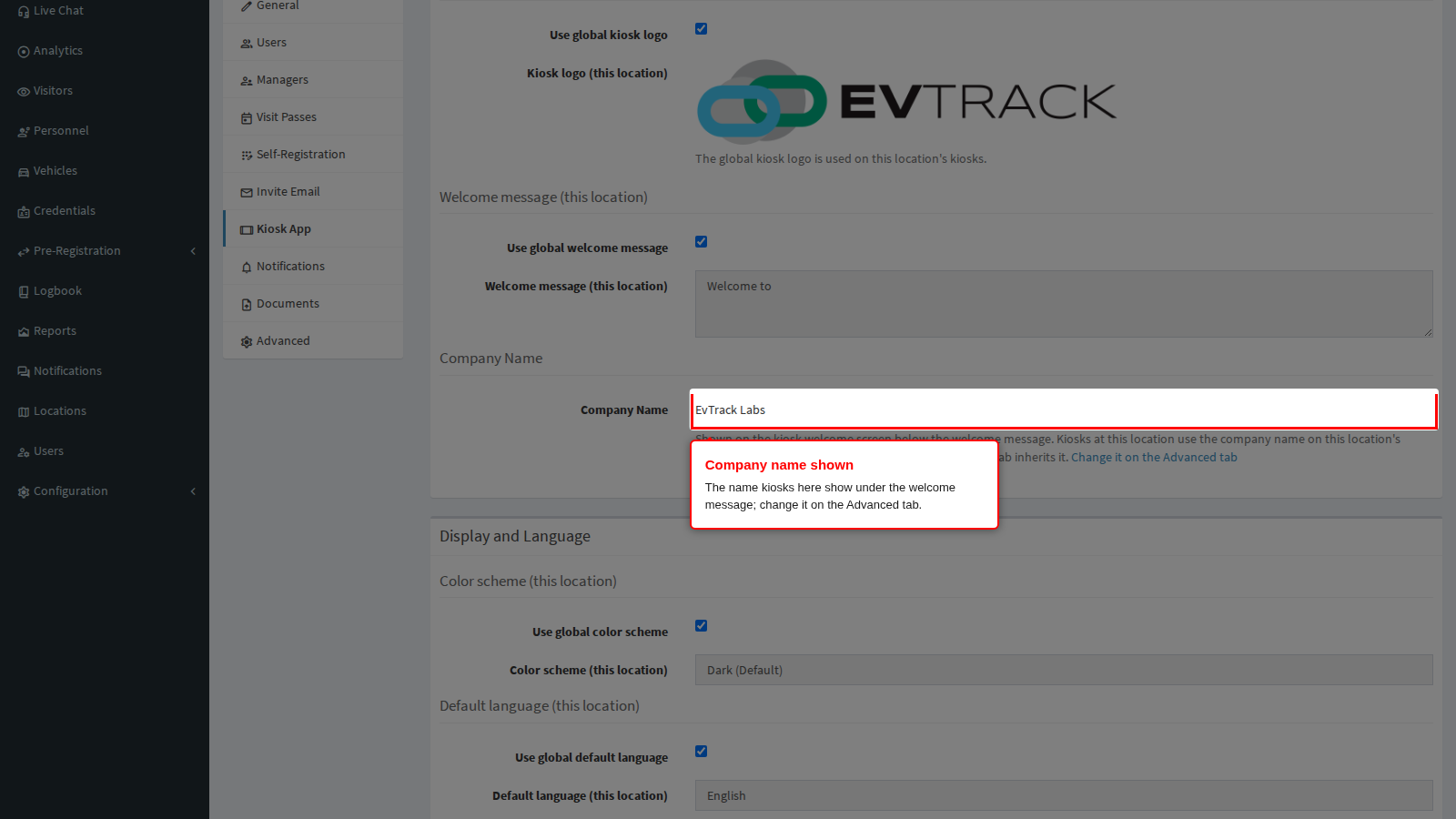
The kiosk uses the Company Name on the location’s Advanced tab when that tab’s company-name Inherited tick is unticked and the name is valid. A name must be 6 to 200 characters on one line to save, and a name containing a character other than letters (any language), digits, spaces and / . , - ‘ ( ) & : ; @ ? ! is silently replaced on the kiosk by the global name. Otherwise it shows the global company name from Settings > System > General, see System Settings. Setting a company name does not need Override Visitor ACL, which has its own Inherited tick. The same company name also appears in emails and SMS about visits at this location.
Save
Click Save at the bottom of the tab. Kiosks at this location pick the change up within five minutes, or at once when the app restarts. Kiosks at other locations are not affected.