These settings decide what the handset captures (documents, faces), whether it prints badges, and how strictly the officer verifies drivers and passengers. They are on the General panel of the Guard App settings (see Officer Login for how to open it).
What the handset captures and prints
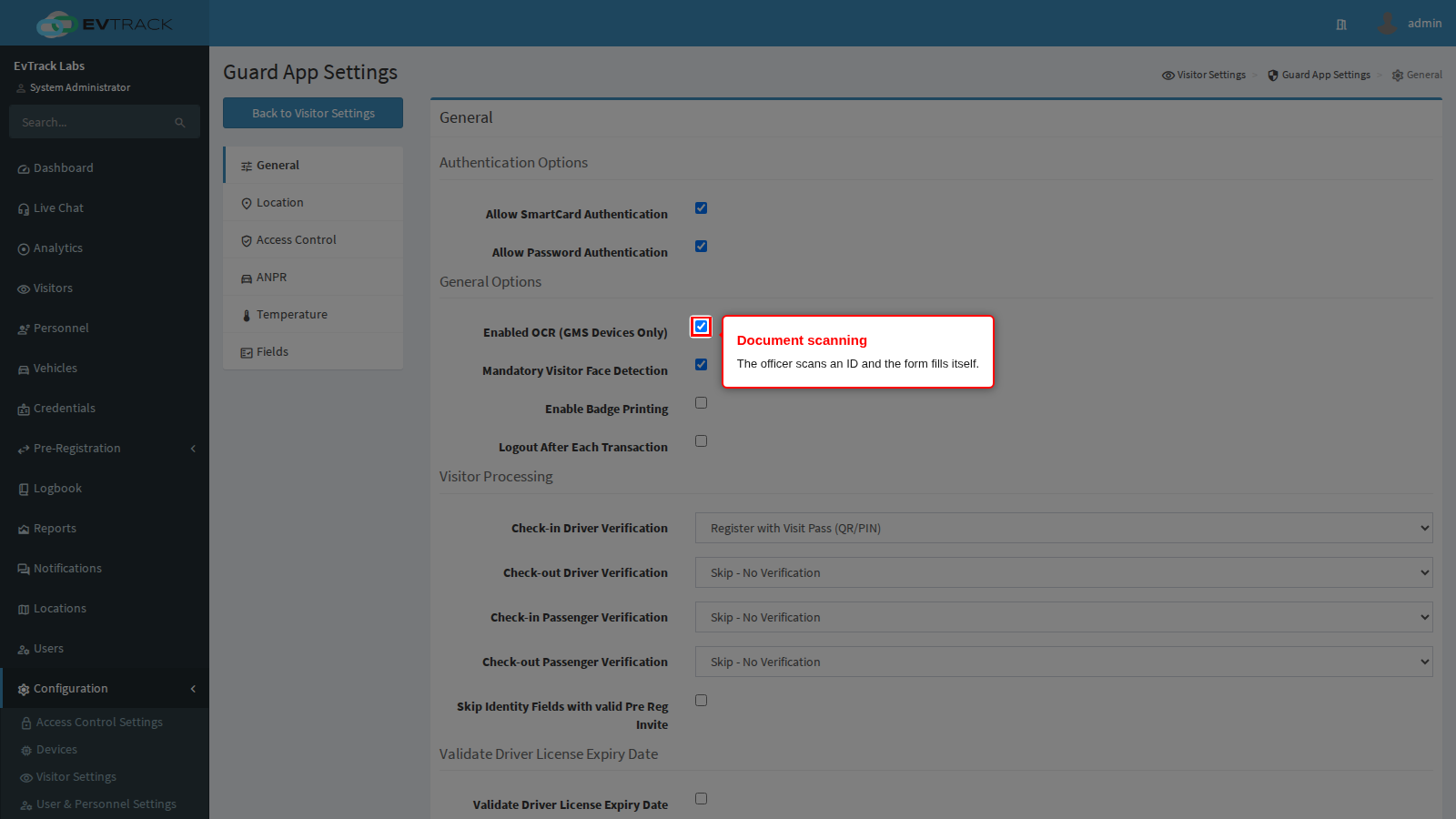
Enabled OCR (GMS Devices Only) puts a document-reading button in the enrolment flow. The officer frames the document in the camera view, presses the shutter, and the details are read off it and dropped into the form instead of being typed. The torch comes on by itself so the document is lit whatever the light at the checkpoint is like. If the document is not one the app recognises, the officer sees a brief Document Not Recognised message and the camera arms again for another try, so a failed read costs a few seconds and never blocks the enrolment.
About the “(GMS Devices Only)” in the label. It describes how older versions worked: the handset used to fetch the text recognition libraries from Google Play Services on first use, which is also what the “waiting for the text recognition model to be downloaded” message on the Guard Troubleshooting page is about. Current builds carry the recognition inside the app, so a handset with no Google services keeps working. If you are rolling out to rugged handsets that ship without Google services, prove it on one handset before you commit to the fleet.
Which documents it reads. The list is deliberately narrow: a passport (the machine-readable strip along the bottom), a United Kingdom driving licence front, and the identity cards of a handful of countries including the South African green identity book and the South African smart identity card front. Anything outside that list is not recognised and the officer types the details. In particular it does not read a South African driving licence card, which matters for the licence expiry check below.
Turning this off does not turn off the camera generally. Plate reading has its own switch on the ANPR panel, and barcode scanning is always available, so an officer still has the scanner even with document reading off.
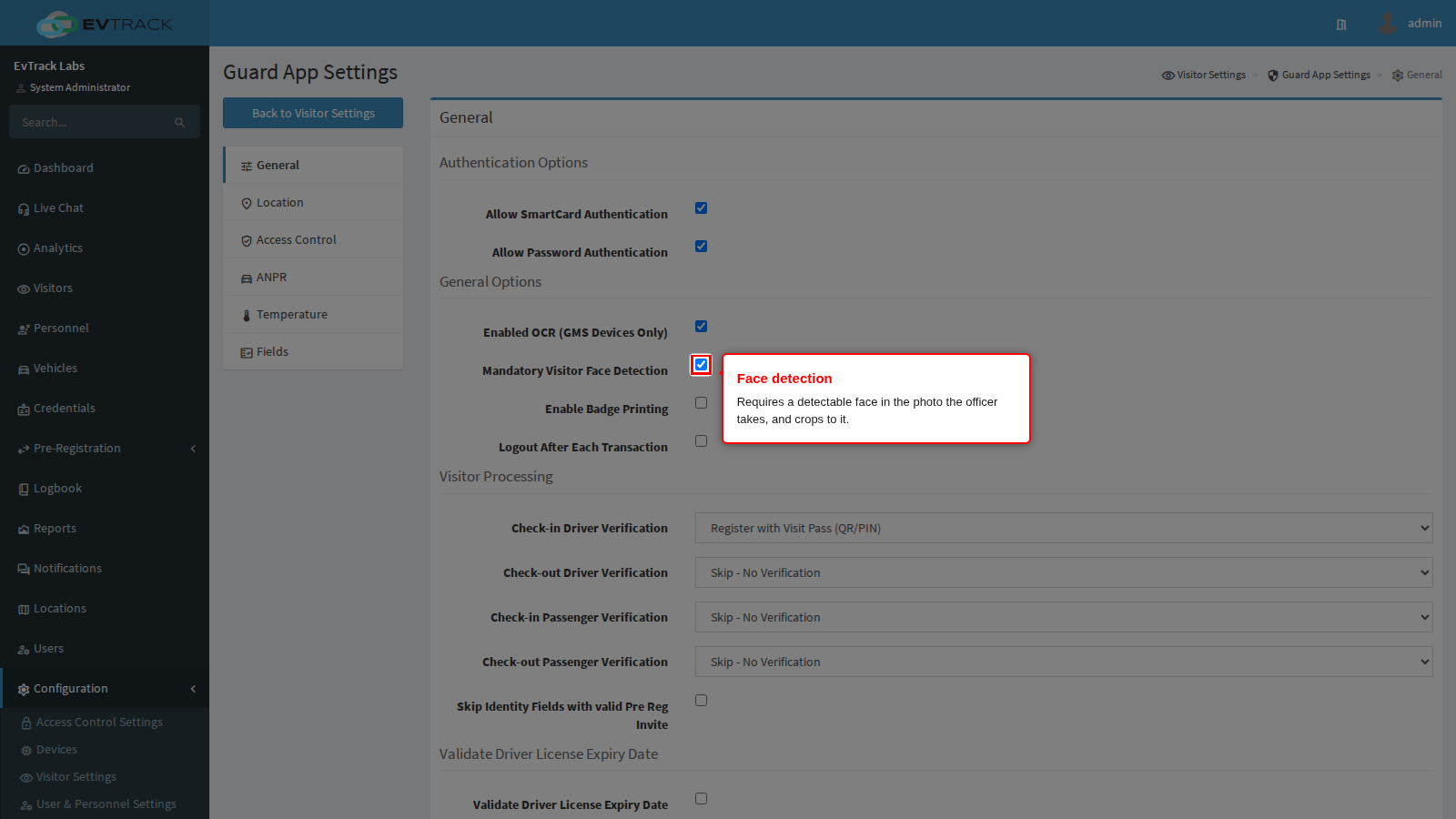
Mandatory Visitor Face Detection makes the app find a face in the photo the officer takes and crop the picture to it, which turns a hurried snapshot into a usable badge photo and gives face readers something they can match later.
The word “mandatory” is the part to plan for. Where a visitor photo is also a required field (see the Fields panel), the officer cannot move on until the app finds a face: no face, no enrolment. That is what stops a visitor record being created with a photo of a jacket or the inside of a vehicle, and it is also what leaves an officer stuck in the dark or against a low sun. A camera fault produces the same No Face Detected message as a genuinely faceless picture, so if one handset shows it constantly, suspect the handset rather than the officer.
Photos captured through your own custom questions are never face-checked, whatever this is set to; the check only applies to the visitor photo.
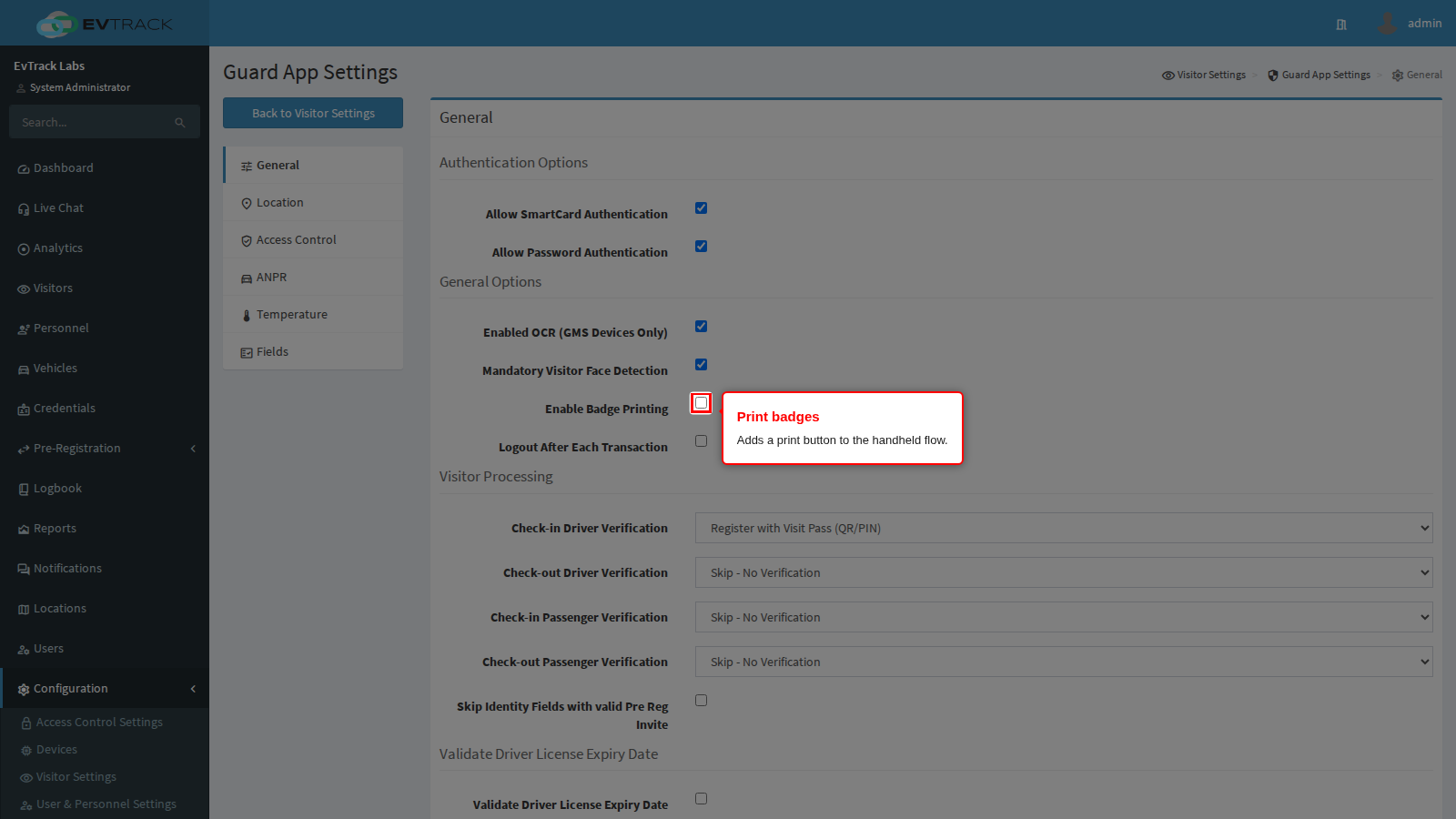
Enable Badge Printing adds a print action to the handheld flow so the officer can hand over a printed badge at the checkpoint. Without it the officer has no print option at all, however the printer is configured. The badge layout is set under Badge Printing.
Verification during visitor processing
These four selectors are the core of the checkpoint. Each says what the officer must verify before the app will let a movement through.
- Skip - No Verification waves the person through with no check. Use it only where a barrier elsewhere already does the work.
- Register with Visit Pass (QR/PIN) takes the pass and then collects the rest of the visitor details.
- Verify Visit Pass (QR/PIN) AND ID Document requires both the pass and an identity document, and runs both through your watchlists.
- Verify Visit Pass (QR/PIN), ID AND Vehicle adds the vehicle, checking the licence disc as well. It is offered for drivers only.
Check-in Driver Verification applies to the driver on the way in, which is where you want the strictest setting.
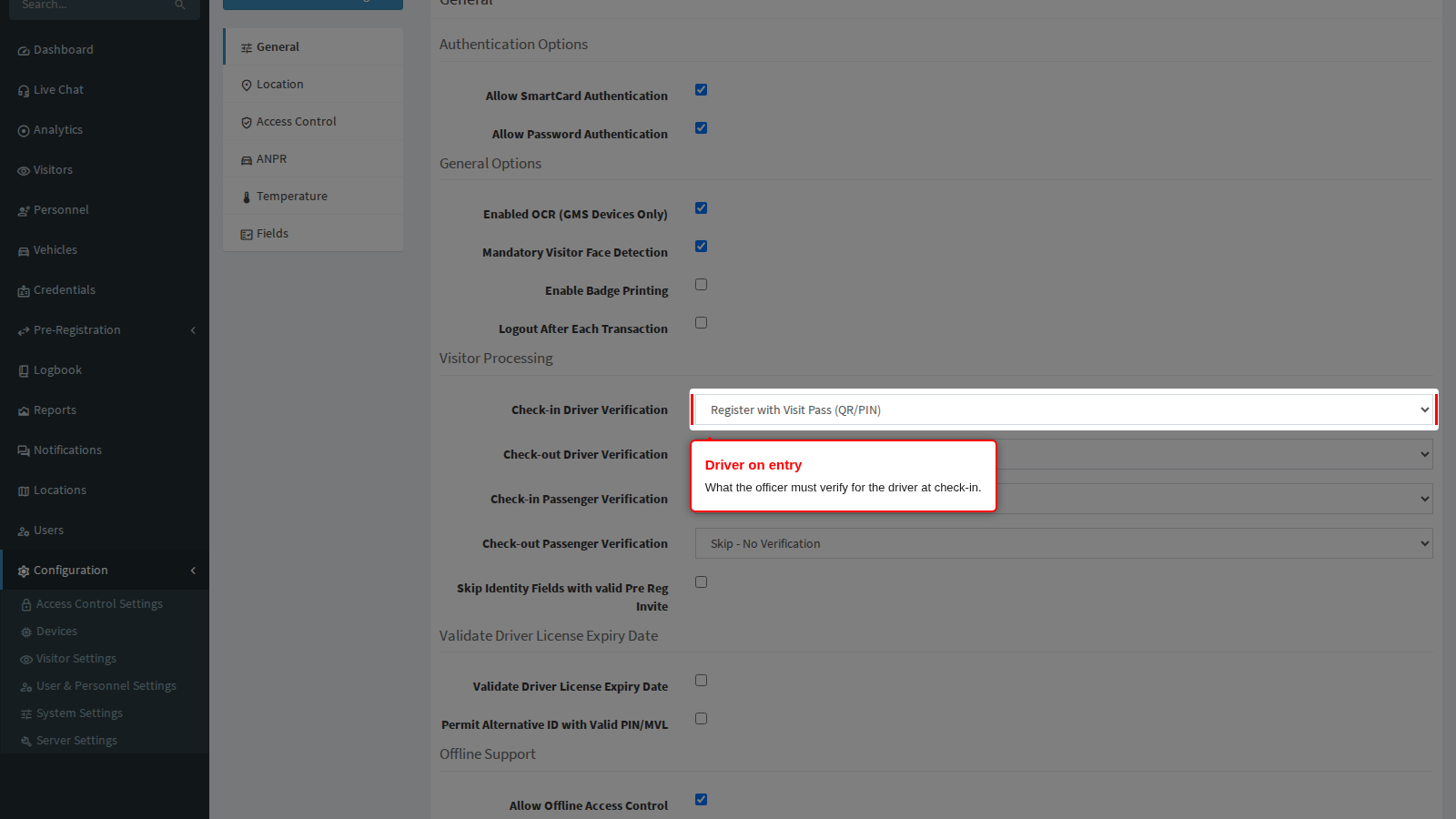
Check-out Driver Verification applies on the way out. Many sites verify hard on entry and lightly on exit, since the person is already inside and the point of the exit scan is to close the visit and take the card back.
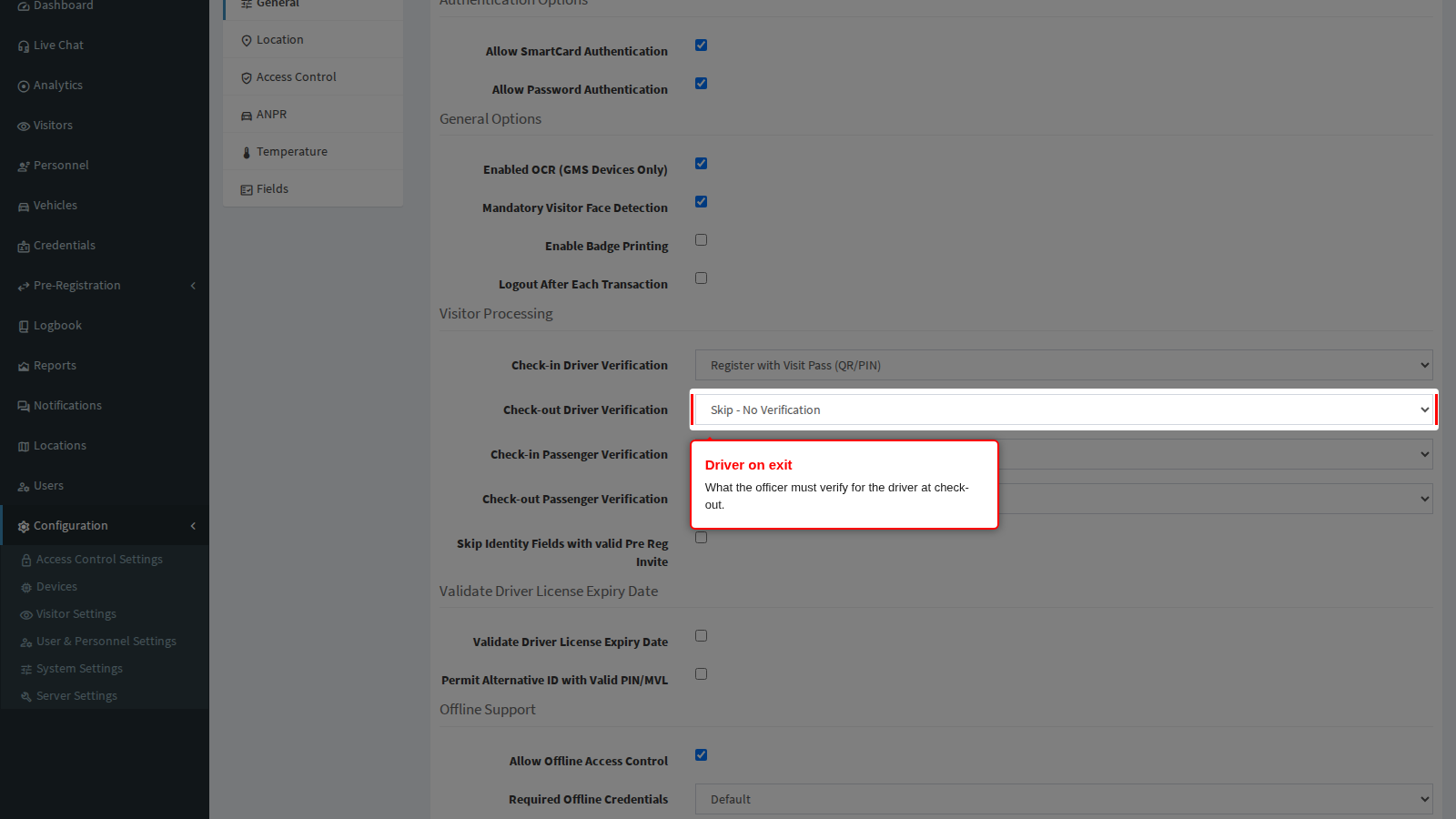
Check-in Passenger Verification covers everybody else in the vehicle. Only two choices are offered: skip them, or require pass and identity document for each. Verifying every passenger is slow, so decide it deliberately.
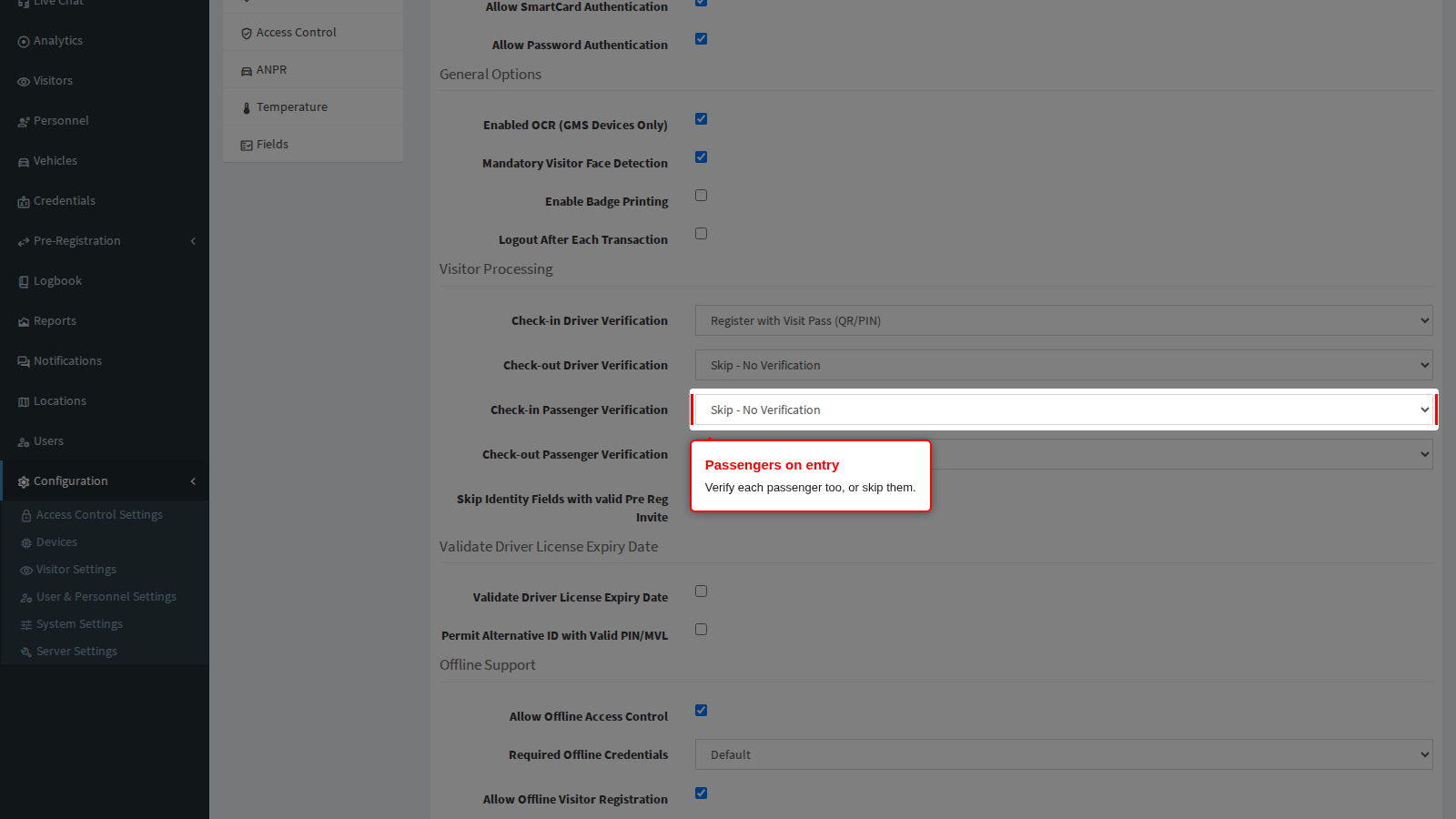
Check-out Passenger Verification is the same choice on the way out.
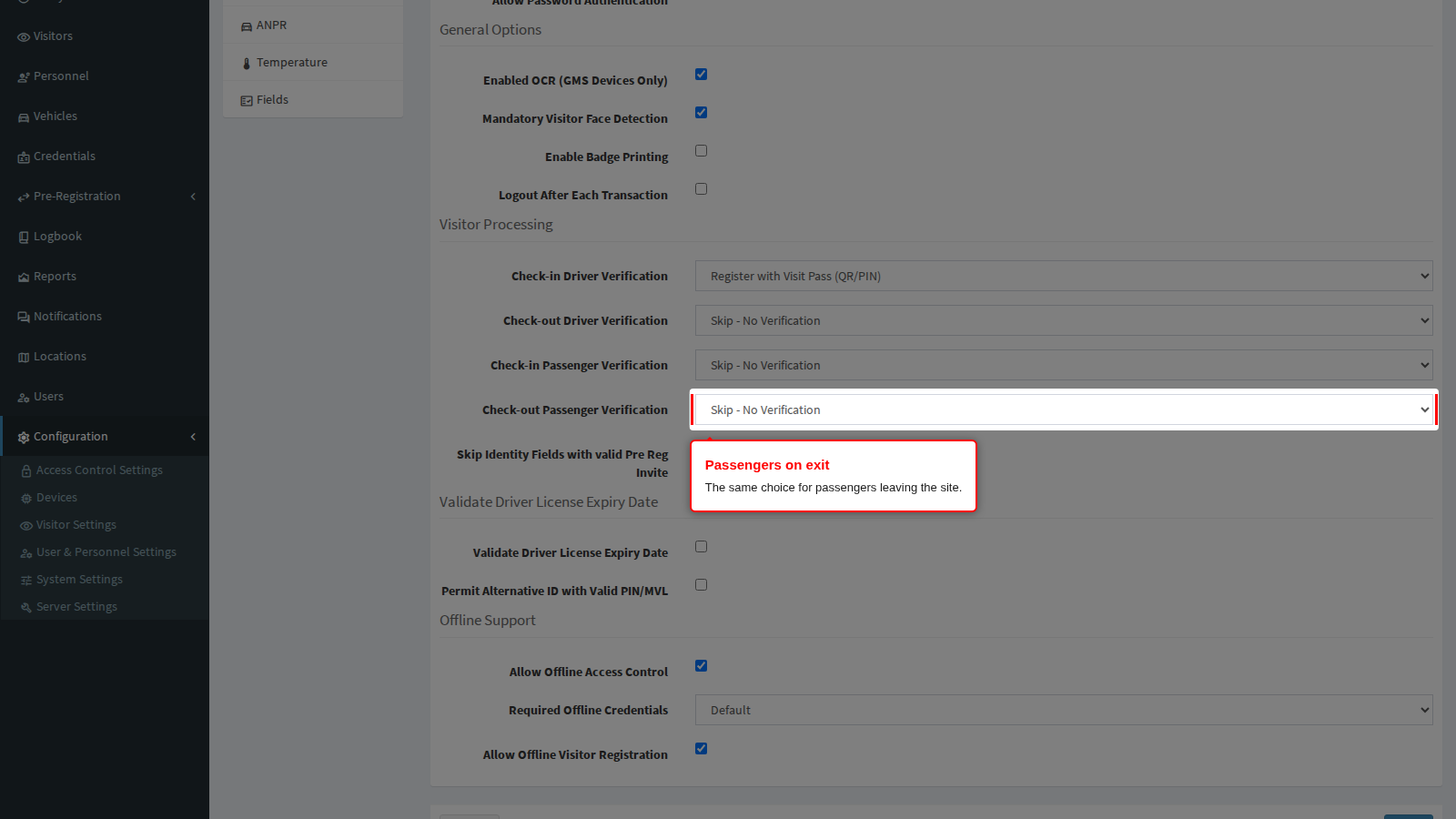
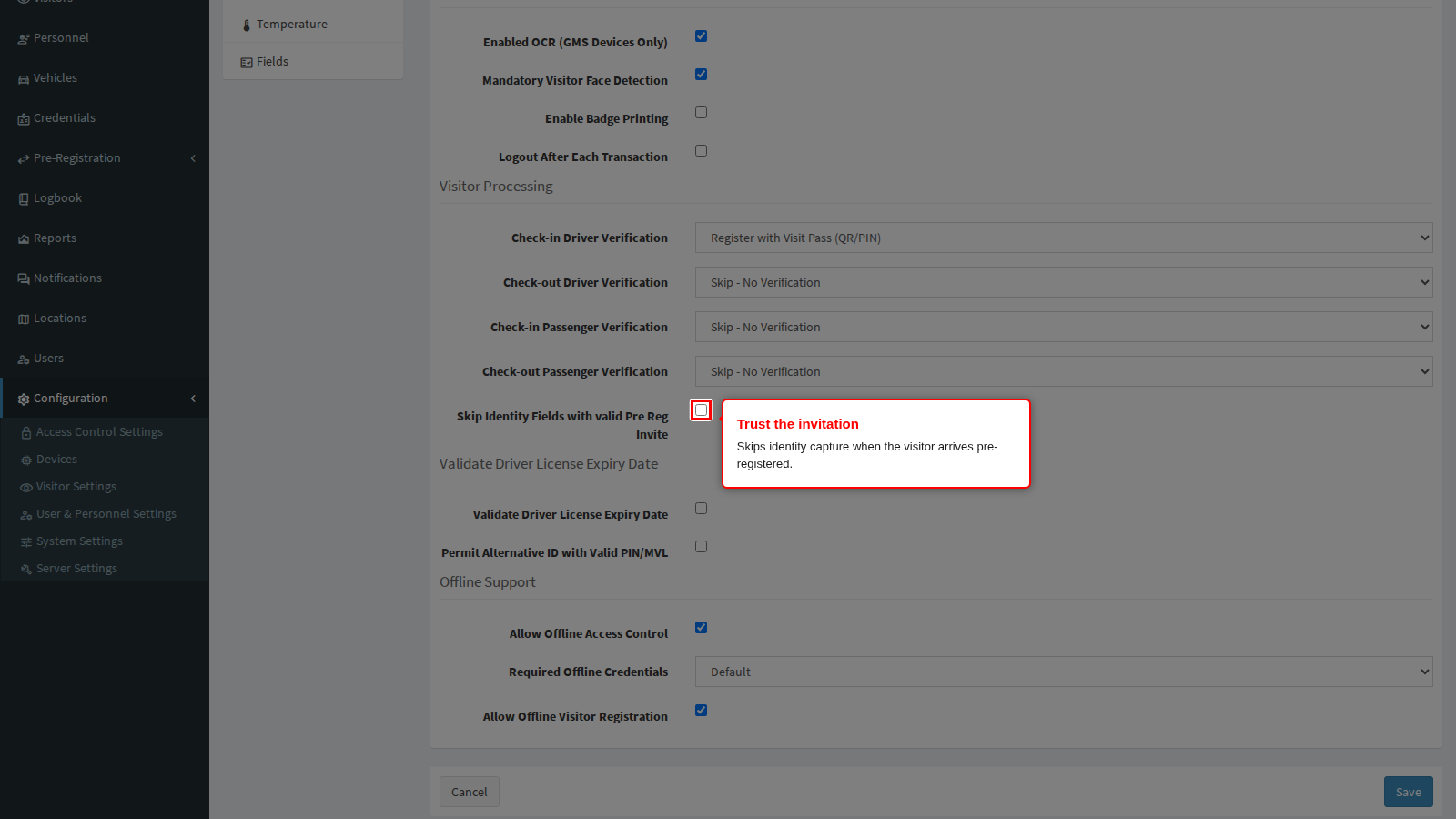
Skip Identity Fields with valid Pre Reg Invite stops the app asking again for details the visitor already supplied when they pre-registered. Turn it on where visitors are invited in advance: the officer confirms the pass and the visitor is through in seconds. Turn it off where the identity must be re-proved in person every time.