Use this page when an officer logs in to the Guard app and the handset is then refused, or logs in but cannot scan.
Symptom
The officer’s user name and password are accepted, but the app then reports that the device is not authorised and goes no further. In the server’s response, and in a support capture, the error reads “Error 412 - Mobile App Device ID Not Authorised”.
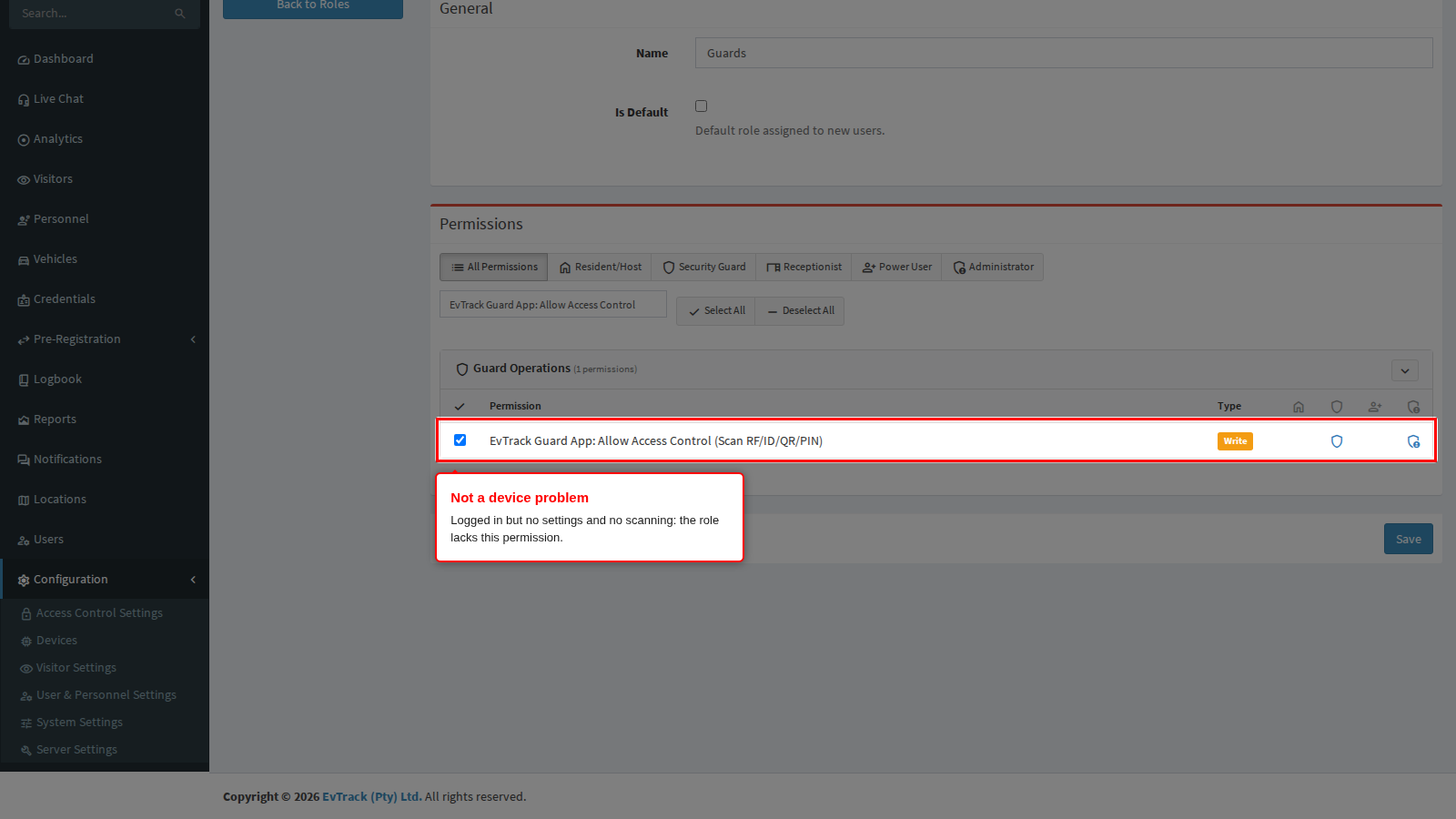
A different symptom with a different cause: the officer logs in, but the app shows no settings and every scan is refused. That is the officer’s role, not the device; see If the officer logs in but cannot scan below.
What it means
After login, the app identifies the handset to the server with its UID. The server answers 412 for four different reasons and gives the same answer for all of them, so that someone probing the server cannot learn which device identifiers exist. That means you have to check each reason in turn.
Why it happens
- The Device Serial Nr/Reported UID on the device record is blank, mistyped, or belongs to a different device record.
- The device record is disabled.
- The system licence is invalid or has expired.
- The device record belongs to another system than the officer’s account. This only happens on a server that hosts more than one system, when the device was created while logged in to the wrong one.
Fix it now
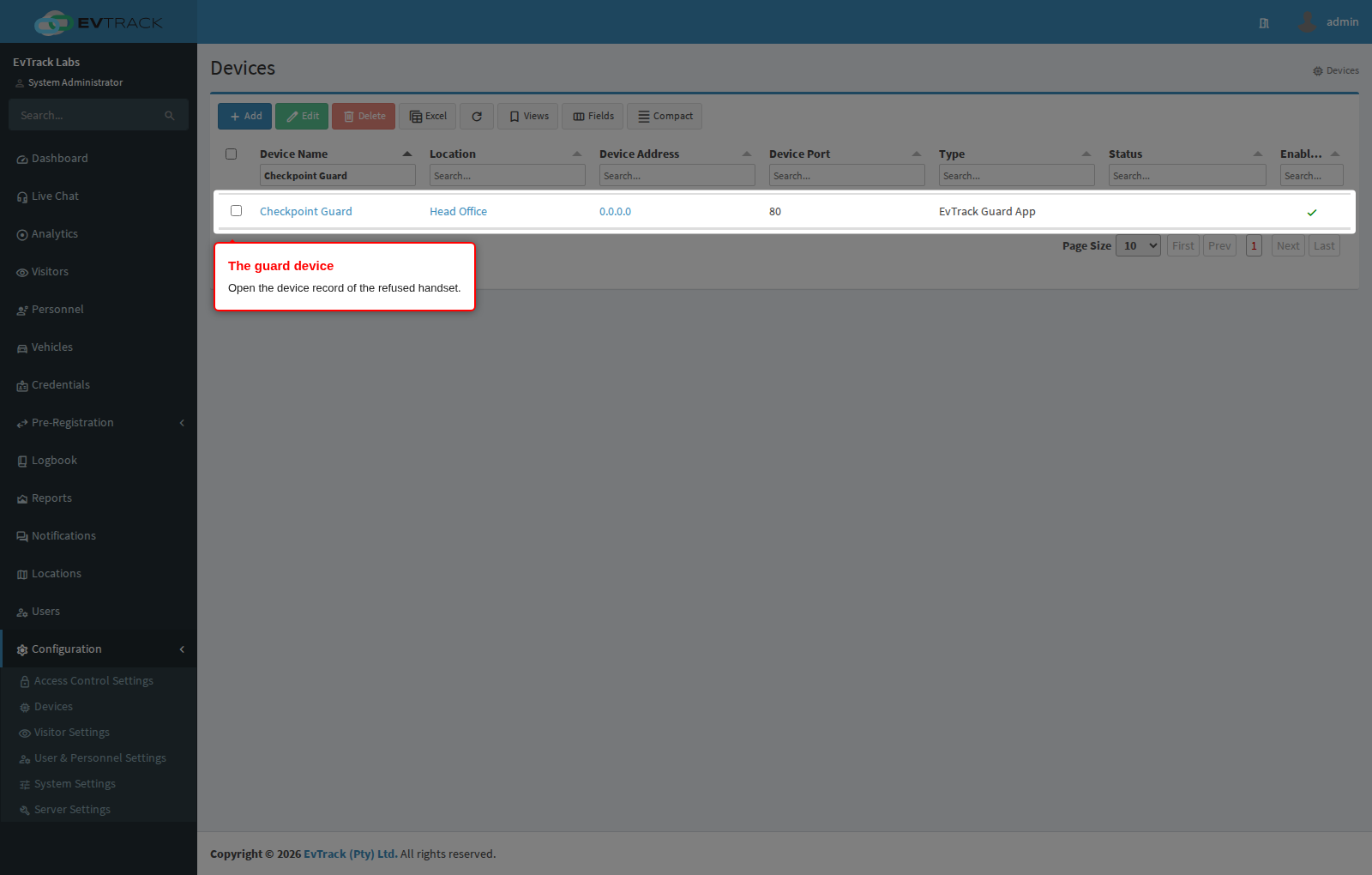
Step 1: Open the guard device
Go to Configuration > Access Control Settings > Devices and open the guard device for the handset.
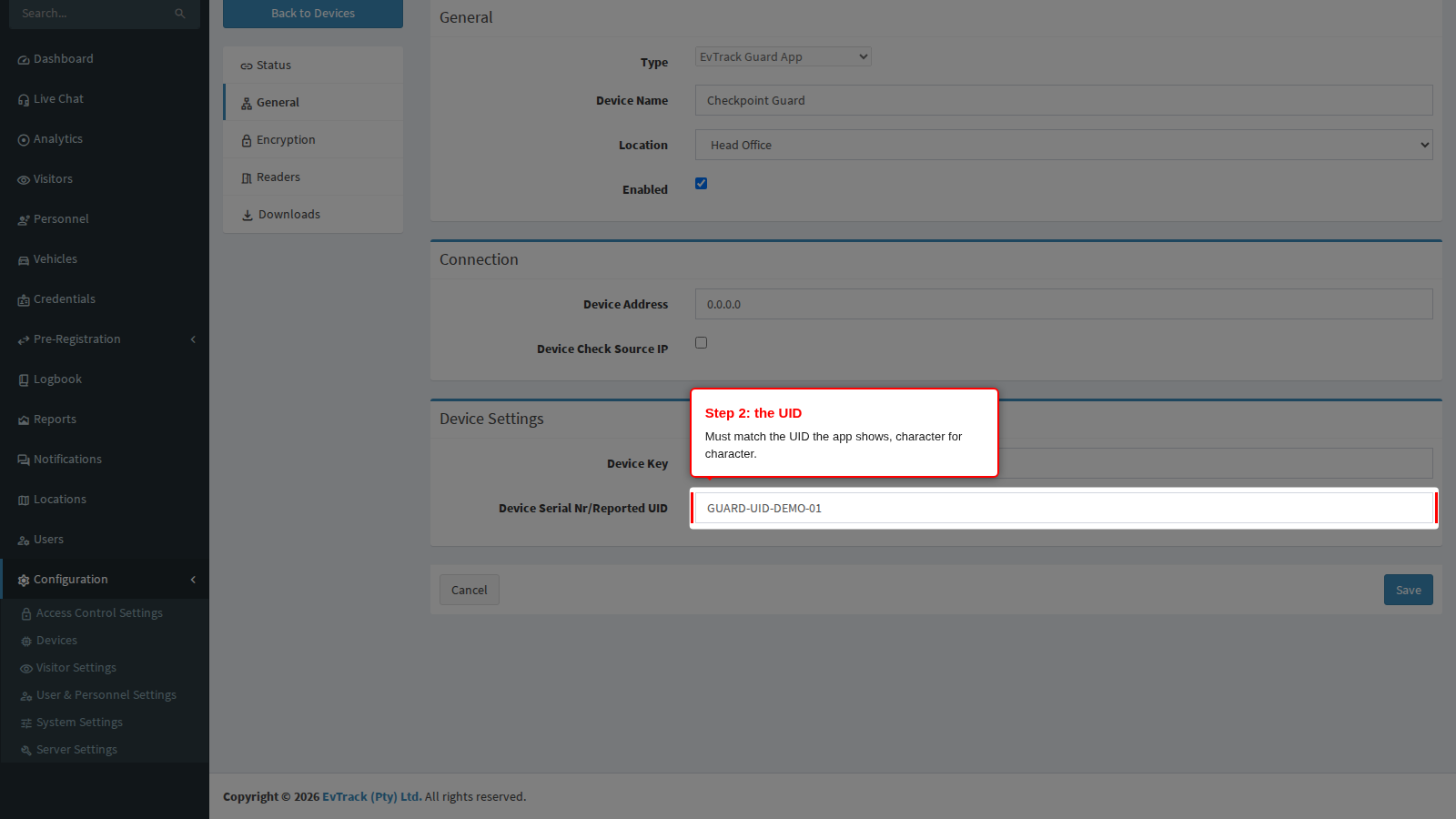
Step 2: Check the UID
On the General panel, compare Device Serial Nr/Reported UID with the UID the app shows, character by character. If it differs or is blank, paste the app’s UID and click Save.
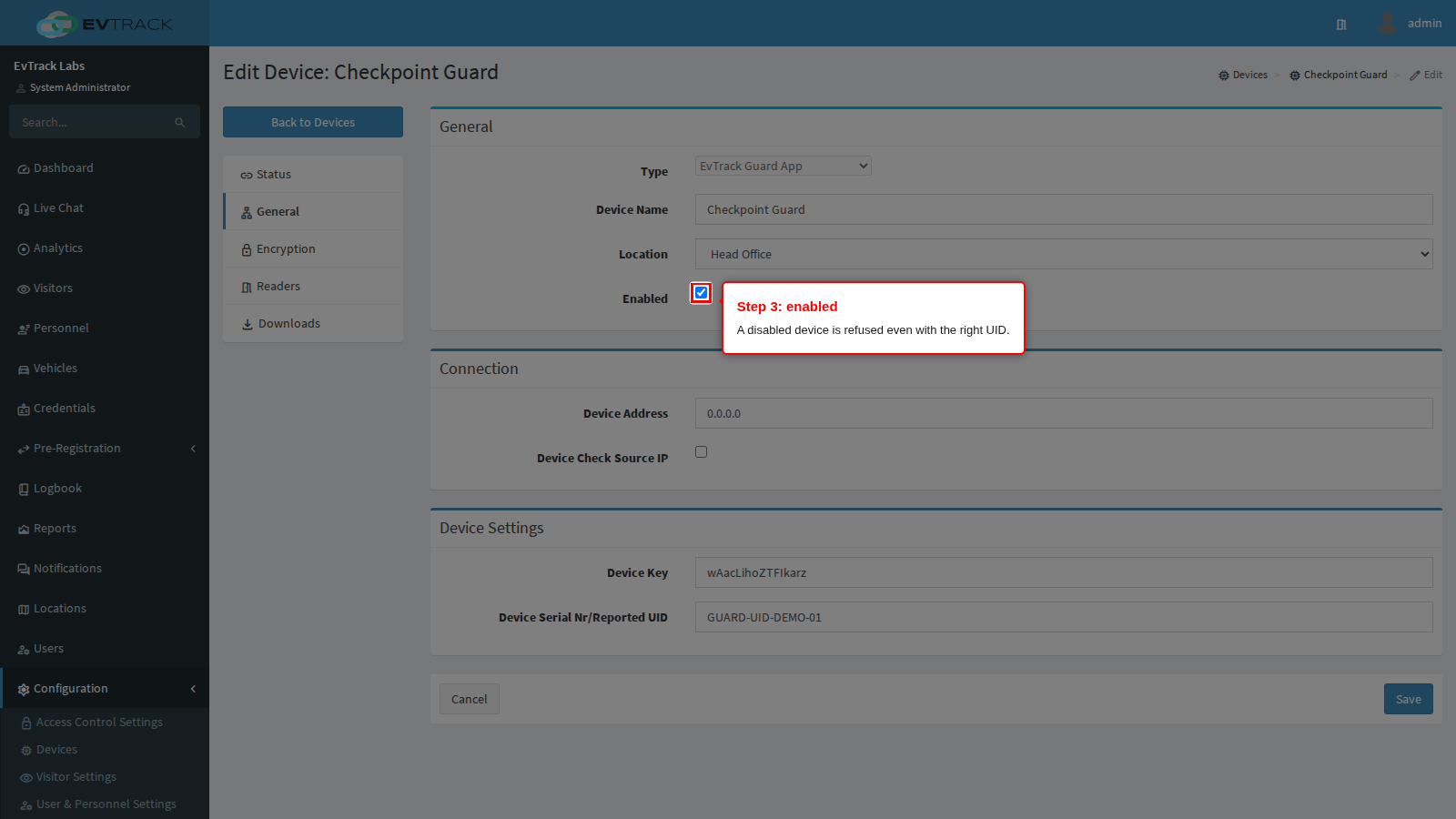
Step 3: Check the device is enabled
On the same panel, Enabled must be ticked. Tick it and click Save if it is not.
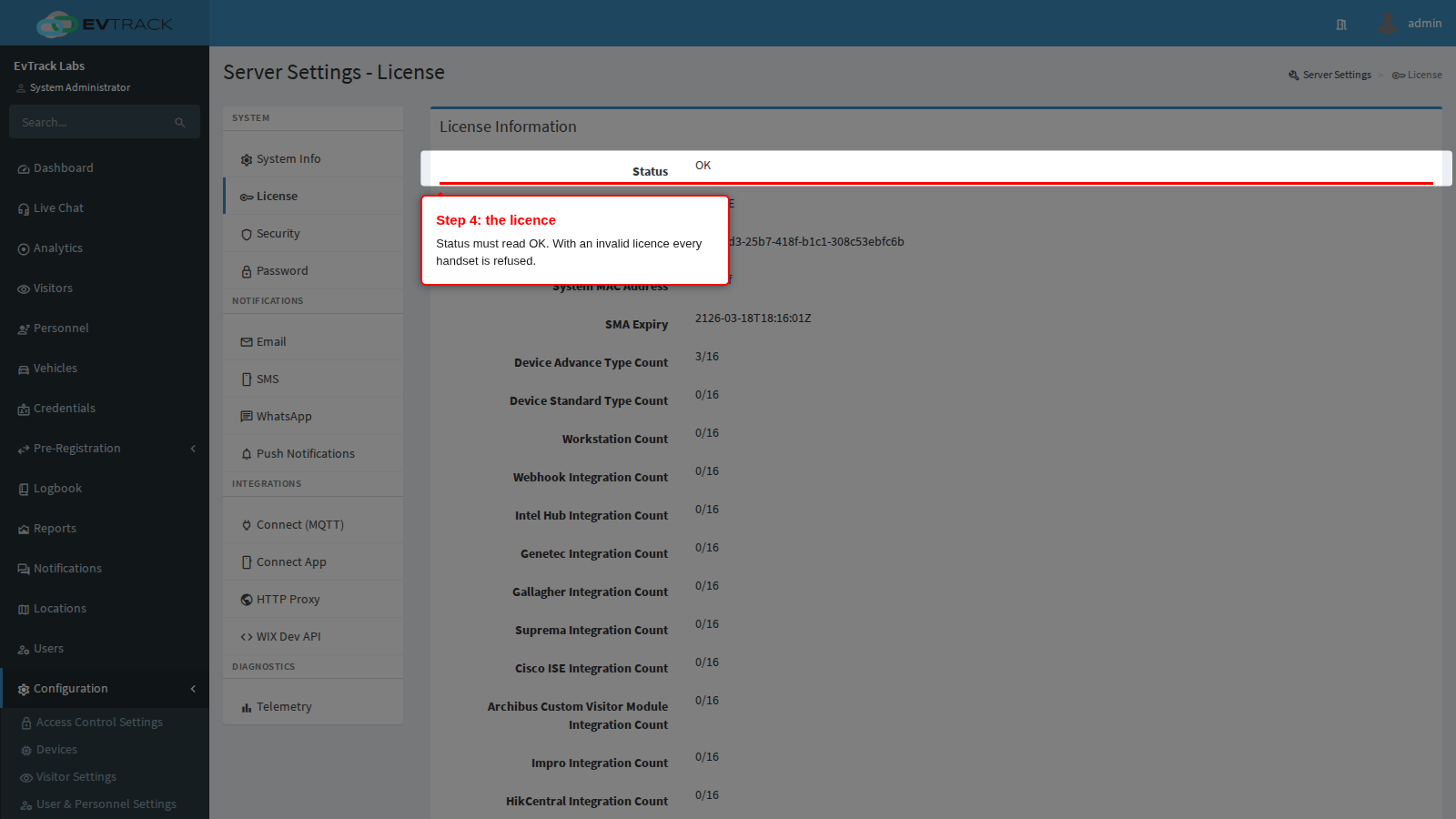
Step 4: Check the licence
Open Configuration > Server Settings > License. Status must read OK. If the licence is invalid or expired, every handset is refused until it is renewed; see Server Settings.
Step 5: On a server with more than one system
Log in to EvTrack with the officer’s account and open Devices. If the guard device is not in the list, it was created in another system. Create it again in the officer’s system with the same UID, and delete the stray record from the other system.
If the officer logs in but cannot scan
Open the officer’s role under Configuration > User & Personnel Settings > Roles and check it has both of these:
- EvTrack Guard App: Allow Access Control (Scan RF/ID/QR/PIN) lets the app load its settings. Without it the app has nothing to scan with.
- Visitor Management: Add is also required to scan: every scan, entry, exit and enrolment the handset sends is checked against it. Without it the app loads its settings but every scan is refused.
Have the officer log out of the app and log in again after any change.
Make it stick
- Copy the UID from the handset, never retype it.
- When a handset is replaced, update the existing device record with the new handset’s UID instead of adding a second record, so the device keeps its location and history.
- Give officers the ready-made Guards role, or a role built from it, rather than assembling permissions by hand.
If it comes back
Collect the officer’s user name, the device name and the time of the refusal, and send them to support. The server does not record which of the four reasons applied in its normal logs, so the checks above are the quickest way to find it.
Setting up a handset from scratch is covered in Register the Device and Install the App.